



☑️ Get the S23 Ultra on Amazon
Please note that some of the links in my video descriptions are affiliate links where I earn from qualifying purchases. As an Amazon Associate I earn from qualifying purchases.
Intro

hey it’s Adrian and today I want to share six really useful and handy Bixby routines to make the most out of your Samsung phone if you’re not a fan of the Bixby Voice Assistant not a problem you don’t have to use it it’s completely separate from that and once you have this implemented I guarantee it’s going to make your phone experience that much
Battery Overcharge Protection
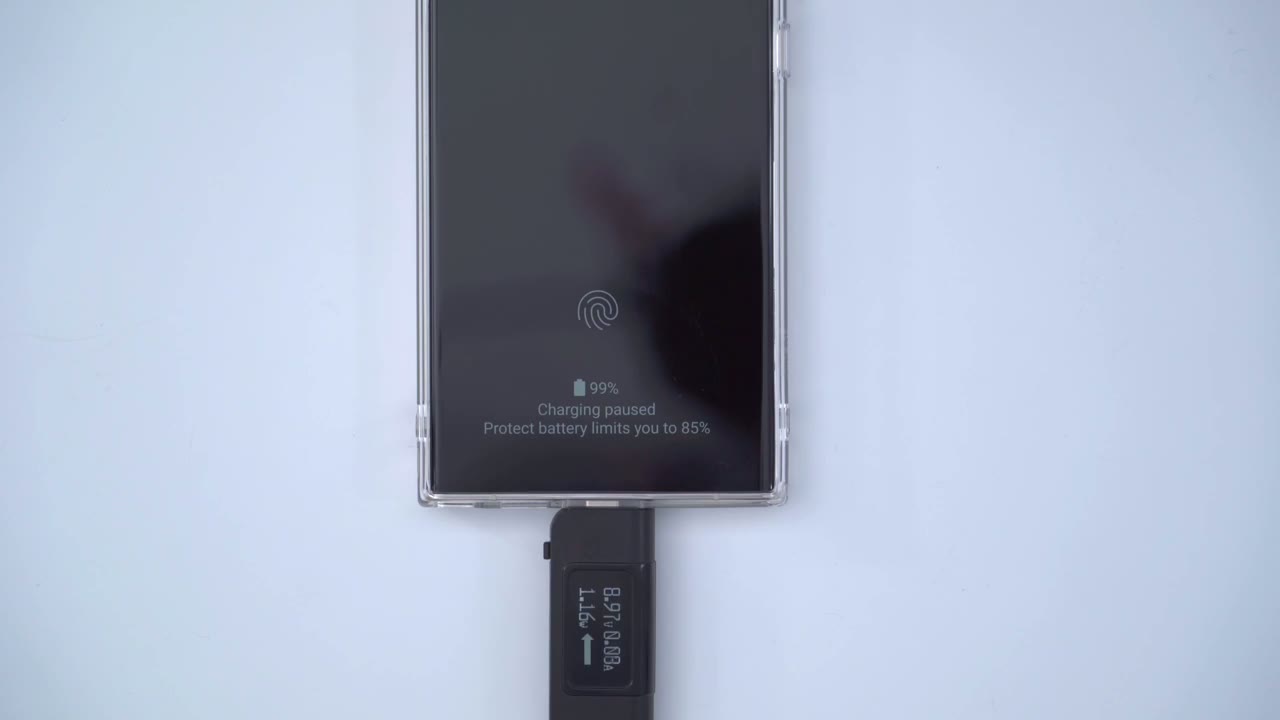
better the first routine you should set up is one to protect your phone’s battery if you’ve never used routines before it’s very easy to do we’re going to pull down from the top click on the gear icon to go into settings then we’re going to click the magnifying glass and we’re going to type in the word routines so let’s go r o u and you can see that there’s an option here for routines go ahead and click that now you can see on my screen I have preset routines that I’ve already made but let’s go ahead and create the first routine that I spoke about which is the protect battery life so we’re going to click plus up here and we’re going to create a condition so the condition is going to be if and we’re gonna go down to the battery level so if the battery level is equal to or greater than 99 so let’s do 99 done then we want the battery to be protected now we’re going to protect battery and turn that on and let’s click done save and you can give it a name so you could call it battery level or battery protection I’m going to call it battery level I’ll just pick a color and what this is going to do is whenever the battery life or battery level goes to 99 the phone will no longer receive electricity to charge a battery which will prevent overcharging now this phone does have this feature natively in here but it stops at 85 percent if you want it higher than 85 go ahead and set up this routine you can see that the charging is now paused at 99 because we’ve set up that routine and if you take a look at the voltage or wattage coming into the phone everything’s reading at zero so you can restate that your battery is not going to be overcharged have you ever
Forgot To Charge?
forgotten to charge your phone before you go to bed at night well no problem because with this routine you can make sure you don’t wake up to a dead phone or almost dead phone and this is how you do that this routine called forgot to charge I’m going to show you the settings and you can go ahead and create your own so we’re going to say that if that time period is between 12 am to 8 am so for example I go to bed between this time so at midnight to 8 AM let’s say I’m sleeping and you can pick which days it’s going to apply to and you could even turn off during public holidays but let’s just leave it at that so every night between midnight to 8 A.M if the charging status is not charging means you did not remember to plug your phone in or put it on a wireless charger then we’re going to turn on power saving power saving is going to be on we’re going to reduce the screen brightness to five percent we’re going to turn off Bluetooth turn off Wi-Fi and turn off location because we’re going to be sleeping during this time we can turn these services off to preserve battery life so in the morning our phone is not going to be completely dead if you
Driving Routine
connect your phone to your car while you’re driving you want a really hands-free experience this is the routine that I would recommend now if you’re driving again this is my car so I have a Sonata and what I’m going to do is if Bluetooth device and then you could click down here and pick different devices so you can just pick whatever your car name is once you have it paired so if connected by Bluetooth to my car which is a Sonata then turn off Wi-Fi because I’m in my car I don’t have Wi-Fi turn on mobile data because I do need it while I’m out and if you have you know passengers in the vehicle you can actually turn on your mobile hotspot I like to do that so people can connect to my data again if you have a lot of data do that and you may want your screen brightness to be really high because if you’re driving and it’s sunny the screen might be a bit dull so I like to have my brightness at 100 and to keep things pretty much hands-free I can have did the phone read my messages out loud and if I click in here I can pick the apps where I want to receive notifications right out to me of course you can add other options if you like so you can see here that I can go to edit and I can add more conditions or remove conditions as I like if you’re finding these routines helpful please consider liking and subscribing it really helps me out but let’s get into the next one alright so it’s a really
Winding Down
long day of work or a school and you just want to wind down and relax in bed here’s a routine that won’t kill your eyes when you’re winding down the screen on these phones get really bright so say I’m in bed by 10 pm and I’m going to bed at midnight so for two hours when I’m in bed laying down on my side kind of lazing around I want the screen brightness to be set the 10 and of course you can adjust that but let’s say I’m going to leave it at 10 because it’s way too bright at night I want to turn on the eye Comfort shield and you know when you’re in bed and you’re kind of twisting and turning side to side the auto rotate May kick in and that can be kind of annoying so you can force the screen orientation to be in portrait mode and of course I’ll probably be at home so I don’t want mobile data on if I’m already at home so you could go ahead and do that and again like with any other routine you can go ahead into edit remove any of these conditions or add other conditions if
WiFi Unlock
you’re mostly at home or if you work from home you may not want your phone locked while you’re at home so here’s a routine for that if you want to keep your phone unlocked while you’re at home you can set it up by Wi-Fi so we’re going to go into this wi-fi home unlock and you can see my if condition is if I’m connected to a Wi-Fi network called this name and of course I could add other Wi-Fi networks say I go from different houses then keep my phone unlocked and keep my mobile data turned off because if I’m on Wi-Fi already I don’t need mobile data unless I’m using fast Network switching and you could see that if I go ahead and close my phone and then I just double tap it’s a simple swipe to unlock it I don’t need to put in a pin or anything like that just make sure you don’t have any nosy roommates or family members with this one this
App Specific Sound
last routine is super handy tap so imagine you’re the dj for the party and you’re outputting music to a Bluetooth speaker but you still want to go on your Instagram Tick Tock whatever but you don’t want that media playing on those apps to come through the speaker here’s how you handle that to specify sound output from different devices or different apps what we’re going to do is we’re going to go into this bluetooth app sound and of course I just called it that you could call it whatever you want so my if condition is going to be if Bluetooth device is connected and this speaker is called a clever bright so if connected to this clever bright what we’re going to do is we’re gonna then separate the app sound so apps like Instagram twitch are going to be through the phone everything else is going to be through Bluetooth so I’m just going to go ahead and edit this to remove it and then I’m just going to show you how that works so then and then we’re gonna go into sounds and vibration and we’re going to go into separate app sound and then for the phone these are the apps that we want so I want Instagram I want Tick Tock and I want twitch to all output sound from the phone while every other Apple output from the speaker to see this in action I’m going to play this YouTube video and the Sun is going to Output from the speaker hey it’s Adrian and let’s talk about the brand new s23 Ultra and if it’s worth the update from the s22 ultra which is already a pretty color 200.
so you can see that I was able to Output YouTube to the speaker and while I was in his Instagram it was outputting the audio to the phone I hope these routines were helpful and if there’s any routines that you guys have please share them down in the comments down below I’m sure others would love to read them and try them as well there’s really endless combinations of these routines and it makes these Samsung phones that much more versatile thanks for watching and if you found this video helpful please consider liking and subscribing and I’ll see in the next one soon
☑️ Get the S23 Ultra on Amazon
Please note that some of the links in my video descriptions are affiliate links where I earn from qualifying purchases. As an Amazon Associate I earn from qualifying purchases.