


Buy Gutter Mount Used In Video
Buy Screwdriver Set Used In Video
Buy 128GB microSD Card on Amazon
Please note that some of the links in my video descriptions are affiliate links where I earn from qualifying purchases. As an Amazon Associate I earn from qualifying purchases.
Intro
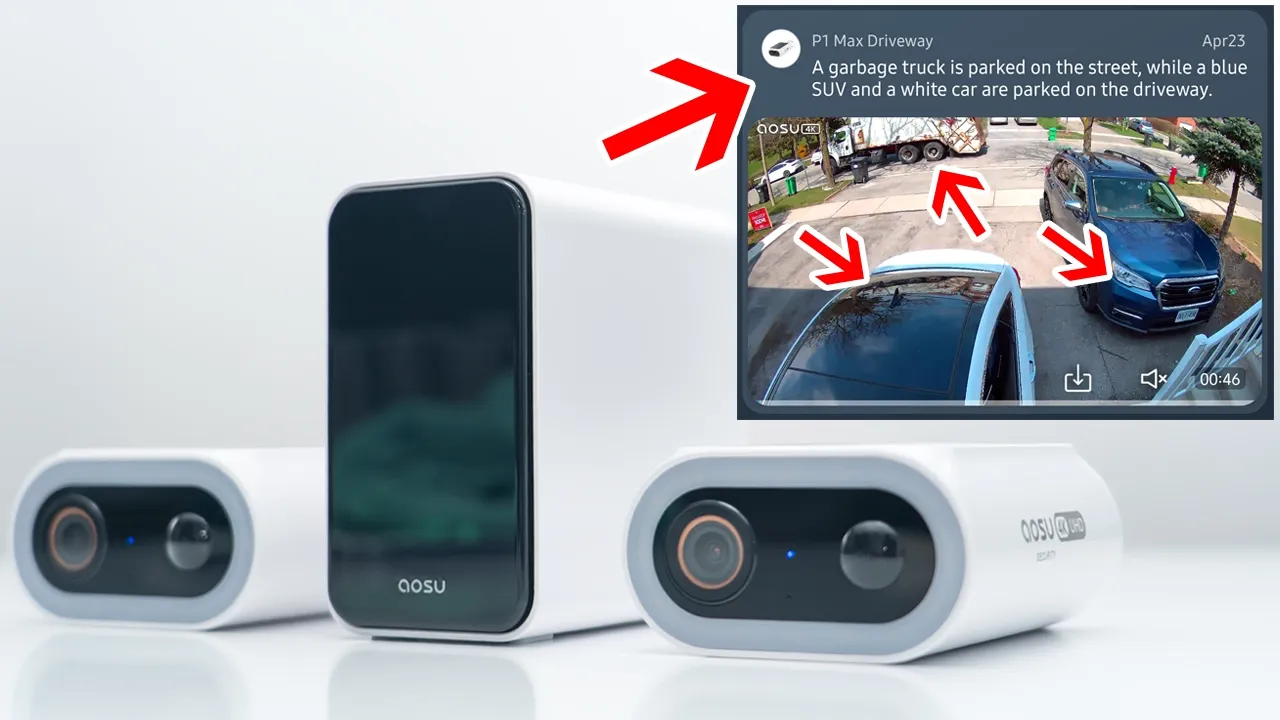
Hey, it’s Adrian and after reviewing a bunch of different security systems, I found the best one you can get right now. That is the AU Sorcam P1 Max home cortex system. And that home cortex system is what makes this system so unique because this actually has AI functionality that actually breaks down and understands different type of videos and motion detected events. So, you can decide if you actually need to look at that notification or if it’s something that you could just ignore and get on with your day. You can search for specific things like someone wearing glasses, a red car, a delivery person using their true sight technology, and smart search feature. It also generates a security report.
And when you pair that with the detailed 4K video, 130° wide field of view, quick app alerts, and up to eight cameras, you’ll know everything going on around your home in exact detail. This is hands down one of the best camera systems that I’ve used so far, and it’s most advanced offering. So, let me show you exactly how well this can enhance your home security. And a big thanks to Alexu for sending this
Package
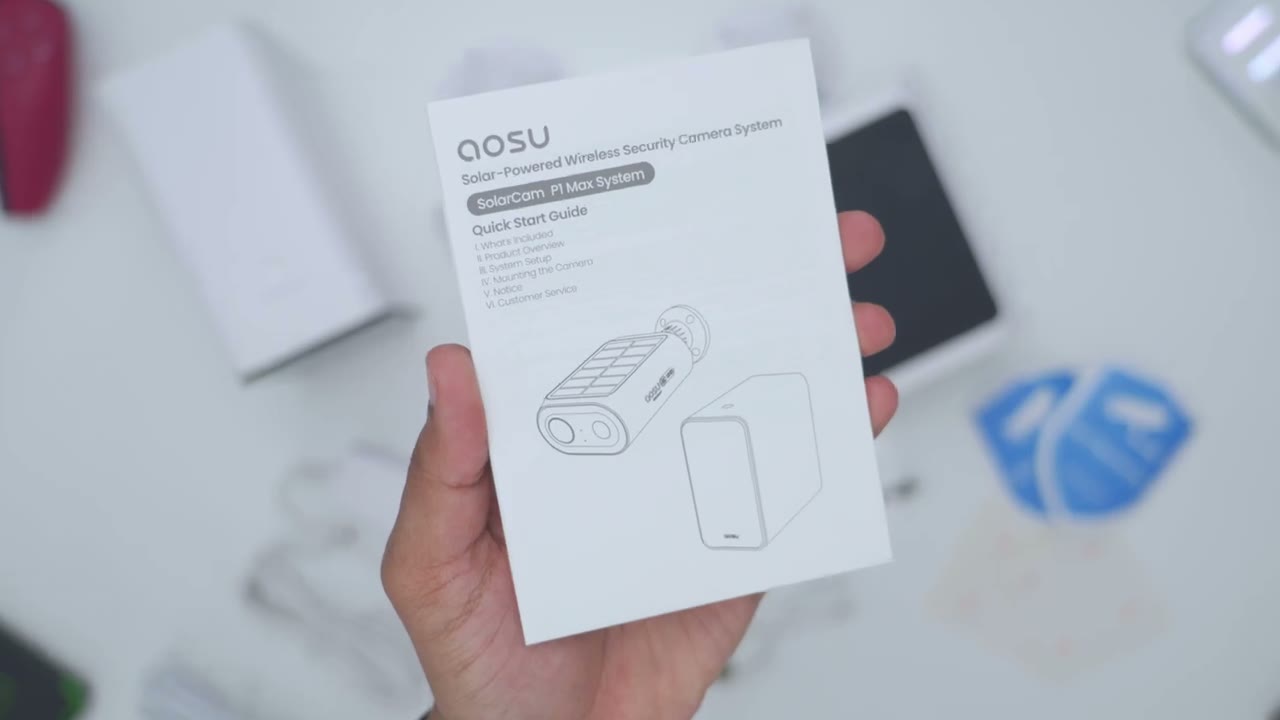
out for review. So, we have the brand new Home Cortex system right here. Two of the P1 Max solar cameras, security stickers, positioning stickers, mounting screws, there’s two type A to type-C cables, a power adapter for the home cortex unit, a RJ45 or Ethernet cable to hardwire the serial modem, and a manual.
Design
So on the right and left side we can see it says AU security 4K UHD and on the very top we have this huge solar panel and this is going to give us efficient solar charging throughout the year. Now on the very front we have that beautiful 4K lens that’s going to give us sharp footage. We also have various motion sensors and an LED status light as well. And we also have this spotlight ring going all the way around here. On the very bottom we have a speaker grill to use for two-way talk and the alarm siren. And we have this weather sealed area and that’s because this camera has an IP65 rating. Now if I remove the first uh weather sealed area here, it gives access to the USB type-C port.
And if I remove the entire portion here, I can see we have the power button, the USB type-C port, and the reset button as well. Now, one thing to note is that on other Solar Cam P1 Max cameras, there would be a micro SD card slot right here. But on this model that comes with the Home Cortex system, it doesn’t have the micro SD card slot because we will be relying on the Home Cortex system for all of our local storage. The rear of the camera body has the mounting stem or mounting portion. I’m just going to remove it right here to show you what installation looks like. It’s very straightforward with this camera system. So, that’s the mounting thread right there. And all you’re going to do is you’re going to unscrew this middle portion here. Just do that till it becomes separate.
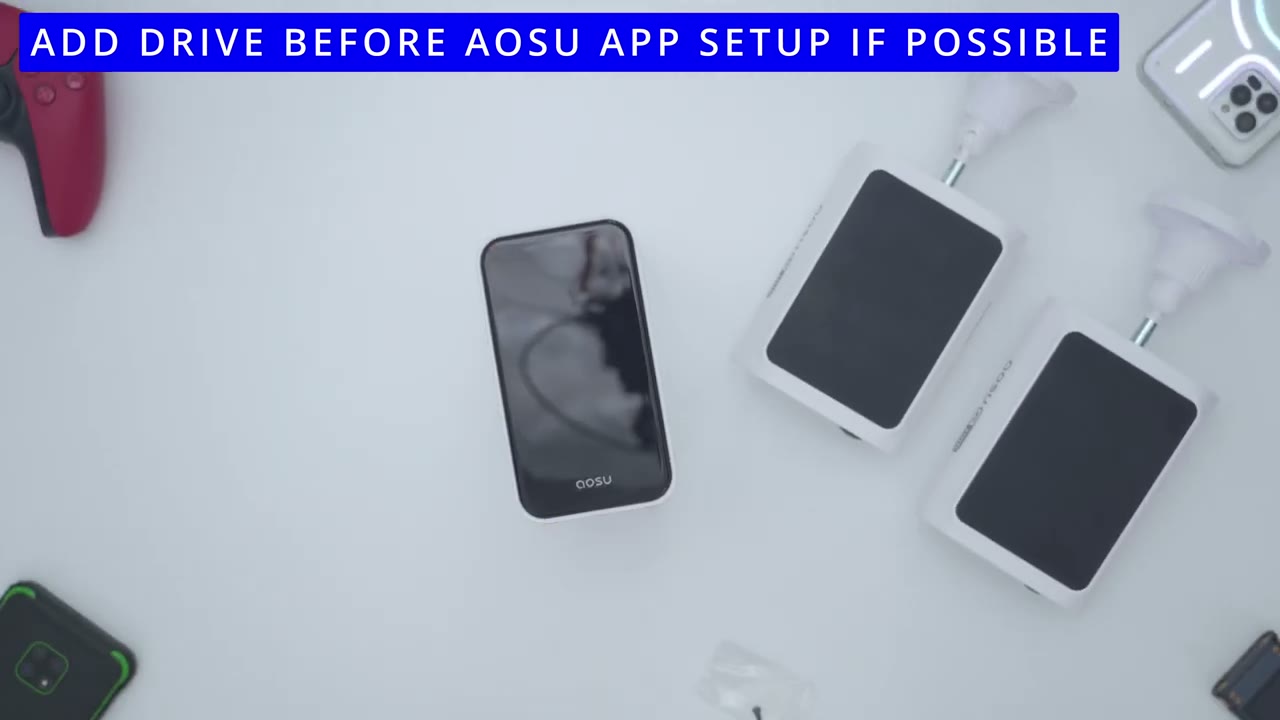
And you could see just doing a top- down view, we have four screw holes here. So, you’re just going to drill this into a wall or whatever surface. Screw this right back in. And once you screw it in, notice that we do have this articulating ball joint here. So, you can just go ahead set your preferred angulation. Rotate this in. So, it’s, you know, nice and stiff in there. It’s not going to go anywhere. And then finally, thread in the rear of the camera body and you’re done. And here we have the brand new and very impressive Home Cortex base or unit. So on the very top of it, it says alarm, off, or sync. And this is a tactile button that you can press. So this is actually the top. And this is the front view. I’ll just remove that protective cover right there.
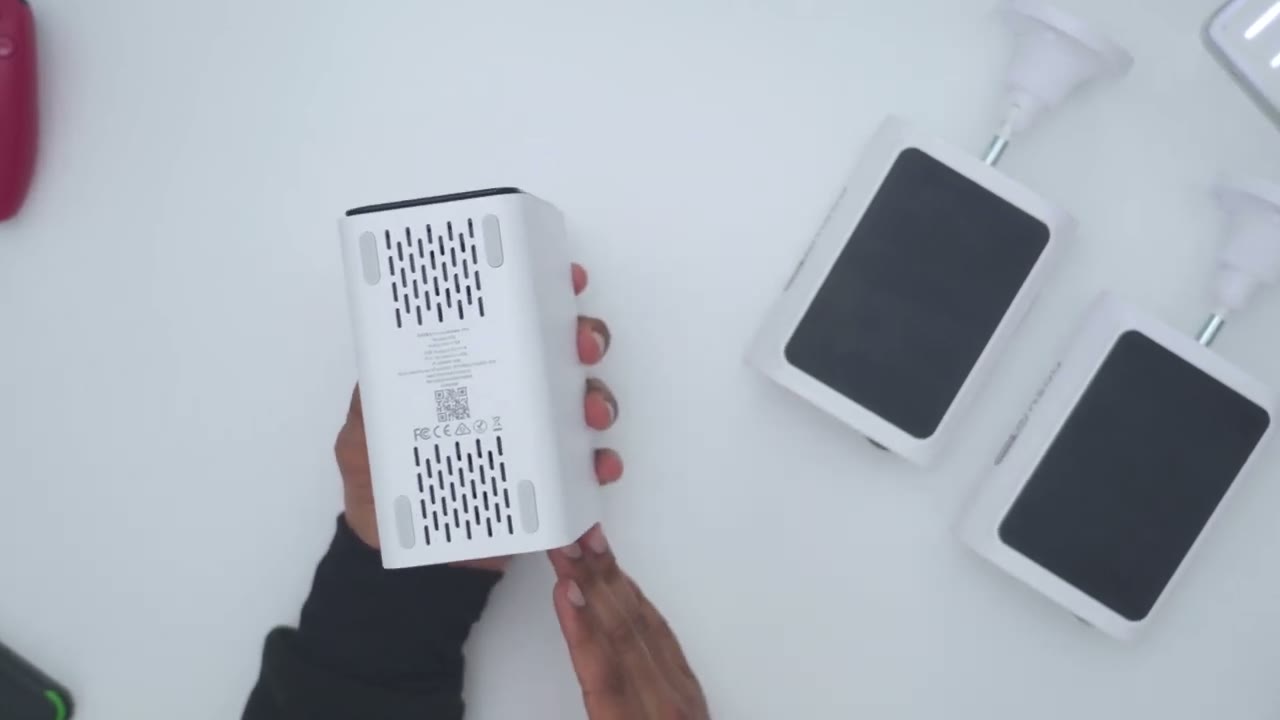
And this does have 32 gigs of built-in storage, but you can add up to 16 TB of storage with a 2.5 in hard drive. So if we take a look on the rear, we have a type A USB port. We have an Ethernet port and the power cable. And then at the very bottom, we have rubber feet to help keep this nice and planted along with ventilation. While
Expandable Storage
the Home Cortex comes with 16 gigs of storage, we can expand this up to 16 TB with a 2.5 in form factor hard drive. So, first we’ll need to remove this front panel. It’s held magnetically in place. Just stick your fingernail under there and pry it off. Easy peasy. And then we have one screw that we need to loosen to get access to this hard drive dock. And once you’ve loosened the screw, you can just go ahead and pull up on the hard drive bay just like so. And then you can just dump the screw and just make sure you don’t lose that. Now, if you have problems getting to that screw, I’ll leave links down below to the hard drive or sorry, the screwdriver set that I used. Now, this is the hard drive bay, and you can see that there’s four uh holes in total.
So, two on this side right here, and then another two here. And if we take a look at these screws that were in the package, we’re going to use these four screws here to secure the hard drive in the bay before we slide it back into place. So before we install the drive, just flip it over and take a look at the metal contacts here. And we want to make sure that when we put it in the hard drive bay that the metal contacts are facing down. So not facing the top here. And then we’re going to use those four screws to securely hold the hard drive in place. We can now go ahead and insert it back into the Home Cortex unit. So, just make sure you line it up the correct way. And we’ll just slide it down. And it should click into place just like so. Nice and effortless.
Now, we’ll just go ahead and put back the screw that we removed earlier. And the last step is just to put back that magnetic cover. And you’re
Specs
done. Here’s a quick look at the specs. Feel free to pause and review or jump
aosu App Setup
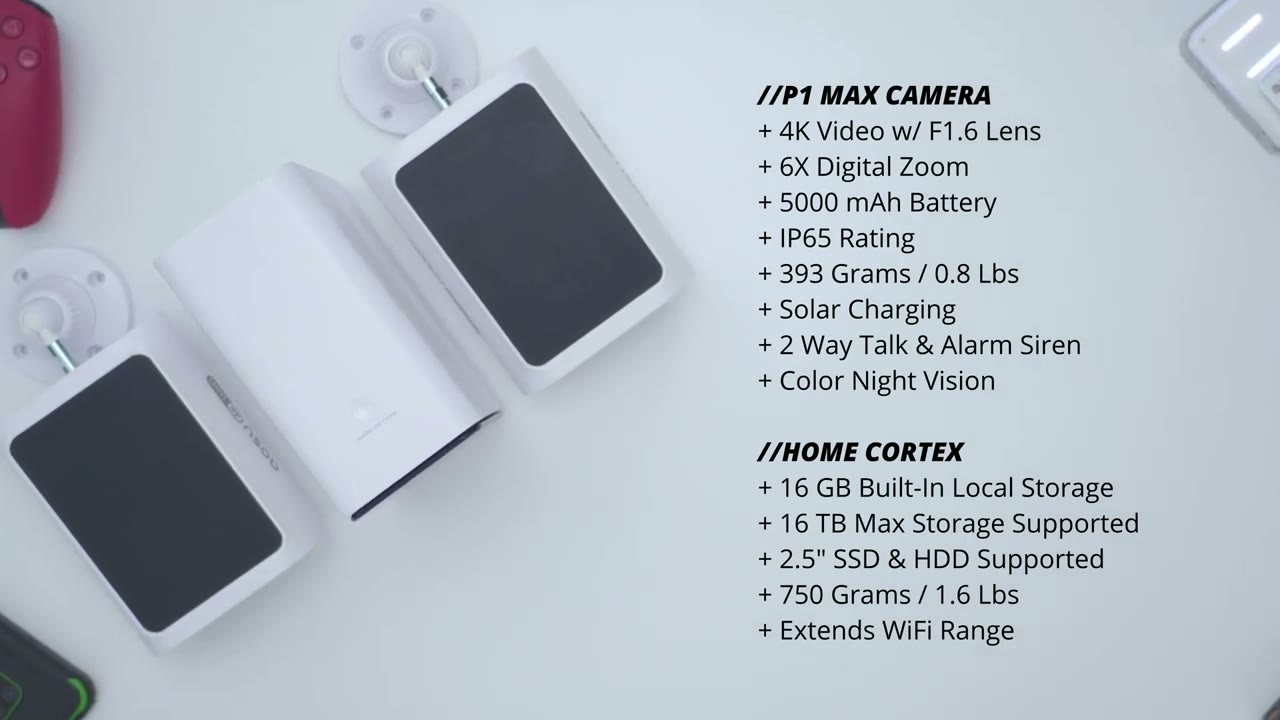
ahead to the next section. To set up the Home Cortex system and the P1 Max cameras to the AU app, it’s really simple. Make sure Bluetooth is turned on on your phone. Turn on the cameras and plug the Home Cortex system into the wall. Connect it to your router and tap add device in the AU app. And then just follow along the steps and it’ll automatically add the Home Cortex unit and both cameras paired under it. Let’s
aosu App Settings
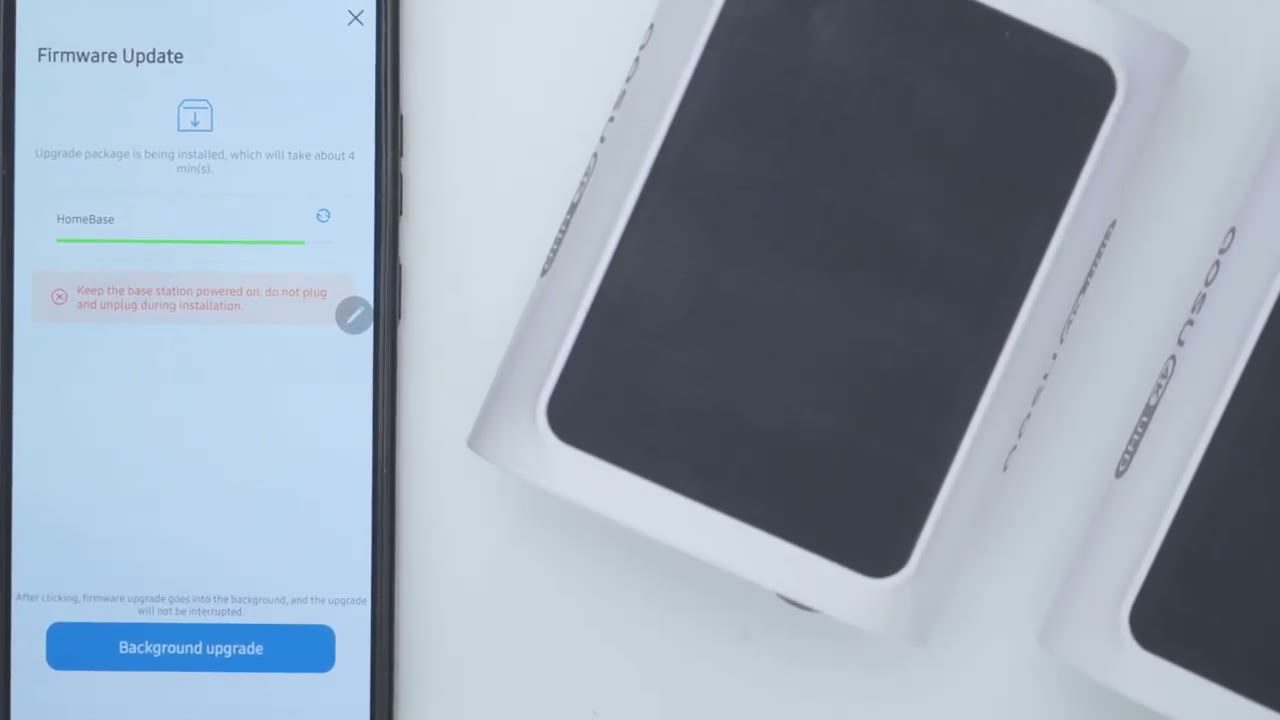
take a look at the AU app settings. As soon as I open it up, I have this today’s security report. This is really handy. It shows me a brief recap of everything that’s transpired and even the times of the day. But if I tap into it, that’s where the real magic is. So you could see it shows this true site intelligence brief. And this is actually a summary of everything that’s gone on as of um 1416 or you know 216. So it says here, a woman in a red coat interacted with a green SUV and a man in black delivered a package to a blue SUV. garbage truck collected cra uh trash near a silver car and two workers collected trash on the street. So, you can see this is really fantastic. You don’t actually have to comb through footage.
You could just read this and if something seems out of place, you know, you could investigate further. Now, this is also broken down into a watch list. So, you know, it’s showing people that may pose a security risk. You may recognize some of these people and you can actually add familiar faces so they’re not coming up as, you know, kind of a on a watch list. And it actually has people who, you know, walk by your house every day, maybe on their jog, walking their pet. It also breaks key events into unusual activity and typical activity. So, if I go into um view more, I would see everything. But I can actually take a look at just the summary here without actually going into view more. But if we do that, this is that um analysis, AI analysis.
So, a woman in a red coat retrieves items from a parked green SUV, placing them in a bag. And then if we scroll down, so uh two workers in yellow vests collect trash from bins or sorry from bins. This is what I read in the summary. So you can see just how accurate and detailed this is. Now if we scroll down to typical activity, I could tap into that. And this is just you know regular activity that the system doesn’t view as you know kind of suspicious or unusual. So surveillance footage shows a parked car and a silver car on the street with no notable incidents. So yeah, it’s kind of learning that these are always parked here. Now, if we look at trends, it breaks it down into stranger, attention needed, and family. But let’s take a look at the cameras themselves.
So I have the P1 Max in the driveway and one in my backyard. And note the battery levels. So the one in the backyard is at 100% and the Wi-Fi signal strength is not the strongest. And then the driveway one, it’s at 98% and you could see the electricity icon. So it’s actively charging because it’s a little sunny today. Um, and the Wi-Fi strength is fantastic on this one. Now, right from this tab, I could just go ahead and snooze alerts um from 30 minutes to 12 hours. It’s still going to record, but I just won’t get those alerts on my phone if I don’t want to be bothered. I can also jump into events directly. I’ll touch on that later. And I can go into the full settings, but let’s go into live view.
Just want to show you how quickly it pulls up if you have, you know, kind of a good Wi-Fi signal. So, you know, within seconds it pulled up. And not only that, it pulled it up in UHD, not even the lower standard definition. So, all of that is great. Now, what you can also do is you could go into a full screen horizontal mode and you can see I can actually zoom in and I can see there’s someone across the street, you know, just kind of retrieving stuff from their trunk. I can even make out the text on this lawn sign here. So, the 4K quality is fantastic on here. So, you can hear the ambient noise going on outside. The microphone quality is pretty good. You can hear those birds.
And then if I was looking at live view, I saw something suspicious, I could go ahead and initiate a manual recording um versus, you know, waiting for the camera to automatically record. And then if I saw someone suspicious, I could just go ahead and take a quick snapshot. All this is going to be saved to my phone. You can also go ahead and turn the spotlight on manually or turn it off as well. If you tap on tone, it’s going to give you a lower voice um kind of like a male voice. And then you can also hit tap um to initiate two-way talk. You can trigger the alarm manually. It gets pretty loud. I will demo that later. And then we also have um some quick access voice alerts. You know, please put the package at the door. What are you doing here? Um I’ll demo those later as well.
You can also use the multicam live view to monitor up to four different AU devices. Now, I only have two cameras, but I could see a simultaneous live view of both the front and rear of my house in one place. Now, right now, we’re in the live um tab. We can also go into the playback tab and, you know, kind of take, you know, a closer look at the different type of breakdowns. And then we could go into true sight, but I’ll touch on those things later in the full settings. We could change the camera name. We could turn the camera on or off. We could share the device with friends and family. And if we go under AI surveillance, this is where you’re going to really want to fine-tune a lot of settings. So, you can see basically everything is enabled. Um, this is my driveway camera.
So, if I go into human detection, it’s enabled. And there’s no other settings. So that’s all you need to do there. If we go under intrusion, it’s enabled. Not only that, you can set a detection zone. Give that a second to load up. And you can see I’ve just kind of outlined where my car is and kind of where my uh driveway ends at the sidewalk. And you can add multiple zones. You can have, you know, more than one zone if you like.
And then you can actually set it so that when there is intrusion, you can enable alarm and you can have you know the lights flashing, you can have the alarm sound, you could set the uh volume of the alarm sound and then you could set the detection period all day every day or you can add you know custom periods where you only want it on certain days and certain times. So a lot of fine control there. Now under vehicle detection, I do have that on and there’s an additional option for parking guard. Now this is on as well and right now it’s set to automated guard. So the system is just kind of uh intelligently deciding on that but you can also set a detection zone. This can be automatic or you can set this manually as well. So you can see there’s one right there.
I could add more on my side of the driveway as well if you don’t like the automatic way it’s tagged it. And then again you can set the alarm and when you want that to apply. Let’s go under uh intrusion prevention at wallard. I don’t have this enabled because it’s my driveway camera, but I’ll show that on the backyard camera later. You can also enable pet detection. This is a beta feature, so it may be a bit hit and miss. And then we also have lawn surveillance. For those of you with a, you know, really large lawn, this would be a fantastic option if you were to enable it. You have all the things where you can have, you know, the AI set up automatic lawn recognition. Let’s just tap into it. I’ll just see what the AI system identifies as a lawn.
And actually, you can see right here it says lawn. So, if I actually tap that, I can just go save that. And now it’s identified my lawn. It’s actually quite impressive um just how uh accurate the AI is on it. If we jump into detection settings, so motion detection is on. Now, if you want motion detection to kick in as quick as possible, you’re going to want to put it on detect all. It’s just going to look at basically anything. So it says there may be false alarms because any movement may trigger it. But it’s better to leave it on intelligent detection and you can set you know it to detect humans, animals, vehicles. And then with the home cortexes um and advanced AI system, it’s going to use facial recognition and you know other types of technology to identify people.
Now it also has license plate identification on there. So, it knows when cars are, you know, kind of typical uh typically there at your house and when they’re strange cars. And I’ve set it to adjust the sensitivity automatically or the range. But you can set that, you know, to have it very close to save battery life or far out to kind of capture everything. Now, if we go under u notification settings, if you want notifications pushed to your phone as soon as possible, you’re going to want to set this to immediate mode. Meaning, the system is not really going to analyze too much what’s happening and give you a really detailed breakdown. It’s just going to push it, hey, something was detected.
But it’s better to leave it on intelligent mode because you’re gonna get a detailed analysis and you can decide, do I even want to click this notification or can I just ignore it because it’s something kind of runofthe-mill. Now, if we go under night vision, you have options for black and white night vision, color night vision, and if you have a ton of ambient light around your home, you could just turn off uh infrared light. Now, we can also go into cloud recording. This is not something that I normally get since I do have local um storage with the Home Cortex system and I can expand storage on there. If we jump into video and audio, so it’s always going to record in 4K, which is fantastic.
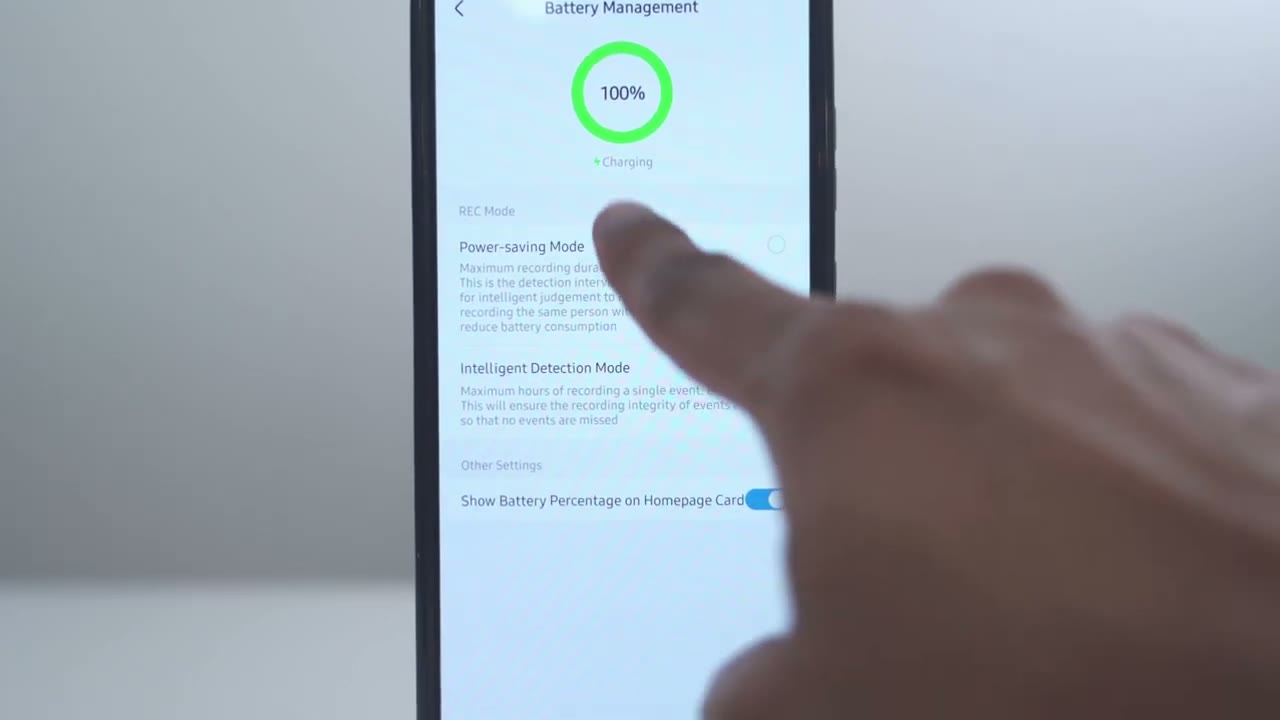
But in terms of the streaming quality, you can set it to stream in smooth mode if you want to kind of conserve data on your mobile plan or if you just don’t have a strong connection. And you can set the speaker volume as well for two-way talk and for the alarm. Now, if we go under privacy settings, I do have it set to recorded sound. I always want sound. And you can actually set privacy zones. Um, you know, so you’re not recording your neighbor’s area if you need to comply with, you know, local regulations where you live. Under battery management, you can have it show your current current battery life. You can see mine is at 98. And then I set it on intelligent detection mode. So, the longest a recording is going to be is generally 60 seconds.
Um, but if you put in power saving mode, you’re only going to get recordings of 20 seconds uh in duration. Now, you can also set scheduled sleep. It’s not something I like to use. I like to have the cameras running all the time. And you can have an LED status light showing on the front of the camera body so people know, hey, this camera is actually on and it’s active. We also have compatibility with Alexa and Google. And you can see while I’m talking, it’s giving me kind of breakdowns. you know, surveillance footage shows a park car, silver SUV with a roof rack. Um, just really fantastic the detail. But let’s go to about device. Um, again, you could change the name, you could look at the serial number, check the Wi-Fi signal strength. It’s pretty good on there.
Um, you can also take a look at the homebased settings, but I’ll touch on that later. And this is the live view from my backyard camera. So, I did set up that wall intrusion feature. So, you can see I have wall two and then wall one. Now, the AI will actually accurately identify. You can see it’s picking all the way to the back there, but I’ve just kind of left it at um just this little section here since that little uh tool shed is there. I doubt anyone can jump over there. But yeah, really a lot of fine control. Let’s take a look at the home cortex. So, if I jump into the options here, I could see both of the cameras are utilizing the home cortex system. And under person management, this is where you can take a look at everyone who’s kind of unidentified.
you could tap into it and then, you know, give them a name and identify what type of person this is. That’ll help the system when it pushes those alerts to you. If we take a look at this car section, I can slide over and I’ve added two license plates on here for two of the cars that are always parked there just to help this system identify, you know, which cars are normal and not unusual. You can also enable cross camera tracking. That way if someone kind of you know lurks in the front of your house, goes to your backyard or vice versa, you’ll be able to track them in the system. And of course, we have the true sight intelligence. So this is a beta feature, but the hit rate on here or in terms of how accurate it is. It’s really impressive to me.
Um it’s something that camera systems desperately need. So you’re not combing through footage all the time. And this is that thing. Same with if you get a ton of alerts, this breaks those notifications down so you know if it’s an actionable um alert you need to tap on or if you can just dismiss it. If we look at storage, so the Home Cortex comes with 32 GB of storage, but I’ve inserted a 128 GB uh SSD drive. It’s a 2.5 in which I showed earlier. If you did add additional storage to the home cortex, go ahead into the settings, scroll down until you see storage, and tap on format. This is going to allow the system to record to your new storage. Now, we can also go and change the name on here and we can share the device and we can also take a look at firmware updates.
And mine’s on the newest version. You can also jump into smart security. You could set an away mode. So, whenever you’re away from home, everything is going to be enabled, including alarms. And then whenever you’re at home, you could disable the alarm so that it’s not triggering when
Video Playback
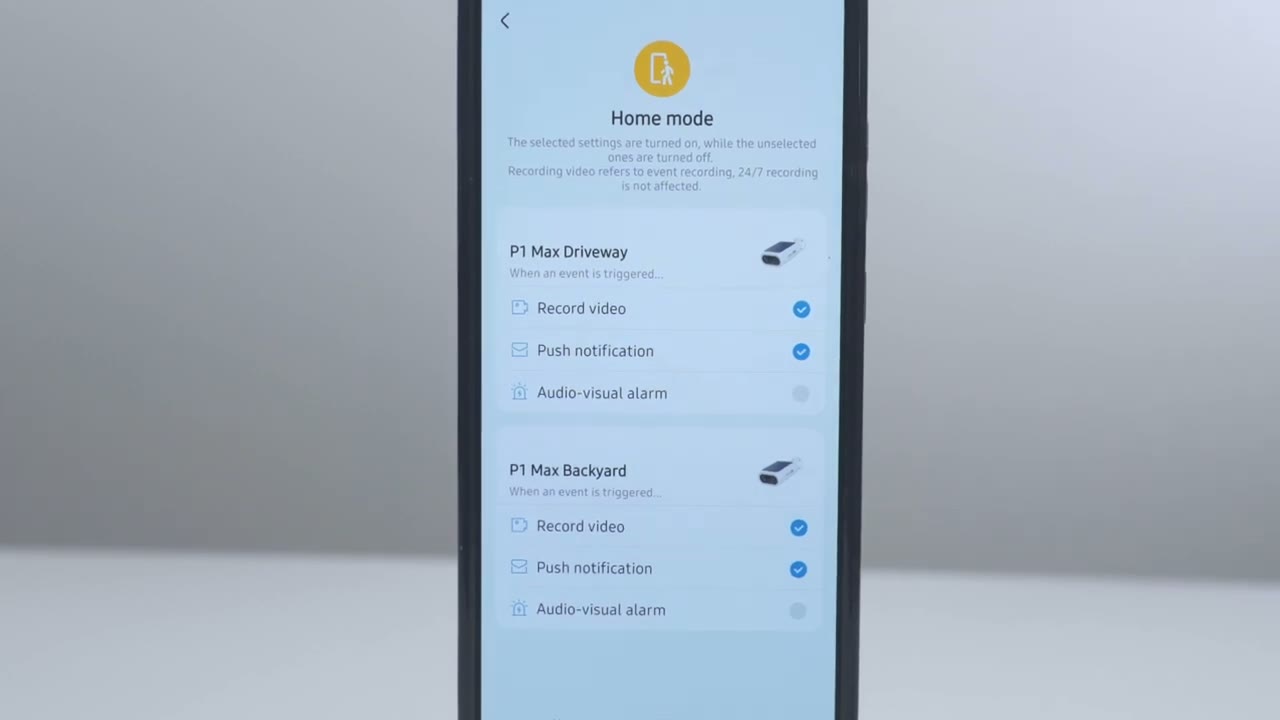
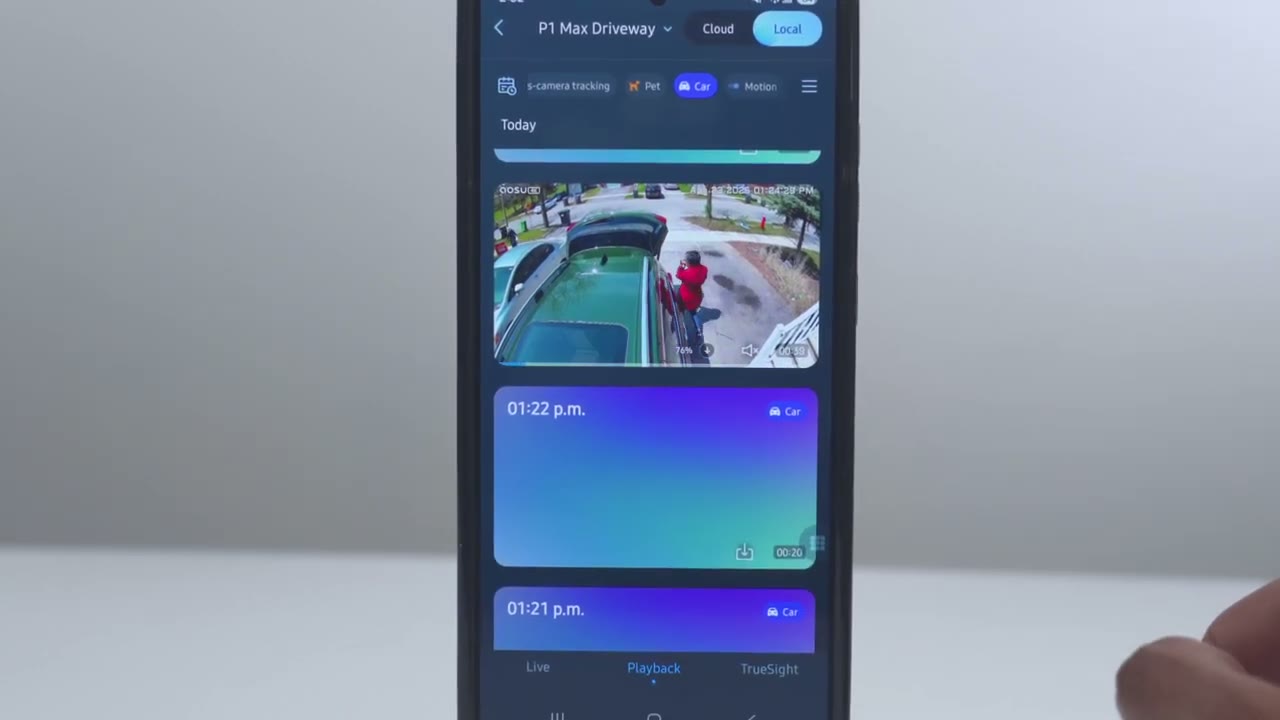
you’re coming and going. To look at recorded video, we tap on events on any of the cameras. Now, the video clips, you can see the first one, as I scroll down, it’s going to automatically generate thumbnails uh for the other clips as well. And it also breaks them down into different video categories. So, intrusion area, parking area alerts, smart parking, surveillance, intrusion prevention, uh at yard wall, lawn surveillance, if someone’s staying or lingering, if they’re passing, cross camera tracking, pet, car, and motion. So, if I tap on car, it’s actually going to just show me all clips where there was a car somewhere in the scene. So, you can see two cars there and then this first clip was, you know, someone walking to their car.
And you can really see the benefit of being able to quickly narrow down video clips if something happened at your home. But let’s take it a step further because this is not something I’ve seen on any other camera system. And this is AUS’s true sight intelligence feature. and their devs have done a fantastic job with this. I can’t believe it’s a beta feature with how accurate this is. So, it’s showing here for my P1 Max driveway. It’s showing uh surveillance footage shows a green SUV and a silver car parked on a street with no notable incidents. So, the system knows these are cars that are regularly parked here. Nothing is unusual about this. Now, it did detect it as a street versus a driveway.
So, you can see there is some small room for improvement, but for the most part, it’s still doing a fantastic job. Now, let’s just scroll a little bit earlier in the day. And this is when I was outside kind of testing the video quality on here. And it says, “A man in black attire stands by a blue SUV right on the side. Blue SUV holding a blue sign, which I am holding a blue sign and appears to be delivering a package.” Once you find a video clip that you want to download, you could just tap the download icon right here and you can see it downloading extremely quick. So, you can
Smart Search
see the huge benefit that having this AI analysis brings. It saves you a ton of time. You don’t have to hunt through footage. But let me give you another example. What if you come home and your neighbor said, “Hey, there was someone with glasses lurking around your house.” Now, you would probably have to comb through a ton of videos, you know, narrow it down by if there was human or person detection, if the camera system even offers that feature. Or with this system, you could tap on unusual activity and see if that clip comes up. But what’s even better is this feature at the bottom called smart search.
Now, this is another beta feature, but if I type here person and let’s say with person with glasses, and I do a search here, and I’ll just have the system sort through basically every footage that is already categorized. So, there’s me installing the camera, kind of trying to get it set up. And yes, I’m wearing a glasses, manes with a black jacket, standing in a parking lot speaking to the camera. Here’s another example. What if I had a package delivered, but that package was then stolen and I need to provide proof to the delivery company? Well, I’ll just tap or search for package delivery. And right away, it’s found, you know, a man in a black jacket and glasses delivers
Video
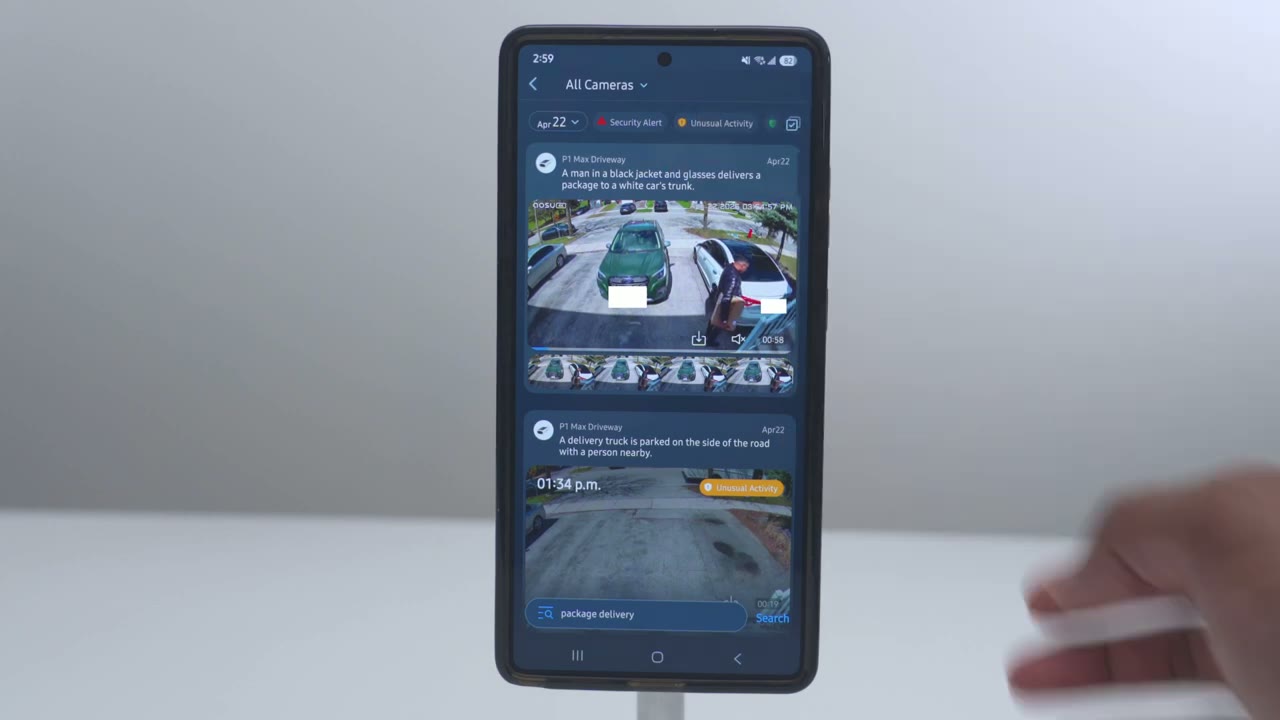
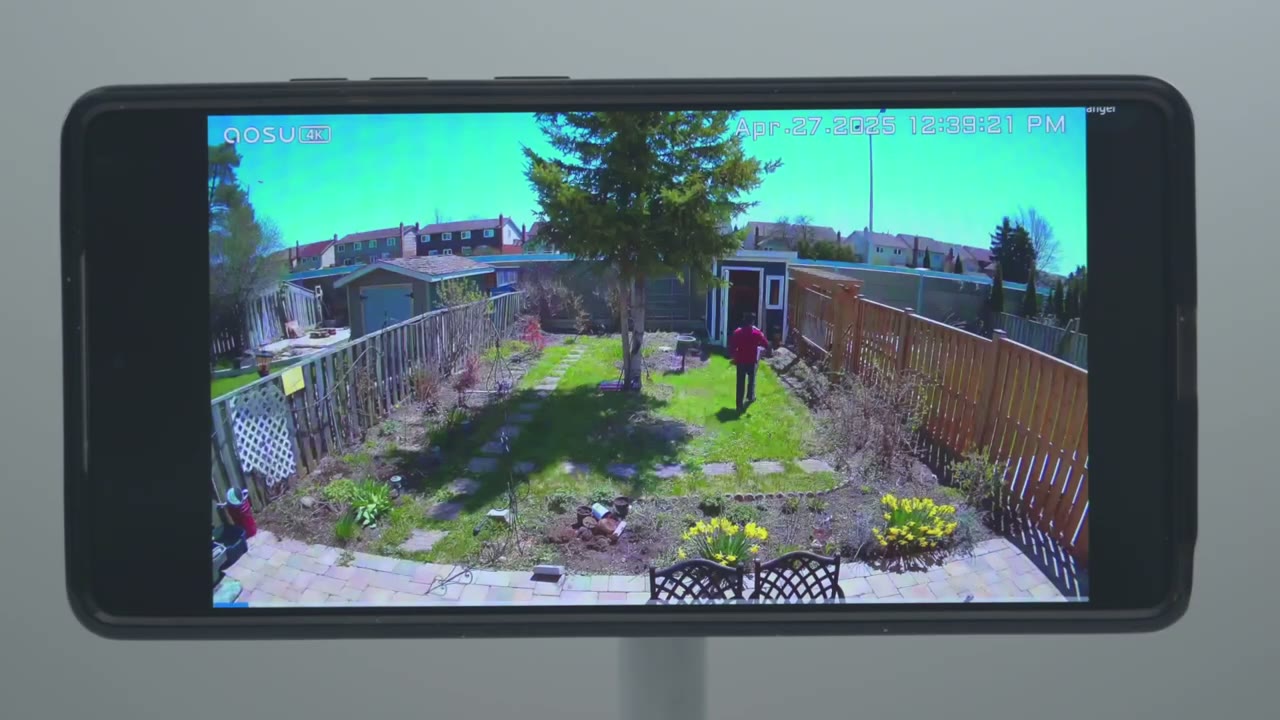
packaged our car’s white trunk. 4K video looks pretty sharp and the bit rate is around 2400 kilobits per second at 15 frames per second. So, it’s easy to make out faces during the day and at night with different types of lighting conditions. It’s also easy to make out license plates even with distances of over 10 to 15 ft because you can use the digital zoom. Night vision video was also pretty decent using the built-in spotlight and even with the black and white night vision mode, it was still easy to make out faces. The wide 130 degrees field of view lets you see your entire driveway or backyard easily. And you can have from two up to eight different cameras.
And when you pair that with their new true sight technology, this system really hits another level of sophistication compared to most other security camera systems out there. So, let’s talk about that
TrueSight Technology
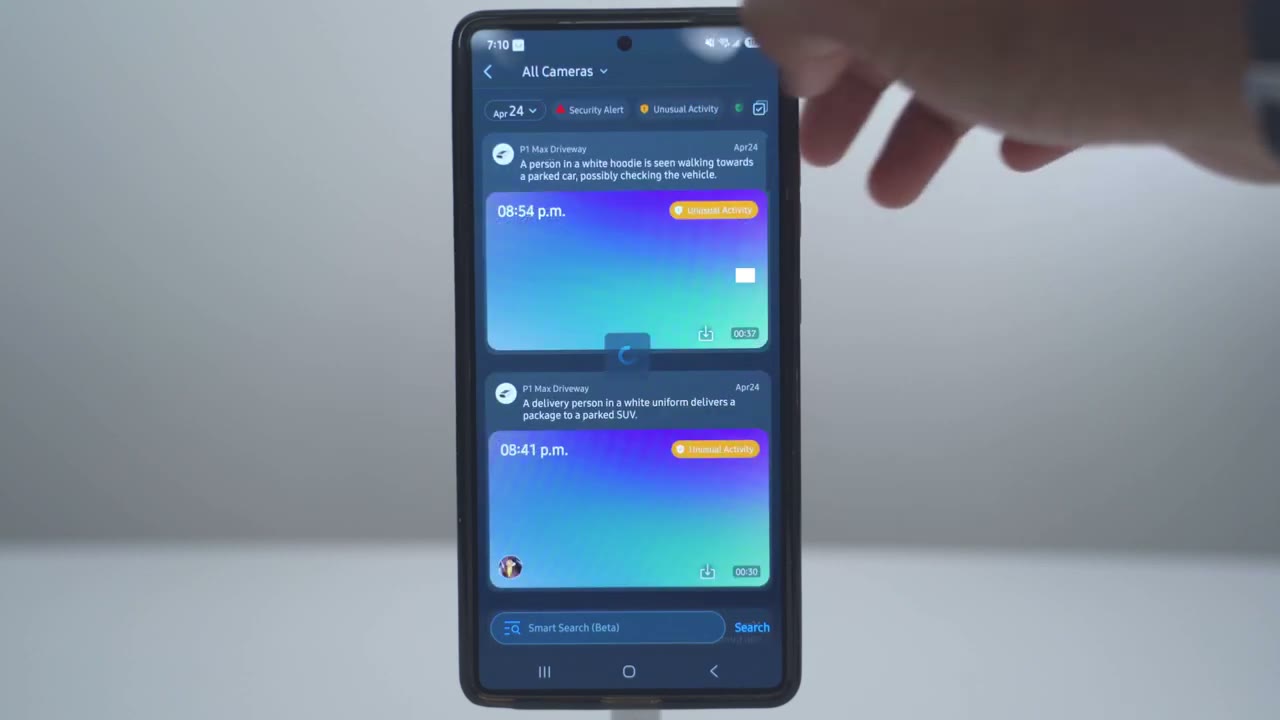
next. All right, let’s talk about that true sight technology because it really is groundbreaking. Now, there’s a lot of camera systems that advertise AI tech in them, and I’ve reviewed a lot of those, and yeah, the AI tech is beneficial, but none have risen to the level of sophistication that I’ve seen with this system. And what I mean by that level of sophistication is that when you get an app alert on your phone that motion was detected, you get the most detailed analysis of that motion detection event. So, with a lot of camera systems, it’ll say, “Hey, a person was detected, a human was detected.” If you add a face to the app, if it’s, you know, smart enough with the AI tech, it’ll even say, “Hey, Adrian was detected.” This system takes that to another level.
Of course, you can add familiar faces, but it actually breaks down what’s happening in this scene. It’ll let me know exactly what people are doing, you know, like if someone’s just passing by, if they’re lingering, if they’re hanging around my car, if they’re standing between cars, if there’s a car that’s parked on the street that wasn’t parked there previously, if a car is coming, if it’s going, you could add license plate. And they also have this smart search feature. So imagine if your neighbor told you that, hey, someone was looking around your car, it didn’t see their face, but they were wearing, you know, a yellow jacket. You can go into the app and search for person wearing yellow jacket. And it’s that specific and detailed enough.
It’ll comb through all of that footage and look for that specific type of search query. Really, nothing else has come as close as this has to actually being, you know, really usable and time-saving AI. There’s also a security report you could tap into. It just kind of gives you a summary of everything that’s transpired around your home. And you can even refresh that summary at will whenever you want to. So you can really save a ton of time with this system. You can just filter motion detections by, you know, typical activity, unusual activities, security alert activities, all of that is in the app or you could just rely on the security summary. And most of the times this system has been extremely accurate.
There are some misses where it will detect cars as being, you know, on the road when they’re on my driveway. And for the most part, I would say over 95% of the times, it’s extremely detailed
Motion Detection
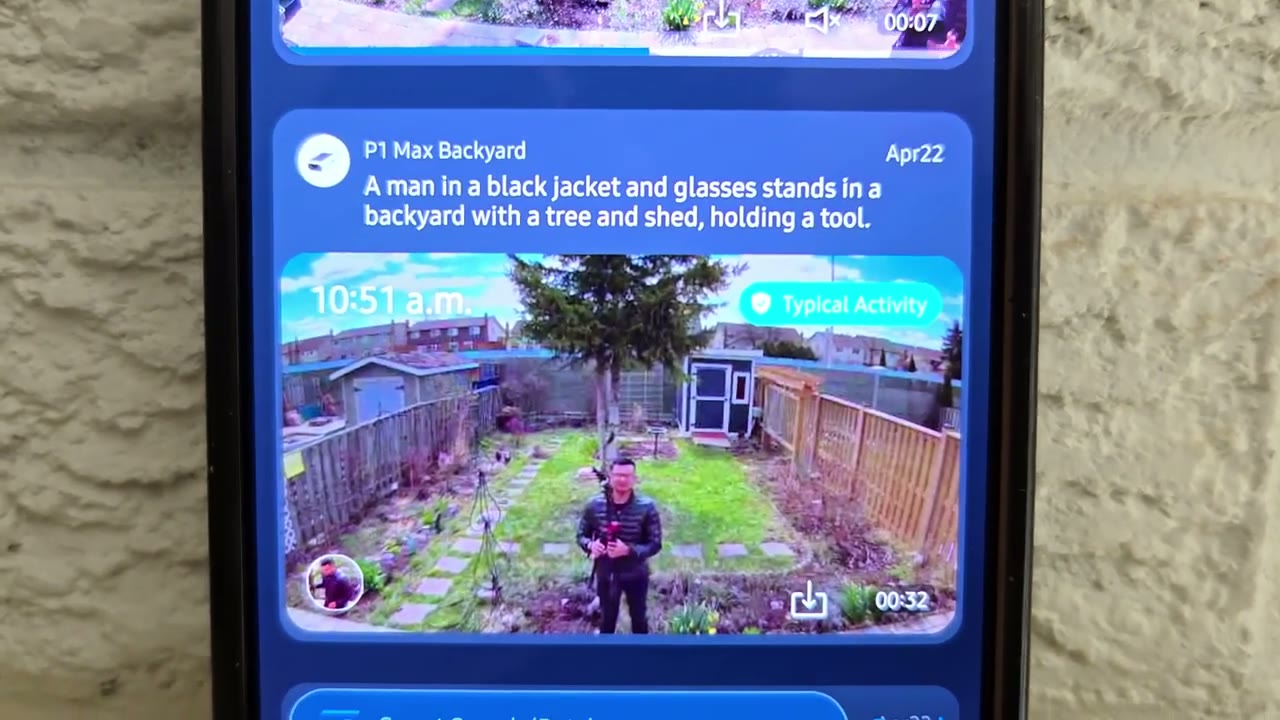
and dead on when it describes the scene. Once motion is detected, the app alerts come through fairly quickly, usually within a matter of seconds. Now, that’s if you set it to detect all motion and you set the notifications to immediate mode in the AU app, but you can also change notification settings to intelligent mode. That way you’ll get a more detailed analysis of the motion event and a accompanying thumbnail preview as well. There’s also cross tracking, so you could track subjects from one camera to the next. Now, I only have two cameras, one in the front and one in the back, but you can have up to eight different cameras to track every
Spotlight
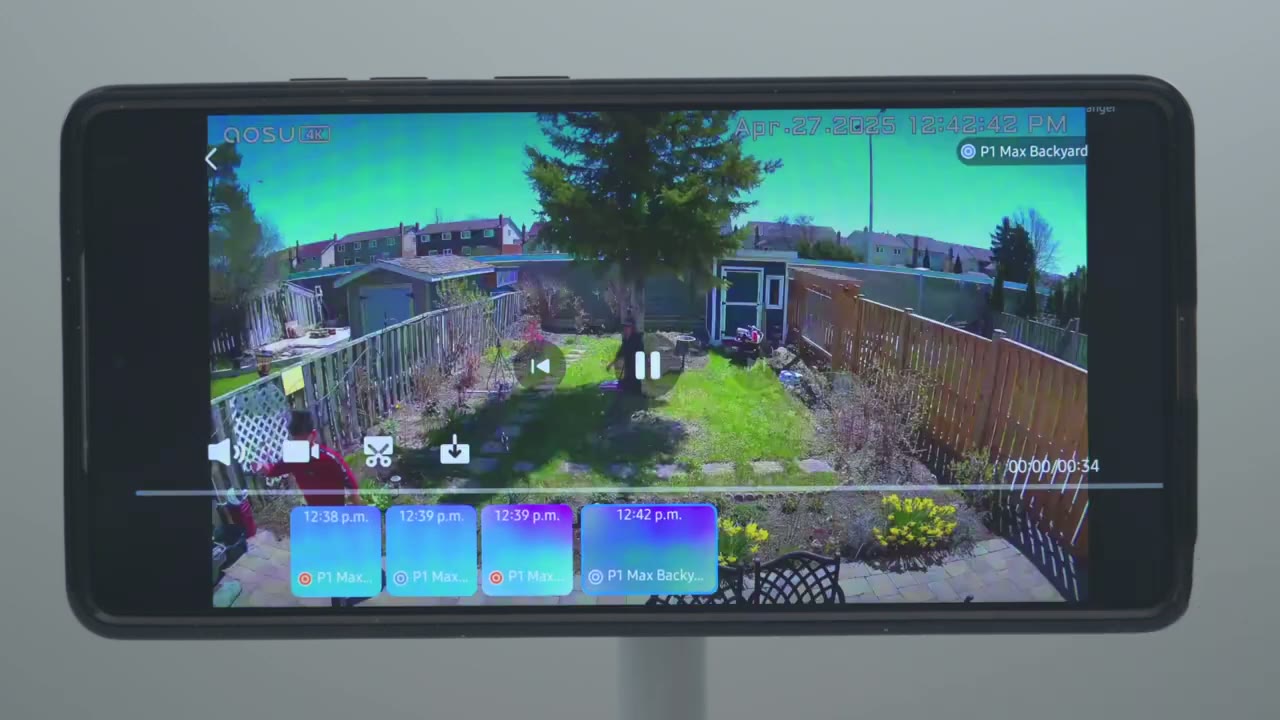
angle of your home or property. The built-in spotlight is actually pretty good at illuminating most of my driveway and to act as a visual turned and to use
Speaker
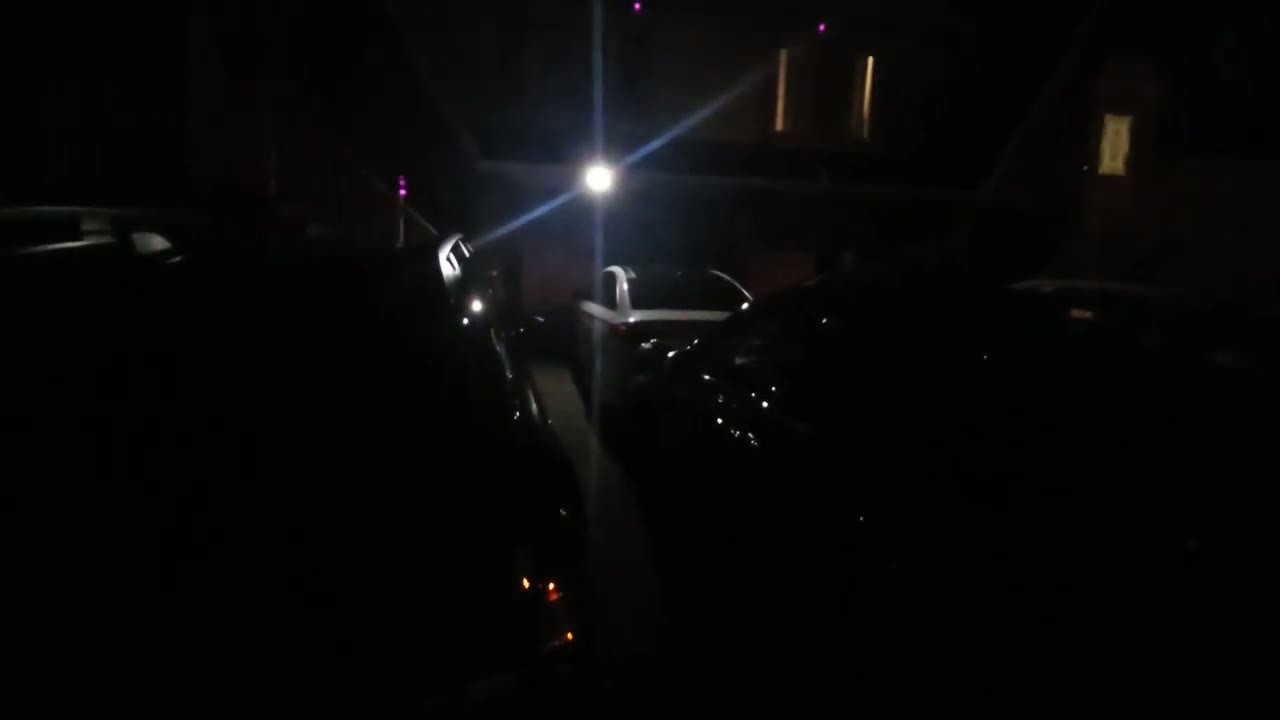
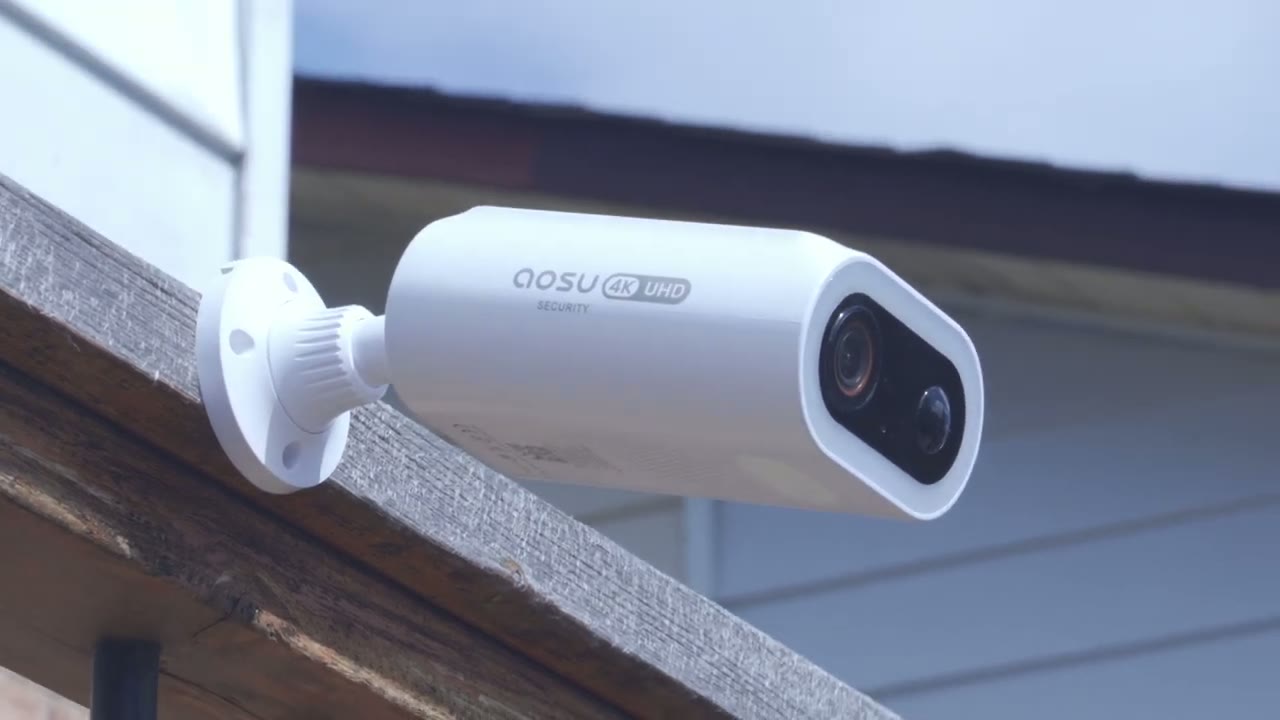
color night vision as well. The speakers get pretty loud, but here’s a demo of 2-way talk and the alarm siren. Here’s an example of what 2A Talk sounds like. Please put the package at the door. Thank you. Hey, what are you doing here? Please get out of here now.
Battery
The battery life has been fantastic on here. So, both of my cameras are still at 100%. And that’s with me heavily testing the cameras and even having, you know, a bunch of overcast, windy, and
Storage
cold days in Canada. in terms of storage. So, with a two camera system, which is what I have, if I just use the 32 GB of local storage on the Home Cortex system, I’m going to get around 2 months of video recording history, which is plenty enough. Now, I did optionally install 128 GB drive in here. That’s going to take me to 6 or 7 months before the oldest video clips are overwritten. Now, if you were to install a 1 TBTE drive, 2 TB, or even 4 TBTE drive in the system, you could have, you know, up to eight cameras if you really wanted to, and you would still get years of recording history before anything was
Pricing
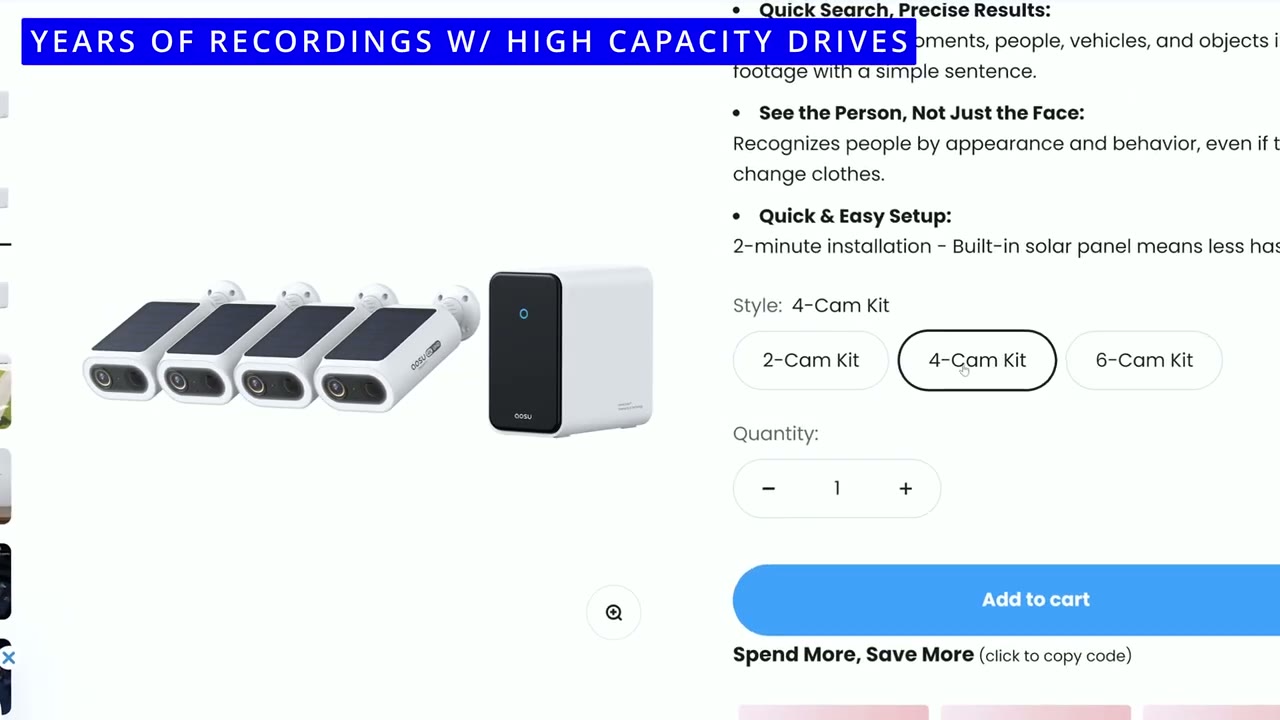
overwritten. Pretty impressive. At the time of this review, all of those AI features I showed are free to use, but there likely will be some kind of associated fee to handle all that complicated AI processing. But, of course, you could just use the system with the local AI processing if you
Recommended?
don’t want to pay a fee. So, if you’re looking to elevate your home security camera system by getting a level of detail that no other camera system can match, along with saving you a ton of time anytime you need to hunt down footage, the AU Sorcam P1 Max home core tech system just can’t be beat. And when you pair that with the 4K video quality, wide 130° field of view, you’re not going to miss much that goes on around your home and you’ll be notified or everything in exact detail, especially if you get a 4, 6, or 8 camera setup. So, if you want to upgrade your home security with next level tech, I’m going to leave links down below in the video description and pin comments for you to learn more or to pick up your very own. And if I have any coupon codes, I’ll leave those down below as well.
However, if you don’t need a system with all that AI tech, check out my review of the AU Sorcam P1 Max system here without the Home Cortex. And if you found this video helpful, would you please consider liking and subscribing? I have more videos like this coming soon and maybe consider checking out some of my other tech reviews. I review a bunch of different tech from headphones, speakers, monitors, mechanical keyboards. Really something for everyone.
Buy Gutter Mount Used In Video
Buy Screwdriver Set Used In Video
Buy 128GB microSD Card on Amazon
Please note that some of the links in my video descriptions are affiliate links where I earn from qualifying purchases. As an Amazon Associate I earn from qualifying purchases.

