


Please note that some of the links in my video descriptions are affiliate links where I earn from qualifying purchases. As an Amazon Associate I earn from qualifying purchases.
Intro
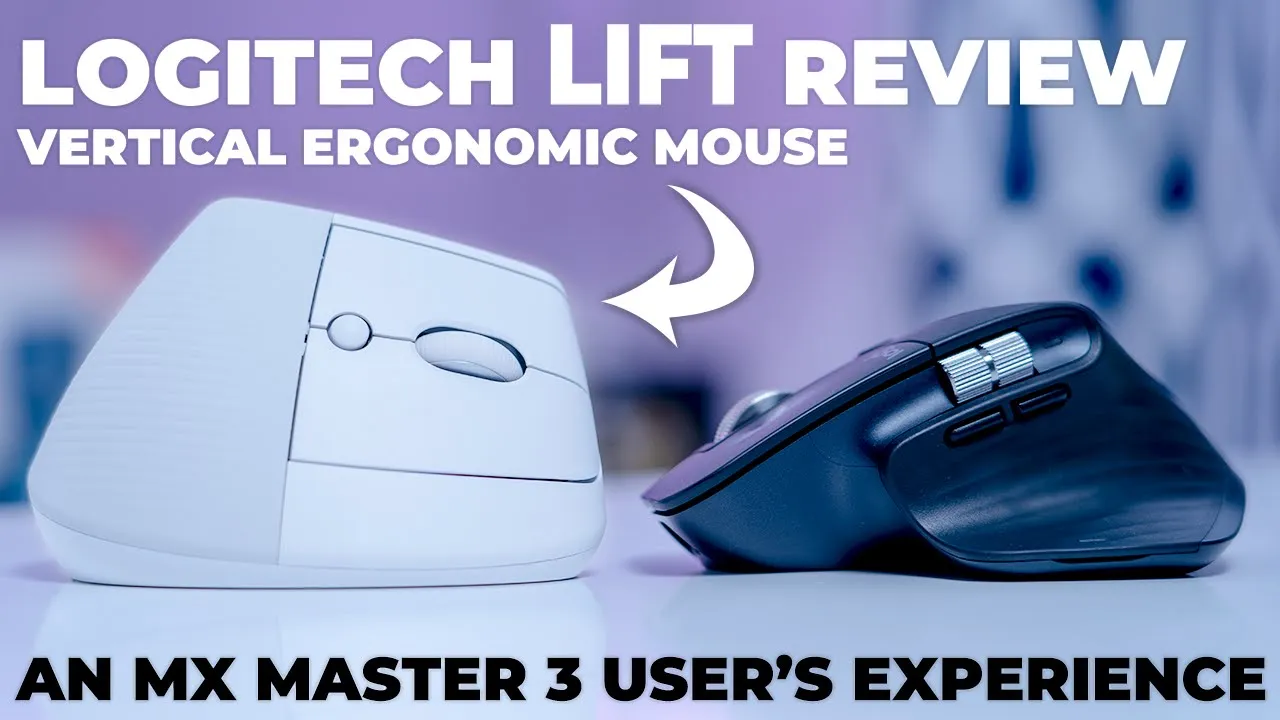
hey it’s Adrian and today I’m taking a look at logitech’s new mouse so this is the lift vertical ergonomic Mouse and you can see this kind of looks a bit similar to their MX vertical Mouse however this one is a bit smaller it’s meant for small to medium siiz hands now I am coming from the MX Master 3 and this is my first vertical Mouse so I’m curious to see how it stocks up in terms of my daily use so let’s get
Design
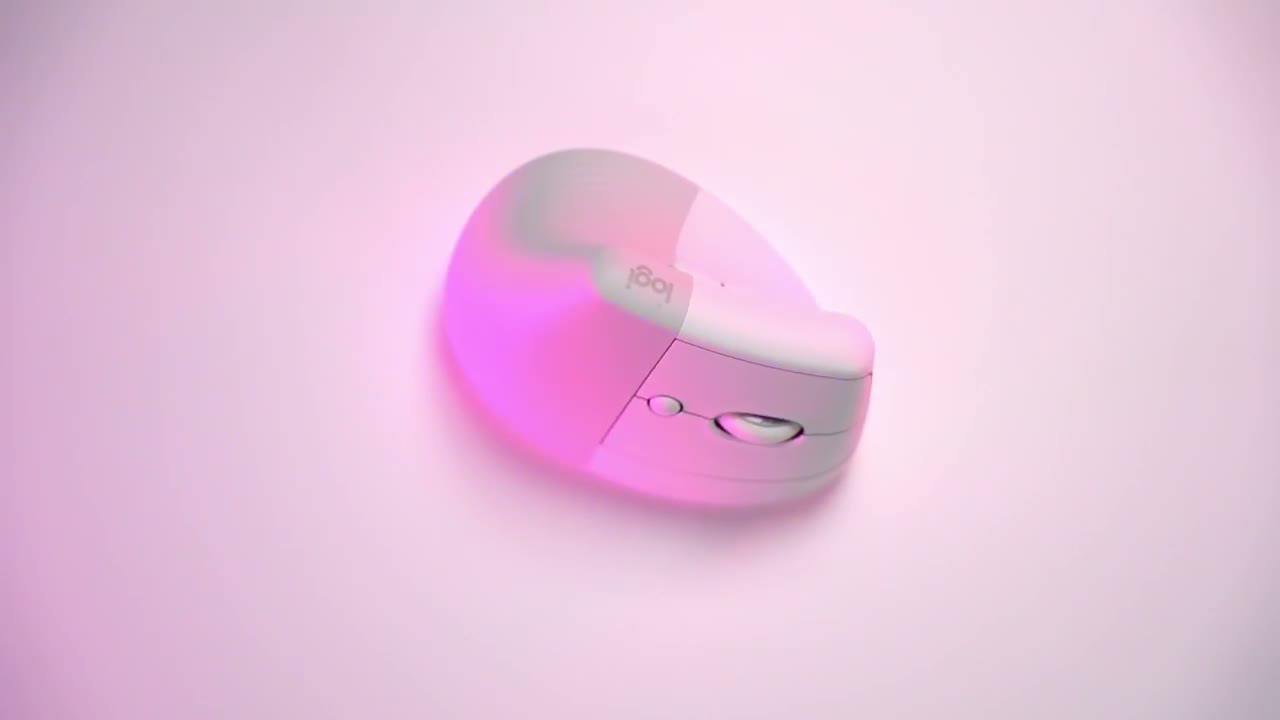
started the Logitech lift vertical Mouse comes in at around 70 us and it comes in 3 color so you have Rose pale gray which is what I have and graphite now it also comes in a left-handed version too if you’re left-handed in the package so you have the Logitech lift Mouse there’s also a quick start guide here printed on the packaging so that’s pretty nice touch but let’s take a closer look at the mouse so overall um it’s a nice looking Mouse I think I got it in the pale gray just because I had black I wanted a bit of a change and just holding it for the first time it actually feels pretty natural it doesn’t feel as strange as I thought it would but let’s take a look at the design and button so the design at the back here it’s kind of this ribbed type of texture here so I guess that’s for better grip ability you have a forward and backwards button there and these have a bit of a sound when I click them you have the Logitech logo at the top there on the other side there’s the scroll wheel uh button here I guess this could be to switch the scroll wheel how it functions I’ll have to test that out the right and left buttons and these are very quiet when I’m clicking them I can barely hear anything actually on the underside of it so there’s the onoff button the tracking laser and you do have the option to switch between different devices if you’re going to use Logitech flow that is something I’m a fan of so I will set that up and then if I lift this so we do have uh daa battery included looks like Duracell and of course a wireless USB adapter now you do have options to use this either with Bluetooth or with this USB uh wireless adapter here I also just noticed that this bottom cover here it’s actually magnetic so you can see there’s three magnets there and it just kind of snaps into place so that’s a pretty neat design feature overall build quality is excellent the mouse feels well built it’s solid there’s no creaking and most importantly there’s no discernable
Specs
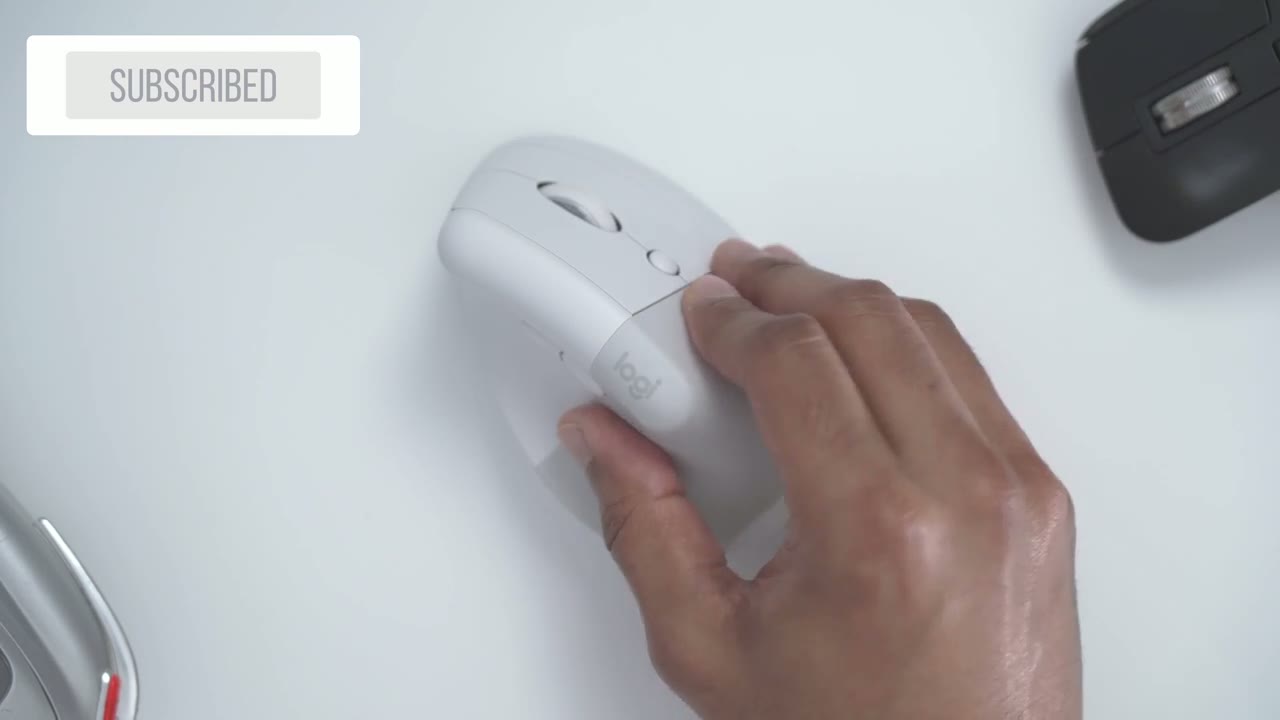
wobble in terms of specs the DPI range is from 400 to 4,000 DPI and it is adjustable by 100 DPI increments now it does use a ablea battery which is not the best I do wish it was rechargeable however the battery life is rated for up to 24 months and likely due to the fact that it’s using Bluetooth low energy technology the wireless range on this is about 10 m as well taking a look at the
Ergonomics
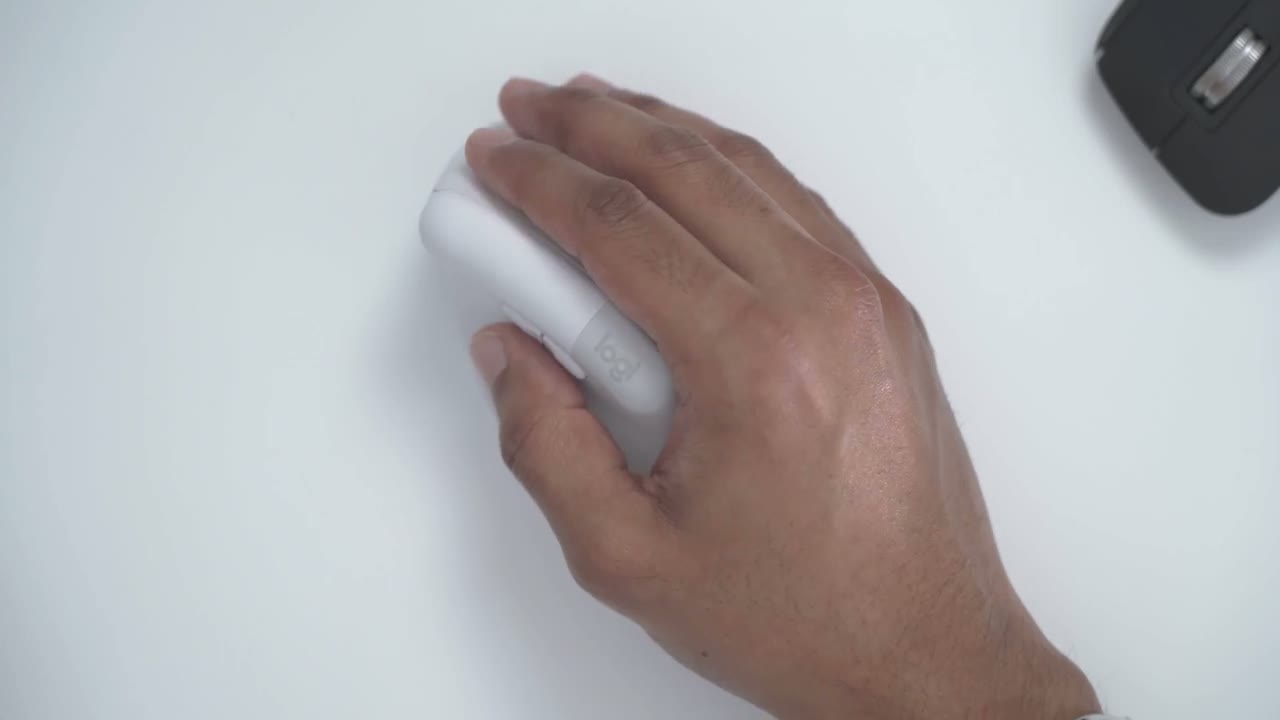
hand feel and just general ergonomics of the m so this feels really good in the hand actually so considering that this is my first vertical Mouse I’m actually surprised at how easily and how comfortable and natural this position feels one thing I did notice is that they do kind of mention it it puts your hand in a natural handshake type of motion and I have actually noticed now that they mention it at rest my hand isn’t normally flat and planted like that it’s kind of up in this up position so this actually now makes a lot of sense now why it is situated this way and it does feel very comfortable so moving around very smooth the feet at the bottom here it’s the same type of quality on the MX Master 3 so just overall ergonomics and hand feel it doesn’t feel foreign at all feels really good feels really natural one more thing that I want to point out is that this has really meant for a small to medium siiz hand so if I take a look at my mxm 3 when I put my hand at rest you can see my middle finger extends just slightly over the right click but on the left click my index finger is not EX sending at all and this feels natural and comfortable to me however when I use this mouse you can see these fingers they both kind of extend slightly past the right and left click so again I consider my hands to be about medium siiz hands not too big not too small so this is what this is going to be great for if you have larger hands this is definitely not the mouse for you take a look at the MX vertical instead of the lift vertical taking a closer look at
Buttons
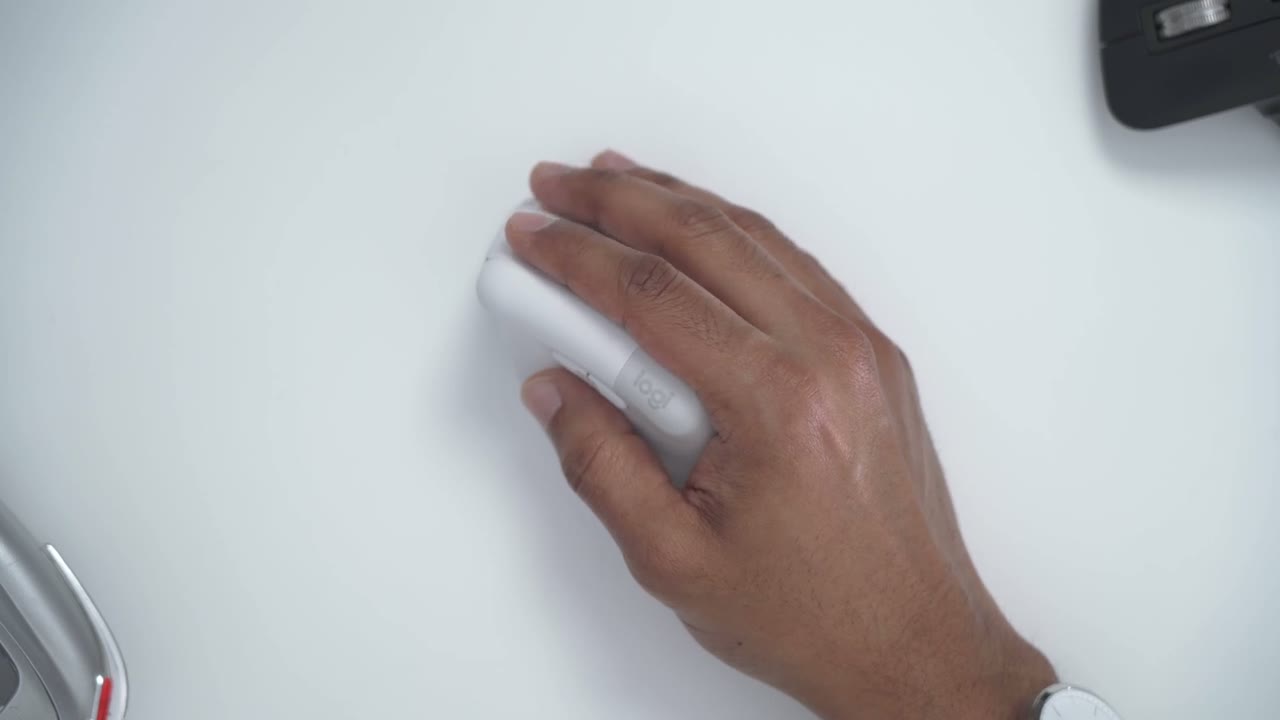
the buttons so there are six in total and they are customizable so you do have the front and back buttons left and right buttons the mouse wheel does click in as a middle click you also have this middle button here which you can press in and that changes DPI by default I really want to highlight just how quiet these right and left buttons are so here’s a demo so I don’t know if the microphone’s picking that up but it’s very very slight so this is perfect for like a shared office space or if you’re working late at night now I will bring the mouse closer to my microphone to see if you can pick that up so maybe you did hear it when I brought it close to the mic but in general you’re not going to be bothering anyone with this now that I’ve added the
Settings
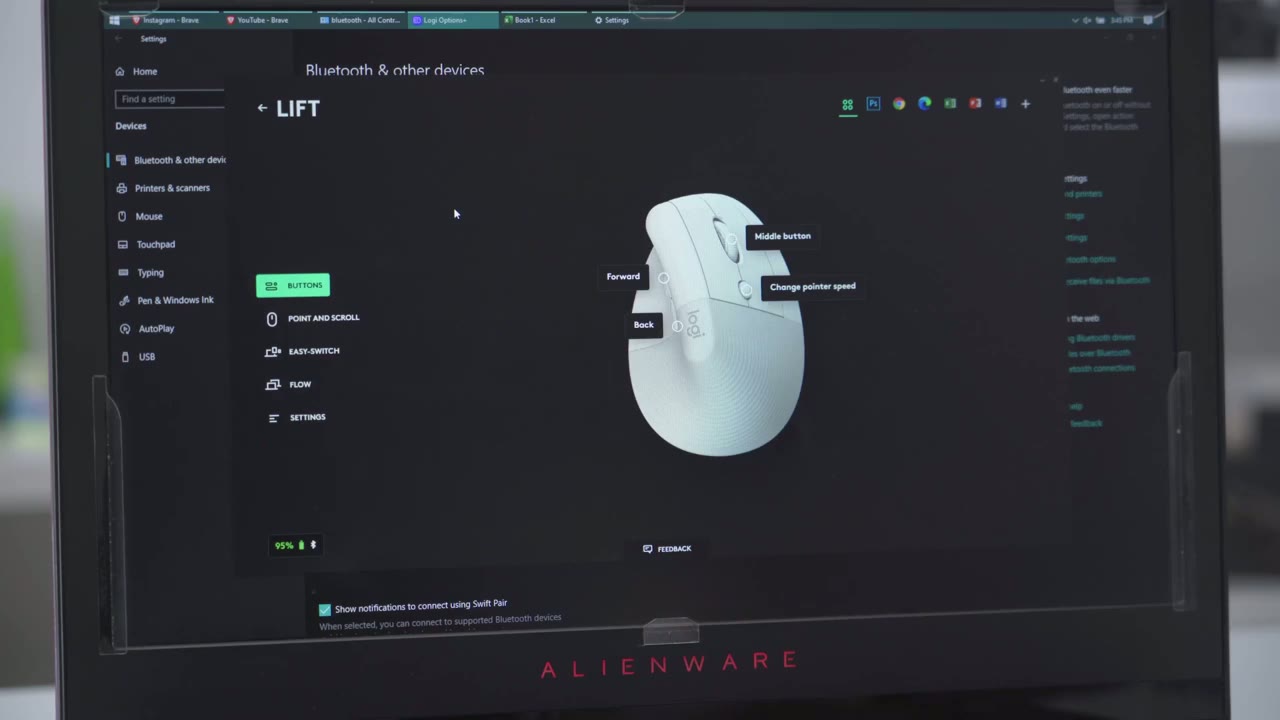
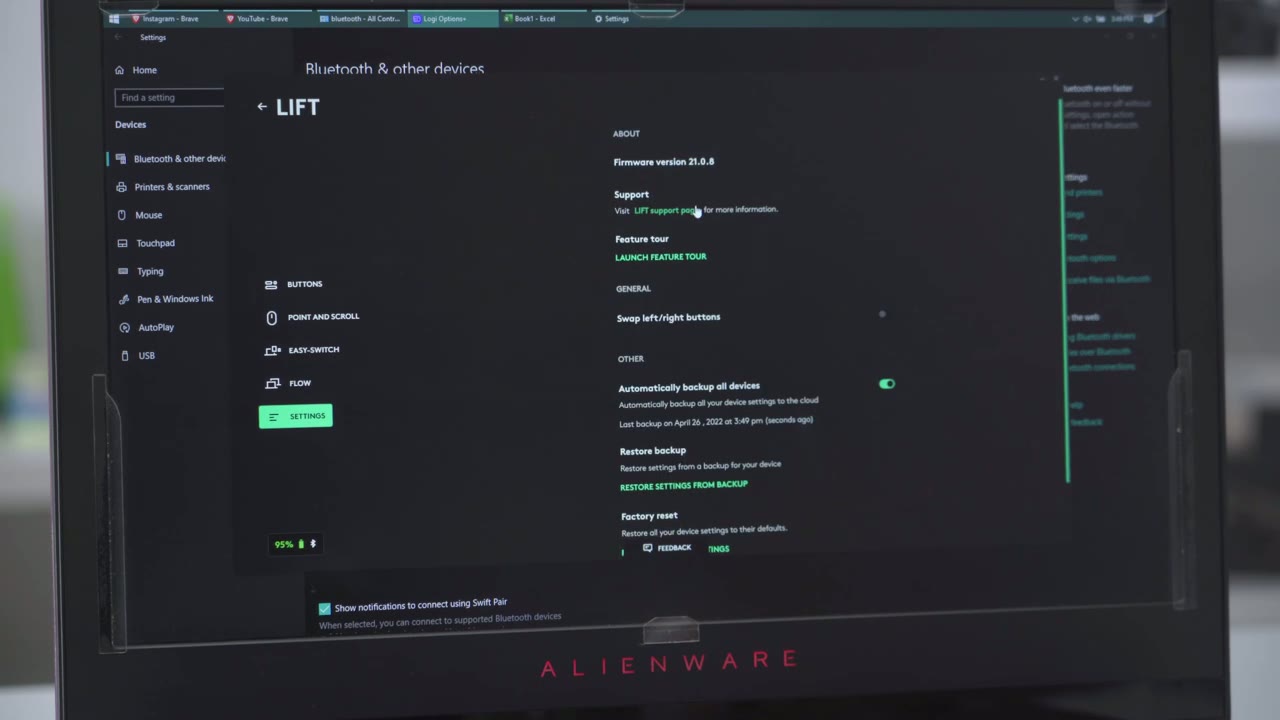
mouse to the Logitech software I’m just going to take a look at some of the options in terms of customization so the middle button it has all the regular stuff that you would have with any other type of Logitech mouse so you can change pointer speed switch applications gestures and so on now the middle button here it lets you switch between two preset pointer speed so I have mine at 60% but I can also switch the other one to say the default of 50 lower or all the way to the highest without having to go into the software so that’s pretty good that you know you can switch between two presets and you can also switch it to any other type of task if you don’t find yourself needing to change pointer speed often now so let me take a look at the point and scroll options so the scroll wheel there’s only options for inverted or standard and there’s also an option for smooth scrolling which I’ve turned on looking at easy switch and flow I don’t have my other devices paired right now I’ll do that later but of course those are pretty handy options to copy files between computers or to control other devices on the Fly and then lastly you have your settings menu where you could just update the software or firmware
General use
scrolling around on a web page is pretty easy you can see I can scroll line by line or I can flick it to go up or down a few lines at a time now this does feel like a bit of a downgrade coming from the mxm 3 with it smooth scrolling but let me Demo what that looks like so if I was to take the mxm 3 you can see as I flick it Scrolls pretty much continuously and it’s really easy to scroll through multiple photos or video files or on a web page so this is definitely not bad but if you’re used to the MX Master 3 it’s definitely going to feel like a step down if you’ve never used the MX Master 3 it won’t be an issue for you so one software that I use pretty much daily is Adobe Photoshop and I think this is going to be a pretty good test of how well I can adjust and adapt to this mouse because this software kind of does require a lot of uh fine control to get things where you want it to go so let me just play around for a bit and see how well I do and how quickly I can adjust to using a vertical Mouse just going to play around really quickly here nothing serious and so far I’m not really having any issues it’s clicking when I want it to click it’s going where I want it to go nothing nothing to complain about yeah I mean it’s actually pretty surprising to me how quickly I’ve adjusted to using this mouse it doesn’t feel like there’s going to be much of a learning curve or that I’m really missing anything or messing up in any way with the vertical Mouse so I’m actually pretty surprised after using
My Thoughts
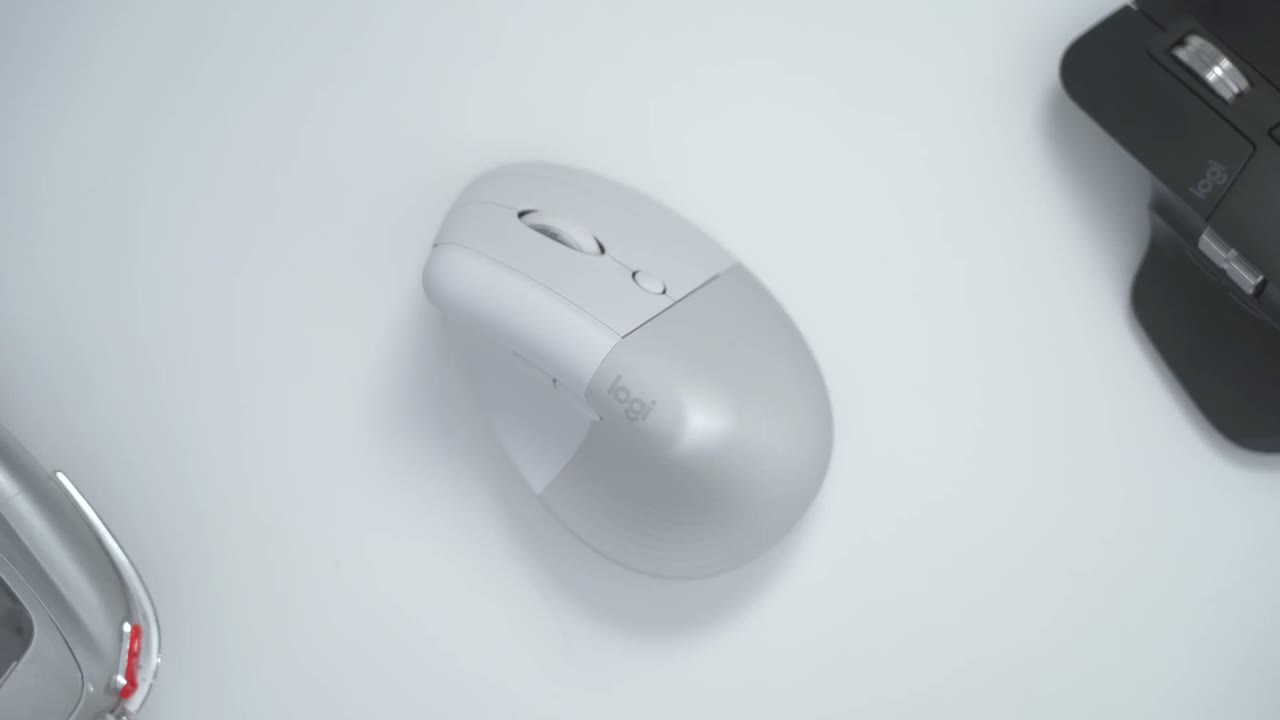
the Logitech lift for the last couple of days and every day I’m using it for between 8 to 10 hours I’m actually really starting to like this mouse so using the mouse in this position where your hand is upright so it’s at a 57° angle it’s much more comfortable and you can tell that you know naturally this is where your hand wants to be so it is it is a big Improvement now that I’ve been using it now if you take a look at the mxm 3 which is what I was using you can see I have to rotate my rist wrist a lot more to keep it flat to use it like this and one other benefit if you wear a watch you can see at the bottom of your watch where you have that Buckle if you’re worried about desk diving or just scratching this this is where it would get scratched but when you’re using the vertical Mouse the Buckle is now towards the top and it’s the band that’s taking that wear minor thing but if you’re a watch rarer you know what I’m talking about one thing that still surprises me is just how quickly I was able to adapt to using a mouse like this coming from this type of traditional Mouse style I was really worried that switching to something like this would really affect my workflow or a slow it down but I haven’t found that to be the case at all and trust me once your hand is in this position it just feels right you know and it’s kind of hard to go back to twisting your risk this way one thing that I have caught myself doing and it’s something I have to work on though is while I’m typing on my keyboard when I go back to the mouse sometimes I do have a tendency to hit the top of it because the height is much more than on my previous Mouse so I would be typing I’d go to hit the use the mouse sorry and I would hit the side so I just have to be mindful that when I’m typing to lift my hand higher versus with the MX Master 3 because you know it’s a lower profile Mouse when I finish typing I could just easily go over here but with this it’s going to take a little bit more adjustment but it definitely is worth it for the tradeoff in terms of comfort that you get one thing that’s never really bothered me about the MX Master 3 is the weight so if I go ahead and weigh that it’s about 143 G but if I weigh the lift that comes in at 133 G so it’s about a 10 G difference and while it doesn’t sound like a lot there’s definitely a noticeable difference between using the two another thing I found myself really enjoying with the lift is just how quiet it is to use the mouse so you can see as I’m clicking there’s really not much of any noise but with the m three you can definitely hear a lot of clicking and you know it is really peaceful and calm when you’re working to just be able to navigate around and click now one thing I want to mention is when you’re using the scroll wheel on mxm 3 because it’s positioned you know where gravity is not pulling it to any other side it’s well balanced using it is Noise free however with the lift because it’s at an angle and gravity is pulling the scroll wheel down you can hear anytime you’re scrolling there is going to be knocking because the scroll wheel is moving right to left or laterally now if you go very slowly you know you can minimize the noise but who’s going to do that so just something to be mindful of you know it’s overall very quiet unless you’re scrolling so can I recommend the
Recommended?
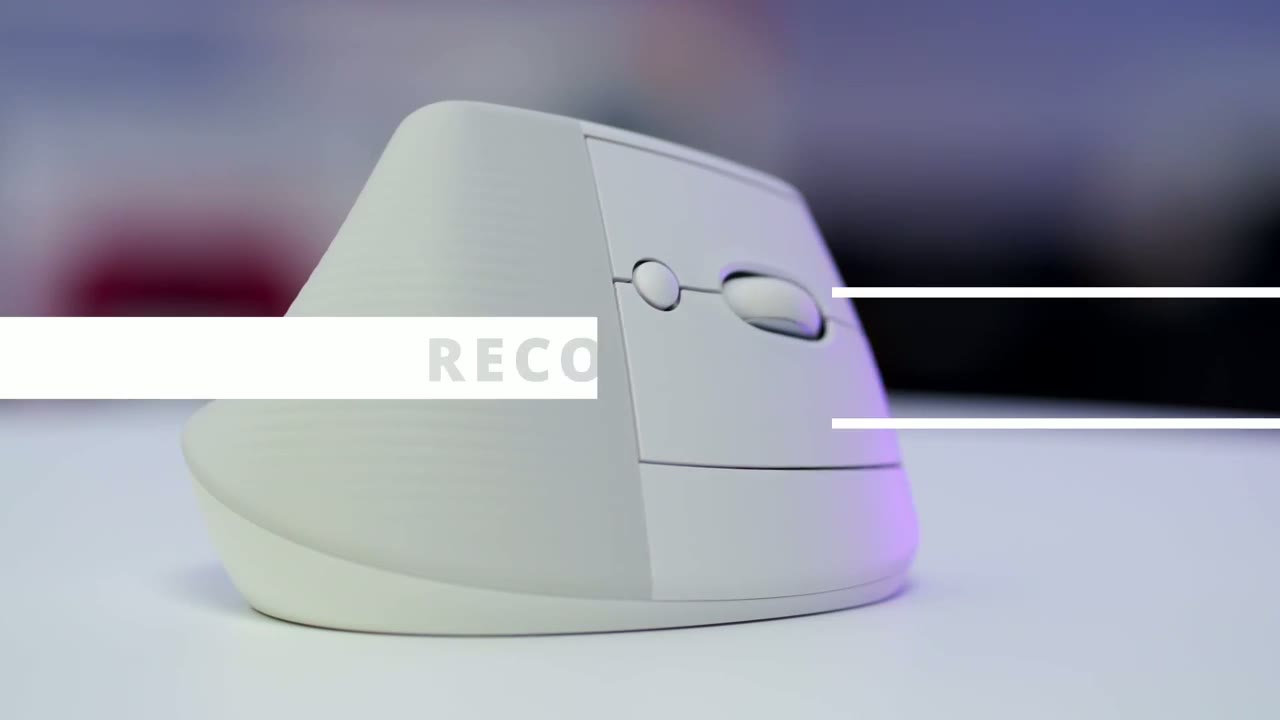
Logitech lift vertical Mouse I would say if you’ve been on the fence about using a vertical Mouse Mouse like I was this is definitely a great place to start it’s a very lightweight Mouse the build quality is excellent it’s not too big so it’s very easy to manage and get accustomed to taking everything that I said into account I highly recommend this mouse and I think that if you’re coming to a vertical Mouse like this you really value ergonomics and your wrist health and this will definitely deliver on that the only complaint I had was with the scrolling and honestly that’s not really a make or break when you consider a trade-off in terms of your wrist health and comfort all in all it’s been a great experience so far if you’re like me and you’re spending multiple hours a day on a computer consider a vertical Mouse and this is a pretty great place to start if I missed anything in my review or if you have any questions please leave them in the comments down below I do my best to reply to all questions and if you found this video helpful please consider liking and subscribing and I’ll see you in the next one bye
Please note that some of the links in my video descriptions are affiliate links where I earn from qualifying purchases. As an Amazon Associate I earn from qualifying purchases.

