


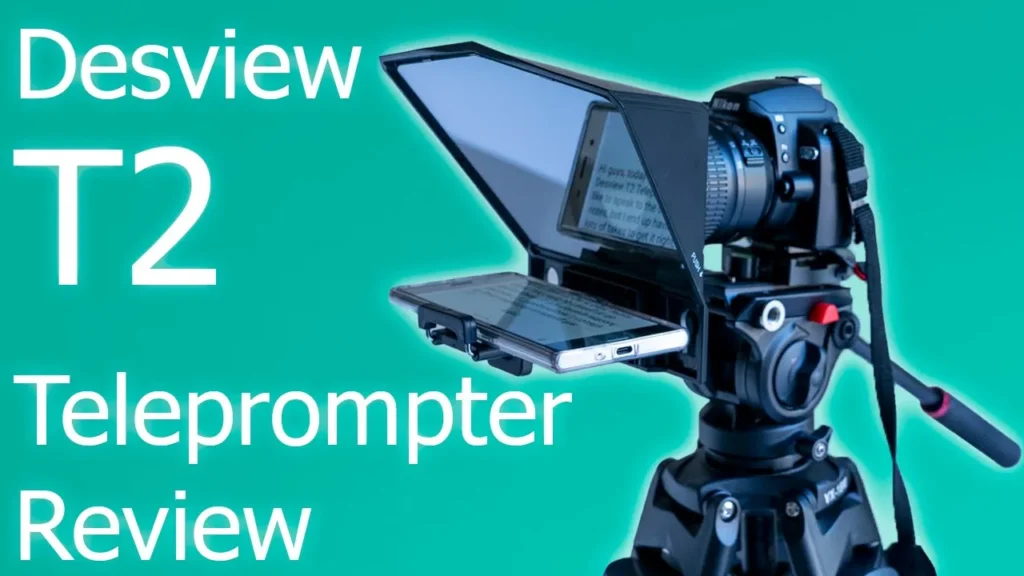

Buy the Desview T2 Teleprompter on Amazon
Please note that some of the links in my video descriptions are affiliate links where I earn from qualifying purchases. As an Amazon Associate I earn from qualifying purchases.
– Intro

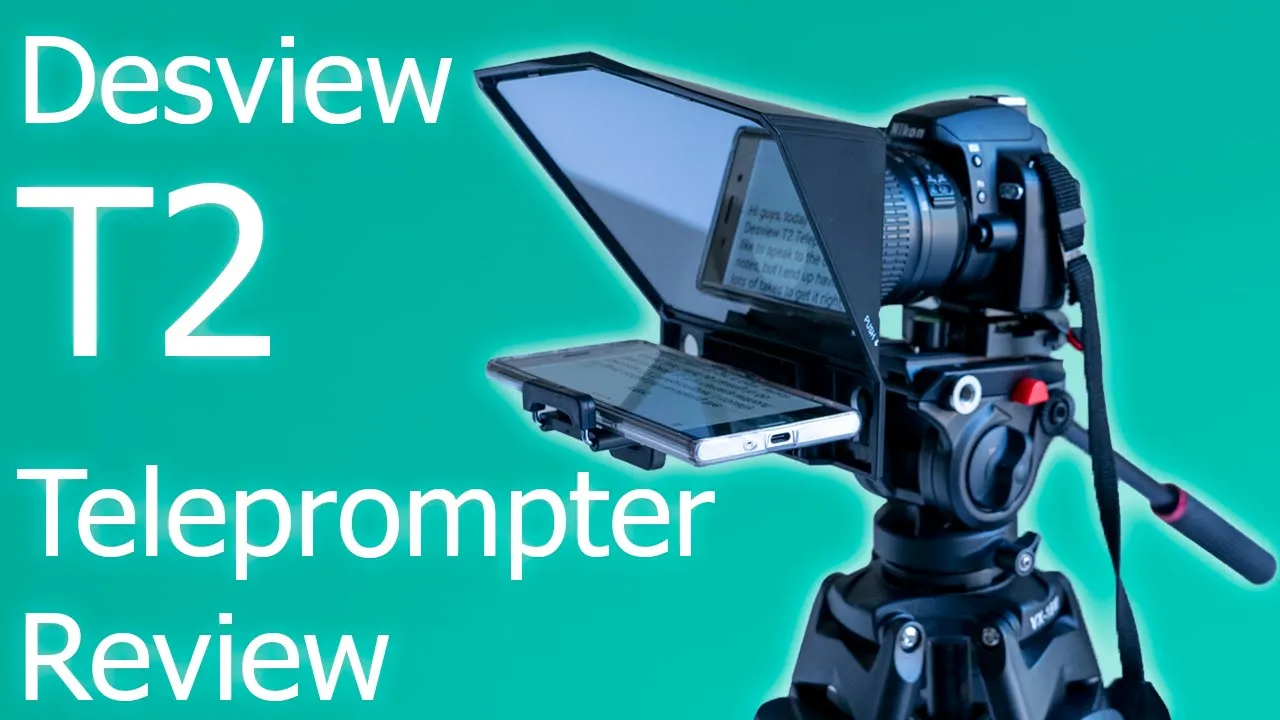
hey guys welcome to my channel dem crumbly’s tech today i’m going to be reviewing the deskview t2 teleprompter and the reason why i got this is because i like to speak to the camera you know while maintaining eye contact the entire time but it’s hard because sometimes i miss some important points that i wanted to mention about a product or some technical specs that’s you know that’s important as well to mention so i end up having to do you know a lot of takes and things like that it wastes time always memory card space so what i’ve done is i’ve typed it typed in like an intro and i have it set up on the teleprompter i’m looking at it right now and i’m gonna play it and just see how well it matches you know my pace of speaking and how will it you know the speed and everything to see if it’s a good option so it comes with a remote control that’s connected to your phone by bluetooth and then you just load up the app for the teleprompter and then you can you know control playback playback speed text size blah blah blah so what i’m going to do is i’m just going to play this read off the teleprompter just like a little intro i typed up and see how well it goes okay so i’m gonna start it now i’m gonna hit play hi guys today i’m reviewing the desview t2 teleprompter i usually like to speak to the camera without notes but i end up having to do lots of takes to get it right which means i waste a lot of memory card room recording videos that i have to delete anyways so i decided to try this teleprompter to see if i can still maintain eye contact with the camera while seeing bullet points or specs that i want to mention let’s see how it goes alright so that was me reading through the script i don’t know if you could see if my eyes were
– Adjusting Bluetooth Options
darting around too much i kind of kept the text size at the default level so i don’t have to like you know move my eyes too much i could just kind of keep it in one area so i’m gonna stop the video play it back see how well that goes and if that was a good first take then you know i’ll go into everything that it comes with and show you how to set it up but it so far has been pretty easy
Unbox & Contents

all right guys i’m back so i did a playback and that looked pretty good to me the speed settings the playback speed settings i had it at matched you know my speaking tone or my paces peaking so it worked really well for that now there’s a couple of things with the setup that you should keep in mind um you know setup is quite easy first let me go into what it came with and then i’ll go into some of the stuff i notice during stuff so it comes with these um cell phone holders so you can see you know you just slide this back pop your cell phone in and then there’s two holes here you just screw it in to attach it to the teleprompter um there’s another one of these that it comes with it’s for tablets and cell phones that’s the one i’m using right now so the other one is for tablets and cell phones that are eight inches or lower in width and that’s what i have right now because this was a bit of a tight fit for my cell phone now in terms of how you actually secure the teleprompter to your lens is there’s a hole at the back of the teleprompter and then you just slot the teleprompter right into [Music] the lens so to do that it they give you these um lens filter threads so basically you just screw this onto your lens and there’s enough of a lip hair that it can slot right into the lip so for the thread sizes it comes with a 52 a 58 55 62 67 a 72 and 82 and it comes with a 77 which is what i’m using right now so normally when actually before i get into that it also comes with the remote like i mentioned and um sorry also a 49 filter thread so normally when i shoot these videos i like to use this lens which is the sigma 14 to 24 lens and you can see this lens has a rounded front element and i was not able to use this lens for this video because in order to slot that teleprompter in like i mentioned you need you need to screw in the filter thread the the adapter and then the teleprompter slides into that lip so anytime you have these type of lens where it’s a rounded front glass element you’re not going to be able to do that so what i ended up doing was using um my sony 24 to 105 so you know because i normally like to shoot at 24 however for this video you can see i’m tattered in my other videos um i wasn’t able to actually do 24 like i wanted to and the reason why is because this cell phone holder it has this kind of rubber part with this lip hair to keep the cell phone secure so right now the camera is probably at around 30 millimeters i think um i’m going to switch the lens to 24 to let you know why i can’t shoot at 24 because this lip is getting in the shot so let me take a look right now so you can see if i put it to 24 i put my finger here you could see this lip here which is supposed to hold the cell phone you can also see the cell phone here see if i just lift it up you can see it right there so i couldn’t shoot at 24 i had to go in a bit let’s see is that lip still in there i don’t think so so keep that in mind if you’re going to be shooting on a wide angle lens or you’re shooting you know yeah if you’re shooting at a wide angle lens 24 or lower it is going to catch that lip now i didn’t see any way to lower um lower this holder vertically so that you could drop the phone um so that that lip is not in there and you probably could just honestly you could probably just break um the lip off because if you’re just having it stationary shouldn’t be a problem so i don’t have a second camera i’m just going to show you the reflection off my current uh camera here so you can see here this is the lip hair and the phone just drops right in here so if i just cut this lip out and i just drop the phone here i mean the phone’s not sliding especially if you put some rubber grip so that’s another option if you’re you know if you want to risk it you could just cut that cut that lip off and then you’ll be fine but all in all this has worked really well next i’m going to see if i can set it up for two phones and i’ll let you know how easy that was or not okay guys so i’m back with the
Setup For Cellphones

setup of the teleprompter if you’re going to use a cell phone so you can see it comes with these um foam cut foam inserts here and you can pop out these uh this little insert here which is which is what i have here popped out so basically you clamp the phone to the side and there’s through that cutout slot here that’s where the phone’s lens will show through and so what you do is you would set the camera to record out through that cutout you just put the phone onto the holder so i’m not going to put it on properly with the uh the lip and everything i just want to show you real quickly let me see if i can minimize the reflections so once it’s like that then you just start playing um it’s going to start scrolling up and because the camera at the back or the cell phone camera at the back is recording everything all you’re going to see is you talking you actually don’t see any of this text on the screen in the video so the cell phone setup is just a little bit more complicated than if you’re going to use it on the camera now once you have the cell phone set up um you’re probably going to put it on a tripod so you see you have three mounting holes here depending on a tripod and that’s it for cell phone setup it’s not too bad okay guys so i’ve taken the
Setup for Cameras
teleprompter off my main camera i’m just gonna demonstrate what it looks like um putting it on with this other camera here so i’ve screwed in the um filter thread that it comes with so there’s 52 and you know all the way up to no there’s 49 up to 82 so this is a 52 and if you look at the teleprompter here you can see that it has this kind of guide here so this is where i’m going to slide up that filtering until it clicks into place now let me try to show you close up what that looks like see so you can see i’m just going to slide it up into here now it does take a bit of force so it’s going to make a loud click okay so pretty loud but um now it’s in and it’s pretty stable it’s not going anywhere then you just put your phone onto the holder and you can see there um you’re seeing reflections of the uh the lens but when i’m looking at it and on the finished video you’re not going to see any of that so now that everything is in let me see if i can grab focus here i would just take the remote and start the playback and you can see there it goes so it’s a pretty simple system then all you have to do is connect the bottom of your camera onto whatever tripod and then you’re done pretty simple setup alright guys so i hope that video was
My Thoughts
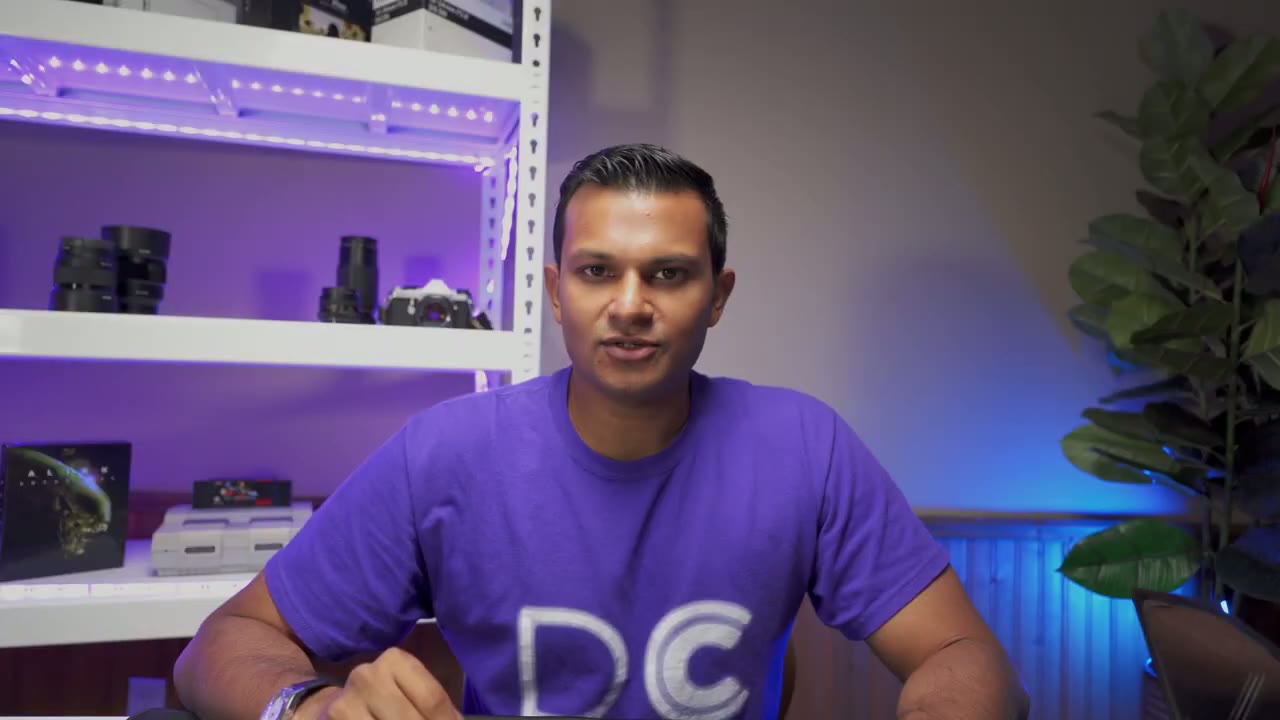
pretty helpful and the setup process was straightforward enough all you have to do is um screw in these filter threads onto your lens slide the unit in and then just put your phone onto the holder in terms of the phone setup you just go to the play store download the app or the itunes store download the app there you turn on bluetooth so that you can connect the remote to control start stop playback speed things like that the only one thing again to keep in mind is if you’re using a really wide lens or a lens with a rounded front where it will not let you screw anything in then you won’t be able to use this teleprompter if you’re using like a 35 millimeter or up type of lens they usually have those screwing options or even a 24 actually depending on the 24 you’ll be able to screw it in and it’ll work pretty easily i think the only complicated part going forward for me is going to just be typing out the content every time otherwise it’s a simple system it’s very lightweight i didn’t notice the only type of drag on the system reviewing the video i’m not noticing really any change to the video quality so all in all i think it’s a great unit price is decent for what it is the app works well and i like that it includes everything to get you started so i’ll leave a link in the description below if you want to pick one of these up on amazon for yourself all right stay tuned for my next video see you then bye
Buy the Desview T2 Teleprompter on Amazon
Please note that some of the links in my video descriptions are affiliate links where I earn from qualifying purchases. As an Amazon Associate I earn from qualifying purchases.