


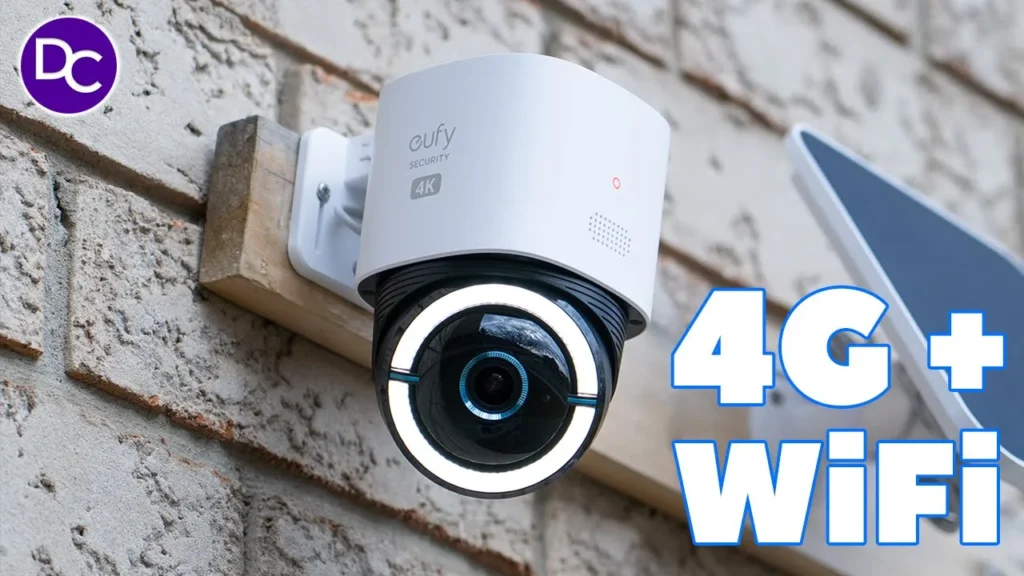

Buy Eufy 4G LTE S330 Cam on Amazon
Please note that some of the links in my video descriptions are affiliate links where I earn from qualifying purchases. As an Amazon Associate I earn from qualifying purchases.
Intro

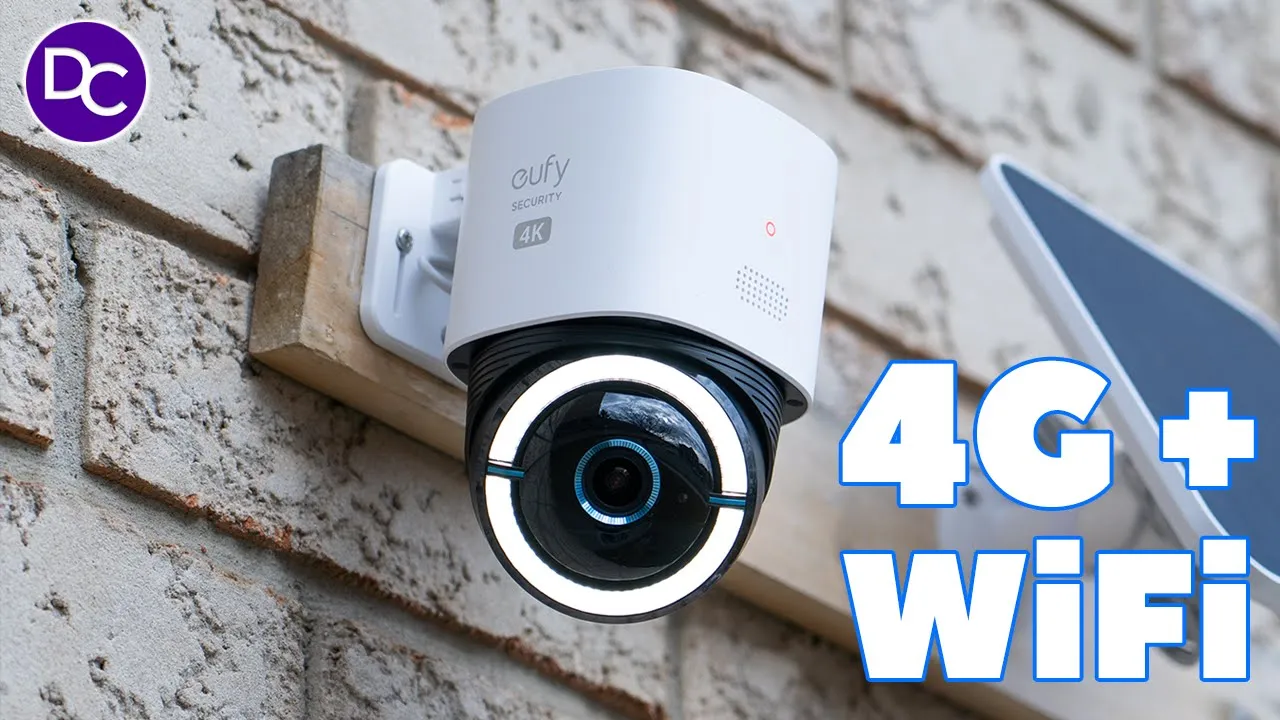
hey it’s Adrian and today I’m taking a look at yui’s brand new 4G LTE s330 camera now this is a neat camera because you have both 4G and Wi-Fi connectivity and that makes this super handy because you can actually use this to monitor somewhere remote like say you know a trail a backyard or maybe even a vacation home where you don’t want to pay for Wi-Fi all year round the Box comes with a SIM card that’s pre-loaded with a 100 mbes so that you could just test it out and then you could easily top that up online so you never need to physically remove or swap the on top of that there’s also very crisp 4K video one of the smoothest AI tracking in terms of panning and tilting that I’ve seen in any type of camera we also have a great IP rating this has survived a couple of winter storms and in traditional yui fashion there’s no monthly fees a big thank you to yui for sending this out for review but let’s take a closer look and you can see if this is worth it for you in the box we
Package Contents
have the 4G camera we also have the mounting bracket mounting screws and a mounting strap to attach it to a pole if you want to there’s also a huge solar panel with a USB type-c connector and the bracket for the solar panel a USB type-c to type a cable to fully charge this up there’s also a 32 GB micro SD card manual sim card with 100 megabytes of data yui sticker and positioning stickers as well to date I think this is
Design
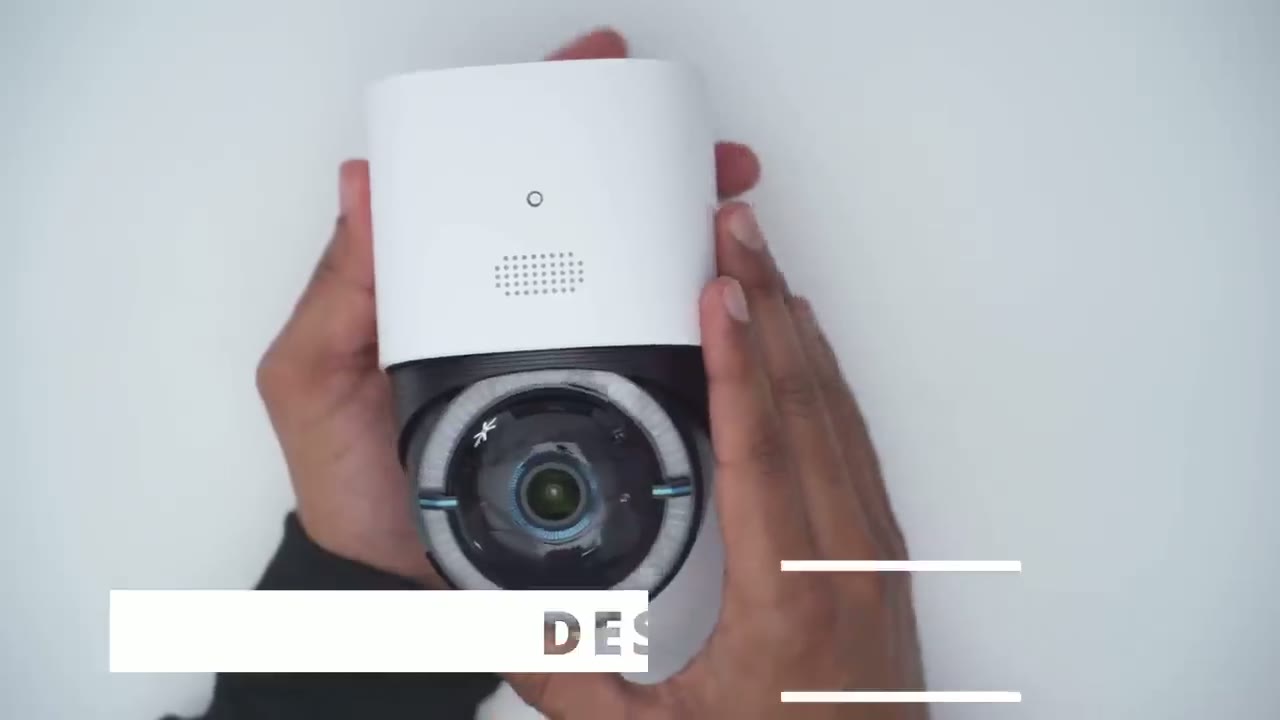
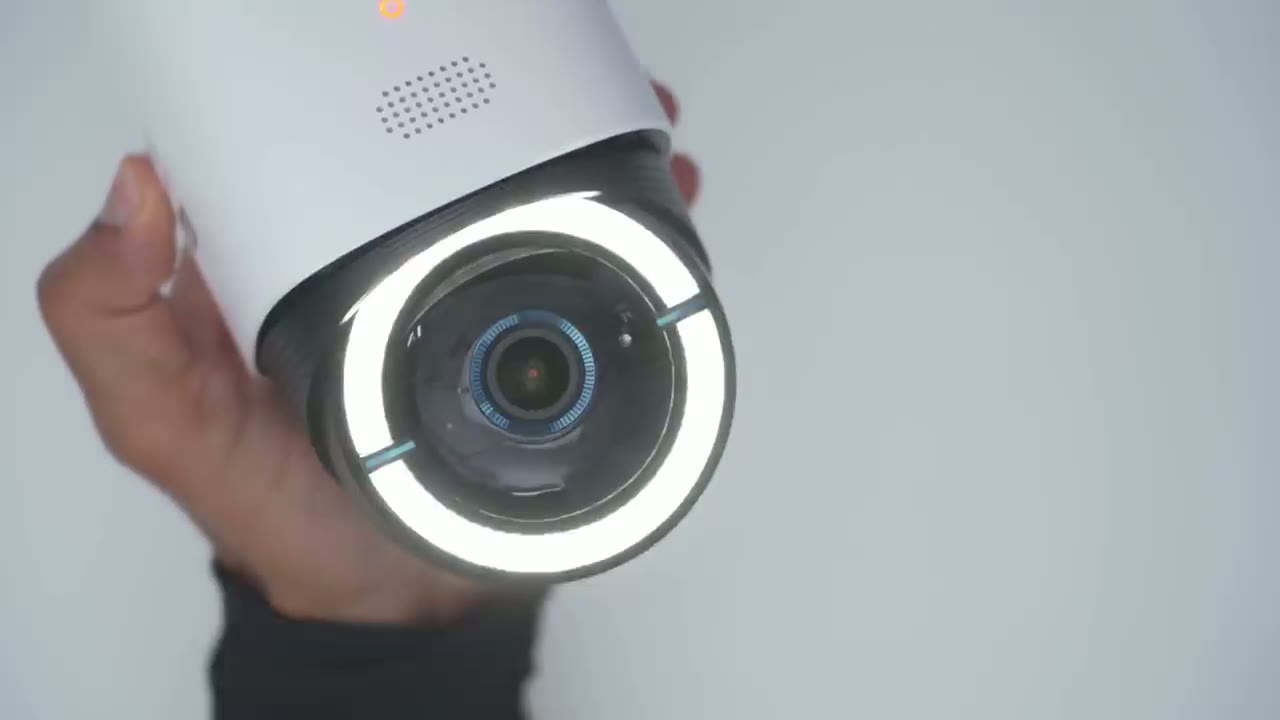
the most beautiful yui camera I’ve seen they really hit it out of the park with this design so we have the logo and it shows 4k on the right and left side we also have an LED indicator light speaker Grill and of course that beautiful camera lens with this huge LED ring light or Spotlight right here now if I take a look at the back I’ve pre- loosened this weather sealed covering but we have the area here for the rear bracket there’s a covering here for an antenna that you can attach there’s also the power port here USB type-c you’re just going to initially top that up then connect the solar panel to that port and then of course we have the nano SIM slot here if you’re going to be using this with a SIM card instead of Wi-Fi because this is capable of both Wi-Fi and Sim functionality and then we have the sync button and then if I take a look at the actual camera housing I can just tilt that down and that gives me access to the SD card slot the solar panel is the largest solar panel I’ve seen come with any yui camera so far you can see it’s just massive pretty much the span of my entire hand and we have a really long connector cable with a USB type type-c connector and and of course that does have weather sealing right around there so that when we plug it in at the back of the power everything maintains that nice IP rating to install the camera we have a couple options so first we’re going to take the mounting bracket and there’s three holes here that we’re going to screw into a wall or to a ceiling now wall mounting is going to be very easy you’re just going to screw in these into your wall slide this until you hear it click just like so and you’re done then you’re just going to attach the USB type C connector from the solar panel right into here just make sure you do that before you slide it into the bracket to make your life easy now to do this ceiling mounted we’re just going to rotate this upwards like this and then slide it in just like so and of course this would go into a ceiling mount and you’re good to go now the one new thing that I haven’t seen before and actually let me just take this bracket out so I could show it is that we now have this mounting strap and this is going to be really useful because you can actually attach this to you know a pole or a light post or maybe even to a tree and you can see the height of this is meant to thread in right here and then you would just you know um tighten that strap so the camera will just stay connected to a pole installing the solar panel is easy you’re just going to take the bracket for that screw it in with three screws into a wall then just screw in this connector head here into the screw hole right there and then run the USB type-c cable into the back of the camera and you’re done specs include a 4K
Specs
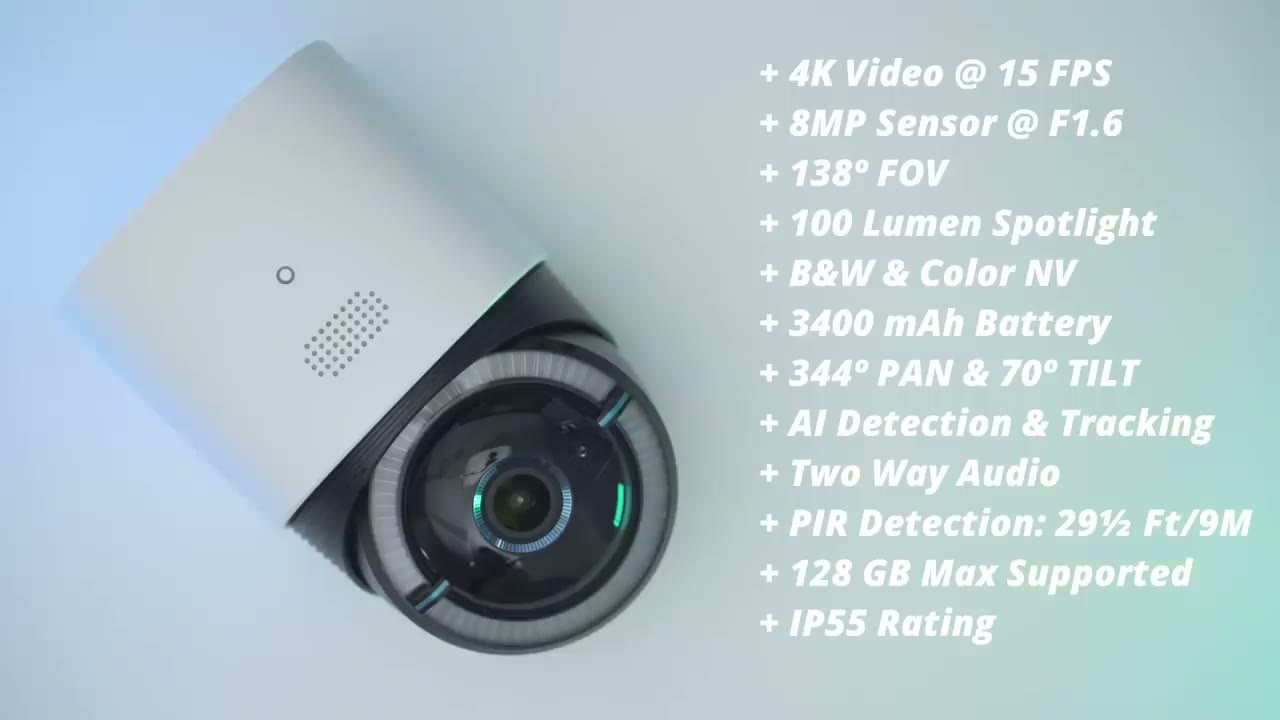
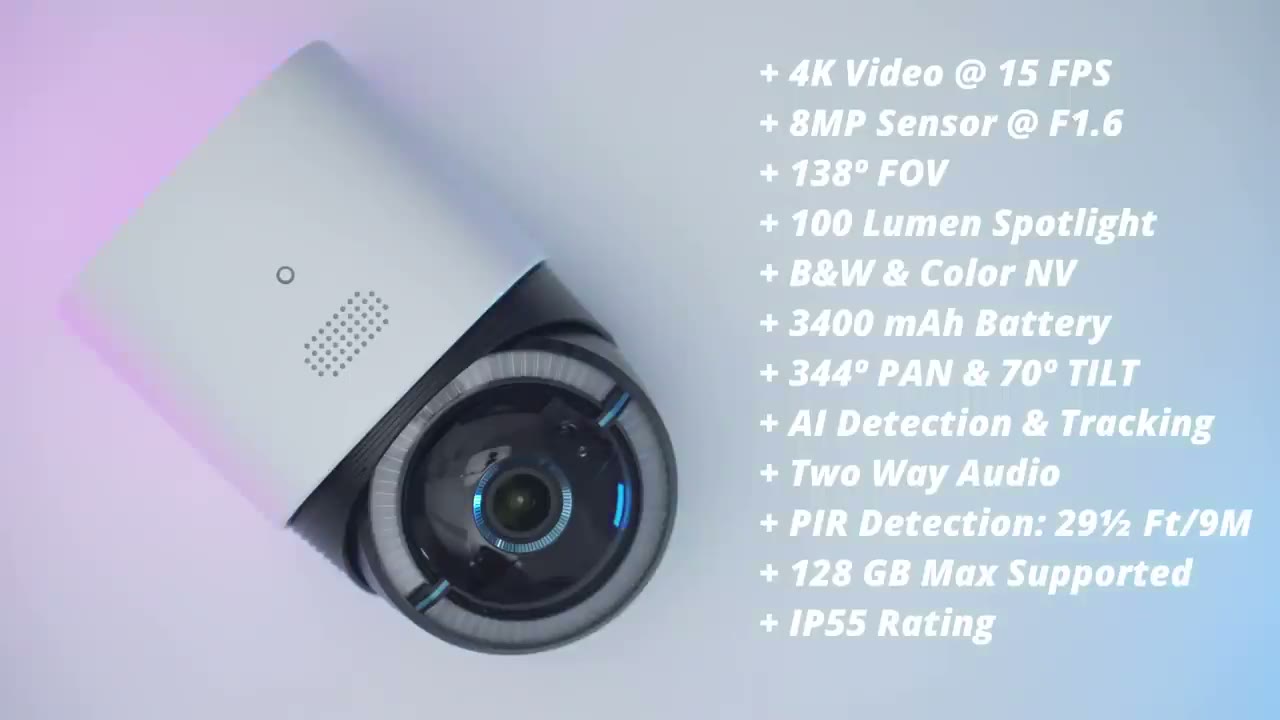
resolution at 15 frames per second there’s an 8 megap sensor at f1.6 there’s 138° field of view 100 Lumen Spotlight black and white and color night vision a 9,400 milliamp chargeable battery 344 de pan and 70° tilt giving a full 360° view we have ai detection and auto tracking 2-way audio I’m going to
App Setup
go ahead and add the s230 4G cam to the U app so I’m going to click plus here go to battery camera we’re going to pick the 4G LT cams 330 add it to my existing home and I’m just going to set it up for Wi-Fi instead of 4G for right now and I have two options here either connected directly to my router or connect it to the home base 3 if I own a home base 3 I’m just going to go to router for now for those of you who don’t have a home base and I’m just going to go ahead and scan the QR code at the back here and I’m just going to put in my Wi-Fi password I’m going to click next since I heard the beep I’m just going to scan this QR code with the camera connecting to the network please wait setup was successful let’s take a look
App Settings
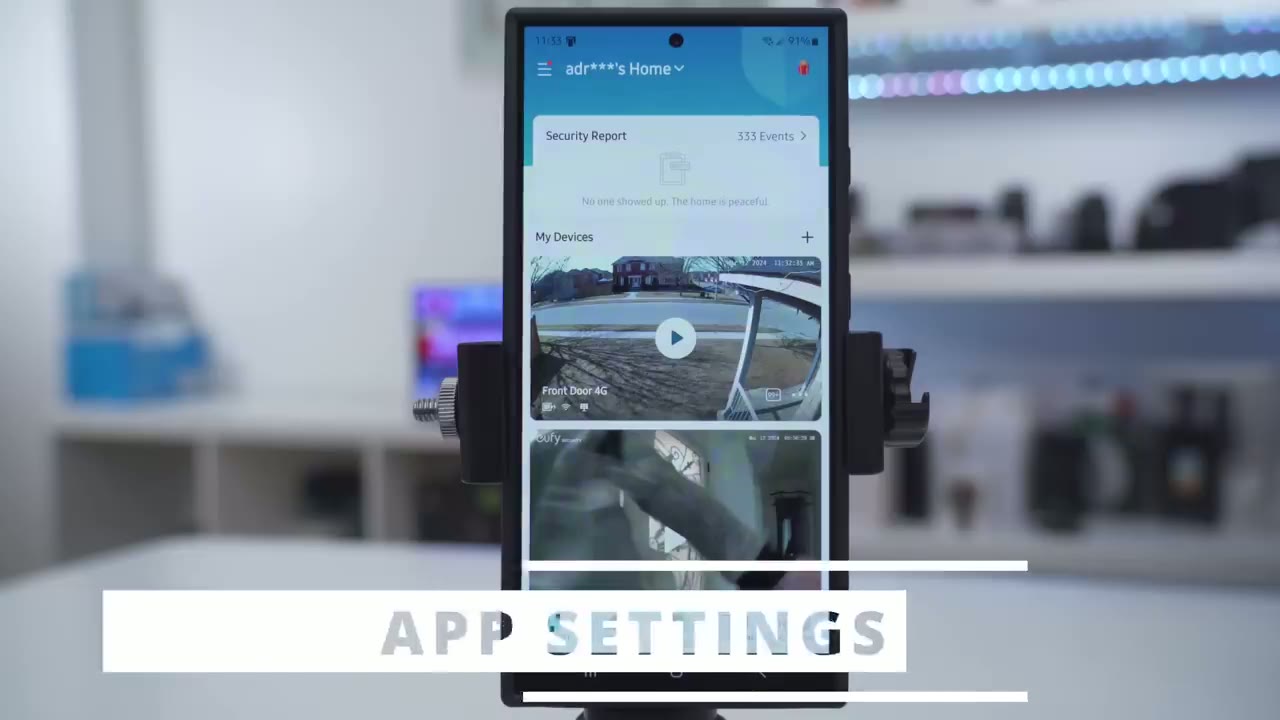
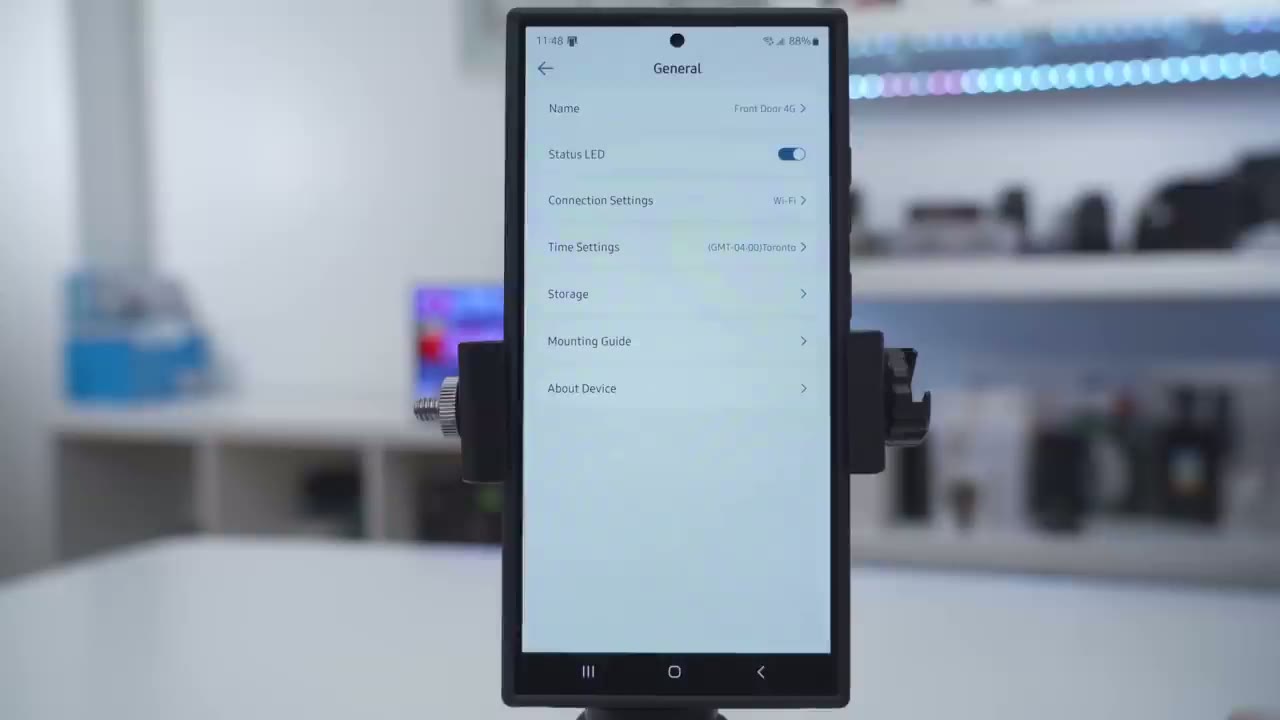
at the camera settings in the U security app so if we look at the bottom left I could see that it’s actively being charged and it is connected to the solar panel and I have fairly good Wi-Fi strength I can see that I have 100 plus events on here and if I tap on the buttons there I can snooze this from 30 minutes up to 12 hours and I can jump into the full settings which I’ll demo later but let’s jump into live view and that loads very quickly now it is set to Auto but you can manually set this to 4 quality so that when you zoom in you know you have a lot more detail but for now I’ll just set it back to Auto and from here I can also go ahead and manually trigger the alarm outside and jump into settings and if we look at the bottom we have access to some quick settings now if I tap on record this allows me to just record if I saw anything interesting you know going on and I can just stop it it’ll save it to the phone I can also do the same thing with a screenshot and it’s also going to save it to the phone and then if I press and hold hold on the microphone icon here I can go ahead and have 2way talk with someone outside I can also turn the light on or off manually and if I go into pan and tilt this is where I could just manually pan and tilt the camera as I desire now if I go over I could turn AI tracking on or off and this is helpful because if you just want the camera to have a fixed position and if you want to conserve battery life say I only want to monitor this front entryway I would just turn AI tracking on or off now presets is where you can set four predetermined areas of Interest which I’ve already done so number three it’s going to have the camera pan over to my backyard doorway and fence and then you know number one is kind of like the default position I can have it go right more into my entryway and see if anyone’s going to try to come below the camera to tamper with it so you can set that as you see fit now you can also go ahead and turn color night vision on or off you can jump into events you can turn sound on or off and you can also initiate a 360° view as well in the full settings I could see the battery life and I could see that the camera is being charge we do have an option to connect it to the home base 3 I haven’t done that yet but I will demo that later under motion detection it is set to on and you can also set up activity zones so I could go ahead and set two different activity zones so that’s the first one second one and then if someone passes say the sidewalker within the zone I’ll get notified we can also adjust the detection sensitivity I leave it in the middle and that works fairly well for me and you could set it to day and night optimization so at night all motion events are going to be recorded but at day it’s going to be a little bit more selective in what it chooses to record of course you could just turn that off so it records pretty much everything now under detection typ I’ve only set it to human but you can also set it for vehicle and basically any type of motion you know it may be a pet or just uh the leaves going and it’s going to record it but just for the sake of battery life I’ve just set it to human and then from here you can also turn AI tracking on or off under pan and tilt this is where you could set up those four predefined areas that I show and you could set the default position so say I wanted number three to be the default I would tap on that set the default position pretty straightforward if we go into night vision you could set it to Black and White Night Vision color night vision or you could just turn it off completely and if we go into Power Manager You Could See this has been set up or installed for about 5 days so far and I’ve had a whopping 1,282 detected events you know where does camera’s position it really gets a lot of work and detections put in and it’s recorded 415 events now when you take that into context being at 89% battery life this is actually quite good the working mode is set to Optimal battery life so video clip lengths are only going to be 10 seconds long at most you could set it to Optimal surveillance and you’ll have Clips up to 20 seconds long now if you wanted more than that you could go into customize recording and you could have Clips up to a minute long with a cool down down or re-trigger time of as low as 5 seconds and you could turn off the option to end the clip early if motion stop say you anticipate someone coming back into the frame but I’ll leave it on optimal battery L because I’m trying to strike a good balance with the solar charging as well if I go into the solar dashboard I can see a 7-Day Trend so from when I first took this out of the box I charge it up pretty much at 100 installed it and you know it’s just been fluctuating like that and I could see on different days how efficient the charging was so it’s really cool to have access to this dashboard and I can also see you know how much total time of charging I’ve had under video settings this is where we could have a logo Watermark now streaming quality it’s set to Auto and I recommend that you pick that if you’re going to be using the 4G sim card now if you go into recording quality you can either set it to 4K resolution or 1080p and it’s just better to have it at 4K resolution so you can see more details and you can also set up privacy zones and this is required in certain States and areas so that you know you may need to block out your neighbor’s house for example I don’t need to do that so it’s something that I don’t ever enable but it is there now you can go into audio settings and then turn on the microphone and enable audio recording with all of your clips and then you can also set the speaker volume if we go under notification I like to set it to most efficient so I’m notified as soon as possible of any motion but you can also set full effect where you’ll get the text notification first then a thumbnail will follow and then you can you can also set it to include thumbnail so you get the notification and the thumbnail at the same time this will be a little bit slower because has to process the thumbnail now you can also set the app alert tones and then you can also set a notification for when you switch security modes under General I could change the name of the camera turn the status LED light on or off and I recommend leaving it on so people know the camera is actually working and active now if I go into connection settings which I’ll do now you can see it’s set to Wi-Fi setup but I can actually change that to for G now my SIM card is already in there so I’ll just go ahead and pick okay and I’ll just go into APN configuration change APN and I noticed I had to do this and just set it to p- chap because when I set it to the recommended or Auto setting I noticed it wouldn’t take this setting so just go ahead and manually set that up give it a second to connect all right so it’s now switched successfully and if I go into next I’ll go back back and I can see it’s now set to 4G now to confirm that if I go into the main settings there I can now see it showing that hey it is using the uh EIT Club SIM card right up there and it shows how much data is remaining on there and I can also see my ICC ID for the SIM card now if I go into storage I did insert a 32 GB micro SD card and I can see that I’ve only use you know less than a gig of that so I still have a lot remaining since it is event based and not 24/7 recording so I’ve gone ahead
HomeBase 3
and added the camera to the home base 3 you can see it’s now connected now what we get for that is if I go into motion detection we now have human recognition and pet detection where we did not have those two options before and another thing to note is that if I go into General you can see if I go into storage it’s now going to record directly to the Homebase 3 in instead of the 32 GB card that I inserted but one thing that’s missing is we can no longer switch to the 4G connection we’re limited to Wi-Fi so just consider that if you want to use this camera both with Wi-Fi and 4G you know and to switch back and forth do not connect it to the home base 3 to review
Video Playback
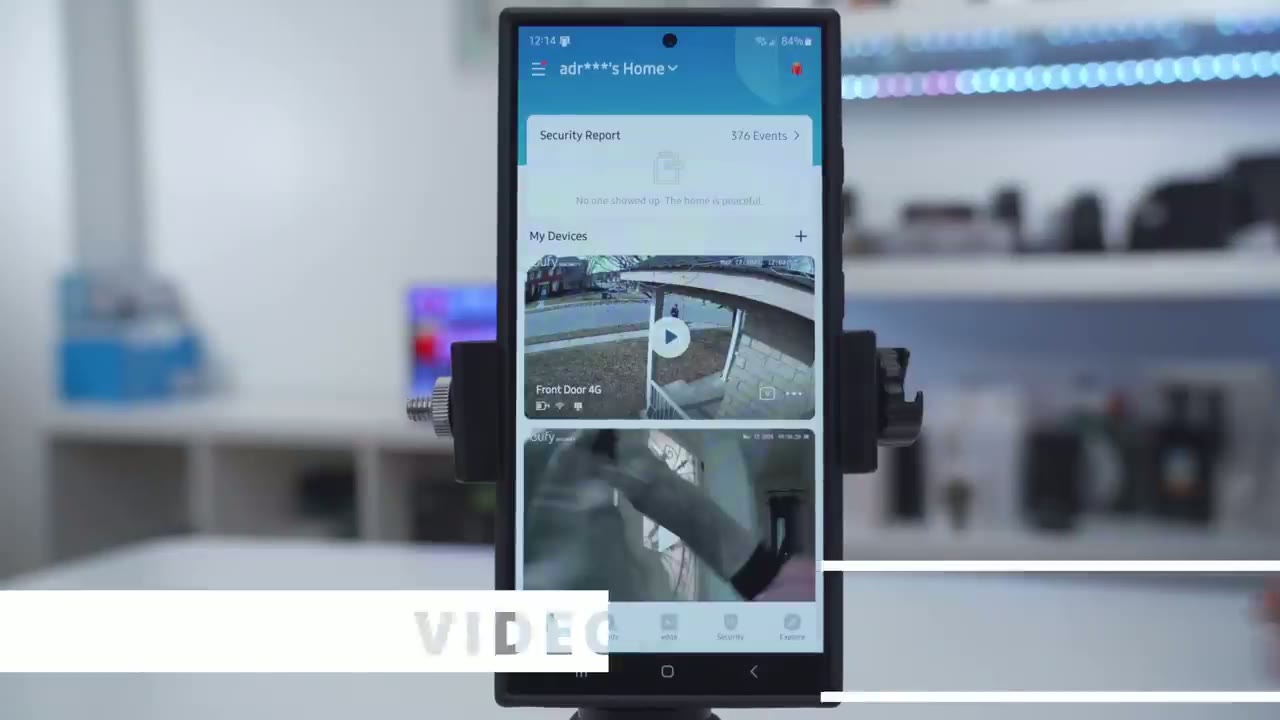
video we’ll just tap on events at the bottom and then since I have so many cameras I’m just going to filter that and go to the front door 4G camera and I can see all the different clips now I’ll just tap on this clip from recently and I can see someone’s walking their dog from here I could download this clip and it’s going to go directly to my phone I can also share it with someone else donate it to yui or delete it and you can see that all of these are tagged with human and that’s because I’ve turned off you know vehicle detection but there are some clips where a vehicle is passing it’s just not going to tag it as that just because I’ve turned that option
Video Quality
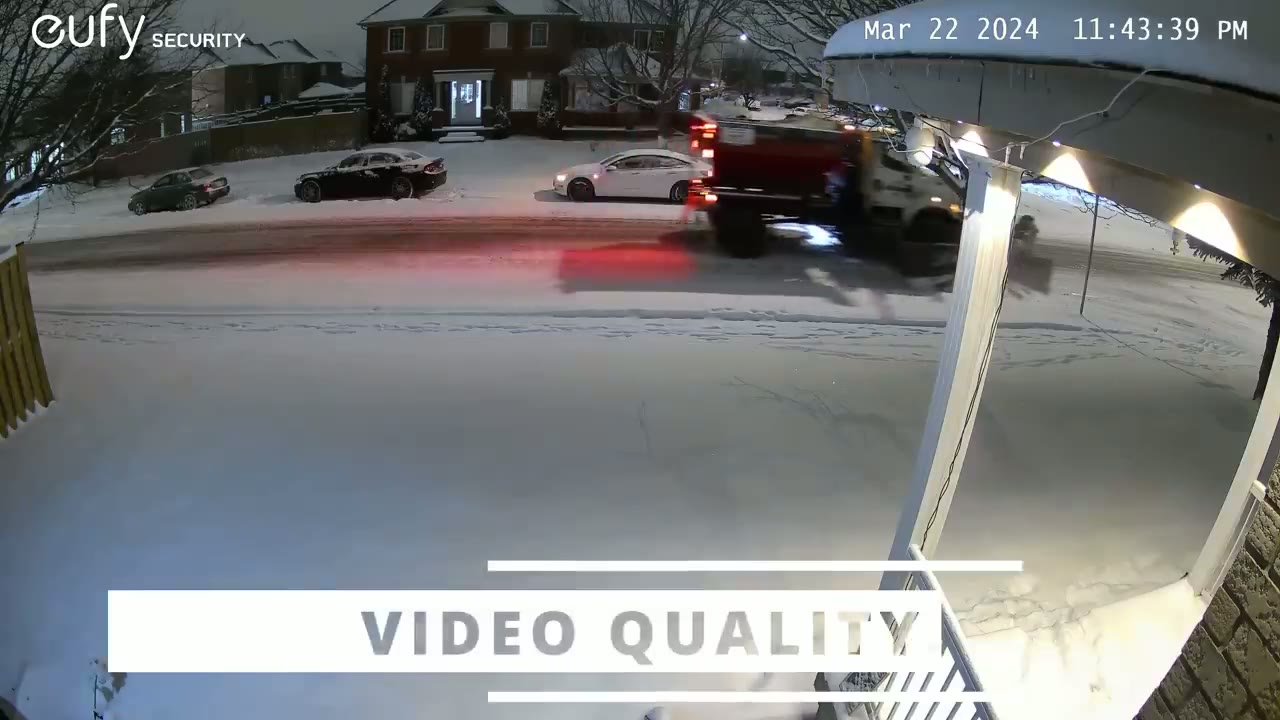
off video quality was fantastic on this camera during the day and at night night and it’s so rare to see 4K video resolution on a battery powered or a solar powered camera but I’m so glad that they chose to implement that I found the video to be sharp and clear even when the days were sunny or very overcast which it has been recently and even at night the video was very usable now we do also have the option to have black and white night vision or color night vision and it did well with both
Pan & Tilt
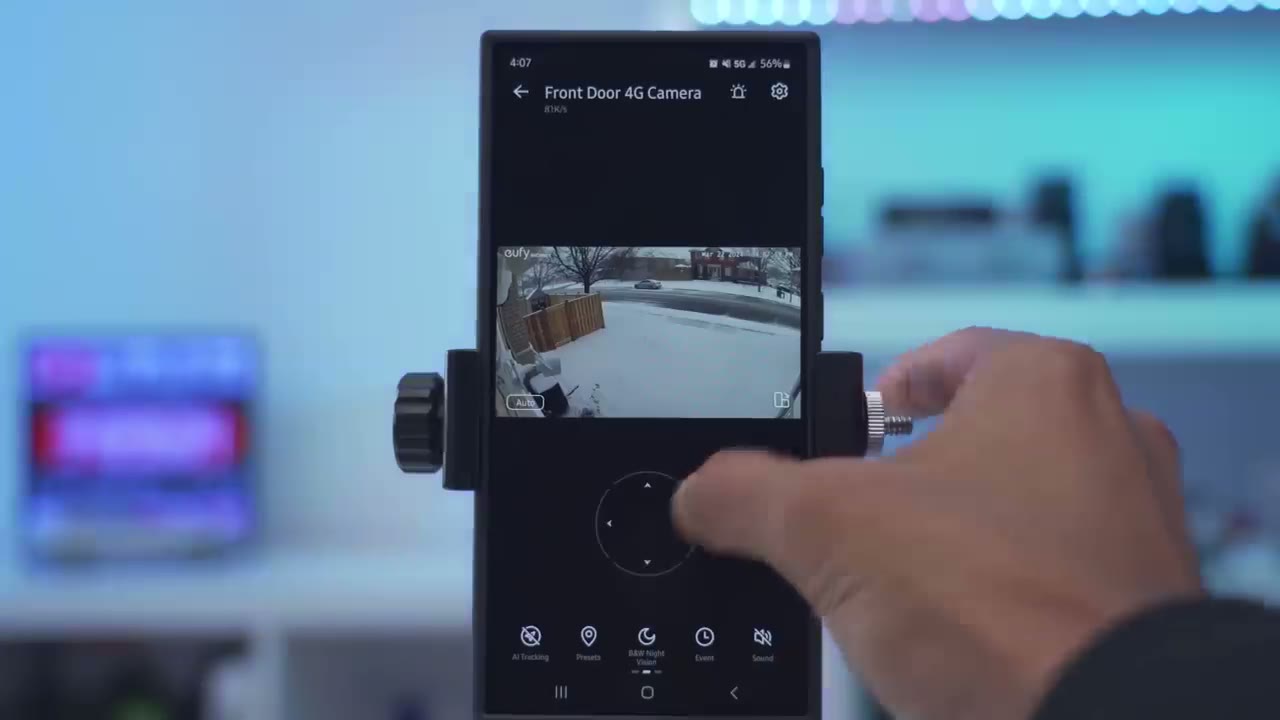
you have the option to manually pen and tilt but I just set it on the AI track and where it does it automatically and it did it flawlessly and again like I’m saying it’s one of the smoothest pen and tilts they have this perfectly refined I didn’t find any pen and tilt speed controls but it’s not something that I think I really need because I’m just in love with how well it handles it motion
Motion Detection
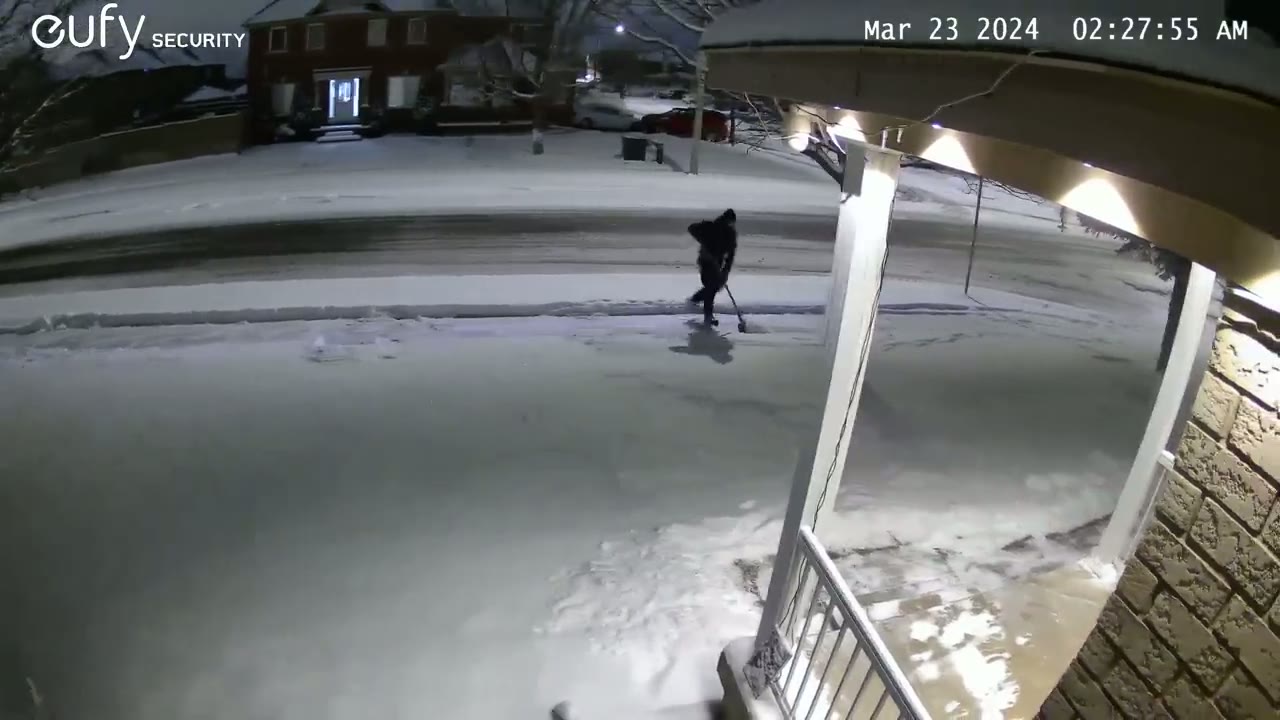
detection is also fairly quick on here so even with the camera set in the default position anytime I came from the right or left side it only took the camera a couple of seconds to detect that I was there and smoothly pan and tilt and lock focus on
Speaker
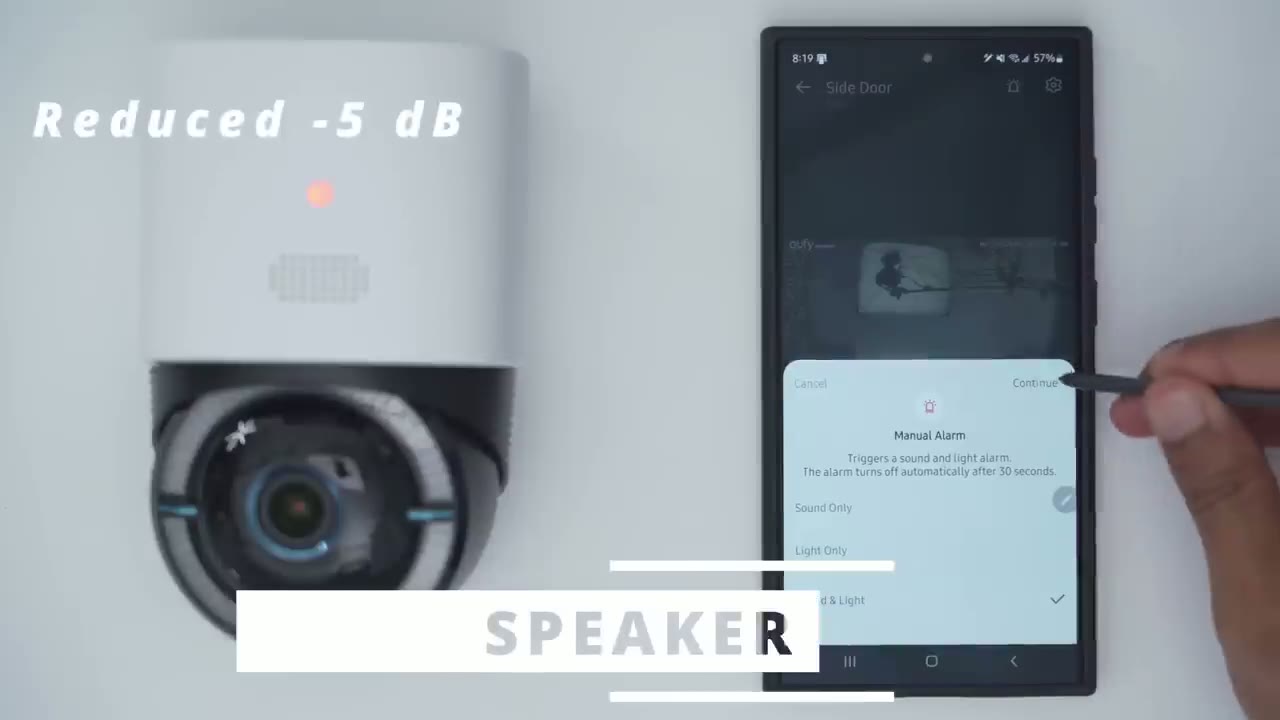
me the spotlight isn’t the brightest out
Spotlight
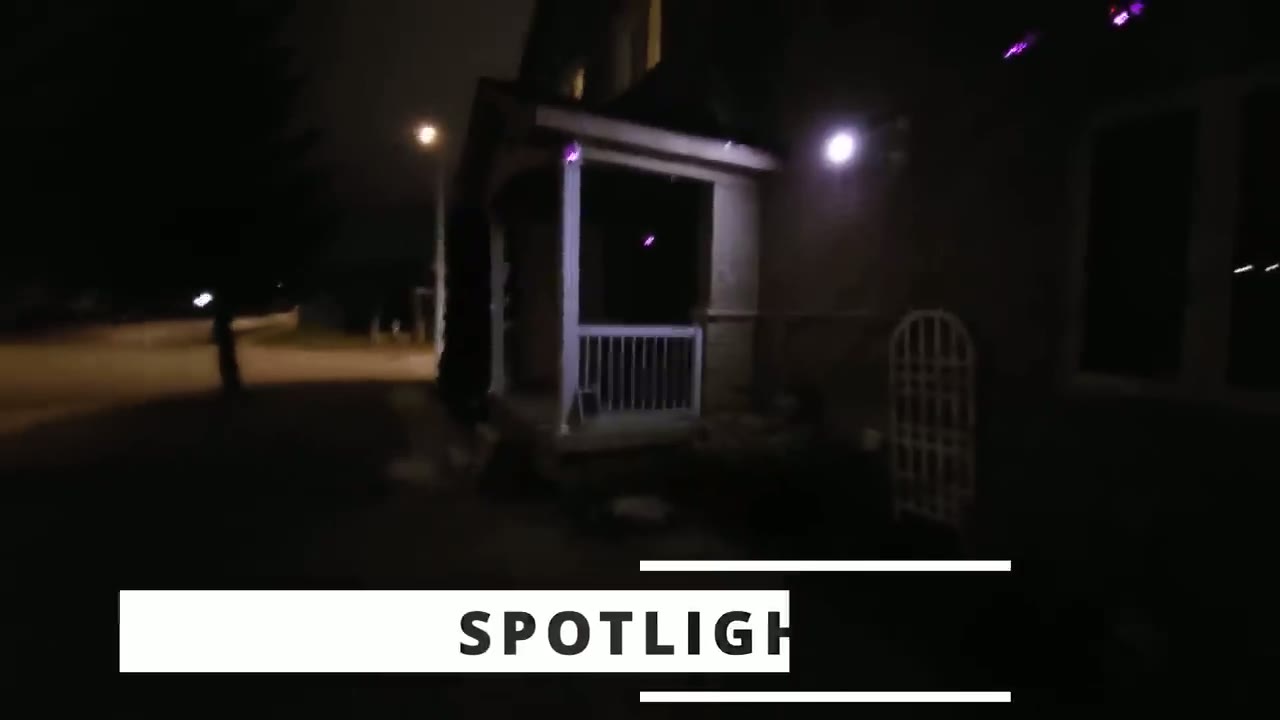
there but at 100 lumens at does a fairly decent job at Illuminating the front of my house I’m pretty impressed at just
Battery
how well the battery life has been on this now I think part of that is because I’ve set it to human tracking only and I’ve omitted vehicle tracking but the AI tracking is still on and the spotlight is still on now I’ve had over 2,000 detected events and almost 1,000 recorded events each at about 10 seconds long in terms of the clip length or a little bit shorter and the batter is still at around 92 93% and keep in mind this is with a lot of overcast days you know snow it’s still winter here and cold temperatures so it’s doing fantastic for 4K video quality and tracking in terms of storage I’m
Storage
expecting to get about half a year to a year with only a 32 GB micro SD card which is not too bad they’re 4K Clips 10sec clip length maximum so obviously if you were to insert 128 GB micro SD card you could probably get years of footage again it’s going to depend on the amount of detections and recorded events and in my area it’s a lot so let’s talk about the 4G connectivity and
4G Connectivity
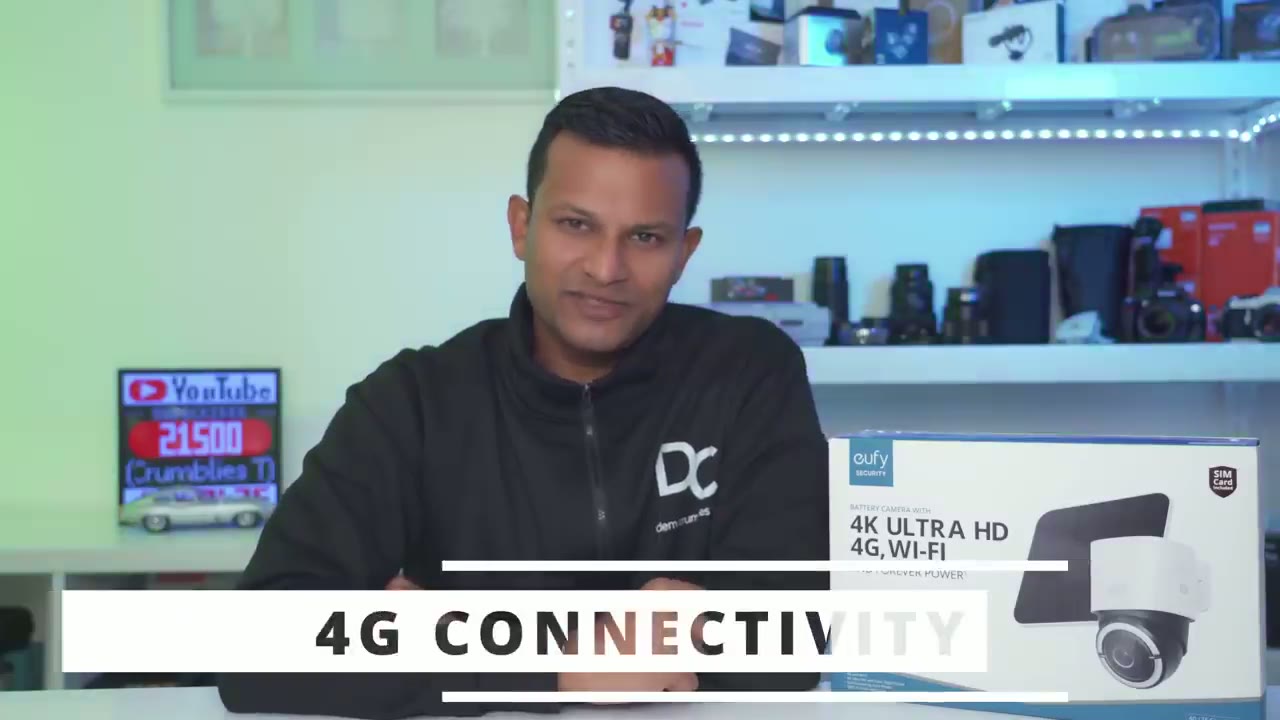
it was a very seamless experience you could go into the general options and app and switch it from Wi-Fi to 4G and then back again anytime you need it what would have been great is if the system can just switch over to 4G anytime it detects that Wi-Fi connectivity is lost or is out so if you’re looking for a
Recommended?
security camera that has both 4G and Wi-Fi connectivity this is one of the better options out there and it is doing fairly well with the solar charging as well considering its recording at 4K resolution the IP rating and build quality on here is truly fantastic not something I usually comment about but this has survived you know heavy snowfall heavy rains really high winds and it hasn’t stop ticking pair that with the crisp 4K video and super smooth and fluid AI tracking and this is one of the better options out there so if you’re interested in picking up the yui 4G LTE s330 camera I’m going to leave some links down below now I also reviewed yui solo cam s340 which is another solar camera it has two vertically stacked lens so you can have a wide field of view and a zoom zoomed in feel of view but it doesn’t have 4G connectivity so if you’re just on the hunt for a solar camera also check that out because it is a very unique camera it just doesn’t have the 4G connectivity but it does have two camera lens I really hope you found this video helpful and if you did please consider checking out some of my other videos on yui products like their video door locks and doorbells and as always if you found this video helpful please consider liking and subscribing and I’ll see you in the next one soon
Buy Eufy 4G LTE S330 Cam on Amazon
Please note that some of the links in my video descriptions are affiliate links where I earn from qualifying purchases. As an Amazon Associate I earn from qualifying purchases.