


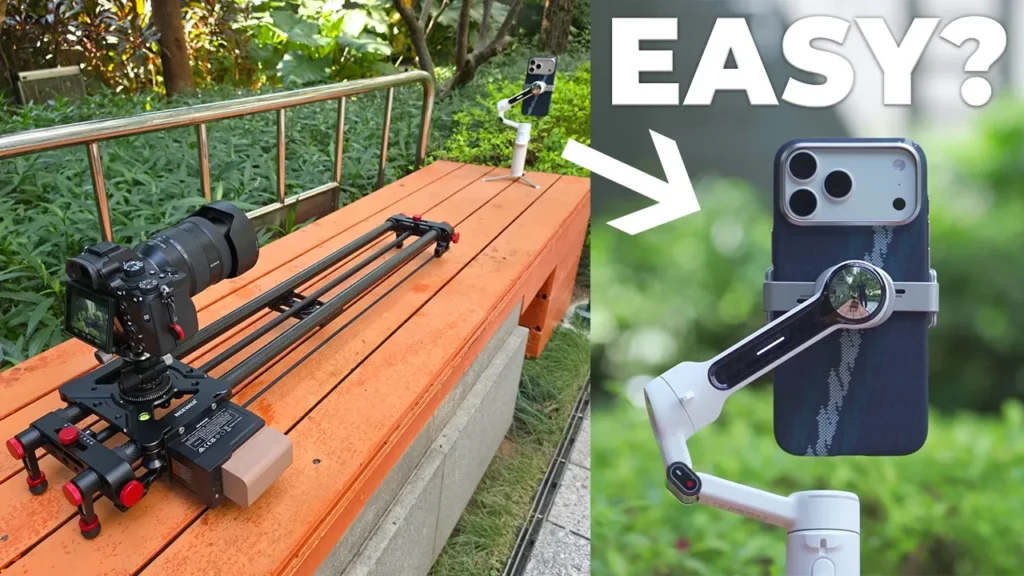

Buy NEEWER ER1 Slider – 120 CM
Please note that some of the links in my video descriptions are affiliate links where I earn from qualifying purchases. As an Amazon Associate I earn from qualifying purchases.
Intro

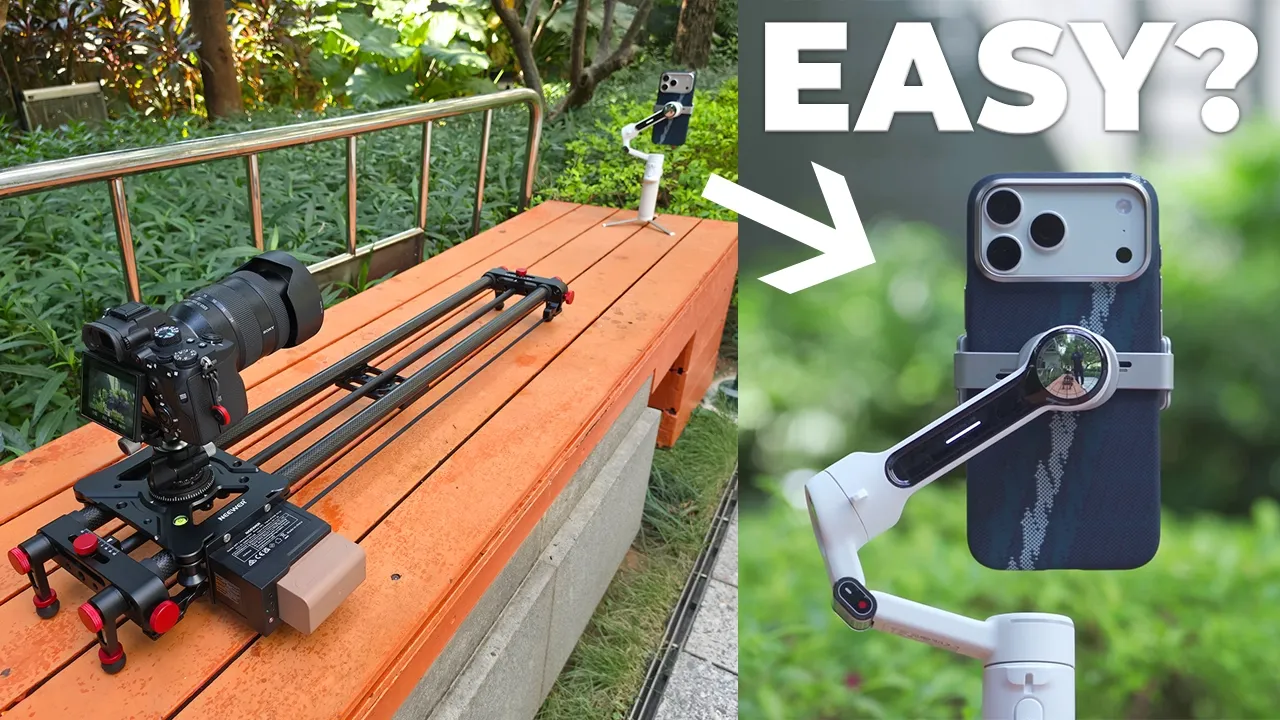
If you’re like me and you’re looking to add a little bit more shot variation to your videos, you may have thought about getting a slider like this one just as I did. So this is the newer ER1 slider and this is actually my very first slider that I’ve ever used. Now before I had this, what I would be doing is hand holding my camera and kind of like backing away from product shots or walking towards them. And that always resulted in very unstable and just shaky footage. So I’ve always wanted to try a slider because you could see this is just a way more smoother and consistent type of travel. To see just how much more could improve my shots.
But how simple is it to actually get a slider like this up and running, how smoother it is shots, how much noise does it make and what’s a battery like really like? Well, let me show you what it’s like, what I’ve learned using this as my very first slider and if it’s actually worth adding to your setup and a big thanks to newer for sending this out for review.
Package Contents
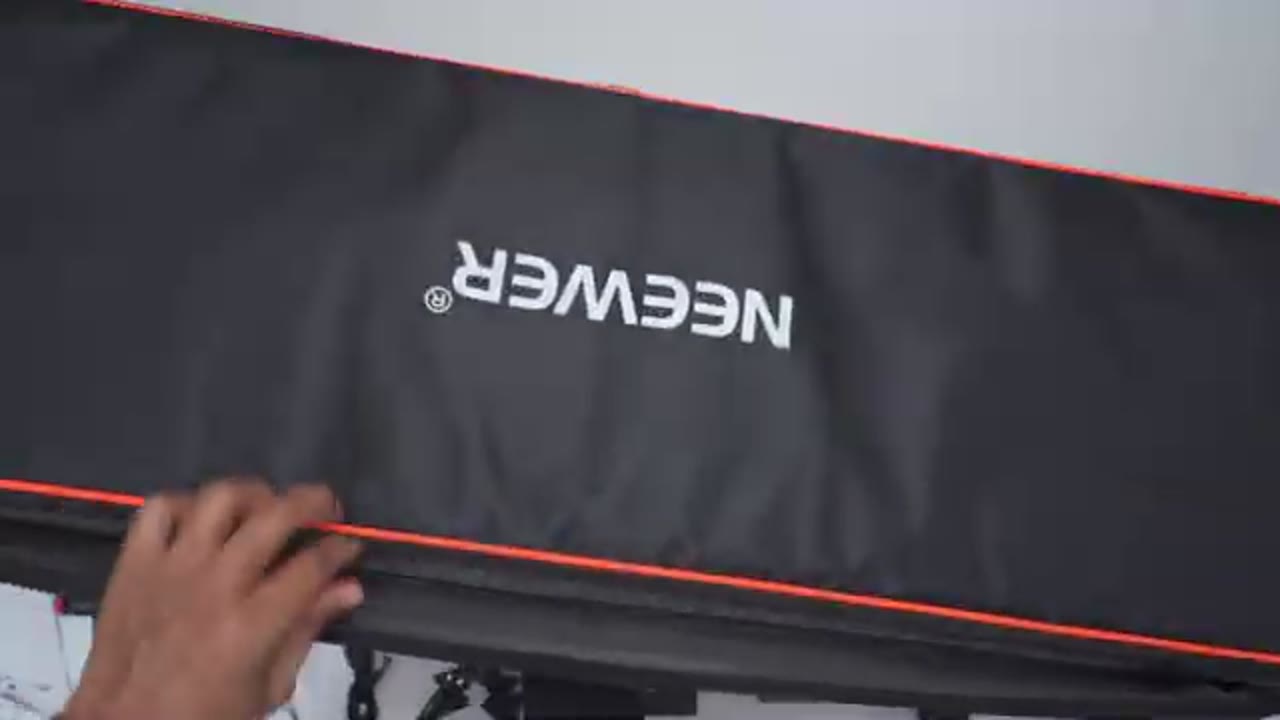
In the box you get the newer ER1 slider along with an NPS750 battery to power everything. There’s also the ball head various shutter release cables are USB type A to Type C cable, Allen key and various bolts and nuts. There’s a bunch of manuals along with a carrying case to keep everything nice and secured for portability.
NEEWER ER1 Slider Design
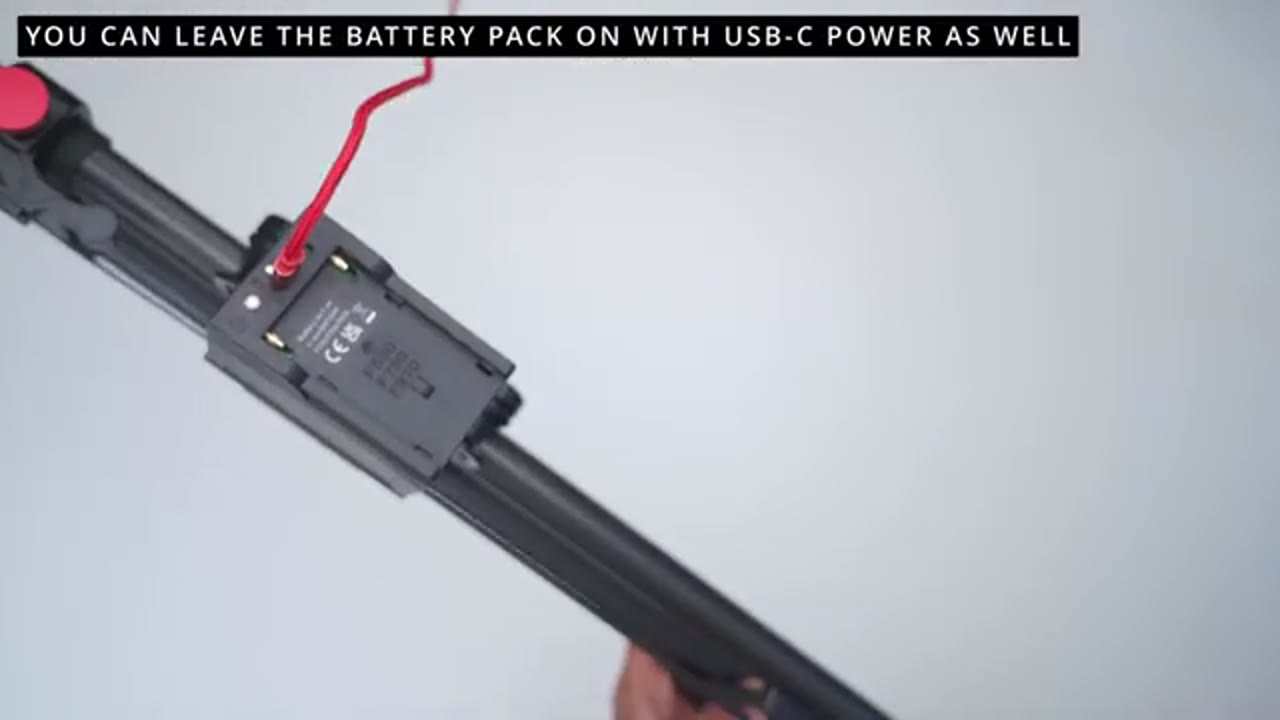
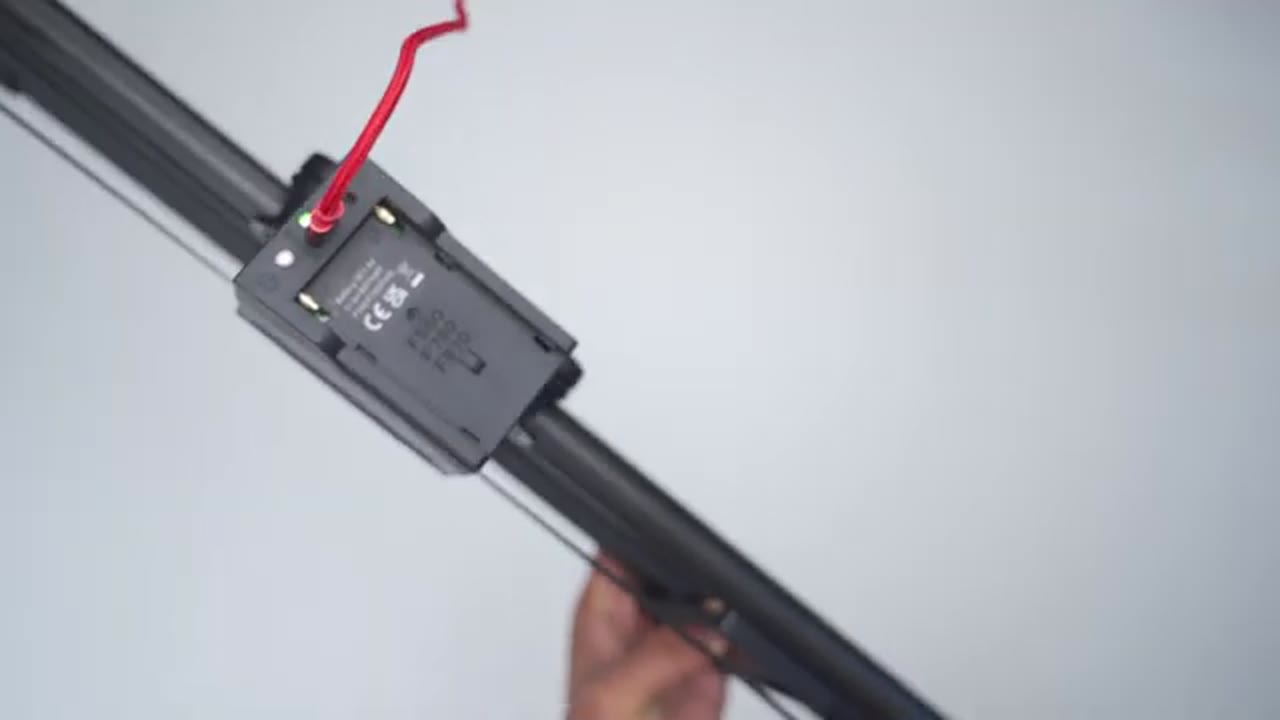
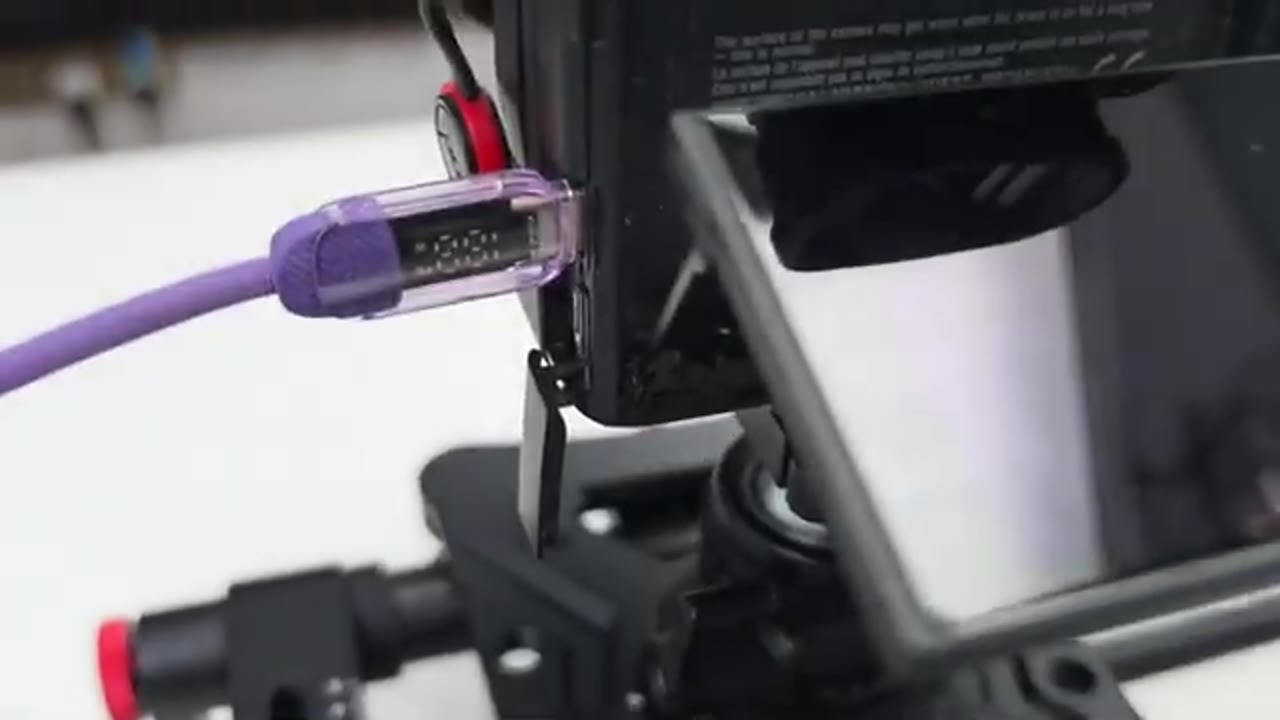
In terms of design the newer ER1 slider comes in around 2.3 kilograms or about 5 pounds. Now it feels really well built everything feels sturdy, there’s no type of looseness or creaking at all. It’s a mostly carbon fiber and aluminum alloy build and starting with the top view that’s where we have the main mounting section for your camera. And there’s also a bubble level there as well along with additional mounting holes. There’s a locking knob on the side that you could tighten to prevent the mount from sliding around on the rails and on the other side that’s where we have the battery compartment where you can insert the included NPS750 battery. There’s also a USB Type C port allowing you to plug in a USB Type C cable to power up the entire slider if you don’t want to use a battery.
There’s also an LED indicator light power button and a 2.5mm jack to use these shutter cables. There’s two adjustment knobs on the right and left side to allow you to change the angle of the middle metal bar and that actually changes how your camera is going to move on the slider, which I’ll demo later. The right and left sides also have adjustment knobs so you could actually swing the slider feet out to have them at various angle and you could lock them into place. Additionally you could also change the height of the slider feet by using the adjustment knob at the bottom as well. The underside has mounting holes on the right middle and left side so you could use one or multiple tripod for additional stability.
And you could see the belt guide along with the wheels on the rail which have really smooth travel. The included newer ballhead also feels really well built and it comes in at around 208 grams or about 0.4 pounds. The top has a bubble level along with the adapter or mounting plate to secure your camera to the ballhead which you can do with the locking knob on the side. There’s another locking knob to allow for a panshots and a large locking knob to adjust the ballhead in various regulations.
NEEWER ER1 Slider Setup
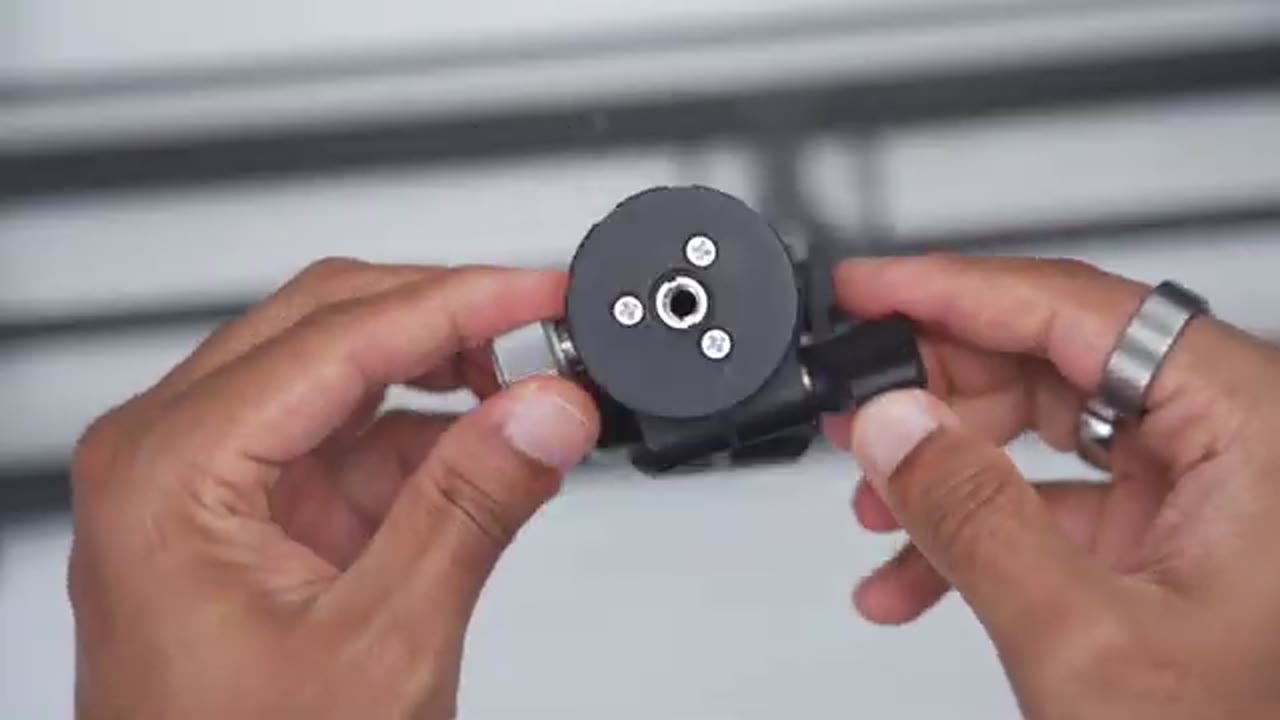
Yetting the ER1 slider setup is really easy since it comes preassembled out of the box so the first thing you’re going to do is to angle it all of the feet out and use the locking knob to lock them into place. Then just look at the belt mechanism to ensure everything is nicely tension in case anything got too shirring shipping. If you notice the belt is a little bit loose or a little bit tight you can also use the adjustment knobs to increase or decrease the tension. Next screw on the included ballhead to the mounting area. Next download the newer app on your phone make sure Bluetooth is turned on and then insert the battery pack into the slider and you’ll automatically see it pop up into the app just tap on out the device and just like that you’re done.
Powering On Slider
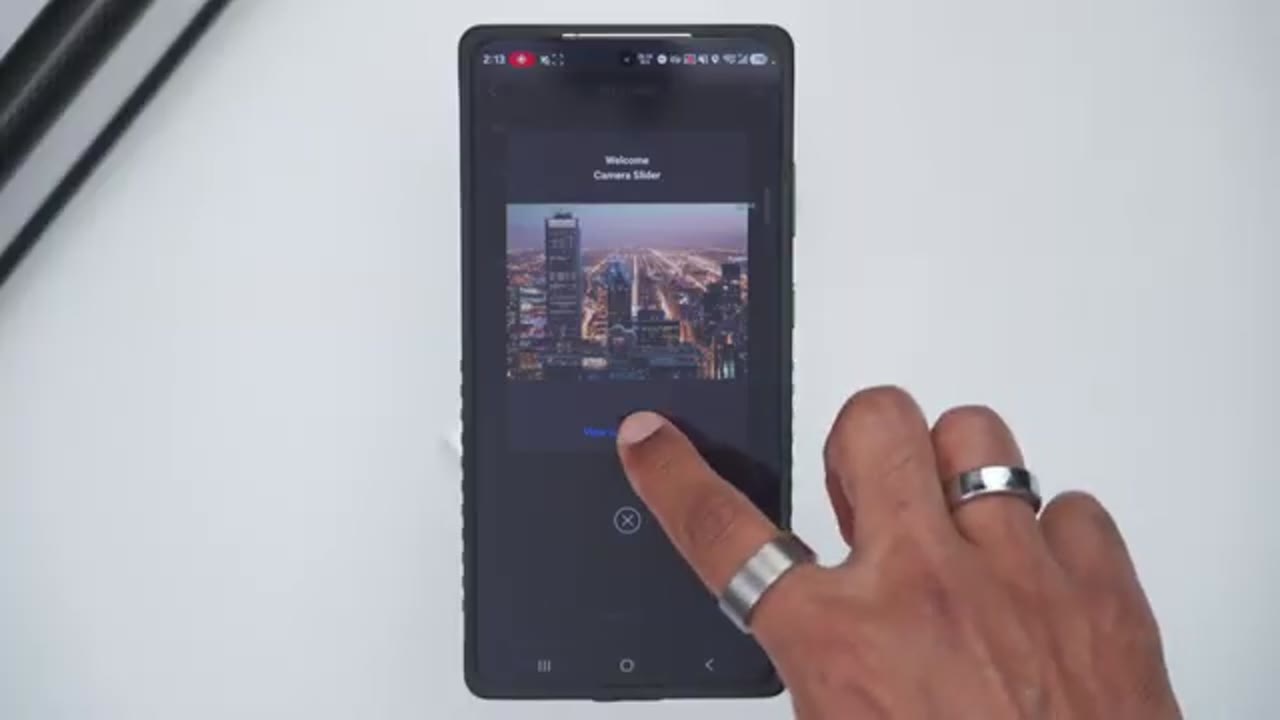
Once the slider is paired to the newer app for the first time the next time you want to turn it on since the battery pack is already going to be on the slider. You just have to manually press the power button to turn everything on. Wait for the travel to the far end letting you know it’s ready to use. Now there’s another way to power this up so you can actually remove the battery pack completely and just plug in a USB type C cable and that’s going to supply continuous power.
NEEWER App Settings
Let’s look at the newer app setting so as soon as you open it up you’ll see the slider paired here. Tap into that and then at the very bottom you see some options there so it says manual, live view and time lapse. So for the most part I stuck in manual and you could see here at the top it shows around 23 seconds and the sliding speed is set to 95. Now notice that if I go ahead and I crank them sliding speed to 100, it shows it at around 13 seconds to completely travel from what side to the other. And if I go down to 1%, it’s estimating around 38 minutes to make that entire travel. Now under that there’s the movement selection so you can switch it from constant to slow constant is going to be one continual type of speed or constant speed.
And slow is going to be where the mount actually ramps up slowly maintains the speed and then ramps down. So that’s going to be the smoothest type is to be in slow mode. Now for example I’ll go ahead and put this back at 100 and then I’ll just click on the arrow to move it. Now the view is reversed since I have the slider position a different way. So that’s why hitting it this way is actually moving it down way. Normally it would be the right way if you get what I mean now. As it’s sliding at any point I can go ahead and stop that and notice that when I hit stop it’s still travels a little bit because of this speed. It was going now for example if I was to put this to 80 now and I go in the opposite speed.
Now if I want to stop it I’ll hit it again and you can see it’s much quicker at stopping since it wasn’t traveling at a very fast speed. Under Live View video this is where we can have the option for loop recording so note that it says automatic right now and we can actually have a b and b a settings. Now notice for sliding speed it says 100 and it’s estimating 17 seconds to make the full travel from side to side. Now if I was to reduce the speed down to 95 you can see it’s updating in real time similar to the manual screen. Now you also have the same options for movement selection, concentric so and you can enable loop recording so it’s going to keep going backwards and forwards the entire length or between preset a b points.
If we tap on customize this is where we can dial in our custom a b points. So for example I’ll click here and I’ll say this is where I want my point a so pressing that same error again is going to stop it and I would say check the position of point b so I’ll keep going and I’ll say I want point b to be let’s say right around here then I’ll click okay and I can save that. So now it’s going to go in between those two points it’s estimating 7 seconds to go in between those points at 100% speed and again because I do have the loop option enabled it’s going to keep going back and forth between both of those points until I manually stop it. Now if you have your slider kind of in a set position you can also go ahead and save this as a preset if you like.
Under time lapse video we have similar options to the live view screen now do note we have a b settings on here automatic or customized and do note that I’m on 30 frames per second if I tap into film duration it does mention and at 30 frames per second the maximum is going to be 6 minutes and 49 seconds for duration. If you jump to 60 frames per second it’s going to be 3 minutes and 24 seconds and then finally at 120 frames per second is going to be 1 minute and 42 seconds.
So leave it on 30 frames per second if you want the longest duration now you can set the film duration on here so you can set it as low as let’s see one second if you like and then you could go to set the shutter speed that can be two seconds all the way up to two hours 59 minutes 59 seconds and then for the frame by frame duration this can be set to as low as one second. Now the default is five seconds which is what I had it on but again you can see that maximum range and then once you dial in all of these settings you would just hit start right here and then the app is going to communicate with your camera via the shutter release cable and it’s going to do its thing. Then you could take that sequence of images and just stitch it and make a video.
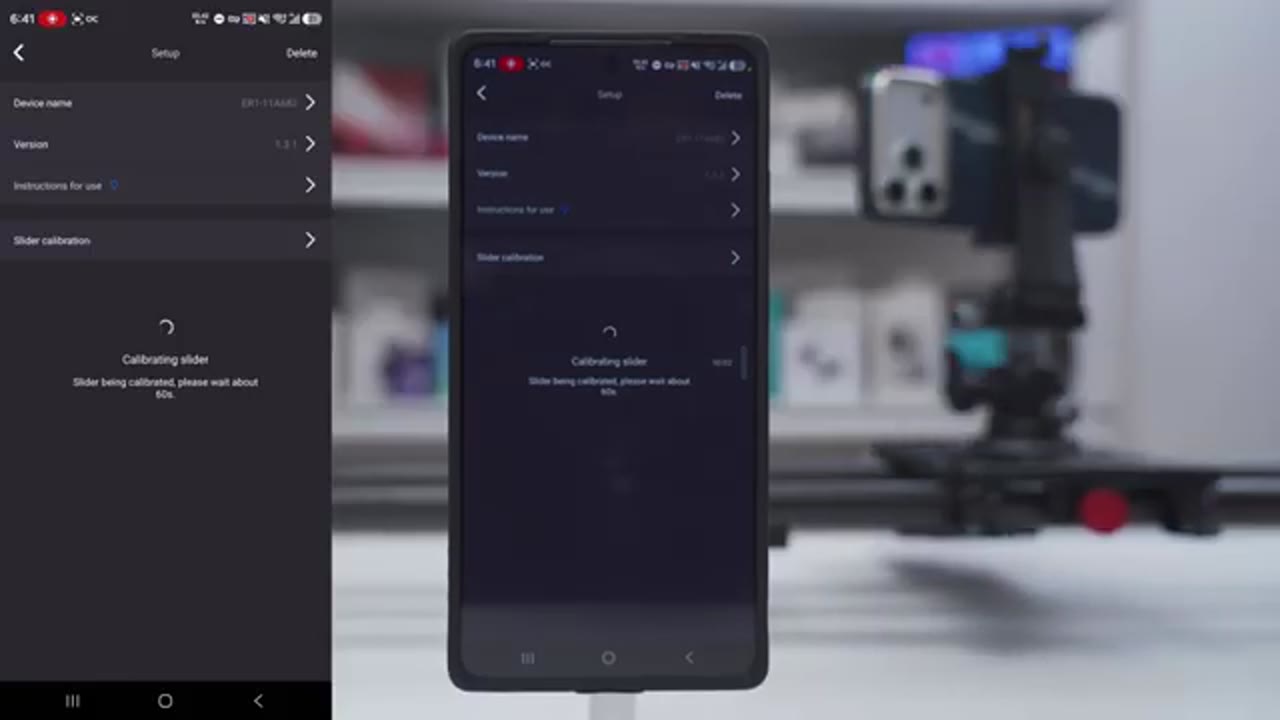
You can also tap the settings button in the top right corner and this is where you can go to look for any updates to the firmware and you can also take a look at the instructions for use along with calibrating the slider as well. Now let’s talk about speeds, stability and smoothness of the travel and that’s really
Slider Movement & Shots
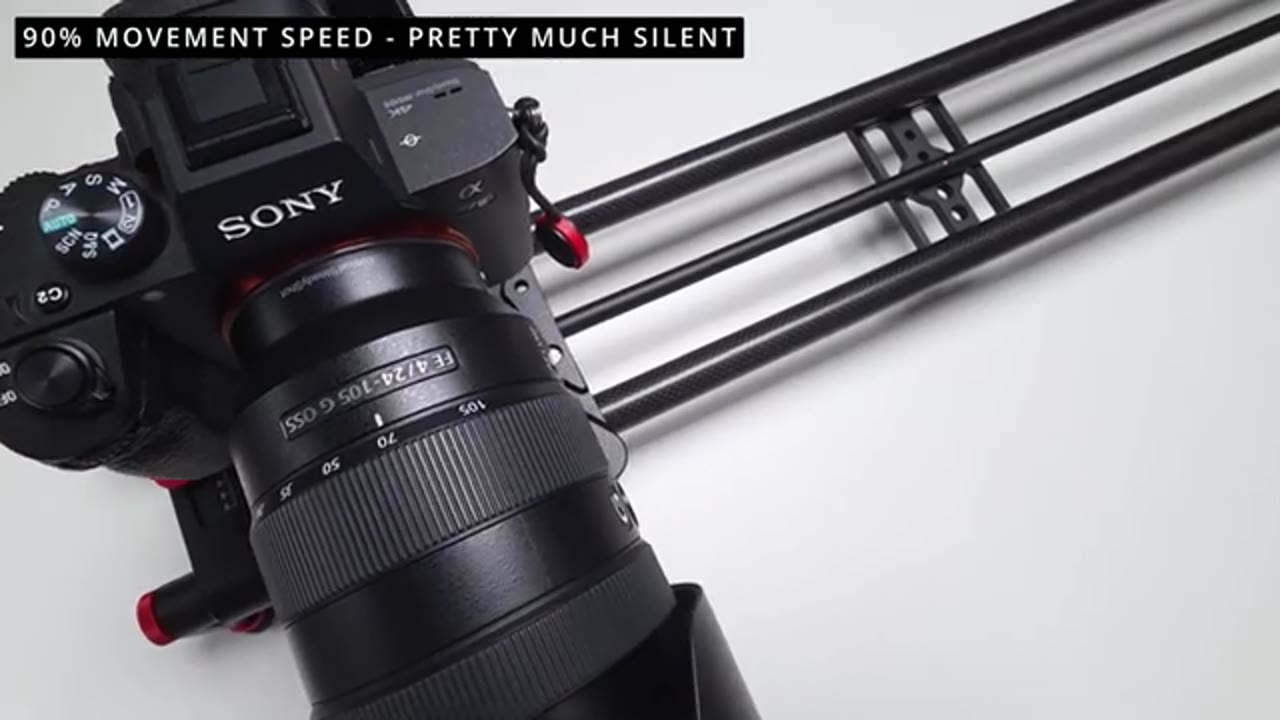
going to come down to how stable your setup is. So at a hundred percent movement speed which you could see right now that’s really going to be best if you have a very stable surface like you have a slider on a desk or a really heavy duty tripod. Now if your setup isn’t very stable and you’re using a hundred percent movement speed so whenever the slider head starts that first initial movement there may be a little bit of camera shaking your shot especially if you’re very zoomed in on your shot. Now fortunately getting rid of camera shake is really easy with this setup so if you use a movement speed like 95 or 90 percent that’s already going to remove a lot of shake.
The other thing you could do is instead of using constant mode in the app just use the slow mode so once this starts moving it’s going to start moving slowly and then gradually build up speed and then when it’s at the other end it’s going to slow down and that minimizes a ton of camera shake. Another thing to keep in mind is that the frames per second you shoot out will have an impact on how smooth the footage looks like especially if you’re using higher movement speeds. For example I shoot at 24 frames per second so if I use a hundred percent movement speed as this kind of pans across the footage looks jittery because the 24 frames per second just can’t show that fluid type of motion.
So for my setup I found this sweet spot to be at around 80 percent movement speed and that gives me way more smoother footage especially when I use slow mode. Now if I’m shooting like kind of vertically instead of horizontally like this then it’s not really that impactful at all. It’s only these side to side shots. So if you’re shooting at something like 60 frames per second you’re not going to have the problems I’m having and it may take you a little bit to find kind of like the sweet spot in terms of settings to dial in. Now let’s talk about some of the shooting flexibility you have
Adjusting Slider Movements
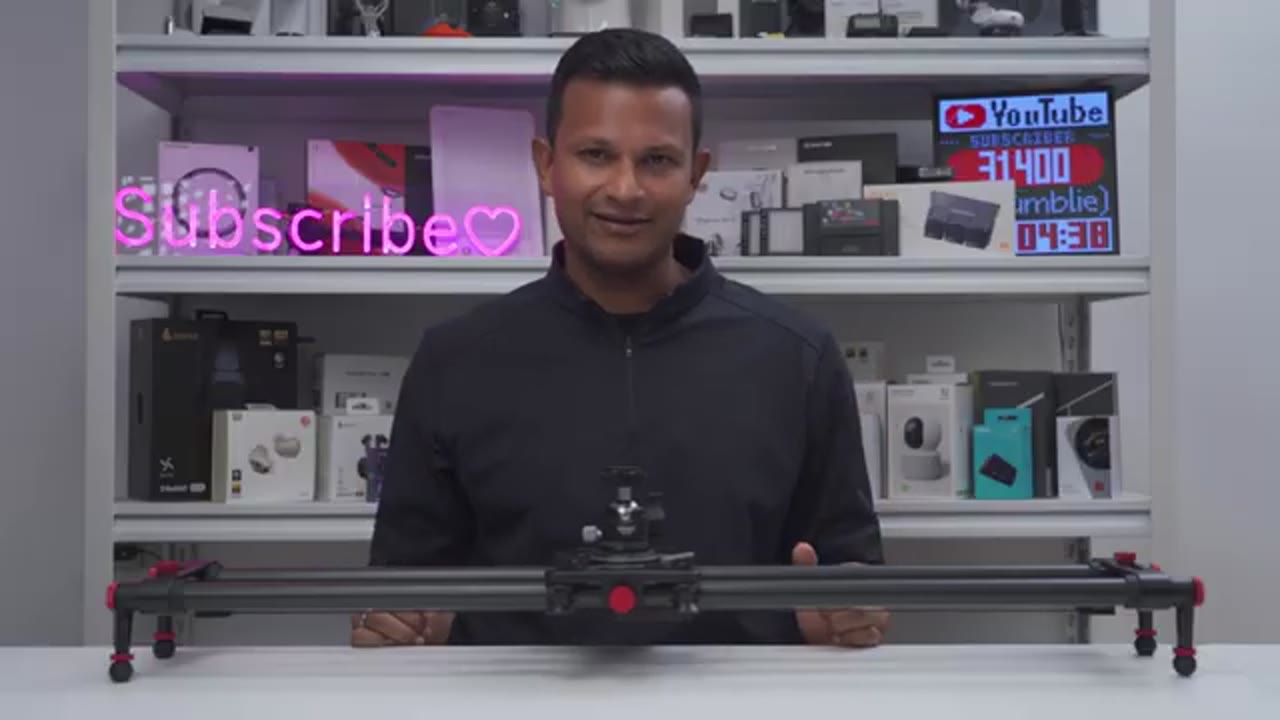
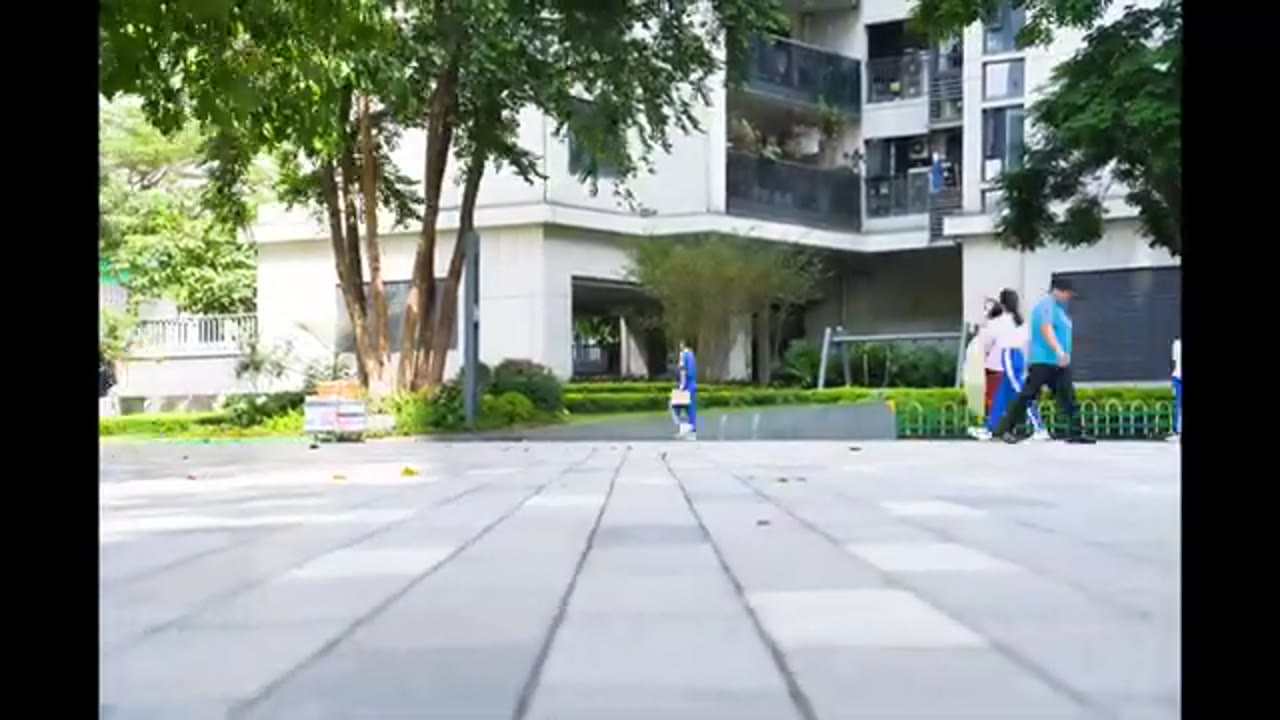
with this slider so you’re not limited to the slider just moving you know left to right right to left all the time so you can see right now as it’s moving right to left it’s actually rotating the ball head at the same time so you can actually get like 120 degree panoramic shots and you can actually use the adjustment knobs on either side to rotate this upper down 20 degrees so you can have just a little bit more functionality or versatility in your shots. You also have the option to rotate the ball head on here for a vertical type of shot so you could just place a product on one end rotate your camera so it’s just pushing in or pulling out from that shot and additionally you can rotate the slider and the ball head at the same time like I did for these sequence of mouth shots.
The only thing I didn’t test was using the slider and incline. Now you’re a size you can angle it this up to 45 degrees and the only thing is you’re going to cut the payload by half so instead of having a full five kilograms or about 11 pounds you’re going to go down to about 5.5 pounds or 2.5 kilograms which is still a lot because for context my setup with my camera in lens comes in around 1.4 kilograms or about 3 pounds.
You can also use the ER1 for time lap shooting if you’re big into that so it’s really simple to do once your camera is mounted on her you just take the shutter release cable that comes in the box attach it to your camera plug it into the mounting area here then you go into the app go under time lapse and you could dial in your settings there just hit start and it’s going to take a sequence of photos that you could stitch together to make a video.
Battery Life
In terms of battery life it’s seriously impressive and I haven’t had to recharge your battery yet so you can easily get days or a week or maybe even more depending on how often you’re using this you know what type of movement speed you’re setting and just how heavy your entire setup is so this is using that NPF 750 battery which has a 4400mAh battery and there’s also other compatible batteries which I’ll list on the screen here the other thing is you can optionally power this with a USB type C cable so if you’re shooting indoors and you have you know your USB cable plugged into a wall just plug it into the slider and it has continuous power all the time. Overall I’ve had a fantastic experience with the ER 81 it’s way more
Sound / Noise Demo
No speech in this section.
Changes or Improvement?
simple and easy to get this running out of the box than I thought it would be. The only thing I’d like to see change is to have the power button top mounted for easier access and the other change it would be a bonus is that since we have two USB supports on here one on the battery pack and one on this actual mounting area it would have been good if I could just run a USB type C cable from one of the USB supports. To my camera so I could charge it up in a pinch again not that big of a deal so should
Worthwhile Addition?
you actually add the newer ER1 slider to your setup well if you’re looking to add more shot variety and you’re not getting hand holding or you don’t have a gimbal this is a fantastic piece of gear to add to get you know just more versatility in your shots and again it’s really easy to just set this up right out of the box and just use the app especially if you’re a first time slider user just like I was.
The only thing you should really keep in mind is the size of the slider so I have the 80cm meter version and depending on how big your room is or how deep it is it may be hard to accommodate this if you have a smaller desk or if you’re going to be putting it on a tripod so just keep that in my make sure you measure your workspace if you’re considering getting the 80cm or even the much larger 120cm
Recommended?
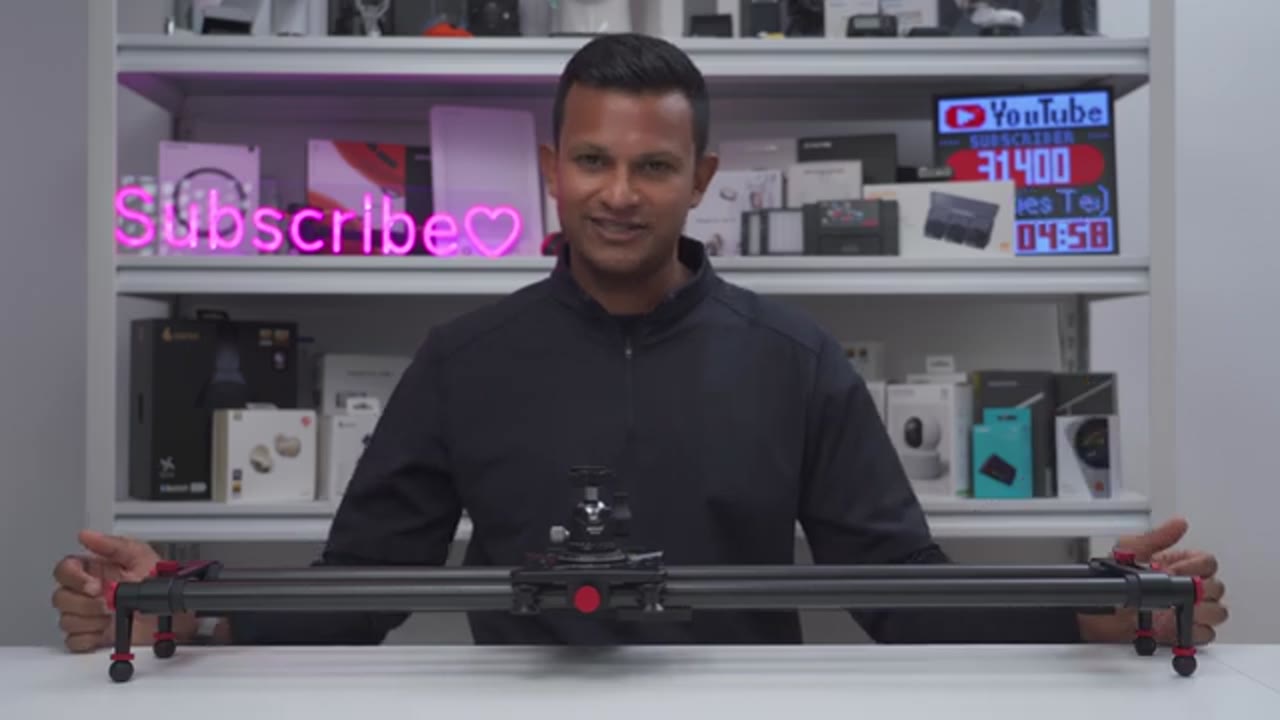
version so what I recommend the newer ER1 slider and I would 100% hands-on recommend this slider if you’re looking to get your very first slider and you’re not too sure about how to operate one how to get it up and running because I wasn’t as well my very first slider and I was easily up and running within a matter of minutes and shooting.
Now at the time of this review this is going for around 270 US and I think that’s a really good value the build quality is fantastic on here we have carbon fiber there’s a ton of adjustability in terms of the feet you also have the adjustment knobs here and you have that handy carey case along with all those shutter release cables there’s really nothing missing from this to just get up and running straight out of the box so if you’d like to get your very own newer ER1 slider I’ll leave links down below in the video description and pinned comments and I have any topic of coupon codes I’ll leave those down below as well.
If you like this video maybe consider checking out this video next and maybe even consider liking it subscribing to see more videos like this and maybe even joining as a member get early access to videos and other perks. I’ll also review a bunch of other tech outside of cameras and camera accessories so maybe check those out as well and I really hope you’ll join me in my next video soon.
Buy NEEWER ER1 Slider – 120 CM
Please note that some of the links in my video descriptions are affiliate links where I earn from qualifying purchases. As an Amazon Associate I earn from qualifying purchases.