



Please note that some of the links in my video descriptions are affiliate links where I earn from qualifying purchases. As an Amazon Associate I earn from qualifying purchases.
Intro

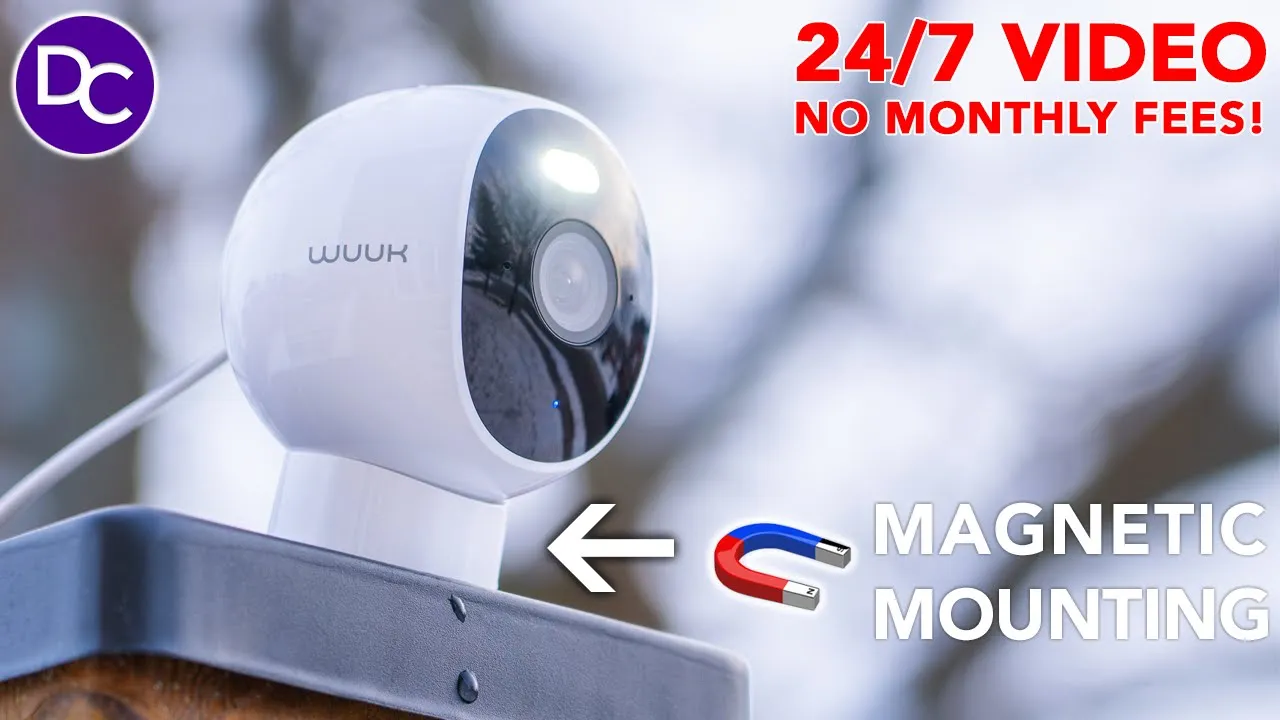
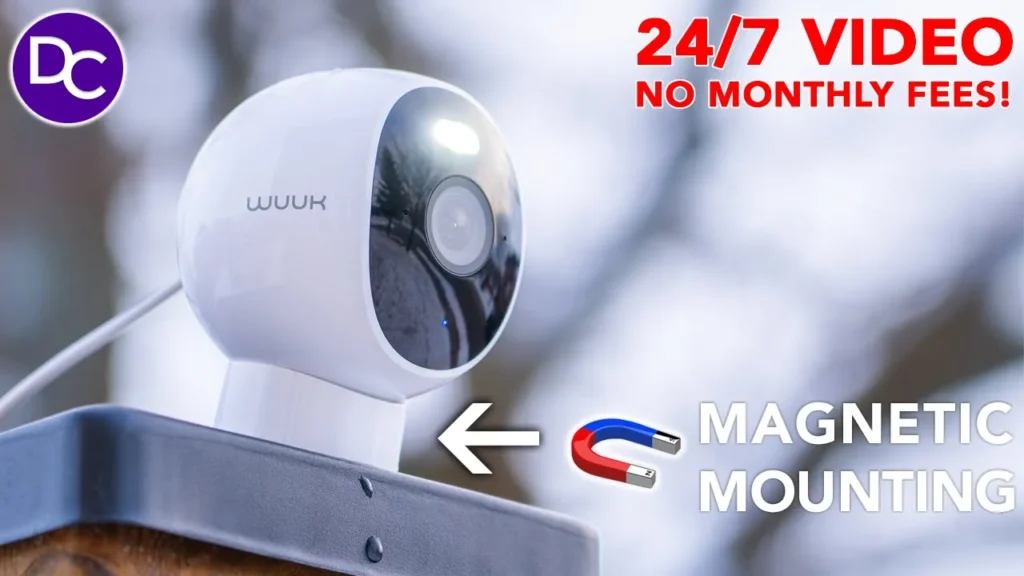
hey guys it’s Adrian and today I’m taking a look at this W cam Pro from wlabs now what makes this so unique is that well one it’s compact you know about the size of my fist but on top of that it has a unique magnetic base that allows you to just pretty much install this anywhere the this can stick to so you actually don’t need to use any type of screws or adhesives if you don’t want to on top of that we also have 24/7 recording so you never miss anything but my favorite part is definitely that there’s zero monthly fees with this system in a world where everything just seems to be subscription based so all of that sounds good on paper but let’s take a look at how well it performs and a big thank you to wuk laabs for sending this out for review in the package we have
Package Contents
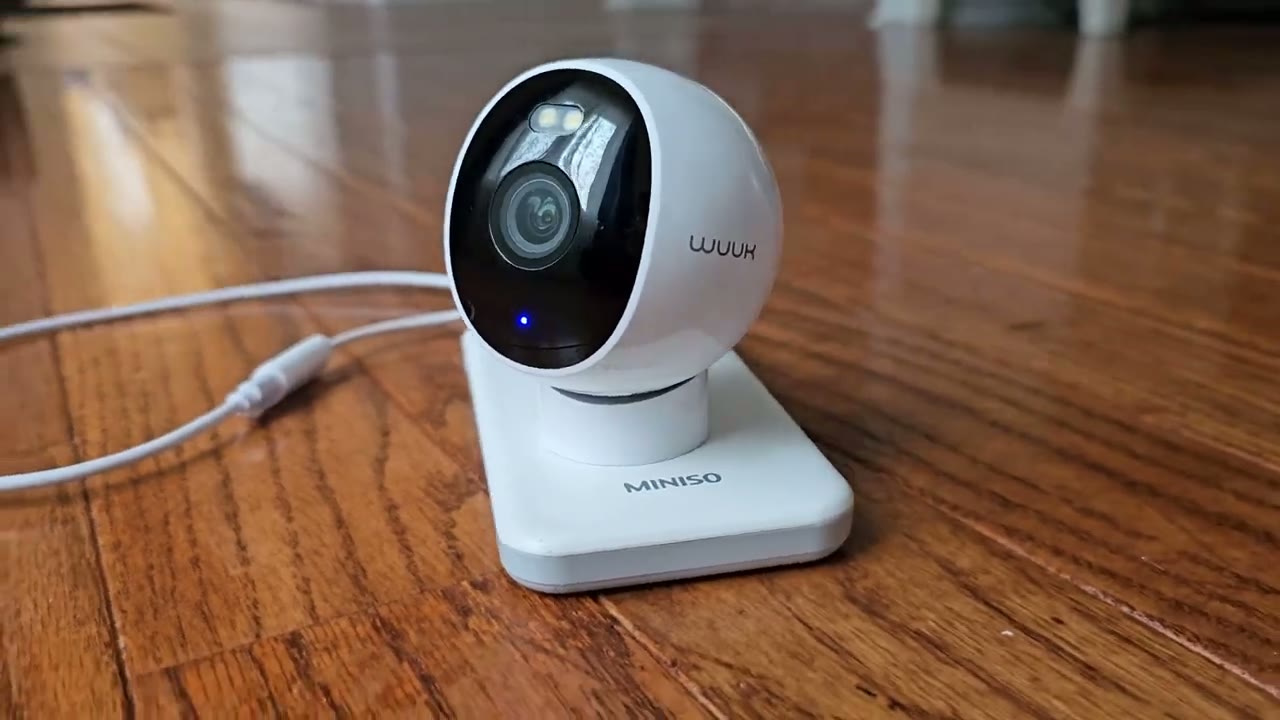
the wuk wired cam Pro we also have a warranty card security sticker manual there’s also optional mounting screws we have a power brake power cable the magnetic base along with a type clip to go with it to Route the wires and 3M adhesive tape the wire cam pro has a
Design
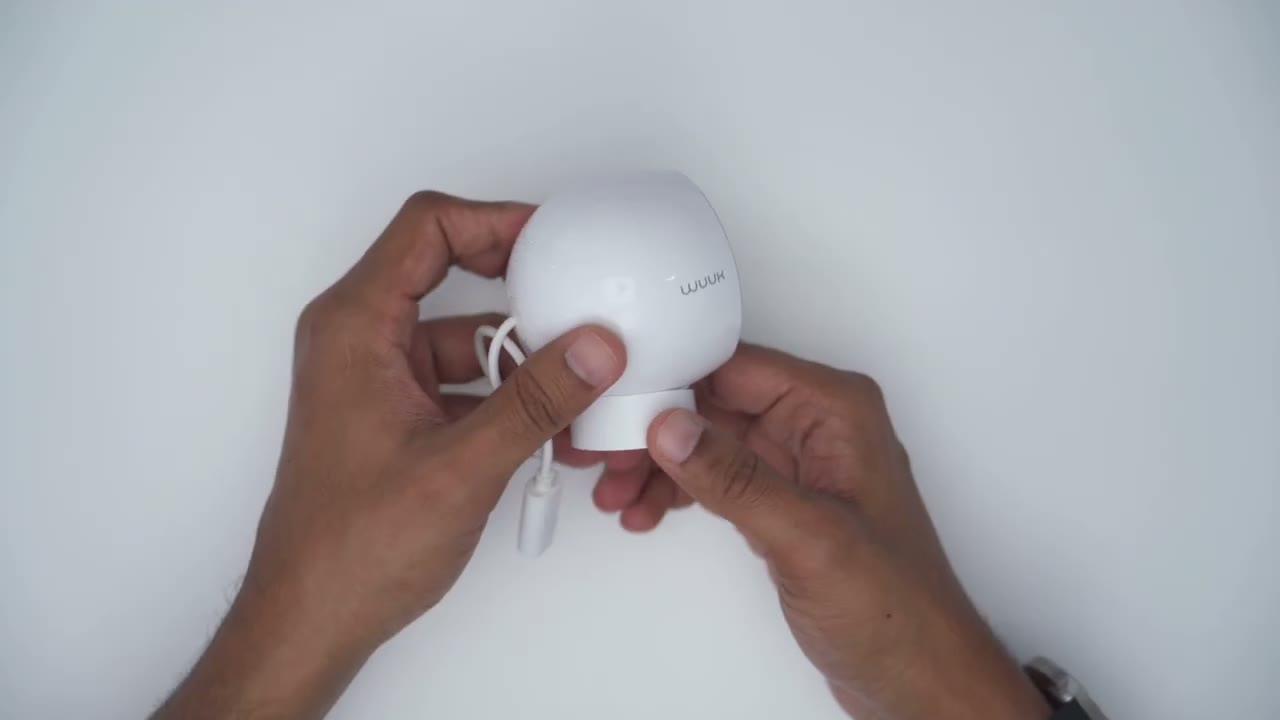
very compact design again you can see it’s not too big and I can you know kind of fit it in my hand now here’s what it looks like next to a 9vt battery for comparison so not very big at all so we have the wo logo on the right and left side and then looking at the front of it we have the spot light you know microphones the camera lens and an LED indicator light and then at the bottom we have a protective seal you know just to Ure that IP67 rating and once you open that up that gives access to put in the micro SD card and then we have the sync button and you can put up to a 256 micro SD card now at the very back we have a speaker and then of course the cable and this is not removable but you can see that this is nicely weather sealed so that when you connect this this can actually work outside without any issues now in terms of the magnetic base you can see that it has a little bit of a concave type of shape now what you can do is to just attach it right to the camera body I could slide it up to the front here and you can see it’s pretty well fitted right here and the camera just stays right like that in place it’s a fairly Power Fill magnet now what I can also do is I I can just slide the magnet up you know basically to where the wire is and then kind of have the camera you know pointing down a little bit you can also move it to the sides you know laterally if you like and it stays in place specs include a 4
Specs
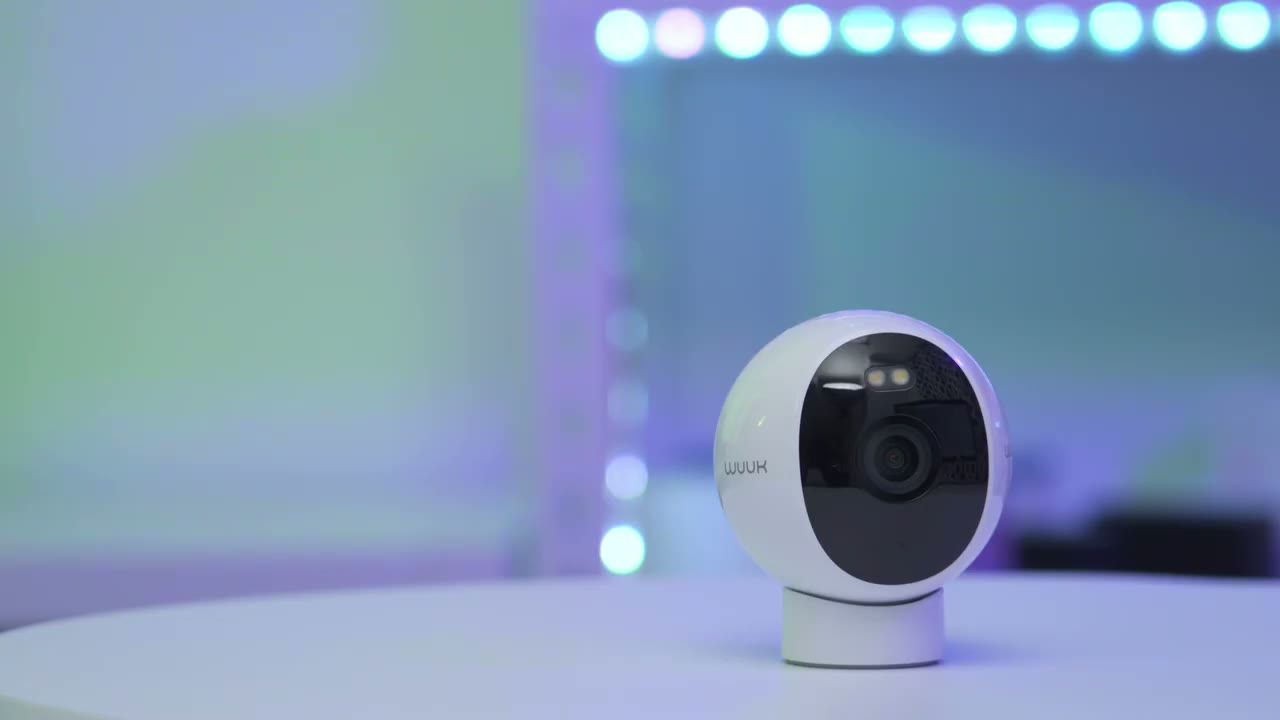
megapixel camera capable of 2.5k video resolution we also have 137° field of view IP67 waterproof rating LED spotlight 24/7 continuous recording color night vision we also have local face detection and AI recognition Alexa and Google assistance support 2.4 GHz Wi-Fi and a 10 m night vision detection range I’m now going to add the camera to
Setup
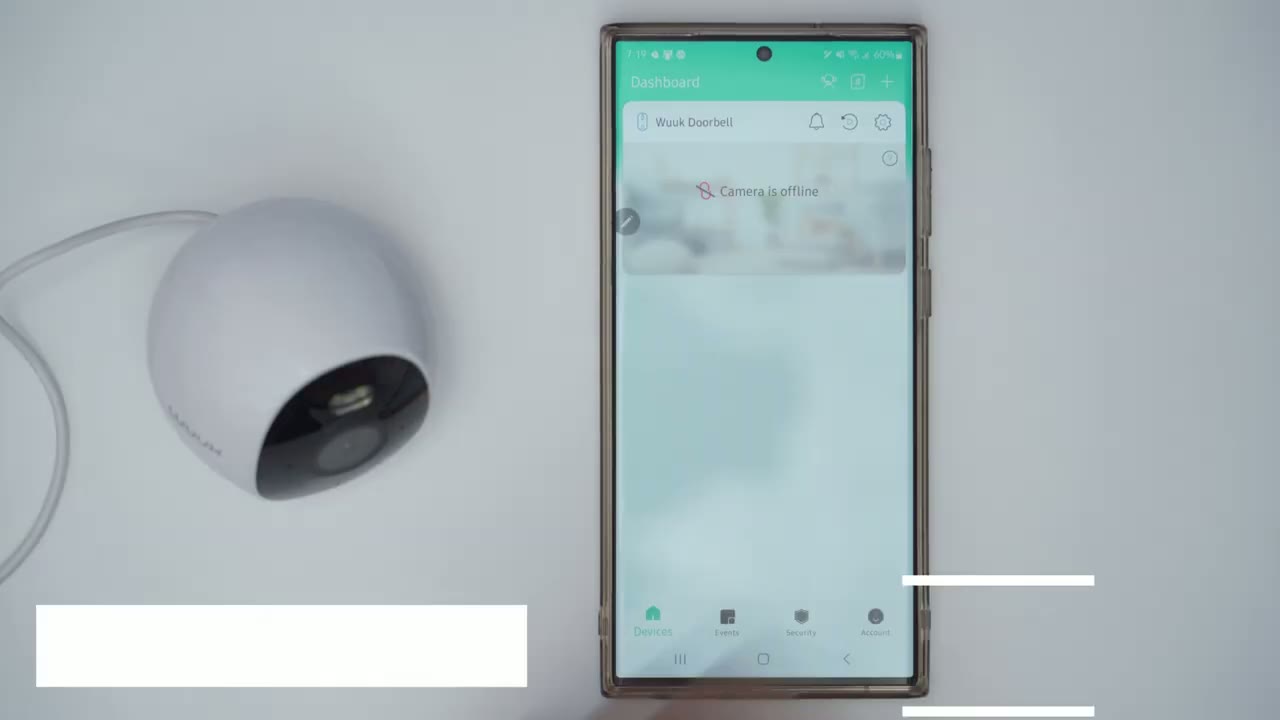
the wo app so I’m just going to plug it in with the USB cable and I can see we have a red light so it is getting power and I’ve connected to my 2.4 GHz Wi-Fi network I’ve already inserted my micro SD card as well and now I see the flashing blue lights so I could click the plus icon click on wired cam pick the wired cam Pro V2 I I see the blue light and now it’s say to press and hold the sync button for 3 seconds until we hear a beep ready to scan and I can see the flashing light now I’m going to enter the password for my Wi-Fi network and again make sure you pick a 2.4 GHz Wi-Fi network ready to scan and now I’m going to scan the QR code with the camera there we go so I heard the beep click next pairing success and that’s it very simple setup now that the camera is added to the woap the next thing I want to do is just to start live view make sure everything loads up perfectly fine and there it goes so everything is looking good the next step is to actually install it now now in
Installation
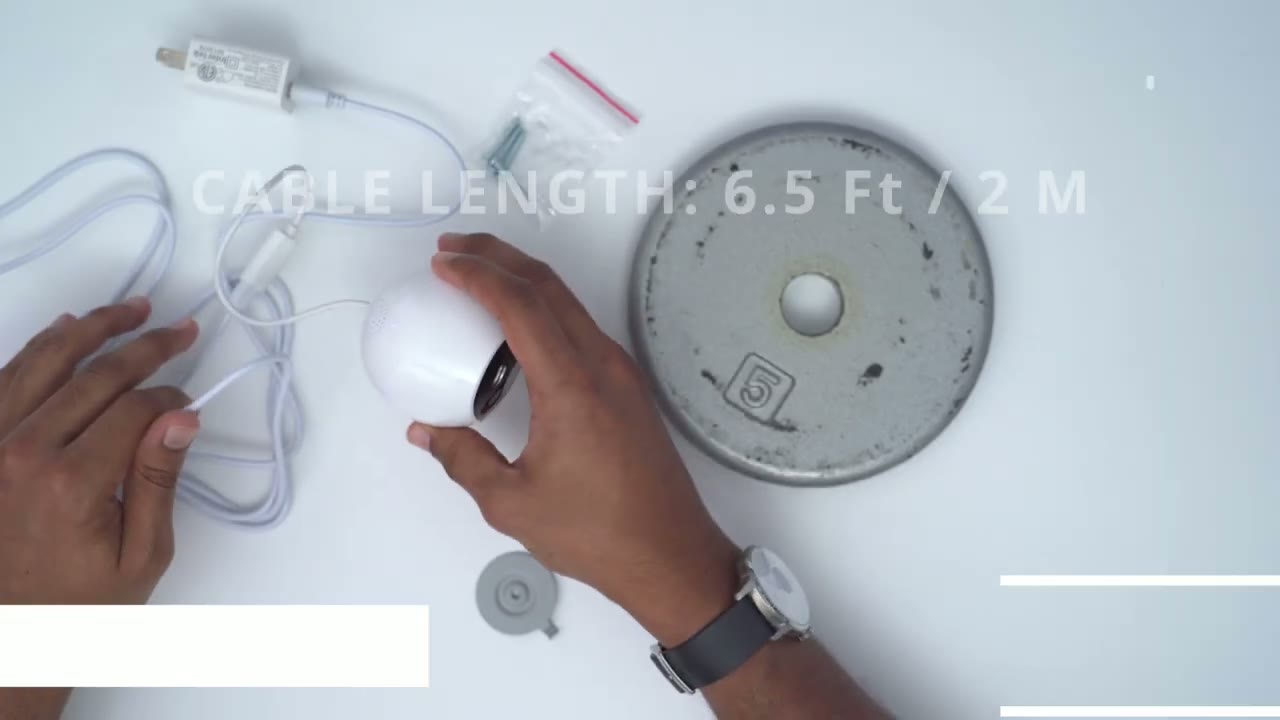
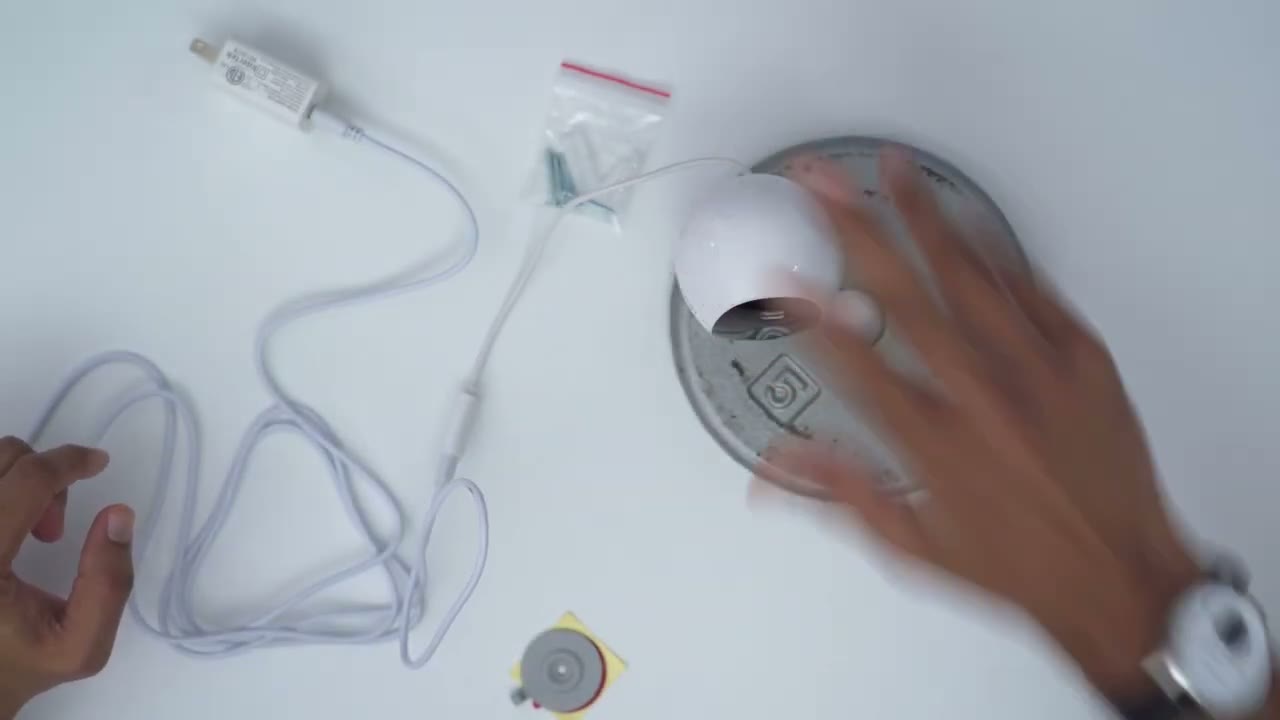
terms of actually mounting the camera we have a couple options so one of the options is to use these supplied screws and anchors and they do give us a lot and what you would do is take this metallic plate that’s included you know drill that screw through and secure this to a wall or you know some type of surface and then just go ahead and snap the um magnetic Mount onto this metal plate now since this is actually magnetic you can also paste this or sorry stick this to any type of metallic surface now you can also use this Supply 3M tape for this metal plate you know just go ahead attach that so you don’t actually have to drill through you know a wall if you like but what I think I’m going to do is just attach this to anything magnetic or um metallic in my house which I’ve done on my fridge above my stove on my car hood um and it is quite strong so you know I have a 5 lb weight here I’m just going to demo this I’m going to snap that on you can hear it’s a pretty strong connection I can actually lift this up quite a bit off the table and this is you know a good 5 lb weight and you know this weighs way less than 5 lb so this has no problem you know just letting you snap the woo camera on there and you know kind of angulating it to however you like all
Settings
right let’s take a look at these settings in the wo app so as soon as we open the app up we have the option to jump in into live view but before we do that we can also go ahead and temporarily snooze different types of notifications and set the duration we can also go straight into the events tab at the bottom there and then we can go into the full settings which I’ll get into later but first let’s go into live view so you can see that loaded up pretty quickly and I can see right now it’s on the black and white mode it’s about you know 9:20 uh in the evening right now and you can see if I go ahead and turn the light on manually I now have color night vision which works really well but you know even with the black and white you can see it does pick up a lot of detail now from right here we can go ahead and start a manual recording say we were looking at live view and we saw something interesting we can go ahead manually record and that’s going to save to our phone’s Gallery we can also take a snapshot initiate two-way talk we can choose from these preset replies which I’ll demo later we can also change the tone of our voice which is pretty neat and then we can adjust you know the volume just on or off whenever you start uh live view again I showed the light and then we have the option to do the alarm and you can also set the quality to standard definition if you don’t have you know a really strong connection but I’ll leave it on HD for now and of course you can go ahead and make this full screen and you do have some access to settings at the side and you can also drag that out so you have all the same options you had when you were looking at it in the smaller display but let’s take a look at the full settings so once we’re in here you can see I have the maximum capacity which is a 256 6 GB micro SD card now facial recognition is on and this is what you need to have on to have you know kind of custom greetings and audio to play and you can set the detection sensitivity and then we can go into facial profiles and you can see these are all the faces that it captured um sometimes I was covering my face to kind of confuse it so it would play the alarm for the Sentry mode I’ll demo that later and this is the Sentry mode I’m referring to so when it detects someone that it doesn’t recognize you can go ahead and play a specific sound you can record a sound you know custom with the microphone or you can just type something or you can click download from wuk and then there’s a bunch of things like sirens and warning alarms as well so a lot of Versatility there now let’s go into recording mode and you can see I’ve set it to continuous recording which is what I always prefer to have on any camera system if it’s possible but you could also set it to event only if you wanted to save storage space say your micro SD card is not that large in capacity there is also the cloud storage plan I will start that trial later to show you a little bit more of what you get then we have options for you know the water marks and if you want it in 12 or 24 hours then we have we can see the current Wi-Fi we’re connected to let’s go into motion so motion detection is on you could see that I could actually set a detection Zone if I wanted I would just go ahead you know kind of drag that into the area I want I don’t generally use this so I just did not apply one you can set a detection sensitivity of course and then we can enable human detection or turn it off completely and then we could set the sensitivity um directly for that as well so a lot of fine control in there now if we go into sound we can decide if we want videos but sound or not you can go into notifications and say I don’t want to be alerted for you know just motion notifications say this is outside and there’s a lot of cars well you could just say that you want human notification you could set a notification sound now we you can also go into sleep mode and if you turn this on it says that it’s going to turn off recording live view the LED status light everything so if ever you want any privacy say you have this installed inside your home this is the mode you would turn on and then you can also have the indicator light on or off I like to have it on so you know I know it’s working it’s active it’s receiving power and if you were to mount this um you know kind of flipped you can uh do a 180° uh screen flip if you mounted this kind of upside down you can also update the firmware which I did do and then we can go into night vision so it’s set a spotlight night vision so it’s going to be black and white but it’s going to automatically kick this in when it detects uh motion or you can set it to just black and white all the time now there is also an option for a lamp socket now this is an additional um accessory it’s optional you can connect this to a light and then it will talk to the woo wir cam Pro you also have time zone you can also add more users to the app to manage the camera and then you can also run a network diagnosis so you’re just placing it in the right position in your home now let’s take a
Video Playback
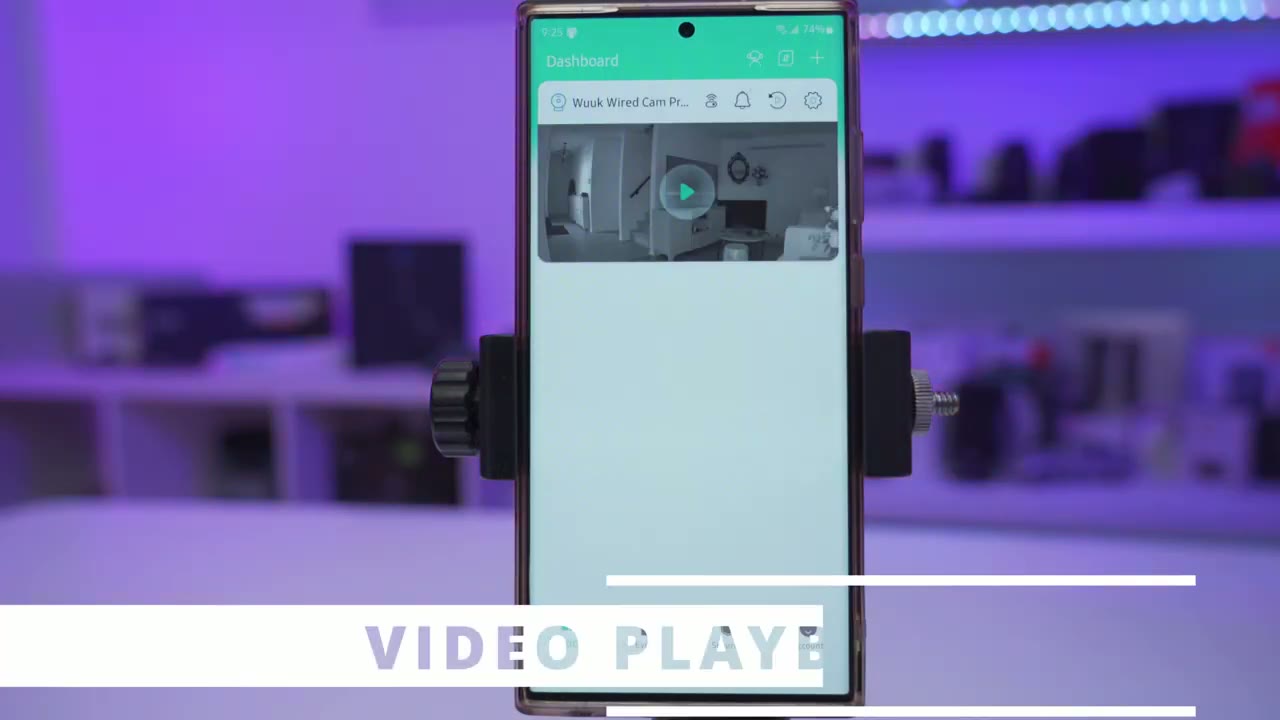
look at the events Tab and you can see this is all the motion that it detected and right now we’re on January 2nd of course you know you can cycle through previous days and of course you can also filter so I can say I want to filter by you know motion if a baby was crying and if there was human motion now I don’t have a baby crying so I can’t demo that but let’s just go to human and you can see these are all the times when it picked me up on the camera but I’m just going to go back into live view actually and you can see we also have this option that says playback so let me go into that and this is really neat because right now it’s set to 24/7 recording instead of motion based recording only and this is what I suggest you set it to set it to 24/7 recording and then you can see on this timeline I do have you know little uh blips here where there was some specific type of motion so you know you always have the option to go anytime during the day but then you could drill right down into you know an area where there was some kind of motion and of course you can also go through here and you know tap on any specific motion event so you can see that it picked me up again so really handy to use and really easy to navigate playback by the way guys if you’re finding this review upload please consider liking and subscribing it truly does help me out a lot as a growing Channel but let’s get back into
Video Quality
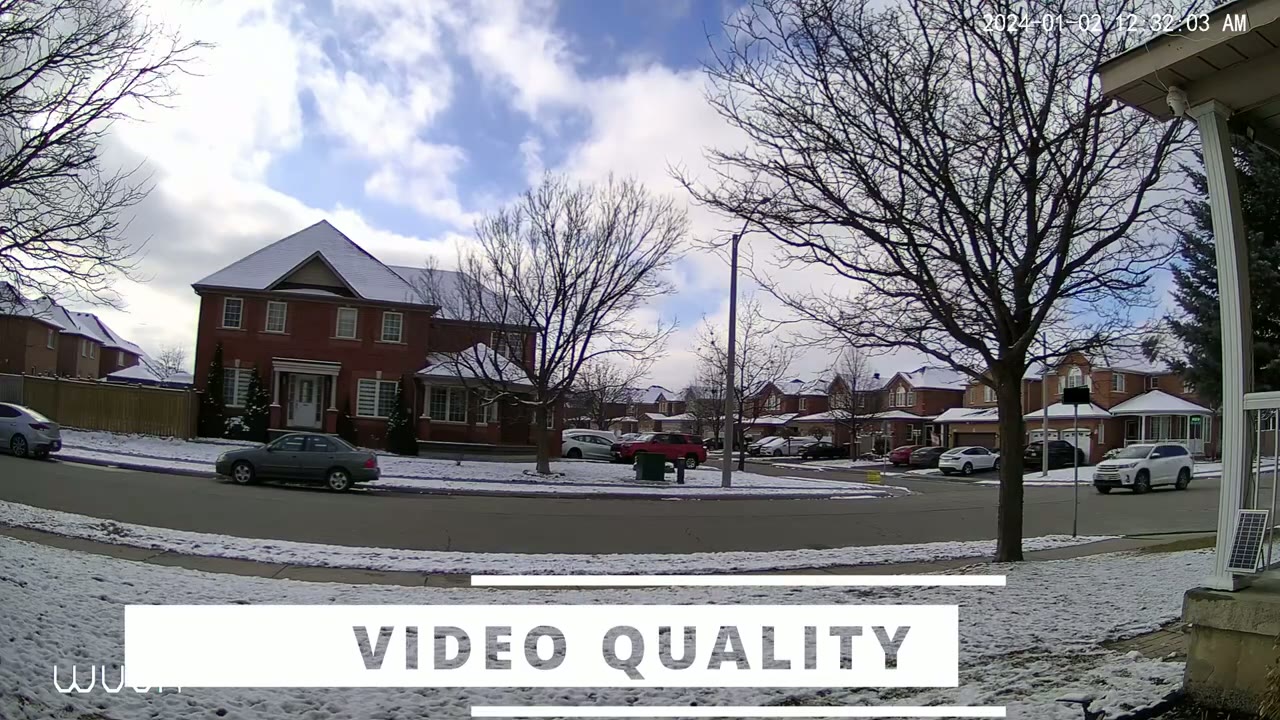
it so the video quality on here is pretty good considering it’s a 4 megapix sensor the resolution is 2560 X 1440p or quad and the frames per second are around 14 frames per second and most of the camera systems I riew are around you know 14 15 frames per second there are some camera systems with it a bit higher but they’re usually much larger units overall video during the daytime was nicely exposed however if you have any type of you know really bright areas with the sun coming through there is a tendency for those areas to be kind of blown out now I place this CA CER both inside and outside and when it was indoors pointed towards a window or door you could definitely see that the highlights you know any type of light coming in it was kind of blown out but objects that are near to the camera like a face from a person or a car uh delivery truck things like that is going to be perfectly clear and usable but what really impressed me the most was actually the night vision quality and that is not a sentence I normally say but whatever they’ve done to tune this it does a phenomenal job especially with black and white night vision so you have two options you can have color night vision or black and white white and then with the color Knight Vision you can turn that on manually um on or off or you can set it so that the camera turns on the light the spotlight I’m talking about anytime motion is detected and that works pretty well and you can see from this clip that you know it does a good job Illuminating my um living room and a little bit down towards the hallway obviously it’s not the longest light illumination range because it is a spotlight it’s not a flood light I also really like the wide field of view on here so when I place it outside you could see from like my backyard fence to the front of my door that covered entryway I could easily see any cars people delivery trucks coming and going and then when I place it inside I could also see my you know entire living room all the way down to the hallway and you know a little bit of my front door area so yeah this makes an awesome option if you want to just have you know a wide field of view either indoors or Outdoors but what really
Speaker
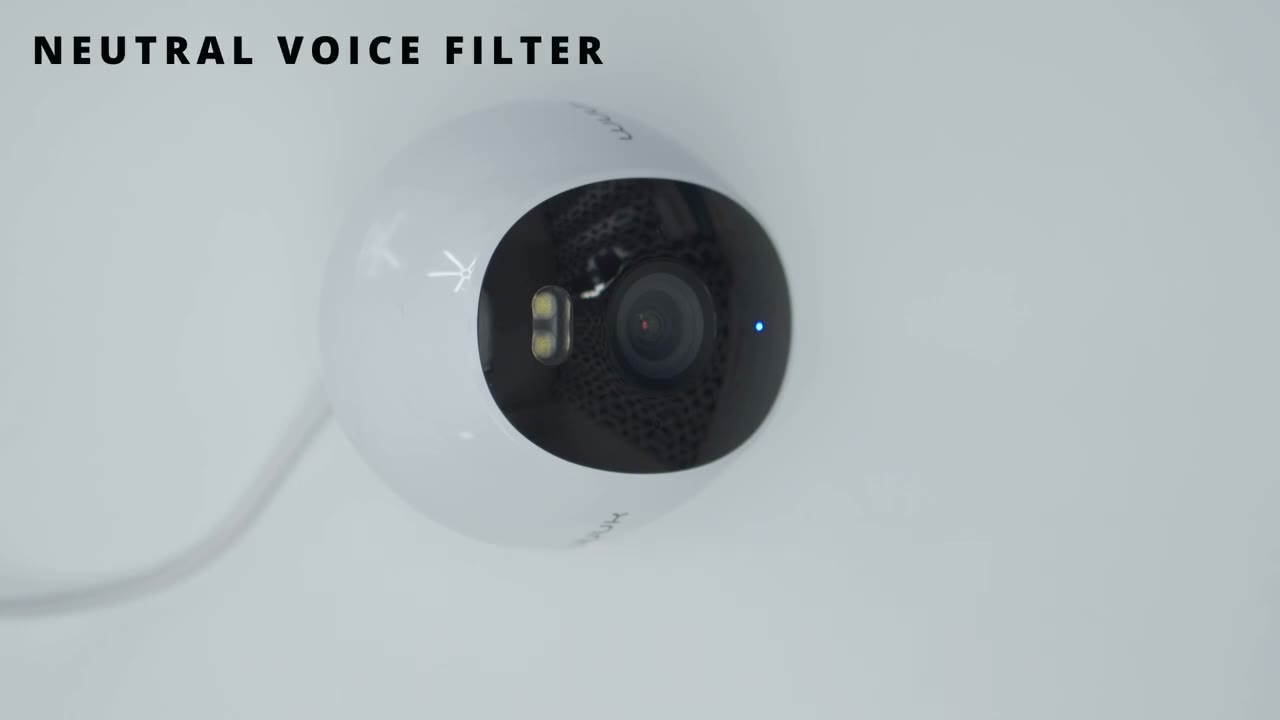
surprised me was just how loud The Speaker gets considering the size of this camera so here’s an example of what 2-way talk sounds like and then you can also send pre-recorded replies and you can also record your own pre-recorded replies as well here’s an example of what two-way talk sounds like hi there you can just leave it thanks just a second we will be right there this area is under surveillance please leave this is what the normal voice filter sounds like this is what the male voice filter sounds like this is what the female voice filter sounds like this is what the neut of all right
Motion & App Speed
this is how fast notifications are with the woo camera so I have it just sitting on my window there you can see there’s no notifications on the phone I’m just going to walk in front of the field of view and I’m going to look at the phone and you can see there’s already a notification there people were detected so literally it’s within seconds and you could see that’s me on the screen there super fast notification speeds now
AI Facial Recognition
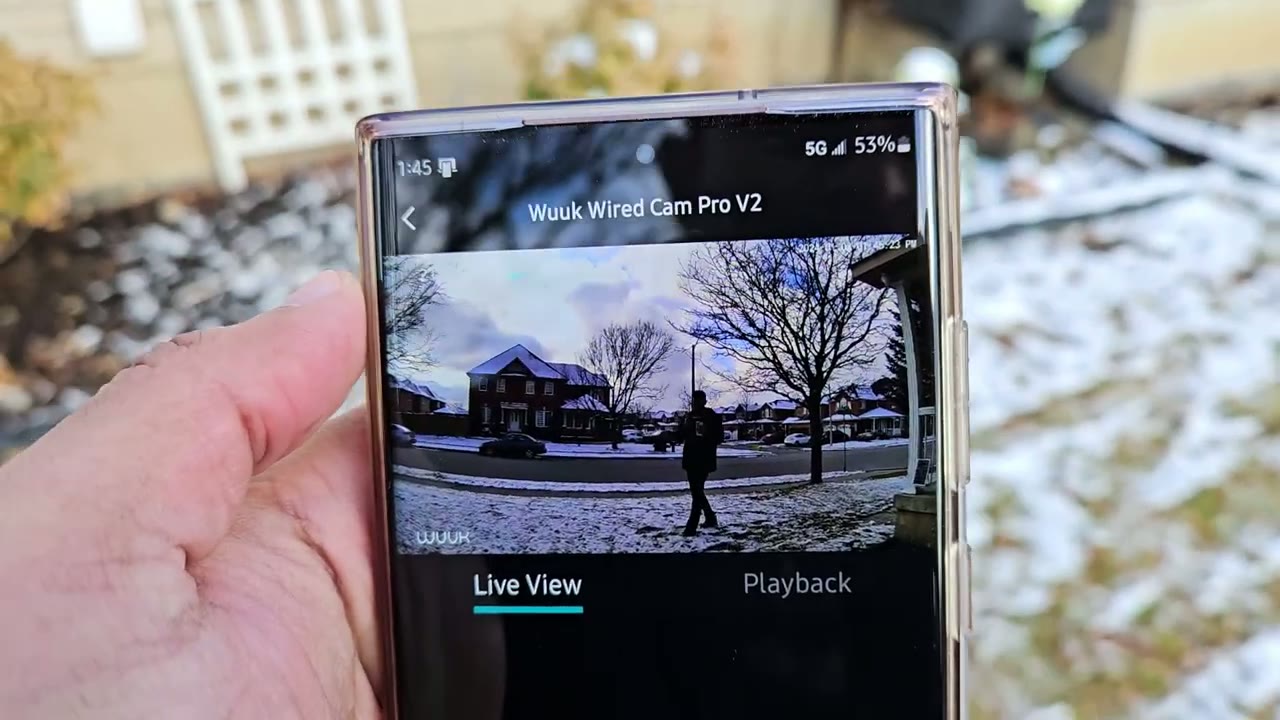
similar to wo’s previous cameras there’s also the facial detection feature with customized greetings what this means is that you can program a certain face so that when the camera detects it a custom greeting can be played and that custom greeting can be straight from the wuk app they have like some precept um recordings you can also type something and convert it to audio or you could record you know your own type of special message if it’s someone’s birthday an anniversary whatever and then when they show up in front of the camera it’s going to play that hello hello hello now there is also a corresponding Sentry mode so when you turn this feature on anytime a face shows up in front of the camera that it doesn’t recognize it’s going to play a message again it can be a pre-recorded message that you know you’ve recorded or you can play like an alarm or a siren which is what I’ve done and here’s a demo of that I’m very satisfied with the storage
Storage
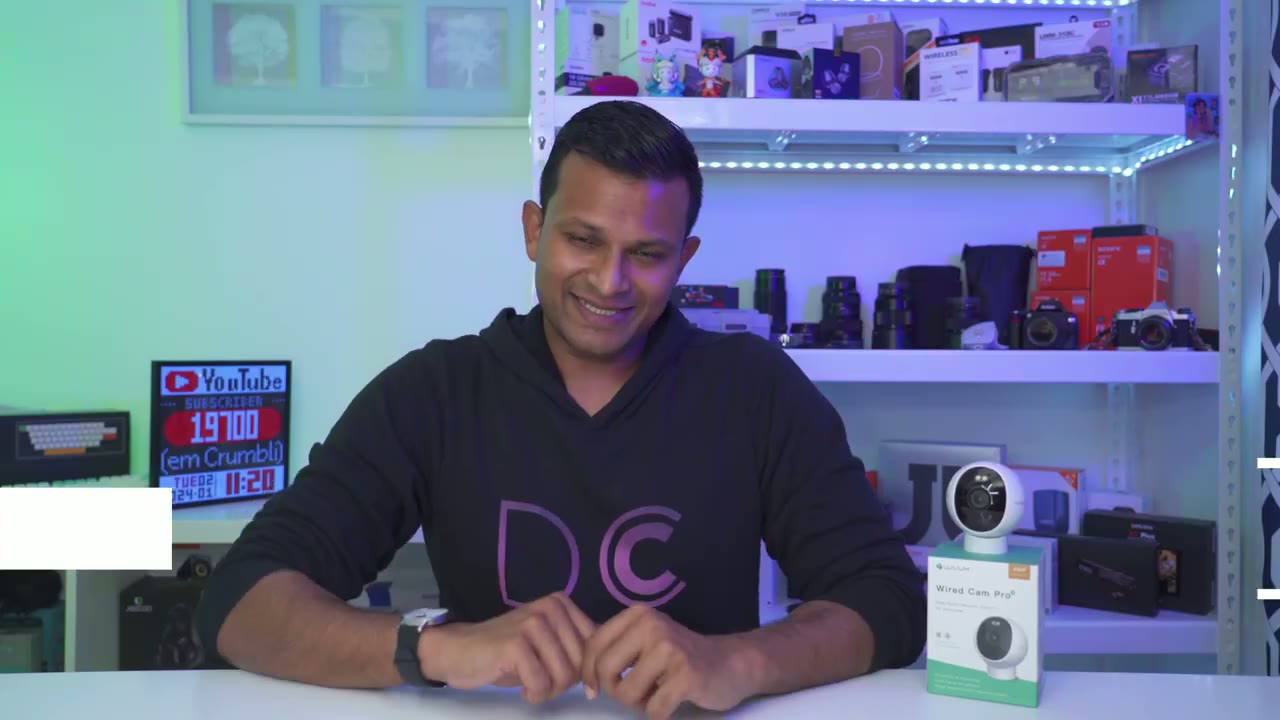
capacity on here because we can have up to a 256 GB micro SD card a lot of cameras I review it may just go up to 128 now with the 256 Gig micro SD card I’ve set it to continuous recording since I first set the camera up it’s never been on motion based recording and I’m going to get a little over 2 weeks of continuous recording which is amazing to me so I highly recommend you know if you’re going to get this camera go ahead get a 256 GB micr SD card or 128 if you’re okay with just a week so I went
Cloud Plan Trial
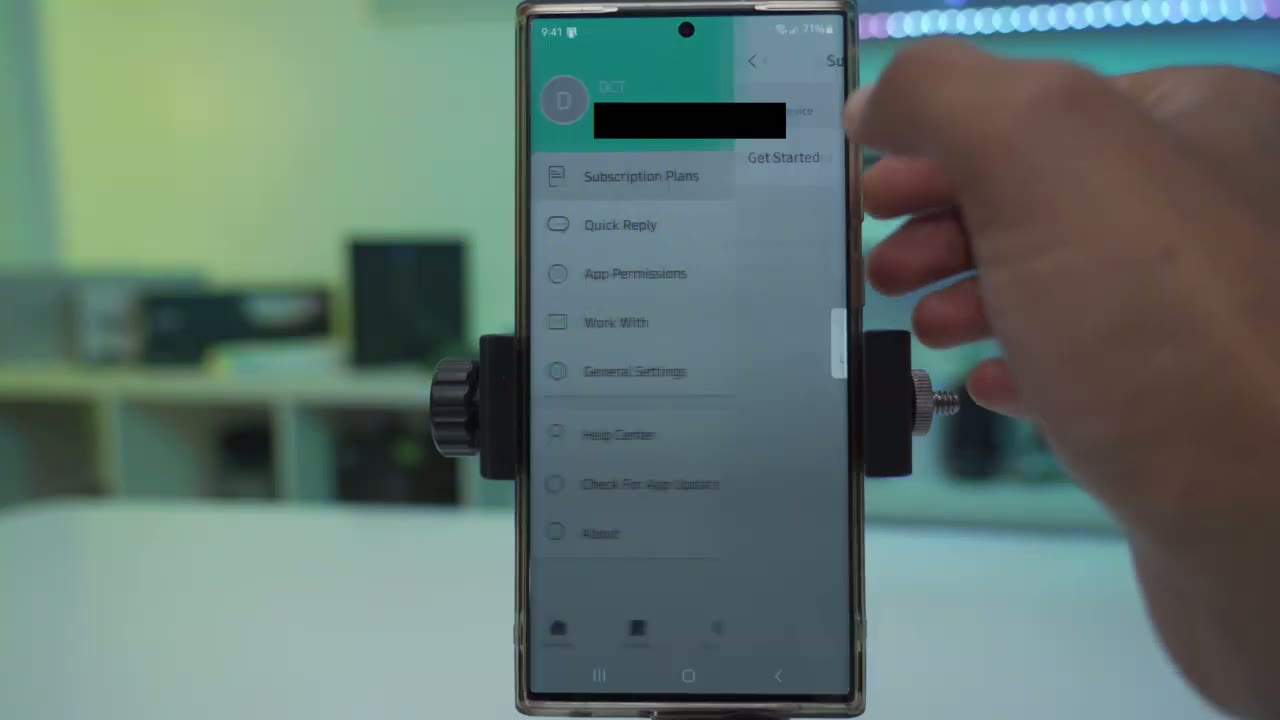
into the subscription plan and I enabled the free trial for a month if I go back into events and I play this new clip here you can see I have the option to just hit download instead of hitting the record button manually and stopping it so this is one of the benefits of having the cloud plan so another benefit of the cloud plan is you can see we now have image thumbnails previously when we would get detections or notification detections it was not accompanied by thumbnail but now we have thumbnails so we know should we go ahead and tap on that or not all right so can I recommend
Recommended?
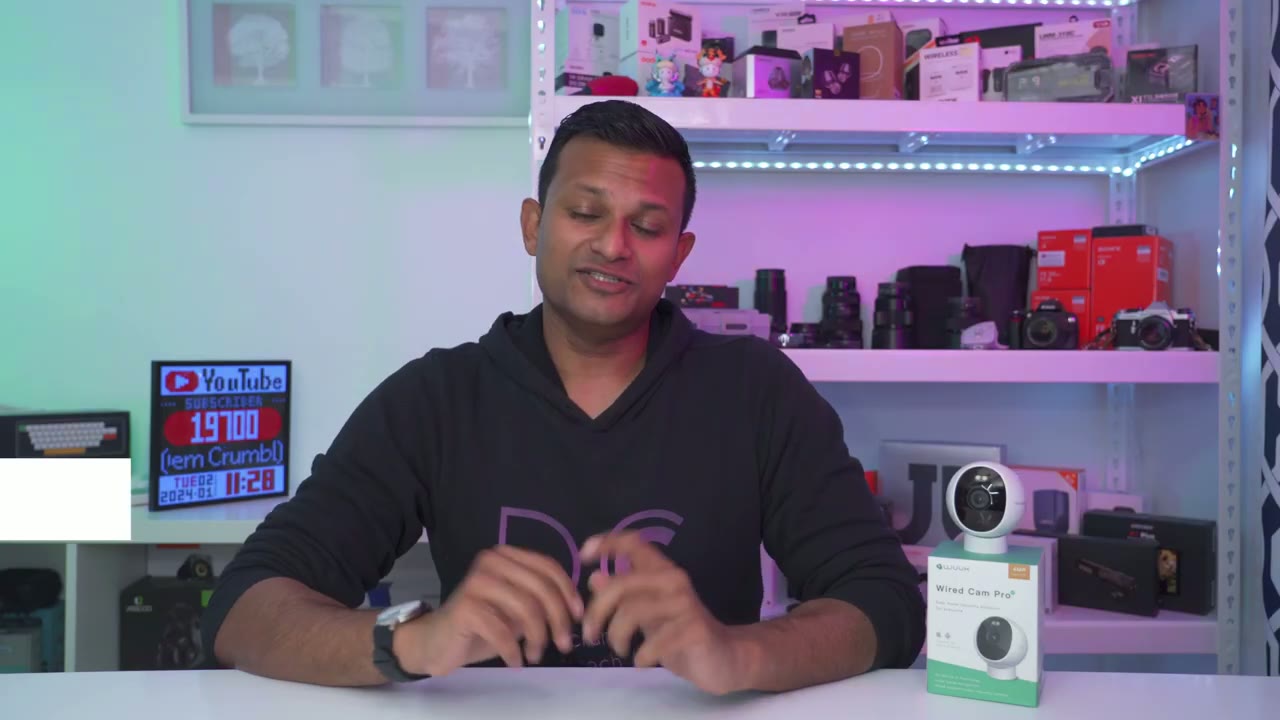
the wuk wir cam Pro V2 and it is such an easy recommendation for me the compact size also makes it way more versatile in terms of where I can place this so I experimented with putting this on my fridge I put it like on my stove the um overhead fan so I could do like a top down cooking video it worked for that I put it on a door frame I put it pretty much a lot of silly places even on my car hood and it stayed pretty much everywhere because of how strong that magnet is so this actually could be you know a permanently positioned camera or you can take it you know and make it very portable say you’re going to like an Airbnb and you want to monitor what’s going on when you’re not there or to take it to a hotel room or pretty much anytime you go on vacation this is just an awesome option the really wide feel of view also makes it an awesome option if you want to say like place it in your backyard to monitor the entire area or the front of your house or say like inside of a workspace or inside your home as a nany cam or you know if you have an elderly parent like this is just awesome for any of those uses so if you’re interested in picking up the wuk wir cam Pro V2 I’m going to leave some links down below for you to check it out and if I have any type of coupon codes I’m going to pin those down below as well I’ve also reviewed wook’s video doorbell I’ll link that up here especially if you’re looking for a video doorbell and you kind of just want one Security app to manage everything you can check that out and as always if you found this video helpful please consider liking and subscribing it truly does help me out and I’ll see you in the next one soon
Please note that some of the links in my video descriptions are affiliate links where I earn from qualifying purchases. As an Amazon Associate I earn from qualifying purchases.