


Buy Pitaka Pinbutton Case on Amazon
Buy Pitaka Tactile Woven Case on Pitaka
Buy Pitaka Tactile Woven Case on Amazon
Buy Samsung S25 Series Phones on Amazon
Please note that some of the links in my video descriptions are affiliate links where I earn from qualifying purchases. As an Amazon Associate I earn from qualifying purchases.
Intro

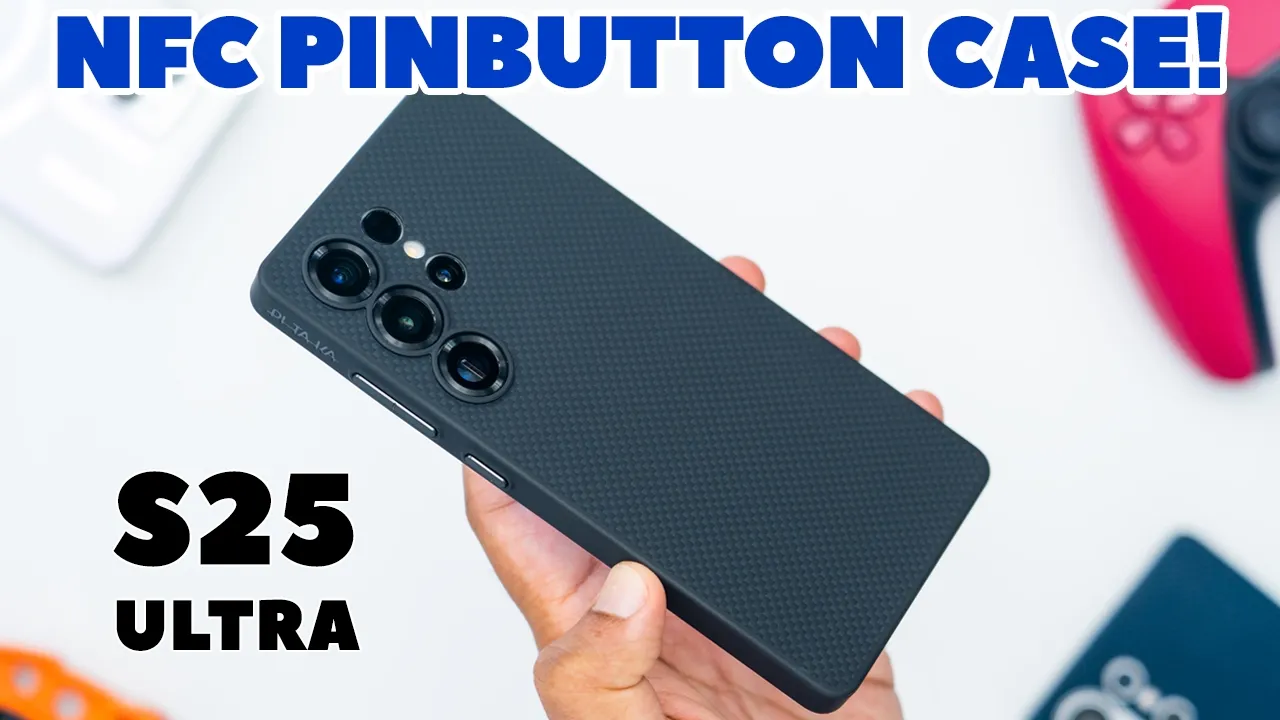
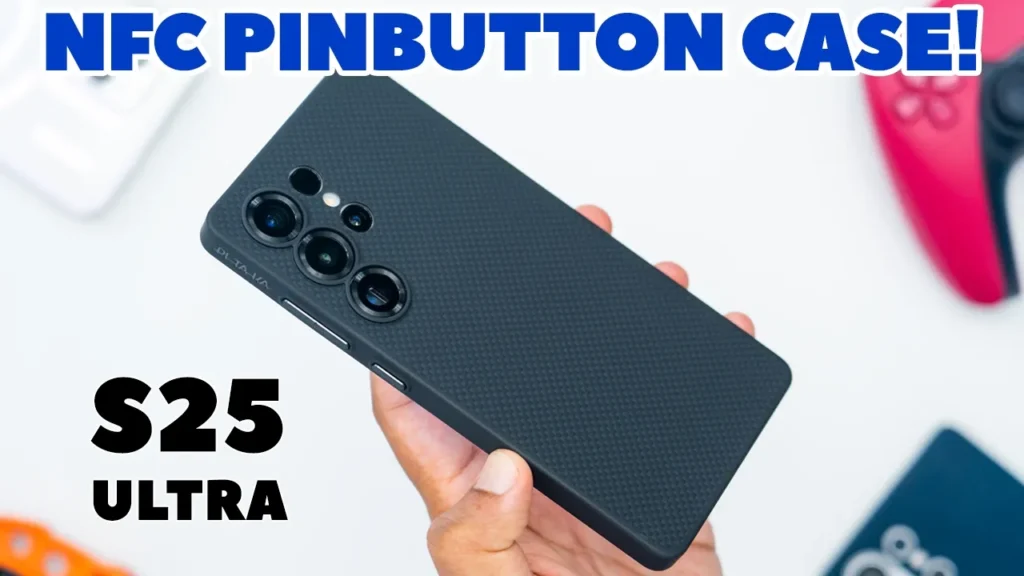
Hey, it’s Adrian. And if you’re looking to protect your new S25 Ultra and improve productivity, you’ll want to check out Paka’s pin button case, which is made of strong aromid fiber and TPU for great gripability while staying lightweight at only 40 g and 1.86 mm thick. Race bezels protect your phone screen and the camera lens. Chi wireless charging and maxive charging work great along with NFC use and SPEN use. And of course, the famous NFC pin buttons let you quick launch apps, actions and apps, the flashlight, or a bunch of stacked actions depending on what you need. The options are really endless with this case. So, let’s take a closer look at the Paka pin button case for the S25 Ultra. And a big thanks to Paka for sending this out for review. In the box,
Package Contents
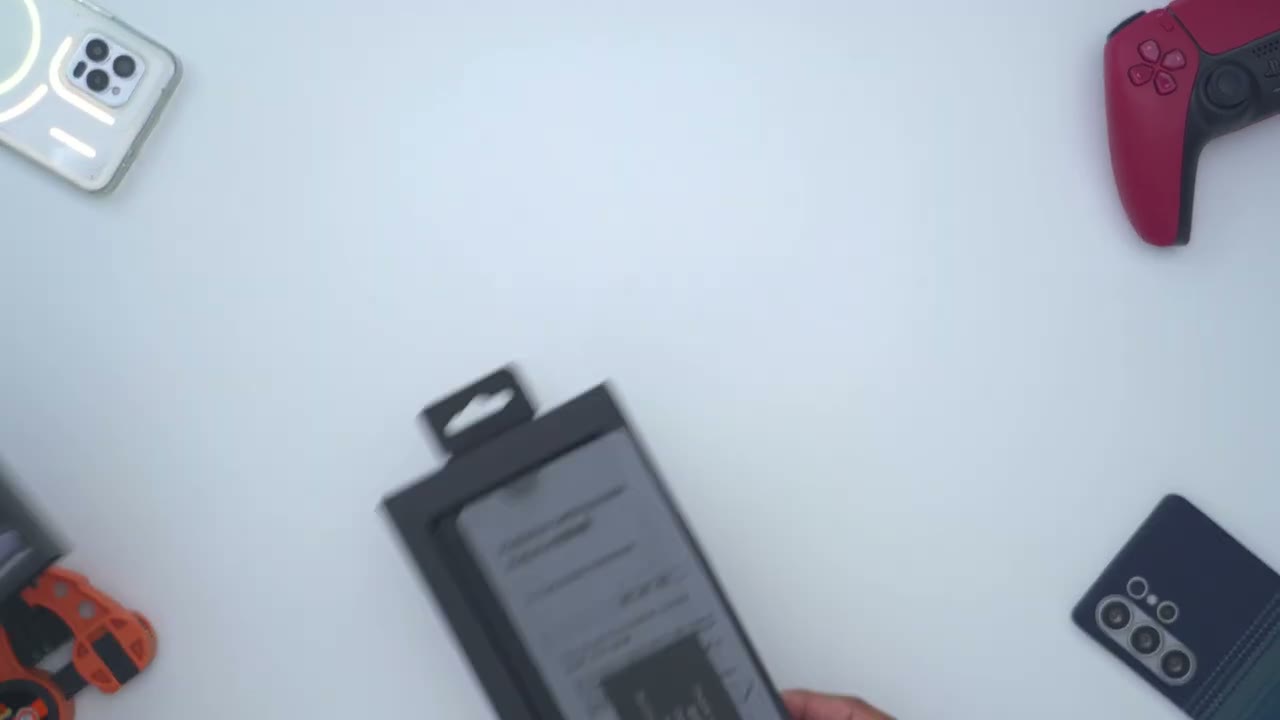
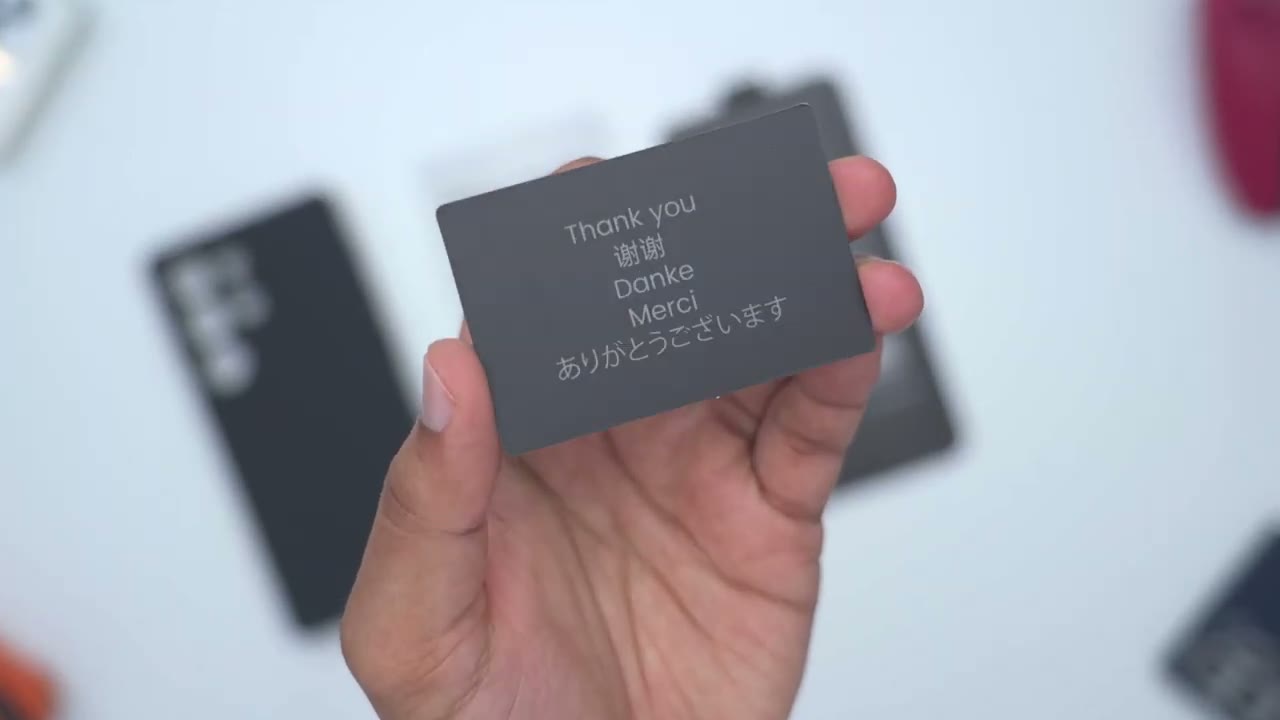
we have the Paka pin button case for the S25 Ultra, instructions for setting up the pin button, a guide for how to remove the case from your phone, and a thank you note. Let’s take a quick look
Design
at the Paka pin button case before I install it on the S25 Ultra. So, the case is extremely lightweight, coming in at only 40 g, and that’s thanks to the Aramid fiber and TPU build. Now, in terms of thickness, it’s only 1.86 mm thick, or I should say thin. On the back of the case, we have this textured woven aramid fiber build, which makes it tactile and easy to grip. Now, we also have individual camera lens cutouts, which I like to see. And then on the side of the phone, we have the volume power button and the Paka logo deboss right in there. And you can see that plays nicely with the light. On the other side, that’s where we have the three pin buttons. And these are using NFC. And I will show how to program those later. At the top, we have a cutout here.
And then at the very bottom, we also have cutouts for USB type-C port, the speaker grill, and the SPEN. And note, if you take a side view of the S Pen cutout, it’s kind of recessed in. So, it’s kind of curved or dipped in just to make it easier to get the S Pen out. On the front of the case, we could see this interior Napa leather type of material. And this is to help protect the rear of your phone from any type of scratches. And we also have that Max Safe ring for Max Safe charging and to use Max Safe accessories. And if we take a look at the protection, it goes all around. So, it actually curves over a little bit to help protect the screen and the sides of the screen. And one thing to note is you can see where the buttons are.
If I look at the same area on the inside of the case, you don’t actually see those buttons there. So, you don’t have to worry about the buttons actually scratching or making contact with your phone’s frame. The volume and power buttons, if we look at the inside, you can see those buttons, but they are coated to ensure it doesn’t scratch the frame of your phone. I’ll
Install
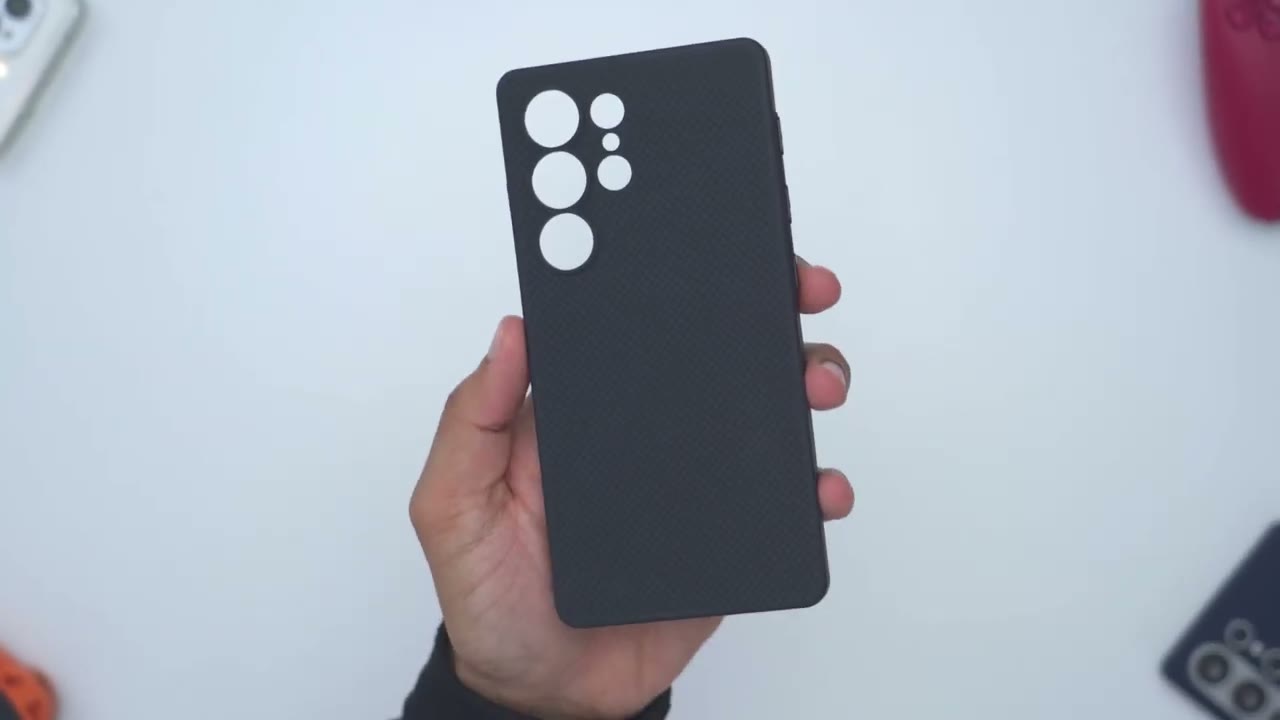
install the S25 Ultra now. So, I’ll start at the very top. Pop that into place. And you could see that’s a super quick and effortless install. Here’s
Fitment
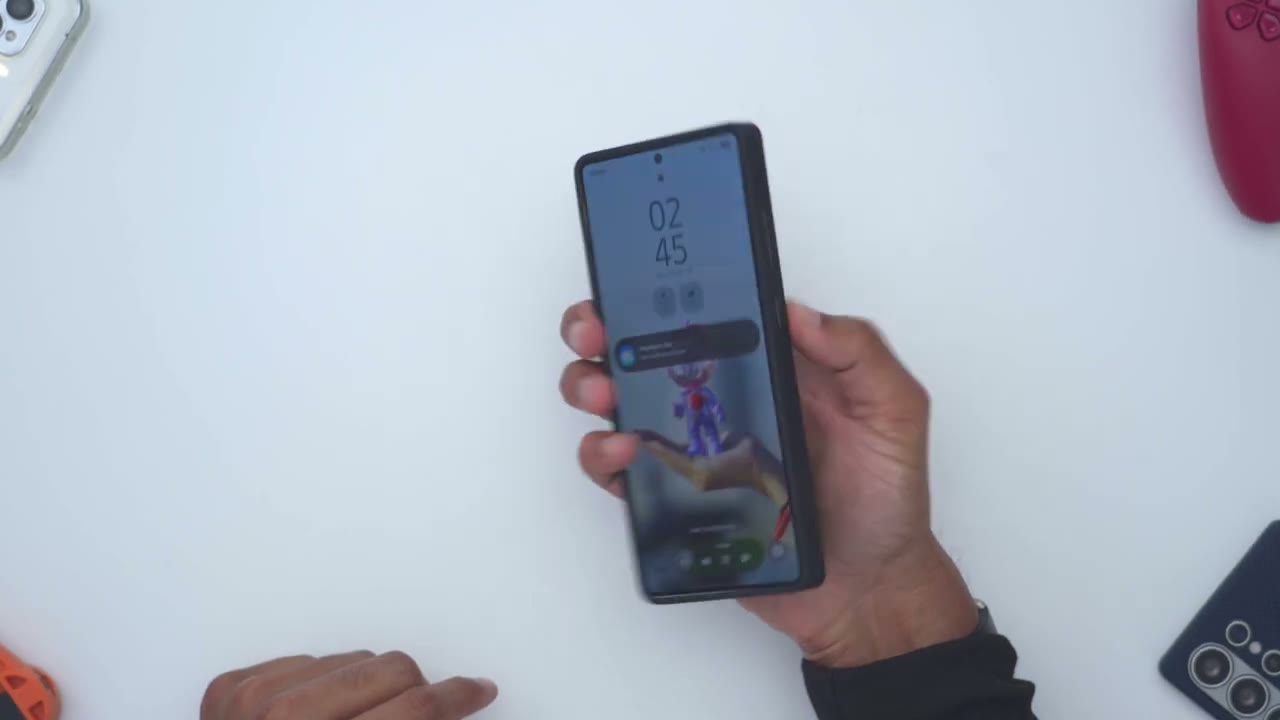
what a top view of that cutout looks like. Now, this is the side and we have zero issues. The buttons are still nice and tactile. And then taking a look at the very bottom. So, completely opened up USB C port and access to the SIM card tray, but you still will have to remove the case to get to that. Perfectly cut out for the speaker grill. And then the SPEN access. If I do a side view, you could see it’s nice and recessed. So, you could just pop that right out like that. put your fingernail under and just grab that in and out. Zero issues. This is what the rear of the case looks like with the individual camera lens cutouts. And you can see if I do a side view, we do have raised bezels to protect those camera lens anytime you place the phone flat down on a surface.
And looking at the front, so I do have a screen protector applied and the case went on without any issues. Now, if we do a close-up look here, you could see exactly where the screen protector ends. there’s a little bit of a gap and where the case bezel kind of wraps around. So, pretty good overall protection. Now, one thing I did notice is at the bottom left here, there is a little bit of play with the case. So, I’m not sure if that’s just with my case. Um, but I will ask Paka and let you know in the comments when I get an answer. And if we do a side view, you could see that it’s not exactly flush with the screen. It does extend up slightly, but you can still easily swipe to get access to quick settings or edge panels. The hand feel
Hand Feel & Ergonomics
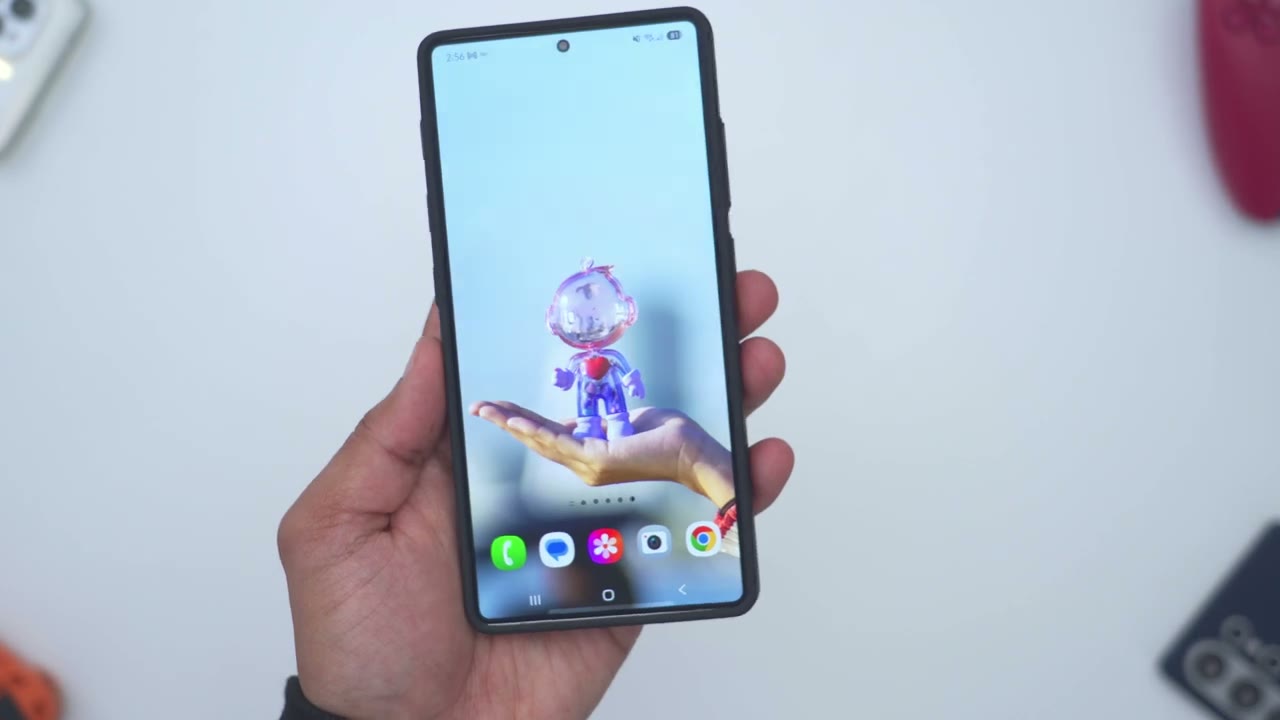
and ergonomics are really good on here. So, that combination of the TPU frame and the aramid fiber back here really adds a lot of tactility and makes it easy to grip. Now, if we take a look at the front, you could see I’m leaving a lot of kind of like streaks or smudges from my fingerprints because I did apply a bit of lotion. Now, if I go on the back of the case and I do the same thing here, I can just see, you know, very faint remnants of it. So, it’s doing a fairly decent job of helping to hide or resist fingerprints or smudges. So,
Wobble Test
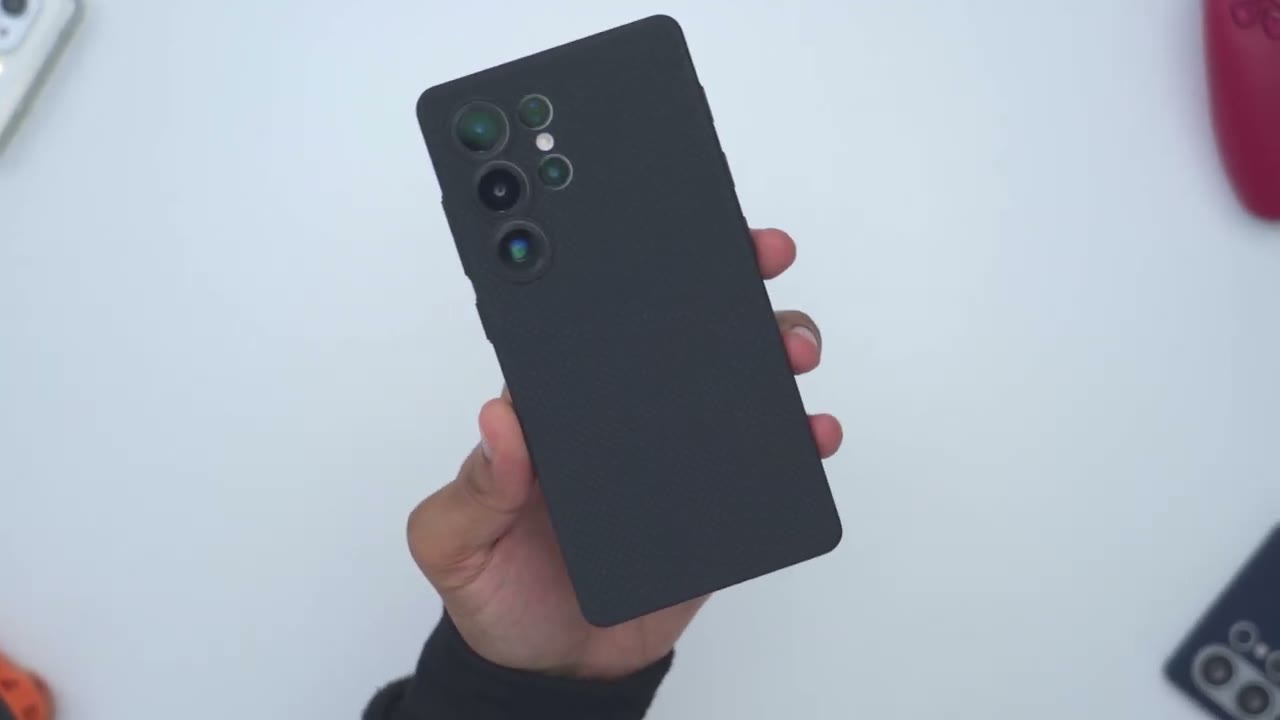
there is some wobble with the case since we do have those raised camera lens. And it’s not counteracted in any way with any type of raised nodule. Now, using the S Pen on here, it’s still pretty decent. The wobble is fairly minimal.
S Pen
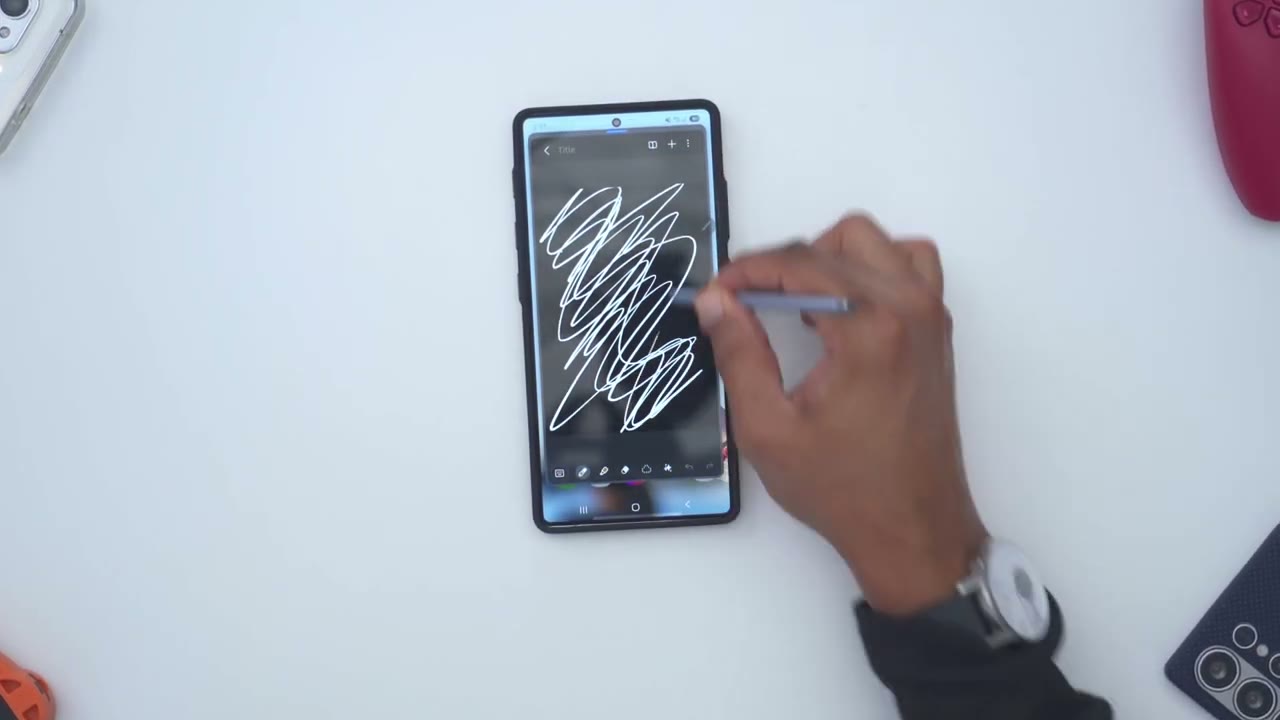
and SPEN use is completely unaffected even with the Max Safe charging ring.
NFC
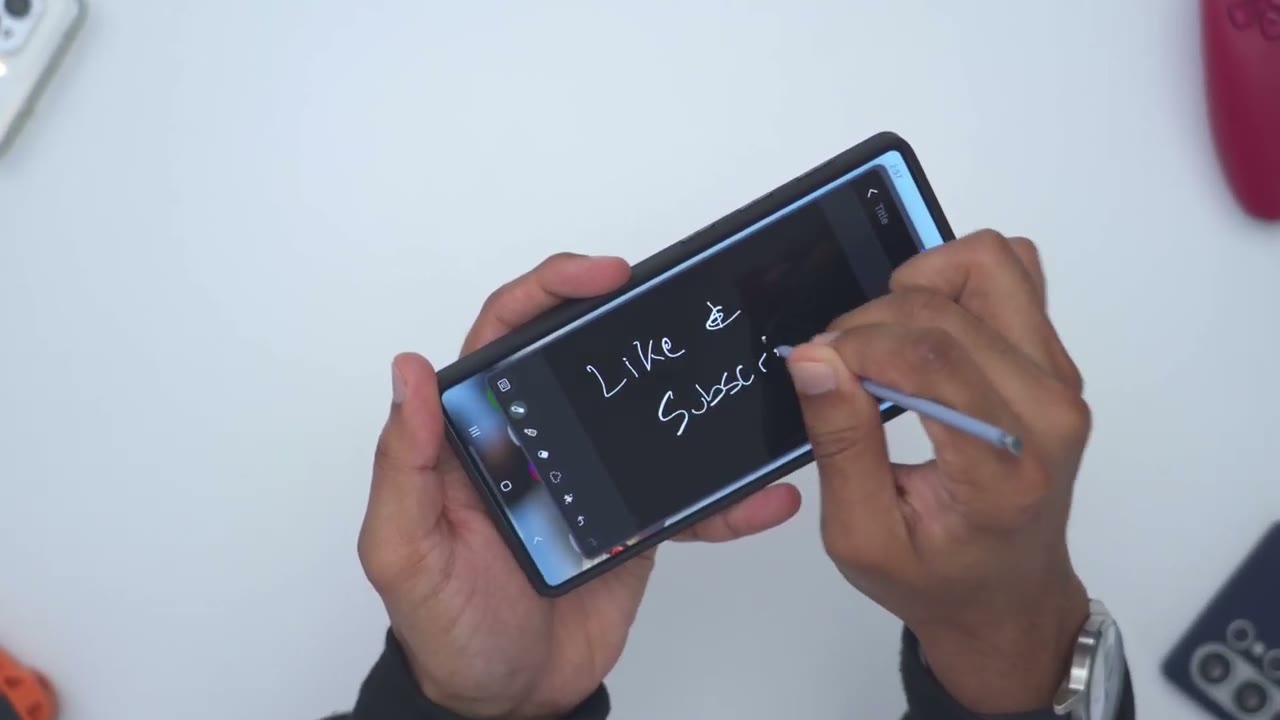
NFC use is also completely unaffected.
Magsafe & Qi Charging
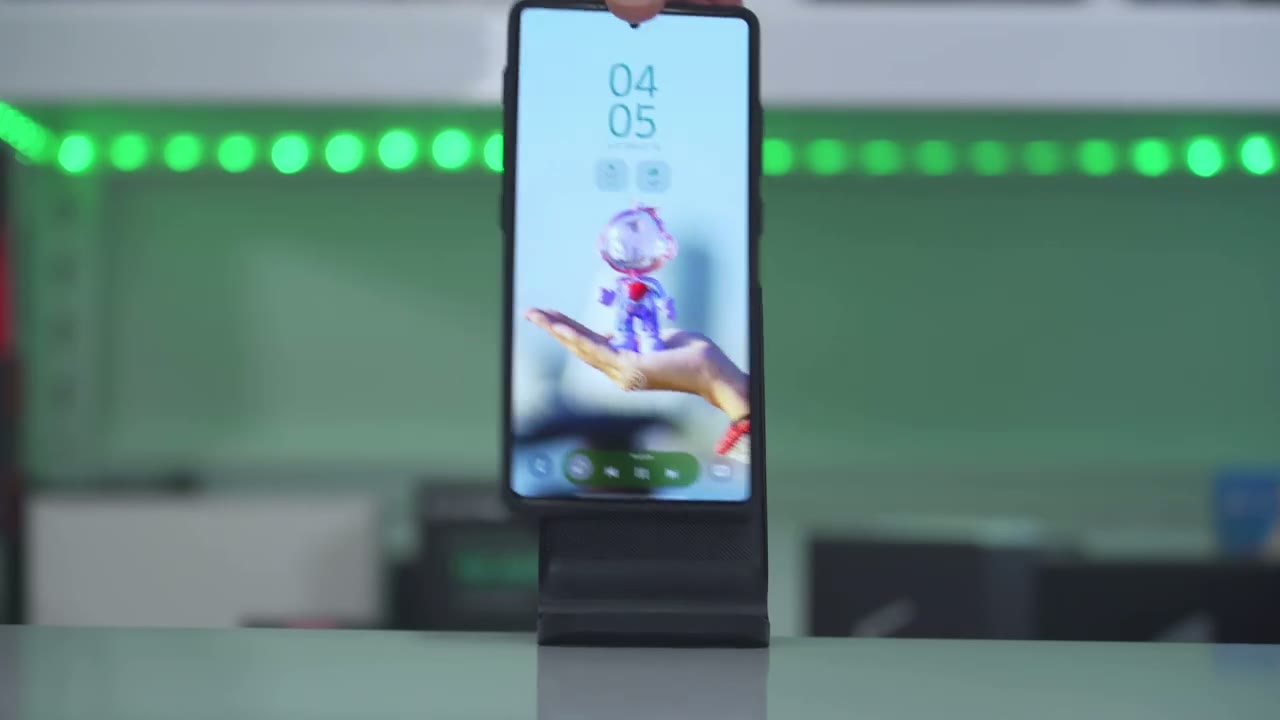
There are zero issues with Chi Wireless charging and Max Safe wireless charging. And the magnetic hold on my Maxafe charger is pretty good as well. And if
Magsafe Accessories
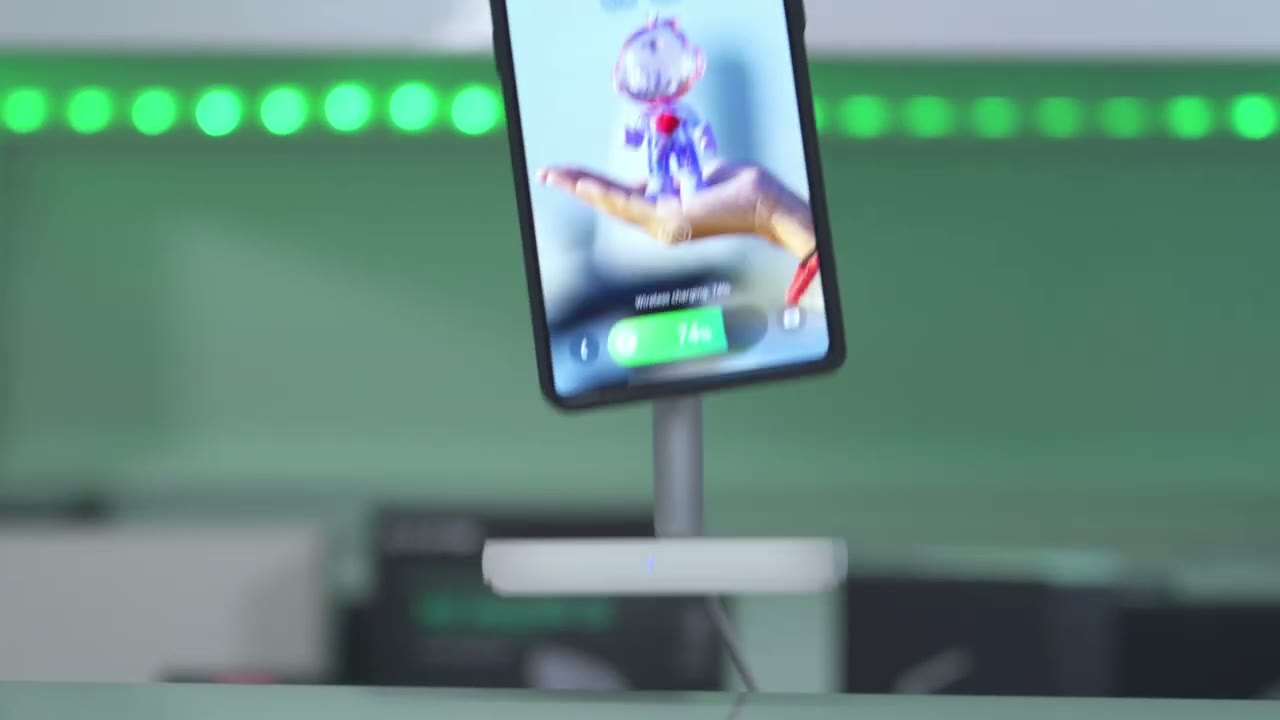
you love to use Maxafe accessories, the magnetic strength is strong enough on her that Maxafe accessories just snap into place. I can shake this really vigorously up and down and it is not
Magnetic Mounting
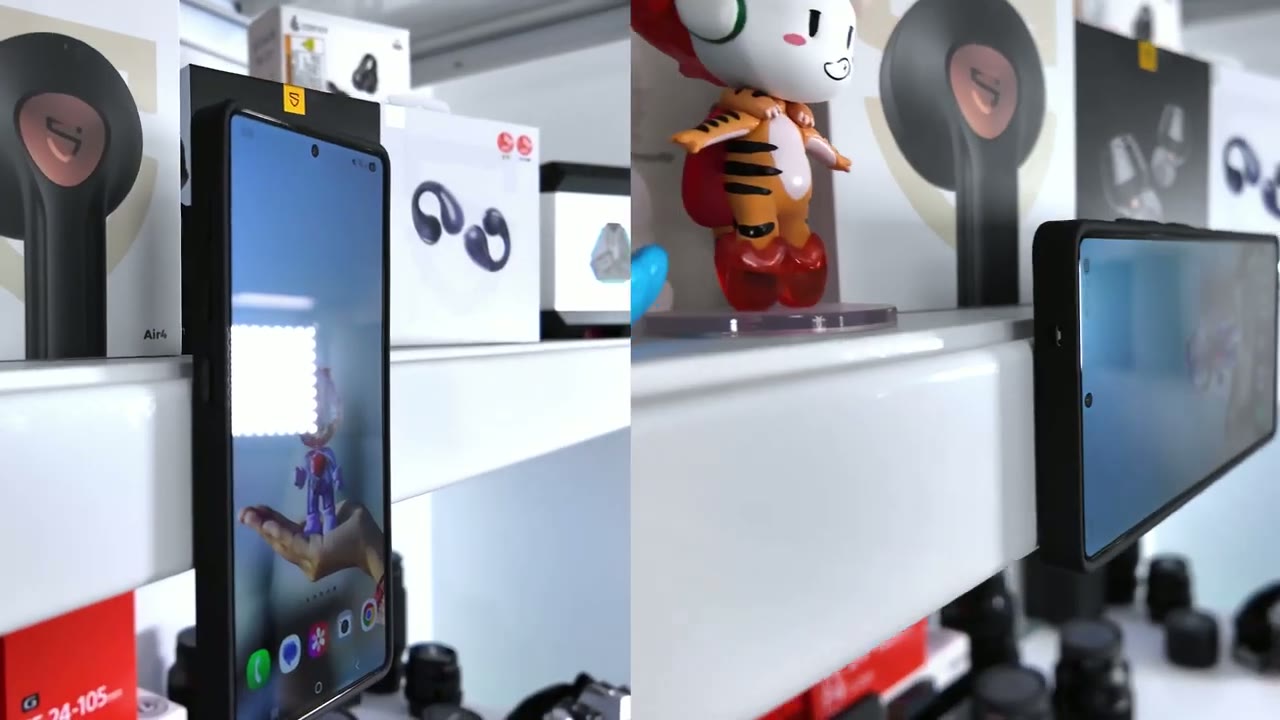
going anywhere. While the case stuck to my metal shelf, it did slide a bit, so I wouldn’t recommend it for this use. To
Pinbutton Setup
program the three pin buttons, you’ll pull down, make sure NFC is on, which it is. And once you do that, tap into settings and then search for the word routines. Now, we can see here routines. And then once we’re in here, we’re going to click the plus symbol. So, click plus, and then we’re going to add a trigger. So, what will trigger this? Well, we’re going to do it whenever the NFC. So, tap here, NFC tagged. And now it says using NFC, this routine will delete any previous information. That’s fine. So we’re just going to press and hold now and we’ll give it a name. So I’ll just call this flashlight and go to done. So what will this routine do? So we’re going to go on here and let’s search for flashlight and we’ll pick flashlight right here. And we’re going to turn the flashlight on.
Click done. Click save. And we’ll call this NFC tagged one. And then you could give it, you know, a color if you like. Let’s just give it yellow. Hit done. And then we’re done. So now when I go ahead and long press on the first pin button here. So I’ll go ahead long press. We could see the flashlight has now come on. And it’s that simple. An important thing to note is that while I could long press on this and it will turn the flashlight on, if I long press on it again, it will not do the reverse. So you can see it’s not doing the reverse. I would have to program pin button two to do the reverse. Now another important thing to note is that whenever the phone screen is not unlocked, you can see if I go ahead and long press this, nothing will happen.
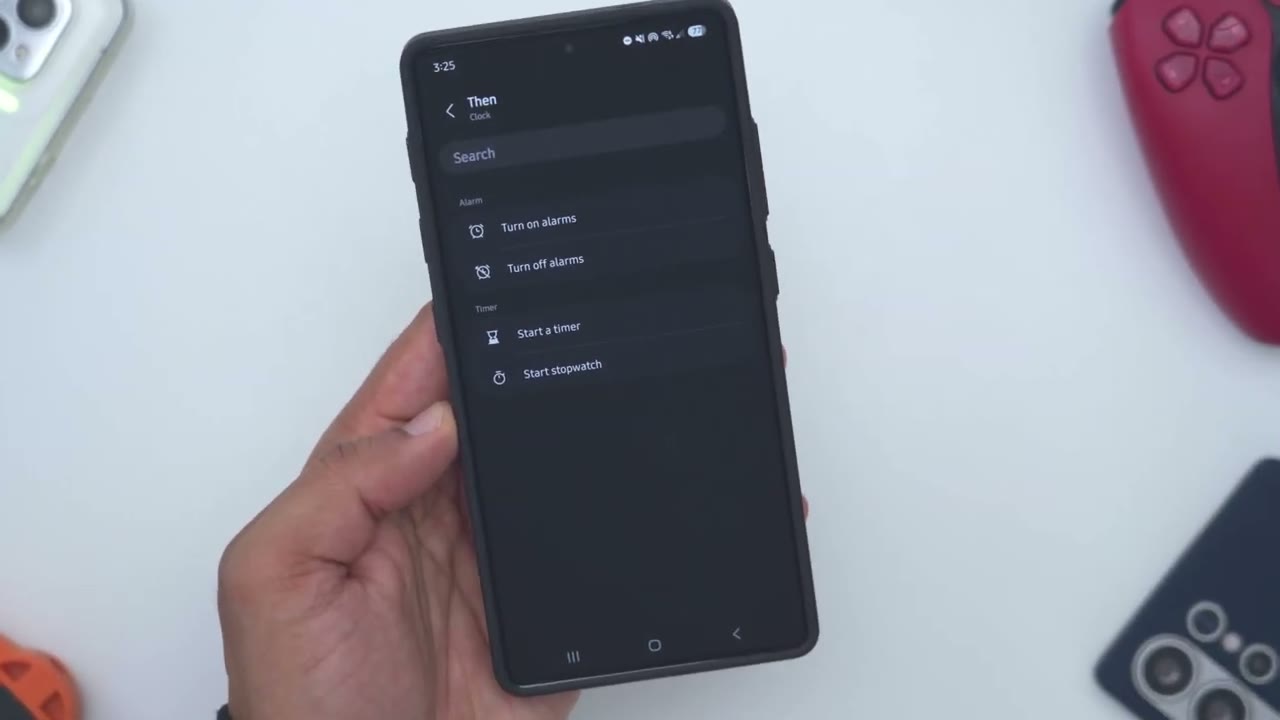
And that’s because, you know, you maybe don’t want the phone to open certain programs or apps if it’s not unlocked. So, I would first have to unlock the phone, long press, and then I have access to it. So, just keep that in mind. Let’s take a look at the other options you have. So, we’ll click plus again. So, what will trigger this routine? We’re going to go to NFC tagged. Long press on the second button. Since I don’t have that programmed, I’ll call this P2. And then what will this routine do? So, this is what you have access to. So, you can see it says open an app or do an app action. So, if I just tap into here, let’s take a look at the options we have.
So, you can see at minimum I could just go ahead and open certain apps, which is, you know, really handy if you use a certain app often. But then, for example, on Amazon, not only can I open the Amazon app, I can open it and jump right to my orders or I can open it and jump right to deals. So, depending on the versatility of the app you have, you can see for the authenticator, I can open it to see the codes or I could scan a new code. You know, these options are going to vary depending on your app. Now, outside of just opening an app or performing an inapp action, you can control smart things. You could turn modes on or off. But if we jump into connections, you can also turn Wi-Fi on or off. Same with Bluetooth. But what I like to use this for is for mobile hotspot.
So, you could see I could just set it so that when I press and hold the pin button, too, it’s going to turn on mobile hotspot. You have more options under connected devices. is you could go under sounds and vibrations. You could see what you have there. Now, what you can also do is jump under notifications and set this to do not disturb. So, I’ll just call this uh NFC tag 3. Hit done. Done. And I’ve now programmed all three of the buttons. So, flashlight from when I’m coming home and I need to, you know, kind of look for the right key. I could have NFC tag two to turn on mobile hotspot for my laptop or desktop. And then I have a NFC Tag 3, which is going to put my phone in do not disturb anytime I’m in a meeting or I just want silence.
I can also set my phone to do not disturb, crank the brightness to 100%, turn on extra brightness, and open up YouTube so I have uninterrupted viewing. Now, I didn’t cover all of the options because I don’t really need to. Just open up your Samsung phone, jump into routines, tap into each of these, and you could see all of the options available to you.
Recommended?
So, if you’re looking for a slim and lightweight case for your S25 Ultra, but you want ultimate productivity and versatility to make your everyday use a breeze, the Paka pin button case is the best option out there right now because you get full customization of the pin buttons to do basically anything you want. Paired with great features like chi wireless charging, maxave charging, smooth NFC and SPEN use, and the ability to use Maxave accessories while looking sleek and stealth. So, if you’re interested in picking up the Paka pin button case for the S25 Ultra, I’ll leave links down below. And don’t forget to check out my other case reviews if you’re looking for something a little bit different. I have a huge favor to ask.
If you found this video helpful, would you please consider liking and subscribing? It truly does help me out a lot. And maybe consider looking at some of my other tech reviews. I review a bunch of different things like security cameras, mechanical keyboards, monitors, laptops. Really something for everyone. And I really hope you’ll join me for my next video
Buy Pitaka Pinbutton Case on Amazon
Buy Pitaka Tactile Woven Case on Pitaka
Buy Pitaka Tactile Woven Case on Amazon
Buy Samsung S25 Series Phones on Amazon
Please note that some of the links in my video descriptions are affiliate links where I earn from qualifying purchases. As an Amazon Associate I earn from qualifying purchases.