


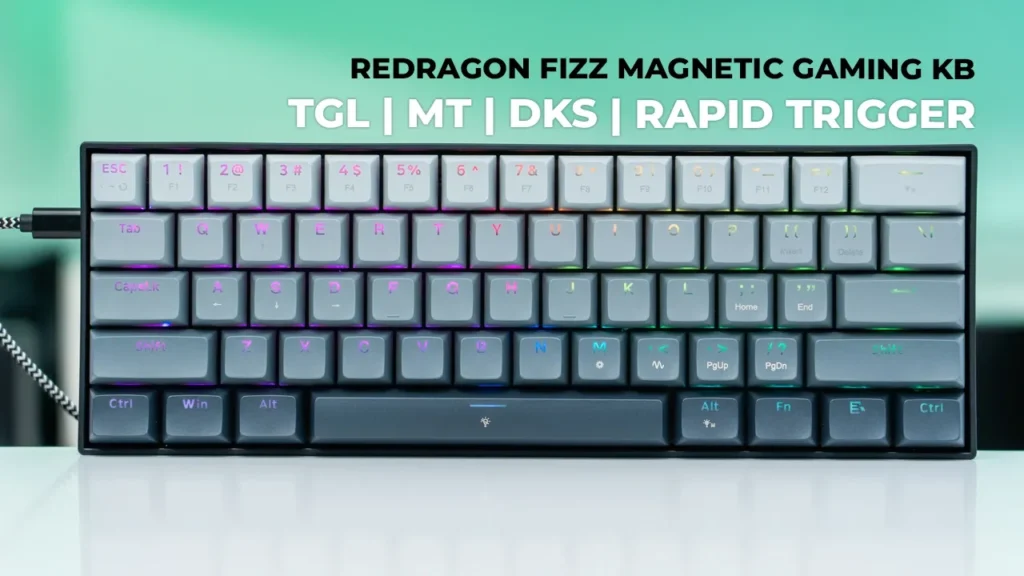

Buy Redragon Fizz Magnetic KB on Amazon
Buy Redragon Fizz Magnetic KB on
Please note that some of the links in my video descriptions are affiliate links where I earn from qualifying purchases. As an Amazon Associate I earn from qualifying purchases.
Intro

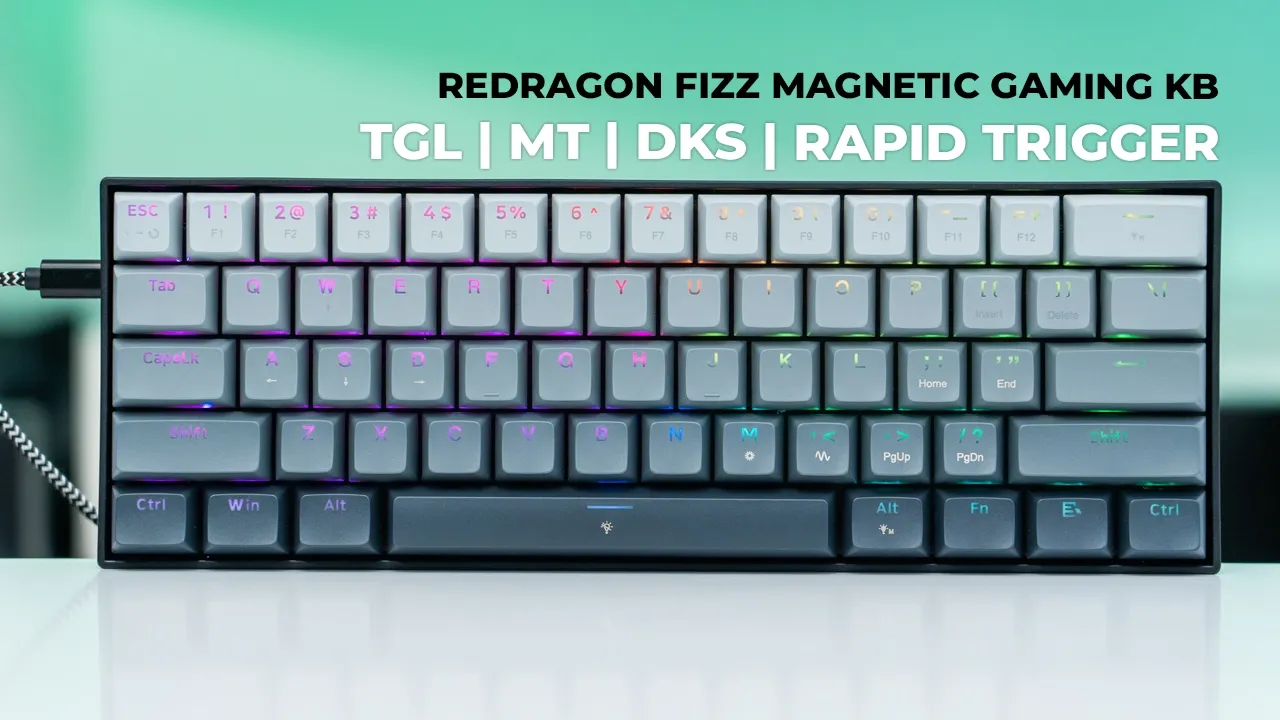
hey it’s Adrian and today I’m taking a look at this red dragon Fizz k617 M magnetic gaming keyboard you get up to 8K polling adjustable magnetic switch actuations from 0.1 mm all the way to 4 mm and of course there’s a ton of gaming functions such as rapid trigger toggle keys multitap and dynamic keystroke and while the keyboard is great for gaming it does fall short in a couple of other areas that may or may not be deal breakers to you so let’s take a closer look at how well it performs and a big thanks to Red Dragon for sending this out for review in the box we have the
Package Contents
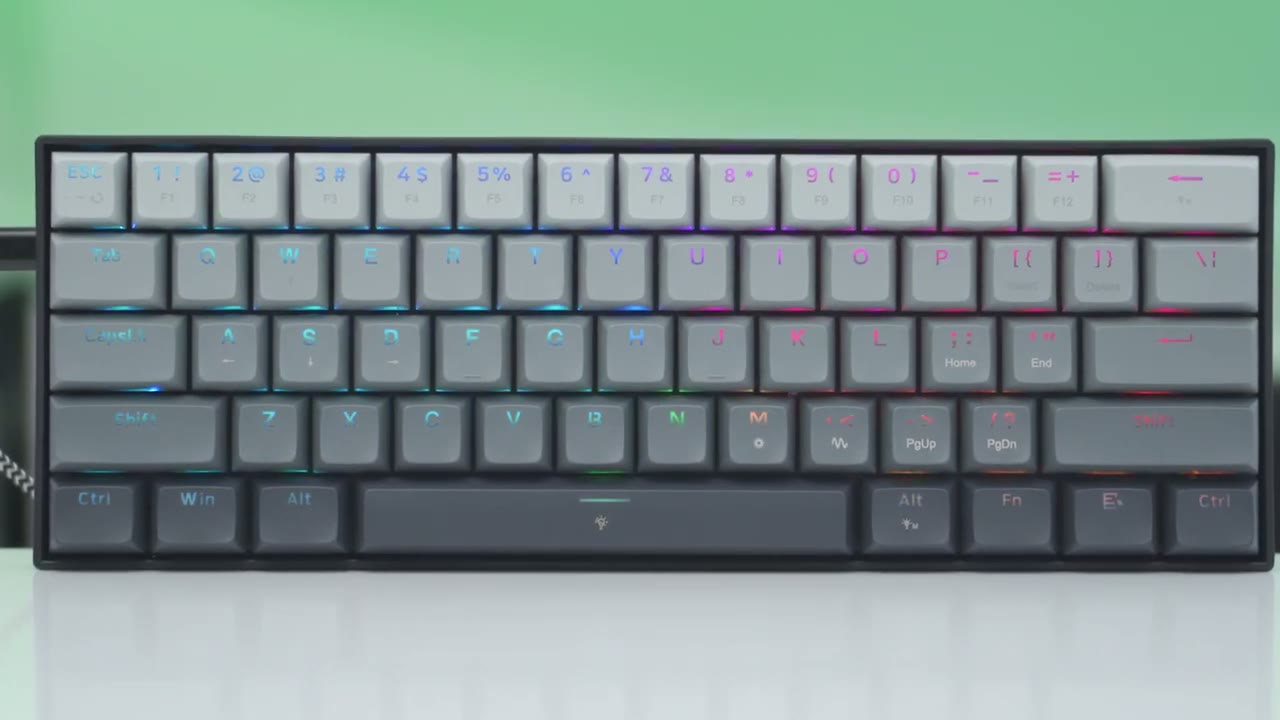
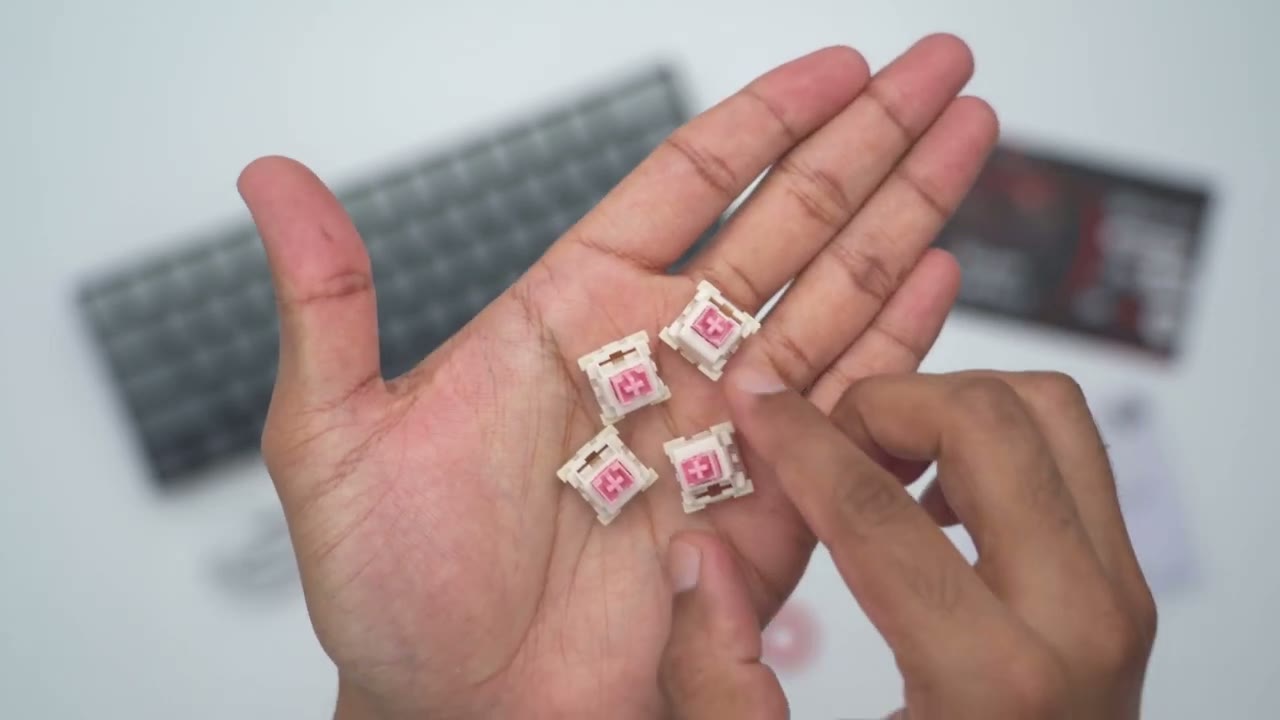
fiz k617 and magnetic keyboard some stickers quick start guide keyc and switch puller USB type-c to type a cable and four additional switches the design
Design
on the Fizz K 617m keyboard is pretty minimal now we have this type of gradient effect that starts with this kind of you know light gray that Cascades down to a much darker gray and you can see as I angulate it like that you can see that gradient cascading so that does look very sharp and nice now if we look on the left side this is where we have the USB type seat Port because this is a wired only keyboard there is no Wireless mode but then taking a look at the top pretty much all um a plastic build all the way around and then we do have the red dragon logo at the bottom right corner here now taking a look at the rear we have rubber feet to help keep this planted now the bottom of here is textured it’s it’s not exactly um a hard plastic it’s kind of in between so it’s a little bit rubberized uh to keep the keyboard planted and you have a one stage adjustment feet and you know a little bit of um padding here to keep this kind of planted so let’s see so you can see it’s not super easy to shift it around um because of the rubber padding so that works fairly well click those back in now the weight on this is about 533 G from when I weighed it so it’s quite lightweight and in terms of build quality so if I just kind of flex it and kind of twist it you can see I’m not really having you know much luck twisting this and I can’t hear any type of creaking and flexing so even though it is lightweight and a mostly plastic build it actually feels very rigid and sturdy so far so we have 61 key caps in this 60% layout and we do have north-facing LEDs which shine through double shot key caps now one thing that I noticed right away is that the RG looks really good on here and you could see it shines through the letters however the secondary functions when you press the FN key um it doesn’t actually shine through those so I could see these being a bit challenging to read in dim environments and here’s a side view of the keycap profiles here’s a quick look
Specs
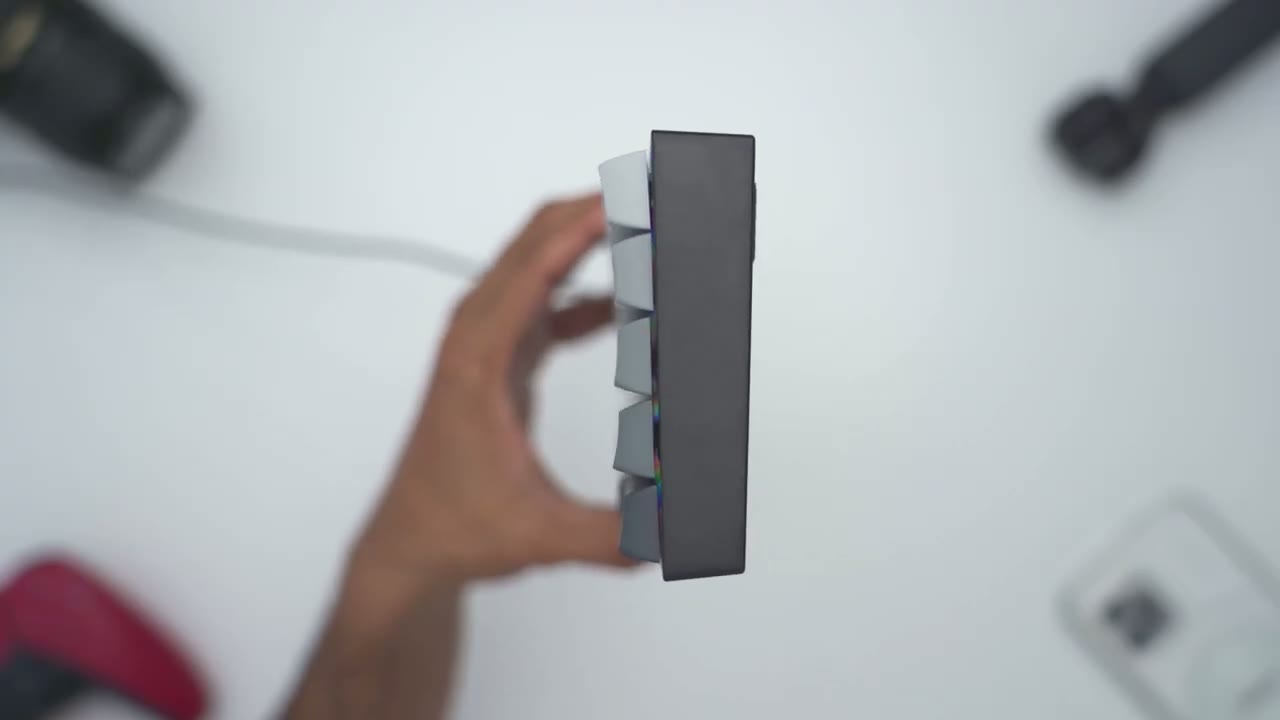
at some of the specs feel free to pause or jump ahead to the next section
Sound Profile
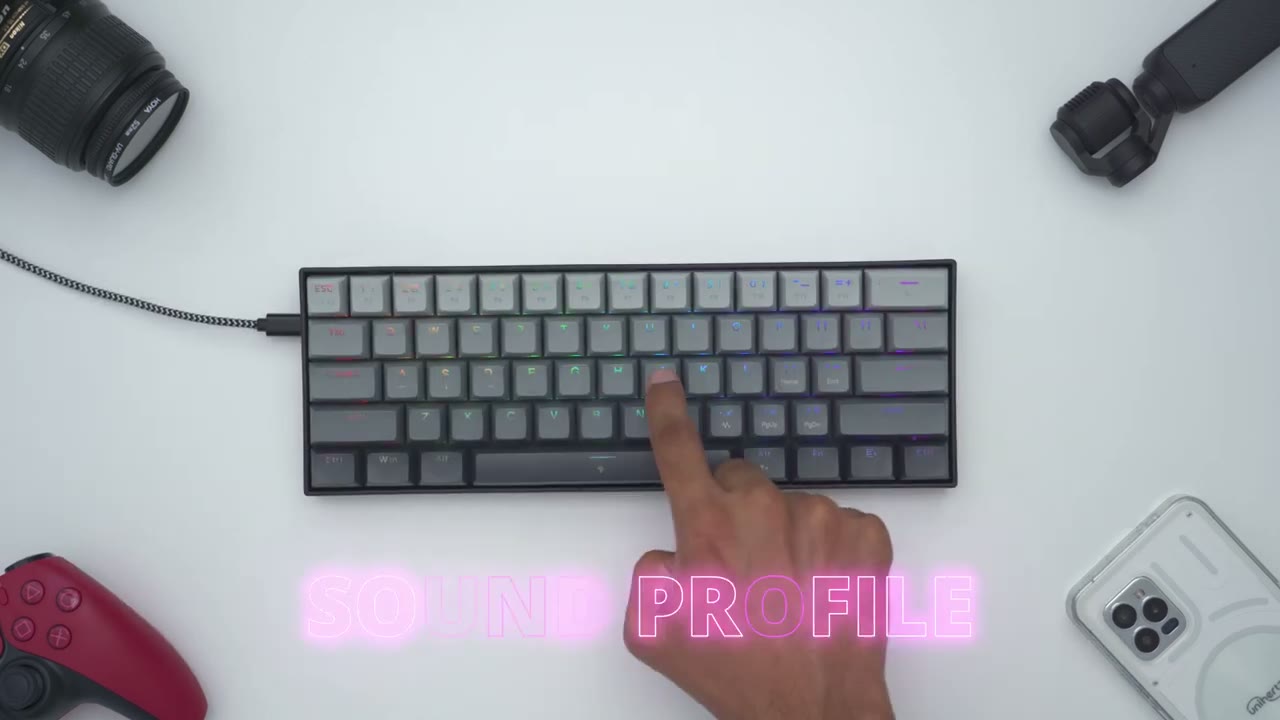
No speech in this section.
Typing
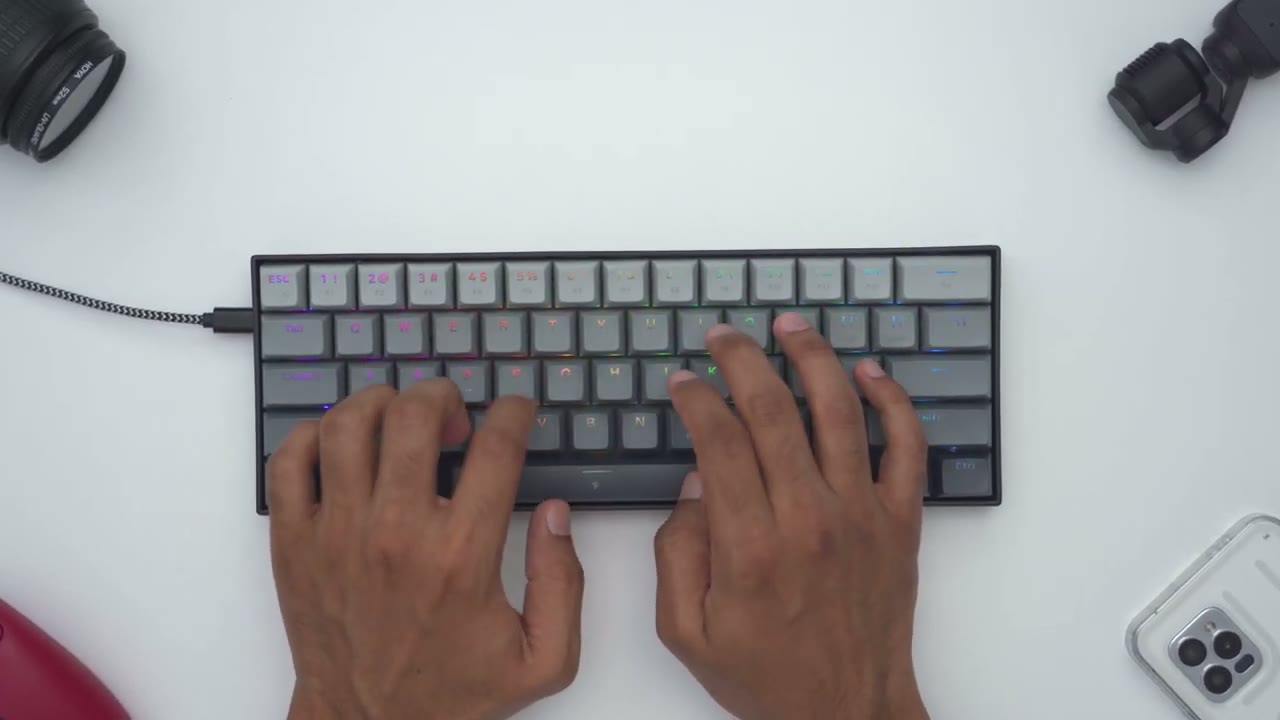
so you can hear from that typing demo that the keyboard is actually fairly loud when you’re typing so if you’re going to be gaming late at night and you know someone’s kind of sleeping nearby there is a chance they’re going to hear it especially if you’re going hard at it however when it comes to the typing experience it is actually enjoyable for me so the keys have a good travel distance they bounce back nicely and my key presses are very planted the other thing I noticed is that the key caps have a kind of type of finish that I really like versus you know super smooth type of finishes so yeah it’s a fairly planted typing Experience One potential
Magnetic Switches
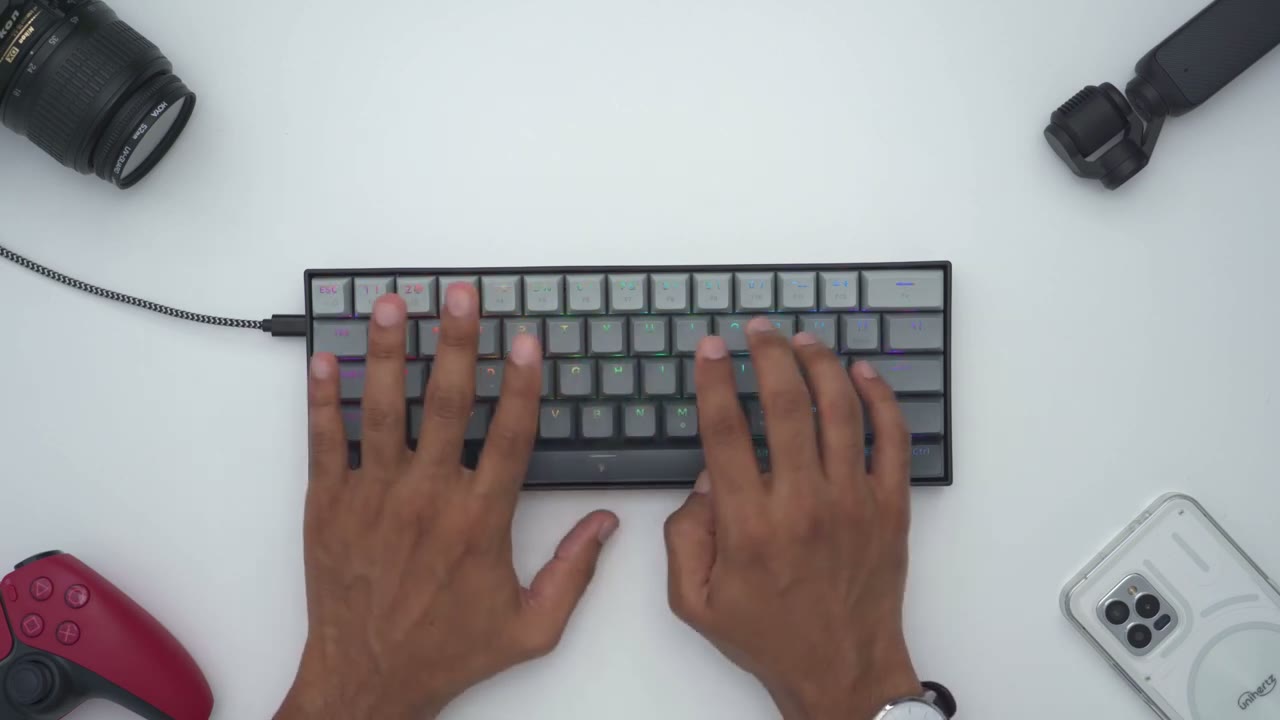
deal breaker with the fist keyboard is that the magnetic switches are not hot swappable so anytime you need to replace them you will have to use red dragon’s own magnetic switches I’ve cut the
Lighting
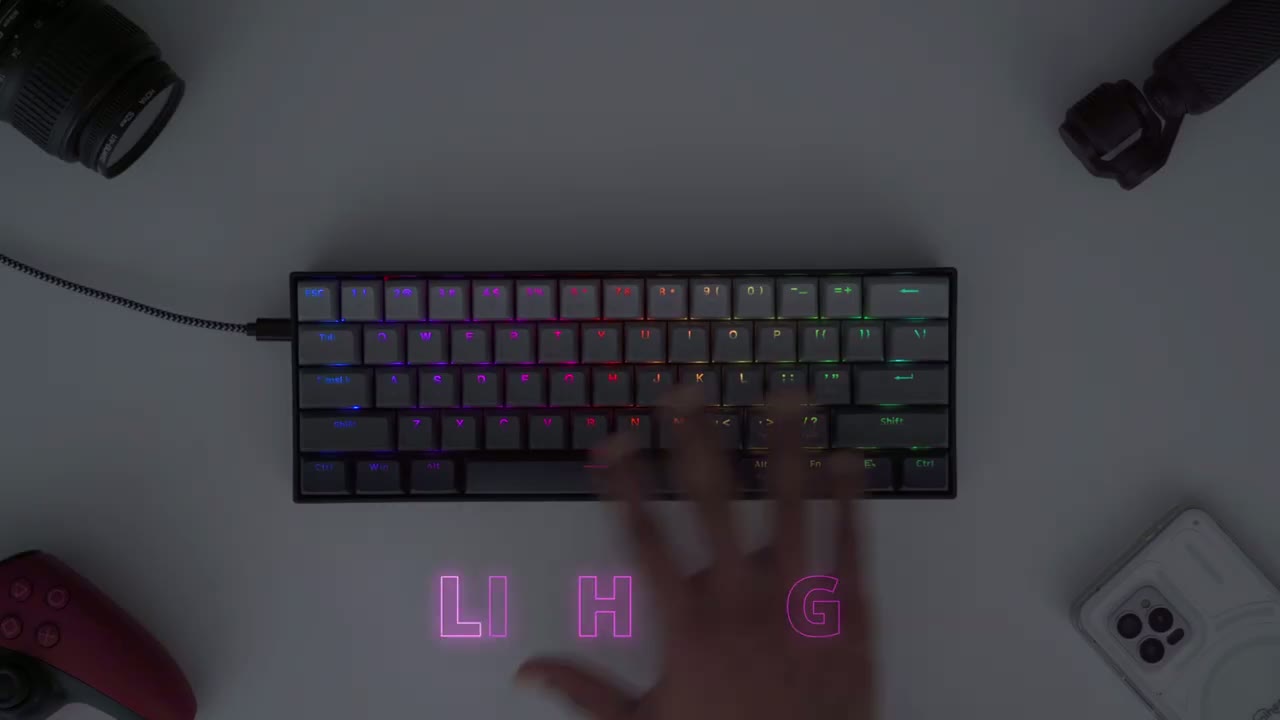
lights to show the RGB effect a little bit better and it looks really nice up close and in person they’ve done a good job with it now if you’re not a fan of RGB you could hit function and space that’s going to cut it and then you could turn it right back on now to switch between the different RGB modes you would hit function and write alt and you could see it’s going to cycle through the various modes on here so it’s very easy to manage and then to adjust the brightness you’ll hit function and M and it’s going to cycle through different type of brightness levels the speed can also be adjusted by hitting function and the left angle bracket here and you can see it’s a very slow rotation and it speeds up so you have five different levels to cycle through you also have the option to have certain Keys light up so I’ve set the Escape WD and space bar to light up and you can easily do that by hitting function backspace and then you can go ahead press the keys that you’d like to light up hit function and backspace again and your set let me demonstrate
Gaming DKS
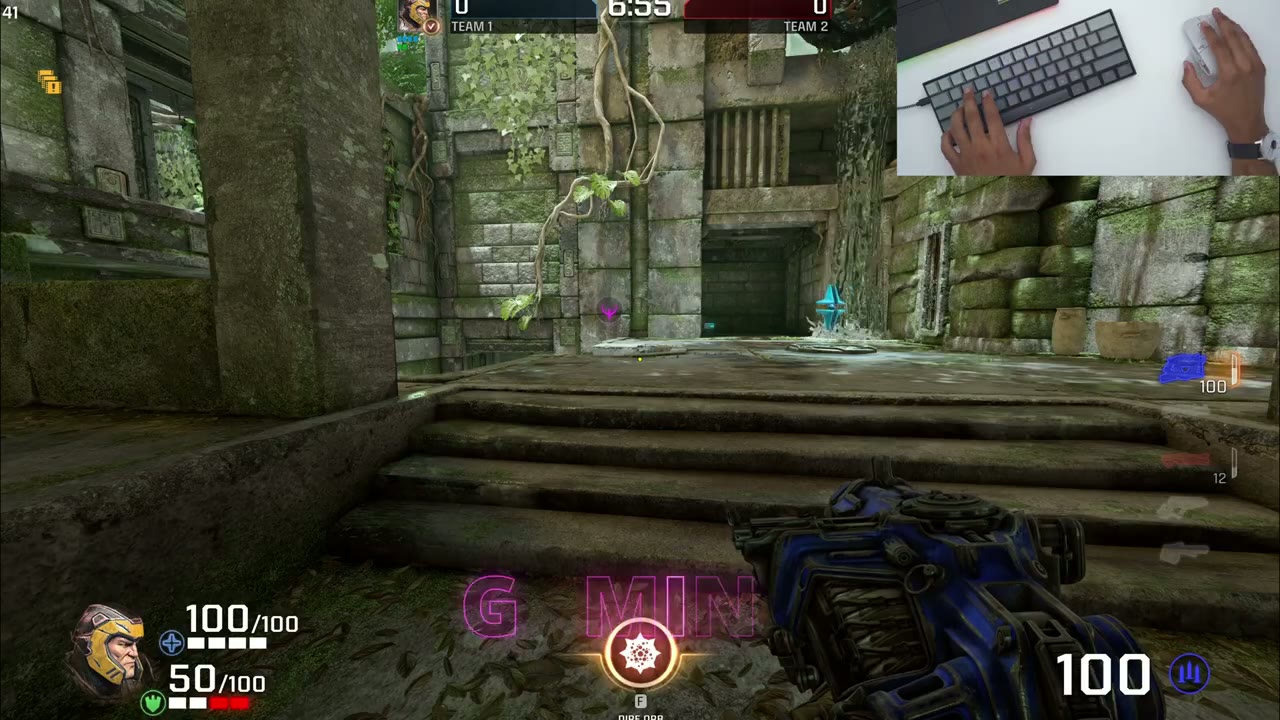
the dynamic keystroke function in the Red Dragon software so what this allows you to do is to program up to four different actions on one key so in this case I’m going to be using left shift so I’m playing Quake Champions and you can see anytime you press forward on W it’s going to be running to walk you have to press down on left shift so I’ve programmed it so that when I press down likely on left shift instead of pressing down all the way my character walks and if I press down and bottom it out my character crouches and once I let go of left shift my character jumps so you can see I have basically three actions in left switch so again I’ll just demo so running walking crouching jumping so basically any type of game you’re playing this has a ton of Versatility because in one single key you can program up to four different actions or you can pick up to two actions if you like but I’ll demonstrate another feature now to actually activate the dynamic key stroke what we’re going to do is we’re going to go into the Red Dragon software here we’re going to click on senior keys and you can see it’s set the dks and this is how I’ve kind of set it up so it from 0.1 mm to 3.6 it’s going to be left shift and then in the 3.6 mm range it’s going to be Crouch if I go past that and then once I actually let go of it it’s going to be space which is jump in uh Quake Champions now once you’ve set that up and let’s go back to that you can see it’s called dks1 here so it shows left shift uh Crouch space we have to actually apply it now you’re going to go to this first um icon here key custom click on the left shift button and then we’re going to go to senior Keys here set it to dks1 which is what I showed earlier and then you’re going to click down load to kind of apply to the keyboard and it’s that simple and while
Gaming MT
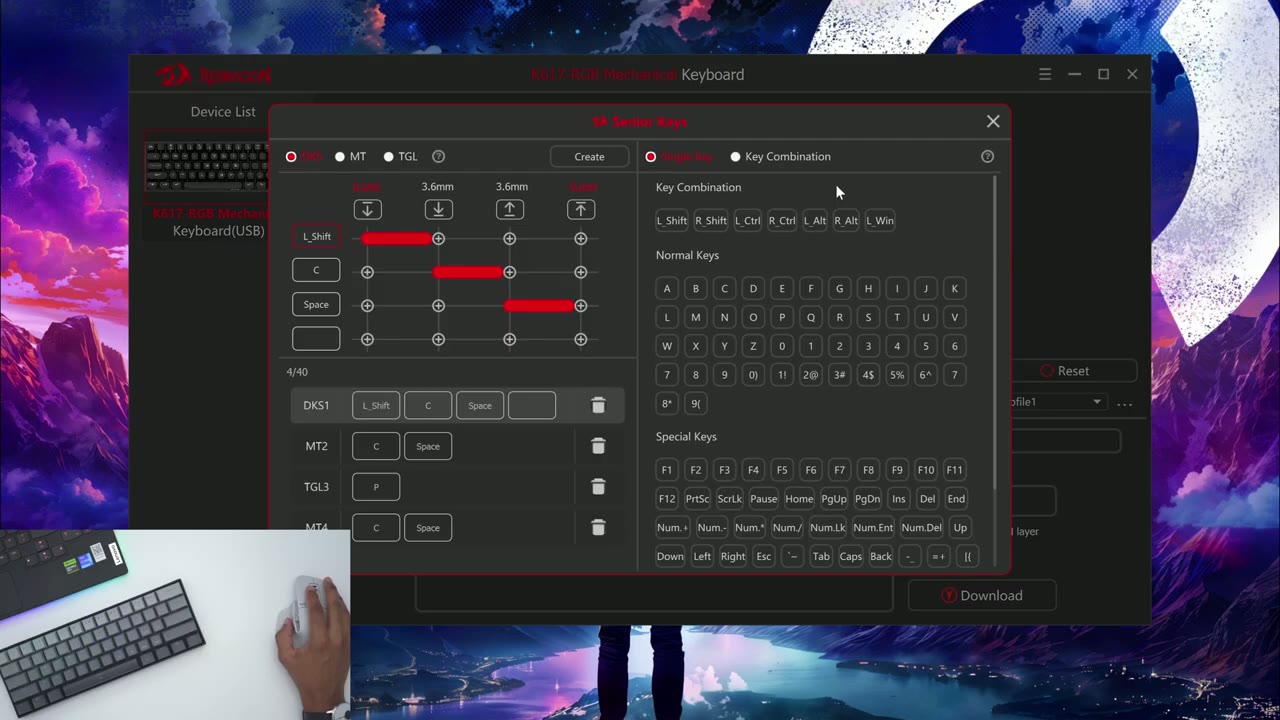
we’re in here let’s take a look at Mt and you can see it says you could have two functions so holding down the key is one function and clicking or tapping the key is the second function so I’ve already created that it’s called empty2 so if I tap on C or sorry hold down on C it’s going to act as Crouch and if I just tap on it it’s going to act as space which is to jump so now if we go back into Quake you can see if I hold down C it’s it’s actually crouching so I can go ahead and move while Crouch but if I tap on it I’m going to jump so by Saving you know one keystroke I don’t actually have to move my finger I could just hold down to crouch or just tap on it to jump so that can really make your gaming way more efficient and quicker either crouching or just going and jumping and let’s take a look at the
Gaming TGL
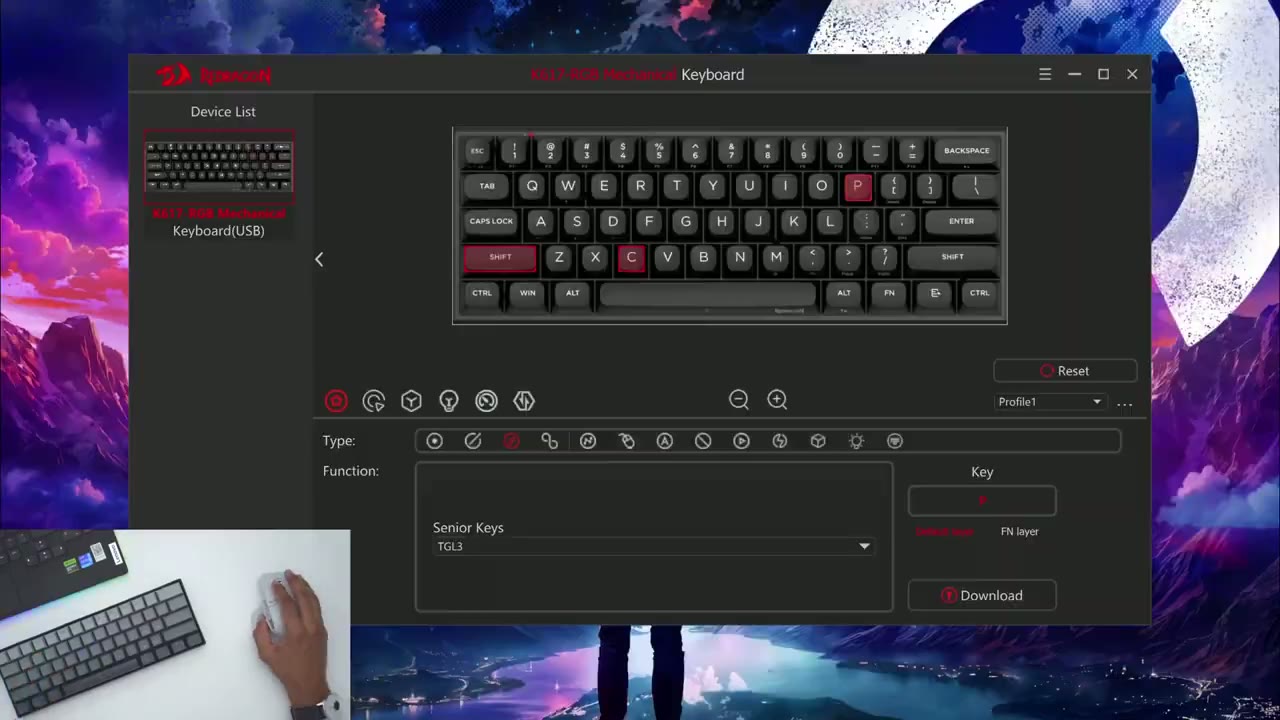
next function here which is tgl or toggle key so this is what you could use to switch from continuous triggering on or off now I’ve set set toggle to be p and I’ve set P to also jump just to Showcase this in the game so let’s go back into here so you can see I’m moving now if I go ahead and tap on P it’s going to keep jumping until I press on it again and now it’s going to go back to normal if I press on it again it’s going to keep jumping so you can easily toggle that on or off let’s take a look
Rapid Trigger
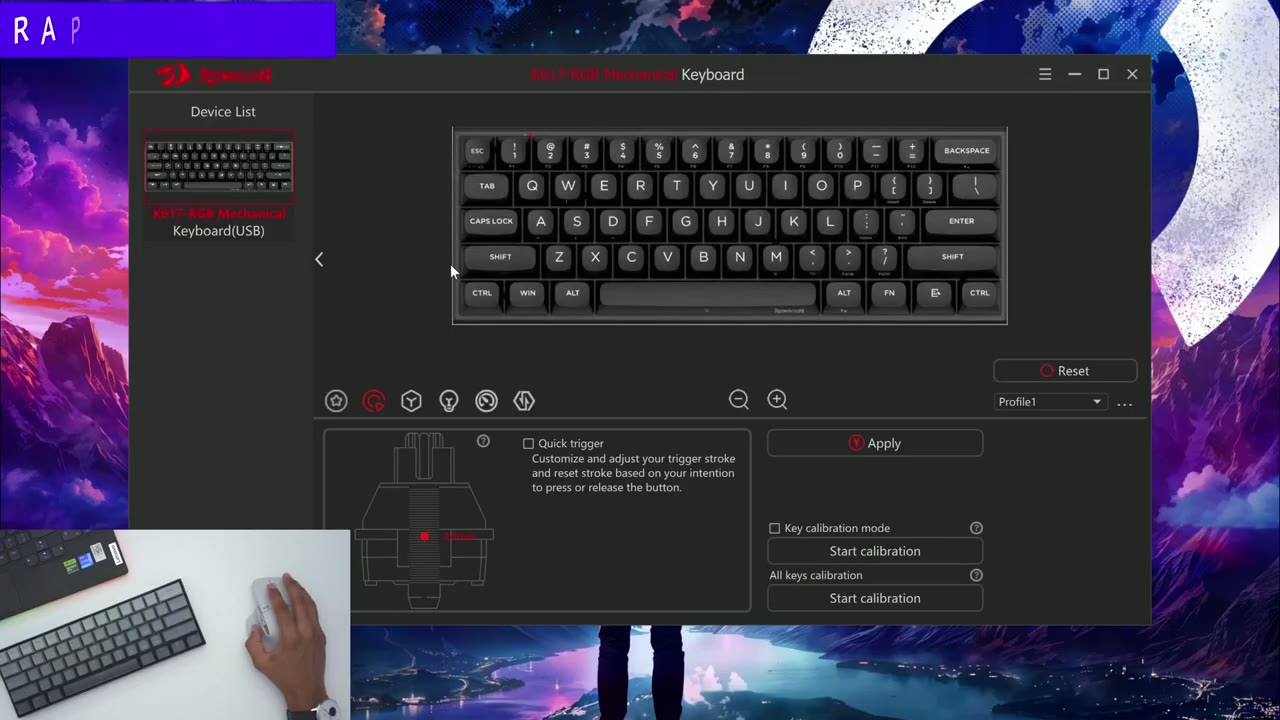
at the trigger function or rapid trigger so we’re going to go into trigger settings the second icon here and you can see if I click on Q it’s showing a 0.1 mm actuation uh same with W same with e r is going to be 2 T2 Y 2 and then U is going to be four now you can do this independently so I could click on I move this to 0.1 hit apply and it’s going to say calibration successful or if I could just click on a bunch of these at once so slide it Up Click apply and once I click back on it you can see it’s keeping that setting but let’s test that out to see if it made a real world difference so qw and E these are going to be very um quick actuation so if I gently press you can see I barely pressed the key down and it’s easily registering that que same with W again very minimal presses and it’s registering now R is a 2 mm accuration so if I lightly press the same amount it didn’t go anywhere I have to press a little bit more to get that key press now with t I’m pressing I believe about the same as R but T is taking you know a longer travel distance to actually uh register that key press which you’re seeing there so if I go back here let me confirm uh T is 2 but for whatever reason I’m still having to travel further on T than I did on R even though they’re set to exactly 2 mm but let’s go ahead and do this with Y and Y seems about the same as with r and let’s go back to T and I find that I almost have to bottom this out on T now if we go to U this is four so I do have to bottom youu out and let’s test that out so you yes and this makes sense I do actually have to bottom it out to register the key press so for some of these Keys you may find that issue where you know certain Keys even though they’re quite responsive on other Keys even though the accuration distance is the same it seems that there’s a little bit of variance in terms of how much you’re actually pressing the key down and to show you just how much of a difference it makes take a look at the D key so the right key so it’s set to 0.1 if I go to a it’s going to be set to 2 uh mm and let’s go into the game so you can see if I tap lightly on D I could kind of move very smoothly like if I just held it down but I could just go in very small increments if I try to do the same on a with the 2 mm actuation so here’s me tapping it and you can see the movements are very uh stuttery not very smooth however with d it’s almost like if I’m holding it down but it’s just actuating so quickly compared to a versus D so it makes quite a huge difference and then Additionally you could click on a key go ahead set the quick trigger you can also turn on this option here for Journey of pressing and releasing and set different values for a press trigger and a release and you can go all the way up to 2 mm with this setting whenever you’re gaming you get disabl the windows Key by hitting function in Windows and then the same to reenable it let’s take a look at the
Software Settings
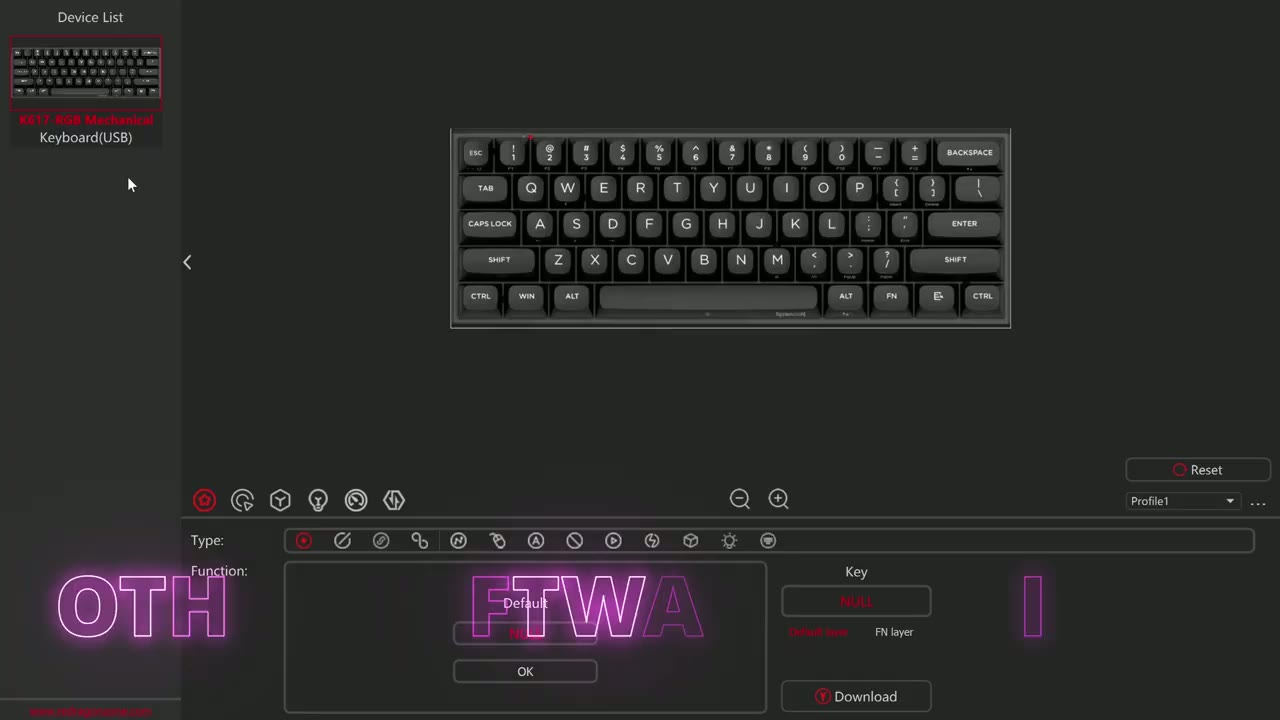
rest of the option so when you open the app up you’re going to see the keyboard you could click on one of the keys and cycle through so here is the default um remap the Key Senior Keys which I showed key combination macro mouse commands text you this Keys multimedia commands shortcuts launch applications keyboard light and key config and you can also take a look at the FN layer as well now we took a look at the triggering settings um senior Keys how to set that up and then we could go into light settings you can go ahead and pick uh the type of effect that you want so we’re on Wave right now you could pick Auto Ripple um or whichever one you like and then change of brightness speed the direction of them and the colors that being used and then under performance you could disable the Windows key if you like of course you could do this with the keyboard command so the red dragon
Recommended
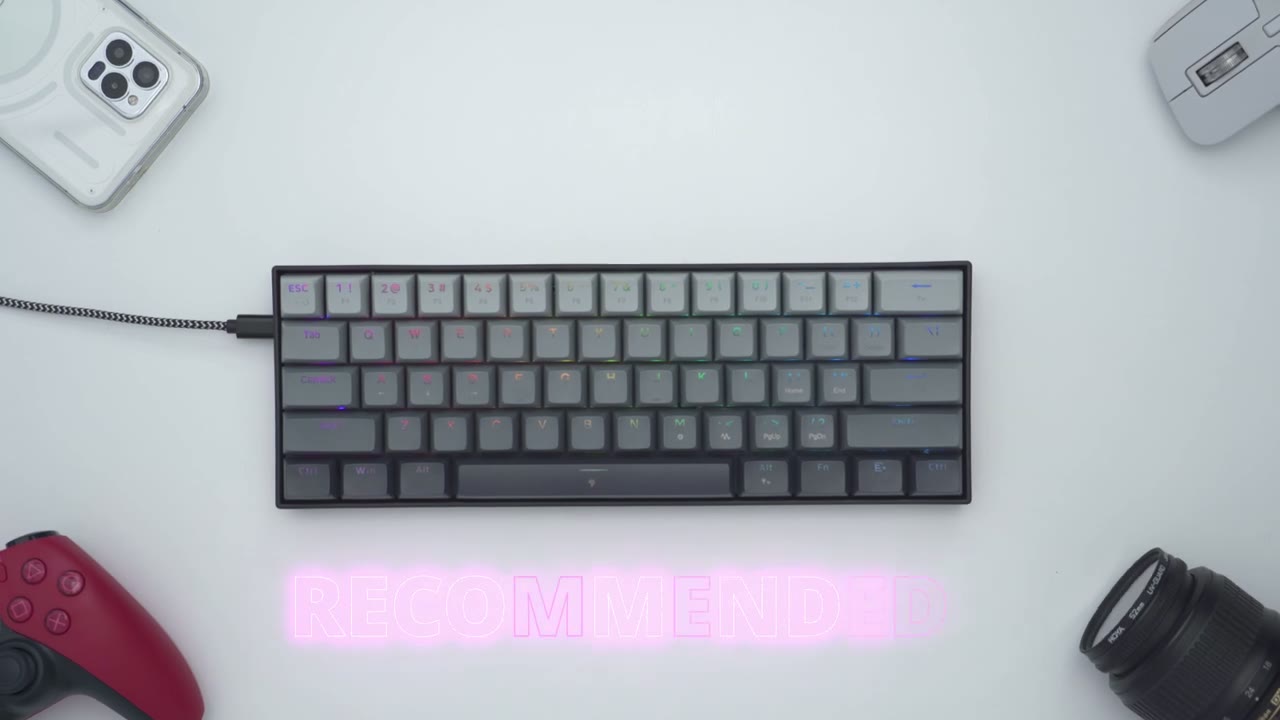
fizz k6 7 m magnetic keyboard is a great value if you have realistic expectations while it doesn’t have outstanding materials and the heft you would find in more premium keyboards or a big focus on the typing experience if you are looking for a magnetic gaming keyboard it definitely delivers in terms of Versatility when it comes to Rapid trigger the dynamic key stroke toggle keys multi-tab keys and more so if you’re looking to start your journey with Magnetic gaming keyboards this is a great place to start and I’ll leave links down below to check out this keyboard or to pick one up for yourself if you found this review helpful don’t forget to check out some of my other keyboard reviews I have a bunch of other reviews on gaming keyboards and keyboards for the typing experience and don’t forget to check out some of my other tech reviews I review a bunch of different Tech products on this channel I’m sure you’ll find something else that you like and if I can ask a huge favor would you mind liking and subscribing it truly does help me out as a growing Channel and I’ll see you in the next one soon
Buy Redragon Fizz Magnetic KB on Amazon
Buy Redragon Fizz Magnetic KB on
Please note that some of the links in my video descriptions are affiliate links where I earn from qualifying purchases. As an Amazon Associate I earn from qualifying purchases.