



Please note that some of the links in my video descriptions are affiliate links where I earn from qualifying purchases. As an Amazon Associate I earn from qualifying purchases.
Intro

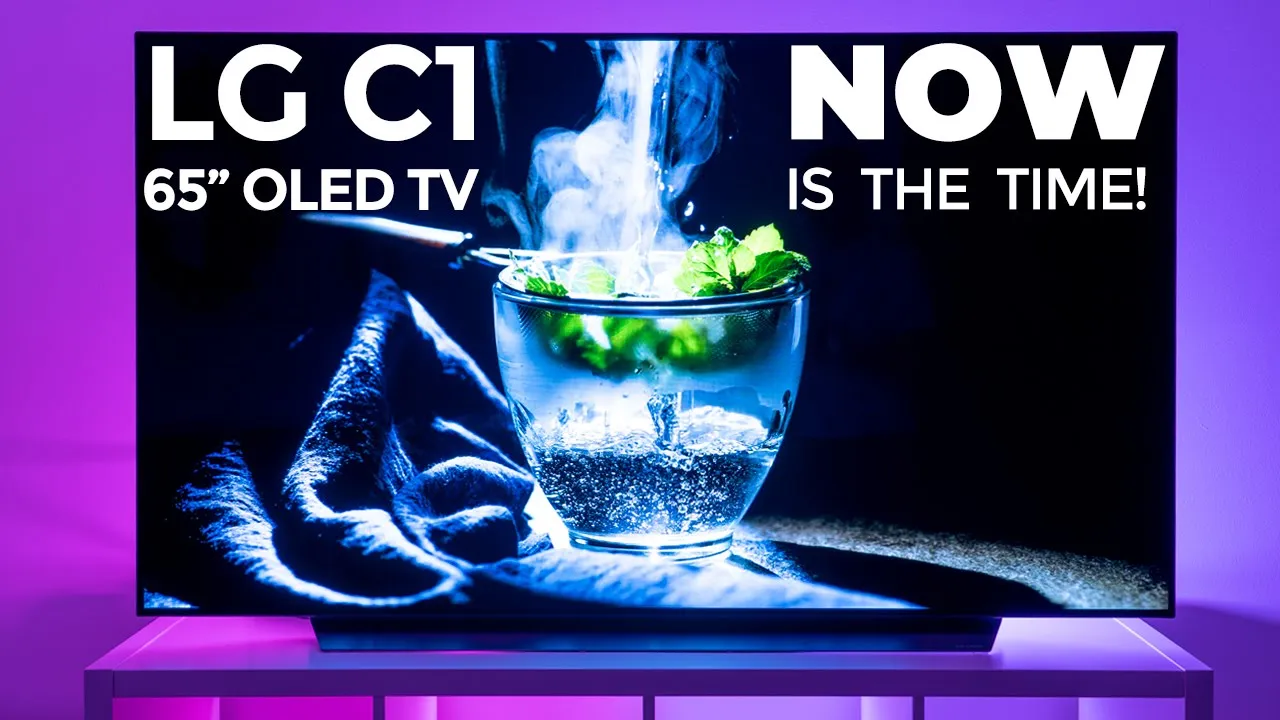
hey it’s adrian and today i’m really excited i just got the 65 inch lg c1 oled tv now i know the c2 is out but the price difference between the two tvs made this one my first choice so i’m mostly going to be using this for gaming and content consumption almost a 50 50 use case now when i did order this it did come with a pair of free lg tone earbuds so if you’re going to be ordering it just check whichever retailer you’re ordering it from some of them are offering that and i think that promotion is until may but let’s get started with the review
Setup
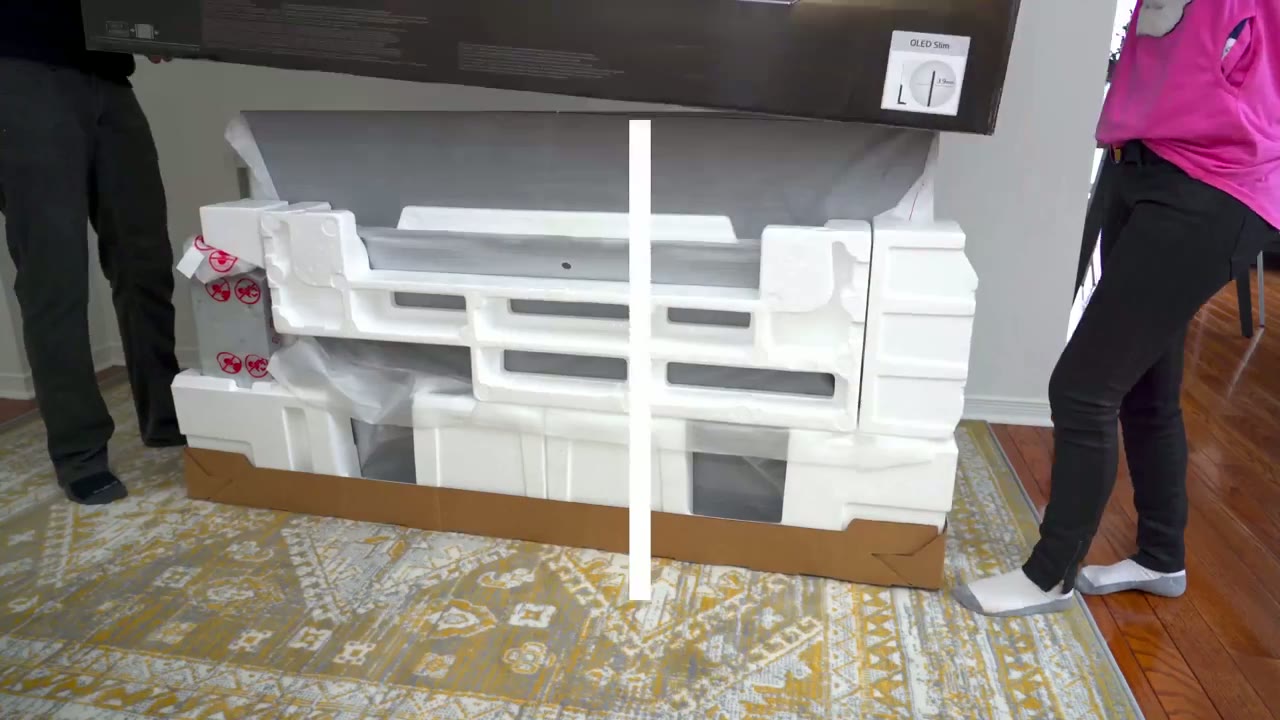
all right so i’ve taken everything out of the box so you get like an instruction sheet manual remote batteries this bottom plate here screws a back plate um this wire organizer and the base alone is about 18 pounds so it’s a pretty heavy and sizable base all right so the first step is to secure this bottom plate with the base where this needs to fit in so i find standing base upright lets you slide it in so you can hear that satisfying click okay so once you have this bottom plate attached just flip the whole thing over and then you have access to these three holes there the last step is to rotate this part and align these four holes with those holes there and secure it and there’s a little back plate here that just snaps in like that okay so the tv is fully assembled now
Rear Ports
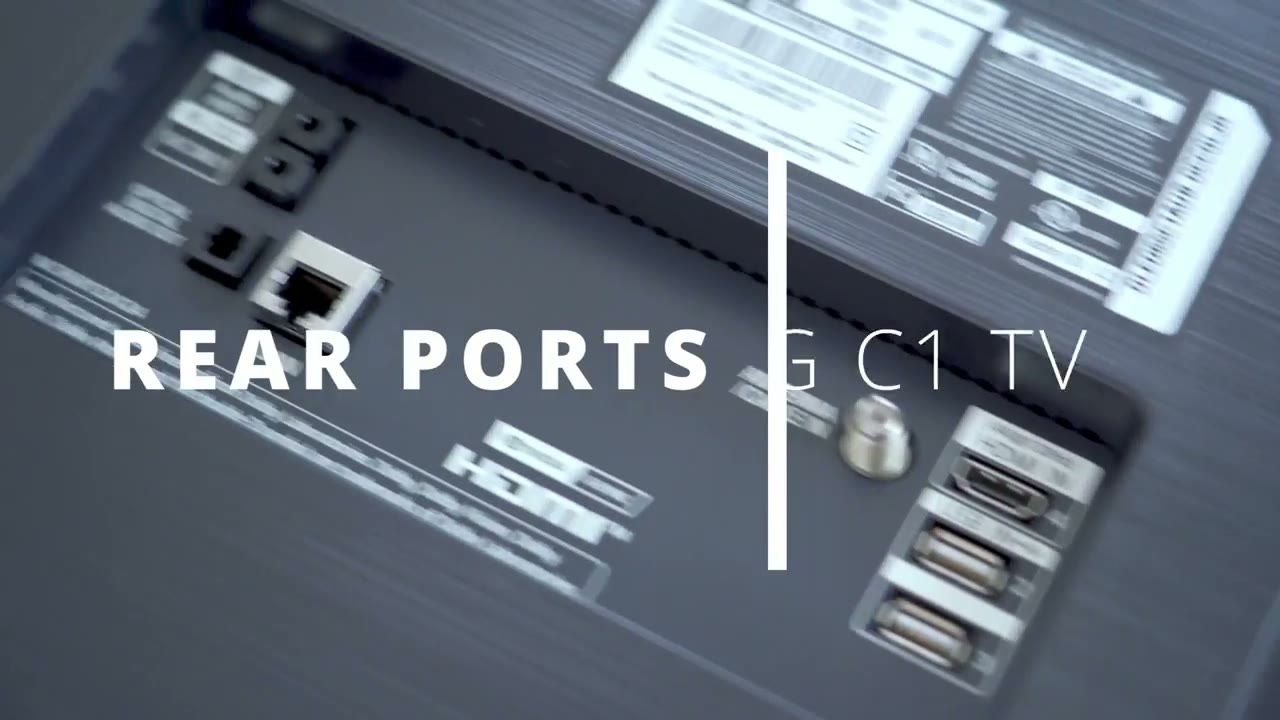
looking at the back you have the rj45 port your digital audio out you also have an hdmi and that’s of course 4k 120 two usb drives and they look like usb 2.0 not usb 3. and on the side of the tv you can see you have another usb in and three more 4k ports at 120 but the second port that’s the er port you also have four holes here for wall mounting the tv if you want to do that okay so i measured the power cable it’s about five feet in terms of
Design
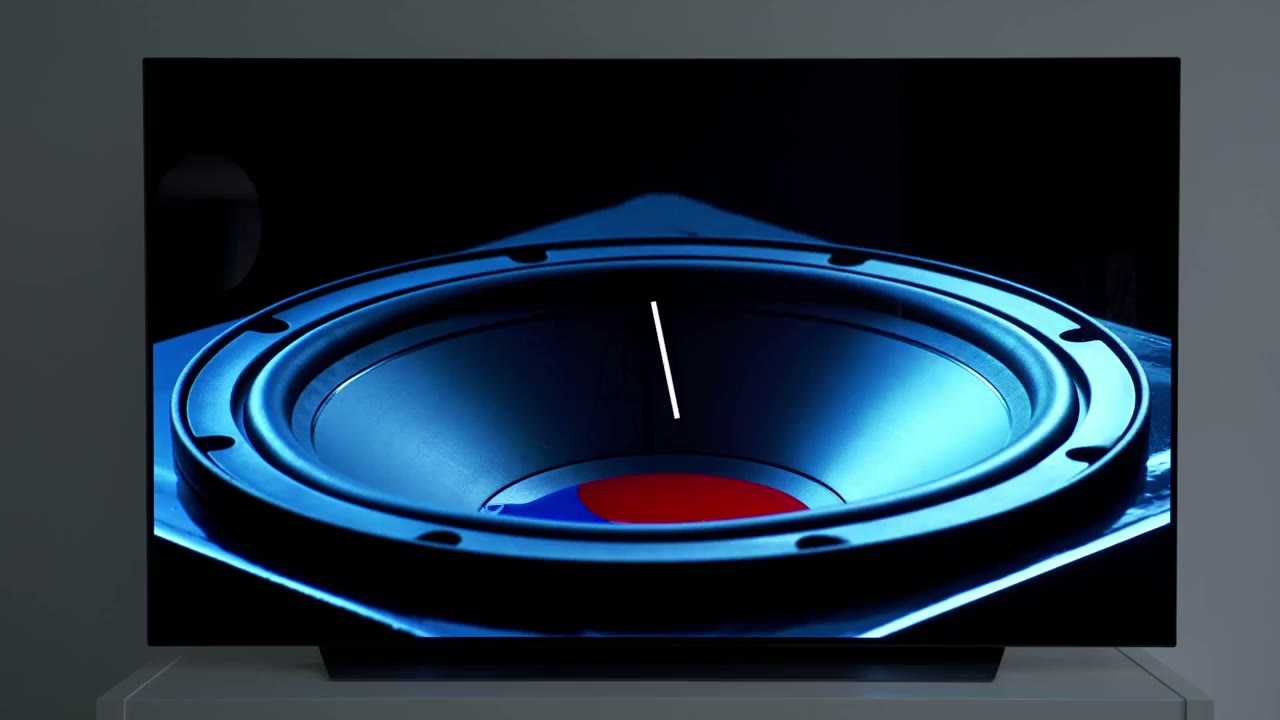
the look of the tv i mean it just looks amazing it has a very minimalistic look the bezels are very thin and the only area where you see any type of lg branding is at the bottom right of the stand so while one of the standout features of this tv is just how thin it is you can really only get a sense of appreciation when you look at it from the side so that measures at 3.9 millimeters and you can really tell and feel every time you’re moving this tv around in terms of the tv specs so it is
Specs
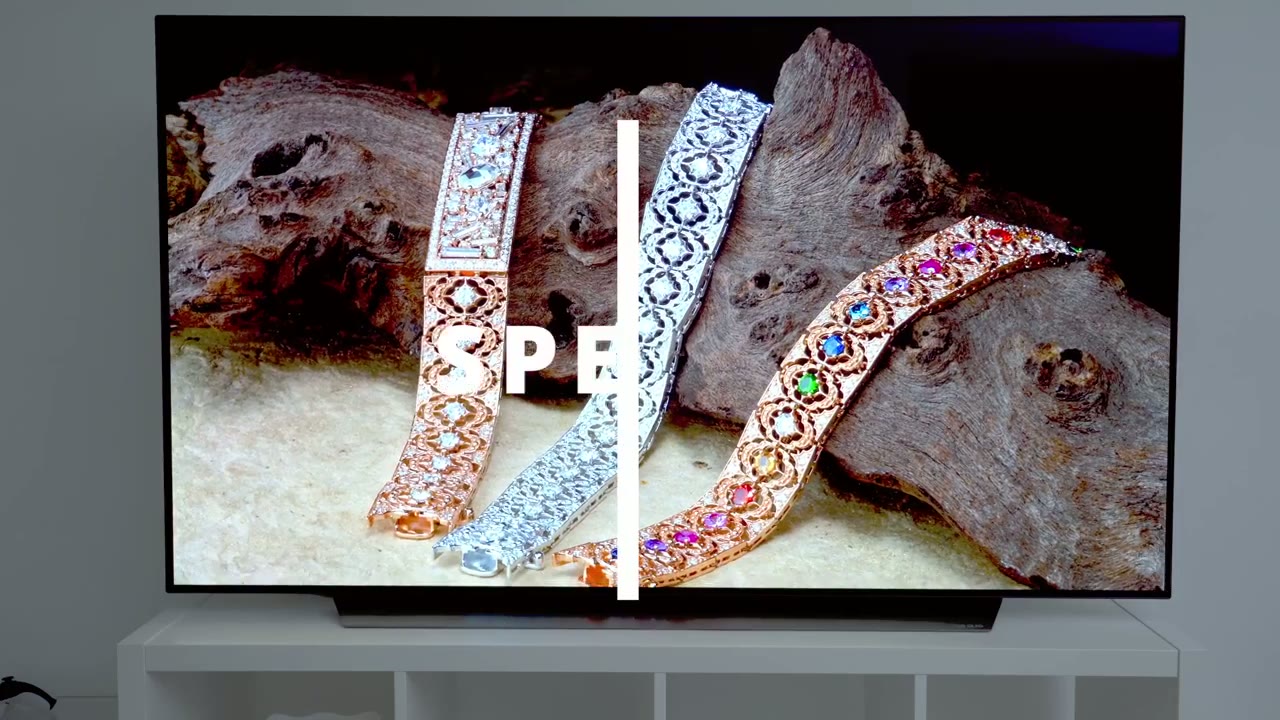
a 4k display 65 inches it does have cinema hdr dolby vision hdr 10 hlg hdr dynamic tone mapping pro double vision iq audio is a 2.2 channel 40 watts mounting options you can do it with the stand like you see here or it’s capable of being vase mounted too in terms of hdmi inputs you have 4 hdmi 2.1 and they’re all capable of 4k at 120p one of the hdmi ports supports alm or auto low latency mode and e-arc if you’re a gamer this also supports variable refresh rate nvidia g-sync and amd freesync there’s also a game optimizer mode and dashboard that you can access in game or have automatically turned on when you launch certain games the bluetooth version is bluetooth 5. it does have ethernet input for hardwiring it if you don’t want to use wi-fi it’s
Picture Quality
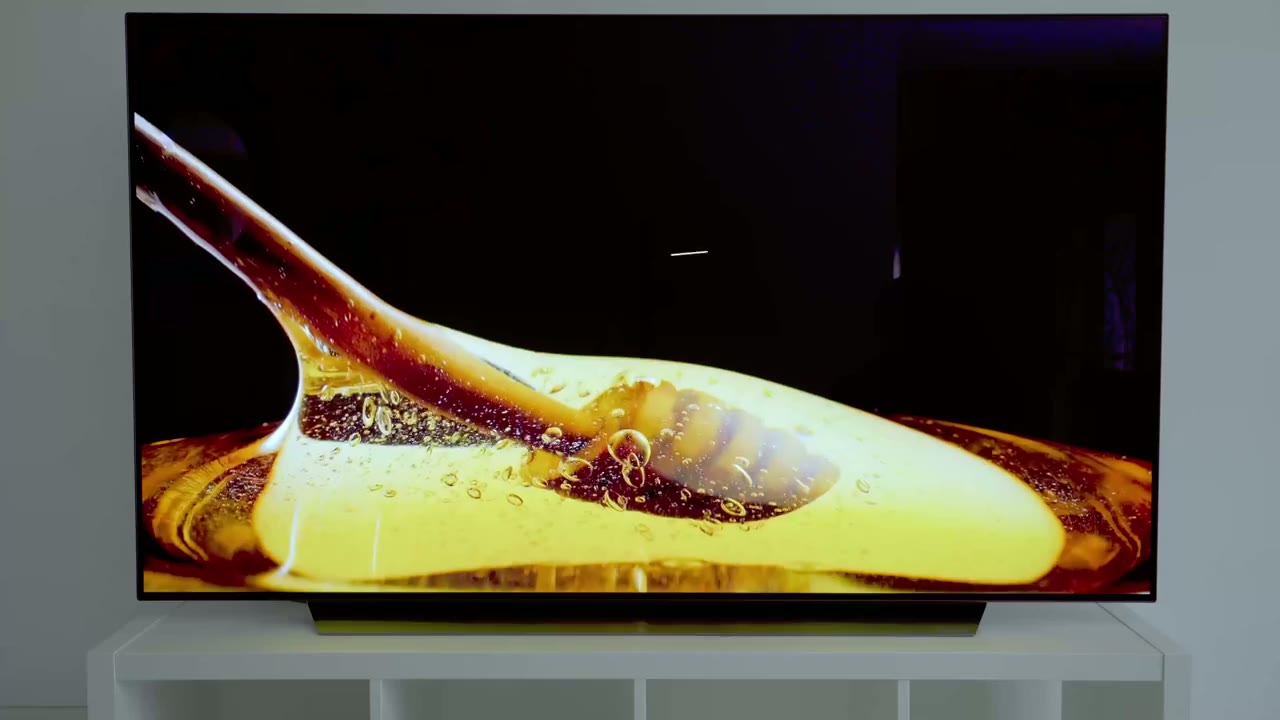
hard to fault this tv when it comes to consuming content i’ve been looking at netflix amazon prime youtube and i’m just stunned and blown away by the picture quality even though some people mentioned that the peak brightness on oleds is not as bright to be honest i haven’t found myself wanting more brightness because of that balance between perfect blacks with the contrast whatever is white or is lit seems very well lit in contrast to the box this video is a great demonstration of how amazing the contrast level is on this tv because it’s an oled panel and pixels can be turned completely off anytime you see black it’s actually pitch black and you actually think the tv is off when the screen goes like that but you can see here these videos are a perfect example of how there’s that amazing separation between what’s in color and what’s black as well right now the picture mode is set to vivid but you can see as i cycle through these standard makes it a bit warmer cinema home a bit warmer cinema even warmer game optimizer boosts everything and then filmmaker makes it pretty warm again in terms of viewing angles you can see i can start right at the front move all the way to the side of the tv and i can go all the way to the back and there’s no shadow areas at all so the viewing angles are really great on this tv in terms of gaming performance
Gaming
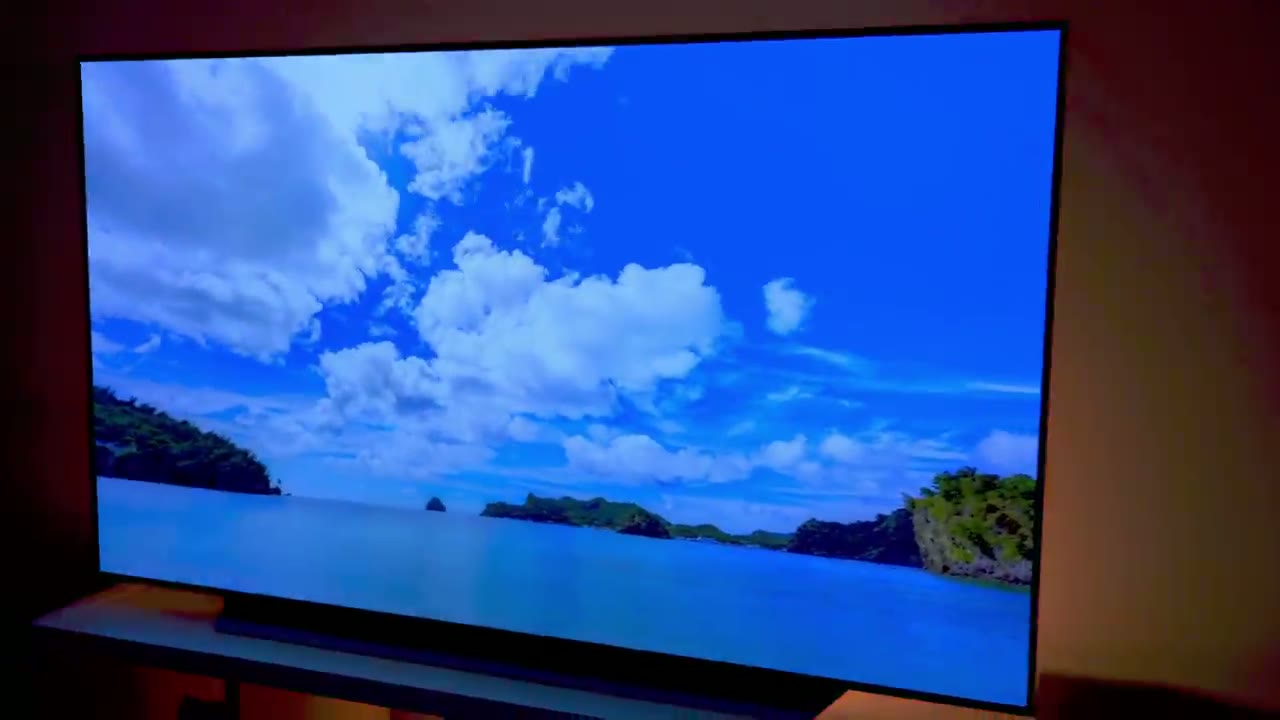
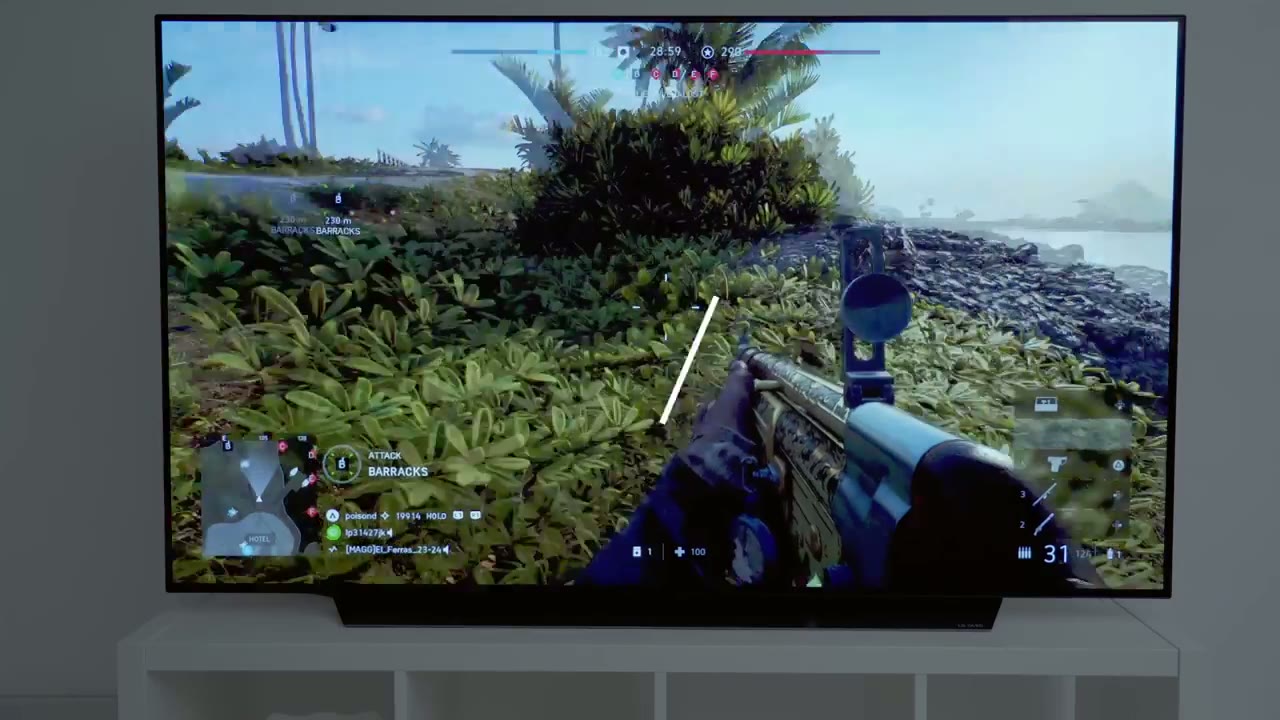
this tv is really awesome for that it’s like rediscovering games for the first time the colors are super vibrant amazing contrast the one millisecond response time it feels like you’re in the game now anytime you’re in a game you do have an option during the initial setup of the tv to turn on something called game optimizer you can do that later anyway but anytime you’re in a game to pull that up you just click the gear icon on the remote and you can see it pulls up this game optimizer menu now depending on the type of game you’re playing you can change it from a first person shooter to standard real-time strategy or rpg so i’m just going to leave it on standard and you can see as i cycle through these the black level is changing so if you want even more fine control over that what you could do is you could go into the game optimizer section right here and once that loads up you can see you have some options here so you can change the block stabilizer higher and you can see as i crank that higher you know it’s getting rid of the dark areas or the shadows could be helpful for you depending on the type of game you’re playing i’m just going to leave it to what it was standard you also have the same thing with a white stabilizer there is an option to reduce blue light if you’re going to be playing late at night and i also played battlefield 5 and i didn’t notice any type of input delay so i’m leaving it at standard i haven’t used boost but i don’t think i really need it you also have options for the game sound vrr g-sync freesync and you can also fine-tune the dark areas even more in this section here i haven’t found that i needed it so i’ve mostly left it alone and lastly you have an option to change colors all right let’s talk about oled
Burn In & Prevention
burning concerns so it’s obviously too early in the review for me to tell if it’s going to be an issue but i have noticed that the tv has some settings to help with that so if i go into settings support and then oled cure there’s an option here called oled panel care and there’s an option here called pixel cleaning and what this does is it’s going to clean the pixels once the tv is turned off so just make sure that you leave the tv plugged into the wall for this to take effect so don’t unplug it from the wall and if you have one of those smart plugs where you can remotely turn it off just keep it on so this feature kicks in the other thing that the tv has is this option called screen move and it says it moves the screen little by little at regular intervals to prevent burning so it’s not something that i’ve noticed even though i have it on maybe it’s a really subtle thing or maybe i haven’t watched long enough where the tv deems that it’s necessary to do that one thing i want to mention though is i notice if i pause a video on youtube or something it will kick in a screensaver that shows the time and it tells you to press a button to get out of the screensaver so i’m assuming that’s one of the other preventive measures also an option called adjust low brightness and all this is is you know it’s just going to adjust the brightness of static elements on the screen so you’re watching a news channel or something like that to reduce that issue in terms of the sound quality so i’m
Sound
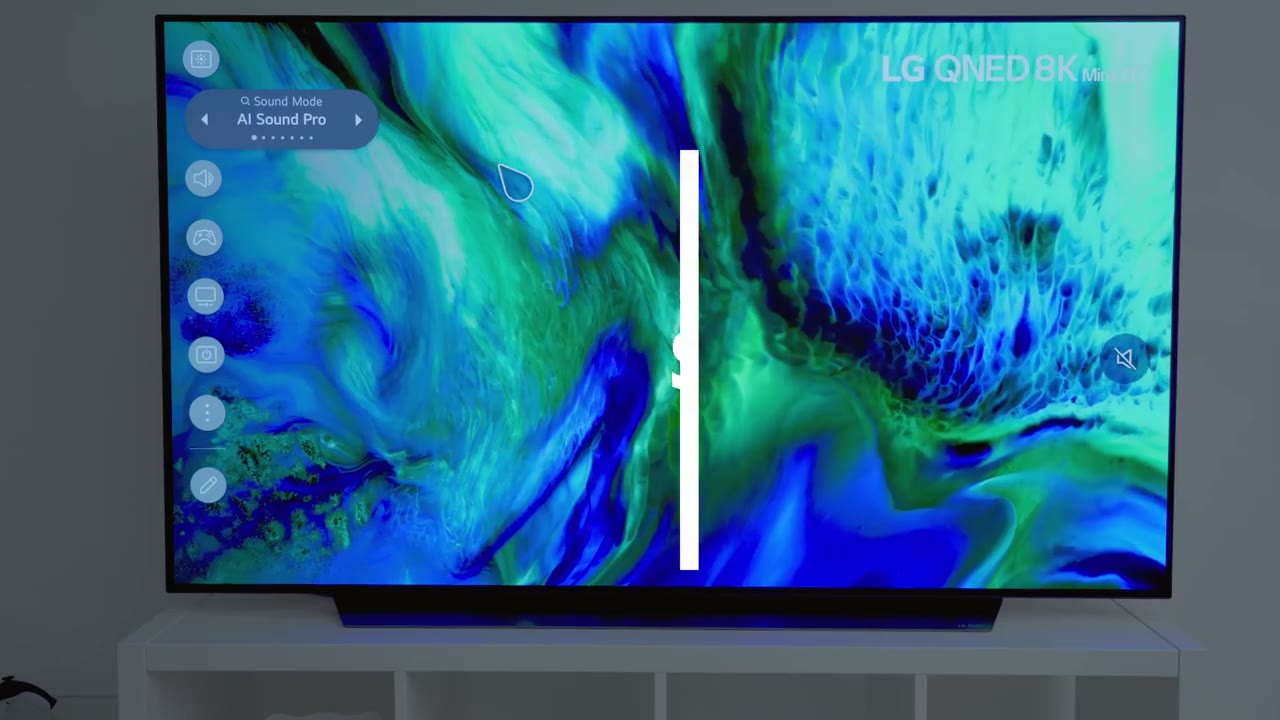
gonna do a demonstration between the standard sound profile and the ai sound pro so if i click over here this is what the standard sound profile sounds like [Music] [Applause] [Music] so you can see that even though i haven’t changed the volume level on the tv switching it to ai sound pro just gives a more fuller bass and treble heavy sound in terms of the volume performance it is so loud and i don’t find myself thinking that i need a soundbar i also don’t go past 10 or 15 on the volume level but let me demo that [Music] [Applause] [Music] you can see it gets very loud since this
Magic Remote
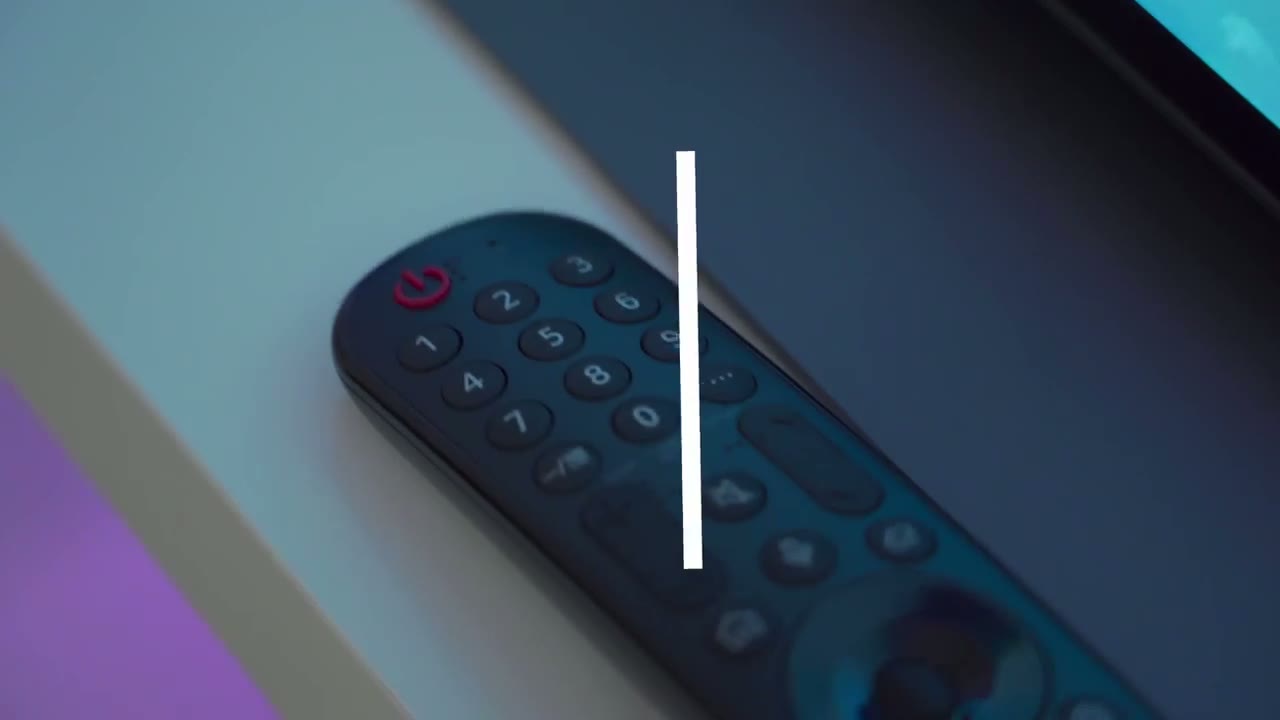
is my first lg product it’s also the first time i’ve used this magic remote so if you’re in the same boat as me stick around for these tips if you already know them you can skip ahead so at the bottom of the remote you have these buttons to quick launch certain apps like netflix prime video disney plus google assistant lg channels and alexa i don’t use disney plus and i really wish this would let me program it to youtube but it does not but there is a workaround and the workaround is this if you long press the zero on the remote you can see that the tv is gonna pop up a quick access menu now number seven and number eight i’ve already populated with the art gallery and youtube if i go to number six you can see these are the selection options so i can program a live tv channel lg channels netflix apple tv crave tick tock tubie etc now if you go into apps i’m sure you can download specific apps and then they’ll pop up on here as well so that’s a pretty handy feature to have but let me go ahead and just demo it so right now i’m in youtube and i’m just going to long press 7 on the remote and you can see that automatically brought up the gallery another pretty handy thing you can do with the remote is to issue commands so if you long press on this microphone see it lights up increase my screen brightness so you can see it jumped it from 70 to 80 and i can do that again this is pretty handy instead of going around and clicking through the menus you can just issue a voice command another tip is when you press the mute button once it just mutes all the audio but if you hold it down same like some other buttons on the remote it brings up an accessibility menu and on this menu you can have audio guidance you can specify whether you want the tv to make a sound when it powers on or off but most importantly you have some options here for captions so one cool thing that you should
ThinQ App Remote
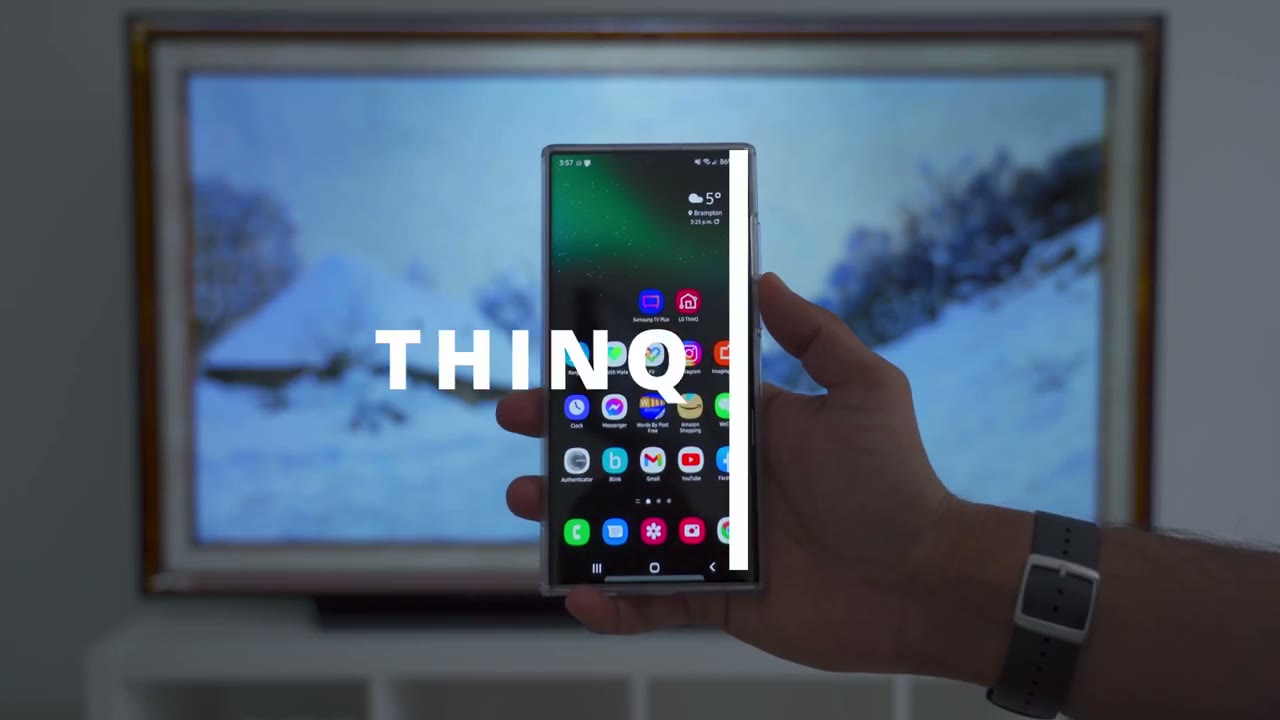
consider is downloading the lg thin queue app so if i launch that app you can see that it shows my c1 there and that it is turned on now if i click into that there’s a remote control if i click on view all i now have full access to the remote pretty much so i can use my thumb with this area as a kind of a trackpad and you can see the arrow moving around there’s also options to adjust the volume the channel go to home switch inputs and then you know every other type of setting that you would want and as soon as i tap it it comes up on the tv there pretty handy now while having a remote on your phone
NFC Feature & Setup
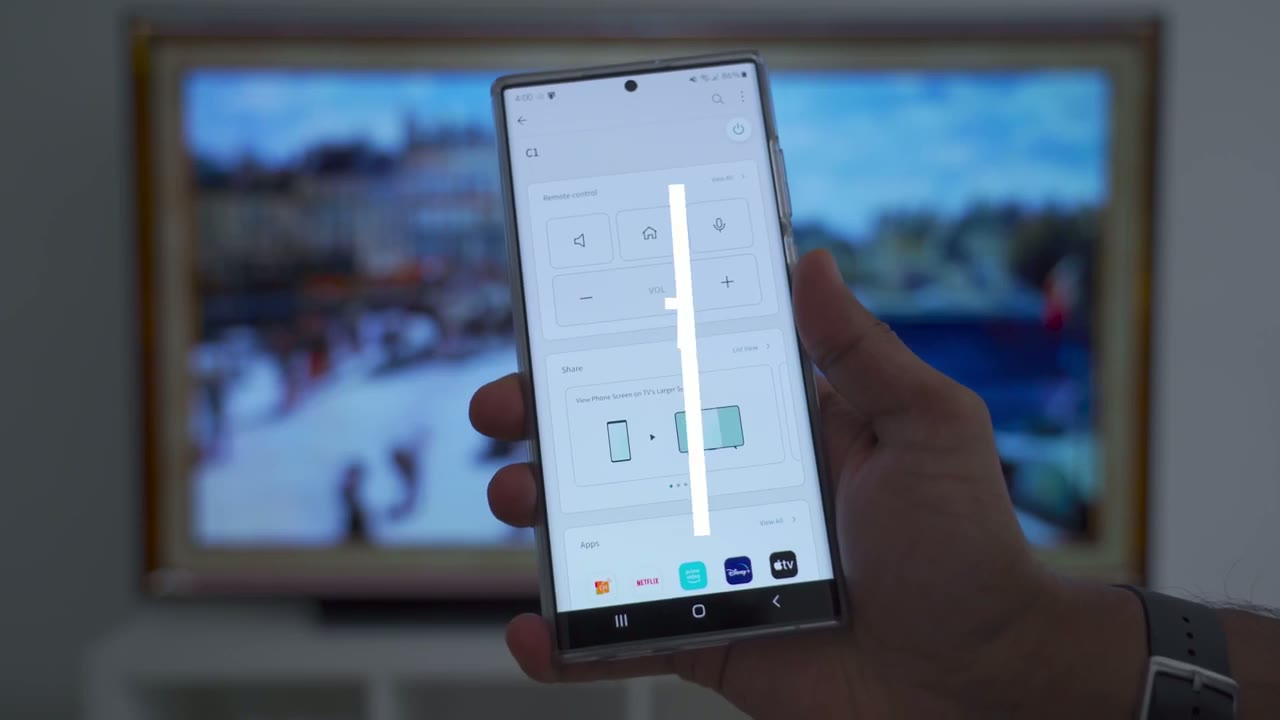
is good i don’t think that’s the reason why you should download this app and this is the reason why i think it’s worth it if you click these three dots up here at the bottom it says lg thin q tv settings tap on that and make sure this bottom option is selected tap the remote control for quick start or magic tap and then you can go back now on my phone the nfc area is around here and nfc is just near field communication what you used to do tap to pay on the remote the nfc is the bottom there so if i kind of align these two together you can see it now asks me what i would like to do so these are my options i can view my phone screen on the tv’s larger screen so if you wanted to show something to someone it’s just easier on the large screen you can play sound from your phone onto the tv speaker so if you’re listening to spotify or something and you just want a better audio you could just kind of cast that to the tv you can also play photos or videos from your phone onto the tv and you can also listen to sound from the tv on your phone so it would just transfer the audio from the tv onto your phone so let me demo the nfc
NFC Demo
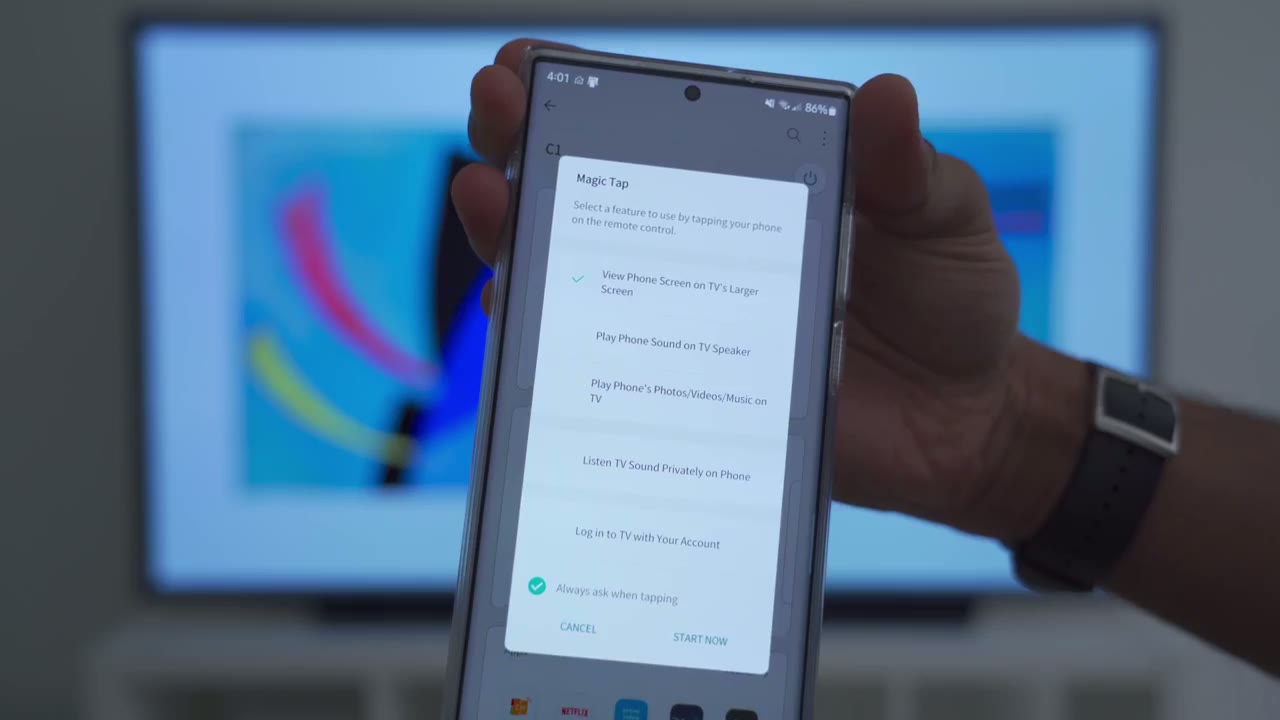
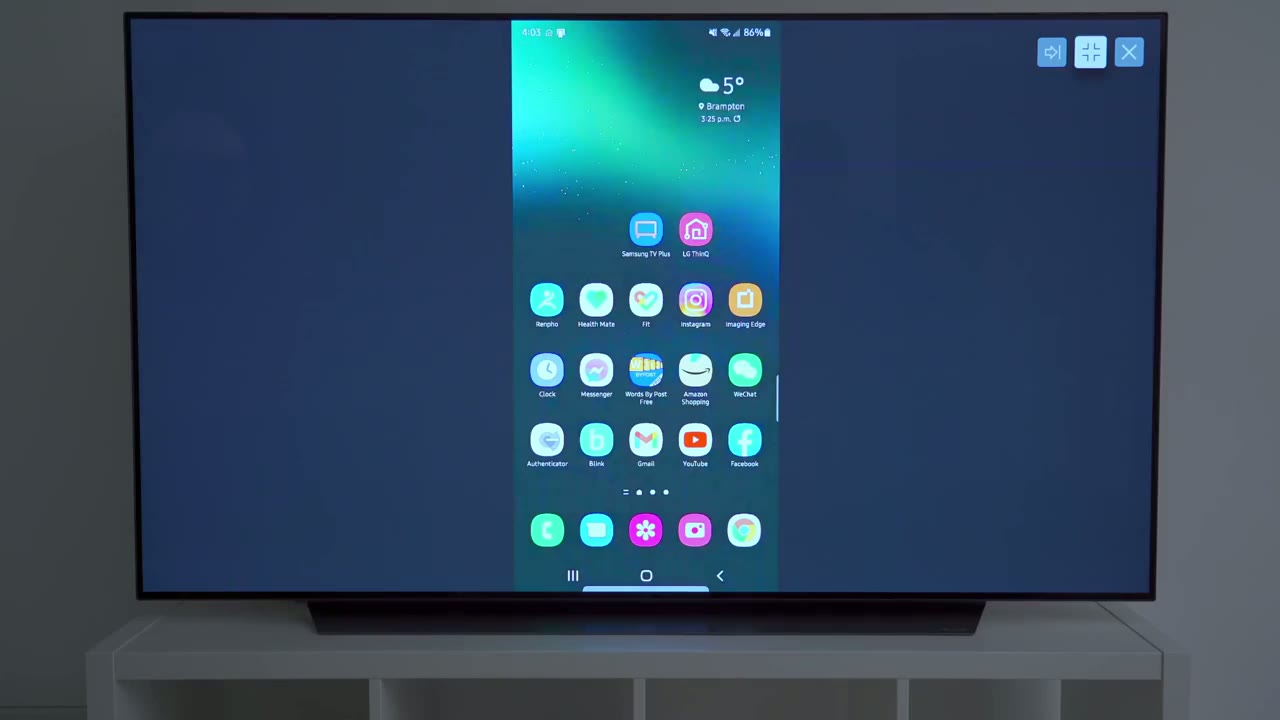
or the tap feature so i’m just going to align my phone with both nfc areas and i’m going to go ahead and pick the option to view my phone screen on the tvs larger screen i’m going to click start now and i’m going to click the lg tv right here and there you go i now have my phone on the tv screen now there are some other options here you can see you can make it smaller larger you can also change the position so if you’re doing something else watching something else you know playing a video game you can still go ahead and use your phone and you know kind of check the news look for messages have a voice chat or i am with someone and you know you can have your phone right at the front there you also have an option here to keep mobile sound on so you can hear through the tv and also you can just make it full screen like that the next feature i want to
Screen Off Feature
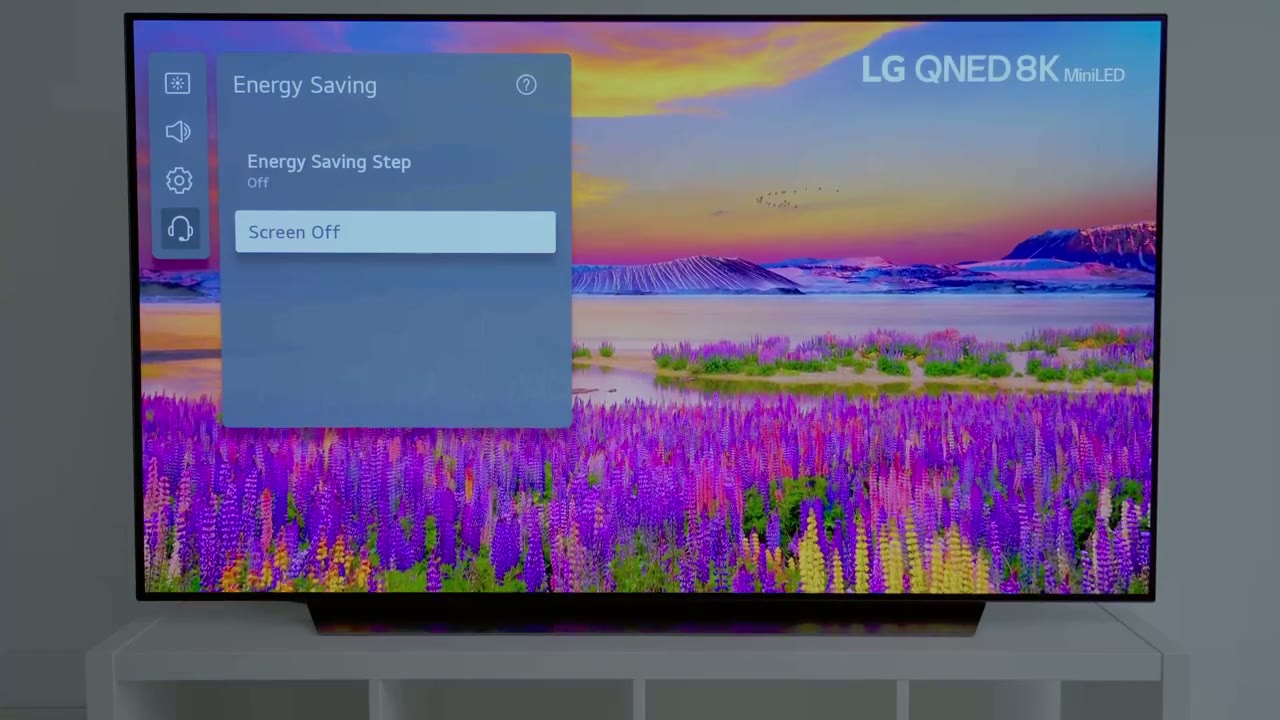
look at is one that i think is super cool which is screen off so if i click that the screen just automatically shuts off but whatever audio is in the is playing it just keeps playing so the reason why i think this is so good is if you like to go to bed and you like to listen to you know a 10 hour video of the sound of rain or a storm you can go to bed with that sound playing and the screen’s gonna be cut off so it’s not going to bother your sleep it’s also handy if you like listening to podcasts or interviews kind of content where you don’t need to look at the tv you can just shut it off and have that audio in the background home
Home / Dashboard
dashboard so when you press the home button on the remote you’re taken to this screen here and you can see you have some information at a glance now you can also program it to show your city the weather and all that so that’s pretty good you also have an option here to search and you have these free lg channels now if you scroll down there’s also these trending topics and you can see this is the list of apps that are pre-loaded on here but you do have the option to add more apps if you’d like so i’ll go into that and you can see what they have available so when you launch into apps this is what you’re given so there’s a featured section entertainment game and you can just cycle through all of these and download whatever type of app suits you so you can see you know it does come with the standard stuff like youtube tiktok amazon netflix but you also have the option to go through these manually or to search for any specific type of app that you’re looking for if you plan
PC Display
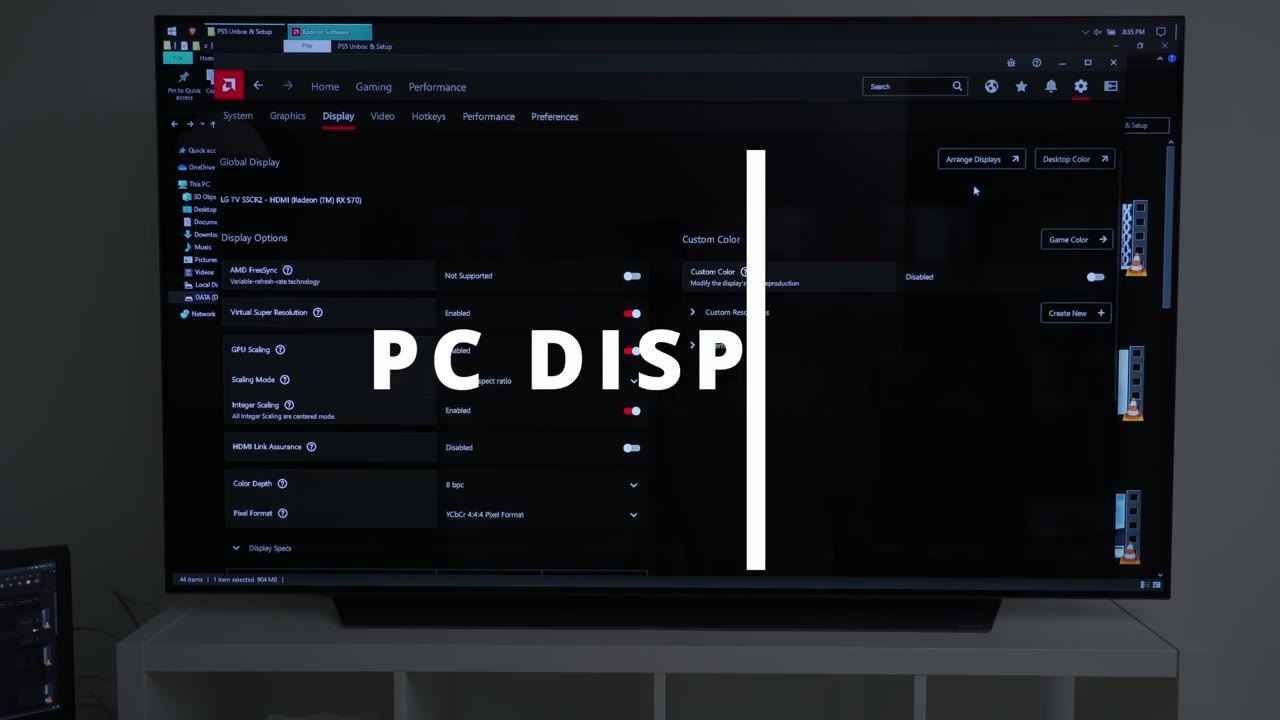
on connecting this to your laptop or desktop you may have better results than me now i have it connected right now you can see i’m only running an rx 570 which is a really old really weak graphics card it’s just a laptops graphics card but i do have um aspect ratio preserve aspect ratio turned on and you can see the resolution is showing 4k however the text is horrible it’s not smooth it’s not clean it’s not crisp it’s kind of blocky there’s artifacts to it if i go into the explorer and i try to play a video for example the video quality looks good it’s passable but when i’m looking at any of the text like the help view it’s just not possible for me i would say this could be used in a pinch but it’s not something that i would run as a daily driver for my computer now keep in mind again this is a really old graphics card it’s not powerful it’s possible that obviously with something new a 3080 ti a 39 year or something newer you’ll get much better results than i’m getting
Recommended?
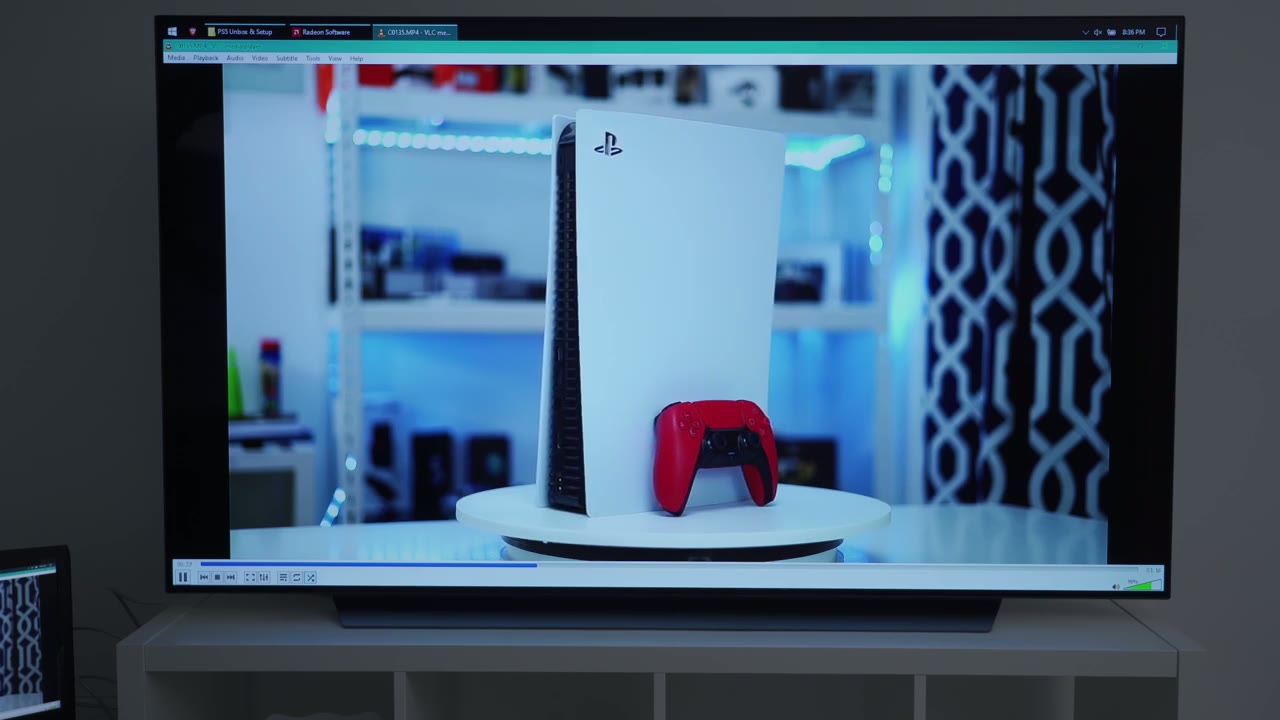
so can i recommend this tv right now i 100 recommend this tv i’m blown away by the picture quality by the gaming performance i think the sound is great even without a sound bar and on top of that the fact that it’s on sale right now because the c2 is out i think this is kind of a no-brainer if you’ve been waiting for a tv now in terms of burning concerns it’s way too early for me to tell but from what i’ve seen online there’s people who’ve put thousands of hours into their tv and they’re saying that they have no issues as well and like i mentioned in the menus there are features on the tv to help mitigate that problem so while filming this video the lg c2 is currently out i haven’t seen it in person and i know it’s supposed to be rated to be about 20 brighter it’s also about half the weight of the version that i have the 65 version of the c2 and this one because it’s a much lighter base this base is about 18 pounds it’s pretty stable pretty solid but for the price that this costs being on sale you also get those free lg tone buds if that’s your type of thing i think you can’t go wrong with this tv i don’t normally review tv so i know this is not a super comprehensive review but if there’s anything else that i can test or check for you please let me know down in the comments below and i’d be happy to help out if you found this video helpful and if you’re interested in seeing more videos like this please consider liking and subscribing and i’ll see you in the next one bye
Please note that some of the links in my video descriptions are affiliate links where I earn from qualifying purchases. As an Amazon Associate I earn from qualifying purchases.