


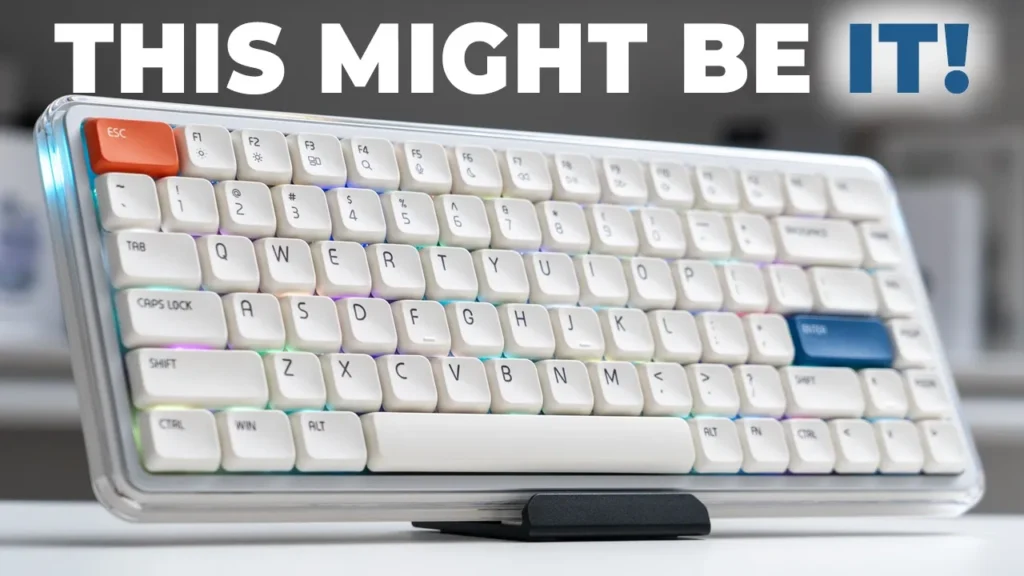

Buy MelGeek O2 Mechanical Keyboard
Please note that some of the links in my video descriptions are affiliate links where I earn from qualifying purchases. As an Amazon Associate I earn from qualifying purchases.
Intro

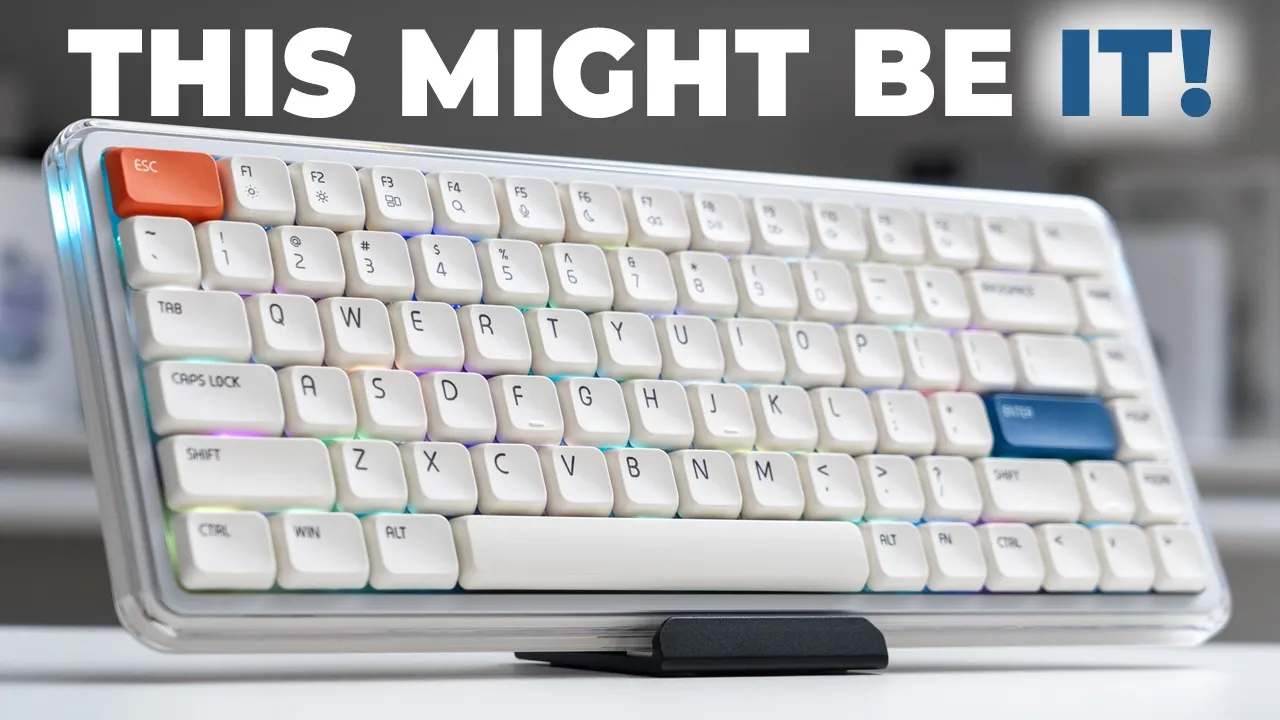
If you’re looking for one of the best low-profile mechanical keyboards that doesn’t compromise on features, the MelGeek O 2 mechanical keyboard is definitely worth checking out. It has a clean and beautiful design, which matches your Mac setup or even a Windows setup like in my case, and it’s a 75% layout with 83 keys paired with Kailh Sunshine low-profile linear switches. There’s RGB backlighting and ambient side lighting along with front LED indicator lights. It has triple connectivity, allowing you to pair up to eight different Bluetooth devices. There’s also a 2.4 GHz wireless dongle and a USB Type-C wired connection, along with a 1,000 Hz polling rate and N-key rollover support.
There’s unique magnetic snap-on feet, and you can customize the O 2 via MelGeek Hive software or the browser dashboard, and a 2,500 mAh battery powers it all. All of that sounds great, but how good is the typing experience? What does it sound like, and how does the battery life hold up? Well, let’s take a closer look, and a big thanks to MelGeek for sending this out for review. In the box, you get the
Package Contents
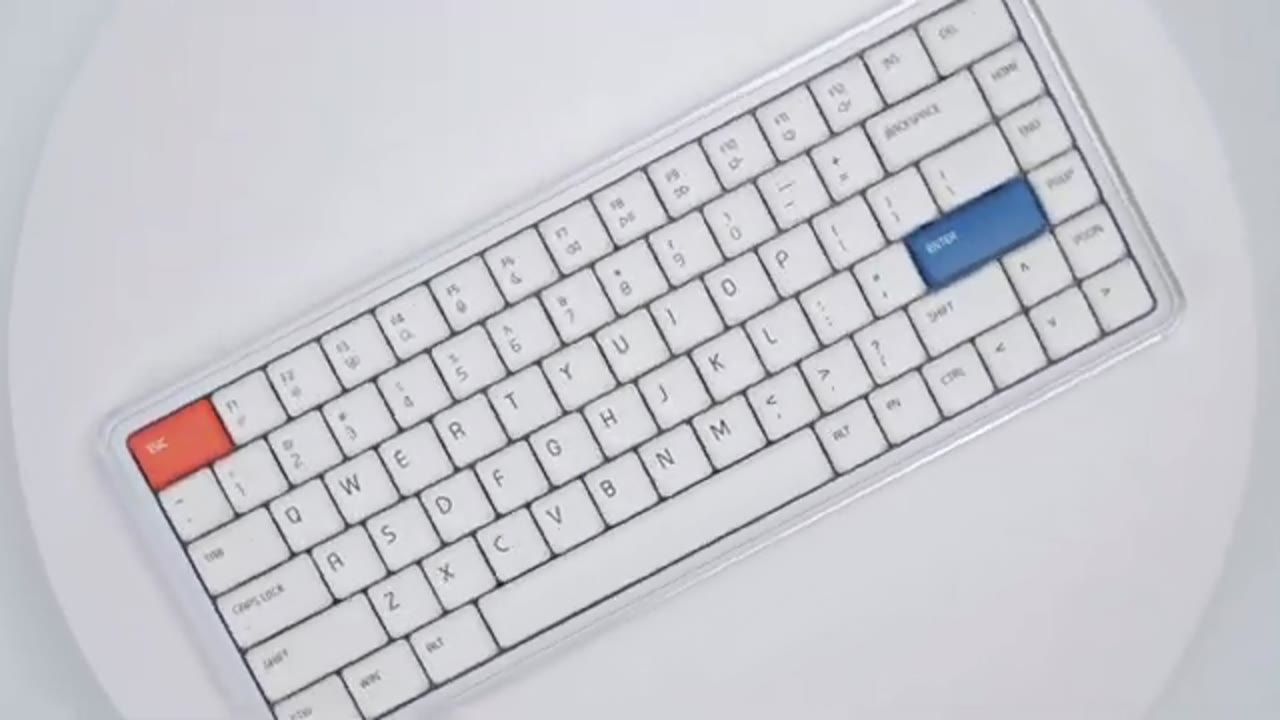
MelGeek O 2 mechanical keyboard, a USB Type-A to Type-C cable, a Type-A to Type-C adapter, keycap puller, eight additional keycaps, the wireless 2.4 GHz dongle, stickers, quick start guide, and warranty card. The MelGeek O 2
Design
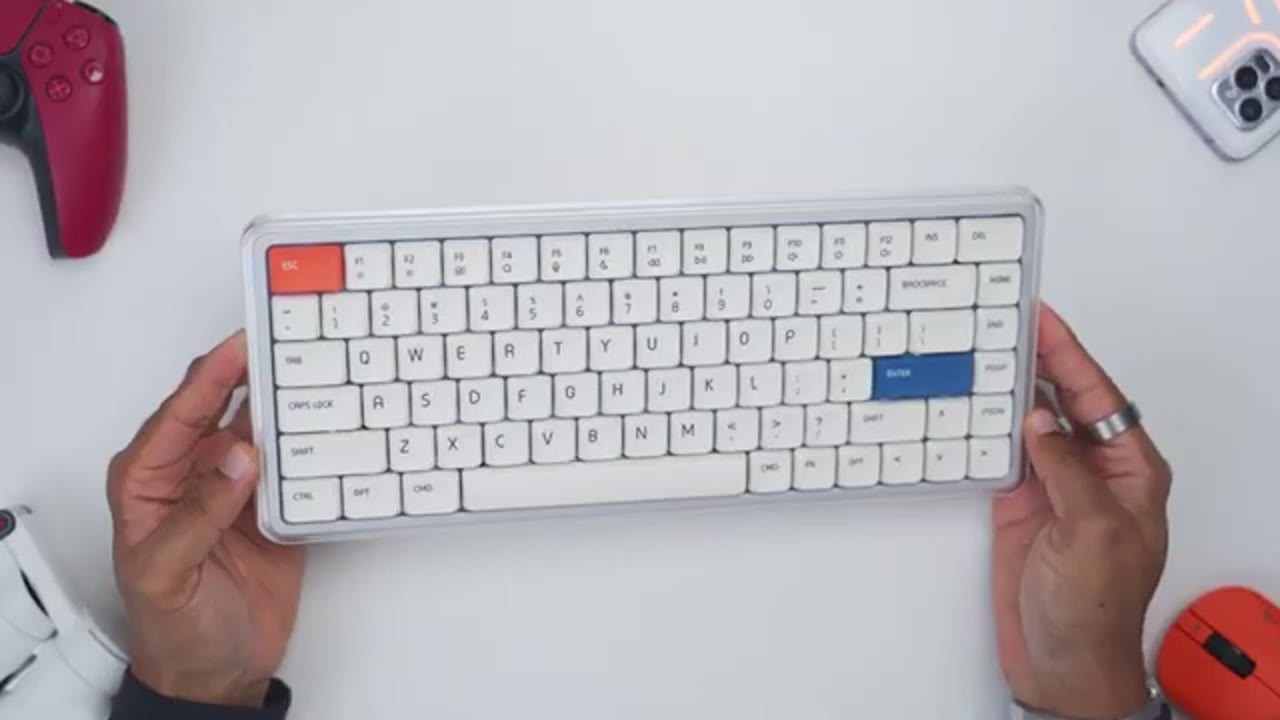
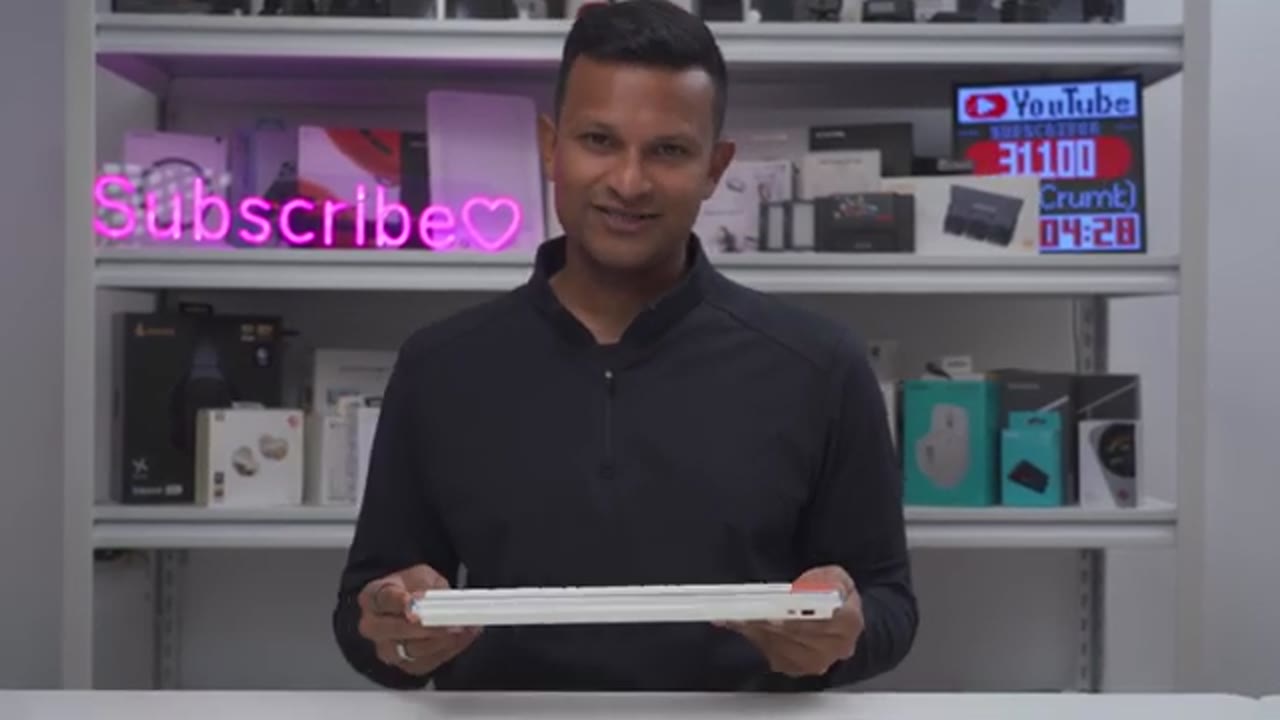
mechanical keyboard comes in around 657 g or about 1.4 lb. It has a 75% layout with 83 keys, and you can see the design is really clean and minimal, so it should match with any type of setup. Now, we do have option and command keys on here by default. So, this actually will pair very well with MacBook laptops, since you can actually overlay this over the keyboard on there. Now, I’m going to be pairing this with my Windows gaming laptop, so I’m actually going to switch out these keycaps for a Windows style, since it does come with additional keycaps to do that. In terms of the build materials, we have aluminum alloy along with a PC frame and ABS PBT keycaps, which are low profile. And do note that these are not shine-through keycaps.
I also like the font used for the legends on the keycaps and the keycaps are rounded same to match with the rounded look of the keyboard. Now, under the keycaps, we are using Kailh Sunshine low-profile switches and these are hot-swappable with other two-pin low-profile switches. There’s ambient lighting on the right and left side of the keyboard and we also have LED indicator lights on the front to show you if Caps Lock is on and off, the battery life and which connection mode you’re in. And here’s a side view of side profile of the keyboard. Now, I’m unsure about the keycap profile, but they do have a slight depression to just kind of cradle or keep your fingers nicely situated while you’re typing.
And the maximum height when you’re not using the magnetic feet on the back is about 27 mm high. The back of the keyboard has the USB Type-C connector port for wired mode and there’s also a switch to put it into the 2.4 GHz wireless mode and Bluetooth mode as well. The underside of the keyboard has a nice glossy type of finish and a really clean-looking design. So, we have two silicone feet at the bottom and we also have two vertical silicone feet on the top side. Now, do note that there’s actually magnetic snap-on feet, something I haven’t seen before. It does say lift, so if you press down there, you could lift up on the top of this magnetic foot.
And then if you rotate it over, it actually has two cutouts on here so that you can actually line it up directly with the silicone feet that’s there. So, it’s not actually extending any more than it needs to and it stays nicely magnetically in place. And that adds about 5° of angulation to your typing. And then anytime you’re done, you want to go back to the full low-profile view, you just pop it right back off and it stows magnetically in place. Really neat design choice and keeps everything nice and clean. Now, while I’m not going to be taking my O2 apart, I’m going to put an image on screen to give you an idea of what the internals look like. Here’s
Specs
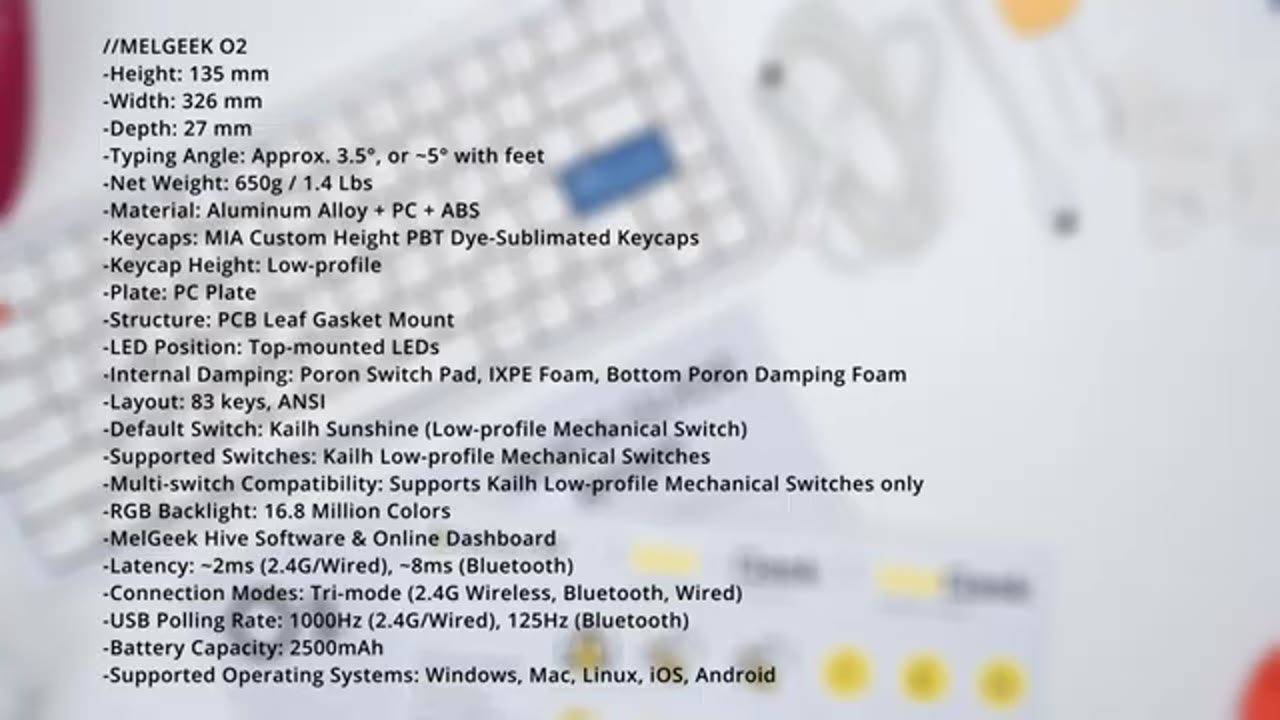
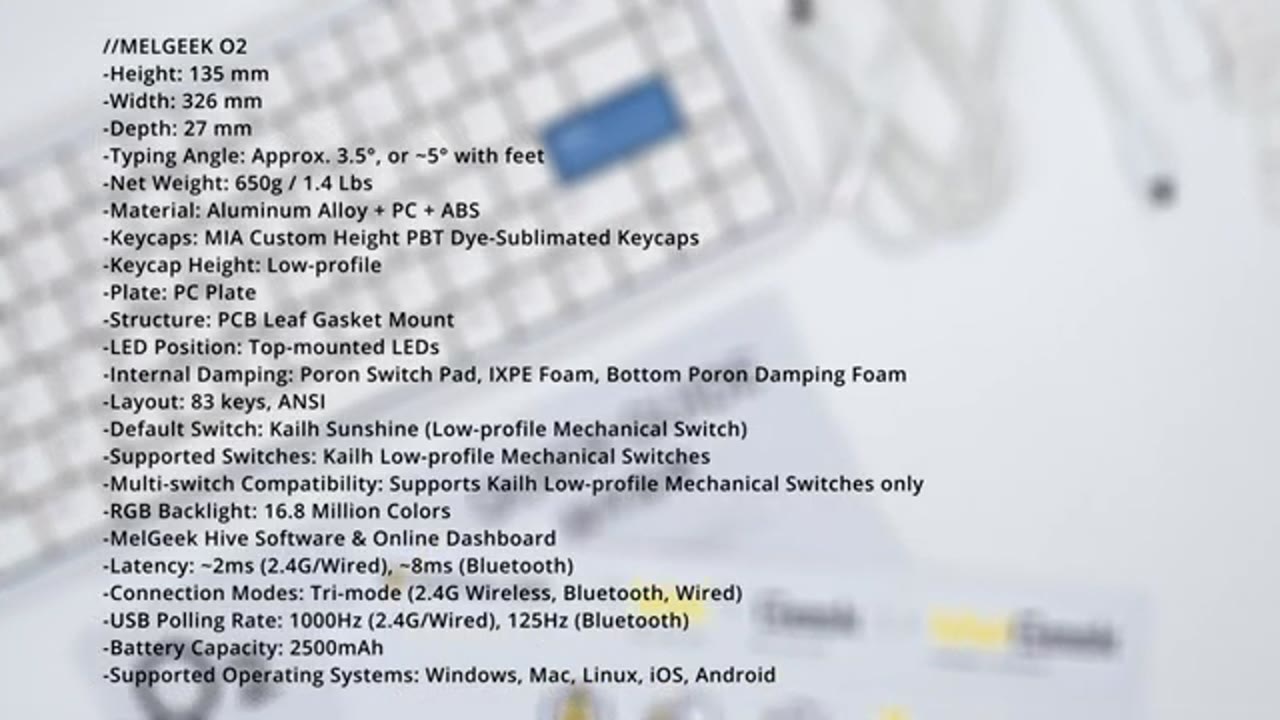
a quick look at the specs, feel free to pause and review or jump ahead to the next section. I’m now going to pair the
Bluetooth Pairing
O2 by Bluetooth on my iPhone 17 Pro Max, so I’ll turn Bluetooth on, put the switch over near the USB type-C connector, and so now it’s in Bluetooth pairing mode. I can see the flashing blue LED there, and I could see it right here, MelGeek 02C1, so for connection one. Accept the pairing request, and you could see it’s seamlessly connected. Now, I’m going to connect the 02 to my Samsung Z Fold 7 because we can pair up to eight different Bluetooth devices. So, to pair the second device, I’m going to hold down on function, and I’ll hold down on two just long press that to put it into the pairing mode. I’ll hit scan on my Z Fold 7, and I see it right there, MelGeek 02C2 for connection two.
I’ll accept the pairing request, and I can see that it’s paired successfully, same as with the iPhone 17 Pro Max. So, you can easily pair up to eight devices and quickly switch between them with minimal downtime.
Sound
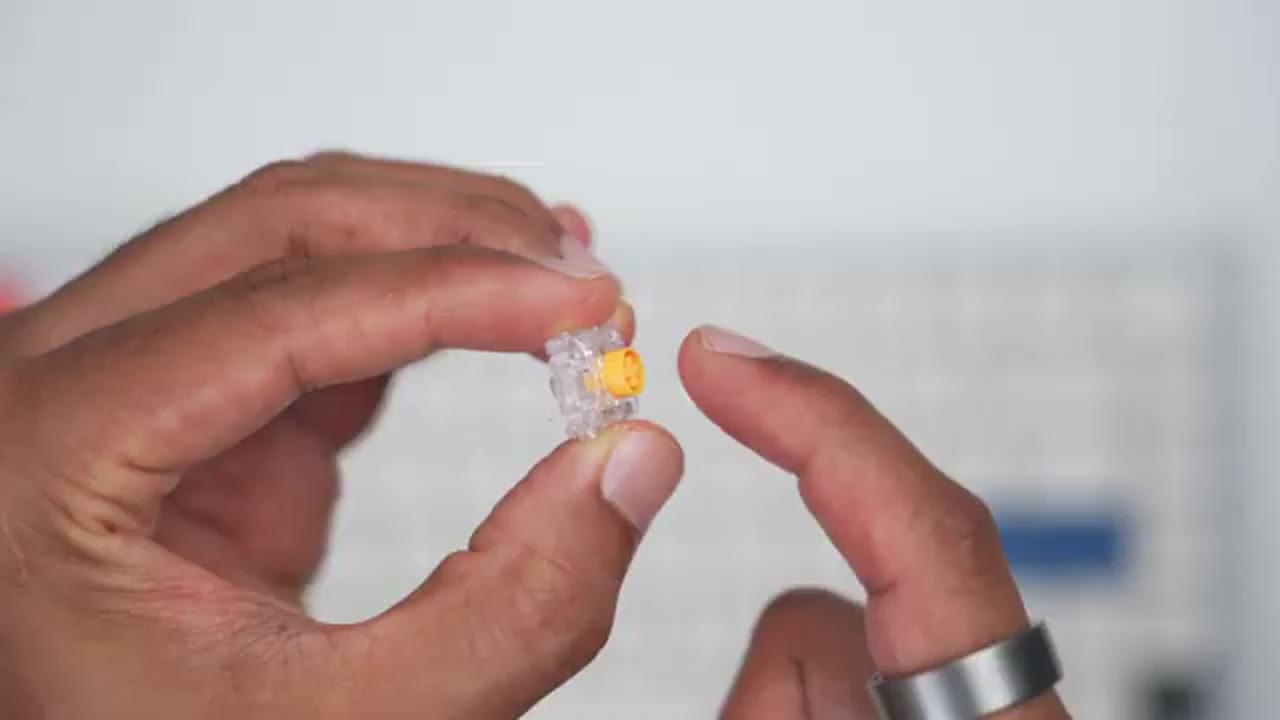
No speech in this section.
Typing Experience
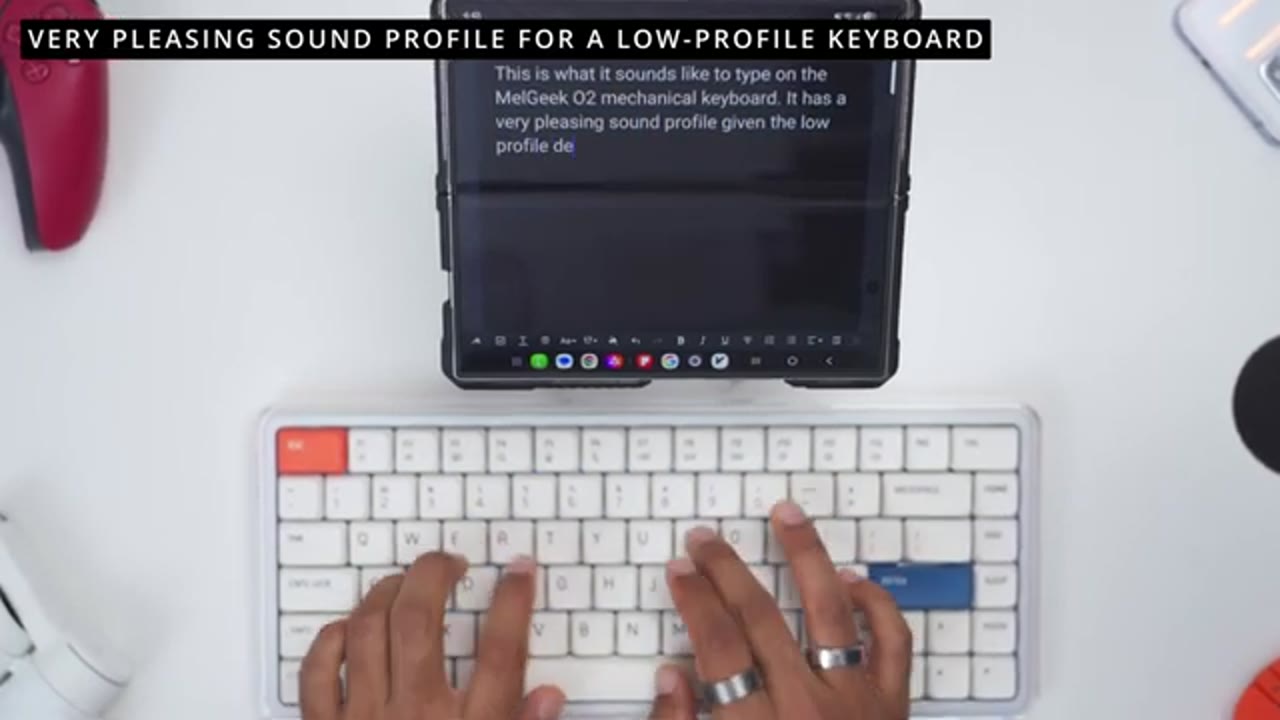
And when it comes to the typing experience, which is the most fundamental part of a keyboard, the MelGeek 02 does that surprisingly well. So, the keys have a decent bounce back rate, and thanks to the Kailh sunshine low profile linear switches, you actually have good travel distance up to 2.8 mm if you want to bottom out while typing. And even if you bottom out, it doesn’t feel hard or harsh. It actually feels decently cushioned. And if you’re more of a touch typist, you can actuate the keys in as little as 1.2 mm. My fingers were also nicely cradled on the slight depression on the keycaps, and the matte finish actually feels nice and helps resist oils and fingerprints. All of the keys had a nice and stable feel whether I was typing fast or slow.
That even goes for the larger keys like the space bar, backspace, and enter key. It was just nicely stabilized and all of them exhibited very minimal wobble. Overall, just a very enjoyable typing experience on the MelGeek O 2. I actually didn’t expect it to be this good because it’s a low-profile keyboard, but we actually have good key travel distance. There’s no type of finger fatigue after using this for hours and a very nice sound profile. It’s just one of my favorite low-profile
RGB Lighting
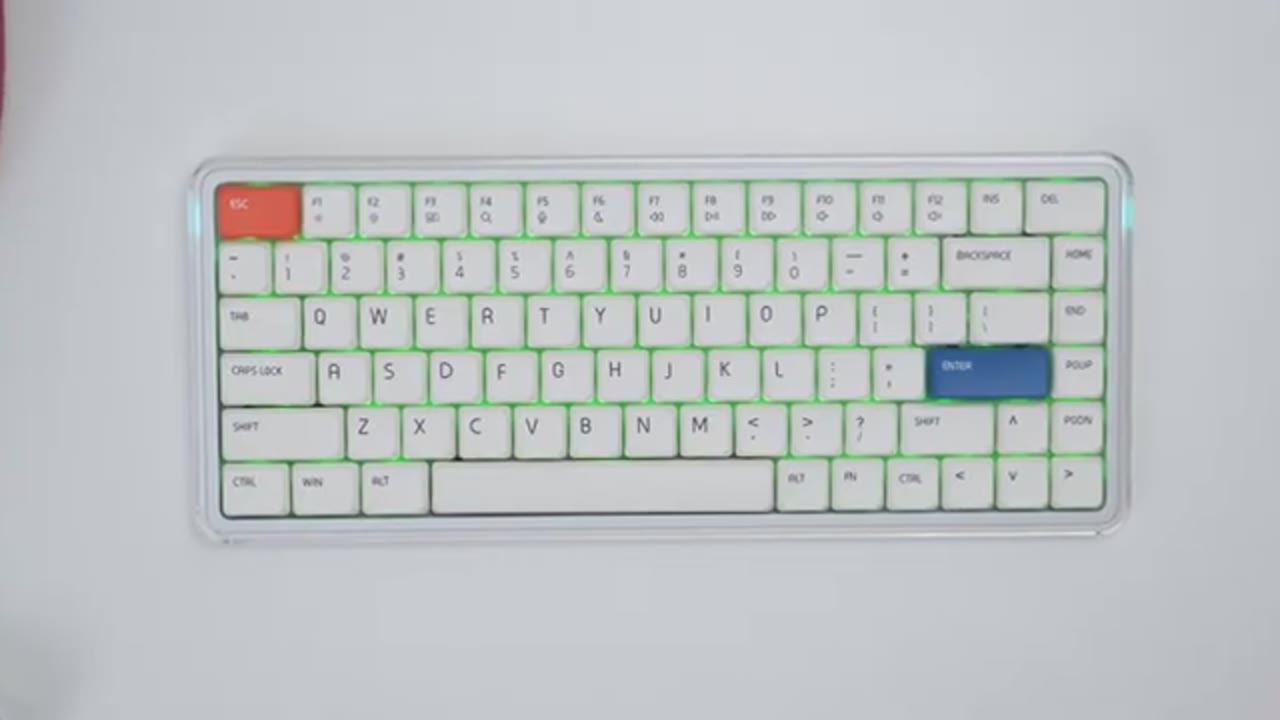
keyboards. To modify the backlighting, you’ll hit function and Z or Z to turn the backlight on or off. And you can hit function and X to switch through the various color modes, but I’ll go back to the solid color mode because from here I can hit function and C and you can switch through the various colors as well. You can also hit function B and that’s going to decrease brightness and function V to increase brightness. To modify the ambient lighting on the right and left side, we can hit function and Q and that’s going to turn it on or off. We can also hit function W to cycle through the various type of lighting modes on her. They can also hit function E to cycle through the various colors and you can hit function T to decrease brightness and function R to increase brightness.
And here’s what the MelGeek O 2 backlight looks like set to maximum brightness with my room well lit and illuminated and it still comes through very strong. Now, let’s take a look at
MelGeek Hive Settings
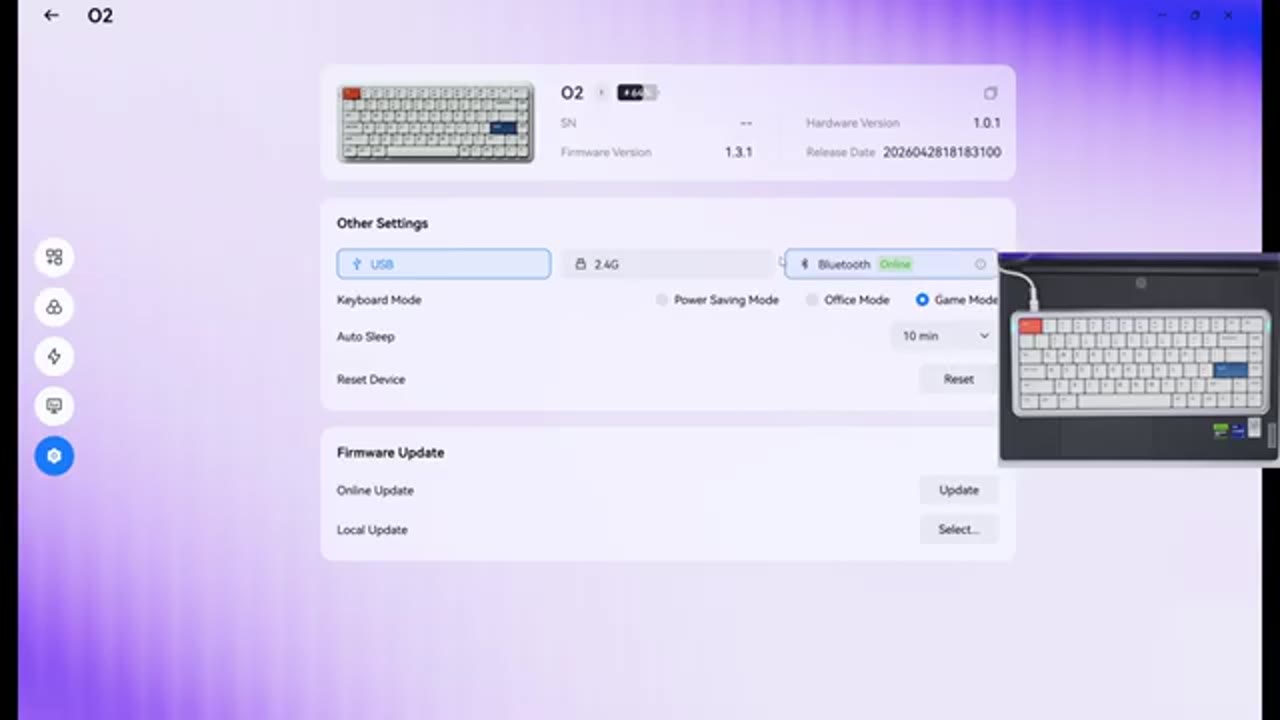
the MelGeek Hive desktop software so you can see the keyboard’s recognized because I do have it plugged in by USB Type-C. But if I tab over and I go to my Microsoft Edge, I actually can do a lot of the same things right on the web dashboard. I can also download the desktop software if I didn’t download it already. And you can see if I click into here, this is what the layout looks like. So, you have button mapping, built-in lighting, and you can see as I click on these, in real time it’s adjusting the keyboard. But what I prefer to do is to actually use the desktop software which I’m going to do now. So, from the desktop software, you can actually change the look of it uh if you like. You can also go ahead and use a keyboard test.
So, you can see, you know, if all of the keys are registering as you type them. You can also go into the full settings here. You can enable alerts for certain things like caps lock. You can see it’s going to pop up on the screen there. And you can have it, you know, launch at startup. You can, uh, update the driver version as well. But, let’s go into the full settings first. And the first tab is going to be button mapping. So, you can go ahead and remap buttons either for Windows, the Windows function key, Mac or Mac function key. And there’s also some subcategories here for extended functions, operating system, mouse, and macro. Now, under built-in lighting, this is where you’re going to have more control over the keyboard shortcuts.
So, again, you can go ahead, switch these, uh, colors right for the backlight. And then you can also go ahead and pick, you know, certain keys and dial in the colors that you want, if you want to do that. And you can also go into dynamic, and you could pick various type of effects here. Now, do not under dynamic, you can actually change the speed on here. And you can also go ahead into mood light and just change the lighting on the right and left side as well. Under advanced, we do have some recommended options here, like pressing function N for N key rollover support, uh, the brightness shortcuts, etc. Under macro, this is where you can record these, save these, and then you can just go ahead and set how you want to activate them.
Under settings, we can take a look at the current battery life, the hardware version. Now, note that it does show that it’s connected by Bluetooth on this laptop. But, if I click into 2.4 GHz, I can actually switch this from power saving mode, office mode, or game mode. And depending on which of these you choose, that’s going to significantly impact the battery life. Additionally, you can also go ahead and set the auto sleep time to 1 minute, 30 minutes, all the way to never. So, you have a range here. Again, that’s going to impact your battery life. You can reset all of the settings.
Gaming?
And whenever you want to get in a little bit of gaming, the Maugic Go 2 is surprisingly capable because this has up to 8,000 Hz polling rate and N-key rollover support. And while the Maugic Hive is not going to give you a ton of gaming customization like you’d find in actual software meant for gaming keyboards, it’s still very handy and convenient not having to swap keyboards if you just want to get in, you know, a lighter casual gaming session. Now,
Battery Life

let’s talk about the battery life on the O2, and that’s going to be a little bit harder to nail down because every person has different usage patterns. Now, the O2 does have a 2,500 mAh battery to power everything up. So, Maugic claims you can get up to 3 days of battery life if you use either Bluetooth connection or the 2.4 GHz wireless connection, you set it to the office working mode, and you have all of the backlighting on. Now, if you keep all of those same settings, but you just turn the backlighting off, then it bumps it up to 24 to 28 days. There’s also a low-power mode that can give you up to 103 days of battery life if you only use the Bluetooth connection.
Whenever the O2 battery dies completely, it takes about 4 hours and 20 minutes to fully charge your back up, and I noticed an average charging speed of about 2 W when I was recharging it. Now, with my personal testing, keeping it in the 2.4 GHz mode, office working mode, and with all of the backlighting on, I was getting between 2 to 3 days, so pretty in line with what Maugic claims. Now, when I kept the keyboard in 2.4 GHz wireless mode in the office working mode, and I kept all of the backlighting off, I was estimating that I’d get between 12 to 14 days of use, which is lower than the 24 to 28 Maugic says, but that’s based on me using this way more than 8 hours a day. The only mode I didn’t test is the low-profile mode.
I had only tested it for 1 day in that mode, and I kept it on the 2.4 GHz wireless connection. And even after a day of use, it still showed 100%. Now, personally, if I’m buying a keyboard like this, I want the full experience of the keyboard. I want the RGB. I want all of the, you know, the effects, the great polling rates, etc. So, I don’t want to handicap that experience. So, since I want to get full functionality on the O2 or any of my mechanical keyboards for that matter, I just use a magnetic snap-on cable. And if you’re not sure what that is, it’s a magnetic cable that has a detachable snap-on head.
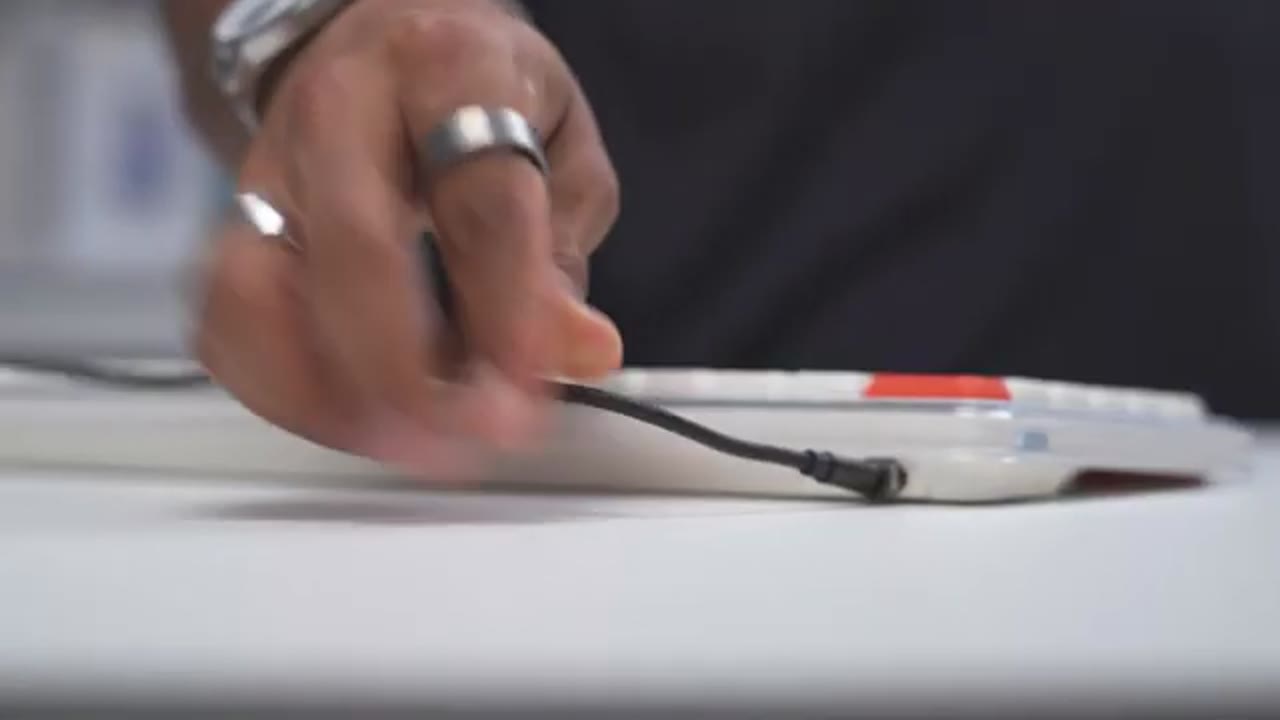
So, I just take the USB type-C magnetic end, I plug it into the back of the O2, and anytime the keyboard battery life is going down and I need to recharge, I just bring the cable near the back of the keyboard, it automatically snaps on precisely and aligns, and it starts charging the keyboard. So, I’m not kind of like fumbling around or kind of fishing and scratching up the back of my keyboard trying to figure out where to plug it in. Also, don’t have to flip my keyboard up, you know, to kind of figure out where to plug it in. I could just kind of just keep that cable right around there, it snaps on to place, I don’t need to skip a beat. And I find it actually extends the USB, you know, C port on your device because you’re not plugging in and plugging all the time.
And you could just buy multiple of these heads for, you know, like your phone, your keyboard, your earbuds, whatever, it just makes life so much more handy. If you’re interested in getting something like that, I’ll leave links down below. But once you have that type of cable, then battery life is not really that big of a deal because it’s so easy to just bring a cable at the back and snap it into place and you’re
Recommended?
good to go. So, the MelGeek O2 mechanical keyboard is hands-down one of the best low-profile keyboards I’ve used so far. And even though this is a low-profile keyboard, there’s actually really satisfying key travel distance and typing sounds and feels both enjoyable thanks to the Kailh Sunshine low-profile linear switches. So, the MelGeek O2 is easily my new favorite low-profile mechanical keyboard. And if you like to get your very own, I’m going to leave links down below for you to check it out. And if I have any type of coupon codes, I’ll leave those down below as well. And if you need a full-size keyboard, check out my keyboard playlist up here as well.
If you found this video helpful, maybe consider liking and subscribing, it truly does help me out, and maybe even joining as a member to get early access to videos and other channel perks. I also review a bunch of other tech outside of mechanical keyboards, so maybe check those videos out, too. And I really hope you’ll join me in my next video soon.
Buy MelGeek O2 Mechanical Keyboard
Please note that some of the links in my video descriptions are affiliate links where I earn from qualifying purchases. As an Amazon Associate I earn from qualifying purchases.