



Buy New Ring Battery Doorbell Pro on Amazon
Buy Official Ring Extra Battery on Amazon
Buy Unofficial Ring Extra Batteries on Amazon
Please note that some of the links in my video descriptions are affiliate links where I earn from qualifying purchases. As an Amazon Associate I earn from qualifying purchases.
Intro

hey it’s Adrian and today I’m taking a look at the brand new ring battery doorbell Pro so this is a video doorbell with an impressive 150° F of view so you can see everything from head to toe it also has Bird’s Eye Zone to show you subject or motion trajectory and you also have pre-roll video as well which is very handy you can use a doorbell with the included battery pack or you can actually hardwire to your home’s existing chime and that’ll help keep the battery topped up now the motion detection speed and alert speed is actually pretty fast on here and I am impressed with it but there is one pot potential deal breaker with this system and it’s something that requires you to have a paid monthly plan to get full functionality out of it so let’s take a closer look and you could decide if this is worth it for you or not the Box
Package Contents
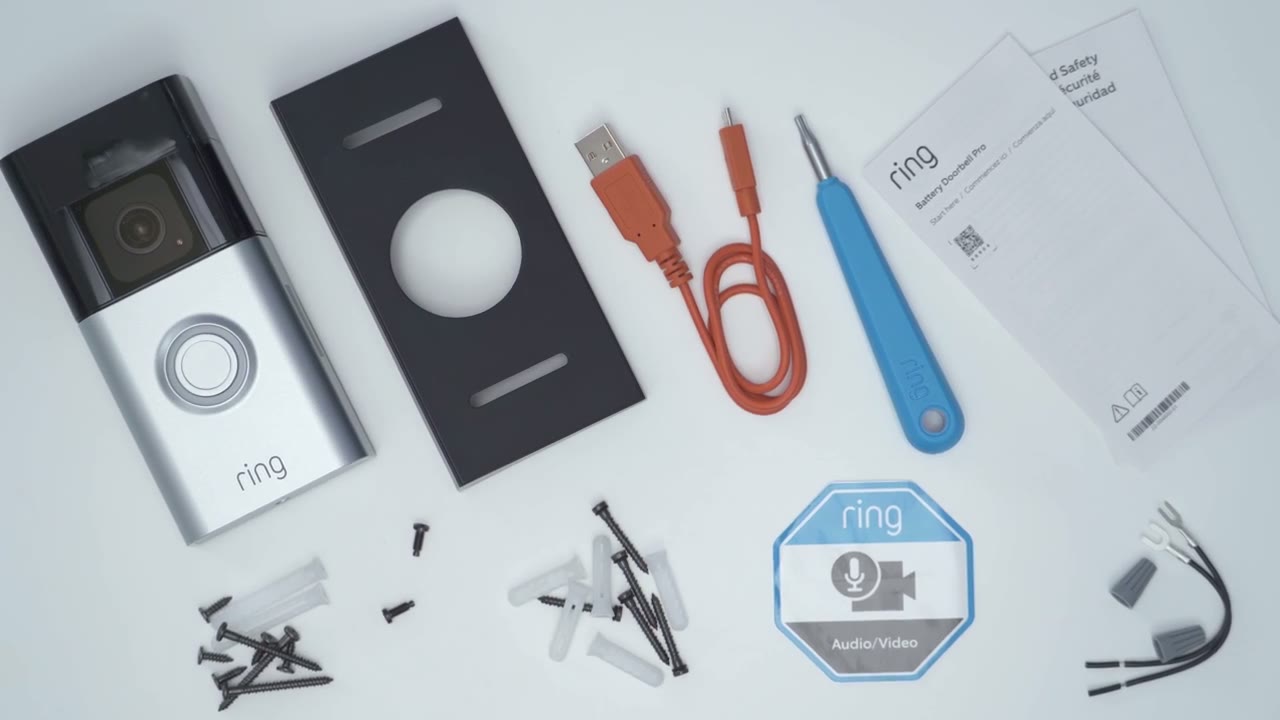
includes the ring battery doorbell Pro and optional corner mount charging cable screwdriver quick start guide wiring to wire to your charm and to charge your unit up stickers and mounting screws so
Design
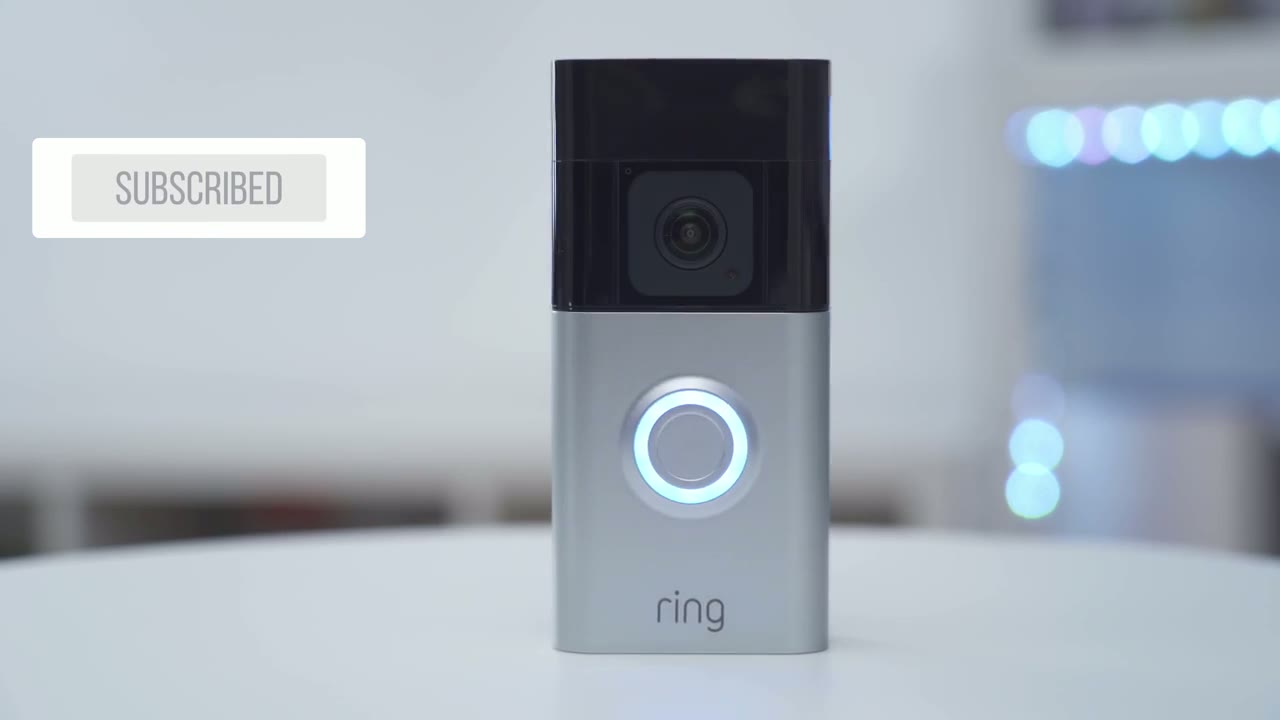
the ring battery doorbell Pro is a fairly nice looking doorbell now kind of Hefty coming in at 254 G or 0.54 lb now at the top we have this glossy black finish which can attract fingerprints and then we also have the camera and all the various sensors at the bottom it’s a matte type of finish and it’s also matte on the doorbell ringer so it’s not going to be a fingerprint magnet which is a nice touch now we can see on the rear we have the two screws if you want to wire this to your existing shime unit and then if you want to supply power to the doorbell as well to gain access to the battery if you need to recharge it if you’re not going to be wiring this it just chose to push up from the bottom here which I’m I’m going to do and that just pops up fairly nicely and then you can see there’s another button here that says push so you can just push that and Slide the battery pack out and I haven’t used this yet which is why the protective you know covering is on there to cover the contacts up so you can see that this battery is going to be recharged with a supplied cable a micro USB cable it would have been good if it was a type-c cable but that’s not that big of a deal and you can always buy an extra of these that way you could just quickly swap them in and out so you don’t have any down time installing the ring battery doorbell Pro is really easy so once you remove the front cover you have access to four screw holes here so you would just drill this into the door frame into your door or any other surface you want this mounted and of course you also have the option to use your existing chime wire and you would just do that before you do any of the drilling now what you can also do is to use this optional wet so what you would do is use these slots here and then just screw this into any type of surface once you’re done pop the doorbell on line it up and then you would just attach the same four screws to keep it nicely in there then replace the front cover and then there is a little hole here that you would just screw in with a security screw to make sure no one can just yank the top up and just remove the battery specs include an HD Plus video
Specs
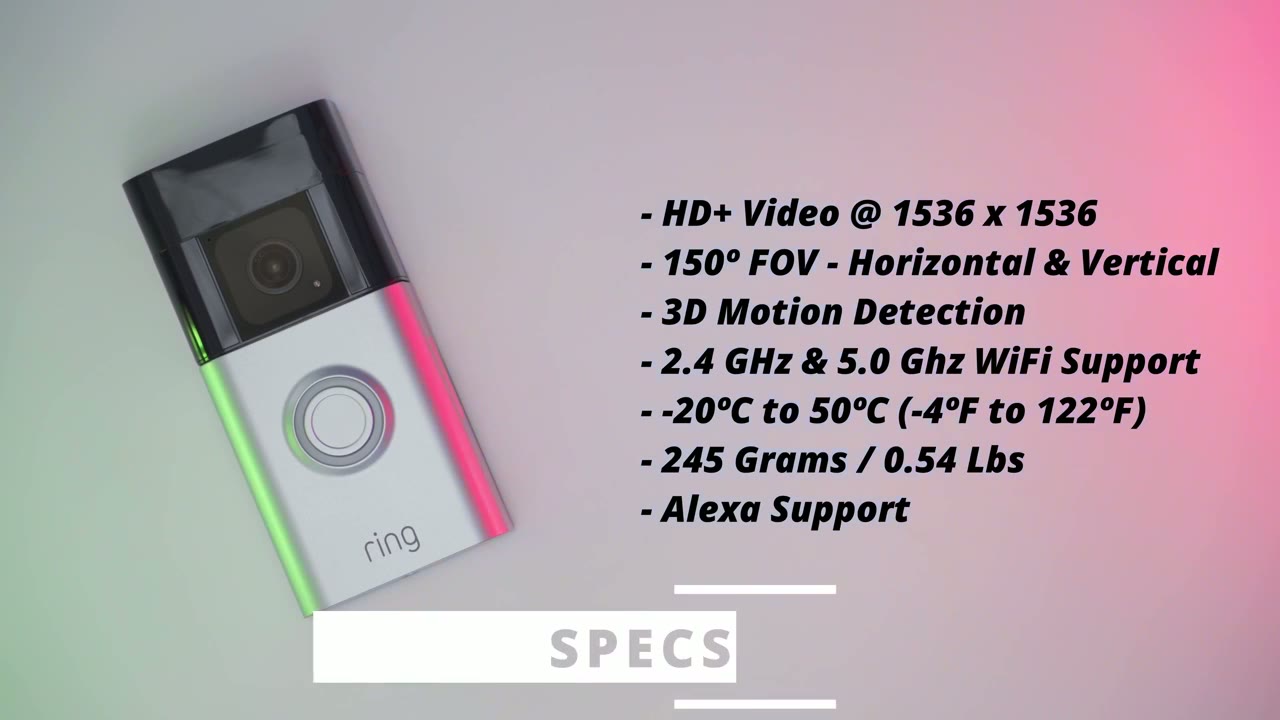
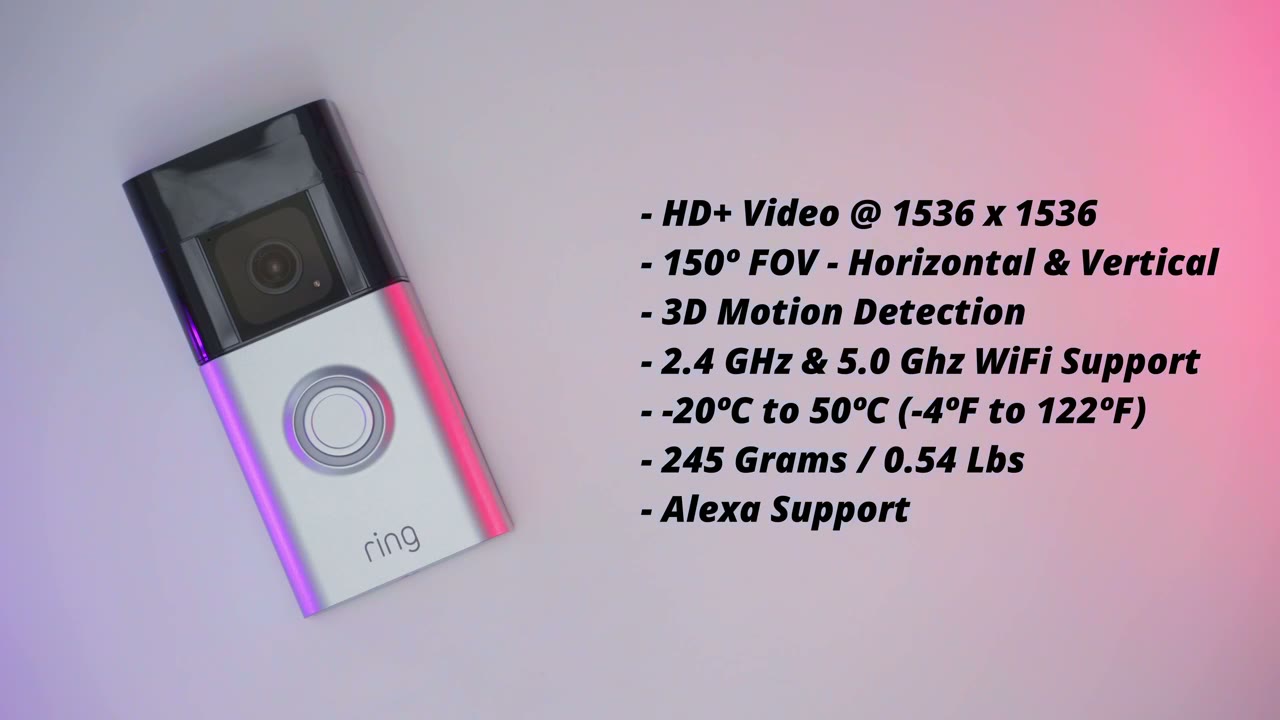
resolution of 1536 X 1536 there’s 150° field of view both vertically and horizontally 3d motion detection it operates on the 2.4 and 5.0 GHz Wi-Fi band and and the operating temperature is from -20 C to 50° C I’m going to go
App Setup
ahead and add the battery doorbell Pro to the Ring app so first I’m going to insert the battery to power it on and then I’ll just say that I want to set up a device pick doorbell and it mentions to scan the QR code on the doorbell which is located on the side here so I’m going to say that I’m ready to scan it and it’s scan now I’m going to pick my current address here and I’ll just give it a name front door now it mentioned to use the supplied screw now I’m going to connect to my Wi-Fi network now connected to the Ring app I’m just waiting for it to connect to my Wi-Fi router all right so the ring doorbell is now added to the Ring app and connected to my Wi-Fi as soon as you launch into
Live View
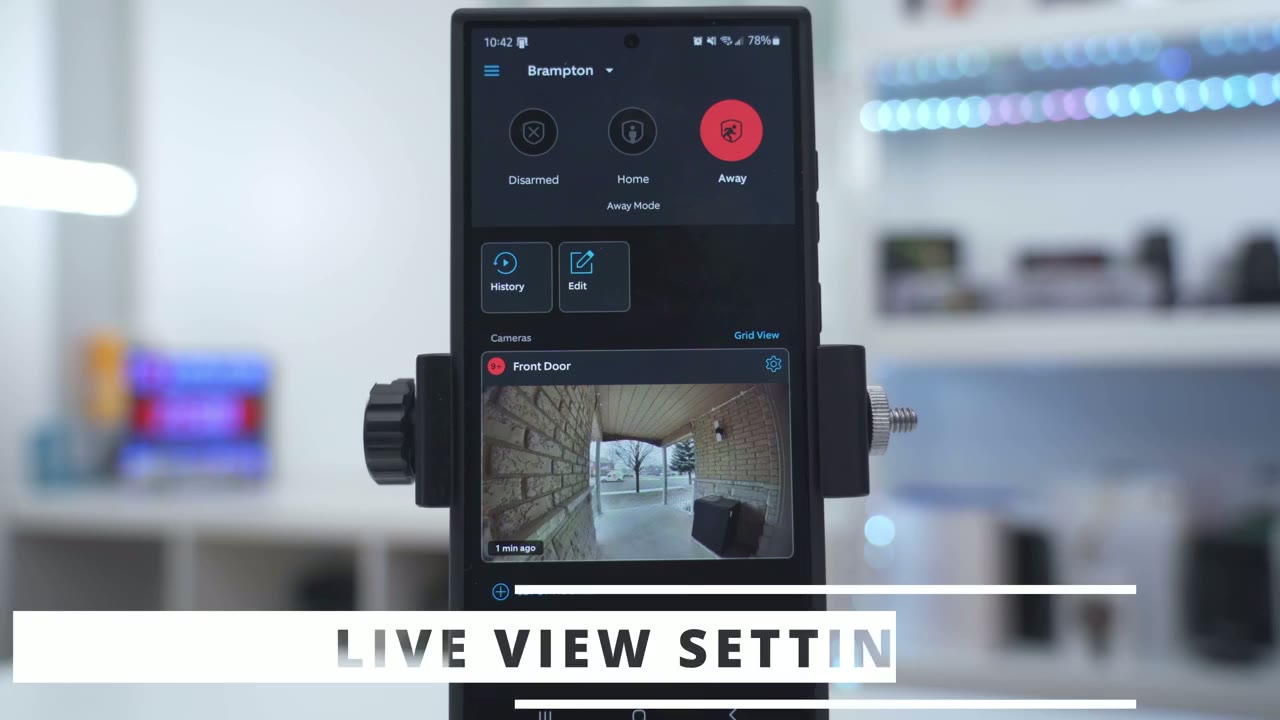
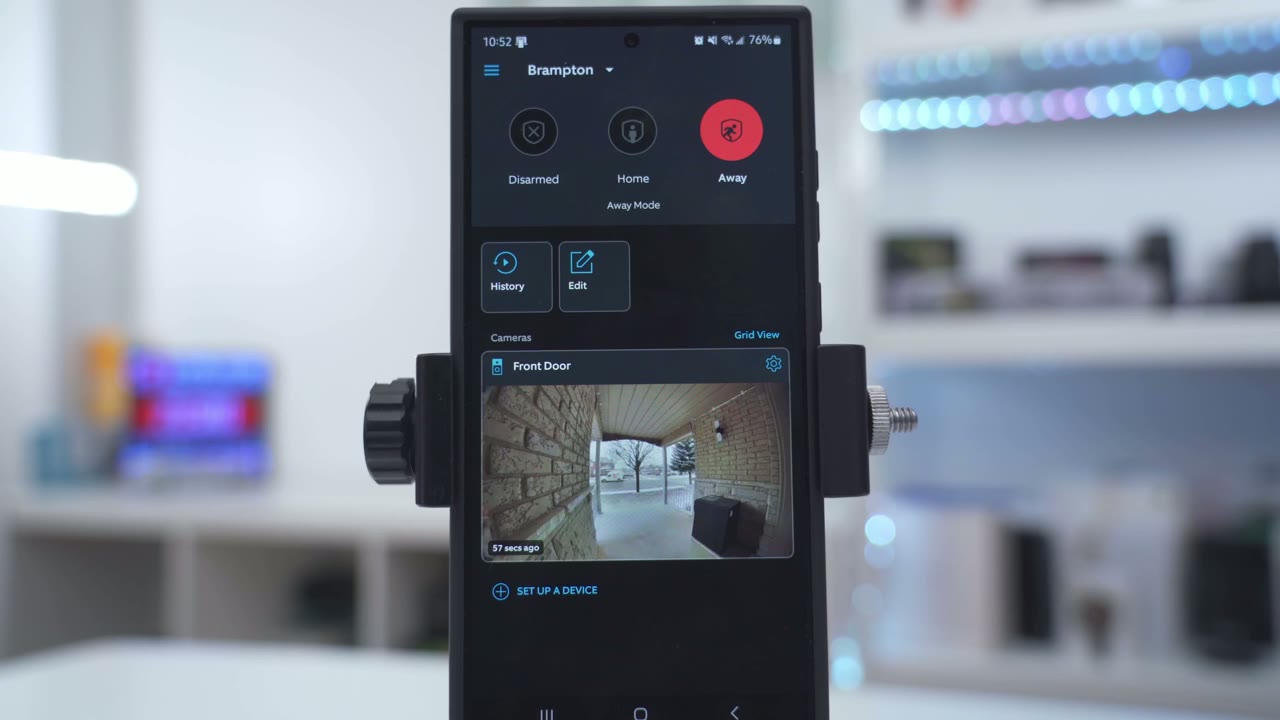
the Ring app you can see what the camera last captured so this was about 2 minutes ago there’s a truck up there you can also take a look at a history of recorded events you can edit shortcuts and if you enable modes you’ll have these icons at the top where you can just switch between them let’s go into live view give it a couple of seconds to load up and that loads up fairly quickly now there’s a truck over there but right away just notice the 150° field of view you can really see a lot all the way from the top of my entryway to the bottom so if any packages are placed fairly close to the camera I’m going to see it except if it’s Place directly under the camera then I may not be able to see that but let’s go ahead I could just zoom in and take a look at what this truck is doing and then I can you know move around so it is a digital Zoom now let’s just get out of that from here I can also go into a full screen mode and I have some quick access icons and then the other thing I could do is just go into a vertical View and I could pin you know right to left so that’s also very handy but let’s get out of that actually before that if you click into more you see there’s an option that says picture and picture so keep watching live you andu swipe away this is really handy because you can just watch picture and picture on your phone and use another app so you know if you’re expecting a package that day you can see exactly when it’s delivered or if your package is already delivered and you want to make sure no one’s going to walk up and steal it you can keep an active eye on that while you’re using your phone while we’re in live view I can also go into Quick replies right here and there’s some seasonal messages so right now it says spring messages probably later it’ll update to summer fall winter Etc and you could see this is what it says you know and it has kind of like a spring background I’ll demo that later now what we can also do is take look at you know default messages such as leave the package outside if you’d like to leave a message you can do it now and then there’s also messages in different languages as well depending on where you’re using this and I’m in Canada so it’s also showing me French and then of course there’s the default messages now right at the bottom it says note that only ring protect plan subscribers will be able to access and review messages left by visitors in their video history so this is another benefit of the cloud plan and of course while we’re watching live view if someone wants to walk up to the camera I could just go ahead hit the microphone right there you can hear the car driving by so the microphone pickup is pretty good but I could hit that and just start having a two-way conversation with them
Video Playback
to review recorded video and events we’ll go into history and you can see it just has a vertically scrolling log of everything that happens so you know I was out there um capturing some shots and you can see it says here motion at the front door person detected and person detected this is another benefit of the cloud plan if you don’t have that is just going to say you know motion it won’t say specifically that a person was detected and you also won’t be notified of packages let me go into yesterday because yesterday I was testing it out in terms of delivering packages and you can see it shows package left at the front door front door um but sometimes this was a bit hit and miss and I’ll explain a little bit more but it says packaged there now anytime you see one of these you could tap into it and that’s going to play so right now the video quality is a little bit low that’s because it’s the pre-roll option selected once that’s finished it goes into the regular resolution so I’m just kind of simulating dropping a package taking a photo like a delivery person and then leaving now from here you can also go ahead share this clip download it favor it or delete it just a heads up but if you want to see a horizontal timeline of events you can disable this option for tap camera preview for live view so you can see when I disable that if I go into live view now what I am going to see is this past events icon here and I can actually scroll through this and take a look at all different types of motions so it’s up to you whether you prefer you know this type of playback history or not I actually don’t really care for it so if I go back into here and I’m going to turn on top camera preview for live view I’ll go back into live view you can see that I won’t have that horizontal timeline but if I do want to review history or playback history I would just go right into event history and I could take a look at it vertically versus horizontally which I prefer this because I do get thumbnail previews the other thing we could do is tap on events and we can filter by the event we want to see so if I just want to see every time say a package was delivered I could filter by that and I’ll see only those events and then similarly you have options for every time it’s ring motion a person was detected live view uh key delivery now let’s go into just uh person detection for example and you’ll see every time the camera identified that there was a person front so very handy and easy to play back while we’re still in event history you’ll notice this event summary icon and this is only available with a monthly Cloud plan and it shows statistics from the past 24 hours so if I tap it to that you can see it shows it at a total of 171 events you know ring events package person’s detected live view motion and then this is really handy because if you don’t want a comb through video you could just see at a glance now if I just wanted to take a look at every time there was live view I could just tap into that it’s going to automatically select like that filter so pretty handy to have that feature if you wanted to see a bit more information on the screen you could go into preview and instead of setting it to large you could set it to small so you could see a little bit more or you could just set no preview by the way if you’re finding this review helpful please consider liking and subscribing it truly does help me out but let’s get back to it
App Settings
let’s take a look at the full device settings now and you can see that the battery is showing that it’s being actively charged and that’s because I’ve wired it to my existing chime so it’s receiving power and it’s triggering my indoor chime which is Handy you can also enable ring alerts motion detection motion alerts and motion warning which I’ve disabled you can also launch into live view event history I already touched on accessories is just if you want to buy any additional accessories for your doorbell such as the ring chime which I think should have just come in the Box automatically mode settings this is optional you can completely disable modes if you don’t want to use this feature Ling devices is if you have more than one ring device you can have them kind of synchronize with each other now we can also go into alert snooze and we can snooze for as lowest 30 minutes all the way to 12 hours but I don’t see an option to set any type of custom snooze duration now we can also looked at link Chimes again this will only work if you’ve bought one of rink Chimes which I don’t have and then device health you could take a look at you know the current battery level um whether it’s hardwired or not if you connected the solar device you would see if it’s charging you take a look at signal strength Etc under motion settings we have this feature called Bird’s ey zones and if I swipe over then we just have camera motion zones now this is a feature that is pretty cool in terms of seeing this kind of aerial view but I actually don’t find myself finding it too useful I prefer having the pre-roll option which I’ll show later but you can see if you tap on that you can edit the zone and you could kind of expand you know that radius but again not a feature that I really found helpful and of course if I swipe over into camera motion zones well blue is where I’m going to be alerted anytime motion occurs which is why I have you know the whole thing kind of marked out I want to be notified all the time and then the orange color is for packet zones and this is you know anytime someone places a package anywhere in this vicinity or behind this delivery box I want to be notified and of course you can go ahead and you know edit these zones and it shows you packet Zone default Zone as we scroll down we can go into bird’s eye zones and just completely disable this option if you don’t want to use it now camera motion zones already touched on for the packages and just general motion and then you can also adjust the motion sensitivity so right now I just left it on the default that’s been working really well actually on the default however I did notice I had to crank package sensitivity because a lot of the times it wasn’t detecting when a package was placed even though there was adequate light in the package was large enough so if you’re having problems go ahead and change package sensitivity under smart alert you can fine-tune the alerts and recordings that you get so for persons maybe I want persons recorded but I don’t always want to be notified while I could tap on that so I won’t get alerts now for other motion I could do the same you know I could just say I don’t want recordings or alerts and it says you may still see motion alerts without people on the timeline if the camera system is not sure it’s going to still record it to let you decide so that’s pretty good now under package I could say hey I want recordings of packages but I don’t want alerts about packages so you have a lot of customization here and you could just completely disable it if you just want to be notified every time something happens you can also set a motion schedule so you won’t get alerts during a certain time so I’ve set a nighttime schedule that’s only going to occur on the weekends so from 10: p.m.
to 10:00 a.m.
I won’t be notified and of course you could just go ahead and add say a morning schedule when you’re at work and you could just switch at you know say from 99: to 5:00 and then you’ll only get them when you come home under advanced settings we have the option for motion frequency now frequently means that the motion detection is always active it’s not going to take a cool down time or a re-trigger time as soon as it detects motion it’s going to alert you and start recording again regularly it will take a short break after each motion event say you’re coming and going you know loading groceries perhaps and then periodically it takes an even longer break now if you set it to frequently like I have it is going to have an impact on battery life under device settings this is where we could take a look at video settings so if you go into night vision I found that using it on adaptive is great you can also say standard if you have no problems with glare or you could just turn it off but adaptive has been working well for me now you you can also turn on HDR and most of the clips that I’ll show later are with HDR turned on because I have a covered entry rate you can also set color night vision as well which I have enabled and now when you tap on the camera preview for live view you can decide if you want to go directly to live view or to see recent events now I prefer just going right into live view versus recent events and then picture and picture you can have a pre-roll or you could have bird’s eye view and this is what that looks like so when you’re reviewing Clips you’re going to have a picture and picture either pre-roll or Brits I view and I find pre-roll to be more beneficial than using the Brits I view and I’ll show that later as well and recording length I’ve left it on auto but if you didn’t you can record for as low as 15 seconds all the way up to 2 minutes you have the option to take snapshot captures every hour every 14 minutes 5 minutes or 3 minutes but note that this will negatively affect battery life especially if you set it to every 3 minutes under notification settings we can go ahead and enable Rich notifications which is going to include snapshots or thumbnail which is a handy feature to have and you can also alert the app alert tones and Link shines now under privacy you can go ahead and add a privacy Zone if it’s needed in your area so say I needed to block off this specific area here well I could do that and you could add more than one privacy Zone if you need you can also deactivate audio streaming and recording if you like under general settings we could go to volume and change the speaker volume and the doorbell sounds volume now there’s an option here to tap on report device as stolen and I noticed on the ring box that it mentioned that they will actually replace stolen devices with certain conditions applying now since this is my first ring video doorbell I’ve not experienced this but if you have let me know if you’ve ever had one of yours stolen and if they did indeed replace it under smart responses we can go ahead and enable quick replies so the doorbell will play a preset response anytime someone presses the ringer and the response time can be right away as soon as they press it or you can set a delay from 2 seconds up to 20 seconds and then the quick reply message can be the default you know we can’t answer the door right now and you also have the option to share access with other
Video Quality
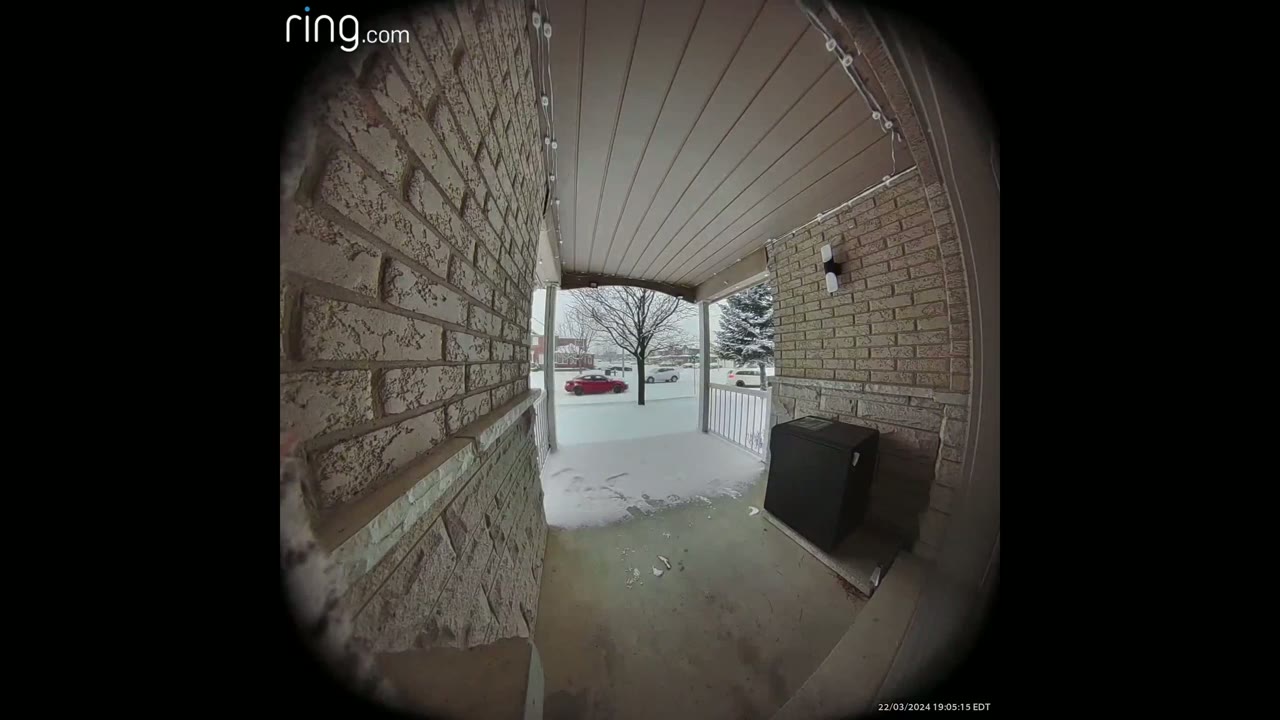
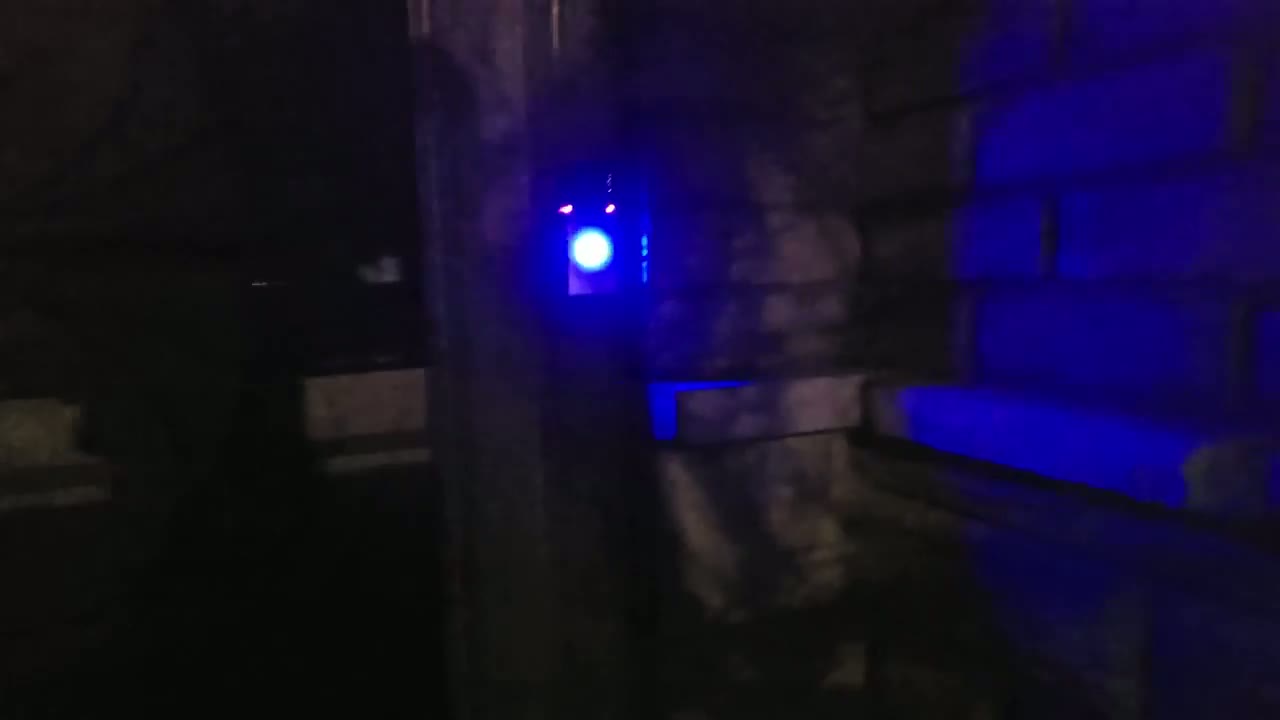
users so straight off the 150 degree horizontal and vertical field of view is something that I really love and find super usable it’s really easy to see packages basically when they plac anywhere except you know like right under the doorbell but I’ll touch on package alerts later I noticed that in most of the recording video clips the frames per second were from 24 frames per second to 40 frames per second now when you’re looking at daytime video the system did a fairly good job however if you have a covered entryway like I do you know there’s not a lot of direct light that comes in it’s mostly you know ambient light or reflected like and that makes it hard to make out faces especially when they’re right up against the video doorbell or kind of you know shadowed or shaded in some way and this is what I found now in the app settings there’s an option to turn on HDR which is supposed to rectify this issue but I find that it still didn’t do much of a great job even with that option turn on I still left it on but definitely you know when the sun is out you’re going to get way better results on the footage that you’re going to see so the Black and White Night Vision was fairly good on this system and it’s really improved anytime you have some kind of ambient light you know a porch light or like these yui um overhead lights that I have which are super bright it kind of makes it like daylight and I’ll link those down below if you want to check them out but yeah as long as you have enough ambient light from a porch light or something something similar it’s going to be very easy to use either the Black and White Night Vision or the color night vision I also tried setting the system to using Color Knight Vision but removing all types of ambient light like the porch light or those overhead lights and the footage was unusable so you do definitely need to have you know some kind of ambient light if you’re using clar night vision otherwise just use the Black and White Night Vision I also noticed that when I cut all ambient lights and I walked up to the doorbell it did have a soft LED glow for the ringer so I could easily make out where the ringer button is now on some competitor doorbells they actually have a soft type of light that actually activates as you get closer to the doorbell which is very handy when you’re fishing for keys for your door and it’s something I wish they could have included on this what really impressed
Motion Detection
me with this system was the speed of the motion detection so even though I set the motion detection sensitivity to the default which is right in the middle I found the system to be super responsive at detecting me and then sending me an app alert on my phone and once it sent the app alert on my phone it would have a thumbnail so I could see hey do I need to actually tap this or can I ignore it and this is another benefit of the Ring protect plan if you have that you have these enhanced notifications which give you a thumbnail preview so you can decide do you want to click it or not now once you actually click the thumbnail or the app alert it can take you into a recorded event or it could take you into live view and you could set that in the app as well if you tap to let it take you into the recorded event well it’s going to show you video with either the pre-roll preceding the video or with the pre-roll or the bird’s eye Zone in a pcture and picture format at the top left you could see in the app notification history it shows you whether motion was General motion if it was a person if it was a package if the Bell was rang or if it was live view and that’s all very handy now to determine whether it was a person or a package you do need the monthly paid plan Now
Package Alerts
package alerts is something that I found to be hit and miss and it’s something where you need to pay for the monthly plan to have that feature now what it says in the app is that the box has to be at least 11 in large and that means that you know if you have food delivery it’s most likely not going to detect it if you have groceries delivered it’s not going to detect it it has to kind of be something sizable enough for it to detect it and that’s kind of what I found now a lot of the times I was putting the package down right in front of the camera a little bit further away to the right to the left and it wouldn’t actually detect it so I went back into the app settings and I crank the packet sensitivity to the highest setting and then it started becoming a little bit more responsive in terms of packages so definitely right out of the box you’re most likely going to have to do that another Factor could be that I have a covered entry rate there’s less light coming in there and that’s another factor which it does mention in the app while changing the package sensitivity to the highest setting and setting a package detection Zone did help anytime I picked up the package and I walked away from my door so I’m just simulating stealing it it would just send me an alert saying a package was delivered it wouldn’t say the package was picked up or stolen and this is something where if the system was a bit more intelligent it could see if the subject was walking away from the door or away from the doorbell it could just trigger an alarm or a siren to you know say Hey you know leave my package alone kind of deal the
Speaker
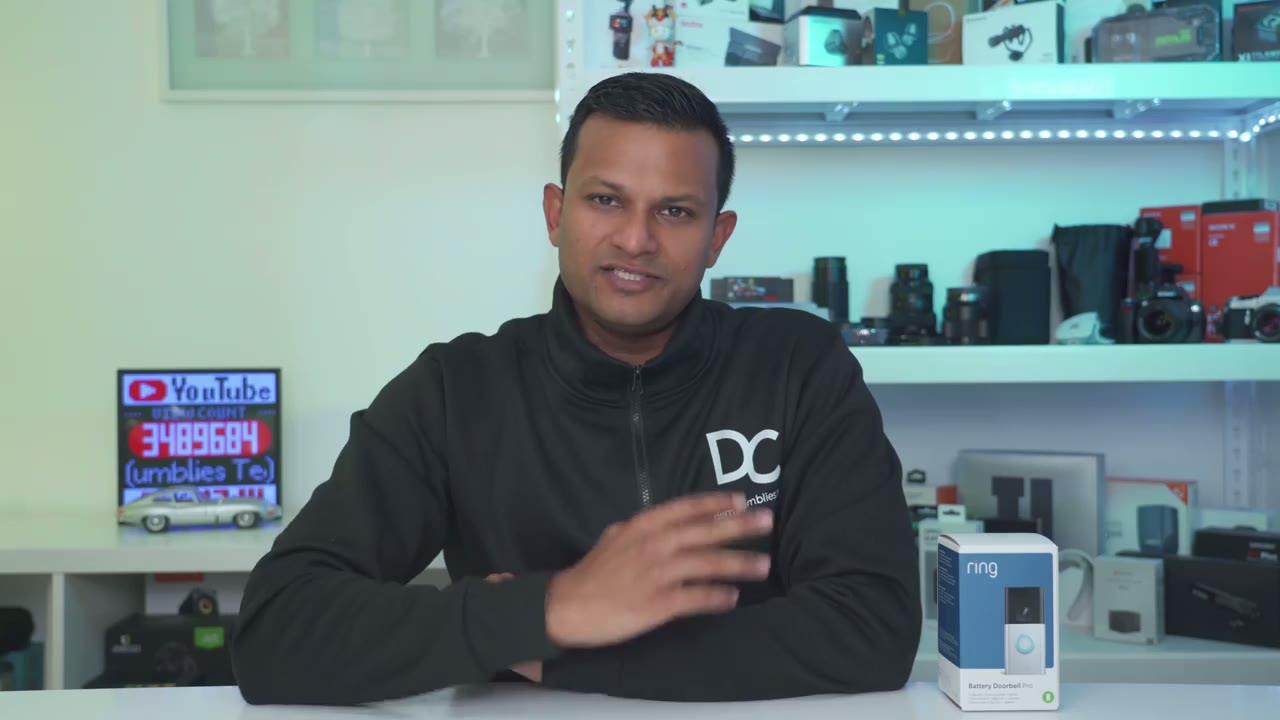
speakers on here are also very loud and it’s easy to have two- we talk you can also send pre-recorded messages although you can’t record your own custom message and you can also set it so that as soon as someone presses the doorbell you can reply with a default pre-recorded message and here’s a couple of examples please leave the package outside if you’d like to leave a message you can do it now hello Happy Spring we’re busy bees and can’t make it to the door please leave a message here’s an example of what 2A talk sounds like on the ring video doorbell Pro so there’s no
Chime
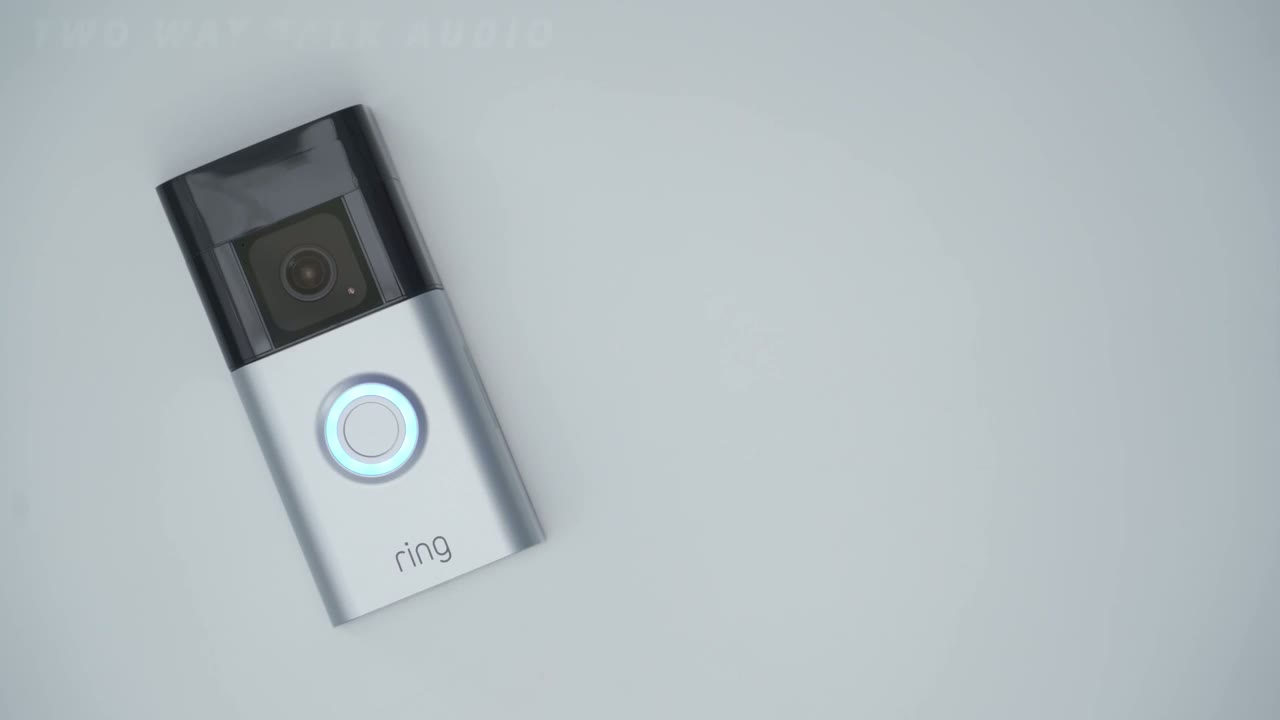
included chime in the Box here so that means if you’re upstairs or downstairs in a basement and someone rings the doorbell you probably won’t be able to hear it however if you’re on the main floor there’s a chance you can hear it from inside the house if you know the front door is not too far from you so what you have to do is you have to buy one of Rings Chimes to use it or use it with an Alexa device or what you can do is just wire it and then it’ll trigger your existing home’s mechanical chime which is what I’ve done so to get full functionality out of
Monthly Plan
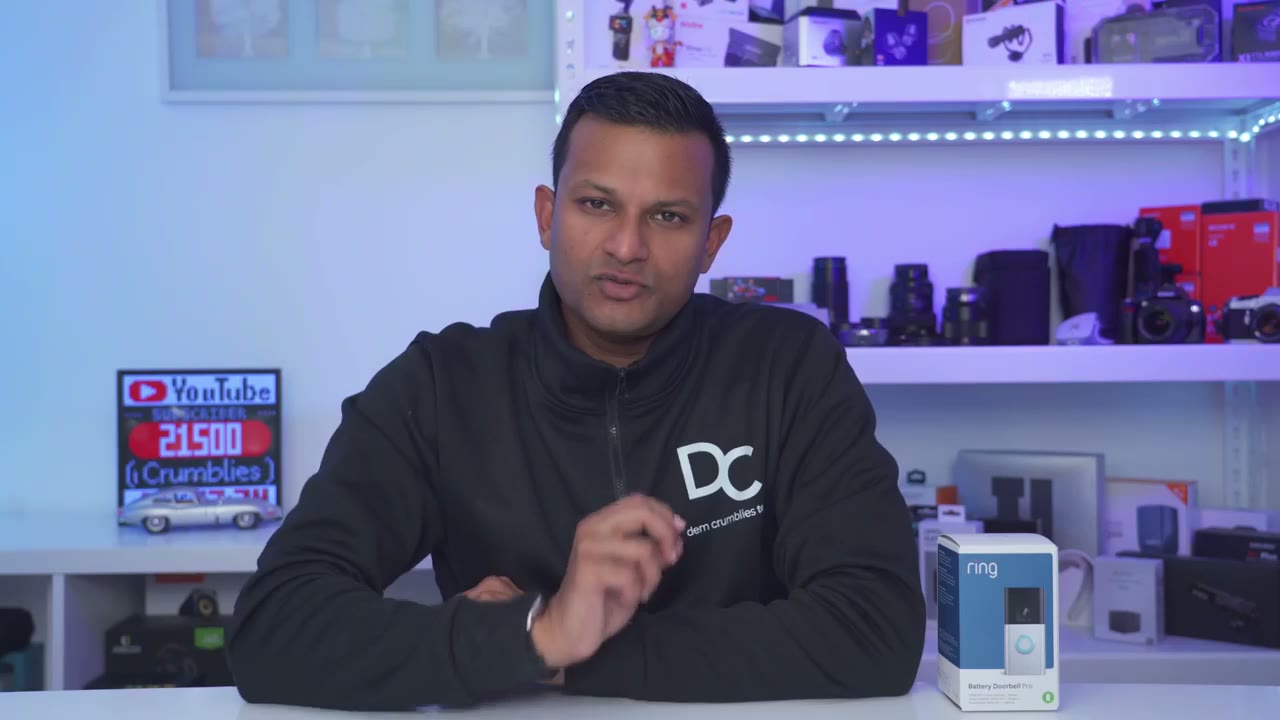
the doorbell you do need the ring protect plan and what that’s going to do is it’s going to allow you to have up to 180 days of video stored in the cloud you can also have 60 days of notification history you can also have person and package alerts without that you’re just going to see motional alerts so technically you can get way more alerts however if you have the person and package alerts you could tell the system hey just show it to me whenever it’s a package or a person reducing the amount of alerts you get and then you also have the event notification history so you could just see in a snapshot what happened in the last 24 hours now I can live without a lot of the features of the Ring protect plan I don’t need 60 days of notification history I don’t need to see what happened in the last 24 hours and maybe I could live without the package alert and person detection maybe motion detection is good enough However the fact that this doesn’t save any video at all to the doorbell locally or with a sync module or a home base or anything like that is a pretty big concern because if your internet goes down this is not saving video temporarily on the device to later upload it to the cloud so anything can transpire during that time and I see that as a huge oversight where a lot of video doorbells have some form of local storage but overall I’m fairly impressed
Recommended?
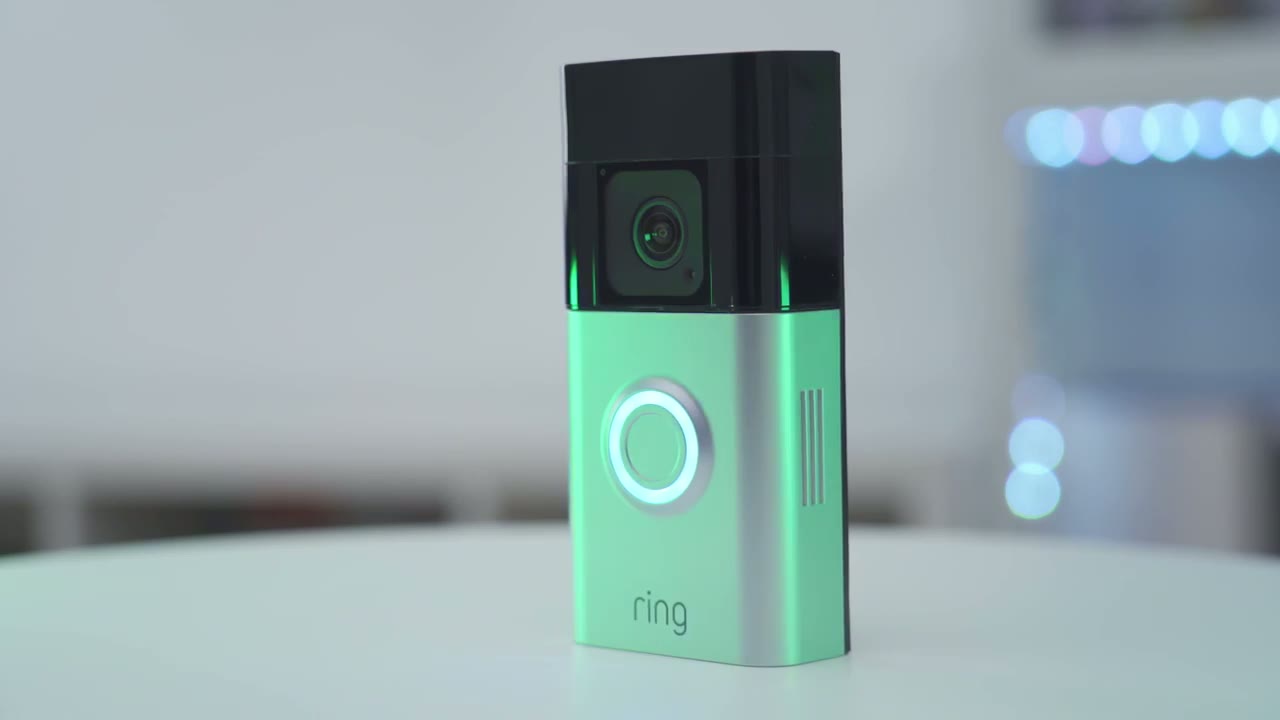
with the brand new ring battery doorbell Pro the motion detection is one of the fastest that I’ve seen and the app pulls up quickly I didn’t experience you know crashes or network timeouts or anything like that it’s really solid and stable in that regard I also really love the 150° horizontal and vertical field of view it’s easy to see packages and visitors from head to toe and it’s also great to have the option to have pre-roll video now I know for a lot of you paying the monthly fee is probably not that big of a deal it’s not a huge amount but it is an amount that is subject to change every year and you really have no control over that and when I consider that you know a lot of their competitors offer full functionality and maybe more functionality than this with AI features and you don’t have to pay for a monthly Cloud plan it makes it hard to recommend this however if you already have a lot of ring devices and you’re invested in the ring ecosystem then yes this is actually a fairly good doorbell in terms of the motion detection and all the other features that I mentioned is just a shame that it offers no onboard or local storage so if you’re interested in picking up the ring battery doorbell Pro I’m going to leave some links down below along with links to pick up their charme units and I’ll also leave links to other competitor video doorbells if you’re not a fan of paying monthly fees so I really hope you enjoyed this video and if you did please consider checking out some of my other home security or camera related videos and if you found this video helpful please consider liking and subscribing it truly does help me out so much as a growing Channel and I’ll see you in the next one soon
Buy New Ring Battery Doorbell Pro on Amazon
Buy Official Ring Extra Battery on Amazon
Buy Unofficial Ring Extra Batteries on Amazon
Please note that some of the links in my video descriptions are affiliate links where I earn from qualifying purchases. As an Amazon Associate I earn from qualifying purchases.