



Please note that some of the links in my video descriptions are affiliate links where I earn from qualifying purchases. As an Amazon Associate I earn from qualifying purchases.
Intro

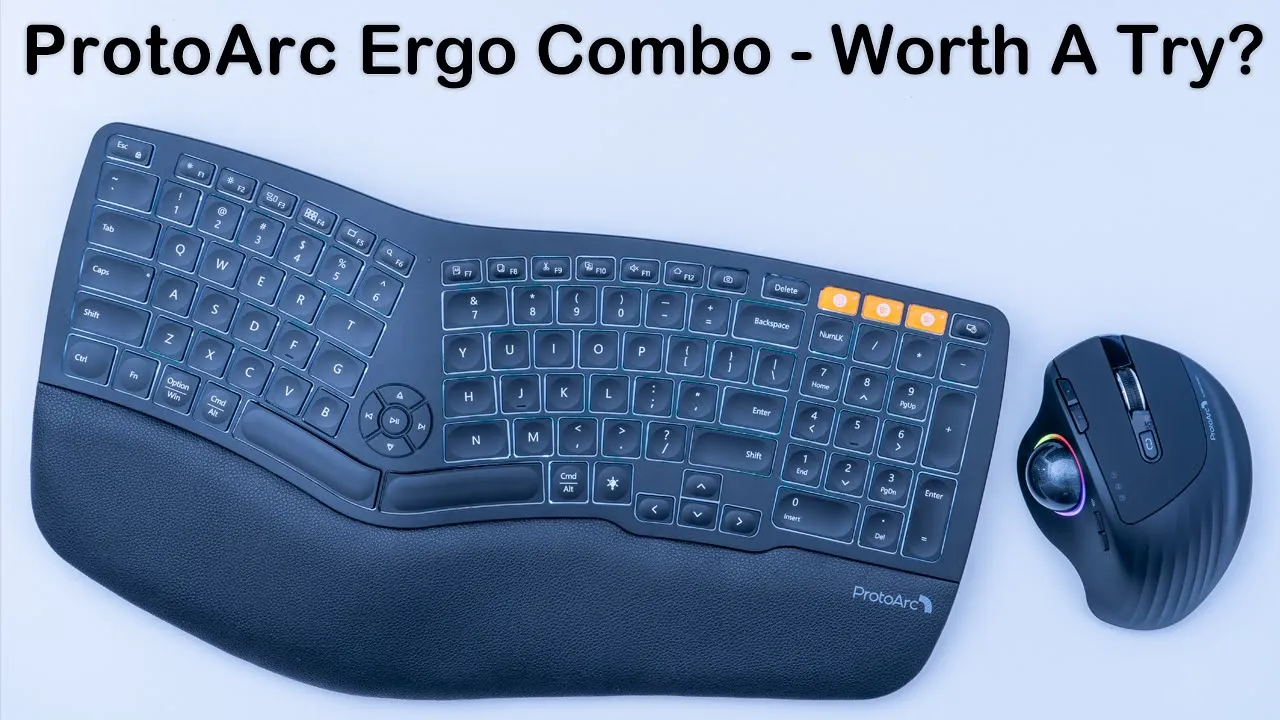
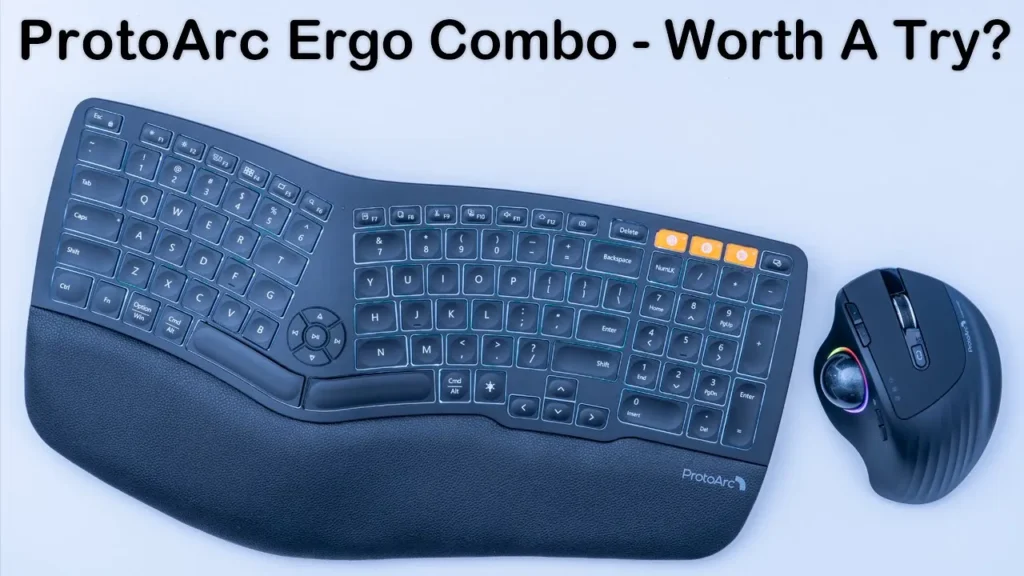
hey it’s adrian and today i’m taking a look at this ergonomic split keyboard and ergonomic trackball mouse from proto arc which is a company that focuses on computer peripherals geared towards ergonomics i’m going to share my experience with you and i’m going to let you know if it has really improved my workflow and if i really do notice a change using these type of ergonomic products and before i get started i just want to say a quick thank you to proto art for sending these review samples out to me the keyboard package contains a keyboard of course type c charging cable wireless
Package Contents
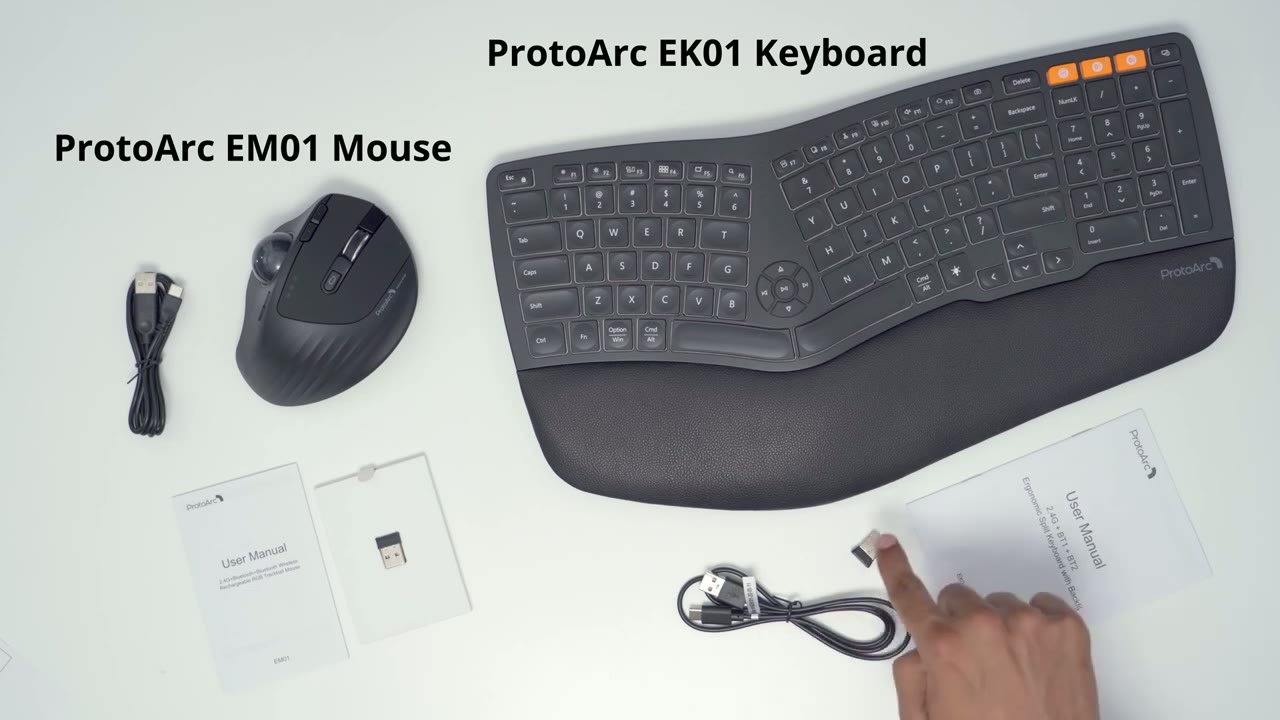
usb receiver and manual the mouse comes with the mouse unit type c charging cable again
Keyboard Options
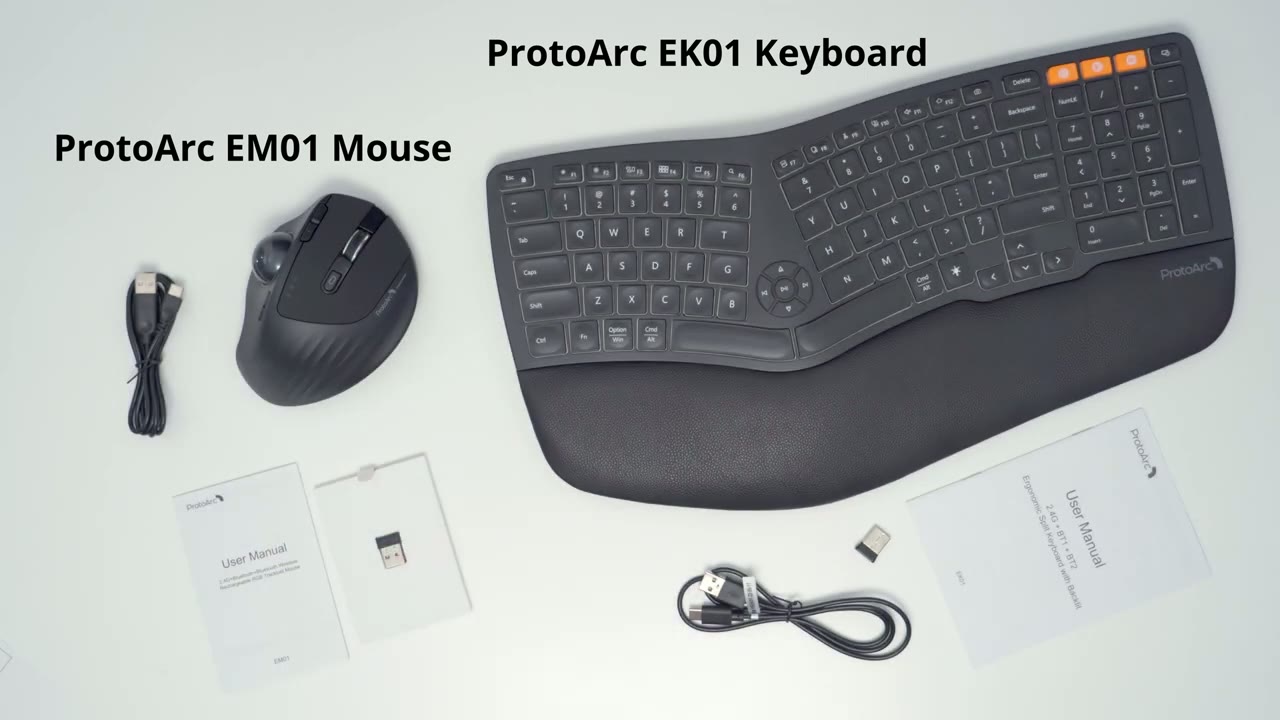
wireless usb receiver and a manual all right let’s take a look at the design of the keyboard and right away i have to say that i’m such a huge fan of any type of keyboard that have a built-in wrist wrestler you know just any type of wrist rust that you can attach now this one is permanently fixture here it cannot be removed but let’s take a look at the back first so at the back we have the power button we have the wireless usb receiver that you can store here and it’s held just magnetically in place
Design
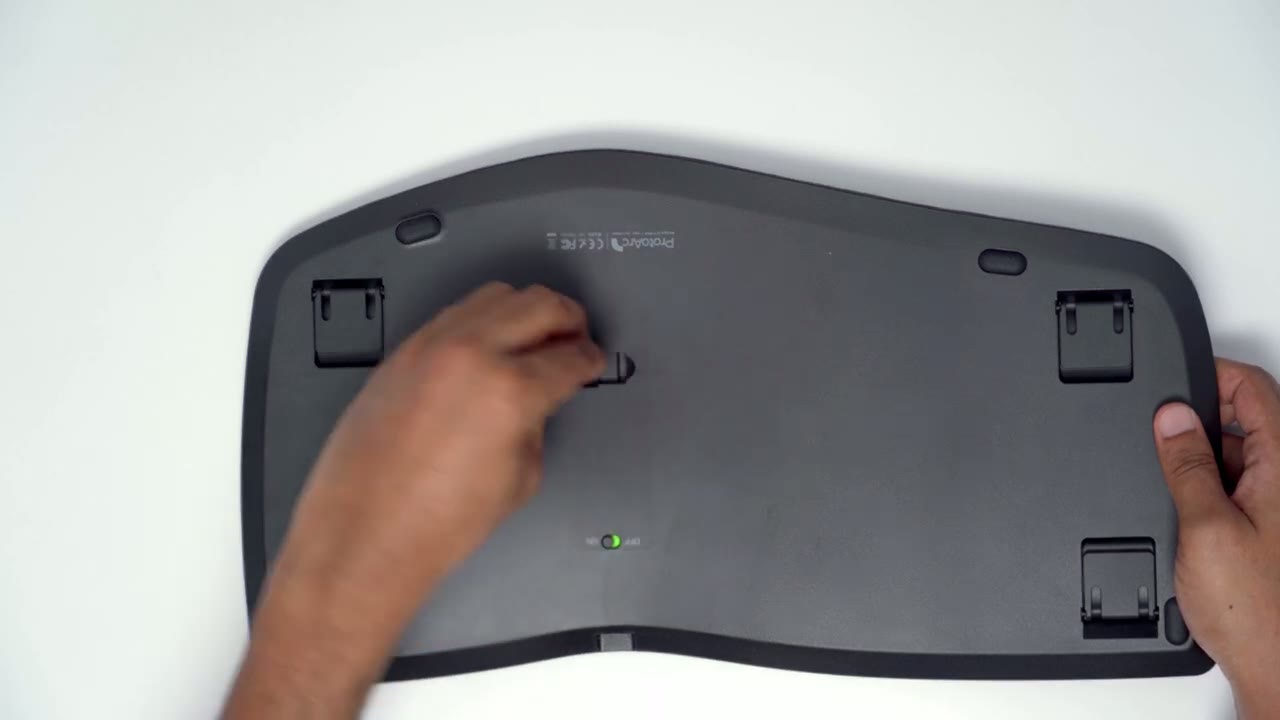
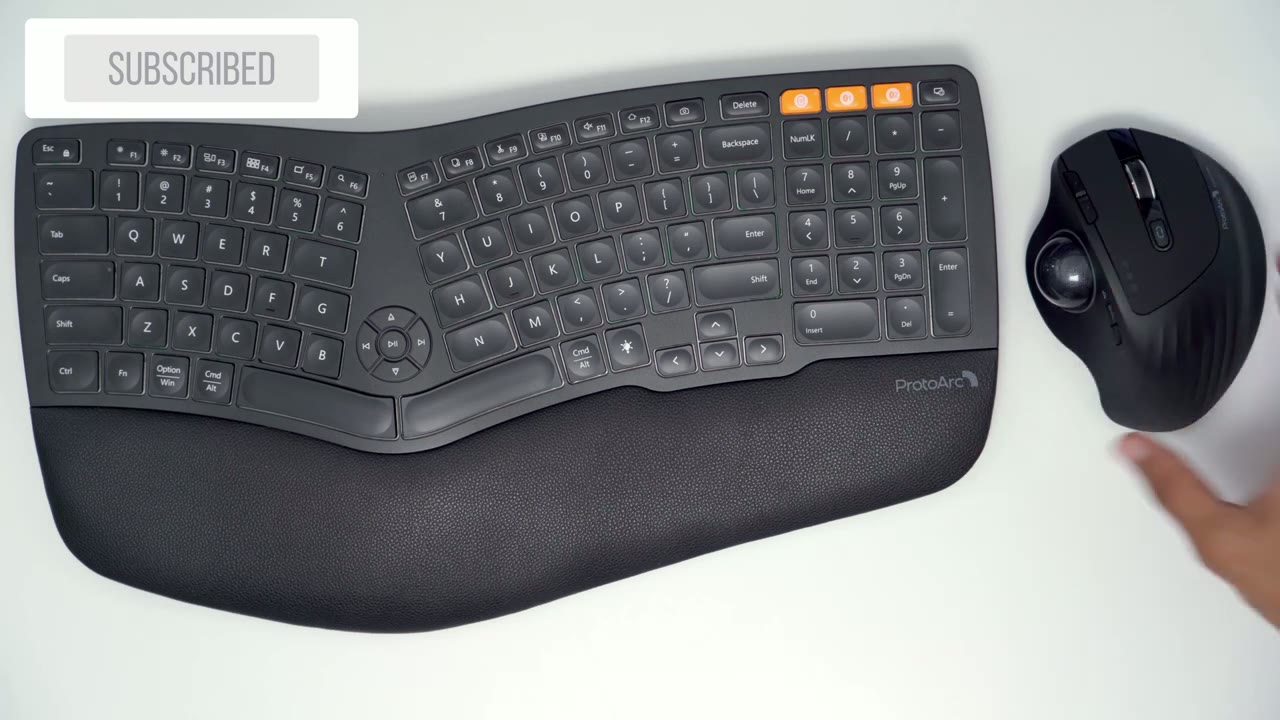
and we have feet so i’ve never seen four feet on a keyboard before i’ve only ever seen these two top ones but i guess you could just have everything elevated off your desk if you like and that doesn’t feel bad i mean it just feels different but i think what i would prefer is just the two top ones and yeah this is uh much more up my alley so you can see it is this split type of design so the space bar is split into at the top right is where you would switch uh devices so the first one again reserved for wireless and then the other two are for bluetooth same as with the mouse so it follows that same type of um designer functionality where first is for wireless the other two are for bluetooth but yeah taking a look at it so you have your numpad area here big fan of having this because i’m always working with a lot of numbers or data and we also have a lock so i guess you could just lock it can be if you’re not going to use it so i’ve cut the lights a bit so it’s cycled back through these so that’s the low setting medium and the brightest setting aside from the multi connect buttons here and this lock button and this little multimedia button area here there’s no additional buttons to you know program shortcuts or quick launch apps overall for the price the build quality is pretty good to me so you can see if i grab these and i just grab the ends here and i kind of twist in opposite directions you know i’m not noticing much flexing to the frame by the way i forgot to point out that’s the type c charging port because these do have a built-in rechargeable battery the mouse design is pretty nice and you know i am a fan of it so you can see we have the matte plastic on the sides here and some kind of indentations here to add for grippiness or if you have kind of sweaty palms now we have the proto arc logo here and this top portion here is this kind of soft rubberized um type of grippy material at the bottom it’s that same type of soft rubberized grip material because of that
Specifications
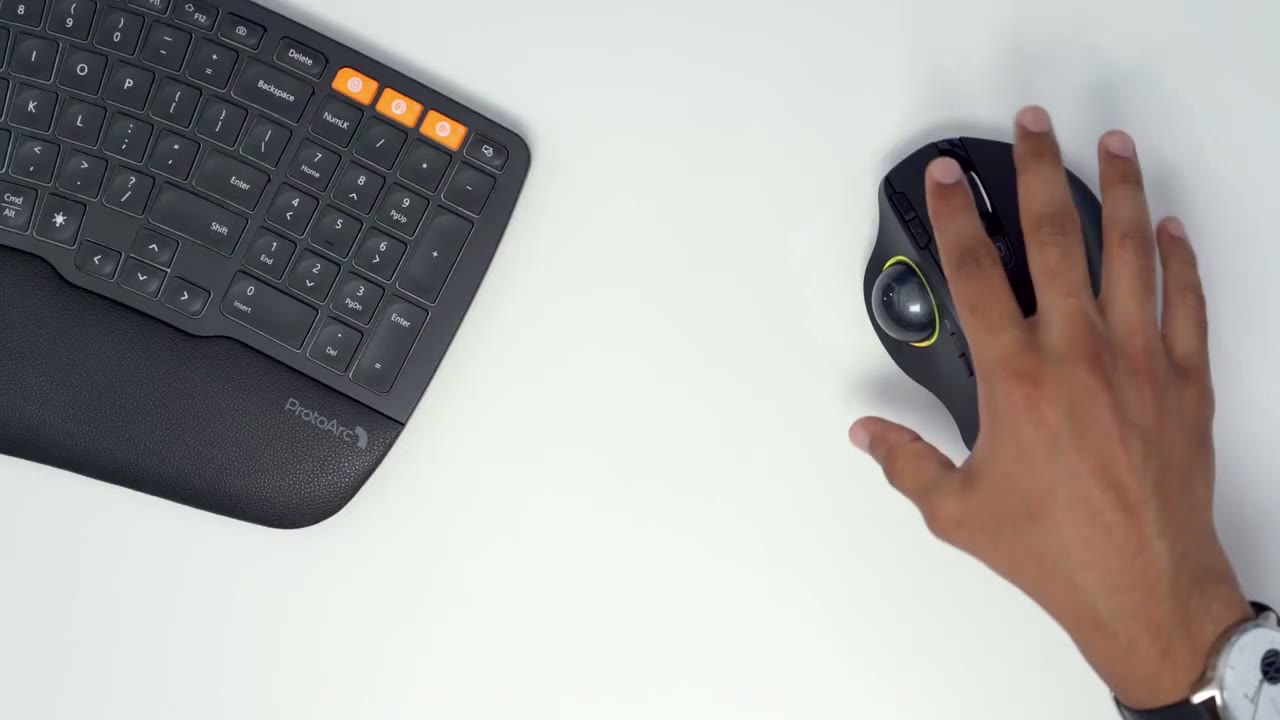
rubberized bottom here you know there’s a very minimal tendency for it to shift what i will say though is right away um you can have the mouse in this orientation so you know completely flat or you can adjust the mouse so that it’s at a 20 degree angle and this is a much more natural position for me because i’m coming from the logitech lift vertical mouse and it puts your hand in this kind of handshake position which is supposed to be better for uh ergonomics and for your wrist so right away um yeah at 20 degrees this feels way more natural to me and again that’s because i’m coming from this vertical mass if you’re coming from you know a traditional mouse where it’s just flat and planted uh having it flat may be better for you but i like that it’s easy to just quickly adjust that on the fly and now you also have the on and off button there and there’s a little hole here which gains access to trackball and i believe that’s so that you could push something through there and pop this out if you need to clean it we have some buttons here to adjust lighting modes um so you can
Lighting Modes
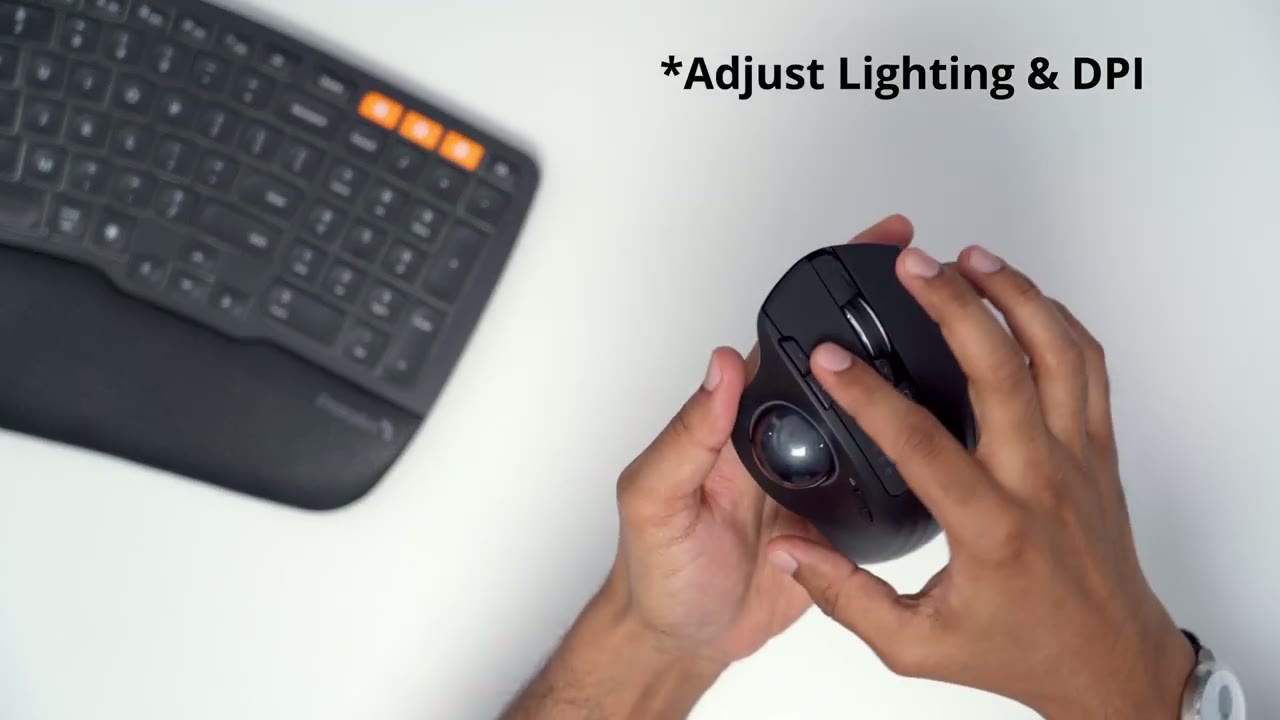
let’s let me just click here and you can see you can cycle through some different lighting modes here now we have access to the front and back button right in the top corner here and of course you have a regular right and left click and a mouse wheel now this mouse wheel it has you know a ratchet type of design so as you advance it you know there’s hard stops while you’re going through and you have this like multi-device uh button here so you can switch right now you see it says one and that’s reserved for the wireless usb dongle now you can hold to two or three and that’s going to put you into the bluetooth devices while it does look large um on video and actually in person you know my hand feels comfortable on it it doesn’t feel unmanageable and you can see that my middle finger here based on the position that i have it you know it’s extending just a little past so you know if you have maybe really longer fingers uh that could be an issue for you or you may have to use like a kind of claw type of positioning to use the mouse here’s what the mouse sounds like when you’re clicking so the clicking definitely is on the quieter side and softer side you may or may not appreciate that that’s the noise it makes so you know this is perfectly suited for quiet work environments you’re not going to be bugging anyone with that most important for me anytime i’m using a mouse is i don’t like it to have any type of rocking or unevenness due to the rubber feet and
Button Features
since this is kind of like just one big area here um you know it’s quite planted and very stable and i think i forgot to mention too that that’s where the usb type-c charging port goes and because this also has a rechargeable battery here’s a quick look at the specs for both the mouse and the keyboard so both devices do allow you the ability to use them on three other devices and it uses either the 2.4 gigahertz wireless connection or bluetooth like i mentioned before it has a 900 milliamp hour battery which gives up to 90 days on a single charge the mass comes in at 181 grams or about 0.4 pounds and it also uses bluetooth low energy the keyboard has backlit keys but they’re static lighting only and only in white so it uses scissor key switches which result in you know quieter clicking and or quieter typing and less resistance when you’re tapping unlike what you would find on a mechanical keyboard so the built-in battery is 1100 milliamp hours and that’s good for about 100 hours on a full charge both the mouse and keyboard can be connected by type c charging cable to your computer so that while you’re working you could top up the battery without any downtime if i take the mouse i’m gonna cycle to number three here so it’s on number three and then i’m just gonna go into my bluetooth settings and i’m going to press and hold until the 3 starts flashing it’s flashing right now and i’m just going to find the proto arc em1 hit pair and it is now paired so i can go ahead and use you can see the mouse here and
Typing Experience
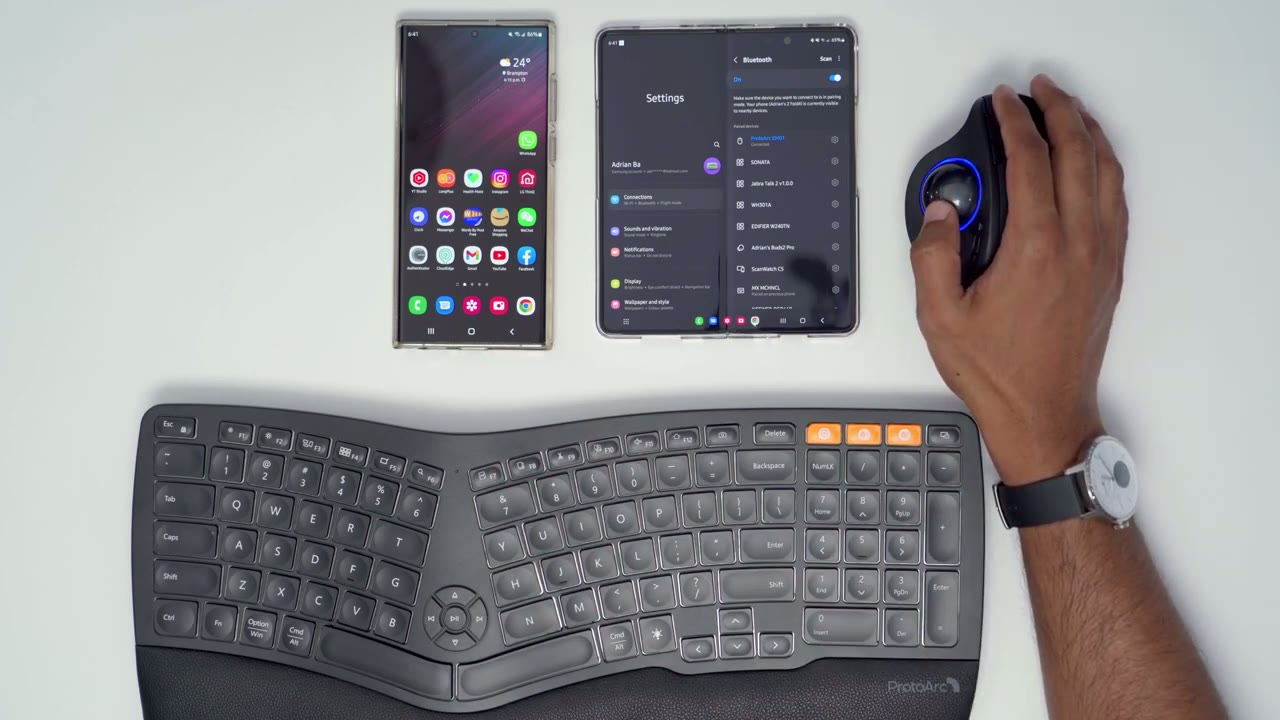
i’m just going to go over right here to the website the proto-arc site and that works easily now if i wanted to use the keyboard on here same process [Music] so now i can use the mouse and keyboard on here and i type google so you can see pairing is very easy with both of these this top row is normally what i would use kind of every day on my computer and you can see so this keyboard is just it’s just a rectangle um there’s no really thought in terms of ergonomics with this and when you look at something like this it looks you know way different a bit foreign in terms of the design and let me tell you it does get or does take a little bit of time to get used to the split keyboard when when you’re used to having everything you know grouped this closely together like with a normal keyboard it takes a while to get used to these now you can also see that some of these keys are you know different widths so these ones are kind of like standard width but the ones towards the center here these are much wider also the space bar you know it’s split into versus having a wide space bar but like with anything um you know when i did use the lift vertical mouse which is what i use most of the times like day to day this is the mouse i used most um it did take a little bit of time to get used but once i got used to it you
Software Settings
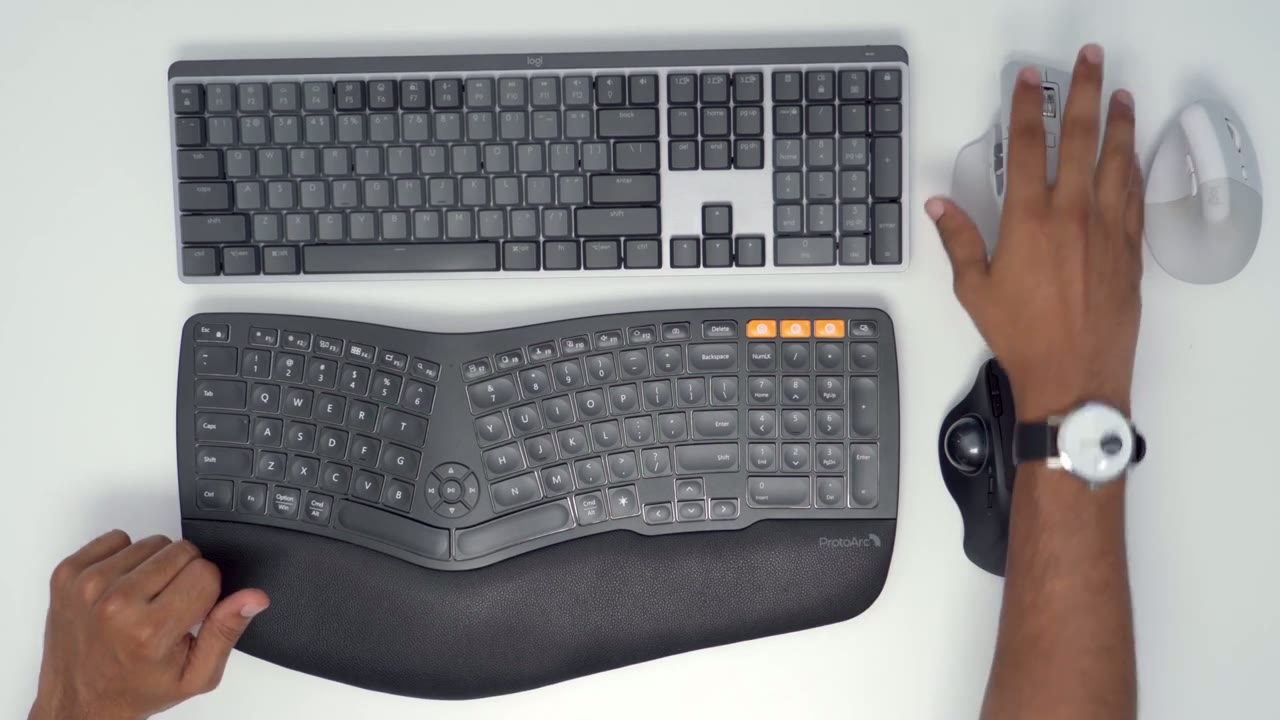
know this actually feels kind of wrong if if i’m being honest like having my wrist in this position feels weird now and and this feels natural might sound strange but that’s actually how i feel about it being able to just have this angle like that you could see like i’m mentioning that kind of natural hand shake or hand wrist type of position it makes it a much more enjoyable experience this also took a bit of time to get used to you know navigating around like this but it’s like with anything i find once you get the hang of it you know you really become a depth at it and it really really pretty good you know whatever type of workflow you have once you use it there’s a little bit of plushness it’s not too crazy but it’s sufficiently padded to help because when i’m typing on this and my wrist uh is resting on you know a table you can see this area is even a little bit discolored because i would normally have all the weight positioned here as i’m typing and having this has made a big difference what about those of you who have an an ergonomic mouse or a vertical mouse and you’re considering something like this i sometimes find myself coming off the mouse mat or if i have a laptop here or something i may hit hit the laptop because i’m just going hard at it now obviously you can adjust the dpi settings on here or the mouse pointer speed or acceleration but i don’t find myself going into the settings to change those type of things so i just kind of live with it when i have those spirits but with something like this this just stays in place right you you have that rubberized grip like i mentioned so all the movement is here there’s no chance i’m going to come off a mouse mat or mouse pad or anything like that if you like things as light as possible even though this is a heavier mouse this isn’t going anywhere so the weight of this becomes non-existent since you never have to move it around you can see if i do a side view like it’s kind of flush like where where this little area is there’s flush with the mouth so it’s
Recommended?
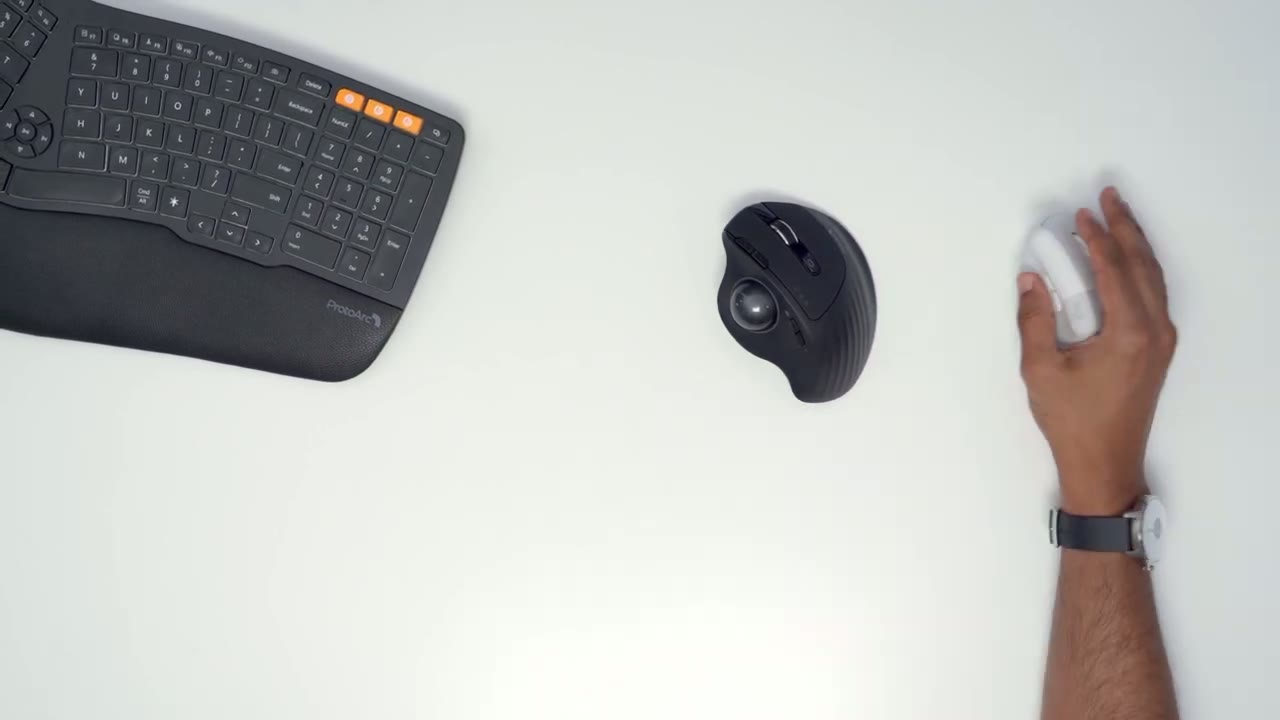
always you know rubbing on the desk or you know there’s weight being applied there so that’s kind of like a pivot point and everything moves from there that’s usually how you know i use the mouse with this this part here actually rests alongside here so when i’m using this i’m not making contact you can see if i do a side view all of the weight or pressure is being applied here and you know this part here of my hand is elevated versus when you get into a mechanical keyboard you know what you’re getting into there is you know that resistance attached when you’re typing there is the clicking and clacking and things like that with this there’s none of that now for some people it’s good and bad some people prefer this they like that type of uh feedback that they get from the typing experience and this is a much more passive type of experience it’s by no no mean bad i mean i’ve tried keyboards where you press and there’s not a lot of travel distance and you’re like it’s just not an enjoyable experience there’s enough um of a travel distance let me see if i could show show a little bit of that but you can see here that’s that’s decent travel distance and even though i’ve been using this for a majority of the times and once you get spoiled by a mechanical keyboard you know it’s hard to look at other other type of keyboards but this still offers you know a pleasant typing experience i would like to see some type of software where i can go into the program and remap these buttons uh these the dpi button here it cycles through 1000 dpi 1600 dpi and 2400 dpi but it would be nice if we could kind of go into software and make kind of micro adjustments so if your main goal is ergonomics and you don’t really care about you know the look the design and all that other stuff these definitely will help in terms of ergonomics and again you know if you’re a casual user and you’re only spending say you know two three four maybe even five hours a day on a computer maybe you don’t need to focus on ergonomics i know i never really paid attention to when i was younger and i was on the computer casually but now that i’m kind of on the computer for a living and i’m spending you know eight nine ten sometimes in some days even 12 hours on a computer uh just relying on this you know it takes a toll at the end of the day just overall in terms of general use um you know editing uh photoshop and just general browsing these are really excellent for the price all right guys so let me know if you have any questions about these proto arc keyboard or a mouse and let me know if i missed anything or if you have any questions just leave it down in the comments below and i’ll try to get back to you as soon as i can and as always if you found this video helpful please consider liking and subscribing and i’ll see you in the next one bye if you’re interested in trying out proto arcs products i’m going to leave a discount code in the description down below
Please note that some of the links in my video descriptions are affiliate links where I earn from qualifying purchases. As an Amazon Associate I earn from qualifying purchases.