


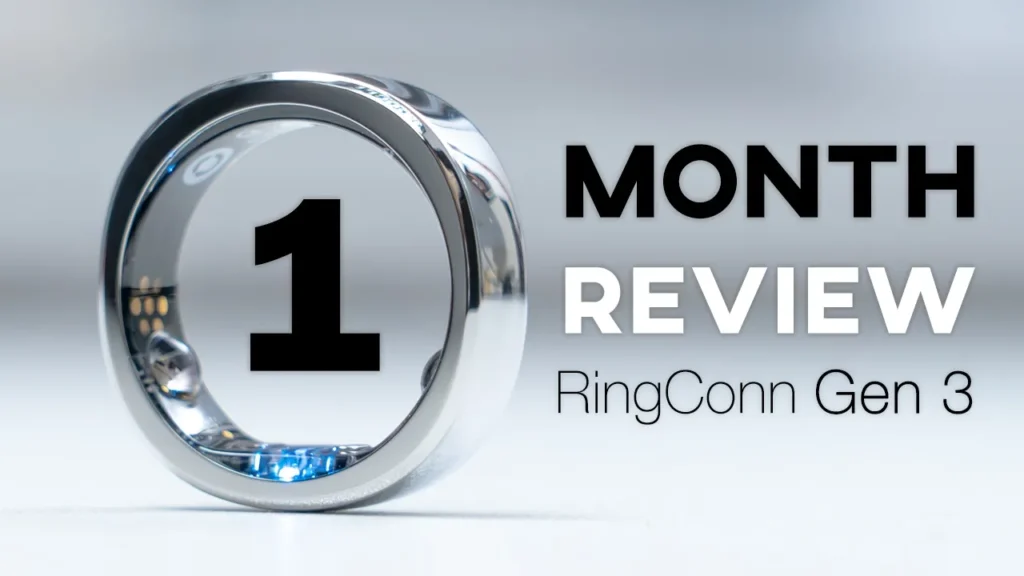

Buy RingConn Gen 3 Ring on Amazon
Buy RingConn Gen 3 Sizing Kit on Amazon
Please note that some of the links in my video descriptions are affiliate links where I earn from qualifying purchases. As an Amazon Associate I earn from qualifying purchases.
Intro

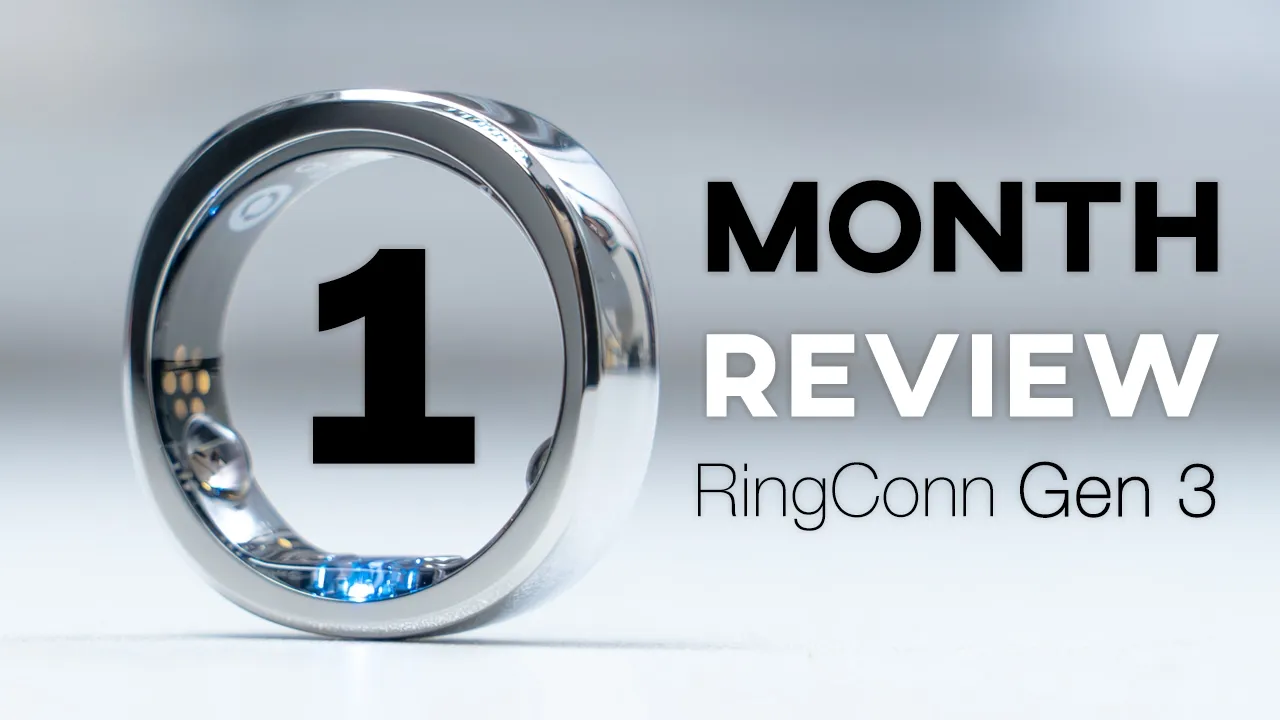
If you’ve been looking for a full-featured smart ring, the RingConn Gen 3 ring might be what you’re looking for. It boasts up to an impressive 14 days of battery life, and there’s even an included battery charging case. There’s various sensors to provide vascular health insights, such as sleep tracking, HRV monitoring, activity tracking, stress levels, blood oxygen saturation levels, sleep apnea monitoring, skin temperature, and more. And it’s all housed in a lightweight and comfortable to wear a ring that has an IP68 rating and looks premium same time. And the best part is that there’s zero subscription fees to get full functionality out of it. But, can the RingConn Gen 3 actually replace your current smartwatch, and how accurate is it when you compare it to other health tracking devices?
Well, I’ve been wearing it for about a month, so let me share my thoughts with you, and a big thanks to RingConn for sending this out for a review. In the box, we have the
RingConn Gen 3 Package Contents
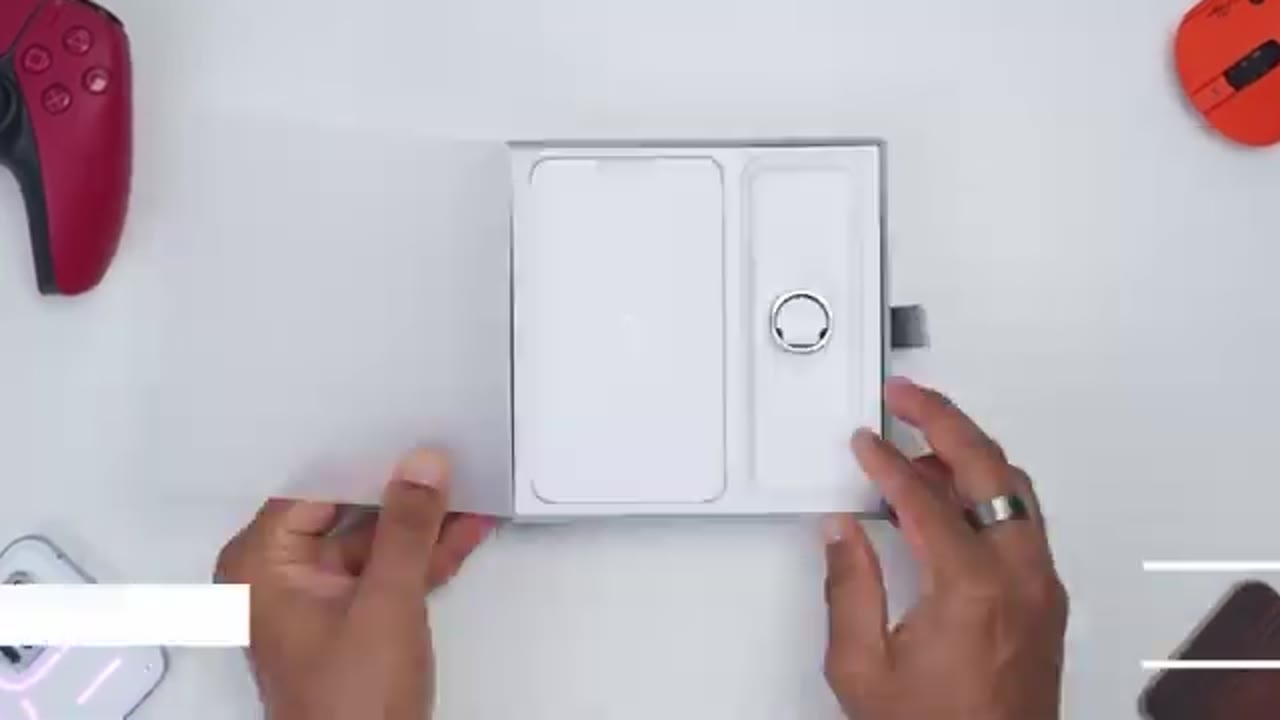
RingConn Gen 3 smart ring, a charging case, USB Type-C to Type-C braided cable, quick start guide, and manual. I
RingConn Gen 3 Design
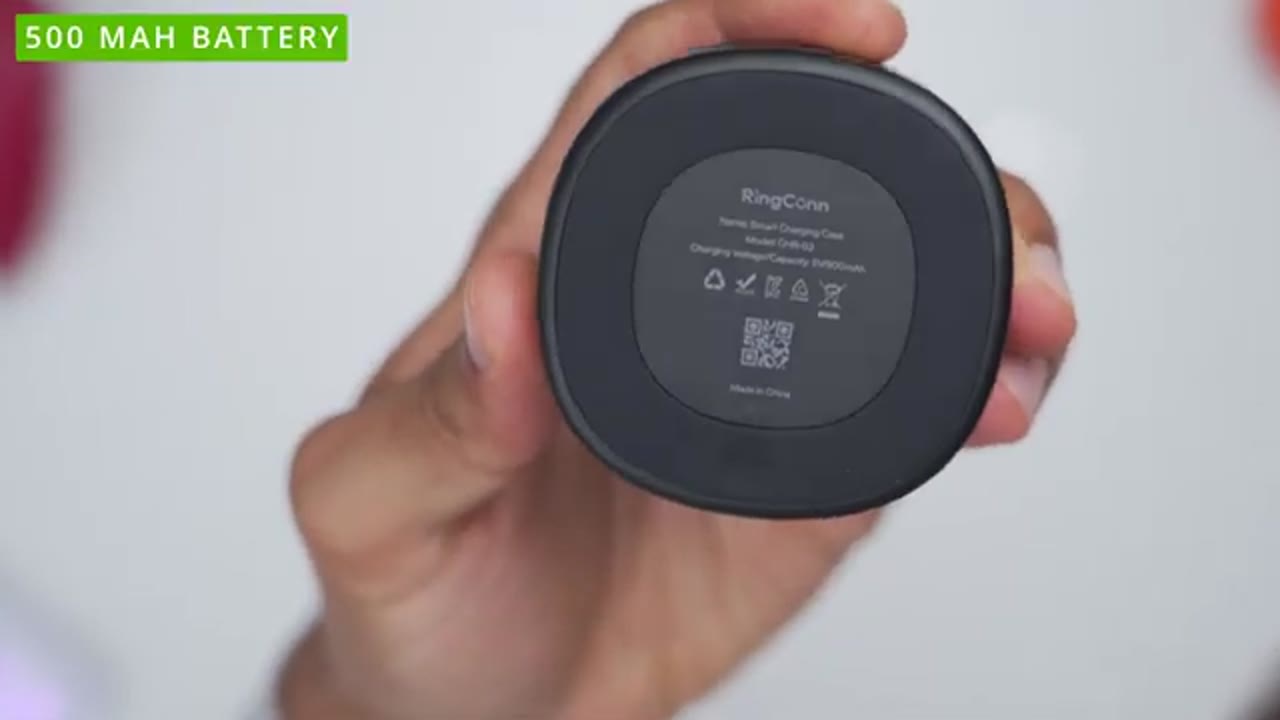
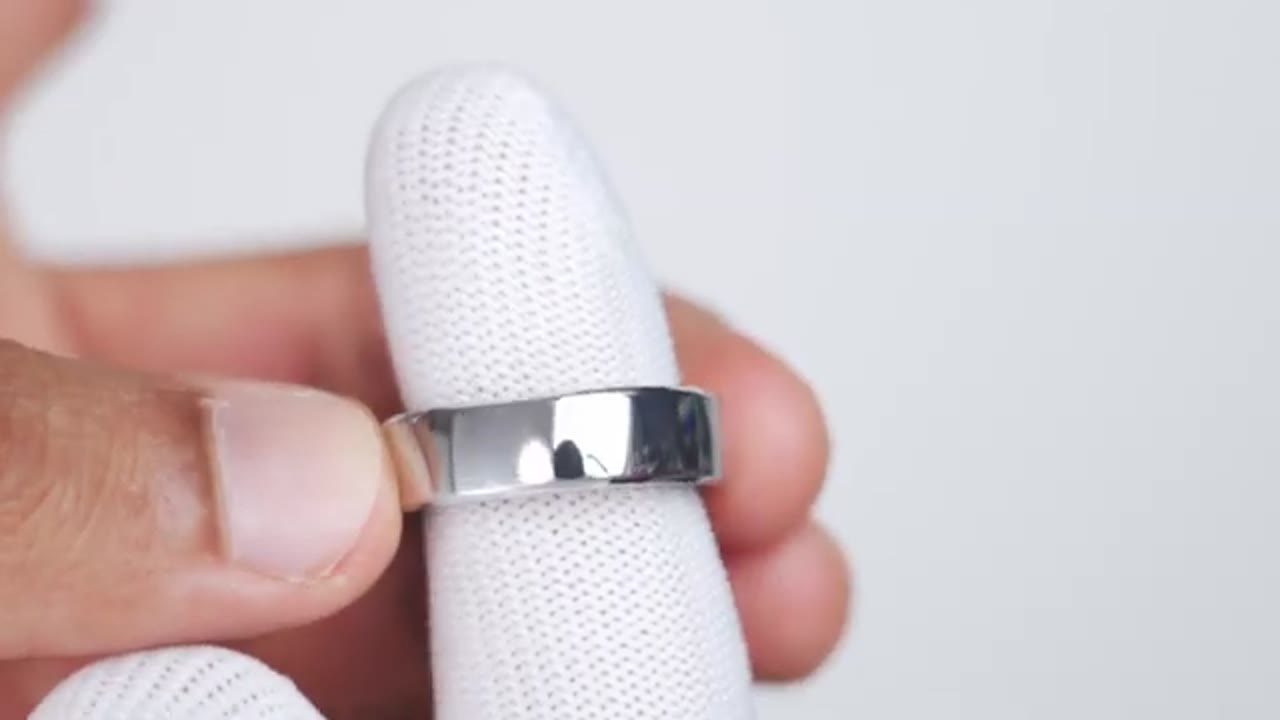
have the RingConn Gen 3 smart ring in size nine, and this comes in at around 2.9 g, which is very lightweight. It comes in at around 2.3 mm thin, and it has this squared circle type of design, which I feel looks better and actually is a little bit more comfortable than just circular rings. The exterior is made of aerospace titanium, and I have it in the future silver finish, but it also comes in other nice-looking colors as well. The inside houses all of the various sensors, and we have two small bumps or nodules as well. Now, this is using medical-grade resin to keep everything nice and sealed, and we have an IP68 rating rated for up to 10 atmospheres. The charging case comes in at around 76 g, so it has heft, it feels really well-built good in the hand, and it has a metallic build.
Now, we have the RingConn logo at the top. When you will open it up, there’s an LED indicator light on the front, and we have an LED indicator light on here as well, along with metal charging contacts for the ring. There’s a USB Type-C port to recharge the 500 mA hour battery that it houses, and there’s a reset button at
RingConn Gen 3 Specs
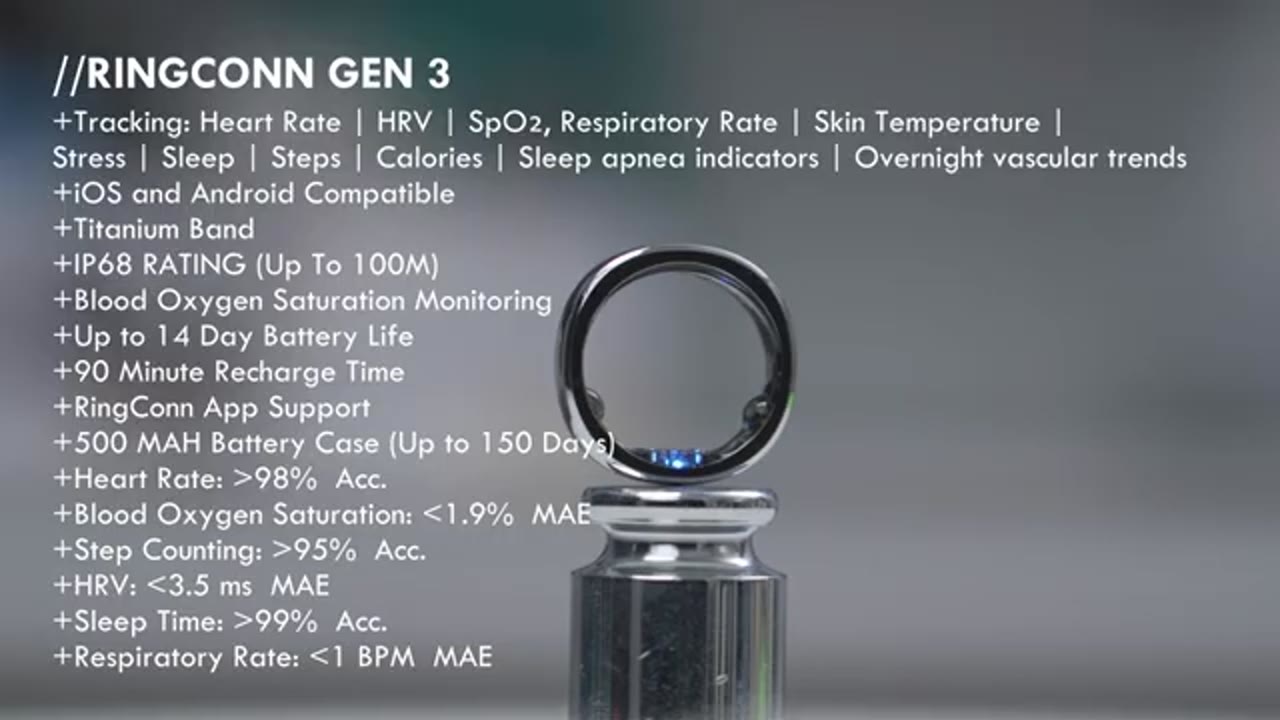
the bottom. Here’s a quick look at the specs. Feel free to pause and review, or jump ahead to the next section. To get
RingConn Gen 3 Setup
the RingConn set up and paired, it’s really simple. Download the RingConn app from your app store and create an account or login with an existing account, and then tap on start pairing. It’ll ask you to place the ring on the charging case. Go ahead and do so until you see it light up. It may ask you to enable Bluetooth, give it those permissions, and then follow the process, and just like that, you’re
RingConn App Settings
done. Let’s take a look at the RingConn app settings. So, as soon as you open the app up, you can see this kind of wellness balance that gives you a general overview of how you’re doing for the day. And then you can actually see there’s this kind of AI little feature here. So, if I tap on how to improve balance, it’s actually going to pull up this RingConn partner, which is a beta feature that you could turn on or off. Now, once you scroll down further, you can actually take a look at your sleep data. So, if I tap into that, you can see it shows good. Now, I can actually cycle through on previous days as well if I like, but let’s look at today. You could see that’s kind of when I went to bed, when I woke up.
So, it’s showing my total time asleep, time in bed, my sleep efficiency, sleep details. Now, while you’re sleeping, you could also take a look at your sleeping heart rate. You could take a look at your movement as well. And you could see a breakdown of, you know, your awake time, REM sleep, light sleep, deep sleep. And then you also have additional vitals here like your BPM, blood oxygen saturation, your HRV, BRPM, and your temperature as well. You could also take a look at the last seven nights or just the last nights. You can kind of get an idea of how you’re trending. Scrolling down to vital signs, see you can get a quick overview, but you can also tap into that to get additional details. And it does say there’s three changes worth looking at.
So, it’s just observing drops in blood oxygen saturation. Again, you could cycle through various days as well to take a look at your data. And you can get a general overview, and you could take a look at your heart rate for, you know, the last 30 minutes, last 5 minutes. You could see your resting heart rate, your latest blood oxygen saturation, your latest versus your daily average. And you can take a look at your HRV, respiratory rate, skin temperature. You can see just a ton of data on here. You can also tap on this little icon in the top right to take a look at your vitals for, you know, a week, month, year, etc. You can also take a look at your activity. So, right now it’s showing light because I haven’t done much walking. I haven’t left. I’ve been filming.
But, you can see on the other days I do have, you know, kind of balance or excellent in terms of activity. Let’s go to today and you can see that I’ve only achieved about half of the steps from my actual goal. You can see the current calories estimated that I’ve burnt so far. And then you can also take a look at my active time as well as my sitting and standing duration. Whenever you open the app up, if it auto detects activity, it’ll prompt you to add it. But, additionally, you can just add exercise records manually if it didn’t auto detect. So, under exercise types, you can see you have walking, running, cycling, um traditional strength training. And I’ll just kind of slowly go through these because you can see there’s quite a lot of different activities to choose from.
Under the discover tab, this is where you can take a look at exercises, you know, more of a breakdown and you can add exercises as well. Now, under sleep apnea monitoring, this is something that you have to manually start. You can see right now it shows the end button because I’ve ran it. Um and once it runs, you know, for three times, it’s going to give me a report. You can also take a look at previous reports. You can see on these days I’ve ran it as well. And so far it’s showing no abnormalities detected. Now, you can also take a look at blood pressure trends. And this is where you’re going to enter in your blood pressure once you take it with, you know, a proper blood pressure machine.
And then the ring is kind of going to give you your nighttime average and your daytime average as well. And you can also take a look at trends as well. Anytime you need to take a look at the battery life, you can tap on this icon in the top right corner. It’s showing about 13% charge remaining and this is when it’s estimating it’s going to run out. So, I’ll just charge it before then. I can also enable ring airplane mode, long storage mode. I could go under find my ring and it’s just going to show the last area where the ring was connected to the app. Under the health tab at the bottom, it’s going to give you a lifestyle score. So, you can see it’s showing me trending down, I’m declining right here. And it kind of shows where you can improve and where you’re actually doing well already.
Under the plan tab, this is where you can go ahead and add things that you want to improve. You can see I’ve set exercise three uh days per week, but you can add other plans as well. And under me, you can see under my name there’s actually badges that you could earn, which is really neat. You know, you can go for personal records like, you know, uh breaking a step count goal. Now, under health alerts, you can enable uh what kind of alerts you’d like the app to send you. So, you know, headache signs, a vital sign abnormalities, sun exposure, and hydration. And if we go under app settings, you can switch it from English. These are all of the available languages.
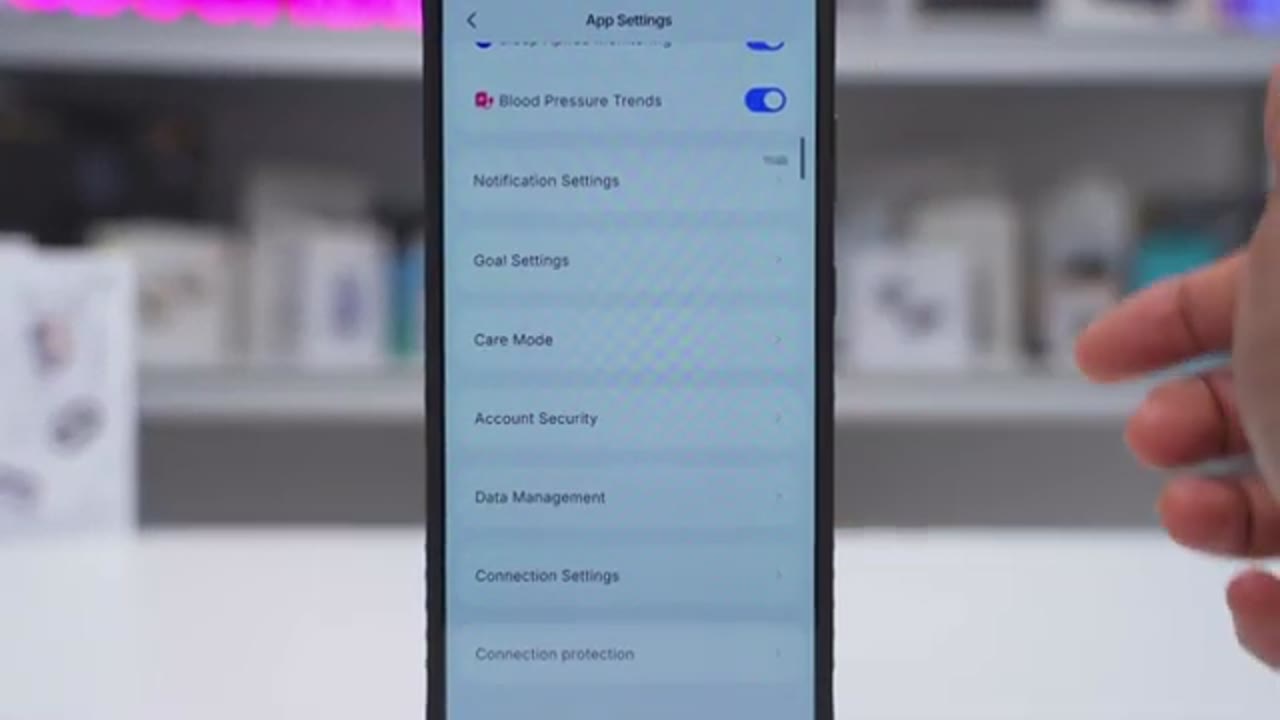
If you need to switch that, you can also switch it light mode, dark mode, switch it from imperial to metric, same with weight and length. You can set those independently. And temperature can be Celsius or Fahrenheit, and these are the other options here. You can also have it automatically detect when you take a nap, when you uh do an exercise. This is the partner AI feature I was talking about. You can enable with uh women’s health. You can also have alerts for headache, uh sleep apnea monitoring, blood pressure trends. Under notification settings, you can get alerts for all of these type of alerts, you know, battery, wearing reminder, sedentary reminder, high heart rate reminder.
But under vibration, you can also enable uh kind of vibrations for battery reminders, sedentary reminder, and health alerts. Under goal settings, this is where you could set your sleep goal, you know, your step goal, calorie goal, etc. Under connection settings, this is where you can enable persistent connection mode, so the ring can have kind of a stable connection at all time.
RingConn Gen 3 Tracking
Now, let’s talk about the health monitoring or health data tracking. Now, rather than just show the RingConn Gen 3 data, I actually took data from my UltraHuman Ring Air and my Withings ScanWatch, so we can get an idea of how all three of these devices kind of report their data in terms of real-world use, and here’s what I found. First, let’s look at sleep tracking data. So, all three devices were remarkably close. So, the RingConn Gen 3 ring showed that I slept for about an average of 7 hours and 31 minutes over a week. Now, the Ultrahuman Ring Air showed that I slept an average of 7 hours and 33 minutes, and the Withings ScanWatch showed 7 hours and 34 minutes. So, you can see, in terms of sleep tracking, all three devices were basically on the same page.
When it came to tracking heart rate, so on average, the Gen 3 showed 68 beats per minute, the Withings ScanWatch showed 69 beats per minute, and the Ultrahuman Ring Air showed 71 beats per minute. So, the RingConn Gen 3 showed the lowest beats per minute of the three devices. Now, that doesn’t mean it’s wrong, because we are using various different sensors and algorithms, but it’s something worth noting. When it came to blood oxygen saturation, now do note that the Withings ScanWatch does have a medical-grade sensor for blood oxygen saturation. Now, on average over a week, the Gen 3 was reporting about 94% blood oxygen saturation, and the Withings ScanWatch was reporting 96%. So, those are fairly close.
When it came to my heart rate during the day or while I was awake, the Gen 3 showed an average reading of 79 BPM, the Withings ScanWatch showed 78 BPM, and the Ultrahuman Ring Air showed 66 BPM. So, I’d say the Gen 3 and the Withings ScanWatch are probably more accurate than the Ultrahuman Ring Air in this reading. When it came to step counting, that was probably the biggest difference between the devices. So, the RingConn Gen 3 showed an average of about 73,500 steps over a week, and the other two devices, the Ultrahuman Ring Air and ScanWatch, showed an average of 55,000. So, about a 30% difference. So, for step counting, I think that’s one area where the Gen 3 is probably over-reporting, especially when compared to the other two devices, which are pretty similar.
So, for me, I’ll probably just take whatever reading the Gen 3 gives me and just divide it by 1.33 just based on what I’m seeing with my other devices to have it a little bit more calibrated. In terms of skin temperature while sleeping, so the RingConn Gen 3 on average showed about a 2° difference over the Ultrahuman Ring error. It was just 2° higher. But what is important is that the readings were consistent the entire week. So once you do have, you know, your actual skin temperature as a calibration or baseline, you could just mostly use this for accurately monitoring trends since it did stay consistent the entire week. RingConn also gives BRPM or breaths per minute while sleeping, which is something I don’t have on the other two devices.
So I’m happy to use the RingConn Gen 3 ring for overall health tracking and monitoring since all three devices kind of reported similar numbers except in step tracking the Gen 3 did over report. So I just have to make that kind of accommodation or calibration. Now if you don’t have another smart device to calibrate, just, you know, walk 100 steps, 200 steps, see what the app reports and then just make adjustments
Vascular Health Insights
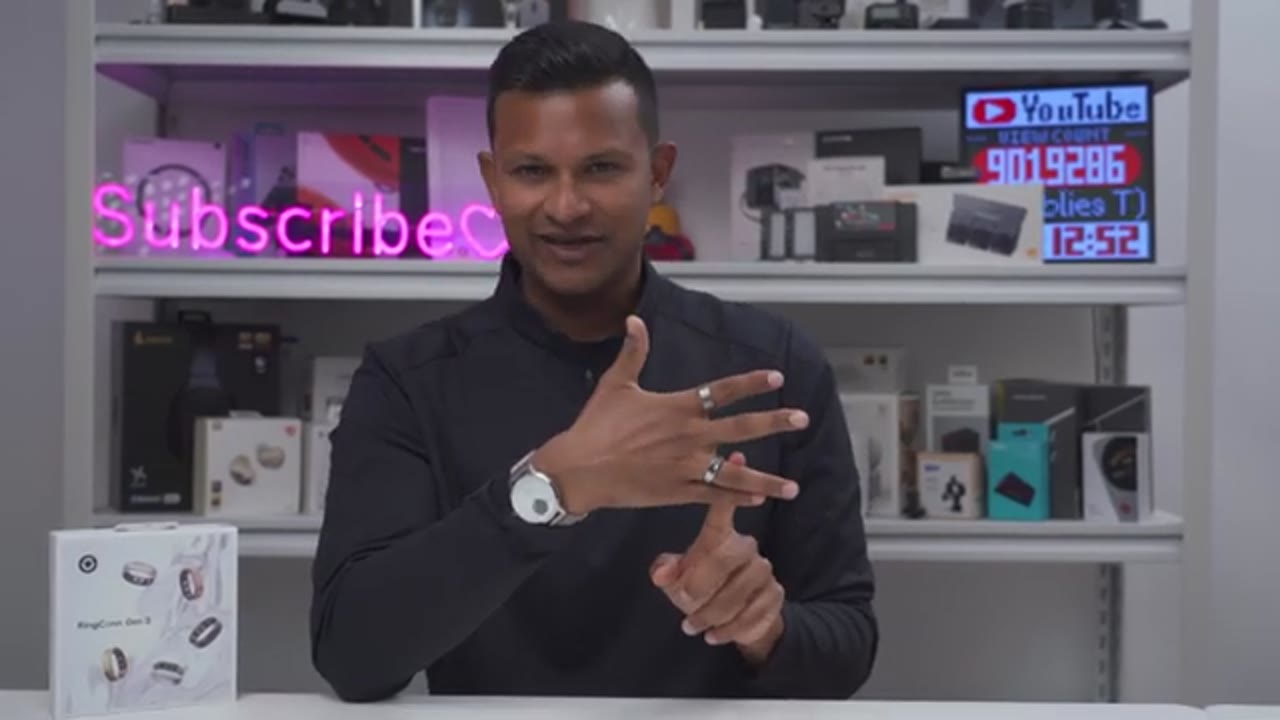
that way. Now let’s talk about the vascular health insights since that’s new on the Gen 3. The previous models didn’t have it. And the way it works is you’re going to take a blood pressure reading with a blood pressure machine. You’re going to enter that into the RingConn app. And then as you wear the ring it’s going to give you readings for when you’re awake and then when you’re sleeping at night. Now I don’t have, you know, access or regular access to a blood pressure machine to, you know, really check it every single time. But what I will say is from the readings I’ve seen it’s very consistent with what my usual blood pressure readings are.
RingConn App Experience
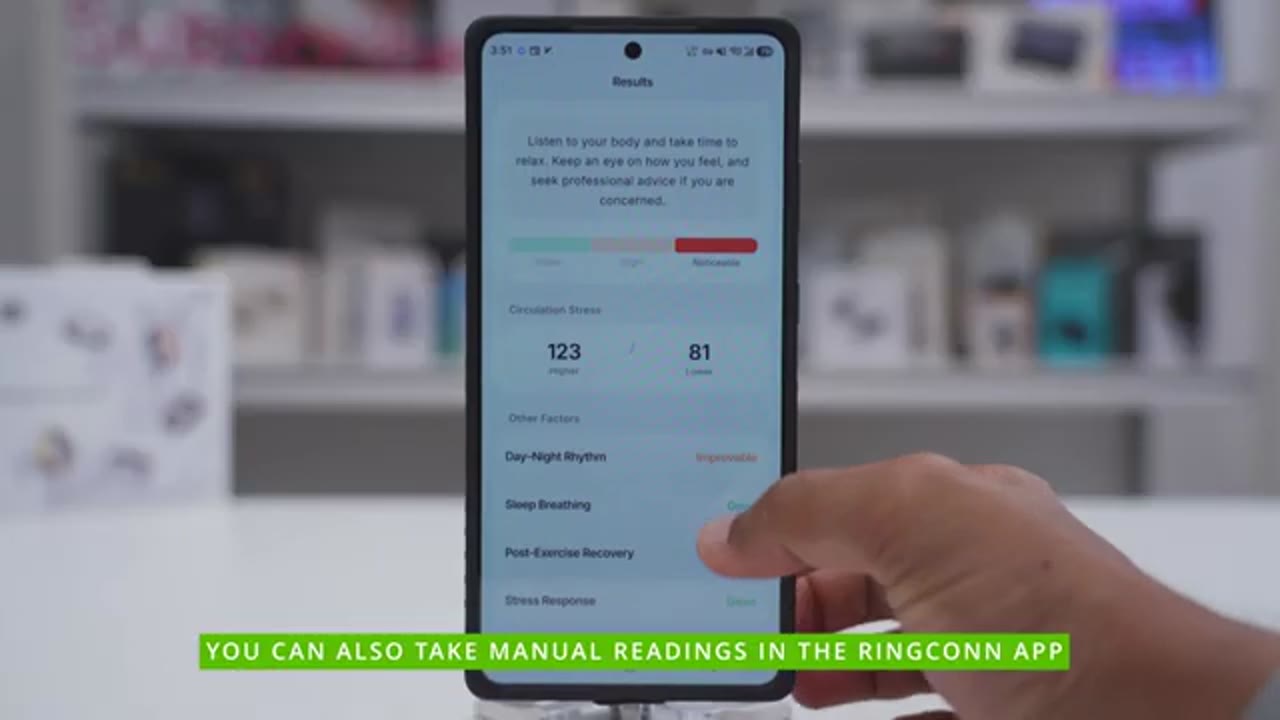
Now let’s talk about the app experience. So with the app, anytime you open it up it’s going to automatically sync the data from the ring to the app. And anytime it’s auto detected activities, it’ll just prompt you, “Hey, do you want to add this activity?” And if it gets an activity wrong, like sometimes it would say I was cycling when I wasn’t, I could just go ahead edit that and say that I was walking. And once the data synced from your ring to the app on your phone, you have this kind of wellness balance in the app that gives you an overview of, you know, your sleep levels, activity levels, stress levels, vitals, etc. And you’ll also be able to see weekly reports on here. You could tap into that to get, you know, a summary, general overview.
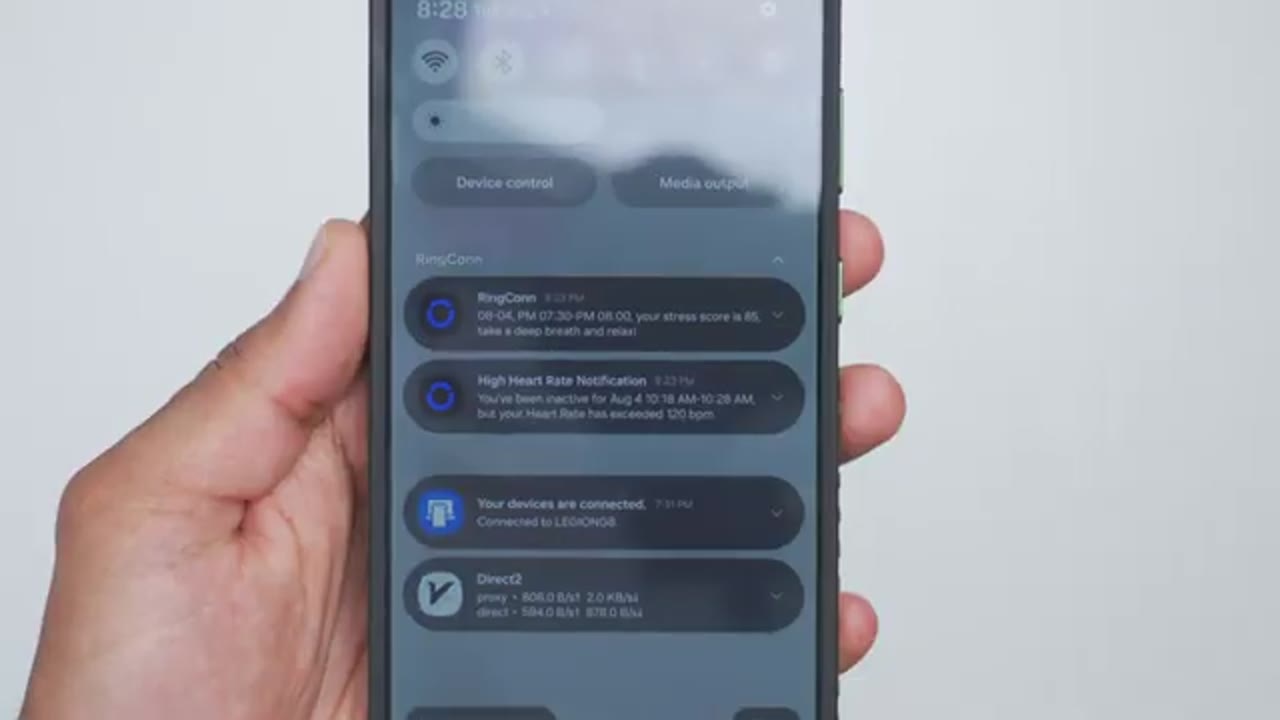
But basically on any area of this app, you could tap into to get more detailed information. The RingConn app also sends alerts anytime your battery is low, anytime you’re fully charged, if your stress score is high, if you’ve been sedentary, or whenever reports are ready, along with
RingConn Gen 3 Battery Life
other alerts. Now, let’s talk about the battery life because it’s been quite impressive on the Gen 3 so far. So, RingConn claims up to 14 days of battery life, and that definitely is achievable if you get a much larger ring because a larger ring is going to accommodate a larger battery in it. Now, for context, I have the size 9 in the ring, and on average, I was getting about 11.3 days of battery life until I had to recharge this again, which is actually quite impressive. That’s, you know, kind of close to 2 weeks of battery life. And since you do have the battery charging case, you don’t actually have to, you know, carry around a cable. That’s good for up to, you know, 150 days of battery life with that charging case.
Now, I also noticed that whether I had persistent connection mode on or off, and whether I had the vibrational alerts on or off, it was still, you know, basically around the same. So, it shouldn’t matter if you have those on or off. And whenever you need to recharge the ring, basically from almost zero, it takes about 1 and 1/2 hours to do so in the battery charging case. So, overall battery life is fantastic. The RingConn
Wearing Comfort
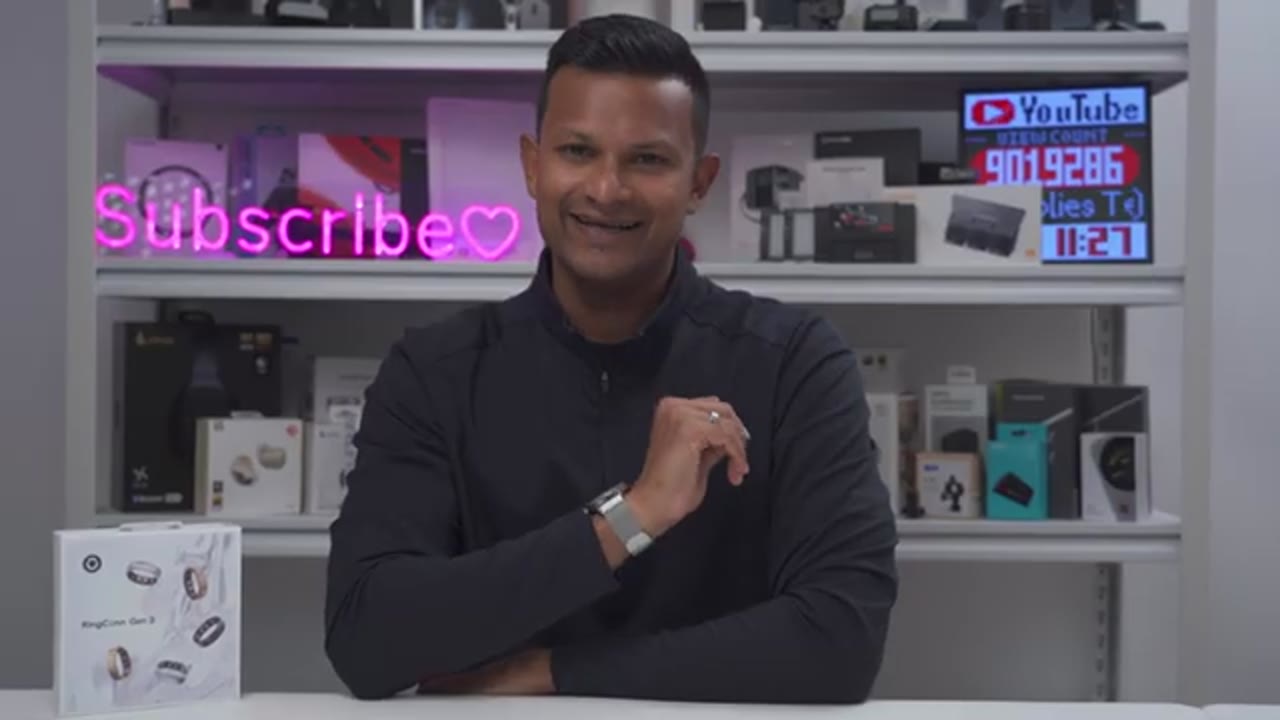
Gen 3 has also been more comfortable to wear than with other smart rings because other smart rings have that traditional rounded design. And when it has that, you know, it just sticks out wider on the side. Whereas with the Gen 3, it has kind of a squared-off circle design, which is kind of more natural, and it doesn’t, you know, kind of flare out any more than it needs to. So, this has been extremely comfortable. Again, it’s also very lightweight, and it’s so comfortable to wear, I’ve even been wearing it while I’m showering. So, it’s basically on 24/7 because it has an IP68 rating. So, showering, washing dishes, even going for a swim is no problems at
RingConn Gen 3 Durability

all. In terms of durability, this has actually held up quite well so far. So, I’ve been wearing this basically 24/7 for about a month and anytime I’m weightlifting, anytime I’m kind of dead hanging from a metal bar, this has been on the whole time. I’ve not been babying it. I haven’t bought any of the protective covers that you can put on these. So, I’ve not, you know, treated this any differently than I would with my regular routine. And the only area that it has any type of kind of scuff marks is at the bottom here where it’s making contact with metal bars. Every other area on here looks pretty unblemished to me. So, it’s actually held up quite well considering this mirror type of polish it has. Now, let’s
RingConn Gen 3 Vibration Alerts
talk about the vibration alerts on the Gen 3. So, as it stands right now in the app, you can enable vibration alerts for battery life, sedentary reminders, and for health alerts. And while the ring can vibrate, the vibration is actually so slight or minimal, at least to me, that most of the times I really don’t notice it. So, this is not something where, you know, I would bank on it that, you know, you’re going to notice it anytime you have those alerts. So, it’s a nice feature, but it’s just not powerful enough, at least not for me.
RingConn Gen 3 Recommended?
So, should you buy the RingConn Gen 3 ring? Well, to date, this is the most full-featured ring I’ve used so far. It has a ton of data and health tracking, and it even has tracking for some features that aren’t present in my other devices. As well, it’s pretty similar in data reporting to my other devices in most areas. It’s also extremely comfortable to wear. It’s also held up well in terms of durability. The battery life has also been fantastic on here with me getting about 11.3 days on average with each charge, and it also has that convenient battery charging case so you can just carry this on vacation with the battery charging case and you never have to touch a cable.
But, the absolute best part is that there’s zero subscription fees to use this ring and get full functionality out of it, unlike other smart ring competitors where you have to pay a yearly fee or pay monthly to unlock certain features. So, if you’d like to get your very own RingConn Gen 3, I’ll leave links down below in the video description and pinned comments. And if I have any type of coupon codes, I’ll leave those down below as well. You may also be interested in my review of the RingConn Gen 2 Air up here if you’re trying to decide between both of these. And can I ask you a huge favor? Would you mind liking and subscribing if you found this video helpful and maybe even consider joining as a member where you’ll get early access to videos and other perks.
I also review a bunch of tech outside of health devices. Maybe you’ll find something you like and I really hope you’ll join me in my next video soon.
Buy RingConn Gen 3 Ring on Amazon
Buy RingConn Gen 3 Sizing Kit on Amazon
Please note that some of the links in my video descriptions are affiliate links where I earn from qualifying purchases. As an Amazon Associate I earn from qualifying purchases.