


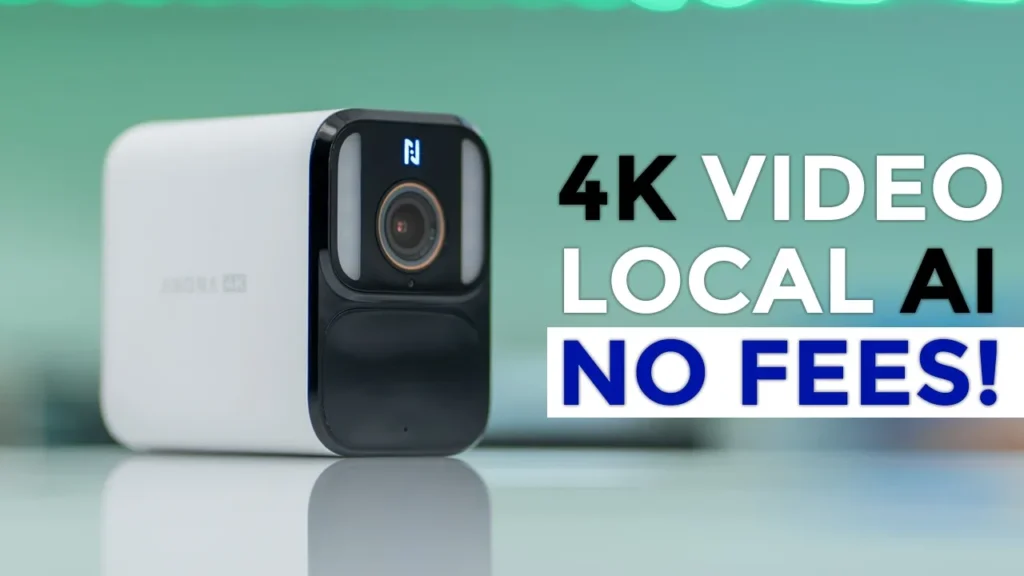

Buy Anona Aurora Security Camera on Amazon
Buy Anona Holo Smart Lock on Amazon
Please note that some of the links in my video descriptions are affiliate links where I earn from qualifying purchases. As an Amazon Associate I earn from qualifying purchases.
Intro

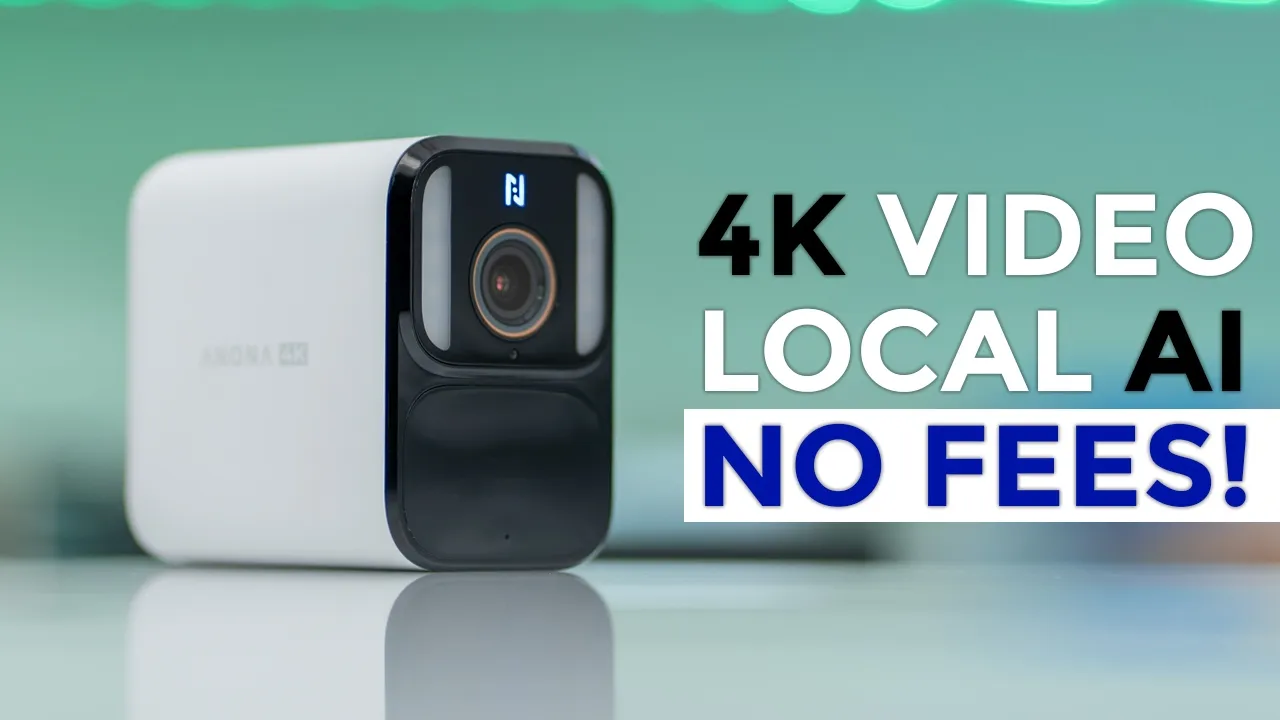
hey it’s Adrian and today I’m taking a look at a pretty impressive camera so this is the Aurora security camera from anona and this has impressive 4K video and a solar panel to help keep the battery topped up all year long on top of that there’s a very handy always on video which gives you a time lapse of everything that happened in front of your house there’s also on device AI recognition for humans pets vehicles and packages there’s color night vision thanks to the built-in Spotlight and they also have their starlight night vision technology which gives you bright and detailed video thanks to the f1.2 lens without the need for using a spotlight a 10,000 Mah hour battery paired with the solar panel means you’ll never have to take this down to charge it again there’s 32 gigs of built-in stored zero monthly fees and IP67 waterproof rating 2way talk Wi-Fi 6 and more however there’s one area that needs a little bit more refinement to make this the perfect camera so let’s take a closer look and a big thanks to anona for sending us out for review so we have
Package Contents
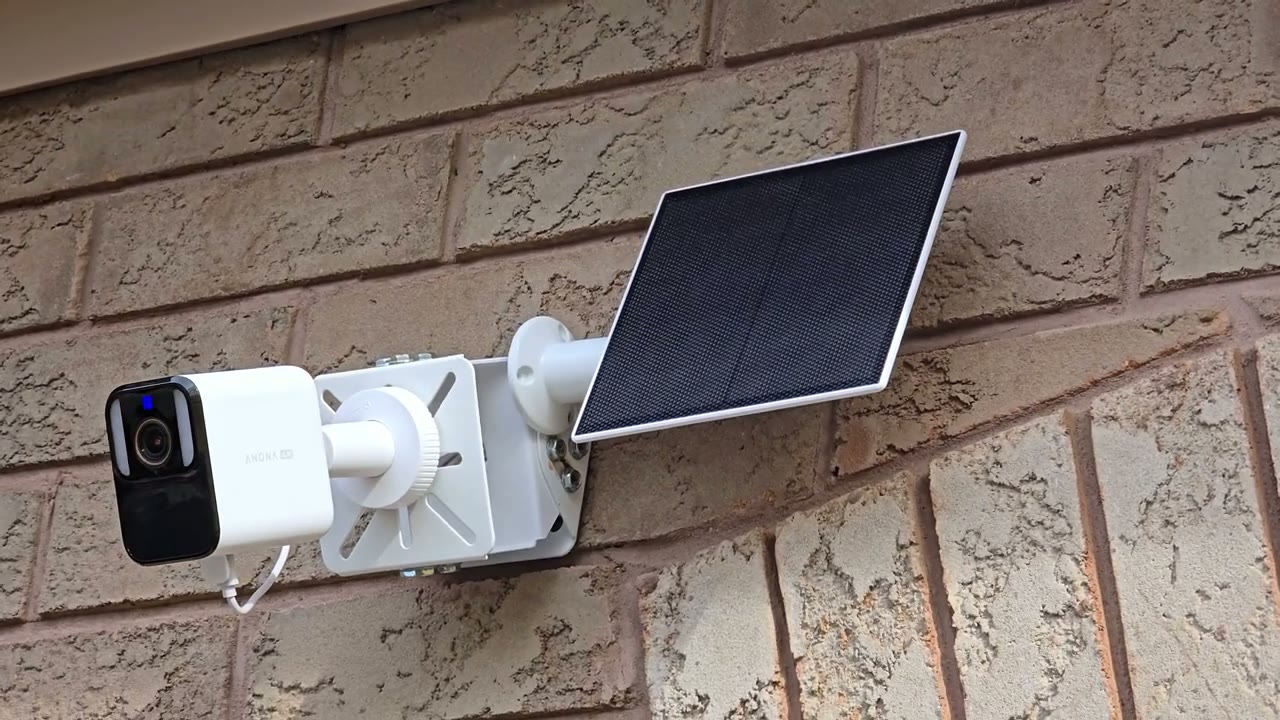
the anona Aurora security camera along with the solar panel there’s also mounts for the solar panel and the security camera a USB type A to type-c Cable mounting screws positioning sticker security sticker manual and support card
Design
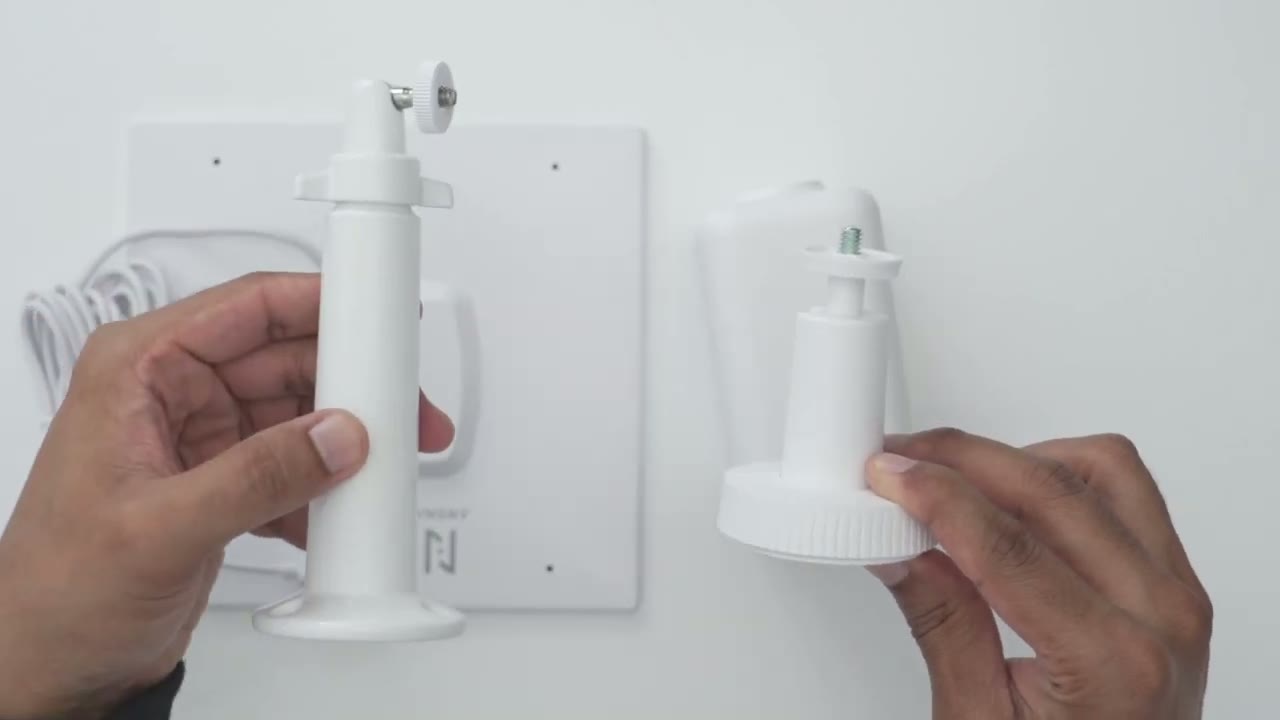
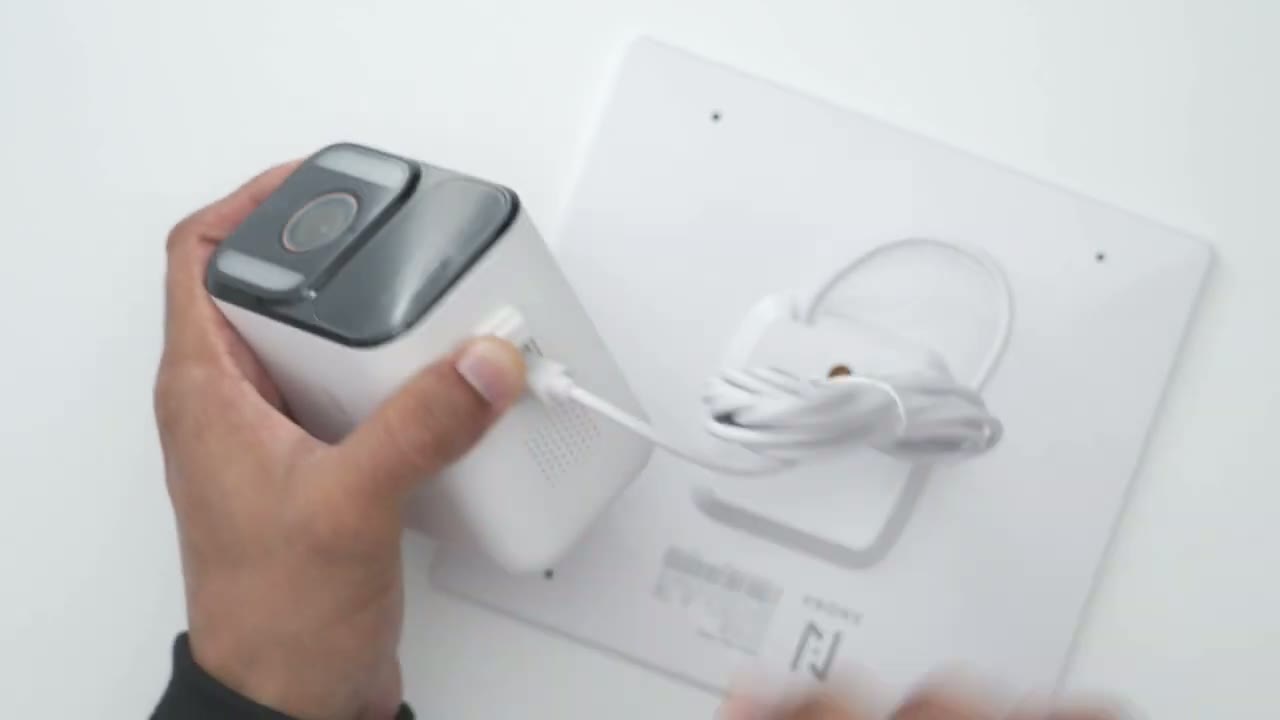
the anona Aurora security camera looks really nice with this black and white color scheme now even though this is a very compact camera fits in the palm of my hands it does have some heft coming in at around 411 G or 0.9 lb now on the right and left sides we have the anona logo with 4K so so this is capable of 4K recordings which is nice and the top is pretty much uh Plain on the front we have that impressive 4K lens along with the anona logo and this panel at the bottom which houses a ton of the sensors there’s also two of the spotlights the underside of the camera has the sink button and I’ve pre- loosened this weather sealed area giving access to the USB type-c port now we also have speakers at the bottom and due to the good seal all around we do have an IP 67 rating on here so this will be good for all types of weather this comes with 32 GB of storage built in already so you don’t have to buy anything additionally now one thing that’s really unique with this camera that I haven’t seen before is with a lot of these cameras once you installed a base like this and you need to you know ever remove the camera down so you want to uh charge a battery up if it’s you know not doing a good job with the solar charging in overcast weather you have to unscrew everything back but with this camera it’s actually quite neat you could just pull down right here separate the entire camera body from the mounting base here take this inside your home charge this back up and then just go ahead and you know snap it into place just like that without ever touching you know this screw thread that is such a neat design choice so this is what the solar panel looks like about the span of my hand and then if we take a look at the underside we have pre-and wiring with a USB type-c connector end and a thread Mount and the USB type-c connector end that’s what you’re actually going to use to connect to the underside here to keep it topped up so the shorter Mount is what you’re going to use for the anona Aurora camera and then this much taller Mount is going to be used for the solar panel here’s a
Specs
quick look at some of the specs feel free to pause or jump ahead to the next section I’m now going to add the anona
App Setup
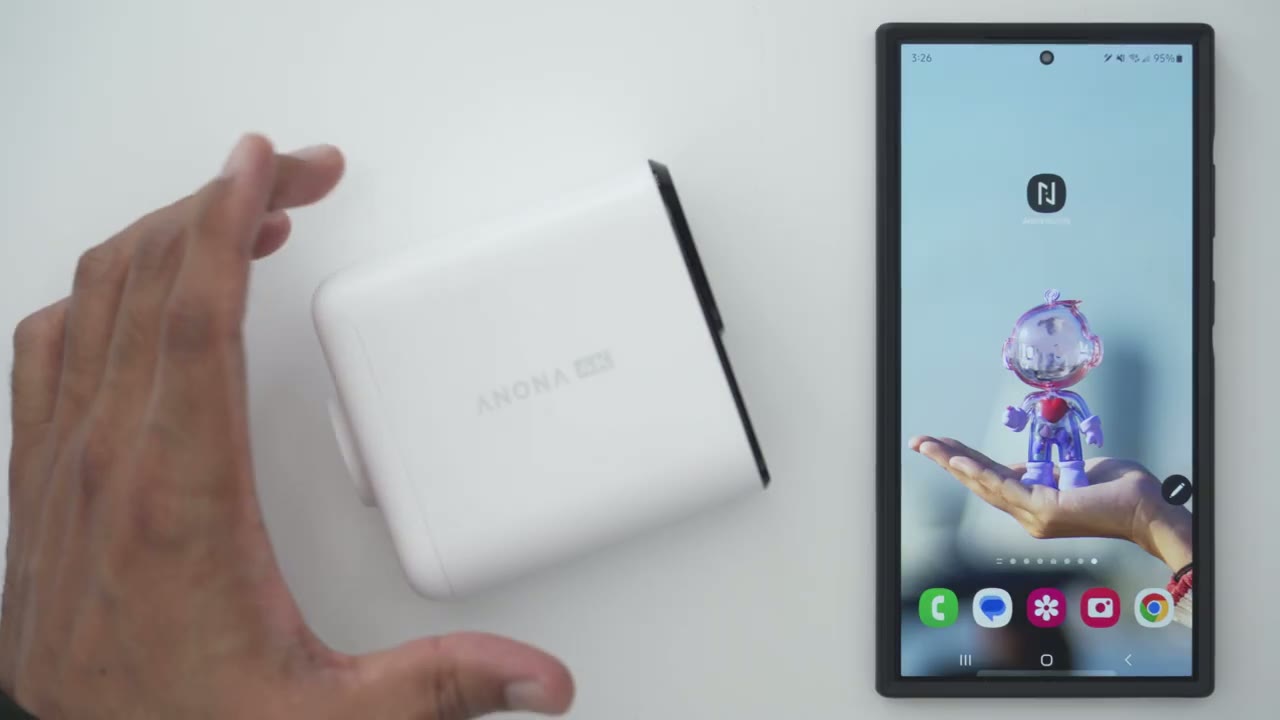
Aurora security camera to the anona security app so I’ll go ahead open it up and I’ll press and hold on the snc button till I hear it power on [Music] waiting for connection all right so it’s powered on it’s waiting for the connection I’ll click the plus sign up here and I’ll go to add device and it’s automatically found the anona Aurora cam so I’ll go ahead tap on ADD and I’m just going to wait now make sure you’re connected to a 2.4 GHz Wi-Fi network so this is my 2.4 GHz Wi-Fi connection it already has my Wi-Fi password cuz I’ve added the anona Smart Lock so I’ll hit for connection I’ll wait for it to connect now if you have a problem connecting yours you’re probably on a 5.0 GHz Wi-Fi so you’ll have to split it and connect to to 2.4 GHz all right so it’s been added I’ll just go ahead and say garage door camera click save before you install the camera go ahead and start live view run your hand over the camera to make sure it detects the movement before you permanently install so the
Installation
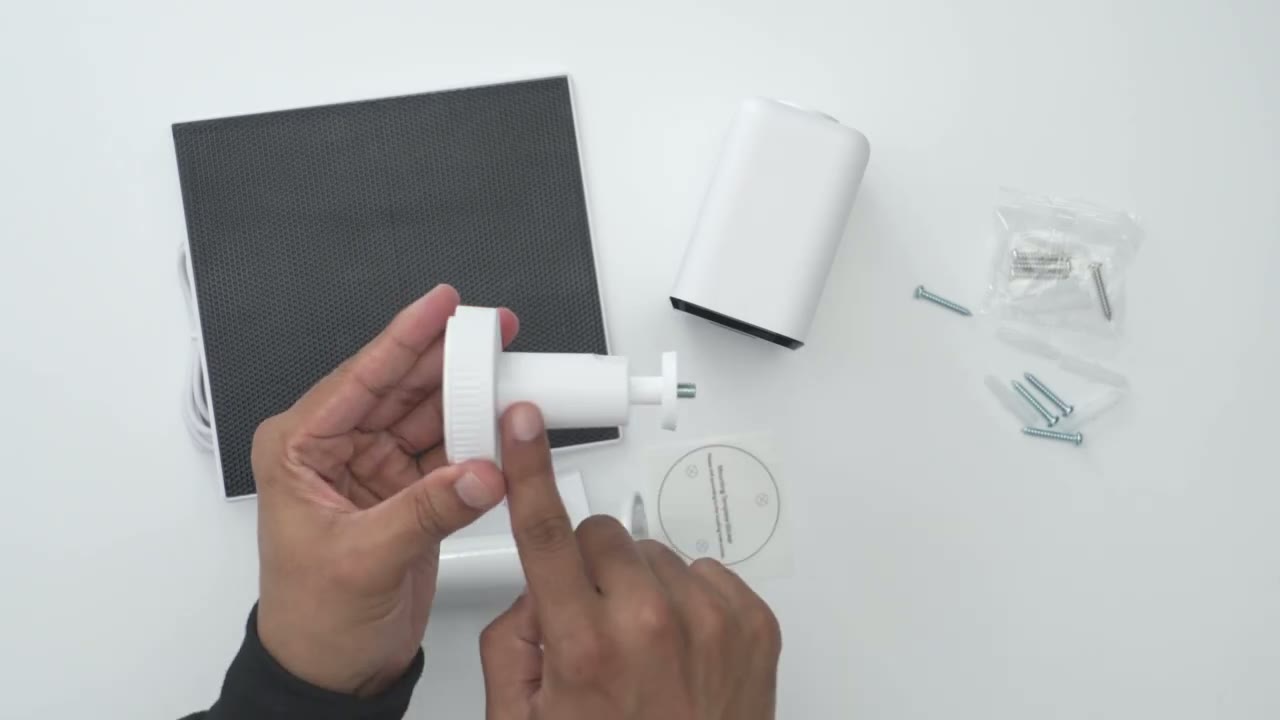
first thing you’re going to do is you’re going to take the camera base and you’re just going to unscrew this this to kind of separate it and then you’re going to have this area completely separate and you could see these are the three uh screw holes that you’re going to have to drill into whatever surface to interface this with you’re just going to attach this to a wall using the supplied screws once you’re done with that you’re just going to lock this back into place like so and then you’re going to secure the camera body to the thread Mount and then just tighten everything into place and you’re just going to repeat the same process for the solar panel connect it USB type-c cable to the bottom of the camera here and you’re done now on this
App Settings
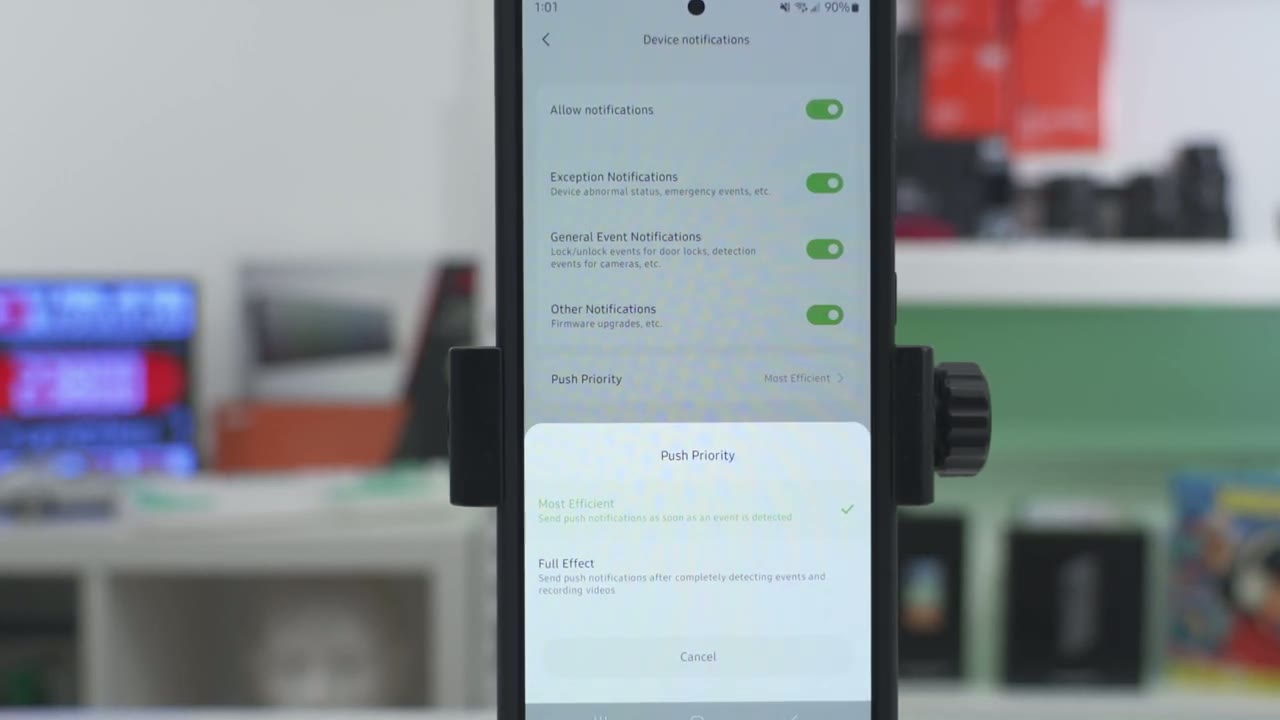
page you can start live view and then you also have access to full settings just in this vertical layout so it’s a very simplified area to access the settings but let’s go ahead and start live view now my camera is placed you know a bit further away from my router and you know past brick walls but you can see that still pulls up fairly decent now I’ll just go ahead go into this full screen mode and you can see as that neighbors kind of just going into their uh driveway there I could really punch in um with the digital zoom and then just take a look so it looks like this person is just you know kind of reversing out and going the opposite way now I can also see the date time and the clarity on here is just amazing you can see it’s in 4k uh right there and if I zoom in on my car this is where I mounted my dash camera and you can actually see the wiring that I’ve ran very sloppily to to provide Power so yeah the clarity on here is uh one of the best that I’ve seen on a 4k camera system and I can take a look at you know the battery level and the connection speed you can also go ahead and just pause um the live view from here if you don’t want you know it running and depleting your battery and we can also go ahead and take a snapshot if you see something interesting you can also take a manual video recording if you’re just looking at live view and you want to record say you pull up live view You Got a notification you see something suspicious you could start a manual recording and this can go on pretty much as long as you want I don’t think there’s a limit on that and then you could just go ahead stop it it will save to your phone and you can also switch it from 4K to 720p to 480p or automatically based on the speed of your connection and you can see I’m on 4K and it seems to be handling it very well even at 4K detail so I’ll leave it there you can also go ahead and turn on the spotlight on the camera we’re not going to see a difference here since it’s a you know broad daylight and and we could also turn on the speaker and it’s a very windy day you can hear that microphone pick up it is really great on this camera I’ll just turn that off so we’re not listening to that the entire time we can trigger the alarm and you can also start two-way talk with whoever is standing outside and we can also jump into the playback screen here and I’ll touch on this later but this is where you would go to play back anything manually let’s go into the rest of the settings so let’s let’s go to manage storage so this doesn’t have a micro SD card slot this has a built-in storage so you have 28.5 gtes usable I’ve used about 2 gigs in the 5 days that I’ve had this installed and these are the different clips that it’s uh recorded so far you can also you know filter these clips by person people loitering Vehicles packages pets other motions and you can also take a look and you know kind of go back and pick a specific day you can also go ahead and pick cck and mark them for download or deletion but let’s tap into here and this is where you can just go ahead and format everything if you wanted to let’s take a look at battery management and if I tap into that the charging method is set to solar panel because I did connect the solar panel which is optional um or you could set it to charger if you’re just kind of topping it up now I have not enabled a power saving mode at all but you can see in this mode video clip lengths are only going to be up to 10 seconds long and motion sensitive it or detection sensitivity is going to be reduced and you are going to have a interval of 60 seconds between Clips since I’ve had it installed you can see um basically only at this period it kind of dipped a little under 100 but it’s been staying at 100 and this is what my solar charging data looks like for the past you know 5 days or so so I’m getting about 3% daily charging um and 2.3 hours of daily charging now it has been very overcast Cloudy with a lot of rain so even with all of that being said you know the battery is still staying very top up which is amazing for a 4k camera under video and audio we could go under Advanced image setting and turn on or off lens Distortion correction I recommend leaving it on you can also turn off or on the brand Watermark or time stamp Watermark and then go into the anti flicker settings let’s go into night vision next now night vision is on and one of the amazing features on here is their starlight night vision so this is going to give you color night vision without actually turning on the spotlight so this is going to actually save you your battery life now if you put it to color night vision or full color night vision sorry it is going to turn the spotlight on when motion is detected to you know kind of illuminate the entire scene but this is going to deplete battery life more and then infrared night vision is just going to give you a black and white image now you can also set the spotlight brightness as well under Max recording duration you can set it to have Clips as short as 10 seconds all the way up to 2 minutes of course this this is going to affect battery life now I’ve left it on 30 seconds and my battery life is still around 100% which is amazing now under recording quality you can set it to 720p recording or 4K recording under privacy zones you can turn this on and set an area if it’s required you know kind of in your local area or regulations uh necessitate that you have this feature so once it loads up click on the plus sign and then you can just drag out to block like a neighbor’s area you can also change the shape and size of that but I’m just going to exit out of here and then we can also go into aov recording now this says once activated the device will record in aov or basically always on video um even when uh no event is triggered and this is such a cool setting so you can see if you go into here you can have a snapshot every 60 seconds every 30 seconds 10 seconds 5 seconds or 3 seconds I’ll leave it on 60 um just hit you know a battery life balance under audio recording you can have uh audio recorded with your video and then you can setly speaker volume to low medium or high whenever you’re talking to someone or when the alarm siren goes off under smart detection motion detection is turned on now there’s this option for schedule detection so you can say that hey I only want the camera to kind of just detect motion every day during this time to this time or only on specific days depending on your work schedule detection Sensitivity I have it set to the highest of course this is going to shorten battery life but like I showed it’s still at 100% pretty amazing detection interval this is kind of you setting a coold down time in between detections and then under detection type you can have it set to person uh person detection settings this could be set to immediately um detect it on appearance or only if they stay for over 3 seconds or 6 seconds like if they’re lingering or loitering you can also turn on pep and package these are beta features so you know um maybe a little bit hit and miss and then you can turn on other motion now if you turn this on it may pick up a lot of other motion such as you know trees swaying in the wind and you know further deplete battery life so it’s not something that I keep on you can also turn on automatic audio in visual alarm so anytime something is detected it’s just going to you know sound the alarm and the last area is area detection so we can turn this on and you can set the exact area where you want motion to be detected the camera can also be shared with other family members or friends and if we go into other settings we can turn on the camera sleep mode if you just you know want to temporarily disable this say you’re moving or having a party or something you can also have the option to have the camera status light on so people know the camera is actually powered on and working you can change the name go into device notifications and this is where you can set you know what type of notifications you want to get so I’ve set it to all notifications um and then you can also set the push party so do you want to get notifications as soon as it detects motion or do you want to get notifications after it’s detected the event and recorded the videos let’s take
Video Playback
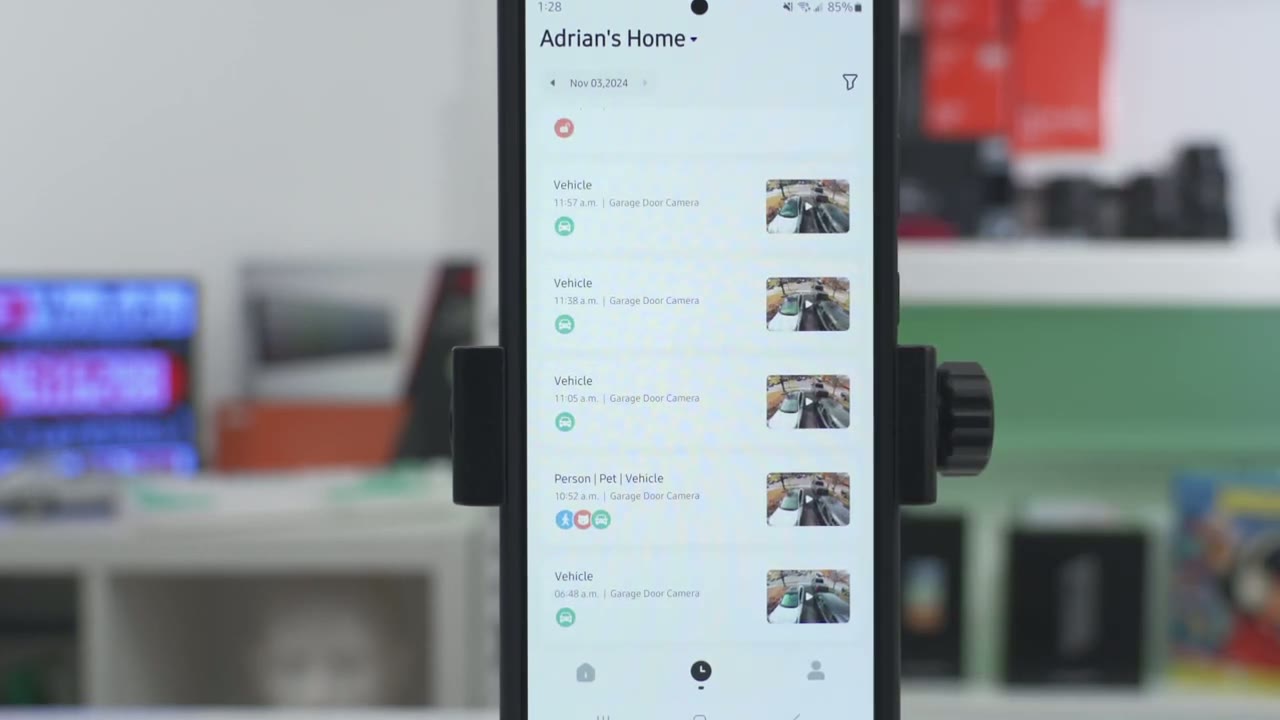
a look at recorded video so I’ll tap on playback here and while that loads up notice it has the always on video time-lapse feature which is super handy and this is broken down by vehicle or person if I tap on person here I could see my neighbor walking away but I’ll tap on the date here I’ll go to the 31st which is Halloween day here and you can see see I have a lot more recordings now if I tap on one of these you can see these are all the kids that were coming to the house for Halloween trick-or-treating and whenever you’re looking at video you could tap on here share the video or you could download the video and you can change that playback speed from the default um 1X to two times speed or you could slow it to 0.5x and do notice that you know it’s having a hard time connecting on and off again I do have this place you know a bit further away from my router than is ideal a second way to review video clips that you might prefer is to go into manage storage now once you go into manage storage you’re going to get a thumbnail preview of each of the clips which makes it easier at a glance but more importantly you could tap on this filter icon here and then you could tap on pet click okay and these are all the clips with pets in them so if I just tap on this clip here and let it load up so I can see in this clip there’s going to be you know um a guy walking his do I’ll just jump to about the halfway marker and give it a second to look up and I can see the guy at the tail end just walking away there if we click on the second tab here same type of deal where you could take a look at you know a vertical feed of everything that
Video Quality
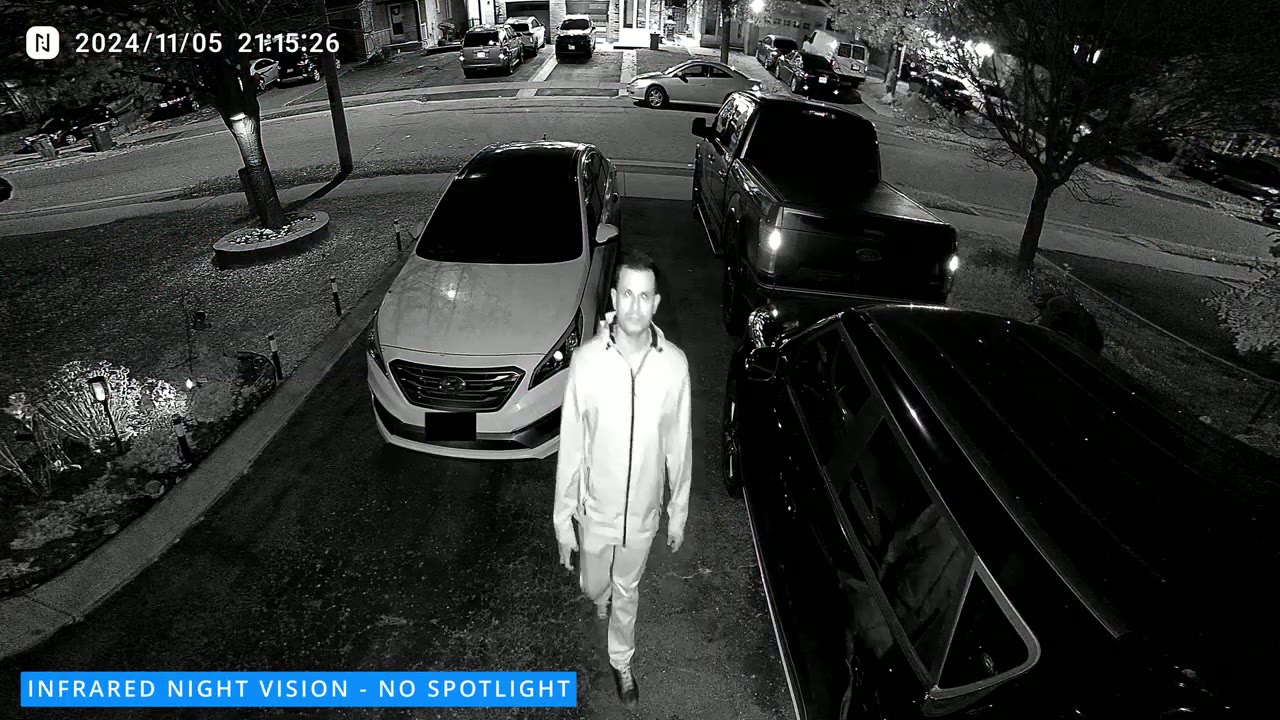
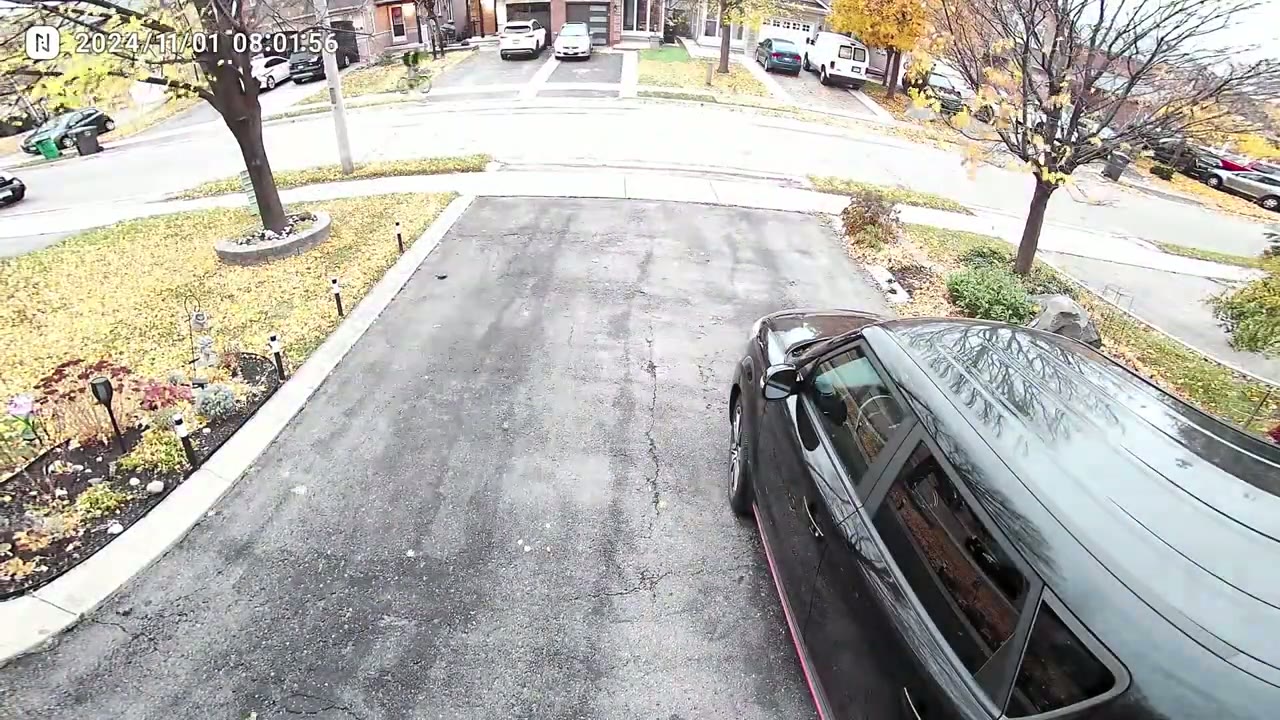
happened for the [Applause] Day 4k videos are super crisp and there’s a ton of detail to make out whether it’s day or night now you do have the option to zoom in digitally by 4X or 8X and there’s an impressive 130 36° field of view so you can see pretty much everything that’s going on in front of your house or if you were to position this or place it in your backyard and I’d say that you could probably make out license plates you know a good 15 to 20 ft away from wherever you position the camera so you have a couple of night vision options one is full color night vision where the spotlight will be turned on to kind of illuminate the entire scene now this is pretty good but it is going to deplete your battery life by a little bit my preferred way is to use the starlight night vision mode and this is not going to turn the spotlight on but the algorithm on here is just so good the way that they’ve tuned this you’re going to get a lot of detail and just overall brightness in nighttime video thanks to that f1.2 lens and you also have the option to use the infrared
AOV Timelapse
or Black and White Night Vision mode you also have their always on video or aov function and this is a time-lapse feature so you can set the camera to take a snapshot every 60 seconds all the way down to 3 seconds seconds and this is so amazing to have I really wish every camera had it because you just see a full time lapse of everything that transpired outside of your house the
Motion Detection
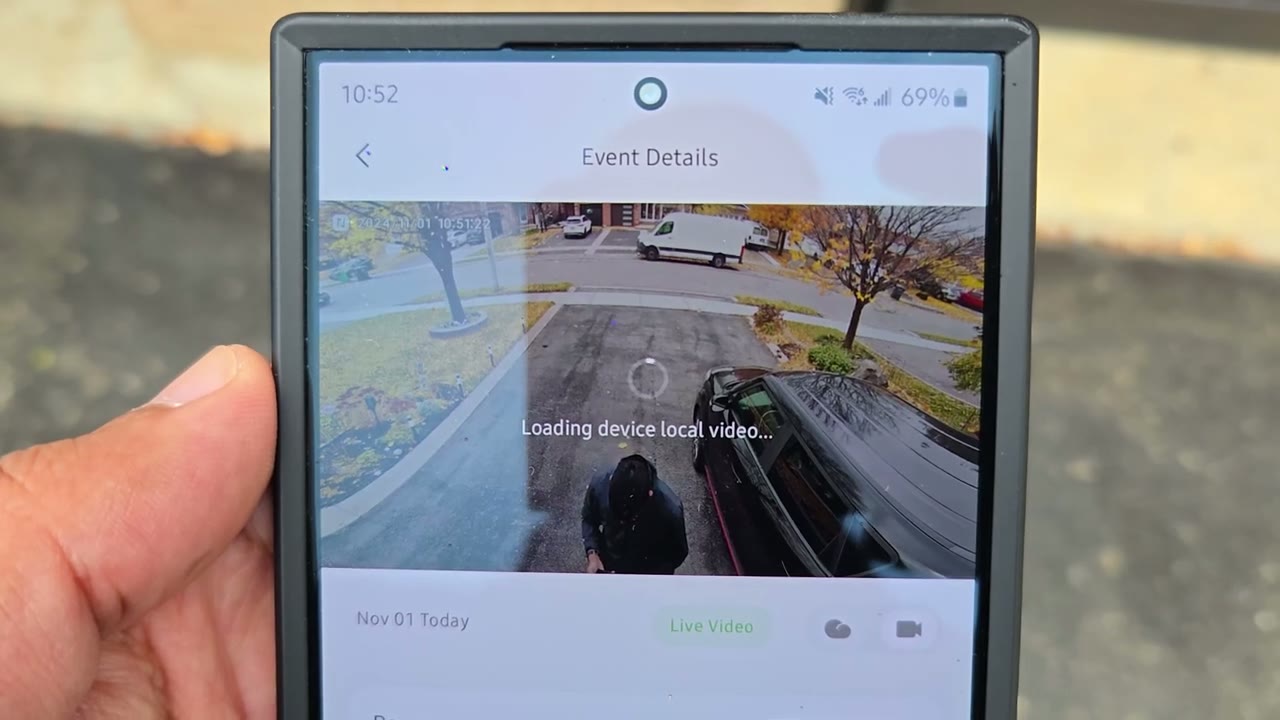
motion the detection is pretty good out of the box but I think it could use with a bit more refinement so anytime the camera detects motion you’re going to get an app Alert on your phone once you tap on that it’s going to open up the anona app but the default screen it’s going to go to is cloud recordings now that’s great if you have a cloud recording plan but if you don’t then you have to manually switch to the local on device recording this does have 32 gigs of uh onboard storage now whenever you do click the option to go to local device recording it still has to process the video because this is all happening in real time so the video that it just captured is going to process which takes time with any security camera system so this is something that I spoke to aono about and I said hey it would be better if when we tap on the app alert we just go into live view directly because you know sometimes you don’t want to wait you just want to see exactly what’s going on outside of your house and this is something they said they’re going to implement in a future release of the app
Package Detection
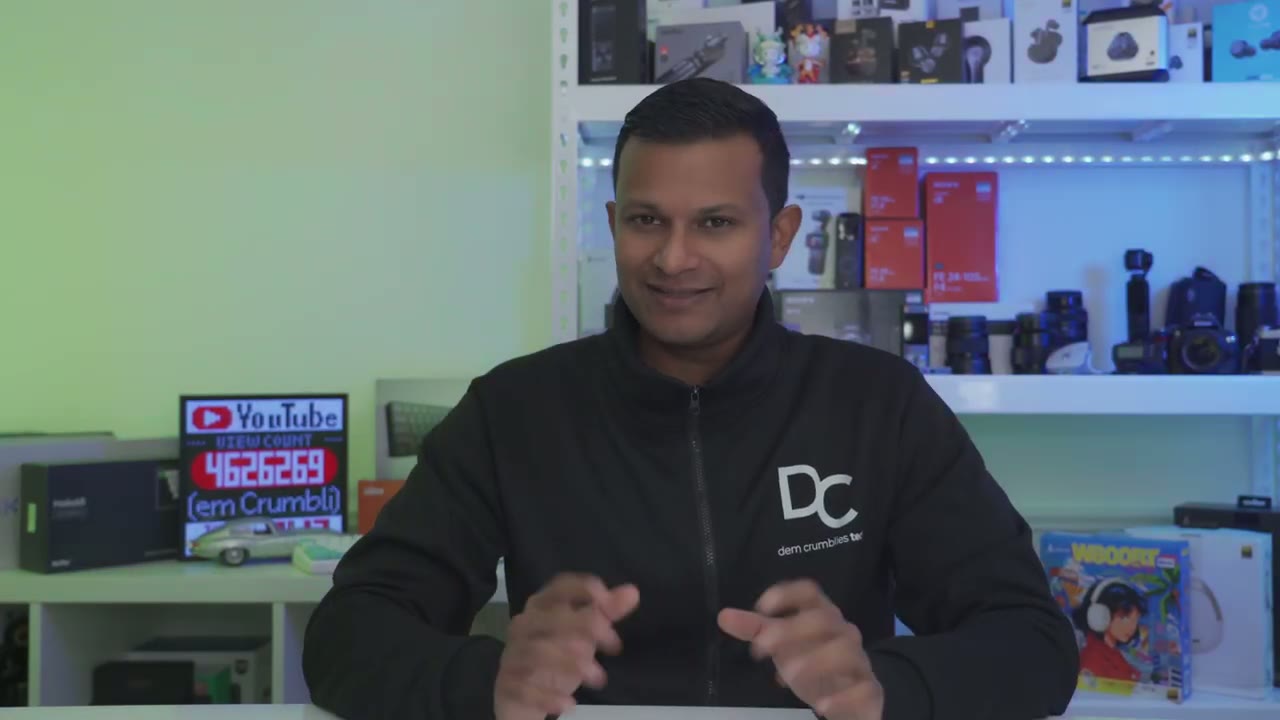
so I’m glad to hear that they’re going to consider that even though package detection is a beta feature it’s surprisingly more accurate than other package detection that I’ve tried on
Pet Detection
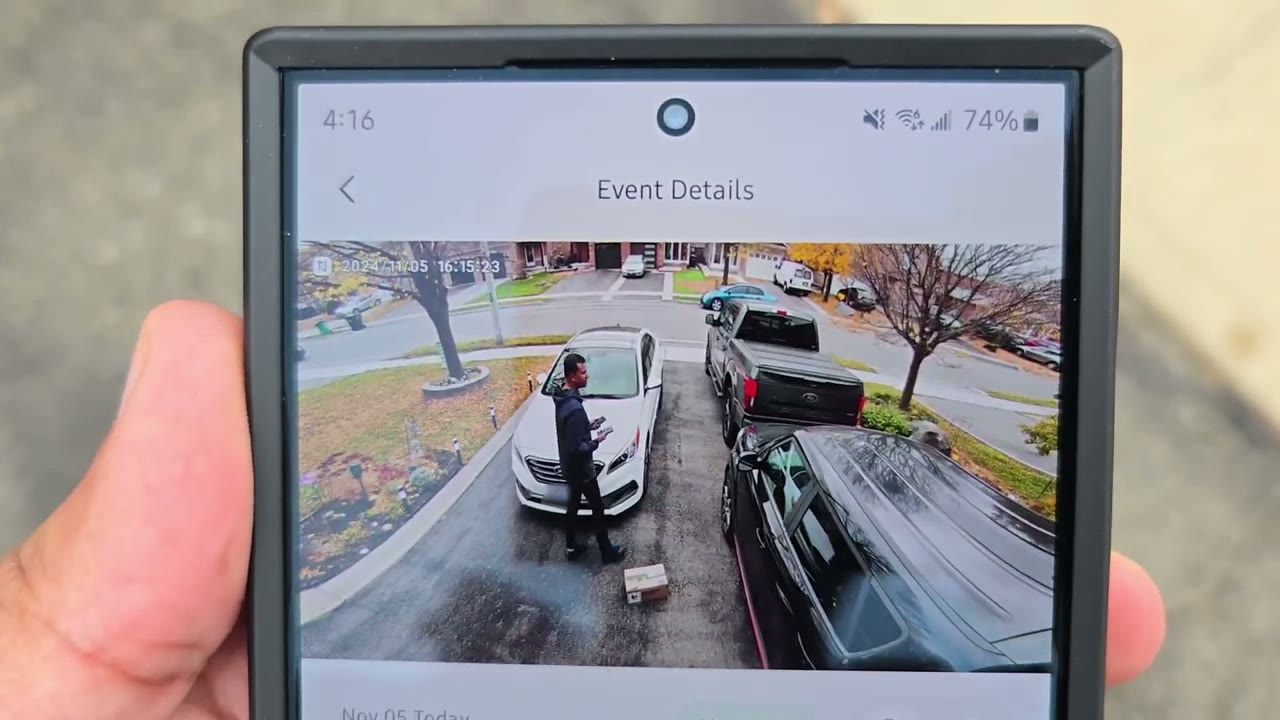
other cameras pet detection is also another beta feature but this has an even higher accuracy than package
2 Way Talk & Alarm
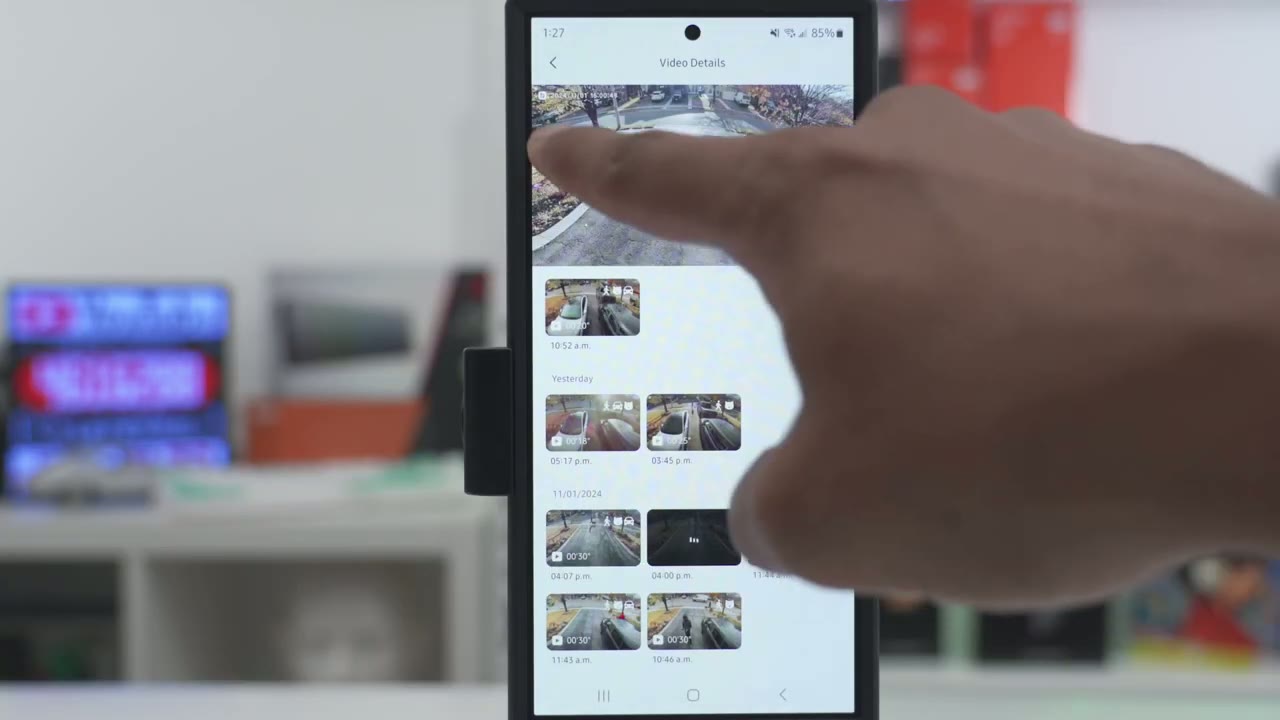
detection here is an example of what 2way talk sounds like with the speaker set to the max volume on the anona Aurora security
Spotlight
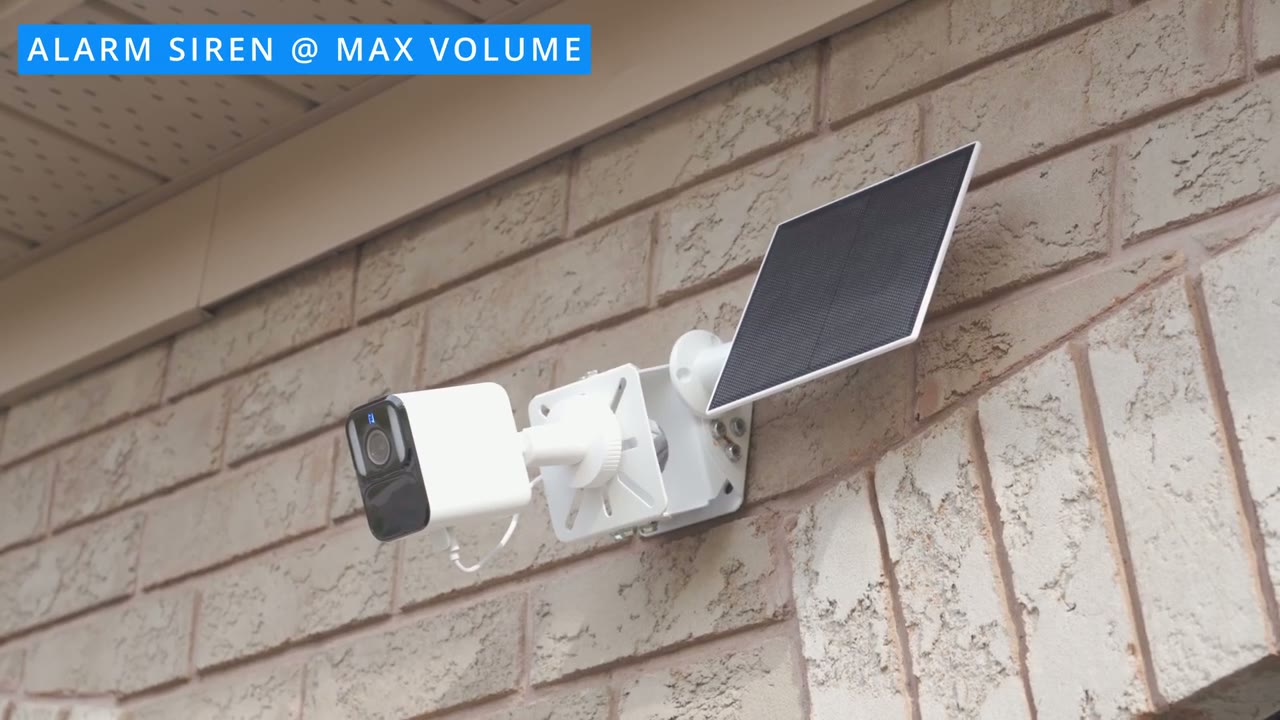
camera here’s what the spotlight looks like at maximum strength or at 100% brightness for the size the spotlight actually does a pretty decent job and it’s also going to act as a good visual
Battery Life
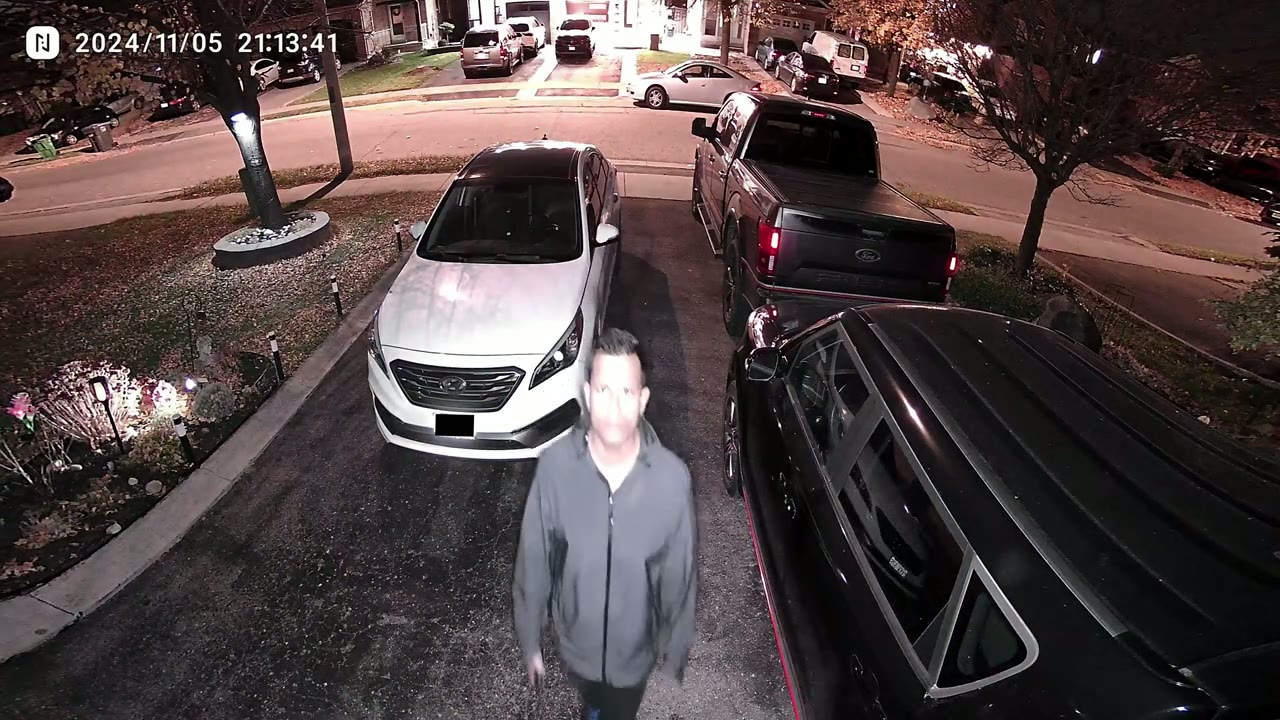
deterrent if anyone gets close the battery life is another area that really impressed me with this camera system so I didn’t think it was going to be that good but it’s basically Haring at 100% day to day and keep in mind that this is fall in Canada the temperatures are dropping there’s a lot of overcast Skies windy days and even the place where I have this installed is not ideal it’s you know just below a um gutter overhang so it’s not getting you know a ton of direct sun sunlight every day and it’s still at 100% again with 4K recordings the always on video turn on video clip lengths of up to 30 seconds that’s really amazing so if you live somewhere more Sunny than where I live you’ll never have to take this camera down or worry about battery life again now based
Storage
on my settings I’m going to get a little over 2 months of recordings which is fantastic for me because if there was any suspicious activity I have 2 months to go back and review it so I did have some intermittent connection issues but part of that is because where I placed or installed my camera it’s a bit ways away from my modem and behind you know a lot of brick walls so the signal strength is just around medium but after a firmware update that’s pretty much mostly normalized and it rarely happens
Recommended?
so the anona Aurora security camera has really impressed me in a ton of different areas the battery life is stand out on here especially because it’s recording in 4K video at really high bit rates the starlight night vision technology is a great feature to have as well same with the always on video recording like this camera packs a ton of features now I review a good amount of security cameras from a variety of Brands who have been doing this for a long time so to use a camera like the Aurora camera that comes so close to being perfect and really all it needs is a little bit of software and firmware updates to make it pretty much the perfect solar powered camera is a fantastic feed for a first time offering and thankfully they’ve been taking a lot of my feedback and they say they’re going to implement some of those in future software updates and I’m really glad that there’s zero monthly fees I really hate cameras that have a monthly Fe that lock functionality and you don’t have that with this camera system so if you’re interested in picking up the anona Aurora security camera I’m going to leave links down below for you to check it out or to learn more and if I have any type of coupon codes I’ll leave those down below as well so let me know what you guys think of the Aurora security camera and if you have any followup questions just leave those down below and if I can ask a huge favor would you mind liking it subscribing it truly does help me out a lot as a growing Channel and I do appreciate each and every one of you and I’ll see you in the next one soon
Buy Anona Aurora Security Camera on Amazon
Buy Anona Holo Smart Lock on Amazon
Please note that some of the links in my video descriptions are affiliate links where I earn from qualifying purchases. As an Amazon Associate I earn from qualifying purchases.