



USE Code: DCT For 15% OFF on aosulife.com
Please note that some of the links in my video descriptions are affiliate links where I earn from qualifying purchases. As an Amazon Associate I earn from qualifying purchases.
Intro

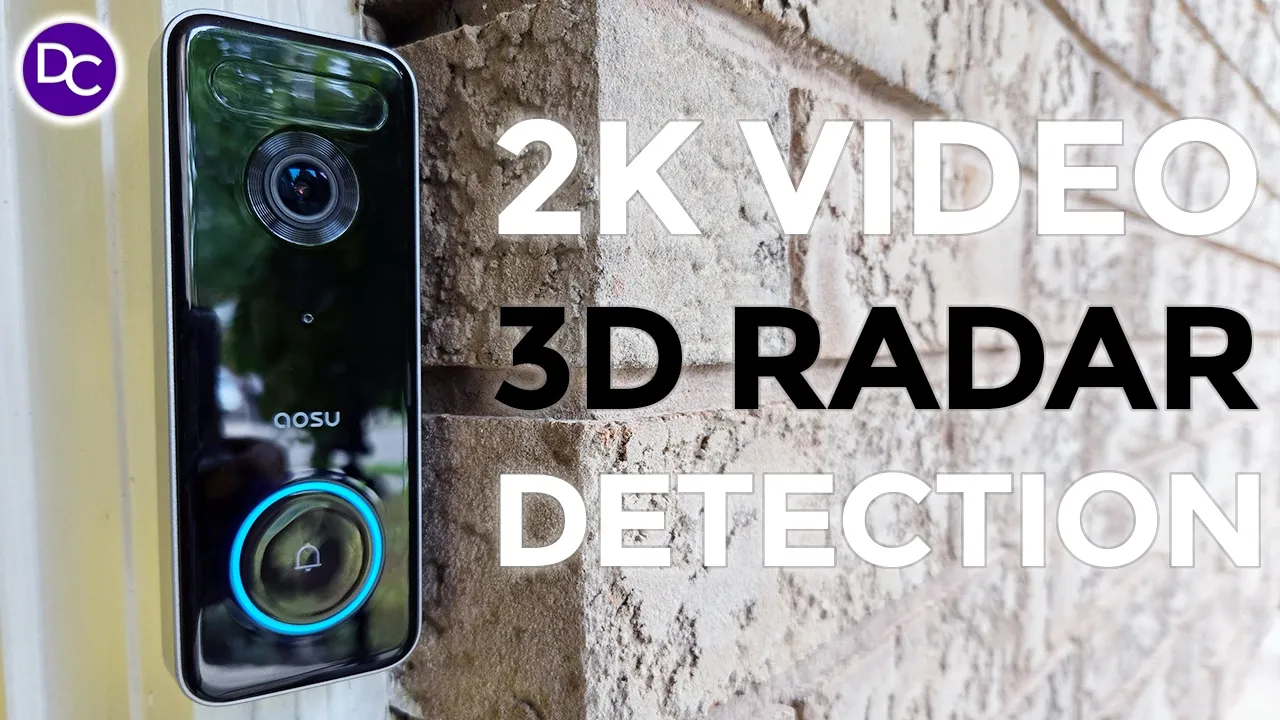
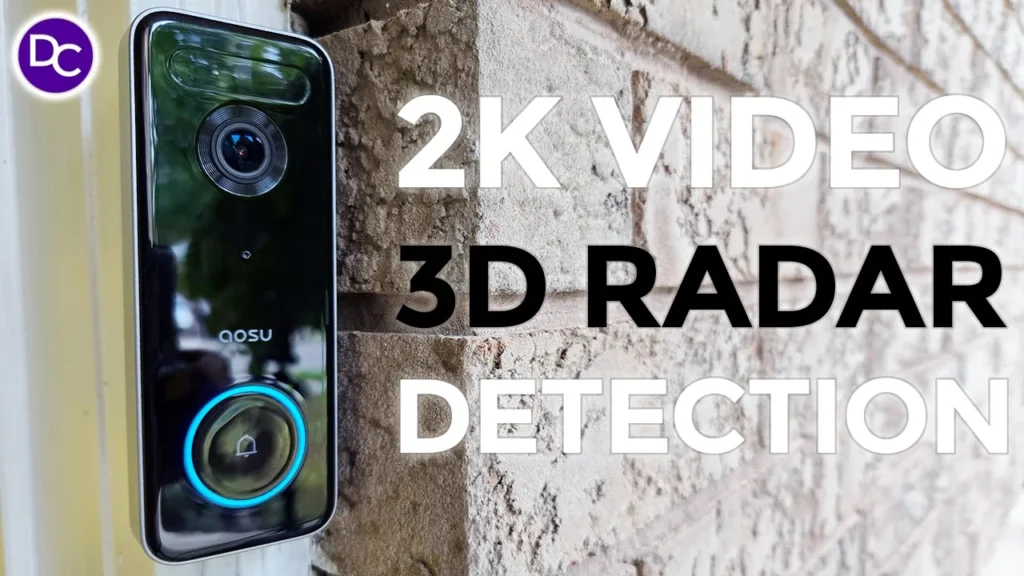
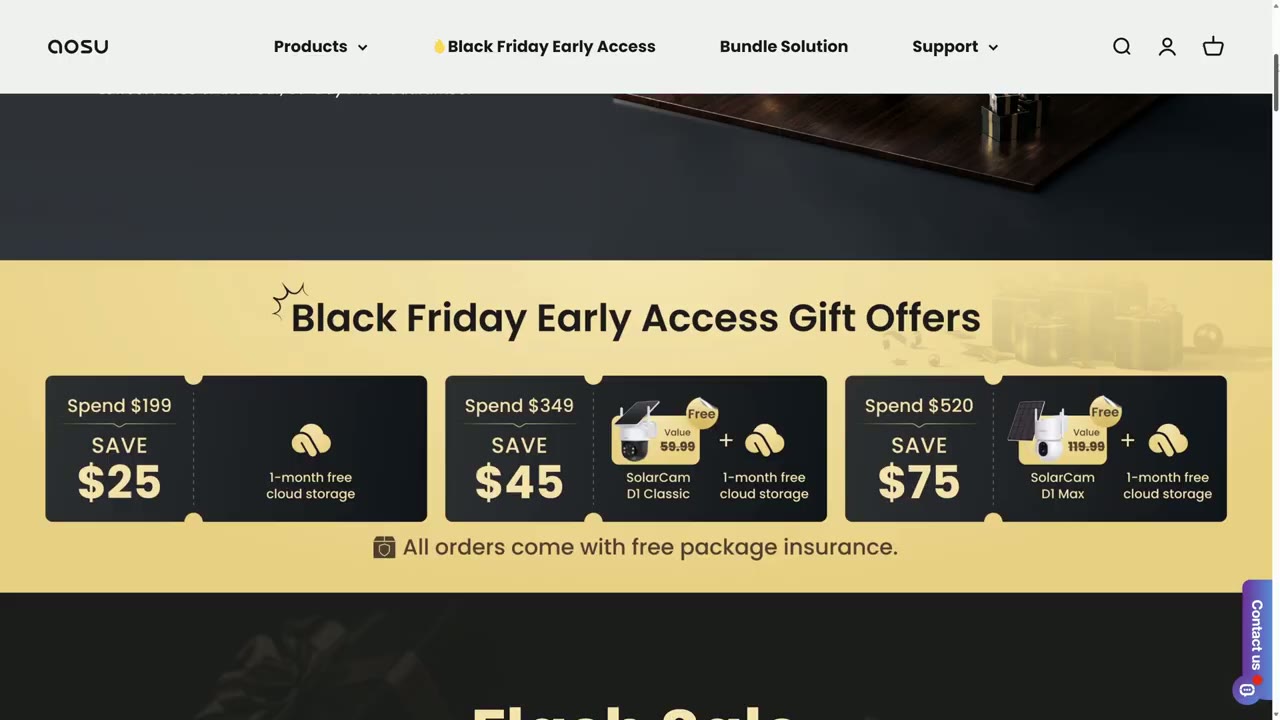
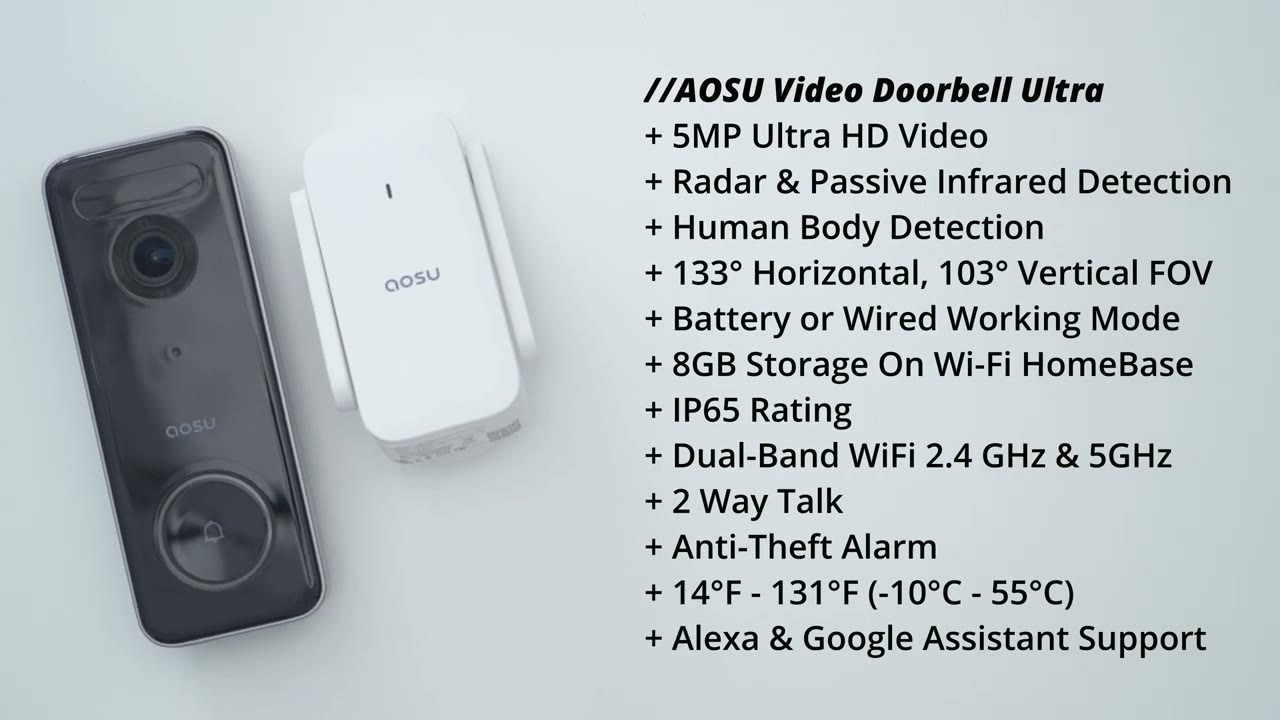
hey it’s Adrian and today I’m taking a look at asu’s video doorbell Ultra the ASU video doorbell Ultra can be used in battery mode or hardwired mode there’s 3d motion detection using radar for more accurate detections 5 mapel sensor with wide dynamic range resulting in 2K video at 166° field of view there’s also local storage Dual Band Wi-Fi two-way talk and a plug-in chime so you can be alerted both on your phone and audibly in your house so that’s a pretty impressive feature set but let’s take a closer look at how well it performs and a big thanks to ASU for setting this out for review by the way ASU is having their Black Friday sales on now till December 2nd so if you place an order on the official ASU website you could get things like a month of free cloud storage all the way up to free cameras depending on the order amount so don’t forget to check
Package
that out in the box we have the ASU video doorbell Ultra mounting bracket optional wedge plug-in chime detach tool screwdriver manual positioning sticker USB type A to type-c Cable security sticker mounting hardware and optional extension wires design-wise the U video
Design
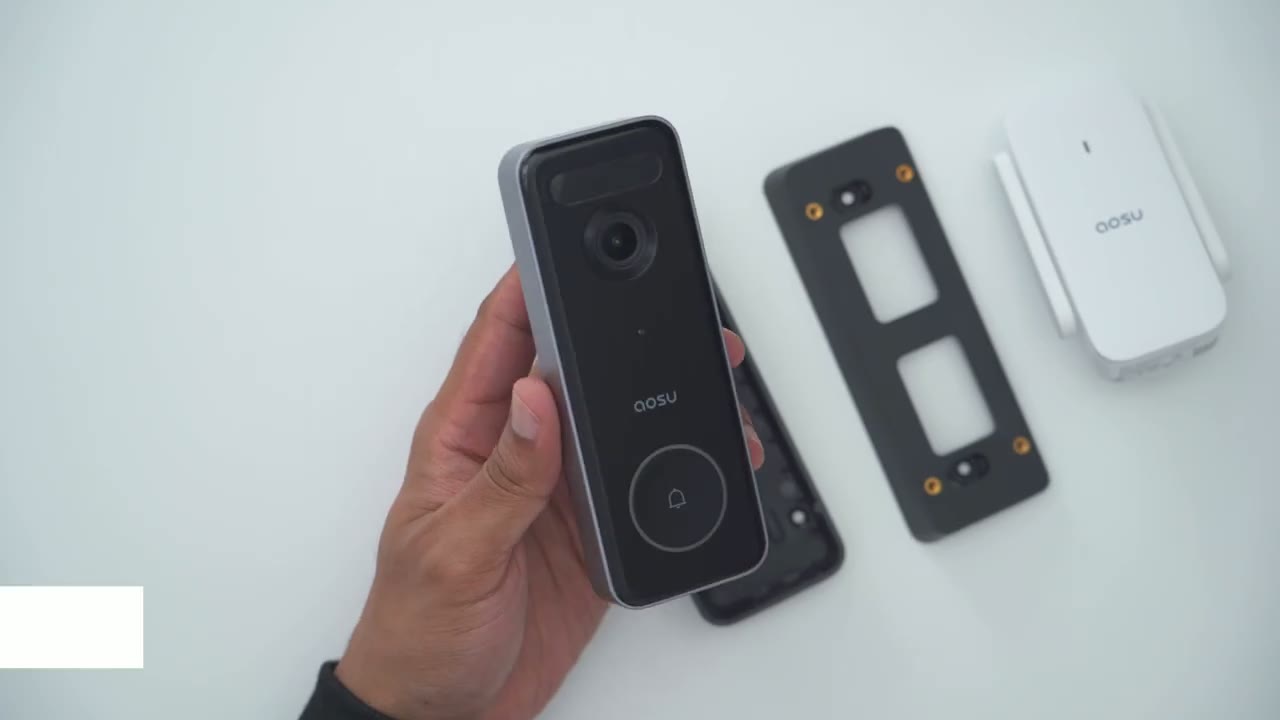
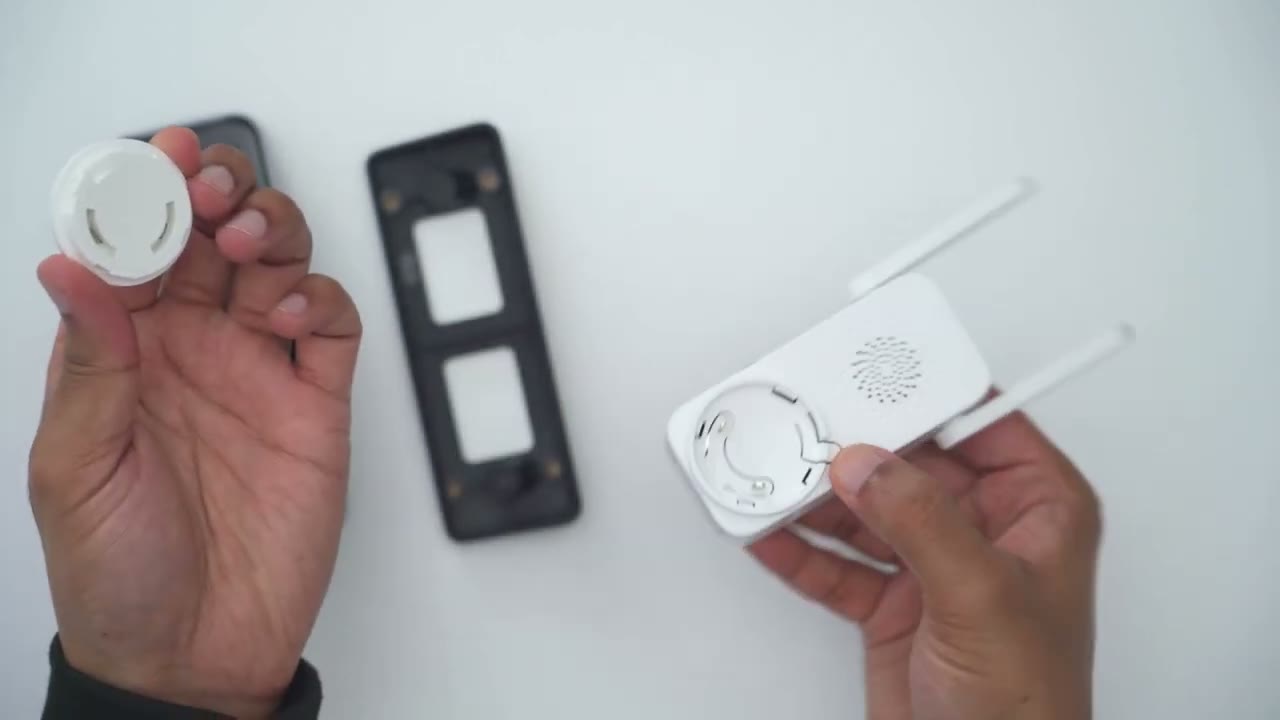
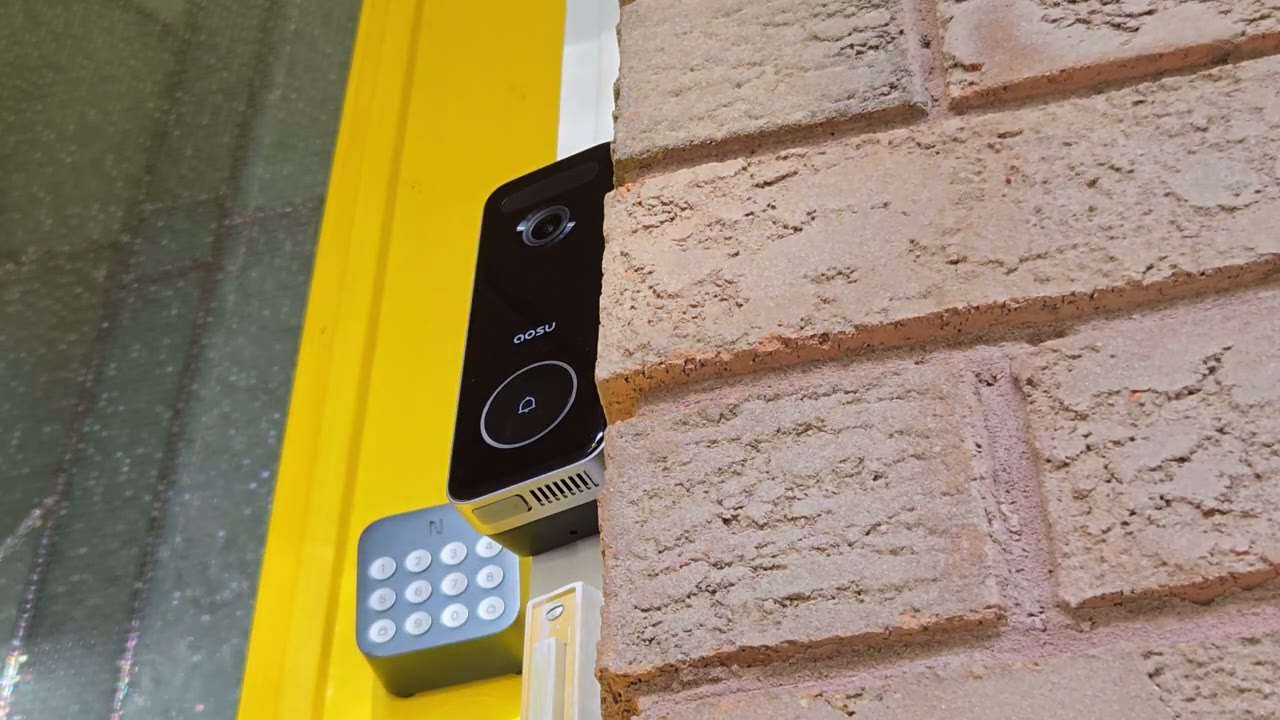
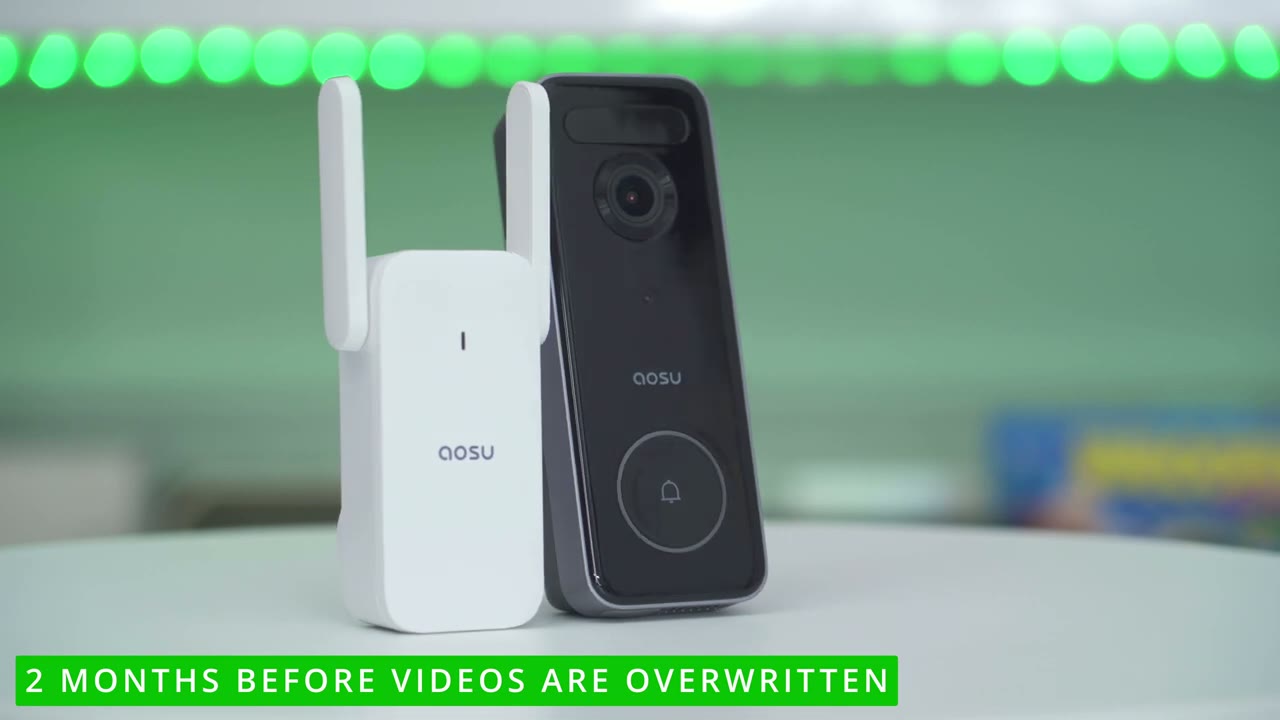
doorbell ultro looks and feels very premium so this comes in at roughly 200 g or 0.4 lb and you can see we have this very glossy and shiny finish on the exterior here so we have some sensors here that 2K lens along with a tactile button here for the ringer and there’s an LED ring light which I’ll demo later and we also have the ASU logo looking at the sides it’s just uh PL with nothing on there same with on the top now if we look at the bottom we have the speaker Grill and there is also a USB typ-c port that’s covered with a weather sealed area just to Top This up if you choose not to hardwire it because with this video doorbell you can either hardwire it for continuous power or just run it on the battery now taking a look at the rear we have the SN button and then we have uh two screws here and this is again if you’re going to be hard wirring it now in terms of mounting you’re just going to line it up where it says up here so we’ll just snap that into place and once you hear that satisfying click you know you can just pry this out now the back of the uh mounting bracket it has this kind of soft material here so it’ll you know really be cushioned against whichever frame and you’re not going to really have any gaps once you tighten this up so to detach it you’re going to use the suppli pin tool and you can see it has a little curved corner here so you’re just going to push that in and you could see there’s now a gap here and we can go ahead and separate so that’s pretty easy to do there’s also an optional wedge that you could use if you need to angulate the doorbell in a Direction so you can either place it this way or you can go ahead rotate it and place it down this way and there’s some little nibs here you could see on the corner here and there’s two on each side and these interface with the holes on the rear of the video doorbell and here’s what the plug-in chime looks like and I’m so happy that they include this unlike some other brands which don’t so we have two antennas here just to improve the signal reception there’s also an LED indicator light on the front there and then we have the sync button at the top and then you can just go ahead and replace this if something ever happened and you just do that like so
Specs
here’s a quick look at the specs feel free to pause or jump ahead to the next
App Setup
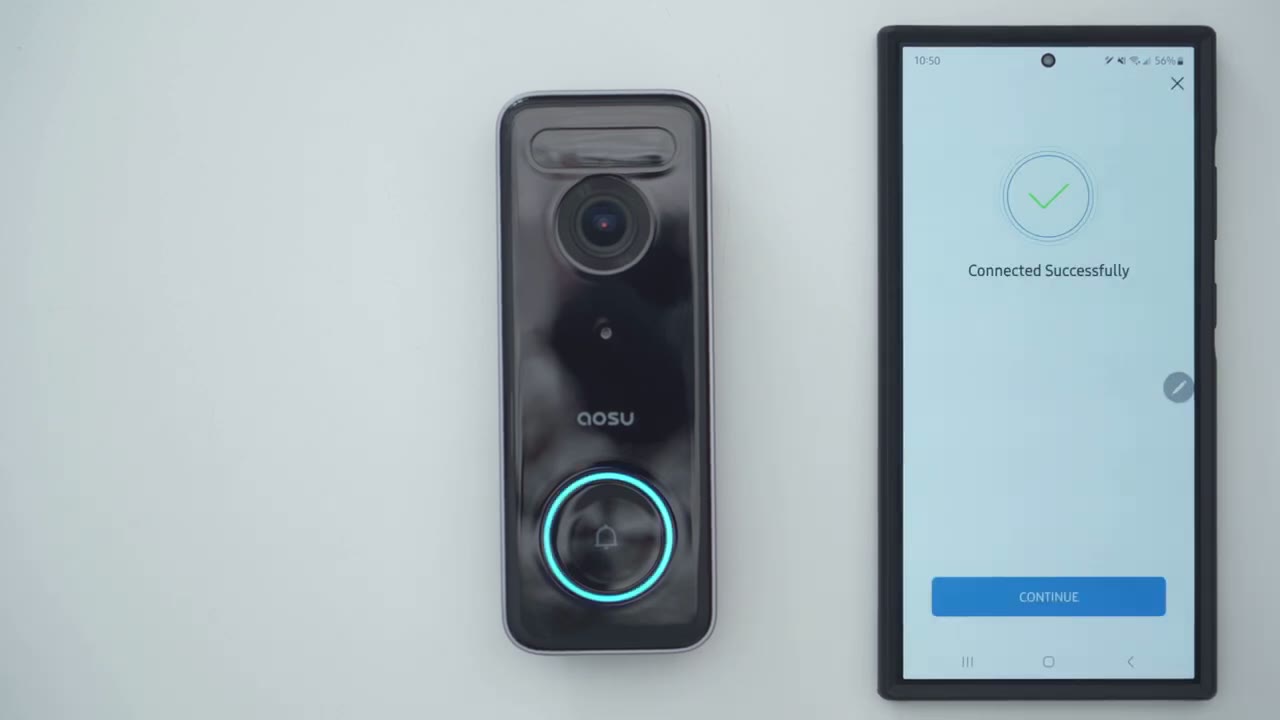
section I’m now going to add the ASU video doorbell Ultra to the ASU app so I’ll go ahead press and hold on the sync button on the back here till it powers on hello all right so we’re ready to go ahead so I’ll click the plus sign here and it says to scan the QR code now there is a QR code on the rear of the video Dell body so I’ll go ahead and do that right now and it’s already found it so I’ll just go ahead and go to the next step now make sure you’re connected to a 2.4 GHz Wi-Fi band and not a 5 GHz or it’s probably not going to work now it says to keep the home base powered on I’ve already plugged in the charm unit which is acting as the home base so I’ll click next okay so I’ve heard the beep I’ll go ahead and click next and I do see the green light [Applause] flashing please use the device to scan the QR code on your phone until the device emits a tone the Wi-Fi home base is connected to your Wi-Fi network it may take a moment please wait for a while installing the video doorbell is
Installation
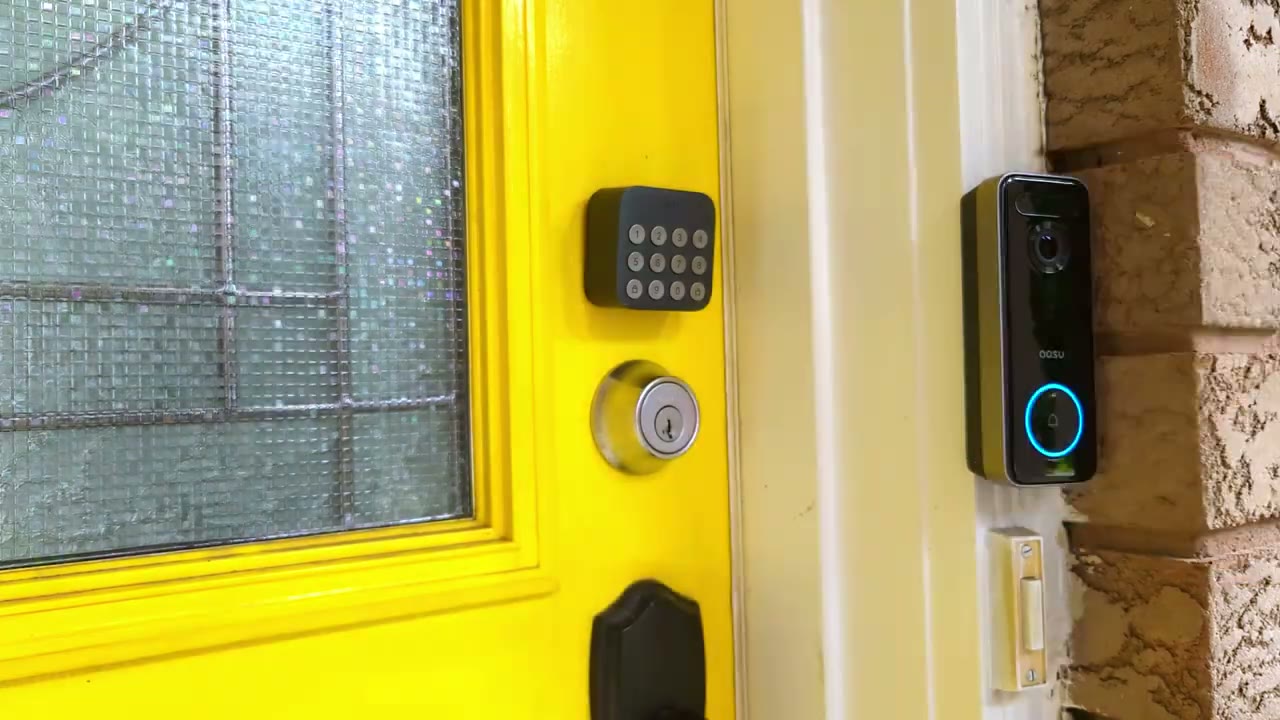
super easy so first you’re going to attach the mounting bracket to whichever surface and you can see there’s an up Arrow so just make sure you install it that way now there’s four holes that you need to drill into to use the uh bracket here now if you want to use the optional wedge what you’re going to do is you’re going to secure the wedge to the wall first or the surface you could do this way or this way and note that there’s two holes in the center here first secure the uh wedge then once the wedge is secured you could use the mounting bracket connect it with the four holes and then snap the video doorbell Ultra into place just like so let’s take a
App Settings
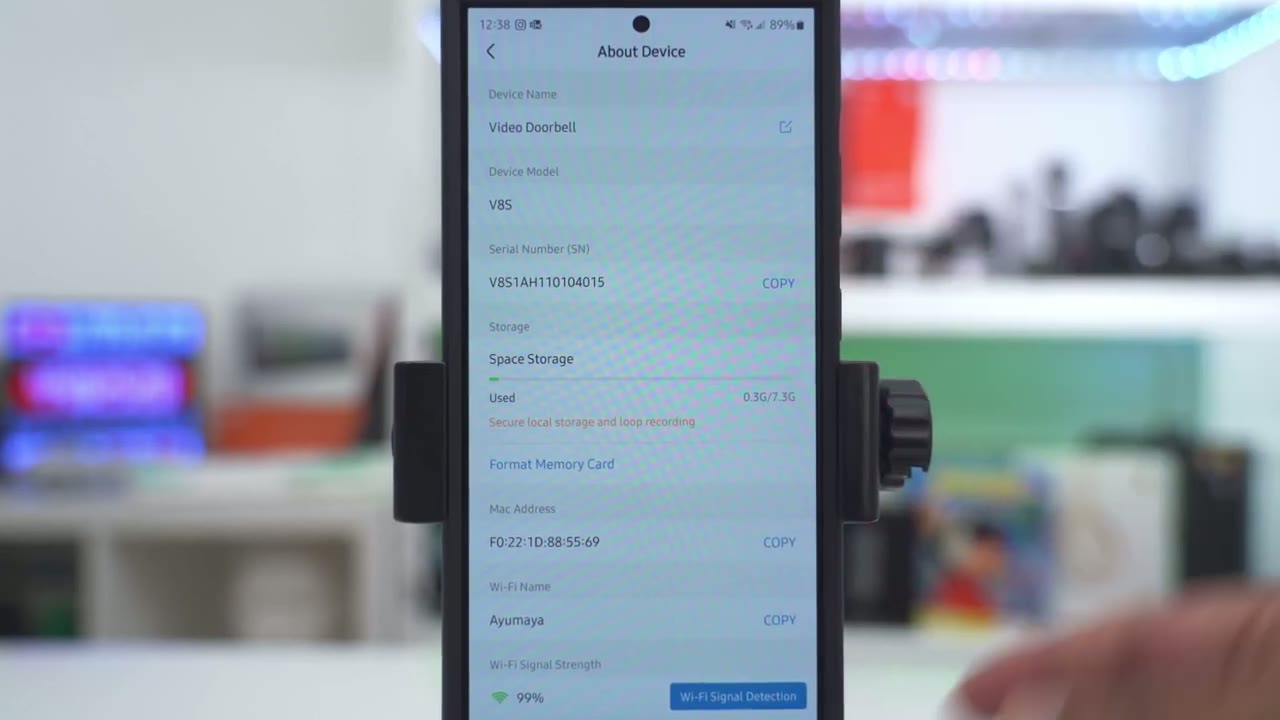
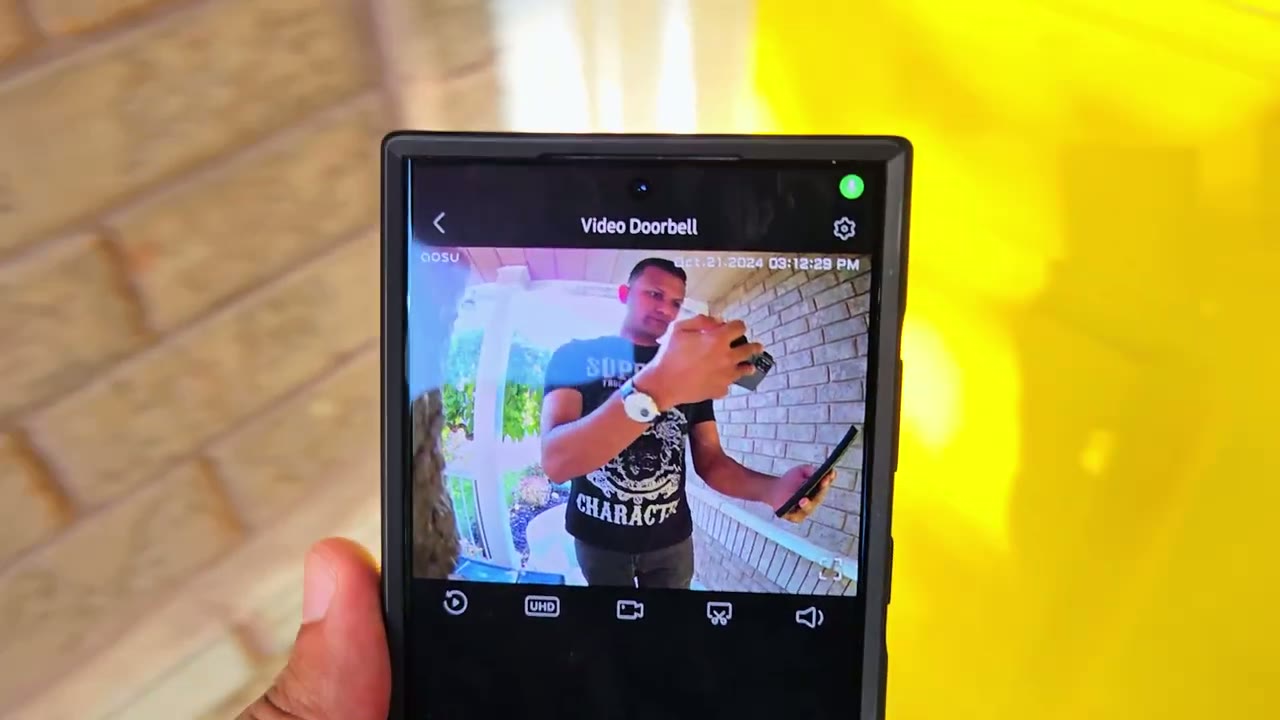
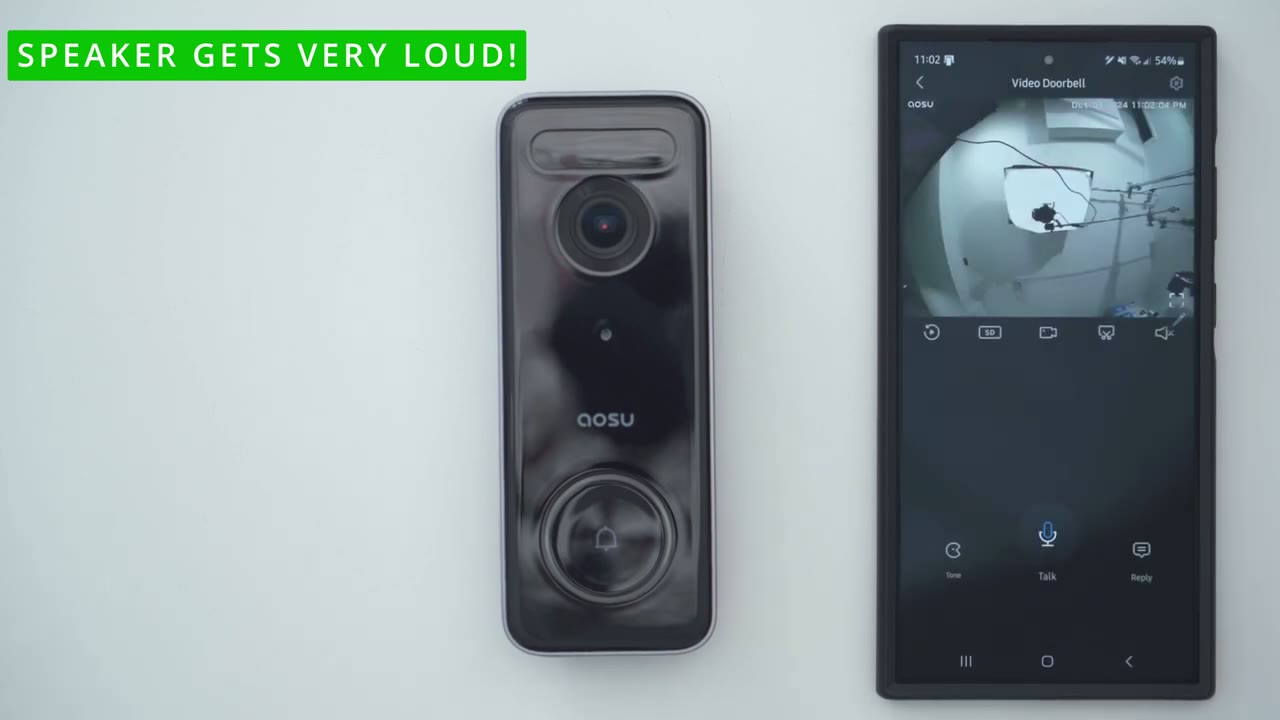
look at the app settings and the Alo app so at a glance I could see my battery life and the Wi-Fi signal strength now I installed this without hardwiring it now if it was hardwired um I’m assuming this would show that it’s actively being charged now from here I could go and snooze this from 30 minutes all the way up to 12 hours I could also jump into events notice that it defaults to local since I’m just using the built-in storage but there is also an option for a cloud if you are going to get the cloud plan not something I generally use and then we have the full settings which I’ll get into later but let’s jump into live view for now and you can see that pulls up pretty quickly right now it’s set to UHD um which is the highest resolution you can also set it to SD or standard uh definition now you could see the quality is actually pretty good on here I could zoom in and take a look at you know the front of my house I could see the um kind of left edge of my car there and of course you can also go into full screen mode now if I didn’t have this huge wall here and you know this wall the side where I installed it you would have you know a way wider feel of the view but you know if you have a setup like M this is what it’s going to look like from here you can also go into the events playback you can start a manual recording if you like and then you can also go ahead and take a snapshot and it’s going to be safe to your phone’s um Gallery you can also turn on the microphone and I’ll just crank the volume and you could hear um the volume outside you know kind of ambient noise so the microphone pickup is pretty good on here I’ll just cut that for now we also have the option to adjust the tone so you could change it um from Uncle or a clown if you just want to be a bit playful you can also go ahead and start two-way talk and you can also issue quick replies such as hello can I help you uh hey there what are you doing or please leave the package at the door in the full settings we could change the device name and we can enable the option to have the doorbell button light light up when someone approaches I recommend having that on so they know they can press it and you know the doorbell is active you can also do a or enable the doorbell anti theft warning so if someone tries to remove it it will sound an alarm and you can also share the device with family and friends now under motion detection we have a couple options you could turn it on or off and you could set it to detect human only so it’s not going to you know track cars or any type of movement like trees swaying in the wind and then you could set how far or close you want that detection area to be or you could set it to adjust automatically and the system will intelligently decide that under notification settings you can choose to receive notifications all day every day or you could set certain days in time times to receive them and then whenever someone presses the doorbell button you can receive that notification as a system call so it’s going to be like a thing that pops up on your phone and you can see a photo of the person like a live view and then you can choose to answer them or not or you can just receive the notification through just a message alert that just kind of pops up on the top of your phone or you can get no notification so completely up to you um you can also set it to receive the notifications immediately or intelligently and you know you can say hey I only want to receive these if someone is staying like say someone’s lurking or lingering versus if someone’s just passing or something like that I just like having it as soon as possible so I leave it on um the immediate mode under night vision you could set it to Black and White Night Vision or you could turn off the infrared light if it’s causing an issue um black and white works pretty good for me so it’s better to have you know some kind of ambient light near your doorway since there’s no Spotlight uh on here under Cloud recording this is if you get the cloud planed and get something I generally don’t use and under facial recognition now to activate this you will require the cloud plan you can see if I go ahead and say I want to activate this it takes me there so um if you want that feature uh be prepared to use the cloud plan or pay for that and then the video mode you could choose to kind of stream um whenever you pull up live view right away in UHD mode or in smooth mode depending on your connection or how much data you have you can also go into chime settings and you could change the chime volume independently so one is for the doorbell volume and then one is for the plug-in chime uh home base and then you could change the ringer type or the ringer sound as well if you have a preference now under privacy settings you could choose to record sound or not and you can also set privacy zones if you need to do that in your area now under battery management I can see it’s still at 100 since I installed it um which is pretty good you can also turn this option on to see uh the percentage you know kind of on the um main app screen and then we have integration for Amazon Alexa and Google under about device this is where we can take a look at the Wi-Fi signal strength and the uh memory card space and things like that
Video Playback
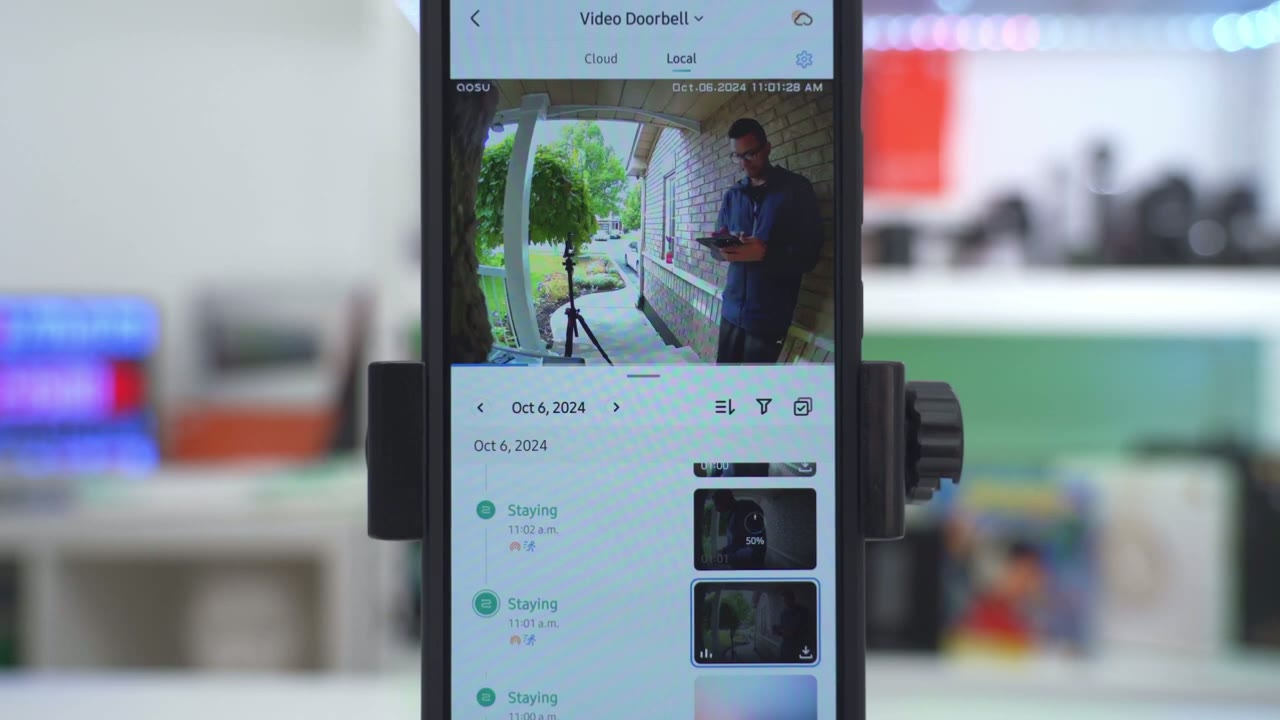
to review videos we’ll click on events and it defaults the local because that’s what I have now if I go into the sixer I can see a bunch of different type of categories for what’s going on and you could filter these so by if someone was um ringing it if there staying if there’s a nearby event someone’s passing motion or the anti- theft warning so let me just go down to let’s say this one right here and you can see it says that I was staying and this is when I’m just recording footage now if I found this footage interesting I can just go ahead and click download and you can see that downloads pretty quickly so yeah it’s very easy to just go ahead and review
Video Quality
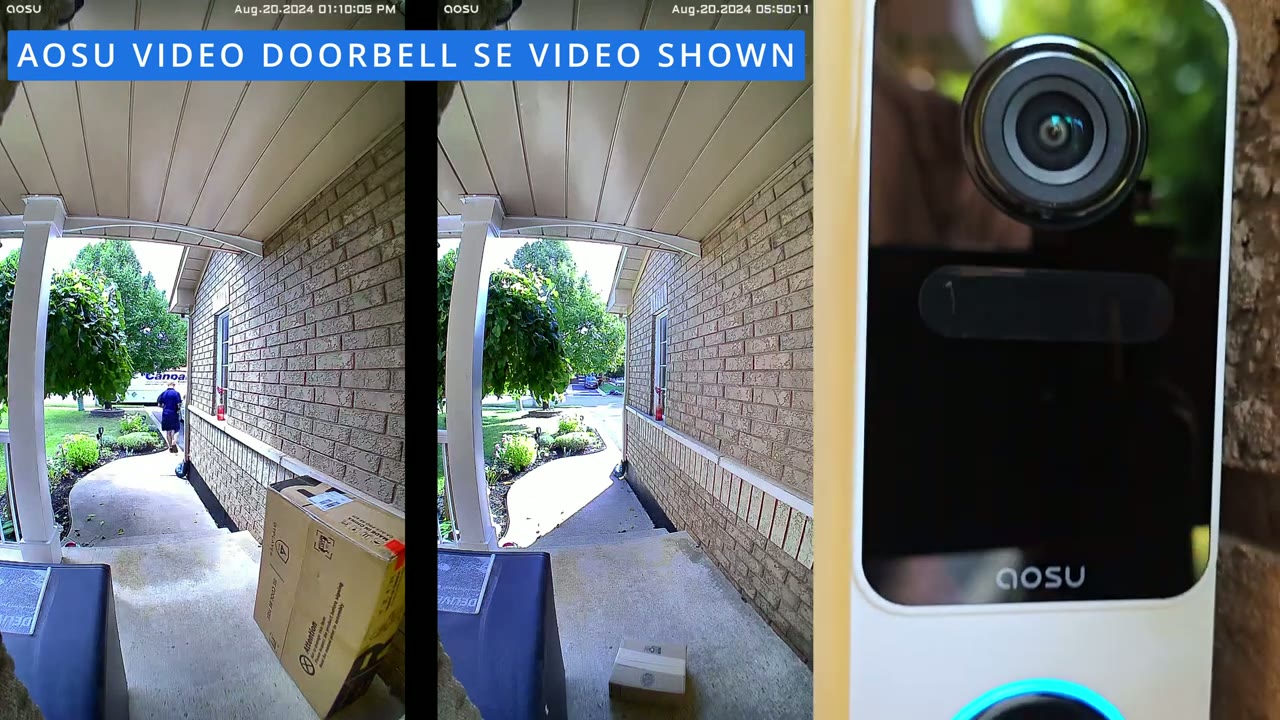
videos video quality looks good durink the day or at night thanks to that 2K video and the 5 megapixel sensor and even though I have a covered entryway which limits the amount of direct light that comes in it’s still easy to make out faces during the day or at night at 166° field of view you may or may not be able to see packages depending on how high you mount the video doorbell but if you’re looking for a video doorbell with an even wider field of view check out asu’s video doorbell SC instead motion
Motion Detection
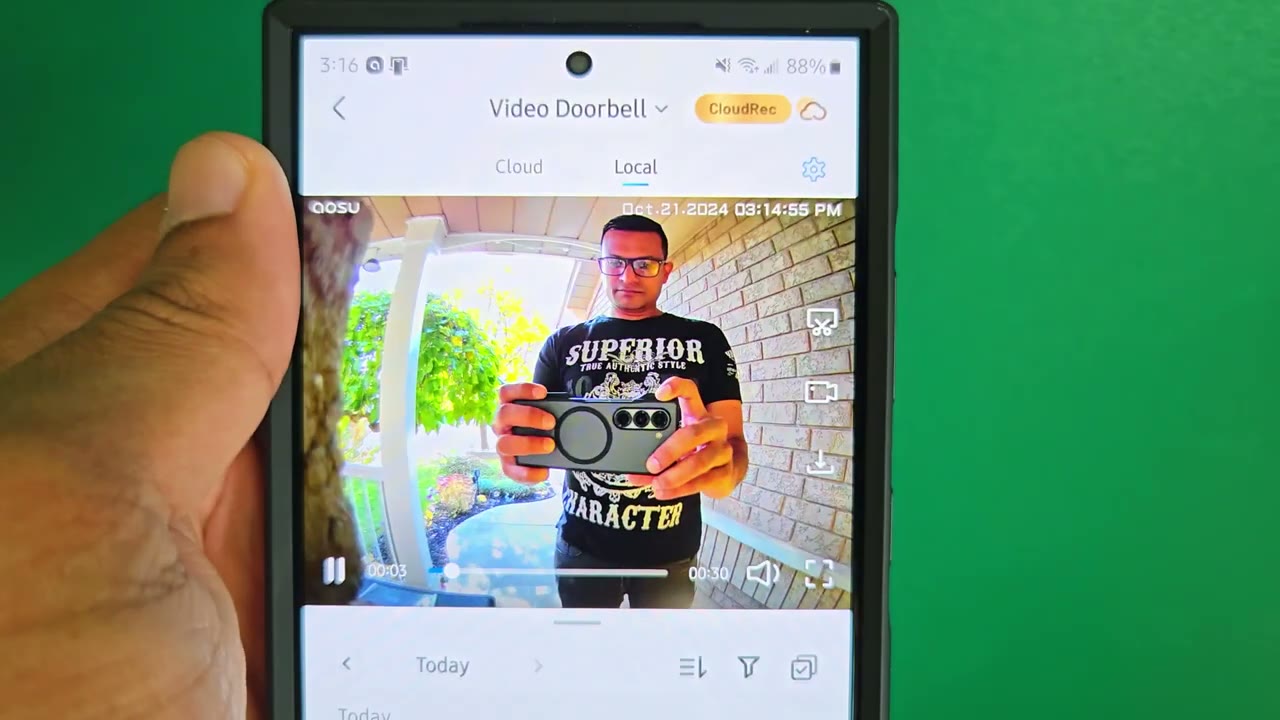
detection is really fluid and responsive especially if you set notifications to the immediate mode and anytime you get a notification on your phone you can go ahead tap into it right away or you can expand it to get a thumbnail preview
Doorbell Ringer
whenever someone presses the doorbell button you can set it up so you just get a basic text alert on your phone or you can set it up so that it comes in as an incoming video call you can see the person who’s standing outside your door and you can decide if you want to have two-way talk with them or not here’s an
Two Way Talk
example of what two-way talk sounds like on theu video doorbell
Preset Messages
Ultra hello can I help you hey there what are you doing please leave the package in front of the door thank you the built-in
Storage
storage on the ASU doorbell SC is around 8 gigs now this isn’t expandable unless you pay for an optional Cloud plan right now I’ve used about 1.8 gigs in the about 17 or 18 days that I’ve had this installed so if I just kind of estimate it out I’ll probably get 2 months of recordings till it starts overriding
Battery
based on my home when it comes to battery life you have two options so you can use use this in battery only mode or wired mode now if you permanently wire it you’ll never have to charge it up again but if you use it in battery mode like I use it and you can expect up to 6 months of battery life you know as a good estimate now based on the way I’ve been using it and my settings and just all the initial setup I’m going to get around 3 to 4 months before I have to take it down and charge it back up but it’s really going to depend on how busy your household is how many people are coming and going and the settings you
Recommended?
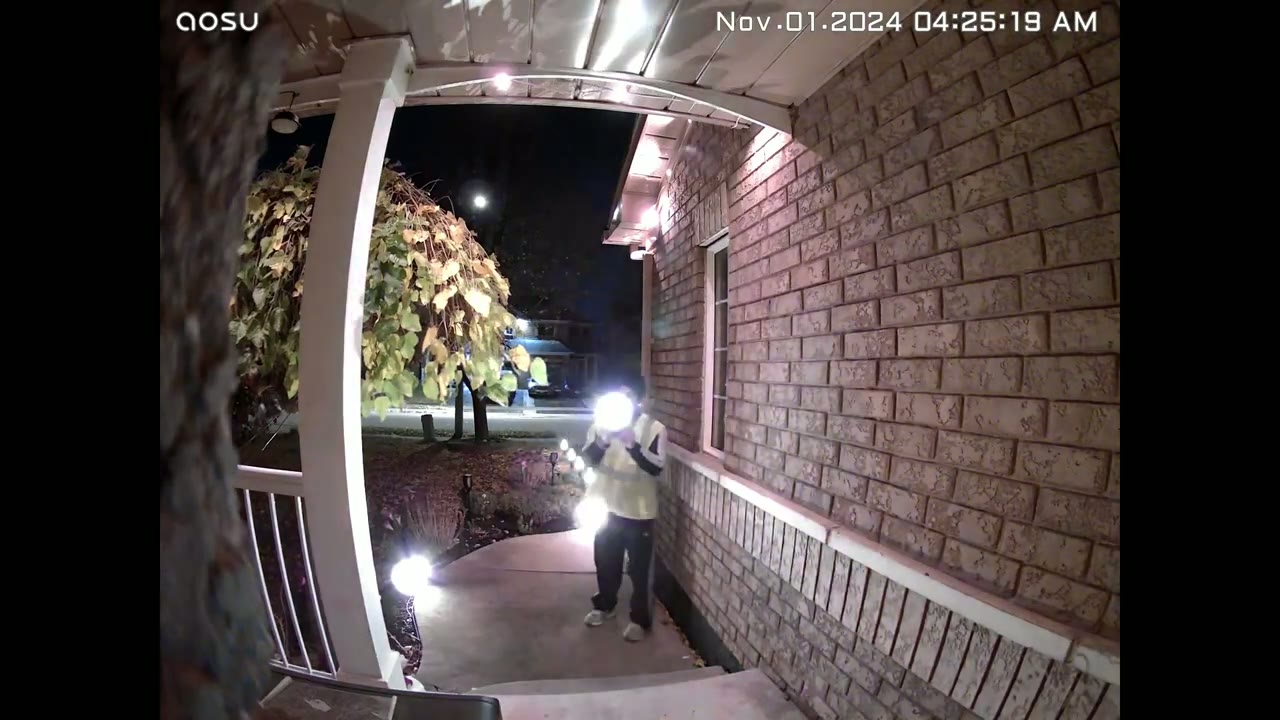
have enabled so can I recommend the U video doorbell Ultra and it’s a pretty easy recommendation for me you get a full featured video doorbell with excellent video quality whether it’s day or at night thanks to the wide dynamic range there’s built-in storage a plug-in chime which I wish every video doorbell came with 3D motion detection for quick motion detection and apperts while reducing false positives and the ability to use it in both wired mode or battery mode but the best part is that there’s zero monthly fees to get pretty much full functionality out of this video doorbell like with most of asu’s other products the only thing you have to pay for and it’s completely optional is if you want to pay for cloud storage or if you want AI facial recognition since this isn’t powerful enough to do it on device it has to be done in the cloud but overall I’ve been using it without any of those features and it’s been an awesome experience so far so if you’re interested in picking up the U video doorbell Ultra I’m going to leave some links down below and if I have any coupon codes I’ll leave those down below as well so you can pick one up or learn more if you found this video helpful consider checking out some of my other security camera related at ated videos and if you like Tech in general I review a bunch of different Tech on this channel I’m sure you’ll find something you like and if I can ask a huge favor would you mind liking and subscribing it truly does help me out as a growing Channel and I hope to see you in the next one soon
USE Code: DCT For 15% OFF on aosulife.com
Please note that some of the links in my video descriptions are affiliate links where I earn from qualifying purchases. As an Amazon Associate I earn from qualifying purchases.