



Please note that some of the links in my video descriptions are affiliate links where I earn from qualifying purchases. As an Amazon Associate I earn from qualifying purchases.
Intro

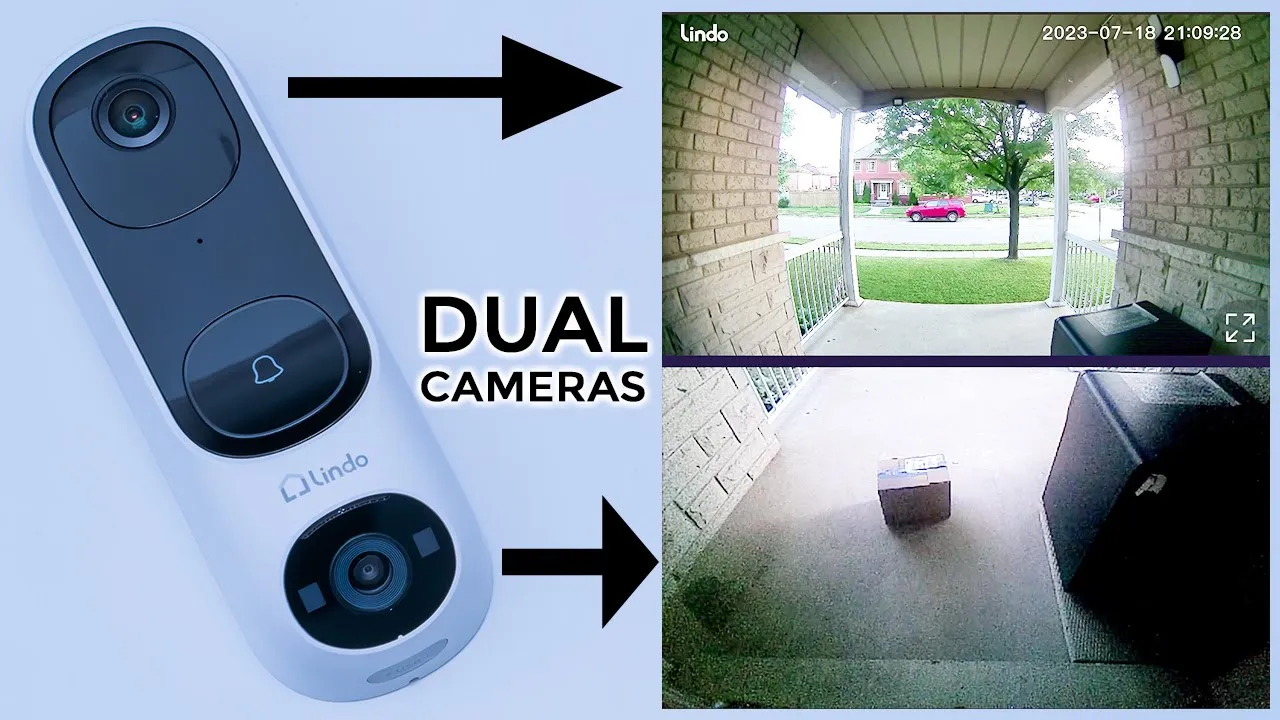
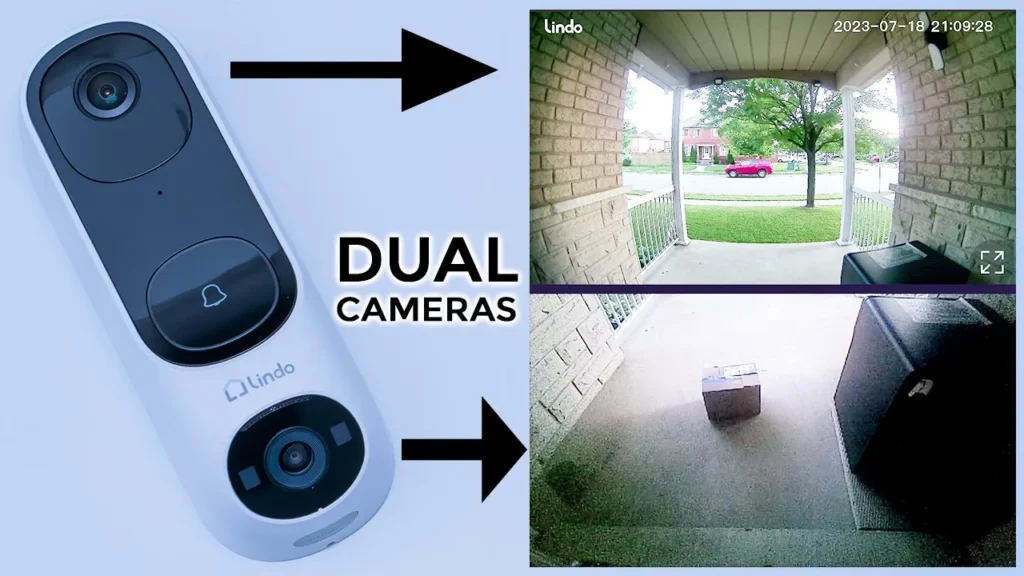
hey it’s Adrian today I’m taking a look at a really unique video doorbell camera so this is the Dual cam from Lindo and what makes it so unique is that it has two cameras so you have one at the top and one at the bottom and the benefit of this is that you’ll be able to see who’s at your door and say you have a package delivered with most video doorbells you can’t see what’s on the ground but with this because it has that bottom camera you can actually see that a package was delivered or not though it has sent the Dual cam to me for review but I’m going to give you my unbiased thoughts on how well it works so let’s get into it
Package Contents
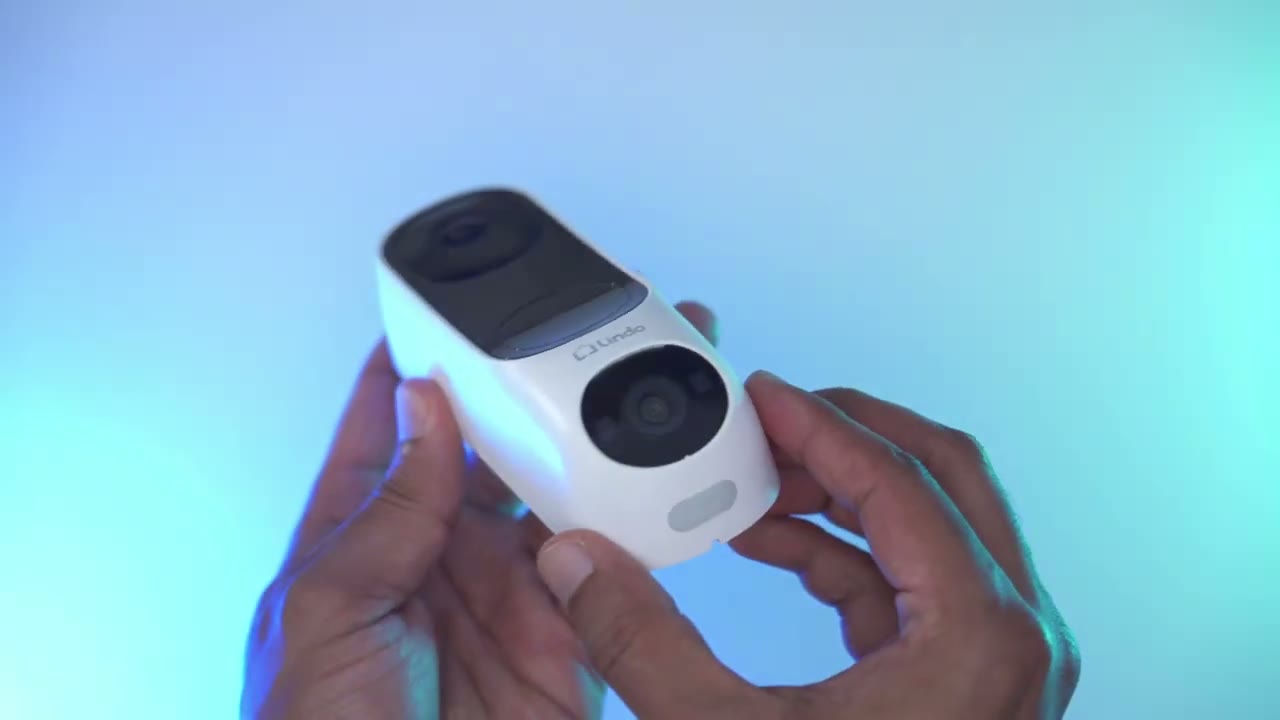
in the package you have everything you need to get started so you have the Dual cam here you have an angled mounting bracket if you want to use that you have a wireless chime unit which is so handy to have you have a type c charging cable you have mounting hardware and you also have wires if you want to wire this to an existing charm system if you didn’t want to use the wireless one you also have a manual positioning guide and sticker design wise it’s a really nice
Design
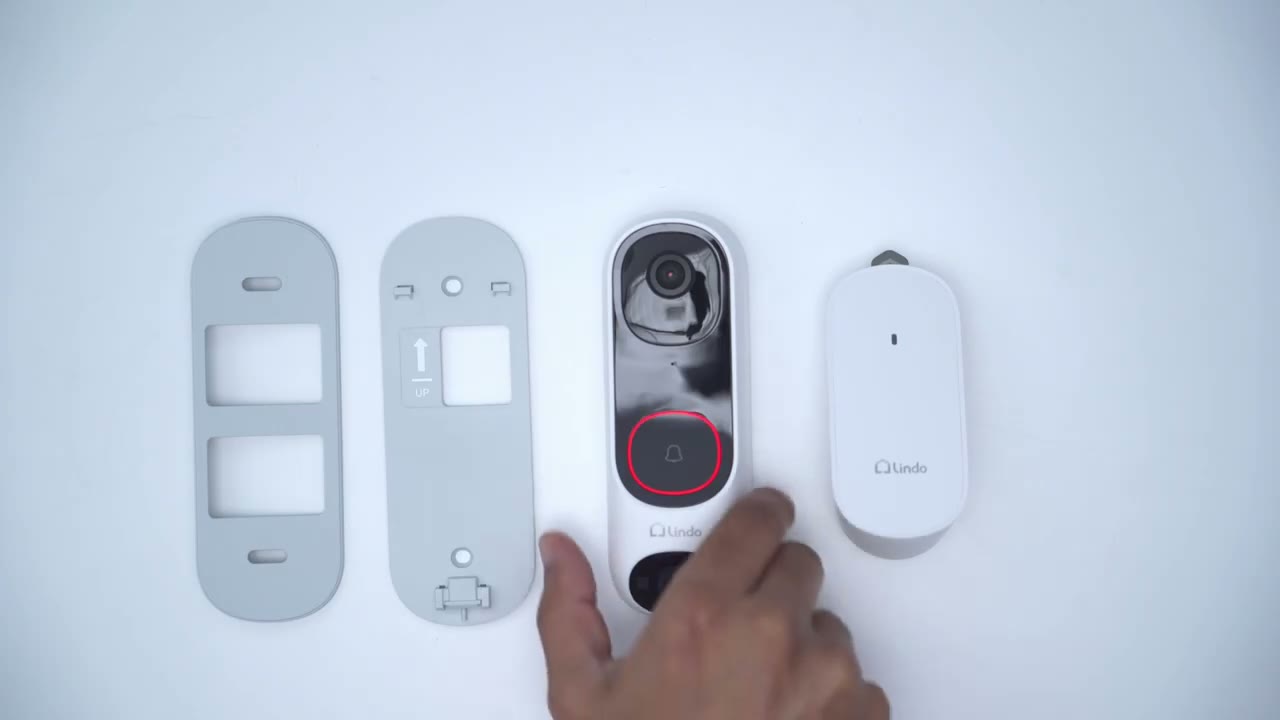
looking doorbell unit so you can see that it sticks out maybe about an inch on most of it and then at the widest part maybe like about an inch and a half but otherwise it’s a really nice looking doorbell you know I’m really a fan of this black and white color scheme contrast really nicely and it has a little bit of weighted a little bit I have so it definitely feels you know premium and a high quality but it is pretty much an all plastic build now at the top we have the main 2K camera we also have the doorbell button and you can see it’s just flashing the setup LED lights and then we have a camera at the bottom as well now you can see there’s also a speaker Grille right there and at the bottom is where we have the USB type-c uh charging port for when you need to Top This up and looking at the back these are where we have the retention Clips to put it into the bracket and we also have some terminals here if you want to wire this to an existing chime now this part is optional so you can see this is the bracket that comes with it and to set this up what we would do is you can see it has an arrow here saying up so you just slide that in and this is now secure and there’s only one way to get this out which is to use the detach tool to pop into that slot there which I’ll show you after so this is how you’re going to have it standard and if you want to use the angle mounting bracket then you can connect it with the screws the chime unit now you can see it has a really Handy Storage at the top here so this is that detachable pin that would go at the bottom here to separate the doorbell from that mounting plate I’m just going to pop that back in here but the chime unit you know really compact you can plug it in and you can detach this plug for whichever region you’re in but it’s obviously going to ship with the one for the reach end if you’re in so you have the speaker here and there is also the chime button here chime setting probably to go through the different chime tones and to set the volume and you do have an LED indicator like there the Lindo dual
Specs
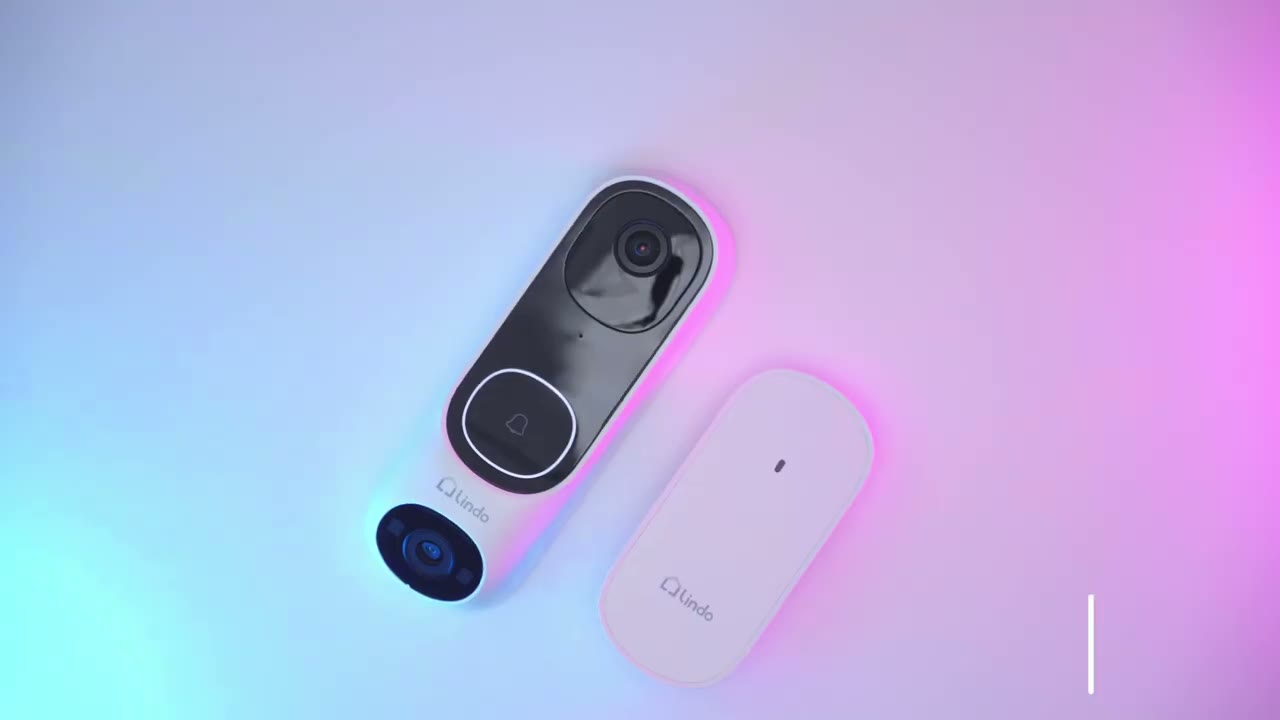
cam video doorbell is a 2K video doorbell which is capable of HDR video you have 100 190 degrees field of view there is also two-way talk now for detection you have human and package detection which uses AI you can wire it to your existing chime if needed but it also does have an optional chime as well it has night vision modes with eight infrared lights you have a PIR sensor radar sensor to reduce false alarms you have an IP67 weather rating there is also free three-day history without a subscription so I’ve downloaded the Lindo Live app I’m just going to add the
App Pairing
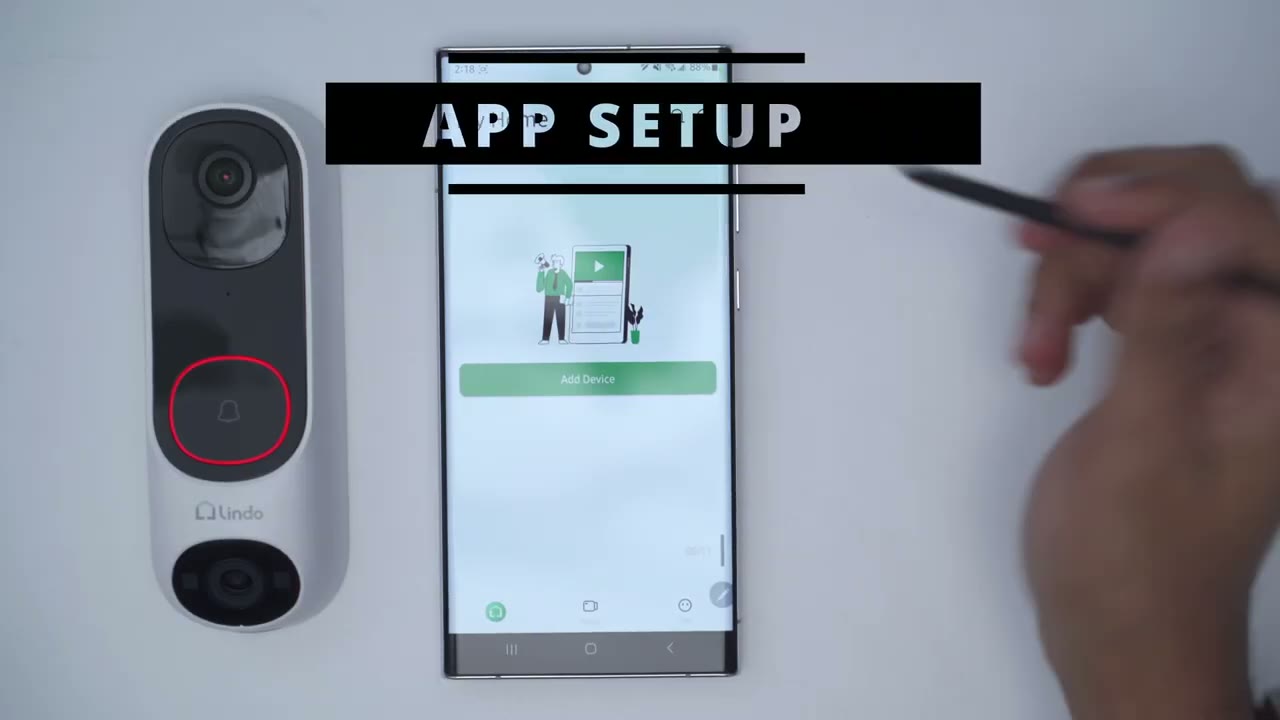
device so I’ve powered on the camera so it says press the power button until you hear a beep and the red and white light flashes so I’ve already heard that beep I’m going to go to next and I’m going to give it location access and it’s found on the camera okay I’m just going to enter my Wi-Fi details now okay so I’m waiting for it to connect to the Wi-Fi looks like that’s happened the Wi-Fi connection is successful all right it connected successfully and we’re done I’ve decided to install the Lindo dual cam using adhesive strips so I don’t have to drill into my door I’ve installed the Lindo dual camera I just
App Settings
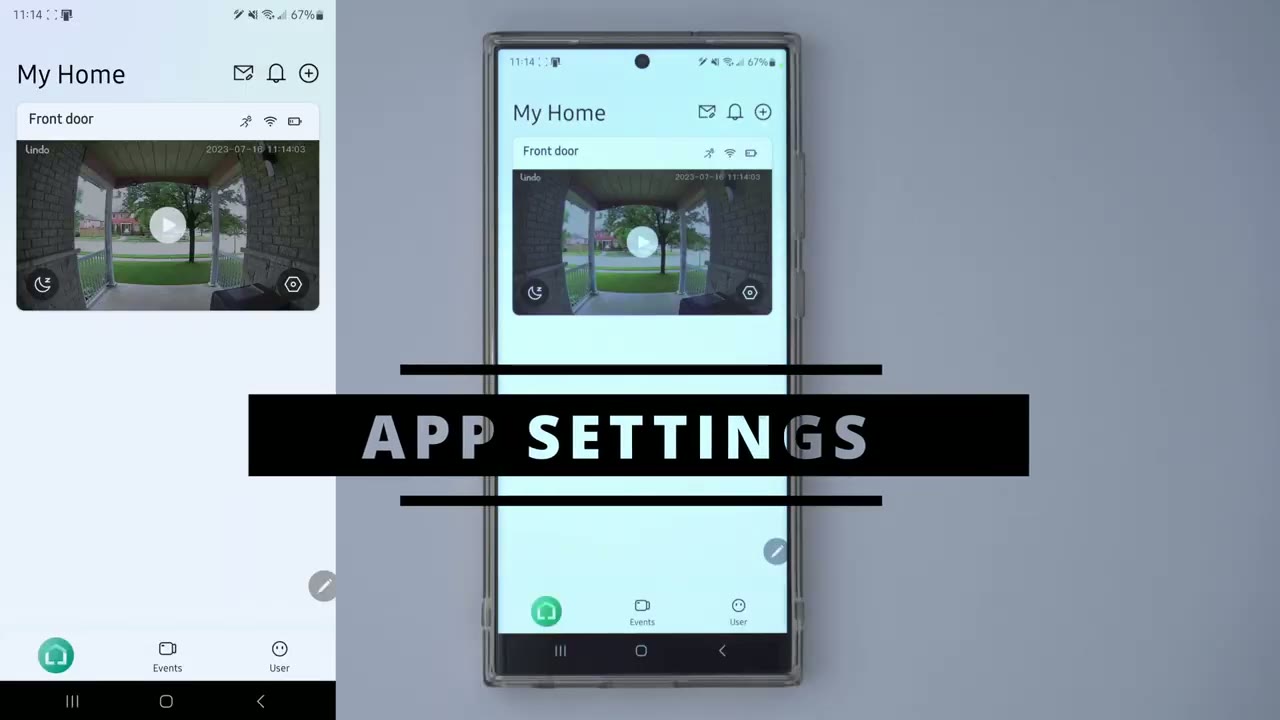
want to go through the app settings now so you can see as soon as you fire up the app this is the interface you’re going to get I could go ahead and click the play button and that’s going to pull up the live view and you can see that’s actually pretty quick I’m in my basement and it’s still rather quick now this is my connection speed I chose the battery life um one thing I did want to point out though is that even though it opened up really quickly this time sometimes it you know it times out or takes a really long time but if I just hit back and try again it usually gets it on the second attempt just something to be mindful of now in this main interface this is the top camera the 2K camera and you can see you know the quality on here is pretty good and then at the bottom this is where we could see that lower resolution camera meant for packages if someone puts a packager one thing I want to point out though is that I have a delivery box and because it’s kind of blocking the light coming in it’s you know much darker here but I can still make out packages if they are there when I pull up the live view the other thing to note is that I have you know kind of like a ceiling or a roof over my entryway and that also limits the amount of light coming in but I mean it’s still adequate if you don’t have one of those it’s going to be even brighter on your end but while we’re in this interface you have a couple of quick options here so you know you could take a screenshot you could take a video recording at will and then you can also play you know re pre-recorded messages so I’m just going to leave that I’ll test that later and then we also have an option for some on or off um I have my phone volume really low so it’s not going to be a problem now I’m going to go to live view um the full screen live view and you can see you know it’s pretty clear with the 2K quality it’s quite decent and then it just puts that package camera and you can you know set where you want that to appear on the screen you know lower right lower left top right top left Etc and I’ll show that later in the app options but first let’s get out of here so that’s basically the quick options on here now if I go into the full options you can see it says that I have a Windows Security Plus plan which expires August 10th now plans are not a requirement with this camera system or this doorbell camera but you know they do add additional functionality some of which are normal and some which I don’t think um you should need to have a plan to have these features included and I’ll get into that now so if we go into the motion detection tab you can see I can enable motion detection now the option to go between all detection or human only detection now we also have a detection Sensitivity I can go to low medium or high I have it set to medium right now and then activity zone now setting an activity zone is something that’s very standard on a lot of camera systems but on this particular camera system they want you to have some type of plan to access that and that’s something I don’t agree with this should just be you know basic functionality without paying for it and then we also have the package detection option and it does mention that it’s a beta option so something that will improve now for the auto response you know you can have it play automatically during preset times or days you know say you’re not going to be on the weekends for deliveries um you know you can say please leave the package at the door so you have a couple of options there all right let’s go into power manager and you can see I have 31 battery life left and there’s a couple of modes to pick from so power saving default power security recording I normally have it on the default power because you know I just want a good balance between battery life and security but if we go into customized recording I can go ahead and edit that and you know I could set it from as low as 10 seconds of recording time to 60 seconds and then I could set kind of like the re-trigger time or cool down time but I’m going to leave it on default power that’s what I’ve been leaving it on and I can go you know two three maybe even four months um with this fully chart so battery life is pretty good on here on the default setting now we do have an option to have a status LED light I do have that on I like people to know when it’s active so you can go to video settings so night vision you have options for Auto on or off and I just leave it on auto and it does a pretty good job now I do have another really powerful light so a lot of the times it doesn’t need to you know go to the Black and White Night Vision now I’ve enabled HDR and we can also go into Viewpoint and this is where you can set where you want the lower camera or the bottom camera to display its uh picture-in-picture feed so you can see I have it right now to the um bottom left there and that’s again when you’re in full screen now if we go into audio settings so you can have audio recordings and you can change the default volume now we also have privacy Zone and again this is another thing where in some places you know States or countries you need to actually have a privacy zone for your neighbor to block out you know uh capturing whatever they’re doing and on this camera system when I first set it up it asked me um to sign up for a plan to have a functionality do this and that should not be the case you know setting a privacy Zone and activity Zone should be included on here now I do have the option to do because you can see I have a plus plan active until August now if we go into notification we can get notifications for doorbell rings doorbell calls you know motion detection live view Etc and you can switch where you want the notification to open into into the events tab or you can look at all the recordings or into live view I prefer to have it into live view and then we have richer notifications or text notifications as well obviously text notifications are going to be quicker you can also set you know motion alerts or ring alerts as well and then you have a couple of options here now if we go into the doorbell chime so with the chime unit that comes with this you can have an LED and then you can set the volume here and you can also go through different type of um you know chime sound so I just have it on the default now you can also share the device if you want to with other family members all right so let’s take a look at the events Tab and this is where you would go to review any type of playbacks now I’m going to play this one here because it’s detected you know front door a person plus a package so I’m going to play that so you can see it’s quite successfully detected that there was two packages there a person and you know this audio pickup or sound uh quality is pretty good you know it picked up the internal ring at my house with the charm going off so I mean this works pretty well now I can also go and kind of make this a full screen view where I could have seen you know the packages at the bottom but obviously the default view here where it’s kind of split it’s a little bit bigger to see packages so yeah the events tab is really easy to navigate and then you can go ahead and filter down to you know what type of events you’d like to see so if I just go into package confirm you know it’s pretty quick at pulling that up so yeah the app is really easy to use the user tab is where you would go to get support and to take a look at your plan so you can see it says plus plan online if I click on service it says plus so plus plan has additional protection in 30 days of recording so it shows you know 30 days of recording extended clip durations expanded recording capability but most important is this part here expanded settings options so enable privacy zones and activity zones and again this is not something that should be behind a paywall this should just be basic uh camera functionality now if I click get now just to give you an idea of pricing so it would be four dollars US a month or forty dollars if you pay annually at one time so I’ve went ahead and canceled my plan you can see I no longer have that plus plan and let’s now go back into the camera settings and you can see if I go into privacy Zone I have to actually get a subscription to use that feature and if I go into motion detection same thing I have to now get a subscription to use it and there’s actually one other area where this is affected which is if you go into the the power manager I only have the option to make power saving default power security recording the customized recording option is now gone because I do not have that plus button so overall the app is really easy to use quite convenient the only issue that I have sometimes is that sometimes it takes a really long time to pull up so let me go ahead click live view again and let’s see how long it takes so you can see at the start you know it took oh it was almost instant a couple of seconds this time it took you know maybe four or five seconds and I find that’s kind of how my experience has been with this I’ll try that again and see how long it takes so it’s taking a little bit of a longer time and even though nothing is really changing on my end I mean the camera stays in the same position it’s kind of um you know inconsistent in how long it takes to pull up a live view feed so something to be mindful of now if you’re hoping to catch any porch Pirates unless
Packages
they’re moving really slow or you know they’re really suspect and kind of looking out before they steal your package most likely you’re just going to catch the back of them leaving your doorway or entryway with your package so again they have to be moving really slowly to catch that now if your package is delivered you a bit further away from your door and they just walk right by grab it and leave the motion detection won’t even have time to kick in start up the recording and even detecting your package was messy and you may not even know the package was there in the first place because of this place too far out the package detection won’t work
Video
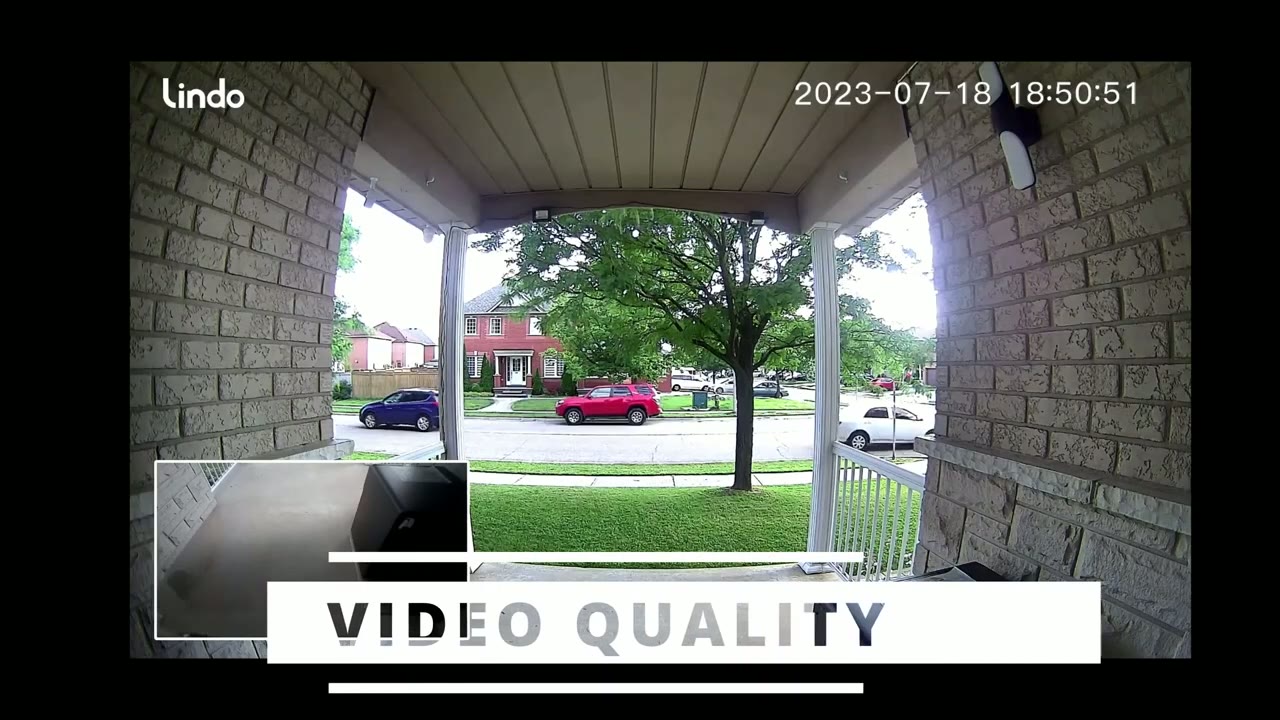
[Music] you can see that even though I have a covered or sheltered entryway which limits the light that comes in you know the video quality is still pretty decently exposed I can still make out a lot of detail and the microphone pickup is excellent as well that Vision on here is pretty decent but again keep in mind if you can have a porch light or some kind of floodlight set up it’s going to be much better than relying on whatever LEDs come with this since they’re really small in terms of the light output
2 Way Talk
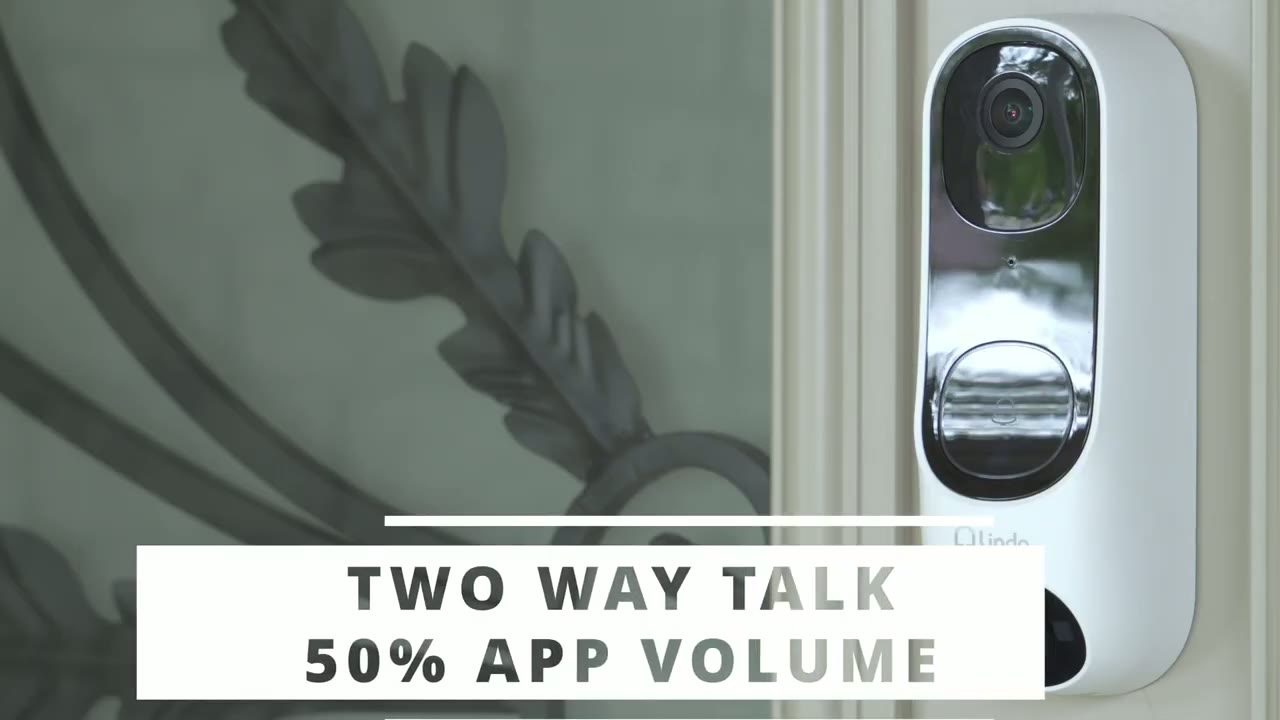
so as long as you can check my expense much audio Dropbox hello who’s there the notification speed on your phone
Notifications
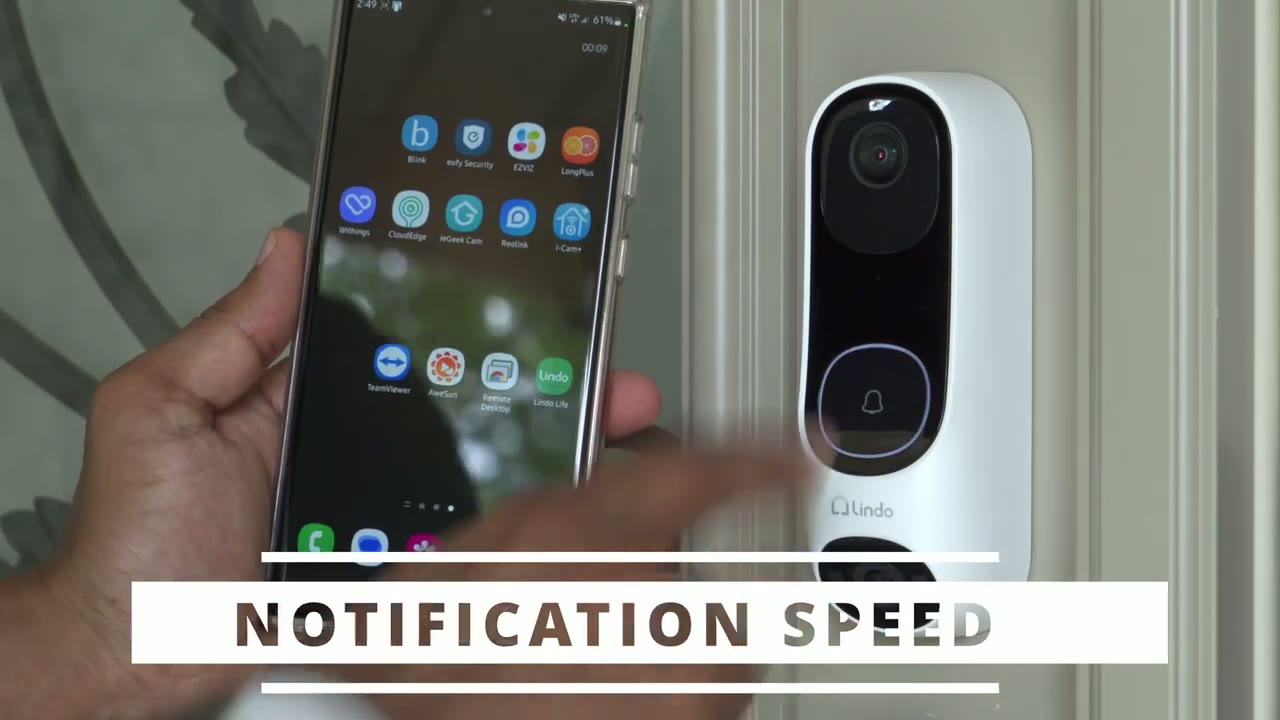
when someone presses the doorbell or once it detects motion is really good on here and 90 to 95 percent of the times when I tapped on a notification it would launch right up into that no problems at all but you know five to ten percent of the times it would take a really long time to load or it would time out and I would have to like go interrupt and manually pull up live view or manually go into the events lab
Chime Settings
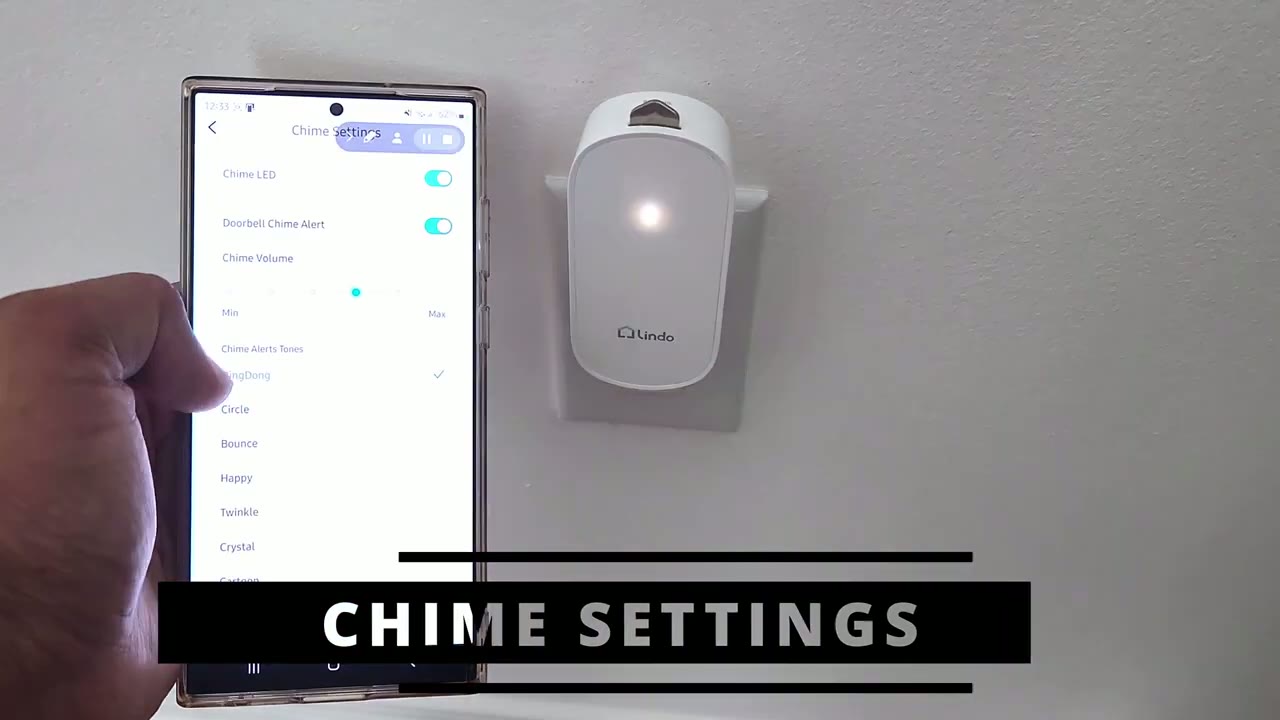
[Music] thank you foreign [Music] so what I still recommend the Lindo dual
Recommended?
cam video doorbell and I probably would still recommend it for most people because if you’re looking at this video you’re probably interested in you know the ability to see if your package is there or not or you know when it was delivered and that’s the reason why I would buy something like this and keep it on my door there’s a lot of video doorbells but not a lot of them have that secondary camera to track packages and while the package detection is a bit Hit or Miss since it’s in beta right now you know I can easily pull up live view and you know that’s always a fail safety because you can always just visually see in live view if your package is there or not so in that regard um it fulfills my need or desire about you know my package anxiety now if you live in an area where you must set up privacy zones then obviously this is not going to be a recommendation at least you know the way the functionality is set up now and I really do hope Lindo double thinks that because if they look at a lot of their competitors and what their offering the functionality that they’re putting behind a monthly plan is just you know basic or standard in a lot of other camera systems I’m also really happy that they’ve included a wireless chime with this doorbell because I’m not really a fan of hardwiring things and the chime works really well there’s not like a big delay or anything like that and it gets plenty loud I could have it on my second floor and if I crank the volume I’ll still hurt but yeah guys let me know what you think of the Lindo Duo cam 2 is it worth upgrading to something like this to have that secondary camera for packages you know having that really wide field of view it definitely comes in handy I have package anxiety maybe you do maybe you don’t but I’m always curious so if my package is still there when I’m out and as always if you found this video helpful please consider liking it subscribing it really does help me out a ton and I’ll see in the next one soon
Please note that some of the links in my video descriptions are affiliate links where I earn from qualifying purchases. As an Amazon Associate I earn from qualifying purchases.