



Please note that some of the links in my video descriptions are affiliate links where I earn from qualifying purchases. As an Amazon Associate I earn from qualifying purchases.
Intro

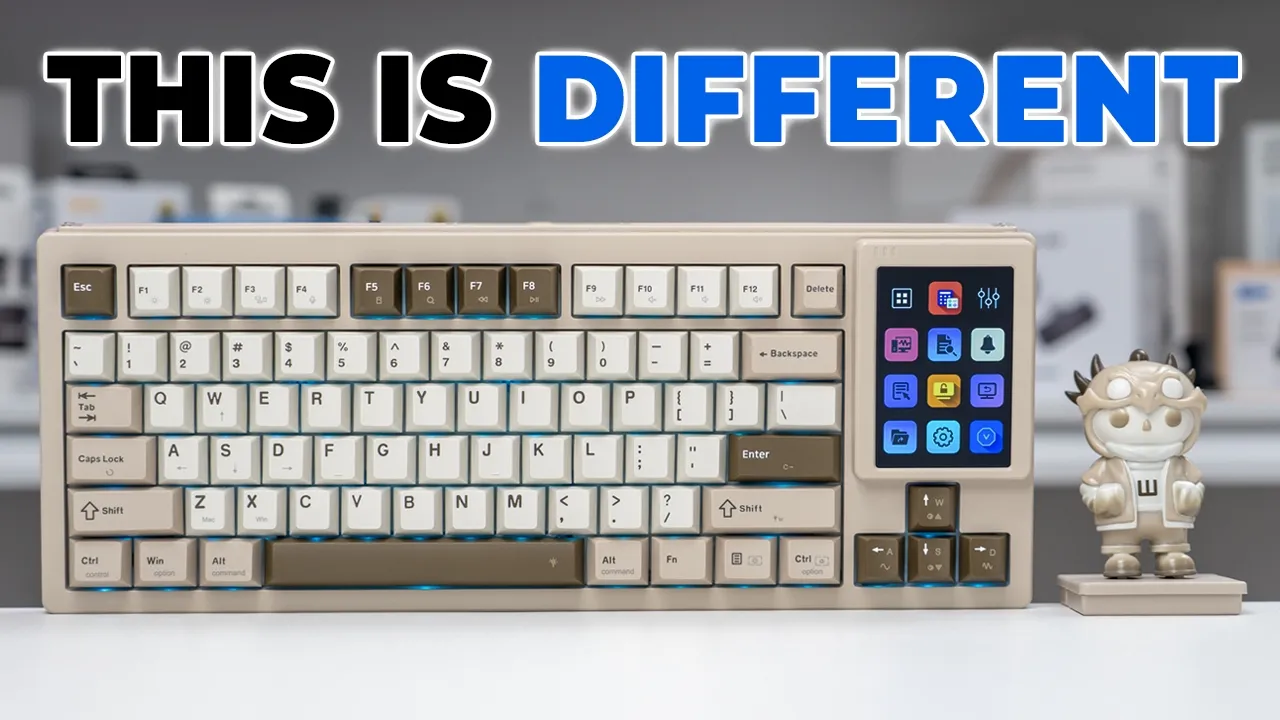
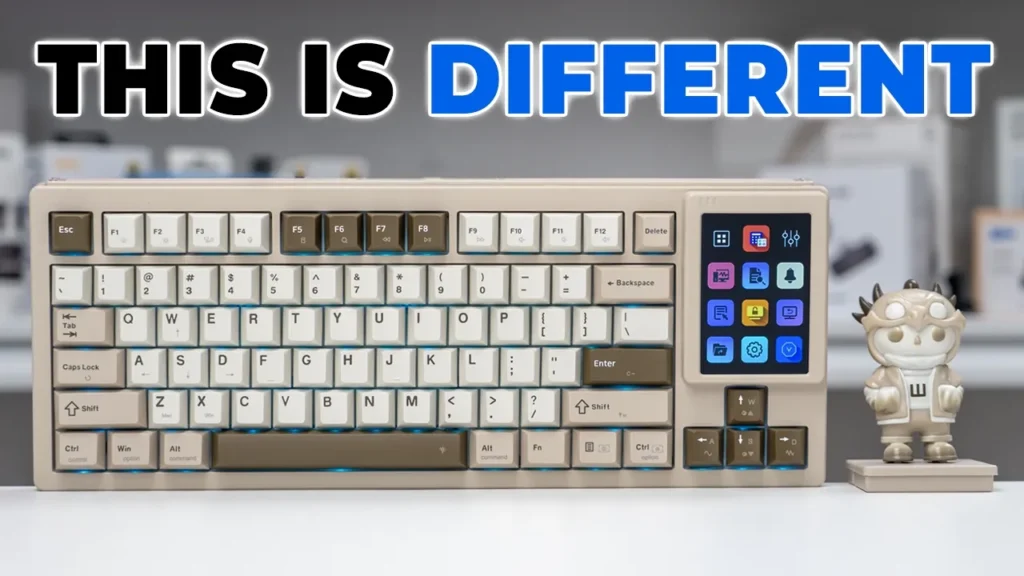
This mechanical keyboard looks pretty unassuming, right? Well, this is the Were Duo 87 modular keyboard, and it has the potential to really speed up your workflow. It has a color touchcreen module that you could swap in and fully customize to quick launch apps, adjust settings, use hotkeys, and more. You can even use the smart touchscreen separately off the keyboard, so you can keep the stock key caps or use the included figurine as well. But how well does it actually work? Is it really easy to customize? And how does it actually sound? Well, let’s take a closer look. And a big thanks to Wir for sending this
Package Contents
out for review. In the box, we have the dual 87 keyboard along with a dual figurine and magnetic base for it. There’s a USB type A to type C connector cable for replacement such as a key cap and switch puller, manual, and there’s also the smart deck or play deck along with its own base if you want to use it off of the keyboard. The Were Dual 87
Design
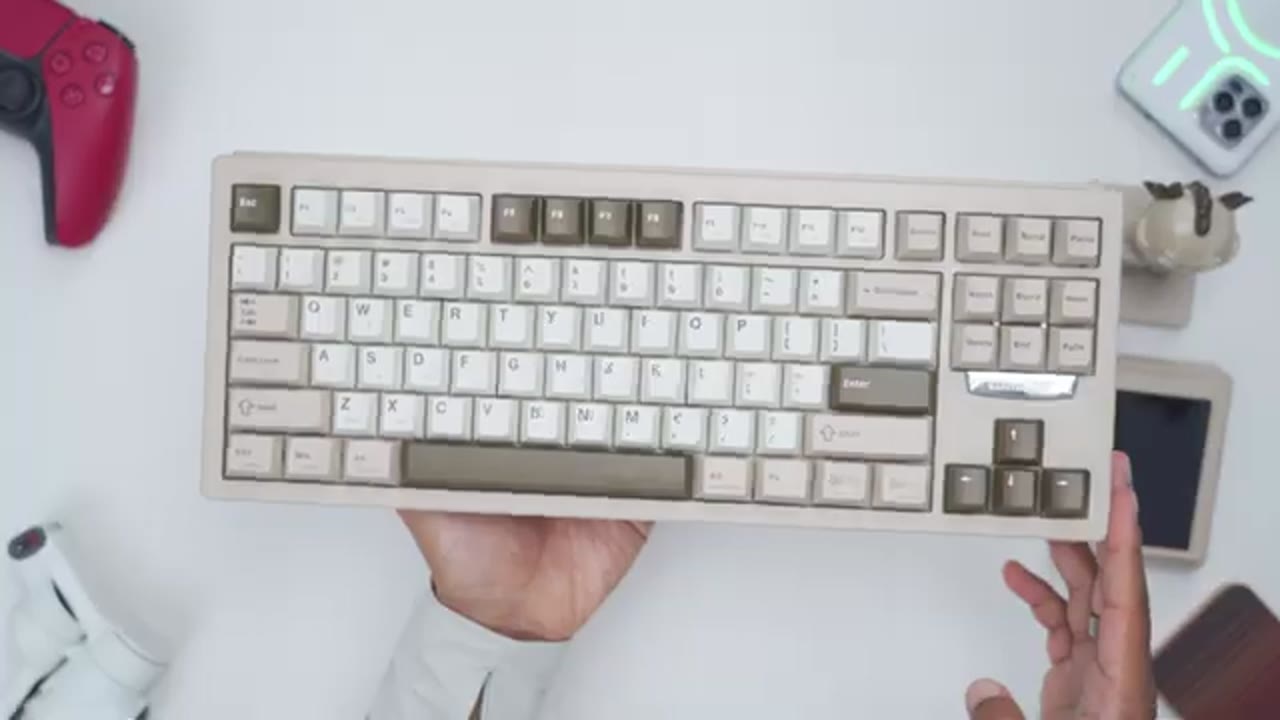
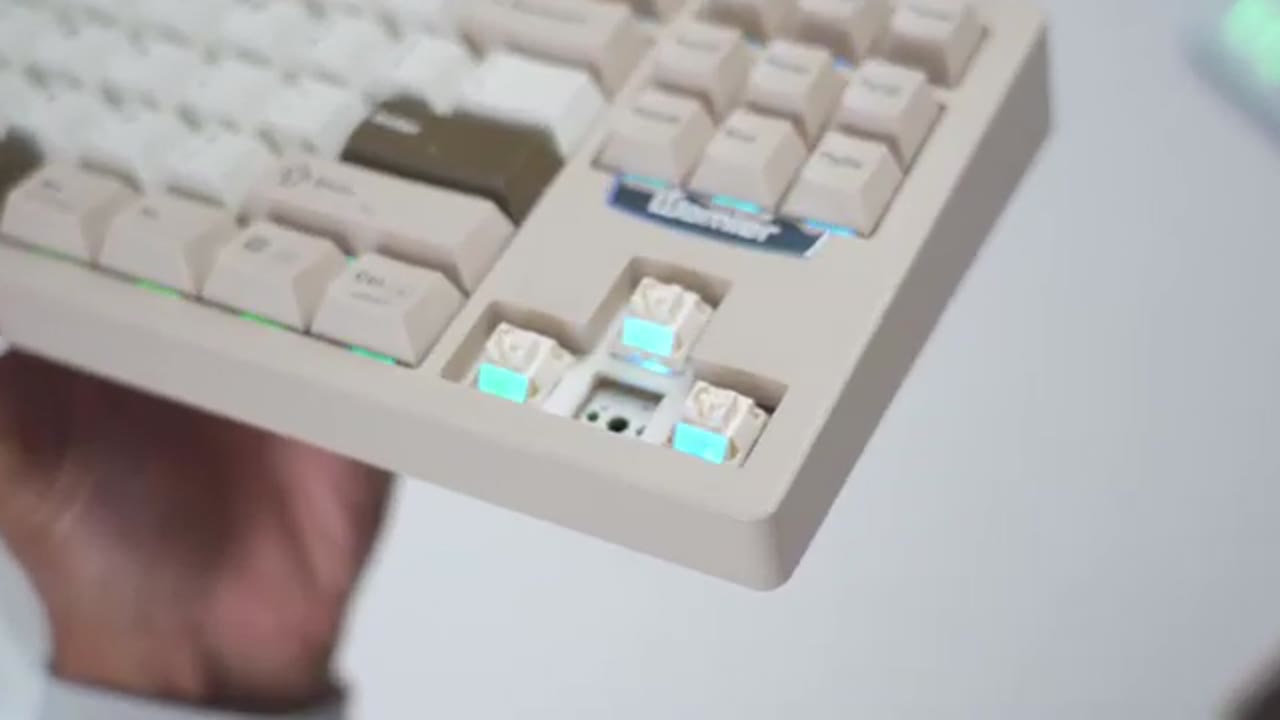
keyboard comes in at around 924 grams or about 2 lbs and that’s with the stock configuration. However, since this is a modular keyboard, we can actually remove these keys here and swap in the dual figurine which comes in at around 50 g with the magnetic base attached. Additionally, you can also use their smart deck or play deck. And if you attach that just by itself, that comes in at around 61 g. I have the retro gray version, but it also comes in black as well. This is an 80% layout and the case material is an ABS build. Now, if I go ahead and try to flex this, you can see it actually does have significant flex, but there’s no type of creaking at all. There’s doubleshot key caps, and these are using Were’s palm switches.
Now, do note we have southacing LEDs, but we don’t have any shine through key caps. There’s three or five pin hot swap functionality. Note that when I press on the left key with a lot of force, you can see the other keys nearby being depressed as well. So, there’s a bit of structural flex. Here’s a side view of the key cap profile. And if I go ahead and run my fingers along the printed legends on here, you can feel it ever so slightly. Dual mirror logo is on this glossy area here, which looks really nice. And on the back of the keyboard, this is where we have the USB type-C port. You can only use this in wired mode. There is no wireless connectivity. And on the very back, we have rubber feet to keep this nice and planted. And we have two-stage adjustment feet.
Specs
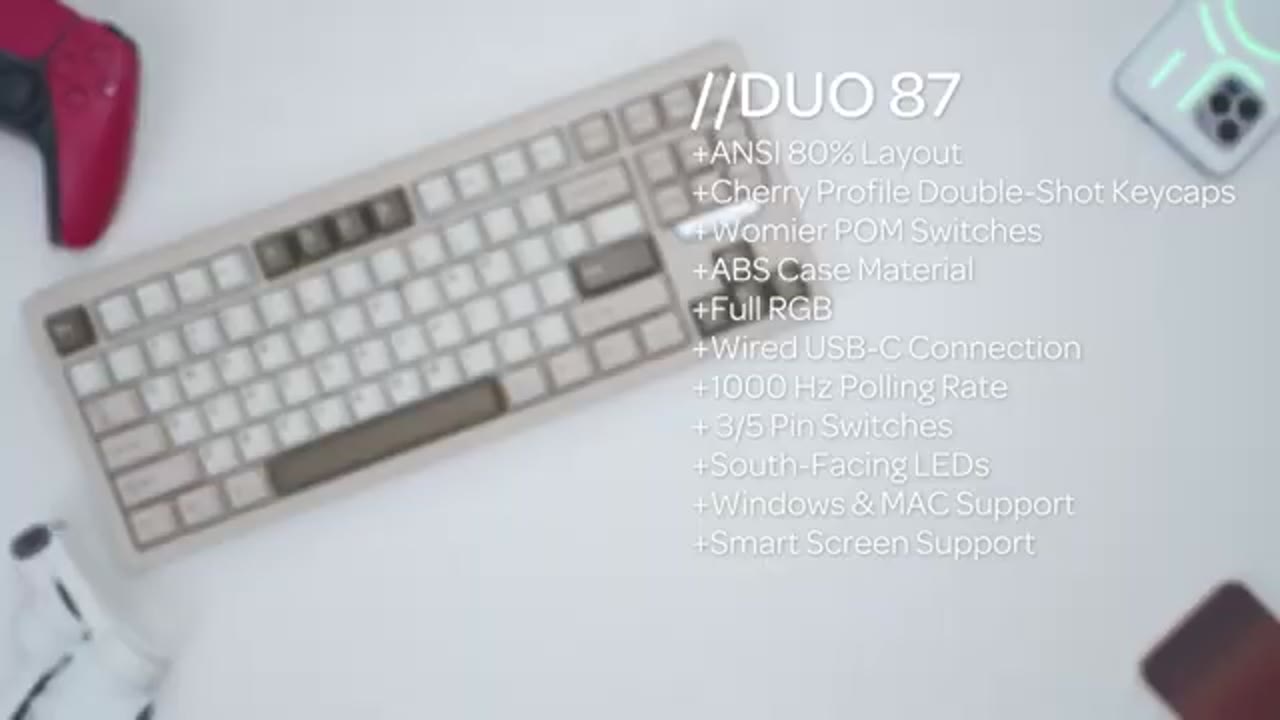
Here’s a quick look at the specs. Feel free to pause and review or jump ahead to the next section. Here’s what the
Sound
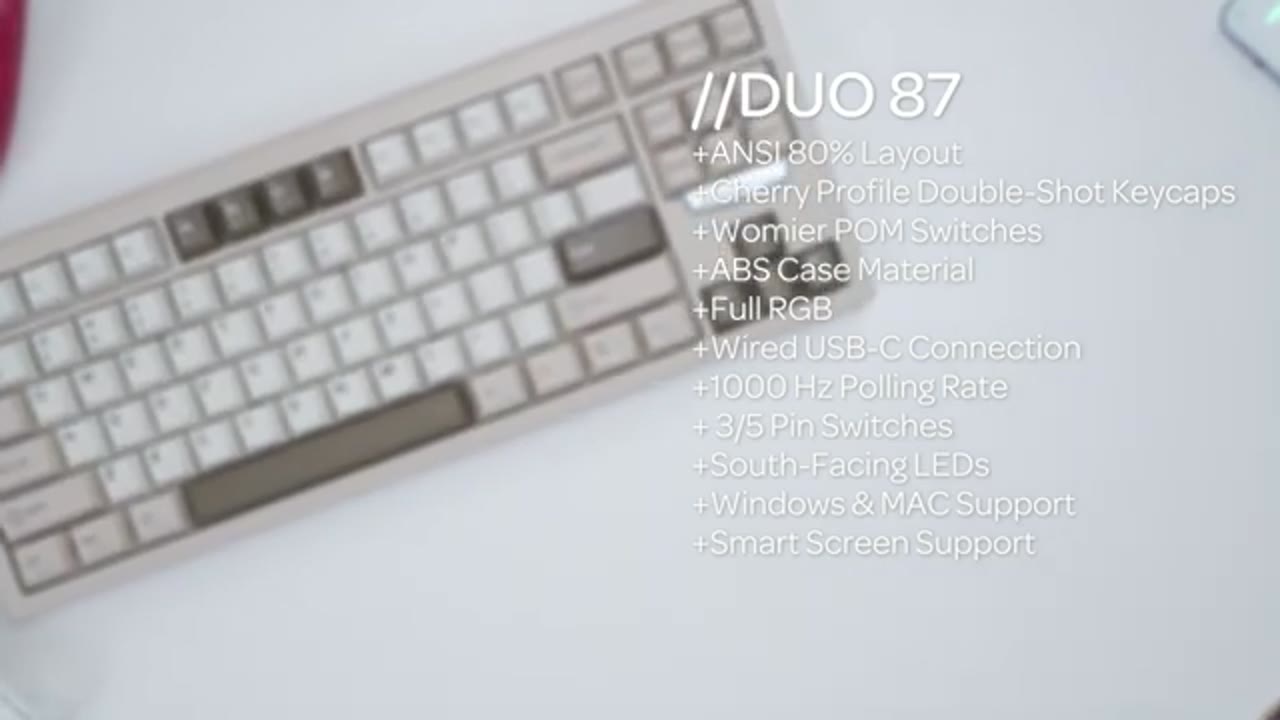
palm switch looks like. So, we have the south facing LED and it has extremely smooth travel. Here’s what it sounds like. The sound profile is really pleasing to the ear. Very creamy sounding. There’s no type of harsh noises and no type of pinging noises when you’re slamming down
Typing
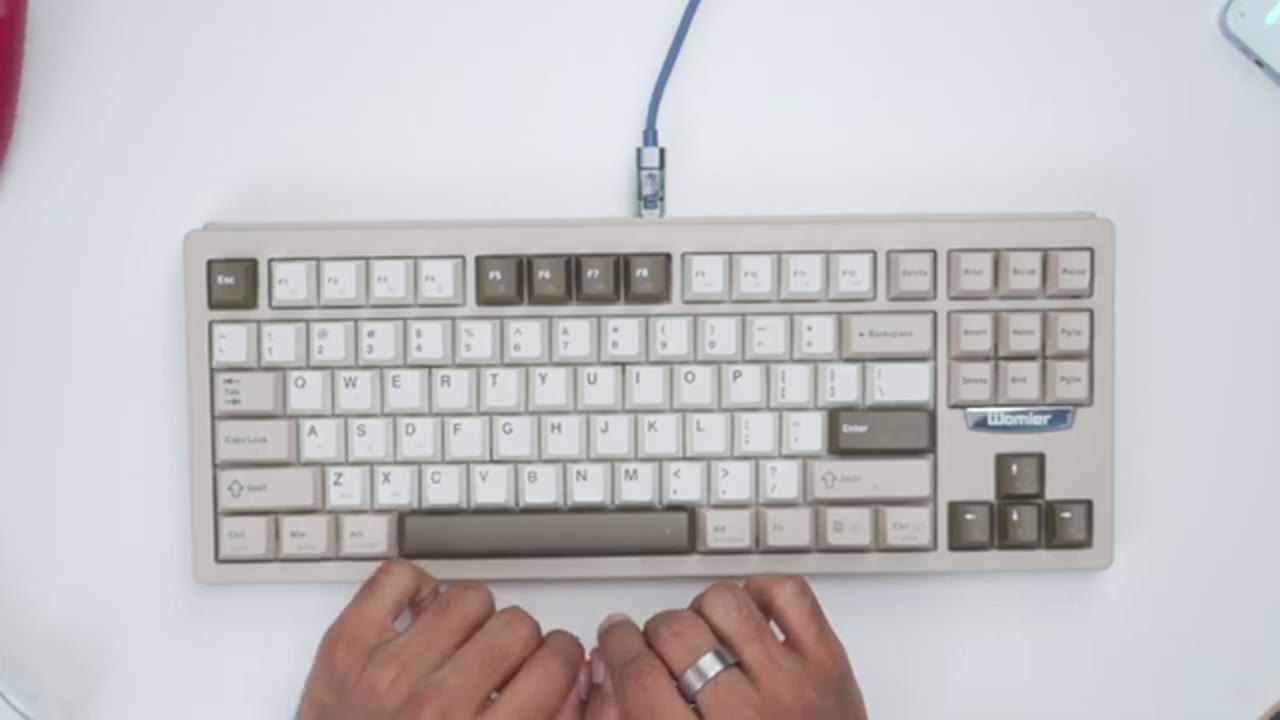
on the spacebar. Similarly, the typing experience is also really enjoyable on here. So, my fingertips are nice and cradled on the key caps. They have a matte type of finish, so it’s not slippery at all. And I don’t have a way to actually measure the actuation force on here, but it does take a little bit more force than I’m used to on other keyboards. Just something to keep in mind if you’re more of a touch typus, but I don’t mind it at all. All of the keys also had really nice travel, very smooth, and more importantly on the spacebar. Doesn’t matter if I hit it on the corner, in the middle, or on any of the other corners. It’s a nice and consistent deep press. I’ve cut the
RGB
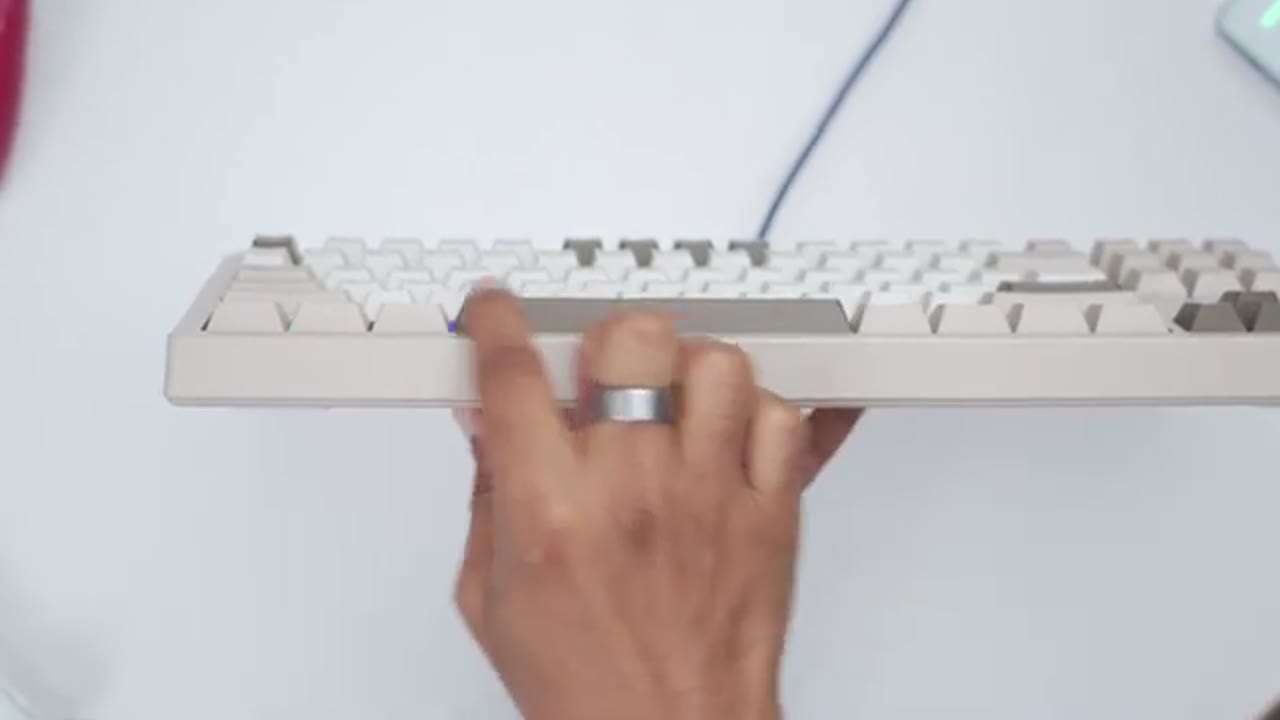
lights to show the RGB effect. So, I’ll go ahead and start lowering the brightness. So, that’s the lowest setting. Of course, you can turn it off completely. And here it is at the highest settings. You can also go ahead and slow down the effects, speed it up, and you can go ahead and cycle through various effects as well, as well as using solid colors. And here’s the full
Keyboard Shortcuts
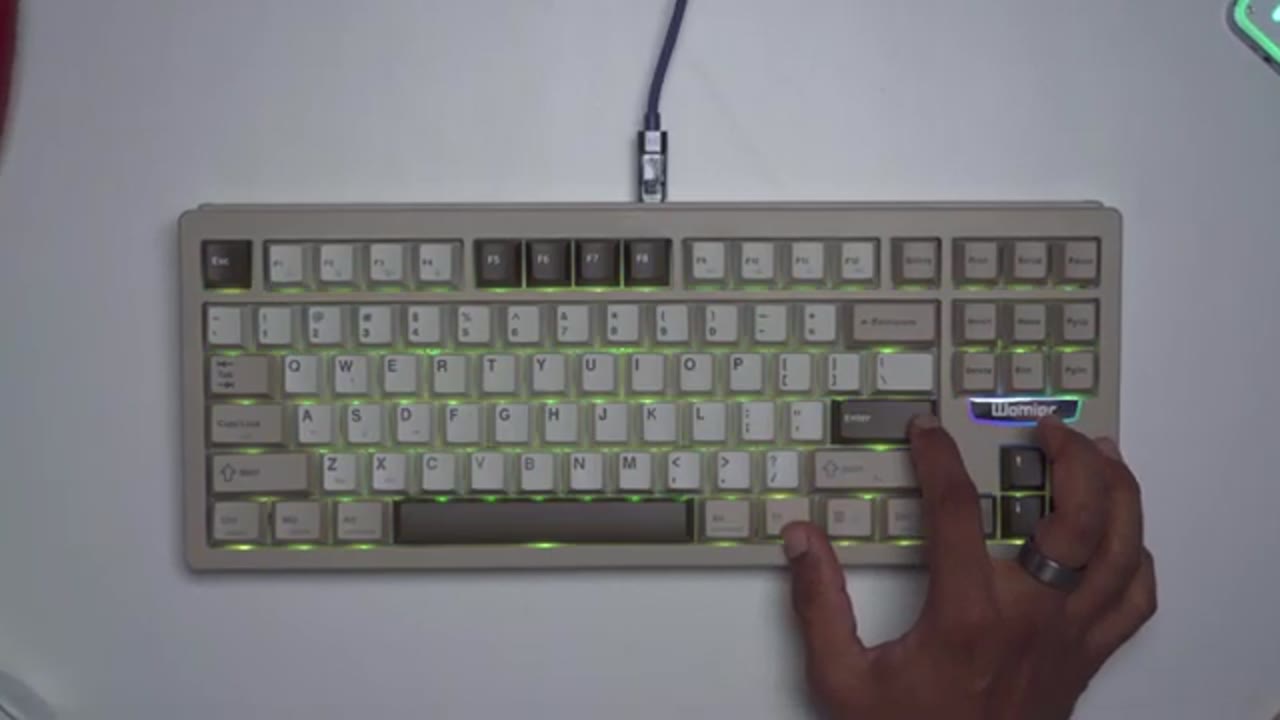
list of the keyboard commands that you can issue. In terms of modularity,
Modularity
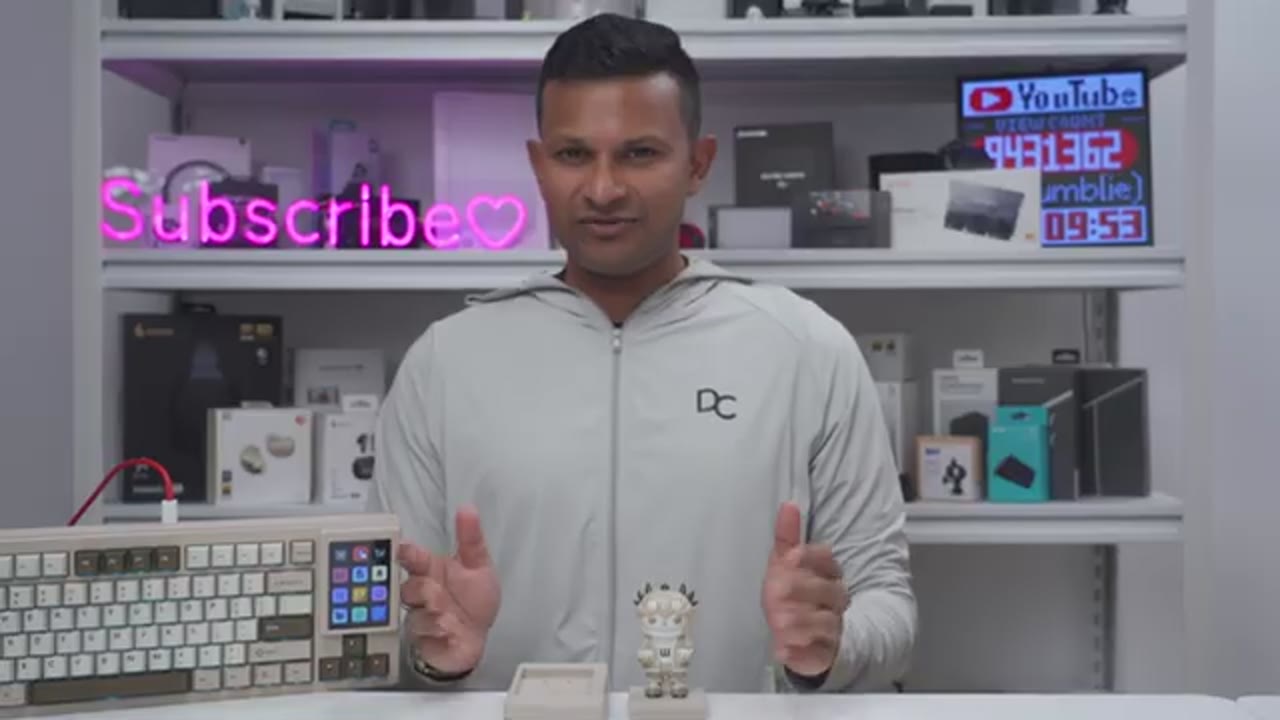
they’ve made it extremely simple. So, once you remove the key cap and switches, you can just attach the magnetic base either for the figurine or the smart deck. So, you can see it’s right now with the Smart Deck. I’ll just go ahead pop this out. I’m not even going to look. And then I have the figurine here. I can just snap that into place. And it’s magnetically held into place. That’s why it’s not falling off. When you’re done, just go ahead and swap either of these modules. Again, very simple. It just finds its way home and it’s automatically powered up and you’re good to go. It really is that simple. Additionally, the Smart Deck comes with its own base. So, you can see the connector here, and there’s a USB type-C port right there. So, I have a USB type-C cable connected to my laptop.
I’ll just go ahead plug this in just like that. And now I can actually use the smart deck separate or off the keyboard. I could have the default key caps right on here or the figurine and I still have that added functionality.
Software
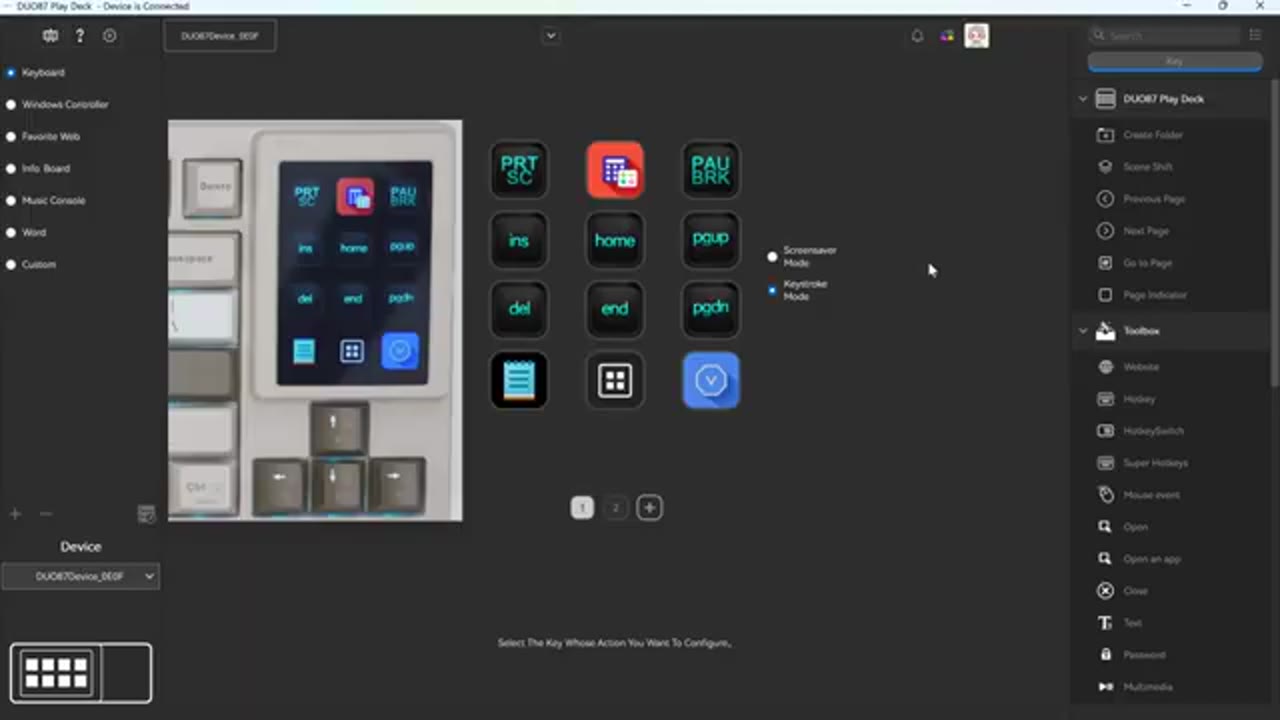
Let’s take a look at the DO87 playdex software which is pretty cool. So note that it right now shows print screen, calculator, pause, break, and that’s exactly what’s mirrored on the Playex screen. Now if I click on screen saver mode, it’s going to play the animated GIF files on here. And of course, I could cycle through these other static images that came pre-loaded. And there was an image of a cat. I replaced it with this image of stars to show it’s pretty simple to do. Now, if I want to go back to the keystroke mode, rather than having to open the software, I could just swipe down and I can just switch between these two modes, keystroke mode and the screen saver mode. Now, to use the software, it’s actually quite simple. So, on the left side, it’s broken down into scenes.
So, we have keyboard. Note, if I click on Windows controller, look at the screen. You’ll see it switches extremely quickly basically in real time. There’s one favorite web info board music console word and these are the custom ones. Now if you click add or the plus sign here you could add your own custom scene. So I’ve added my own and I’ve dragged in the tools or kind of assets I want from the right side. But let’s go on the keyboard one. This is the kind of like default one. And you’ll notice that on a lot of these there’s this blue arrow and that is what’s going to allow you to cycle through the different scenes because if you just pull down it would put you into the screen saver mode. So that’s how they’ve gotten around that issue. So you can just have this on all of your scenes.
Now to customize this additionally I’ve actually clicked the plus sign here and it’s added horizontal pages. So I’ll click uh delete for three. But you can see right now there’s a two. So, actually, if you look here right now, if I slide over horizontally, I now have a numpad. So, I basically just went into Photoshop, created these numbers, just transparent PNG files, and now I have a numpad, which is something I always miss on a full-size keyboard. Now, to show you how easy it is, I’m going to click hotkey, drag it into this box here, and I’m going to click uh nine. Sorry, let me click that again.
I’ll click nine and then I’ll change this image to select local file right here and I’ll give this a nine and instead of cropping it I’ll just say original image and basically in real time it’s updated my you know kind of makeshift numpad there. Now I also want a zero on here. So what I’ll do is instead of dragging hotkey I can just go ahead click copy paste it in there. I’ll click on nine again. I want the hotkey to be zero. And I’ve made an image for zero right here. Click original image. And there you go. So I now have a functioning numpad. Now if I jump into Excel, you can see I can go ahead, you know, hit one, hit eight, you know, just like if I had a full-size numpad. That alone is, you know, kind of worth having this honor. The fact that I can easily switch over to a numpad.
Now, if I was, you know, regularly going into Excel, I could just, you know, populate this with the Excel icon. Tap on that, open Excel, and then just start typing. So, let’s go back over here. And you can see these are the defaults. You can add or remove any of these if you didn’t want. You could just rightclick, delete this, or remap it if you want. Now, if we go under Windows controller again, you have some quick launch uh icons. So, there’s one here for showing your desktop. So, if I just tap on that, you can see my desktop right there. There’s one for calculator, uh, one for opening control panel. You get the idea. And basically, you can do whatever you want. Now, favorite web is just going to be bookmarks. You have your info board.
You could do times, you know, you could quick launch your drives. Um, Internet Explorer, there’s music control, volume up, volume down, really handy, mute, and then, you know, for specific applications like Word. So for example you know uh doing controlU you can see that map right there that uh hotkey assignment. Now if you want to get an idea of the functionality so on the right side these are broken down into these kind of sub menus right here. So under play deck you can even create folders. Um scene shift, previous page, next page, go to page number and then page indicator. And then under toolbox you can see this is where you can pull in you know websites, hotkey, hotkey switch, super keys, mouse events um which is handy. You can open uh specific files, folders, open apps.
Uh you could close things and for open app so under custom you could see I have one for open Photoshop. uh one for opening uh command prompt um internet explorer mail. It’s extremely simple to just drag any of these over like open an app right here. You can see I can cycle through all of the various apps on my computer. So for example, I can say Kasperski right there and I can just go ahead hit that and it’s going to open that up really no issues at all. And then you also have some Windows control stuff like sleep, switching screen, you know, speech detection. In the main settings, this is where we can take a look at the device firmware. We can actually turn the screen off never after a certain amount of time. I’ll leave it on never. And we can rotate the display as well.
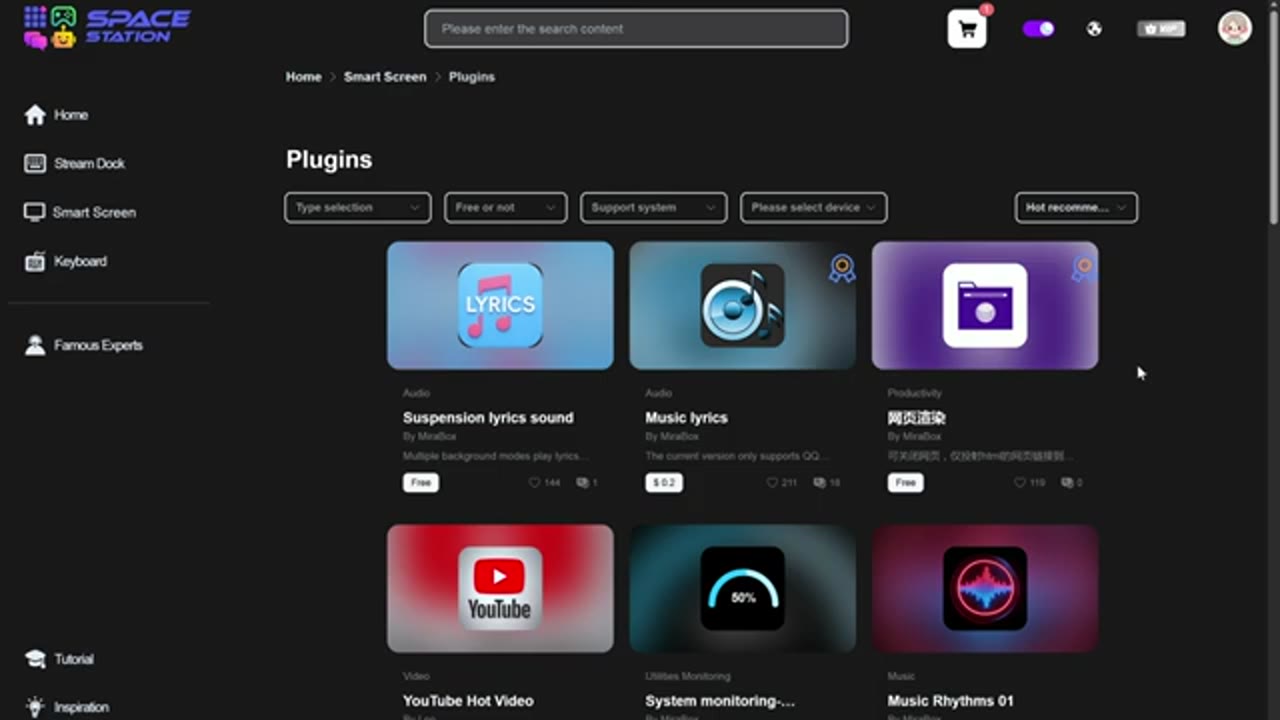
I’m going to leave it back on the default. Now, this is where you can manage scenes. You could delete scenes you know you’ll never need or add scenes as well. And you can also set default scenes. So, you can see this one is set as the default. And under general, this is where you can check for updates. These are the available languages as well. And you can also go ahead read the user guide if you need to. Something else that’s noteworthy is this icon. So if you click on that, it’s going to take you to their website, the space station, uh, they call it. So under plugins, there’s a bunch of different plugins here. Now, I haven’t found a way to actually sort by the smart screen or this play.
You can sort by operating system, you know, by price and things like that, but I haven’t seen anything for this aspect ratio. So, it’s probably something that’s going to get populated later, you know, once this becomes a bit more mainstream. So, yeah, there’s a ton of functionality here to add, you know, kind of additional productivity and
Changes?
features to this. While I’ve loved using the Smart Deck so far and I haven’t had any issues, you know, tapping the wrong icon because everything is nicely spaced apart, I would like the ability to have smaller icons just so that I could have more on the screen at one time. You can see right now this is a good layout, but if I go ahead and swipe over where I have kind of this number pad that I’ve set up, it would have been nice if it could be a little bit smaller so I could add in, you know, a plus, minus, divide, equal, enter sign, and all of that. The touchscreen is also plenty responsive, but I would like to see in a future model maybe a bit more premium of a build with a glass screen versus this plastic type of screen. So, I’ve been
Recommended?
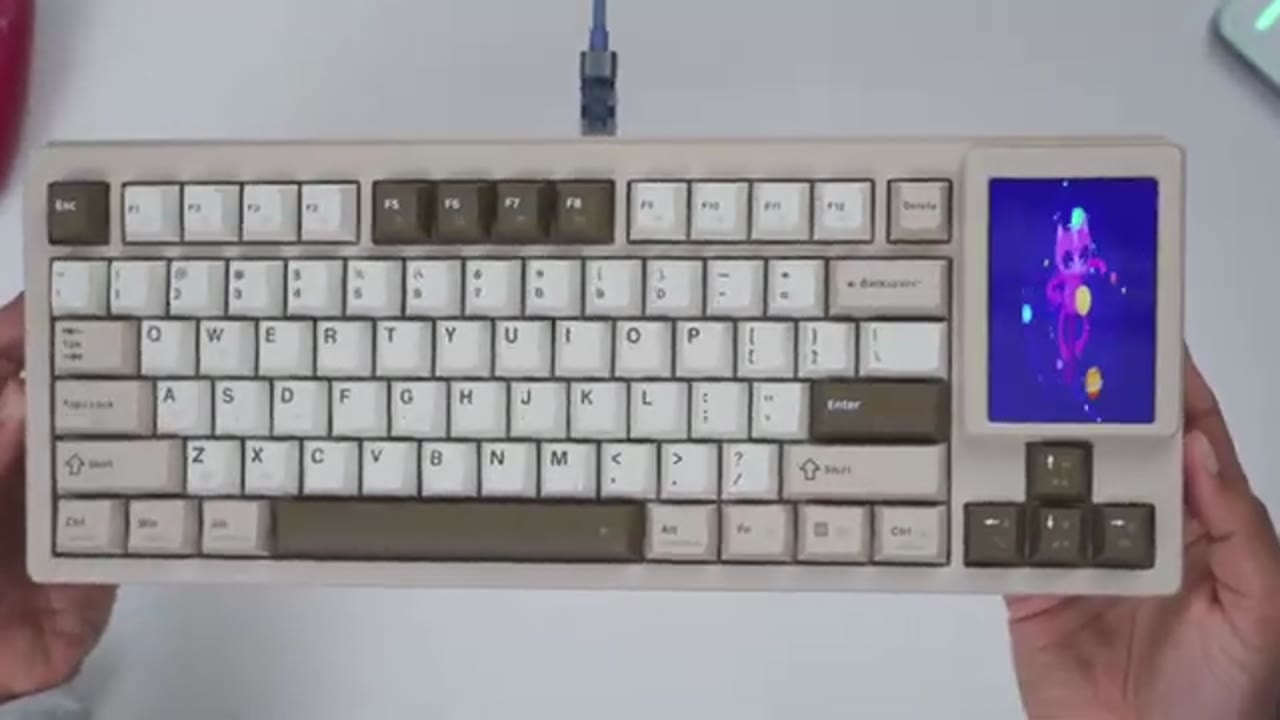
loving the DO87 so far, and I think this is a fantastic keyboard if you’re someone who likes compact keyboards, but you want that functionality that a full-size keyboard brings because you can easily go ahead just pop the screen in. It’s extremely modular. Fire up the software, just customize it. It’s really simple to do, and you’re off and running. Plus, there’s potential to add additional plugins and functionality down the line. So, the DO87 really gives you the best of both worlds. It’s compact. Plus, there’s the ability to add additional functionality, say like Photoshop actions, Illustrator, After Effects, Da Vinci Resolve. You can really customize and fine-tune this exactly for your workflow.
So, if you’re interested in picking up the Wier D87, I’ll leave links down below to their Kickstarter campaign if you want to get in on the early bird pricing. If you like this video, maybe consider checking out this video next and even liking and subscribing and maybe even becoming a member to get access to videos early and other perks. I also review a bunch of other tech that you’ll probably enjoy. So, check those out as well.
Please note that some of the links in my video descriptions are affiliate links where I earn from qualifying purchases. As an Amazon Associate I earn from qualifying purchases.