


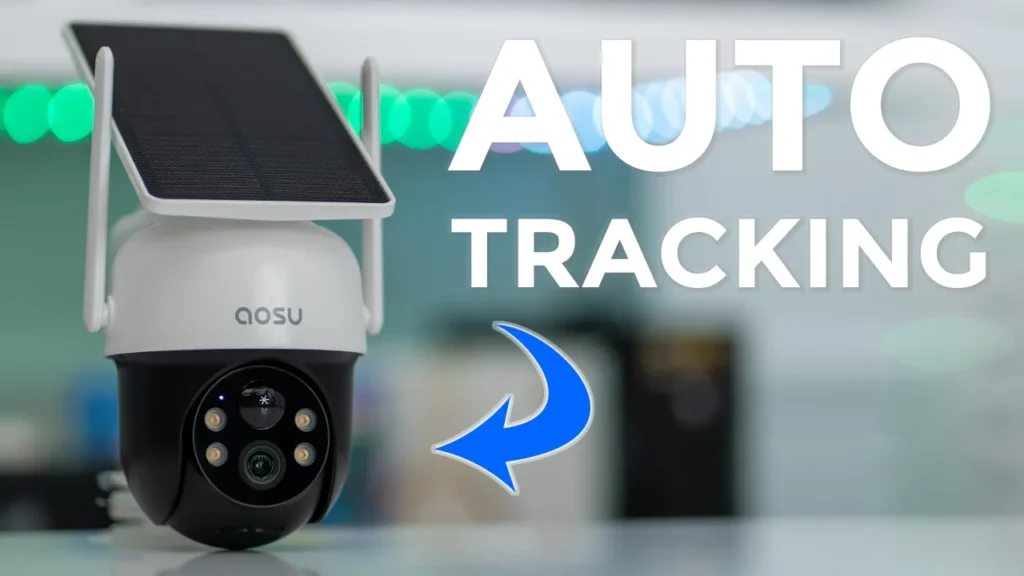

Buy aosu SolarCam D1 Classic on Amazon
Buy Aaosu SolarCam D1 Max at aosu
Please note that some of the links in my video descriptions are affiliate links where I earn from qualifying purchases. As an Amazon Associate I earn from qualifying purchases.
Intro

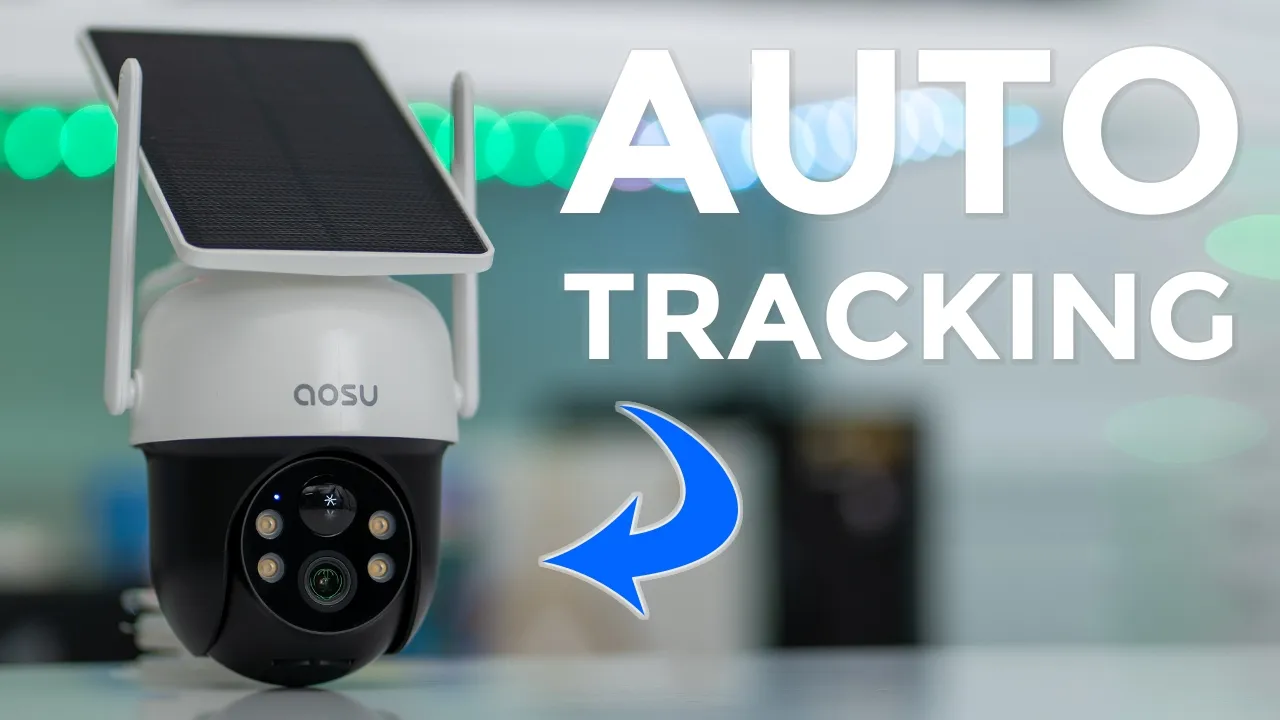
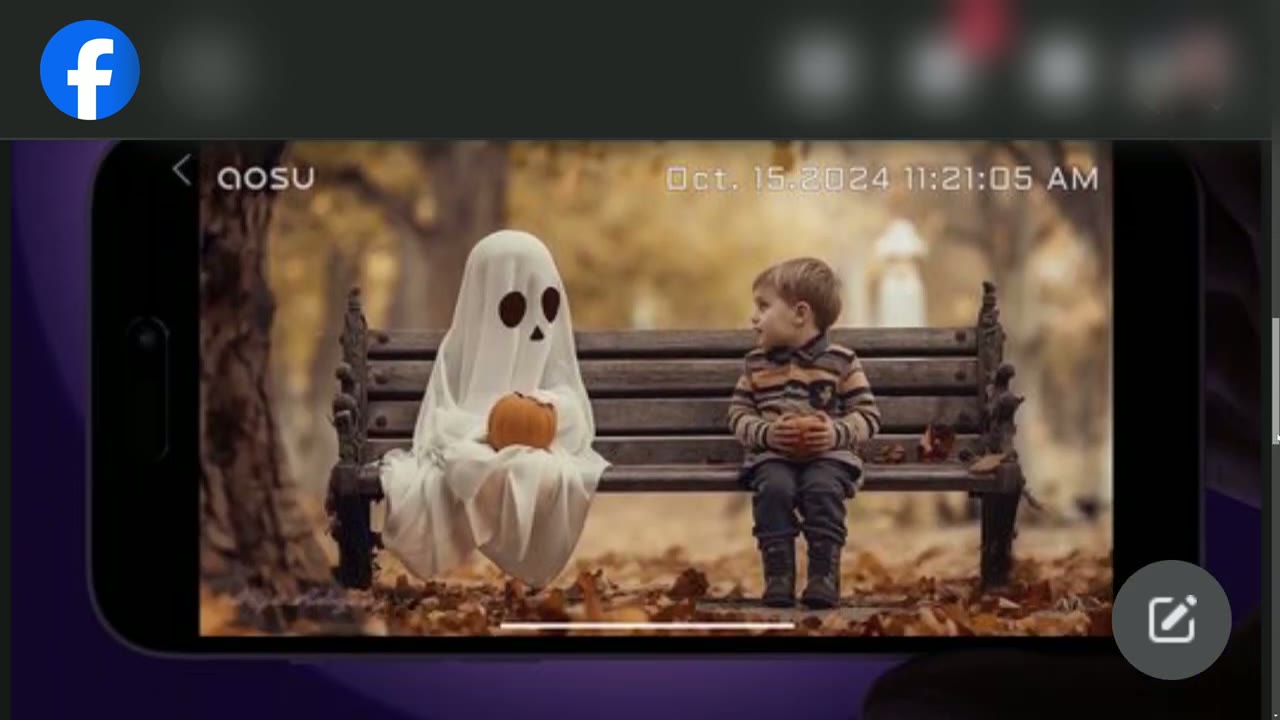
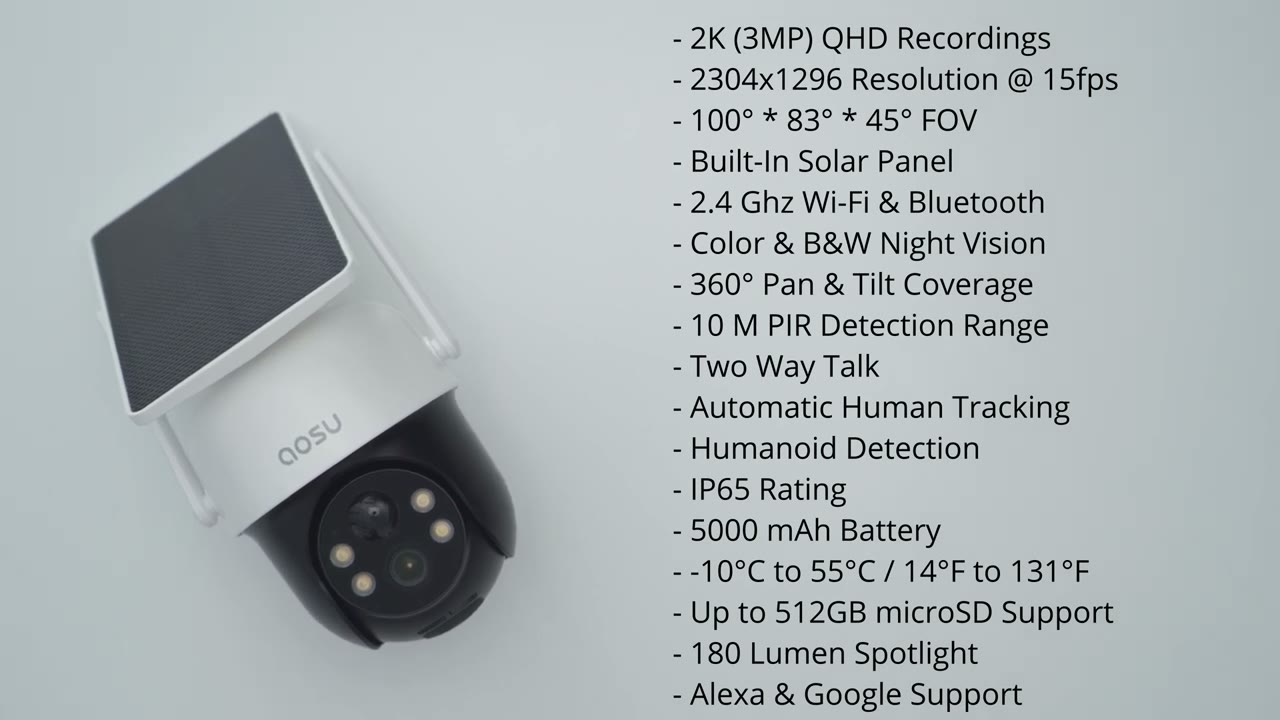
hey it’s Adrian and today I’m taking a look at ASU solar cam D1 classic the ASU solar cam D1 classic comes with a ton of features such as 2K video for clear videos during the day and at night there’s 360° of panning and there’s also tilt coverage as well there’s automatic tracking and human detection and human tracking two-way talk quick motion detection and app alerts and ip65 reading zero monthly fees and more now that’s a pretty impressive feature set but before we get into the full review I just wanted to let you know ASU is running a Halloween contest right now on their Facebook page I’m going to leave links Down Below in the video description and pin comments go ahead check that out for your chance to win some ASU cameras good luck and a big thanks to ASU for sending this out for
Package
review in the box we have the U solar cam D1 classic along with a mounting bracket mounting hardware positioning sticker security sticker USB type A to type-c cable and manual so the design on
Design
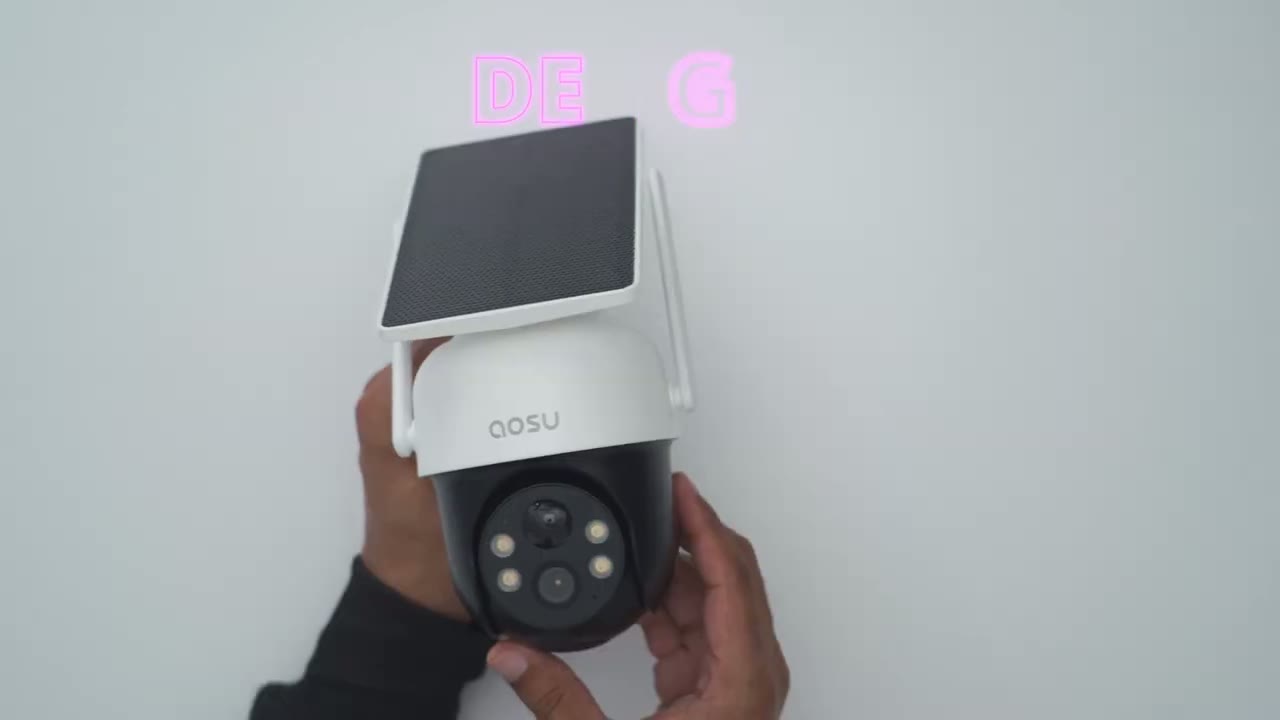
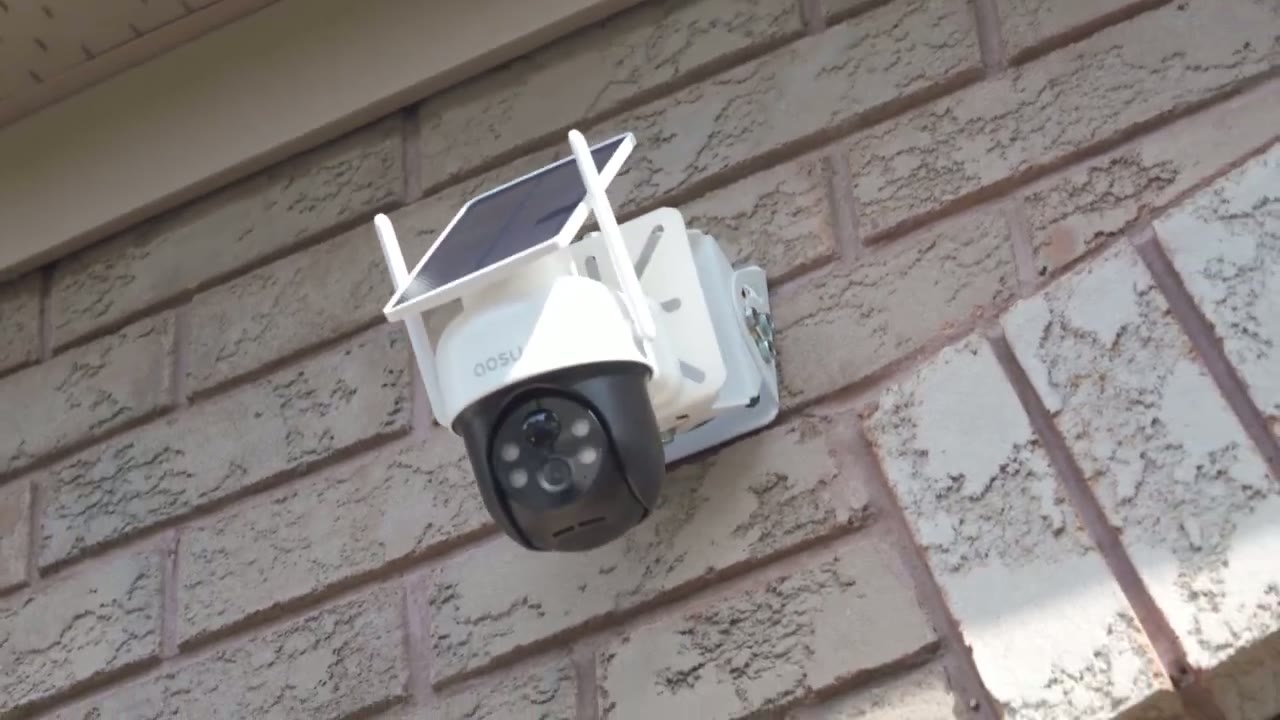
the solar cam D1 classic is pretty tried and test and reliable like their other designs so on the top we have the built-in large solar panel we also have adjustable Wi-Fi antennas here this does use the 2.4 GHz Network now on the front we have the LED spotlight various sensors and the 2K camera lens right there and of course this is fully uh pable and tiltable and now if we take a look at the bottom here there’s a weatherproof uh seal and once you open that up you have access to the micro SD card slot a reset and power button the rear of the camera has a fairly large speaker Grill and then we have the mounting area for the mounting bracket to go into and then if we take a look at the bottom there is a USB type-c port with a weather sealed area surrounding it and you would use this just top it up before you go ahead and install it
Specs
here’s a quick look at some of the specs feel free to pause or jump ahead to the
App Setup
next section let’s add the solar cam D1 Max to the ASU app so first I’ll turn on the power hello all right so the camera is on and I could see the flashing Blue Light by the way I did insert the micro SD card here to save a step so I’ll click the plus icon in the ASU app and it wants me to now actually it just found it automatically without scanning anything so I’ll go ahead hit add make sure you’re connected to your 2.4 GHz Network so this is mine and I’m just going to go ahead and click continue continue the camera is connected to your Wi-Fi network it may take a moment please wait for a while save settings successfully and that was very quick so the camera was added like pretty much automatically I didn’t have to scan anything that’s fantastic the firmware update is complete so I highly recommend starting live view making sure live view pulls up easily just like so and now you’re ready to install installation is extremely
Installation
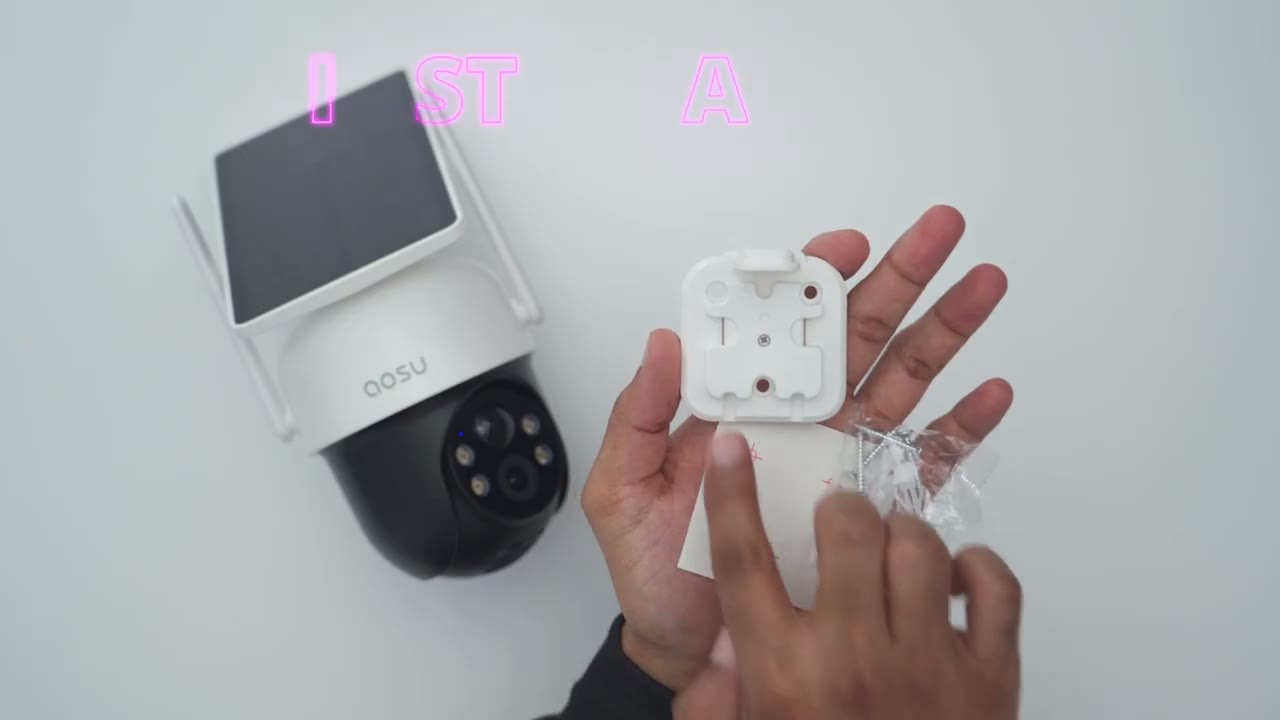
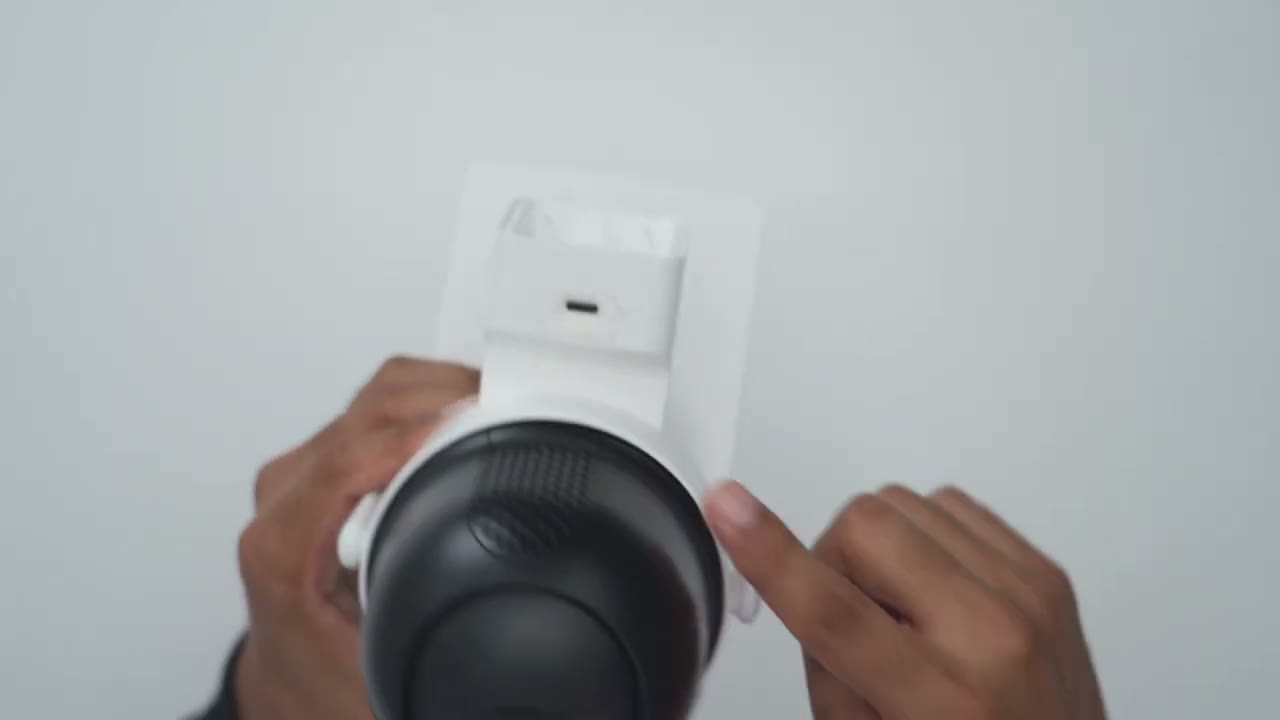
straightforward so you’re just going to secure this mounting bracket to a wall and you could use the position iing sticker and the supplied screws and wall anchors and then once you have this attached to a wall you’re just going to take the camera and then slide it in till you hear this click just like so and that took a little bit of effort there and you know this is going to be nicely and securely in there let’s take a look at the app
App Settings
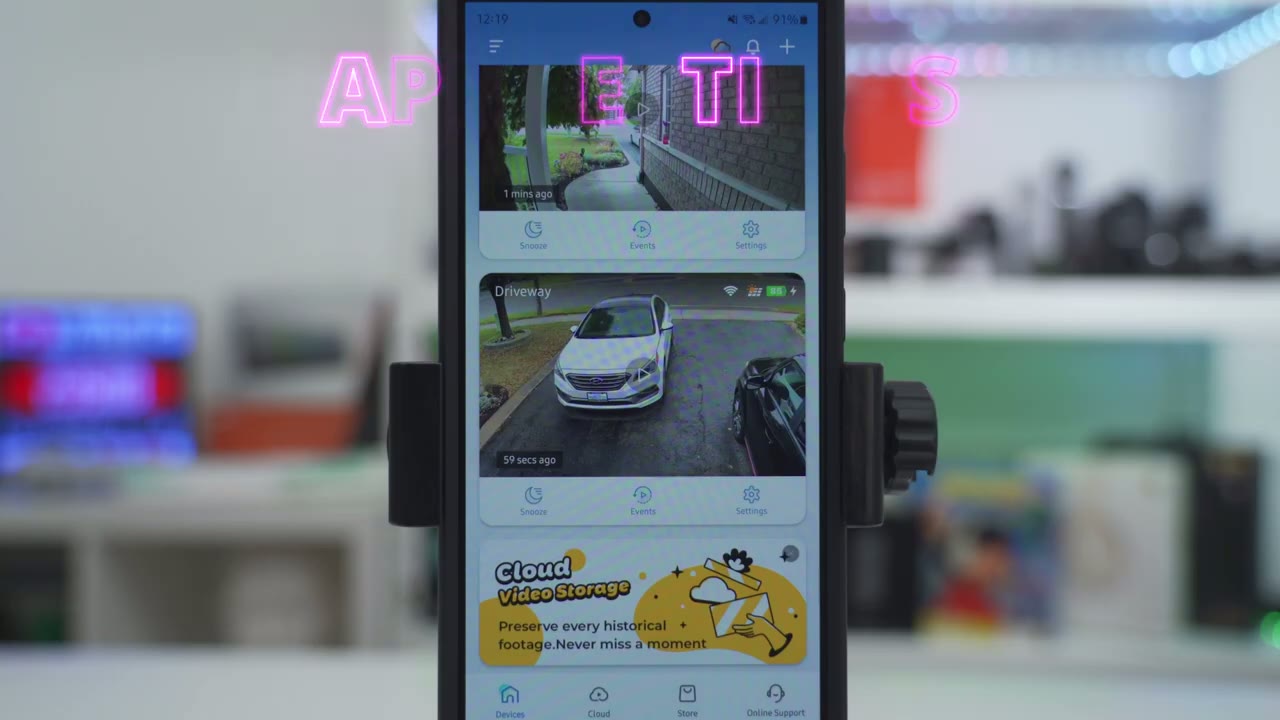
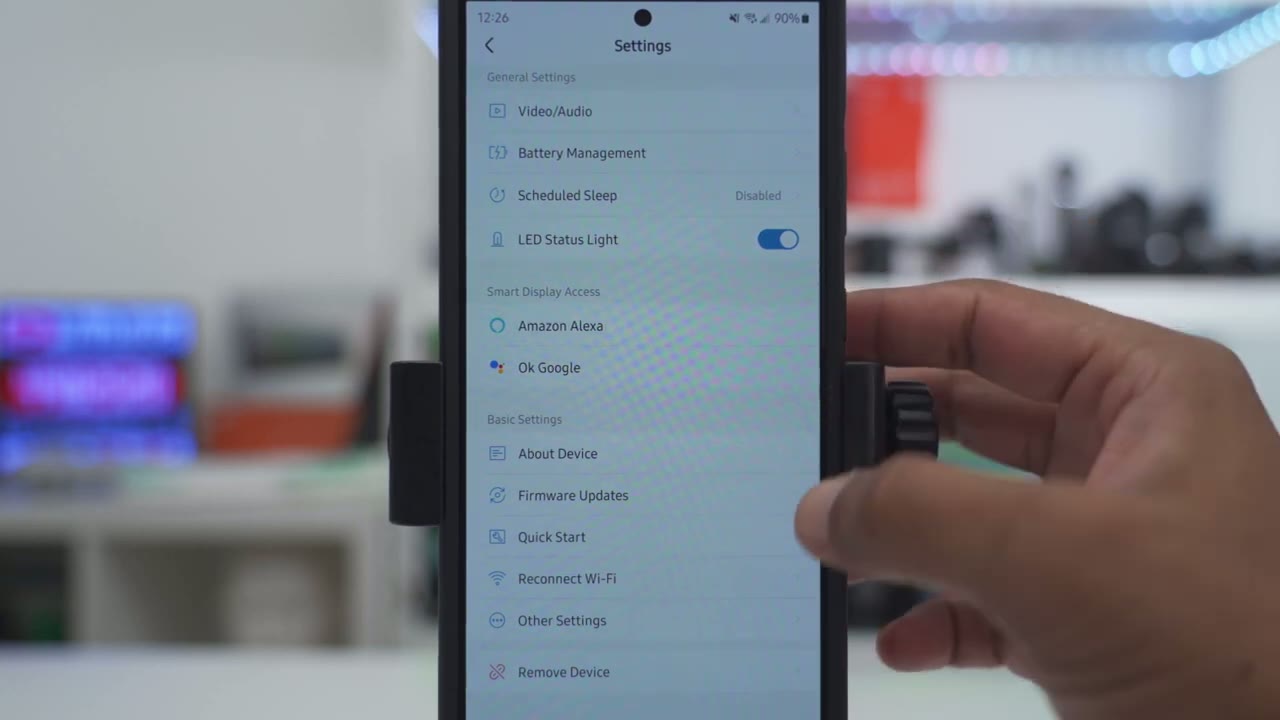
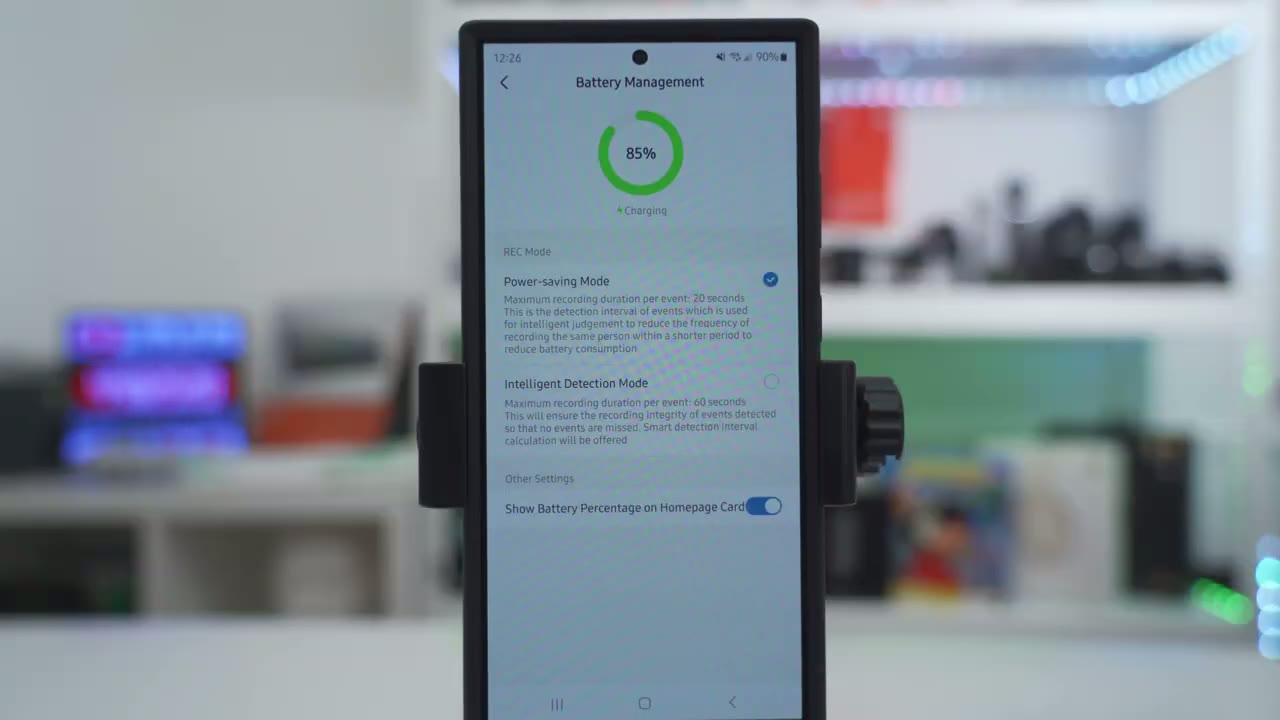
setting so at a glance I can see the current battery life and I could see that it’s actively being charged with the solar panel and I can also see the Wi-Fi signal strength the other thing that I could do is I could go ahead snooze this from 30 minutes all the way up to 12 hours I could jump into events and notice that it says cloud and local so if you do get the optional Cloud plan you know you would go over to Cloud but because I am on the local plan I’m just going to stay on local but let’s jump into the live view for now and you can see that pulls up pretty quickly so I’m in the standard definition mode or the smooth mode they call it and you can switch over into UHD and you know I can go and punch in and you know take a look at that kind of fake license plate that I have going on there so yeah overall though the detail is pretty good at the resolution that it’s at now from here I could also go and jump into events again I could start a manual recording if I see something interesting while looking at live view I could take a screenshot and I could also go ahead and turn on the speaker and you could hear the rain going on outside so the microphone pickup is really good on here as well now now at the bottom I’ve generated this panoramic image that you could do and if I just go ahead and tap on an area the camera will automatically pan and tilt over there so if I take a look at the car park to the right of me on my neighbor’s driveway I could go ahead and do that and there is a default uh setting on here so the camera always goes back to your preferred position and I’ll get into that later now from here we can also go ahead and manually pan and tilt the camera so I’ll go back over here and you also have the option to do a 360 look around so if you didn’t want to manually pan and tilt you know you could just go ahead and use this option instead and that works really uh well now it is a little bit glitchy I’m noticing but again it’s usually because I’m on UHD and my modem and router is a little bit further away from the camera so that’s a reason for that now at the bottom I could go ahead activate the SP Spotlight if I need to you’re not going to really see it cuz it’s daytime you can also go ahead and change the tone of the voice that’s recording let me cut the speakers there and you could see the camera just going back and forth you know cuz it is manually pinning and tilting but I did notice that you know because of you know having very windy days it sometimes mistakes uh motions from trees for human motions now you can also go ahead and do two-way talk right from here you can go ahead and manually trigger the alarm right here I’m not not going to do that it is very loud and then you could go into more and you could send these pre-recorded voice alerts so you know please put the package or the door what are you doing here get out of here now and then you can also turn on the human tracking on or off anytime something’s detected and you can also calibrate everything back and of course you can also go into this full screen mode now it is showing that you know if I continue it’s going to deplete battery life just to warn you so you’re not just draining it but you can see just how very Det detailed and sharp that looks and you still retain access to a lot of the quick controls in the full settings we could turn the camera on or off and change the name you can also share the device with you know family and friends now under motion detection so you could turn it on or off now you have the option to just track human only motion which is what I’ve done I did have this off and it was tracking you know cars coming and going which really affected battery life so I love that on human only you can also turn on human tracking so that the camera will pen until whenever it detects humans and it does mention that this will speed up battery consumption now under detect sensitivity you can go ahead and manually adjust you know how far out you want the camera to be able to detect motion or you can set it to adjust automatically and the camera’s kind of going to you know find a good balance between uh motion sensitivity and battery life now if we go into auto alarm you can go ahead enable this and then you could set it you know do you wanted the entire day or do you want it only certain days and certain times and then what do you want do you want the white light and the sound or just a sound or just a white light so you have a lot of control here now it’s not something that I normally use because I have too much motion going on in the front and you can also change the alarm volume so I’ll turn that off and let’s go into the notification settings so you can set it up to receive push notifications basically all times or you could set custom times if you like and then you could set it for immediate mode or intelligent mode I’ve just set it to immediate mode I want you know a notification as soon as something’s detected but if you do set it to intelligent mode you can say hey I only want it if someone is staying for example and not passing so you do have some flexibility there under night vision so I’ve set it to color night vision right now which again is going to deplete battery life a little bit more the light will come on you can also turn off infrared or set it to Black and White Night Vision and then under Cloud recording so this does come with a free trial um it’s not something that I’ve uh enabled yet but you can enable it if you really need to have cloud storage not something I really care about and you can also go into default view and this is where you can kind of position the camera and set it but you know I have it set up exactly how I like it so I’m not going to set a default view under video and audio you can tell the camera to go ahead and Stream in smooth mode so it just pulls up quicker or in 2K mode and this is if you know you have a really strong connection and say your camera’s close to your modem or router you can also change the volume for the two-way talk speaker and if you want to record sound or not now under battery management mine is at around 85% since I’ve installed this and that’s because I’ve been playing around a lot with this just testing it out so it’s depleting a little bit more than usual now it’s at the power saving mode and the maximum recording length is going to be 20 seconds now you can also set it for intelligent detection mode so the maximum recording length can be up to 60 seconds um so completely up to you now you can also go into scheduled sleep if you want to um just schedule the camera to be off say when you’re going to be at home say you’re home during the weekends or whatever you can go ahead and do that under schedule sleep but I’ll get out of that and then you can also leave the LED status light on or off I like leaving it on so people know the camera is actually powered and it is active especially if you’re not going to use the PTZ functionality now you do have integration with Amazon Alexa and Google
Video Playback
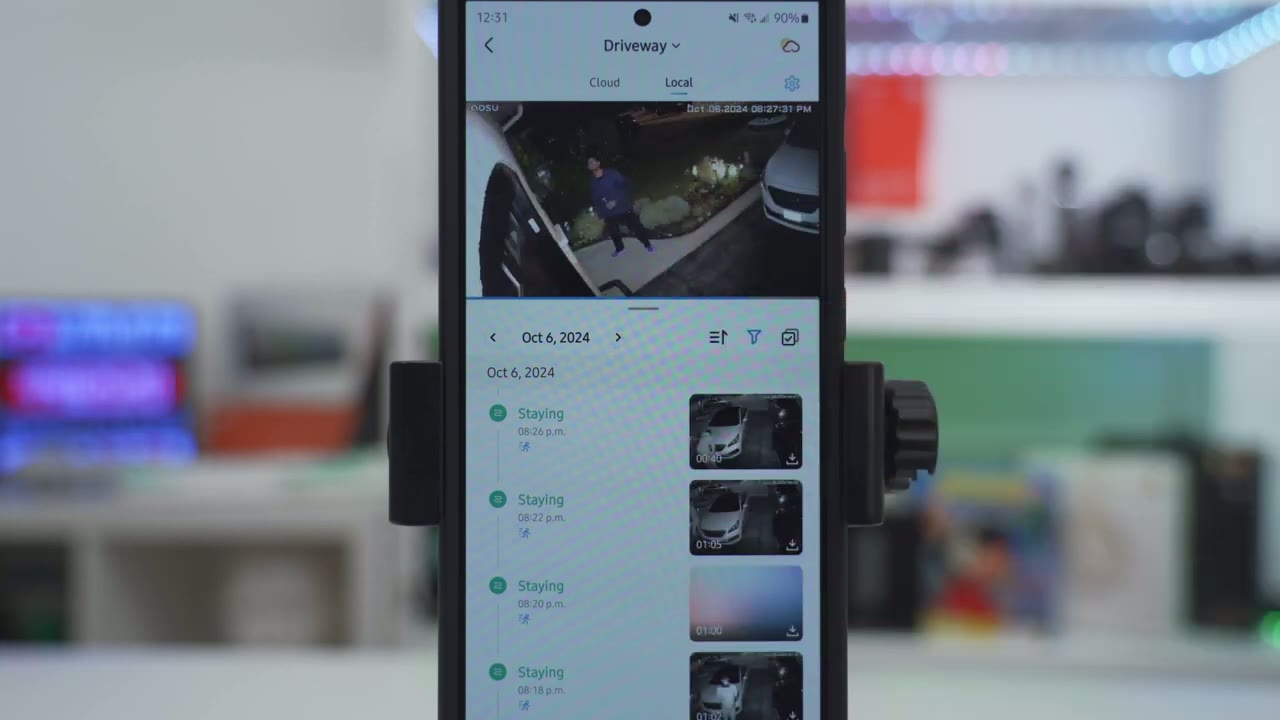
to review video playback we’ll go into events and you can see it’s defaulting to local because that’s what I have now let me just go to the six here and you can see that it shows staying staying passing and then there’s other categorizations here such as motion so if I tap on motion it’s going to let’s give it a second to load up it’s going to show these cars just going by um it’s not specifically human motion and I did have um the tracking enabled there is a person walking over there so that’s pretty handy and you can see it just you know Cycles through the quality is clear and then from here you could go ahead and download um any of the clips that are important to you you also have the option to filter so you can say you want to filter by people staying versus passing in motion and that way you can kind of narrow down any type of lurkers or suspicious
Video Quality
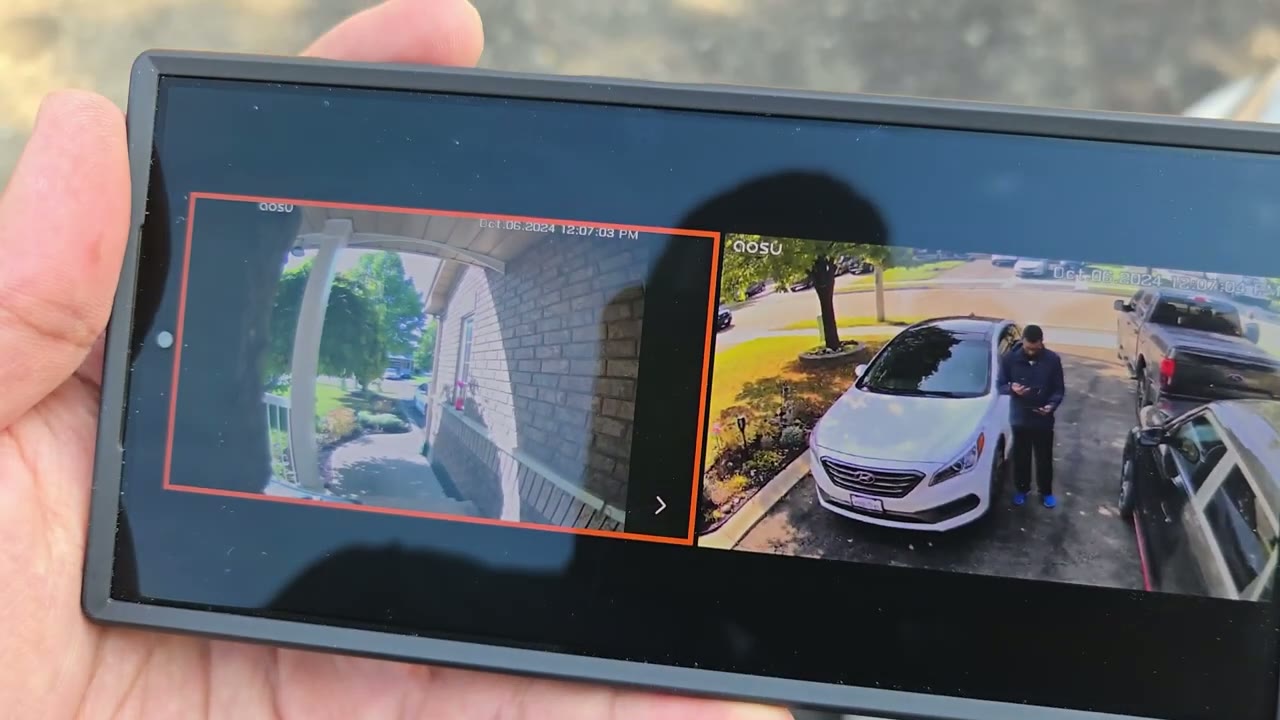
activities videos also look good in the 2K resolution during the day or at night so it’s easy to make out details in people’s faces pets car models all of that can be seen clearly even at the edge of my driveway which is probably a good 25 to 30 ft out night vision video is decent to in the color night vision mode with the spotlight or if you choose to use the black and white mode say you want to save battery you can still make out faces and motion tracking still works pretty well at night too I also wanted to highlight that if you have more than one ALU camera when you’re pulling up live view you can actually look at the live view of two cameras at the same time which is super handy and I’m glad ALU has that implemented motion
Motion Detection
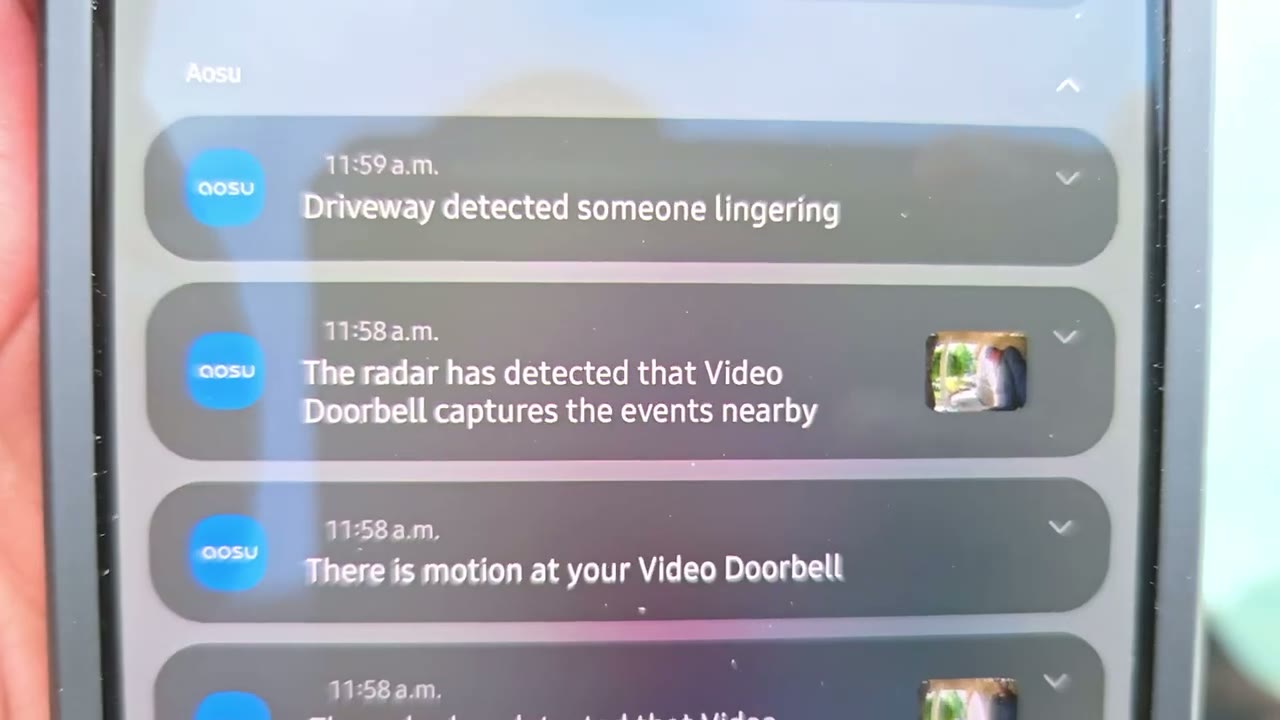
detection is really responsive whether it’s day or night and it’s only between say 3 to 5 seconds for it to detect motion and send the app alert to me now I did notice sometimes it could be a little bit sensitive when I had you know very windy days and the leaves were swinging from the trees that I have in front of my house so I just set it to human only detection and that just kind of filtered out those false positives the AI human detection works really well and I do have this feature enabled because I was really depleting battery life with the camera kind of tracking a lot of moving cars and once I enabled this my battery life normalized and it’s helpful letting you know whenever someone is lingering because I don’t always want to check my phone if someone’s just been detected or if they’re passing by but if they’re lingering I definitely want to take a
Pan & Tilt
look the camera’s pen and tilt is pretty sticky and you can also disable auto tracking if you want to save a bit of battery and you also have the option to manually pan and tilt and you could set the camera to have a default return or home position after it finishes tracking
Two Way Talk
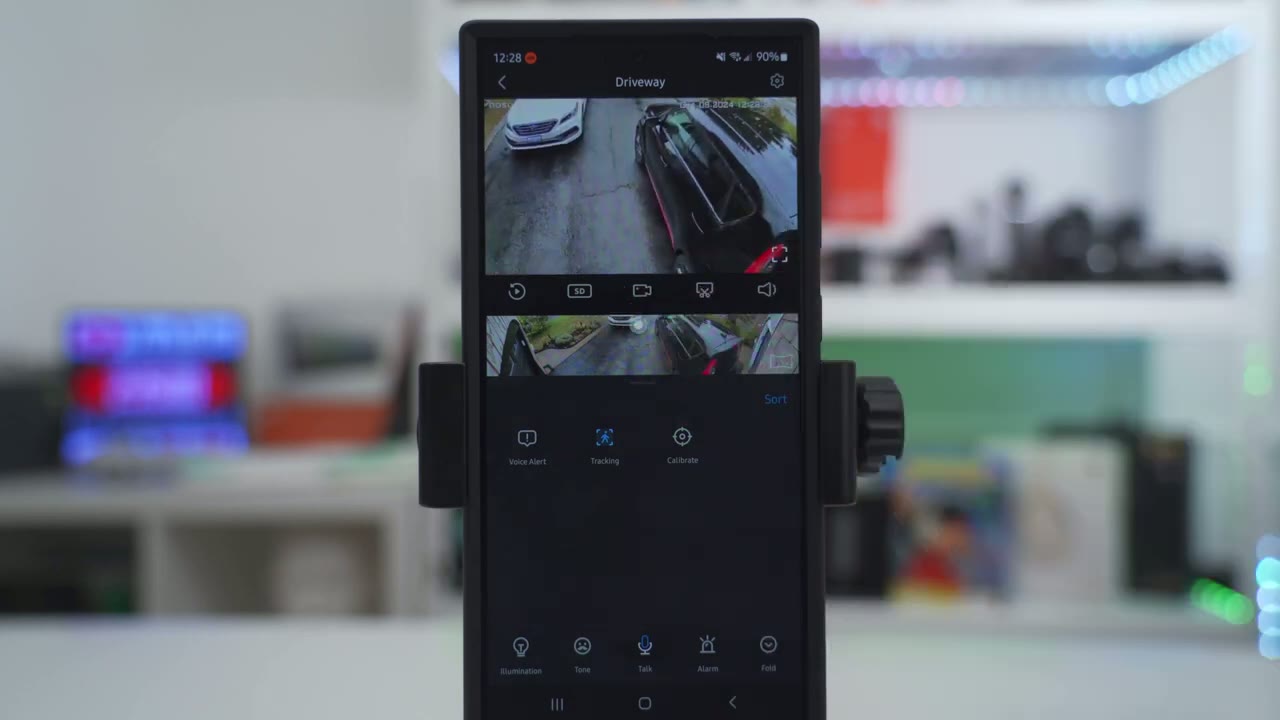
here’s an example of what 2A to like on the ALU solar cam D1
Alarm Siren
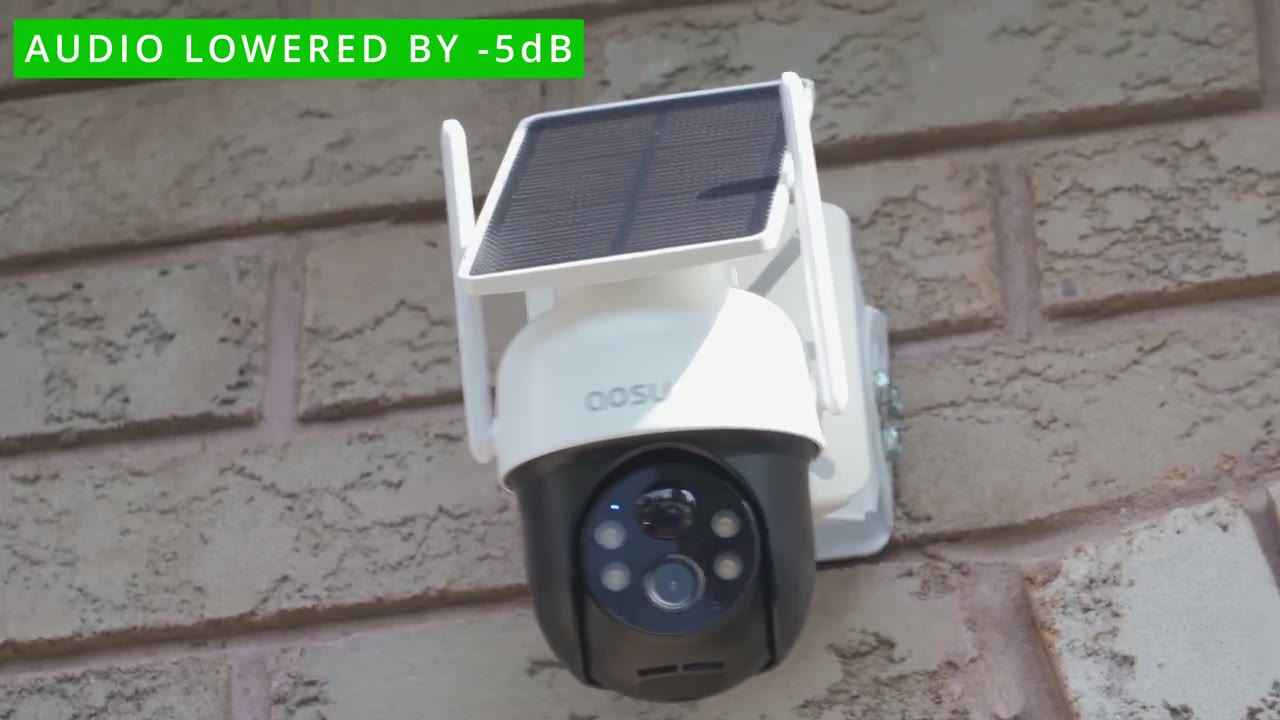
classic here’s a demo of the spotlight
Spotlight
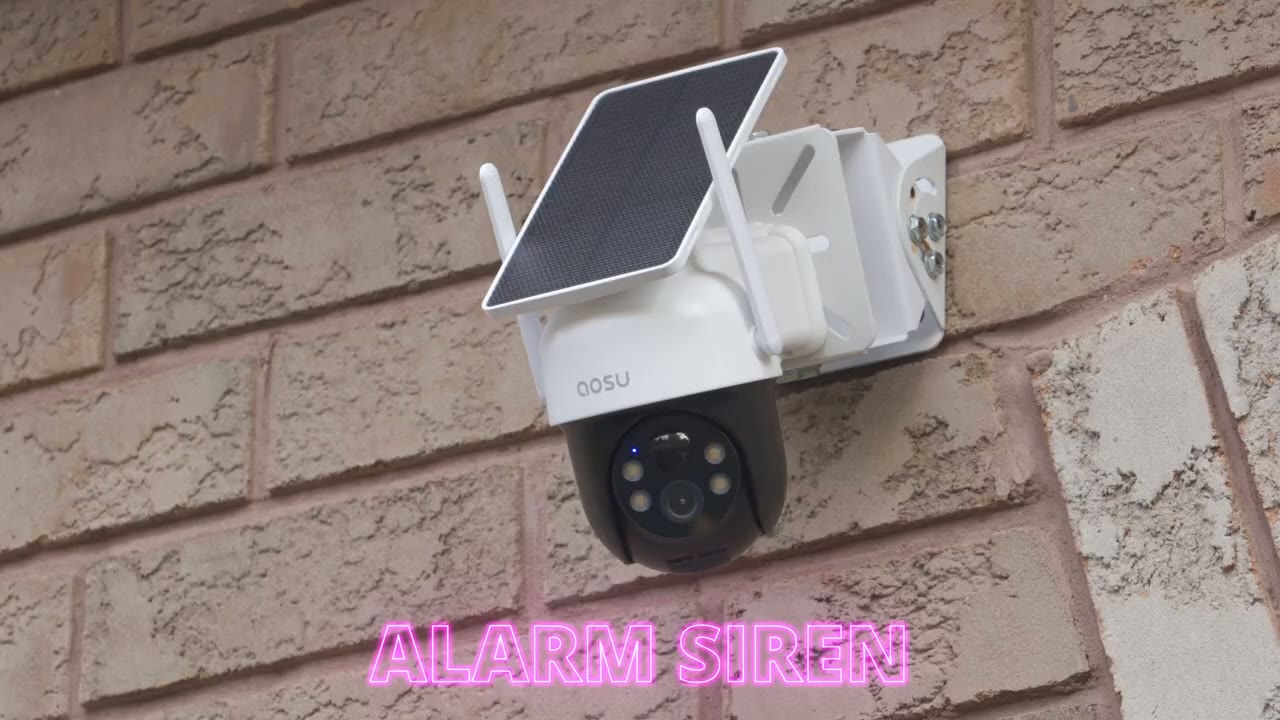
at the maximum brightness so it’s a little bit underpowered since it’s a smaller Spotlight but it’s good enough for a color night vision video and to act as a visual deterrent especially if you don’t want to use the alarm siren
Battery
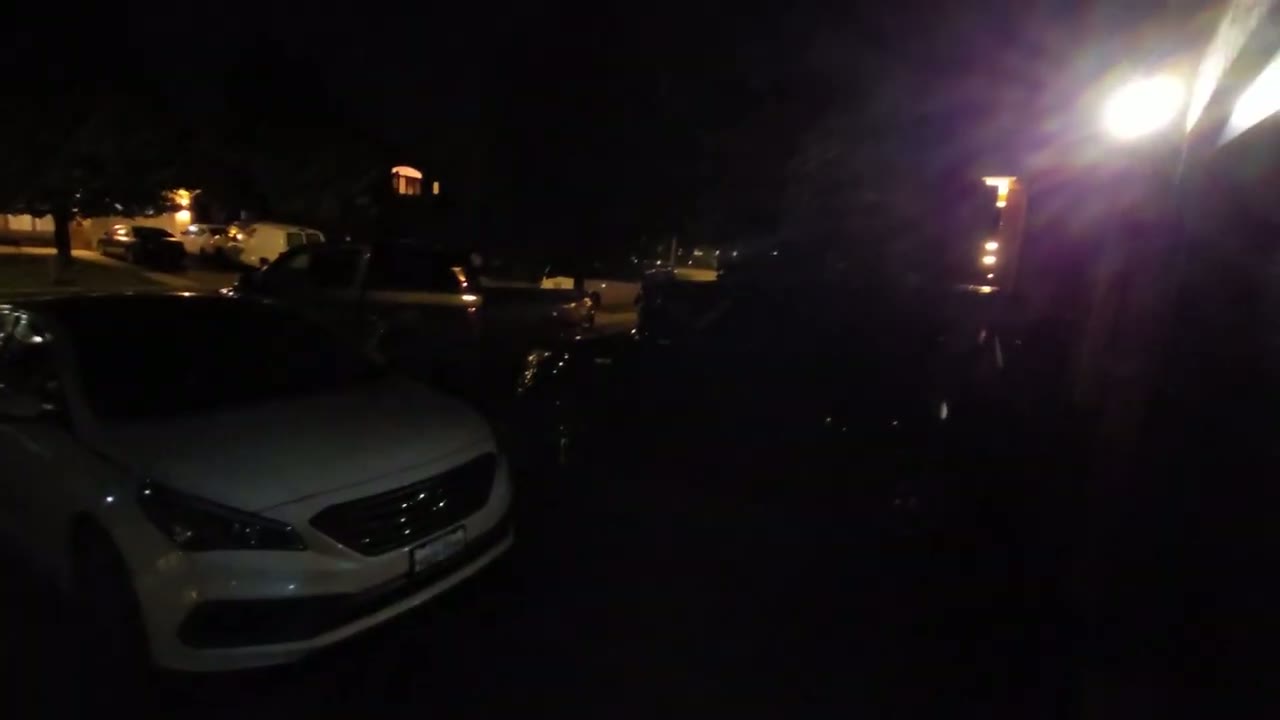
paired with the light deterrent the battery life has been fantastic so far in fact I’m still sitting at a 100% this is with the spotlight turned on automatic tracking Auto sensitivity and I have video clip links up to 20 seconds
Storage
long so I installed a 128 GB micro SD card on here and since I’ve had this installed about 17 18 days it’s only used about a half a gig of that so I can go the next 10 years without ever changing that out so you can easily go with you know a lower 16 or 32 GB and you’ll be good to go so can I recommend
Recommended?
the U solar cam D1 classic and it’s a very easy recommendation for me because you get all the premium features like human detection and tracking two-way talk and ip65 rating responsive motion detection and quick app alerts along with clear 2K video during the day and at night and don’t forget about the amazing battery life however the best part is that there’s zero monthly fees to get pretty much full functionality out of this camera system the only thing you would have to pay extra for is cloud recording if you want that not something that I really need now unlike some other mainstream camera brands where you’re paying every month or you’re paying for the F year upfront and you’re subject to price increases you don’t have to worry about that with this system so if you’re interested in picking up the ALU solar cam D1 classic I’m going to leave some links down below and if I have any coupon codes I’ll leave those down below so you can check it out or pick one up for yourself and if you found this video helpful don’t forget to check out some of my other security camera related videos I review a bunch of different cameras and video doorbell so I’m sure you’ll find something you like and in general I review a bunch of different Tech on this channel so I think you’ll find something else that you like and if I can ask a huge favor would you mind liking and subscribing it truly does help me out as a growing Channel but I’ll see you in the next one soon
Buy aosu SolarCam D1 Classic on Amazon
Buy Aaosu SolarCam D1 Max at aosu
Please note that some of the links in my video descriptions are affiliate links where I earn from qualifying purchases. As an Amazon Associate I earn from qualifying purchases.