


Please note that some of the links in my video descriptions are affiliate links where I earn from qualifying purchases. As an Amazon Associate I earn from qualifying purchases.
Intro
hey it’s Adrian and you just got your Samsung Galaxy s24 Ultra or any Samsung Galaxy phone for that matter and these are the first things you should do to set it up to make sure you have the best
Tip 1

experience the first thing to check is to enable fast charging so let’s just go into settings we’re going to type in the word fast find fast charging and make sure it’s turned on for both when you plug the phone in and for wireless
Tip 2

charging sometimes the large screen is a bit challenging to use when you just want to be lazy in bed but you could use one-handed mode so double tap the home button and you can just see the screen is much smaller I can actually read size it and move it around and drag it so you know it’s just in a more natural position say I wanted to type something on the keyboard now to access that it’s quite easy you’re just going to pull down go to settings search and you’re going to type in one hand and then when you see one-handed mode you’re just going to scroll down and make sure you turn that on now if you tap into that you can set it up for either the button navigation or gesture use the next change we’ll
Tip 3

want to make sure is that we can use high quality audio especially if you have high quality audio earphones so pull down long press on the Bluetooth icon and then go into details and you could see my earbuds are connected however if I go into the options the option to use ldac or highquality audio is not turned on so make sure you turn that on so you have the best possible audio experience if it’s supported on your earbuds and if you’re old school
Tip 4

like me and you still like to have these navigation buttons at the bottom that’s also very easy to do we’ll go into settings search again type in navigation and then we’ll go into navigation bar Tap on that and make sure you select the option for buttons instead of swipe gestures Additionally you could tap on more options and change the order of the buttons if you’ve ever had a bunch of
Tip 5

notifications and you’re just automatically swiping and you swipe away when you really needed to see there’s an easy way to get it back so click on settings type on search and then we’re going to type in notification and we’re going to look for notification history and then tap on notification history right here and make sure that this is turned on and what that’s going to do is it’s going to allow you to just scroll through and find all your notifications and you know it does actually group them together as well super handy feature if you
Tip 6

sometimes like to leave your phone on silent but you may miss notifications you can get around that by going into settings search type in the word Flash and then tap on flash notification tap on that and you can see there’s an option here to have the camera flash and the screen also Flash and here’s a demo of that so you can see the LED light is flashing at the rear of the phone to give you an extra indication and also
Tip 7
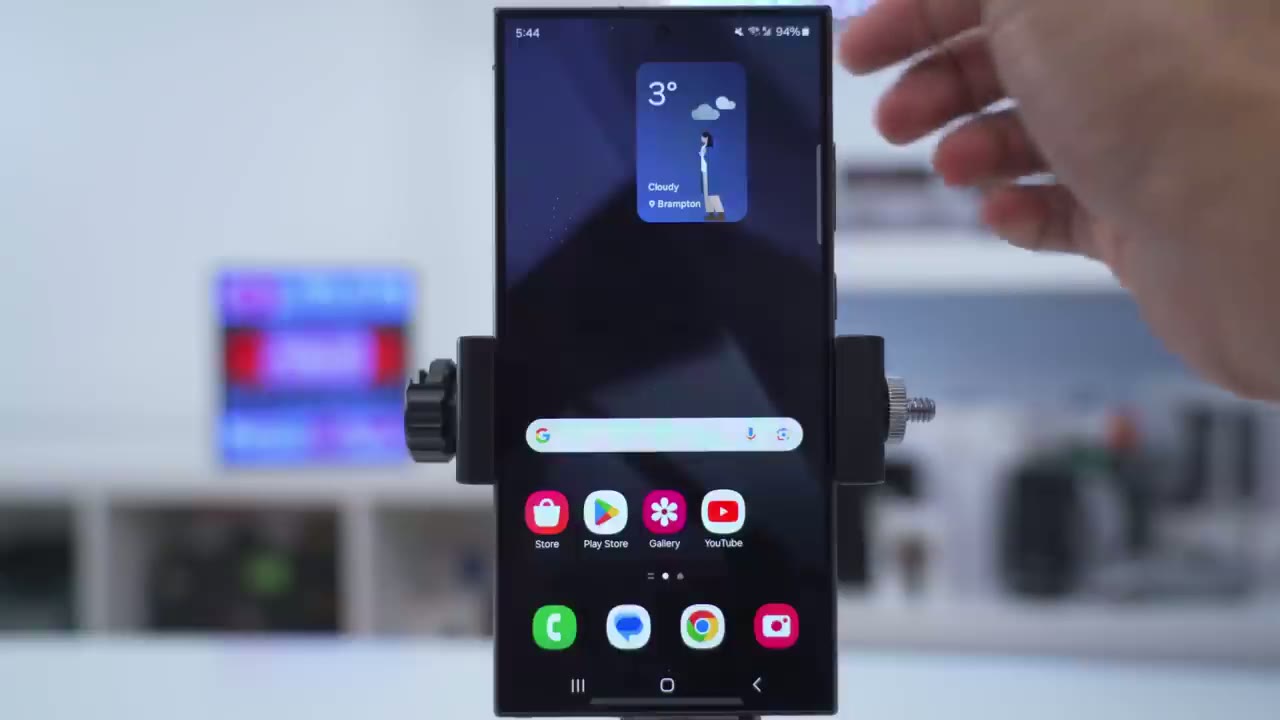
customize our notifications so we’re just going to go back into settings search and let’s search for notification and we’ll go into sh notification popup style go into notification popup style and then you see we have an option for brief or detail and keep it on brief then you can click on edge lighting and you can see we can have a bunch of effects right now it’s set to Spotlight but you can change it to something like say fireworks we’re going to have the frame and then you can also change it to your favorite color and of course you can change your new the TR transparency how long it appears and how large it is
Tip 8

if you get a lot of notifications you may want to see more than three notifications so we’ll just go and do the same thing we’ll type in the word notification go into notifications then go into advanced settings and instead of showing the three most recent notifications we can show all notifications while you’re in here you can also turn on the option to show the app icon in the notification so you know exactly which app it’s from if you’re
Tip 9

like me and you like to just quickly double tap the power button to launch a camera it’s really easy to do that so what we’re going to do is pull down and go into settings go into the magnifying glass and we’re going to type in the word double and then when we see double press we’re going to top on that so a double press of the power button can quick launch the camera can quick launch Samsung wallet or it can actually open up any app of your choosing that you have and then when you press and hold the power button down instead of double tapping it you can have the power off menu if you don’t use Bixby by the way if you’re finding this video helpful please consider liking and subscribing it really does help me out but let’s get get back to it if you want to prolong
Tip 10

your battery life you should consider using dark mode so just go into settings display switch it from light to dark and then change the emotion smoothness to standard you can also consider going into connections turning off Ultra wide band going into more connection settings and turning off nearby device scanning
Tip 11

if you want to prolong the health of your phone’s battery for as long as possible go into settings search and we’re going to type in the word protection and then we’re going to scroll until we see battery protection once you go into there turn battery protection on now there’s three options basic adaptive and maximum if you set it to maximum this is going to keep your battery as healthy as possible it won’t charge past 80% you can also set it to Adaptive where it’ll learn or you can just have it set to basic where once it gets to 100% is going to drop to 95 then charge back up I also love the ability
Tip 12
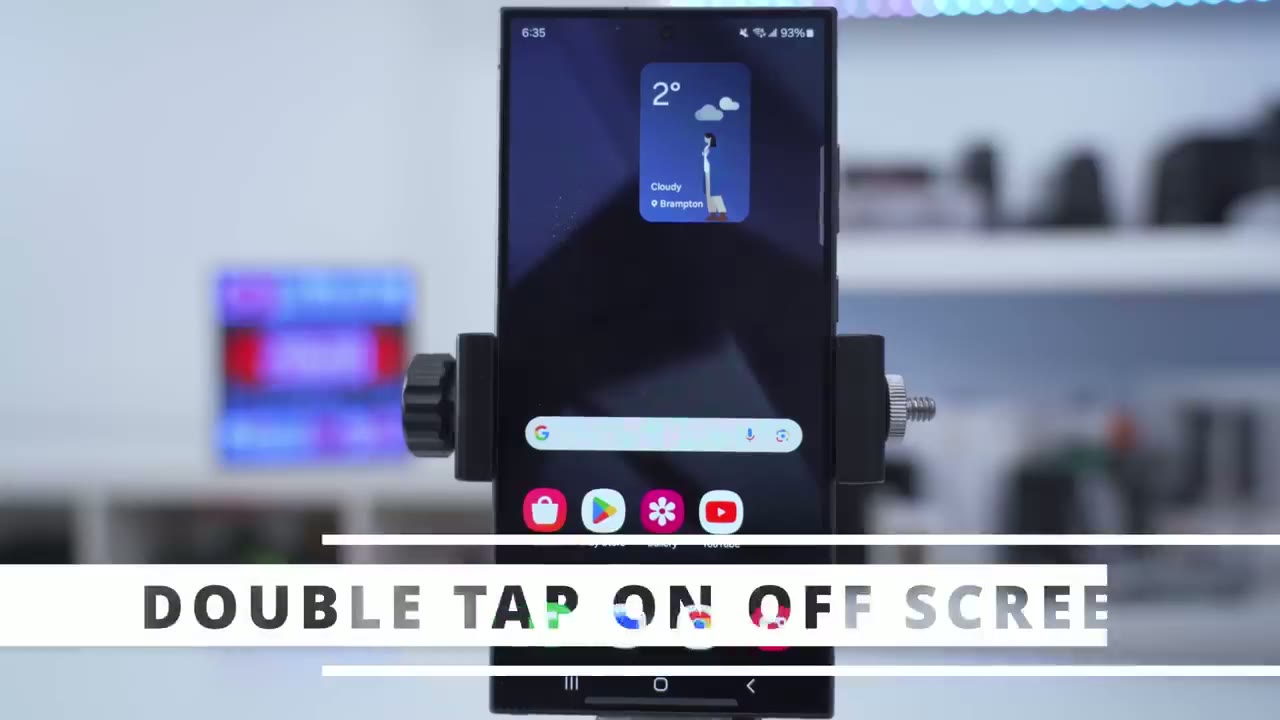
to just double tap this screen to turn it on or off instead of just using the power button now to do that you’ll just pull down go into settings search and you’re just going to type in the word double and then you can see it says double tap to turn off screen double tap to turn on screen you could do it right from here you could jump into the full options and turn it on there you also have the option to lift to wake so the phone screen will just turn on anytime you pick it up so if you like using the edge
Tip 13

panel or you don’t like it there’s an easy way to do that we’ll just go into settings again search type in Edge and then when you find Edge panels you can go ahead and turn this option on or off
Tip 14

to keep your phone safe from malicious apps go ahead tap on settings go to search and typee in the word auto scroll down until you see the option for auto blocker right here and then what you’re going to do is to tap into that and make sure it’s on and what this is going to do is only allow apps to be installed from authorized sources so if you ever use third party APK files make sure you turn this off because you’re going to have a problem it’s also going to make sure that apps are scanned for malicious activity when they’re installed and it’s also going to prevent you know commands by USB cable if you pluged it in say at an airport or somewhere to just charge it if you ever need to wireless LLY
Tip 15

charge a device you can just type in the word Wireless and then we’ll find wireless pow sharing and then just turn that on then you could place any compatible device on the back of your phone if you’re bored of the wallpapers that come
Tip 16

with the phone it’s easy to generate unique ones so just go into settings scroll down to wallpaper install tap on change wallpapers and scroll down into creative and from here you can see these are just AI generated ones like this one and it shows you the prompt that was used and you can generate multiple versions if you want a bit more screen
Tip 17

real estate it’s easy to that swipe down go into settings tap on home screen and go ahead and change the home screen grid to you know 4×5 or 5×6 and you can see you have way more options when you set it like this of course you can also change the apps screen grid as well and the folder grid and if you sometimes find that your app icons have moved around you can go ahead and enable the option to lock the home screen layout another handy option it suggest swipe down anywhere on the screen for the notification panel so instead of swiping down from the top you you could just swipe down right from the bottom here and it’ll do the same thing if you like
Tip 18

a perfectly black screen on your always on display we can easily enable that so just pull down from the top click on settings and scroll down until you see lock screen and aod tap on aod or always on display and unable the option or disable the option for show lock screen wallpaper and now you’ll have a perfectly black screen you can also set when you’re always on display show so I like to always see it on or you can have it to tap to show or during schedules or only when you have notifications if you
Tip 19

take a lot of photos and you share them online but you value your privacy go ahead and type in location and go to location tags under camera settings and make sure you turn this option to add tags to your pictures and videos so you can see where they were taken because this will include your location information that other people can access if you want to avoid
Tip 20

mistakenly sending content to contacts what you can do is go into search search and then type in the word contacts and then scroll down until you see show contacts when sharing content tap into that and you could see we have the option here to disable showing contacts when sharing content while
Tip 21

Samsung gives us access to a secure folder you may forget to move important filser so go into settings search type in the word enhanced and then type on enhanced data protection tap on it right there and then you can see you have the option to actually encrypt backup data if you’re
Tip 22

not going to be near a battery charger or plug anytime soon what you can do is go into settings search and then type in performance and then go into performance profile and change it from standard to light where it’s going to prioritize battery life and cooling efficiency just remember to switch it back to standard whenever you can charge your phone back
Tip 23

up if you find these screens still too bright even when you reduce the brightness all the way down it’s easy to fix that just type in the word dim and then scroll down until you see this option for extra dim and what you could do is enable this option and what it’s going to do is to really dim the display considerably which is really useful when looking at it at night if you’re excited
Tip 24

to use the AI features but you want it done locally on the phone we can go into settings search Ty in the word device and then scroll down till you see it a process data only on device tap into that and you can see we have the option there for added privacy if you sometimes
Tip 25

have problems sharing photos and videos on certain apps or websites go ahead and launch into the camera go into the camera settings scroll down into advanced picture options and make sure to turn off high efficiency pictures then scroll down into advanced video options and make sure to set it to h.264 instead of high efficiency so let
Share Your Tips!

me know what you guys think of these tips were there any tips that you learned for the first time or did you already know a lot of these or do you have any tips that I may have missed that other people could benefit from just leave it in the comments down below also don’t forget to check out some of my other videos on Samsung tips and tricks I’m going to leave that linked up here and of course it would really mean a lot to me if you could like And subscribe it truly does help out small channels like mine and I’ll see you in the next one soon
Please note that some of the links in my video descriptions are affiliate links where I earn from qualifying purchases. As an Amazon Associate I earn from qualifying purchases.

