


Buy 128 GB microSD Card on Amazon
Please note that some of the links in my video descriptions are affiliate links where I earn from qualifying purchases. As an Amazon Associate I earn from qualifying purchases.
Intro
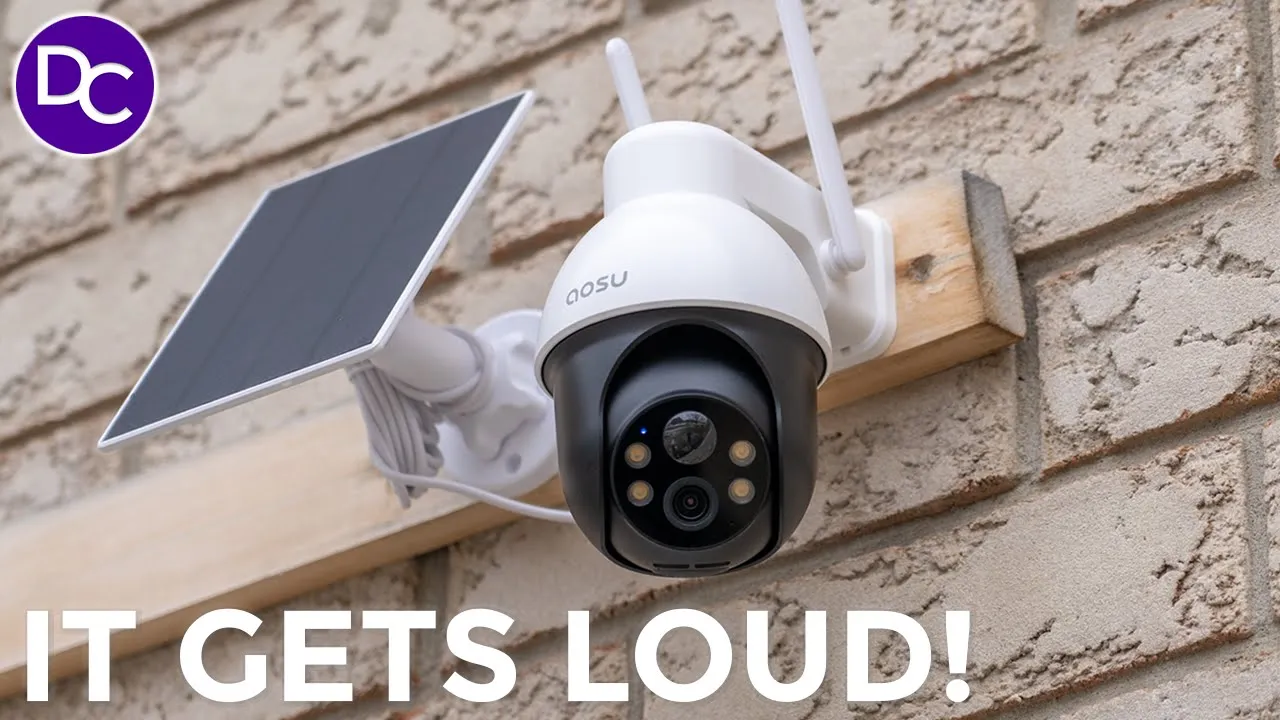
hey guys it’s Adrian and today I’m taking a look at ASU solar cam D1 SC now you can see by the Box this is a much smaller camera than the flood light camera i’ reviewed recently but don’t let that fool you because this is still a very powerful camera so this is a 3K camera with 5 megapixels it has pen tilt functionality AI detection and automatic tracking you also have siren functionality a spotlight and two-way talk along with a bunch more features there’s also zero monthly fees to use these camera systems but a big thank you to auu for sending the solar cam D1 SE out for review so let’s put it through the test and see how what it does in the
Package Contents
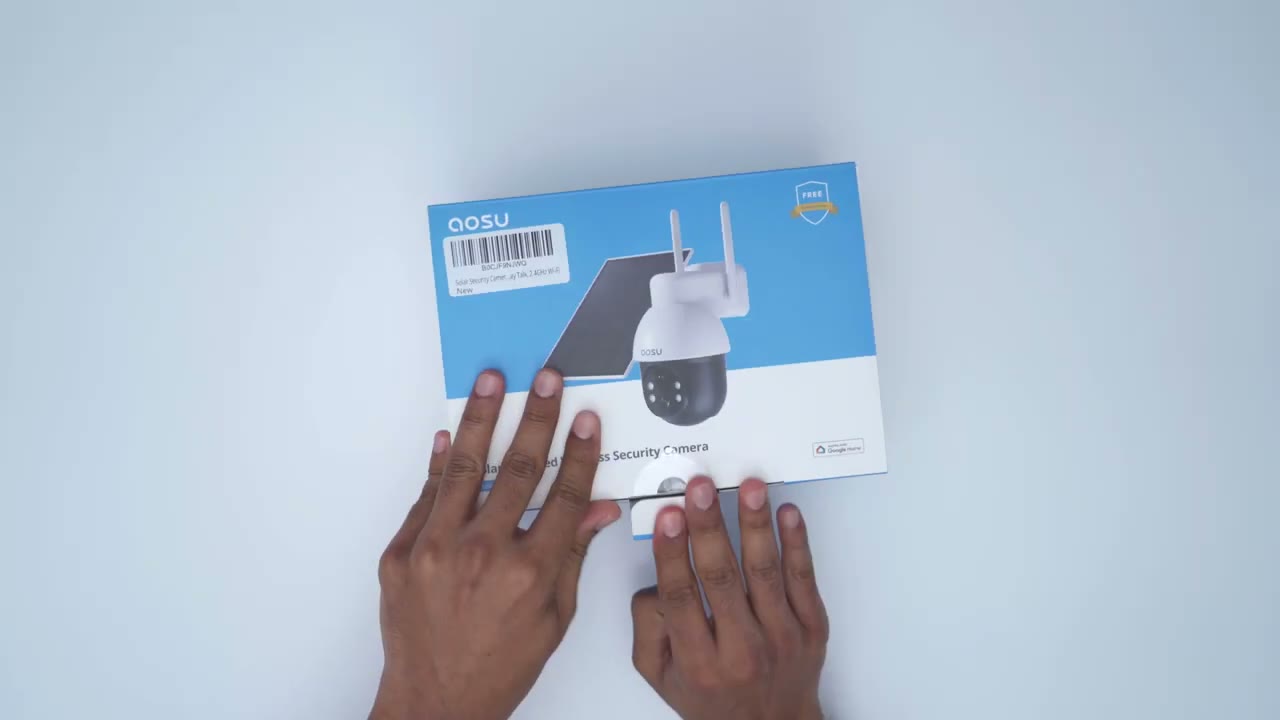
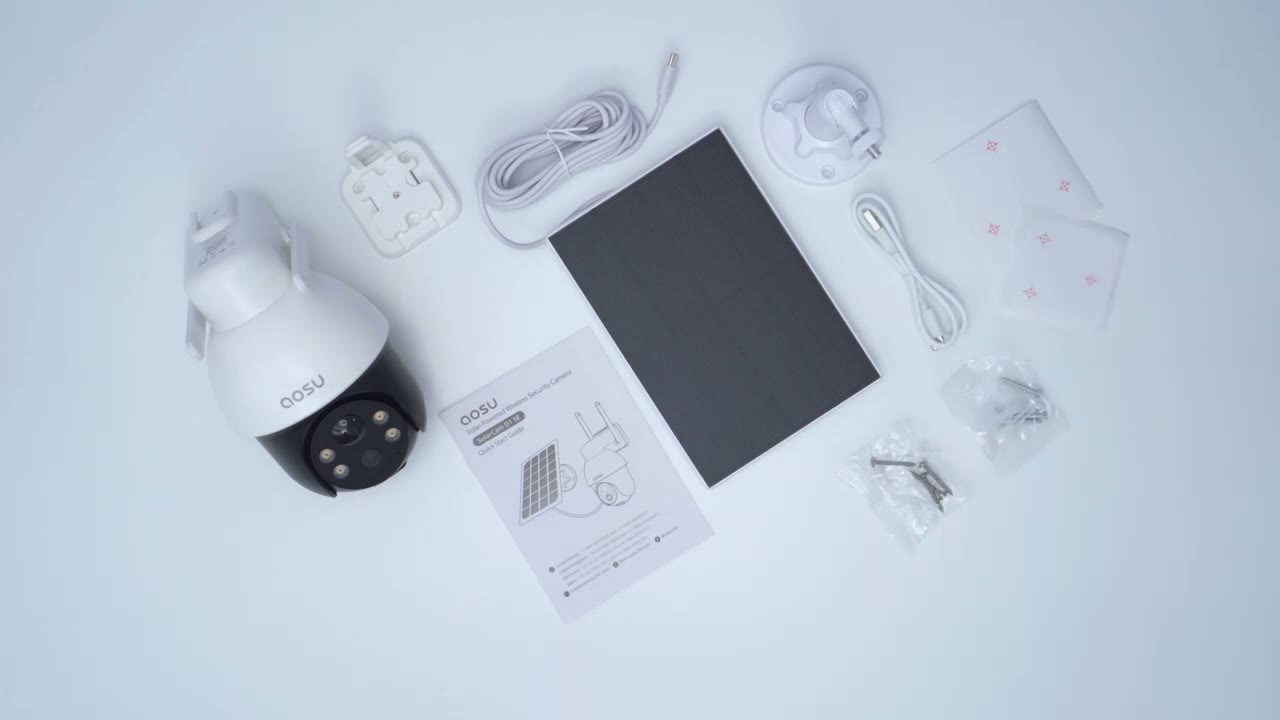
box we have the U solar cam D1 SC we also have the wall mount and manual the solar panel along with the cable to connect it to the camera we also have a mount for the solar panel and a USB type-c cable just to Top This up initially before installing it mounting screws and positioning stickers so the
Design
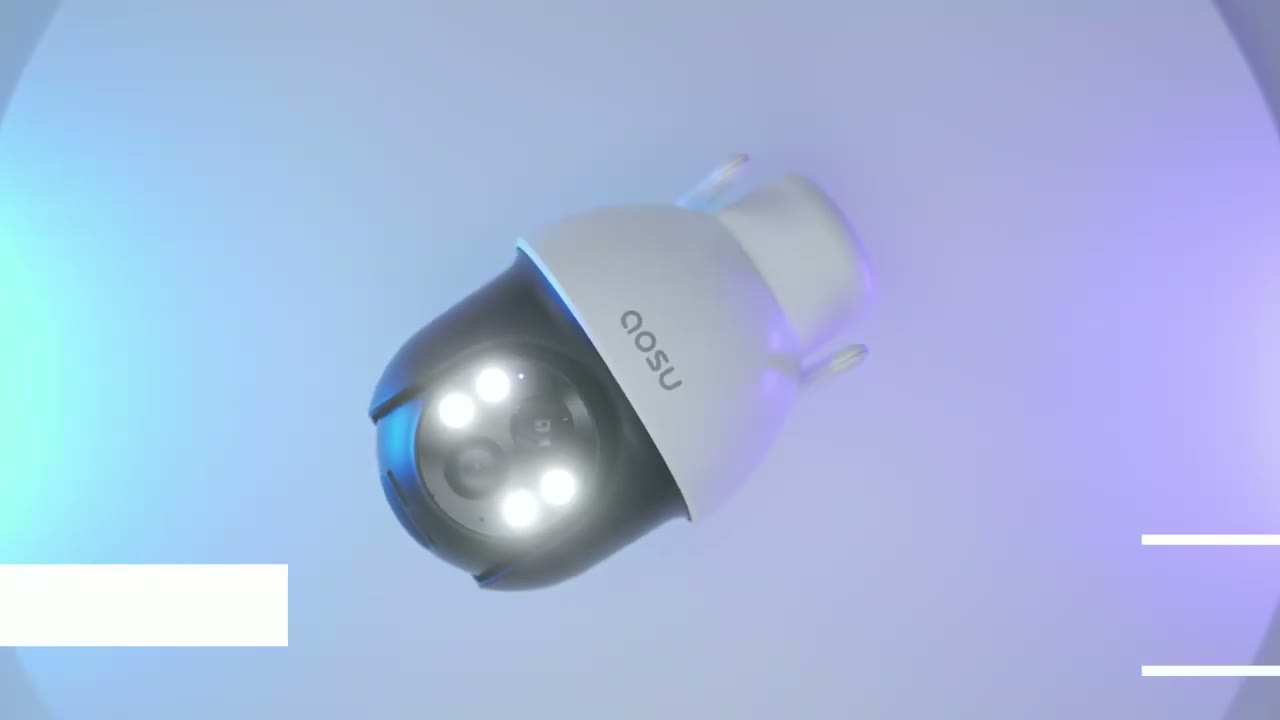
size of the solar cam D1 SE is fairly normal it’s not too big not too small here it is next to a 355ml can of pop now if we take a look at the front this is where we’ll find the P sensor we have the camera lens spotlights you know microphone and indicator light and then at the very bottom I’ve already loosened this weather sealed area we have the reset button power button and then a slot for up to 128 GB of a micro SD card which I’ve already inserted the back has the speaker Grill and then we also have these you know adjustable antennas because this is going to be you know completely by Wi-Fi so it is going to require connecting to your router the bottom of the camera has a USB type-c port and this is what we’re going to use to connect the connector end from the solar panel to keep this permanently powered up throughout the year the D1 SE comes in at around 500 G or a little over a pound installation is also fairly straightforward so you have two options one is to wall mount it using this Mount so you just drill three screws right into the wall or you could drill two screws you know coming up from here into a ceiling and then you’ll just slide this until you hear a click so just make sure when you mount the camera you mount it high enough you know kind of out of Arms Reach because once the mount is secur here to the camera body if someone wants to grab a hold they could just you know slide it right out and separate it from the camera body because there’s no retention screws to keep it secure to the housing the solar panel is also very easy to install so you can see you have this pre-and wiring and a screw hole right here so all you’re going to do is use this Mount you know just again secure it to the wall and then attach this to the back air anglet and then just run this connector wire into the USB type-c port here specs include a 5
Specs
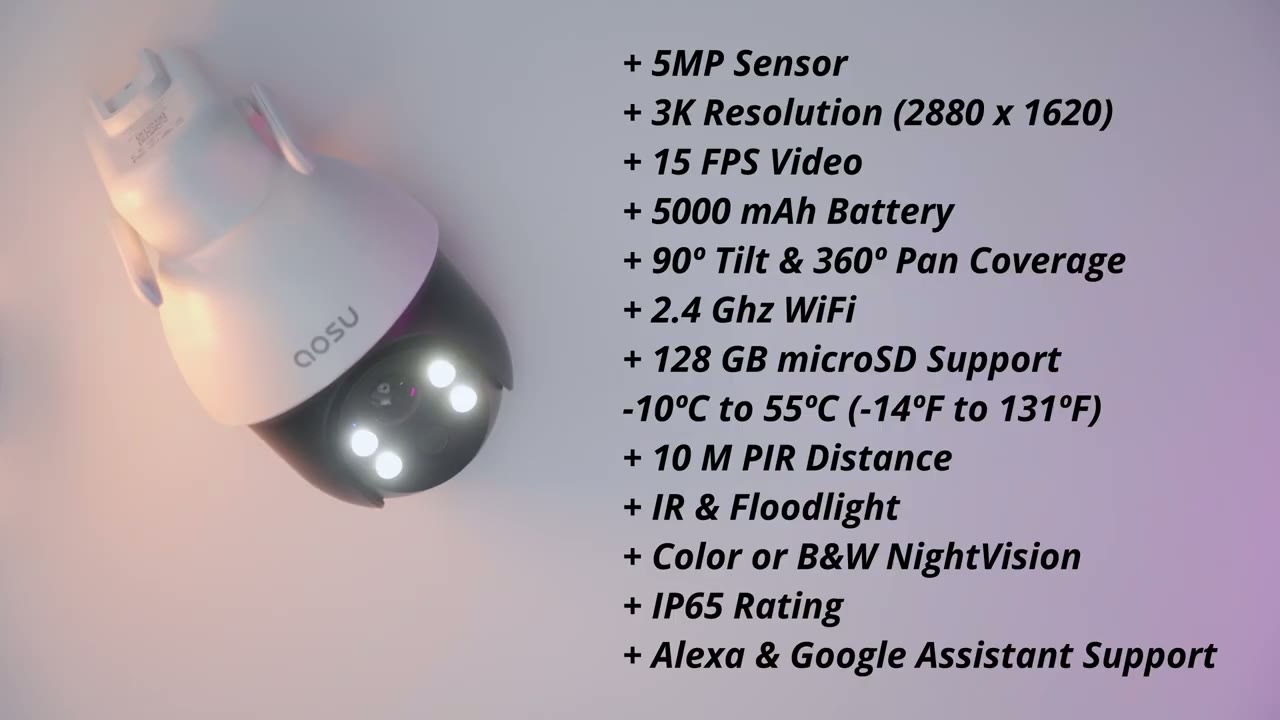
megap camera with a 3K resolution there’s a 5,000 Mah rechargeable battery we have 90° tilt and 360° pan functionality you can insert up to 128 Micro SD card operating temperature is from -10 C to 55° C the P distance is 10 m there’s color and black and white night vision we also have an ip65 rating and Alx and Google support so the ASU
Setup
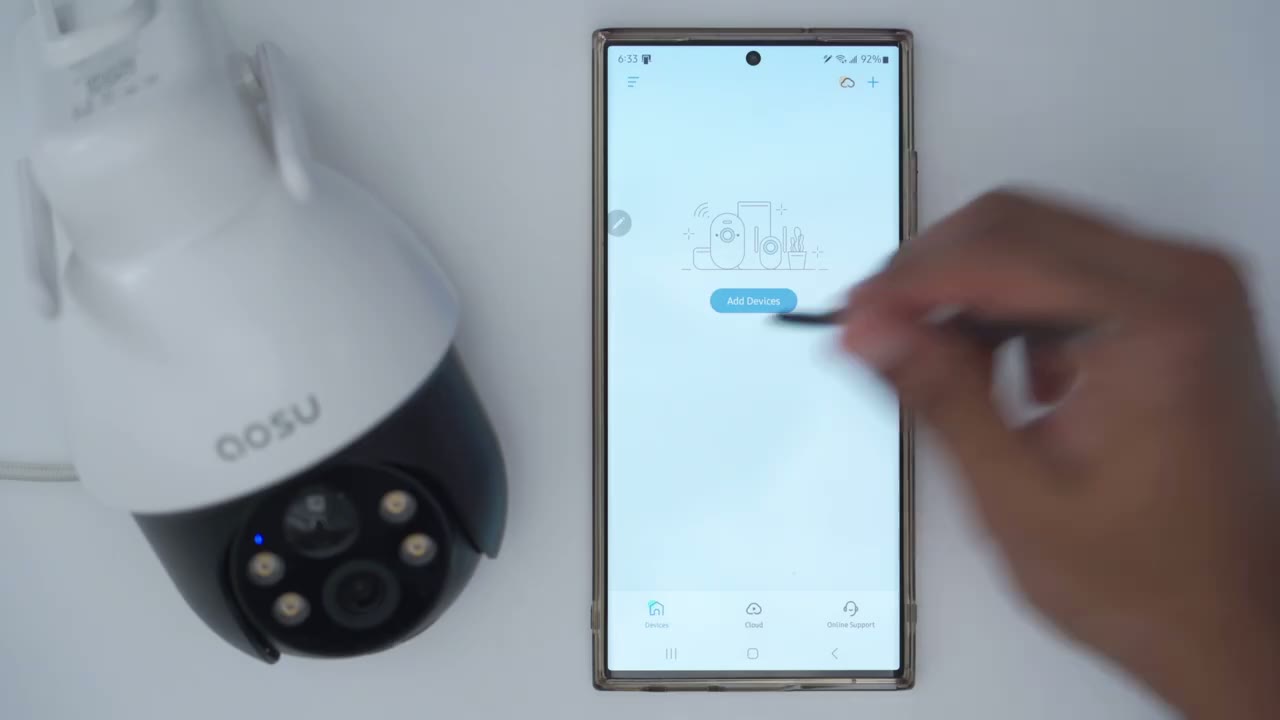
app is downloaded and the camera is on and it’s flashing blue so I’m going to click on add devices and it says to please please scan the QR code now there is a QR code at the top here I actually don’t think I need to do that it automatically found it so I’m just going to go ahead and click add and keep in mind I am connected to my 2.4 GHz Wi-Fi connection make sure you’re connected to that before you start this process and that the micro SD card is inserted so let me just wait and this is the Wi-Fi connection I’m going to pick just going to pop in my password the camera is connecting to your Wi-Fi network it may take a moment please wait for a while save settings successfully all right so it’s connected it was that quick literally took less
Settings
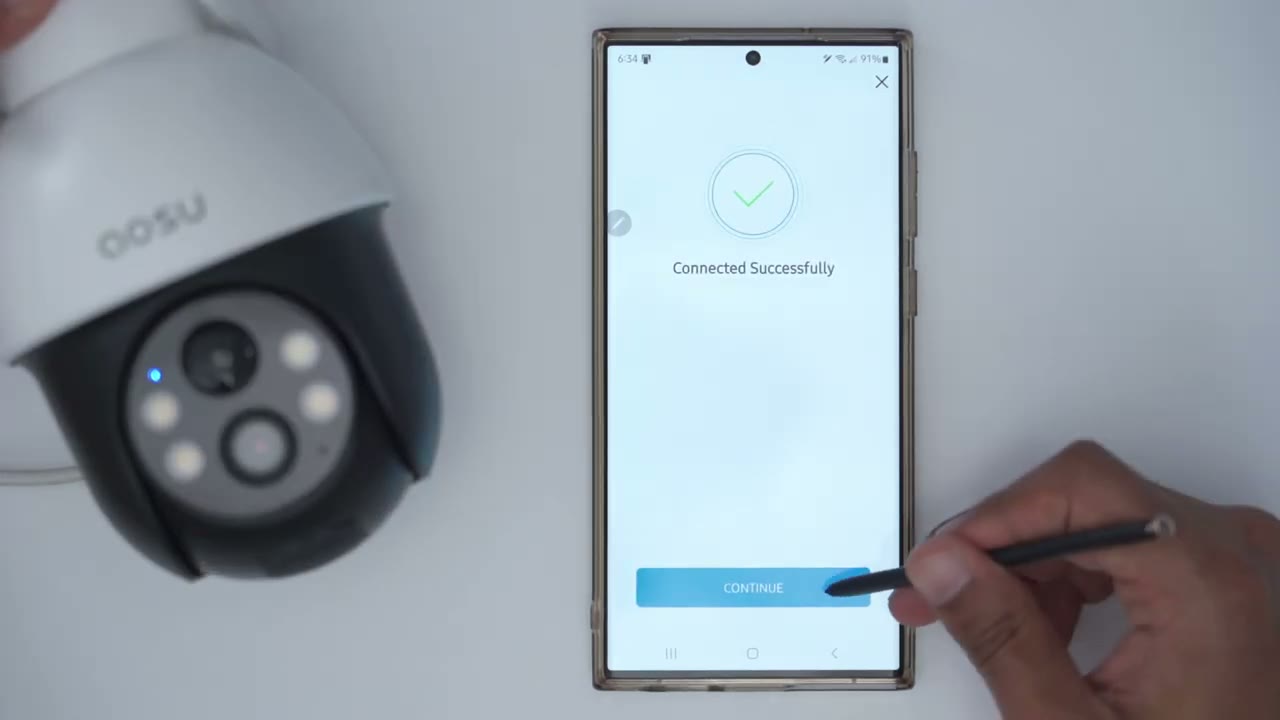
than a minute let’s go into live view and once that’s loaded up you can see we have a bunch of options so we can just go right into playback like I showed earlier but what we can also do is we can switch from you know high definition to standard definition if your Wi-Fi signal strength is not that good but let’s just go back to UHD and from here we can also take a manual recorder recing at whatever we’re looking at and we can also take a screenshot as well and that’s going to save to our phone and I’ve just disabled the volume for right now now I’ve already created a stitch pan RAM and you can see if I actually tap over here the camera is actually going to go over there you know pan and tilt so it’s a super cool feature to have you can just tap anywhere you like and of course you can manually pan and tilt as you see fit taking a look at the bottom menu here this is where we can manually turn on the light of course you’re not going to be able to really see much because it’s bright day light and then we can also change the tone of our voice we can also initiate two-way talk to talk to whoever’s outside and then we can also go ahead and start the alarm and it does get quite loud I’m just going to turn that off and we can also go to more and send you know pre-recorded voice messages so I could say hey please put the package at the door if I saw delivery person shows me it was sent right there and from here I could just turn tracking on or turn it off we can also go into fullen screen view and from here you know we can manually pan and tilt it and we still have the regular options like changing the resolution type you know turning on the alarm or the light Etc under AI detection we can see we have three options human detection intrusion and vehicle detection under human detection we could just turn that on or off and under intrusion we have a bunch of options so we can set a detection Zone and if I pull that up you can see I can actually go ahead and add a detection Zone you know I can move move that around change a shape save it and you can actually add more than one zone if you like I don’t generally use this but it is available and then we can also into the alarm so we can enable an auto alarm so if anything’s happens in the zones we’ve defined we can use a Smart Alarm so it’s only going to be triggered during the day and only when the white light is turned on during the night but you know you can also go ahead and do a custom alarm to say hey you want to have both white light alarm sound and then you could play any of these prompts and you can also change the alarm volume you can also choose to receive notifications anytime a vehicle is detected under detection settings we can turn detection on or off now there’s an option for detect all and it’s going to detect any type of movement this could be from people Vehicles animals basically anything so it’s best to leave it on intelligent detection and you can decide you know do you want to just be notified or detect humans or Vehicles so I’ll probably just leave it on there but to save battery it’s best to just leave it on human now you can also set the track motion so the camera will pan and tilt anytime it detects movement or if you just want the camera fixed because you have a very specific area you want to monitor you could just turn tracking off and then of course you can adjust the sensitivity I’ve set it to adjust automatically to let the camera decide now you can turn that off and you can go ahead and change you know how far away or how close you want that tracking to take place but I like leaving it on the automatic option under notification settings we could turn notifications on or off and then we could set when we receive these it could be all day every day or only during certain days and only during certain times as well now if we go into notification mode there’s an immediate mode so as soon as it detects any type of movement it’s just going to notify you right away but I have it set to intelligent mode so it’s going to kind of analyze the scene then send me a notification and then we can set the type of events we want under Cloud recording this is where we can get the optional paid plan and you could pay annually or monthly there is also a 7-Day trial that you can use now this is going to give you up to 30 days of event recording but I’m fairly happy with the amount of You Know video history I have with a big micro SD card so for me it’s not needed under default view this is where we can Define where we want the camera to always go back to after it’s finished as motion tracking so I can just say hey I want to you know get a closer look at my front area here and I’ll just hit save and the camera is just always going to return to that position once it finishes tracking under video and audio we can set it to the 3K resolution or we can go to smooth smooth mode for you know lower connection or lower bandwidth and then we can also change it a night vision mode I just left it the automatic but you can have it with the white light or just you know infrared or black and white we can also change the speaker volume here as well and this does get quite loud you know compared to a lot of cameras that I’ve reviewed and then of course we can change if we want it to record sound or not under battery management we can see the current battery level and the charging status so right now it’s charging and you can also switch between power saving mode or intelligent detection mode now on intelligent detection mode is you can have clips of up to 60 seconds long or you can go to power saving mode with 20 seconds long now this is where I have it because it’s just been very cold overcast or not very sunny it is winter in Canada so I’m just trying to prolong battery life as much as I can take note that there’s no option for 24/7 recording since this isn’t a hardwire camera system we can also share the device with other members of our family or friends and then we can set the device to you know go to sleep during a certain time just to preserve ve battery life further we can also decide if we want the LED status like to stay on I like having this option on so people know the camera is actually active and powered by the way if you’re finding this review helpful please consider liking and subscribing it really does help me out but let’s get back to it reviewing video is very
Video Playback
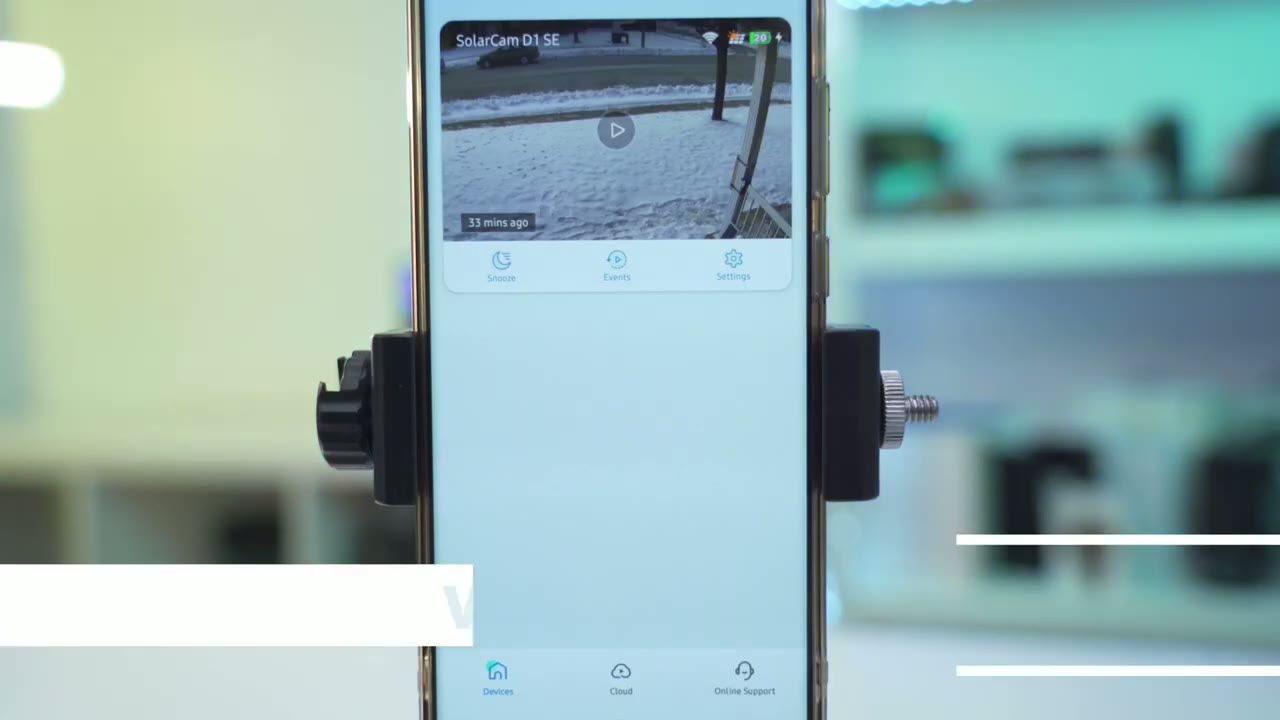
simple so we’ll go into events and we’ll let that load up notice it’s on local cuz I’m using the micro SD card and I’m just going to go back a couple of days so I have a full day and you can see right now it shows someone’s just passing and you know they are just passing they’re not staying and it just you know this is just general motion passing passing but if someone was staying you know there is actually an option on here where it will show you if they were passing or staying so you can see right here it shows staying I’ll tap on that and I believe that was me just going and installing things and from here I can actually go ahead download this or go into full screen mode and you can see it’s just automatically panning and tracking me so it works quite well very easy to do playback on this
Video Quality
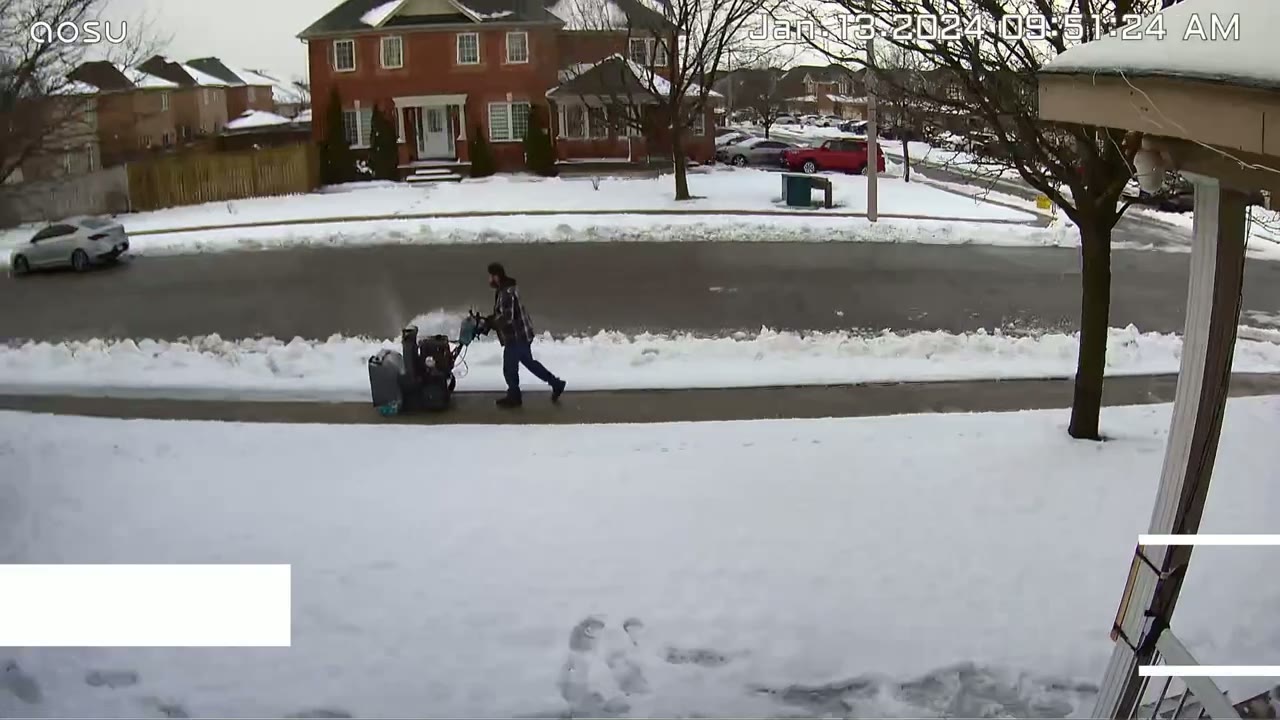
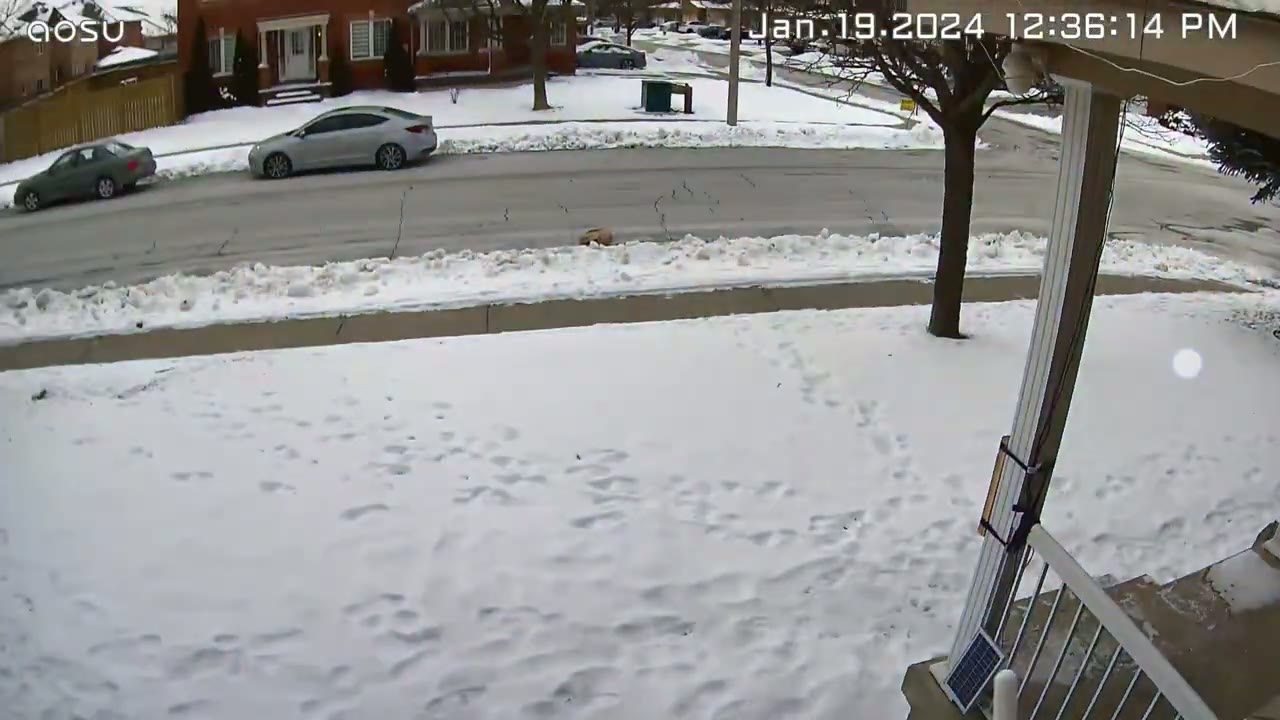
system so you can see during the daytime Clips were nicely exposed not too much blown out areas or highlights but I did have a lot of overcast Skies mostly during the time of testing because it is winter in Canada I set the system to intelligently decide when to switch night vision to black and white or to color Knight vision and both were quite usable but I do prefer the look of the color Knight Vision better all right I’m
Motion Detection & Tracking
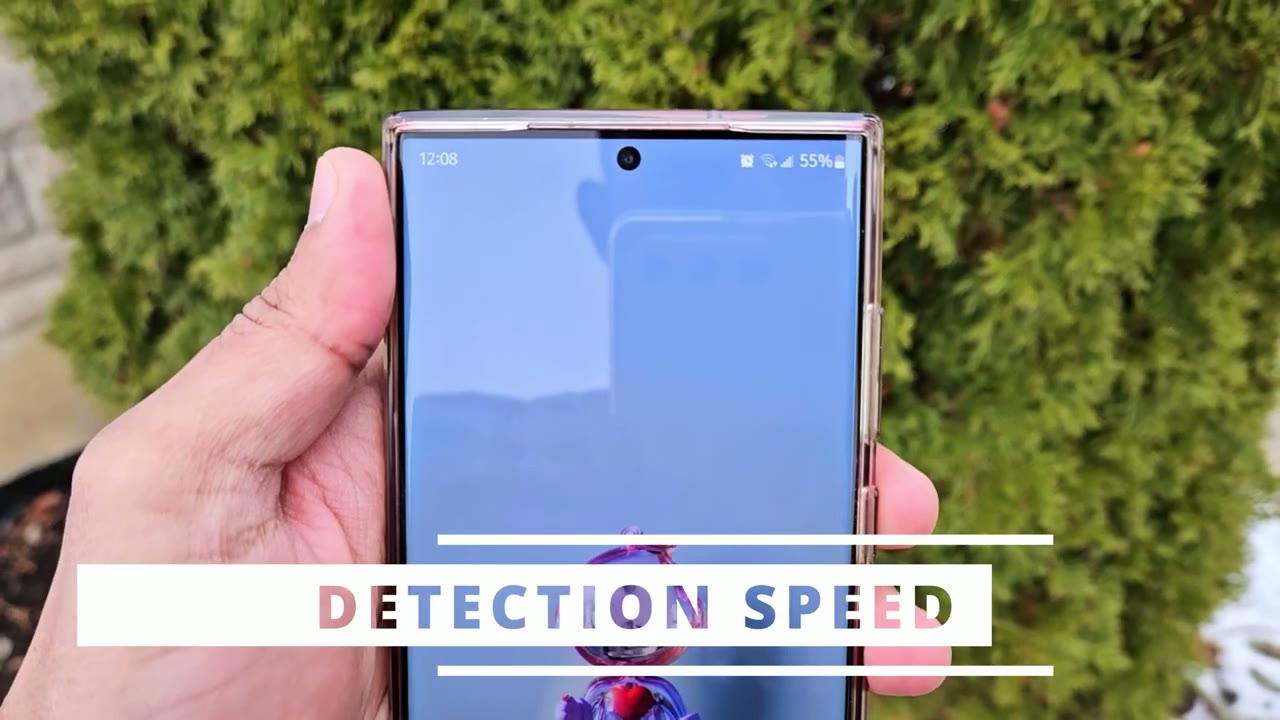
going to test the camera’s motion detection speed and notification speed so right now the camera can’t see me I’m going to walk out from behind the tree and walk kind of in front of the camera now walking this is the camera right up there and you can see I now have a notification so I’m just going to pull that down and I can see motion at your solar can d1c tap on that let’s let that load up and you can see it loads up pretty quickly so it detected me quite quickly and it’s you know actively tracking me as I move around so yeah motion detection is really quick and so is the notification speed like with u’s
Speaker
other cameras the speakers on here get plenty loud here here’s a demo of that warning you have entered a highdef surveillance area this is a private area please leave immediately pen and tilt functionality
Pan & Tilt Controls
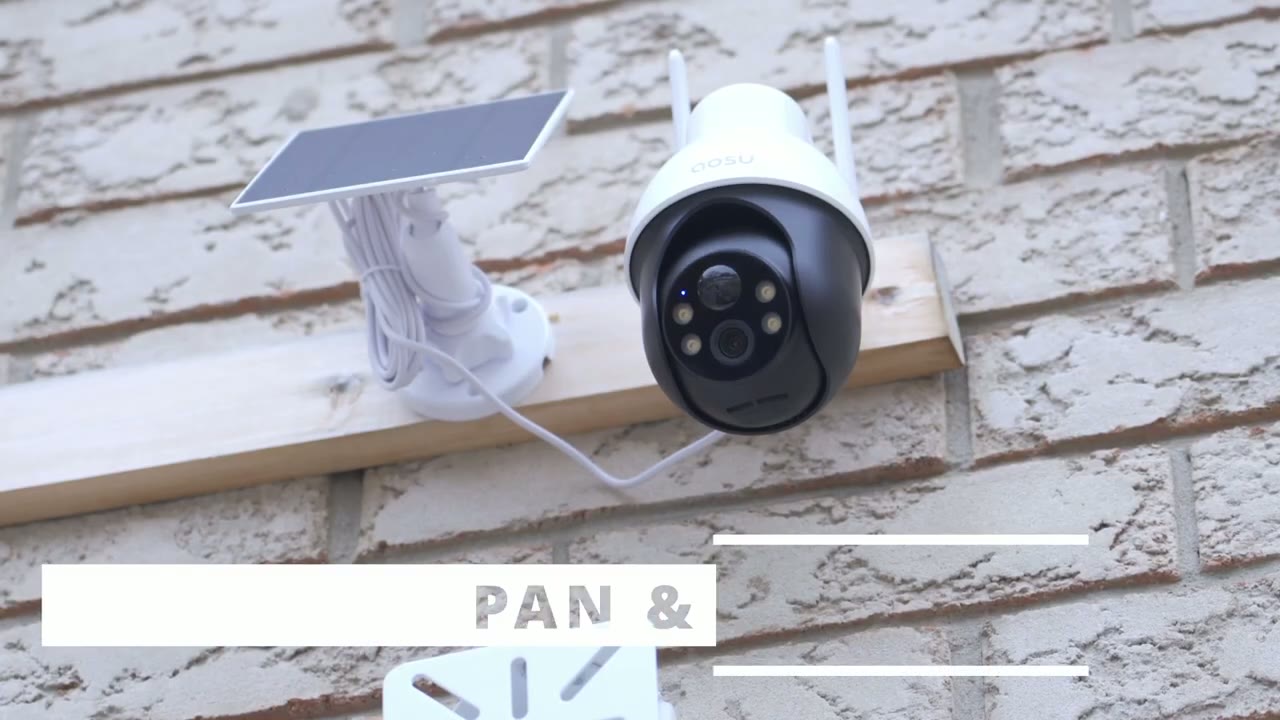
also works flawlessly on here so you can see you can do a stitch Panorama tap anywhere on it and then the camera is just going to look around you can also do a 360° look around if you like and of course you can manually pen and tilt as
Storage
well if you were to install a 128 GB micro SD card on here I estimate you’d get at least half of a year of storage or video history on here because a 1 minute clip on here usually only takes about you know 10 mbes so really the space is quite efficient on here all
Battery
right let’s talk about battery life for context I’m in Canada it’s the Deb of winter right now it’s about mid January I’ve had two winter storms in one week the skies have just been overcast the entire time it’s been a mix of snow rain ice now when I saw the camera it was at a 100% battery life and after a week or so it’s now at around 33 34% and that’s based on me setting it to the highest recording resolution I’ve set the motion detection to you know smart adjustment where it’s going to kind of look at the scene analyze it and determine if it’s going to go ahead and track that or record it now for the first four to 5 days I had it set to kind of like immediate mode where it was just tracking everything you know kind of willy-nilly and that’s where I noticed you know like the battery life drop by say 40% so I switched it to the smart mode it was also set to record you know 60c Clips so I could see as much information is possible however I’ve recently switched it to only record 20 second Clips again because I have pretty much no sunlight and it’s just all overcast Skies with really cold temperatures which of course depletes or drains battery life much quicker now this is not limited to this camera alone I have a bunch of other solar cameras also connected and they are not also receiving charge but if you’re lucky enough to live in an environment with a lot of warm temperature and a lot of sunlight you’re not going to have a problem this is going to stay nicely charged and there were a couple of days where you know I had basically like a little bit of Ray coming through or it wasn’t that overcast and I saw the camera was actually charging even in those Bleak condition so you know it really is doing as good as it can do given that it’s the dead of winter in Canada so can I recommend the ALU solar
Recommended?
cam D1 SE and this is a great option if you don’t want to run any type of wire the AI detection on here is also really good so anytime it detects you know a subject or an object it can quickly play you know an alarm or any one of those pre-recorded replies that I showed earlier so if you’re interested in picking up the ASU solar cam D1 I’m going to leave some links down below but if you’re looking for a camera with 24/7 recording a bright floodlight and you don’t mind a little bit of wiring check out my review of the ASU floodlight cam Pro up here and as always don’t forget to like And subscribe I’m always doing these type of security camera videos and I have a lot more coming up so I’ll see you in the next one soon
Buy 128 GB microSD Card on Amazon
Please note that some of the links in my video descriptions are affiliate links where I earn from qualifying purchases. As an Amazon Associate I earn from qualifying purchases.

