


Please note that some of the links in my video descriptions are affiliate links where I earn from qualifying purchases. As an Amazon Associate I earn from qualifying purchases.
Package Contents / Unbox
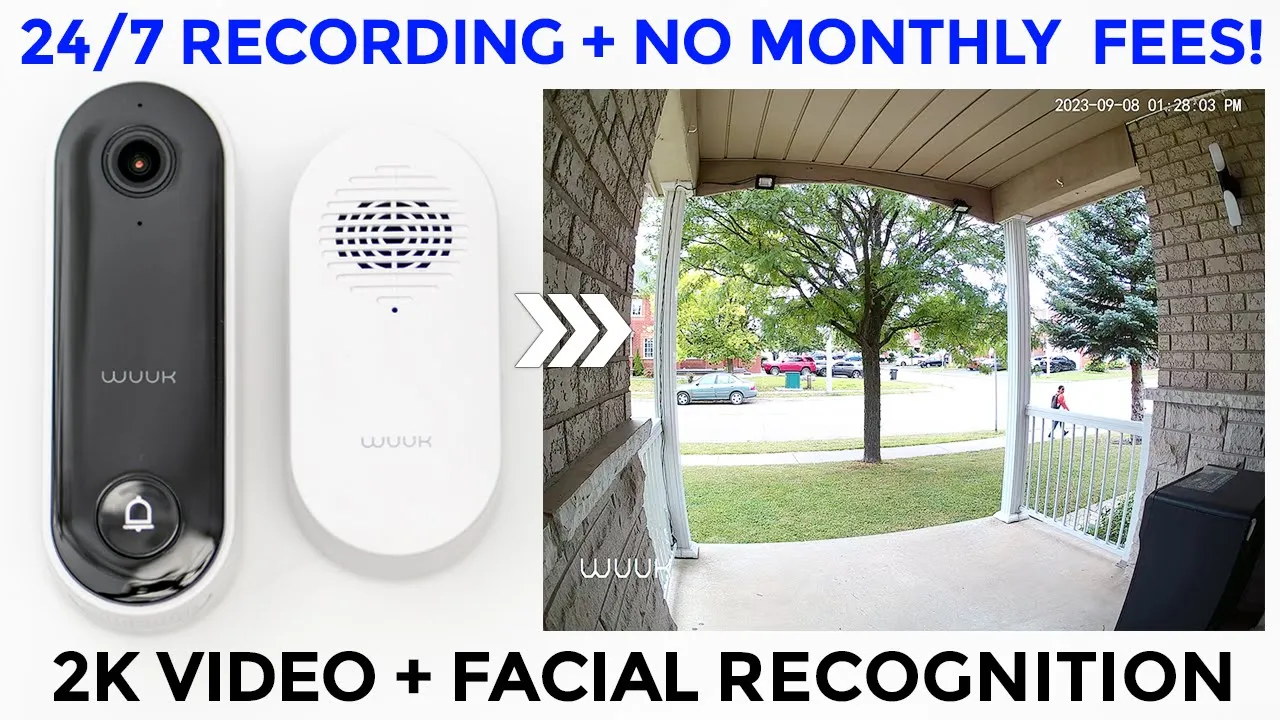
hey guys it’s Adrian and today I’m reviewing this wook wired 2k smart video doorbell one of these standout features of this doorbell is that it has on-device AI facial recognition technology you can also play customized greetings based on the face that it detects now it also has 4 7 recording or you can have motion based recordings it has local storage and most importantly there are no monthly fees with this thank you to book for sending us out for an unbiased review but let’s take a look at the features and you can decide if this could be your next video doorbell
Package Contents
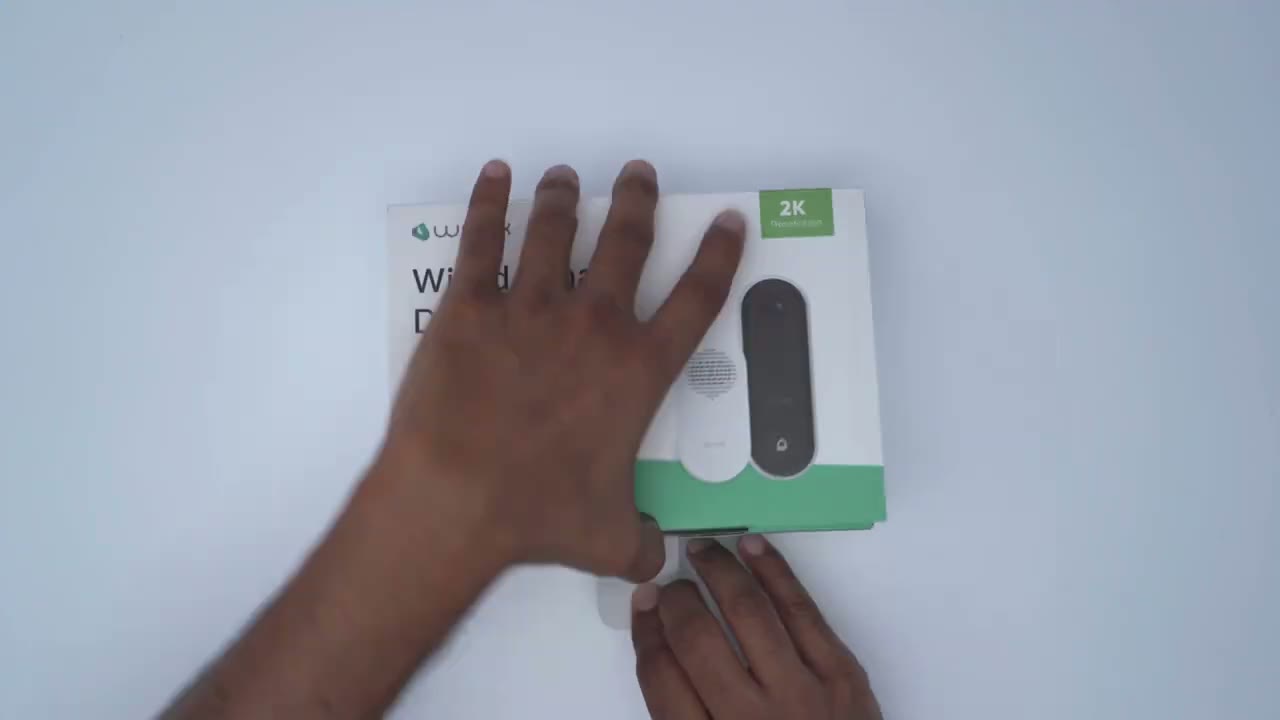
the Box comes with everything to get started so there’s a manual security sticker there’s the positioning guide to mount it a detached pin the video doorbell there’s a standard Mount and an optional 15 degree side mount or wedge mount with 3M tape applied for installation there’s a chime along with different attachments for the region you live in and there’s also screws if you want to go with a screw in type of insulation versus the 3M tape along with additional wiring again optional to extend your existing wiring the loop
Design
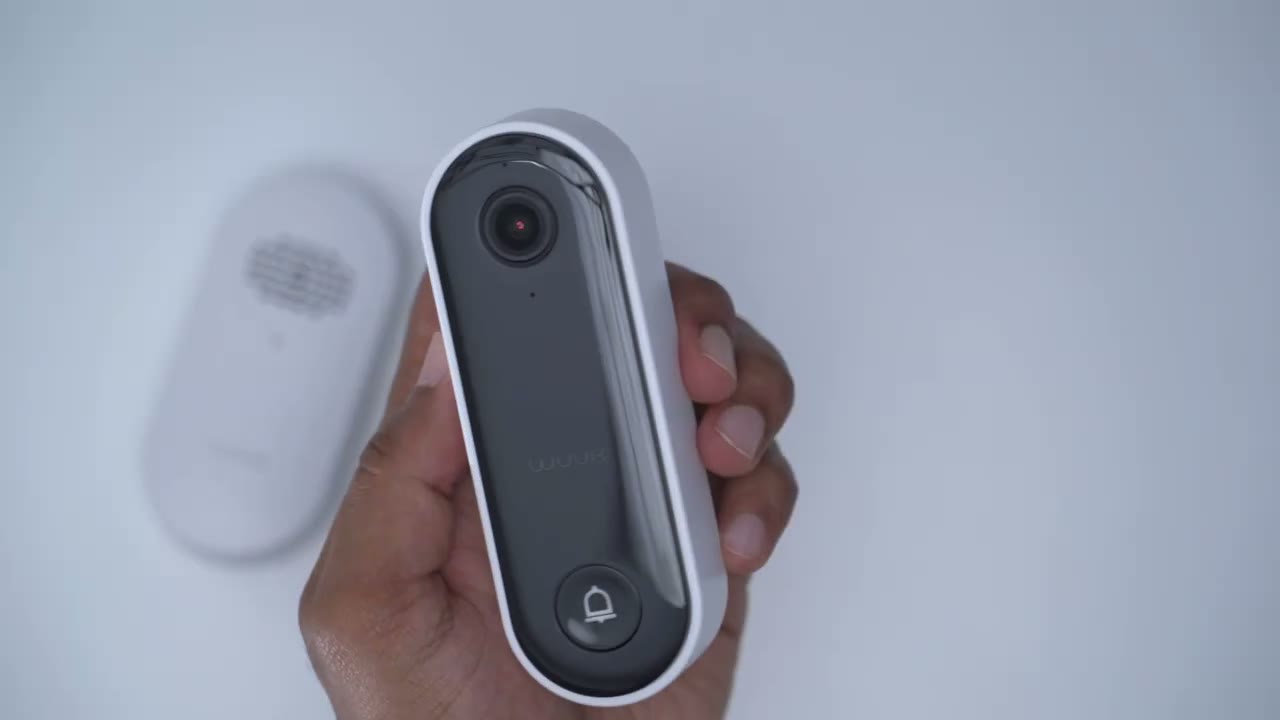
video doorbell looks really nice and I’m a fan of this contrasting black and white color scheme so we have this glossy black front finish and it’s wrapped in this white plastic housing which brings it in at around 105 grams or 0.23 pounds pretty lightweight if we take a closer look at the top that’s where we’ll find the camera module we have an indicator to like microphone the wook logo and a tactile doorbell ringer the bottom of the unit houses the speaker Grille and then we have the attachment areas that go into the mount now we have two screws that’s where you’re going to attach your chime wire sharing and there is a sync button there as well now this has an ip65 rating and you can see this is you know nicely sealed here if I open this up that’s where you’re going to pop in your local 256 or up to 256 micro SD card and then we also have a USB type-c port here the chime unit is also really Compact and lightweight so it’s an all-pastic build we have the speaker Grille and indicator light the sync button and you can see at the back this is where you would slot in the correct attachment for your country I’m using the North American one but depending on if you’re in Asia or Europe you also have other connectors if you ever need to remove the video doorbell to say change out the memory card for a larger one you would just take the supply detach tool here pop it into the bottom opening and then just separate the video doorbell from the mount the
Specs
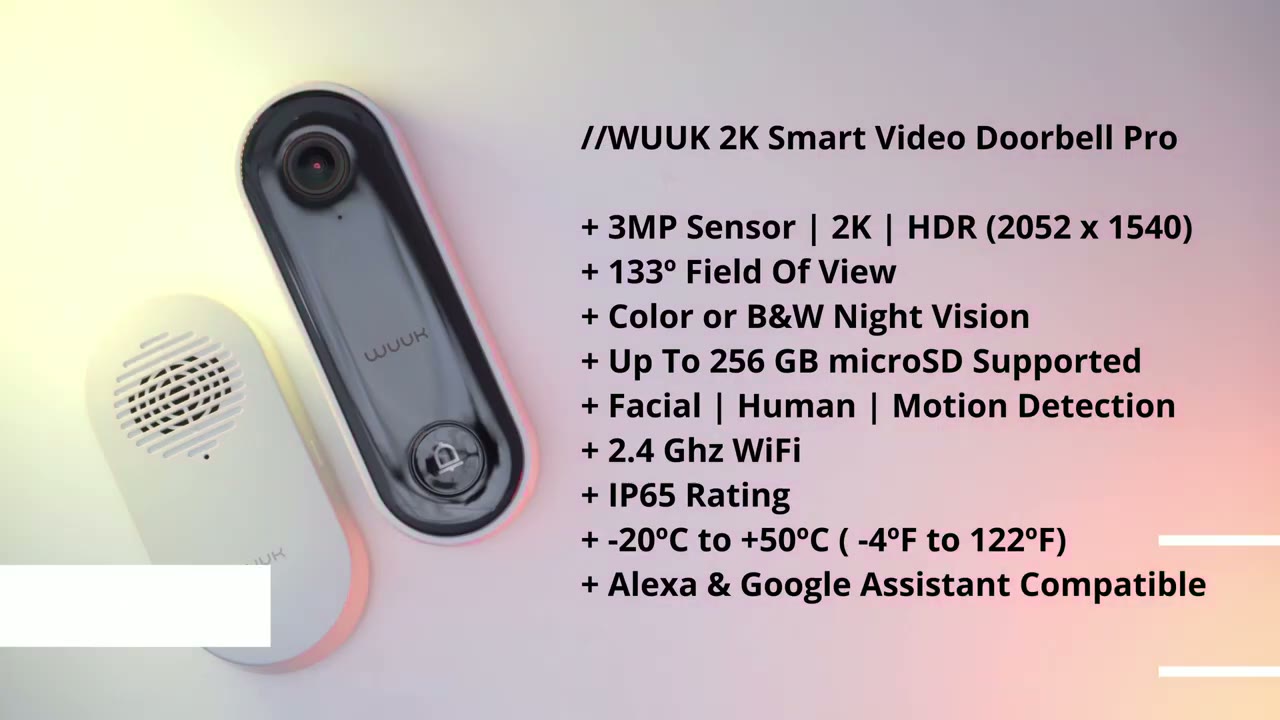
Hook video doorbell has a three megapixel sensor that’s capable of 2K HDR recordings there’s 133 degrees field of view you also have black and white infrared night vision and you can insert up to a 256 gigabyte micro SD card it connects to a two point four gigahertz Wi-Fi connection there’s an ip65 rating and the operating temperature is from negative 20 Celsius to 50 degrees Celsius so I’ve downloaded the app and
Setup
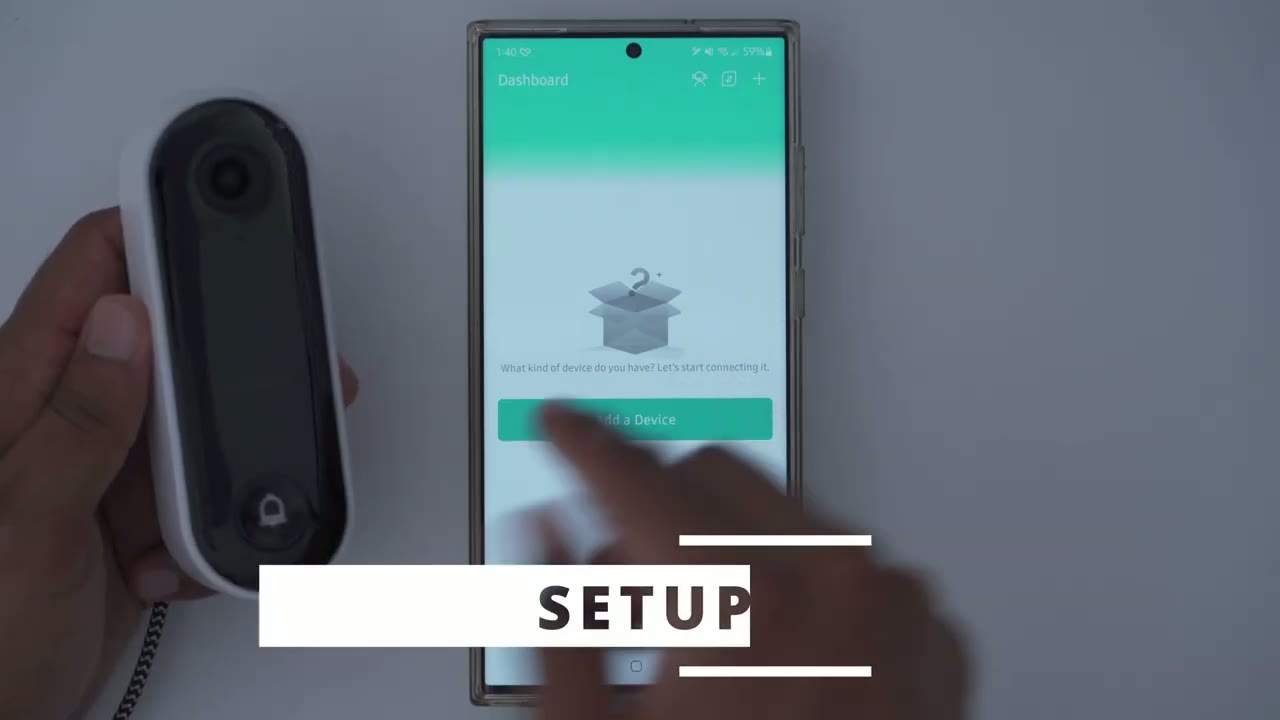
what I’m going to do is temporarily provide power to the video drill before I mount it with a type c cable next I’m going to go to add device in the app pick wired video doorbell and pick the wired smart doorbell Pro I’m going to pick existing wiring and I’m just going to skip the installation now when we get to turn on the doorbell it says wait for the indicator light to flash red which it is and the device is connected so that was really quick and easy let’s connect the chime to the system so we’ll pick doorbell chime pick that we want to connect to the doorbell and we’re going to go ahead and press the button for three seconds the doorbell is now added to the app I’m going to start a live view and you can see that was actually really quick everything is working perfectly so the next step is to permanently Mount this
Installation
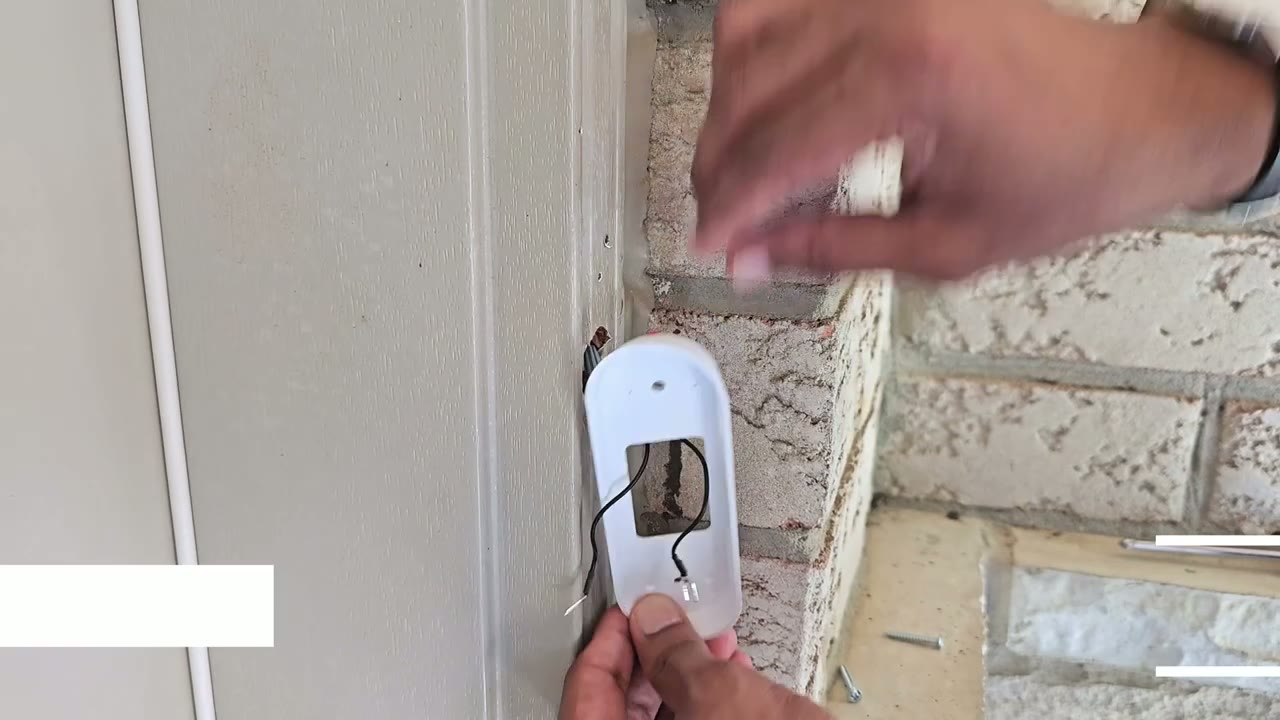
to install remove your existing doorbell chime run the wiring through the mount secure it amount to your door frame connect the wiring with the screws at the back of the unit and then finally install the door frame to the Mount you
Settings
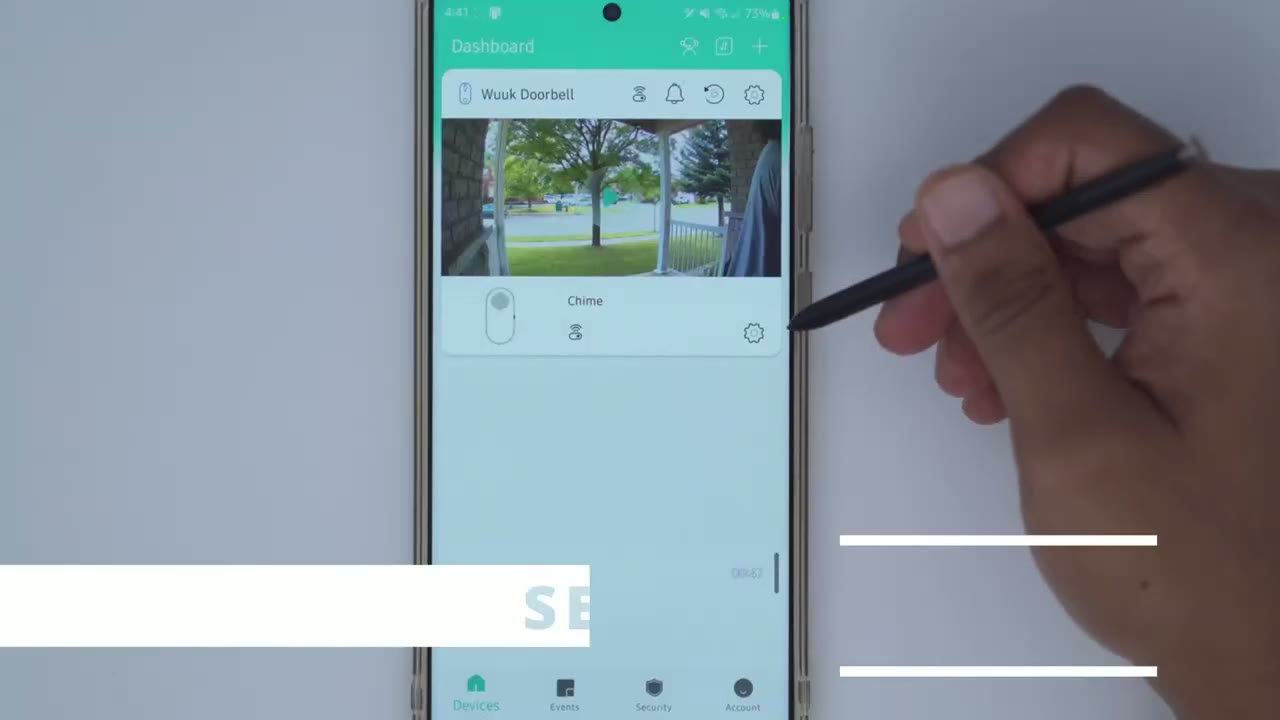
can see we have options for the chime here and some quick options for the doorbell so the first thing is that you can go ahead and snooze certain type of notifications so ring motion human and a duration between 30 minutes to 6 hours now we can also go ahead and jump right into the events playback and you can see that loads pretty quickly let’s take a look at live view and you can hear that car going by so the microphone pickup on there is pretty good from here we can also make the phone you know full screen we still retain our options at the side and you could zoom in take a look around and then Zoom back out but I’m just gonna go back to this portrait type of view and you can see we have options here to take a manual recording we also have the option to take a manual snapshot if we like and we can also speak to whoever’s outside so you just tap on speak you also have some pre-recorded uh replies that you could go ahead and use so we have one that says you can leave it right there we will be right there or please leave you can also change that tone which is super fun to play around with so you can have your original voice a male filter female filter or a neutral filter you also have the option to turn on an alarm and we can set the quality of the feed from HD to SD but let’s go ahead and take a full view of the setting facial recognition is on and the detection sensitivity is set to high there’s an option to clear all facial data but if I click interfacial data you can see there’s a lot of unnamed faces and I have one called Adrian if I click on that you know you can see that there’s a bunch of different records on here now what’s really important about this is from here I could see whichever events were triggered by this specific face and I can set the personalized greetings so you know it’ll only play that personalized greeting if I if I ring the doorbell if the doorbell detects me standing there or if I do either of both or I could just turn that off completely I’ve set it for both just for testing purposes and that works pretty well now I could go into our manage sound I could change the sound so I can report a pre-recorded message you know something custom that I want to say like happy birthday happy anniversary whatever I can convert text to some you know I would just type out something and you know the camera would just play that or I can just go ahead and pre-select anything from Luke’s Library which some of these are actually kind of pretty funny to you so you have a lot of options on there you can also turn on Sentry mode so anytime it detects someone whose face is not added as a familiar face you can play a specific sound so again you know you could play for example a dog barking which is a pretty good one now if we go into recording mode this is where you can set it from continuous recording to event recording and I’ve only left it on continuous I want to get as much as I can get without any type of you know breaks in the video now if we go into cloud service you can see mine is on it’s on the trial period it’s going to end next month on the 6th and whenever you’re on the cloud trial it only records event based Clips it will not record continuous only event something to keep in mind if we go into Watermark this is where you can set it to have the logo and timestamp timestamp only or none and you can change the time format this is where I can change sensitivity and detection zone so I’ve set overall detection to be on medium and the detection Zone you can go ahead and add in specific areas where you want motion to be detected and then for human detection you can actually turn that on or off and you could set the detection sensitivity again I’ve set it on high now if we go into sound you can have the option to record sound or not I haven’t found an option to adjust the speaker volume though if you go into notification you can have notifications for all of these you know but it may be best to just enable say ring notification just when you want to be notified when the doorbell is ring if you go into sleep mode basically it’s just gonna turn off all of the features so you see recording live view LED satisfied everything will be turned off indicator light you can have the indicator light on all the time or not I just have it on all the time so people know it’s active under paired devices you can see that we have one chime and you can actually add up to eight Chimes here so you could have one chime on each floor so you can hear it throughout the house we could have the illuminated ring button so you can see it’s just glowing night vision I’ve set it to automatic and the camera is just going to determine when to switch over to night vision mode that’s been working excellent for me in the chime settings
Chime Settings
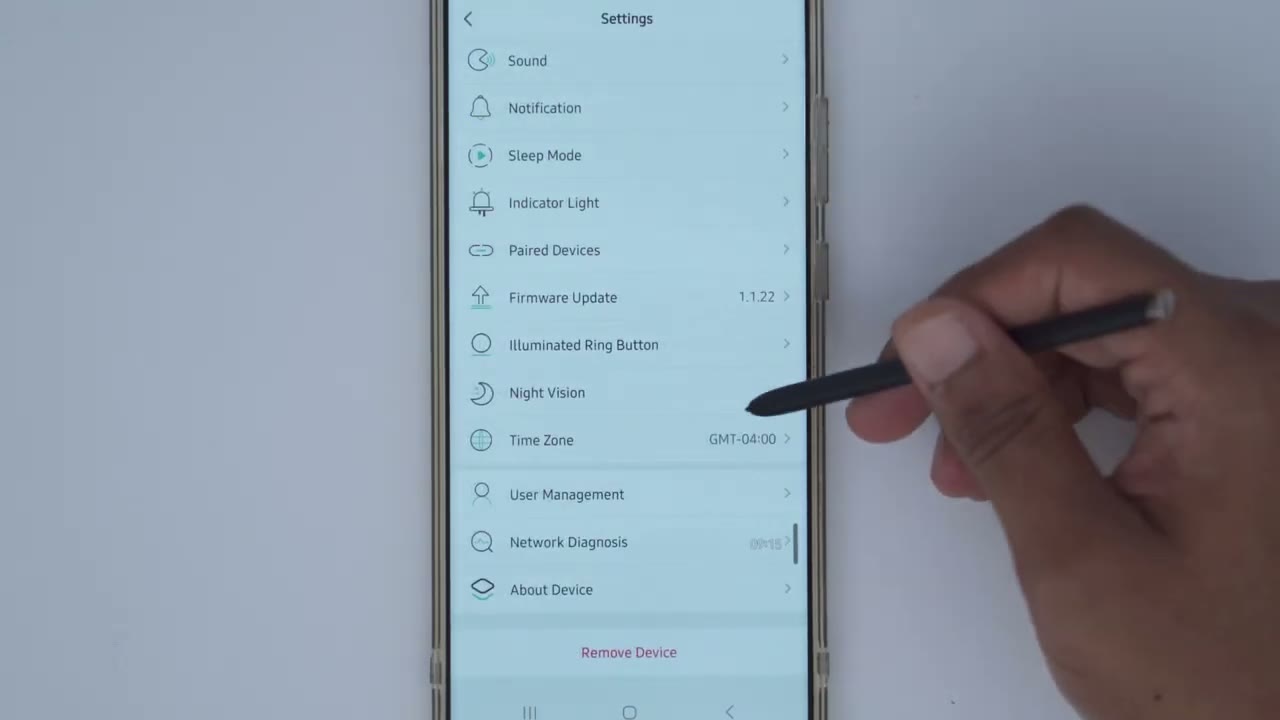
the volume and ringtone is the only notable area so you can see I have a ringtone called Downer and that’s a custom one that I set to ring inside the house so to do a custom one you would click the plus arrow up here and it has to be an MP3 file you see I’ve downloaded a bunch of files but I’m going to pick this Debbie Downer and perhaps some of you know the reference I’m going to say uh Debbie right here go to next I’m going to pick Say ding Hanukkah let’s say to replace because you can only have a preset amount and now we have the downer ringtone saved go ahead and save that and now when I actually ring or when someone rings the doorbell I’m gonna hear the downer tone inside my house reviewing video clips is quite easy you
Video Playback
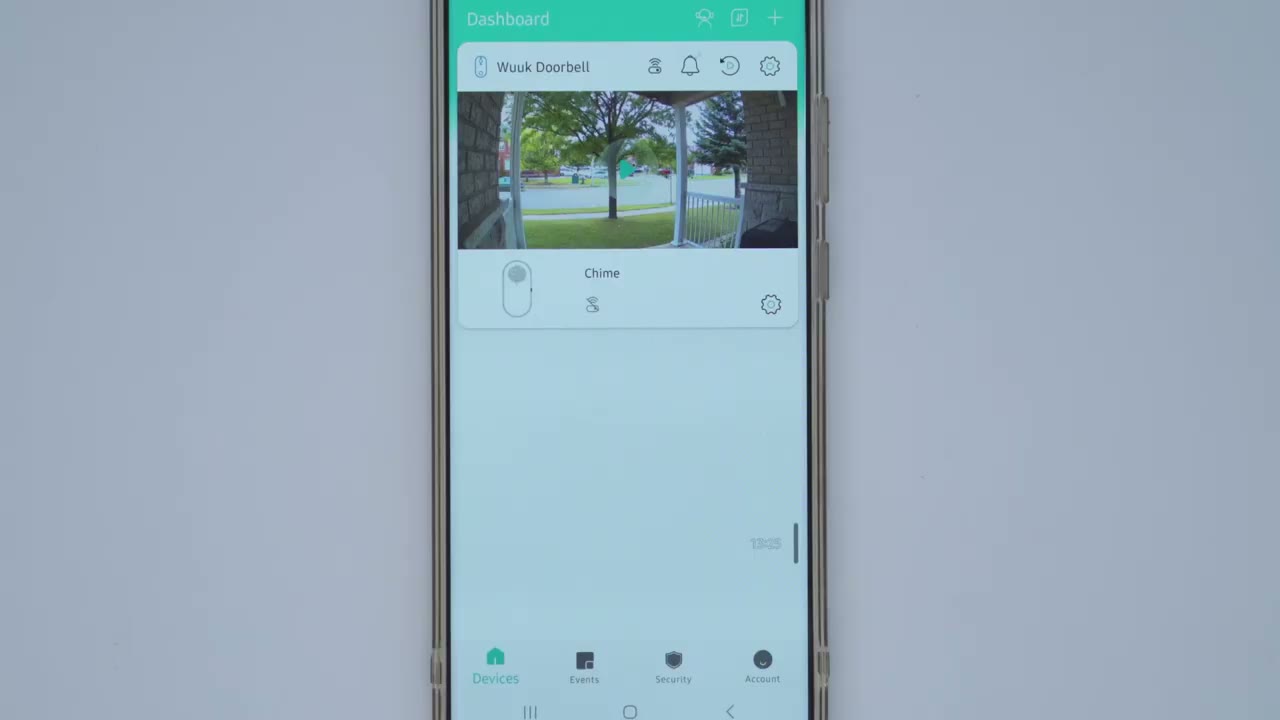
would click on events and you can see it’s categorized by human or motion or a call if someone rings the doorbell so what I could do is click on this filter icon here and say okay well I only have the one device but I could say how about if any time you know a human was detected click confirm and you can see I’m only going to see human motion on there let me exit out of that you can also go ahead and you know delete certain Clips if you need to but let’s go ahead and play one of these clips so I’ll play this one for example with the car going by [Music] while you’re reviewing any type of video clip you could click this download icon here and it’s going to start downloading to your phone now this icon is only going to appear if you have the cloud plan if you don’t have a cloud plan basically when you’re reviewing the clips you have a button to manually take a screen recording while it’s playing so that’s something I spoke to book Labs about the look into possibly having that icon always display regardless of if you’re on a cloud plan or a local plan I think that would be a great quality of life Improvement
Video Quality
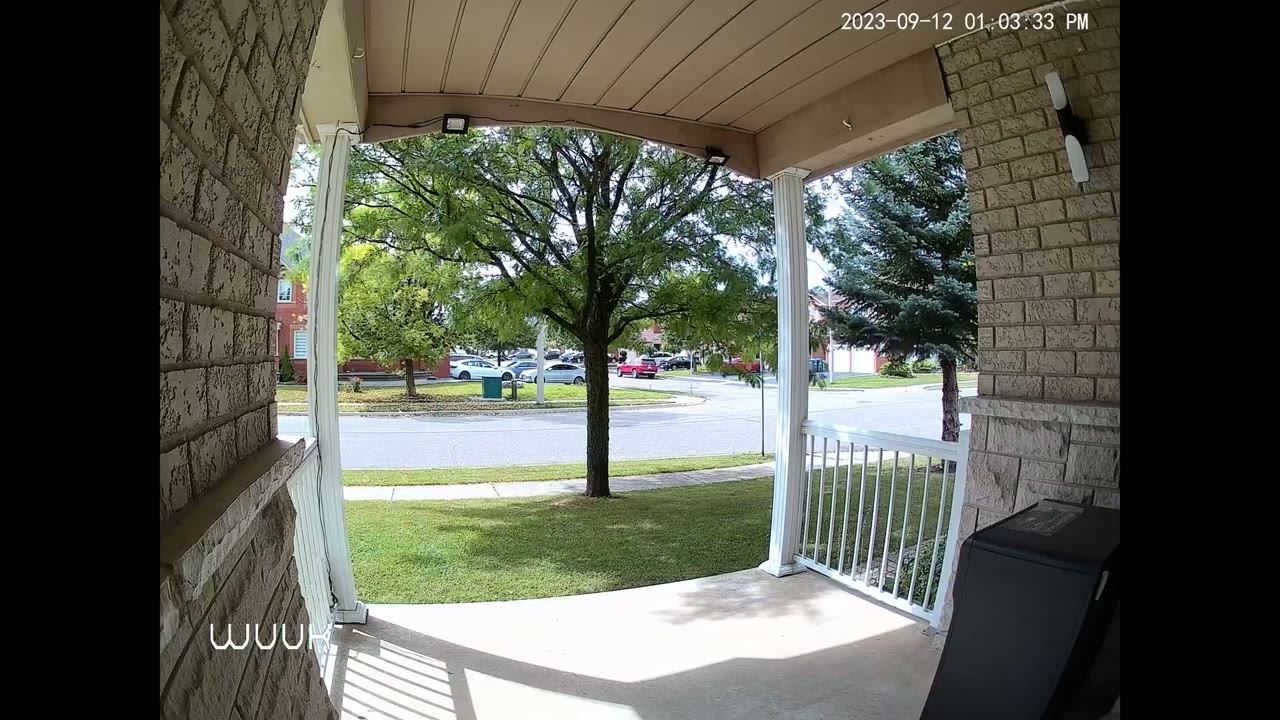
foreign the video quality was very clear during the day it was pretty easy to make out faces from delivery drivers from myself even from people crossing you know to and fro in front of the house even though they’re about a good you know say 30 feet away I was still able to make out your no clothes colors how many people pets it’s really an excellent video quality on here video quality at night was really good as well and it didn’t really matter if I had kind of like an ambient light from a wall light or a spotlight or if it was Pitch Black it was also very easy to detect them and see all of their facial features as well
Motion Detection
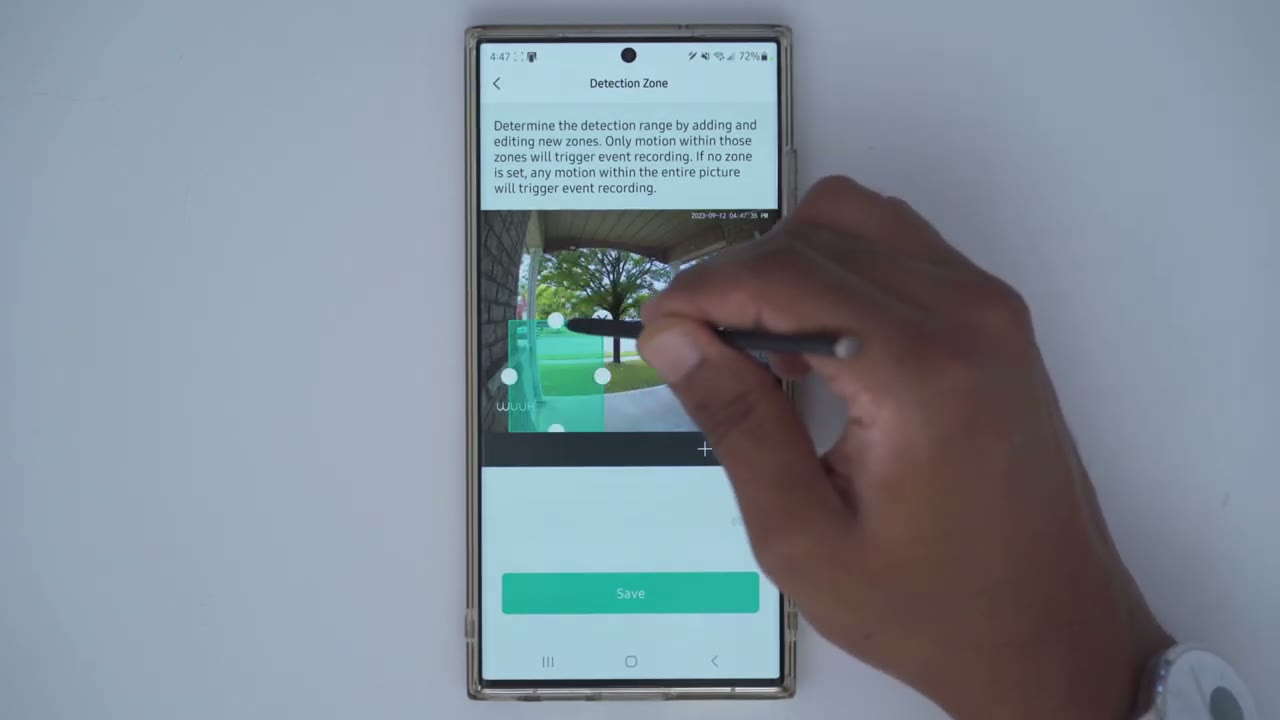
when it came to detection the system is quite sensitive to motion so I was averaging around 1 380 motion detections a day and that’s the average for a four day period which is really crazy now a couple things to give back context I live on a corner house there’s cars coming going up that street all the time there’s kids walking back from school there’s a ton of traffic but my motion sensitivity level was set to medium and for human Sensitivity I had set it to high I also have two trees in front of my house and one of the trees is always swaying so I know that triggered probably a lot of you know false positives now you can block things out you know you can set like an activity Zone where it’s only going to detect Motion in the area you define the
Facial Recognition
doorbell also has facial recognition and you can also pair specific greetings with those facial profiles and you can see how that could be a lot of fun so for example you know if it’s your spouse or significance other’s birthday you can set it for that day that you know when the doorbell recognizes their face while they’re standing there it’ll play you know a happy birthday to tune to them or something that you pre-recorded I’ve said it so that anytime the doorbell recognizes my face it plays a pre-recorded message that I recorded myself that says hey don’t forget to check the mail before you come inside because I have a tendency to forget to check my mailbox don’t forget to check the mail before you come inside now I haven’t hit a 100 success rate with it you know a lot of the times it will recognize my face but there are times when you know I’m standing it didn’t recognize my face even though I’ve been there for a couple of seconds so yeah it can be hit or miss but most of the times it is a hit there is also a
Sentry Mode
Sentry mode that you can enable in the app and the way that works is anytime the doorbell notices a face that isn’t added to your familiar faces it’s gonna play you know a pre-recorded message that you set or something that you could download from the app or that’s preset in the app
Speaker
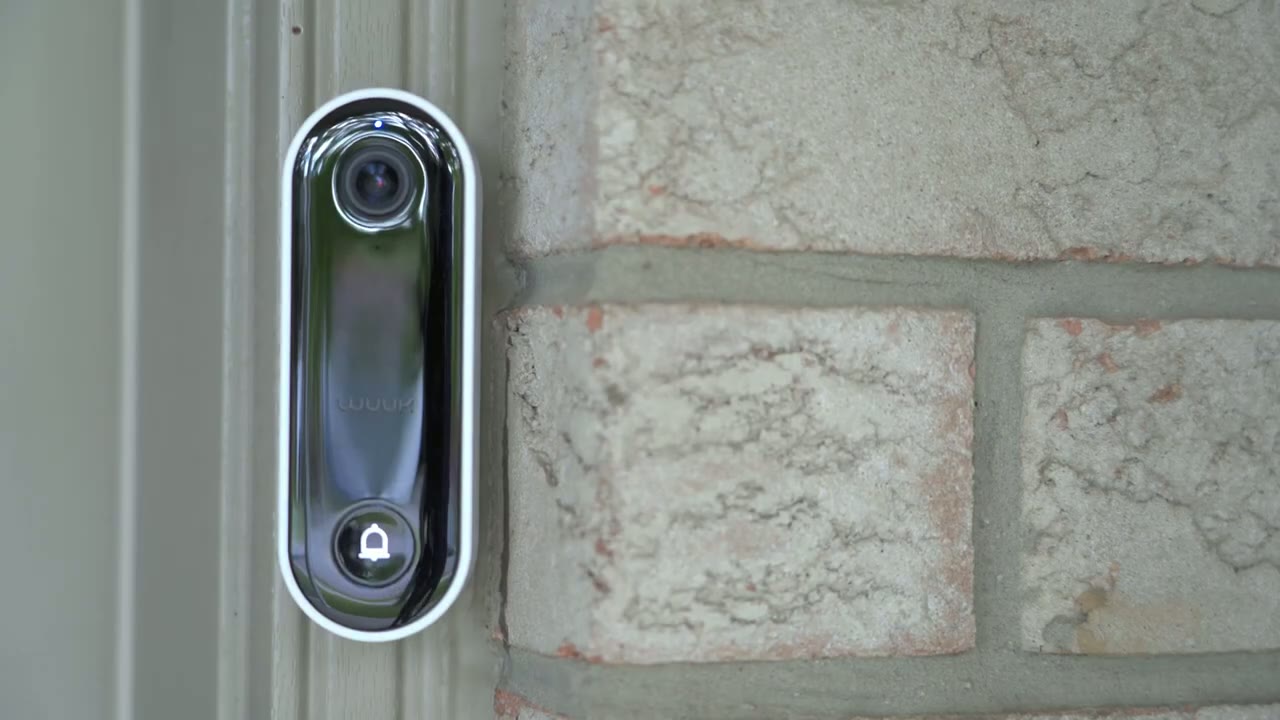
coming from the video doorbell you can hear that the audio is clear and there’s no audio dropouts now what’s really funny with this is that you can actually change the tone when you talk to someone so you can have it in your normal voice you know a male type of filter female filter a neutral filter and you can also manually trigger an alarm or a siren you know say you pulled up live here you saw someone kind of like skulking around they look kind of suspicious you could just trigger the alarm
Storage
this can support up to a 256 gigabyte micro SD card however when I install mine I only put a 128 gigabyte micro SD card in there and I set it to record continuously in 2K resolution now I was able to get about five to six days of continuous video review based on 2K recordings on a 128 gigabyte micro SD card so if I was to put in a 256 gigabyte micro SD card then I’d easily get you know 10 days maybe a little closer to two weeks so the 2k smart
Recommended?
video doorbell Pro is an awesome doorbell there’s not a lot of doorbells out there that both offer you know on-board facial recognition and allows you to associate a custom greeting with that and it’s something you can have a lot of fun with I also like any time that I have the option to choose between 24 7 recording or motion or event based recordings because there’s a lot of doorbells out there where it’s kind of only motion based or event based and anytime you have something like that there’s a chance you may miss you know some type of footage I’m not saying it might be Mission critical so anytime I’m presented with the option to pick between motion based or continuous I always go for continuous recording even though I’m gonna have you know less video playback history I’d like a complete snapshot whenever possible when you pair that with the awesome video quality that this has the sensitivity of the motion detection and most importantly zero monthly fees sure there is a cloud plan completely optional I plan on just running this local storage only 24 7 recording and not having to worry about any type of monthly fees and that’s such a vital factor for me anytime I choose a camera system I want a camera system where I have full functionality and cloud is completely optional and I can get that with this video doorbell so if you’re interested in picking up the whoop 2K video doorbell Pro I’m going to leave some links down below to learn more about it or to pick one up for yourself and I’m also going to leave a link down below with a coupon code if you enjoyed this video stay tuned for more work camera and security videos I have a lot more coming and as always if you found this video helpful please consider liking and subscribing and I’ll see in the next one soon
Please note that some of the links in my video descriptions are affiliate links where I earn from qualifying purchases. As an Amazon Associate I earn from qualifying purchases.

