


Visit my site for full troubleshooting steps as well
Please note that some of the links in my video descriptions are affiliate links where I earn from qualifying purchases. As an Amazon Associate I earn from qualifying purchases.
Intro
alright guys so this video is to help you figure out Bluetooth issues so this year I’m describing is you’ve paired your Bluetooth headphones or earphones and the signal seems to be coming in and coming out now I’m not talking about a complete loss of signal I’m talking about the audio kind of gets a low gets high again and staticky things like that now I know there’s a lot of videos on here about you know unpair your device pairing it again clearing the app data for Bluetooth but I actually didn’t try that I tried a different way before I knew about that and I didn’t have an issue so the way I did it is first
Unlock Developer Options
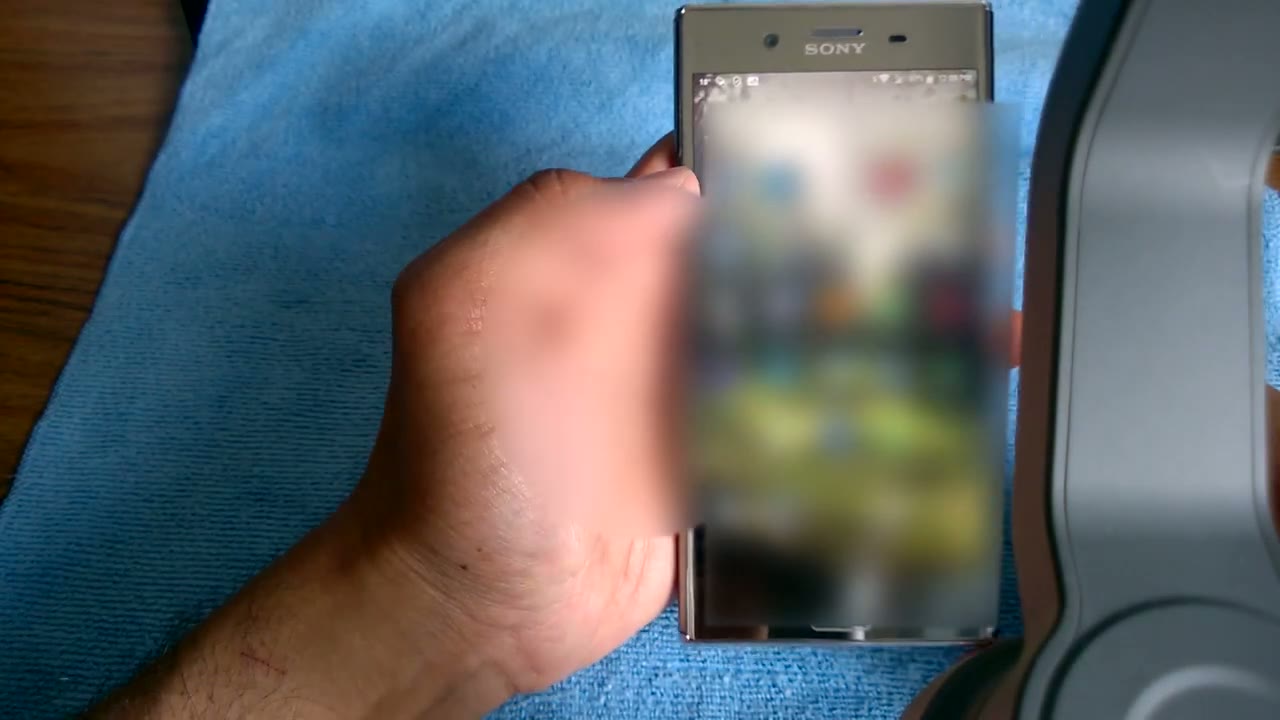
you’re going to go into settings then you’re gonna go into system and the part the fix for this it depends on having developer options enabled now if you don’t know how to enable that I’m gonna show you how to do it so you’re gonna go to about phone the phone I’m using is a sony sony xperia phone now your menus might be a little bit different but pretty much if you can get to this system section you should be able to find it now you’re gonna click build number a couple of times and it’s going to give you a notice so you can see it says four steps away from being a developer three to one and then I’m just gonna put in my pin all right so okay so my pin is there and it says you are now a developer so if you go back you can see now there’s a new option here that says developer option so you’re gonna click that and
Adjusting Bluetooth Options
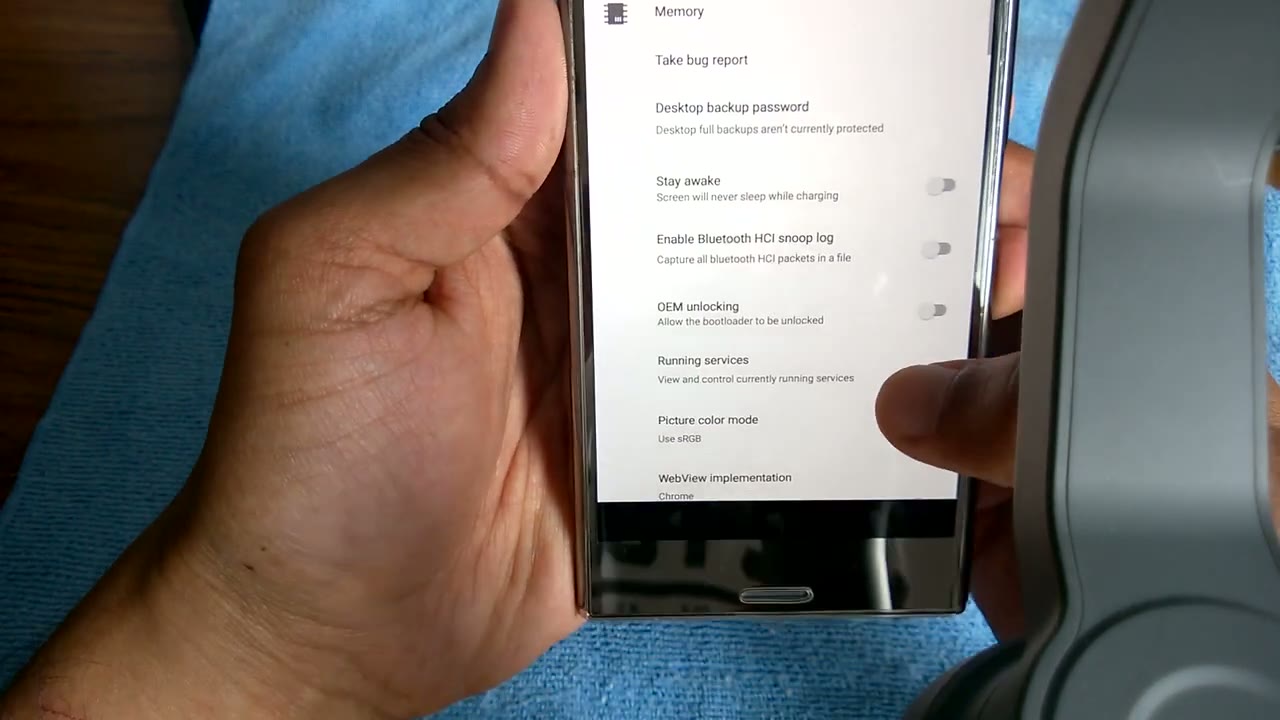
there’s a bunch of other options here actually if you want to play around just be careful some of these can damn it some of this can break functionality on your phone but the area you’re gonna be looking for is this area here where it goes into Bluetooth now you can see most of it it says used system selection here and Bluetooth version it’s one point six everything else is the default but what I did change is it was initially a pair optimized for audio quality and I switched it to best-effort adaptive bitrate and that took my issue away now if some of your audio files in that simply won’t do then you know maybe you’ll have to try the other option with unparent ablute tooth app data and then pairing it back again but you know if you if it’s not a big deal to you try switching it to adaptive bitrate and see if that solves your issue it did it for me I was using Bluetooth earphones some brand Edifier brand from China and I was having that issue any time I turn my head left to right the audio would kind of lower or cut in cut out and now with this on I don’t know how that issue anymore even if the phone is in my pocket or wherever so yeah go ahead try that let me know if it worked for you guys and if it did work you know please like my video please subscribe you know I’m planning on putting more videos with helpful little tips like that alright thanks guys bye you
Visit my site for full troubleshooting steps as well
Please note that some of the links in my video descriptions are affiliate links where I earn from qualifying purchases. As an Amazon Associate I earn from qualifying purchases.

