


Buy Reolink 2K Video Doorbell on Amazon
Buy Reolink 256 GB microSD on Amazon
Buy Samsung Pr 128 GB microSD on Amazon
Please note that some of the links in my video descriptions are affiliate links where I earn from qualifying purchases. As an Amazon Associate I earn from qualifying purchases.
Intro
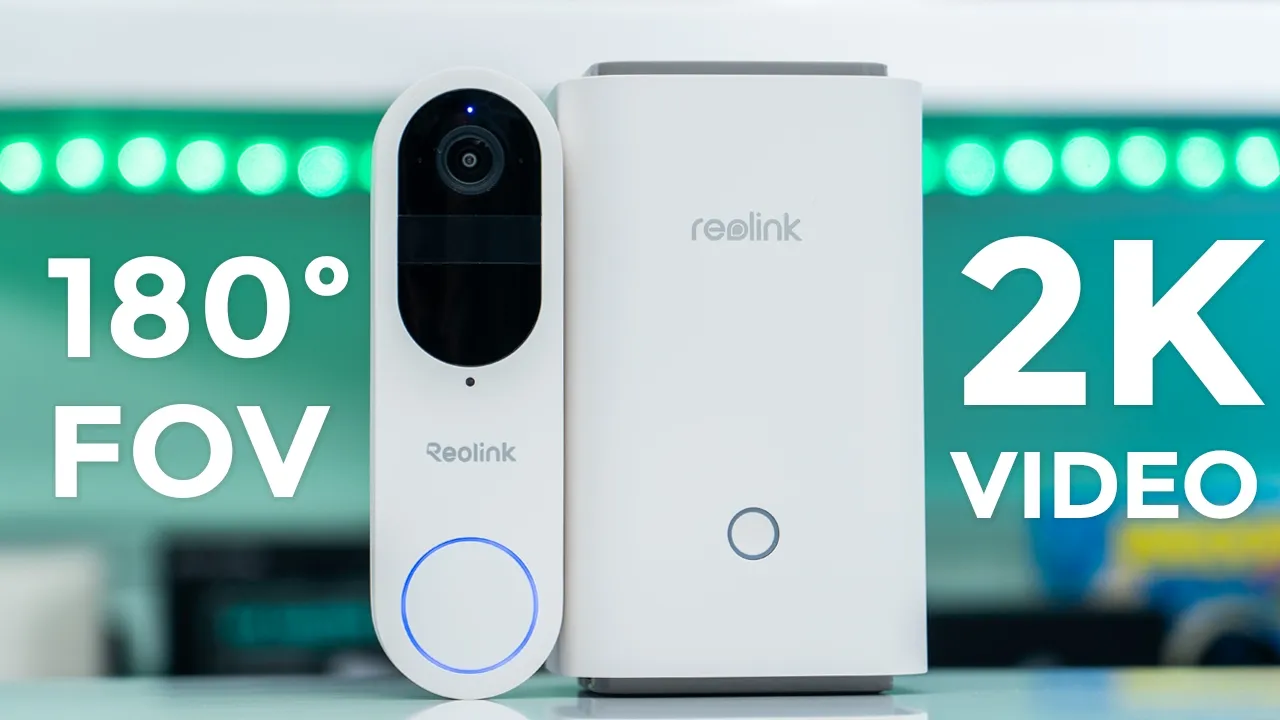
hey it’s Adrien and if you’re looking for a video doorbell that has sharp 2K video an impressive 180° field of view and Zer monthly fees you’re going to want to check out the realink smart 2K battery video doorbell it also has 2-way talk and alarm siren a dual band WiFi support for up to a 256 GB micro SD card a huge 7,000 mAh battery time-lapse functionality real link H Hub compatibility and more so let’s take a closer look at how will it performs and a big thanks to realink for sending this out for a
Package Contents
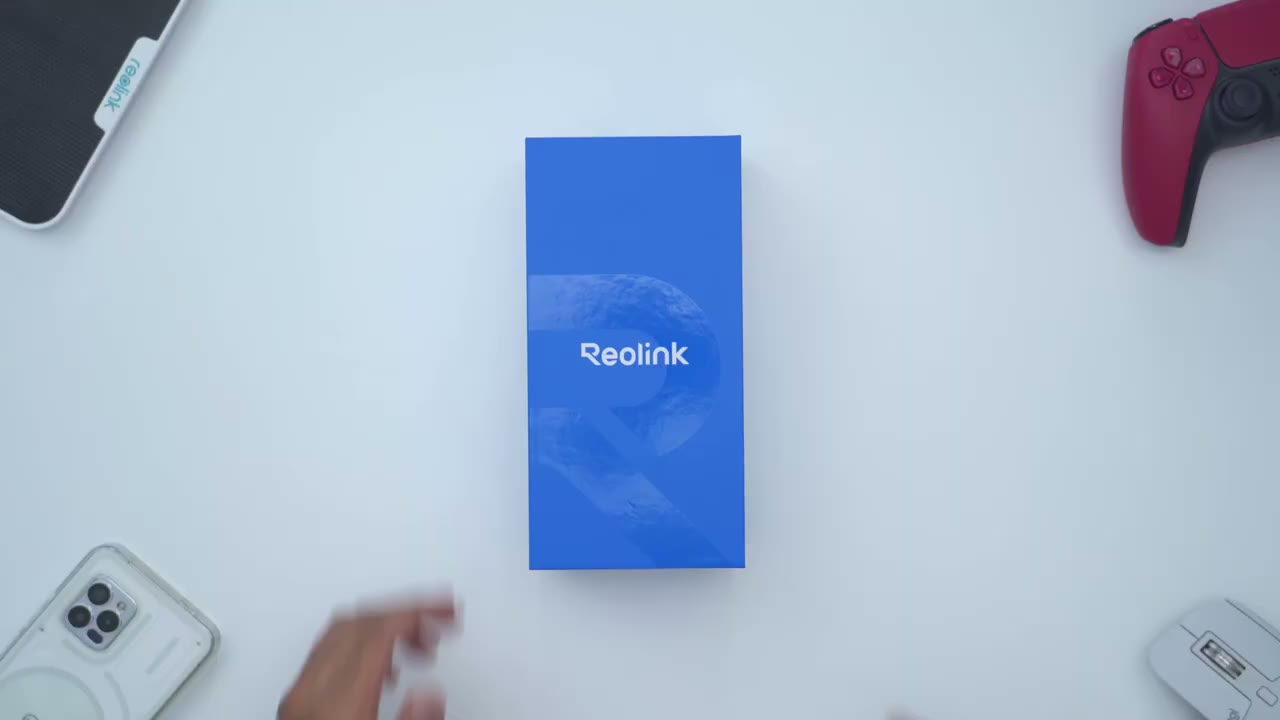
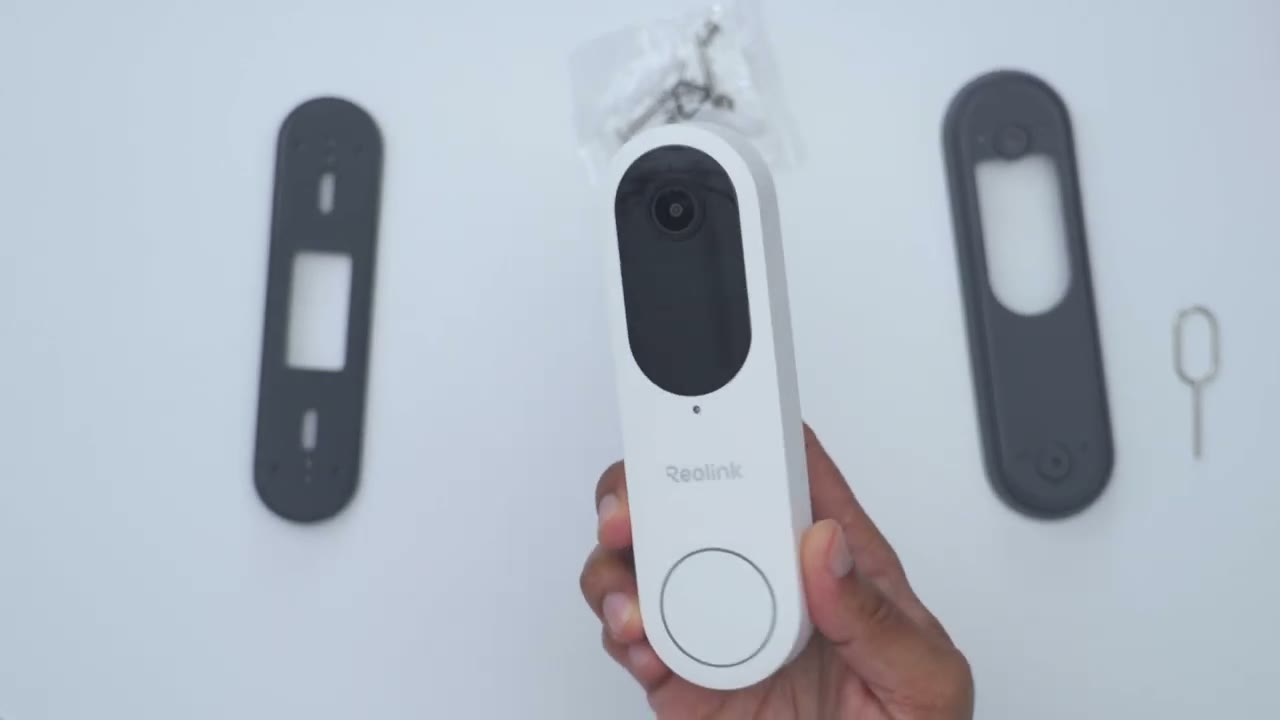
review in the box we have the realink smart 2K video doorbell along with the mount for it and an optional wedge mounting sticker mounting hardware and detach tool USB a to type-c Cable jumper and extension cables and an operating
Design
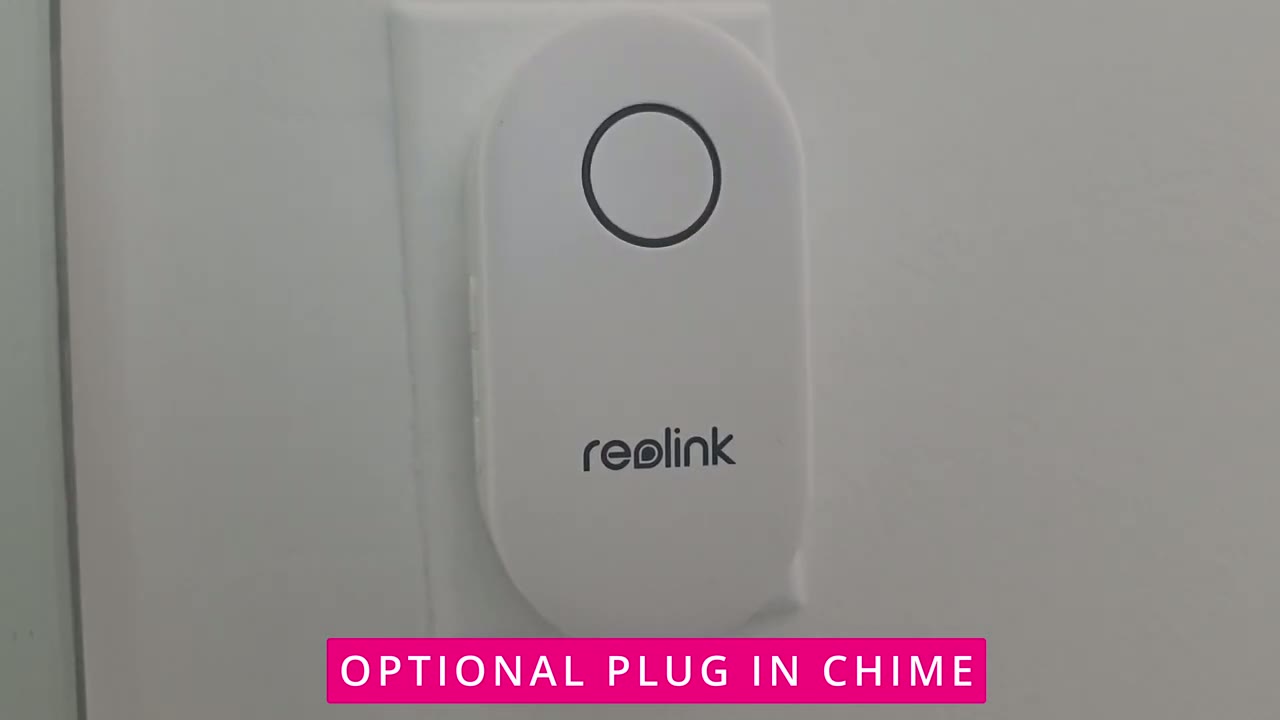
manual the design of the reink video doorbell looks really striking so we have a pretty much all white body and then we have this black area it houses the lens in the different sensors and then on the back we have this typ of dark gray material now this feels really well built there’s no type of creaking or flexing anywhere on the body and this is coming in at around 228 G or about half of a pound now taking a closer look at the top that’s where we have the 2K camera lens and we also have you know microphones LED indicator lights and a bunch of various sensors now we also have the real Link logo here and then the doorbell ringer button nice and tactile and then there is an LED ring light it goes all the way around if we take a look at the bottom this is where we have the speaker Grill we have a USB and micro SD card slot area here and then if you lift that up you get access to both of those ports so this is nice and weather sealed because this does have an ip65 rating and this will accept up to a 256 GB micro SD card which is pretty substantial there’s also a power button here that we could press down to turn the doorbell on when we’re ready to park and then there’s two screws here and this is if you want to hook this up to your existing U mechanical chime in your house and then we also have another area here kind of a retention area when this clips into the bracket and at the very top you can see there’s a little hole here and this is where we’re going to use the tool here to push in to detach it from the mounting bracket so you’ve noticed that there is no included ch unit or plug-in chime unit with this video doorbell and that’s because it’s meant to be used with your existing mechanical chime or you could buy R link plug-in chime separately and another option is if you pair this with r Link’s home hub which is what I’m going to be doing even though you could use a standalone you can pair it with the home hub the home hub can act as you know kind of an audible uh ringer inside your home and just to quickly demo the detach process so I’m just going to clip it into the bracket right now so you can hear that audible click that’s not going anywhere then you just take this detach tool just put it right there and you can see it’s now separated here there’s a little uh Gap and then you could just pop it right back out so nice and easy and of course you can install the video doorbell by itself without connecting it to any chime wiring since there’s a 7,000 mAh battery built into this but you also have the option to connect your home’s existing chime wiring to these terminals right here and then that’s going to have it you know kind of syn with your existing chime and also Pro provide power to help keep this topped
Installation
up installing the doorbell is really easy so the simplest thing is to use the included Mount attach it to a door frame and snap the doorbell in Additionally you could use the included wedge simply add the mount to the wedge and screwed into the door frame then pop the doorbell in and you’re done here’s a
Specs
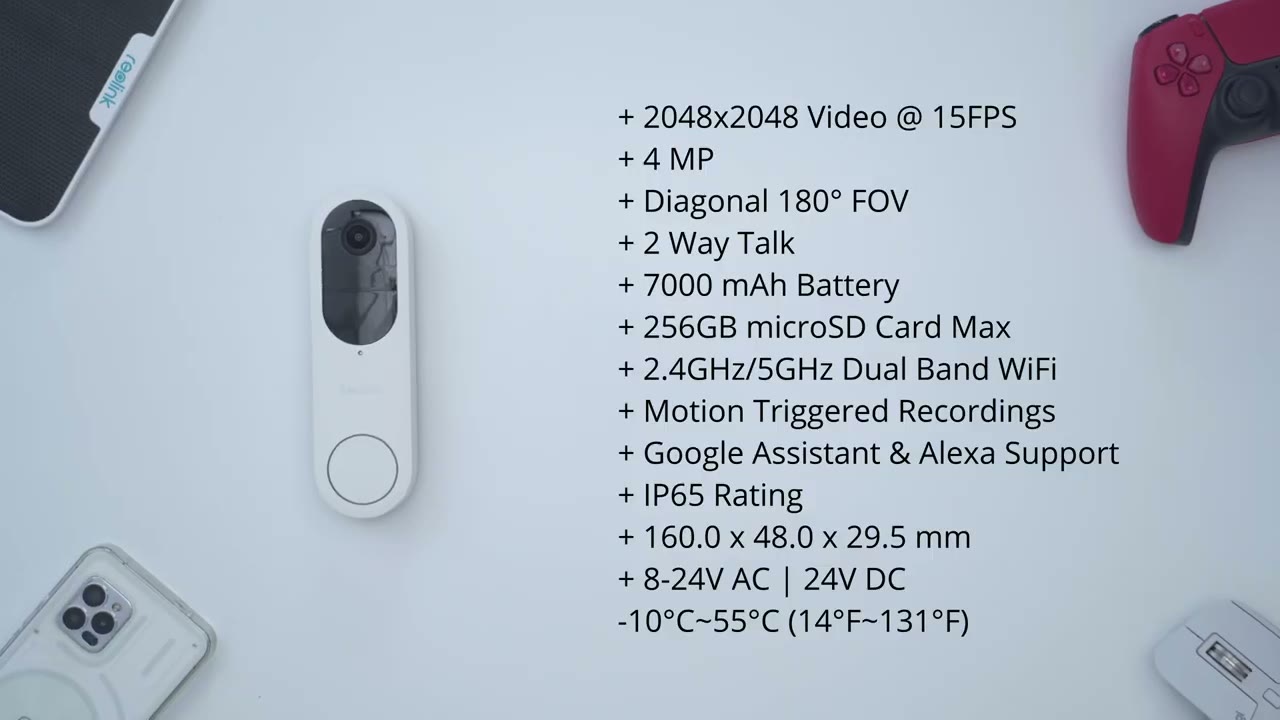
quick look at the specs feel free to pause or jump ahead to the next section
App Setup
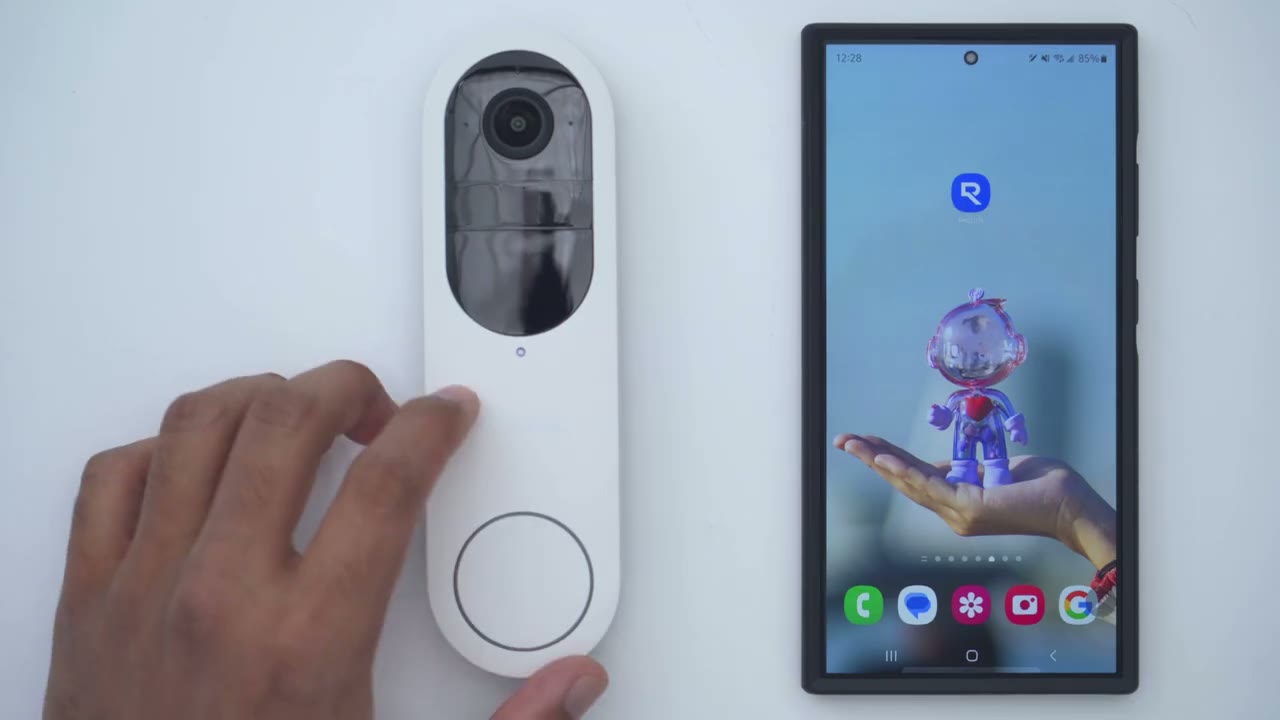
regardless of how you set up the video doorbell either Standalone or with the re link home hub you’re just going to click plus scan to add the QR code at the back of the video doorbell follow through the steps and you’ll good to go
App Settings
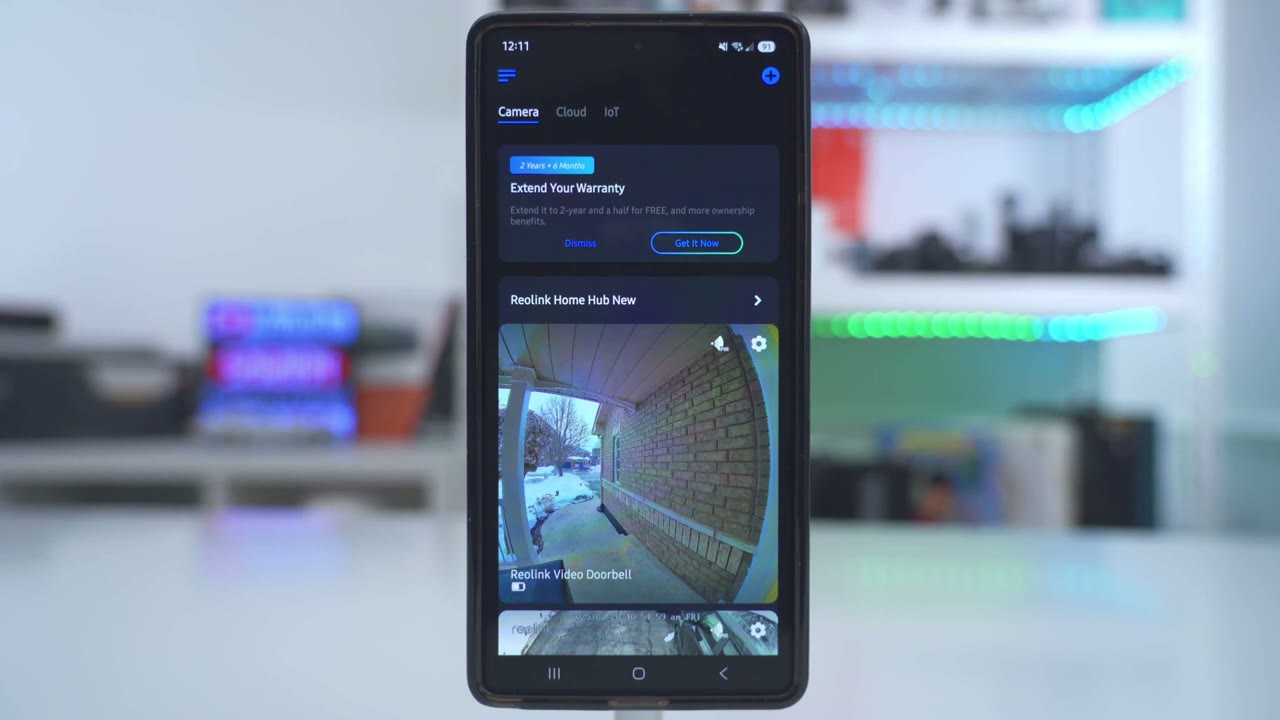
let’s take a look at the full app settings in the real link app so I’ll just tap in to start live view and you can see that actually pulls up really quickly even though it’s set to the highest streaming quality now from here I could go ahead and increase the volume just so that I could hear what’s going on outside and you can hear that microphone pickup is really good I’ll just cut that for now I can also go ahead and take a snapshot it’ll save the my phone and I can take a manual uh recording if I saw anyone you know kind of lurking out there and of course you can change the streaming quality from Clear bounce or fluid depending on your internet connection speed you can also tap on this second to go into live view and you can tap on quick reply to send quicker applies but what I would normally do is just talk um using the 2-way talk right here and then we can just go into playback to review video clips we can also go ahead and sound the alarm you can tap on that to trigger it I’m not going to do that now and then we can also take a look at all the realink cameras on the property so you can see this is really handy it’s going to pull up a live view of all the cameras in one spot which is very convenient you can also tap on the icon here to set it to this immersive view where you could see all of the cameras you know much larger which is really handy and you can also go ahead and actually do a pitchure and picture so while you’re actually using your phone you can take a look at what’s going on around your home in the full app settings we could tap into the video doorbell to actually update the firmware on here or take a look at the model information if you want to add it to the rail link app or the desktop software under Wi-Fi I’m using the home hubs Wi-Fi but you can actually switch it to another Wi-Fi network if you don’t have the home hub or you don’t want to use it and you could change your Wi-Fi band preference now under battery I had this up for about 2 weeks and I’ve been doing a ton of testing running time-lapse videos that’s why showing 58% but actually the battery drain has been quite great on here I’ll touch on that later now if we go into to display again take a look at that massive field of view you could see you know kind of top to bottom right to left there’s really no way to lurk and you can actually turn this you flip the video horizontal or vertical depending on your application now stream I do have it set to clear you could see you’re getting this kind of uh max resolution of 2048 X 2048 and they’re both at 15 frames per second now you can also turn hdr on which I have it or you could set it to Auto or just leave it to off you can also go into anti flicker and set that to whatever you need and then day and night I’ve left it to Auto that’s been working well for me there’s a brightness slider to adjust the brightness of the video and you can also enable or disable watermarks and choose where they appear on the screen now you can also set up a privacy mask to block out your neighbor’s area if you need to comply with local regulations and then brightness and shadows again I’ve left out to Auto it’s been working great for me under sounds you could choose to record audio you could turn on on the doorbell button sound and you can adjust the volume for that you can also record a custom voice message if you like as well under light you can choose to have the indicator light on or off and then if we go to infrared light I’ve set it to Auto but you can turn that off but I recommend leaving it on auto and then for the button ring light it’s set to Auto but you do have an option where it’s Auto during the day but it’s always on at night under chime if you hardwire the doorbell to your existing chime wiring you can go ahead and go through this automatic chime detection but I haven’t hardwired mine you can also go ahead and use the real link homehub to ring or act as a chime which I have set up and I will demo that later you can also use Google assistant and Alexa and there’s also a plug-in chime that you can use as well under PR motion sensor I’ve turned it on and you have an adjustability or sensitivity slider here if you’re getting too many false alarms or false positives you can also enable this option at the top there and under detection alarm this is where you can set an alarm anytime people are in a specific Zone and you can see you can set this independently for persons Vehicles packages or others so a lot of fine control now if you turn on motion Mark beta um what this is going to do is just going to give you kind of an outline any time a subject is tracked and then under sensitivity smart detection again you can set the sensitivity per category under object size you can go ahead and set a minimum and maximum object for person’s vehicles and packages so yeah just find control all the way around push notifications is what you’re going to want to turn on to get app alert so you can see if I hit test I’m actually going to get an app alert at the bottom showing me that it’s successful now you can also get incoming calls whenever someone presses the doorbell you can get notification ringtones and you can go ahead and customize those as you see fit and then you can also set a schedule for when you want to be notified you can set up email alerts FTP and under time-lapse this is a really cool feature so I made a 2hour time lapse most recently and that’s the video file size but if you tap into to create new time lapse you can record time lapse of moving Cloud sunrise sunset construction if you want to customize you can really fine-tune this so you could set it to actually start at a certain time or day you could set the duration from minutes hours or even days so just keep that in mind for your battery life this is really going to be great if you hard wire you can also set a daily schedule and in the interval you can set it to as low as 20 seconds up to 6 hours and then you could set the file type you’re going to want to have it de cleare for the best quality and then if you want a video or photo time lapse and under Advance this is where you could just reboot the doorbell clicking
Video Playback
playback will take us into video playback and I’ll jump into the 16th which was a super busy day we had a huge snowstorm I was cleaning a ton of snow and you can see there’s a lot of horizontal video clips and it is going to generate a thumbnail preview now you can tap on this icon right here and this is going to give you a kind of vertical stacked view of everything that happened that day but if I tap into one of these you can see I’m cleaning there I could change the playback speed on here and I if I hit the download icon I could go ahead and download this directly to my phone and you can see in just a matter of seconds it’s downloaded to the phone you can also hit the icon at the bottom left to filter by detection types just to kind of narrow things down and of course you could take a look at everything in full screen view
Video
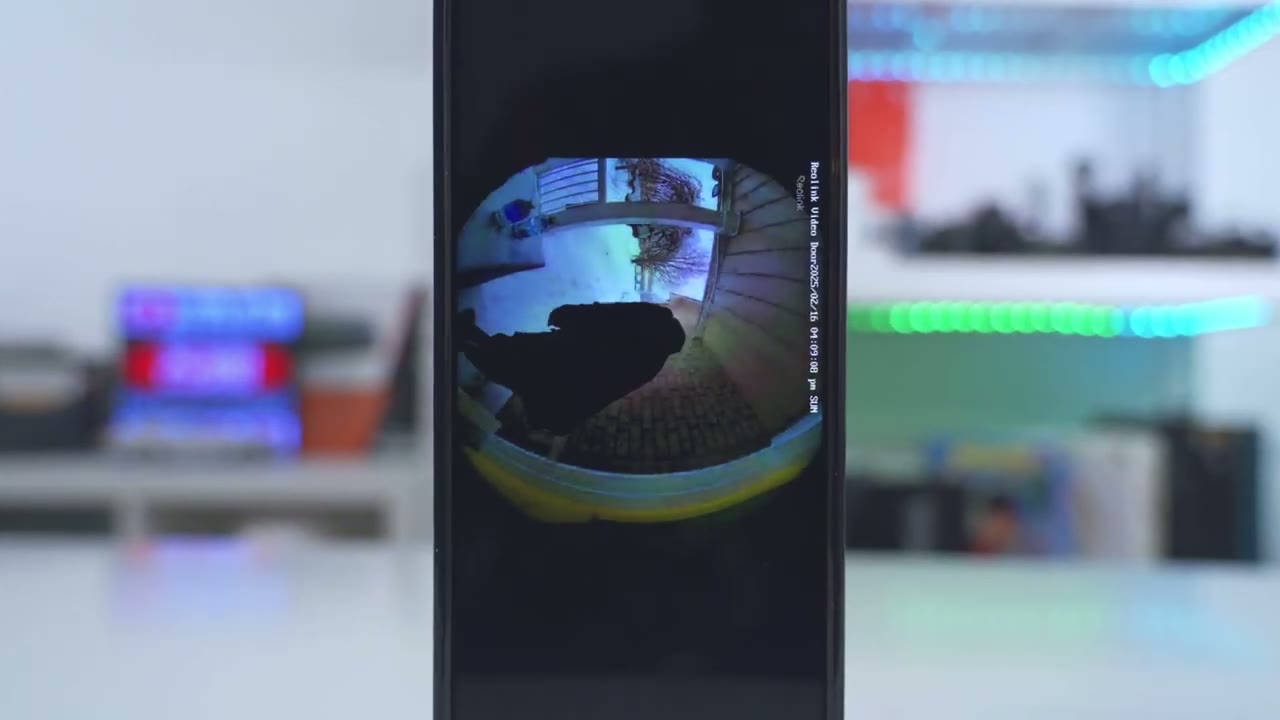
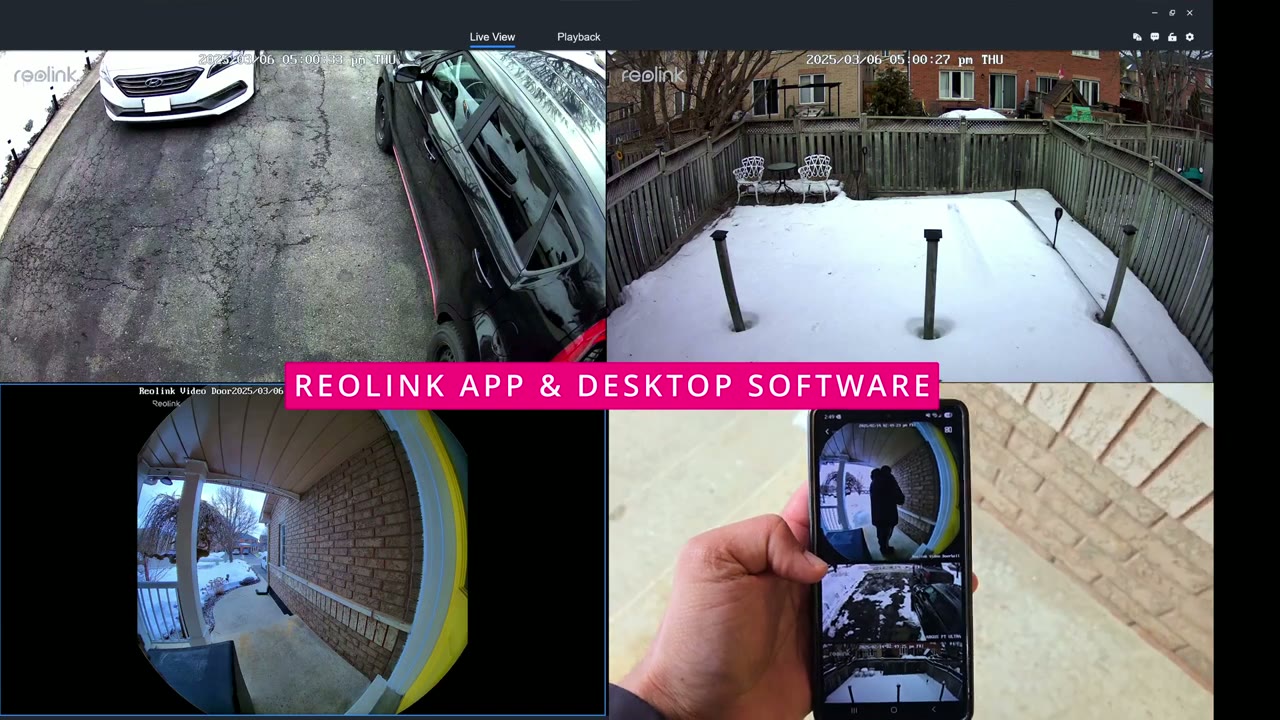
[Music] the 2K video looks sharp and it’s really easy to make out faces during the day you can also make out faces at night whether you’re using the color night vision if you have a lot of ambient light or the black and white night vision and even though I have a covered entryway so there’s less light coming in directly there’s still enough exposure to make out faces and any packages left on the floor and even with overcast days or really bright sunny days with backlit scenes the camera did a really good job it’s easy to see packages on the ground as long as they’re placed about a foot out from the video doorbell now if you place a package directly below the video doorbell you’re not going to be able to see it but most delivery people just kind of throw it a couple feet away from your door so that should be zero issues it’s also fantastic being able to pull up live view simultaneously on all my realink cameras so I can take a look at what’s happening around my home motion
Motion Detection
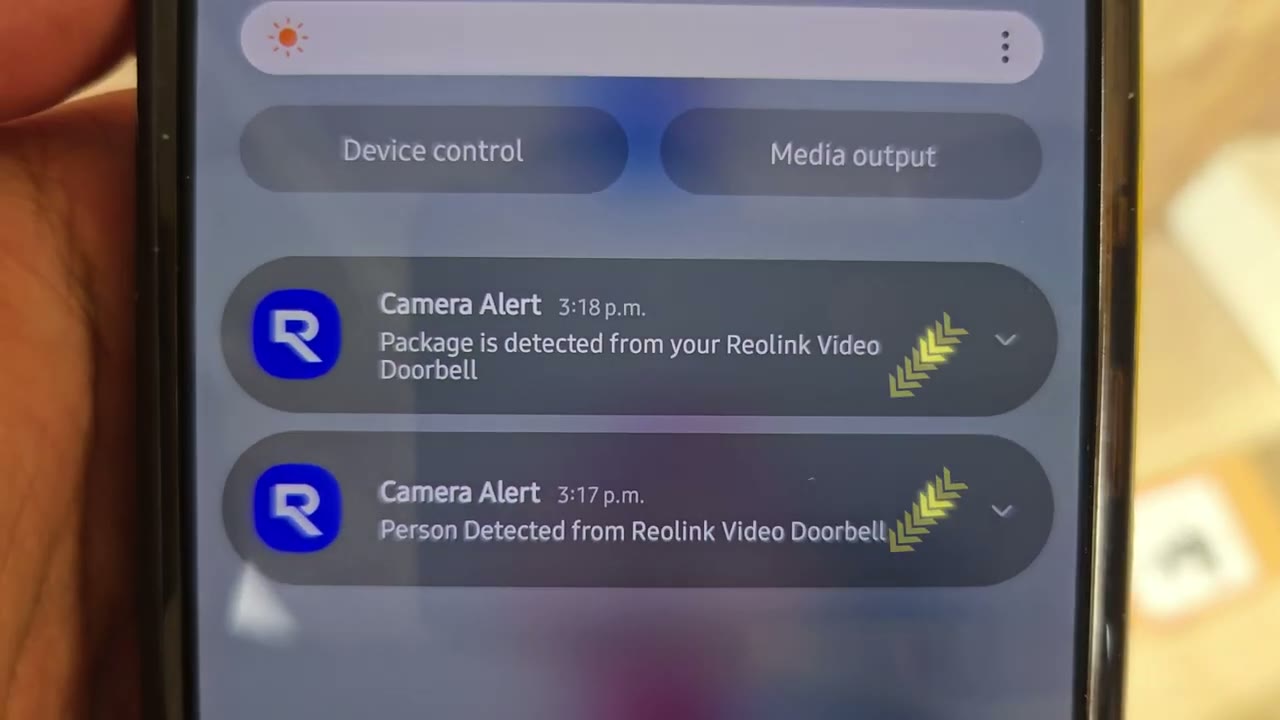
detection is really responsive so the camera was able to detect me within a couple of seconds and send the real link app alert once I tapped on that it was just another couple of seconds to load it up so it’s a really fast and fluid experience and not only did it detect me quickly it also detected that I left a package on the ground and let me know what you think of my delivery skills I heard there’s a couple of companies
Speakers
hiring the speakers also get fairly loud and here’s a demo of [Applause] [Music] that I’m sorry I think you’ve knocked on the wrong door hi we’ll be right there please wait a moment [Music]
Doorbell Ringer
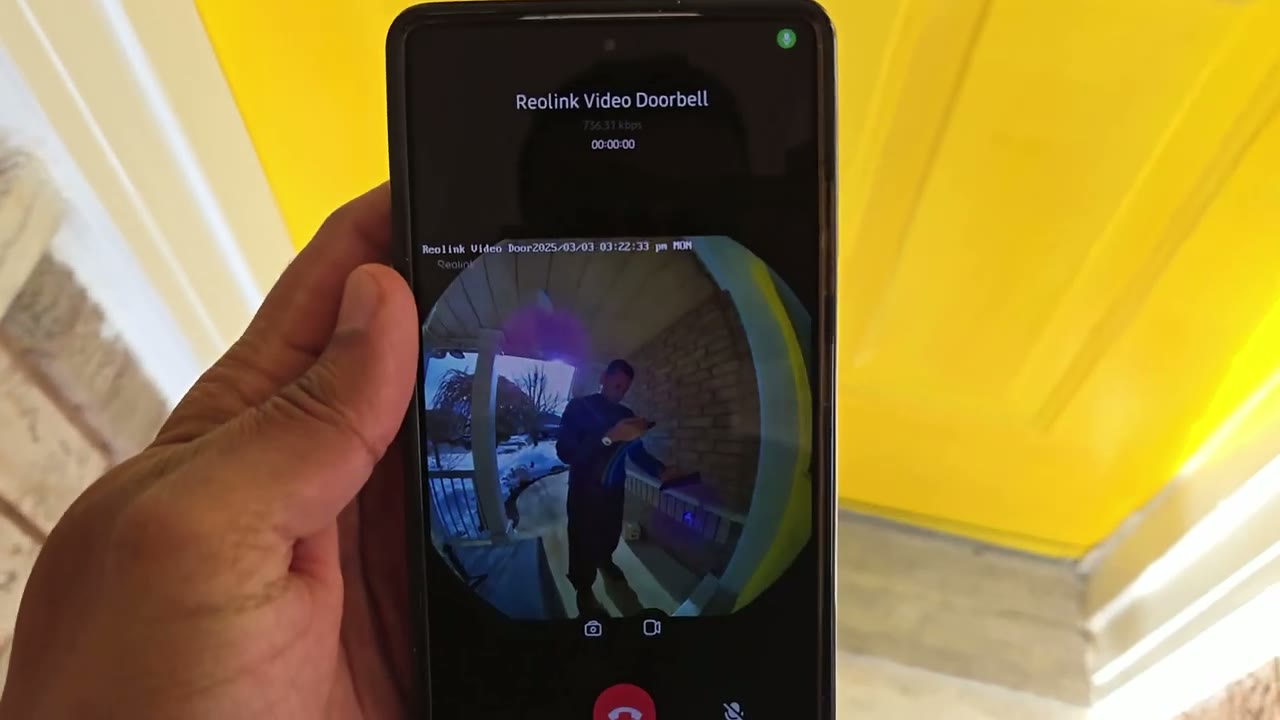
whenever someone presses the ringer button you’ll get an app Alert on your phone but you can also set it up so that it comes in as an incoming video call so you can see who’s at your door before you choose to answer I inserted a 256 GB
Storage
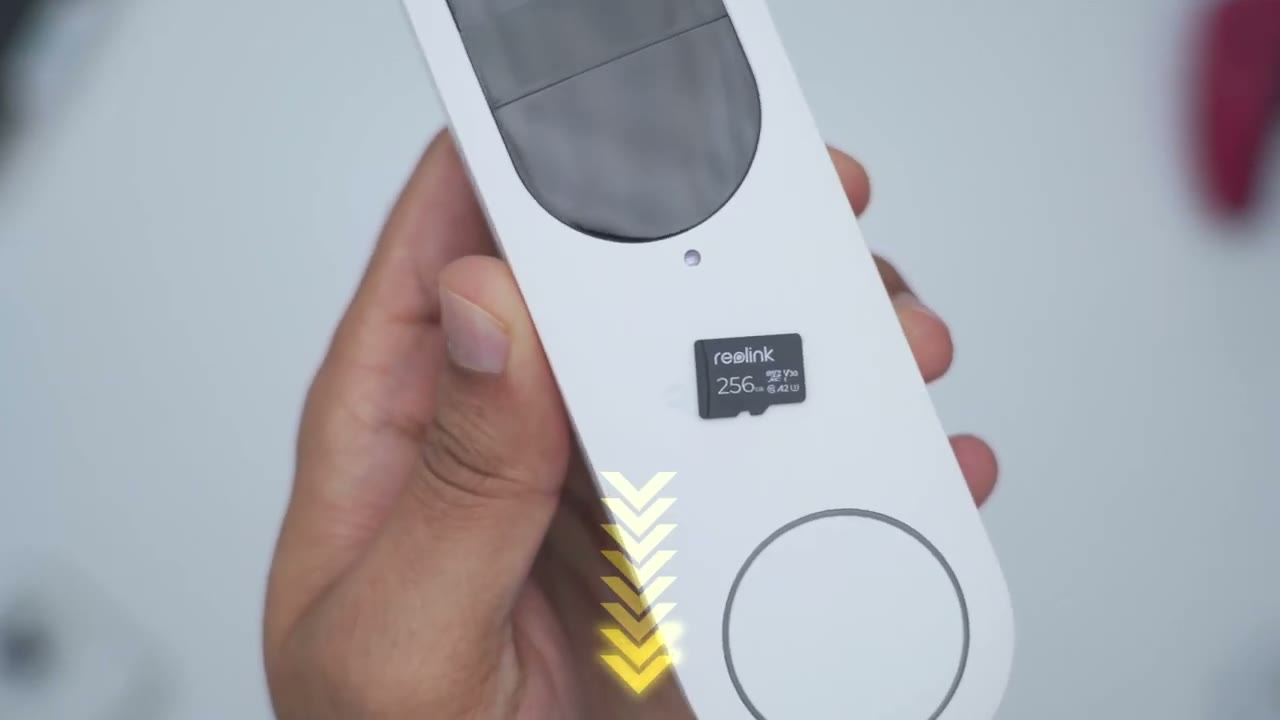
micr SD card and I’m estimating I’m going to get about 7 to 8 years of recordings based on my H’s activity and I’ll leave links down below to other memory cards because you can easily get away with a 128 GB or 64 GB and it last
Battery
quite a while in terms of battery life there’s a large 7,000 mAh battery in here and I’m estimating I’m going to get around 3 months before I need to actually top this off now where you live you may get 4 months maybe even more why I’m only getting 3 months is because it’s been winter in Canada cold temperatures really drained battery life and I’ve been out shoveling snow a lot so it’s just been recording me coming and going all the time but yeah battery
Recommended?
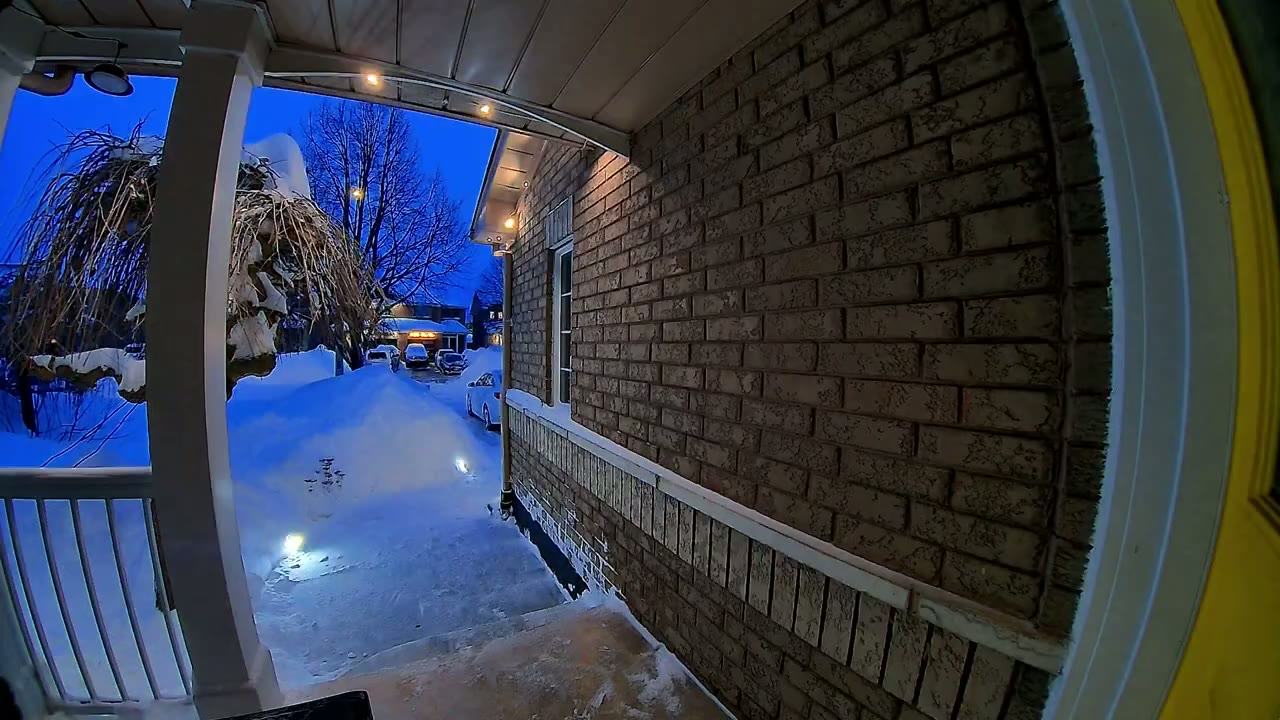
life so far is great so the rol link smart 2K battery video doorbell is a full featured in fantastic option with zero monthly fees unlike some other mainstream offerings you get sharp 2K video allowing you to see faces during the day and at night and that impressive 180° field of view lets you see packages on the ground as well motion detection is super responsive battery life is excellent and you can get years of storage with this and if you get the realink home hub you can have a personalized security system because you can have security scenes to control all of your re link cameras you have uninterrupted recordings anytime Wi-Fi goes down there’s encrypted recordings you can expand storage up to a terab and you can use it as an indoor chime so if you’re interested in picking up the realink smart 2K battery video doorbell I’m going to leave links down below for you to check it out and if you’re looking for whole home security consider checking out my review of The realink Argus PT Ultra those are the other cameras you were seeing when I pulled up that simultaneous live view in the realink app which is such a handy feature and once you pair those with the ra link home hub you can control everything seamlessly if you found this video helpful would you please consider liking and subscribing it truly does help me out as a small and growing Channel and I really do appreciate it and maybe consider checking out some of my other tech reviews I review headphones earbuds mechanical keyboards monitors laptops I’m sure you’ll find something you like and I hope you drop by for my next video soon
Buy Reolink 2K Video Doorbell on Amazon
Buy Reolink 256 GB microSD on Amazon
Buy Samsung Pr 128 GB microSD on Amazon
Please note that some of the links in my video descriptions are affiliate links where I earn from qualifying purchases. As an Amazon Associate I earn from qualifying purchases.

