


Buy Edifier QR30 Speakers on Amazon
Please note that some of the links in my video descriptions are affiliate links where I earn from qualifying purchases. As an Amazon Associate I earn from qualifying purchases.
Intro
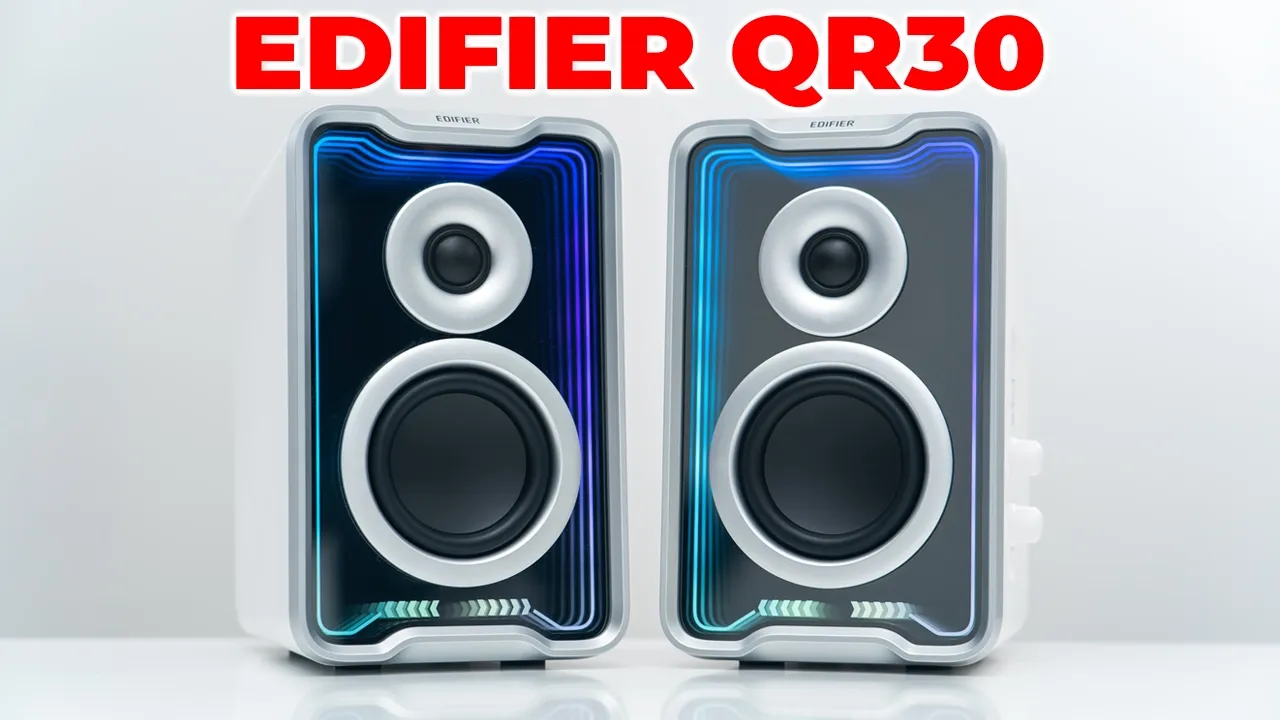
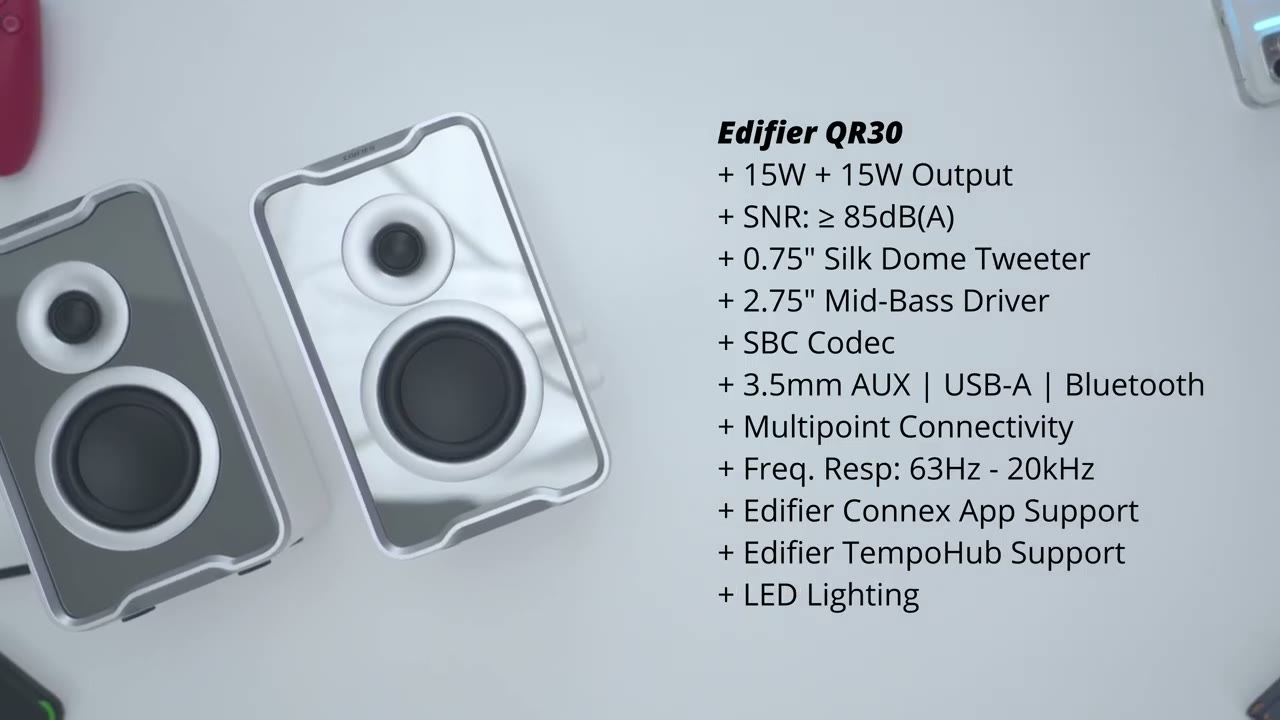
Hey, it’s Adrian. And if you’re looking for a great sounding pair of desktop speakers that look slick as well, you have to check out Edifire’s QR30 desktop speakers. These output 30 watts of sound through a 3/4 in silk dome tweeter and a 2.75 in long throw midbase driver powered by a class D amplifier. It supports Bluetooth, USB input, ox input, and there’s also Bluetooth multipoint support to connect multiple devices. There’s tons of colors and lighting effects. And there’s also support with the Edifier Connects app on your phone and the Edifier Tempo hub app desktop software. Edifier has really been hitting the mark when it comes to desktop speakers recently and these are no exception.
So, let’s take a closer look at the Edifier QR30 desktop speakers to see if they could be your very next pair. And a big thanks to Edifier for setting these up for review.
Package Contents
In the box, we have the beautiful Edifier QR30 speakers. There’s a USB type A to type A cable, power cable, and
Design
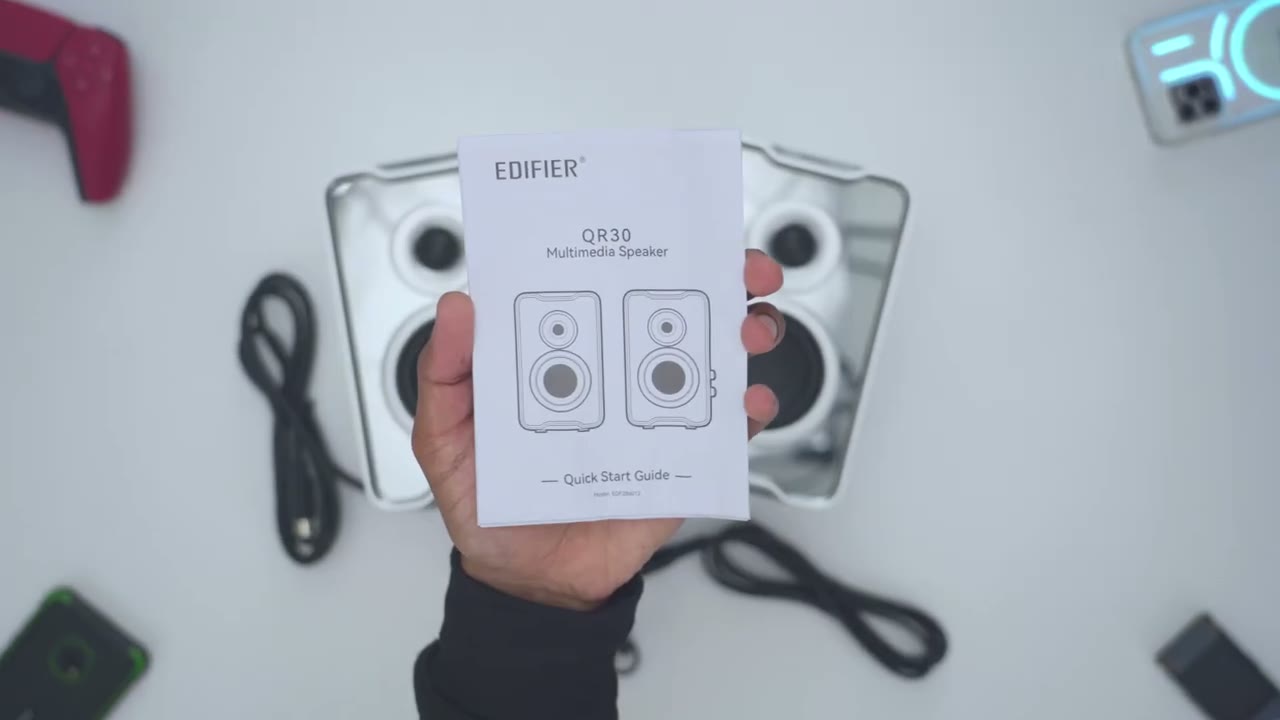
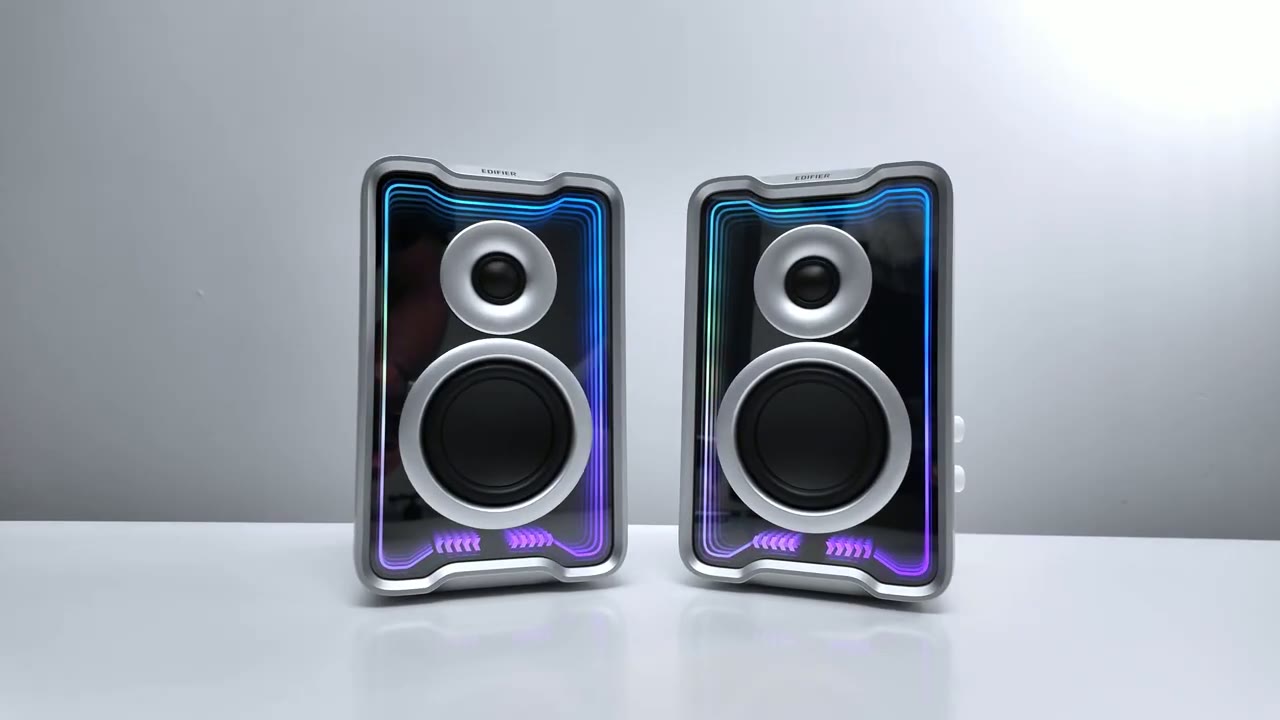
manual. Design-wise, the Edifier QR30s are such beautiful looking speakers. Now, I have it in the white color, but it also comes in black as well. And you could see that the claim to fame is kind of this like mirror type of finish, which also has a kind of light effect, which I’ll demo later. Now, we do have the Edifier logo at the top. You could see it, you know, when the speaker is placed fully upright. We can also see it from the front as well. Now, we also have the um silk dome tweeters there, the 0.75 in and then we have the 2.75 in midbase drivers as well. And then if we take a look at the side, there’s nothing on this side. On the opposite side, this is where we have volume control, light effects, and then a power and mode button as well.
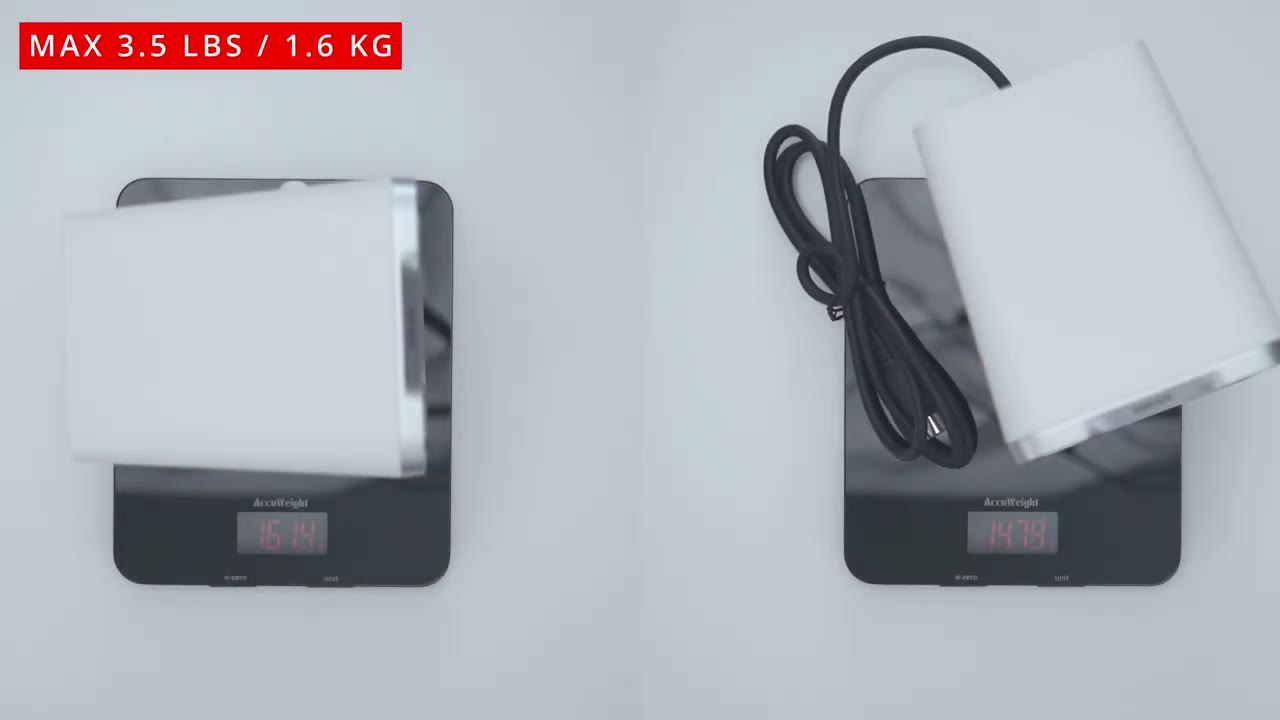
The control knobs have hard stop increments as you rotate them, and you could rotate them freely right or left. And then the power/mo buttons is a tactile clickable button. And then if we take a back view, this is where we have the port to connect the speaker connector wire for the other side along with the power port USB in and oxin as well. And at the very bottom, this is where we have the rubber type of feet to just keep these nice and planted and to minimize vibrations. There’s also an LED indicator light to let you know which mode you’re in. And on the other speaker, we only have the speaker connector wire. And these are coming in at roughly 3.4 to 3.5 lb each or about 1.6 6 kg. Here’s a quick look at the
Specs
specs. Feel free to pause and review or jump ahead to the next section. In terms
Connections
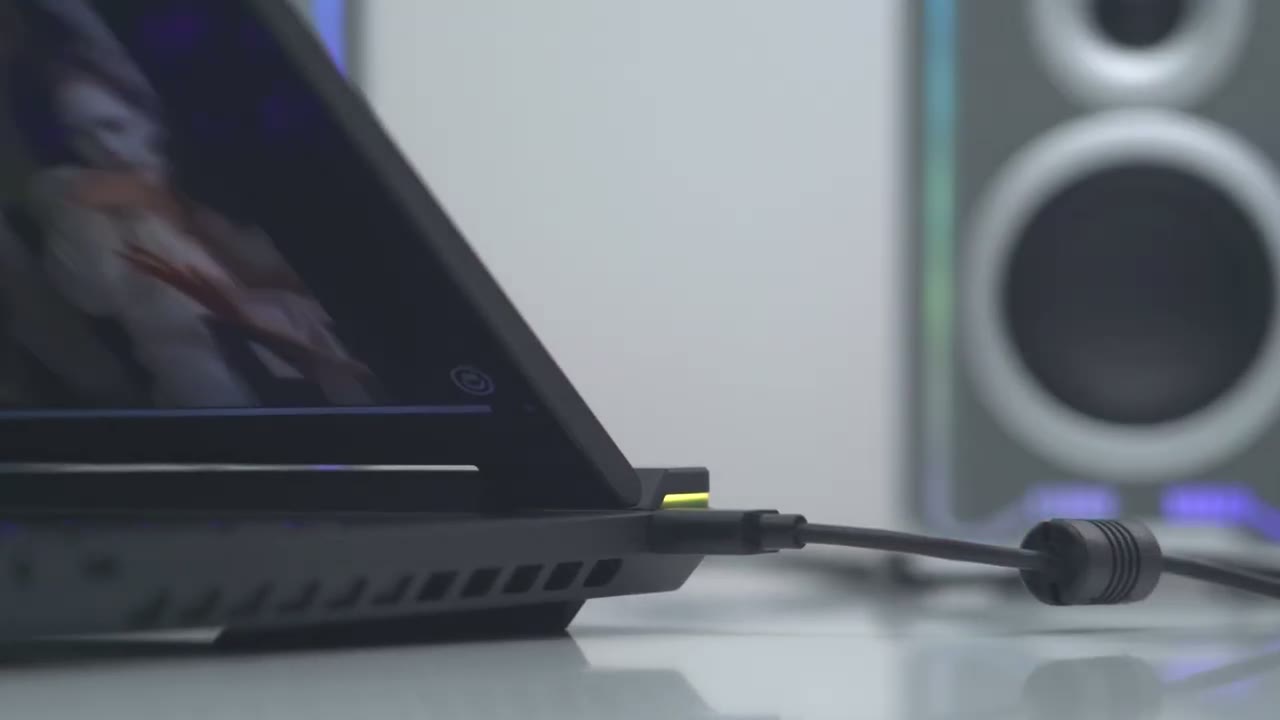
of connections, you have Bluetooth connection with multipoint support, ox input, and USB type A input. The button
Controls
controls are really easy to use. So, in Bluetooth mode, I can increase the volume [Music] or decrease the volume. Now, if I go ahead and click in, it’s going to just pause music or resume playback, but there’s no way to actually skip tracks this way. Now, for the light effects, you can see as I rotate this, it’s either going to dim the brightness or increase it fully. And then you can also go ahead and tap into this to switch between different type of lighting presets and colors. Now, the mode button is going to switch between the ox input, the USB typeA input, and Bluetooth
Bluetooth Pairing
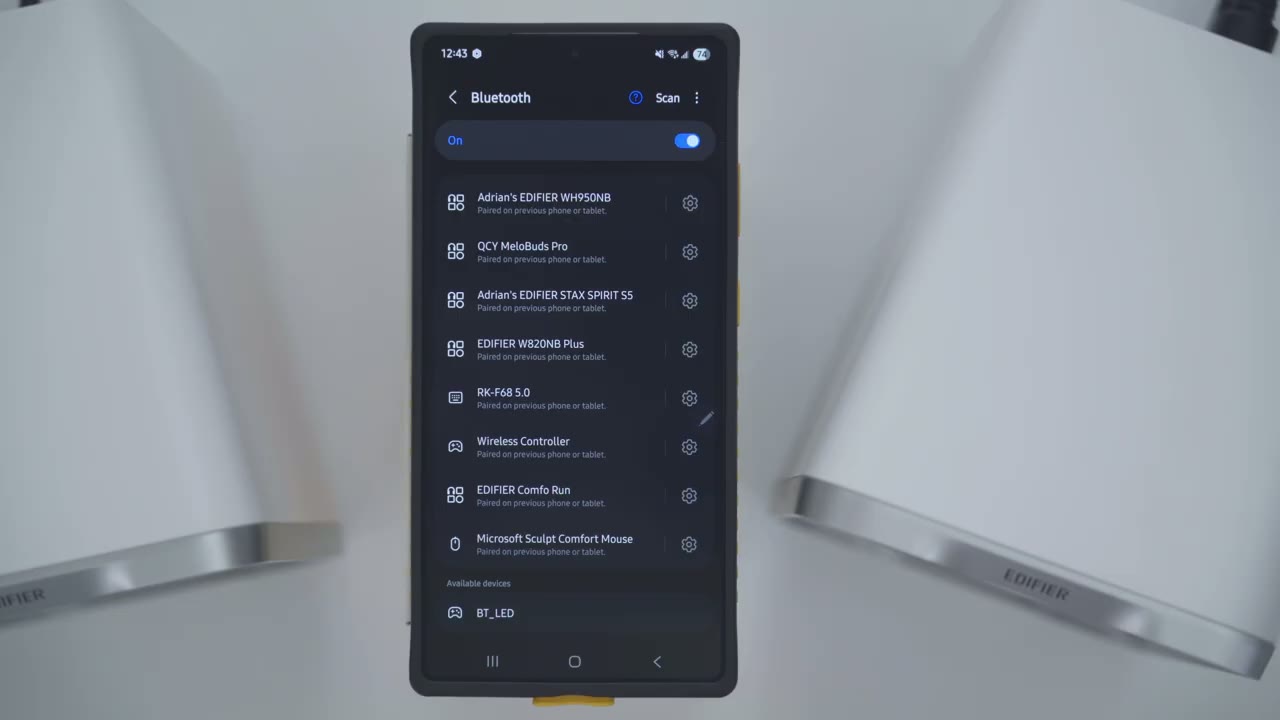
input. I’ll pair the Edifier QR30s to Bluetooth on my phone. So, I’ll just go ahead tap the mode button so that Bluetooth is on and I’ll just hit scan and wait for the QR30s to pop up on my phone. I can see it right there. Edifier QR30. Hit that. And I’ll just wait for the pairing request just like so. And then if I go to the top, you can hear it just connected. I can just tap into that and I could see that it’s enabled for audio. I’m now on my ZFold 6. So, I’ll tap on the Edifier QR30. Wait for the pairing request. and it’s paired on there as well. I’ve
Multipoint
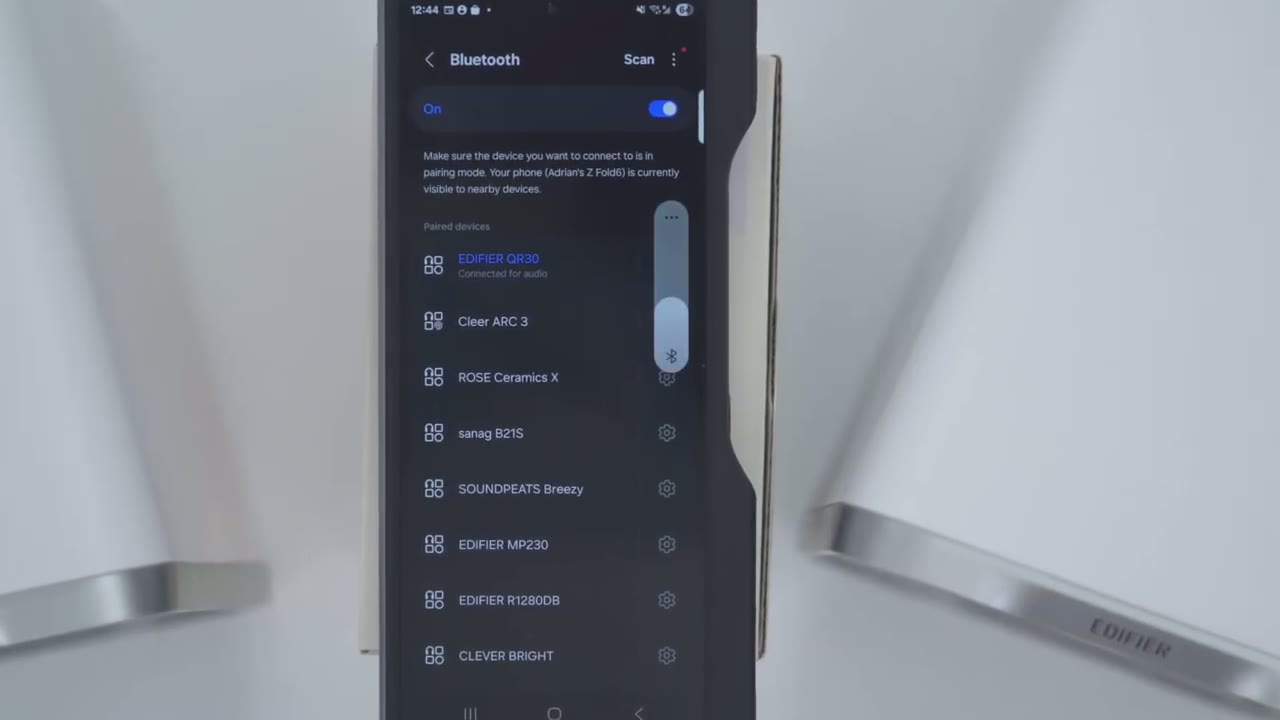
paired the Edifier QR30s to both of my phones. So, you can also pair this to your phone and a laptop, phone and a tablet, or any combination really. The way multipoint works on the QR60s is whenever you’re playing music on one device, the second device won’t automatically take over until you pause it on the first device. Here’s a demo. Now that I’ve paused the first device, it’s going to kick over here. Let’s take a look at the Edifier Connects app settings. So, you can see the QR30s are paired and it’s actually showing the white ones, which is nice. Now, under input sources, you could tap into that and you could switch from Bluetooth, USB audio streaming, or ox input if you didn’t want to use the side button controls. We can also go into sound effects.
You can set up custom EQs or you can switch from the presets. So, music, game, or movie. I’ll just put it on music for now. And then under light effects, you can see we have a bunch of different lighting effects right here. But we also have the option to pick between way more colors than the preset ones on the speaker. So, yeah, you will need to download the app if you want much more lighting control. But you could see quite a bit of effects there. And then you can also go ahead and set the volume directly on the app if you didn’t want to use the button controls on the side. And let’s just jump into the full settings now. So you can also take a look at the uh user manual. We could jump into control settings. And you can see that these are the lighting
App Settings
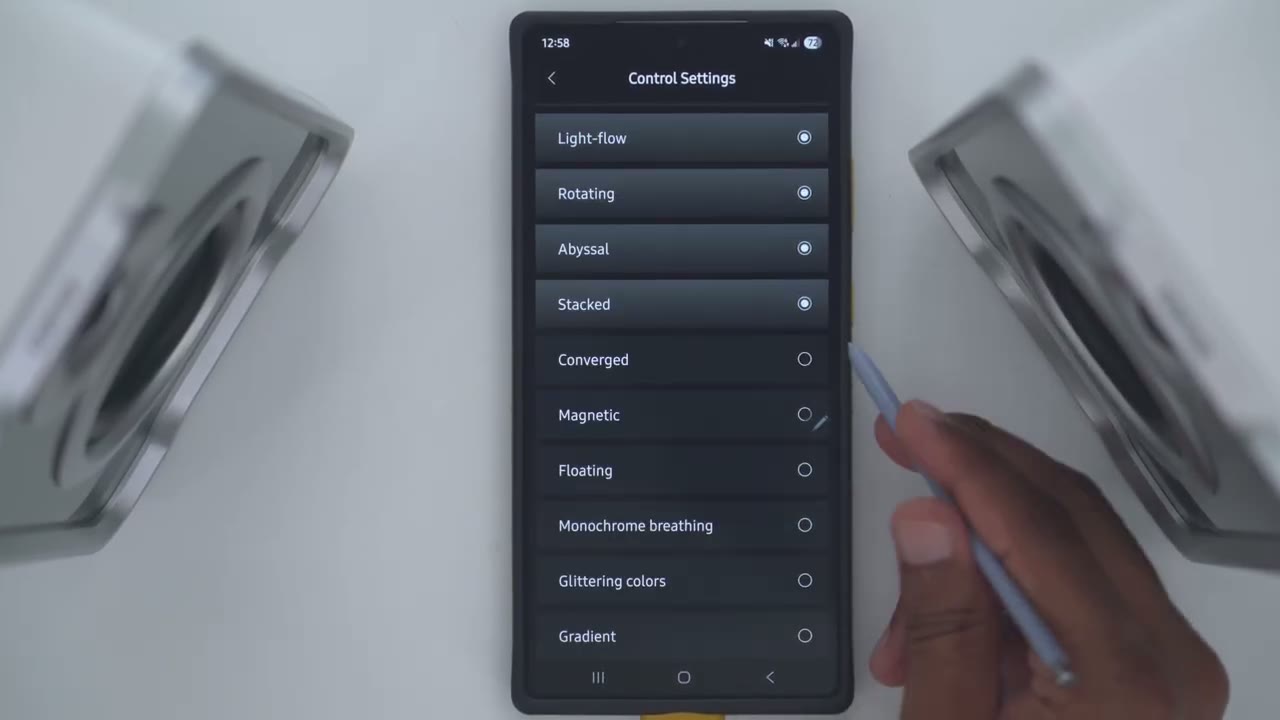
effects it’s going to cycle through. So let me see if there’s a max. So yeah, you can only select between two to six. So just pick your favorites and then cycle through those. You can also go ahead and turn prompt tones on or off. You can also go ahead and power the speakers off. And if we jump into Bluetooth settings, you can disconnect them as well. And multipoint is on by
Tempohub Software
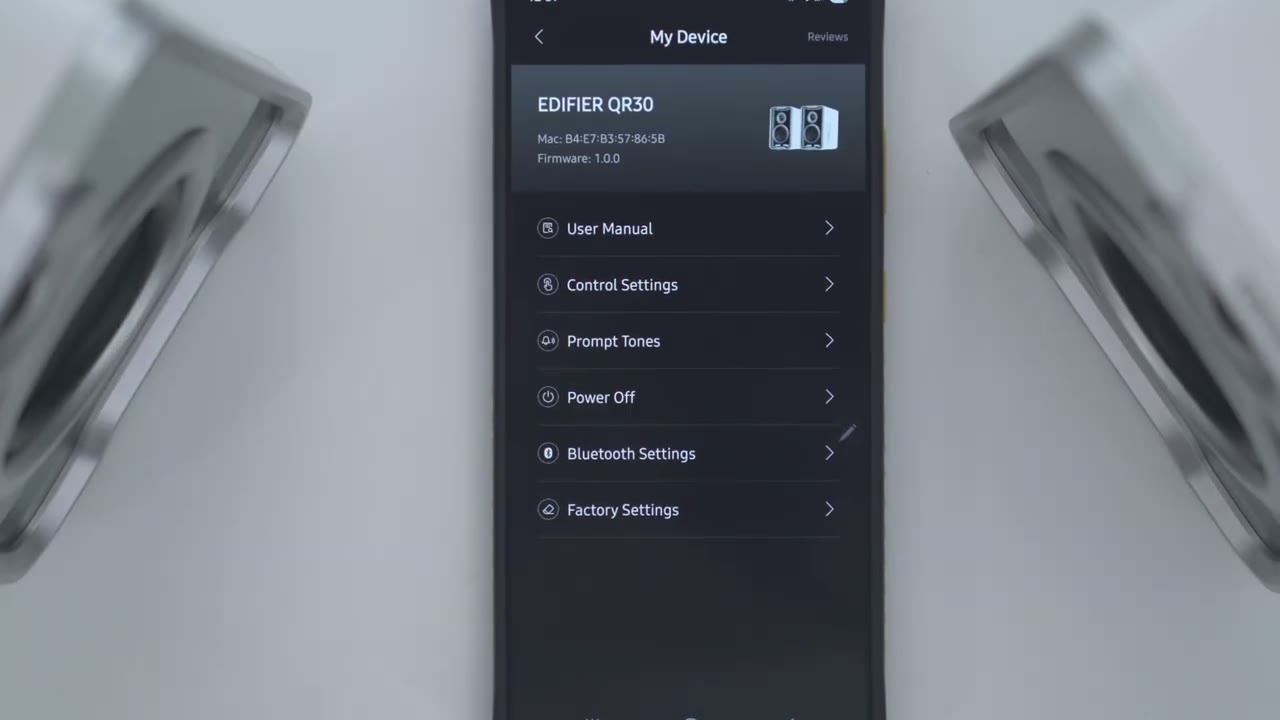
default. You can also use Edifire’s Tempo Hub software to customize the QR30s if you’re mostly going to be using these with a laptop or a desktop. That way, you don’t have to use the Edifier
Lighting
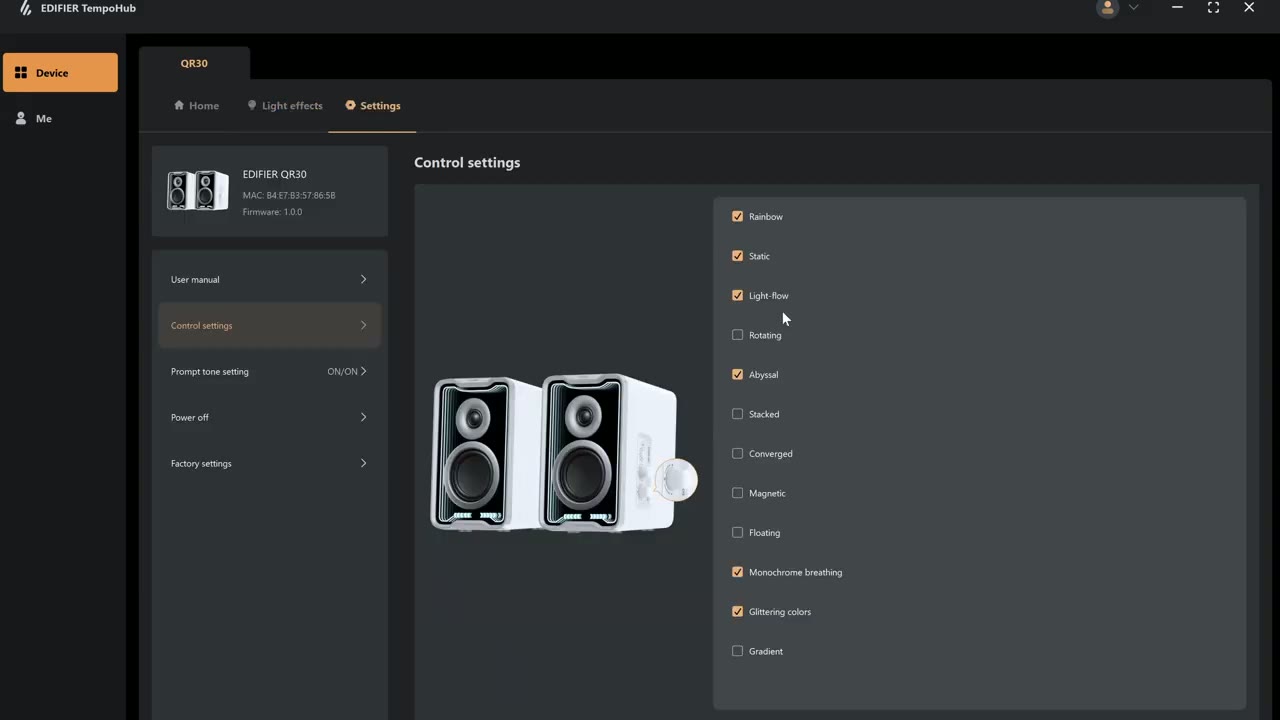
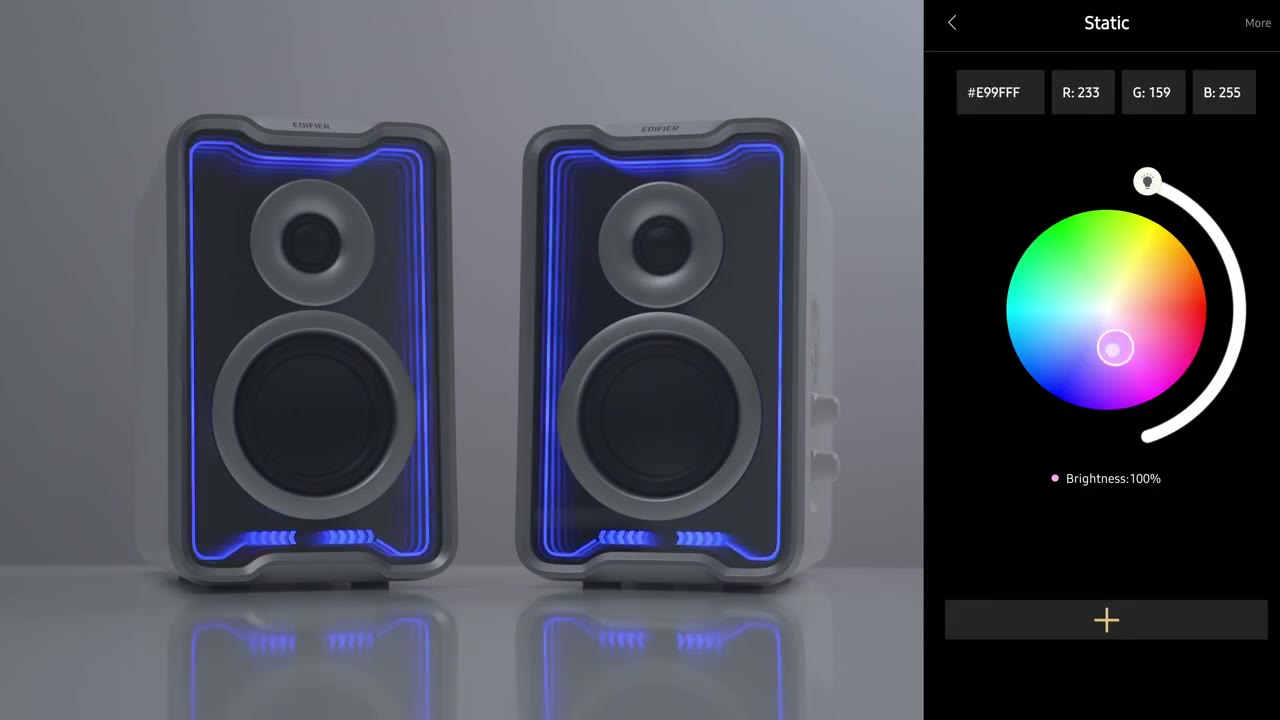
Connects app on your phone. The lighting on here looks really fantastic. So, in addition to the preset colors, you can actually go into the Edifier Connects app and go ahead and set custom colors or multiolors as well.
Sound
[Music] All right, let’s talk sound. So, these are outputting 30 watts of power, 15 watts each using a class D amplifier. So, we have a 3/4 in silk dome tweeter and a 2.75 in midbase long throw driver. Now, I listened to these connected to my phone by Bluetooth and connected to my laptop using the USB type A input and it definitely sounded a little bit better using the USB type A input. So, if you want the best possible sound, just keep that in mind. I also kept the volume at around 70% and even in this kind of mediumsiz room, that was plenty enough to really fill this room out and to sound great. But you can also crank it to 100%, which I did, and there was no type of noticeable distortion. When it comes to bass, you’re definitely not going to be disappointed.
There seems to be a little bit more tuning towards the bass heavy side of things. Now, the bass is fairly well controlled, but it’s not, you know, super punchy type of bass. there is a little bit of bass trail off which I actually really kind of like especially since I listen to, you know, a lot of music that has pretty heavy bass. So, in that regard, you know, you may like that or you may not if you want, you know, super tight and punchy bass. Mids are well balanced on here and I had a ton of fun listening to these. Now, I did notice that when I connected them, I did have equalizer software on the laptop where I could fine-tune these even further and it sounded even better than when I was just listening to, you know, kind of by Bluetooth on my phone.
So, these definitely have a ton of potential. Now, having said that, I did notice that the mids were a tiny bit recessed when I compare them to the Edifier M60s. Now, if I didn’t have the M60s, I would have, you know, no kind of comparison and I would be plenty happy with these. In fact, I still am very happy with these. But if you’re someone who’s considering either the QRS or the M60s, you know, a slight edge god M60s in that area. The highs were similarly well tuned. So, the sound coming out of here, it sounds lively. It’s energetic, but there’s no type of harshness or excessive siblance like you might find on some other desktop speakers. Basically, you’re not getting any type of thinned out, dull, hollow sounding sound coming out of these.
It is very impactful, you know, kind of fullbodied sound in basically every regard. So, yeah, the QR30s are a wonderful option. I recommend it to anyone who’s looking for a pair of desktop speakers. If you’re trying to decide between the Edifier M60, the QR30s, or their MR3, well, the M60s output 66 watts of sound, which is, you know, double what these output at 30, and the MR3s output 36 watts. Now, in terms of sound, the MR3 is going to be, you know, the more balanced or natural type of sound. The M60s are, you know, just super powerful. They get plenty loud. You can fill out, you know, a mediumsiz room or even a larger room easily. But if you’re just going to mostly be using these on a computer, you just want to have them on the desk, the QR30s are a perfect option.
Good balance of just being, you know, lively, energetic, and just fun
Recommended
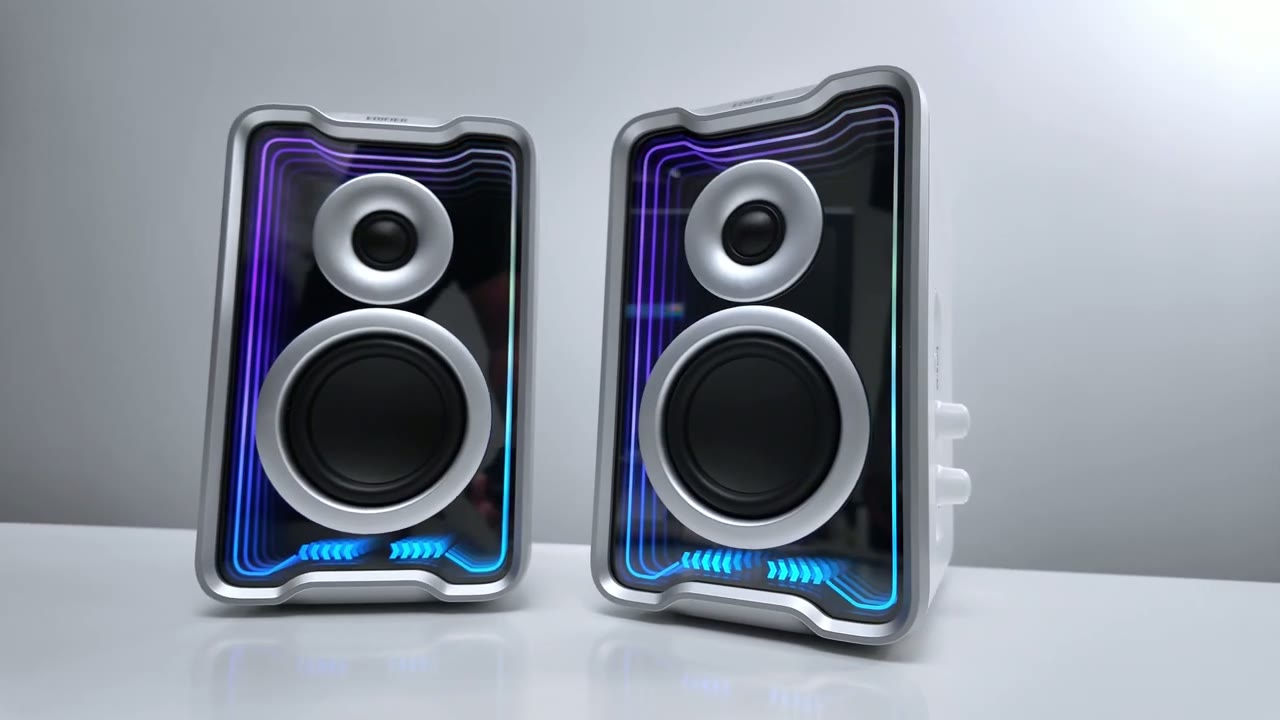
speakers. So, I’ve loved having the Edifier QR30 speakers on my desk. They look slick. The Infinity M finish along with the color lighting effects just really brightens my mood. But if you’re someone who, you know, doesn’t want RGB all the time, of course, you can completely cut that as well. And the sound coming out of these is fantastic. Whether you’re listening to music, watching movies, or if you’re going to be gaming, you’ll have zero issues. You know, I’m getting that good bass thumb, that good bass hit without it sacrificing vocals, instrumentals, plus having multipoint connectivity. Edifier Connects app support, the Tempo Hub, software support, Bluetooth inputs, USB input, ox inputs mean you can connect anything.
And I’ll leave links down below for you to get your very own or to learn more. And I have a huge task. If you found this video helpful, would you mind liking and subscribing? It really does help me out quite a bit. I have a ton more speaker, headphone, and earbud reviews coming down the line. Also, check out my review of the Edifire M60s here, and I’ll also leave my link to the MR3s if you’re interested as well. And consider checking out some of my other tech reviews. Aside from speakers, I also review headphones, earbuds, monitors, laptops, gaming keyboards. Really something for everyone. And I really hope you’ll join me in my next video
Buy Edifier QR30 Speakers on Amazon
Please note that some of the links in my video descriptions are affiliate links where I earn from qualifying purchases. As an Amazon Associate I earn from qualifying purchases.

