


Buy ProtoArc EM11 Pro Ergonomic Mouse on Amazon US
Buy ProtoArc EM11 Pro Ergonomic Mouse on Amazon UK
Buy ProtoArc EM11 Pro Ergonomic Mouse on Amazon DE
Buy ProtoArc EM11 Pro Ergonomic Mouse on Official Site
Please note that some of the links in my video descriptions are affiliate links where I earn from qualifying purchases. As an Amazon Associate I earn from qualifying purchases.
Intro
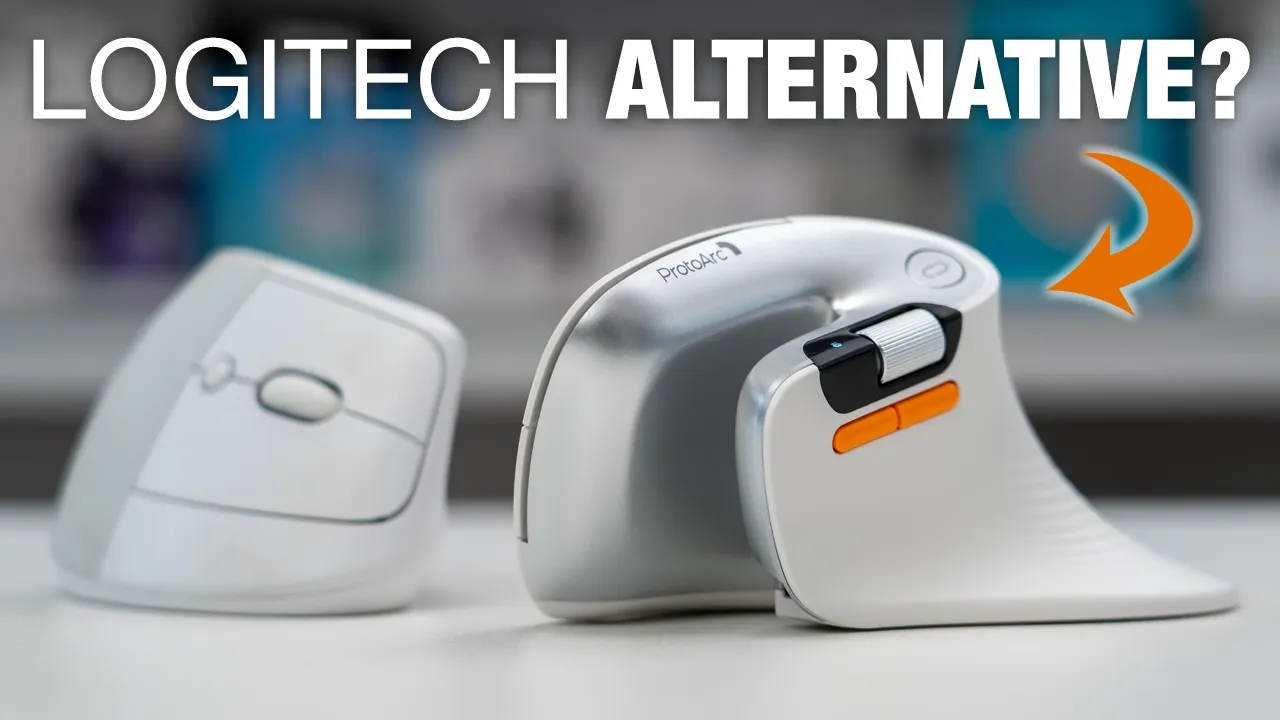
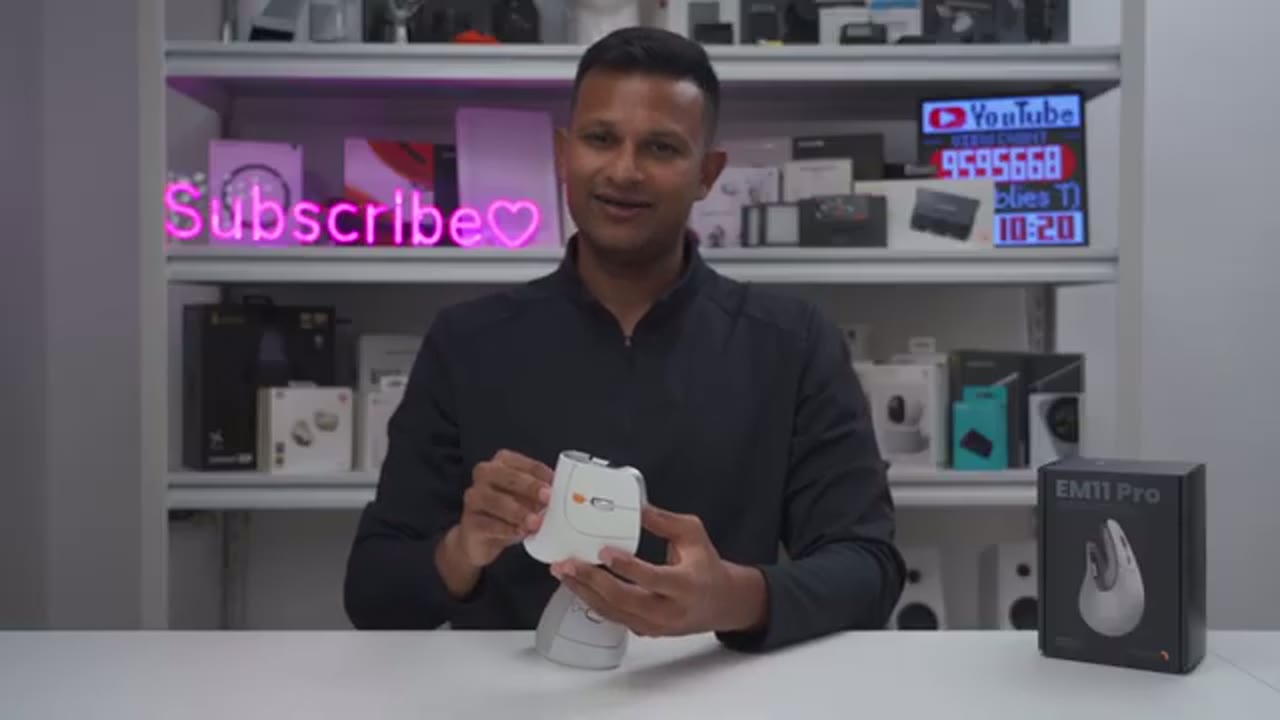
If you spend a lot of time on your computer like I do using a traditional mouse can leave your hand and risk feeling tired after a really long day, which is why I’ve switched to this far more comfy and vertical ergonomic mouse from Pro-R. So this is the Pro-R-E-M11 Pro-E-R-Gnomic mouse and it has a 58 degree vertical grip for more natural hand and risk position. It also has a horizontal scroll wheel 7, quite click buttons which can be easily remapped using an online web dashboard and it also has onboard memory sort of retains all of the settings you dial in. You can pair it with up to three devices via Bluetooth connection and using the USB Type A 2.4GHz wireless dialing goal. It also has a 500 milliamp hour rechargeable battery up to 7200 DPI and a 250 Hertz polling rate.
So if you’ve considered getting a vertical ergonomic mouse before but you’re still on the fence, let me share my experience after using the E-M11 Pro. I’ll also let you know how it stacks up against Logitech’s lift mouse which I’ve used extensively before and a big thanks of Pro-R for sponsoring this video. In the box you get the Pro-R-K-E-M11 Pro mouse, a branded USB Type A
Package Contents
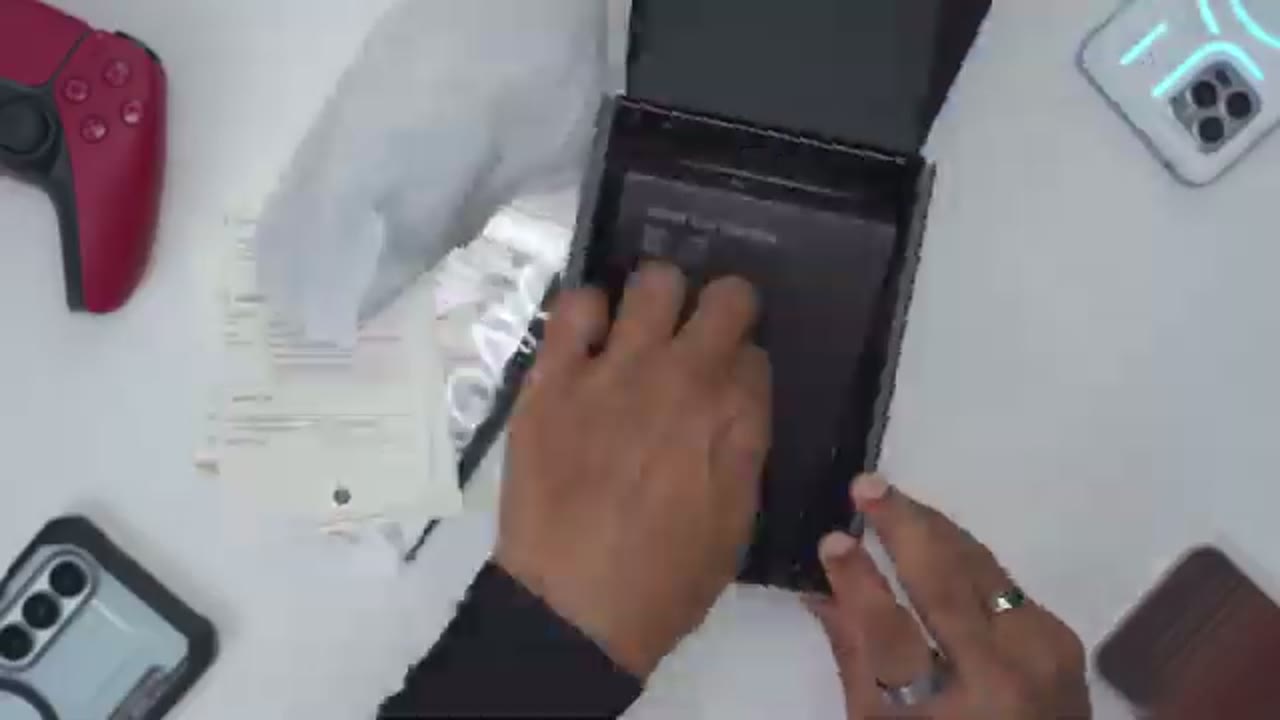
to Type C cable. There’s also adhesive grips for optional use a user manual quick-sart guide and welcome cards. In terms of design, so the Pro-R-K-E-M11 Pro mouse comes in at around 126 grams or about
ProtoArc EM11 Pro Design
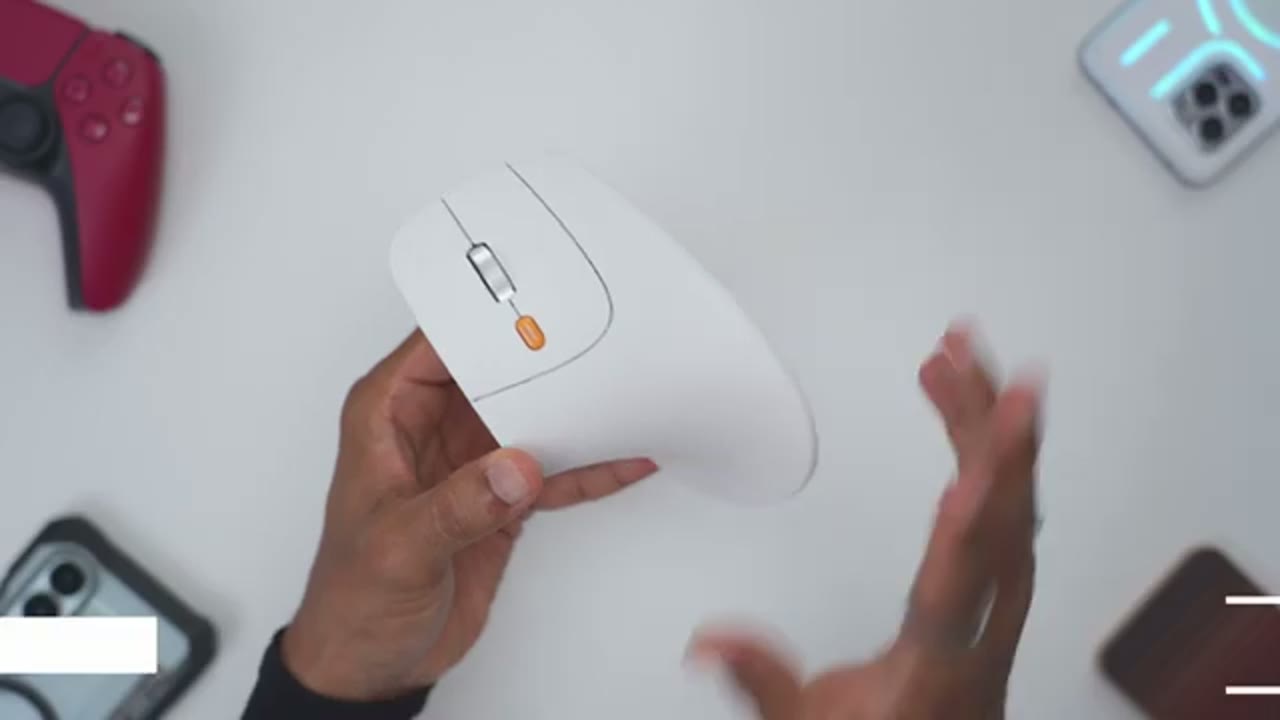
0.27 pounds. So this is actually fairly lightweight given the size of it and it is housing a 500 milliamp hour battery in here. There’s a 58 degree vertical grip on here compared to the 57 vertical degrees on the lift mouse. So in that aspect they’re fairly similar. On the right side we have the right and left click buttons and these have a quite click and a tactile feel at the same time. That there’s also a metallic scroll wheel and you can see we have these horizontal rich lines which help with texture and these have hard-stop increment. Now if you try to flick it you can see it’s not actually going to flick due to those hard-stop increments and of course you could click it in for a middle press.
The scroll wheel or mouse wheel also has basically no wobble or play if you apply a little bit of pressure to it. And behind that we have the DPI button again. This is another soft click or a quite click type of button but still tactile. The rear of the mouse is the most striking and unique part of the design. So this is what Pro-R-K is calling this extended tail support area. So we have these rich lines that kind of cascade down and what this has meant to do is to give your palm a place to rest while you’re using the mouse. Looking at a top view so we have this metallic semi-gloss semi-mattep finish with the Pro-R-Klob.
There’s also the device switching or channel switching button and notice as as I press this in we actually have a display so you can see that’s Bluetooth 1, Bluetooth 2 and then the wireless mode if you’ll be using the Type A wireless download. And I’m really glad that they’ve top mounted it because that means you don’t have to flip your mouse over to switch devices which can be annoying after a while. We also have a horizontal scroll wheel right here and we have vertical rich lines going across it to help with texture and grip. And I did notice that I do have to use a little bit more force to get this to rotate compared to the main mouse wheel or a scroll wheel. And similarly this has basically no wobble or play as you exert pressure on it.
Under the horizontal scroll wheel we have the four-dend backwards button in orange and if I move my fingers along them there’s basically no place at your nice and solid and if I click into them they’re also very quite clicks. On the front we have a USB Type C port to recharge T500 milliamp hour rechargeable battery in the mouse and here’s an idea of just how much travel room there is for the right-and-left click buttons. On the bottom we have four feeder escapes to help them out. There’s also a tactile on off switch and the sensor area. Noters also a covered it’s magnetically held in place. If you press down that’s going to give you access that you could see it has metallic buttons to keep it magnetically held in place.
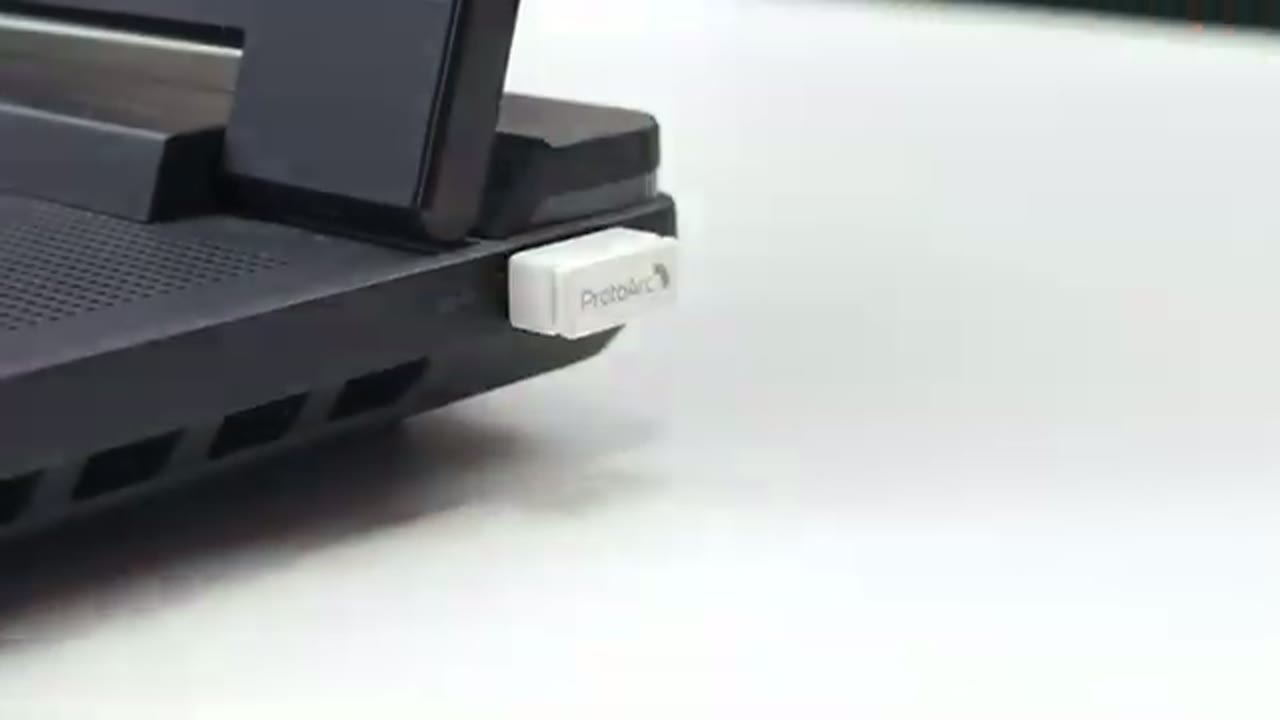
And that’s where we have the USB Type A wireless download so you could just go ahead and pop that out and use that if you didn’t want to use Bluetooth. And looking at the
Logitech Lift Design
Logitech lift mouse which was my previous Vertical ergonomic mouse this comes in at around 133 grams with the AA battery installed. So this is about seven grams heavier than the EME 11 Pro. Starting on the right side so the right-and-left click buttons have quite clicks but they do remain tactile. We also have a scroll wheel here and these also have those horizontal, rich lines running across them to help with grip and texture and you could see we do have hard-stop Now if I go ahead and I try to flick it it does kind of scroll for a little bit and of course you could click this in as well. And unlike the scroll wheel on the EME 11 Pro the scroll wheel here does have play as you rocket side to side.
There’s also a round button to switch the DPI levels and looking at a back-or-rear view so we also have rich lines that kind of cascade down and these go all the way from the top to the bottom and these definitely have more texture and grip than on the EME 11 Pro. On the left side we have the four-dend backwards but now these don’t have any play as I run my fingers along them which is great. However the click is a little bit loud on them for my taste. On the bottom we have large skates or feet to help them out. Slide and there’s also a cover here that’s magnetically held in place again with metallic buttons. Once you remove that that gives you access to the wireless dongle and the compartment install the AA battery.
There’s an on-off switch a sensor area and a device switching button to switch between three different devices and they do have LED indicator lights so you know which device you’re on. Also note that the Logitech lift doesn’t have a dedicated horizontal scroll wheel like the EME 11 Pro. However you can do a workaround where you can hold down one of these keys as a modifier and that’s which is the main scroll wheel into horizontal scrolling versus vertical scrolling. Here’s a quick look at the specs
Specs
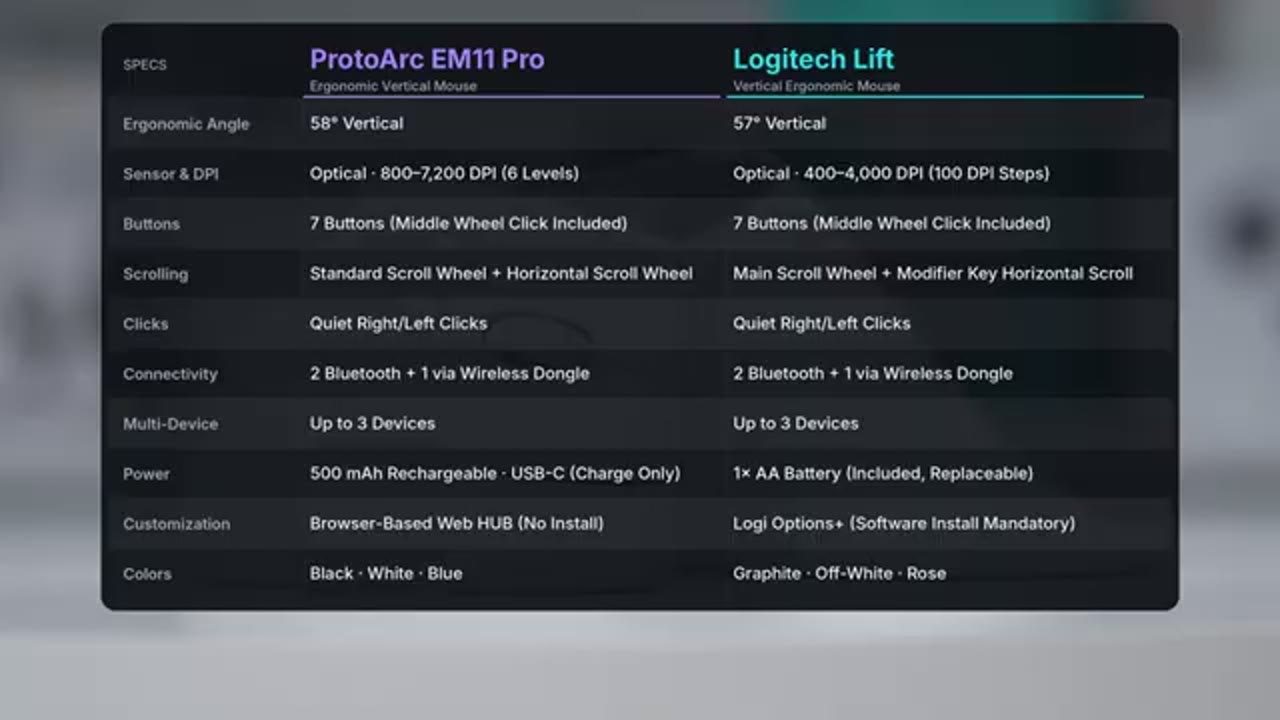
feel free to pause and review or jump ahead to the next section. Now let’s talk ergonomics and you
Ergonomics
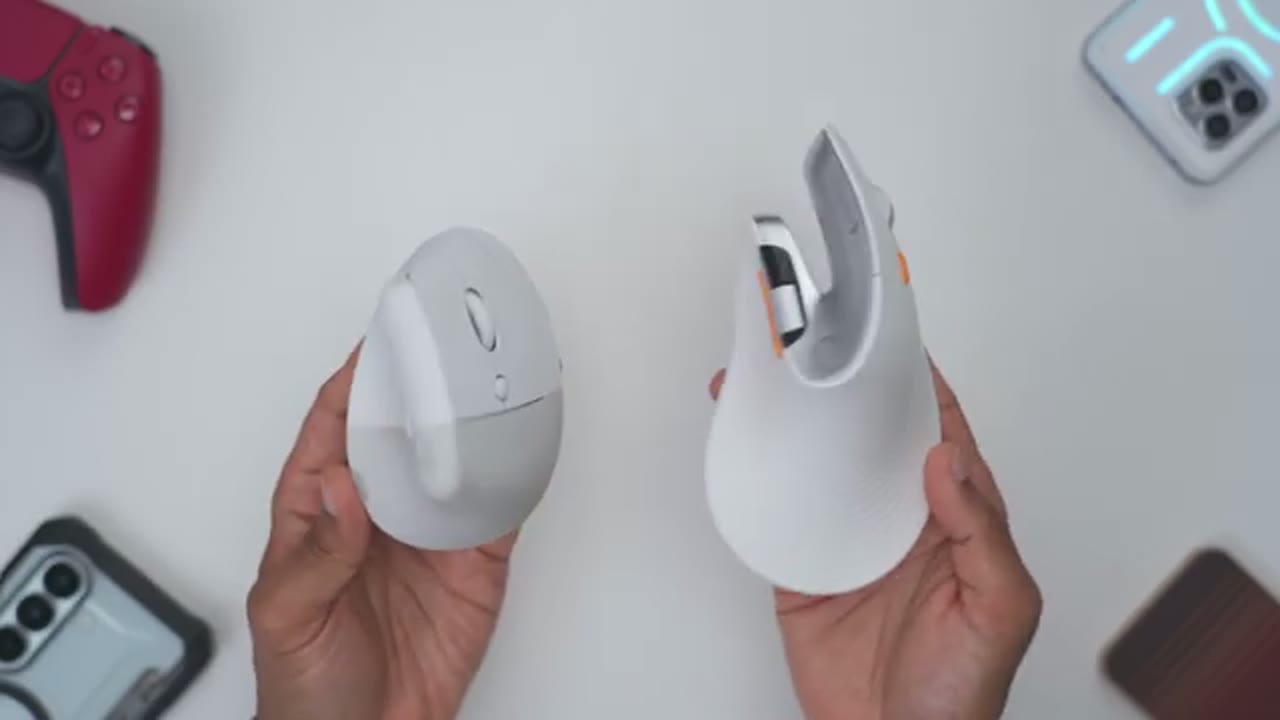
could see from this top-down view these are two very different mice in terms of size and form. And to get by these size reference before we start if I measure from the tip of my middle finger to the base of my palm that’s around 7.4 inches or 19 centimeters. And like I mentioned earlier both of these mice have a vertical grip that’s almost identical so 58 degrees on the EME 11 Pro and 57 degrees on the Logitech lift. The other thing I noticed is due to the slight curvature or taper on here when I put my hand here it actually feels way more natural and comfortable. And you could see this area here doesn’t actually lift up much so you could see as I put my hander it doesn’t really move too much so it feels really comfortable.
By comparison if I do that on the Logitech lift you could see it actually pushes this area up and it’s not as comfortable now again this is a smaller mouse so maybe it’s not ideal for my hands. Also because of this extended area at the back here you could see that it does actually elevate or lift your hand up off of a table or does as well with my hands resting on the right and left click buttons you could see if I do a top down view my middle finger is actually not extending past this button here it’s basically almost flush with it so this actually feels really good for planted types of clicks.
Now by comparison if I go ahead and I hold the Logitech lift mouse and I go ahead and do the same thing you could see that my middle finger is already extending past that button and even my index finger is extending past it by a little bit. So you kind of have to click it this way or kind of angle it your fingers where you’re bending them which is not really ideal. I also feel like the placement of the button and scroll wheels is way better on the EM11 Pro so you could see with my hand kind of in this rest that are natural position if I want to use the main scroll wheel I just bring my hand down slightly and this is what that’s going to look like so it’s a very slight bend or curvature of my finger.
Now when I do that on the Logitech lift so with my hands resting that if I want to use a scroll wheel you could see the bend or angle is much more extreme anytime I want to access the scroll wheel and you could see that same thing when I reach for the DPI button on the EM11 Pro I’m not bending or angleating my finger too extremely however on the Logitech lift to get access to that DPI button I have to really angleate my finger by quite a bit so it’s really not well suited to hands of my size and when I rest my thumb on the EM11 Pro it also feels really nice and cradled because we have this type of U shape depression which really cradles it and I also find the placement of the front and back buttons and that horizontal scroll wheel is really optimal especially for my hand because you could see just sliding up I have easy access to these buttons and not only can I just press the button like this and go back if I want I could just press it this way or press it that way and I can still actuate both of those buttons which is really great and when I want to access the horizontal scroll wheel I could just easily slide my thumb slightly up overall the ergonomics on the EM11 Pro feel just right and it just feels natural I’m not having to use a modified claw type of grip I can just put my hand on here and from basically every angle my hand is nicely cradled in terms of the ergonomic experience on the Logitech lift so we have that 57 degree vertical grip and I did use this for well over a year and it did serve me well but you could see with my hand on here my fingers are sticking out so I have to use a modified type of grip if I want a more comfortable experience which isn’t great when you’re working for hours that a day and then just looking at a bottom view you could see just how much of my hand is just exposing on a mouse mat or a bare table compared to on the EM11 Pro so if you’re currently using the Logitech lift and you find it to be a little on the small side you’ll probably feel right at home with the EM11 Pro and while both of these might go for a
Click Noise Demo
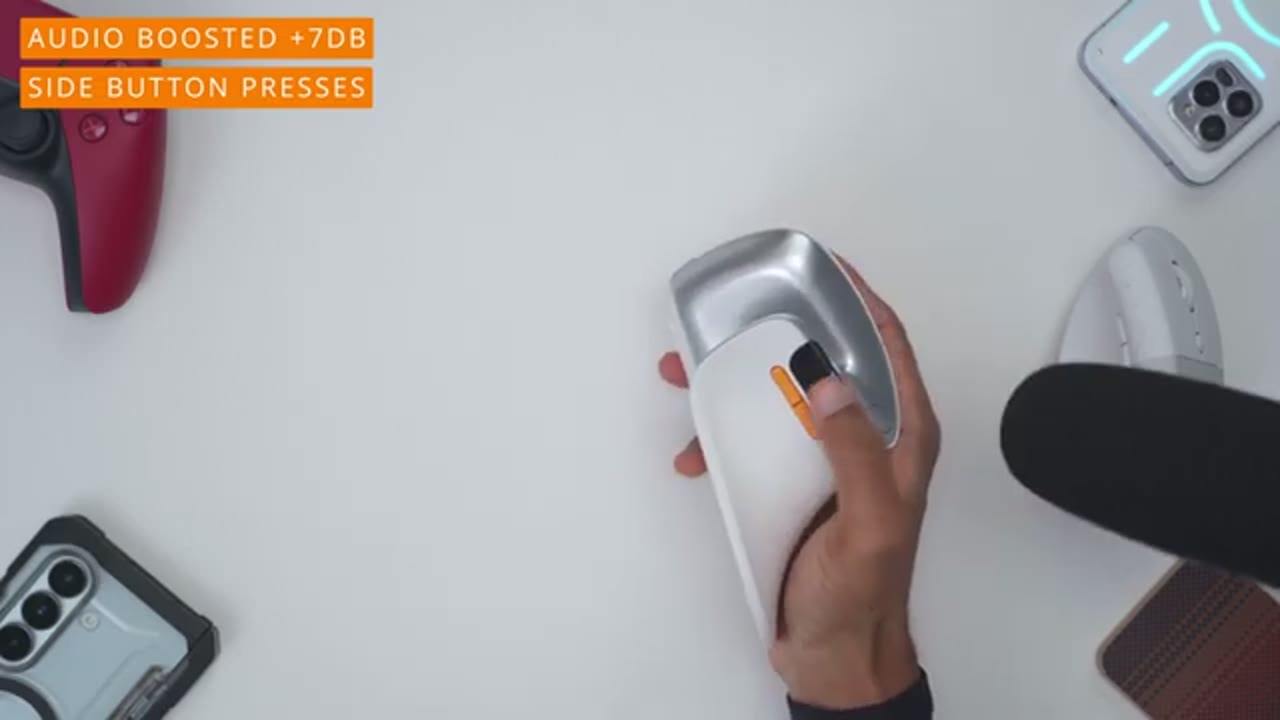
quite click type of experience the click still remain nice and tactile here’s a demo now the
Bluetooth Pairing
demo the Bluetooth pairing process is really easy you’re just gonna turn the mouse on and then it’s right now in the wireless dongle mode so I’ll just go ahead press the channel switching button tilts on Bluetooth or Bluetooth one I should say press and hold till I see it start flashing quickly so now it’s in Bluetooth pairing mode I’ll jump into the full Bluetooth settings on my Z Fold 7 here and I’ll see it right there pro to our EM11 Pro hit that except the pairing request and then I’ll see it pop up at the top there so you can see right there I’ll go ahead and repeat the same process on my S26 Ultra and you can see I have both devices paired and connected
Device Switching Demo
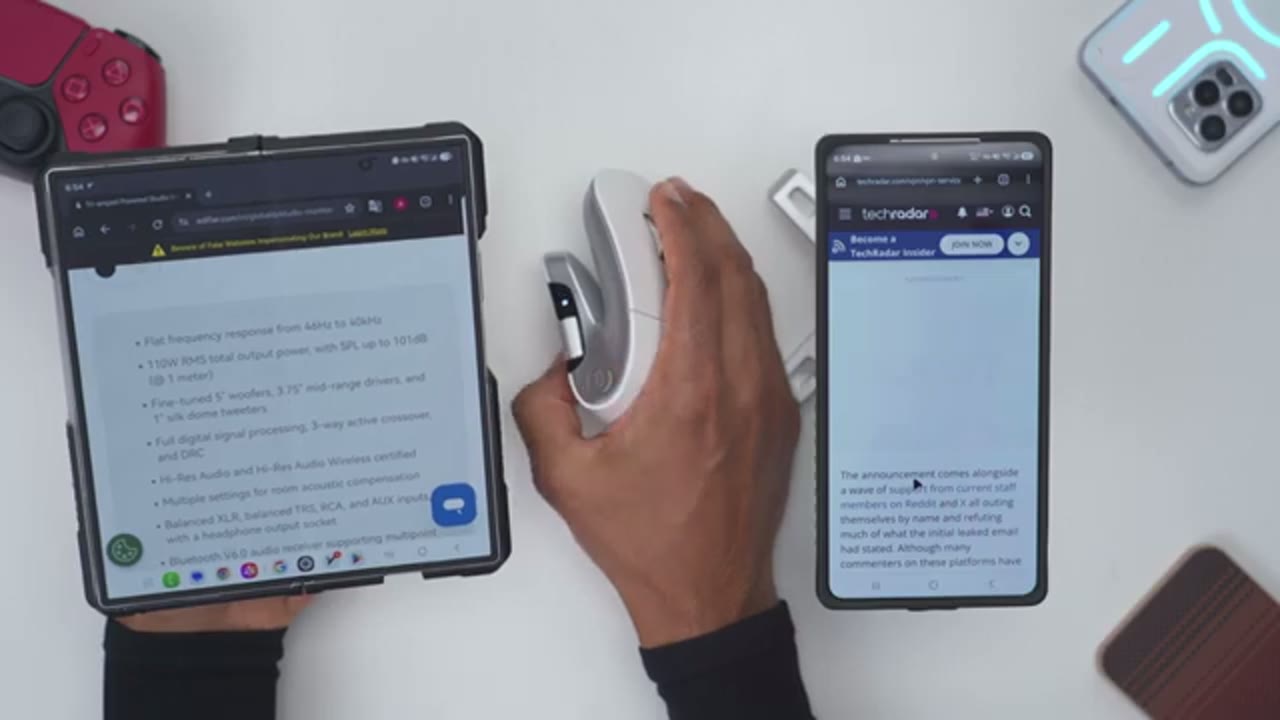
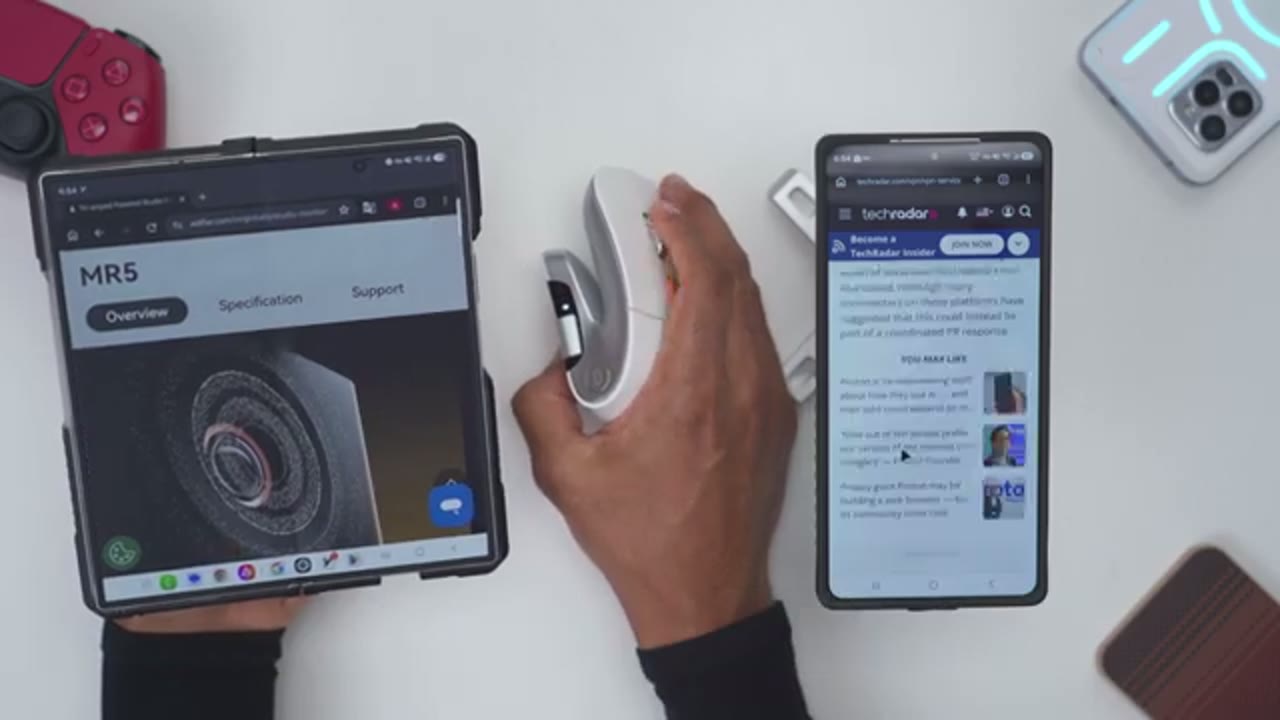
and here’s a quick demo showing how quick and easy it is to switch from various Bluetooth devices now
EM11 Pro Settings
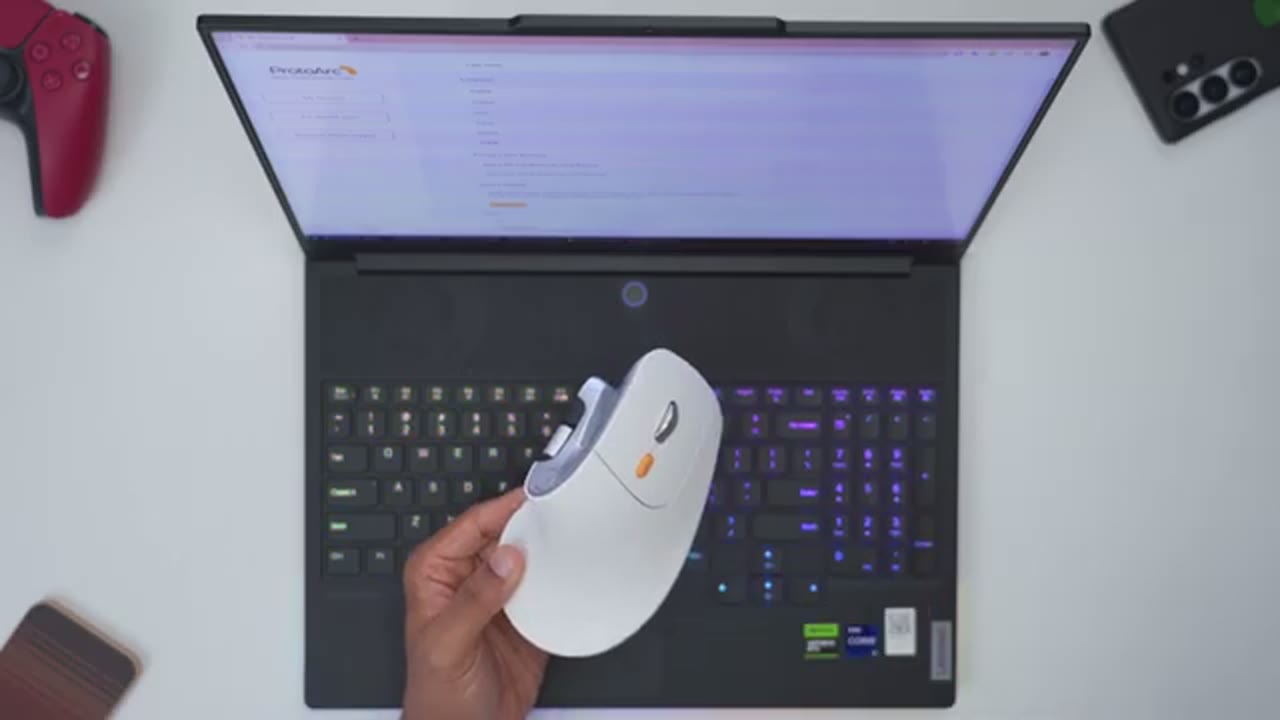
let’s look at customizing the settings of the EM11 Pro and the first thing to note is that you don’t need to download any tap a software to your laptop or desktop everything is done through their online web base dashboard which is at hub.prodoor.com so when you click on my devices this is where you can add your portarct devices so the EM11 Pro is already added I’ll click into that and you could see right away we could see the mouse and everything that’s available for remapping so all of these buttons can be remap because if I click into these it pulls up a menu on the side the only thing that can be remap is the left click of course everything else is game so for example I could click the forward button and I can go through any of these options here to remap it or I could just say do nothing you can also go under a special you have a bunch of other options here but for example if I wanted to do show high desktop I’ll go ahead save that and now that’s going to show and hide the desktop now you can also set up macros and if we go under general settings here this is where you can change the DPI modes on here so you can see if I go ahead and click the DPI button is going to cycle through from 800 to 1162432 and 48 now you can manually dial in any other type of increment all the way to max of 7200 DPI under more options you could take a look at the firmware version and then under settings this is where you can go ahead and change a language and that’s about it really easy to customize now the really important thing to note is that this mouse actually has on board memory which means whatever settings or configurations you dial in right now you could take this mouse to your office or your workplace or you could take it with you on the road on vacation and it’s going to retain all of those settings you don’t need to log into an account to sync your settings it’s automatically save on board on the mouse which is fantastic note that for the Logitech lift you must install
Logitech Lift Settings
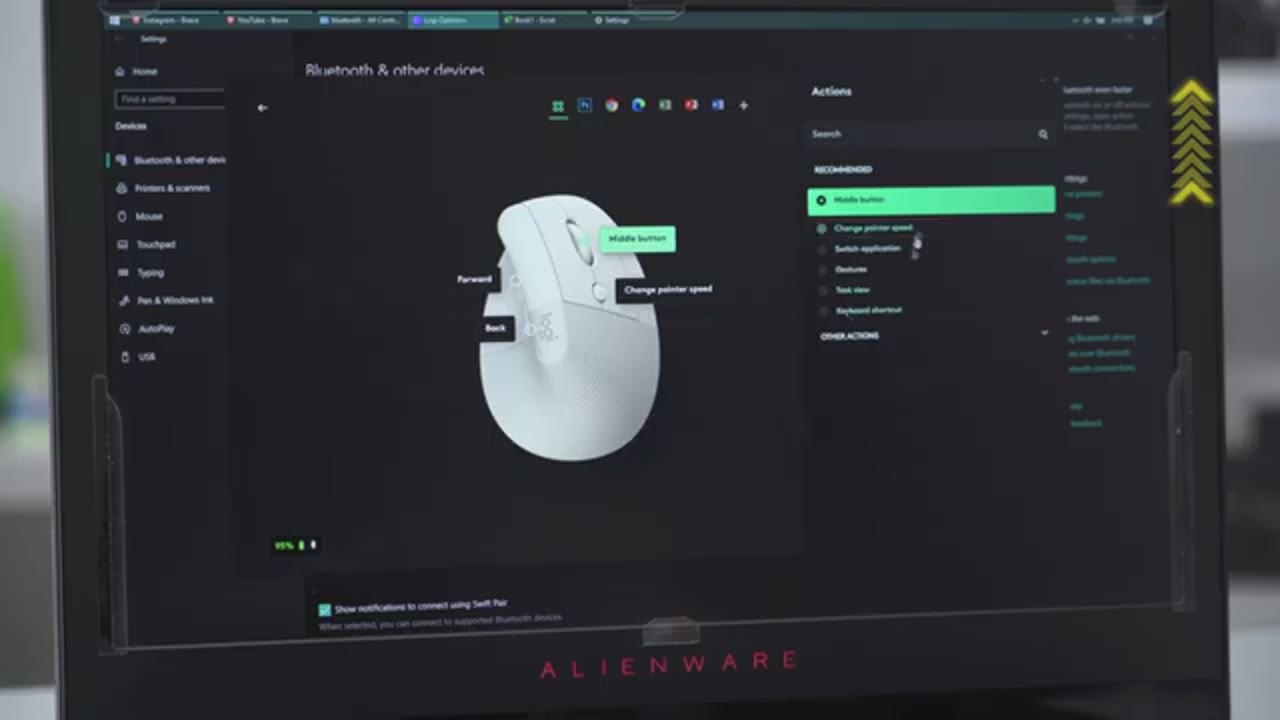
Logitech software to be able to customize the mouse there’s no web base dashboard and I’ll leave a link in the top right corner for you to check out the full settings now I’ll demo using the
Real World Demo
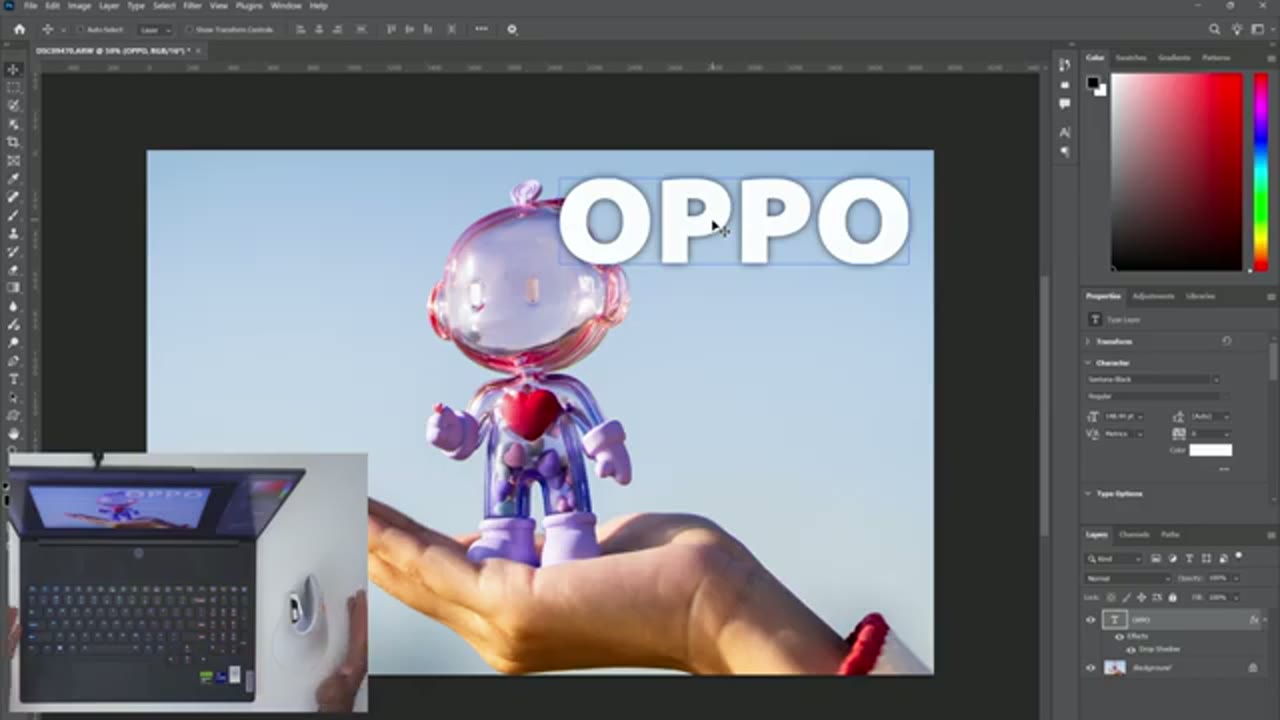
horizontal scroll wheel and a little bit of my workflow to give you an idea of how quick you can get things done with the mouse like this one to get used at such a jump into the ventry resolve and you could see I’m on the timeline usually I’m just kind of like dragging around on here but when you have this horizontal scroll wheel you can easily just cycle through left or right on the timeline or issues you could zoom in zoom out on the timeline it’s really easy to navigate now in the Logitech lift you can get horizontal scrolling but you kind of have to use a modifier key it’s not as fluid as natural as just cycling through like on here now let’s jump into photo shop and I’ll open this image up and I’ll just add a bit of text it let me just dial in the contrast by bit open it up go ahead and add a text layer commit that and then let’s go ahead resize it and let’s change the color to white go ahead and move it around here and then just add in a drop shadow so let’s see that’s a bit too strong let’s just use maybe a default drop shadow so maybe this one right here and I can go ahead and move that around and you could see it’s pretty easy for me to just do my normal workflow I’m not really you know missing a beaters skipping a beat because I’ve used the ergonomic mice before and I’m very used to them so just keep that in mind if this is a mouse you’re interested in using just you know kind of budget a bit of time and once you master to get used it does not gonna be really any hit to your workflow or you know your kind of your date to the use when it comes to battery life it’s a little bit harder to nail down
Battery Life?
because there’s a ton of factors like how many days you’re using it how many hours per day the DPI the polling rate the connection mode but for the most part you’ll easily get you know one week to two weeks maybe even more depending on your use so you just see like a red light or like a flashing red light anytime you need to recharge it and then once you fully recharge it in about you know two to three hours to fully recharge that light turns agreed also note that whenever the battery drops you could just plug in a USB type C cable and you can still keep actively using the mouse
EM11 Pro vs. Lift?
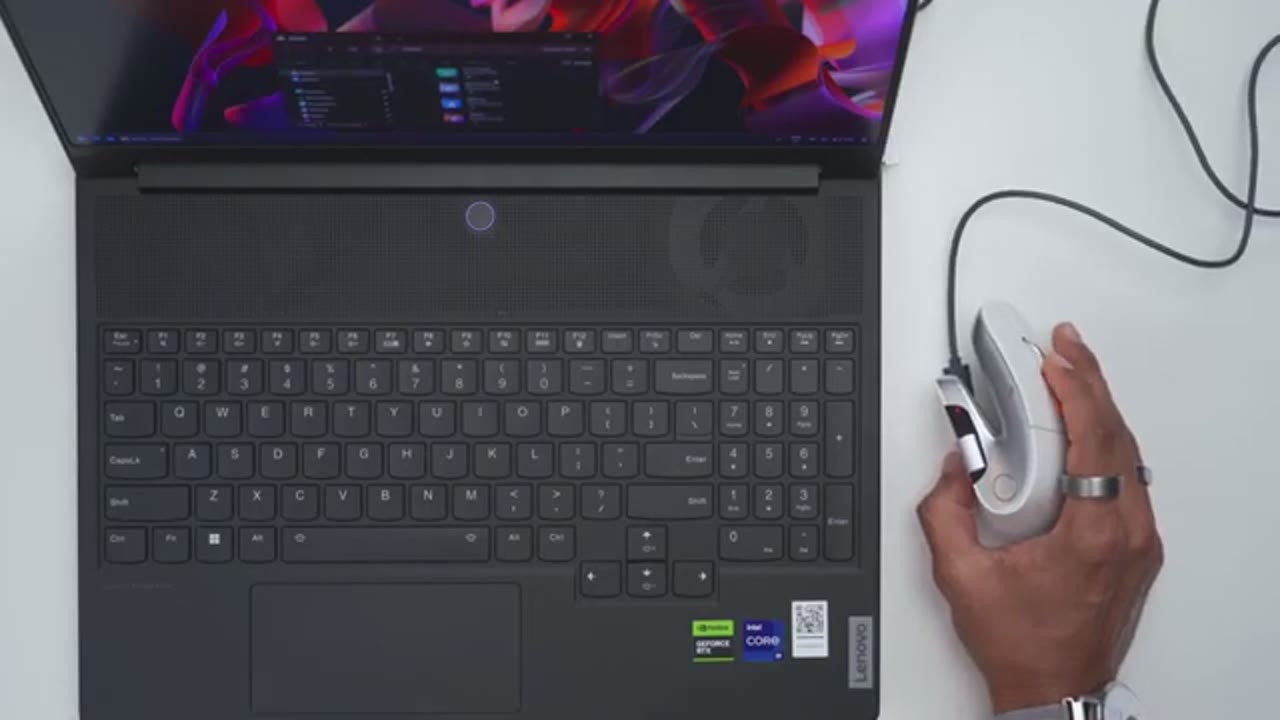
while the batteries recharge if you’re trying to decide between both of these mice so you could see my earlier hand measurement and you could see how my hand fits on both of these and just kind of use your hand size as a reference to kind of get an idea now both of these will let you pair three devices on both of them they also have a USB type A wireless toggle and you can connect two devices by Bluetooth.
However, where I think the EM 11 Pro has an advantage is that you don’t need to install any software to customize this mouse you could just do it via a web dashboard so if you work somewhere or if your office doesn’t let you install software well you could just configure it via your web dashboard additionally because it has on board memory if and if you configure this at home you could take it to your workplace and it’ll still work with all of the settings we’re in. Whereas on the Logitech lift you do need to install Logitech software that may not be possible depending on your workplace and then you also have the login to your account and how it’s sync the settings because this doesn’t actually have on board memory.
Now the Logitech software is definitely more full featured and it has things like Logitech full so you could use the mouse seamlessly across various devices and you can copy and base file seamlessly as well. However, it is of the expense of having background processes running it’s using RAM it’s using your CPU and it’s great being able to use a mouse like this with nothing running you just power it on and you’re good to go. I also love having a dedicated horizontal scroll wheel on the eM11 Pro however on the Logitech lift you do have to press one of these keys as a modifier to be able to use the scroll wheel as horizontal scrolling and then when you let go of that key is just going to go back to vertical scrolling.
Another difference is that the eM11 Pro uses a built-in rechargeable battery whereas the Logitech lift uses a double A battery and that’s really going to come out to use their preference I know there’s a lot of people who actually prefer a mouse to use as a double or triple A battery because they could just swap it out there’s no downtime with recharging you just swap out in your battery and then you can just keep doing it as long as your mouse you know continues working. Whereas on a mouse like this once a battery capacity starts you know kind of weaken or get diminished you can’t really replace it easily as an end user. So yeah just keep those points in mind when you’re trying to decide between the protoric mouse
Tips For Switching To A Vertical Mouse
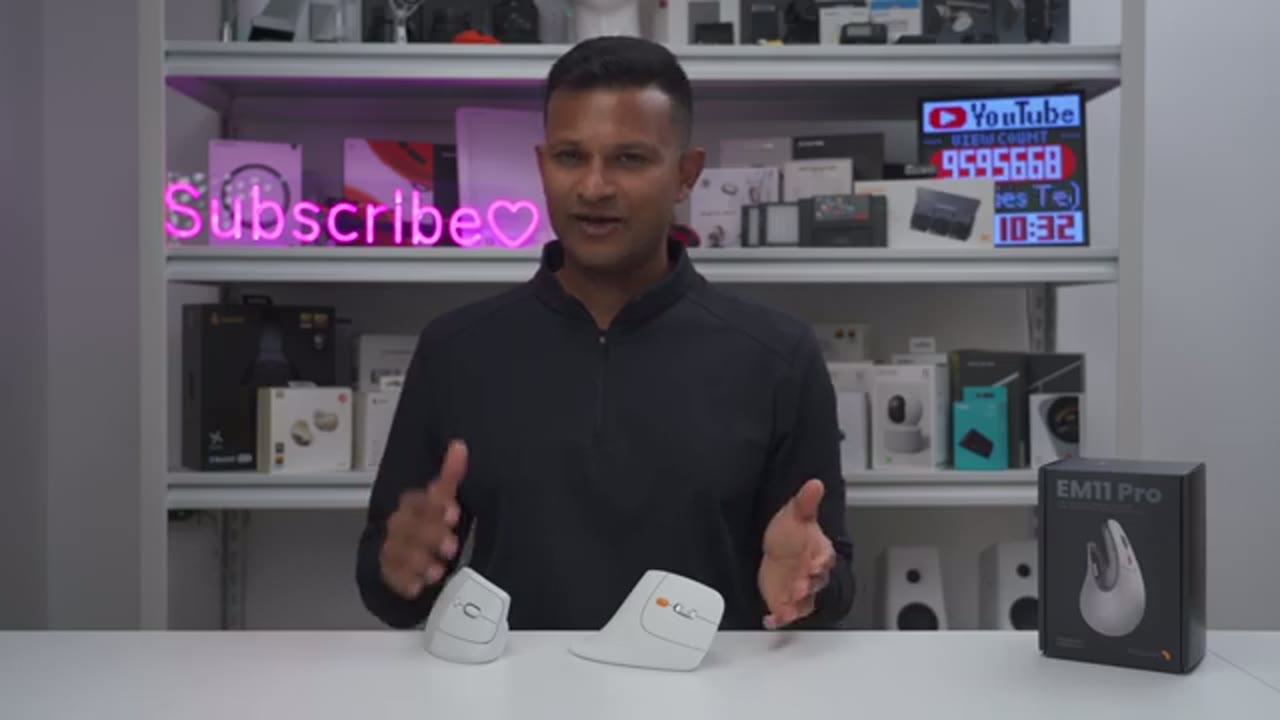
or the Logitech mouse. Now I’d like to share some tips if you’re considering getting your first vertical ergonomic mouse so the first time you put your hand on one of these your first inclination in sync might be to just go right back to a regular or traditional mouse like this. Don’t give in right away just take a little baby step so just put your hand on the mouse just get used to having your hand in this position and just go to your favorite side Instagram YouTube TikTok whatever and then just go ahead and scroll on the page, boom scroll whatever just get used to having your hand in this position to start.
Another thing you can try is rather than having your entire hand or palm rest on the mouse like you can see here just go ahead and back your hand off just a little bit so that you can actually use this area here kind of as a pivot point so you can see right now I’m moving the mouse around but the rest of my arm is not really moving at all. Whereas if I go ahead and I put my entire hand and palm on here then I’m moving more of my arm so just use both of those see which feels more natural to you.
Now one other thing you could try and this isn’t backed by signs maybe it feels silly to do this but just go ahead and take your current mouse and just hold it like this how you normally use it on your desk and then just go ahead and rotate your hand like this and see how that feels like if this already feels way more natural than having it like this then you know you’ll likely be able to use an ergonomic mouse and enjoy it. Now I’d like to share
My Logitech Lift Experience
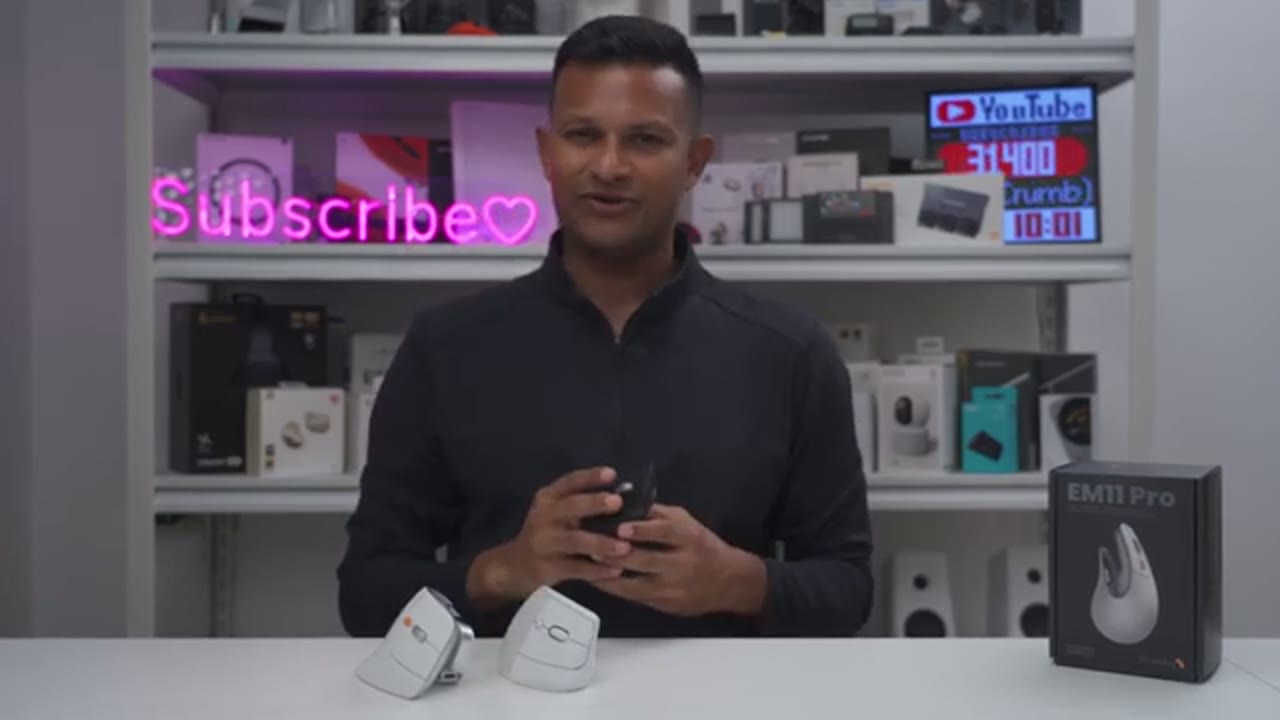
my experience using the Logitech lip because I’ve used this for quite some time. So when I first got this mouse I was really excited with it you know having my hand in this position felt way more natural and it was great for my work days. However after about 11 months it developed a misclick issue. So anytime I was clicking around it wouldn’t always register to click so it would take two or three attempts. So I contacted Logitech and thankfully they did send out a replacement mouse which is this mouse so this is the replacement mouse and unfortunately after just four or five months so not even close to a year this developed the same misclick issue and I saw other people reporting the same type of issue.
Now I don’t think it’s user error because my other Logitech mice, the MX3, the 3S, those are still going strong. So when ProDore contacted me about the EM11 Pro I was really eager to try it out because I was looking for a replacement vehicle ergonomic mouse but I wasn’t sure which one to go with. Now the only thing I can’t comment on is the long term reliability and durability of the EM11 Pro but this will be my new daily driver is just way more comfortable to use and if I have any type of updates about it I’ll leave those down in the comments below. Now while I’ve had a great
Changes or Improvements?
experience with the EM11 Pro so far there’s a couple of things I’d like to see change so the first thing is to be able to see what the current battery life percentages at any given time. As it says right now the only way to really know that the battery is low is when you see a flashing red light on here letting you know it’s time to recharge it. That’s like changes to green once it’s fully charged. Now even when you’re using the online web dashboard I didn’t see anywhere on there where the list that are showed any type of battery life so that would be good to see in a firmware upgrade if it’s possible.
It would have also been great if we could use the mouse and wired mode versus just using the USB Type-C port to recharge it again it’s not that big of a deal because while you’re actually using the mouse you can have it actively recharging. So what I recommend the Pro to ARK EM11 Pro and I think it’s
Recommended?
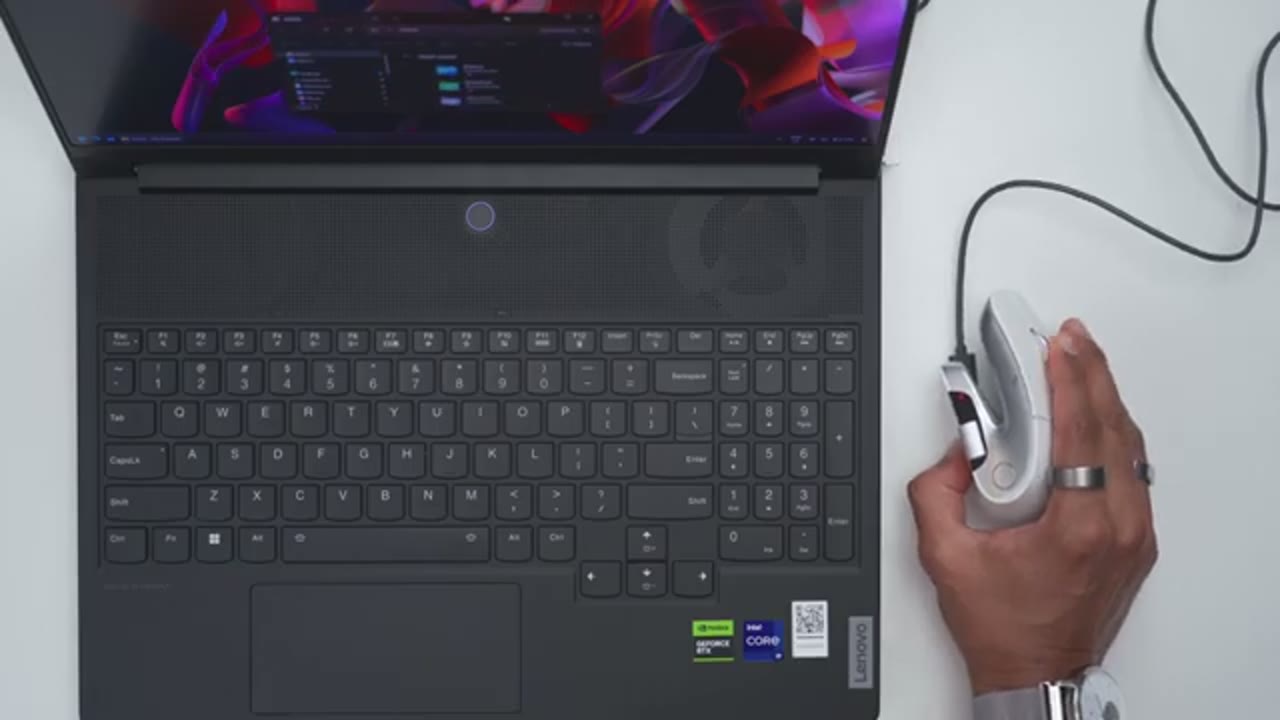
really going to come now to how open-minded you are towards a vertical ergonomic mouse and how much time you can dedicate to get used to one. But if you definitely know you need a more comfortable and natural hand and risk position and you find mice like the Logitech lift to be too small this is definitely one of the best ergonomic mice I’ve tried so far. Now at the time of this video the EM11 Pro is going for around $43 USD on sale compared to around $63 for the Logitech lift which is $20 more so this is fantastic value. So if you’re interested in picking up the EM11 Pro I’ll leave links down below and if I have any topic coupon codes I’ll leave those down below as well.
If you like this video maybe consider checking out some of my other mouse reviews I’ll link that up here and maybe even consider liking and subscribing to see more videos like this and maybe even joining as a member where you’ll get early access to videos and other perks. I also review a bunch of tech outside of mice maybe I’ll find those interesting as well and I really hope you’ll join me in my next video soon.
Buy ProtoArc EM11 Pro Ergonomic Mouse on Amazon US
Buy ProtoArc EM11 Pro Ergonomic Mouse on Amazon UK
Buy ProtoArc EM11 Pro Ergonomic Mouse on Amazon DE
Buy ProtoArc EM11 Pro Ergonomic Mouse on Official Site
Please note that some of the links in my video descriptions are affiliate links where I earn from qualifying purchases. As an Amazon Associate I earn from qualifying purchases.