


Buy Blink Pan-Tilt Mount on Amazon
Please note that some of the links in my video descriptions are affiliate links where I earn from qualifying purchases. As an Amazon Associate I earn from qualifying purchases.
Intro
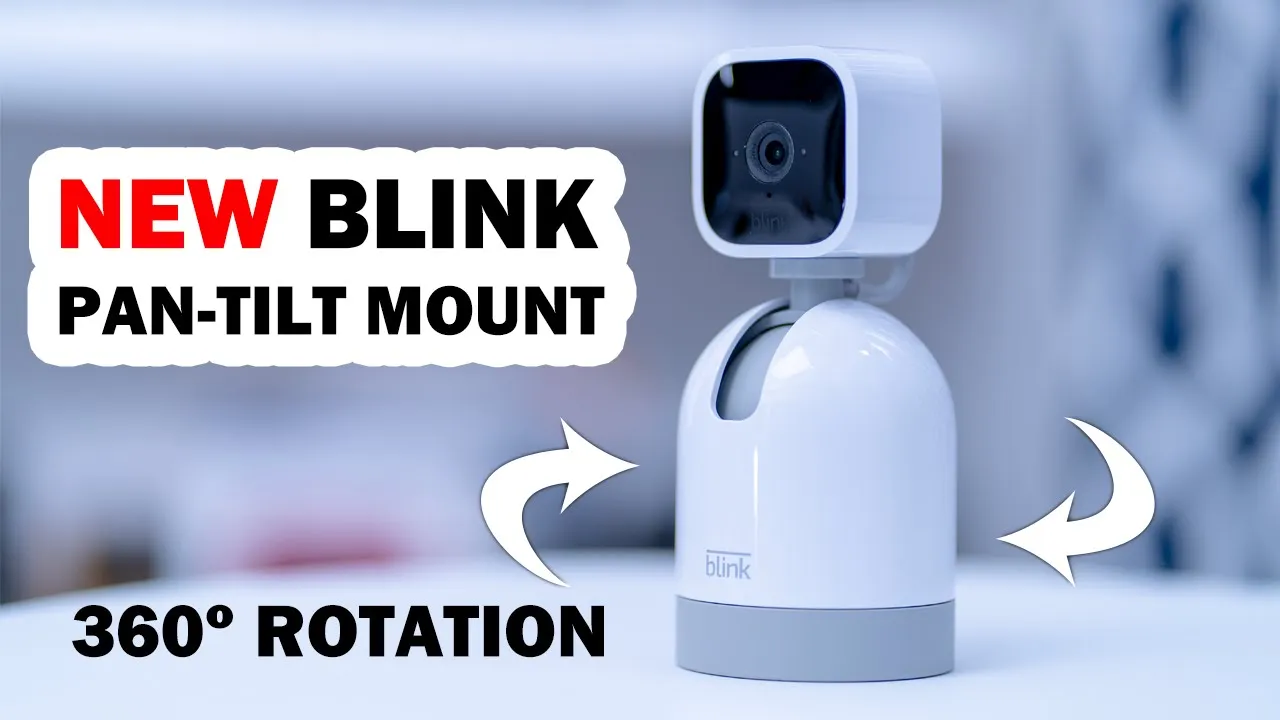
hey it’s Adrian and today I’m taking a look at this brand new product from blink so this is the pan tilt Mount and this is meant to be paired with your blink mini indoor camera now the blink miniature camera it’s a pretty good camera already but you can’t rotate it or tilt it or anything like that so wherever you fix it in the house or in your room you only have that one field of view with this this lets you actually rotate it so you’re gonna get a full 360 room coverage so let’s take a look at that in the Box
Package Contents
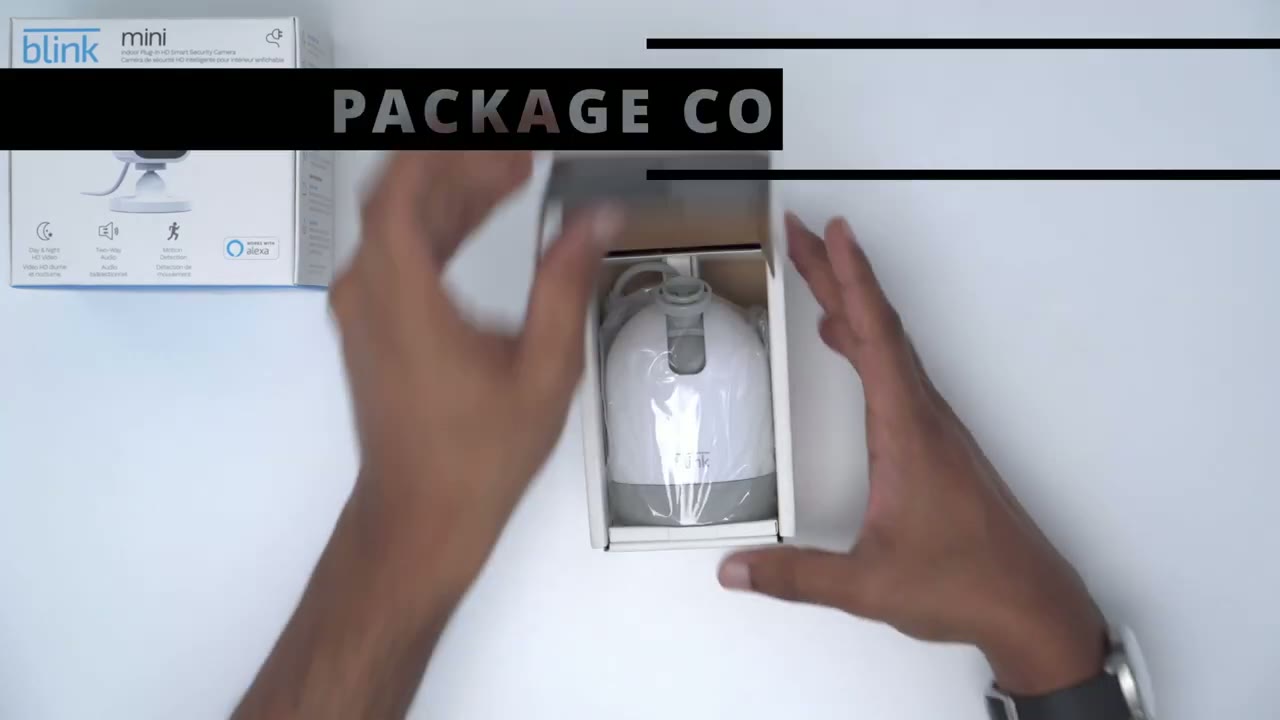
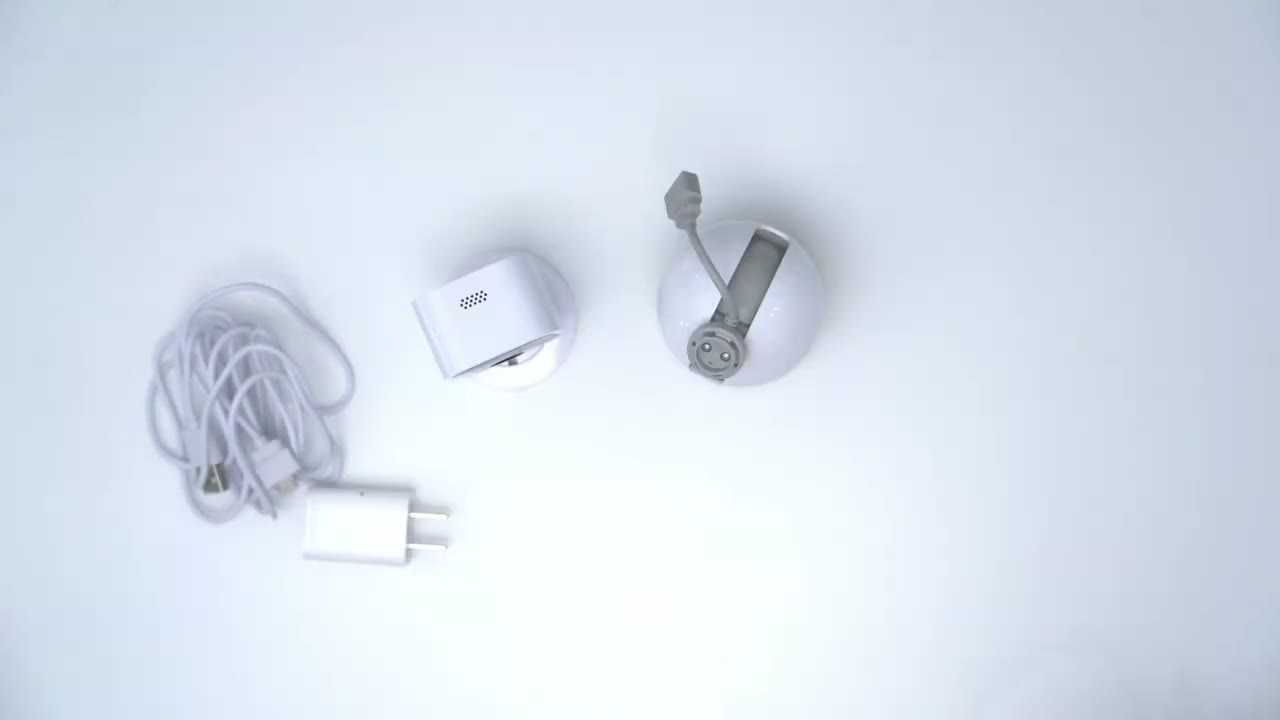
we have the pen tilt module and just a quick start guide okay taking a closer look at this pan tilt module so you can see this is where the blink mini is going to sit atop and then this is going to connect to the back of the blink mini to powerth and at the back of the pan tilt module you’re going to use the cable that came with your blink mini to power this so this is a standalone unit and if you’re supposed to buy the blink mini indoor camera separately now Amazon is selling this bundled with it as well
1st Time Setup
alright so let’s go ahead and remove the base from the blink mini indoor camera and add it to here now what you’re going to want to do in this part is a bit tricky guys so this part here you’re just going to try to pop this out so it’s not threaded in there but it does take quite a lot of forces yank this out there so what I found helps is if I wedge my fingernail under here a little bit and I twist it as I pull down so that’s I I like to rotate this out of the way I can get a little bit more access so I’m going to try to pull it out [Music] there you go so that came completely out and you could see if you take a look here um you know it’s not threaded really it just has these plastic uh contacts there that help it stay in place but I’m just going to pop it into here right now so again camera facing front [Music] and now it’s attached so just be careful when you’re pressing it down into here you don’t want to apply too much force on this mechanism here that’s going to be in charge of the panning and tilting but right now it’s attached here and what I’m going to do is I’m going to connect the power cable from the pan tilt module into the blink mini indoor camera now foreign took a little bit I really do wish they would make this a type c connection it would make it much easier okay so the blink mini is on the pen tilt module next what I’m going to do is I’m just going to plug in the power cable that came with the blink mini initially into the back here that went in very easily and then I’m just going to power I’m going to plug this into the power brick here and I’m going to turn everything on okay so I’ve turned on the power I’ve plugged this into the power adapter and you can see that the light is flashing so I know it’s powered next thing I’m going to do is I’m going to open the blink up and add this pan tilt module to it all right guys so now that everything is connected here we’re going to add it to the blink up so this is for those of you who are buying both of these the blink mini indoor and the pan and tilt module for the first time so I’m going to go and click the plus sign here I’m going to pick the mini camera and you can see that it’s saying scan the QR code so if you tilt your camera there you could see the QR code I’m going to use my phone’s camera to scan that and you can see that it’s recognized that it is a mini camera I’m going to just add it to my existing system which is home and then it says wait for the device to be ready so when ready the lights will be blinking blue and steady green which I can see that it is so we’re gonna go to discover device and we’re going to let it search and do its thing so it says it has found it so let’s connect and what I’m going to do now is I’m going to connect to my Wi-Fi make sure you’re connecting to a 2.4 gigahertz Wi-Fi connection sometimes your network may give you a 2.4 or 5 if that’s the case and you can’t connect most likely you’re connecting to five so you’re gonna have to try to split it but I’m gonna enter my password right now okay so you can see it now says mini camera connected successfully we’re going to click done and you can see automatically because it’s connected to the pen and tilt module it’s detected that as well all right so now that the app has detected both the camera and the Tilt module we can actually go into the settings here and you’ll find a new option which is pan and tilt settings and this is what you can do to check the firmware or calibrated so let’s go ahead and do the calibration right now okay so the calibration’s done and I do recommend that you do that because again if you place too much force when you press this down onto that uh head right there you know it might throw things out of whack a little bit now that everything’s set up let’s go into live view and you can see that now we have full pan and tilt control something we didn’t have before so I’m going to go ahead and tilt all the way up and we’ve reached a limit you could see my overhead camera there now I’m going to tilt all the way down and you do have to keep it pressed down so that’s the maximum tilt it’s 135 degrees I’m going to press home to Center everything back and what I want to point out is this is very quiet while it’s moving so for a reference now listen when I pin right I can hear really anything with that now I’m going to pan left now one thing that I’m noticing with this is when I pan all the way right and left sometimes there seems to be a glitch where it just jumps out of live view if I go ahead and play live view again it starts back up but when I go back let me try to pan all the way to the right and see if it’s going to do that it might just be an early type of glitch and hopefully something that’s easily fixed with software so limit as reach and you can see it didn’t kick me out but if I go all the way back let’s just see if it kicks us out again it doesn’t always so chose limit is reach but it didn’t kick us out where it showed that play icon so it is a bit strange that comes and goes hopefully like I said it’s something they can easily fix all right while we’re in this pan and tilt screen if we go into more we can do a 360 pan and I think this is a great option because a couple of times I’ve been asked in the comments you know what would you recommend for a parent who lives alone and I think this is a great option now previously you could just set it in one area it’s static you can’t really check now that this is actually a really great option and it’s not that expensive to add this functionality to the indoor mini camera alright guys so
Existing Indoor Mini Setup
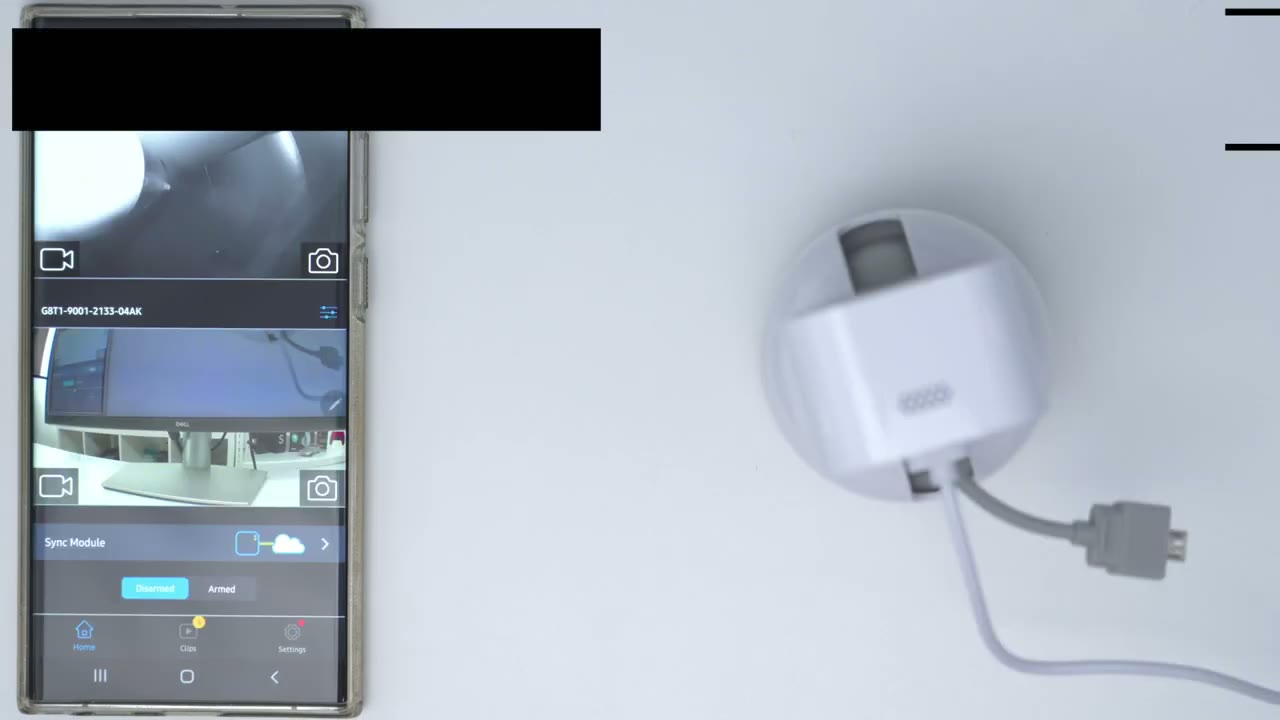
if you already own a blink mini indoor camera this is such a simple process because as soon as you connect it to this pan tilt base and power it on the app is automatically going to recognize it so here we are I’ve opened the blink app what I’m going to do now is I’m going to remove the power from the pan tilt module I’m going to plug in this my micro USB cable into the back of the camera okay so now the blink mini indoor camera is going to get power from the Penfield module and I’m going to plug this in so that this is powered on and set that down and you’re going to see this is going to start moving and it’s going to automatically pop up in the app that it’s recognized it it’s a very simple process all right so you can see it says pan tilt connected to your G80 which is my indoor camera I’m just going to pick okay one thing that I like about this
My Thoughts
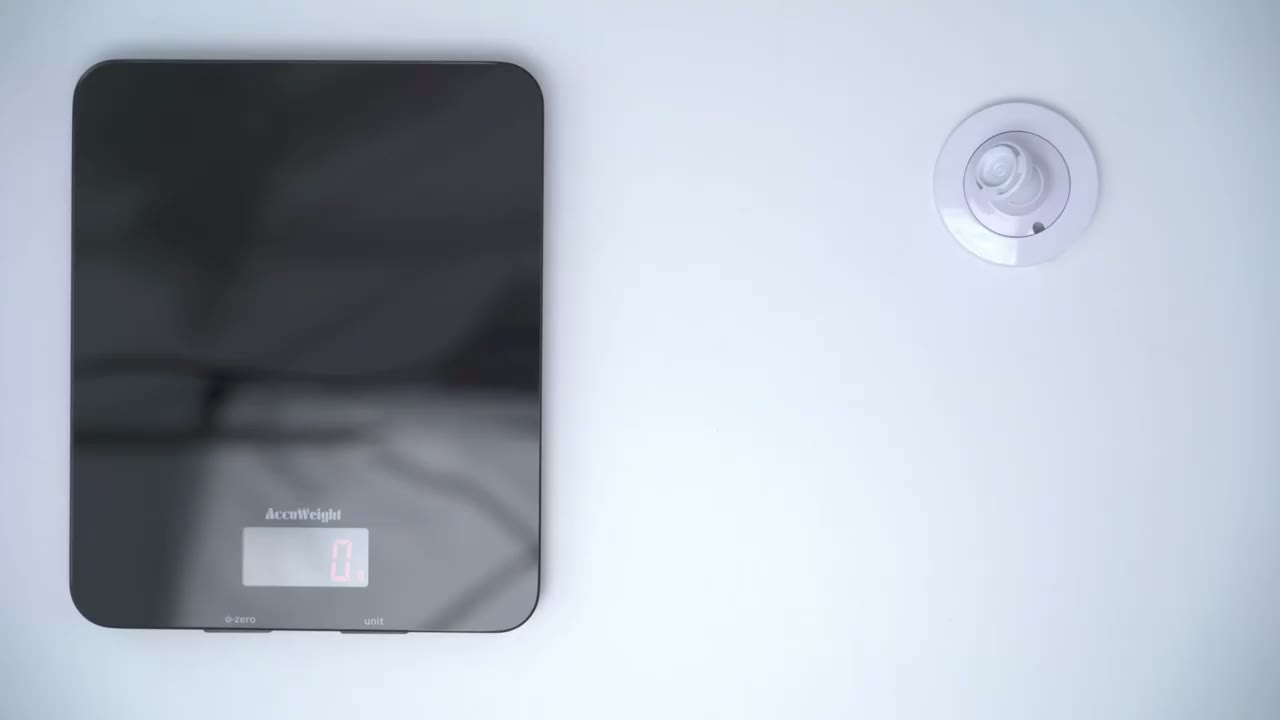
pan and tilt module is it adds a decent amount of weight so with the previous blink indoor mini this base wasn’t heavy enough so I find that you know I wouldn’t get a lot of staying power with this it comes in at around 304 grams which is a little over a half of a pound so it’s much more stable when you place it for a quick size reference you can see I have a can of Dr Pepper my preferred drink and it’s only a little bit taller than I can of pop and if I put it you know kind of like that you could see it’s about the same in terms of the width so it’s a really small unit easy to place anywhere alright guys well I hope this video was helpful let me know what you think and if you’re interested in picking up this pen and tilt module I’m going to leave a link to buy it in the description down below if you are interested and if you ran into any issues with the setup please do let me know in the comments down below I do try my best to help everyone out and if you found this video helpful please consider liking and subscribing and I’ll see you in the next one bye
Buy Blink Pan-Tilt Mount on Amazon
Please note that some of the links in my video descriptions are affiliate links where I earn from qualifying purchases. As an Amazon Associate I earn from qualifying purchases.

