


Please note that some of the links in my video descriptions are affiliate links where I earn from qualifying purchases. As an Amazon Associate I earn from qualifying purchases.
Intro To Issue
Hey, it’s Adrian from Them, Crably Stack. And today I want to show you how to fix a common Wi-Fi issue, which is the Wi-Fi just keeps dropping like in and out on your laptop or desktop. So the issue I’m describing is your phone, smart TV, gaming console, other people’s phones. They probably all have Wi-Fi, but for some reason the Wi-Fi in your computer and or your laptop is dropping. And the reason for this is that Windows is most likely cutting power or limiting power to that device. And it’s causing the Wi-Fi drops. So to fix it, we’re going to go into device manager. So let me just record my screen here to show you how to fix that.
Make WIFI Changes in Device Manager

So what we’re going to do is we’re going to click on start, type in device, and you’ll see it comes up with device manager. We’re going to click that. And let’s just expand it. So you can see there’s a whole bunch of list things there. And the one we’re interested in is network adapters. So go ahead and expand that. And then there’s going to be a bunch of list things under that as well. And the only ones we’re interested in are any that say wireless in them. So if you look on my screen, it says killer wireless or wireless network adapter. So I’m going to click that right click and go to properties. When we go there, it’s going to put us on the general tab. And the next tab we want to be on is the advanced tab. Now in the advanced tab, there’s one option that says dynamic, memo, power save.
So on mine it’s set to disabled. If you’re is a set to enabled, please set it to disabled. And now every computer you may have different entries. Then what you see on my screen. However, if you see any other entries relating to power or sleep or hibernator, it’s been, make sure they’re all off. So once you do that in the advanced tab, we’re going to go into the power management tab. And now we can see there’s an option that says allow the computer to turn off this device to save our. This is exactly what we don’t want. We do not want Windows. Turning off power to device. This is most likely why we’re experiencing these Wi-Fi drops. So ensure that that option is not selected like it is on my screen. And then press OK.
Now the next part we’re going to do is mostly for laptop users because they’re running on batteries and Windows by default. We’ll try to limit performance because of that. Desktop users, you probably don’t have to do this, but you could still follow along just in case. So for laptop users, you can see you can click the battery icon at the top here right click and go to power options. And it’ll bring this menu up now. If you don’t see the battery displayed there, not to worry, just click on start. Type in control.
Make Windows Power Settings
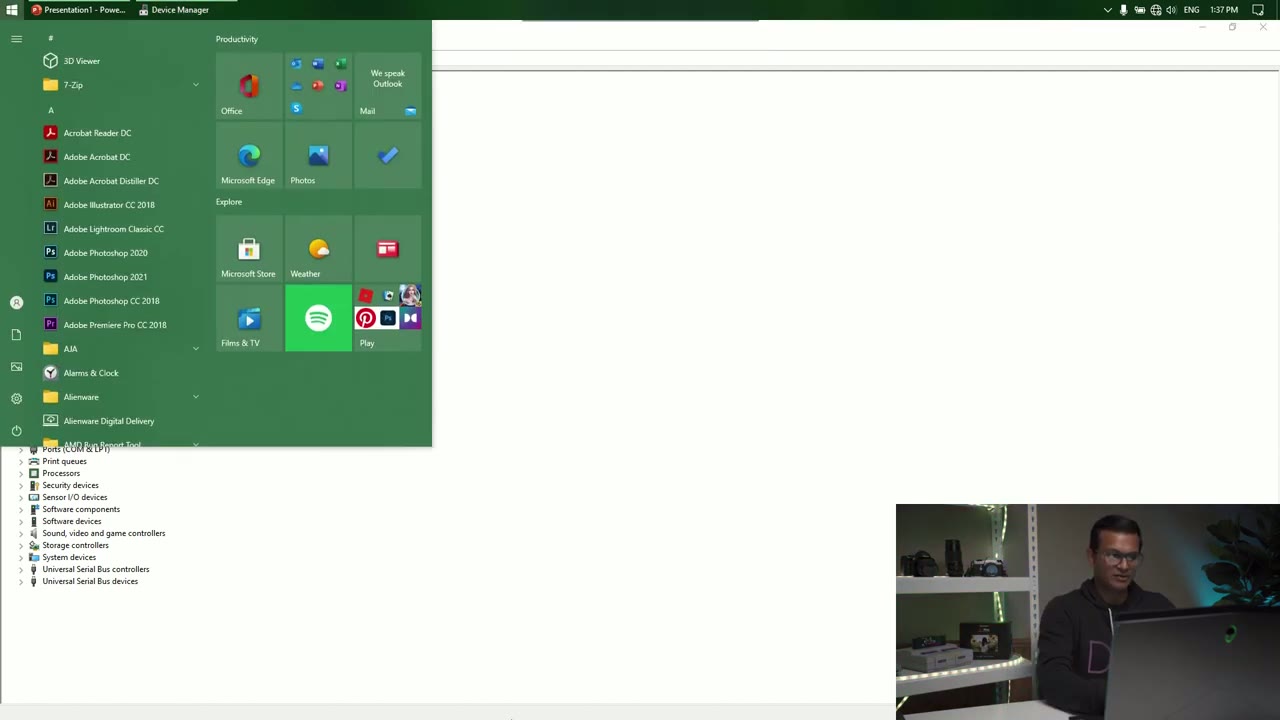
We’ll see control panel. Let’s click that. And in here, we can see power options. Click that. And we’re back to the same screen. So on most laptops, you’re going to have two options. One is power saving. One is balanced. And you may not see this max performance that you’re seeing on my screen. But you can always create a custom plan in this screen and make the settings. I’m going to show you. And then it’s going to act in the similar way. So I’m going to click max performance. And then I’m going to click on change plan settings. Once I do that, there’s another option that says change advanced power settings. We’re going to click that. Now, there’s two options we need to change. The first one is the one that says wireless adapter settings. So we’re going to expand that.
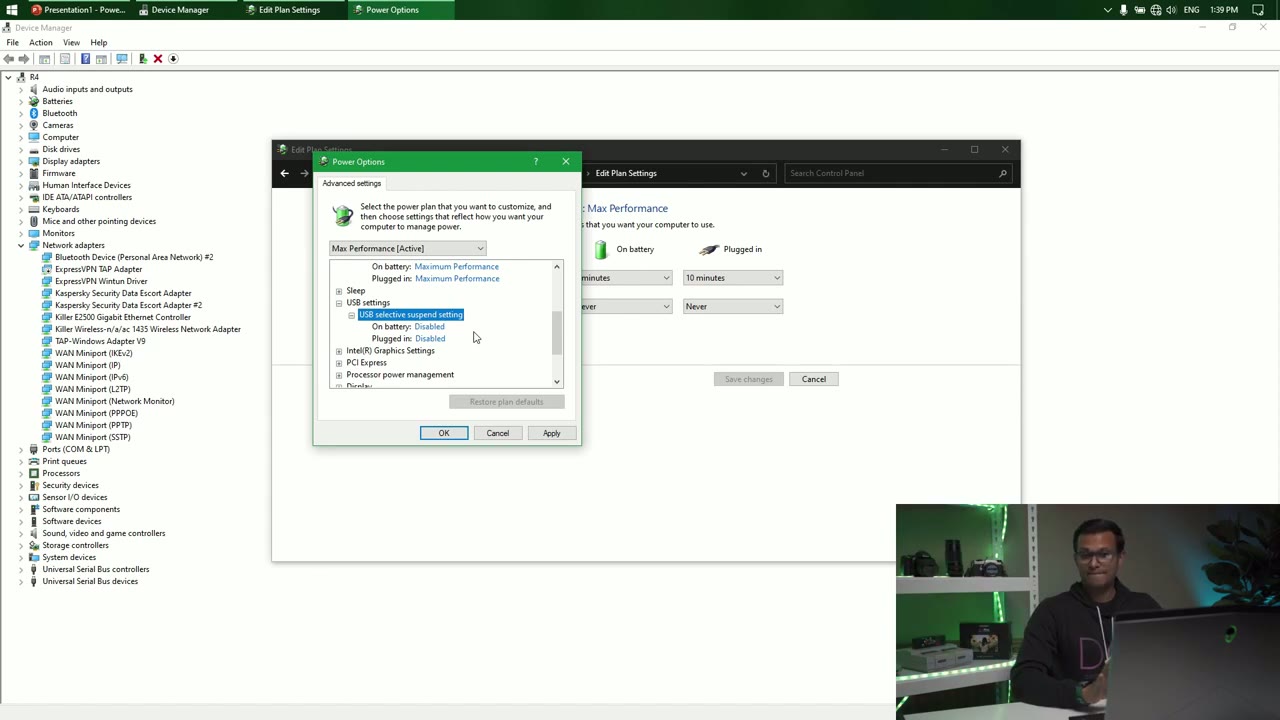
Now it says power saving mode, expand that. And you can see I’ve set mine so that when it’s on battery power or when it’s plugged in, I want the maximum performance. If I click the drop down, you can see I have other options like low power saving, medium power saving, maximum power saving. We want maximum performance. So for our wireless adapter, we want max performance to avoid any type of power limits or performance that is device. So we’re going to leave it maximum performance. Next, we’re going to go to USB settings. Expand that. And it says USB selective suspend setting. Expand that. And make sure it’s at the disabled. Same as on my screen. And the reason is any time you plug something into a USB port on your computer, you know, we want full power going to that device.
We don’t want the computer to suspend any service to whatever’s plugged into the USB. So again, mostly for desktop users. If you have a wireless Ethernet card or a Wi-Fi USB adapter plugged in here, and you’re having a issue, make sure that’s off or it’s at the disabled. If you’re plugging in a Bluetooth adapter into a USB port and the Bluetooth in and out, come in here, make sure that suspend setting is set to the disabled. And after you do these changes, guys, for most people, this is going to fix your issue.
Summary
If you’re still having an issue, please comment down below. If you’ve tried all this steps and you know, give a bit more detail about your computer, what type of Wi-Fi card you’re using and things like that. For those who have figured on another fix that I didn’t cover her, please share it below. I’ll try to pin it or highlight it. I’m hoping we can have one area that we can all go to to figure out these type of issues. And if this video helped you, please consider liking and subscribing. I’m going to keep making more kind of like short videos with quick tips for, you know, Windows computers and Android devices. So again, if it was helpful, please consider liking and subscribing, and I’ll see you in the next one. Bye.
Please note that some of the links in my video descriptions are affiliate links where I earn from qualifying purchases. As an Amazon Associate I earn from qualifying purchases.

