


Please note that some of the links in my video descriptions are affiliate links where I earn from qualifying purchases. As an Amazon Associate I earn from qualifying purchases.
Intro
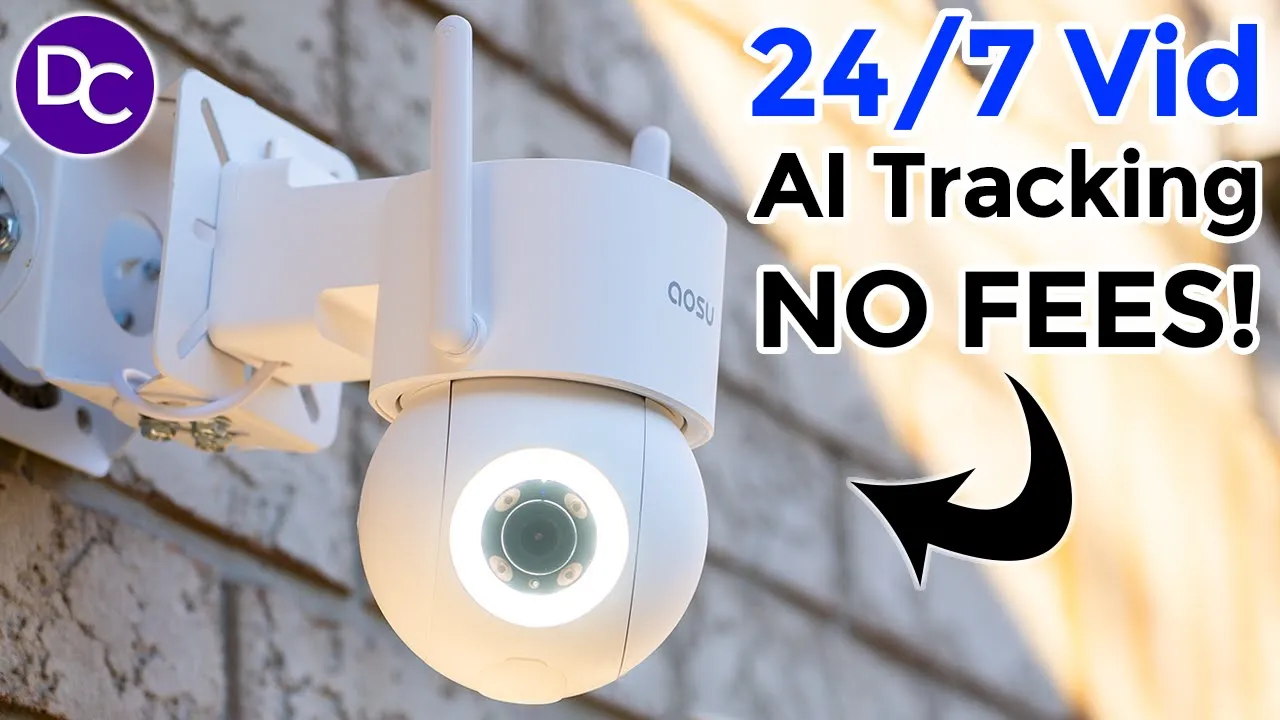
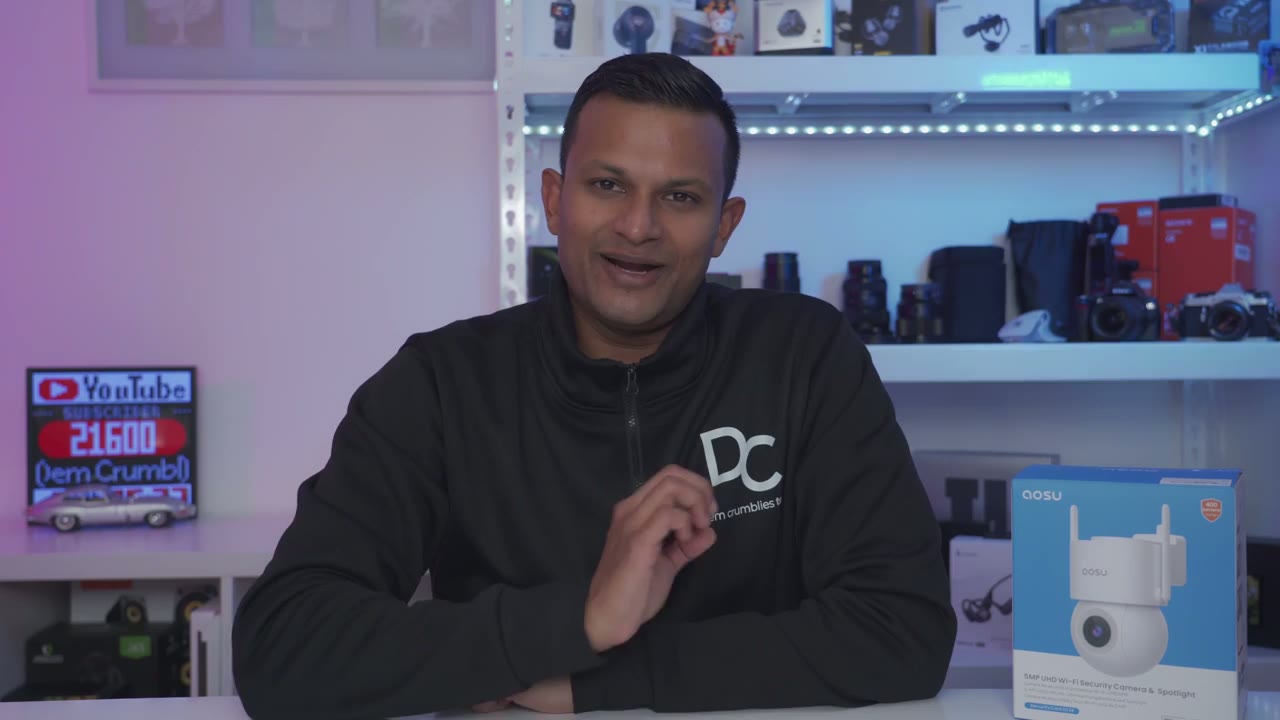
hey it’s Adrian and today I’m taking a look at asu’s security cam d1c this is a very impressive security camer it comes with a ton of features such as 3K recording we have very fast motion detection automatic AI tracking there’s 24/7 recording a super bright spot light very loud speakers and a ton of security features such as intrusion detection and parking guard and on top of all of that there’s zero monthly fees to get full functionality out of this system so let’s take a closer look at the c5e and you could see if this is worth it for you and big thanks to ASU for sending this out for
Package Contents

review in the package we have the camera mounting plate security sticker quick start guide power adapter and mounting screws the design is a little bit
Design
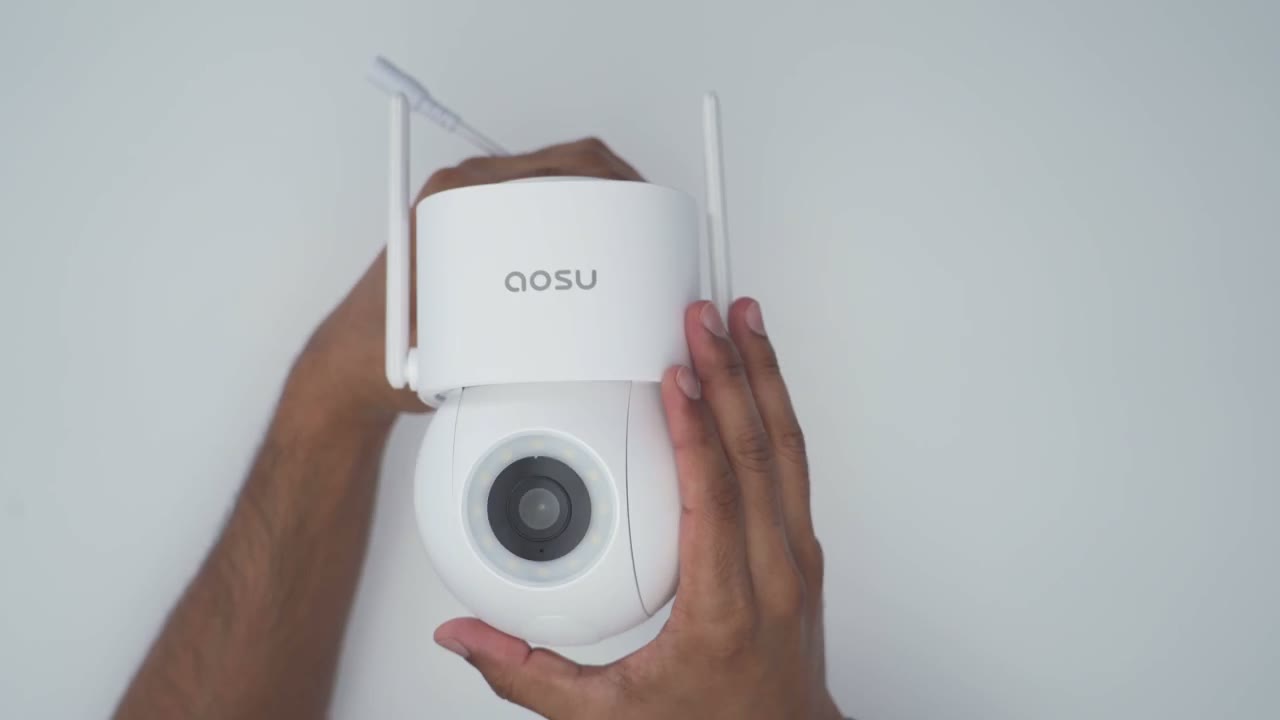
different than asu’s previous D1 model of camera so there’s a really rounded camera module here so we have the camera lens and then this 400 Lumen LED spotlight right there now at the bottom here is where we have this weather sealed area with the reset button and a Micro SD card slot which I’ve already inserted a Micro SD card into and then at the very rear we have a speaker Grill and of course you have full pan and tilt functionality with this complete rotating module the sides of the camera have adjustable Wi-Fi antennas the back has pre-and wiring and then we have an area where we’re going to attach the mounting plate or mounting bracket installation is very simple so you’re going to just attach the mounting plate with the three screw holes and you can see it says up once you have this positioned on a wall you’re just going to slide it till you hear it click and and then the camera is installed and then to remove it you’re just going to pull this tab and then slide the camera body down specs include a 5 mapel sensor
Specs
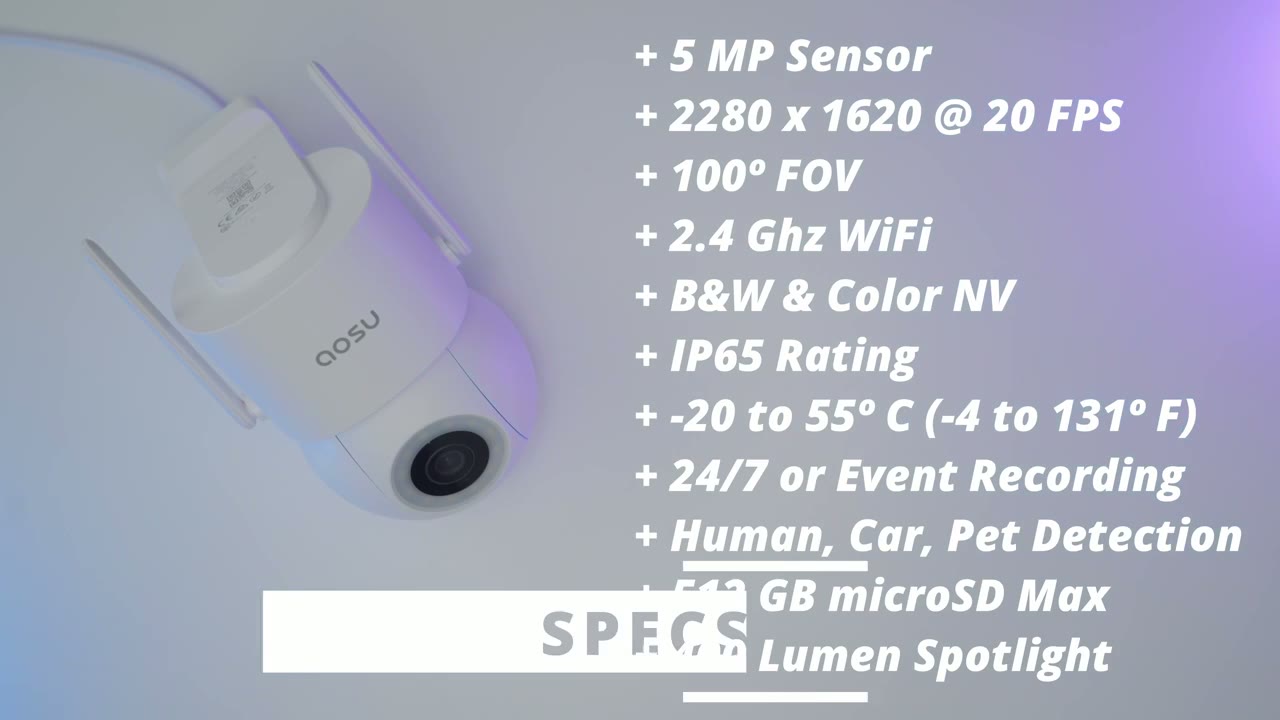
at 2880 x 1620 resolution at 20 frames per second there’s 100° field of view 2.4 GHz Wi-Fi support black and white and color night vision an ip65 weather rating the operating temperature is -20 to 55° C there’s 247 continuous recording or event based recording there’s detection for human cars pets Etc up to a 512 GB micro SD card support and a 400 Lumen Spotlight I’ve plugged
Setup
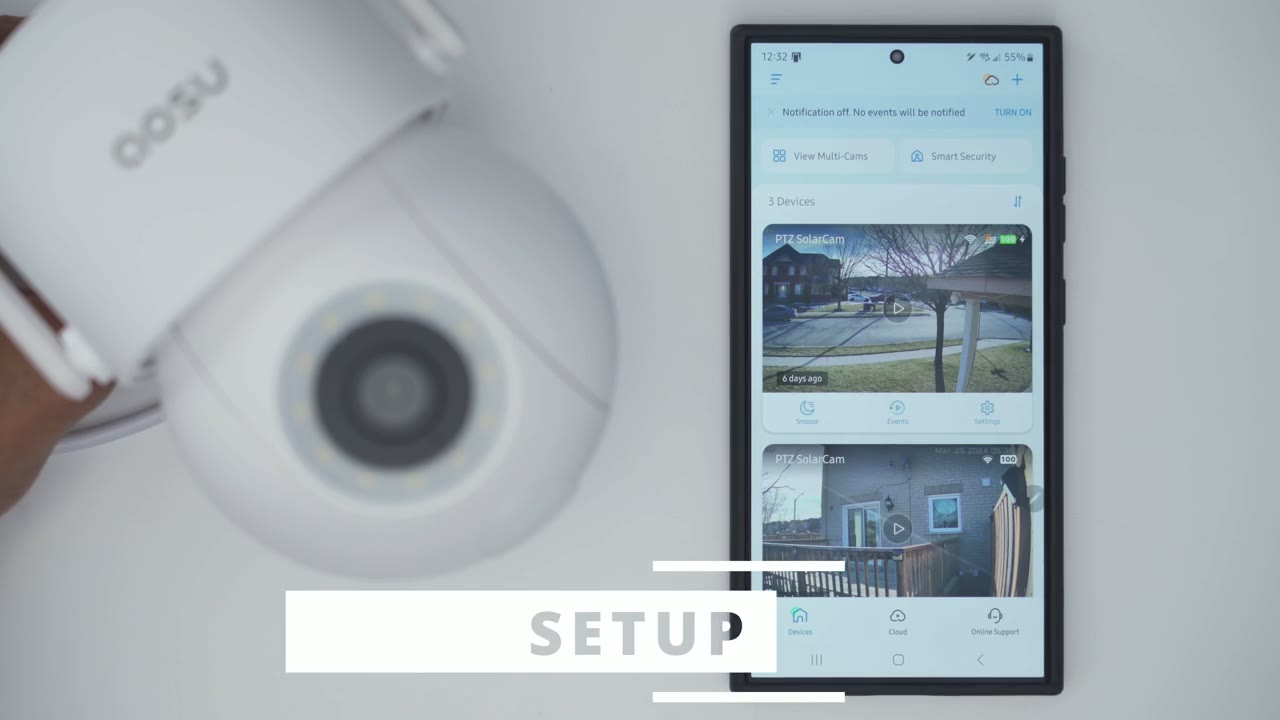
the camera in so I’m just going to add it to the outu app now so I’m going to click on plus here and then I’m just going to go ahead and add it it automatically found it very quickly and I’m just going to pick a 2.4 GHz Wi-Fi connection right here put in my password the camera is connecting to your Wi-Fi network it may take a moment please wait for a while save setting successfully so the camera was added really quickly I’m is going to start live view make sure that works and we’re good to install let’s
App Settings
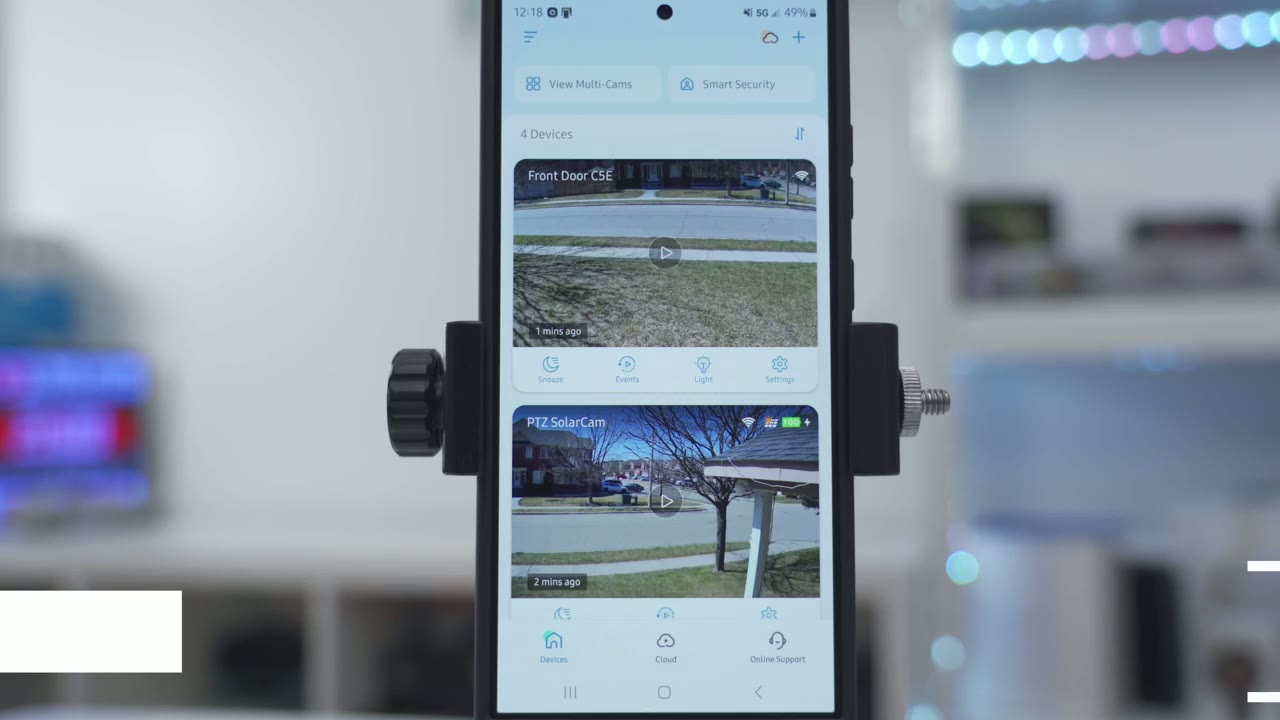
take a look at the U app setting so as soon as you open it up you could see what the camera last access when you looked at live view the Wi-Fi signal is great now I can go ahead and hit snooze and snooze this from you know 30 minutes up to 4 hours if I’m going to be coming and going and I don’t want to be alerted I could jump directly into events and you could see a defaults to local since I only have local storage I haven’t gotten the cloud plan right now and you can see that it breaks it down by you know passing lawn surveillance intrusion area these are all things you can set in the app and I’ll go over that later you can also turn the light on manually on or off right from here and you could set the timeout time for that and then you could go into the full settings of course but let’s start with live view first so I’m just going to jump into live view and that pulls up fairly quickly note that I am using my phone’s 5G network instead of Wi-Fi so you know whether you’re at home or away and you want to monitor it’s quite easy to do so so you can see it’s a pretty clear image very sharp and I of course I could go into you know a full screen View kind of zoom in and take a look across the street at whatever is going on so you know the video quality on here is quite good but let me get out of that now you can see it’s set to UHD but you can also set this to just standard definition if you want to save on bandwidth and of course while I’m looking at this I can just go ahead and take a manual recording if I saw something interesting while looking at live view and and then I can also go ahead and take a snapshot now if you set this to 24/7 recording you don’t actually have to take any manual recordings and I do have it set to 24/7 recording which is great and then you could turn sound on or off now really cool is this panoramic Stitch image that it’s generated so say I wanted to take a quick look at my backyard door area here I could just tap right over there and the camera is automatically going to pan over there now if I wanted to pan and tilt at the same time I could just look at this you know far lower area here you can see as it pans it’s automatically going to tilt as well and that’s quite responsive and it’s just going to go back to kind of like this default position when it’s done of course you can also manually pen and tilt as you see fit and that works really well and it’s very responsive as well and it actually pins pretty much all the way down if someone was standing you know directly below the camera and that works really well and of course you can also take a 360° look around if you like to looking at the bottom we could go ahead and turn the light on or off from here as well and I can also change the tone so it’s more of a m filter and you can hear the microphone pickup is really good as cars are coming and going it’s very accurate at picking that up now I can also start two-way talk and the speakers on here are so loud I’ll demo that later so you can hear that I can also go ahead and Trigger this alarm which is also going to be quite loud if I click on more I can go ahead and send out voice alerts so you know please put the pack at the door hey what are you doing here please get out of here but I didn’t find a way to record my own um you can also disable the tracking on or off if you just want the camera in a fixed position but I like it to follow then you can calibrate it and you can also set up this Cruise where it’s just going to cruise between you know preset points that you selected but for the most part I just like it on tracking but let’s take a look at the full settings and the camera is on you could temporarily turn it on if you want privacy or you just don’t want to be bothered you could change your camera camera name you can also share the device with friends and family which is very handy now if we go into AI surveillance this is where you have pretty much full customization over what you want to monitor Now by default you know it has human detection on and I also have the intrusion area set up now I set this up to test I will demo it later but basically you’re going to set kind of like a Zone and you could set more than one zone you can see I can drag out and you know just kind of resize this as I see fits you can have multiple zones on here and then whenever someone’s in the zone you could go into alarm enable that and then you could say hey I want you know the light to come on I want the alarm sound and you can play an alarm um a welcome you can play this voice command either of these two and then you could set how loud you want that to come on I will demo that later that works really well and it is quite responsive and then you get set you know do you want this every day or do you want this to just kick in at night on top of setting an intrusion area which is more for people and vehicles you can see there’s also an option for vehicle detection so that’s good anytime the camera notices a vehicle is going to record it you could filter it in the events now what’s really important is parking guard now this is something I haven’t been able to test on this camera because I installed it on the side of my house not on my garage but I did test U’s flood light cam which has the exact same feature and it works like a charm there is something called lawn surveillance and this is anytime there’s a human or animal intrusion on on your lawn whereas when we went into intrusion this is for human or vehicle so you know a little bit of a difference there but either of them work really well and then you also have this option for pet detection which is a beta feature and looking at the surveillance settings so we can see motion detection is on I’ve set it to intelligent detection I only want to be notified of humans animals and vehicles if you put it to detect all like it’s saying there may be false alarms like say the trees swaying in the wind or something like that and then try motion is also on now I left it on the default sensitivity which is just one level higher than middle and it’s been so quick and responsive so I just recommend leaving it on the default we can also go into Auto cruise and I normally don’t use this but just to show you how it works you can set a panoramic cruise is just going to automatically horizontally pan or you can set a spot Cruise where you can actually just you know rotate the camera to four preset spots and it’s just going to cycle through those like I have set up on here you can also set when you want the autoc cruise to take place so right now the default is Mondays to Fridays 9: to 5: but you can also set you know custom time periods if you like under notifications you can decide to receive notifications and you can decide if you want it you know all day every day or if you just want to get those at certain times of the day so you’re not bothered now I have it set to immediate mode so as soon as it detects motion it’s just going to go ahead and send me an alert this is the quickest way or you can set it to intelligent mode where it’s going to kind of perform an analysis with it its algorithm and then send you an alert under Cloud recording this is where you would go if you just want to buy a cloud plan now I’ve tested this camera without any Cloud plans and it’s worked faultlessly for me so it’s not something that’s needed but you can activate a 7-Day trial if you like and you do have plans that start at $1.99 for a twood device plan and then you could go up to three device 5 device Etc under local recording mode this is where you could set it for 24/7 recording which is what I’ve set it to so if it’s going to be encrypted and it’s going to be circularly stored so as soon as the memory card gets full it’s going to override the oldest file or you could set it to record by event so you’re just going to cycle through event based recordings I recommend just leaving it on alltime recording so it’s always recording and then you could just filter by event under video and audio you could set the streaming quality so I set it to the 3K quality but you can set it to smooth if you’re internet connection it’s not as good and then for night vision mode I’ve just left it on automatic and it’s been working flawlessly for me but you do have the option to set it to intelligent night vision or to turn off the infrared light and then you could set the speaker again they do get quite loud and you could set if you want to record sound or not under light settings this is where you can set a delay for turning off the light so it can be from 30 seconds all the way up to 15 minutes and then you could set it for the manual lighting so anytime you turn the lights on manually you know it’s going to stay on always or for 30 minutes all the way up to 5 hours and then you can also set the brightness adress adjustment you can also set a schedule for when you want the camera to sleep you may want it to sleep during the day and just to be active at night and then I do recommend keeping the LED status light on to let people know that the camera is being powered but this is really only going to show up basically at night so during the day I’ve just set it so that you know the LEDs come on by setting a lawn intrusion area you can also turn the status LED light on or off but it’s only going to be something they kind of notice at night during the day it’s a little bit under powerered to really see and we do have access or compatibility with Amazon Alexa and Google under about device this is where I could take a look at my memory card space how much I’ve use how much is remaining and my signal strength is great as well by the way if you’re finding this video helpful please consider liking it subscribing but let’s get back to it to review recorded video
Video Playback
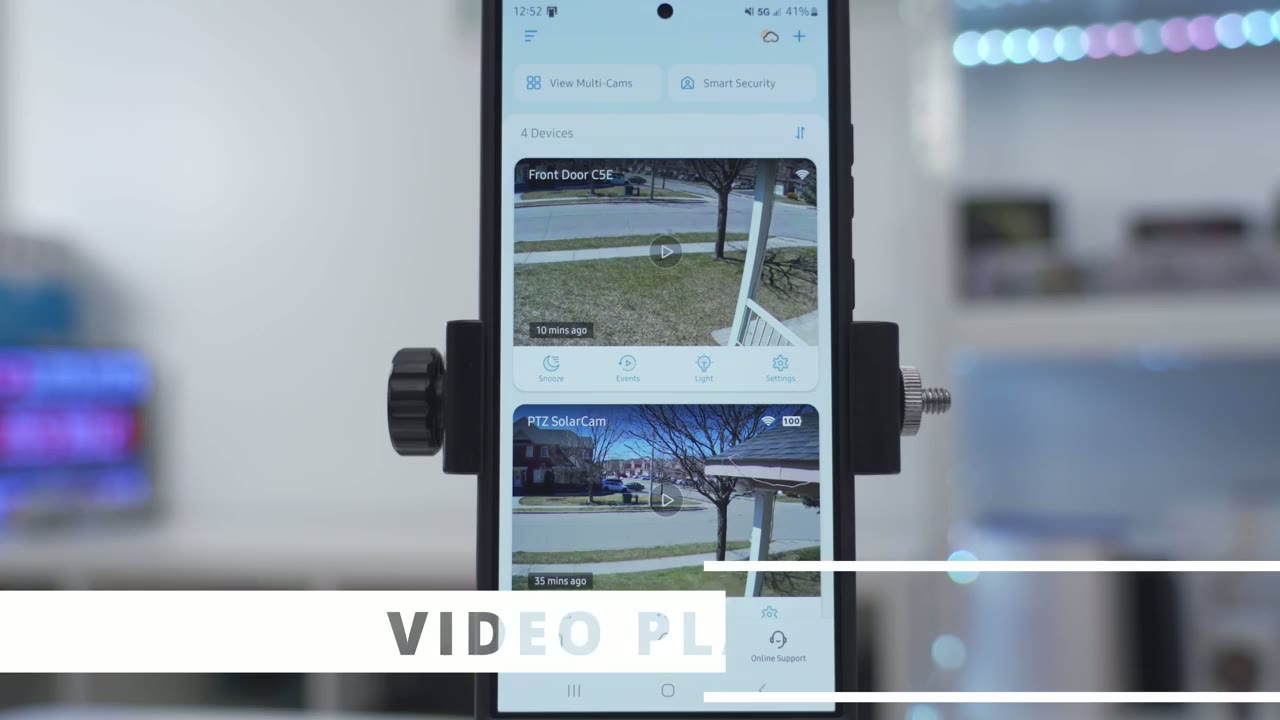
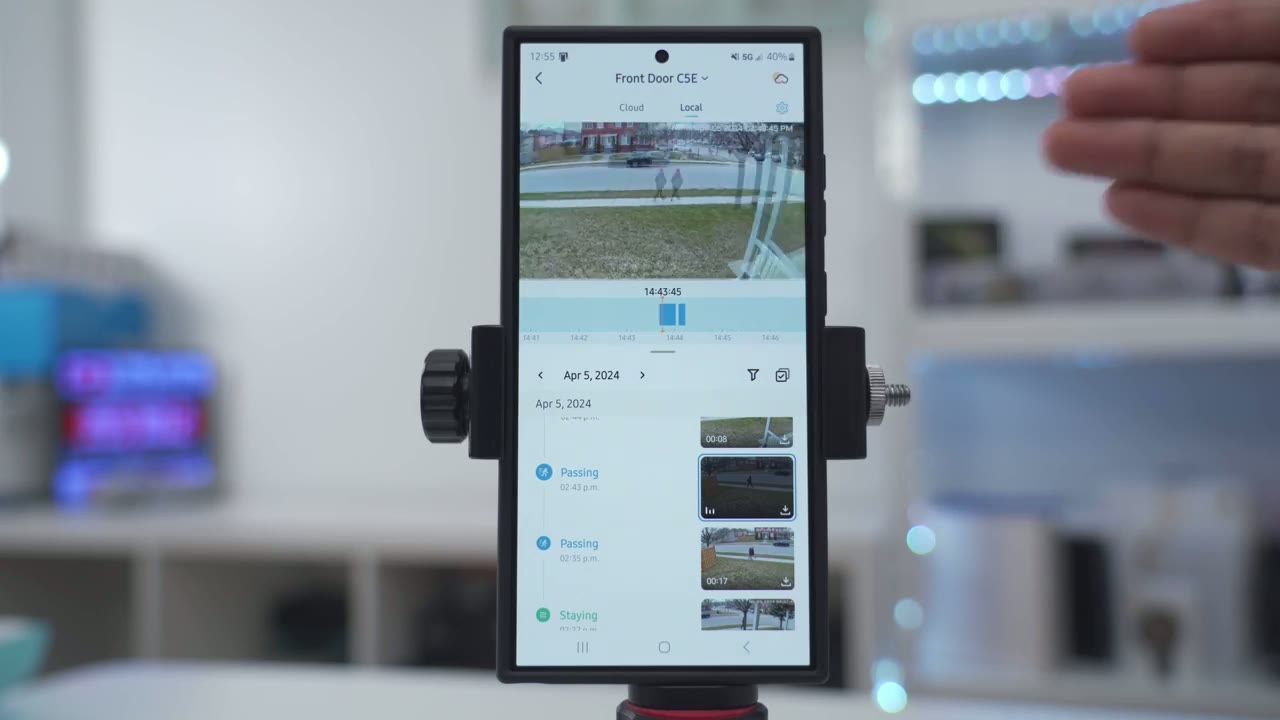
will tap on events and you can see it defaults to local because I don’t have a cloud plan and you can see right way that’s quite responsive and the tracking is just so smooth on here if I tap on the other clip right below little it give that a sec to load up again very responsive tracking now if I tap on lawn surveillance here this is from me testing this earlier to see how this feature worked and you can see because I stood there for quite a bit of time it’s a huge chunk of recording but I was just kind of pacing back and forth to see how well the camera panned and tilted in real time which it did now under intrusion area this is where I set it up so that I could just kind of play around with that and hear the alert so you can see that was very quick now I’ll play the second clip once I clear the fence it just pans towards me and quickly issues that alert within a matter of seconds warning you have entered a high def surveillance area and here’s another demo this is a private area please leave immediately so you can see that’s just very quick and responsive at you know capturing me as soon as I emerg from the fence and then issuing me that alert and that’s going to work just as fast if you use the parking guard feature as well now one thing to note is you could see that this is kind of broken up into different chunks of what happened in the day now what I can also do is I can just go into let’s go into yesterday there was more going on and I could say hey I just want to be notified if there was a pet for example I’ll hit confirm and you can see it’s showing this first clip there’s a pet and this one has a pet and a person so I’ll top on the one with a pet and a person and sure enough there is a pet and a person there and I’ll just tap on this one with a pet and again this is a beta feature so it didn’t pick up the people this time but it definitely picked up the their were pet so that works very well and you can see there’s just a bunch of different type of filters that you can apply depending on what you have set up in the app one thing to note is that you could see on a lot of these clips I do have a thumbnail preview so I know what I’m clicking into before I actually tap on the video so this one right here I can see that there are two people walking for example but on a lot of the other Clips here you could see the thumbnails are not generated yet so there seems to be a little bit of a delay with this system in terms of how it generates in some cases you know there’s a ton of thumbnails and then in other cases you know they haven’t been generated yet just something to be mindful of and since this camera does record 24/7 I actually don’t need to you know take a look at what actually is transpired in one of these blocks I could just scroll through to any time of the day and take a look at what’s going on so you know there was a car moving there it didn’t tag it but if I just move over into this recorded event is going to pull up a person so yeah if something was just far out of the detection Zone I can actually just scrub through this horizontal timeline and take a look at it very convenient and handy the video quality
Video Quality
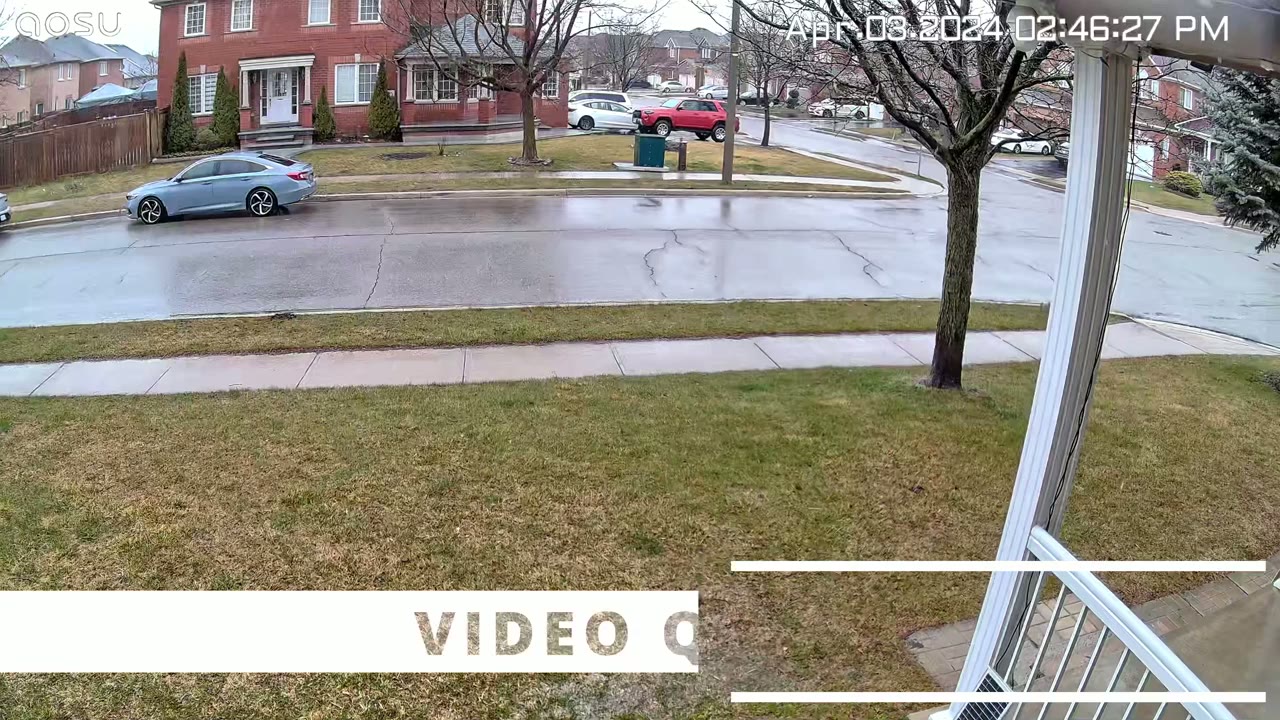
on here is fantastic so we have 3K resolution at 20 frames per second so the video is also fairly smooth now during the day it fared wonderfully and it didn’t matter if if it was a very bright and sunny day if it was an overcast day you know dust or Dawn it was just clear all the way through and it was really easy to make out faces and pets if they were up close or far away and even with direct sunlight pointed at the camera lens it still handled everything well night vision video was equally as good so in the camera settings I just left it on the automatic setting but you do also have the option to have it with the black and white version or you can also have it with just you know no help and it’s just going to rely on ambient light around your house that can also work if it’s bright enough but but in general it’s best to leave it on the automatic
Spotlight
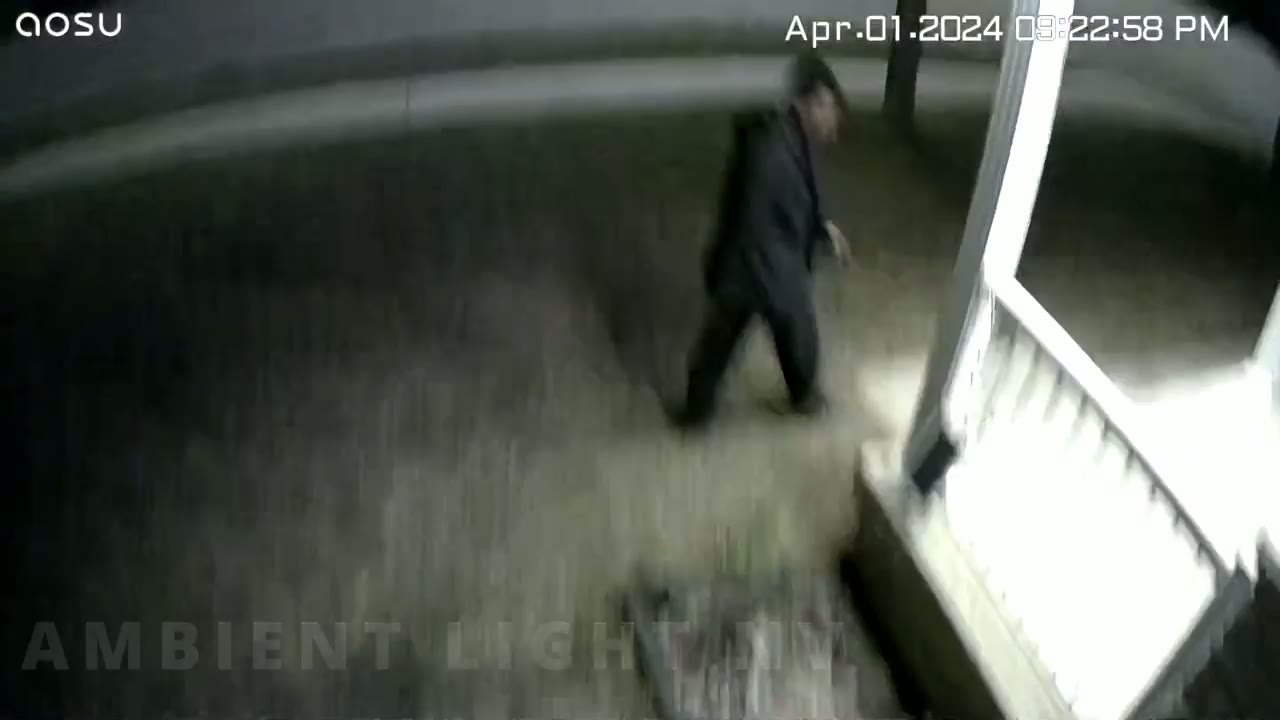
setting the spotlight on here is also plenty bright at 400 Lumen so this makes it an awesome deterrent if you’re going to be placing it on say your driveway or you know to monitor your garage and you’re using the parking guard or intrusion feature now for me I used it at the side of my house and it also did a fairly good job at Illuminating the side of my house anytime there was motion detected so the motion detection
Motion Detection
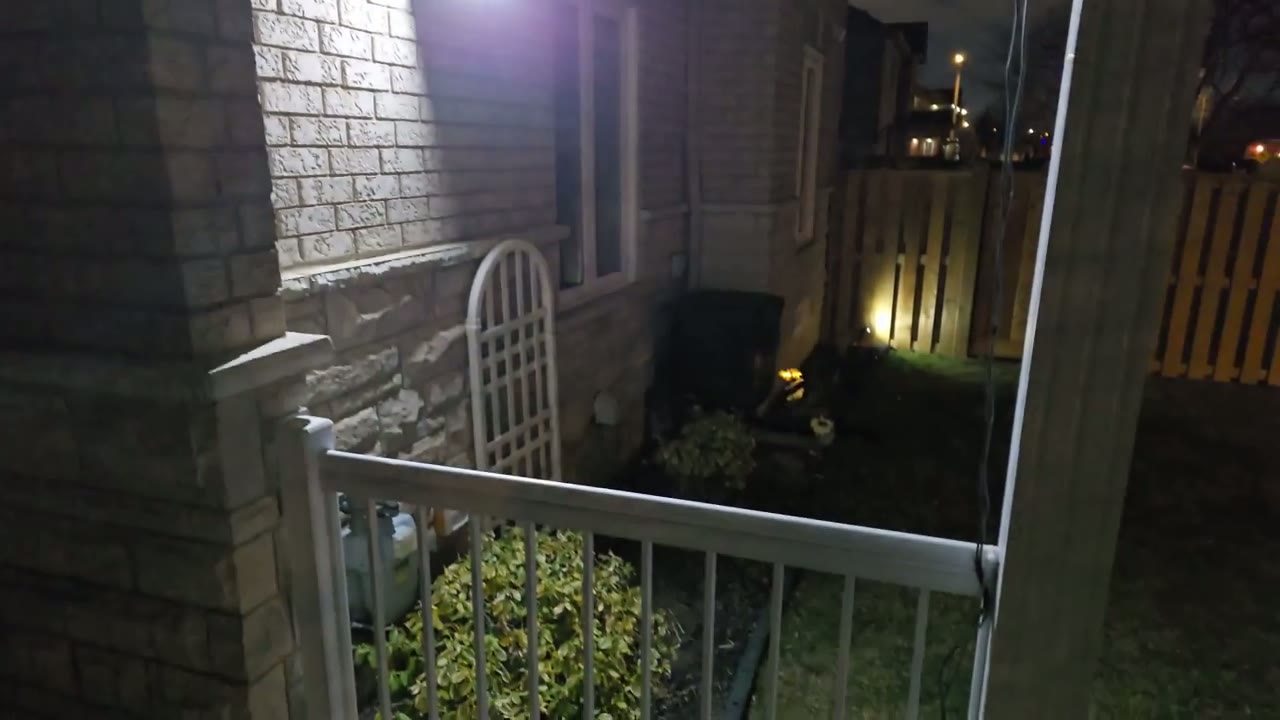
was truly stand out with this camera system it was very quick at detecting me and sticky afterwards and I did a couple of tests where I kind of hid behind my fence you know walked out and the camera quickly got a hold of me and then issued any type of intrusion warning or alarms which I’ll play later on to demo it now the other thing is this also worked very well at night so I walked kind of on the sidewalk in front of my house I also walked in the middle of the road which is about a good 30 to 35 ft away and this is rated for about 30 to 50 feet away so it definitely is capable of tracking people or subjects from a far distance and still panning and tilting once I tapped on an app alert which comes very quickly since I’ve set it to the immediate mode it quickly pulled the app up and jump me into live view and then I could get a live view of whatever was going on and you could see in this clip I’m just walking back and forth just pacing back and forth and it’s a very quick real time update with very minimal delay if you decide to set up specific detection zones in the ASU app whenever you get those app alerts on your phone it will reference the exact zone so you know right at a glance exactly where motion is is occurring here’s a demo of the intrusion feature
AI Surveillance
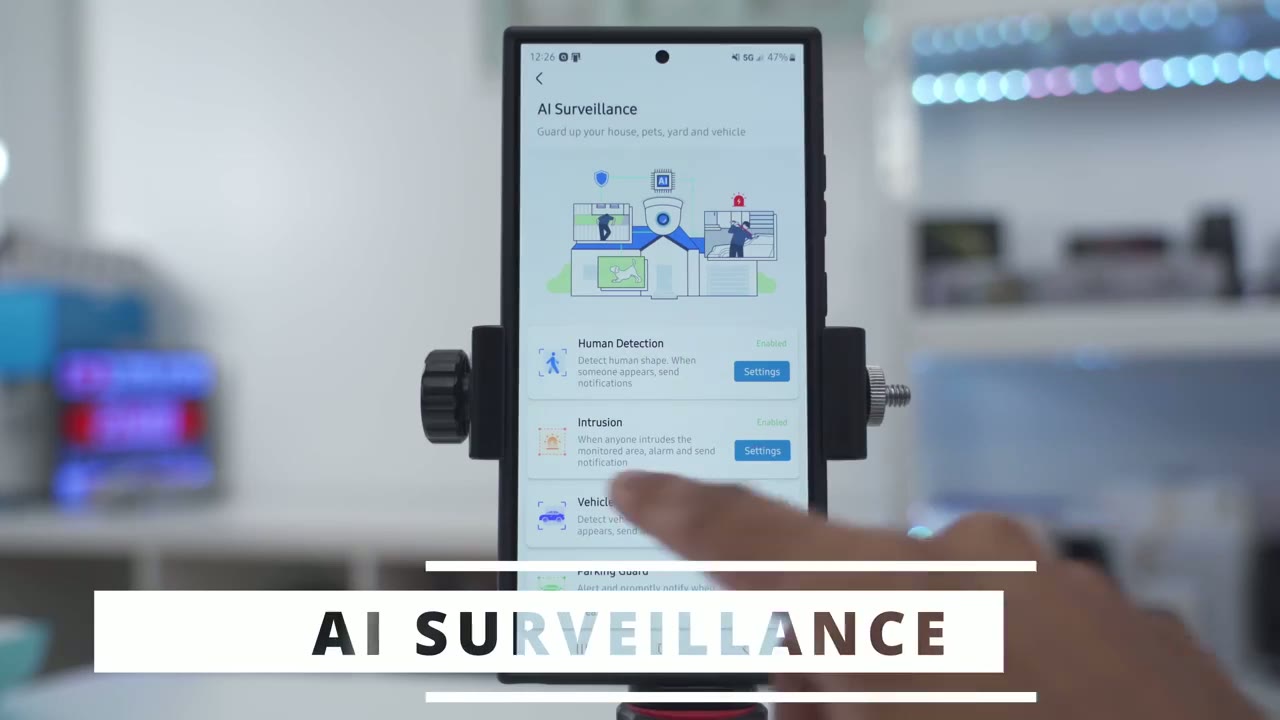
and the lawn surveillance feature this is a private area please leave immediately warning you have entered a highdef surveillance area now I live in
Parking Guard
an area where there is a lot of car thefts ongoing and the parking guard feature on here is something I really wish I could have tested but because I didn’t Mount this or install it where my garage is I couldn’t test that feature out however I did test that feature on asu’s floodlight camera and it performed wonderfully there as well so I’m just going to play a demo of that so you have an idea exactly how it would work with this camera system do not approach the vehicles stay
Pan & Tilt
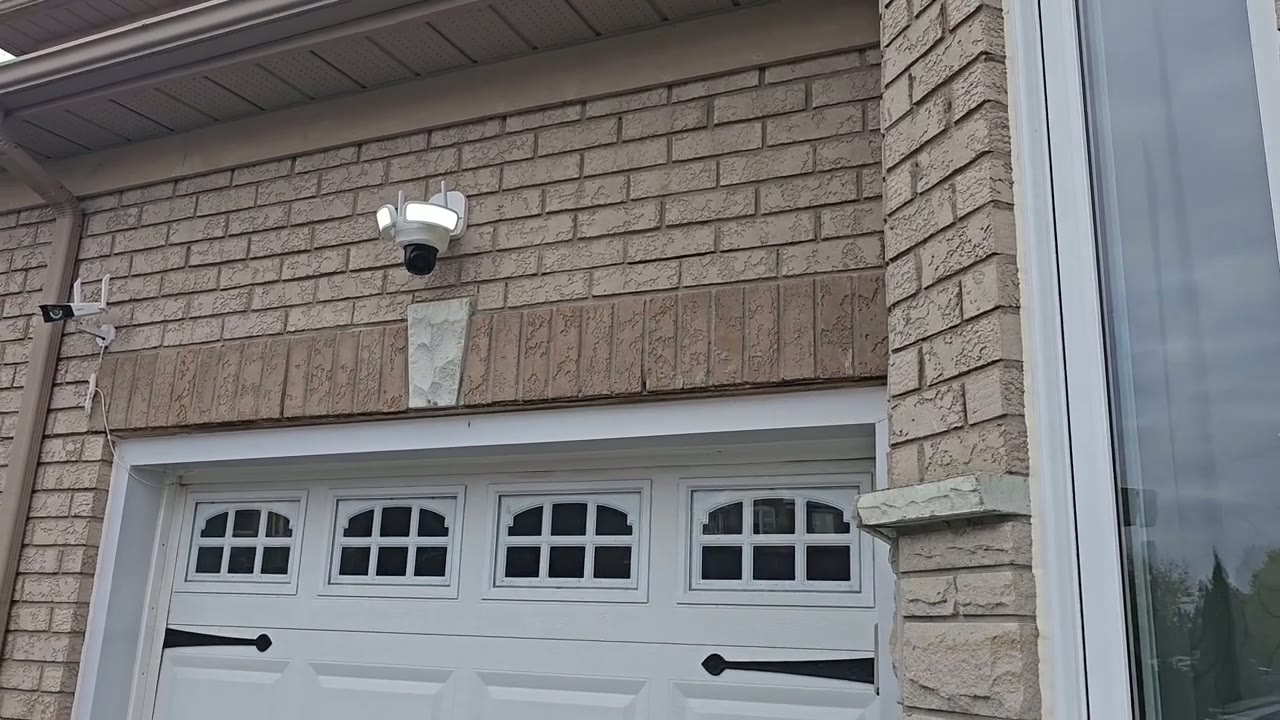
clear there’s also a ton of pan and tilt customizability so you can do that manually you can do it with the auto Cruise you can use the panel Stitch function where you just tap on an area of the generated image and it’ll just pen until directly there or you can just leave it to the AI Auto tracking which is what I’ve left it on and it’s worked wonderfully all right let’s talk about
Speakers
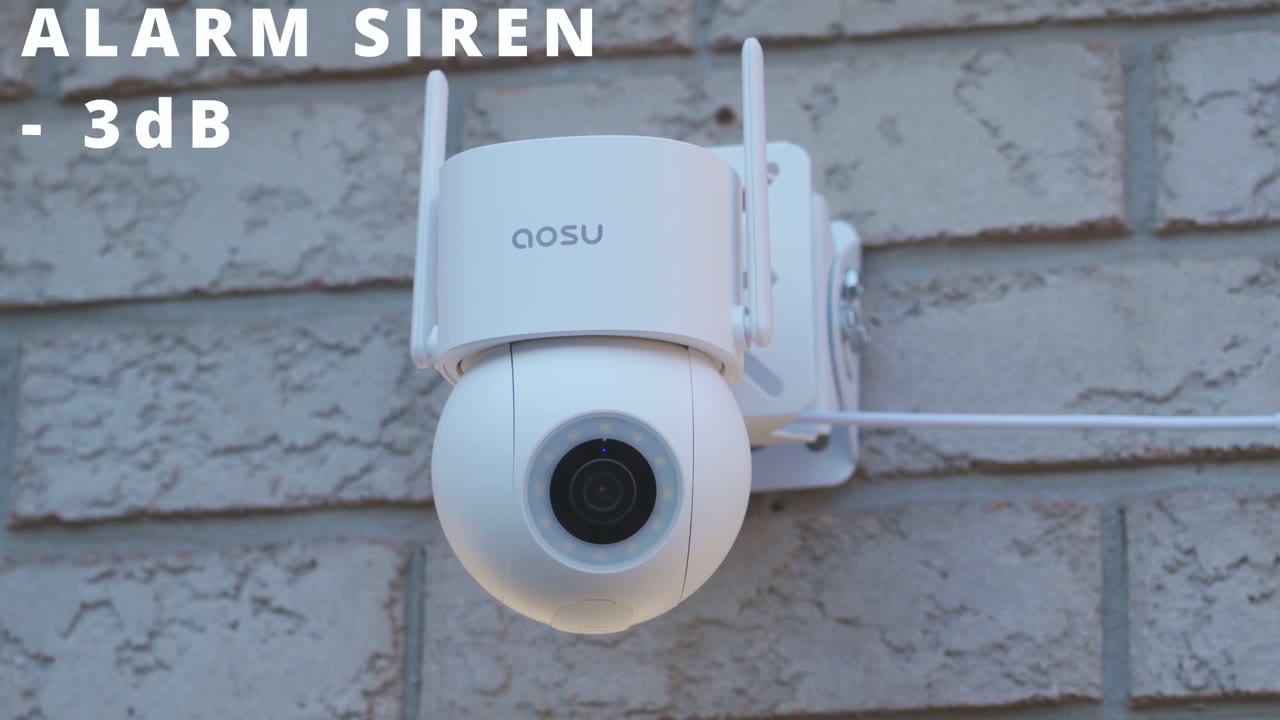
the speakers and they are just so super loud on here and I think that’s asu’s claim to fame any of their security cameras you buy expect a really loud speaker and I think that’s something a lot of Brands Overlook because you want to use that as a deterrent so whether I use just you know like an alarm siren or I played one of the warning messages that are Auto recorded on it it was super loud and here’s a demo of what that sounds like here’s an example of what 2A talk sounds like on a very windy day let’s put the package at the door thank you hey what are you doing here please get out of here now all right let’s talk storage and I
Storage
have some great news so auu has allowed us to have up to a 512 GB micro SD card and this is something that I wish a lot of other security camera brands would do because if you’re selling a camera that has 24/7 recording at minimum we should be able to insert you know 256 but 512 to 1 TB is ideal now with this camera recording at 3K video quality and recording sound at the same time I’m estimating I’m going to get 56 to 57 days of video playback history that’s basically 2 months of video playback history at 24/7 recording at 3K quality that’s just fantastic so it’s been a
Recommended?
while since I reviewed a security camera that just ticks every single box for me and the U c5e is one of those cameras yes it is hardwired so you are going to have to run wiring but it’s just one single cable that’s very easy to do and it’s super easy to install it and look at the features you get 3K recording 24/7 recording automatic panning and tilting very quick motion detection the app pulls up quick a very bright Spotlight very loud speakers and there’s no monthly fece there’s really nothing to not like about this camera so if you’re interested in picking up the ASU C5 security camera I’m going to leave some links down below and if I have any type of coupon codes I’ll leave those down below as well this is a seriously awesome camera if you’re looking for a hardwired option if you made it all the way to the end of the video a big thanks for watching all the way through and please consider liking and subscribing it truly does help me out a lot as a growing Channel and don’t forget to check out some of my other security camera videos as well and I’ll see you in the next one soon
Please note that some of the links in my video descriptions are affiliate links where I earn from qualifying purchases. As an Amazon Associate I earn from qualifying purchases.

