


Buy 512 GB microSD Card on Amazon
Buy 256 GB microSD Card on Amazon
Buy 128 GB microSD Card on Amazon
Please note that some of the links in my video descriptions are affiliate links where I earn from qualifying purchases. As an Amazon Associate I earn from qualifying purchases.
Intro
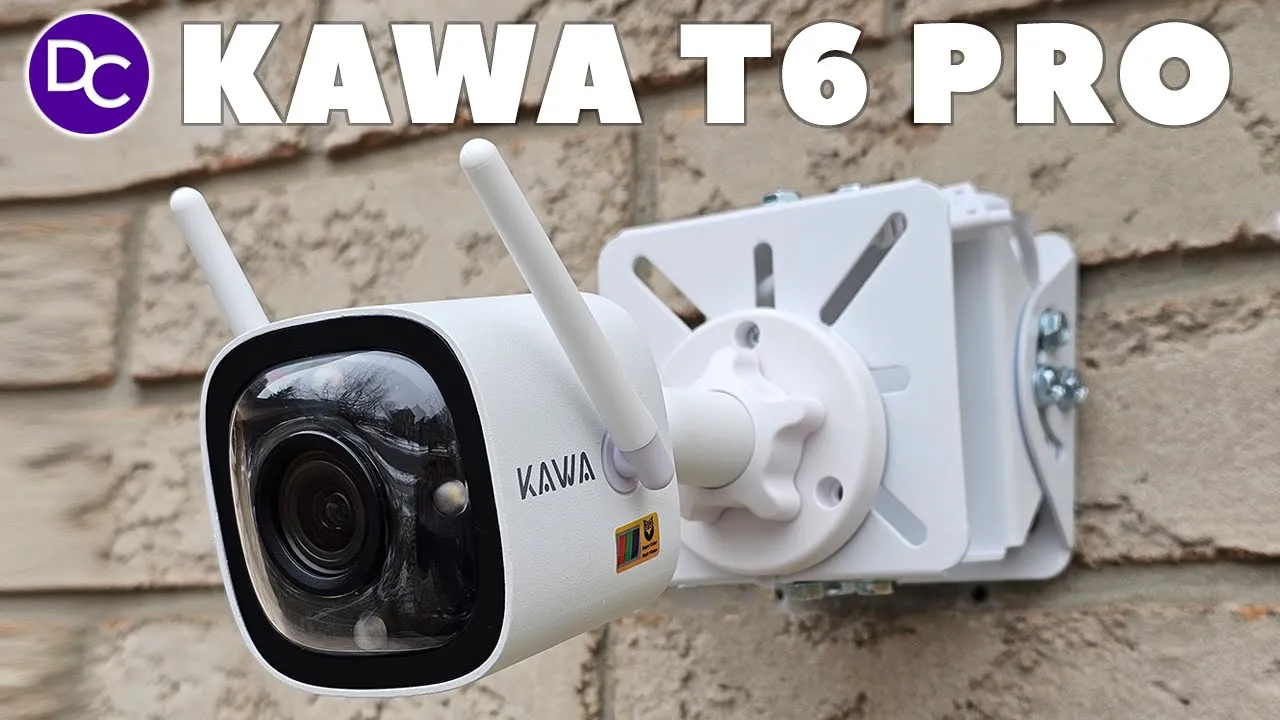
hey guys it’s Adrien and today I’m taking a look at this Kawa T6 pro security camera now what makes this a truly unique camera is what they call their true color night vision and that’s because even at night you can have pretty much like daytime kind of color viewing conditions thanks to their large f1.0 aperture and advanced image algorithms in addition to that we have a 4 megapixel sensor capable of 2K resolution we have a spotlight siren human detection we can have it set up either Wi-Fi or Poe and more a big thanks to Kawa for sending the T6 Pro out for review but let’s take a look at how well that color night vision truly works and if this is a great option for
Package Contents
you in the box we have the Kaa T6 Pro we have the power adapter mounting gasket screws positioning sticker guide and weatherproof seal for the RJR Ethernet
Design
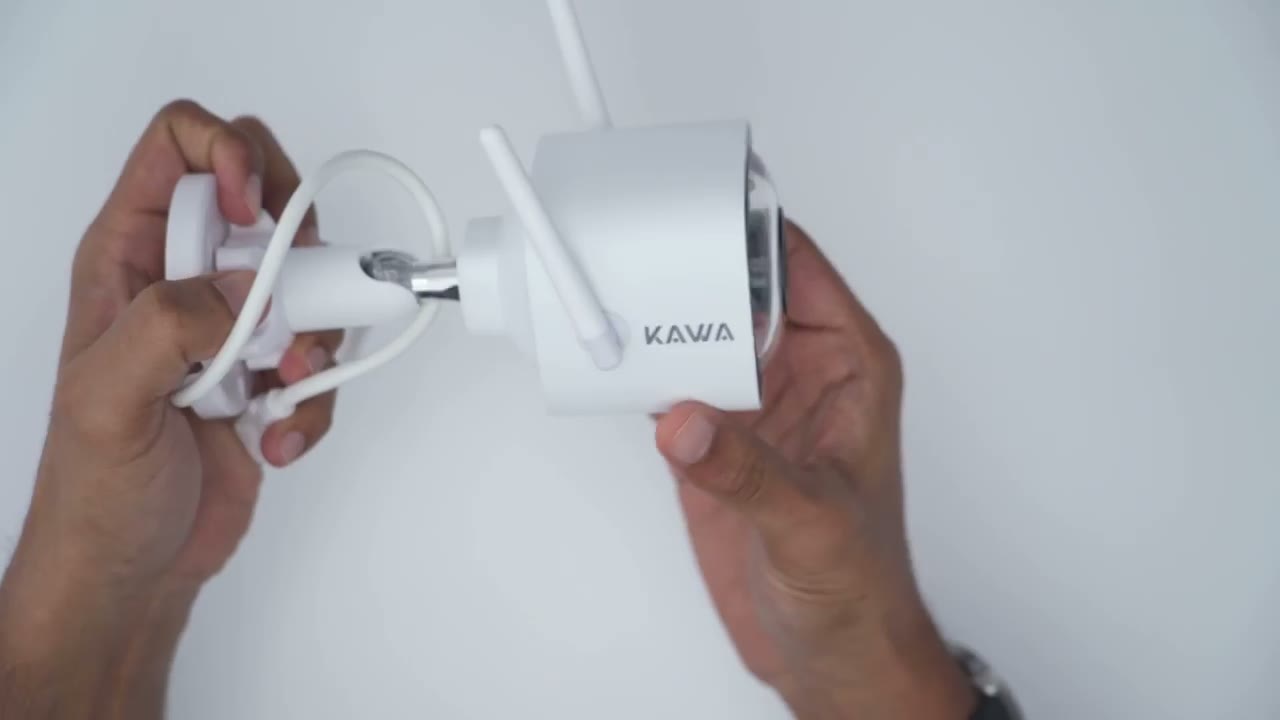
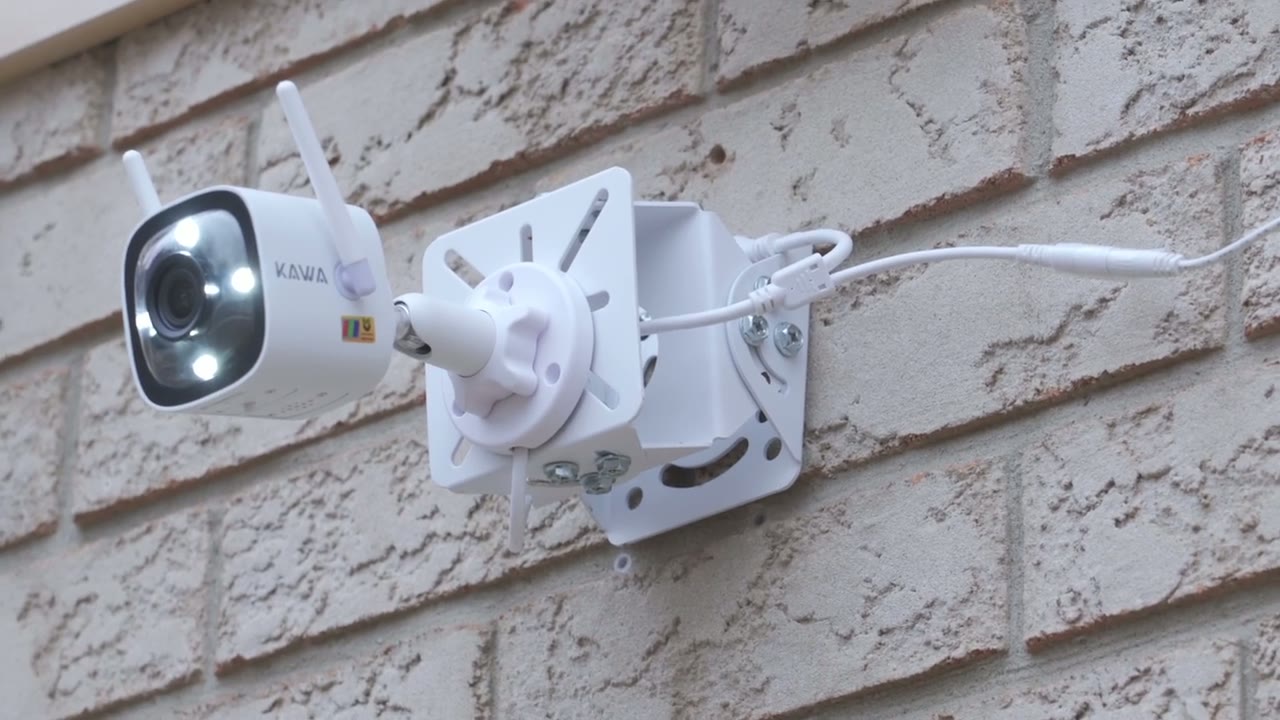
cable so the design of the Cava T6 Pro is actually pretty impressive it’s a much nicer camera than I thought it would look like and it comes in at around 350 G or about you know 0.7 0.8 lb now this is kind of like a metal type of build at the front here and then we have a plastic type of Dome covering that you can see right there we have the spotlight the camera module at the very bottom we have a speaker and then we have you know a weather sealed area with two screws and it gives access to the micro SD card and then we also have a reset button and this can hold up to a 256 GB micro SD card now at the very back this is where we have the mount and this is what you’re going to drill you know into your wall and of course you can just just you know easily separate this so that you could drill it in easily and then you know attach everything back afterwards just to make your life simple and then we also have the pre-and wiring which has you know the power adapter cable is going to go in the small one um to power it and then we can also do it you know power over ethernet with the RJ45 cable so you have two options now if you do decide to just power it with the power adapter and you don’t use the ethernet cable which is probably what I’m going to do then you know you do have the option to connect this to your network by w Wi-Fi to install this the installation process is very straightforward so either you can just have this wall mounted you’re just going to drill three screws into these holes and tighten this locking nut once you set the angulation of course you can also rotate this up and you know kind of have it like ceiling mounted a little bit and then you can just adjust the antennas so I’ve removed the screws from the protective cover at the back here to get access to the micro SD card slot so you can see once you remove that little Rubber seal there this is where we can go ahead and insert the micro SD card I’m going to put a 256 GB card in there
Specs
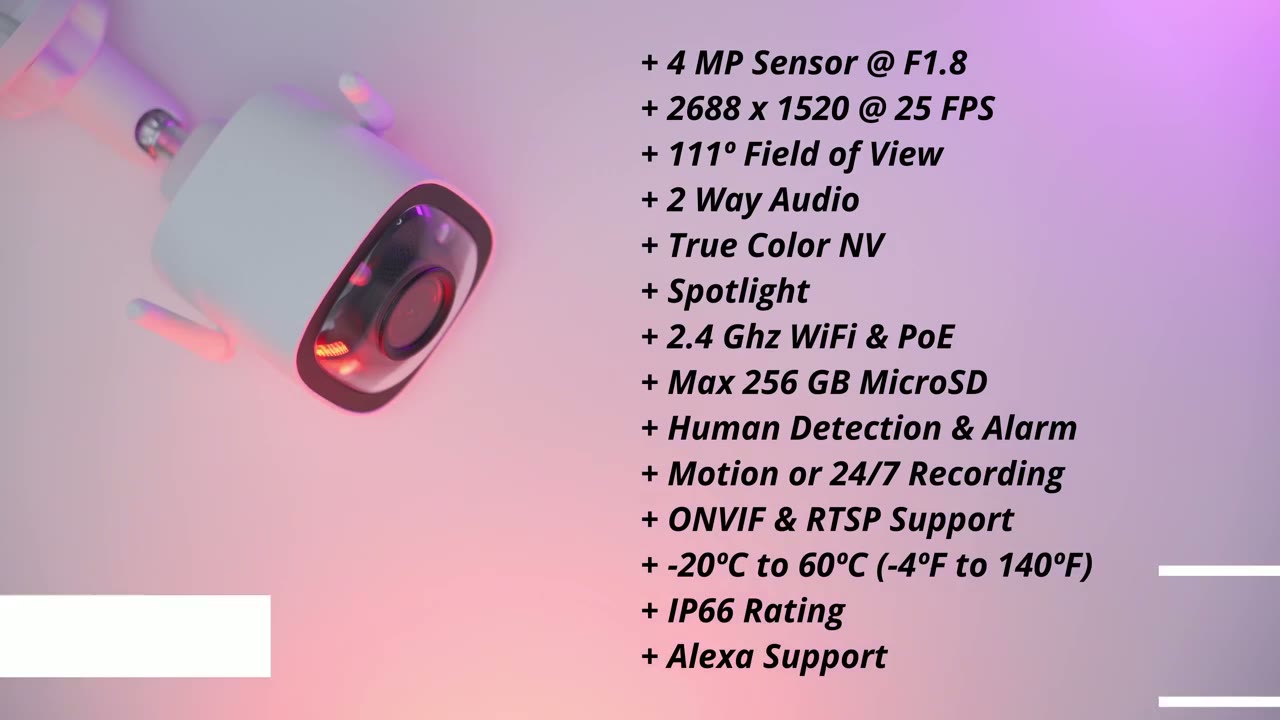
specs include a 4 megapixel sensor with a resolution of 2688 X 1520 at 25 frames per second there’s an f1.0 aperture 111° field of view 2-way audio true color night vision a spotlight 2.4 GHz Wi-Fi Poe support or wired power and up to 256 GB micro SD card support human detection alarm motion recording or scheduled recording is available we also have onv and rtsp support -20° C to 60° C operating temperature ip66 rating and Alexa support let’s add the T6 Pro to
App Setup
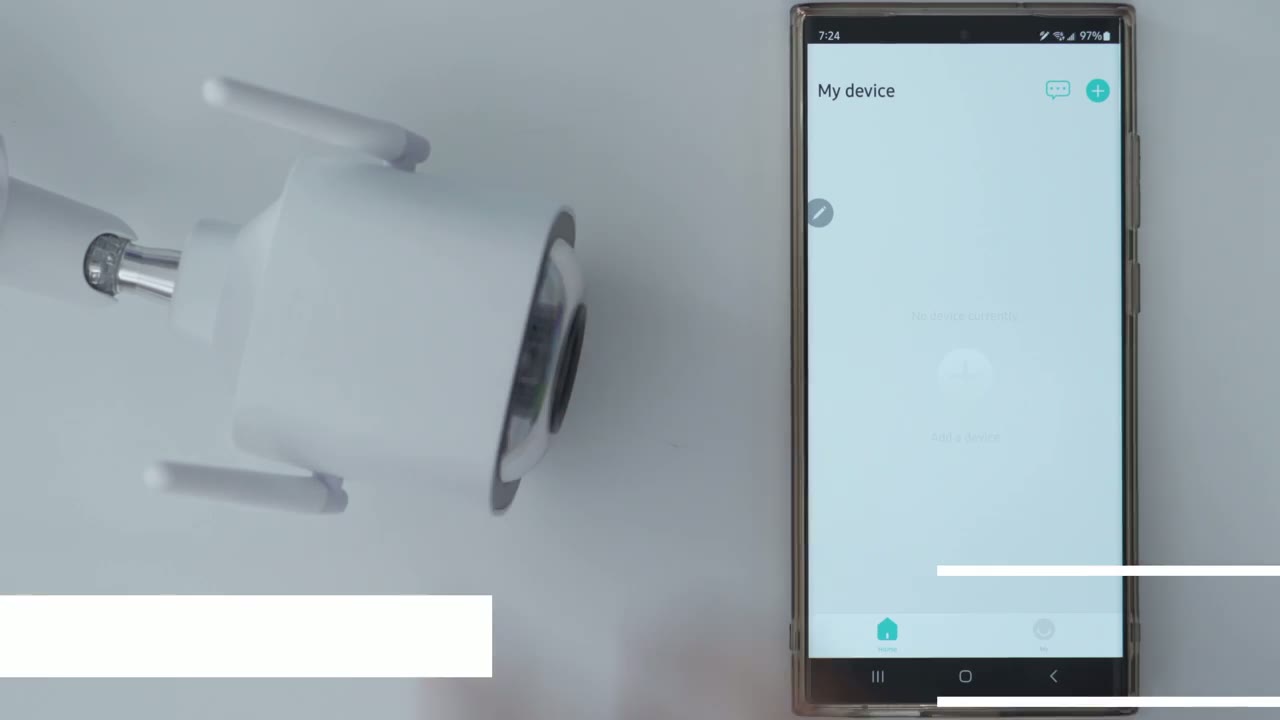
the Kawa app so I’m going to click the plus sign here pick the T6 Pro I’ve already inserted the micro SD card I’m going to skip this step and I’m not using power over ethernet I’m just going to use the power cable so I’m going to skip all of this now it says to press the button at the bottom of the camera there we go and I heard the beep and I’m going to connect by Wii not power over ethernet of course and pick a 2.4 GHz connection which I’ve done I’ve inputed my password already and now what we’re going to do is we’re going to connect to the camera’s hotspot which is going to be called Kawa with some numbers so let’s just go into our Wi-Fi settings and we’re just going to wait till we see that pop up now you can see my phone is refreshing to search there we go so Kawa and very important this step make sure you see it say connected so let’s see okay so you can see it says connected without internet not secure that’s what we want and now I’m going to go back into the app and I’m going to wait for it to completely finish the pairing process all right and it’s that simple guys so everything is connected now that the camera is added to the app I’m just going to start live view to make sure everything loads up before I install it and I can see that the live view is working so the next up is going to be to install now installation was super
Installation
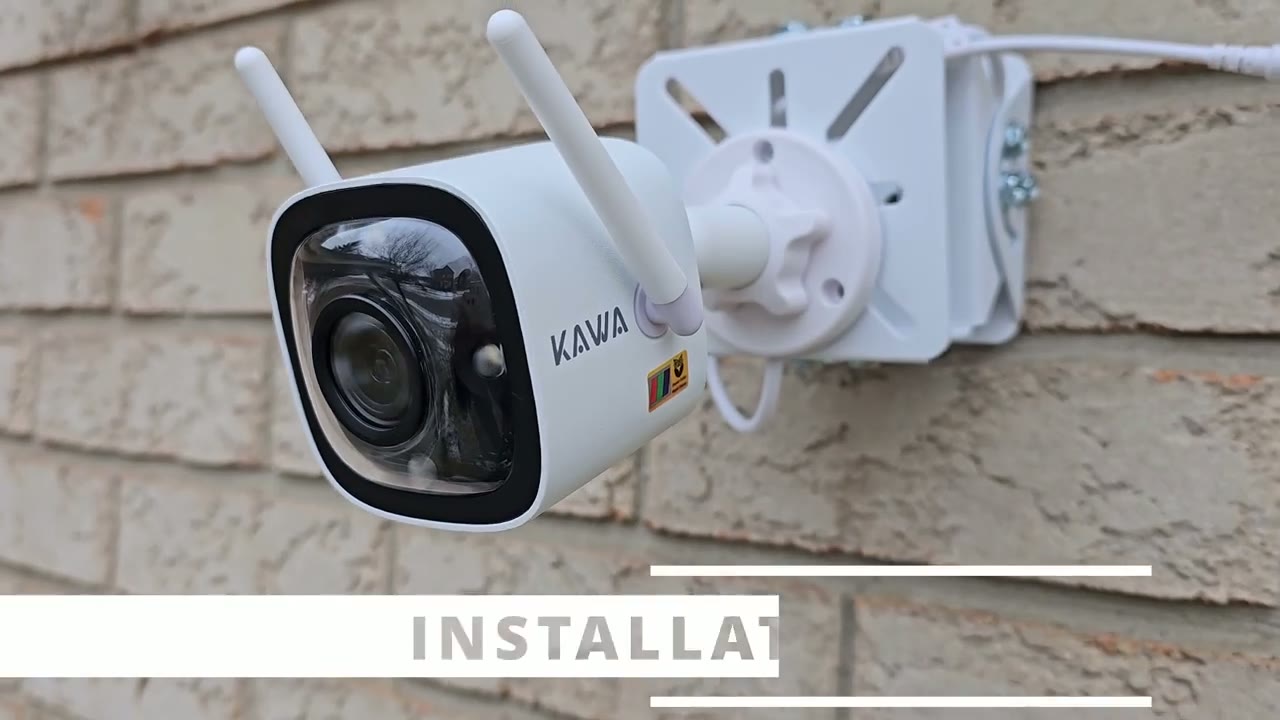
simple with the Kawa T6 Pro now I did use a special tap of Mount to allow me to kind of you know adjust the angulation and tilt without actually doing it on the camera and I’ll leave a link down below if you want to check
Video Quality
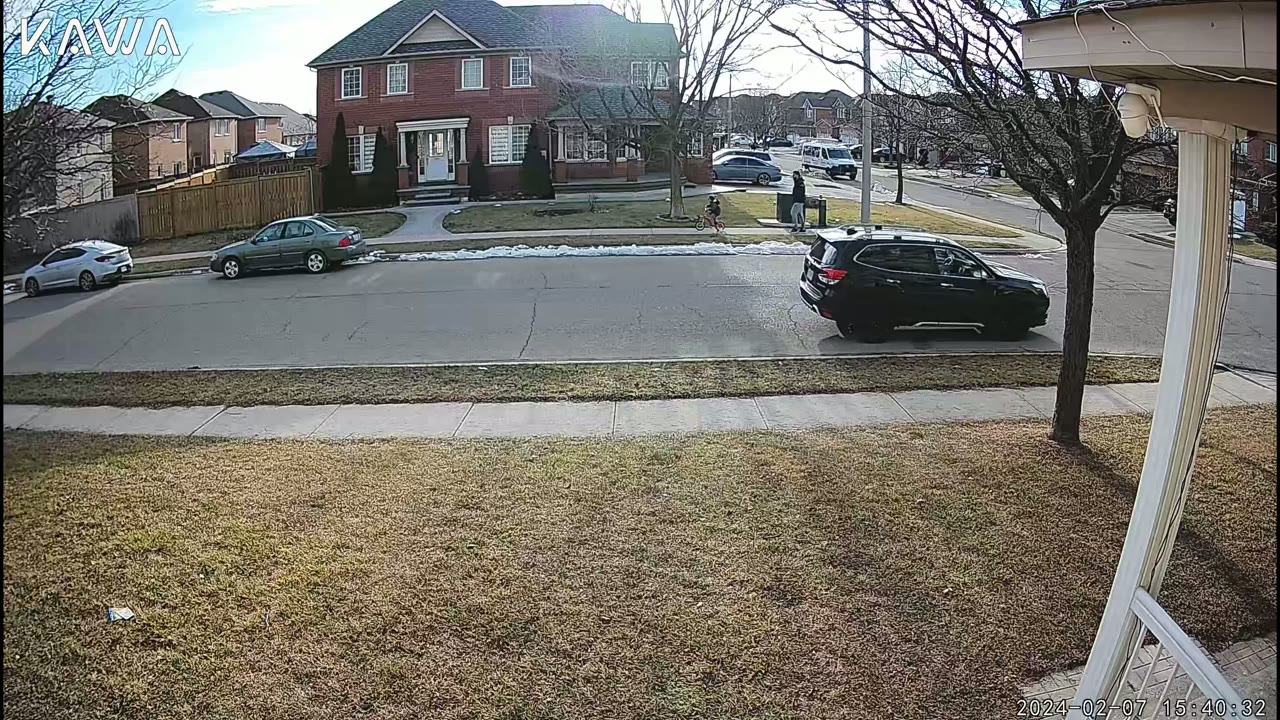
that out now the video quality on here was good and very smooth at 25 frames per second which is pretty good because a lot of camera brands just give you you know 20 or maybe even lower than that now video during the daytime was good very well exposed and even with the sun shining directly at the camera it handled it well and same with night vision thanks that they true color night vision it was fairly easy to make out details the one area where I had issues though is sometimes with the video I did notice a little bit of artifacting I thought maybe that could be to the micro SD card but I noticed that even with it you know downloading or kind of uploading to cloud storage I did notice that as well and then there is also you know the kind of AI smart tagging where it follows people around and I noticed that was a bit hit and miss as well so it’s probably something I would just turn
Speakers
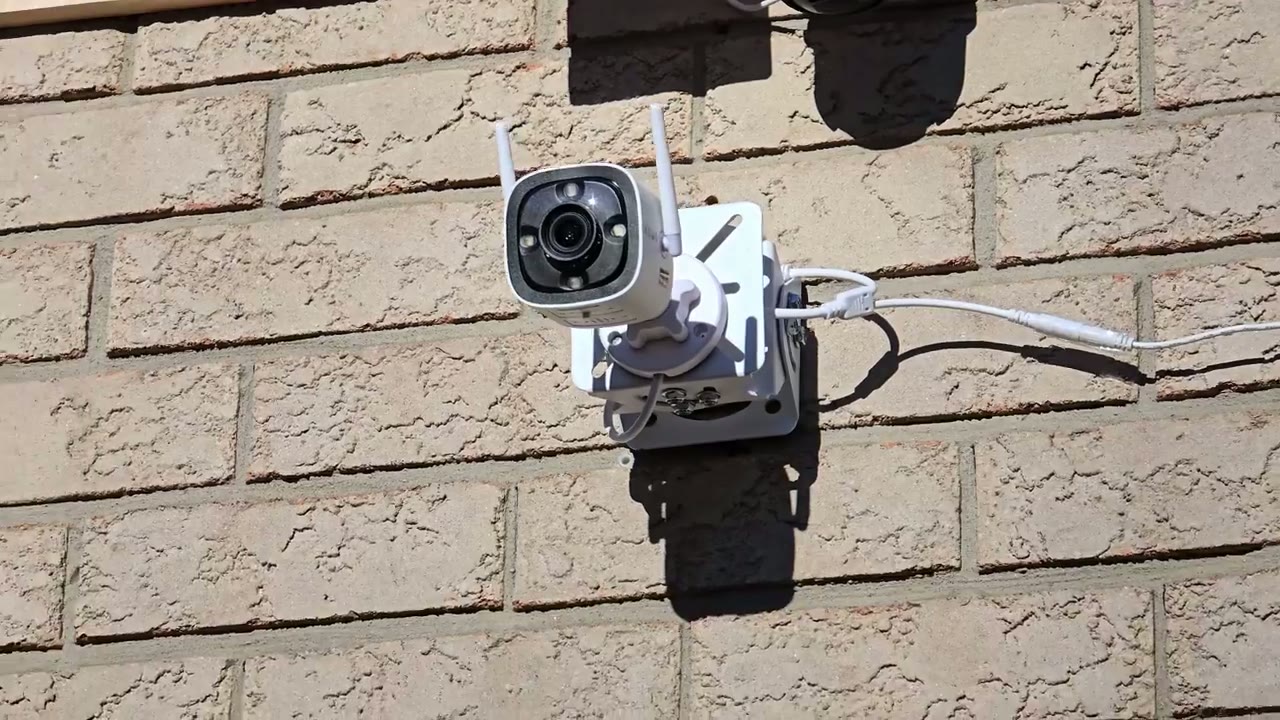
off the speaker on here did a fairly decent job when it came to triggering you know the alarm or a siren or having two-way talk but I do wish it was a little bit louder because especially on you know windy days or if you have you know a lot of background noise with cars coming and going it could be harder to make out the
Spotlight
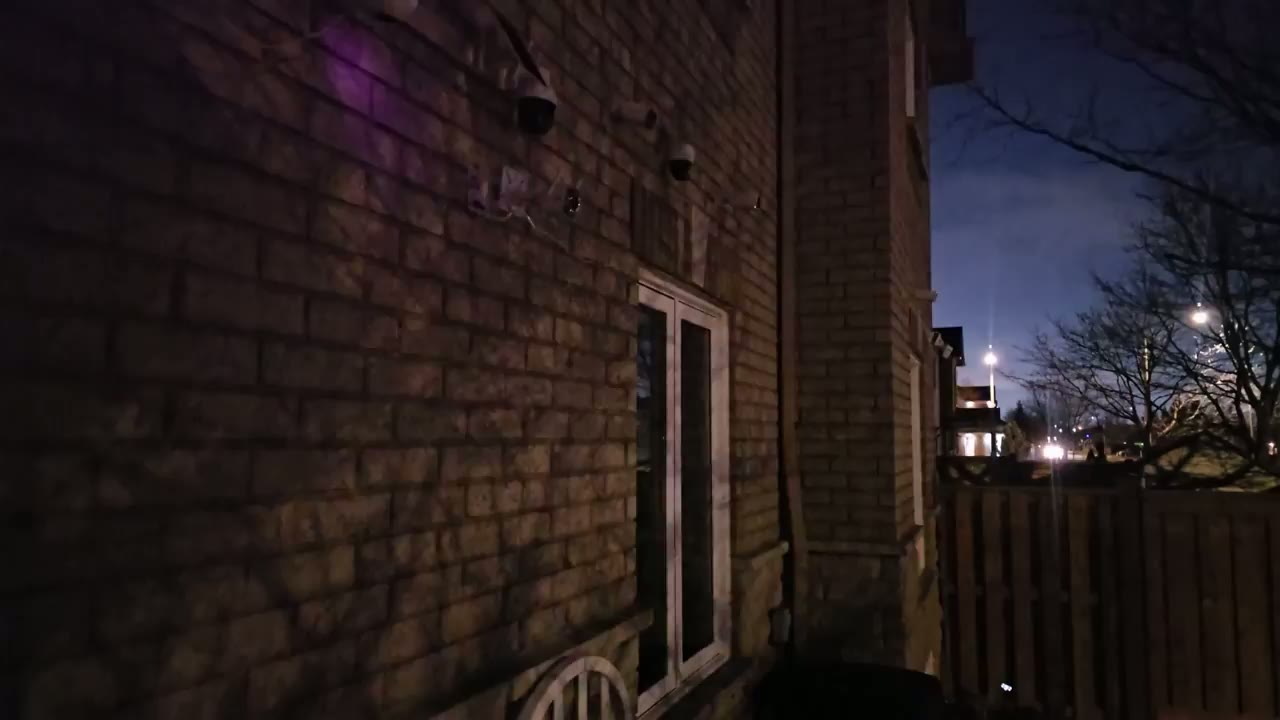
light output on here is fairly impressive given that the camera is so small I’ve reviewed other cameras where the bodies are a bit bigger and they also have a spotlight but they didn’t have as far of a light illumination range as the Kawa T6 Pro the camera does
Noise Detection
a fairly good job a noise pickup and it’s not a feature that I find on a lot of outdoor cameras it’s more something I find on indoor cameras and it’s very sensitive you could set the sensitivity in the app but you can see if I take a look at this kind of event log of what it has captured there are a lot of noise events so you know it’s doing a fairly good job there the camera is also fairly
Motion Detection
good at detecting motion very quickly and then sending an appropriate app alert or notification and that also plays into when the alarm is triggered it triggers pretty quickly as well however there’s one major issue with the way it handles notifications which is that as soon as you get a notification on your phone and you tap into it it doesn’t take you to you know a live view of what’s going on and it doesn’t take you to pre-recorded video what it does is it takes you to a thumbnail of what triggered that motion notification and then all you can do is kind of download the image so you know you may download an image or a thumbnail of someone in the ACT but you can’t actively view them or what they’re going to do subsequently now this is something that I spoke to Kawa about out and they did say you know their team is going to work on improving this type of functionality in a future release for storage I’m estimating that
Storage
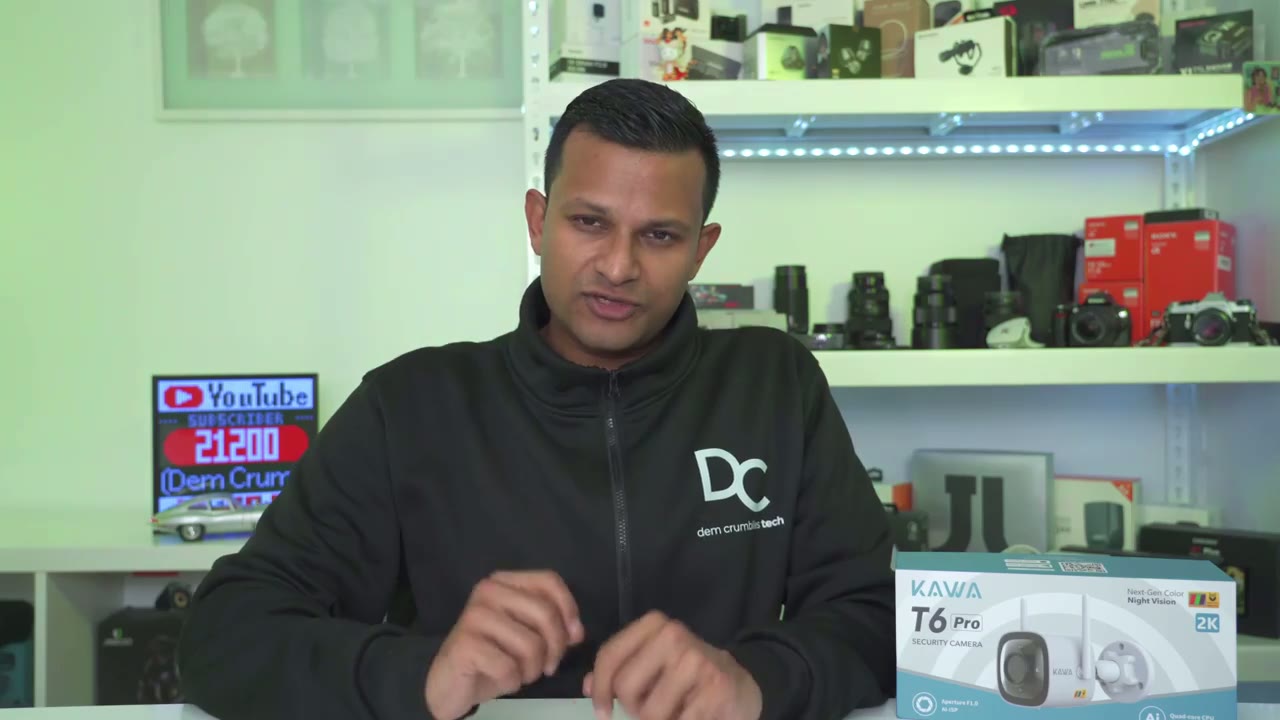
I’ll get about 21 days or 3 weeks of video playback history based on how things are going and that’s based on me setting this to 24/7 continuous recording with a 256 GB micro SD card installed let’s take a look at the Kawa
Settings
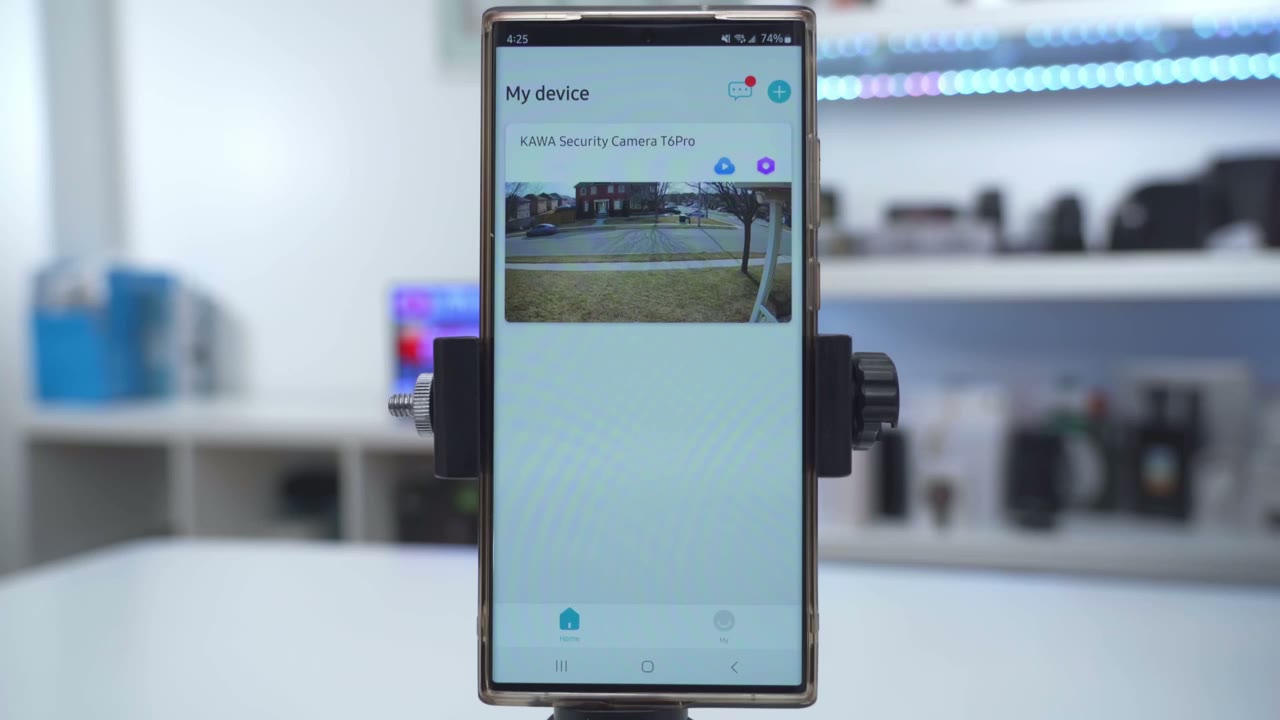
Security app so as soon as you open it up we can jump into cloud storage or into settings and then we can also take a look at different alert notifications so so you can see there’s a lot of noise detections and then motion detections but let’s first go into live view and right now it’s set to standard definition based on the bandwidth you can see those kits in the background there and there is a bit of artifacting even though my Wi-Fi should be pretty good anyway let me drop the volume but you can hear the microphone pickup is really good on here now of course you can also go into full screen mode and then you could you know kind of zoom in and take a look around but let’s get out of that we can also take a photo of you know whatever you’re looking at and then you can also take a manual recording if you see anything interesting it’s going to save it to your phone and then you can also initiate two-way talk with whoever is outside and you can just cut the volume now human dete when you click on that it says no data I believe this is supposed to let you toggle it so I think that has to be updated now under night vision mode you could go into smart mode and the light just going to turn on or off you know depending on the ambient light or you can put it in normal mode so in low light envir ments you’re going to get daylight Clarity at night which is what I prefer then under forbidden area uh Invasion warning if you turn this mode on what you can actually do is Define an area so you could just draw out you know like say um on my lawn here I could draw out something so I could just say hey from here to here all of this area if anyone just lands on there you know go ahead and issue um a warning now I generally don’t use that because I have dogs coming on and off so that would just be cumbersome or bothersome now we can also trigger the siren we can have the light flashing or we could turn the light on you know solid on or off now let’s go into replay and once you do that you can see if you had a cloud plan you could pick between event and continuous recording since this is capable of continuous recording now since my cloud plan has expired I’ll go into micro SD and you can see it’s broken down by time slots and this is something where it needs to be updated where we have a horizontal scroll because this is not very user friendly but say I was to click between 8 to 10 I’ll just wait for that to communicate with the camera and pull up the contents of the micro SD card so I have a bunch of video clips where one thing I noticed is that there’s no actual thumbnail preview so you’re never sure what you’re clicking into so I’ll just click at random straight in the middle and I can see here’s a video clip and I have no clue really you know is there any action on this clip or is it just going to be um you know just a boring clip so yeah there’s a car going by but that’s about it so that’s something where you know unless you know the specific time period when the event occurred that you want to review um this is just not going to cut it but if you do have the cloud plan you do have thumbnail previews and that’s something where this should be very basic functionality to generate thumbnail previews for us so but so something to keep in mind another thing to note is while you are reviewing video there is no actual way to download the video while you’re you’re reviewing it um the work around is you have to actually pull this screen down and you know start a screen record on your phone to get this video on your phone now if you have a cloud plan you could download it directly from the cloud but again it’s not something we should have to do they should all be very basic functionality so the system or the app is very crippled unless you get the cloud plan if I tap on message this is where I could see a bunch of different alerts and events now with this we do have thumbnails now if I scroll down I could see there’s a guy walking here and it says noise detection move detection okay great now I can see the time this occurred I can tap on that and it actually doesn’t take me to that time I still have to scroll down so that’s something that the app should do automatically for me okay great so now I’m at the move detection now I want to take a look at this clip I’ll click on that and all I can do is download an image I can’t actually see the video and this is another part of the app where the user experience really needs to be updated but let’s go into the full settings and if I tap on the camera I can see the IP address for the camera the MAC address and the Wi-Fi it’s connected to now we could go into device sleep switch just if you just want to turn it off temporarily let’s go into basic function settings and this is the LED light and then you can also have a Tim stamp we can also rotate the video depending on how you mounted it and night vision already touched on that previously now for the alarm setting we can set these sensitivity here for motion to low middle or high and the same thing for noise detection now this is very sensitive I found even at middle and usually I just turn off the noise detection switch because it’s always getting triggered I have a lot of uh traffic in front of my house and you can set the video frequency 50 HZ or 60 HZ now I already touch on forbidden area Invasion and show a ey recognition area this is where it’ll just put kind of like a a hit box around whatever subject are moving I find it to be very hit or miss so you know it’s not something that I generally leave on under Cloud options we have some prices for continuous recording so we have 7-Day continuous recording starting at 719 a month and of course you can also get yearly plans and then we also have event recording plans where it’s just going to record events and not 24/7 recording so you have a couple options there but again you know you really do have to purchase a cloud plan to get a lot of these benefits and ideally it shouldn’t be that way and of course we could tap on share device to share it with family members or friends and we can update the firmware now I do
Potential Dealbreakers
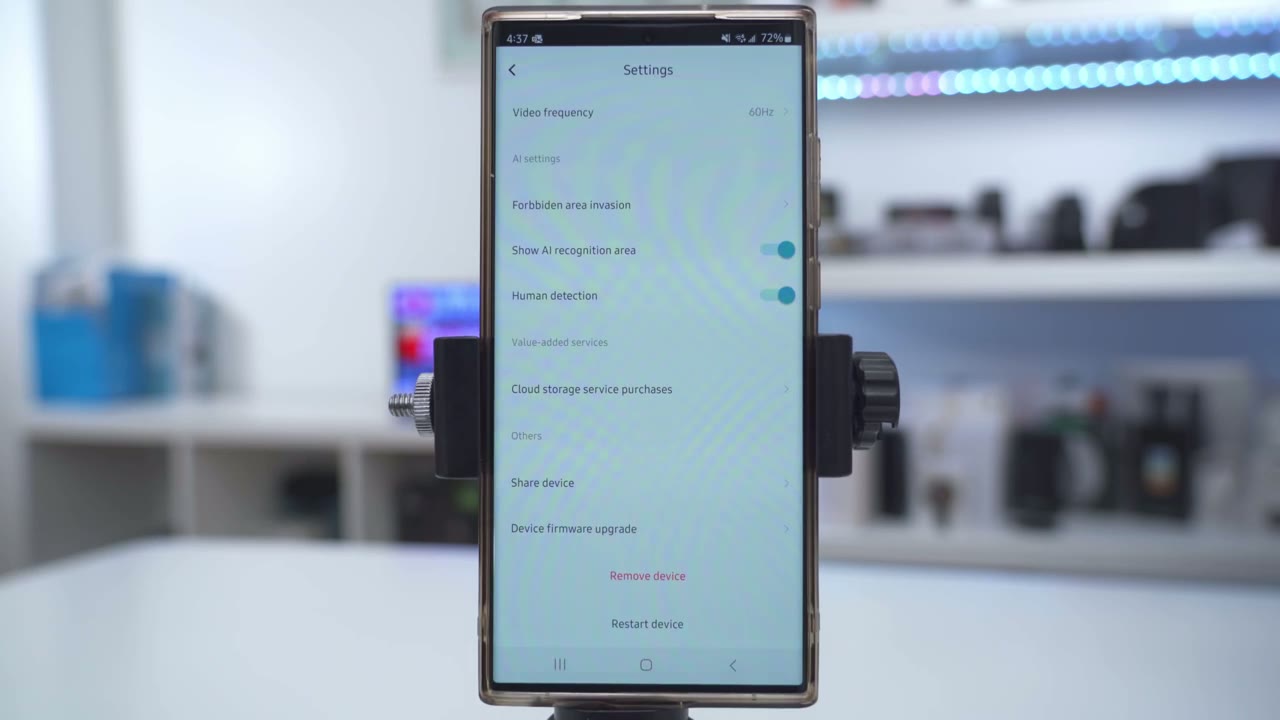
have to address some potential deal breakers because there’s a handful of them and I did reach out to Kawa about these and they said they are going to work on these in a future release but you should be mindful of them before you buy this camera system so one is that when you tap on the app alert like I mentioned it just takes you to a thumbnail you can’t go to live view and you can’t go to pre-recorded video so you know that’s something they definitely need to fix the other thing is that if if you don’t get the cloud plan whenever you’re reviewing video you don’t have a thumbnail preview and that’s you know a major thing that you should have because you don’t know what you’re tapping into and if you have literally hundreds or thousands of video clips you know you’re going to be there for hours just searching for what you need now the only way to get video thumbnails is if you get the cloud plan then it’s going to record to the cloud you have that but I’m just generally not a fan of having to pay for any type of cloud plan to have what I consider is basic functionality also found the app to be lacking in terms of features and stability and yes you can tell this is a very you know first generation type of app and which is why Kawa said they’re going to work on improving this in future Generations but I noticed when I pulled up live view you know it wasn’t always stable it may time out a lot of the times I would have to switch to standard definition quality to get the stream going even though the camera is just about you know 7 to 10 ft away from my Wi-Fi extender I was still having those issues now maybe if I ran and ethernet cable sure it would be better but I still think you know having a Wi-Fi um device 7 to 10 ft out it should be you know rock solid stable when viewing live view video so can I
Recommended?
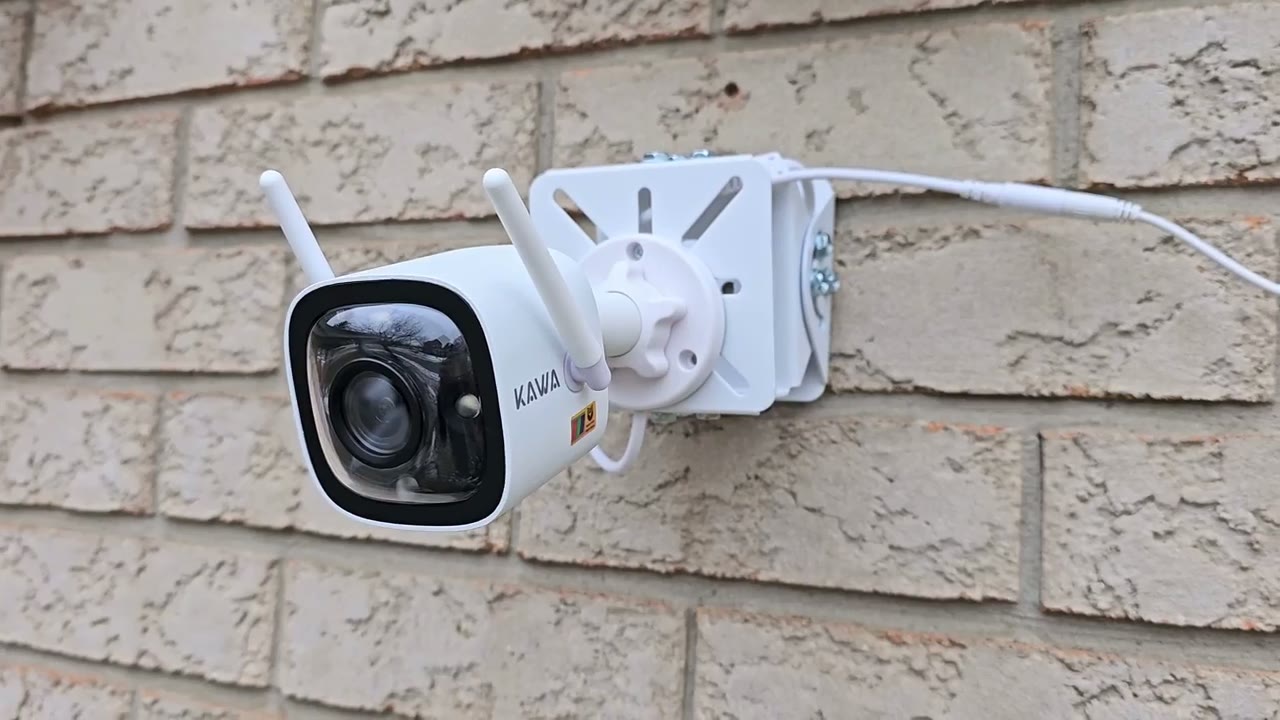
recommend the Kawa T6 Pro and this is one of the rare instances where I’ve reviewed a camera system and I’m undecided about recommending it and that’s because when I first took this out of the box I was just really Blown Away impressed by the build quality it’s a pretty much all metal build quality the camera looks nice and compact fact it’s a beautiful looking camera body and I expected you know a matching app experience to go along with that unfortunately I didn’t find that to be the case which is why I mentioned it was potential deal breakers now to Cabas credit they did agree with every one of my findings and they said you know it is something they’ve relayed to their development team and they’re going to work on a future release so I really look forward to the improvements from kav team because it’s one of the nicer looking cameras that I reviewed and it actually survived two major Canadian in winter storms in one week where it actually had ice sitting on top of it snow on top of it you know high winds rain and it never quit you know it so the IP rating is good it’s wellb built it’s just the app experience needs to be improved so if you’re interested in picking up the Kaa T6 Pro I’m going to leave some links down below but this is one of the rare camera systems where I recommend getting the cloud plan because then you get full functionality out of it you know you’ll have thumbnail previews and you’ll be able to download Clips directly to your phone but also keep in mind that there’s other camera systems out where you don’t have to pay for a monthly Cloud plan to get that type of functionality so you’re going to kind of have to weigh that out and if you have any feedback for a CWA please feel free to leave it in the comments down below I’m sure they’re open to that as well and as always if you found this video upload please consider liking it subscribing and I’ll see you in the next one soon
Buy 512 GB microSD Card on Amazon
Buy 256 GB microSD Card on Amazon
Buy 128 GB microSD Card on Amazon
Please note that some of the links in my video descriptions are affiliate links where I earn from qualifying purchases. As an Amazon Associate I earn from qualifying purchases.

