


Buy MageDok Gaming Monitor on Amazon
Buy MageDok Gaming Monitor on MageDok
Please note that some of the links in my video descriptions are affiliate links where I earn from qualifying purchases. As an Amazon Associate I earn from qualifying purchases.
Intro
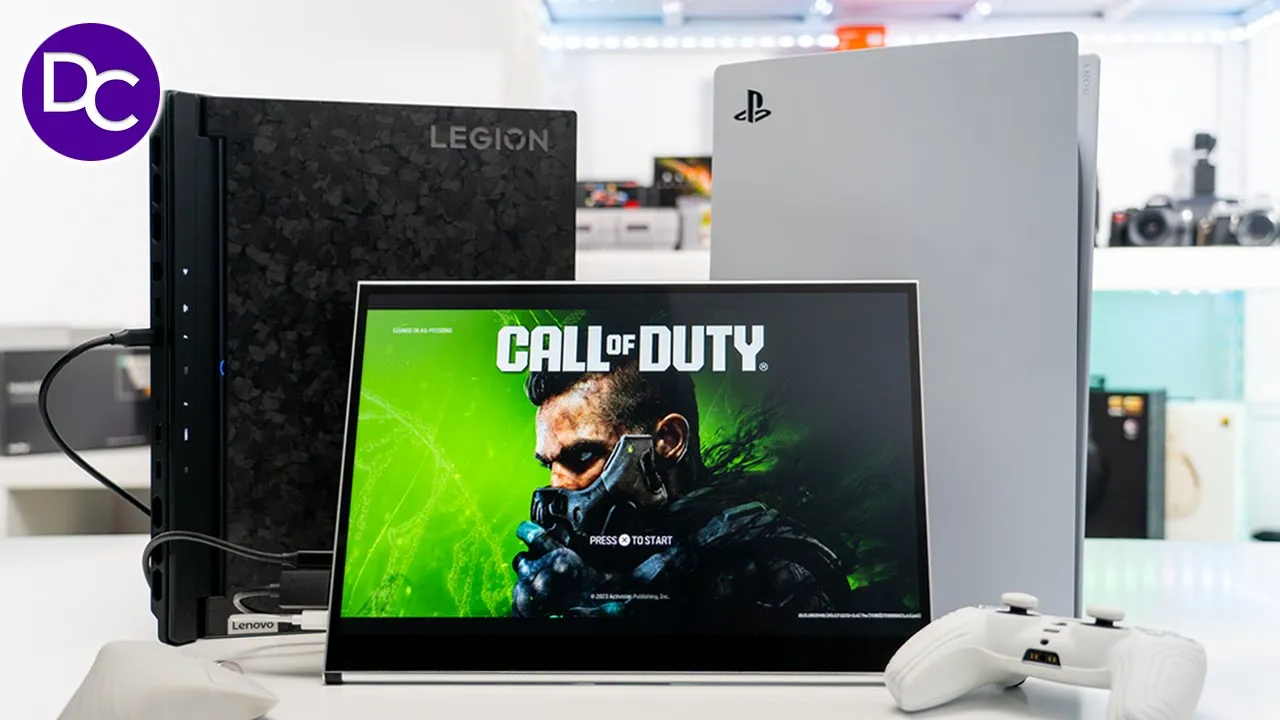
hey it’s Adrian and if you’re looking for a gaming monitor you’re going to want to check out this Mage do 16in 2K monitor so this has up to 144 HZ refresh rate a 1 millisecond response time there’s touch functionality built-in speakers and 178° viewing angle making it perfect for gaming and mixed media use I’ve been really loving the screen performance and touch functionality on here whether it’s connected to my PS5 laptop or phone so let’s take a closer look at how well it performs and a big thanks to Mage for sending us out for a review in the box we have the 16-in Mage
Box Contents
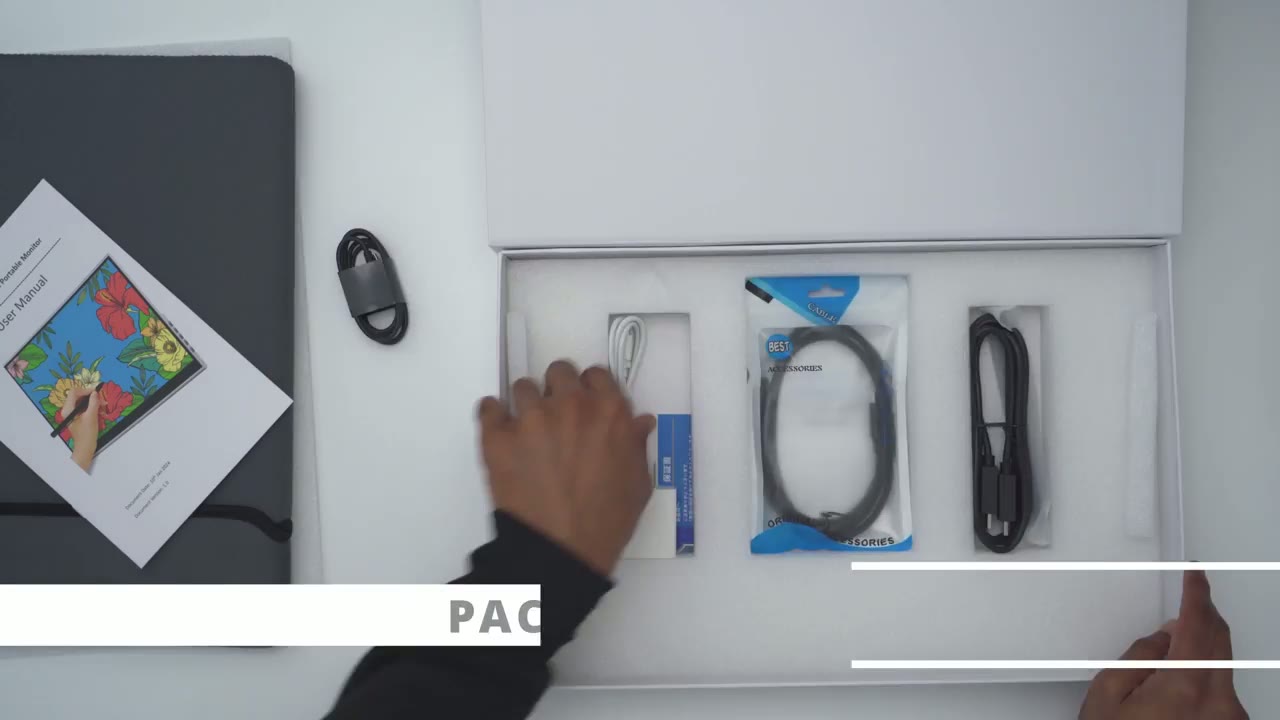
do monitor along with a protective soft sleeve there’s a USB type-c to type-c Cable fulls sizee HDMI cable manual mounting screws power brick type-c to type-c cable for the power brick and a type A to type-c Cable along with a stylus the monitor looks really nice and
Design
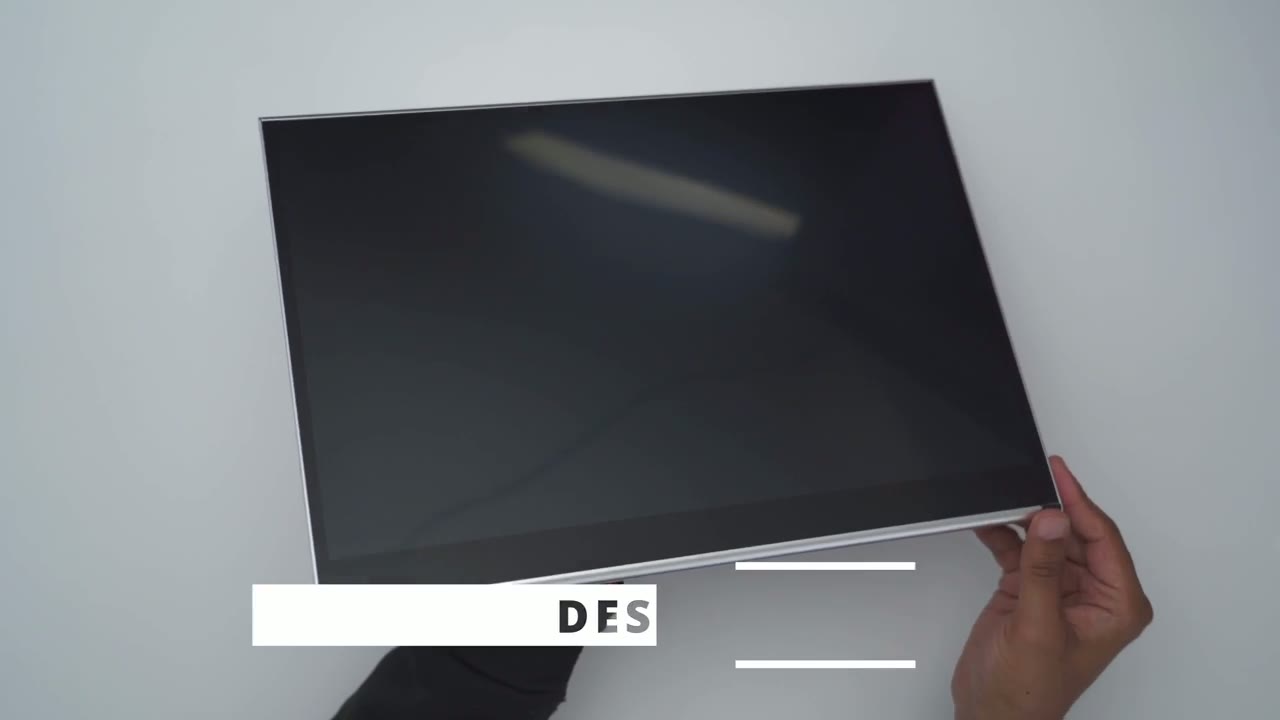
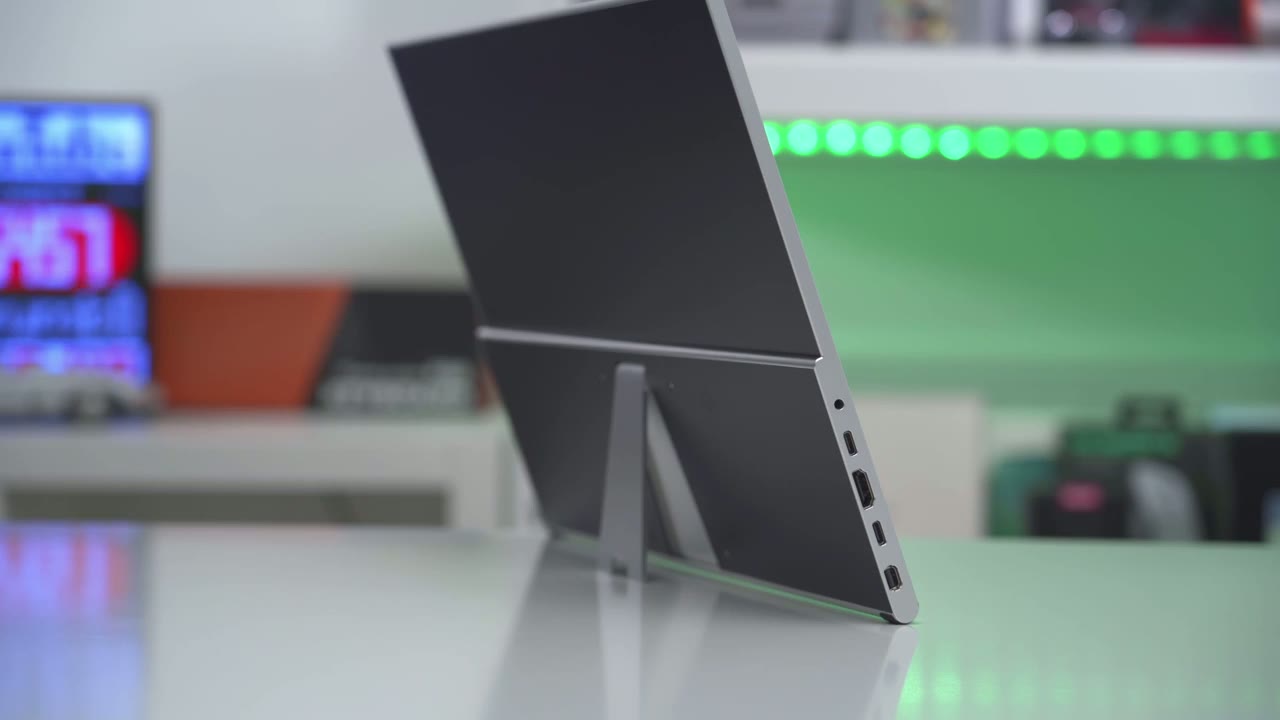
premium and it feels good in the hand coming in at around 1 kg or 2.3 lb now on the left side we have a headphone Port USB type-c port which which is used to Supply Power fulls size HDMI port which is usually rare to find on portable monitors there’s also a full power USB type-c port for display and charging and then we have a mini display port on the other side this is where we have the button controls for the menu access and just quick settings for volume up down brightness Etc now you can see the metal finish on here it’s it has kind of a matte type of look but it’s it’s very smooth so it’s it’s not exactly polished but it looks really nice um overall it’s a nice looking monitor now on the rear we have a 75x 75 mm um mounting area here so you can do Vasa mounting if you like there’s two speaker grills right here and then we have a kickstand which is nicely friction you can see it took me a while to just kind of pull that out very stiff so you know whichever angulation you put this in your guaranteed is just going to stay there so this is the extreme angulation and then you can have it angulated so it’s pretty much standing almost upright we do have a touchscreen monitor and you can see that I’ve left quite a bit of fingerprints on here so something to be mindful of if you plan on using it as a touchscreen there’s also an included soft sleeve for the monitor so you can just take it with you on the go whenever you’re on the road or going on vacation here’s a quick look at
Specs
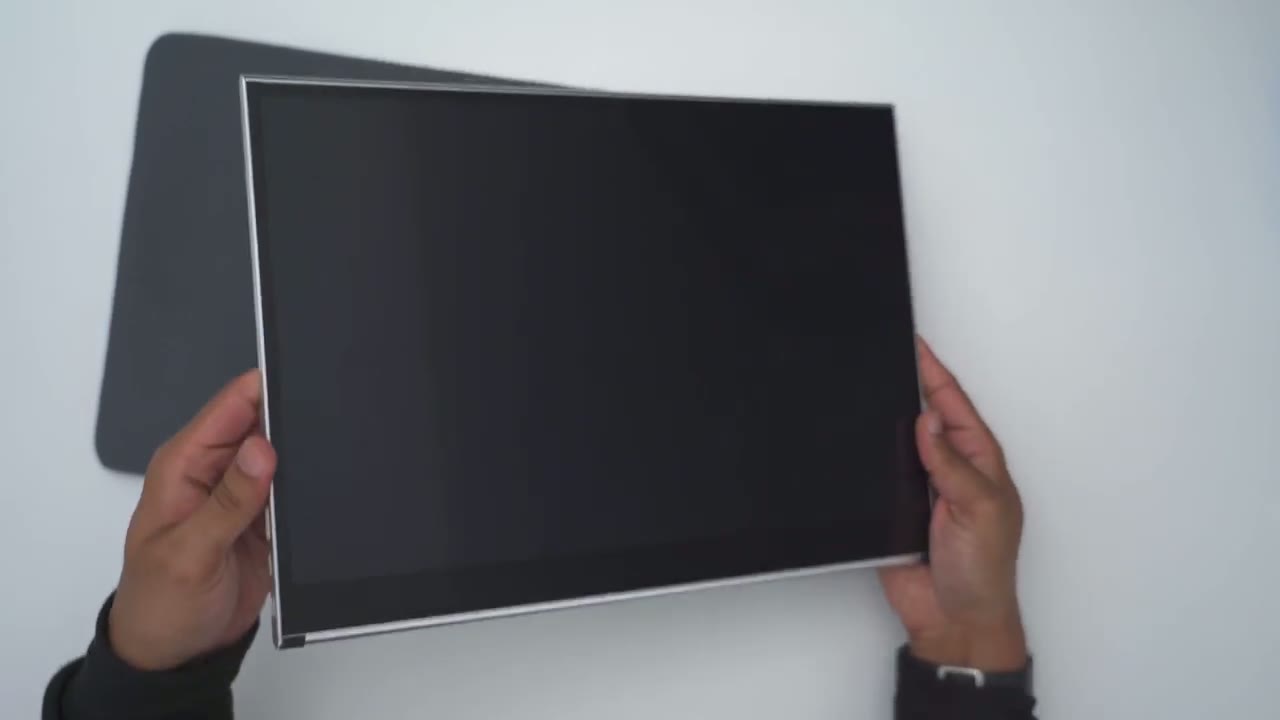
some of the specs feel free to pause or jump ahead to the next section I’ve
Connect Laptop
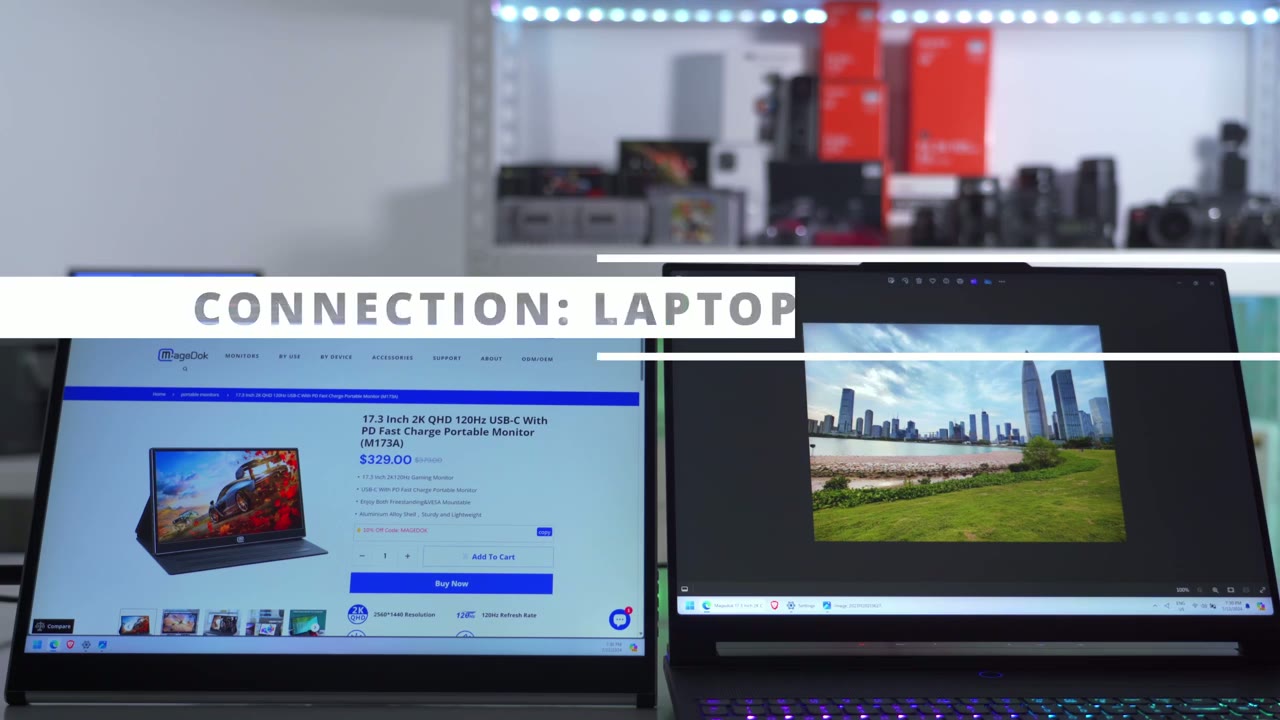
connected the mck monitor to the left side of my laptop so you can see if I go into the settings here and I click on identify you could see the placement here and I’ve just set it to extend my display so I could just take like an image I’m working on and just pop it over here or while I’m working on my laptop I could just have you know YouTube playing on here special pair of headphones these are Ed and that audio you’re hearing is coming from the speakers built-in on a monitor which are firing from the rear you can also choose the option to duplicate the display and that way if you’re giving a presentation and a meeting then you can have the exact same thing up here on both screens at the same time note that I’ve only connected my laptop using the USB type-c cable that’s supplied going into my laptop and the laptop is completely powering the monitor there’s no need to use the power adapter and while the laptop is supplying power to the portable monitor I could use the available USB type-c port to have pass through charging for my phone or any other device that charges by USBC and if you have an older laptop that doesn’t have a usable USB type-c port or if it doesn’t even have a USB type-c port in general you do have the option to connect the majok monitor using a full-size HDMI cable you just have to supply it with power using the included power adapter right now the monitor is connected to my laptop and if I go to switch the inputs you can see it set to type c and if you look at the bottom right it shows it’s running at the full resolution 2560 x600 at 144 HZ in a 16 X1 aspect
Gaming – PS5
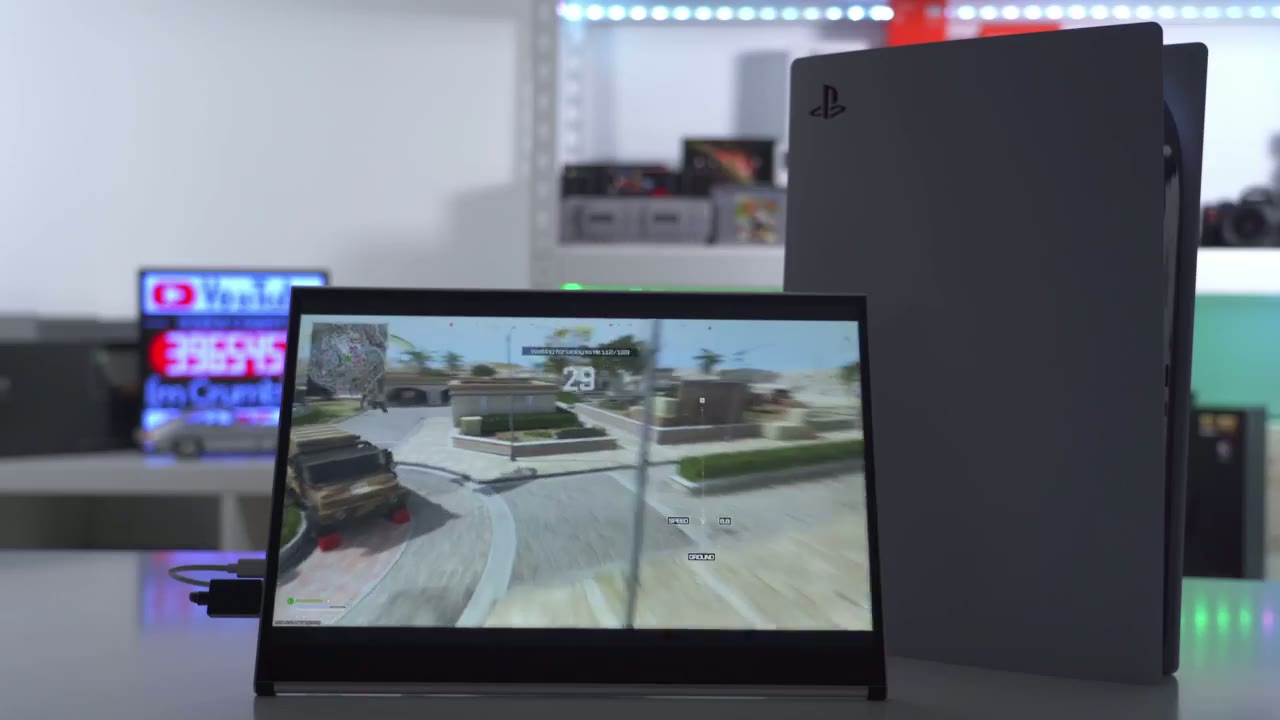
ratio using the monitor with my PS5 was a joy to use everything was super fluid and responsive thanks to the 1 millisecond response time now even though the monitor is rated for up to 144 HZ on the PS5 the PS5 is limited to 12 HZ so I was easily able to hit that 120 HZ maximum it’s awesome for gaming
Connect Phone
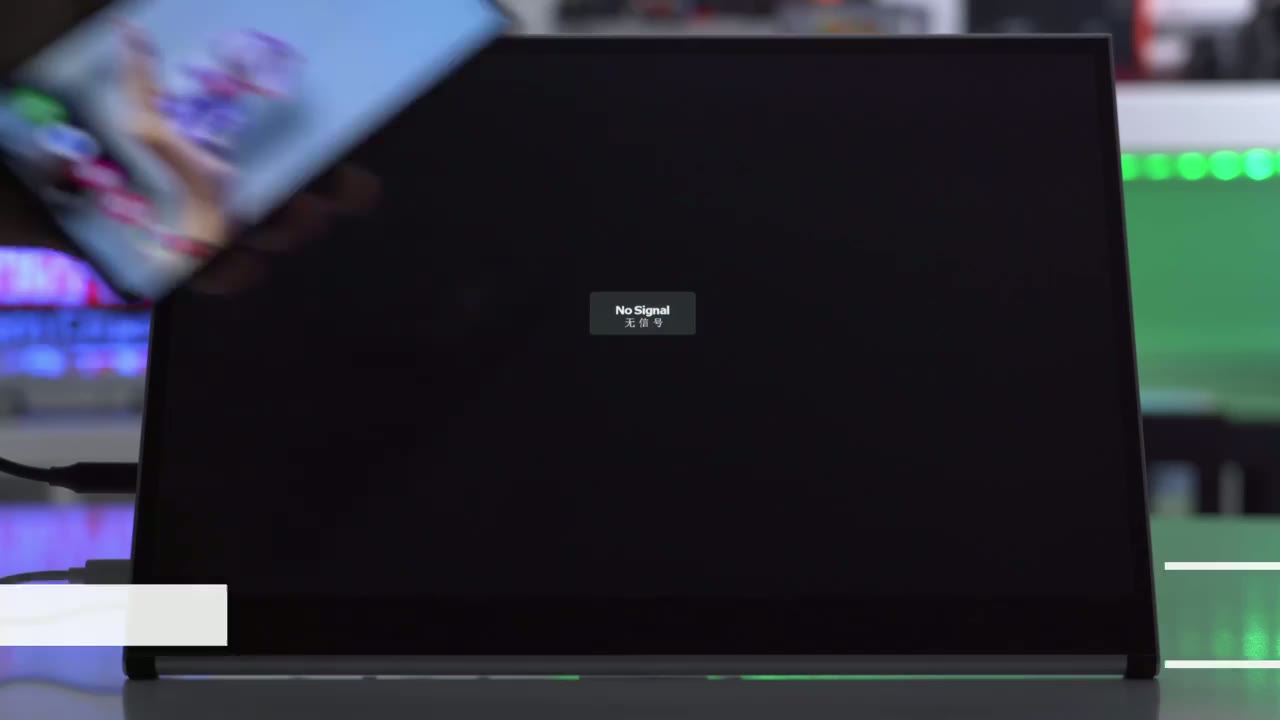
and if you don’t want to take your laptop with you you could just connect a monitor to your phone I have the Samsung s24 Ultra right now and all I have to do is supply power with the included power adapter I don’t need to bring my laptop and I have access to Samsung Dex and since this is a touchscreen monitor I can just go ahead and launch any app brows or do anything I want really effortlessly and conveniently you can
Switch Inputs
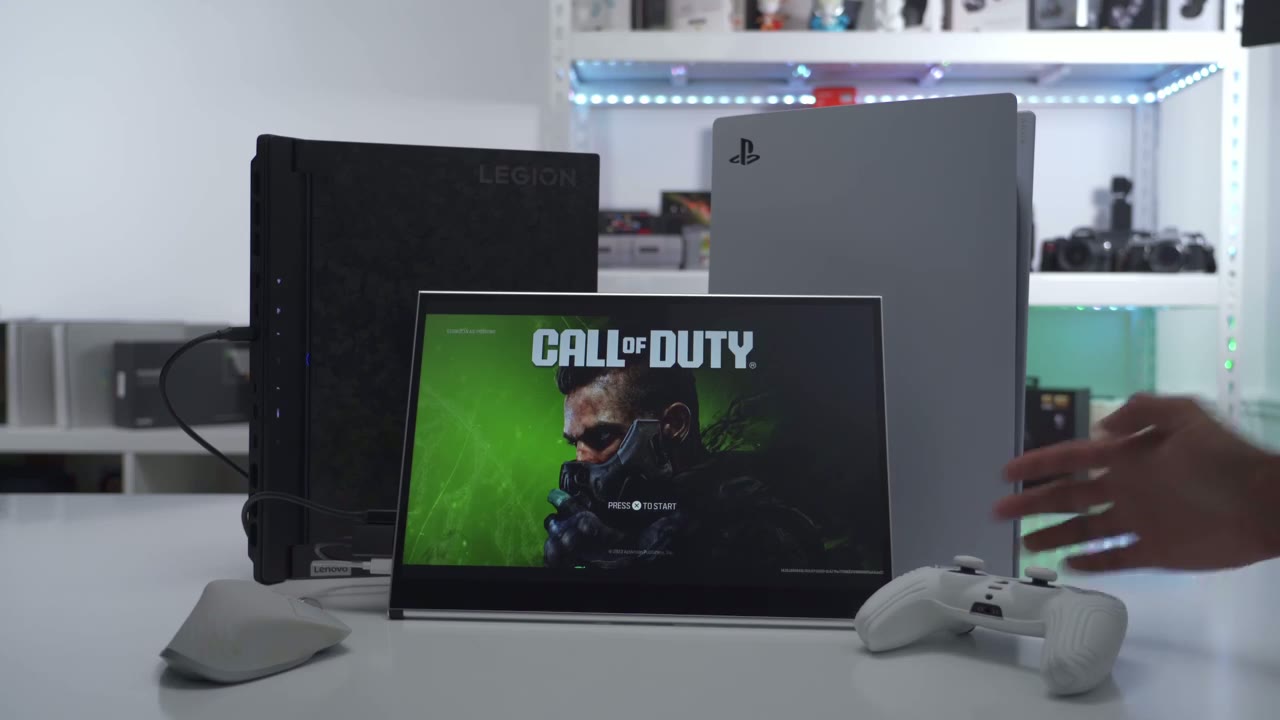
also quickly switch inputs especially if you’re waiting for a large game download on your console if you need a monitor
Touch Screen
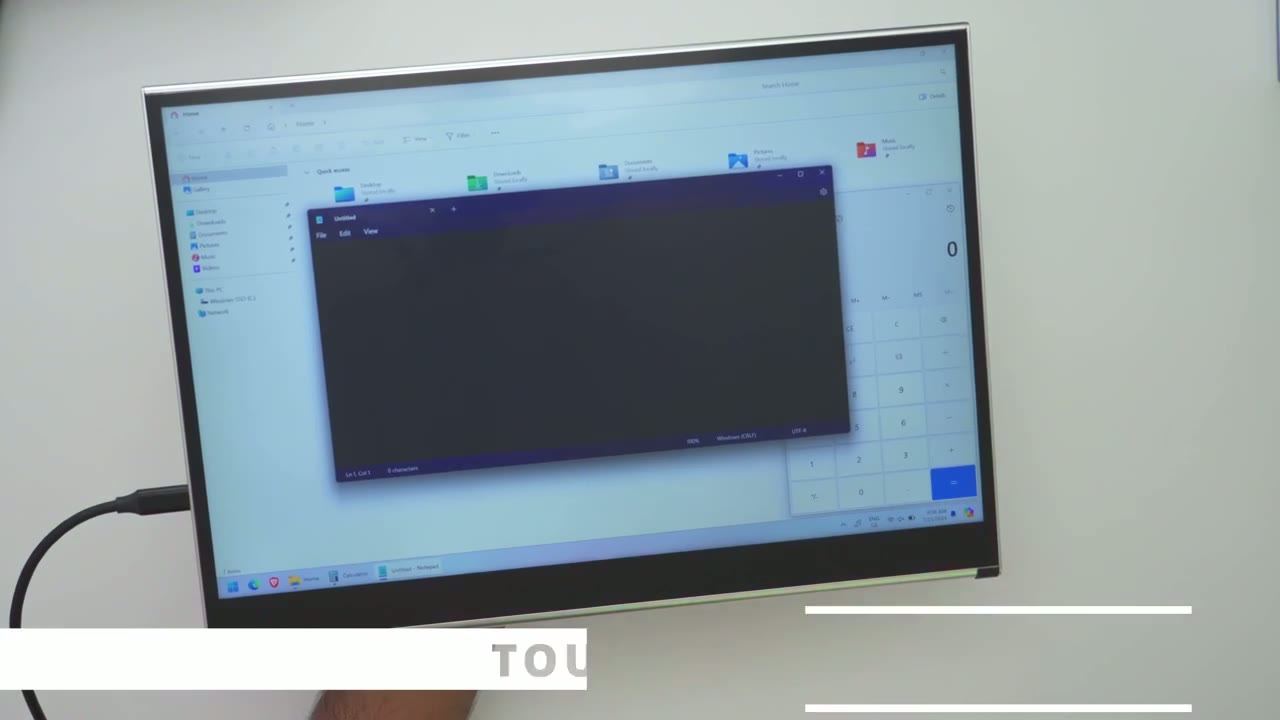
with touchscreen functionality the implementation on here is really smooth fluid and easy to use and I actually found myself using it way more than I thought I would I was really happy with
Screen Performance
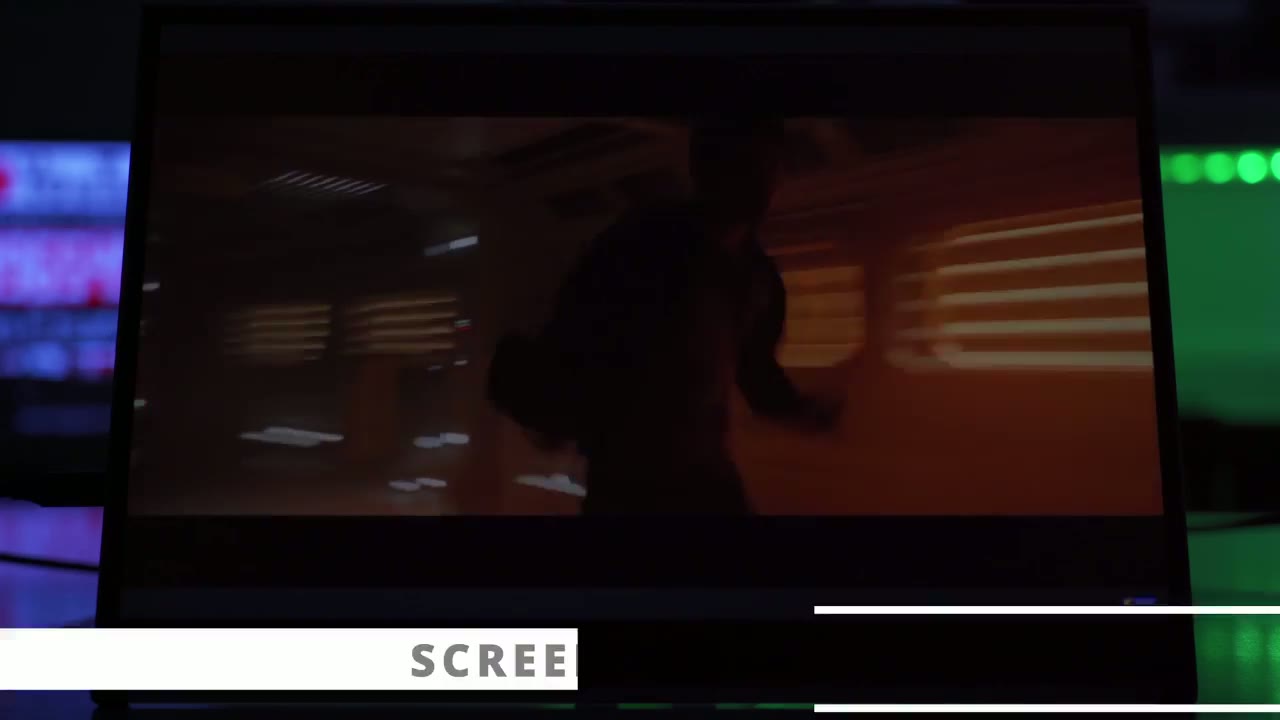
the screen’s performance so we have a 16in screen with a 2K resolution now mck puts this as a matte finish but I kind of have to disagree I find it this is more of a glossy finish and you could see that when I use the flashlight on my phone you could see a decent amount of Reflections more than I would typically find on a matte finish type of screen we have 178° viewing angle and that’s really good you can go to the extreme corners and still see the screen pretty easily there’s also 1 millisecond response time and 400 nits so this gets plenty bright especially if you’re going to be using it in an indoor environment but if it’s going to be near a window or a bright light source you know you may have to reconsider that or just kind of angle it away it’s also great having the 2K resolution and when I was looking at these movie trailers I set it to 1440p at 60 frames per second everything was nice and fluid now coming from using OLED screens I did notice that the blocks are not as deep of course as you would fine with OLED very hard to match but if you’re not someone who generally uses OLED it’s not something that’s really going to bother you and I got used to it pretty quickly however if you’re watching movies with really dark scenes you’ll definitely notice when you have horizontal bar S at the top and at the bottom that you know it’s not absolute blacker it could be a little bit blacker the speakers on here get
Speakers
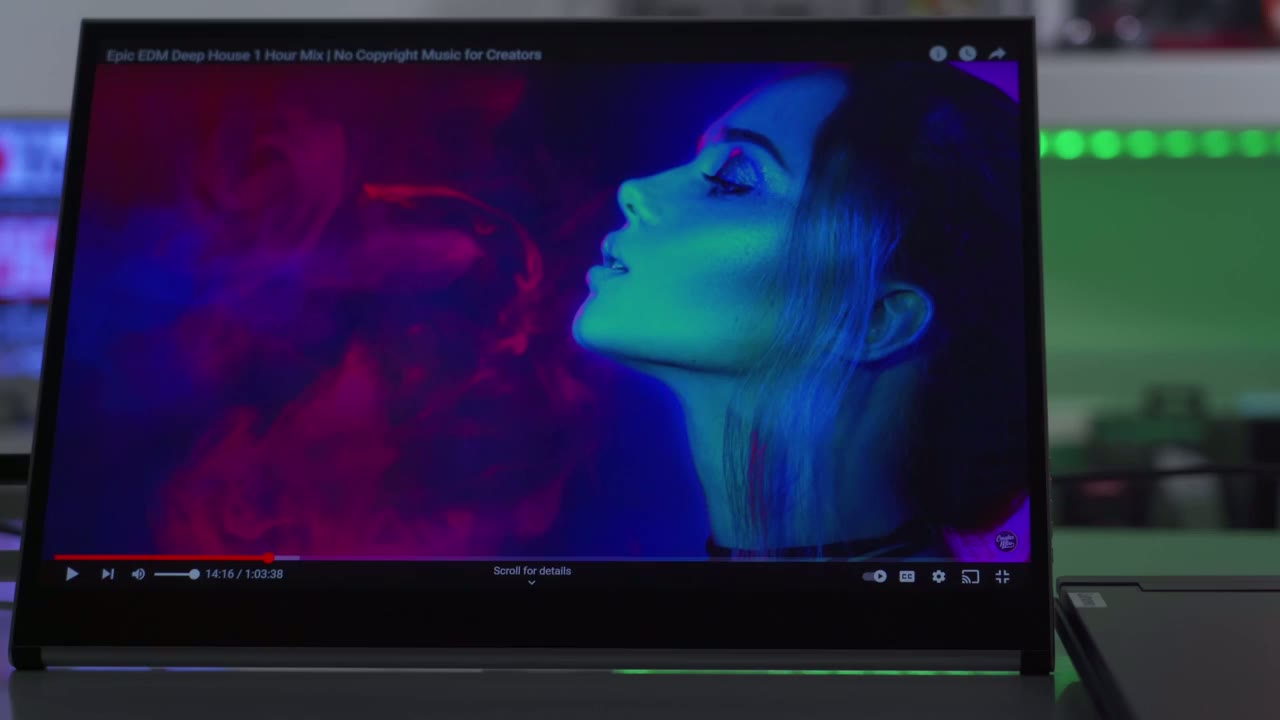
very loud so I’m going to start at 50% 70% [Music] 100% so you can hear that gets very loud so we have two 1 watt speakers now it does doesn’t sound too tiny these are not the worst sounding speakers I’ve heard so you can actually use these in a pinch to watch movies play games like I had it when I was connected to the PS5 it works perfectly for that to access
Menu Settings
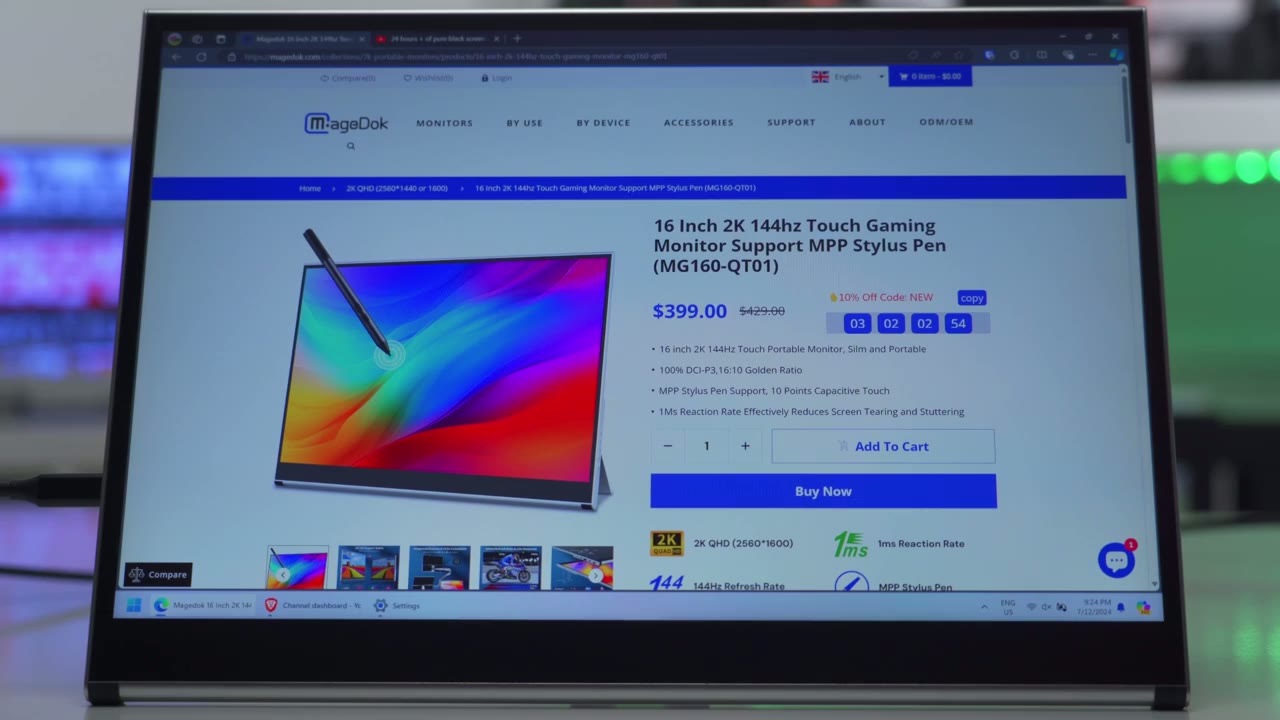
the menu settings there’s two ways to do it one is to press the menu button on the side you could cycle through one of the menu subsections and then click into it and start making your changes but I’m going to exit out of there there’s a much easier way use two fingers drag down from the bottom right corner that pops the menu up and this is a much easier way to go ahead and modify your settings so you can change brightness on the Fly and also the volume level and you can also turn on this kind of warm light mode if you’ll be using it at night there’s quicker ways to access volume and brightness which I’ll get into later now you can also go into this section to change the type of viewing mode so we have this General use here uh movie mode picture mode gaming mode we have a I’m not sure what that is for maybe for text then we have this eco mode I’ll just put it back to the general use and then we can also change the color temperature so either user temperature 6,500 K 9300 K so you could dial it in as you see it fit and then you also have options to change these settings here um you could looks like you know tint and some other stuff I don’t play around with that and then we can also go into the input so type-c mini display port and HDMI 1 and lastly in the major settings or general settings we can turn hdr on or off we can also flip the monitor 180° if we’ll be mounting it on some kind of arm using the evasa mounting feature you can also turn DCR on or dynamic contrast r so it just adjusts based on whatever content you’re viewing I don’t generally use that and you can turn free sync on or off so very easy to go ahead and modify the settings and just reset everything back the volume can be
Controls
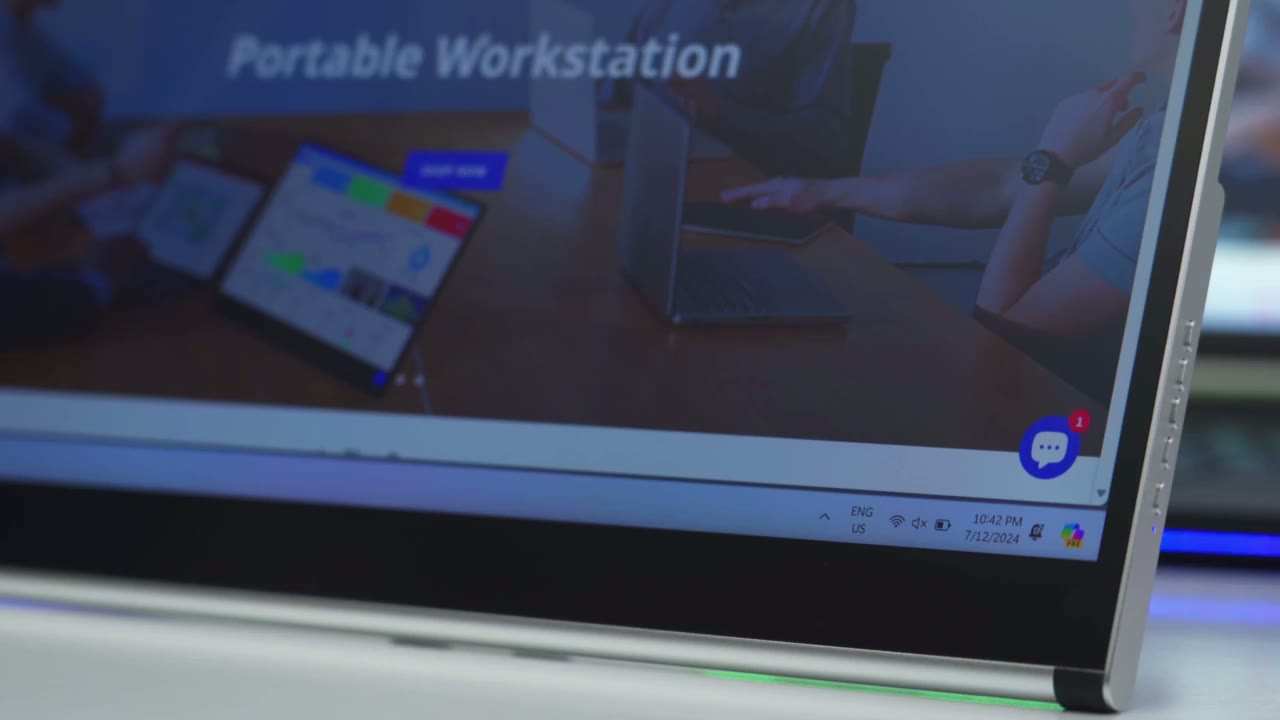
adjusted by pressing the down button and when the volume menu pops up you can increase it up or down now if you press the plus button it’s going to bring up the brightness and you can adjust it down or up so it’s easy to switch on the fly so while basically every aspect of
Improvement
this monitor has been great for me so far the only thing I’m really missing is the ability to have it stand you know fully upright when it’s in horizontal mode or to stand it up vertically because as it stands right now I would have to invest in a Vasa type of Mount or monitor arm to get that functionality
Recommended
so the Mage 16in 2K monitor or model mg1 160 q01 has been fantastic so far I actually didn’t realize how much I would use the touch functionality on her most other monitors that I have lack that but since having it it’s made it a breeze to just you know play and and pause YouTube videos If I have a call coming in and I don’t have to actually move my mouse over from my other monitor screen gaming has been a joy on here thanks to the 144 HZ refresh rate and 1 millisecond response time everything is lightening quick and fluid so whether you’re using a PS5 Xbox Nintendo switch or your laptop it will connect to it all and if you need the monitor for mixu such as media consumption or productivity it’s great with the 178° viewing angle the built-in speakers also work very well if you want to watch movies or watch YouTube on the side while you’re working you just want some kind of background noise and the image quality is really sharp at 2K quality so if you’re interested in picking of the mageck 16-in 2K monitor I’m going to leave some links down below to pick one up and if you use my coupon code demem you’ll get an additional 12% off the official Mage doog website if you found this video helpful please consider checking out some of my other tech review videos I review a bunch of different Tech products so I’m sure you’ll find something you like and if I can ask a huge favor if you did find find this video helpful please consider liking and subscribing it truly truly does mean a lot to me and I do appreciate your support but I’ll see you in the next one soon
Buy MageDok Gaming Monitor on Amazon
Buy MageDok Gaming Monitor on MageDok
Please note that some of the links in my video descriptions are affiliate links where I earn from qualifying purchases. As an Amazon Associate I earn from qualifying purchases.

