


☑️ Get the MX Mechanical on Amazon
Please note that some of the links in my video descriptions are affiliate links where I earn from qualifying purchases. As an Amazon Associate I earn from qualifying purchases.
Intro
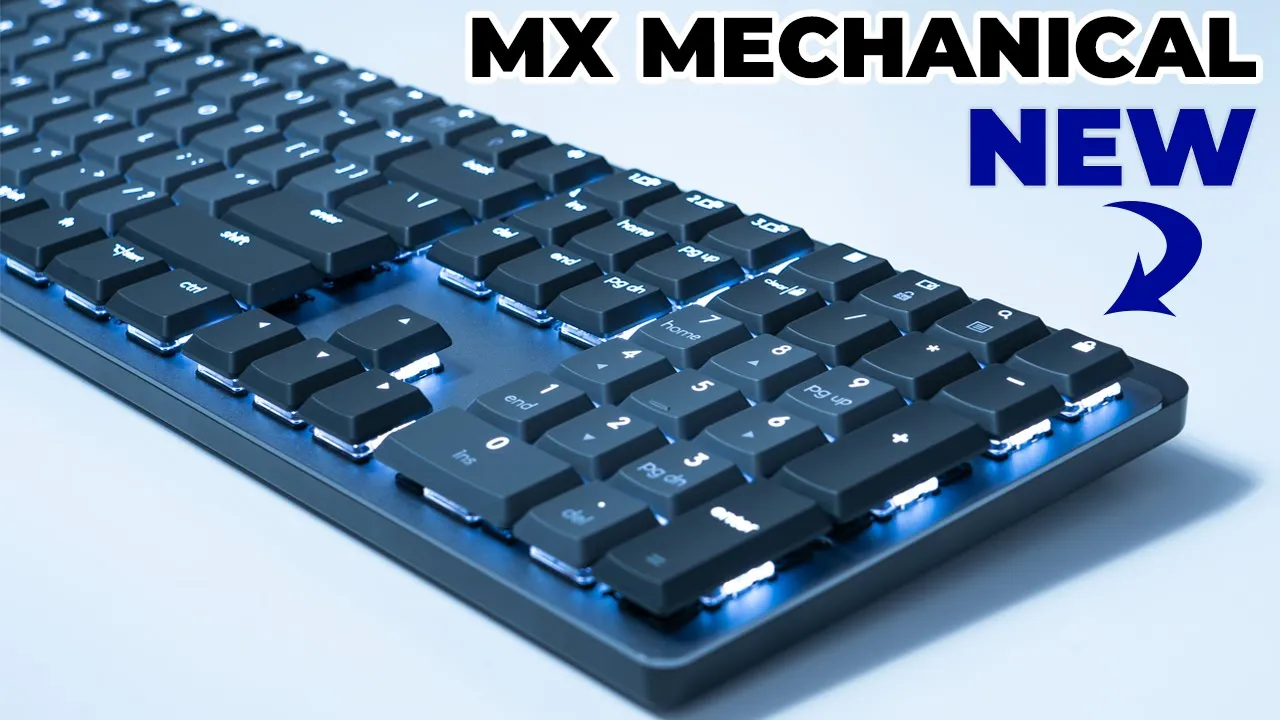
hey it’s adrian and today i’m taking a look at this new mx mechanical keyboard from logitech so this is going to be my first mechanical keyboard i’ve always wanted to try one of these for the typing experience but i was just always worried that the clickiness of the keys would be too much for me now this version that i got it does say tactile quiet there so if you’re also looking for a mechanical keyboard that’s pretty quiet to suit your work environment or your style stick around i’m going to take a look at it and see if this is a great option for you as well in the package we get the keyboard
Package Contents
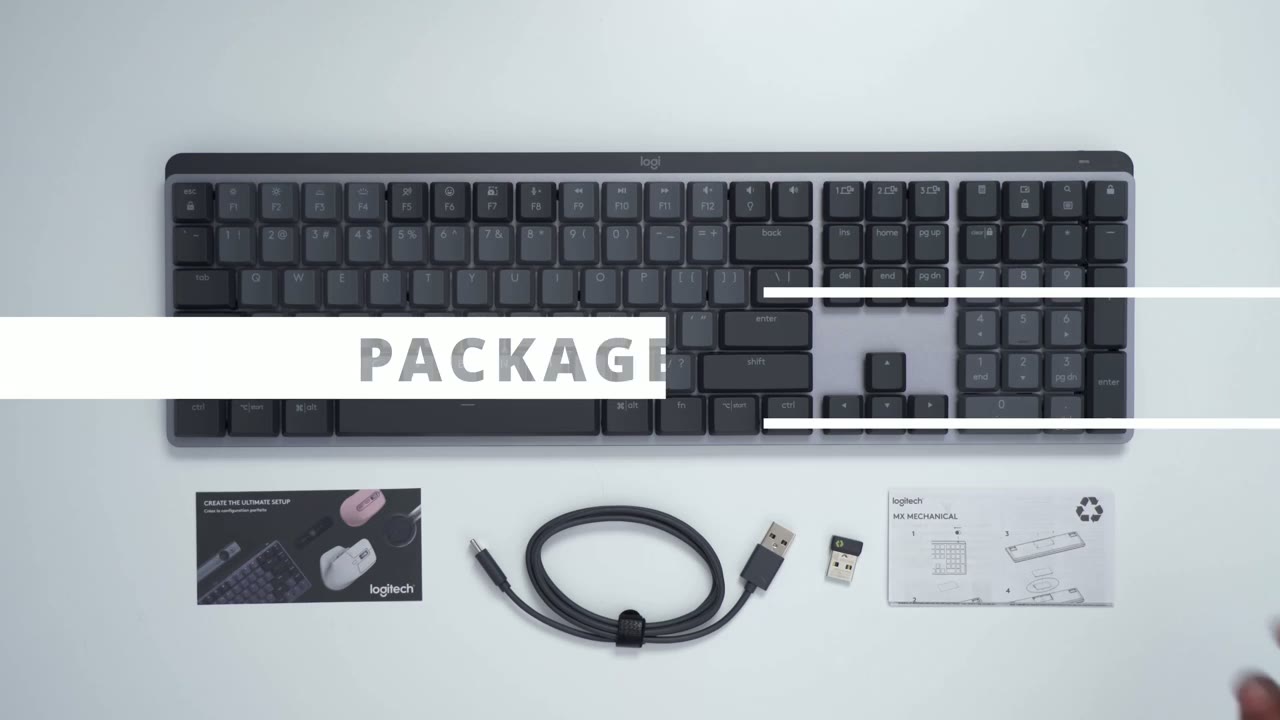
usb type-c charging cable the wireless usb receiver and some instruction manuals so the mx mechanical comes in
Keyboard Options
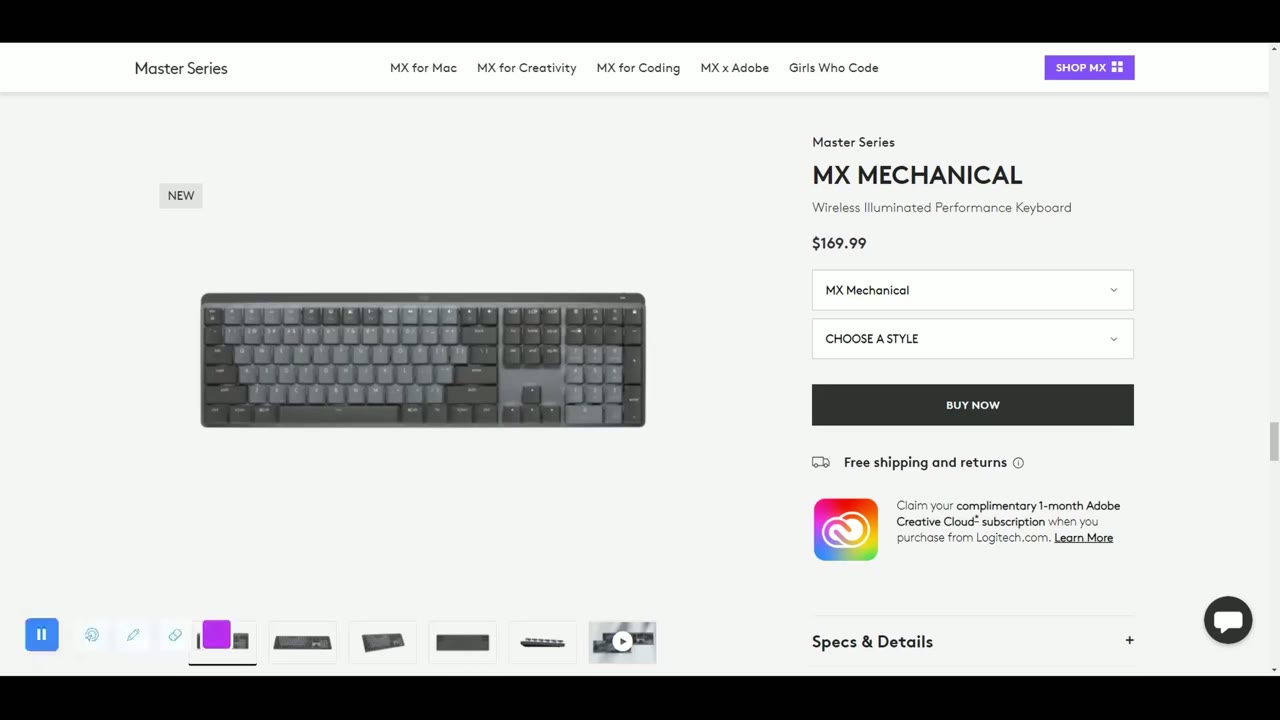
two sizes i have the full size which is 170 us and there’s also a mini size which is about this big for 150 us so 20 us difference if you have the space for a full size i think that’s a better option to go with in terms of switches you have three options so there is the tactile quiet which is what i have there’s the linear and clicky so when you order you can pick whatever’s best for you taking a look at the design of
Design
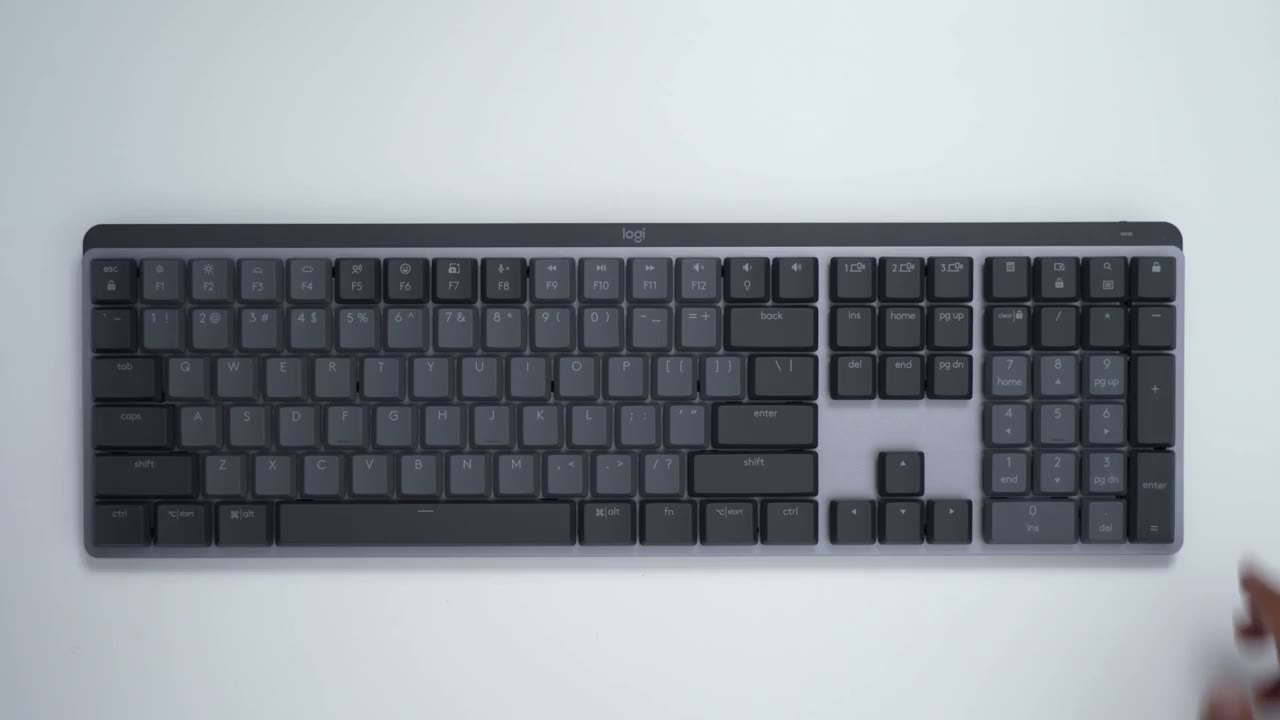
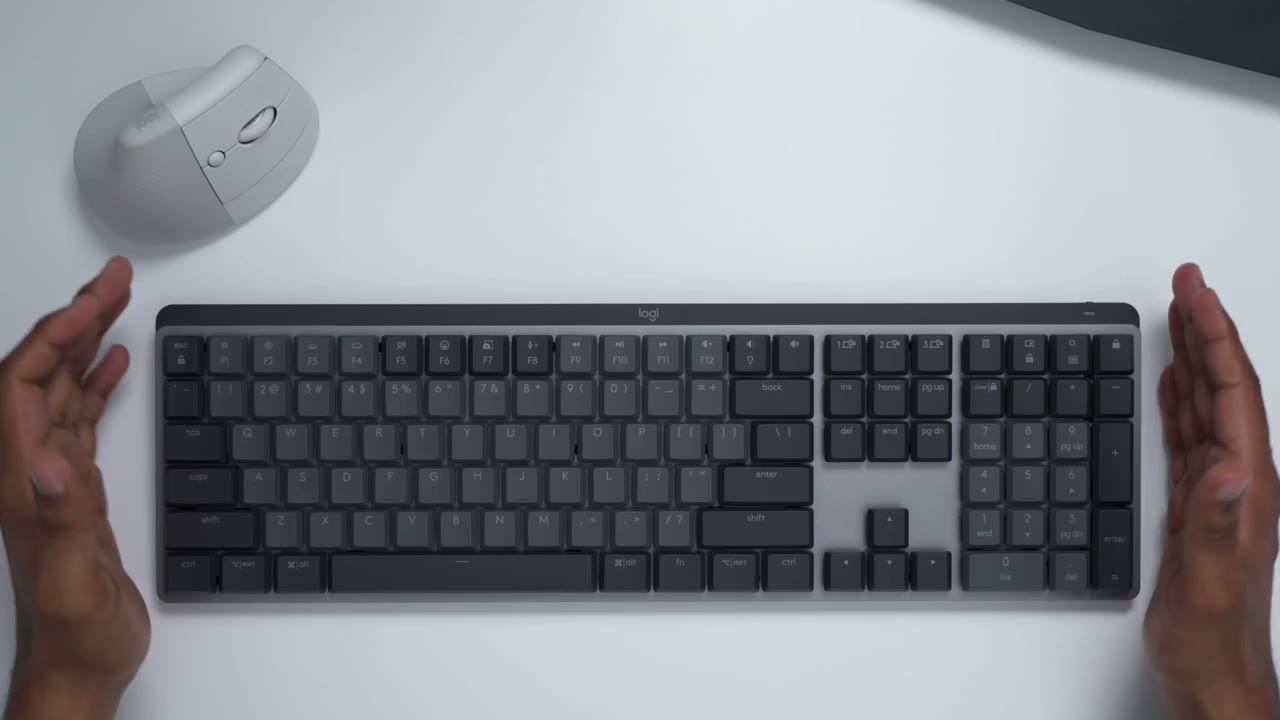
the keyboard i wouldn’t say there’s anything to write home about i mean it looks okay it really feels premium it comes in at around 1.8 pounds or 828 grams roughly i’m not exactly a fan of the two-tone color scheme with the darker gray hair and the light gray i would prefer just one kind of uniform look either all light gray or all dark grey but i mean that’s a minor complaint but really it does feel premium and the keys they have kind of a matte type of finish so they’re not glossy and smooth i don’t know how well that’s showing up on camera but it is a matte type of finish looking at the back there’s the power button there so there’s the on off switch the type c charging port there’s nothing on this side here nothing on that side there taking a look at the bottom so we do have the angle adjustments here those make a nice satisfying click but these are not adjustable they’re pretty much just one one set position and they click into place so either you have them up or down now this middle portion here i checked the manual and this is actually removable this is where the battery is and you can remove the battery before you recycle this keyboard there’s also an led indicator light here for battery levels so one of the things that contributes to that you know wonderful tapping experience with a mechanical keyboard is the amount of key travel so you can see if i angle it on the side that’s how much key travel you can expect part of the reason why this keyboard is so heavy is this top portion is made out of low carbon aluminum and the bottom of it is made out of recycled plastic now logitech says that the recycle plastic content is about 45 to 47 and it is certified carbon neutral if that’s important to you in terms of
Specifications

specs so the keyboard measures about one inch high it’s 17 inches wide and about 5.1 inches deep now in terms of battery life there’s a 1500 milliamp hour battery and that’s rated for up to 15 days of battery life and that’s if you’re using the lighting effects that the keyboard comes with however if you turn that off then you’re supposed to get up to 10 months of battery life like with most logitech keyboards it is compatible with windows and mac os you can also see there’s three buttons up here and that lets you use this keyboard with three different devices if you pair it so you know one can be with the usb receiver the wireless receiver and bluetooth connections this keyboard uses bluetooth low energy and the wireless range is about 10 meters or 32 feet the keyboard does have an option for white backlit keys there is no rgb option and the lighting modes are customizable i think you have five or six different modes which i’ll touch on and there is supposed to be a sensor at the bottom here that senses when your hand is coming to the keyboard turns on and then turns off when your hand is away from there it also detects the ambient light in the room and adjusts brightness that way forgive the lighting i did cut the
Lighting Modes
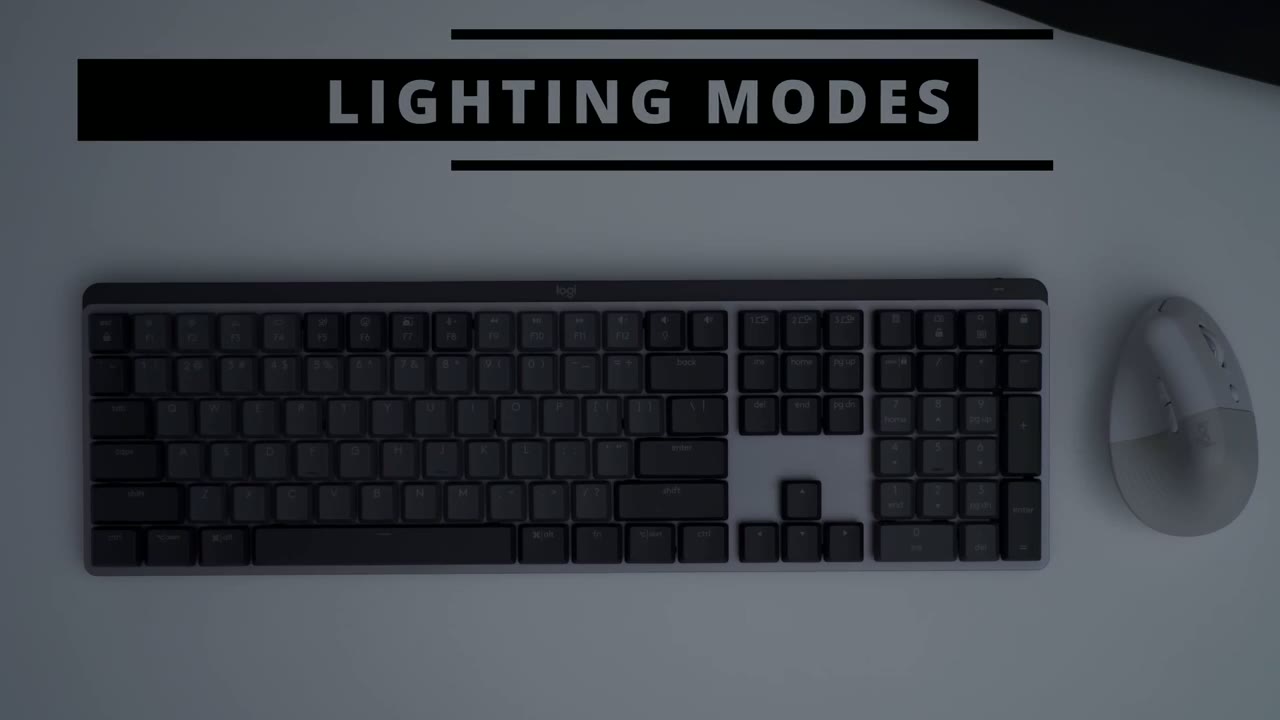
lights quite a lot because i want to showcase the lighting effects now so anytime i bring my hand close to the keyboard you can see it automatically lights up nice and slow it’s a pretty neat effect now these f3 and f4 buttons here if i press f3 it you know really dims the intensity of the light or the brightness and then f4 cranks it up so i’ll leave it at the max just for these demonstration purposes now when you do have your hand away from the lights for a while they will cut out to save battery like i just did there but i’m just gonna cycle through the mode so if i hold down the function key here and i press this bulk key which is next to f12 this is one of the lighting modes so this is called contrast so you can see whichever keys are the modifier keys that’s what’s going to be lit up the next lighting mode is called breathing so it’ll just pulse the light you know in and out really slowly that’s a nice effect then you have the mode for waves so it just starts from left to right and it just cascades the light the other mode is reaction this is a pretty cool mode so as you type you can see the keys light up and then glow glow or just a bit of an afterglow so pretty nice feature and there’s also a mode for random so it’s just going to randomly pick keys and light them up and then finally we’re back to static lighting
Button Features
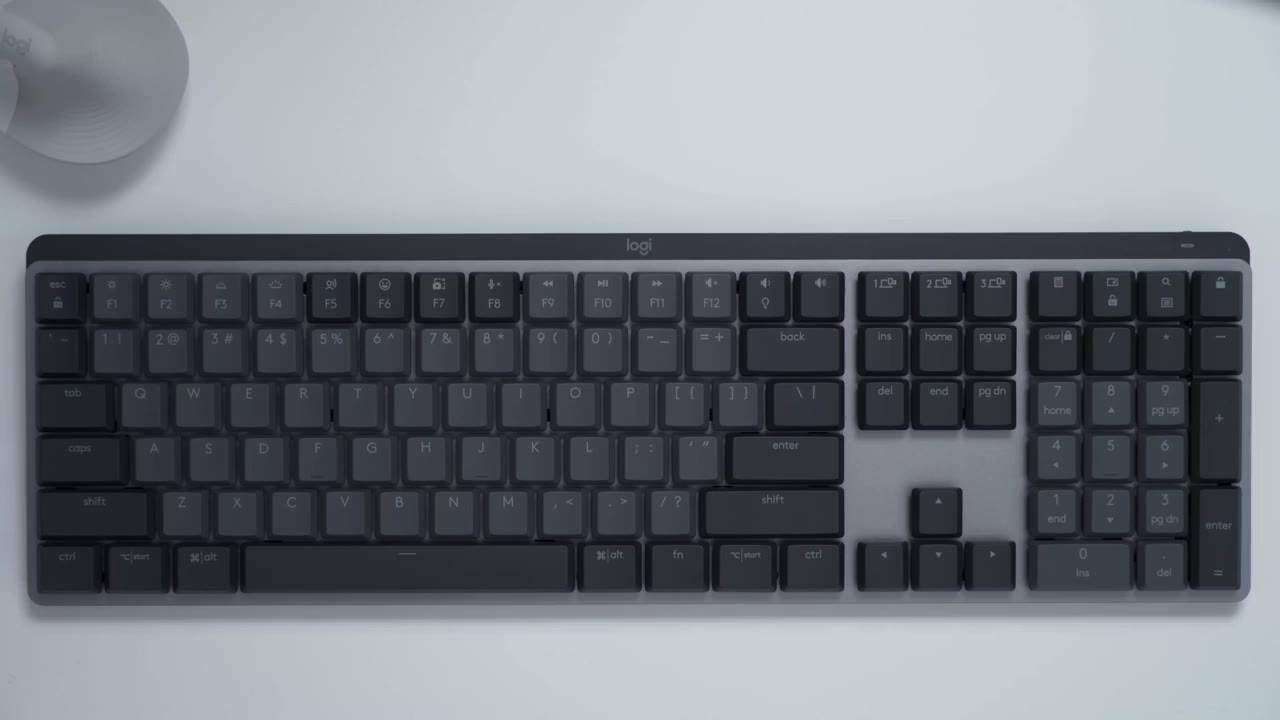
to make the most out of the keyboard logitech’s program some quick shortcuts so this button here launches the calculator this button here is to show or hide your desktop this button here is to conduct a search and then the lock button here that just locks your computer while you step away so you can see it’s kind of geared for an office type of environment where if you’re going to be stepping away for lunch or on a break you can just quickly lock your computer now the next area i want to take a look at are these three keys up here so you can just pair multiple devices so either one by two bluetooth or two by bluetooth and then one by the wireless receiver so this is a really handy feature if you know you work on two computers like i do so this is definitely going to come in handy all right the next set of keys that i want to take a look at are the f keys so by default f1 and f2 those will increase or decrease your screen brightness f3 and 4 will increase or decrease the brightness of the backlit keys f5 will launch dictation if you don’t feel like typing f6 is for an emoji window f7 lets you do a screen snip then you can take it into whatever software you want to further edit it now f8 is pretty handy because you can mute or unmute your mic when you’re in online meetings that can come in really handy now f9 10 and 11 those are multimedia keys you can do rewind play pause or forward and then lastly the f12 key light bulb key and this volume up key that’s for mute increase volume decrease volume now if you want to go to just your traditional f keys for you know productivity what you would do is hold down the function key down here press escape and then you’re going to have access to your regular f1 f2 keys say you want to rename files or whatever you have all right let’s take a look at
Typing Experience
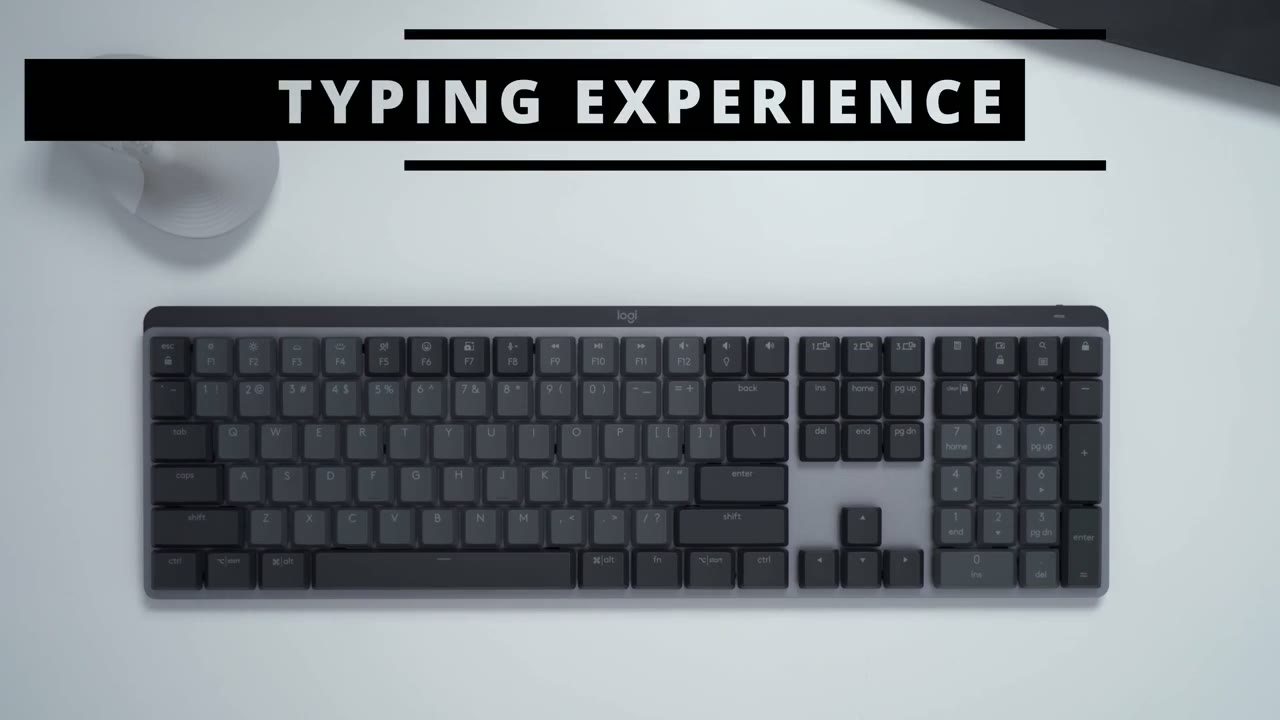
the typing experience and the first thing i want to talk about is sound since that was my main concern when getting a mechanical keyboard here’s what it sounds like so my microphone is over in this direction it’s about 12 inches away and that’s what it sounds like so right away you’ll notice that it doesn’t have that traditional clicky noise that you’d associate with you know a mechanical keyboard so if you’re in an office environment it’s definitely not going to stand out it’s not going to bother anyone but if you’re working at home late at night or you’re working next to someone who’s sleeping it’s definitely not the quietest keyboard that i’ve used i was hoping it would be a little bit more quiet to be honest now i did compare it with my laptop’s keyboard it’s a five-year-old laptop like an alienware one and when i compare the noise while i’m tapping on the laptop keyboard and this they’re about comparable so this is still an improvement because unlike a laptop keyboard you’re not going to have this amount of travel distance and that type of you know tactile feedback when you’re typing so it is a good typing experience however if you’re looking for something ultra quiet this is not the best option and just here’s a quick demo again and of course if you’re typing really fast you know it’s going to sound even louder in terms of the overall tapping experience i’m happy with it you know the key travel distance is good the keys are laid out really nicely i haven’t missed a beat while i’ve been just testing it here really quickly and the key is you know when i’m pressing them even the really wide keys there’s no tendency for it to you know kind of tilt to one side so they’re pretty high quality keys it’s a pretty premium feeling keyboard all right let’s take a
Software Settings
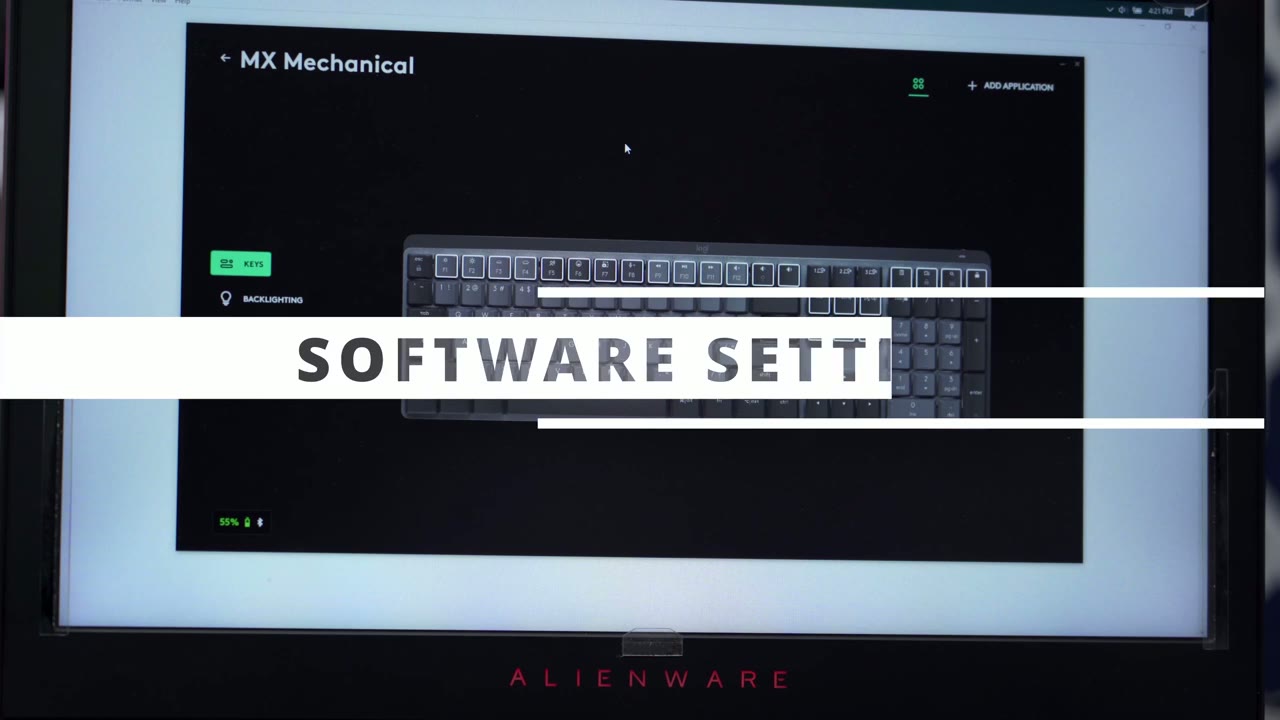
look at the logitech options software so when i’m on the keys section here you can see there’s a bunch of keys and they’re lit up white now these type of keys they can be remapped so if i click the key on the far right which is to by default lock my computer screen i may not want that so what i could do instead is i can click on keyboard shortcut and i could put in a command like control c control v or whatever else that i like now if i go into other actions here you can see there’s a whole host of options here so i can pick things like you know zoom in zoom out volume down show height desktop search open folder mute uh really a ton of options here i’m just gonna set it to this pc so that i have access to my windows explorer which is something i use a lot so you can see a lot of keys lots of customization if you go into backlighting you can see it shows these are the commands that you would use so function plus this bulb key here but if i go into backlighting and select effect here is where i can change it from static contrast breathing waves reaction random i’m just going to leave it on static so you can either change it in the logitech option software or by using the keyboard shortcut here now you do also have the option to set up easy switch i haven’t paired anything else here when i move my laptop back upstairs which is where i work i’m gonna pair it to my desktop looking at the settings so you see you have some options here just to update the software you also have options for turning on backlighting or just having it off completely there’s also a battery saving mode now all this does is it turns off backlighting when the battery level drops to 10 and you also have some other changes here and you can also monitor the battery life so i think this is a pretty
Recommended?
good option if you’re looking at getting a mechanical keyboard but you’re just a bit hesitant about something that’s too loud or if it’s going to affect others around you now it’s not the quietest keyword that i’ve used i was hoping it would be a little bit more quiet but i am still rewarded you know with a really nice typing experience there’s good tactile feedback good good key travel distance and the build quality is really excellent really premium i’m really a fan of the backlighting options that they have however one thing that i want to point out is the battery life you know this is only rated for up to 15 days of battery life if you’re using these backlit options considering that this is a full-size keyboard and it comes in at 1.8 pounds i would have really liked the battery life can be around a month so that’s something to consider let me know what you guys think of this keyboard and if there’s anything that i miss or if you have any questions please leave them in the comments down below now i also did review the logitech lift which is an ultra quiet mouse and i’ve been using it since i’ve reviewed it so check that video out i’ll link it in the description or leave it on screen now i am also going to be reviewing the new upgraded mx master 3s that’s the upgrade from the mx master 3.
it’s supposed to be quiet and there’s a couple other dpi improvements if that’s of interest to you please consider subscribing and i’ll see you in the next one bye you
☑️ Get the MX Mechanical on Amazon
Please note that some of the links in my video descriptions are affiliate links where I earn from qualifying purchases. As an Amazon Associate I earn from qualifying purchases.

