


☑️ Get the S22 Ultra Phantom White on Amazon
Please note that some of the links in my video descriptions are affiliate links where I earn from qualifying purchases. As an Amazon Associate I earn from qualifying purchases.
Intro
it’s adrian and today i’m going to share some battery saving tips that you can enable on your s22 ultra let’s start okay so for the first tip we’re going to
Tip 1 – Connections
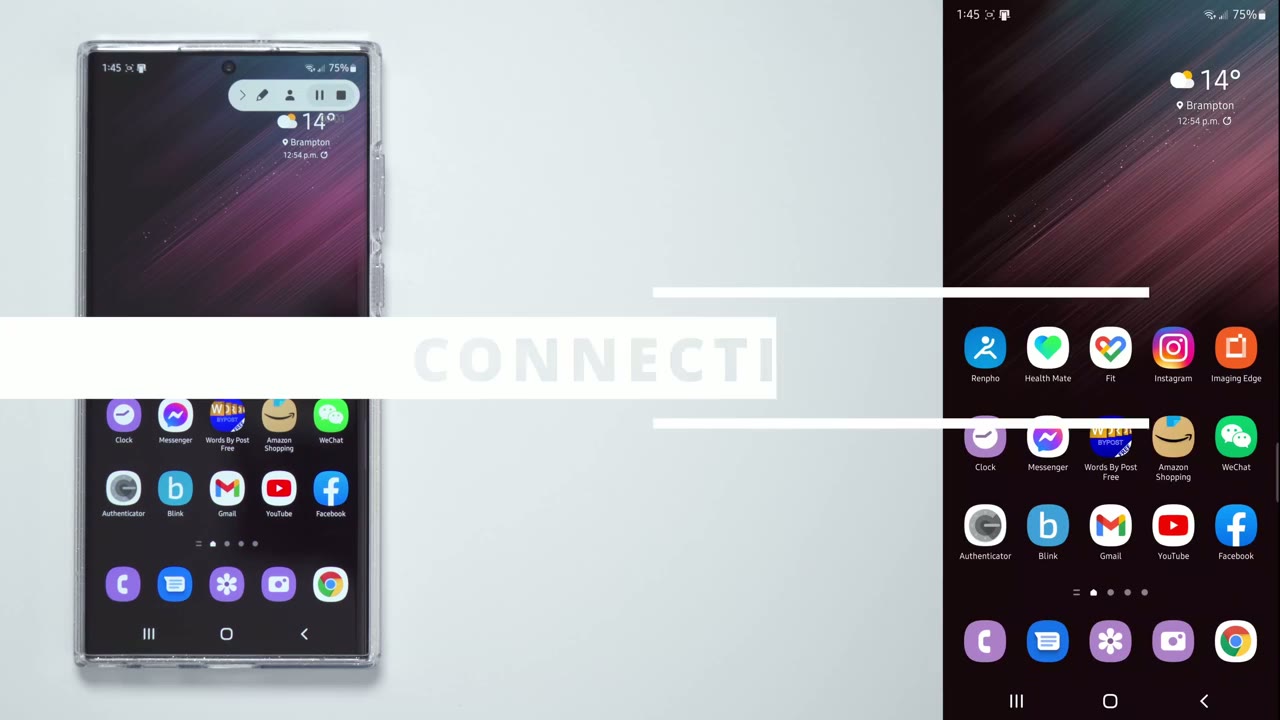
look at connections and you can decide what you need to have enabled on your phone and what you can live without so let’s go into that so just drag down from the top and then click on this little gear icon over here or just go into settings directly so the first tab we’re going to look at is the connections tab now this is kind of personal preference so you kind of have to decide what you need and what you can live without so i always need wi-fi on so that’s on and i always have bluetooth on um for my smartwatcher so if you can do without bluetooth um turn that off it’s gonna be uh it is gonna save you a lot of battery not having that turned on 24 7.
the other thing is nfc now nfc is uh near field communication so that’s what you would use if you want to tap to pay or you know share information by tapping it against the back of another phone if you don’t need that go ahead and turn that off now while you’re in the connection screen go ahead and click on the more connections tab and you can see there’s an option here for nearby device scanning if you’re not constantly using that go ahead and turn that off as well the next area i want to focus on is down
Tip 2 – Vibration Intensity
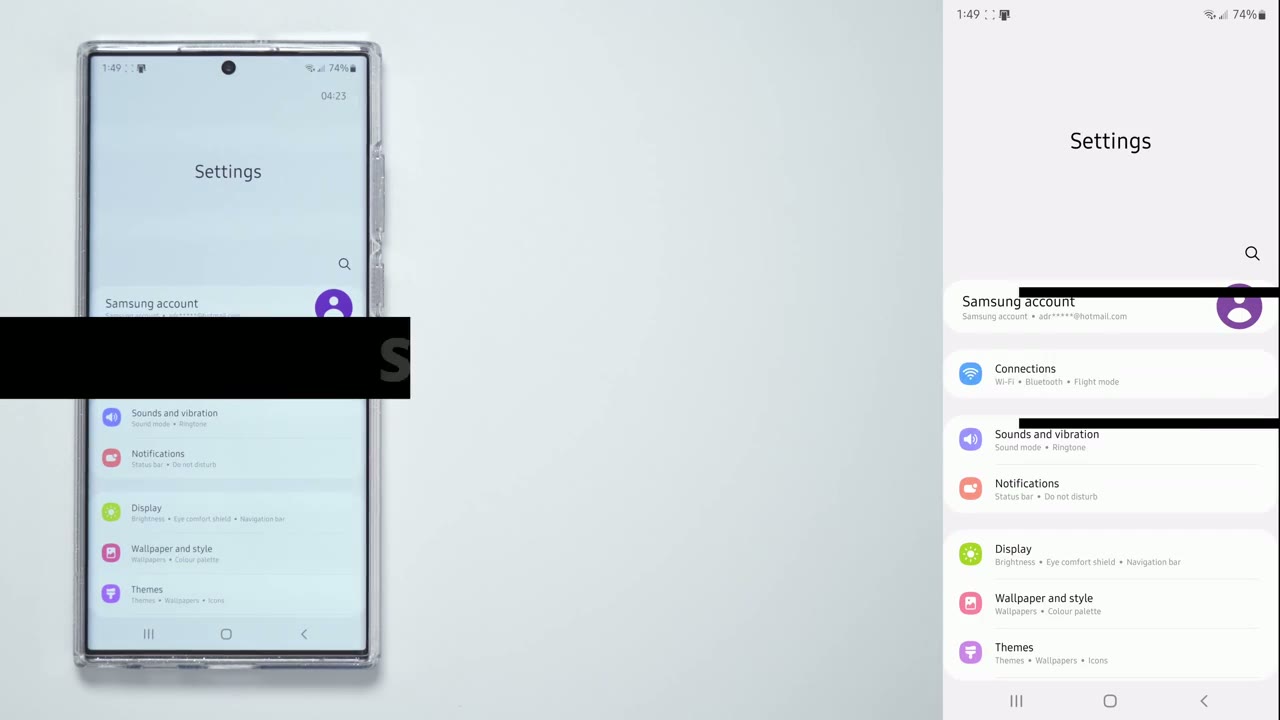
the list which is sounds and vibration so i think having sounds is fine that’s not going to eat too much of your battery but vibrations will so if you scroll down and go to vibration intensity you can use the slider to set how much vibration you want for touches or taps on your phone notifications incoming calls and what have you so go ahead and set that to whatever you need the next area i want to take a look at is system and vibration control if you click on
Tip 3 – Vibration Control
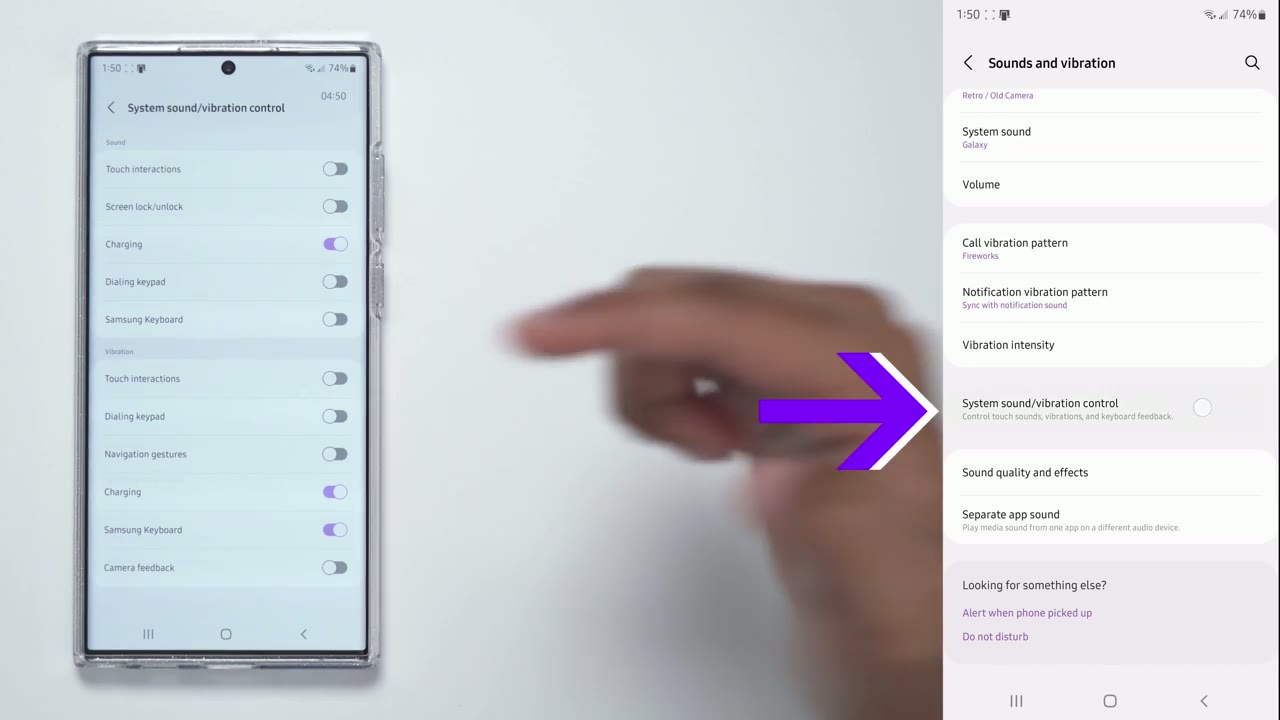
that you can see you can actually specifically set where when you want vibrations to occur so on my phone i i don’t want vibrations to occur on touch interactions using the keypad when making calls gesture navigations or camera feedback so you know you set that however you like it but if you like zero vibrations it’ll just disable everything and you know that’ll go a long way and saving battery life so the biggest impact your
Tip 4 – Display Settings
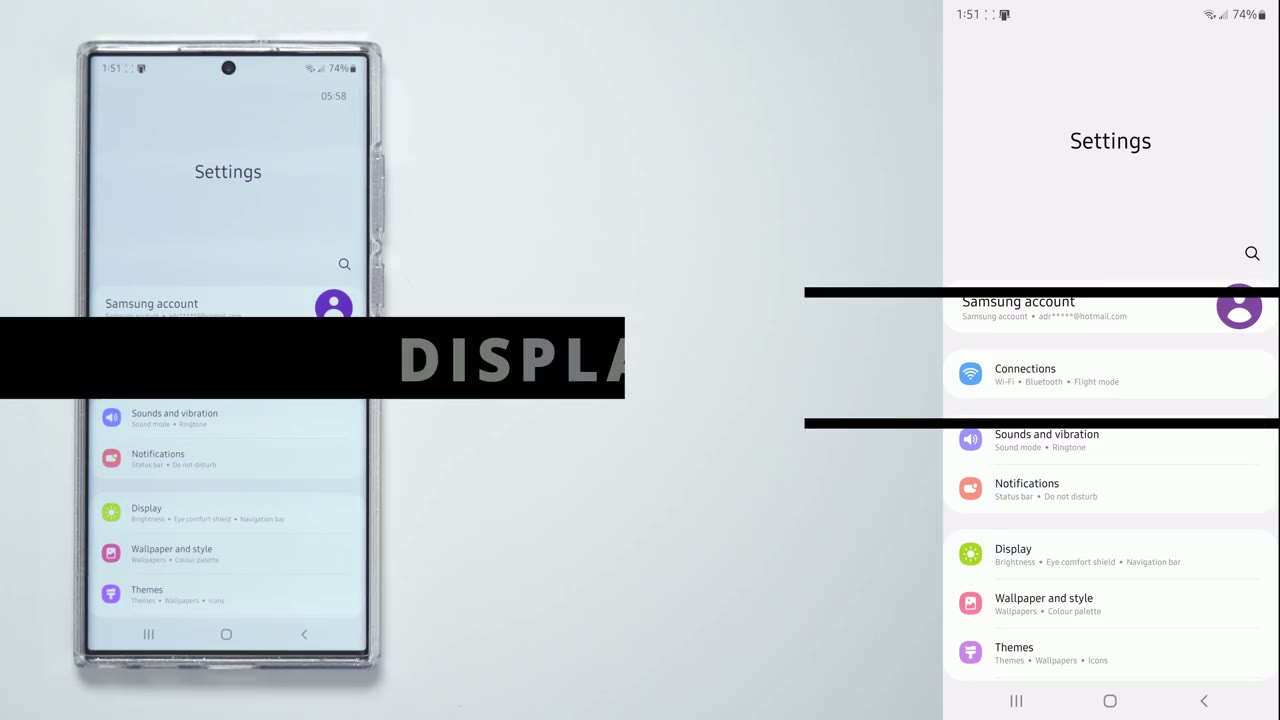
battery life is gonna be relating to the display of the phone since it’s such a big display so let’s go into those options so you can see there’s two options here um light mode and then dark mode now anytime you’re in dark mode you’re really gonna save a lot of battery life because those pixels are going to be turned off based on the screen type of this phone so if you can live with dark mode um leave it on dark mode but for the purposes of this video i’m going to leave it on light mode now you can see there’s also a brightness slider so i keep mine kind of high but you can notice there is um a setting here and as i get closer you can see i’m near this kind of uh zone here that’s differently colored and if i move it over there i’m now in a zone where the battery life is going to deplete much uh much faster than normal so you can just keep it just out of that zone if you like but if you want to make the best use of your display you just want everything bright go ahead i mean you paid for the phone you might as well use it now the other thing that you can do is um turn on adaptive brightness and just have the phone sensors adjust the brightness depending on this uh the environment i don’t really like that i like having full control so i keep my brightness pretty bright not in that zone of course the other thing is make sure um this setting for extra brightness is turned off this is mostly used for um you know when you’re outside in direct sunlight it really boosts the brightness you can see having both of those cranked it’s a really bright display so just be mindful of that setting now the other thing is
Tip 5 – Refresh Rate Settings
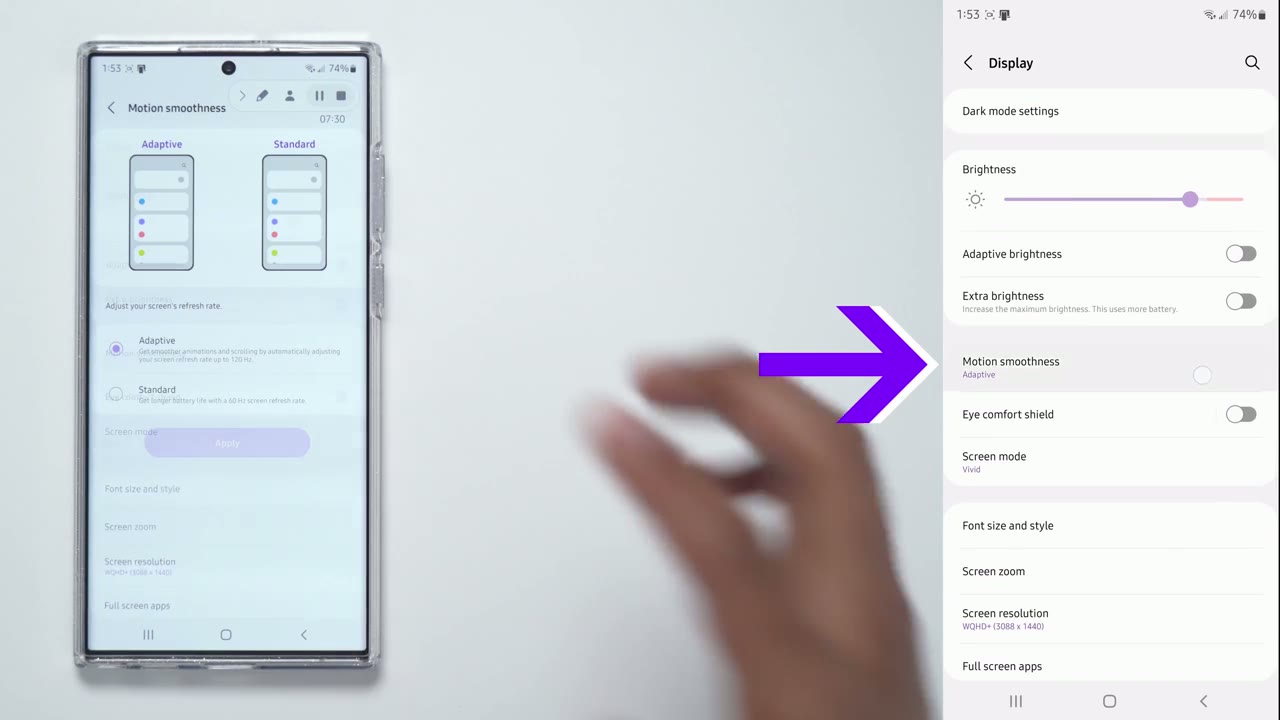
the refresh rate so samsung advertises a variable refresh rate from one hertz to 120 hertz and that is done by using this adaptive option here now if you go to the standard option you’ll get longer battery life but it’s going to cap out or it’s going to just be stuck at a 60 hertz refresh rate now if you want the best you know performance best display on the phone then leave it to adaptive but just keep in mind that it will affect your battery life in some way so the next area i want to take a look at
Tip 6 – Screen Resolution
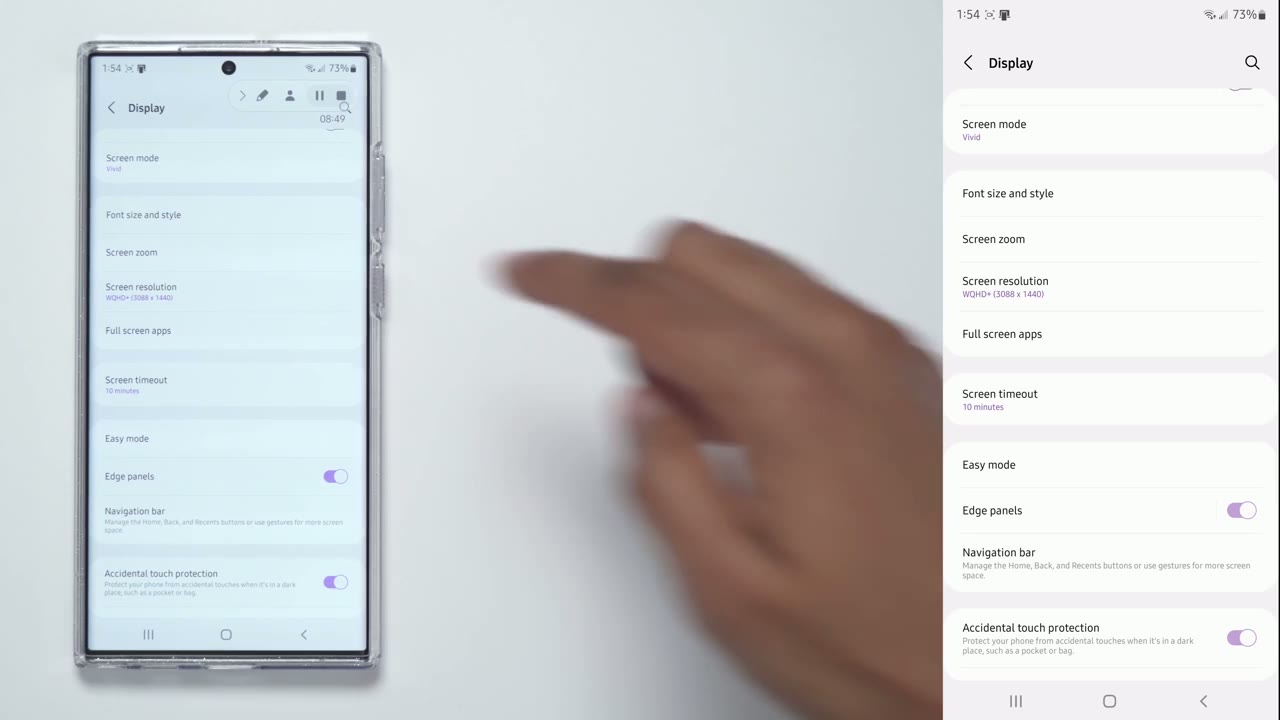
is if you scroll down to screen resolution so mine is set to the highest resolution of 3088 by 1440 obviously as you go down in resolution you’re gonna conserve battery life but at the expense of you know not as sharp of a display now even at full hd i don’t think it’s that big of a deal um i think you’ll still be happy but if you want um the best display then you know leave it at the wqhd plus the next setting we can look
Tip 7 – Screen Time Out
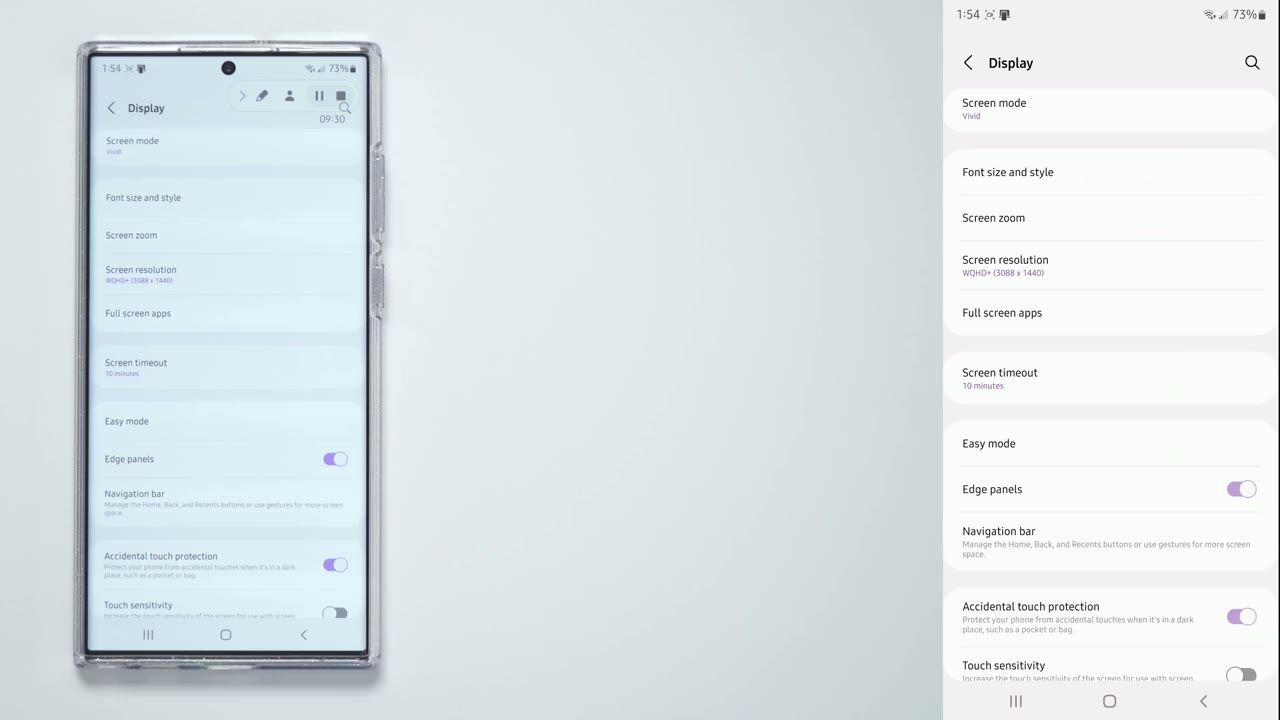
at is the screen timeout i have it at 10 minutes just for this video generally i have it at 30 seconds so if you want the screen to shut down earlier so that you know if you’re kind of forgetful about it then put it to 15 or 30 seconds the last option we can look at in
Tip 8 – Screen Saver
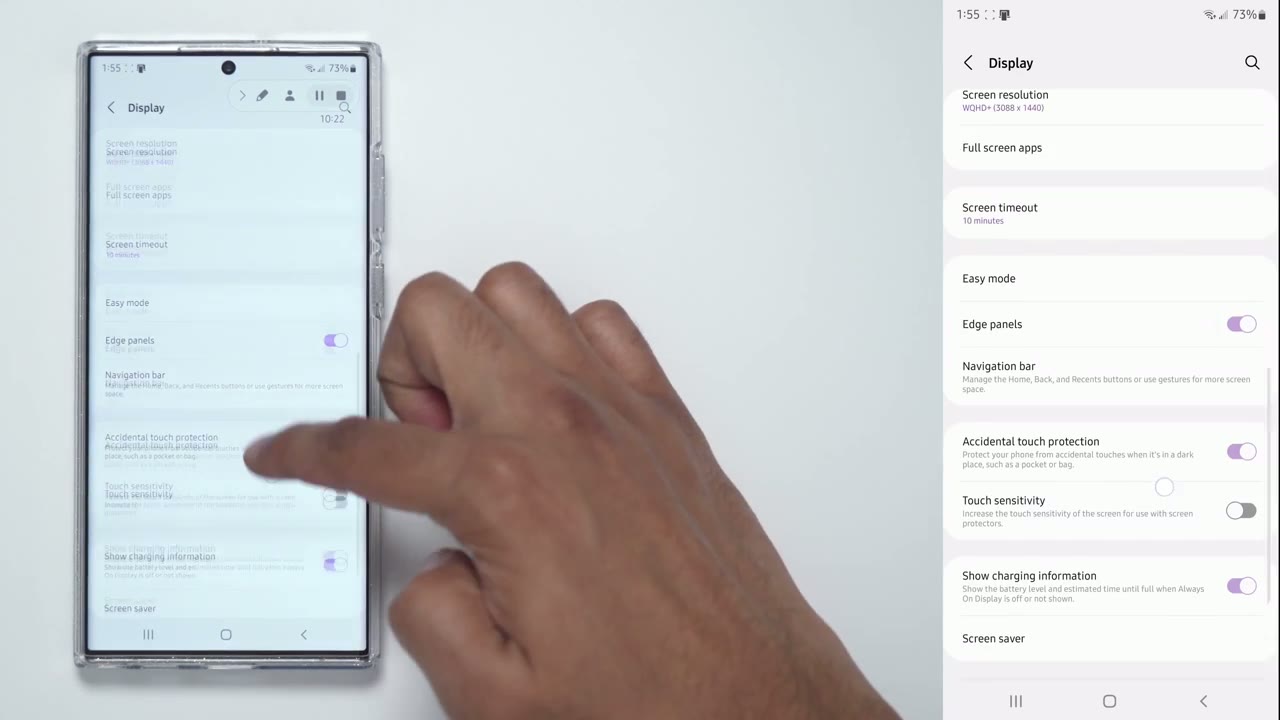
display is screen saver so right now mine is set to none and what that is is anytime your phone is charging you can have a screen saver which of course is going to use your battery life so to give you an idea if i click colors and click preview that’s an example of what the screen saver looks like if you don’t care about that and you want to save battery life just put it to none let’s
Tip 9 – Location Settings
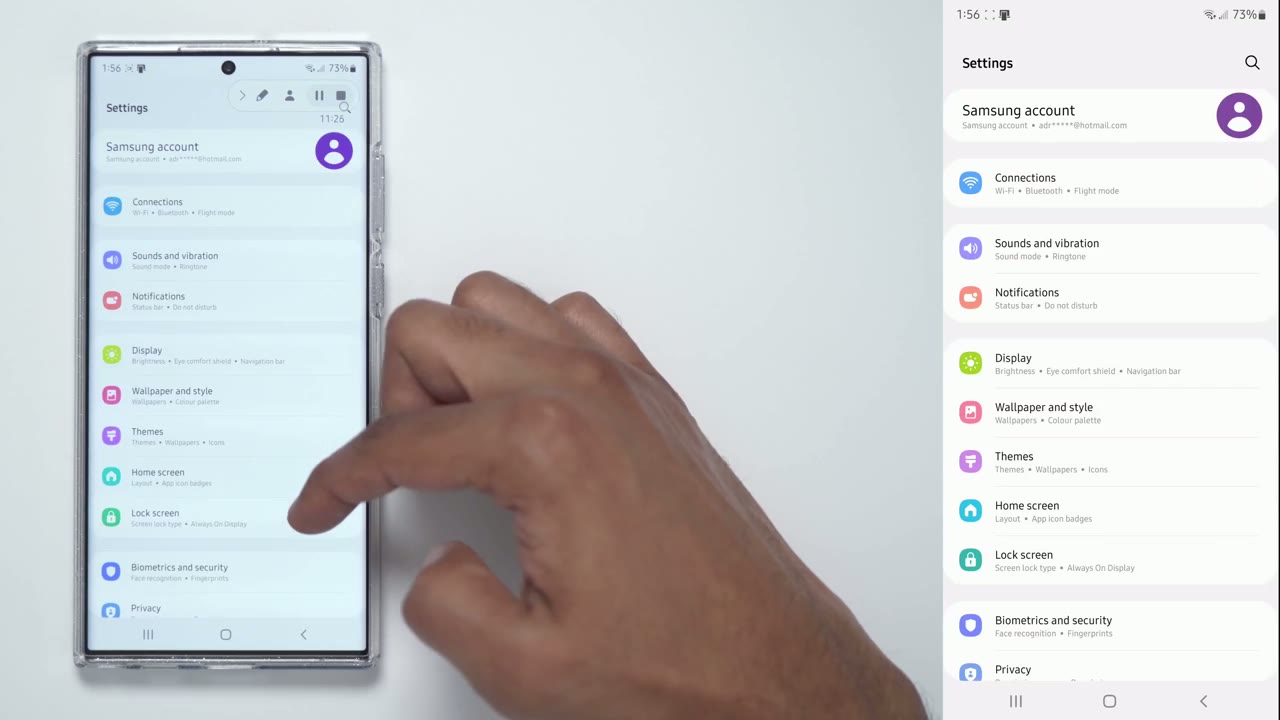
take a look at the location setting now so if you click on location right now i have mine to on obviously when it’s on it’s going to use your battery life if you don’t really need it you can set it to off but if you do like having it on there’s a couple other options that you can do so if you go into location services down here you can see that um there’s two options to improve your location accuracy which is wi-fi scanning bluetooth scanning go ahead and turn these off um the location or gps lock is not gonna be maybe as accurate but it is gonna improve battery life because it’s not gonna be continually scanning okay the
Tip 10 – Lock Screen Settings
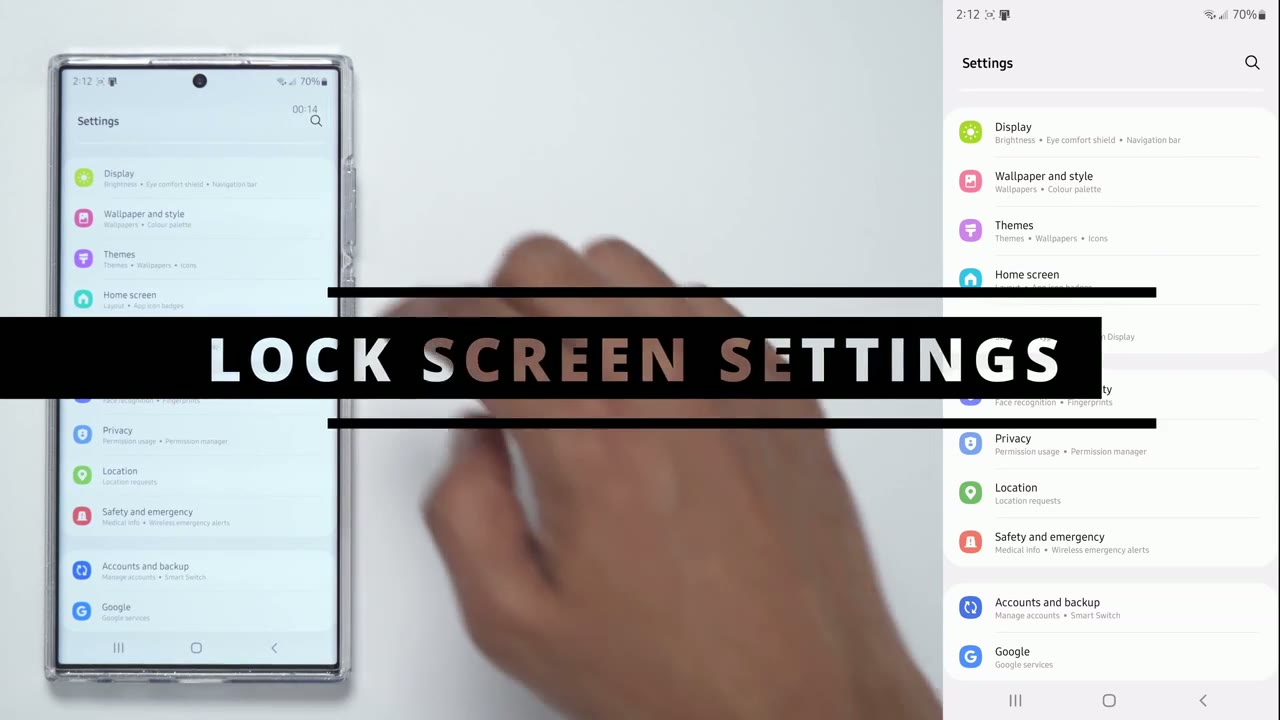
next area that we can look at changing is the lock screen so when you go into there you can click on this always on display so you can see that it’s currently set to on and what that is is anytime your phone screen is locked you’re just gonna have the screen kind of dim and showing your information so i like to have it on if you don’t need it or if you don’t like that option go ahead and turn that off but if you do keep it on go ahead and click into it and you can have it always showing you can tap the screen to show it or you can only show it for new notifications i like having it to show as scheduled and i have it set so from 7 am until 12 30 it’s always gonna be on and then usually by 12 30 i’m in bed and then the screen is going to be off because i’m not going to be looking at it anyway so that will help with battery life the other thing is you can set the brightness of the um always on screen so you can have it really low or really high and of course you’re not going to see it unless i shut the phone off now there is an option for auto brightness where the phone will adjust the brightness of the always on screen depending on the ambient light i just like having it off and then at maximum brightness but you can go ahead and set it to whatever you like
Tip 11 – Bixby Routines
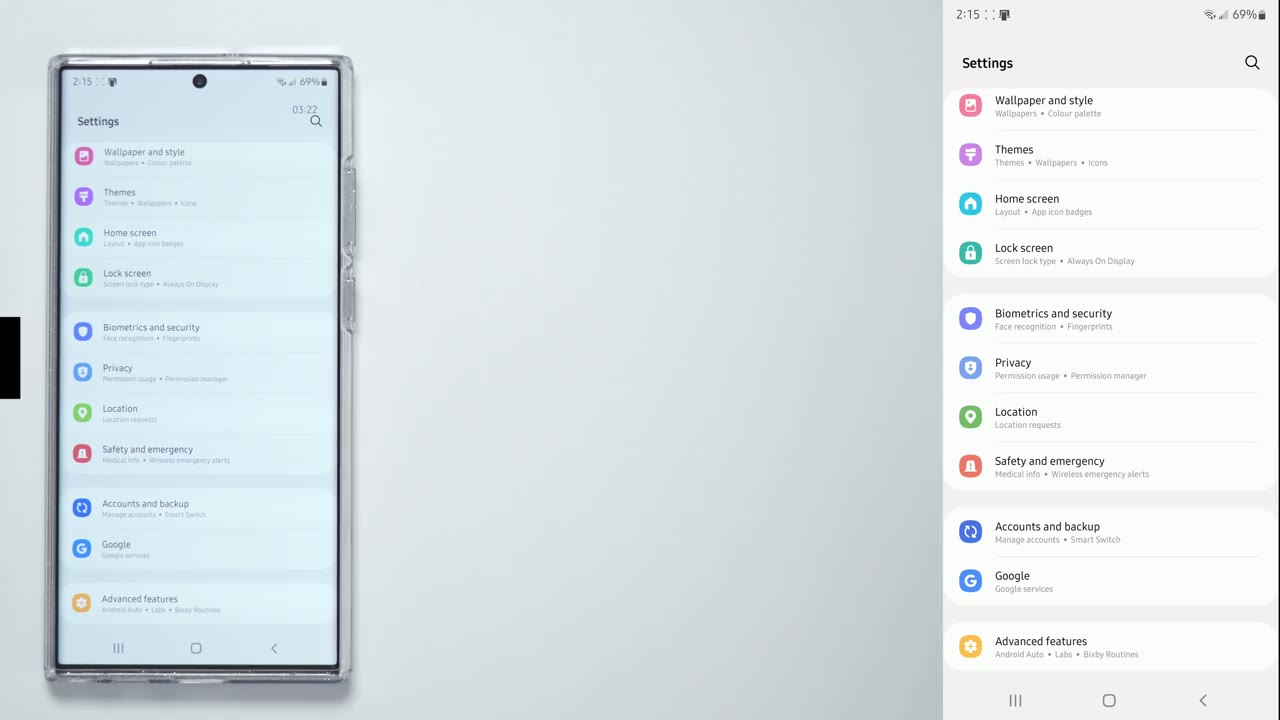
the next area i want to take a look at in the list is the advanced features so click on advanced features and clicks on click on bixby routines when you click that you can see it’s defaulted to this cover stay there scroll down to this option adaptive routines here and click on view more and when you click on view more you can see there’s a bunch of routines that are already pre-made so a couple that you can consider adding to your phone or the before bed so before bed it’s gonna set the brightness to forty percent and change um sorry turn on dark mode is gonna set extra dim at eighty percent and what you can do is you can actually add to this so you can click on edit and you can see it says here before bed do these actions here and you can just minus if you don’t want an action or you can click on add and you can add other actions so say you have data and wi-fi turned on during the whole day but at night or when you’re at home you only need um your wi-fi and you don’t need your data on you could go into connections you know scroll down to mobile data and set it to off in the routine so something to keep in mind you know if you’re a forgetful person that could come in handy i’m just going to discard that because i’m not actually going to use it so still in the adaptive routines section another thing you may want to consider is in the dark click that so you can set a time period so whenever it gets dark wherever you are say it’s at 9 pm you can set it so that the phone automatically sets it to extra dim and turns on dark mode and then you can also set the screen brightness even so to do that you just click edit of course add fine display and then set the brightness here to whatever percent you want um save battery so whenever the phone detects that the phone is not charging and the battery is below five percent it’s automatically going to turn on power saving mode so that’s one less thing you have to think about or worry about the other thing that’s very handy is um save battery at night so what this does is if you’re sleeping and the phone detects app and if you forgot to charge your phone so you forgot to plug it in or put it on your wireless charger the phone is automatically going to activate power saving mode and it’s going to set your um sounds and everything to zero so that’s that’s really handy because you’re not going to wake up to a dead phone that is going to put it in power saving mode and then lastly this isn’t really directly about battery life but this is just about battery health so the last option here is to get notified when fully charged so anytime your battery level is at 100 the phone can vibrate or light up or whatever else you want it to do to let you know it’s fully charged and why you would want that is anytime the phone is fully charged and you leave it plugged in it will deteriorate the battery life or the battery health over time so something to keep in mind
Tip 12 – Video Brightness
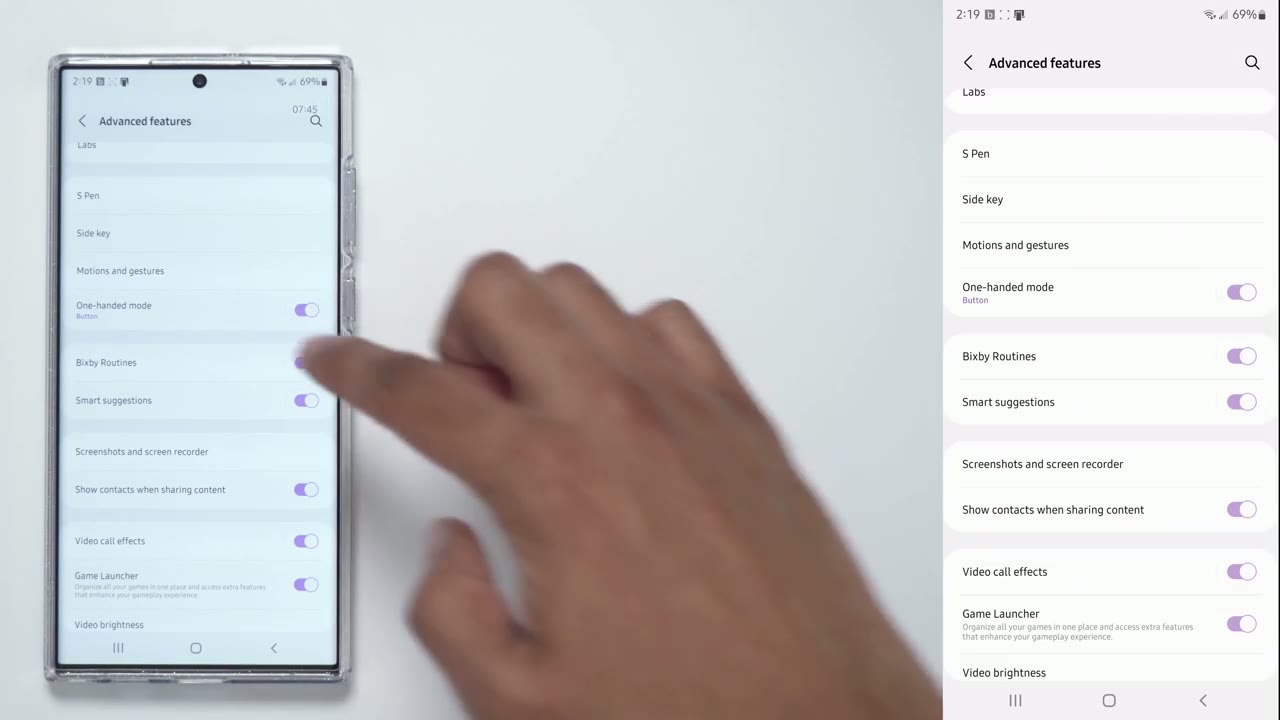
while still in advanced features you can also scroll down to this option called video brightness now you can see there’s two options normal and bright you can leave it on normal and that’s the best for your battery life but if you like you know to have the best quality video put it on bright and what that does is anytime you’re watching video the phone is gonna amp the brightness up it’s gonna increase the brightness so that you have a better video viewing experience now you may not need that in every app say you’re watching like the occasional tick tock video you may not care if tick tock or twitch is very bright but you may want a netflix movie or a youtube video to be right so you can toggle that to whatever your preference is and if you just want your phone to have a standard brightness across the bro across the board just leave it on normal okay another setting we can look at is
Tip 13 – Battery Settings
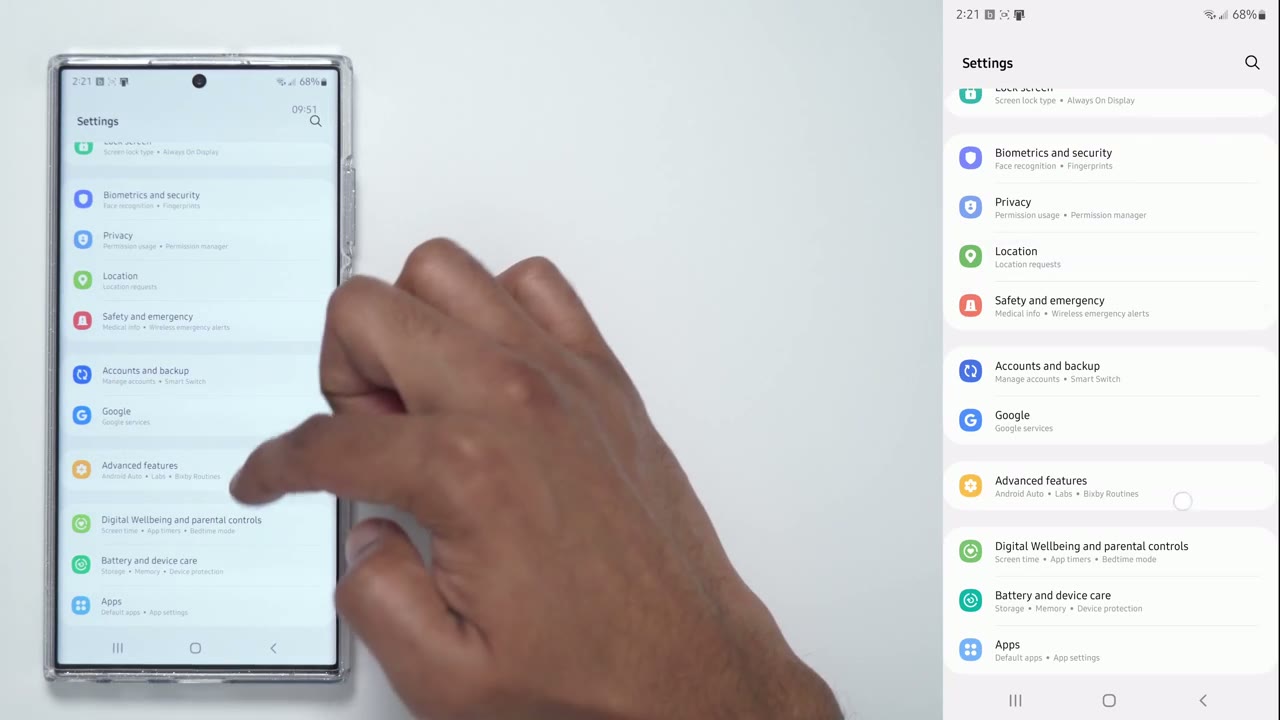
the battery setting so go ahead and under advanced features there’s battery and device care click on that um ignore that i just have an app causing battery drain that’s why that’s there but if you see here there’s an option for battery click on the battery right there and scroll down and there’s an option here to put the phone into power saving manually so this is good if you’re on the road you’re not mirror charging you need to prolong battery life just manually enable power saving mode you can see it just dim the screen so it’s going to perform some auto actions when you do that to conserve battery life another thing you can do is click on more battery settings so right now it’s set to adaptive battery so it’s going to limit battery usage for apps that you don’t use often keep that on now click on processing
Tip 14 – Processing Speed
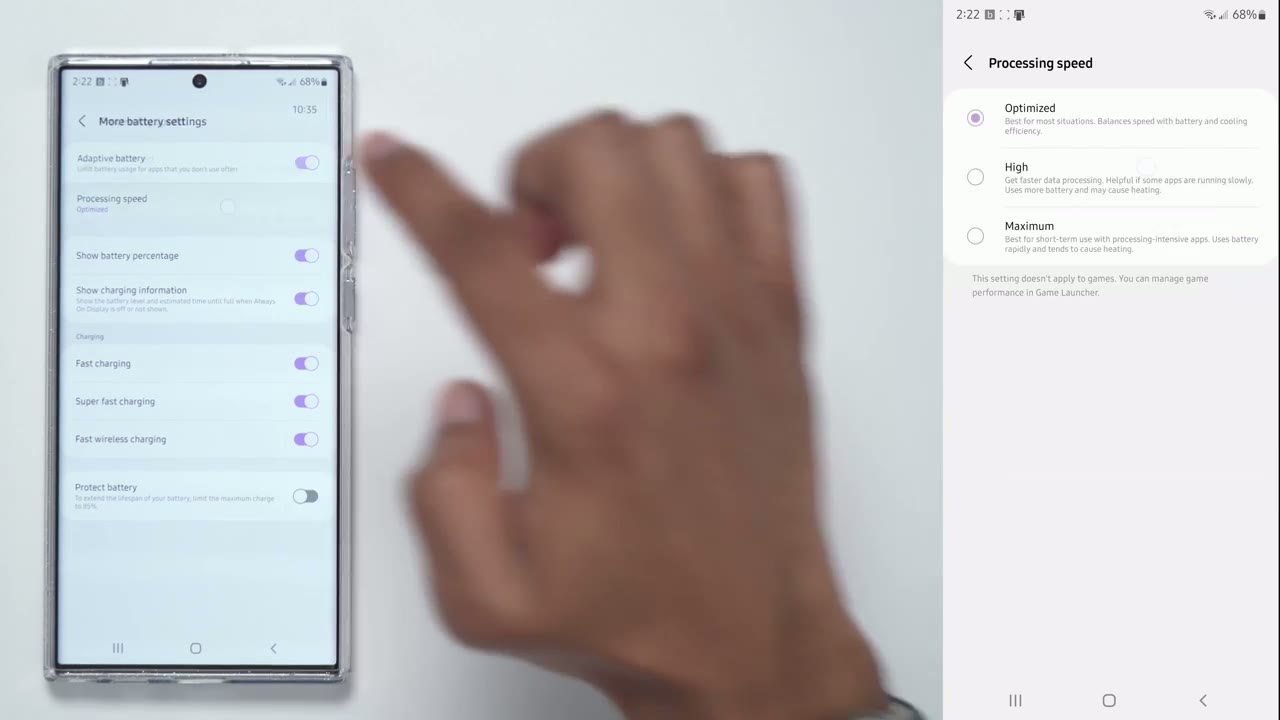
speed mine is set to optimize so what this is going to do is it’s going to balance the phone is going to decide when to give apps full processing power and when not to now that’s going to give you the best battery life optimized if you click it on high you know your apps games are going to perform better at the expense of battery life and if you go to maximum it’s really going to use every resource that it has in terms of your cpu battery to get you the best performance if you’re going to be gaming editing video or something so this is going to really deplete battery life quickly but you’re going to get the best performance i have it on optimize and for most app uses you know i haven’t noticed any detrimental effects the last thing you may want to
Tip 15 – Protect Battery Setting
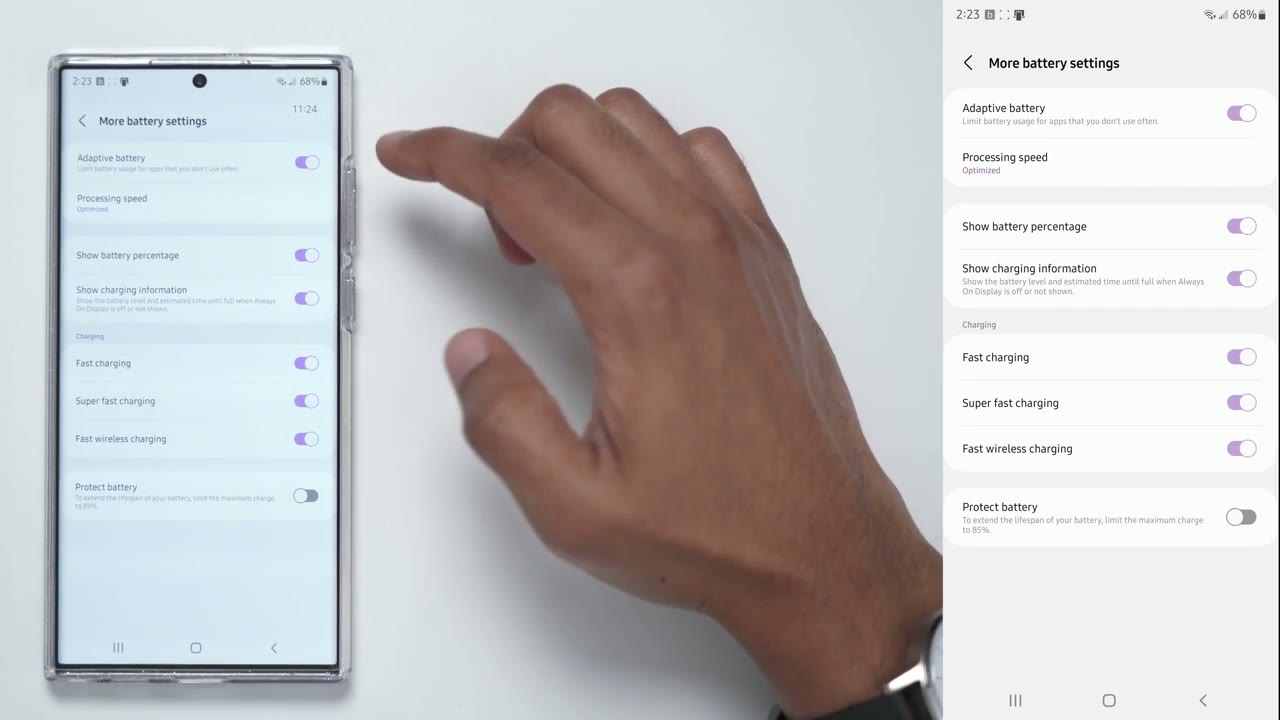
turn on maybe not is while you’re still in battery settings there is an option here that says protect battery so what this does is it’s going to limit the maximum charge that the battery can take to only 85 so if you enable that it’s never gonna charge past um 85 percent it’s always going to cap out at 85 and again that’s to prevent the phone from hitting 100 and you leave it plugged in and it um deteriorates the battery health but where you can i i leave it off i want it at 100 but if you’re going to use that go ahead turn on that bixby routine where the phone is going to alert you right away as soon as it hits 100 and then you can unplug your phone i hope those battery saving tips were helpful to you i showed you a bunch of tips and i know they’re not going to be for everyone you know you did buy a high-end device too you probably want high-end performance but it’s going to be up to your individual case to decide which settings you can live with and which settings you can live without if you know of any other battery saving tips that i didn’t cover here please share them down in the comments below i’m sure everyone else would love to learn from that and i would really appreciate knowing them too and if you found this video helpful please consider liking and subscribing i’m always doing these kind of review videos and you know just quick android tips and tricks so if that’s interesting to you um please consider subscribing and i’ll see in the next one bye
☑️ Get the S22 Ultra Phantom White on Amazon
Please note that some of the links in my video descriptions are affiliate links where I earn from qualifying purchases. As an Amazon Associate I earn from qualifying purchases.

