


☑️ Get the S22 Ultra Phantom White on Amazon
Please note that some of the links in my video descriptions are affiliate links where I earn from qualifying purchases. As an Amazon Associate I earn from qualifying purchases.
Intro
hey it’s adrian and today i want to share with you 25 tips that you should know to make the most out of your s22 ultra as well at the end i’m going to share a tip that you can do on this phone or any other type of android phone just to make it a bit snappier so stick around for that and let’s get started
Tip 1 – Recover Photos
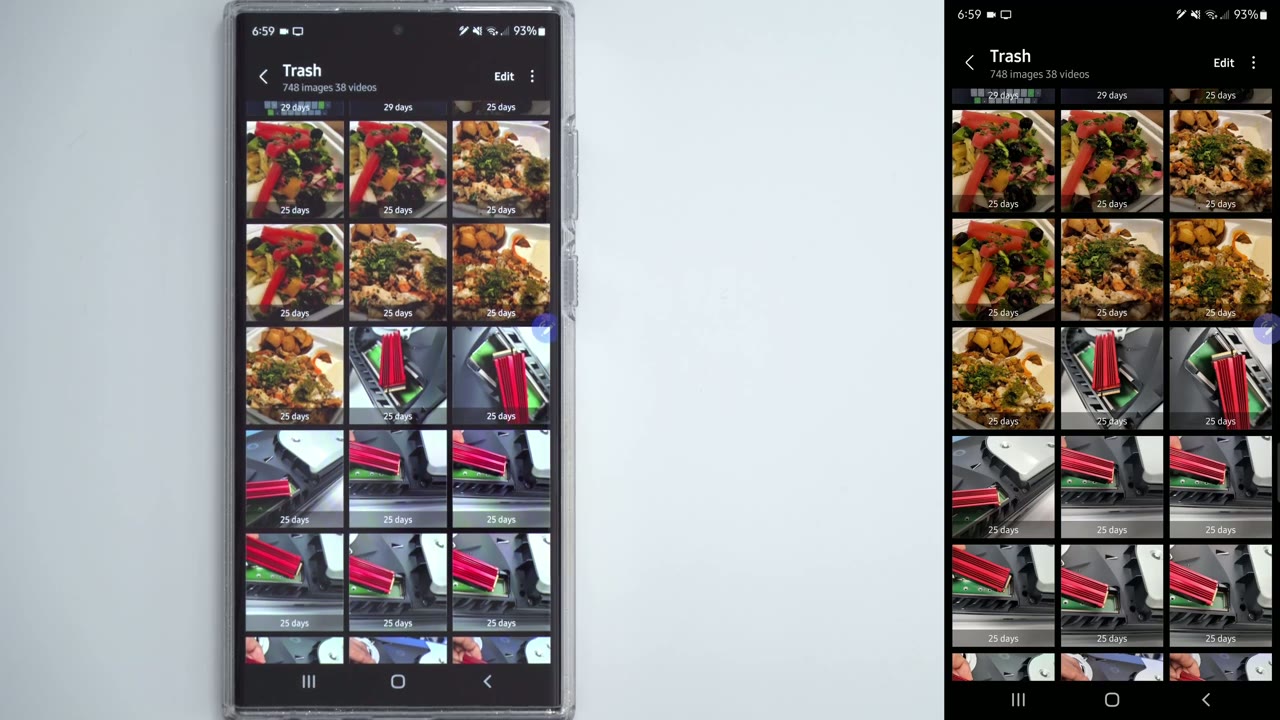
let’s start with the tip that i think is most important for any s22 ultra owner so what we’re going to do is we’re going to go into the gallery app which is right here click on this little menu at the bottom right and then click on settings when we’re in settings scroll down until you see this option here called trash and it says keep deleted photos and videos for 30 days make sure that’s enabled and what that’ll allow us to do is if you ever delete something by mistake and you need it again later you can click on the menu here click on trash and you can see i have a whole bunch of photos that i’ve deleted and if i wanted to restore it i could just long press on one of them say i want that one in that one and you can see the option here is there to restore and i can restore it now keep in mind this is only up to 30 days the next
Tip 2 – Notification History
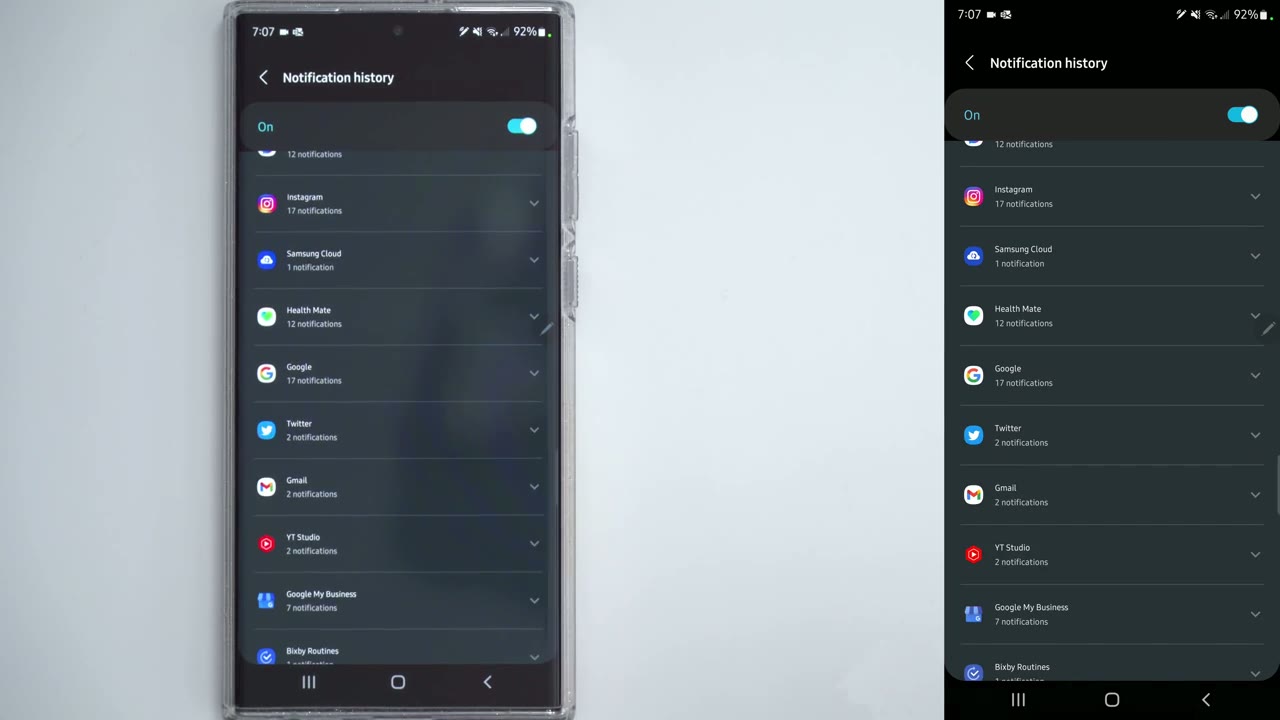
thing i want to talk about is notification history so a lot of the times out of habit i’ll just pull down clear all my notifications or swipe them away and then i realize later oh i needed to read one of those so to fix that issue let’s go down into the settings again so click the gear icon click on notifications click on advanced settings and then finally notification history and you can see it shows recently dismissed notifications if i scroll down further it shows notifications that were dismissed within the last 24 hours so if i just scroll for example and i click google there’s a little drop down arrow here you can see it shows a list of different notifications that i’ve had
Tip 3 – Customize Notifications
another tip that you can enable is to customize your notifications so click on the gear icon again or go into settings scroll down to accessibility right here and then click on advanced settings and click on flash notifications now there’s an option here for camera flash notification and what that does is it’s going to flash the led light so if i click preview you can see the light was flashing at the bottom there so every time you get a message or notification it’s going to do that you may have also noticed that screen flash notification is on and you can do that by clicking that and you can change the color that you want the screen to flash so if i pick green done and i click preview every time i get a notification my screen is going to have that green and it’s going to flash the light so you can pick whichever one of these you want and you can also pick which app that you want so if i click on selected apps i can pick which app that i want that to be enabled for if there’s any app that’s more important than the other now i’m not running a
Tip 4 – Touch Sensitivity
screen protector on my screen but if you are and you notice that the touch sensitivity is not what you want go ahead and go back into the settings click on display scroll down until you see touch sensitivity and what that does is it will increase the touch sensitivity of the screen if you’re using a thicker screen protector if you’re like me you
Tip 5 – Double Tap Screen
may prefer to double tap the screen to turn it off and on so to do that again go into the settings scroll down until you see advanced features and then scroll to motions and gestures so you can see there’s two options here double tap to turn on screen and double tap to turn off screen so instead of using the power button at the side here basically i can just double tap there and the screen is off and then double tap and it’s on this next step can
Tip 6 – Emergency Location
really come in handy so if you call your emergency services in your area you can give them your location as well through the phone so go into settings go into safety and emergency and there’s an option here that says emergency location service and it says send els location so what this does is if you make an emergency call or text even though you don’t have location turned on the phone will automatically relay that type of information this next step has to do
Tip 7 – Emergency Alerts
with emergency alerts so if you want to pick what type of alerts you get go ahead click into the settings there and scroll down to safety and emergency again and we’re going to click on wireless emergency alerts now you can see i have alerts turn on for extreme threats severe threats amber alerts but if there’s any type of alerts you didn’t want you could just disable them this
Tip 8 – Edge Panel
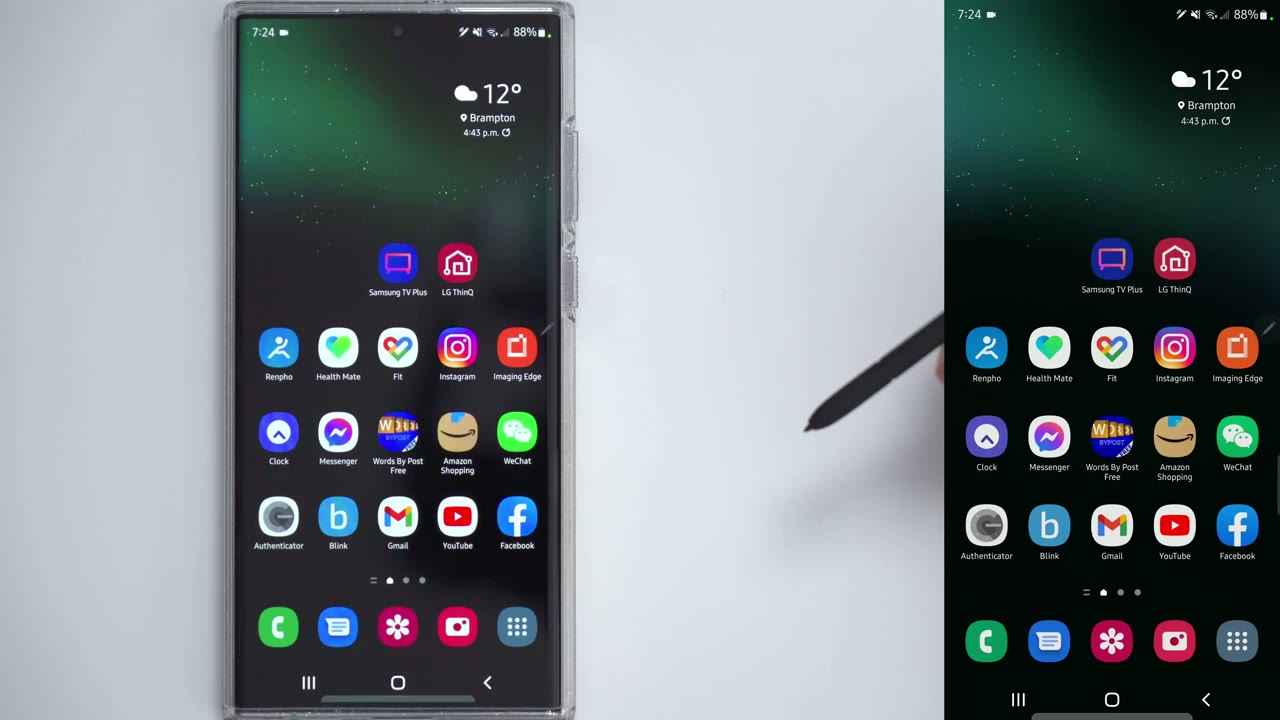
step has to do with the edge panel and if you’re not familiar the etch panel is a little panel that lives at the side of the screen and you can drag it out and customize whatever comes out for quick access so to customize that go down into the settings again go into display scroll down until you see edge panels now it’s turned on you can turn it off if you don’t use it not to customize it just go ahead and click into edge panels and right now mine is set to apps however you see i can change it to live messages people smart select for the s pen task and a whole bunch of other stuff i’ll leave it at panels sorry on apps for now but to customize the look of the handle click on handle and i can either lock the position or i can move it from left to right so it’s on this side now and just to give you better visibility i can set the transparency to low and you can see it there right now if i switch to left now you can see it over there and of course you can change the size of it so let’s go ahead and make that much larger or even thicker so one thing i’ve never
Tip 9 – Navigation Settings
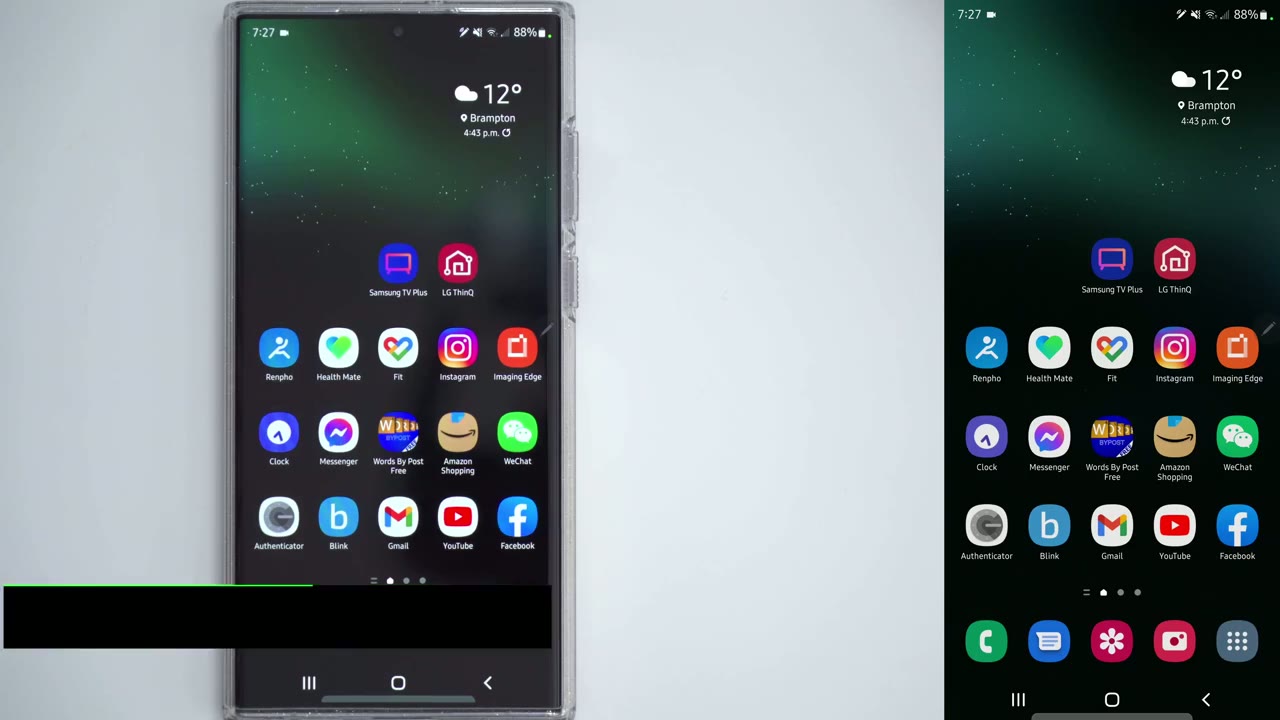
gotten the hang of is using swipe gestures i still prefer having those traditional buttons at the bottom so to get those you would scroll down go into settings go into display scroll down to navigation bar and you can see minus set the buttons if you wanted swipe gestures you could set it there but if you are using buttons you see you also have the option to change the button order depending on your preference so i like having the back button on the right side there but you can also have it on the left side if you prefer that since you’re always going to
Tip 10 – Brightness Settings
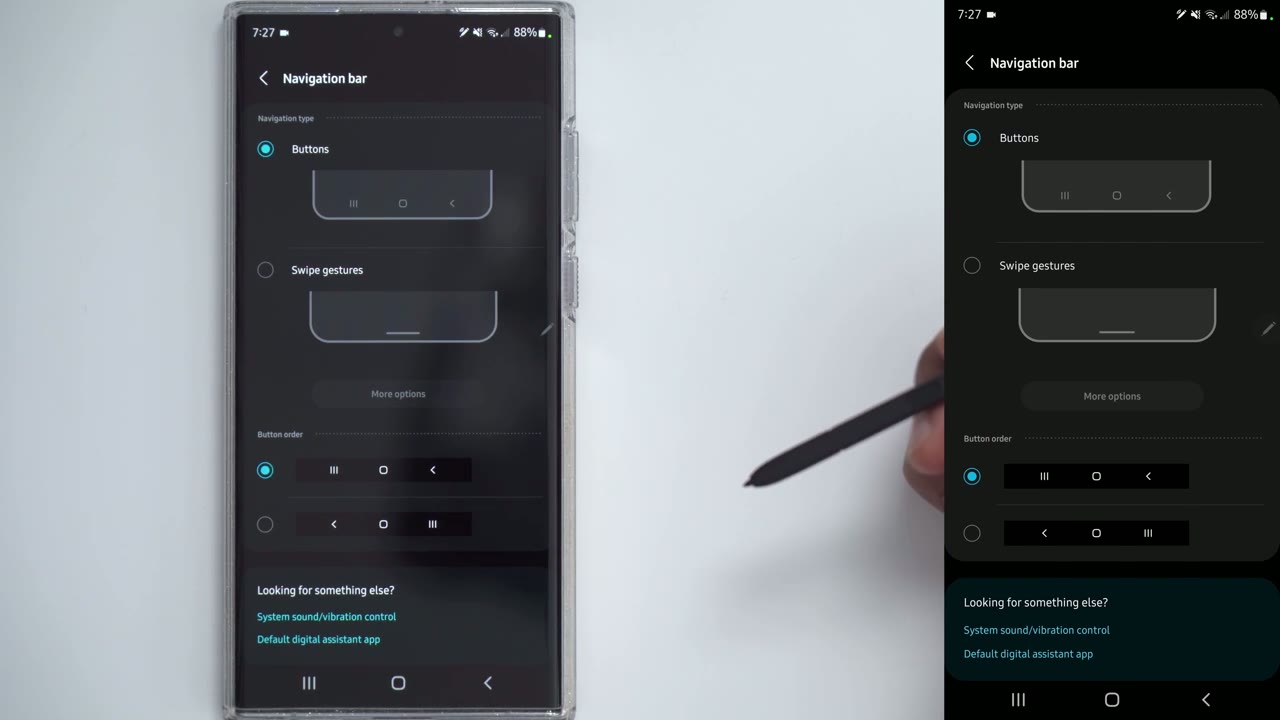
be staring at this gorgeous display first thing you should do is to customize it so let’s go into settings display and you can see right now mine is set to dark dark is going to use less battery life because it’s an amoled screen those pixels are turned off but if we go into brightness you can see as you go into this pink area this is where it’s really going to use the most of your battery life there’s also an option here if you’re outside to boost the extra brightness here so when you’re outside you’re going to get that extra jump of brightness so max brightness plus that it’s really going to drain your battery quickly but you’ll be able to use it out in the sunlight how about
Tip 11 – Screen Dimming
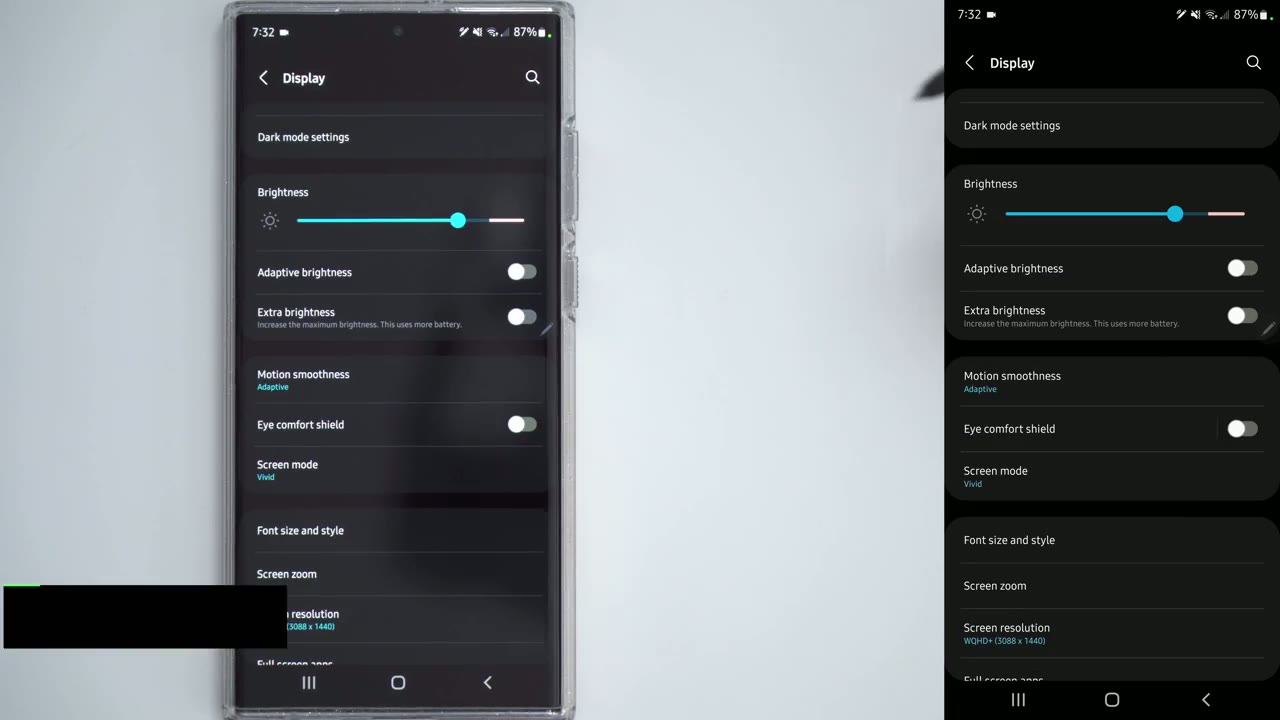
if you wanted your screen really dim in that case you can crank the brightness all the way down but even at night it still may not be as dim as you want what you can do i’m going to just crank this up so you can see is if you look at these quick panels here let’s go into the option here and go to edit buttons so you can see you can pick one of these and then drag it down into here pay attention i have one called eye comfort shield and extra dim so let’s close out of here so you can see if i click on extra dim it dims the screen i can turn on i comfort shield to kind of give it like a softer or a warmer glow and if i move the brightness all the way down you can’t really even see anything on camera but if you’re in a really dark room you can still use it by default the
Tip 12 – Screen Resolution
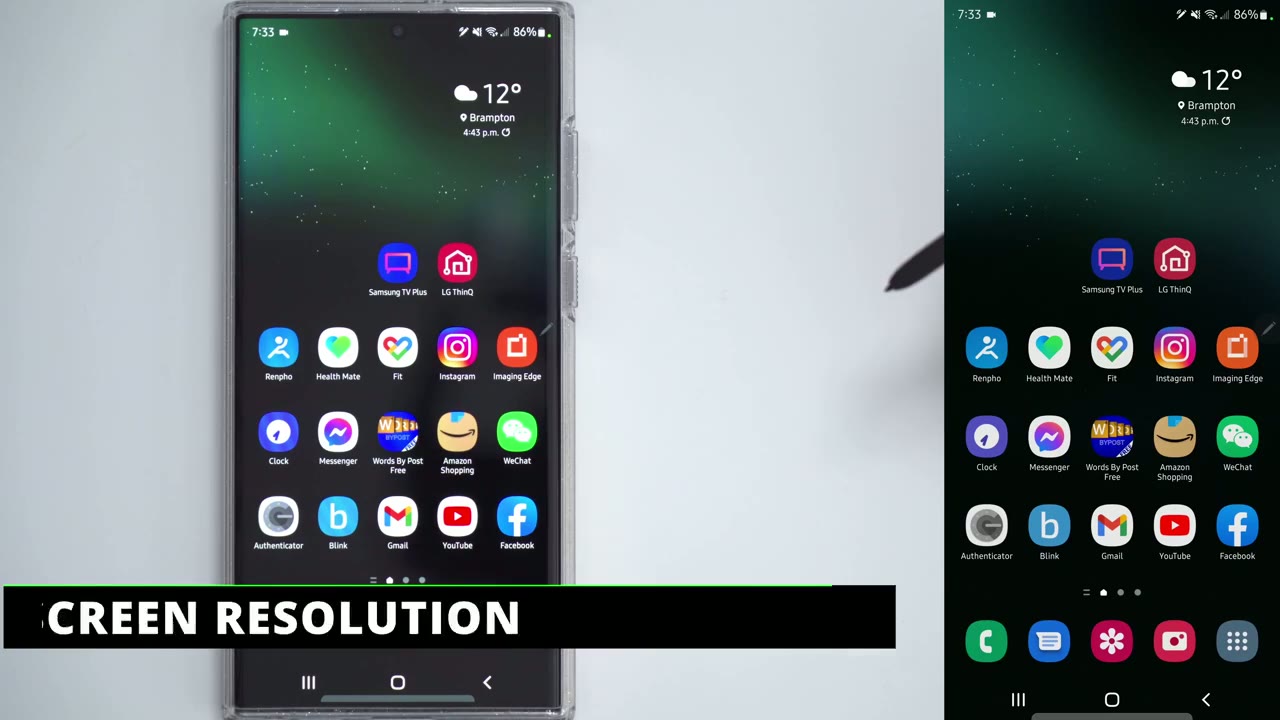
s22 ultra doesn’t come with the highest resolution on the screen so to fix that go into settings let’s go back into display and we’re going to take a look at screen resolution now the default is usually fhd plus and you can see that’s a lower resolution so go ahead and pick the highest resolution there while
Tip 13 – Screen Refresh Rate
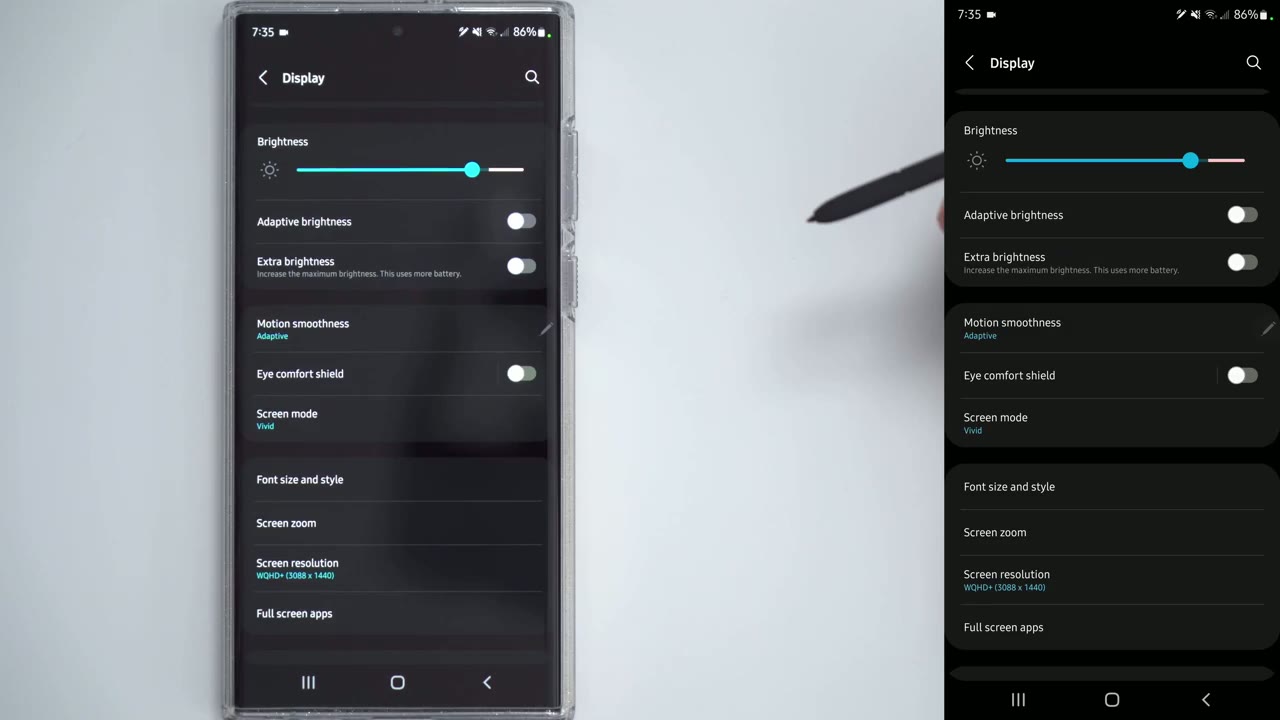
you’re in display settings make sure that motion smoothness is set to adaptive this is where you get that variable refresh rate and refresh rates up to 120 hertz if you put it on standard you will get longer battery life but it’s going to cap it out at 60
Tip 14 – Screen Colors
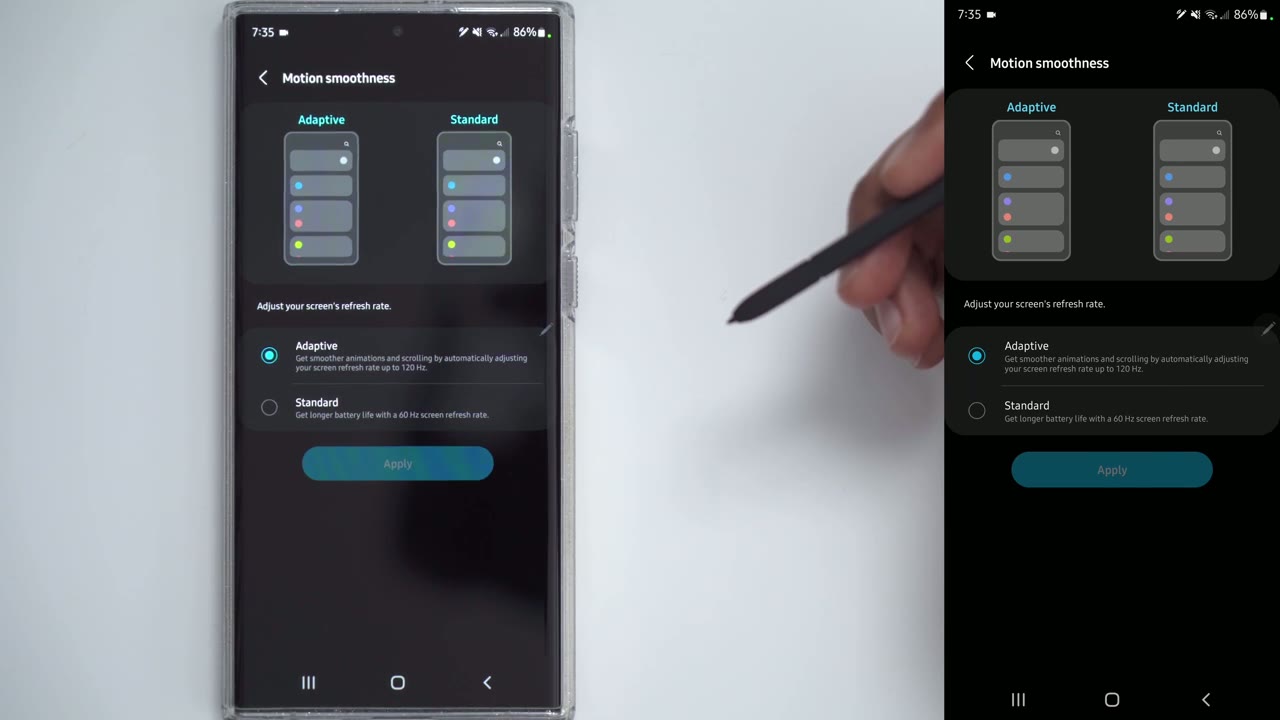
hertz depending on the type of look you like do you like something more natural or do you like vivid colors well you can change that so scroll down click on settings go into display and where it says screen mode you can see it says vivid or natural so if i go to natural for example you can see if you look at the colors here and i click on vivid you can see it’s much more saturated much more boosted so you can pick your preference if you can’t stand having a
Tip 15 – Camera Cut Out
camera cut out on certain apps there’s a fix for that so go into your settings go to display scroll down to full screen apps and right now the default is on aspect ratio while we’re here i’ll just touch on that quickly you can force certain apps to just be a full screen but let’s go into camera cutout for now and you can see in this app for example a w i can choose to hide the camera cut out or show the camera cut out or just leave it on the app default so if you’re a stickler for that type of stuff you can specify on an app by app basis where you want to cut out showing and where you do not now one
Tip 16 – Always On Display
thing that i can’t live without is having an always on display so i like that whenever my screen is off i can see the time date any type of notifications missed calls what have you so to get that started scroll down go into settings scroll down to lock screen and then click on always on display right now mine is set to on so you have the option here to show it as scheduled so i you can pick when you want it to show so if you know you’re going to be sleeping you can set that schedule so it’s not showing now you can have it to only show for new notifications i have it on all the time i don’t notice a big hit to battery life you can also set the clock style show music information and change the brightness now i never set it to auto brightness i like having it at max brightness and one quick thing that you can do is let’s get out of here i’ll double tap to close and you can see right now it’s pretty bright if you double click double tap on the time sorry there’s a little a there you can click on the a and then you can drag that slider to adjust the brightness on the fly without going into the menu you can also click on the settings icon here and you can have a quick access to those settings without going through the old way if you ever find yourself wanting to
Tip 17 – One Handed Mode
use one hand to use the phone but it’s too challenging you can make the screen smaller so go into settings scroll down to advanced features and then one-handed mode and make sure that it’s turned on now to customize it click into it and since i’m using the button mode you see that i have to double tap the home button to enable that feature if you’re using gestures then you would just swipe down in the center bottom of the screen so let me just demo that if i double tap the home button you can see it’s small i can also move it to the side of the screen that i prefer and to exit out i would double tap the home button again there may be times where you need to
Tip 18 – Hot Spot & Sharing
share your mobile data maybe you’re traveling remotely and you need to connect your laptop or just to help out a friend so to do that go into settings connections scroll down to mobile hotspot and tethering and then turn that on now if it’s your first time using this you’re gonna have to configure it so click into it and then you can set the ssid name your password and the band now if you click to go into configure advanced you can set a bit more information or settings such as the mobile data limit and when to disconnect devices if they don’t show a connection on there so you can have it so that hotspot is automatically turned off if no device is connected for 20 minutes or any of these other options now there may
Tip 19 – Secure Files & Apps
be some situations where you want to keep some apps or files private or hidden and samsung has something built in for that so to do that go into settings scroll down into biometrics and security and you can see there’s an option here called secure folder once you click into that you’re going to go through a wizard and you’re going to set everything up now i already have mine set up so i’m just going to enter the password right now once you set up your folder you see you have some options here so you can set the lock type you can set which type of apps you’d like to hide now for example if i go into my gallery here and i wanted to hide this photo for example i can just go into the options here and there’s an option that says move to secure folder and if i do that it’s going to move that into the secure folder if i wanted to access that file that i just moved into the secure folder what i would do is click on my apps go into secure folder and since i’ve already put in the password to unlock it i could just go right into my files and that’s the photo that i put there samsung also has an
Tip 20 – Video Brightness
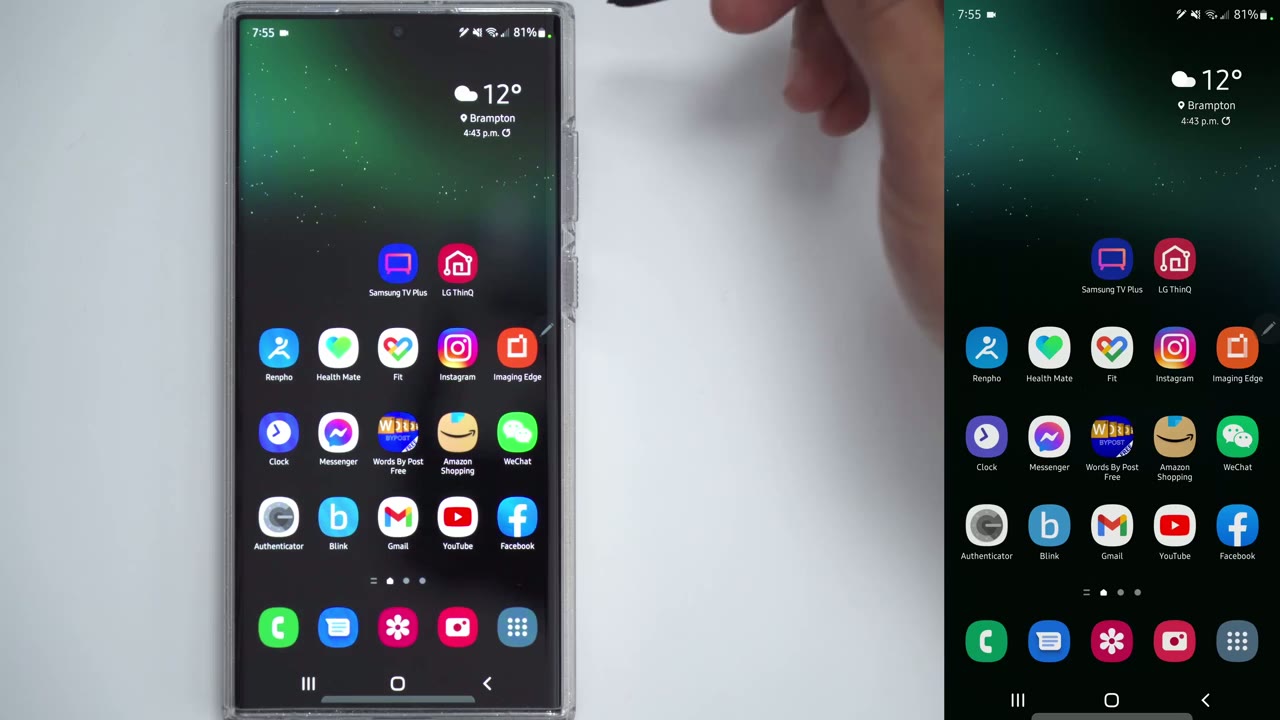
option to get the maximum video brightness when looking at content so to do that go into settings scroll down to advanced features and scroll down until you see video brightness now you can see it is currently set to bright which is what i prefer you can also set it to normal but if you do set it to bright you can specify which apps you would like the brightness boosted for video so for tick tock i have it off for twitch off but say i’m watching netflix or prime i’d like it really bright i can do that here
Tip 21 – Prevent Overcharging
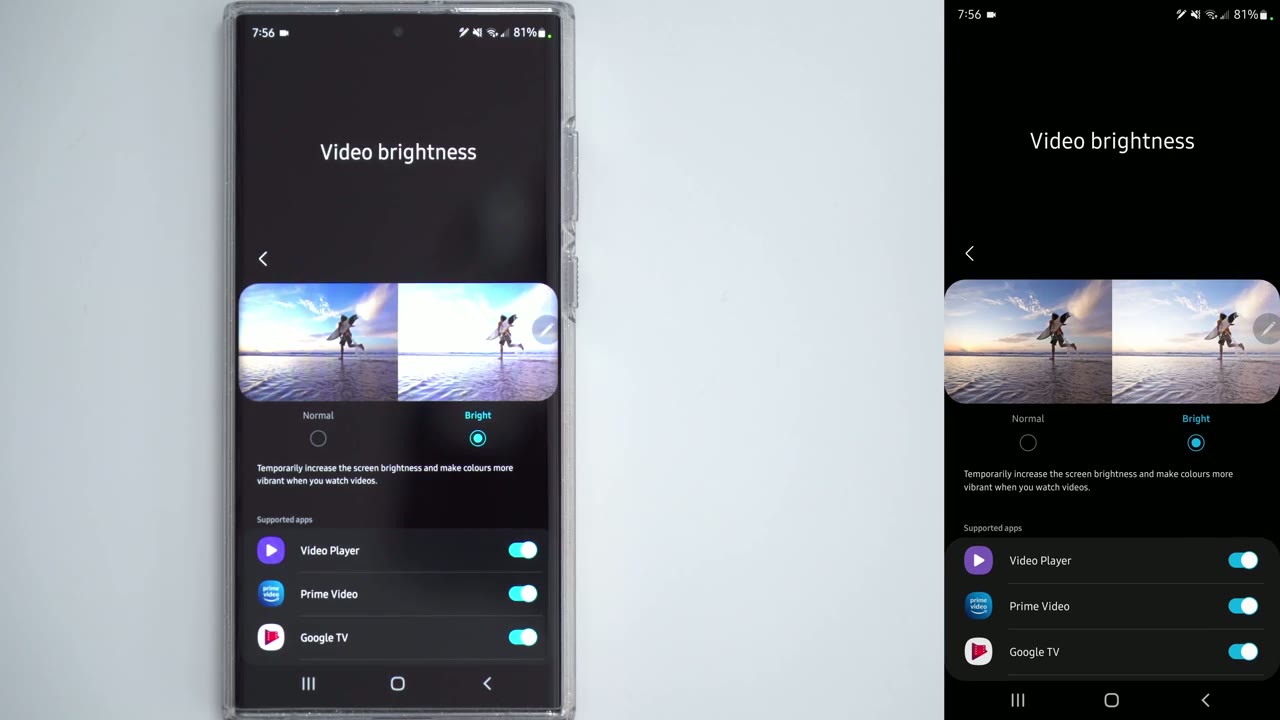
if you’re someone who’s forgetful and you forget to unplug your phone when it’s charging it can be pretty detrimental to your battery life here’s a quick fix for that go ahead and click on the settings icon scroll down until you see battery and device care click on this battery area here scroll down to more battery settings and you can see there’s an option here that says protect battery and to extend the lifespan of the battery limit the maximum charge to 85 and what that means is no matter how long you keep it plugged in it won’t charge over 85 if you’re someone who
Tip 22 – Maximum Performance
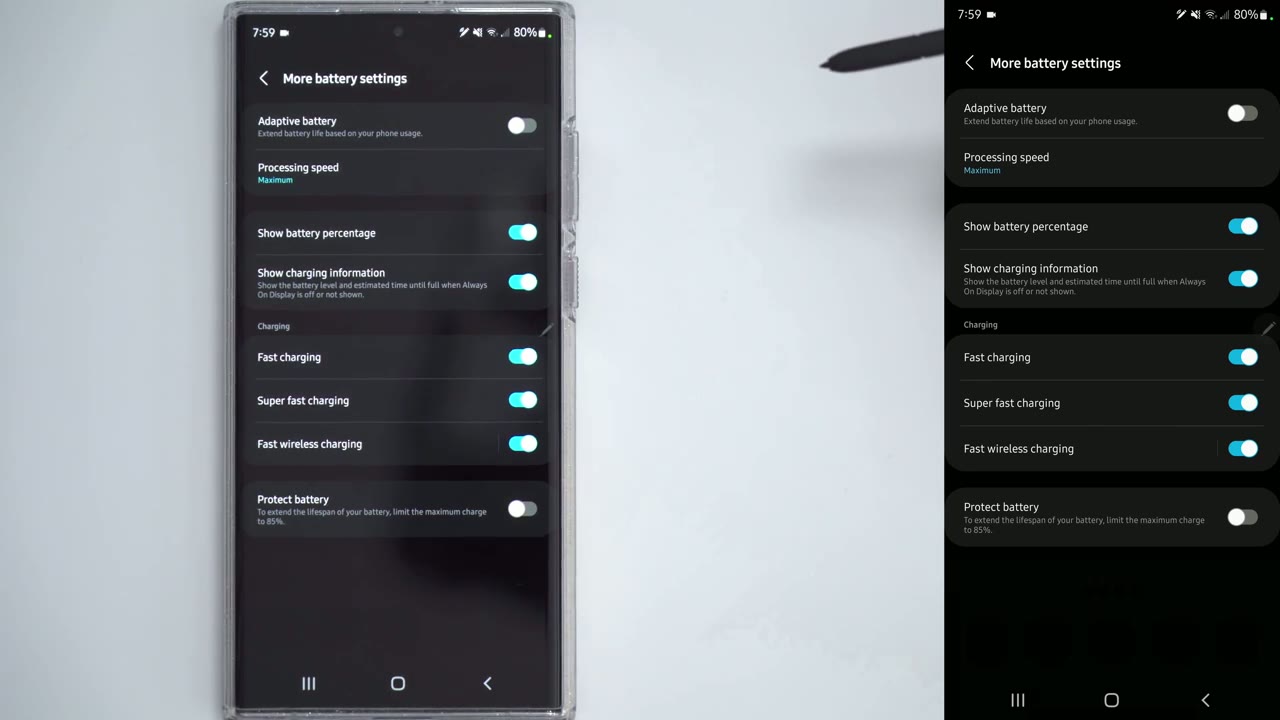
just wants the maximum performance from your phone with no regard to battery life go ahead click into settings we’re going to go back into battery and device care click on battery scroll down to more battery settings right now the processing speed is set to optimize you can see there’s an option for a high and maximum so this says best for short term with processing intensive apps so if you’re going to do some type of rendering and you wanted max performance go ahead and put it to maximum as well where it has adaptive battery to extend the battery life you could just turn that off and then you’ll get maximum power when it comes to ram
Tip 23 – Virtual Ram
and just overall how well the phone is performing you have some options there to so scroll down into battery and device gear find the memory setting right here click on that and you can see you have an option to clean the ram so i can go ahead and clean that so that’s going to make the phone a bit snappier you also have an option for ram plus and you can see this is just virtual ram so it’s going to use some of your storage for virtual ram the default has four gigabytes you can go ahead and set that to six or eight but you will have to restart your phone after this setting one feature that i don’t think
Tip 24 – Useful Bixby Routines
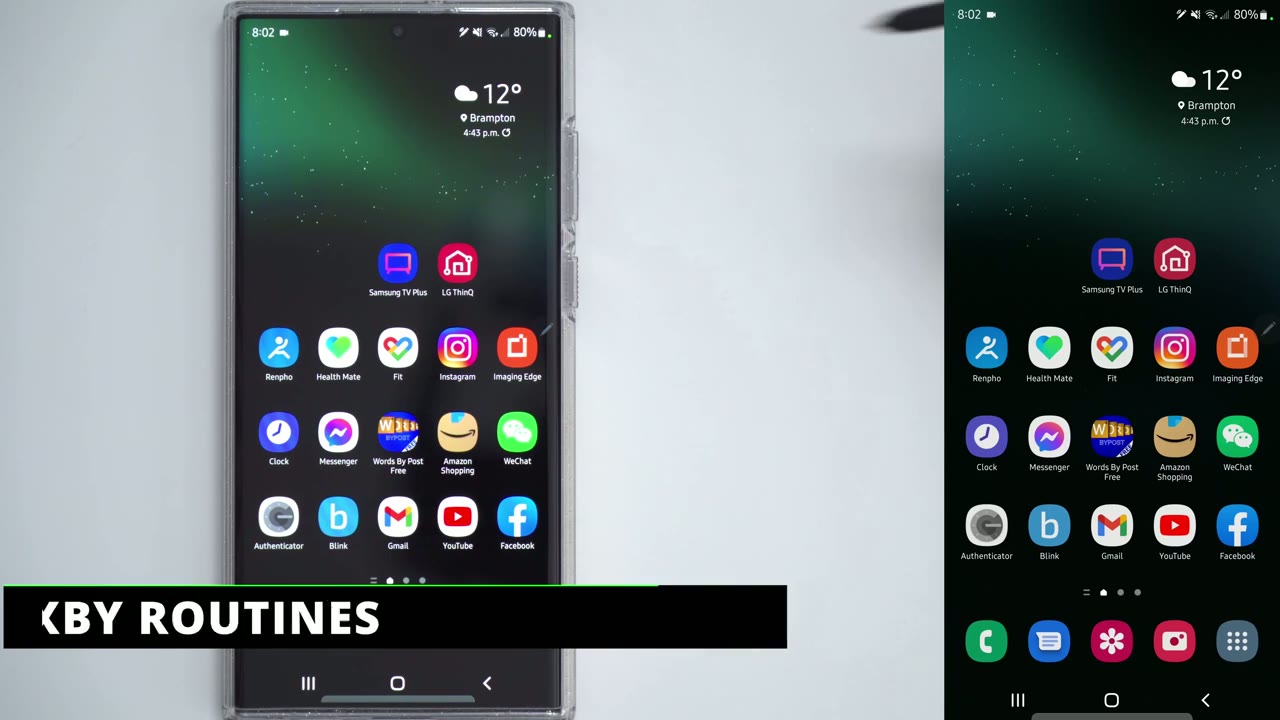
enough people are using is the bixby routines so go ahead and go into settings scroll down to advanced features and go into bixby routines make sure it’s turned on now right now i’m on the discover tab so i like to be in the adaptive routines view on clickmore and i like having this option here get notified when fully charged so if i click that you can see anytime the battery level is equal or greater than 100 the whole phone is gonna have edge lighting it’s gonna vibrate and it’s gonna read out a loud phone charge please disconnect that comes super handy because i always put this phone on a wireless dock i don’t always look at it and anytime it hits 100 it plays that loud warning and i just take it off right away now if you go back you can see there’s other options like in the dark at home before bed play around with these there’s a lot of great options in here if you find
Tip 25 – Screenshot Settings
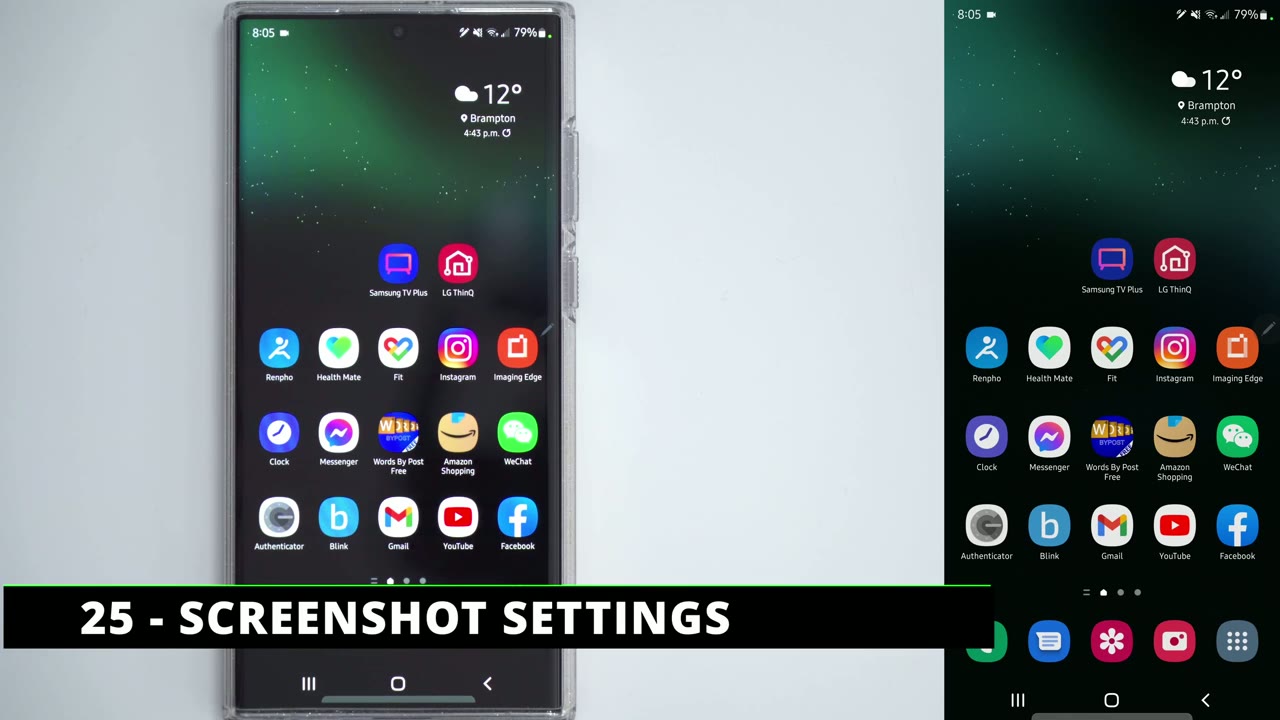
yourself taking a lot of screenshots and you don’t want these app icons or any of this information showing up there’s a fix for that go into your settings scroll down into advanced features scroll down to screenshots and screen recorder and you have an option to hide status and navigation bars while you’re there you can also change the type of format so jpeg or png and in terms of screen recorder options you can set the selfie size if you do that you can show taps and touches you can also set the video quality and sounds you can see
Bonus Tip – Fluid Screens
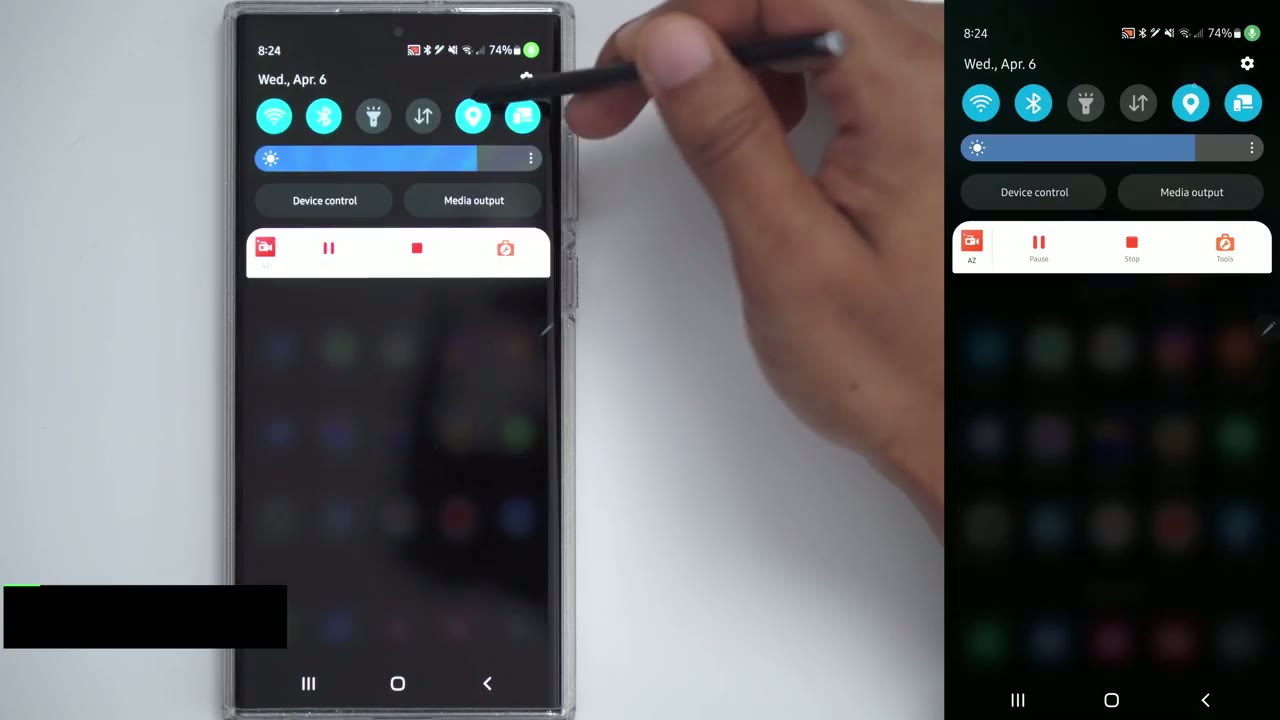
that while i’m going through the menus here it’s not as fast as it usually looked and that’s because the animations are back on so let’s go ahead and turn those off to do that i’m going to scroll down click on the settings icon i’m going to go into about phone and then i’m going to scroll into software information and i’m going to look at build number and i’m going to keep tapping that and you can see it says you’re steps away from being a developer keep clicking that till you get this option to put in your pin go ahead and put in your pin and you can see it says developer mode has been enabled so let’s go back and back again and now under about phone there’s this option called developer options so let’s click that and i’m going to scroll down until i see the option for window animation scale you can change it to whatever you want i like having it on off off off and now you can see when i pull down the menu everything is just really fast and fluid if there’s any tips that you know of that i didn’t cover in this video please share them in the comments down below i’m sure everyone else would love to read them and if you found this video helpful please consider checking out my other video here on battery life tips that you can consider for your s22 ultra and i’ll see in the next one bye you
☑️ Get the S22 Ultra Phantom White on Amazon
Please note that some of the links in my video descriptions are affiliate links where I earn from qualifying purchases. As an Amazon Associate I earn from qualifying purchases.

