


Please note that some of the links in my video descriptions are affiliate links where I earn from qualifying purchases. As an Amazon Associate I earn from qualifying purchases.
Intro
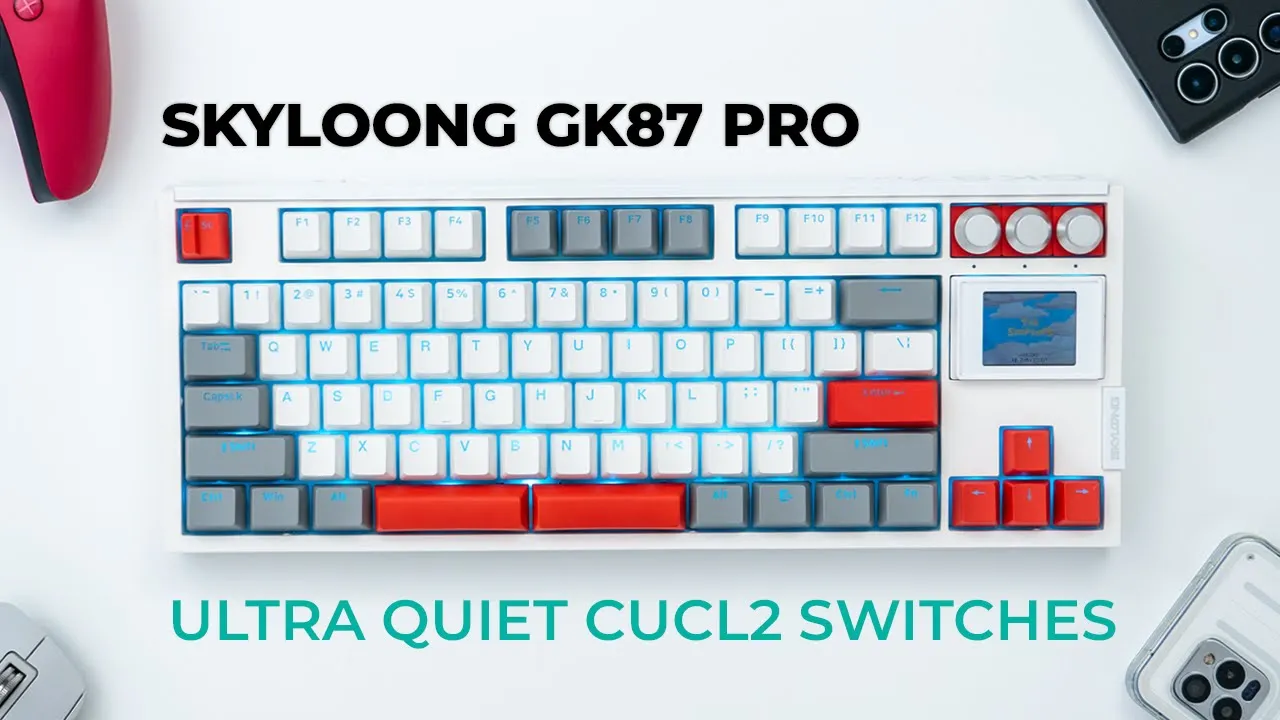
hey it’s Adrien and today I have a very unique keyboard This is a sky long gk87 Pro mechanical keyboard and it is feature pack there’s a 1.7 in screen that can be programmed with custom graphics and you can also upgrade it to a 2in screen if you like there’s also knobs that can be used for volume control for advancing and going back for photos video editing or whatever you see fit we also have a split space bar which makes it awesome for typing and you can also program it for secondary functions there’s also a ton of customization with three and five pin support the screen can be swapped out for additional key caps the split space bar can be swapped out for a standard space bar we have 1,000 Herz pulling rate so if all of that sounds good to you let’s take a closer look at the sky long gk87 Pro and a big thanks to Sky long for sending this out for a review The Box comes with
Package Contents
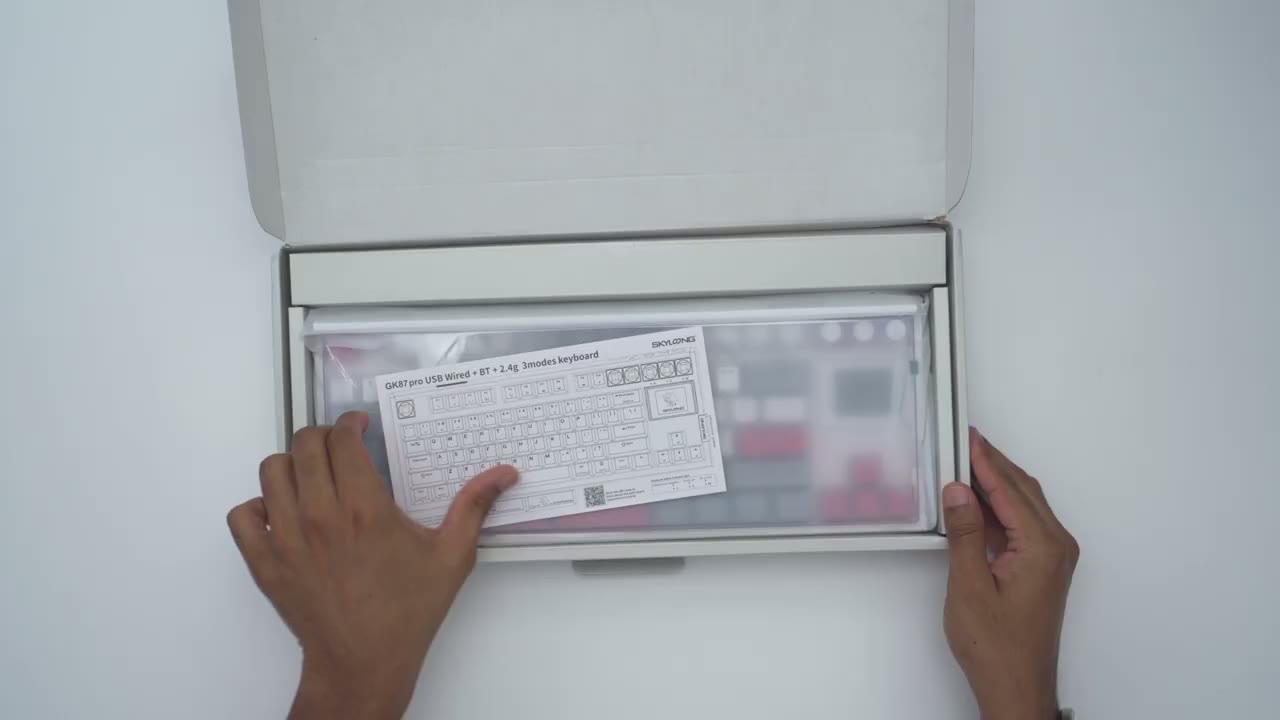
the sky long gk87 Pro and it looks beautiful in this color combination there’s Al a USB type-c to type a cable additional switches a key cap and switch puller there’s also a 2.4 GHz Wi-Fi adapter that can actually be housed in the body of the keyboard and once you do that you can go ahead and just cover that up with this magnetic clip speaking of magnetic Clips there’s also a magnetic back plate that goes on the rear of the keyboard there we have an instruction manual another stabilizer bar with a standard space bar if you don’t want to use the split space bar button but there’s some benefits to using that there’s also uh additional key caps if you want you know a more uniform color instead of having these red type of accents an optional 2in screen can also be purchased if you want something with a larger display all
Design
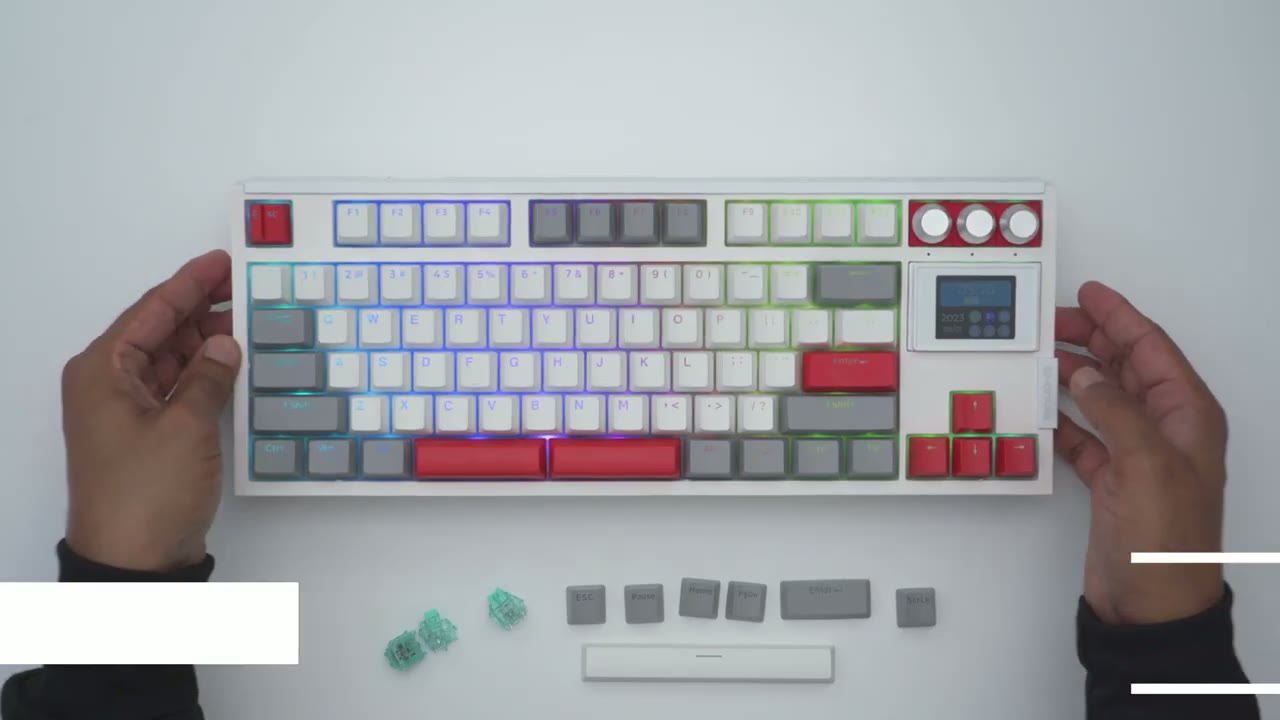
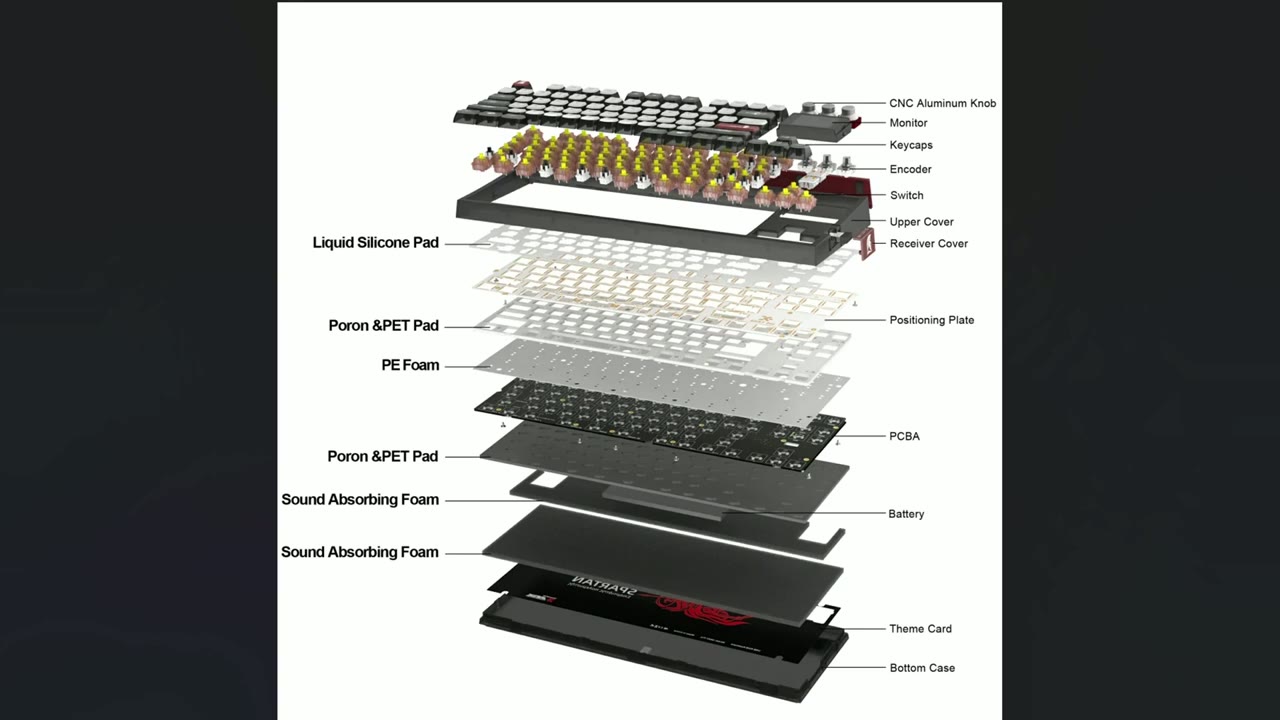
right let’s take a look at the design of the sky long gk87 Pro and this is such a beautiful looking keyboard it also feels really good in hand very premium coming in at around 2.3 lb or about 1 kg yeah this feels very planted when you’re typing and if I put it down you can see there’s minimal kind of Shifting or sliding I’m really putting effort on there because we do have rubber feet at the back but just taking a look at the front so we have this two-tone type of design basically an all white um type of case and then in terms of the key caps we have this white gray and Pops of red but then there’s also additional key caps on here if you want something a bit more uniform and you don’t want all of the red accents now one thing to note with this keyboard is that we have three CNC aluminum knobs so these feel cold to the touch um really high quality and they have hard stops or increments on them now you can remove these or just keep say one for a volume adjustment and then go ahead and put some of the key caps up here now the other thing with this keyboard is we do have this 1.7 in screen and you can upload custom gifts or um images is here but there is also an optional 2in screen that you can buy so it’s basically an ABS type of build on here but we do have some elements of metal so on the rear there is this magnetic Snap-on plate and this has the gk87 pro writing right there looks really nice and if I run my fingers along it you can kind of feel the texture on here it looks sharp now we do also have a port here for USB type-c charging or to use this in wired mode and we have a switch to go between you know 2.4 GHz wireless Bluetooth or wired mode there are 79 key caps on here along with the three knobs and this 1.7 in screen now you can actually pop this screen off and go ahead and put in additional switches here that are included in the packet so you can you know have a bit more functionality if you don’t want to use the screen here’s what the keyc cap profile looks like from this side and again these are PBT keyc cap which are shine through with North facing LEDs the second magnetic element on here is this little cover with the sky long logo and this is where we have access to the 2.4 GHz wireless adapter that you can stow away nice and cleanly in the keyboard body now if we take a look at the rear of the keyboard This is where we have the rubber feet so there’s five in total and then we have two stage adjustment feet so that’s the first one right here and then a second one actually let me do it on the close this one to the camera lens just like so by the way if you’re not a fan of the split space bar you do have a standard space bar that’s included so you can just swap these out for that if you like so yeah all in all the keyboard looks beautiful it feels really beautiful um this would fit in any type of office environment or home workspace now I’m not going to take mine apart but here’s what it looks like with an expanded view if you’re wondering here’s a quick look
Specs
at some of the specs feel free to pause and review or jump ahead to next section
Pairing
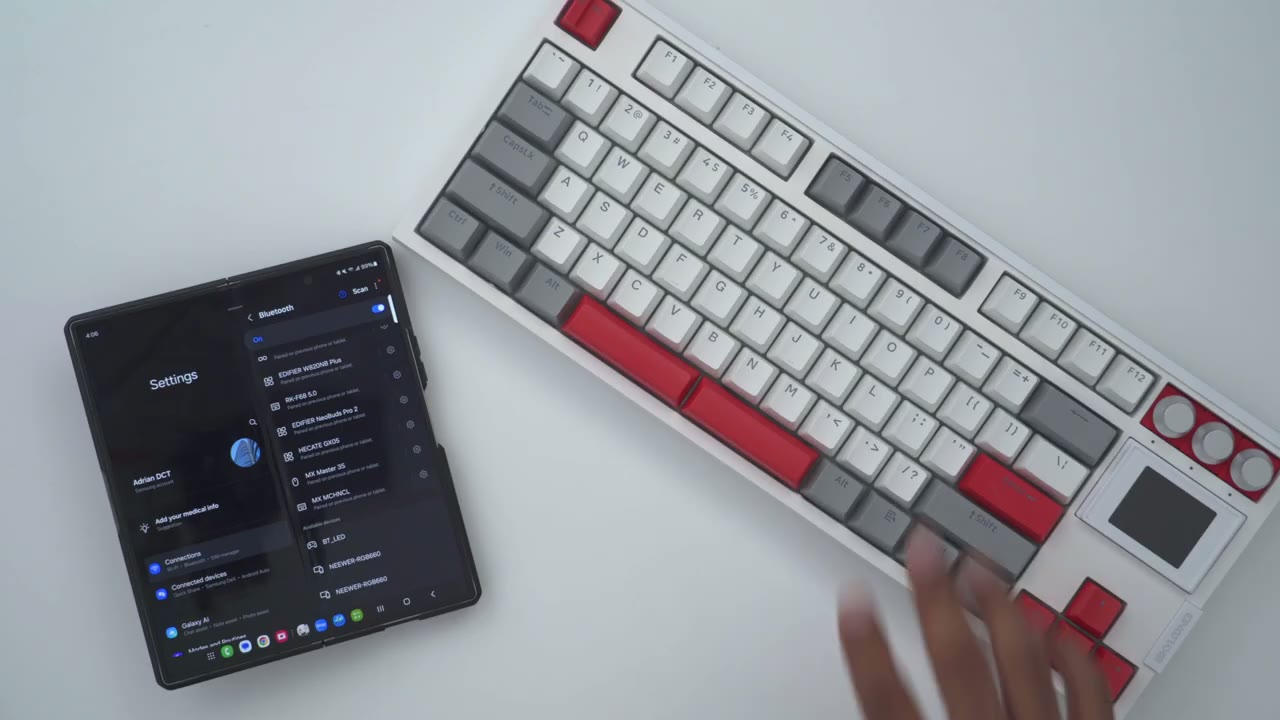
I’m now going to pair the gk87 pro with my zold 6 so I flipped the switch on the back to Bluetooth so I’ll press and hold the function key and one and I’ll press and hold that down until it puts it in pairing mode and then I’ll just go ahead and scan on my phone and I can see it right here gk87 keyboard I’ll tap on that go ahead and hit pair and it is that quick so it’s automatically paired on my phone and just a test it out let’s go ahead and type so Sky long gk87 Pro and it’s that simple I’ll go ahead and pair it to my s24 ultra now so I’ll hold down function and two I’ll just do a long press on here to put it in pairing mode and I could see the indicator flashing on the screen which is Handy to have I’ll go ahead and hit scan gk87 KB again hit there hit pair and if I press the Windows button takes me to the home home screen or the Google browse screen so yeah everything is working if I go back and I press function one to switch to the zold 6 go ahead and hit that and it takes me back to the home screen there’s a bunch of
Switches
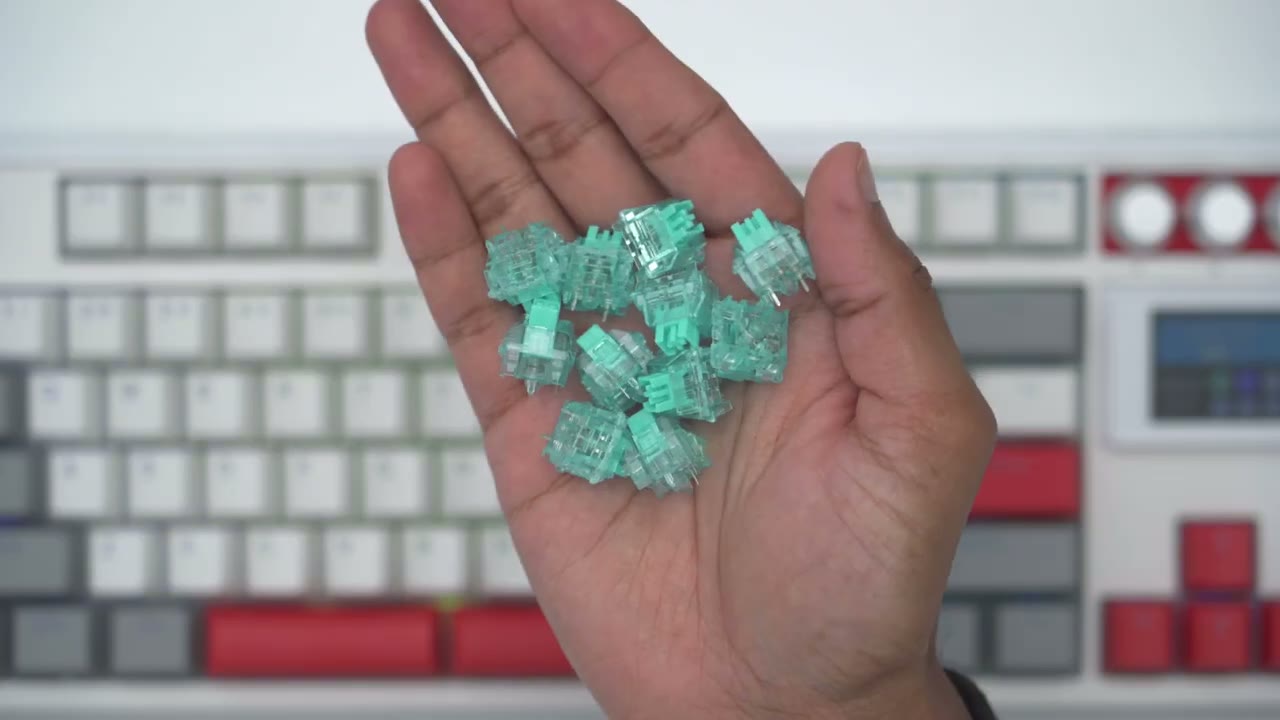
different switch options for the gk87 pro you can get the Gaton red yellow or brown switches the 3.0 version now I did go with Sky Long’s own ccl2 or copper chloride silent switches and you can see the color does resemble copper chloride quite nicely now these switches look great and they’re so smooth in terms of the travel now there’s a pre-travel of 2 mm and a Max travel of 3.8 mm now these are just so quiet it’s so pleasant to type with these and it really pairs well with my MX3 you can hear these are very quiet clicks and I’ve really gotten used to quiet clicks and now with quiet typing these pair just so nicely now I did buy logitech’s mechanical tactile quiet uh switches for that keyboard and I know you’re probably thinking like why are you saying the name Logitech and mechanical keyboard in the same sentence but I just want to show just kind of the night and day difference between what um it actually should sound like if you’re advertising quiet switches versus what Logitech thinks quiet switches are all
Typing & Sounds
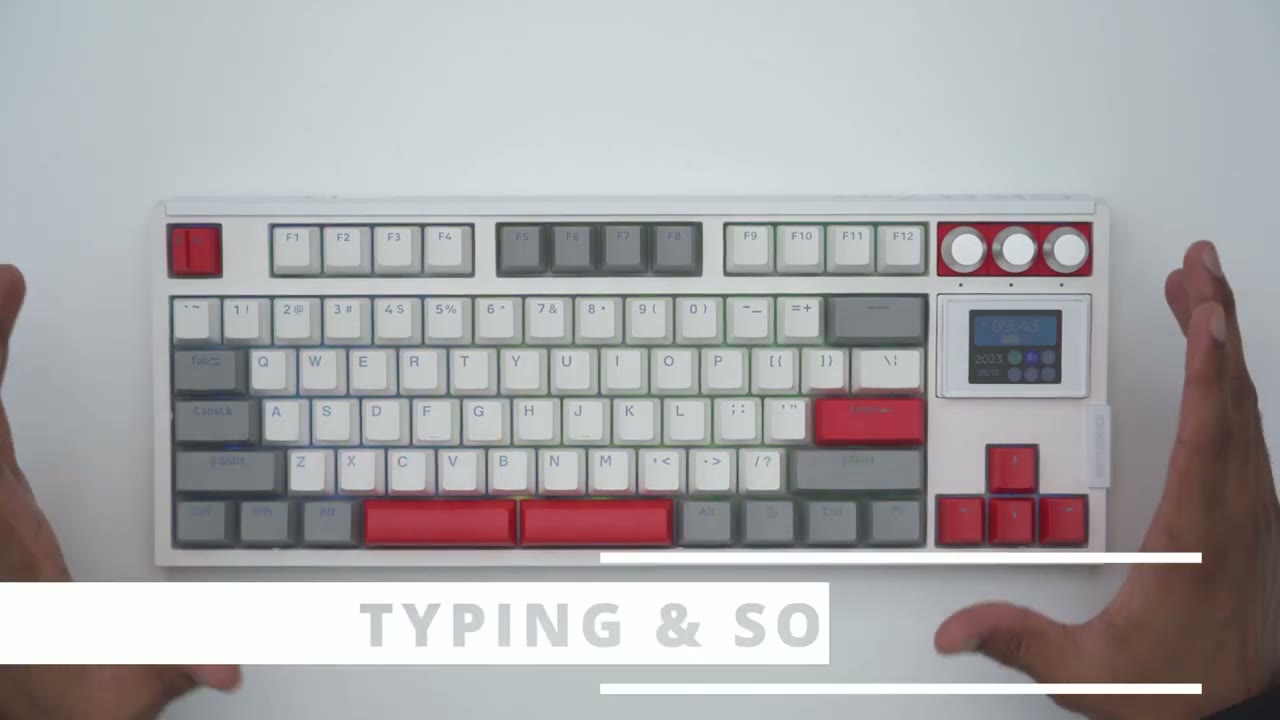
right so this is what it sounds like to type on the gk87 pro with those cucl2 silent switches the microphone is about 15 in away away or 37 cm and this is logitech’s idea of what tactile switches sound like on their MX mechanical keyboard and you can hear just how loud that is this is going to be a racket for anyone who’s sitting next to you the typing experience on the gk87 pro is so pleasant you can hear just how quiet that sounds when I was going at it and I wasn’t typing slowly either I was going at a pretty good pace so if you want to use this you know while you’re at home or if you’re in an office environment like an open Office this is not really going to bother anyone and of course if you want to make it look a bit more professional you can swap out these red elements with those gray key caps that I showed earlier and you can just cut the RGB lighting so yeah this keyboard will fit in pretty much anywhere now another thing is these split space bar so I actually find myself hitting on either of these while I’m typing and the benefit of that is because they’re so short you know it is very stable regardless of wherever you press whereas on a lot of the you know the traditional space bars where they’re really long sometimes you hit it on the right or left side and you know there’s a little bit of vibration or play none of that at all with the gk87 pro so you’ve heard what logitech’s quiet switches sound like compared to the gk87 quiet switches and they are whs apart so whatever scang has done in terms of the acoustic foam pads the switch foam and the sound absorbing foam it’s just a great combination and it’s one of the most pleasing typing experiences to my ear it may be a bit challenging to see but the top of the key caps are actually a little bit rough and textured so you know it’s a bit more planted of a typing experience and it doesn’t feel slippery especially if you have oily fingertips like I do it really makes typing very effortless but let me know what you guys think of the sound coming out of the gk87 with their cucl quiet switches you know are you a fan of this type of sound when you’re typing and when you’re clicking your mouse is just you know super quiet you could work late into the hours of night without bothering everyone or do you need that very audible clickey clack feedback let me know down below here’s what the standard
Spacebar
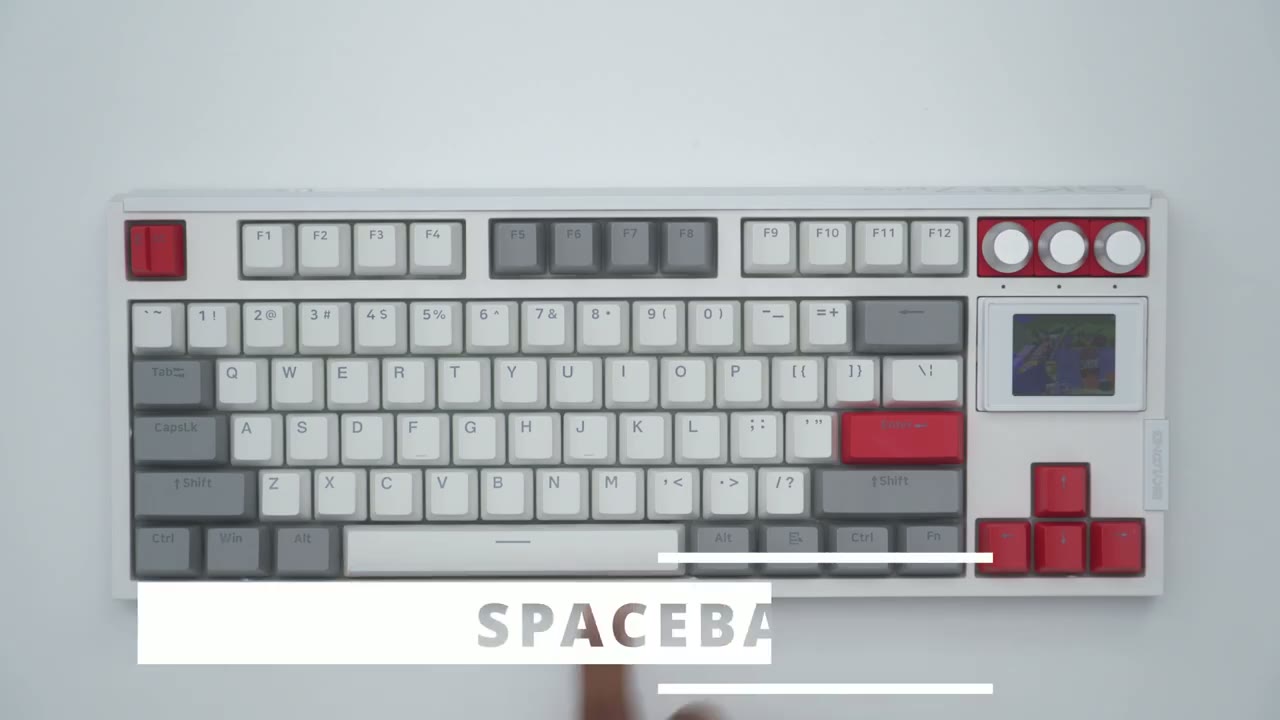
space bar looks like if you go ahead and swap it out for the split space bar and here’s what it sounds like [Music] [Music]
Screen Options
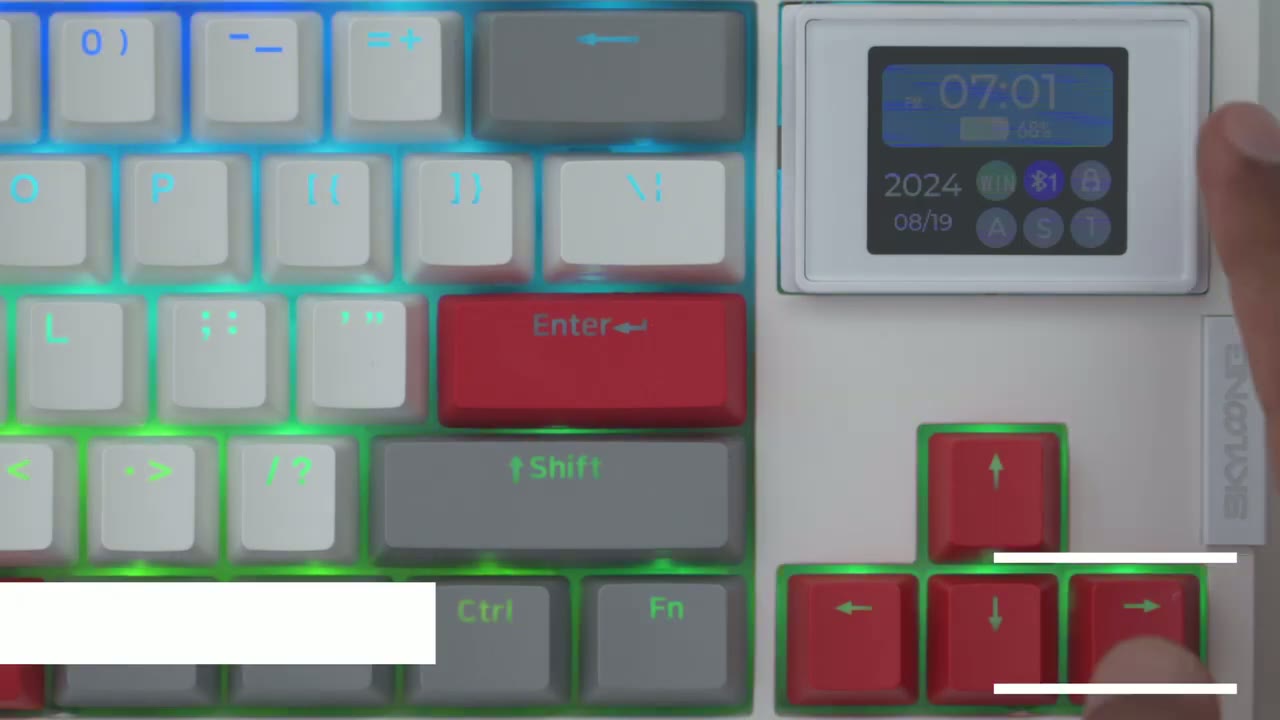
let’s take a look at the screen option so to go into the menu we’ll hit function and the menu icon right here and we’ll wait for it to boot in and using the arrow keys I can go into reset I can go into date and time switch to date time and format and then to go back you’ll hit function and back back space we could go into the backlight it’s set to the maximum brightness and I’ll go ahead and lower that to the dimmest setting now at the brightest setting I would like it a little bit brighter and the other thing is because it’s not actually tilted upwards it’s just kind of flat if you have any type of bright light you know there is some glare that makes it hard to read so you’ll definitely want to keep this on the max brightness so I would like if the screen could kind of be angled upwards a bit um and if it could be a little bit brighter especially if you’re in a bright room we you go to theme inst style and you could set the play interval you know between when it switches um into those uh recordings or those Graphics so I have it I believe at 2 seconds under theme I didn’t find anything under there so I’m not sure if that’s something that’s coming later and then under language you can switch it from Mandarin to English and that’s about it in terms of the options now to go all the way back you’ll hit function and the menu button again and once we’re out of that let me just zoom zoom out here and I’ll show you how you can go into the animations so to do that you’ll hit function and the tiled key right here and you’ll see it’s going to cycle through the various animations so this friendship one is one that I uploaded same with this uh Simpson’s opening intro here and then you can always go right back into the screen so very simple to operate let’s
Lighting
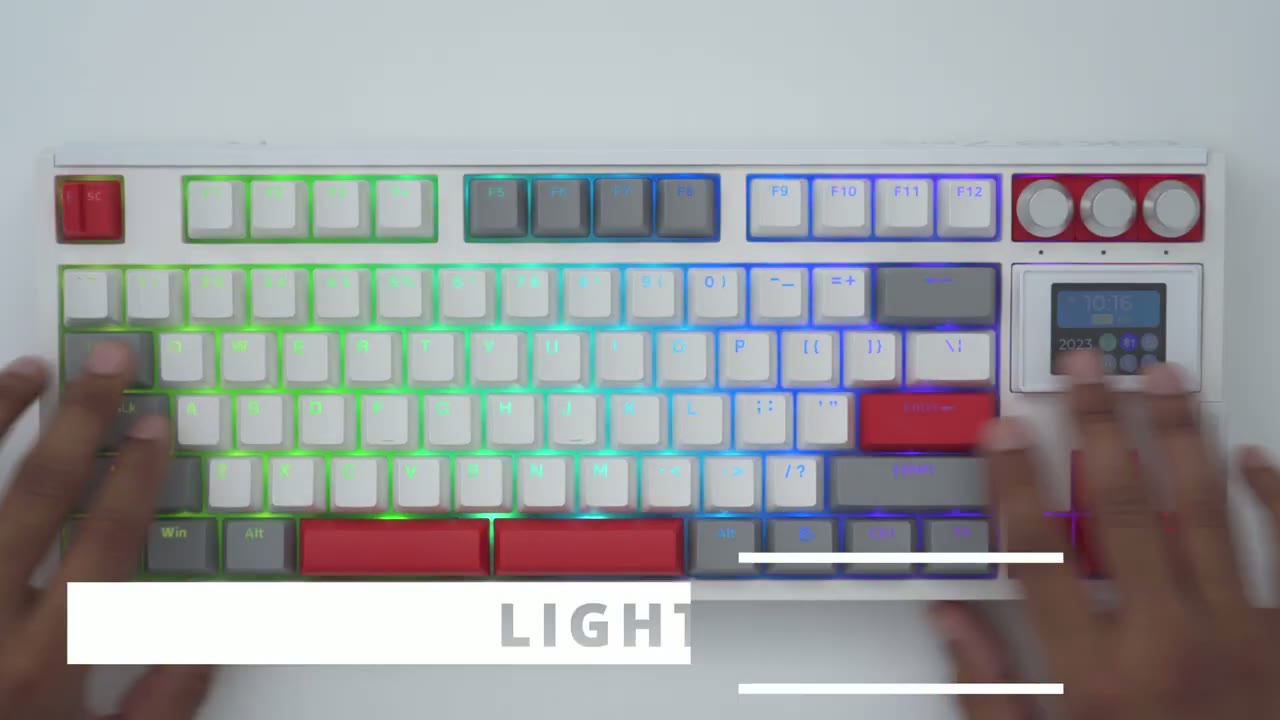
take a look at the RGB lighting there’s a ton of customization here so function and down arrow is just going to lower the brightness or complet completely cut it off and then function and up is going to put it to the maximum output Now function and left is going to slow down the effect and then function and write is really going to speed things up now in terms of changing the effects we can hit function and then the minus button here and you could cycle through five different effects and it’s just going to keep cycling through now if you go to the other key the equal in plus you’re also going to get different effects and there’s another five effects that you could cycle through of course you could do all of this with the software as well let me just go back to this rainbow effect you can also press function and zero to just pause the lighting effect if you like that and then you can do function n to just cut the backlight completely off and if you want to conserve battery life you could hit function and left control and just take a look at the FR row so you can see it’s flashing F2 F3 F4 and it’s going to go through 5 6 7 8 9 and then finally 10 and it’s going to cycle back to F1 so F1 is going to be a timeout of 5 minutes you know 10 minutes all the way up to 45 minutes and then F10 is just going to completely never put it to sleep here’s some general controls to
Controls
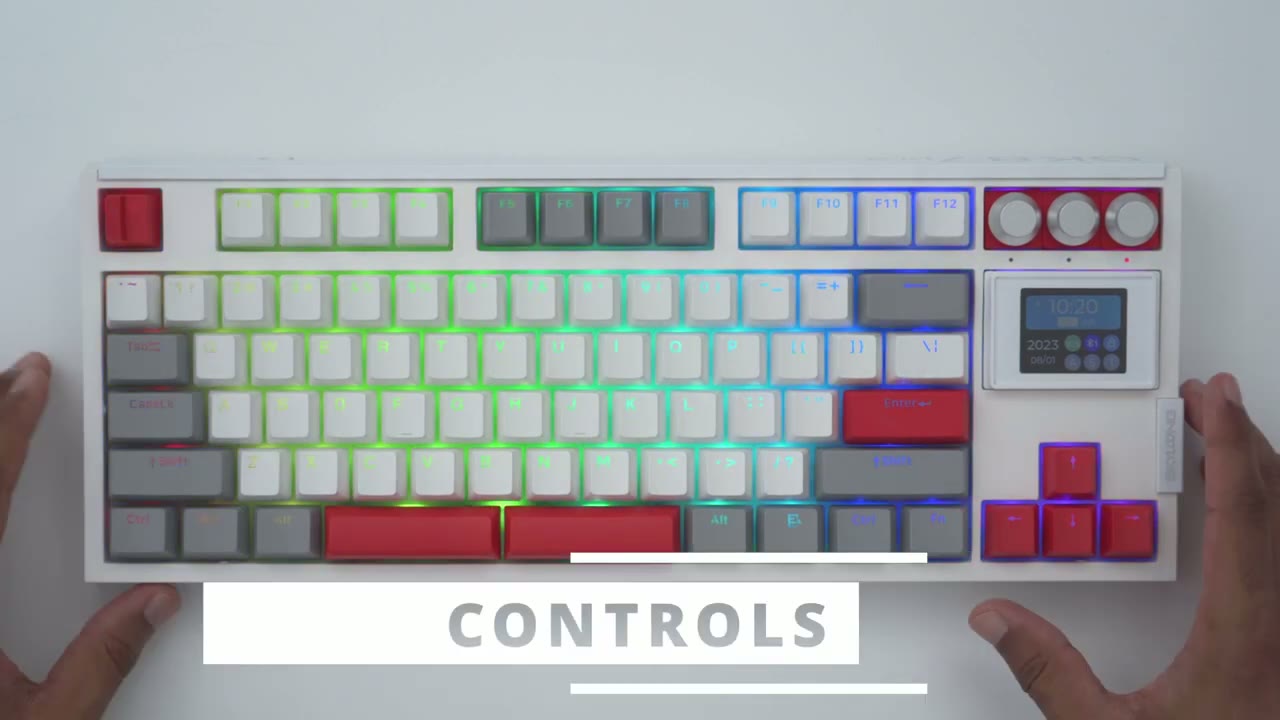
know so function in Windows will enable or disabled the Windows key which is Handy if you’re going to be gaming if you hit function and for and hold that down you can see it lights up from Z to M so that’s around 60 to 70% of battery and if it goes all the way to the question mark then you’re fully char charge by the way whenever you hit caps lock you could see it with the indicator light on here there’s also an indicator light for a scroll lock if you’re using that key cap and then there’s one to show if you’re in Windows mode or not
Gaming
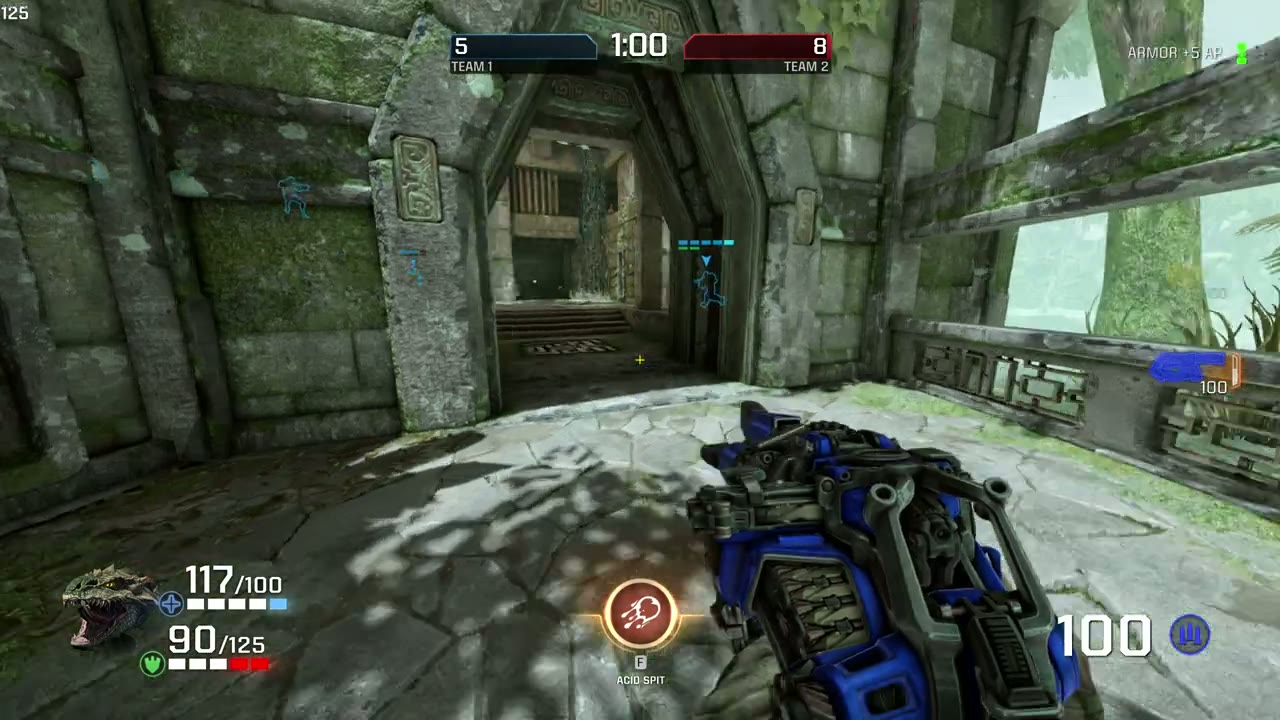
the keyboard also works wonderfully for gaming since we do have n key rollover support and 1,000 H Herz pulling when you’re using it in wired or Wireless mode using the 2.4 GHz adapter let’s
Software
take a look at the skyl long software now it’s not the most userfriendly software out there there is a learning curve but just as a quick overview once you open it up you can’t do anything under standard but you can go into layer one or Windows or Layer Two if you’re going to be on Mac now I’m on Windows now what I could do is I could go ahead and you know click on a key for example so I could click on T here and then you know remap it to n for example you hit save apply it and the change is made now anytime you want to reset you would just hit that to go ahead and reset now these are where the knobs are and you can see it’s very small on here but at the top right this shows volume down and then under it is volume up and then pressing down is mute so that’s kind of how you would map these so for example instead of pressing down to mute I would click on that I could delete mute and go ahead and do something else like say backspace uh hit save and then hit apply and then it would take that change so for example if I’m a notepad right here I’m going to press down and you can see it’s now going to backspace instead of you know me pressing the backspace button so that’s how you can kind of program these and of course I have three knobs on here so you can do the same thing and program the additional knobs now you can see right here it’s showing three or sorry six key caps but actually I have a screen here if I went ahead pop the screen off and put in um key caps I could go ahead and program these you know for what ever I see fit in terms of
Size Comparisons
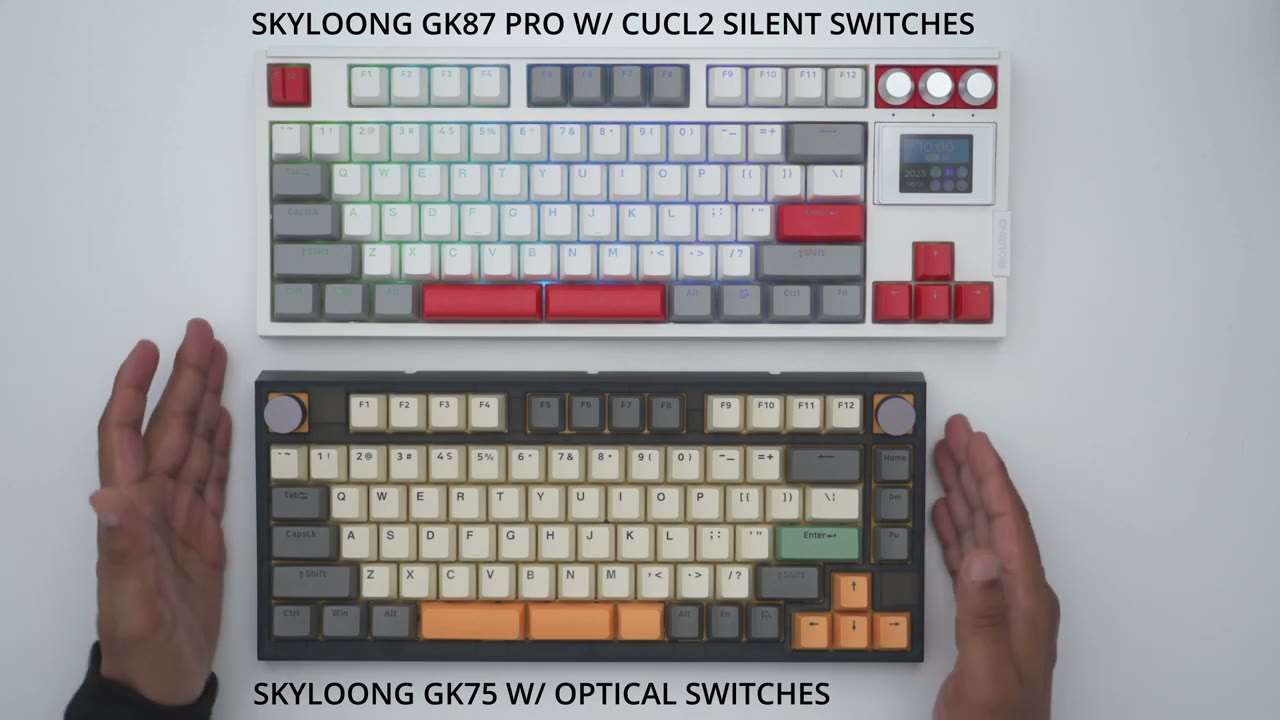
a size reference this is the sky long GK 75 compared to the gk87 pro so you can see it’s a little bit wider than on the GK 75 and again here’s the difference in terms of switches and for further reference this is what the brand new GK 104 Pro looks like compared to the gk87 pro and you could see just how much wider that is now the review for the 104 Pro is coming very soon so make sure you’re subscribed for that and if you lost your manual
Manual
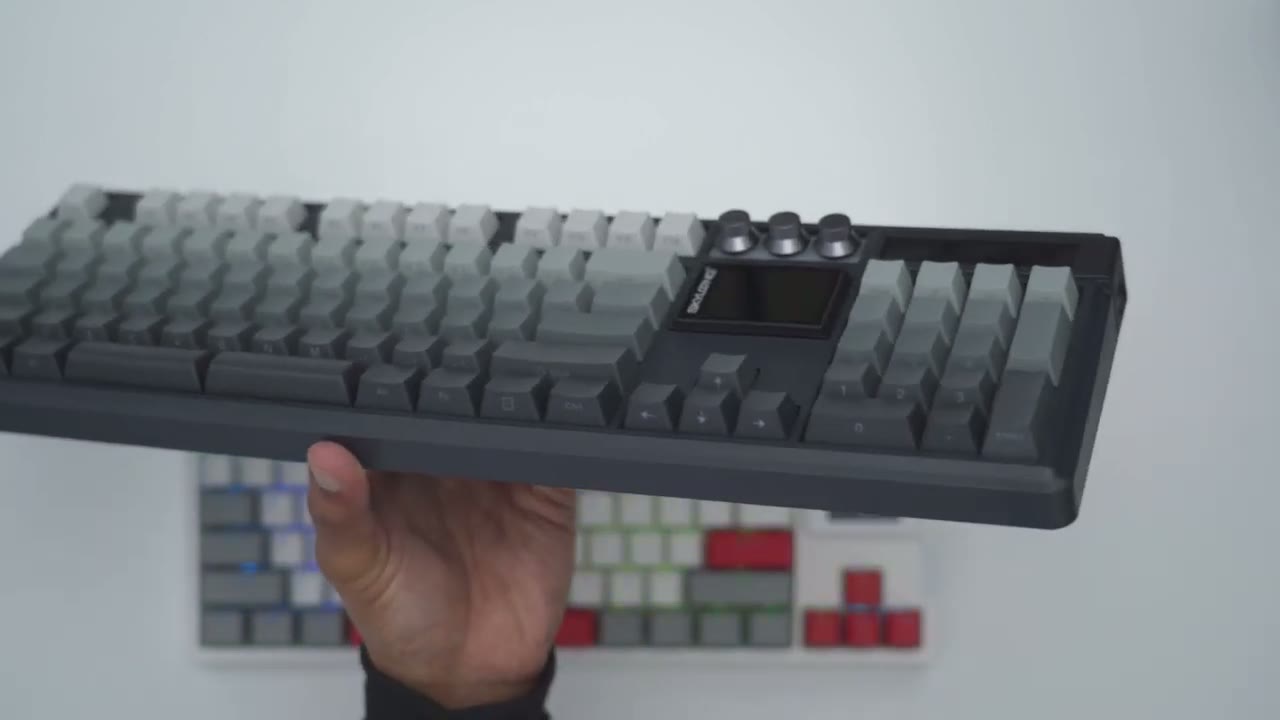
feel free to pause and take a look so there’s a top section and a bottom
Recommended!
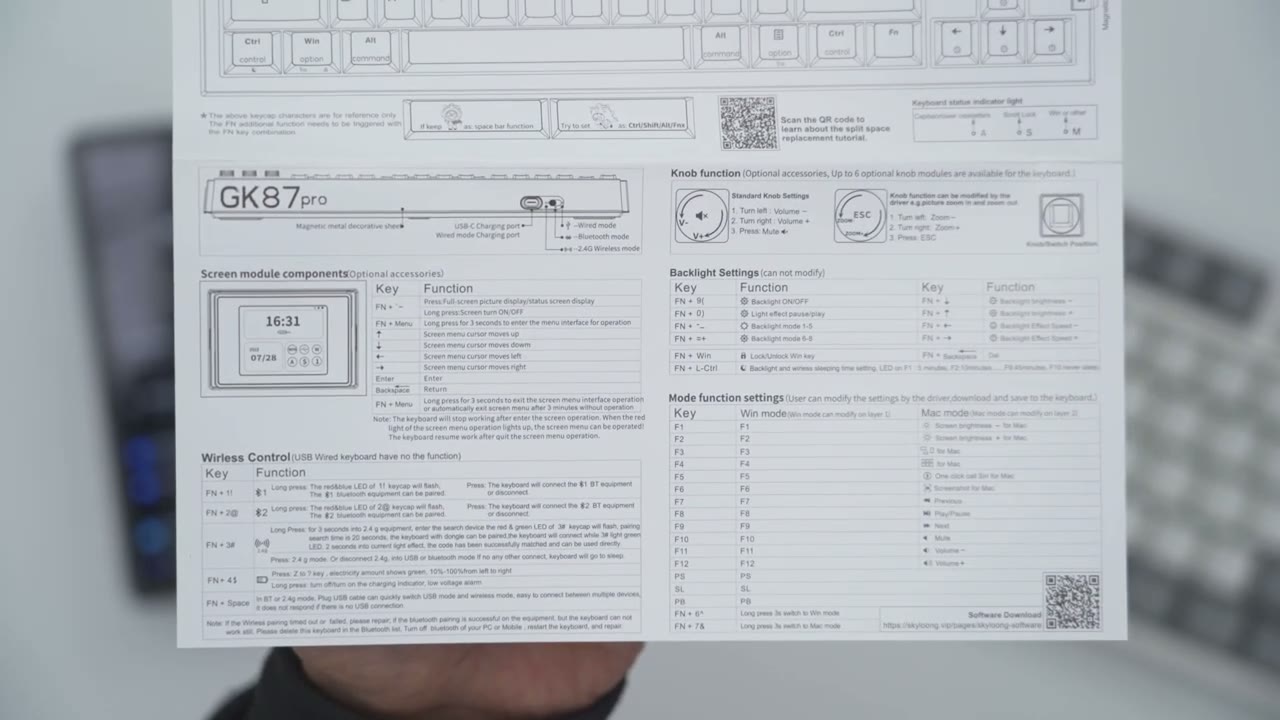
section so I’m curious to hear what you guys think of the sky long gk87 Pro when it comes to typing I definitely rate this in my top 10 after reviewing a bunch of mechanical keyboards the typing experience on here is just fantastic especially if you’re someone who is a fan of you know that silent type of sound whether it be using a mouse or typing this definitely delivers it’s actually exceeded my expectations especially compared to you know some other brands what they consider to be sound but the best part is that you’re not sacrificing the typ of experience you still have great key travel they’re very tactile key presses it’s like having The Best of Both Worlds the screen is a unique addition however I would like to see a little bit more refinement in future versions maybe the ability to have it tilt upwards or to get a little bit more bright and definitely for the software to be a little bit more user friendly if you’re looking for a keyboard with solid build quality great sound profile and typing experience I’m going to leave links down below to check out or to pick up the gk87 pro and if I have any coupon codes I’ll leave those down below as well and if I can ask a huge favor would you mind liking it subscribing it truly does help me out quite a bit and don’t forget to check out some of my other tech reviews I review a bunch of different Tech products on this channel I’ll sure you’ll find something like and I hope to see you in the next one soon
Please note that some of the links in my video descriptions are affiliate links where I earn from qualifying purchases. As an Amazon Associate I earn from qualifying purchases.

