


Buy Sotsu FlipAction Elite 16″ Monitor on Sotsu Website
Buy Sotsu FlipAction Elite 16″ Monitor on Amazon
Buy Silkland Mini HDMI to HDMI Cable
Please note that some of the links in my video descriptions are affiliate links where I earn from qualifying purchases. As an Amazon Associate I earn from qualifying purchases.
Intro

Hey, it’s Adrian and if you’re looking for one of the best portable monitors out there right now, you have to check out the Sou Flip Action Elite 16in portable monitor. No other portable monitor offers the sheer range of adjustability and setup layouts that it does. It connects to your laptop with a single USBC cable for a minimal setup and you can connect your phone and use Samsung Dex if you have a Samsung phone. It has pass through charging, the ability to connect HDMI devices like a PS5. There’s built-in screen settings. There’s an extended 4K display in a 16×10 aspect ratio with 100% DCIP3 coverage for professional workflows. All housed in a premium build and it also comes with a stand which is both detachable and magnetic.
The Flip Action Elite basically has it all, but there are some features that are missing that may or may not be a dealbreaker for you. So, let’s take a closer look at how well it performs. And a big thanks to Sosu for sending this out for review.
Package Contents

In the box, we have the Sou 16in Elite portable monitor along with a base or stand. There’s also a padded carrying pouch to keep everything nice and protected. And we also have a USB 3.2 Gen 2 Type-C to type-C cable and a user
Design

manual. Now, as someone who’s reviewed a lot of portable monitors, I can easily say the design and build quality on the SOSU 16in Elite is the best that I’ve used. Now, to give you an idea of just how kind of premium and how wellb built this is. So, we have pretty much an aluminum frame all the way throughout with an anodized finish. This is coming in at roughly 940 g or a little over 2 lb. So, it does have some heft to it and it feels really good in the hand. Now, if we take a look at the rear of it, we do have the uh Sozulu logo at the bottom there. And then if we take a side view, we have a built-in SD card reader, which is really handy if you don’t have that on your computer or laptop. We also have some ports. So, we have a power in port, a main port, and a mini HDMI port.
And at the very bottom of the kickstand, we have this dummy USB type-C port. And this is what we’re going to use with this cutout here to interface it connected to the portable stand or mount. The built-in kickstand can be extended all the way from 70° to 0°. And you can hear that snaps nicely into place. Now, anywhere you put this kickstand, you could see it’s very nicely tensioned in friction, so it’s not just going to collapse. It’s very well done. There’s also a four-way button at the back that you could use to access quick access settings or to jump into the full menu settings, and I’ll demo that later. And we have that massive 16in screen running in a 38x40x 2400 resolution, basically 4K in a 16×10 aspect ratio. The base earth stand is just as premium and wellb built.
So, this comes in at around 434 grams or about one pound. So, it has considerable hefted, meaning this entire setup is just going to feel nice and planted on your desk. And we also have rubber feet at the bottom to help with that. Now, what’s really impressive with this is when you want access to this kind of base um stem here or this column, you’re just going to push up. And this is the angulation basically from 90° to 0°. And you can hear the snap. So you can hear that snaps into place and it sits, you know, pretty much nice and flush when you’re not using it. Now, this takes some doing to get it out. So you can see I’m going to pop my finger at the bottom here and it’s taking me, you know, quite a bit of effort to push that out and then pull it out of the way.
So this is so well frictioned and tensioned that whichever type of angulation you set this at, um, it’s really not going to go anywhere. You can see I’m like really hitting on that. It is not budging at all. So just very good in terms of build quality. The base also attaches magnetically to the back of the monitor. And you can put this interchangeably without any issues. Now, if you do a top down view, you can see it’s exactly the same thickness as the built-in kickstand. So, it’s easy to fit into the pouch. And if I put this upside down and shake it, it stays nicely and securely in place. Then you could just slide this into the provided carrying pouch, slide it into your laptop bag or whatever, and you’re good to go. It’s just a very well thoughtout system from basically every
Specs
angle. Here’s a quick look at the specs. Feel free to pause and review or jump ahead to the next section. In terms of
Measurements

the height, so from the table surface to the bottom bezel on the monitor, it’s about 9 and 3/4 cm tall. And then to the very top, it’s about 33 cm tall. And in the tallest orientation, it’s about 46 cm tall. The adjustability of the Flip
Adjustability

Action Elite is unlike any other portable monitor that I’ve tried. It’s just, you know, in a world of its own. So right now it’s in the baser stand and this is kind of the default looker orientation of it. Now from here I can just go ahead and rotate this and put it vertical just like this. And then I could just go into my operating system settings and then just flip the display on this. Now I can actually go ahead and rotate it vertically the other way as well. And then if I was using my laptop, you could see I could just, you know, open up my laptop and have it this way. Or I could flip it the other way and move my laptop over here. Just really a ton of versatility. Now, the other thing you can do is you can actually go additionally like this.
So, you’ve kind of rotated it all the way to the highest uh orientation. And again, you can just have your laptop here. And you can see I can kind of angle my laptop screen and just kind of slot my laptop right like this. So, I have kind of a stacked display. So, I could just be working here, you know, looking at a YouTube video, a pair of stocks, whatever. And this is just so versatile. Basically, any orientation you want, you have it on this. We also have additional adjustability. So, I can actually bring the monitor very close to the table surface and have it sitting like that. And you can see this is what a side view of that type of configuration would look like. And of course, I could just lift it up, you know, basically anywhere in between. Have it like this.
And then every time I adjust it, I could just make it, you know, basically flush. I could even invert it all the way. Basically, you know, the sky is the limit with the type of customization, you know, options you have with this. To
Power Options

power the Flip Action Elite 16, we have two options. So, the first is to use the supplied or included USB type-C to type-C cable. And this is going to be capable of supplying both power to the monitor and the display out signal. So if you’re connecting it to something like a laptop that can supply power, this is going to be perfect. If you have a device like a cell phone that won’t be able to supply enough power to the monitor on its own, or if you have a console like this PS5 that only has HDMI out, you’re going to have to supply power separately to the Flip Action Elite. So you could use something like a powerfully enough charging brick that you have laying around. Connect it to the back of the monitor where it says, you know, power.
And then once this is actually powered, you would use a USB type-C cable to connect your phone to the monitor or use something like this mini HDMI to full HDMI cable to connect your console to the monitor. And I’ll leave a link down to the cable that I’m using. It’s been working great. Let’s
Connection Options

use the type-C to type-C cable first. And I’m just going to connect this to the back of my laptop here into the type-C port. And then on the back of the Flip Action Elite, I’m going to plug it into the C port that says main. And within a couple of seconds, it’s just going to automatically duplicate my display from the laptop to the monitor like we see there. So now, if I go ahead and actually move this window around, you can see it’s actually not going onto the Flip Action Elite because it’s set to duplicate display. So I would have to go on to extend this display. Go ahead and keep the change. And now I can actually just go ahead and move it right over.
And that’s how you can just kind of, you know, increase your productivity, have, you know, one app here and have something else on your laptop. I’m now going to supply power to the Flip Action Elite so that I can connect my cell phone and gaming console. So, I’m just going to plug this cable into where it says power in. And the other end of the cable is plugged into the wall with my charging brick. And you can see right away the cable is showing that the monitor is pulling power to power it. So, next I’m just going to use this USB type-C cable, the supplied one. And I’m going to plug it into the port that says main that’s plugged in there. And then I can just go ahead and connect this to my Fold 7 phone right here.
And basically within a matter of seconds, it’s automatically going to output the display. And because I am using a Samsung phone, it’s automatically opened up Samsung Dex. And my cell phone is actively being charged while connected to the monitor since I’m supplying power to the monitor separately. to connect my PS5 to the Flip Action Elite or any device that only uses HDMI. I’ve supplied power externally to the monitor again with a power brick. And now I’m going to use this mini HDMI to full HDMI cable to plug into the monitor and PS5. So, first I’ll just plug this switch into the PS5 and then I’ll plug the mini HDMI into the rear of the monitor. And within a matter of seconds, we should get that display on there. And there you go.
So you can see it’s very simple to just go ahead connect this to basically any device you want whether it’s a laptop, cell phone or console or any other HDMI device. One
Daisy Chain?

thing to note is that the Flip Action Elite doesn’t have display out, meaning you cannot daisy chain the display. However, I have the Flip Action Pro. This is the Gen 1 model and this does have display out and that’s why I’m able to have three displays going on. So, if you definitely need display out or the ability to daisy chain, you’d have to look at the Flip Action Pro Gen 1 that I have here or the Gen Two. Let’s take a
Layouts
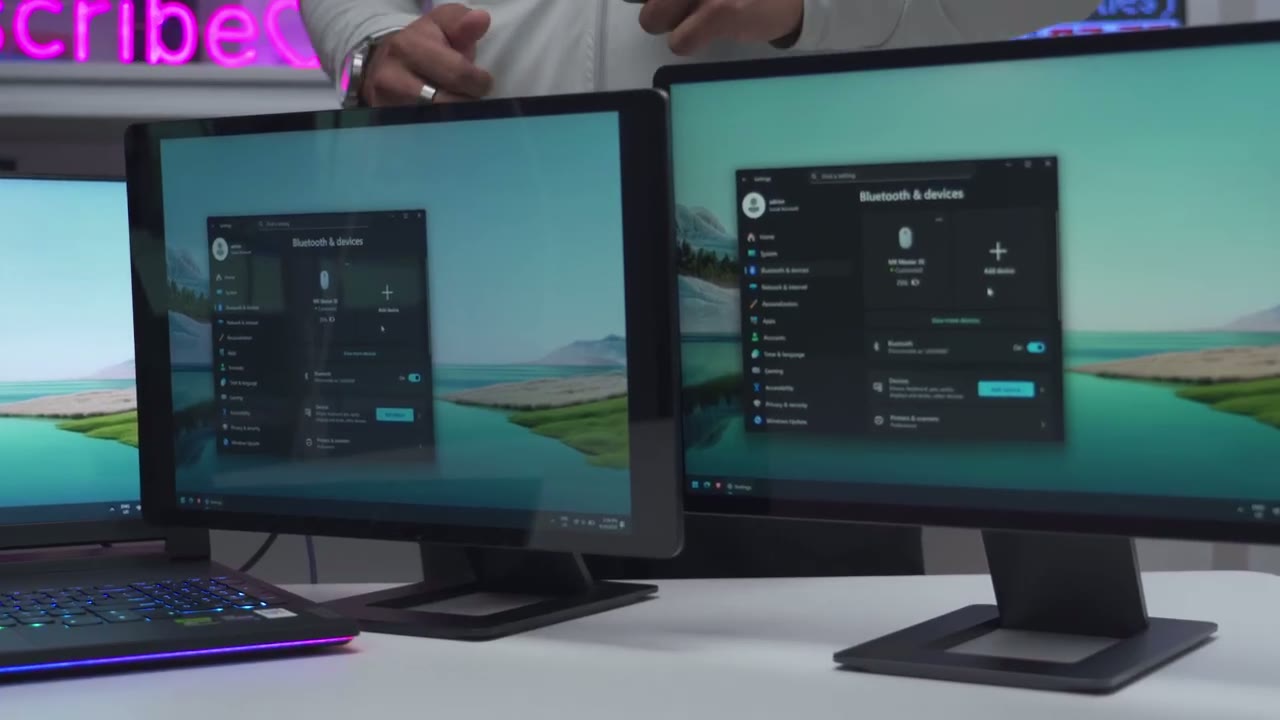
look at some of the setup options you can have with your laptop and the Flip Action Elite 16. Now, what I can do is I can actually go ahead move my laptop up and then I can actually go ahead and then just bring the base or stand back. And you can see right now basically everything is like in line. But what if I want the height to be exactly the same? Well, I can just lower that and then bring it there and it’s pretty much um basically perfectly aligned. I can just kick that out a bit. So, you can see you have very fine control. I can also have a vertical configuration. So, I can just go ahead rotate the monitor this way and then just kind of line it up right next to my laptop for a very clean setup. And of course, I could do that on the other side as well.
So, I’ll just rotate it the other way. Move my laptop over here. Pop it right down and I have another clean setup. And notice again, all of this is with just one USB type-C cable. So, it’s a very clean and minimal setup. If you’re going to be using this kind of stack display that I really like, you can see right now the base is actually under my laptop. This actually elevates the laptop, helps with airflow a little bit. But if you wanted a cleaner setup, it is possible. What you would have to do is just go ahead, lift the monitor out of the base, rotate the base, pop it right back in, and then you could bring the laptop, you know, even closer than before and still have that type of stacked display.
The Sou website also sells a base amount adapter and a tripod adapter if you want to add even more versatility and mounting
Portability

options. Now, what if you’re going on a mini trip, you want to take your Flip Action Elite, but you don’t want to take the base or stand since it weighs about a pound. That’s really not an issue as well. So, I’ll just go ahead separate the monitor from the base. And you can see because we have a built-in kickstand at the back, this can actually go from 0 degrees all the way out to 70°. So, I’ll just put it kind of, you know, um not all the way to 70, just a little bit out. And I can have it, you know, right next to my laptop screen. You can see if I bang on the table, it’s still very solid because it is nicely tensioned and
OSD Settings

friction. To adjust the monitor settings, we could use the four-way button at the back. So, if I press up, it brings up this backlight option. And I can press down to lower it to the lowest settings. So, this is good if you’re going to use it at night, say. So, I’m going to go ahead and press on the right or left side, and it is going to bring up the onscreen uh display menu. So, right now, we’re on color. I could jump into backlight, which I showed earlier with the quick access. We also have options for brightness, contrast, saturation, color temperature. Now, if I jump into color temperature, you can go from 8,500K all the way to 5500K depending on your preference. I’ll leave it at 8500 for now. We have color gamma options, hue, color reset, and custom RGB. And we do have presets here.
So, right now it’s on standard. You can put it for the game mode, movie mode, uh paper if you’re going to be reading documents, photo mode. We can also go ahead turn the blue light filter on or off. So to give you an idea of what that looks like. So off and then on. So you can see it’s going to be a little bit easier on the eyes for nighttime viewing. And then you could go ahead and turn overdrive off or on if you’re going to be gaming. We could go into the input now. And if I jump into that, I’ve just left it on auto and it’s been automatically switching between, you know, the main USBC and HDMI. That’s been working fine for me. Let’s go down to power saving. And if we enter into that, you can see it’s just going to go ahead and turn the monitor off. But I’ll just exit out of that again.
Uh aspect ratio. So if we jump into that, you can set it to the default, which is 1610, or you can go into a 16-9. You could see the horizontal black bars at the top. Now you can go into language and we have English, uh Mandarin, Spanish, uh maybe simplified or traditional Mandarin. We have French and then back to English. The menu timer can be from 10 seconds to uh 20 seconds before it times out. And then you could put auto rotate on or off. And then we can put it on mirror
Gaming

mode or factory reset. I was able to game casually using the Flip Action Elite on my PS5. But at 60 Hz, it’s definitely not ideal if you’re going to be playing really fast-paced type of games where you really need 120 Hz. And thankfully, Sou does have a Flip Action Pro Gen 2 monitor that has 120 Hz. In
Screen

terms of the screen performance, so we do have a 3840x 2400 resolution. It’s basically having 4K in a 16×10 aspect ratio instead of 16×9. And we have a 1200 to1 contrast ratio with a max brightness of 450 nits. And if you have professional workflows, there’s also 100% DCIP3 coverage. Text was sharp enough, and this makes a great monitor for just overall productivity, reading articles, working on Excel files, etc. especially since there’s only a 60 Hz refresh rate. Even though the screen seems to be kind of semi- glossy, the glare was actually fairly well controlled when I shown a light directly on it. When viewing pure black screens or kind of dark scenes, I didn’t really notice any type of, you know, backlight bleed.
But definitely, it’s not close to, you know, that type of pure black you would get on an OLED screen since it’s not OLED, of course. But it’s still fairly decent black performance overall with the 1200 to1 contrast ratio. Animated movies look really bright and vivid with the movie mode preset, which is what I had applied in all of these clips, and most movies look great on
Dealbreakers?

here as well. Now, let’s talk about some of those potential deal breakers. So, one of the first things to note is that there’s no touchscreen on here if you need a monitor with that. There’s also no built-in speakers on here. The other thing is that this has no display out, so you can’t actually daisy chain this
Which Model?
display. If you’re trying to decide between the Flip Action Elite 16 or the Flip Action Pro 16, whether it’s a Gen 1 or Gen 2 model, the Elite model has the highest resolution at 4K in that 16×10 aspect ratio. And this has a max brightness of 450 nits. Now, if you look at the Gen 2 model in the Flip Action Pro, that has a 120 Hz, so it’s more meant for gaming. It also has a max brightness of 400 nits, and it’s around a 2K resolution, and it also has display out, so you could daisy chain. If you look at the Gen One model, that’s around a 2K display as well, but it’s only 60 Hz. It has display out and it’s the same contrast ratio as this. So, basically, get the Gen 2 if you want to game, or get the Elite if you really want a 4K
Recommended?

resolution. So, if you’re looking for one of the best portable monitors out there that’s going to give you a ton of versatility when it comes to adjustability, the way you can customize your setup while staying minimal, I highly recommend the Flip Action Elite 16. The included base is wellb built. It keeps your setup planted. that attaches magnetically to the back of the monitor for easy portability. You can connect your laptop, cell phone, use Samsung Dex if you have a Samsung phone, you can connect your gaming console, or basically any other device that uses HDMI. So, I’ll leave links down below if you want to get your very own Flip Action Elite 16. And if you use my link down below, you’ll also get 5% off your order.
Now, if you know you definitely need this payout, check out my review of the Flip Action Pro, the Gen 1 model. And like I mentioned, if you want to do gaming on the monitor, you’ll have to check out the Gen 2. I have not reviewed that, but you could check it out on the website. And I have a big favor to ask. If you found this video helpful, would you mind liking and subscribing? I’m always doing these type of accessories videos. And I also cover a lot of other tech like headphones, keyboards, laptops, monitors, so I’m sure you’ll find something you like. And I really hope you’ll join me in my next video
Buy Sotsu FlipAction Elite 16″ Monitor on Sotsu Website
Buy Sotsu FlipAction Elite 16″ Monitor on Amazon
Buy Silkland Mini HDMI to HDMI Cable
Please note that some of the links in my video descriptions are affiliate links where I earn from qualifying purchases. As an Amazon Associate I earn from qualifying purchases.

