


Buy 512GB microSD Card on Amazon
Buy 256GB microSD Card on Amazon
Please note that some of the links in my video descriptions are affiliate links where I earn from qualifying purchases. As an Amazon Associate I earn from qualifying purchases.
Intro
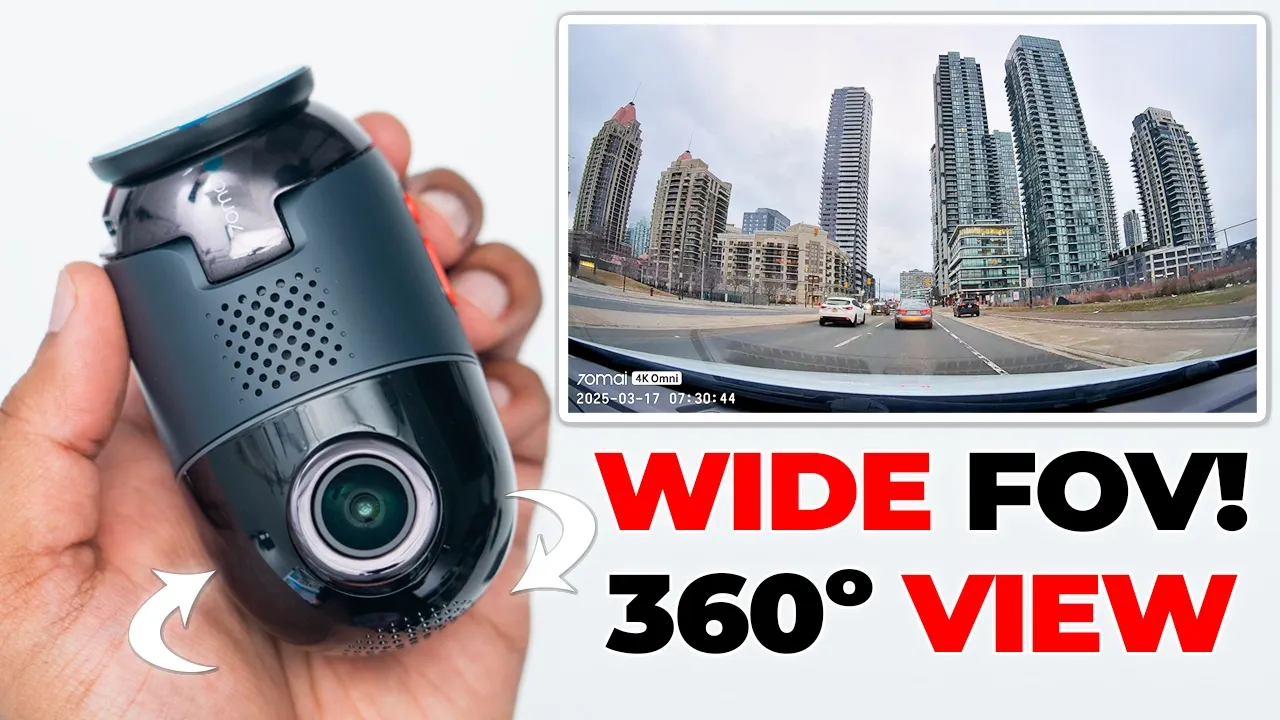
Hey, it’s Adrian and if you want a dash cam with crisp 4K video and the ability to pan and rotate to follow lurkers around your car, you’re going to want to check out the 70 mi 4K Omni dash cam. It also has dual channel front and rear recording for crisp 4K video using Sony Starvis 2 IMX 678 camera sensor with a wide 146° field of view. 70 mi’s my color vivid plus and their 70 night owl vision tech lets you see enhanced video details during the day and at night. There’s also intelligent parking surveillance, voice commands, a vlog mode, emergency video recording, support for up to a 512 GB micro SD card, advanced driver assistance, safety features, a bright 1.4 in IPS screen. Honestly, it’s one of the best 4K dash cameras I’ve used so far.
So, let’s take a closer look at how well it performs. And a big thanks to 70mi for sending
Package Contents
this out for review. In the box for the 70mi dash cam 4K Omni, we have the front-facing camera, rear-facing camera extension cable for the rear camera. There’s a 128 GB micro SD card included, a lighting socket adapter, power cable for the front camera. There’s a user manual for both the front rear camera, a customer service card, a wiring tool to help just kind of wedge the wire into your trim, and there’s replacement stickers and adhesive pads. If you purchase the optional hardwired kit, so you can have parking surveillance, you get the hardwire kit and a manual. You can also purchase an optional circular polarizing
Design
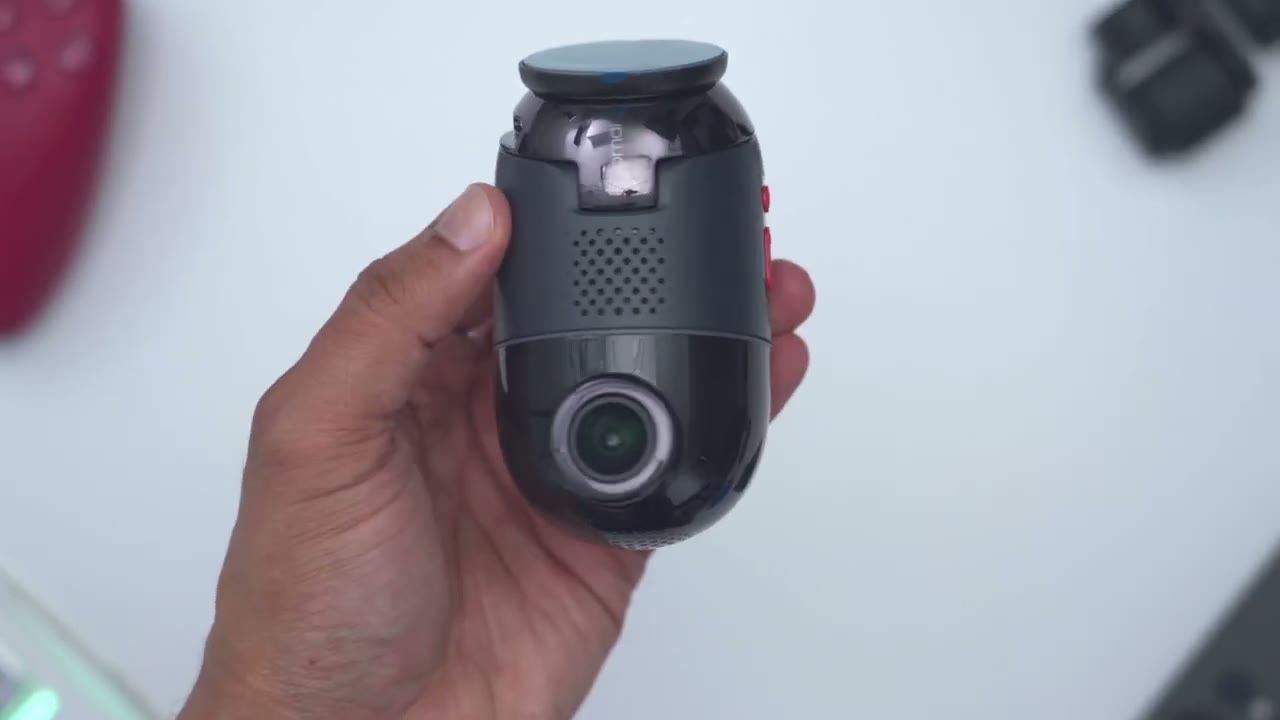
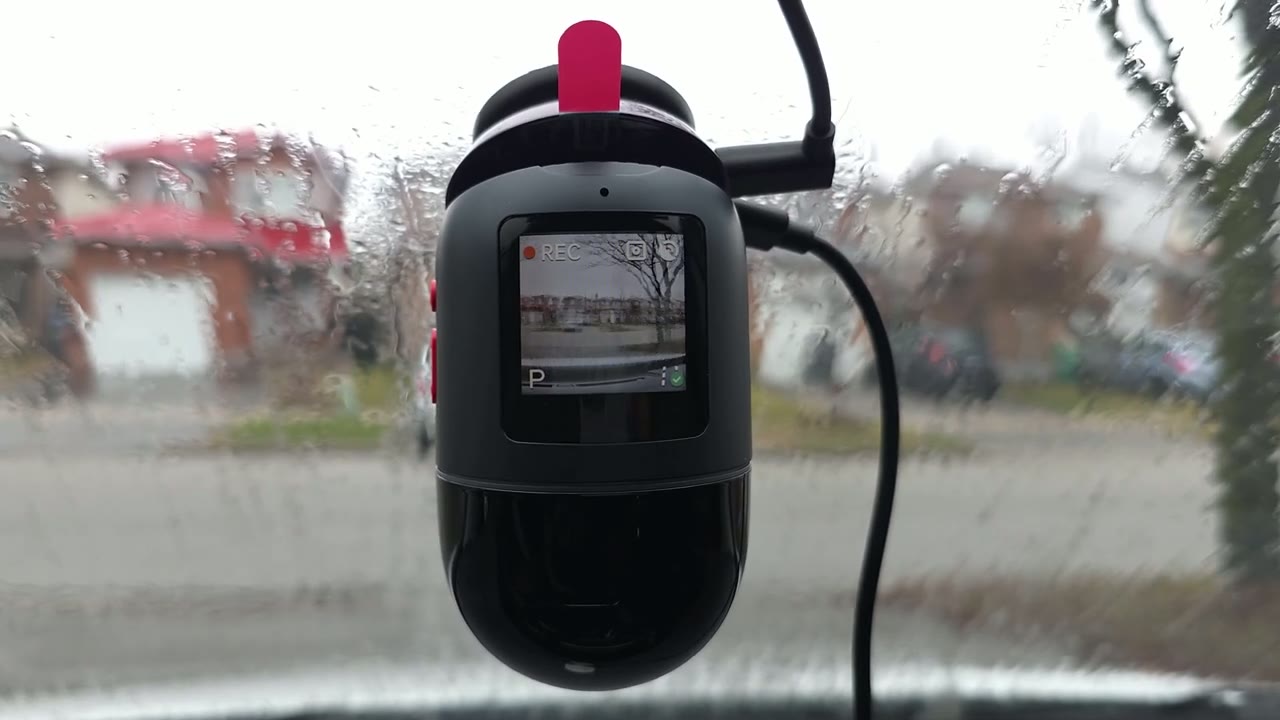
filter. So, the design on the 70mi dash cam 4K Omni is a pretty unique one. So, you can see we have this type of capsule design with this two-tone color scheme going on. And this comes in at around 218 g or about 0.5 lb. There’s a glossy reflective surface at the top. Then we have this matte portion and another glossy portion at the bottom here. So, we have ventilation on the side here and then at the very bottom. And this is where we have that 4K lens. And this is using that brand new Sony IMX 678 sensor. And that impressive 4K lens gives you 146° field of view. And when paired with the rotating camera module, you’ll have 360° of viewing coverage. On the rear of the dash camera, we have the speaker grill, the 1.4 in IPS display, and a microphone port.
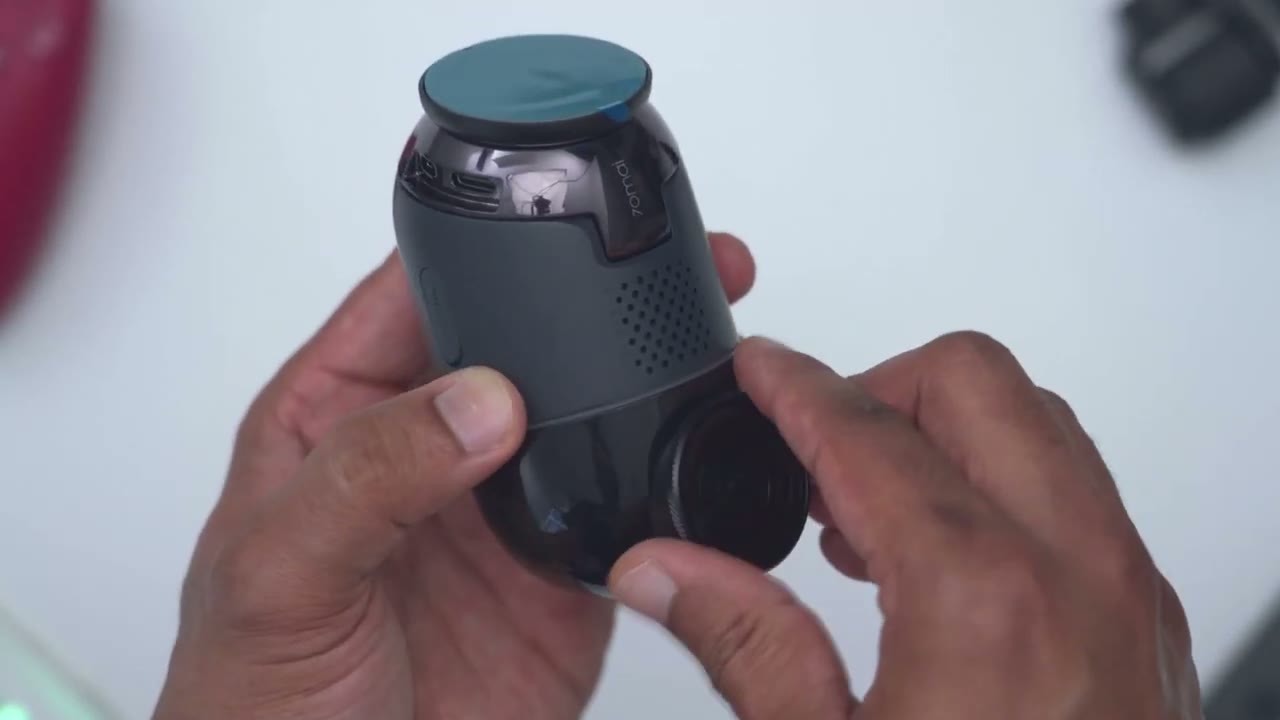
On one side, we have a power button along with a quick menu access and an up and down button as well. And then on the other side, we have the micro SD card slot. A slim LED ring light also goes all the way across the camera body to let you know of any status effects. The top of the dash camera has a port to connect the rear camera and to supply it with power. There’s also a USB type-C port to power the 4K Omni. And this entire top portion actually articulates. So you can see I can just lift this up and it actually takes me quite a bit of effort because this is so well frictioned and tensioned. So if you’re driving and your car hits a bump, this is not going to shift out of place. They’ve done a great job with this.
Now, one other thing to note is that the mounting pad here, which is what’s going to attach to the windshield, this can stay in place and you can actually separate this mount. And this is what the rear camera looks like. So, this is model RC14 and it does have pre-ran wiring. You could see this is what the connector end looks like. And this is going to interface with that extension cable. There’s also a pre-applied sticky pad that you’ll use in conjunction with the electrostatic sticker. When you use the power adapter, you’re going to plug the dash cam into the top port and then you have a remaining port to charge your phone or any other device.
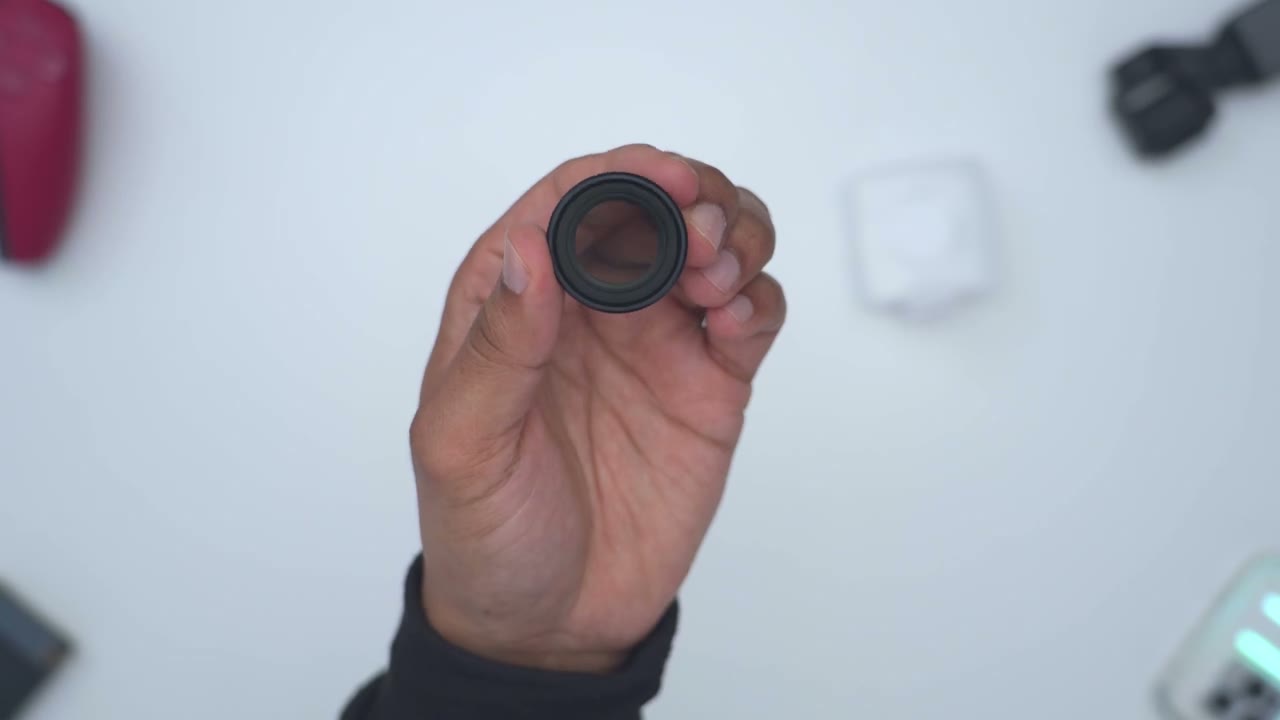
If you buy the optional circular polarizer, you can actually fit it onto the dash cam lens and just pop the polarizer off anytime you don’t need it and then just pop it back in because it’s held magnetically in place. Again, very well designed.
Specs
Here’s a quick look at the specs. Feel free to pause the review or jump ahead to the next section. to set up the dash
App Pairing
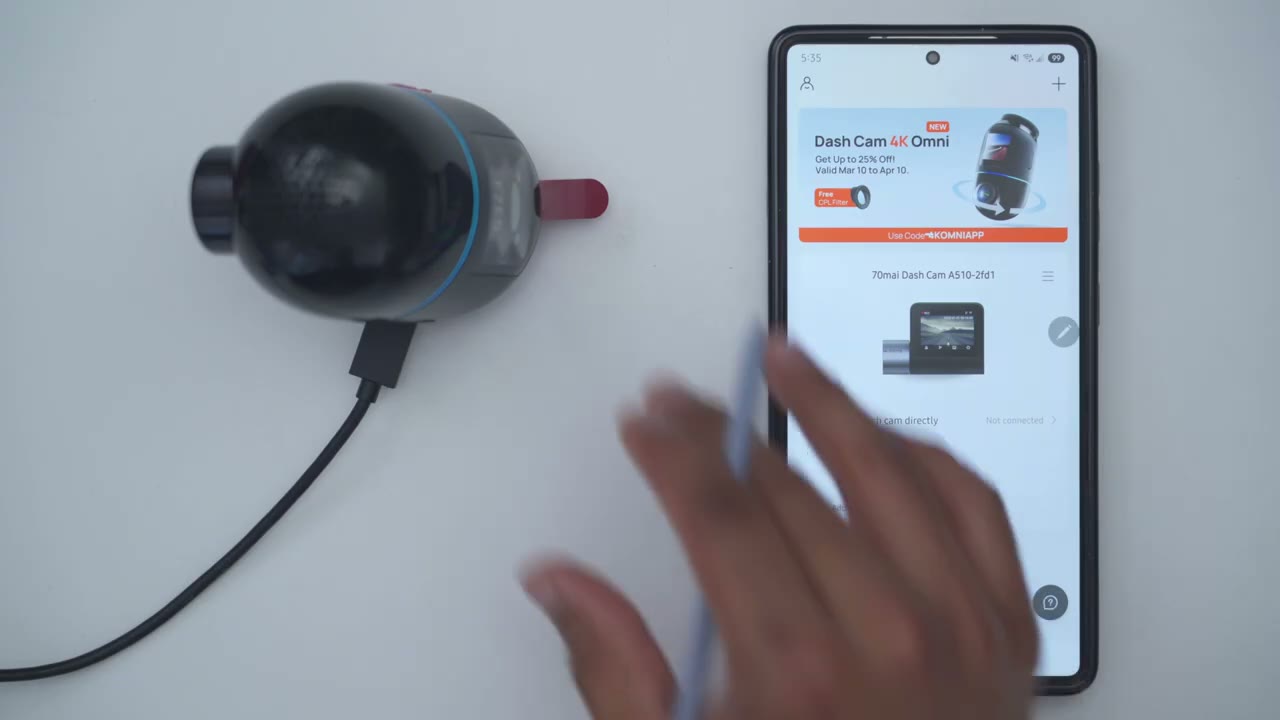
cam 4K Omni. I’ve plugged it in by USBC cable and I can see the glowing blue light letting me know it’s ready to be paired. I also have the 70 my app up and you can see I have the A510 which I’ve been loving using but it’s going to be replaced right now. So I’ll just hit add and I can see it’s already found it instantaneously. So I’ll just go ahead tap on that and it says click the power button to do that. So let’s go ahead click on that. And it’s that simple. Let’s take a look
App Settings
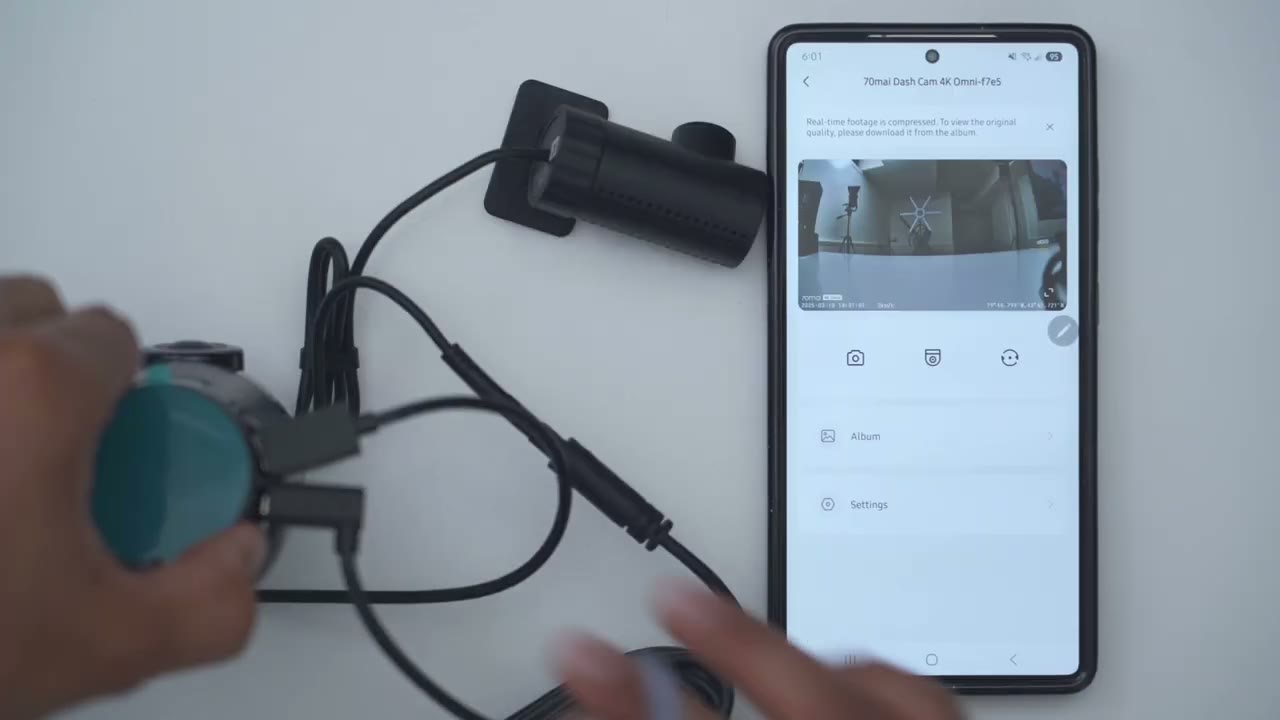
at the full dash cam settings in the 70 my app. So you can see right now I’m taking a look at a live view from here. You could take a photo. You could start a manual recording. And we have this icon here to switch between the live view from the front camera to the rear camera which I’ve connected here. And why this is handy is instead of using this really small screen here. If you had this up on the 70mi app, you could just see who’s driving. If you switch to the rear camera in the full settings, we could set the compression. So, leave it on highest compression if you want the most recording time. And then the video resolution, it’s locked to 4K, which is great. Now, we can go into video clip duration, and you could have clips from 1 minute, 2 minutes, all the way up to 3 minutes.
You can also have a speed watermark to show how fast you were going. And then you could have a coordinates watermark turned on or not. Same with the 70 logo. For anti- flicker, you can go from 50 Hz, 55 to 60 Hz. And then you can also use the mirroring and rotation. So you could do horizontal mirroring or rotated 180. And then live view is available upon power on. This is on but you can turn this off as well. Now if we go under PTZ presetting, this is really cool. So you can set the start position of the rotating line. So it can start, you know, kind of dead center or you can have it start, you know, a little bit off to one corner. So you can just go ahead and set that which is really neat. What’s really cool though is you could set the parking position of the rotating lens.
So, how about if you park your car, you can just rotate the lens all the way um like a full 180 so that if anyone breaks into your car, you could see what’s going on in the cabin. So, a lot of versatility there. Under Sentinel mode, a lot of these features are only going to be available if you use the hardwire kit so that the camera’s continually powered. So, you could set a duration as unlimited if you’re not worried about battery drain, you’re constantly driving your car, recharging that battery, or you could set it from 2 hours all the way up to 24 hours. You can also set the collision detection. You could turn that on so it’s going to record if the car has been hit while you’re not in it. You can also turn on motion detection.
It’s going to record any type of suspicious activity like lurkers around your car. And then you could set the time-lapse photography as well. Under smart travel, emergency video is the default. So, it is on and you could set the sensitivity from ultra high to ultra low. So, ultra high, you know, a small bump or nudge on the car may be enough to trigger that. So, I’ll leave it middle of the road uh on medium. Now, under ADAS, so this is kind of like advanced driver assistance features. You could turn that on and I will demo that later how that works. You can also go ahead and turn on voice control and these are the list of available commands. And in terms of language, so you could set it from Mandarin, English, I believe that’s simplified in traditional Mandarin, and in Italian as well.
You can also turn on a driver fatigue reminder if you’re kind of, you know, a longhaul driver. And then the broadcast language, you have languages from English. And these are all of the available languages that the dash cam can kind of, you know, issue you status updates. Under speaker volume, you could set the volume from low, medium, or high. or you could mute the speaker completely if you don’t want to be bothered by any type of status callouts. So, there is also a power on or off prompt tone that you could turn on or off and a key tone. So, every time you’re pressing the buttons on the side, it’s just going to beep. And you can set it to record audio or not. So, I’ll just set it to record audio for now. And then you can also set a screen standby mode.
So, you can have it as a clock screen saver, um a animation screen saver. You could have the screen off, but I’m going to leave it to always on because I just like knowing that the dash cam’s constantly being powered and I can see that it’s actively recording. And then you could also go into the uh Wi-Fi hotspot settings if you need to. I don’t really need to change anything there, but you do have both bands to work with the 2.4 and 5 GHz bands. You can also set the dash cam time, the date format, the speed unit from kilometers to miles. I’m in Canada, I’ll leave it on kilometers. You can also check the positioning status. And of course, you can go into about to check which firmware version you’re on. You can also synchronize driving data.
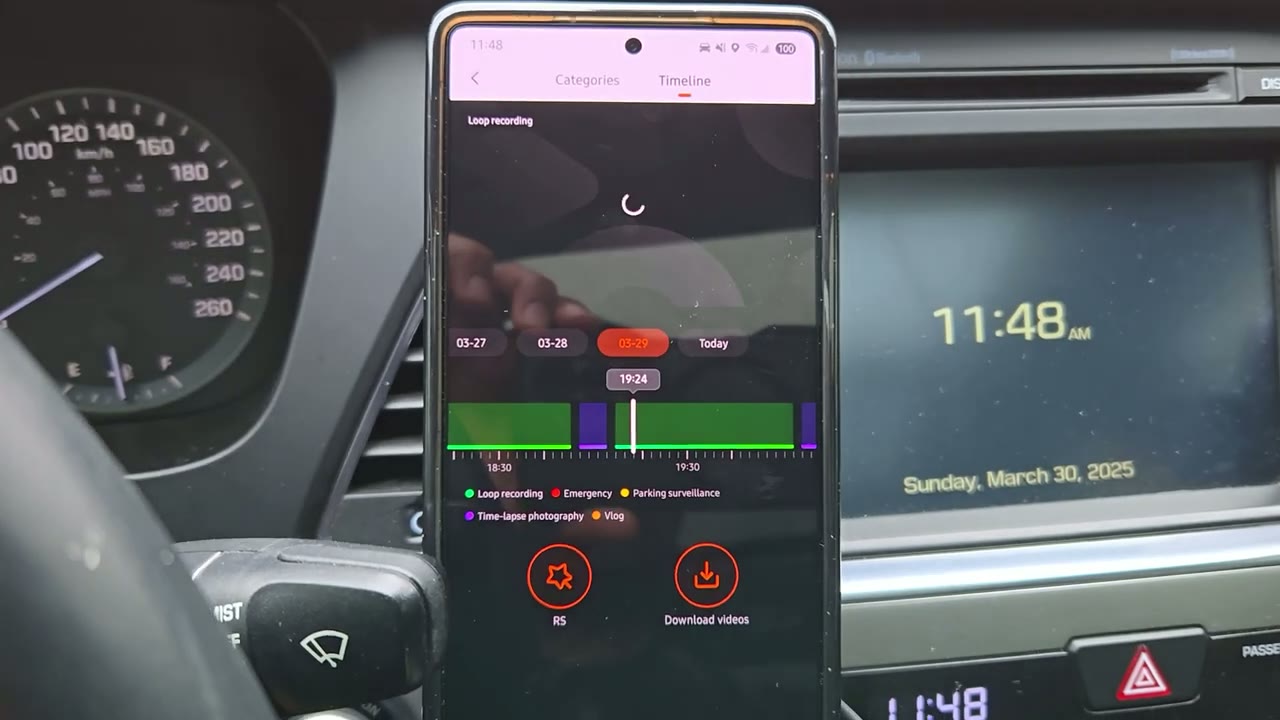
Now, I haven’t driven yet, but I will test that out later. And if you want to review footage easily, you could jump into album and just take a look at the different categories of videos. And you can also see a breakdown of the different video types, which is really handy for filtering out important videos. You can
Dash Cam Settings
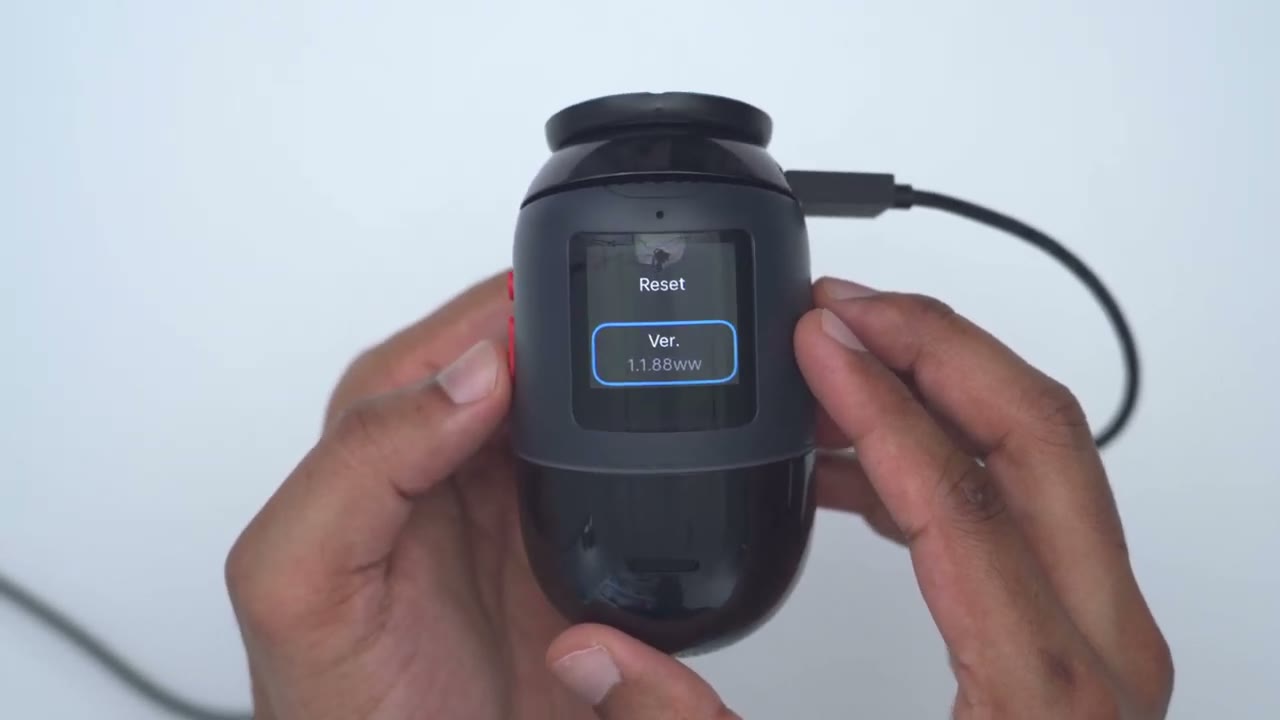
also adjust some settings without using the 70 app. So, if you press the power button, it’s just going to cut the screen on or off. But if you long press it, it will turn it off. But let’s go ahead and press the down arrow here. And I could turn the Wi-Fi hotspot on or off. I can choose to record audio or not. I could go ahead and mute the speaker. So, if I press the power button here, you can see mute is on. And as I cycle through, I’m not going to hear those beeps anymore. You can also turn wide dynamic range on or off. You could turn on the advanced driver assistance safety features. You could also turn remote view on or off. And then you can also go into more settings. So you have format and reset. Installing the dash
Installation
camera is really easy. So the first thing you’re going to do is clean your windshield. You’re going to apply that electrostatic sticker. Then you’re going to peel off the adhesive sticker on the rear of the dash camera mount and then line it up with that cutout guide on the electrostatic sticker. Next, you’re just going to connect the USB type-C cable from the dash camera. plug it into that power adapter and then plug it into your car socket. If you’re using the rear dash cam, you’re going to do the same thing. So, clean the rear glass, apply the electrostatic sticker, remove the adhesive peel, and just position it in the electrostatic sticker cutout. Then, you’ll connect the small wire from the rear dash camera to the extension cable.
And finally, you’ll connect the extension cable to the top of the dash camera in the front. And you’re done.
Video Quality
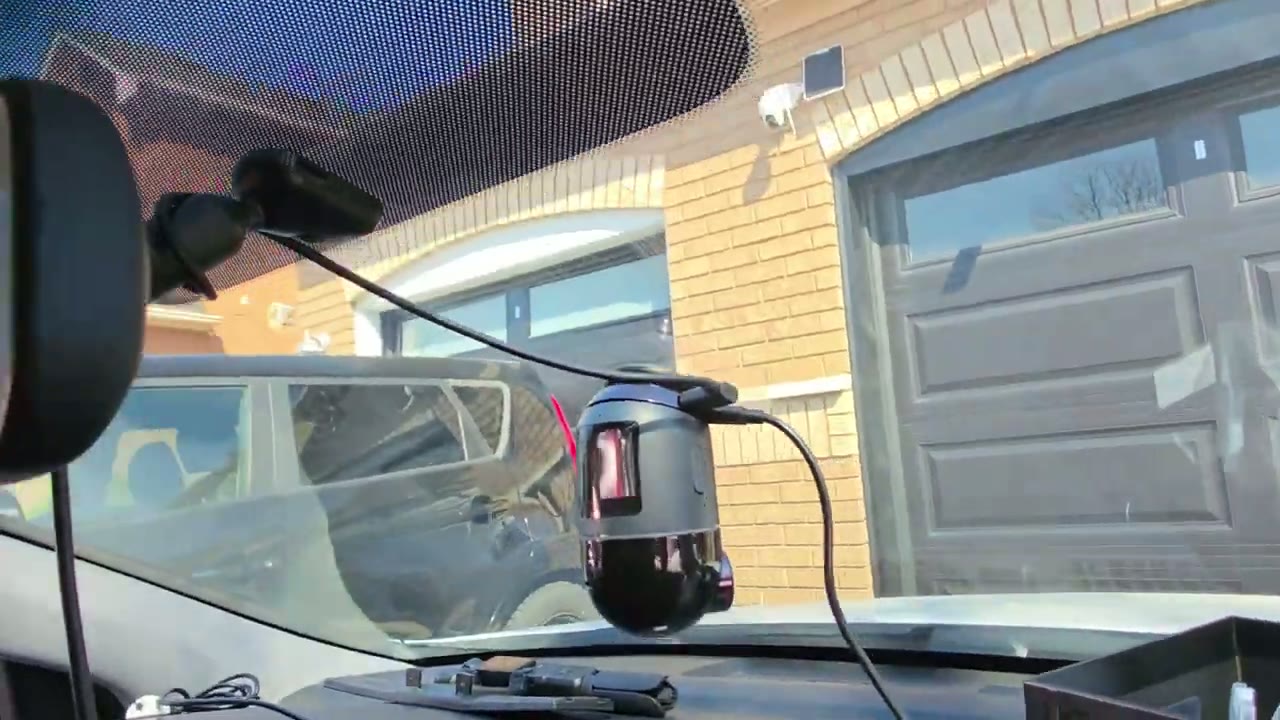
The 4K video is one of the crispest that I’ve seen on any 4K dash camera. And that’s thanks in part to the really high bit rate on here. Videos look great during the day, whether it was sunny, whether it was overcast, raining, and even at night. Again, thanks to their vivid plus technology and their night out vision tech as well. It was easy to make out license plates regardless of the day. And even with significant glare and sunny days, I actually didn’t need to use the CPL filter, and the video still looked great. Video from the rear camera was also good enough to make out license plates. But one thing to note is that my rear glass is tinted, and I also have heating elements to melt snow and ice since I am living in Canada.
So, the video quality that you’re seeing right now is not the best it looks. It actually looks sharper than that because there’s limited light coming into my rear glass. And that wide 146° field of view really lets you capture and see all of the action without much distortion. They’ve really done a fantastic job just dialing in the video quality and optical quality on here. The same goes for the rear camera with 130° field of view. The
Timelapse
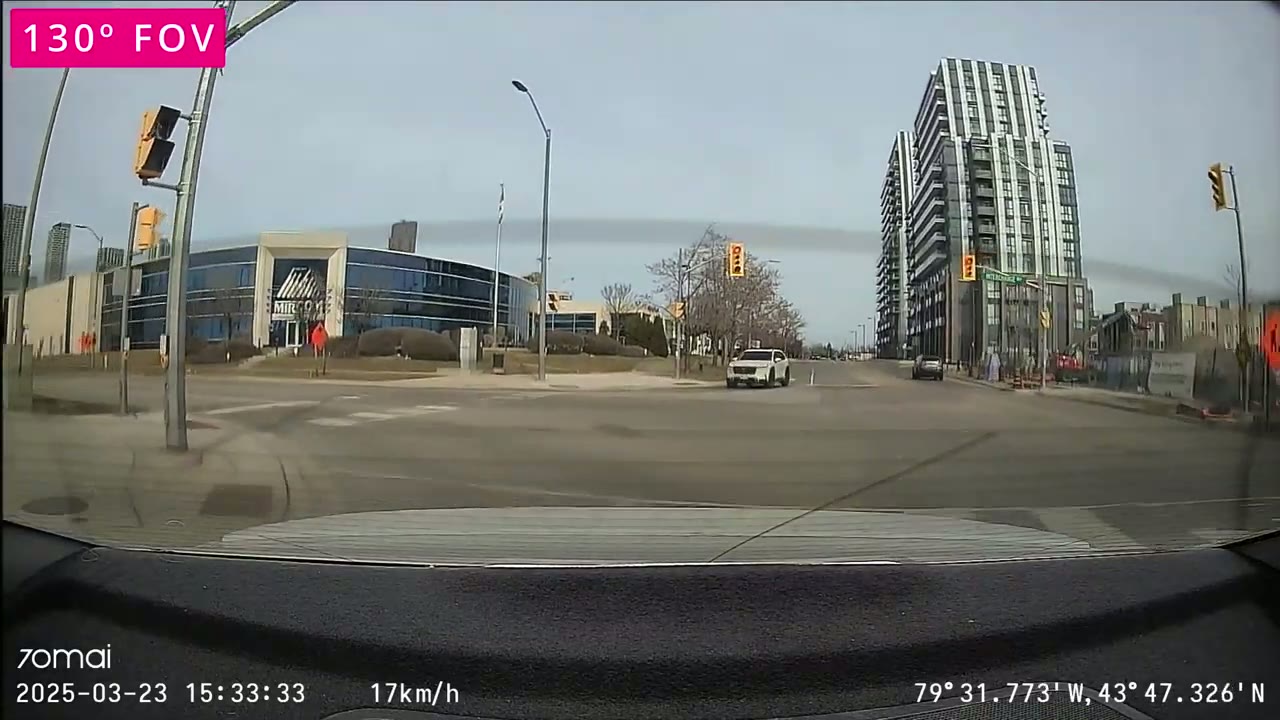
time-lapse feature is also fantastic on here. The video quality is really detailed and you can see everything that happened both in front of and behind your car if you use it in dual channel
Parking Surveillance
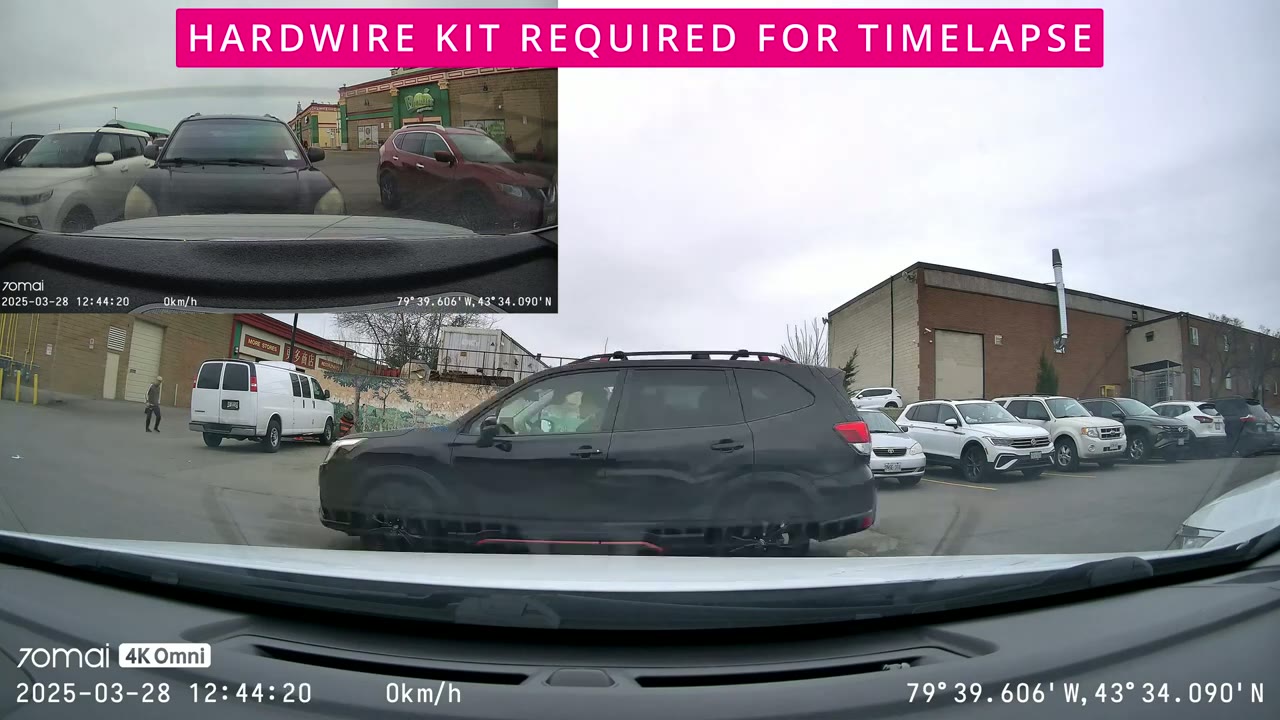
mode. I was also blown away by the parking surveillance feature on here. So, that’s only available if you hardwire the dash camera. If there’s any type of lurkers around your car, the dash camera will light up the red LED ring light to let them know, hey, this camera is active. And you can actually see the camera lens panning around to follow the person, which is super handy and unique. And the next time you get into your car, it’s actually going to play a recording letting you know to review the video playback. New parking monitoring video available. Please check the album within the app.
ADAS
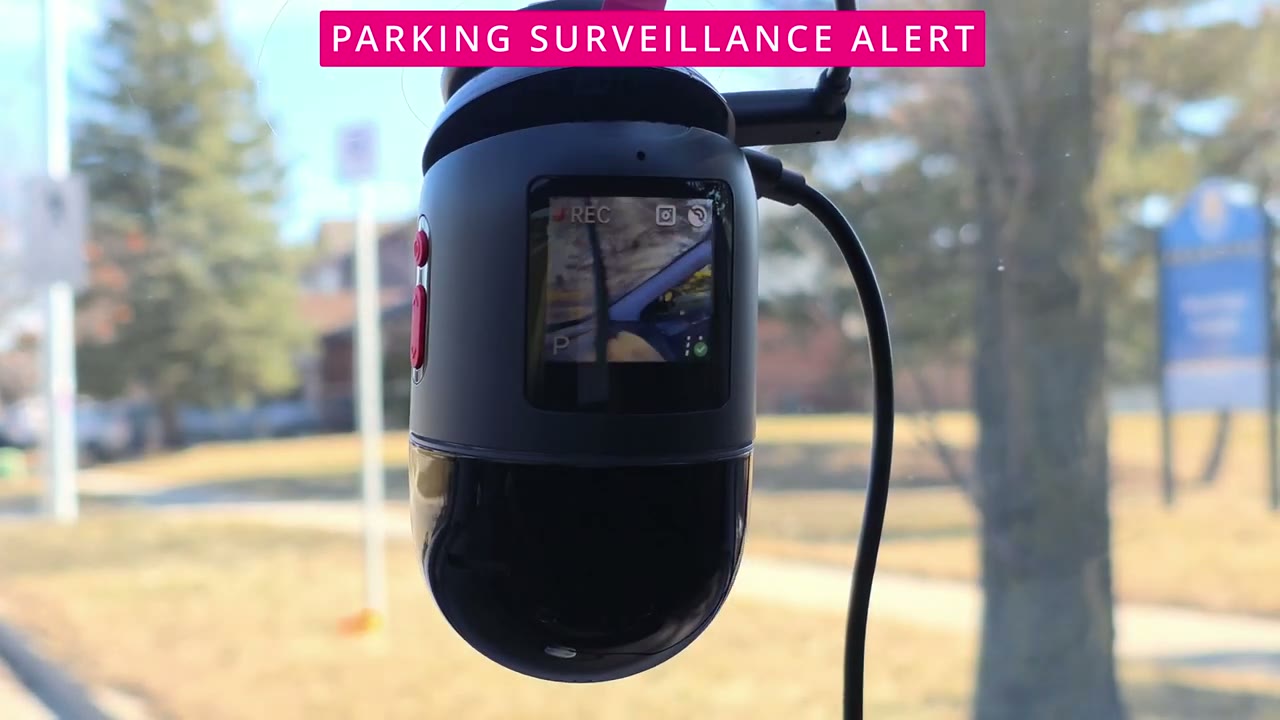
The ADAS features or driver assistance features were really responsive and here’s a demo of those. Caution front car. Attention to pedestrians. Lane departure. Vehicle ahead. Motion
Voice Commands
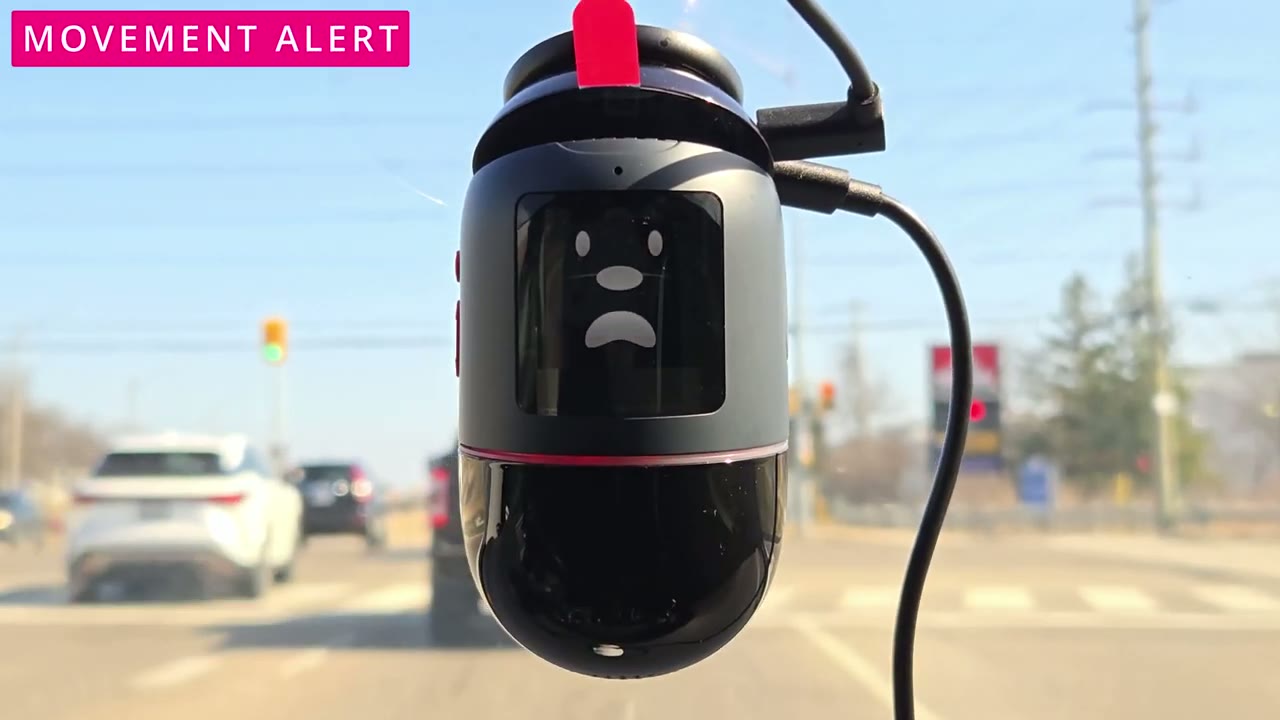
detected. Now, here’s a demo of some of those voice commands, but my favorite one is just switching between the front and rear lens. Take photo. Switch rear camera. Switch front camera. Capture left. Capture right. Camera
Storage
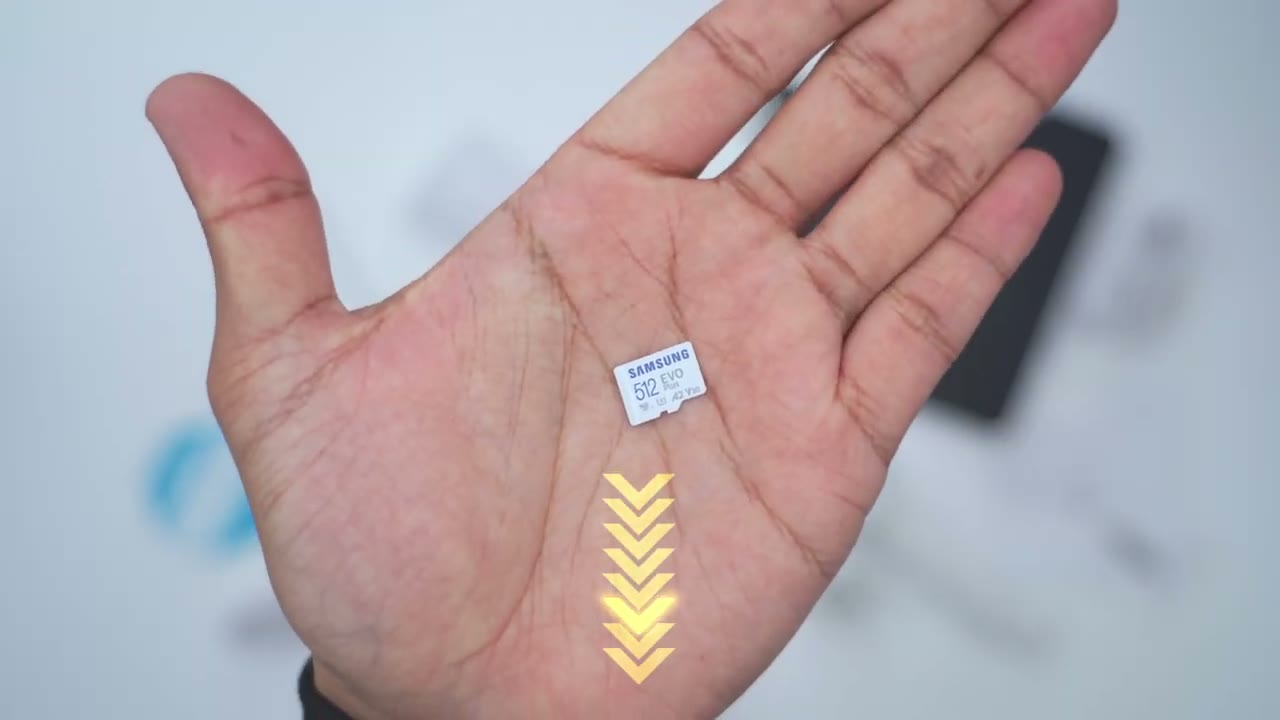
reset. I inserted a 512 GB micro SD card in here. And if I just look at video from the front and rear cameras at 30 frames per second in dual channel recording mode, and I don’t factor in the parking surveillance or time-lapse video, then I would get 25 to 27 hours of just continuous video playback history, which is pretty amazing. And I’ll leave links down below to the micro SD card that I used. So, can I recommend
Recommended?
70 M’s 4K Omni dash camera? And it is such an easy recommendation because I’ve reviewed a ton of different dash cams so far and this is just one of the crispest 4K video I’ve seen and one of the most capable dash camera. You have the parking surveillance feature so you can see everything that went on around your car. The advanced driver assistance features are super responsive. The ability to just issue voice commands for, you know, hands-free driving. You could switch between the front and back camera. Start the vlog style mode. Capture emergency recordings. Really, this does everything. So, if you’re interested in picking up the 70mi 4K Omni dash camera, I’m going to leave links down below. And also consider getting the hardwire kit if you want the 247 parking surveillance.
And if I have any type of coupon codes, I’ll leave those down in the video description and pin comments as well. If you found this video helpful, would you mind liking and subscribing? It truly does help me out as a small and growing channel. And I have way more dash cam videos coming up soon. And maybe consider checking out some of my other tech reviews. I review more than just dash cameras, security cameras, headphones, earbuds, laptops, keyboards. Really something for everyone.
Buy 512GB microSD Card on Amazon
Buy 256GB microSD Card on Amazon
Please note that some of the links in my video descriptions are affiliate links where I earn from qualifying purchases. As an Amazon Associate I earn from qualifying purchases.

