


Buy eufyCam S3 Pro Official Weather Rated USB C Cable on Amazon
Buy Unofficial USB C Cable on Amazon
Buy 1TB Drive for HomeBase on Amazon
Buy 2TB Drive for HomeBase on Amazon
Please note that some of the links in my video descriptions are affiliate links where I earn from qualifying purchases. As an Amazon Associate I earn from qualifying purchases.
Intro
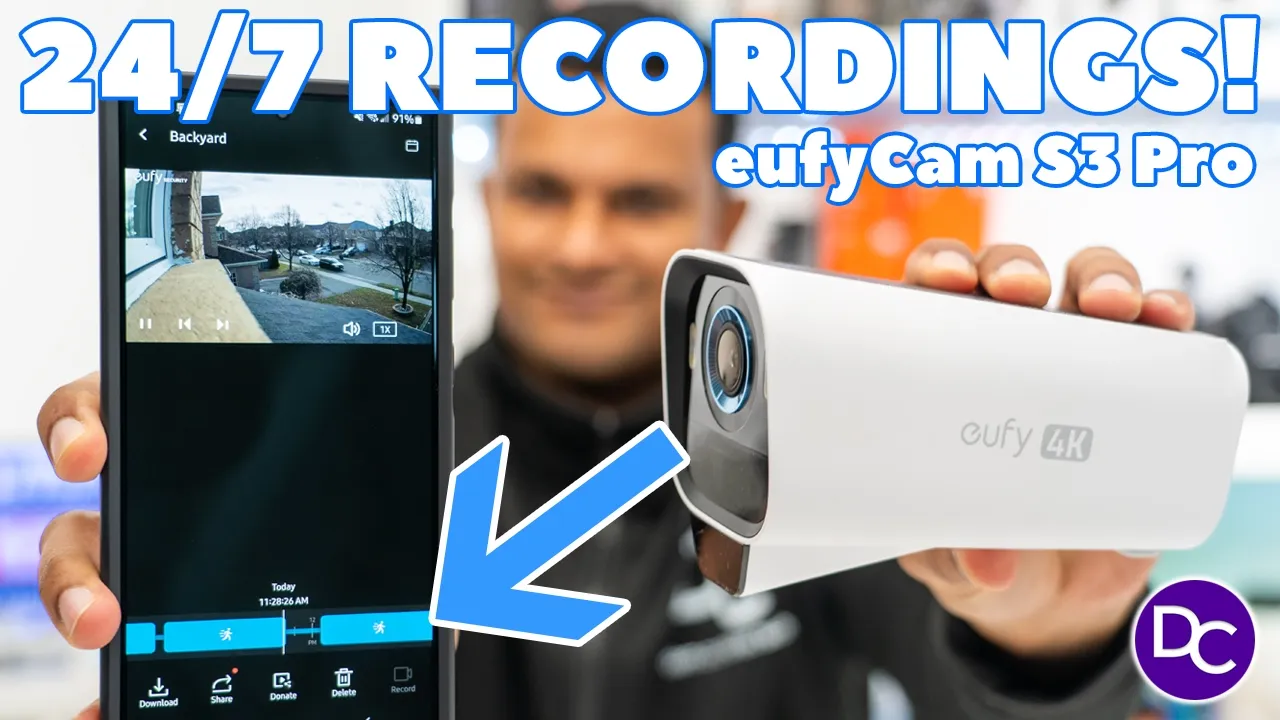
hey guys it’s Adrian and today I have wonderful news we finally have 24/7 recording for the yui cam S3 Pro as promised so let me walk you through the setup process getting the S3 Pro firmare updated and setting up 24/7 recording in
Setup Requirements
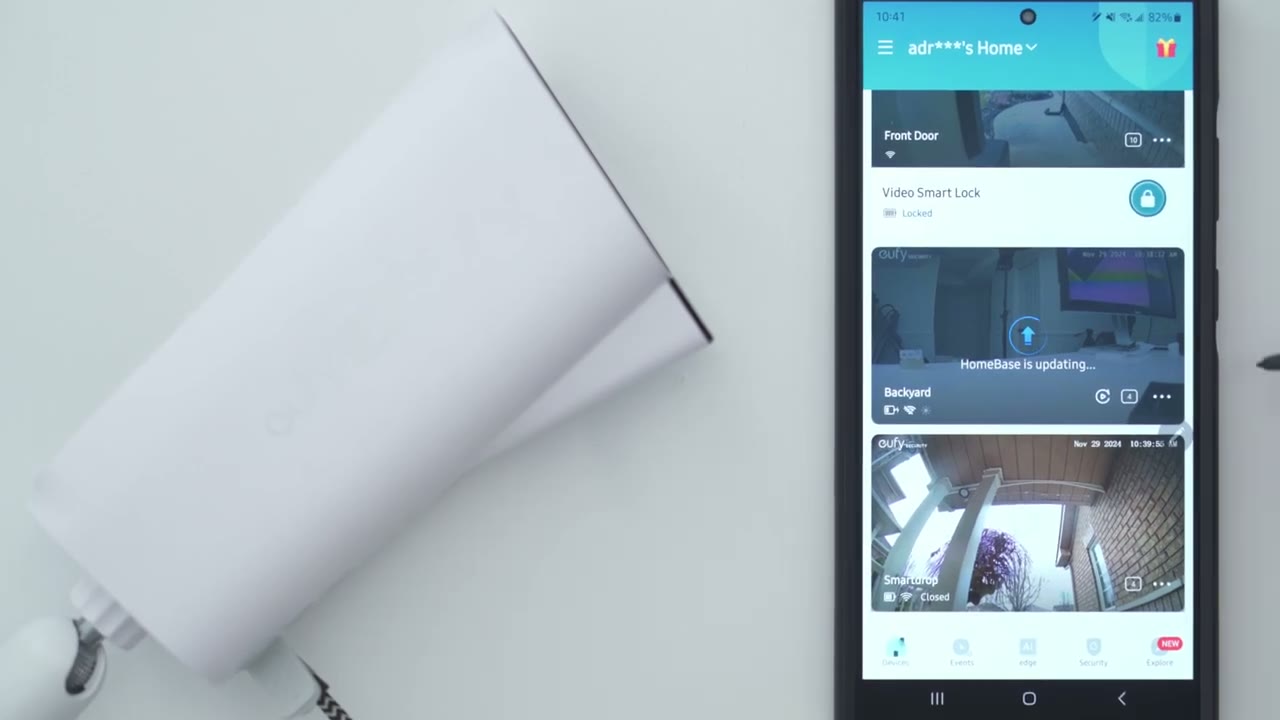
the yui app so a couple things to note about the new firmare update for the U CS3 Pro so it says that anytime there’s motion events it’s going to record in 4k quality however when there’s not any type of motion going on so whenever it’s just kind of idle um it’s going to record in a low resolution when idle so we’ll take a look at what that resolution is going to be we also need to be on the latest um version of the apps over iOS it’s version ending in 1623 and on Android 3792 and the camera must remain continuously powered by USBC cable and they do recommend that you purchase their official cable which is going to have um you know kind of weather ceiling on the connector end here so I’ll link that down in the description if you want to pick that up and then you must have a hard drive installed in your home base 3 to have this continuous recording and then you also will have to set the Wi-Fi connection in a multi bridge mode so we’re going to go through all of that now I’m going to go ahead and make sure
eufy App Setup
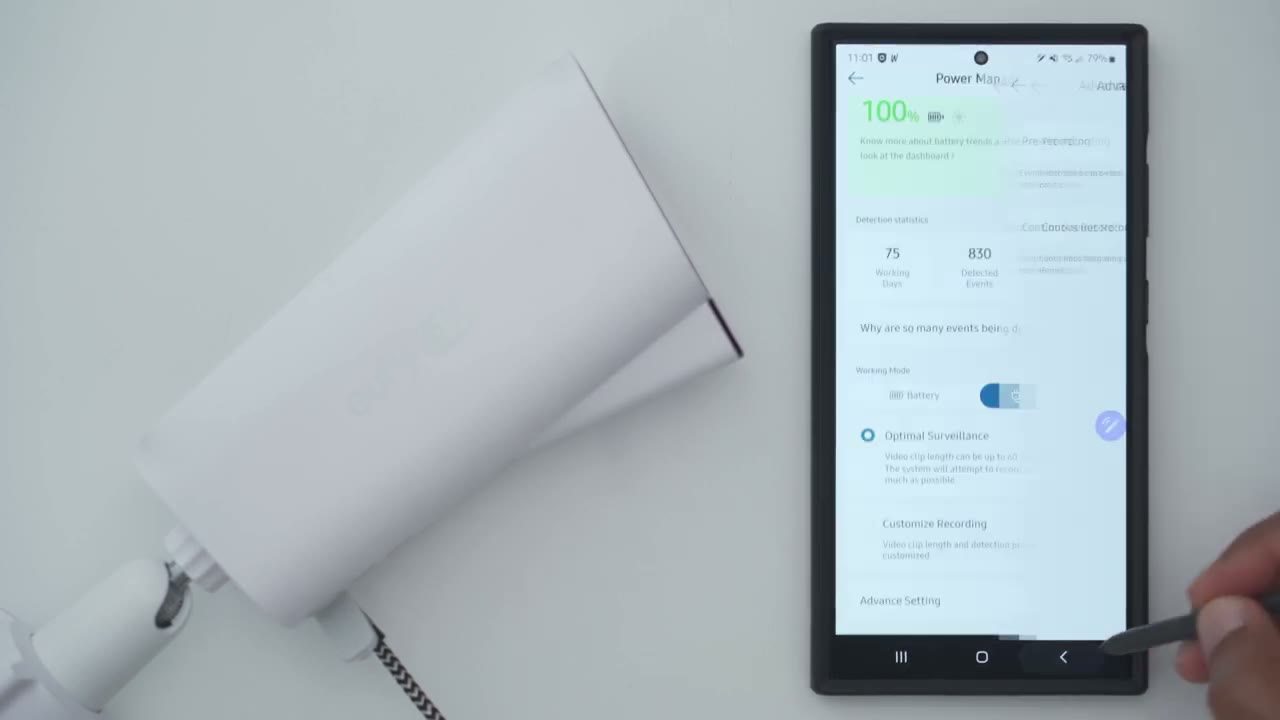
the UI app is currently updated so long press tap on the I icon and scroll down to app details in store and it doesn’t say update so I assume I’m on the newest version so when I open the app up um this is going to be the camera so I took it down to do this video so I’ll just go ahead plug it in by USBC just in case I need that durink setup so I can see it’s actively charging and I will go into the settings so full settings and then we’ll go into General about device and then we’ll check for that firmware version and I see it right here tap on update so it says the home base is updating as well and I could see that right at the bottom there so just let it do its thing all right so the firmware update has just finished that took about a good 20 minutes so just be very patient but if we jump back into the settings now and we go into General there is a new Option here called Wi-Fi connection this was previously not there so what we’re going to do is we’re going to go into that and then under multi Bridge Wi-Fi settings we can see that that’s enabled which is one of the things we do need to have for 24/7 recording so now that we see that we know everything is good to go so let’s go into Now power manager and I can now tab over into direct power so let’s do that and now it shows uh video is too short want to capture longer and more complete footage try this mode and you can get the following features so pre-recording for 4 seconds and 24/7 continuous recording so we will turn that on and go ahead and plug in by USBC we need 5 volts um so I do have it plugged in I’m just going to test that to make sure and it is turned on successfully so that’s great um aside from the really long update everything looks good now under direct power um we have couple options here so optimal surveillance video clip length up to 60 seconds or we can go into customize the recording I’m going to do that right now and I’m just going to put it to 2 minutes and I’m going to disable the option to end clip early if motion stops because why not I do have continuous power now which I can see under advanced settings so pre-recording is turned on and let’s go to continuous recording and we do want to turn this option on as well so we do have it here all the time 24/7 or you can do it to schedule um for certain days and times but no I’m just going to put it to all the time 24/7 that’s what
24/7 Video Playback
I want all right so everything is set up for 24/7 recording and I’ve let the camera run for a bit and let’s just take a look now it’s not readily apparent if you go into events you’re not going to see the 24/7 recording instead you have to click on this playback icon right here and you can see we now have a horizontal timeline for 24/7 recording now I’m just going to turn the volume down microphone pickup is great um but yeah the huge chunk is where there was a motion activated trigger and remember that I did set mine to record a maximum of 2 minutes I mean it is plugged in why not and then in between the next 2minute recording you can see this light blue area or kind of you know um this uh dim area and all that means is the camera did not detect Motion in here and that’s why I can’t download it now if I go over to the triggered motion event you can see I can go ahead and download it now one thing I want to point out is the email said anytime it had motion triggered events it would record in 4k quality and anytime the camera was doing idle recordings it would download or uh record in a lower resolution but I’ve not found that to be the case actually um and I’ll show you what I mean so let’s let that download and you can see right now the download button is missing so I’ll start a manual recording of um this idle uh recording clip right here so let’s do about 5 Seconds here and it’s save to my phone’s album and I’ll just jump into my phone album right here so here is that 5 clip and here is the 2minute clip with the motion activated event now if I go up you can see this is a 4K clip 2840 X 2160 15 frames per second with the HC codec now if we go over to the 5c clip that I just recorded here let’s take a look and again that is 2840 by 2160 HC again so there doesn’t actually seem to be um a drop in quality actually with uh the m manually recorded Clips here’s another one I took right here and again you know it’s showing full 4K recording so everything seems to be in 4k even with idle recordings now maybe that will change later but right now uh kind of day one of 24/7 recording looks like it’s 4K recording across the board so I’m just going to jump here uh right now it’s 12:06 but now I’m at 1138 and you can see it’s doing the idle recording and the quality um Clarity looks great same as with the triggered recordings and I’ll just go all the way let’s say around uh 12: p.m.
so about 6 minutes behind give that a second to load up and there we are now if I try to push it all the way to current time uh this is saying 1234 which is which has to be a mistake but let’s backtrack it to 12:03 cuz it’s only 1207 right now and you could see that it’s not actually rendered out that video yet so there’s a bit of a delay let’s go to 1201 and that looks like it’s loading up so you know 1201 to 127 maybe a 5 to 6 Minute um kind of delay or Gap until it kind of renders that video out so my setup process was pretty easy but it did take about a good 18 to 20 minutes to get the firmware updated both on the cameras and on the home base but if you’re running into any issues just leave your questions down in the comments below I’ll do my best to get back and help you out as always is if you found this video helpful please consider liking and subscribing and I’ll see you in the next one soon
Buy eufyCam S3 Pro Official Weather Rated USB C Cable on Amazon
Buy Unofficial USB C Cable on Amazon
Buy 1TB Drive for HomeBase on Amazon
Buy 2TB Drive for HomeBase on Amazon
Please note that some of the links in my video descriptions are affiliate links where I earn from qualifying purchases. As an Amazon Associate I earn from qualifying purchases.

