


☑️ Get The Dell U4323QE on Dell
Please note that some of the links in my video descriptions are affiliate links where I earn from qualifying purchases. As an Amazon Associate I earn from qualifying purchases.
Intro
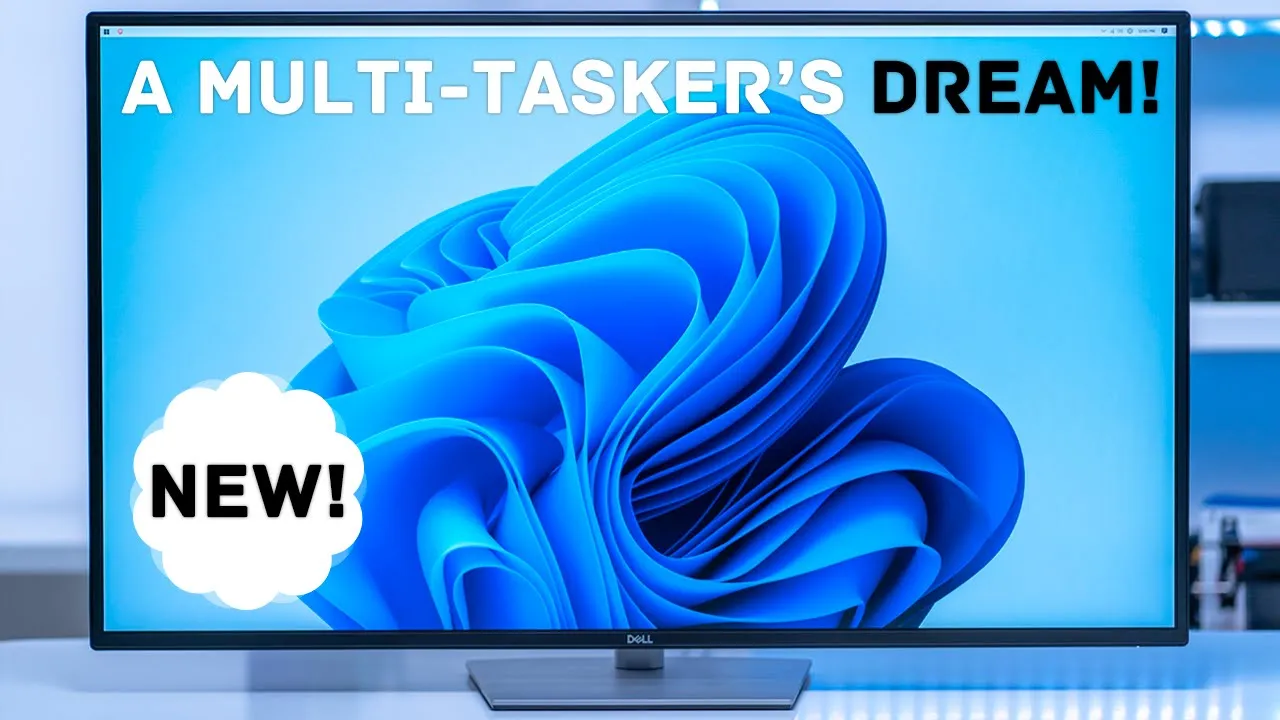
hey it’s Adrian today I’m taking a look at the Dell u-4323qe monitor and this is a 4K 43 inch monitor that has KVM you can connect up to four different devices and there’s a ton of ports on here it also has 90 watt charging for laptops and it goes for about 1300 USB right now it’s on sale for about a thousand us if you’ve been thinking of upgrading your monitor stick around I’m going to test the overall performance and some of the unique features of this monitor so let’s get started
Setup
here’s a metal base for the stand and this is the monitor arm so both of these together come in at around 10 pounds we look at the mounting area so there’s four screws here and this is for the 100 by 100 millimeter Vasa mounting and then we have larger screws here for the 200 by 200 millimeters installing the monitor base is really simple you’re just going to match these two black extensions right with these two ports right there the last step is to install this huge metal base into the monitor arm and that’s really easy to do if you look at the back side of it there’s a screw that you could just twist so you don’t need any tools so I’m just going to line that up and rotate this until it can’t go anymore in the package we have a DisplayPort cable HDMI cable type c to type c cable type c to type a cable power cable and some mounting hardware if you’re going to base and mount it the monitor has a
Design
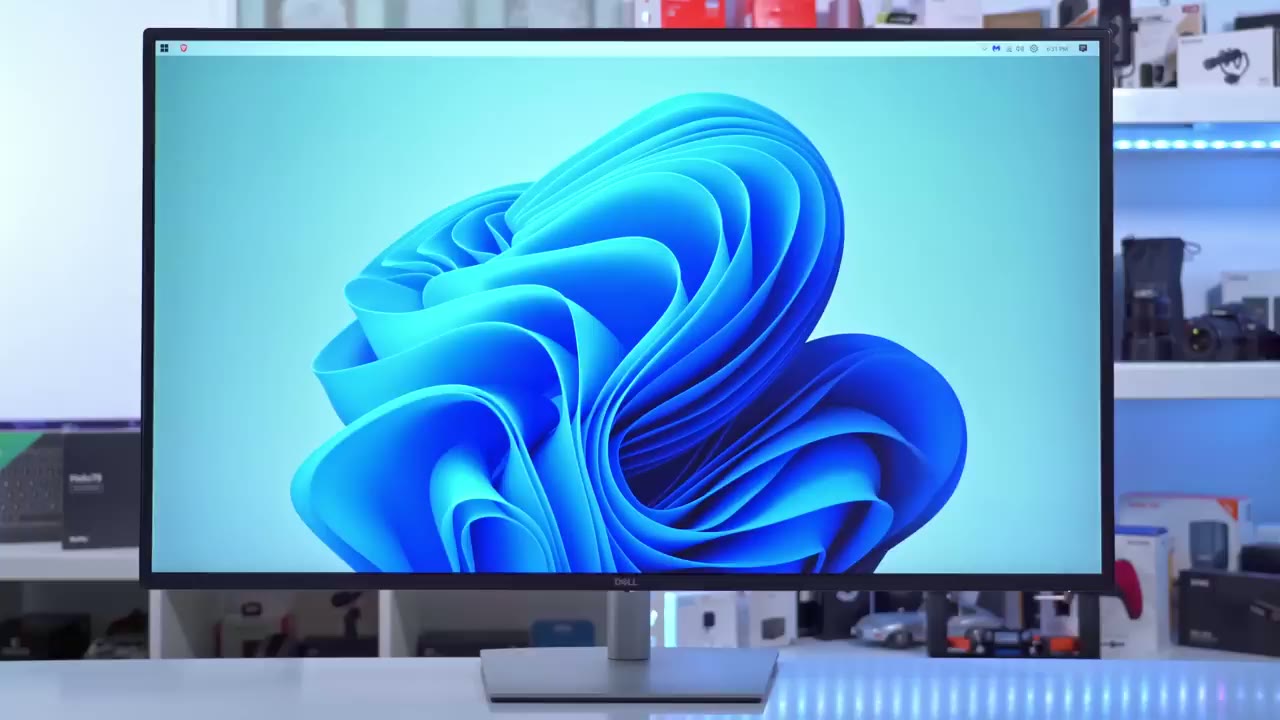
really minimalist type of design from the front you can only see the Dell logo in the center of it and with the stand it comes in at around 41 pounds or 18.5 kilograms without the sand if you wall mount it then it comes in at around 30 pounds or 13.6 kilograms while the monitor has a really heavy base or a stand coming in around 10 or 11 pounds you can see that if I nudge the display there is significant wobble and that’s to be expected we’re going to monitor that weighs around 30 pounds just on its own port selection is quite plentiful on this monitor so we have a monitor lock power port we have HDMI one HDMI 2 Port we have a display one and DisplayPort 2.
we also have a USB type-c Upstream port and this is the one that you’ll use for the 90 Watts charging for your laptop or device we also have a the audio out we have three USB type-c ports but these are Upstream only and for data they’re not capable of charging we also have three USB type-a ports and these are the USB 3.2 Gen 2 super speed slots and we also have an RJ45 connector right there there’s also a switcher button here to remove the monitor arm if you decide to base the mount it you also have quick access to two USB ports there’s a type c port and a type a port and that’s completely retractable and that comes in handy if you need to charge your phone or plug in a USB drive you don’t have to reach around the back of the monitor the back of the monitor looks really clean so this is a matte type of finish so there’s not a lot of reflection going on with light now we do have the Dell logo and that does have a type of reflective surface which is a really nice touch you can also see we have this main monitor stem here and that’s where you can route your cables and then of course quick access to the ports that I showed earlier and then at the bottom right side of the monitor when it’s facing towards you that’s where we’ll find the control joystick and power button you can find the 8 watt speakers at the very bottom of the monitor on the right and left side I’ve cut most of the lights except an overhead light just to show you what the back of the panel looks like when it’s not fully illuminated the top and sides of the monitor contain vents for heat dissipation the depth of the monitor stand comes in at nine and three quarter inches at the deepest point so just ensure that your desk has enough space to accommodate this monitor here’s a size difference between my 32 inch 4K curved Monitor and the 43 inch flat panel obviously it’s not a true comparison one’s flat one’s curved but just to give you an idea the monitor
Adjustability
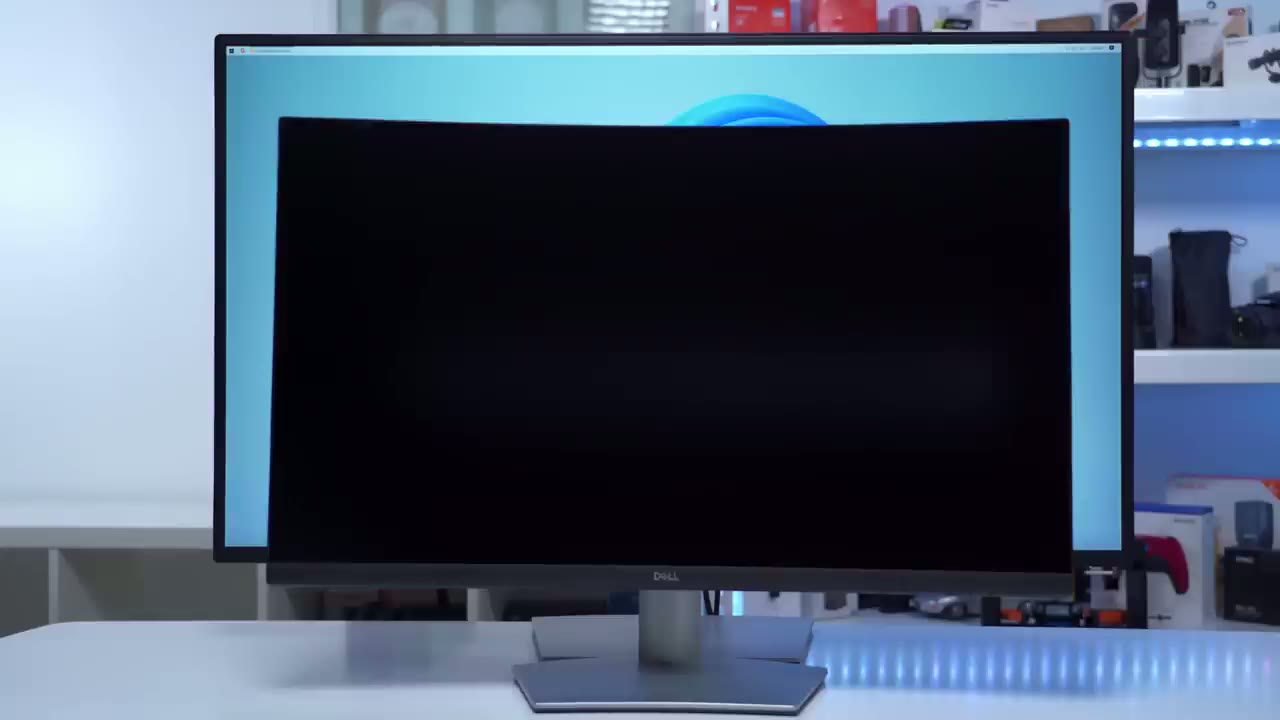
allows for a positive 5 degree tilt forward or a negative 10 degree tilt backward the monitor is completely fixed and cannot be rotated right or left you can swivel the monitor right or left by up to 20 degrees at the maximum height the monitor sits about three and a half inches between the bottom of the monitor to the desk and at the lowest setting the monitor sits one and a quarter inch is from the bottom of the monitor to the desk this leaves around three inches to accommodate a soundbar if you plan on using one by the way guys if you’re finding this video helpful please consider liking and subscribing it really helps me out back to the video
Image Quality
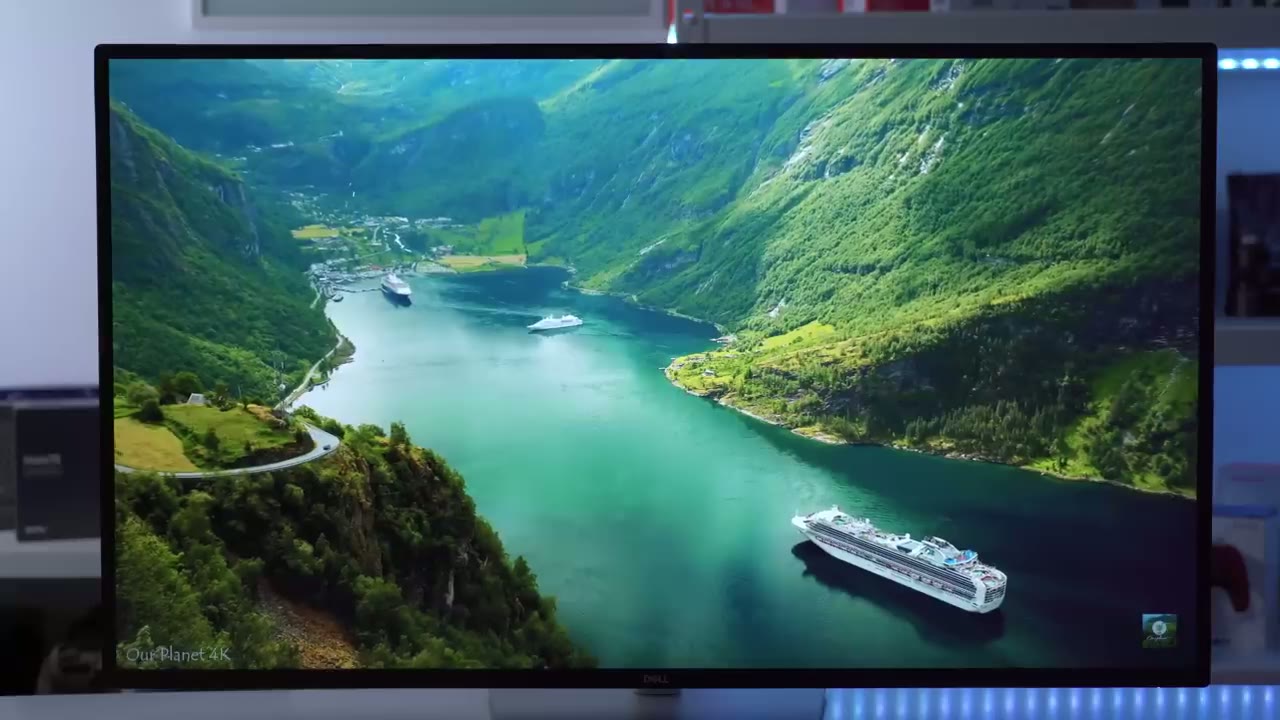
[Music] when you first set up the monitor it recommends a 300 skill which is super ginormous so here’s what a hundred percent looks like if you’re going to use it there and here’s what 125 and 150 looks like and I think I could probably live in the 150 range but here’s another example of what 200 would look like and then back to 150.
here’s an example of a pitch box screen and you can see that it doesn’t achieve you know pure blocks or true black it’s kind of like a dark gray so it’s a bit faded or washed out in dark scenes when looking at a white screen you could see the the brightness is pretty uniform but if you look at the right and left sides there seems to be a little bit of vertical vignetting if you’re looking at a dark scene this is what it looks like when there’s a light source in front of the monitor screen and I’m about three to four feet away for a reference here’s how the screen performs when there is a light source in front of it the viewing angles are actually pretty good so you can see as I go to the side I’m still seeing a lot of the image while consuming media such as YouTube movie trailers Netflix I found the display to be a bit lacking so there’s nothing really noteworthy about it sure it gets bright enough sure there’s enough Clarity when you’re watching 4K video but there’s nothing really Stellar or a standout and part of the reason why is there is no HDR support on this monitor so a lot of the images or media that I’m consuming it just lacks you know that type of vibrancy or punch that I’m used to seeing on monitors and TVs that do have HDR support the clarity is acceptable but at 103 PPI on this size of a monitor is definitely noticeable if you’re coming from a monitor with a higher PPI so that’s something to keep in mind that this does not excel in
Features
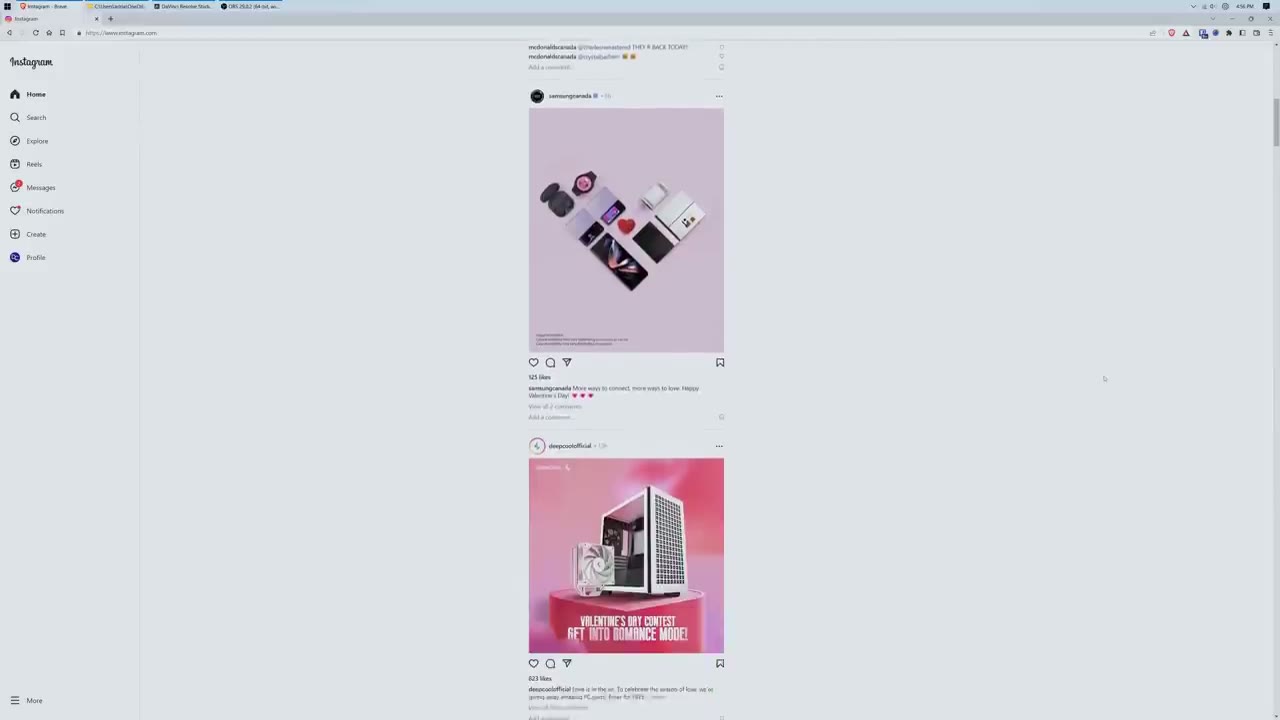
Clarity here’s a reason why you may want a 43 inch monitor so you can see that I have this screen divided into four sections so it’s getting four full HD screens and there are about 21 inches diagonally so I have one laptop here another laptop here my desktop and my PlayStation 5 and you can see that I could go through any of these screens you know independently and go ahead and use them so if you’re managing multiple device is at one time or you need to keep track of a lot of screens at once this is an excellent option for that and it’s all plug and play I’ve Just plugged everything into the back of the Monitor and set the input and it worked like a charm if you’ll be connecting multiple devices to the monitor you’re probably not going to want to be using the keyboard or trackpad on each laptop or desktop and thankfully you can use one pair of keyboard and mouse to control all your devices with the KVM feature so you can see right now I’m on my desktop and I can go ahead and navigate around you know with the keyboard and mouse what I can also do is I can go into the menu switch the input source to say my laptop and when that screen loads up you can see that with the same keyboard and mouse I can also go ahead and interact with the computer and I can also go to my other laptop here so let’s just go right there let that come up and you can see again I’m interacting with this laptop as well so really you have a lot of functionality and you can have up to four devices set up with KVM if
PIP & PBP
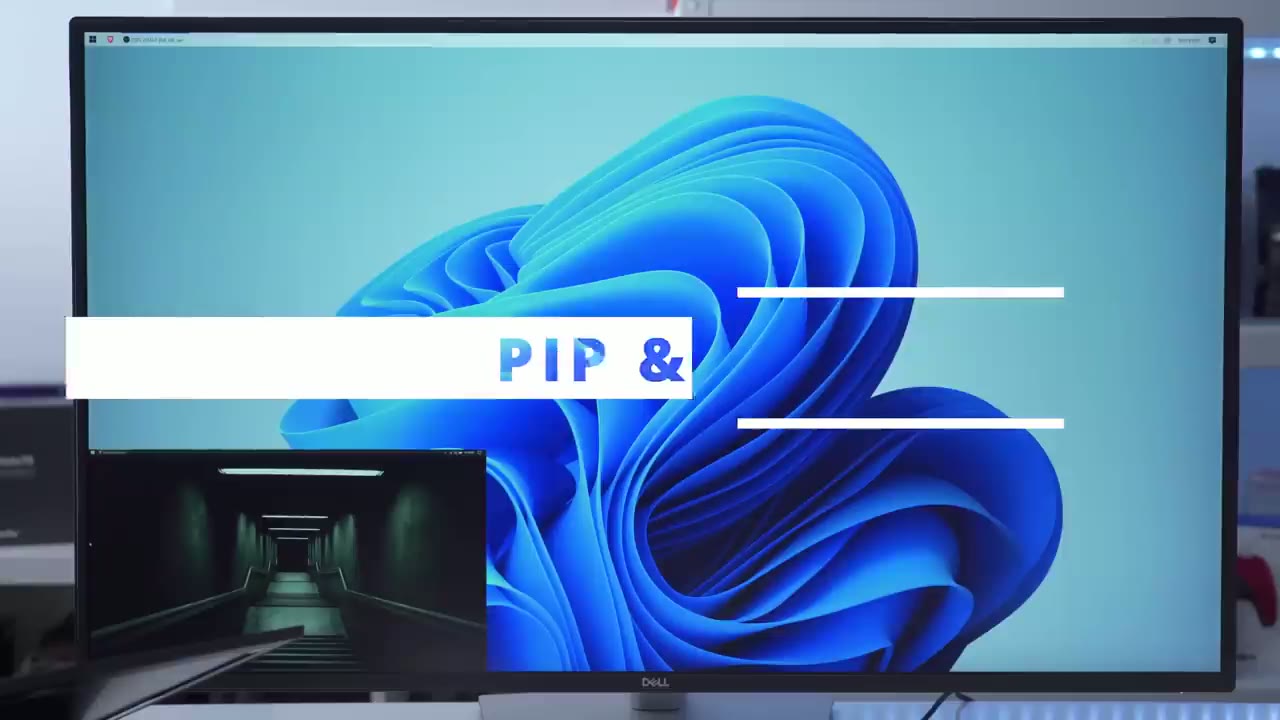
you’re looking for something more traditional like picture in picture or picture by picture you have two ways to do this so the traditional way is just to go into the menu setting and go ahead and pick your type of layout and you can see you could switch the position of that the size and so on however there’s something easier which is to download an app called Dell display manager and this is what the app looks like when you first open it up and you can see that I can just go ahead and change the brightness with the sliders here which is much more convenient than going into the menu as well I can go ahead and change the contrast as well where we’re interested in is input manager so in input manager we do have a KVM wizard if you don’t want to do that through the menu but more importantly we do have this picture in picture and picture by picture mode so if I go ahead and click that you can see I can actually click this icon make my picture and picture window much larger if I like and I can just go back and make it smaller as well I can cycle through the four corners of the screen and I can also choose to do picture by picture instead of picture and picture so let’s go ahead and click that now one thing to note is that you can see it took a bit and now everything’s set up and it does take the Dell display manager a little bit of time for it to communicate back with the monitor if you need to swap the screens while you’re in picture in picture mode say something important comes up that’s very easy you could just hit the video swap button right there and you can see that the displays have been switched that way if you get something important come through you can easily maximize that screen and attempt to it if you’re only planning on
Dell Display Manager
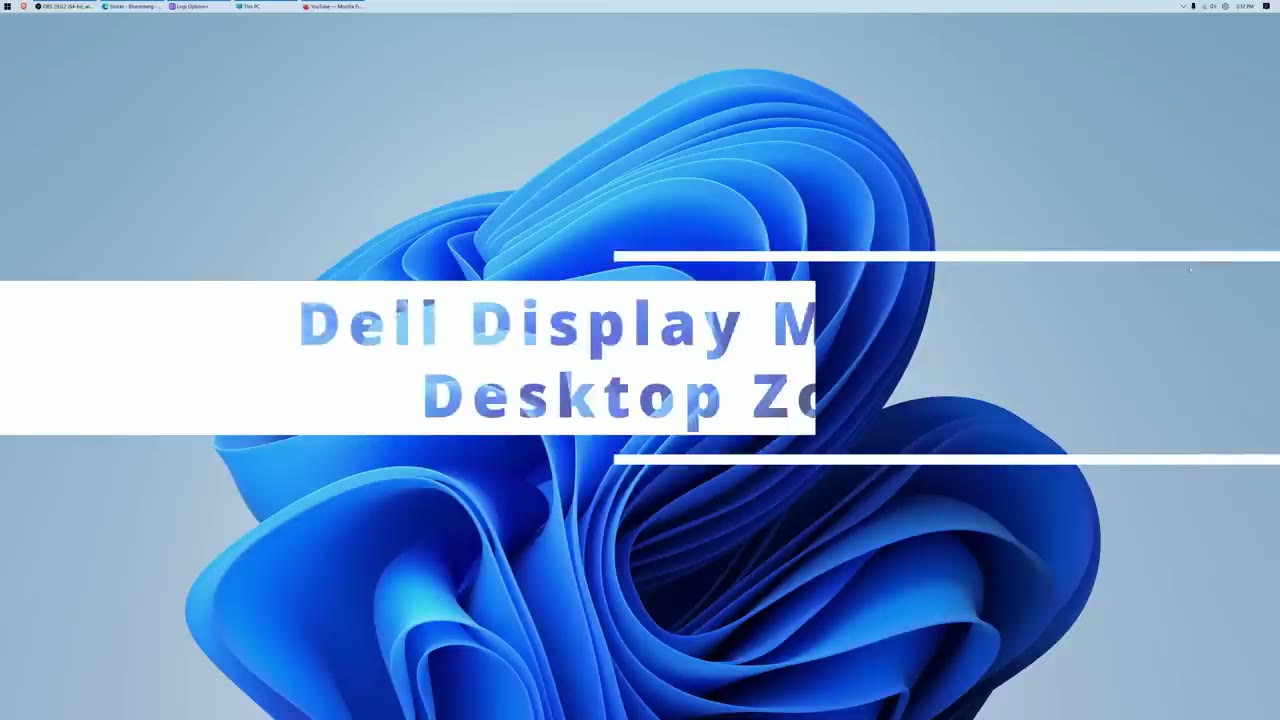
connecting a desktop or a laptop to the monitor but you still want to maximize the desktop space that’s very easy to do you could see if I Mouse over on the minimize icon here I have a bunch of different window presets or window layouts so I can go ahead and click this one for example have a narrow screen on the right side and a narrow screen on the left side but what if you want something a bit more custom or unique well that’s where you could use Dell’s display manager so I’m just going to open it up and again this is software that doesn’t come with the computer you have to install it you can download it from Dell site I’m going to click more options and you can see that there’s really a ton of really custom looking window layouts and there’s even more you know really extravagant ones where you could have you know 12 different type of compartments you could also make your own and save them as well but I’m gonna go for something like this so if I click it you can see it segmented the screen into these different zones and to take advantage of that I would just drag each window into the zone that I wanted and let it stop so there’s that one I’ll move this one into the top there let’s move Edge into this middle one here and then finally I’ll move this Logitech window into the bottom here and you can see that you know it snaps really beautifully now what you can also do is if at any time you change your mind and you want one of these wider you can just have it overlay over any of the existing screens and then you could just move it back if you like and if you want to go full screen you can just do that and everything’s back to the normal now any if at any time you want to cancel any of this again you’re just going to Dell’s display manager and then just click X and then it’s going to remove those zones if you’re going to be using this monitor for any type of video editing or content creation it really does make life much easier you can see that I have access to all my assets right there I have a really big preview of the video I can easily go through the timeline without needing to scroll a lot and I have all my settings in place if you’re going to be using Photoshop you can see you have a really large canvas space so that’s going to be awesome for zooming in and zooming out while you edit photos
Gaming
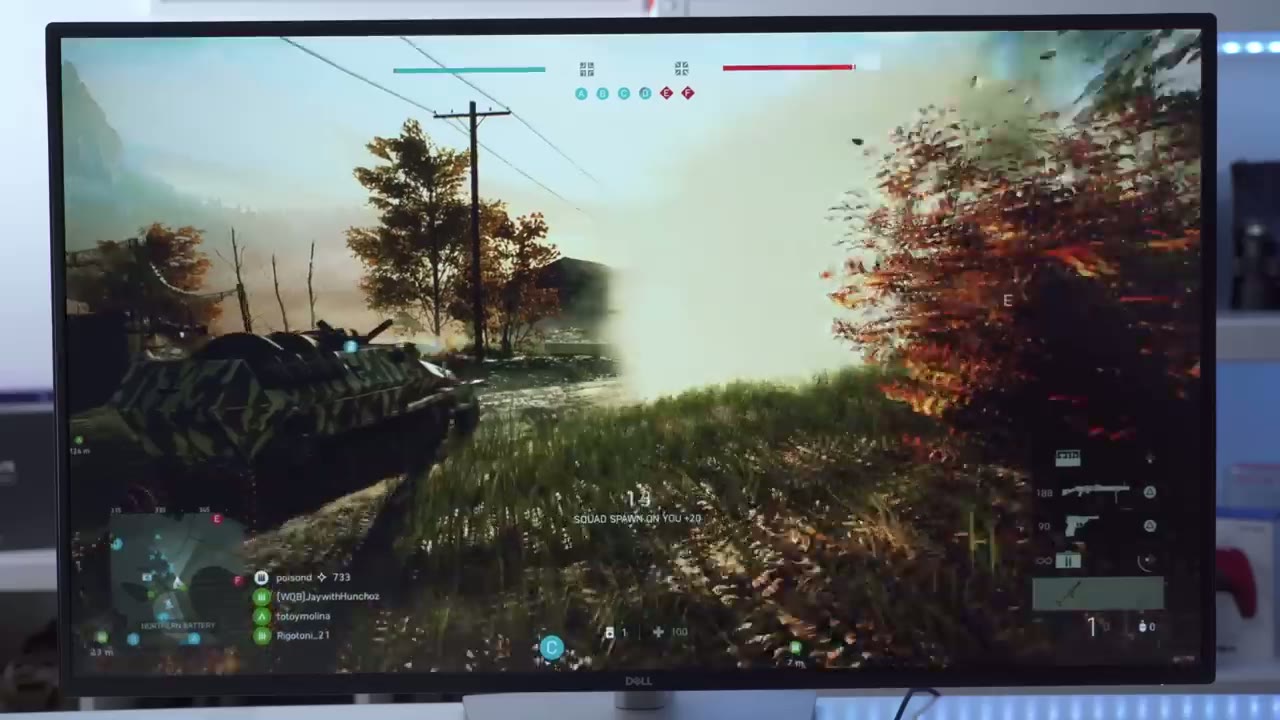
this monitor definitely isn’t for gamers with a five millisecond response time however you can see that I was saying to play Battlefield without any real issue but if you’re going to be playing something a bit more fast paced and requires fast reaction times you’re definitely going to notice it so I would stay away from gaming and just use it as a backup I’ve set the monitor volume to
Sound
a hundred percent and my PC volume is at 30 so here’s what that sounds like [Music] while the 8 watt speakers get loud enough to fill out a room it is lacking travel and there is a little bit of Bass But as soon as you start cranking the volume up really high there’s a lot of distortion as well the Dell
Specs
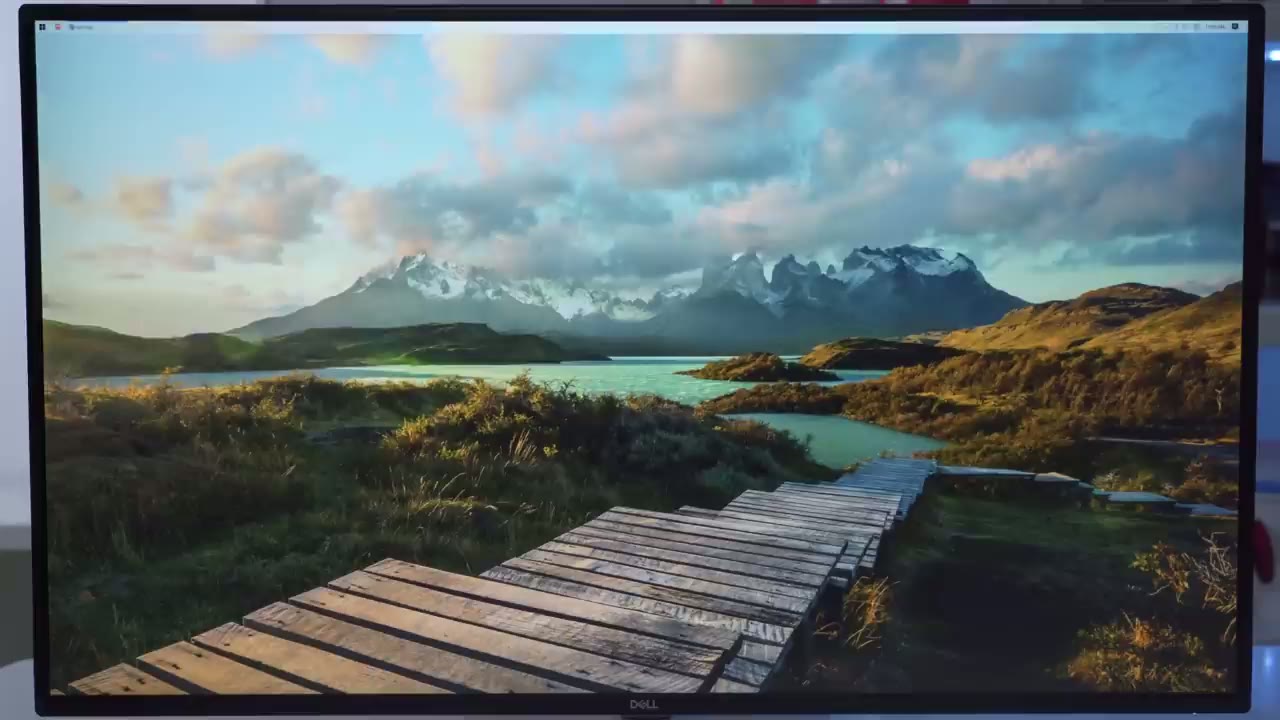
u-4323qe is a 42.5 inch diagonal IPS panel with a 16 by 9 aspect ratio the resolution is true 4K 3840 by 2160 at 60 hertz and a PPI of 103.6 the max brightness is 350 nits and the contrast ratio is a thousand to one 100 coverage of Rec 709 and srgb and 98 of DCI P3 response time is 5 milliseconds great to gray fast two 8 watt speakers are located on the left and right side of the panel there’s up to 90 watts of power delivery so would I recommend this
Recommended?
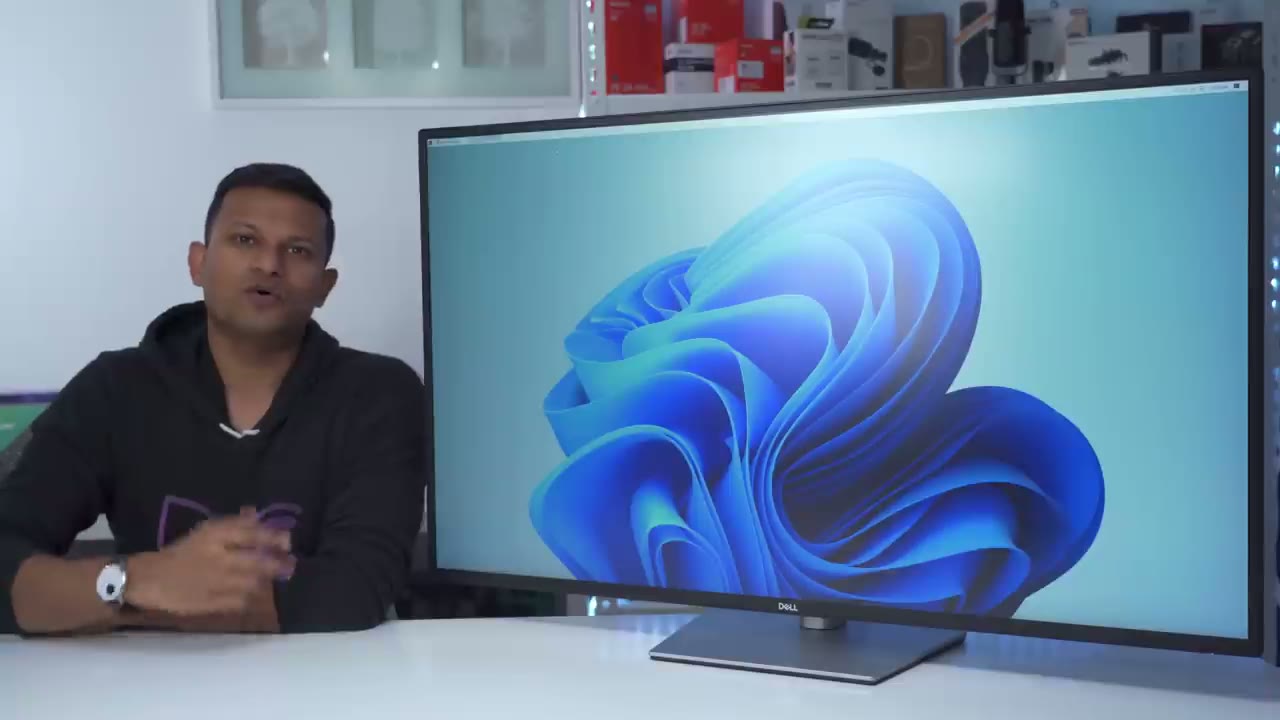
Monitor and I would only recommend it to a certain type of user or use case so if you value productivity flexibility and efficiency the most definitely this is going to get you there you know that large of a screen comes in super clutch when you’re video editing working on photos if you have to have multiple documents open if you need to cross-reference a lot of files it’s excellent for that you can connect multiple devices you know and then you could have the KVM feature you could charge your laptop you have a ton of ports there is really a lot that you could do with this monitor as long as you don’t care about you know the sharpest image because at 103 PPI there is Clarity there because it’s a 4k monitor but given the size 103 feels a little too small if this was my first monitor I’d probably be pretty happy with it there’s nothing super Stellar about it in terms of image quality and when I’m looking at dark scenes it’s okay A little bit faded or washed out and that’s because I’m comparing it coming from a monitor with HDR and again the clarity issue you know 103 PPI versus 139 on my other monitor if that’s not really a concern to you and you just really care about having maximum screen real estate and the ability to split the window create custom layouts then this is definitely an awesome option if you’re wondering if a 43 inch monitor is too big for your setup it really is going to be dependent on your desk so this comes in at nine and three quarter inches deep so if you put this right up against the wall make sure your desk is deep enough so that you know when you sit at the edge of your desk you’re now having to Crane your neck you know right and left to take a look at everything on there so I’m going to leave some links in the description down below you can check this monitor out but let me know what you guys think you know do you think 43 is too large is this fine are you interested in picking this up I think I’m gonna give it a couple more days but I’m leaning towards probably going back to my 32 inch curve just for that Clarity in HDR and as always if you found this video helpful please consider liking and subscribing it really does help me out a lot guys and I’ll see you in the next one soon
☑️ Get The Dell U4323QE on Dell
Please note that some of the links in my video descriptions are affiliate links where I earn from qualifying purchases. As an Amazon Associate I earn from qualifying purchases.

