


Please note that some of the links in my video descriptions are affiliate links where I earn from qualifying purchases. As an Amazon Associate I earn from qualifying purchases.
Intro
hey it’s Adrian today I’m taking a look at this meklin’s mc66 65 mechanical keyboard now this is from EPO maker and this is the Black Version so it has black keycaps and the kale jellyfish switches now EPO maker did send this out to me for an unbiased review so let’s take a look at the design and the typing experience
Package Contents

[Music] in the package we have the keyboard instruction manual type c charging cable wireless 2.4 gigahertz adapter combination keycap and switch puller and some replacement switches just in case
Design

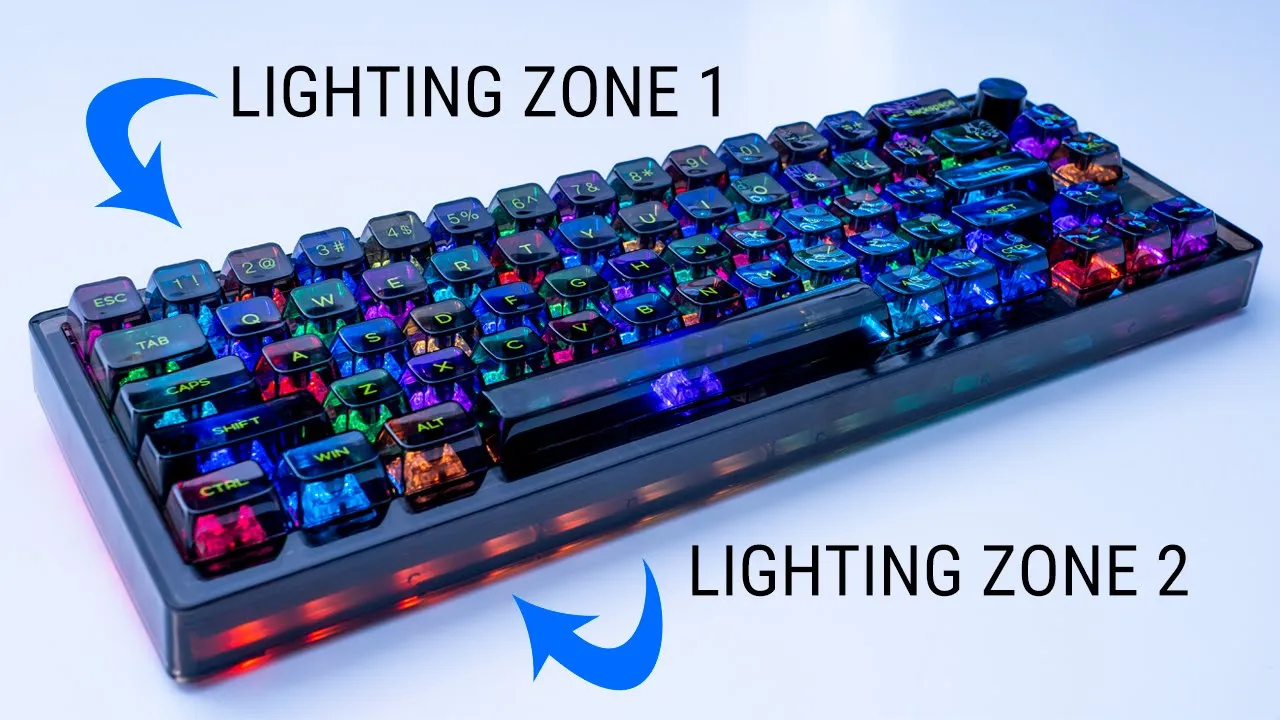
all right design wise this thing just looks beautiful it looks beautiful it feels beautiful and I have to say when I saw it on the site I wasn’t 100 sure of this black uh color scheme and the green lettering on top I wasn’t 100 sold but in my hand looking at it and you know touching it it just feels premium it’s really Sleek it’s just a beautiful keyboard I’m just really Blown Away by it now let me just turn on the LED and you can see this is what it looks like so that’s really sharp you off this top LED lighting here and you can see there’s a separate LED strip at this side so you kind of have two tone lighting see you know independent of each other and you can set that let me just turn the LEDs off for now so we can get a bit more detail so the keycaps are you know PC keycaps and they’re the standard uh OEM or PC profile keycaps and you can see that’s how much it extends out and that’s kind of the side profile there now the keycaps I’m typing [Applause] you know they feel really smooth and when I run my fingers across the lettering it feels flush you know I don’t feel anything you know kind of Razor embossed with a it’s a really nice typing experience and these are UV printed so it’s supposed to be resistant to wear and scratches looking at the rest of the keyboard so you can see we have this control knob here at the top for volume and these have hard stops so it’s not you know like a free type of spin so that’s great and we have LED indicator lights here as well and this is a 66 key keyboard plus the knob now on the rear of it we have the type C charging port to charge the keyboard or to connect it to the computer on the back of it we have the adjustable feet here and those have this type of rubber coating here to prevent them from slipping or sliding and then we have a little holder here held in magnetically for the wireless USB adapter now you may have noticed but on the back there’s quite a bit of fingerprints you can see due to the material it is quite a bit of a fingerprint magnet obviously at all it’s easy to clean that and get those out of the way but something to keep in mind the dimensions are about 11.8 inches wide four and a half inches deep and about 1.6 inches high if you don’t kick out those adjustable feet the keyboard comes in at around 129 grams or about 2.2 pounds so you can see it has quite a bit I have the nuts due to the steel plate Construction in here and also that 4000 milliamp hour battery but again just a premium feeling keyboard here’s a better example to show that kind of smoked look that it has so you can see there’s a QC sticker at the bottom there that you can kind of make out when you angle it the right way so the keys are quickly see through the
Specifications

meclan 66 keyboard is a 65 keyboard with 66 PPT keycaps and a volume control knob it has a 4 000 milliamp hour battery there’s dual layer silicone pads at the bottom and under the steel plate for sound absorption you can use it wirelessly wired or with Bluetooth and is running Bluetooth spec 5.0 you can connect up to five devices three by bluetooth one wired and one wirelessly you also have three or five pin hot swappable switches there’s a 1000 Hertz pulling rig in wired mode and it does support any key rollover
Typing Sounds

the typing experience has been great especially with this you know PC or OEM keycap profile you know I feel right at home and it’s very accurate for me to type [Applause] so you can hear it’s not a very sharp type of sound it’s not very clicky and it’s not going to bother any co-workers or if you have anyone next to you while you’re typing and the key travel distance is good and you know it’s great tactility so overall just an excellent experience typing let’s look at the lighting so you can see that there are dual zones of lighting so you have a lighting strip at the bottom here and then you have lighting at the top that’s independent of the bottom all right let’s go over how you can change the lighting mode at the side and at the front here so to change that to the side you would hit function and left control and you can see that while I do that it just Cycles through now if I wanted to change the lighting mode going on at the top it would be function and tab
Lighting

so you can see I can have this type of look here while the bottom has an independent lighting mode so that’s really cool that you can have too to further customize the top lighting you can use function and quotation marks and that Cycles through various colors but let me get back into the rainbow colors really quickly here now if I hold function and up I can increase the brightness down to decrease brightness okay and then we can change the speed of this so I can go this way to slow it down and then this way to speed it up so you have a bunch of options for the top here what I didn’t find is any type of options to further customize whatever is going on with the back lighting you can just cycle through various color modes but I haven’t seen anything to increase you know this speed or the brightness of that in terms of the software experience so you could see on this first screen you have the ability to set different profiles so you can set one for you know productivity gaming content creation what have you but taking a look at the lighting section so you can see you have the ability to do everything you could do with the keyboard command so you can make this bright make this you know really slow so you can see I can hit apply and that’s really slowed down or I can crank it all the way to the top and
Software Settings

just have it go crazy so I’m going to just put it back right there and of course you can change the colors and you know different modes and stuff like that now what I still didn’t find is anything to change the lighting for the back side here it’s only on the top now if we go into key setting you can see I can just pick any of these keys at random and it it has the default bind but you can also bind other stuff keystroke multimedia macros if you like and then you have a separate macro section now one thing I found really cool is it does have this option here keyboard light changes with the rhythm of system sound so I’m going to turn that on and I actually have turned all the volume down just so I can speak you can see if I go to YouTube and I play the song here right now and and I go back you can see as that song is playing you know it’s kind of doing the type of peak or levels that you see on an equalizer but no sound is actually coming so just grabbing the system sound directly and reacting to that so that’s super cool to have there’s also a bunch of other commands that you could use both for PC or windows so you can just pause the video if you’d like to take a full look at all the commands alright guys so overall I think this is an excellent keyboard you know it’s again really premium it looks sleek it looks elegant I still can’t get over how just beautiful this keyboard is you just have to pay attention because it is a bit of a fingerprint magnet now even though it is you know I’m not seeing like crazy
Commands

type of fingerprints and my fingertips are they do get a little bit oily but it’s very easy to clean and just wipe
Recommended?

down because of this smooth type of finish so you know upkeep and maintenance is going to be no problem with this and again like I said you know it’s a very planted keyboard it doesn’t really go anywhere it’s quite heavy in a good way though so if you’re interested in ordering the mech lands mc66 I’m going to leave some links down in the description below and you can check it out now let me know if you prefer the Black or White Version because this does come in a white version initially I thought the White Version would probably be better but now that I’ve used this black one with this kind of smoked look I prefer it way more it just looks way more elegant way more premium but let me know what you guys think down below and as always if you found this video helpful please consider liking and subscribing it really does help me out and I’ll see you in the next one soon bye
Please note that some of the links in my video descriptions are affiliate links where I earn from qualifying purchases. As an Amazon Associate I earn from qualifying purchases.

