


Buy Mechlands Blade75 Keyboard on Amazon
Buy Mechlands Blade75 Keyboard on Mechlands
Please note that some of the links in my video descriptions are affiliate links where I earn from qualifying purchases. As an Amazon Associate I earn from qualifying purchases.
Intro
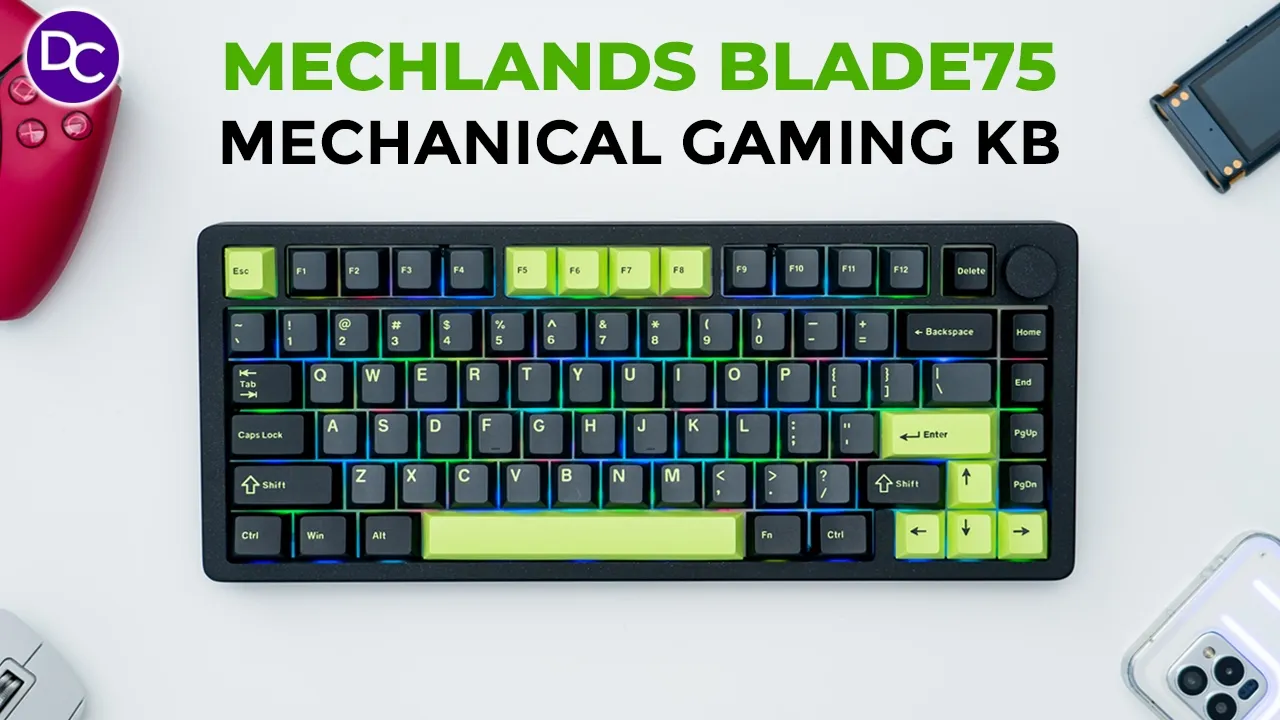
hey it’s Adrian and today I’m taking a look at this mechans blade 75 mechanical gaming keyboard This is a 75% compact layout with 81 keys and a programmable knob which looks premium and beautiful in the aluminum casing it’s running Bluetooth 5 and you can connect it wired mode with Bluetooth or 2.4 GHz wireless dongle there’s a 4,000 mAh battery hot swappable PCB southf facing RGB n key rollover support up to 1,000 Herz pulling rate double shot pbd key caps and it sounds great to type on as well so let’s take a closer look at how well it performs and a big thanks to mechans for sending this out for review in the
Package Contents
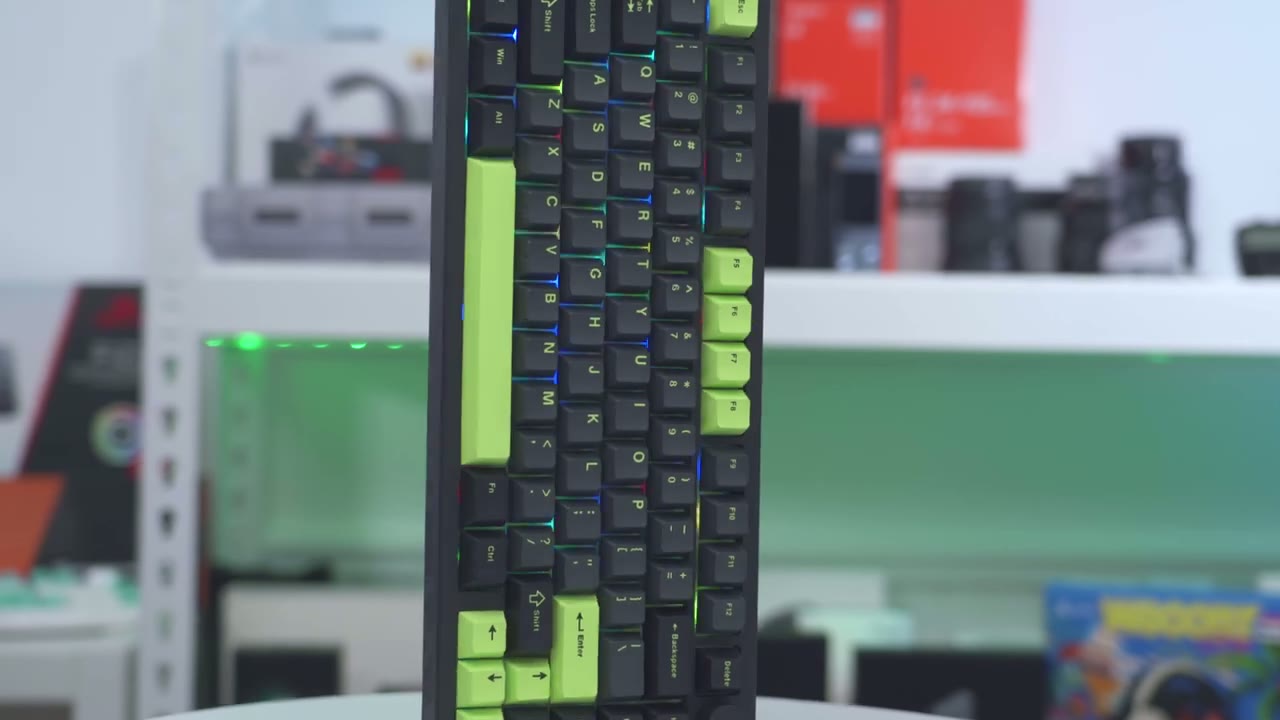
box we have the mechans blade 75 mechanical gaming keyboard a manual USB a to type-c cable switch cap and key puller three additional replacement switches and a dust cover so the mechans
Design
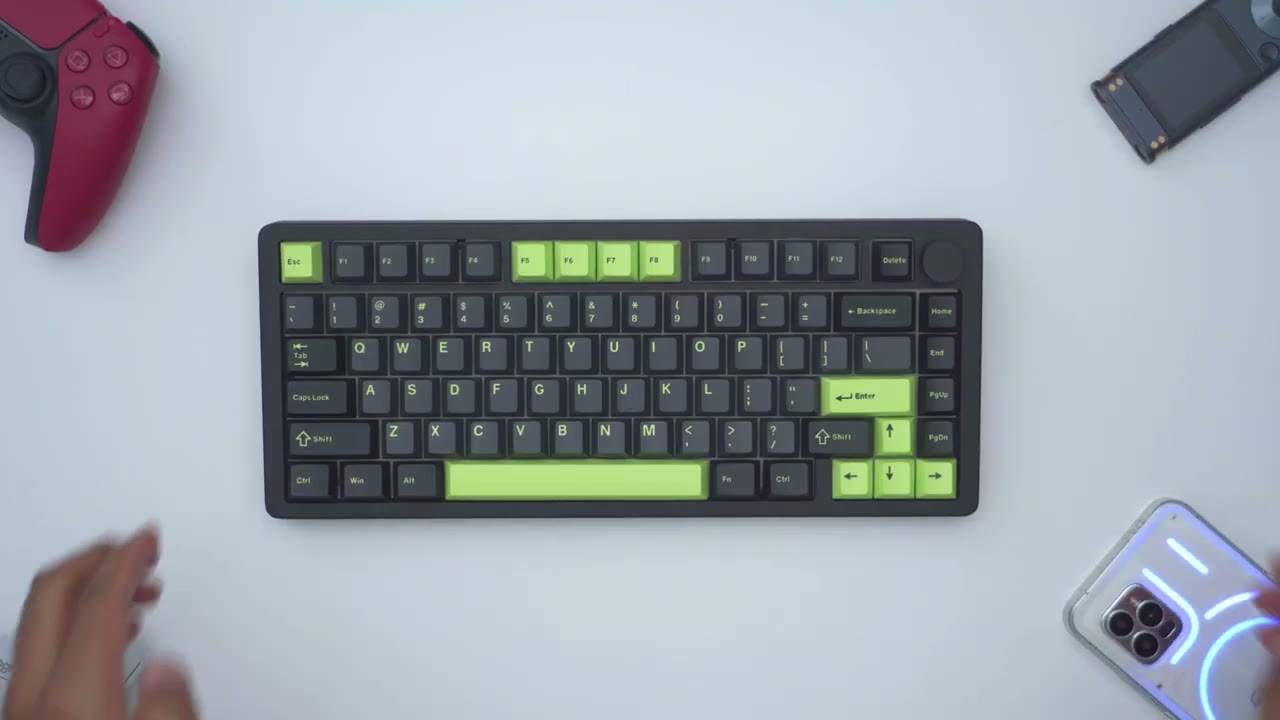
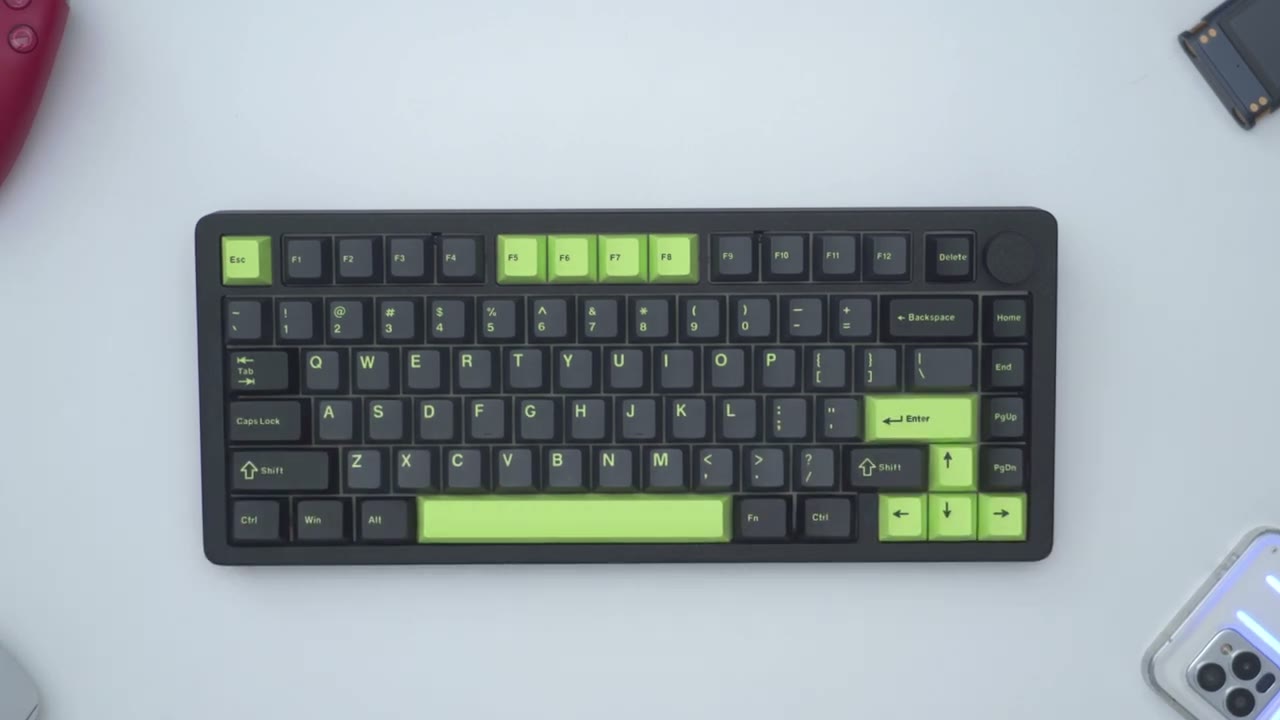
blade 75 mechanical gaming keyboard looks premium and it feels premium in the hand as well now this does have quite a bit of heft to it if you like that type of feel this comes in at around 1.6 kg or 3.5 lb so this is going to stay nice and planted and that’s thanks to that pretty much aluminum body all the way around in terms of the casing and it has a cool feel to the touch um which is really nice now I do have very oily fingerprints it’s a problem with all of the keyboards that I use and and thanks to this type of you know matte finish on here it’s really doing a pretty good job of resisting my oily fingerprints I can see a little bit on here but you know it’s nothing really bad and I did put a little bit of you know uh lotion on my hand so it doesn’t look dry so it’s doing a fairly good job of resisting that now taking a closer look you could see the finish on here now like I said this is a matap finish a little bit of um roughness to it but you know nothing that’s going to prevent you from wiping this on and cleaning it and you can see that these are not um specks of dust it has this type of speckled uh pattern going on here which looks really nice versus having it just you know solid black so I’m really digging that type of look so this is a 75% layout with 81 keys and one rotatable knob now even though there’s no knurling on the knob it’s really easy to grip and rotate it and it has hard incremental stops and that’s thanks to that map finish as well the keyboard comes in another color as well however the switches are the same across both models so it’s going to be The mechans Verdant switch now the keycaps are double shot PBT keycaps and for the most part they look good but I do notice a little bit of inconsistency with the labeling on here so you can see on the enter key the e and t are kind of in bold same with the r but if we take a look at the E it’s not bolded so that’s one thing you know if you’re someone who’s kind of a stickler for attention uh that’s something you you may notice right away and I do notice you know even on other Keys as well like if I look at the shift key here the space between the F and the T seems a little bit wider than it is between the S the H and the I again you know maybe it’s something that you’ll notice and maybe it isn’t but that’s one thing I definitely notice right away I’m usually not a fan of dark or black keyboards but they’ve done a fantastic job on here because the color pops or color accents of green just contrast really ni nicely now the aluminum casing here it’s you know kind of a darker matte finish like I showed and then you can see these outer Keys here they’re a little bit darker than the inner Keys here which are kind of a um darker type of gray so yeah there’s a couple of different color combinations going on here that just pulls this nicely together on the rear of the keyboard we have a USB typ-c port to use this in wired mode or to charge a battery up and then we have a switch to switch it from Bluetooth mode wired mode or 2.4 GHz Wireless mode and then we also have a wireless dongle that’s held magnetically in place if you’re going to be using it in the 2.4 gig mode we have a beautiful mirror finish on the rear of the keyboard which is one of the best that I’ve seen now I’ve removed the protective peel earlier and I’ve had you know my fingerprints on here so it’s not looking the sharpest but you can see this is just really standout in terms of a design element and this is how far out the rubber feet extends so you can see there’s no chance of actually damaging that mirrorlike finish at the same time there’s no adjustment feet so it’s a set
Specs
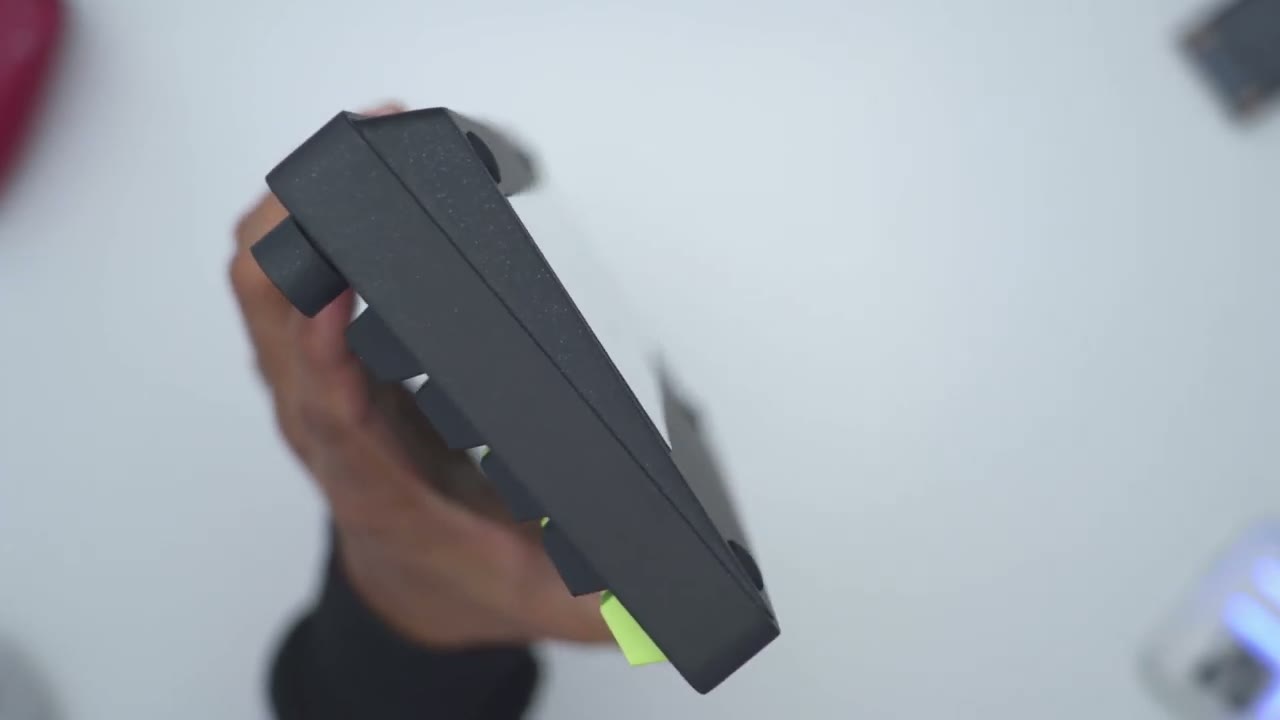
angle here’s a quick look at the specs feel free to pause or jump ahead to the
Bluetooth Pairing
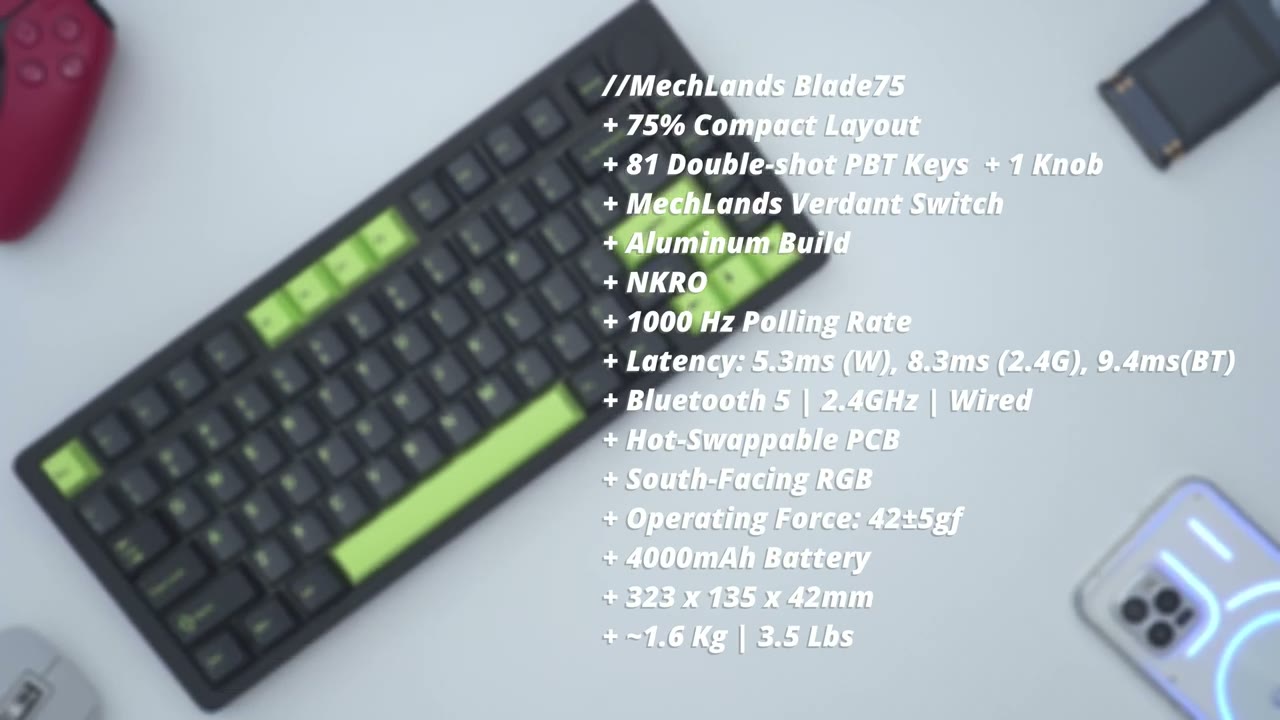
next section so the keyboard can be connected in wired mode or wirelessly using the 2.4 gz wireless dongle or in Bluetooth mode so I’ve turned on the Bluetooth switch on the back to put it in Bluetooth mode and I’ll hit function and Q and I’ll just long press until I see that flashing red light right at the bottom there it’s in pairing mode hits scan and then I’ll wait for it to come up so blade 75 5.0 hit pair and I should see that it’s paired just like so and then if I go over into my notes app I can just start typing you can connect up to three Bluetooth devices using q w and E and then if you want to switch between devices you would just hit function W function e or function Q to switch between devices
Sound
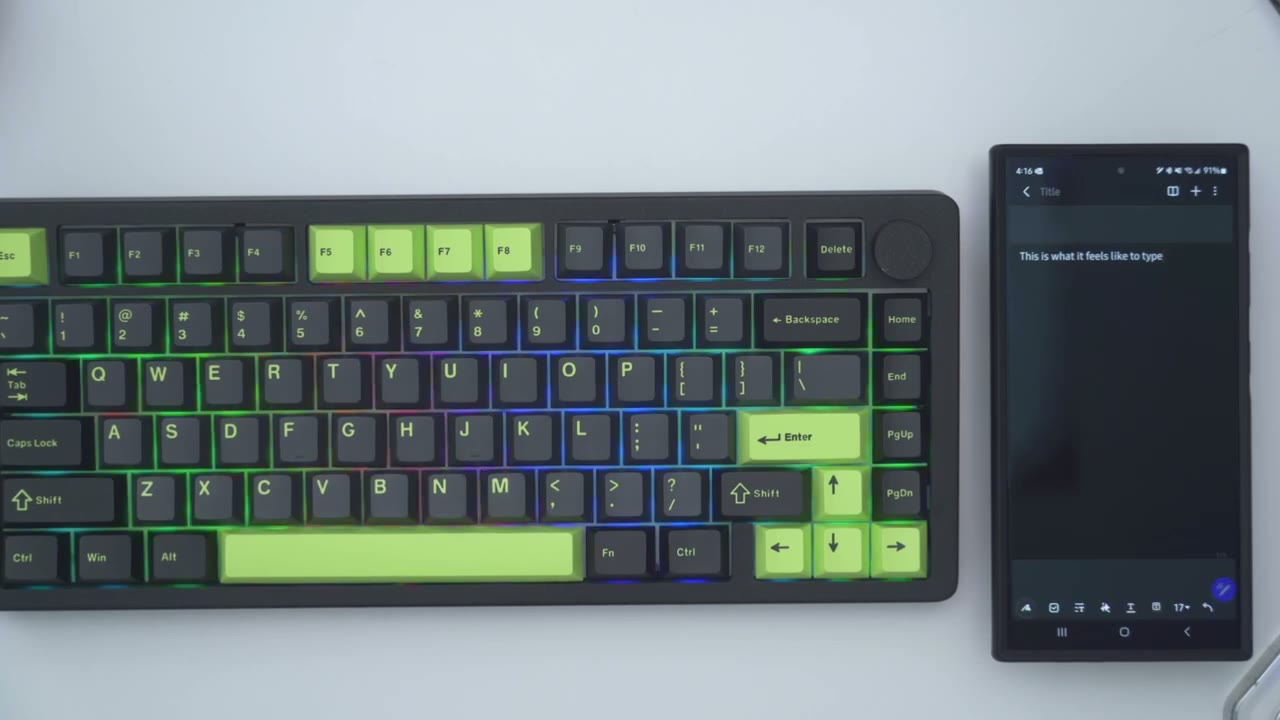
[Applause] so let me know what you think of the sound profile as I was typing it sounds pleasant to me Pleasant to my ears it’s not too high pitched and it’s not loud enough where you know it should disrupt other people so you could probably use this in quieter type of environments it’s only if you’re going you know really quickly and fast at typing that’s what it’s going to sound like and again you know it’s nothing super obtrusive it’s pretty Pleasant to
Typing
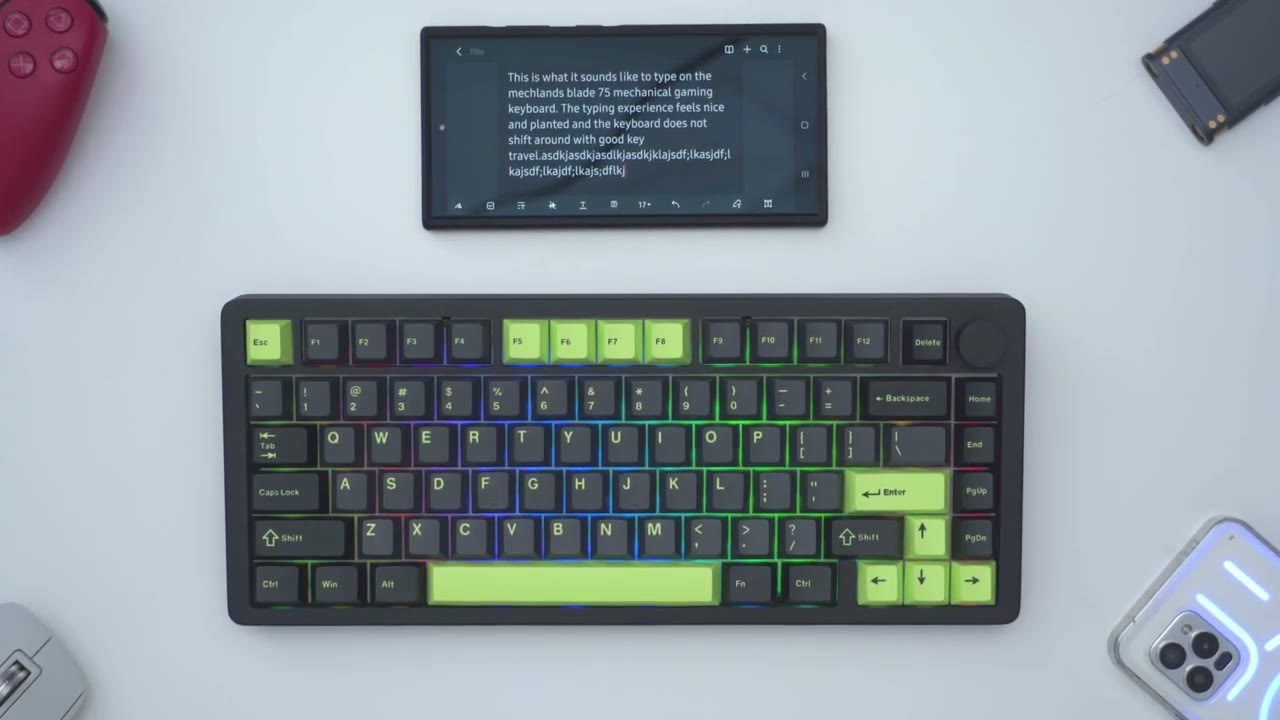
the ear the typing experience was just as enjoyable the keys have a good amount of travel and they bounce back pretty quickly Everything feels nicely lubed as well now one thing I did notice is that when I was typing I was having to use a little bit more Force to kind of you know bottom the key out more than I’m using on my current keyboard now on the mechans website for the blade 75 it chos the operating Force say 42 um Gams fors plus or minus 5 and I definitely did feel that more than with my current keyboard now this is really going to come into play if you’re someone who’s going to use this keyboard mostly for typing or for gaming because I could definitely see the advantage of that with gaming you know I’m someone who if I’m gaming I may rest my fingers you know on certain keys and sometimes I will mistakenly press down by mistake but with you know the amount of um gram Force required to kind of press this and actuate the keys I would be less likely to make that mistake and again now if you’re someone who’s going to be using this for typing a lot that’s really going to be up to you if you like you know that kind of more planted and um defined let’s say or uh intentional typing experience versus if you’re looking for more of a touch typing type
Lighting
of feel I’ve cut the lights a bit to showcase the RGB so we do have south facing rgbs on here now if I hit function and home it’s going to cycle through these solid colors so red will looks like possibly uh white or yellow uh light green green uh blue dark blue purple uh kind of a turquoise color and then back to the rainbow now these are what the defaults are but in the software you’ll have more options now you can hit function and down to reduce the brightness of course and then function up to increase the brightness you can also slow down the effect and also speed up the effect as well and to switch between effect types we would hit function and the pipe key and these are the preloaded effects so yeah quite a bit of options on here and of course you could just hit function and space bar to cut RGB completely if you want a little bit of a
Gaming
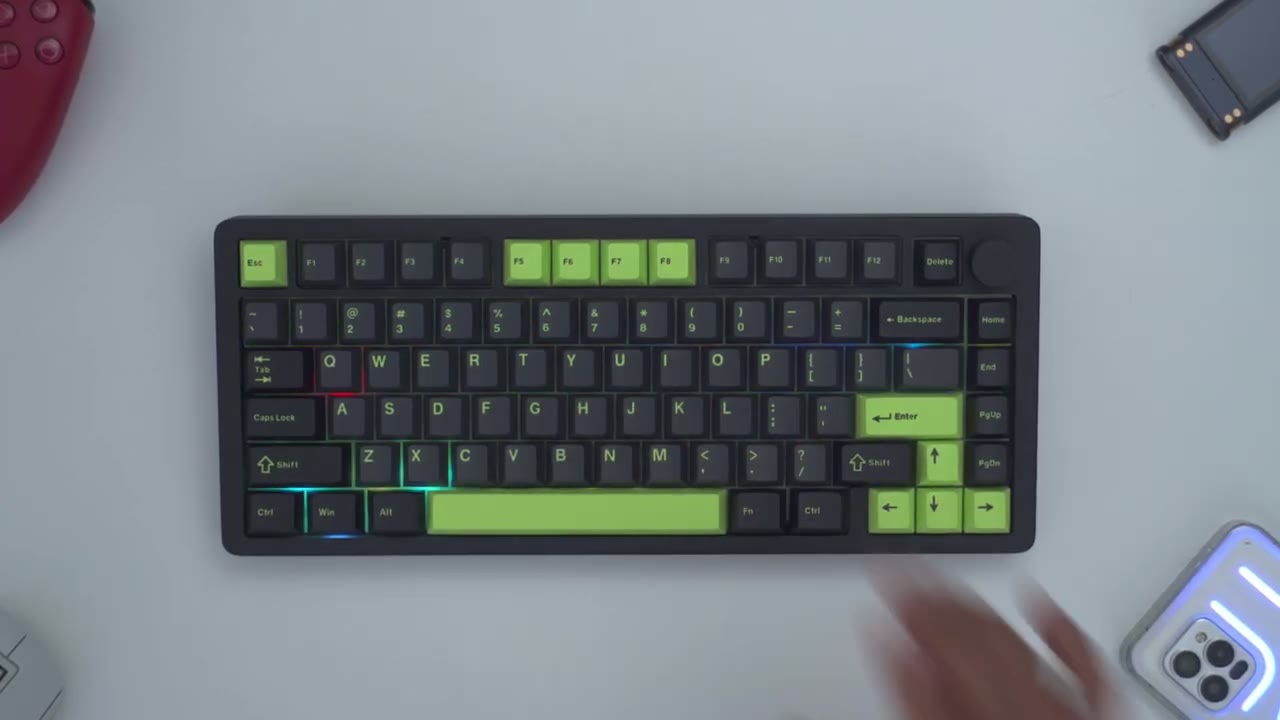
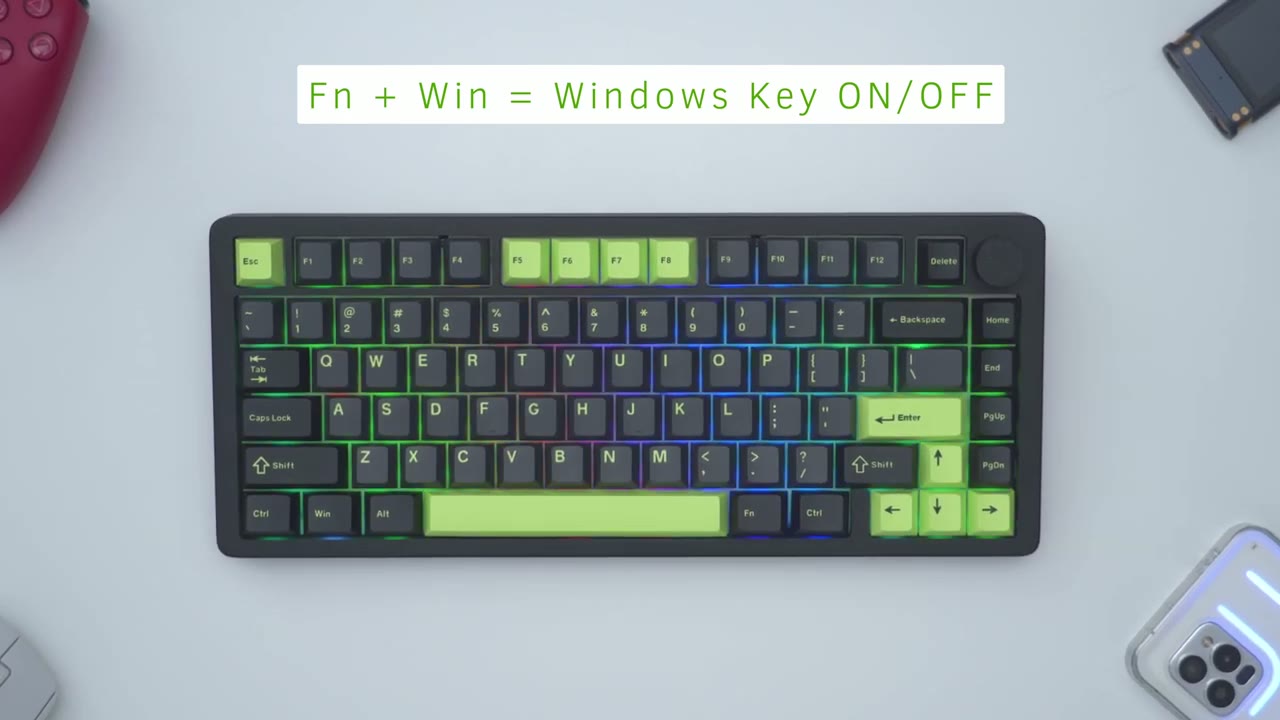
break I also had zero issues gaming on the mechans blade 75 and that’s because the keyboard supports n key rollover or nkro now you do get a 1,000 HZ pulling rate if you use it in wired mode and in the 2.4 GHz Wireless mode and you get 125 HZ in Bluetooth mode so you’ll definitely want to use wired mode or the 2.4 GHz mode and you can always hit the function and Windows key on the keyboard to activate or deactivate the Windows key so you don’t accidentally press it
Software
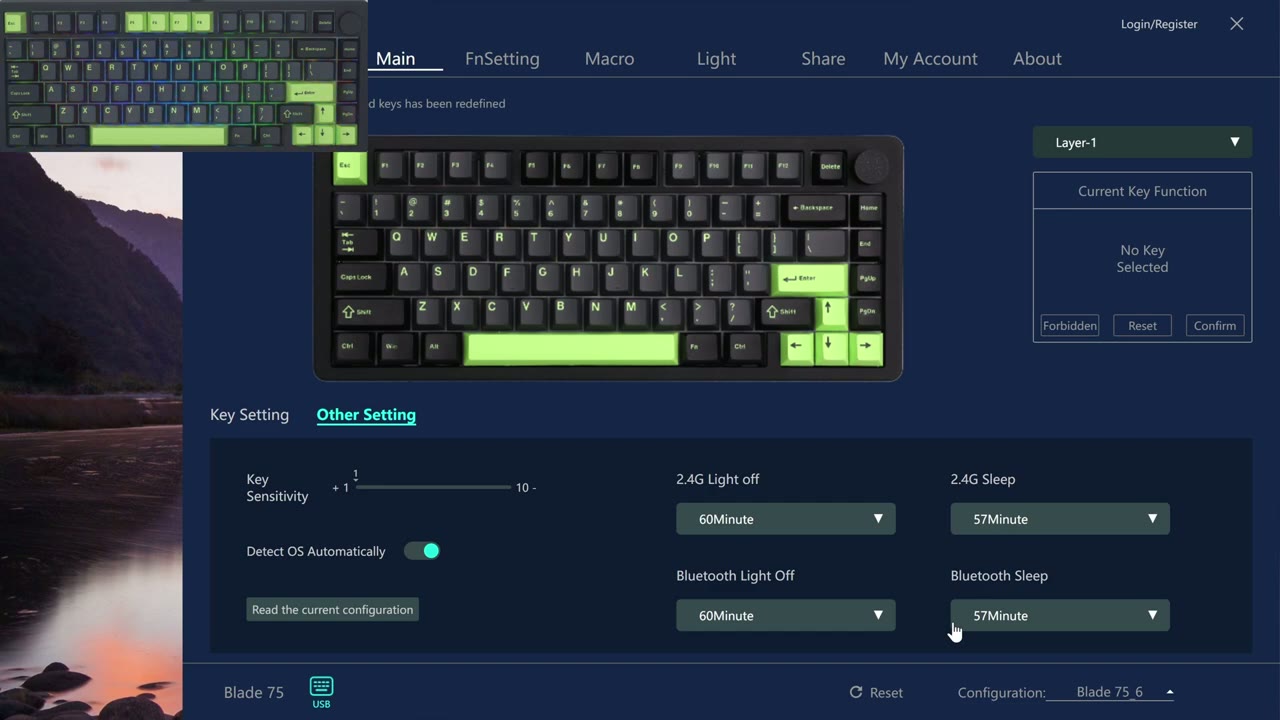
while you’re gaming let’s take a look at the mechans driver software so once you open it up you’re going to be met with this main screen and from here you can select between different layers so there’s up to three layers and you can also create different configurations and load them now one of the things to note is that once you make changes on here if you close the software it will retain the changes on the keyboard so you don’t need to have the driver software running in the background so that’s one of the first things so on this main screen there’s nothing populated for macros here because we have to go up into the section but you can see you have settings here for different combinations uh media Mouse Etc Now the default on the knob is to rotate it for voice control up or down and then pressing it in is just going to mute everything but you can see I can go ahead click on the side here and pick like say calculator confirm that and then on the other side I could say pick uh let’s say my computer confirm and then once I rotate this it’s going to launch a calculator or alternatively launch my computer so you can go ahead and um you know custom uh map some of these keys and then when you want to reset everything you just hit reset at the bottom and it’s going to load it back to default and these are some of the options you have in the software here in terms of mapping also some mouse commands now let’s go to the FN setting now one question a lot of people usually ask is can you remap the function key and you cannot so it say system Keys cannot be modified so basically anything that’s red you can see as soon as I click it says it can’t be modified same goes for these kind of like uh orange-ish tannish colors also cannot be modified now whatever’s in um this type of cyan color yes you can uh modify that if you like now let’s go to macro this is where you would uh go ahead record your Macros and then under light you have way more options than you do um you know just using the keyboard shortcuts on the keyboard so you could go into the light mode and you could see there’s um always on Dynamic breathing drift all the way down and then you can do a light edit um light Shadow Etc uh I like it on drift so I’m going to leave it there and then you could set the direction you know right left up down you can change the speed as well and here if I just crank that you could see it kind of in real time uh on the keyboard there I’m just going to put it back to where it was around halfway and of course you could change the brightness you you can turn on this Dazzle option on or off and then you could go ahead and set you know your own custom color I’ll just put everything back to where it was now you do have the option to log in or register an account and why you may want to do that is for a couple reasons one is that people share you know light settings you could download these you can also um upload your own and then same thing which share settings here and under macros now this is a relatively new keyboard so there’s not a lot of of stuff here um the other thing is it says you can also back up your configuration settings from the cloud and that’s about it for the software actually there is one other thing this is where you can um update the firmware or the app version this is on the newest online you can also have the software start automatically with Windows and like I mentioned you know you don’t need to have it running once you have your settings dialed in it will retain it but um under other setting on this main screen you can change the key sensitive from 1 to 10 and then you could set the time that the light goes off you know independent of the different modes so for 2.5g it can go off after a minute of an activity to 60 Minutes um same for Bluetooth 1 minute all the way up to 60 minutes and then you could set a sleep time as well so you do need the software to make some of these changes and that’s about it
Keyboard Shortcuts
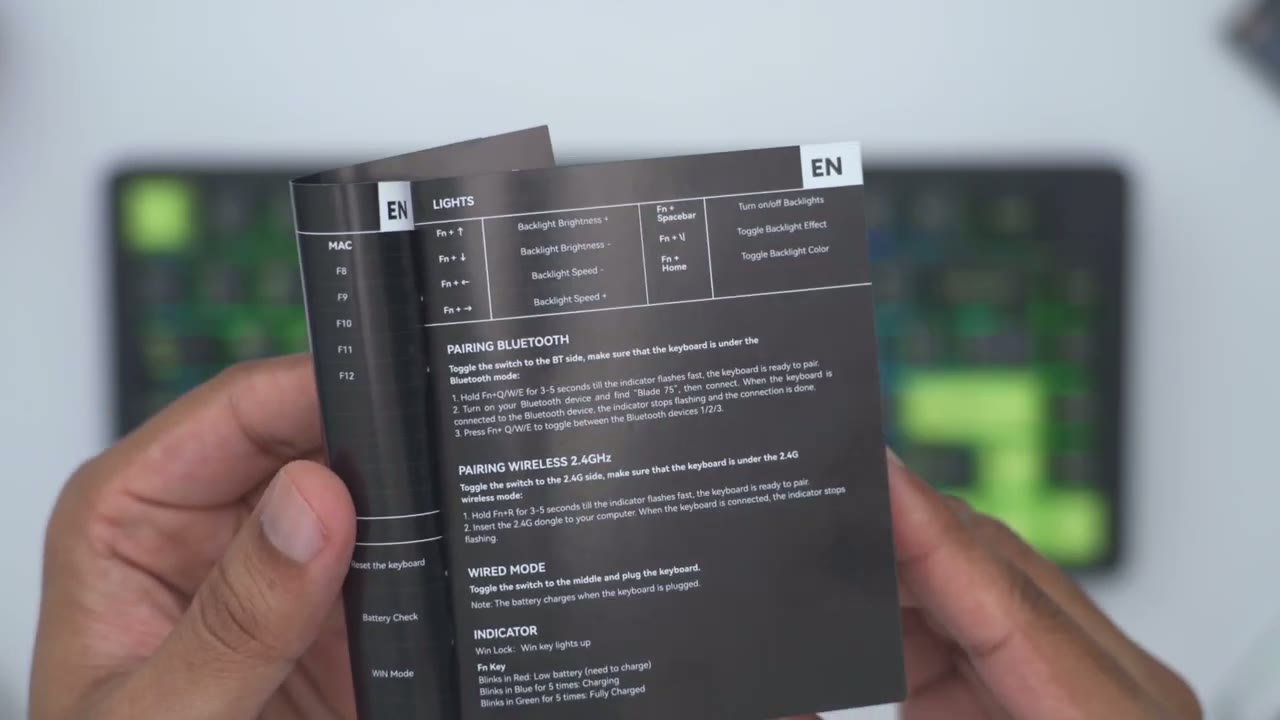
whenever you want to check battery life you could hit function and backspace and you can see I’m at around the 80% Mark in addition to checking back battery life we also have keyboard shortcuts here to do things like launch my computer open up your mail open the search box for between tracks there’s also keyboard shortcuts here and you can see you could play pause music go to the next track mute volume up volume down there’s also print screen scroll lock pause insert you can also lock the windows key while you’re gaming and then you could switch between different Bluetooth devices if you have multiple paired you can also reset the keyboard by pressing function and escape and holding that down and of course you could switch between Windows and Mac mode this does work on both and we also have the option to go through the different lighting options as well so
Recommended?
the mechans blade 75 mechanical gaming keyboard is a fantastic option whether you’re looking for a keyboard to game or type or to do both there’s a ton of different customizations in the software and it has excellent build quality that looks and feels really premium this is a nice Hefty and planted keyboard if you’re interested in learning more or picking one up for yourself I’m going to leave links down in the video description and pin comments and if I have any type of coupon codes I’ll leave those down below as well if you found this review helpful please consider liking and subscribing it truly does help me out a lot and stay tuned I have a bunch more keyboard reviews coming up and don’t forget to check out some of my other tech reviews I review a bunch of different Tech on this channel outside of keyboards I’m sure you’ll find something you like and I hope to see you in the next one soon
Buy Mechlands Blade75 Keyboard on Amazon
Buy Mechlands Blade75 Keyboard on Mechlands
Please note that some of the links in my video descriptions are affiliate links where I earn from qualifying purchases. As an Amazon Associate I earn from qualifying purchases.

