


Buy Sylvox 15.6″ Portable TV on Amazon
Buy Sylvox Smart 15.6″ Waterproof Portable TV on Sylvox
Please note that some of the links in my video descriptions are affiliate links where I earn from qualifying purchases. As an Amazon Associate I earn from qualifying purchases.
Intro
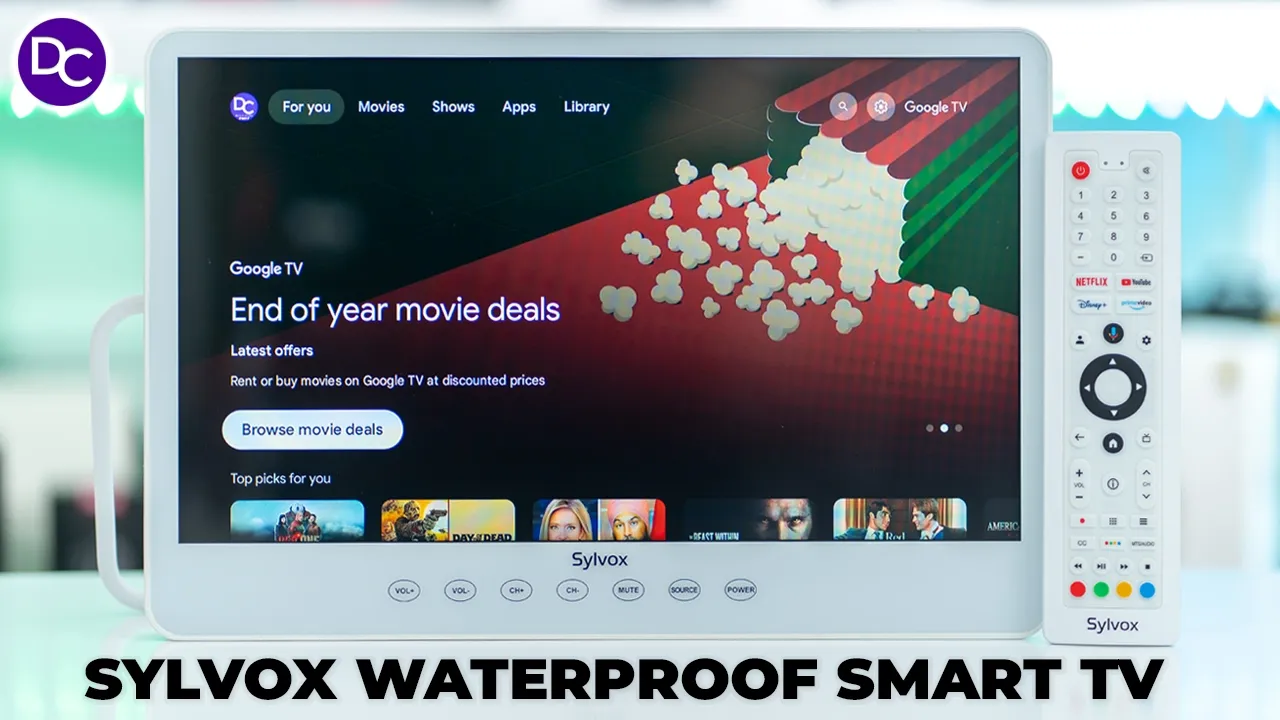
hey it’s Adrian and today I have a pretty cool portable TV this is the silox 15.6in Google TV which is also waterproof it has an impressive ip66 waterproof rating up to 6 hours of battery life thanks to the 10,000 mAh battery there’s adjustable viewing angles thanks to the built-in kickstand 1080p video with HDR support 17° viewing angle there’s Google OS giving you access to popular apps like Netflix YouTube Prime Bluetooth 5.0 dualband Wi-Fi dual speakers voice control and a handy remote to control everything so let’s take a closer look at how well it performs and a big thanks to silox for sending this out for review in the box
Package
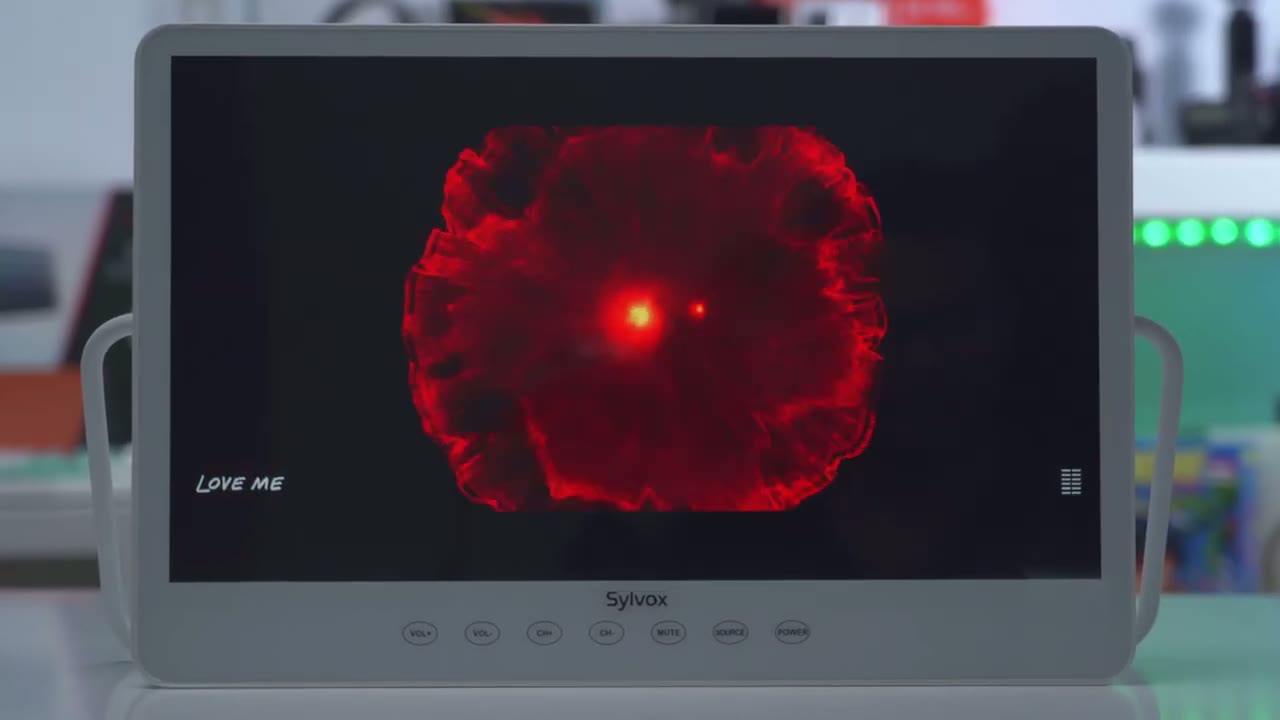
we have the silox 15.6 in Google TV warranty certificate manual a power brick to charge the internal battery or just to keep it you know permanently powered a remote control two AAA batteries and screwdriver taking a look
Design
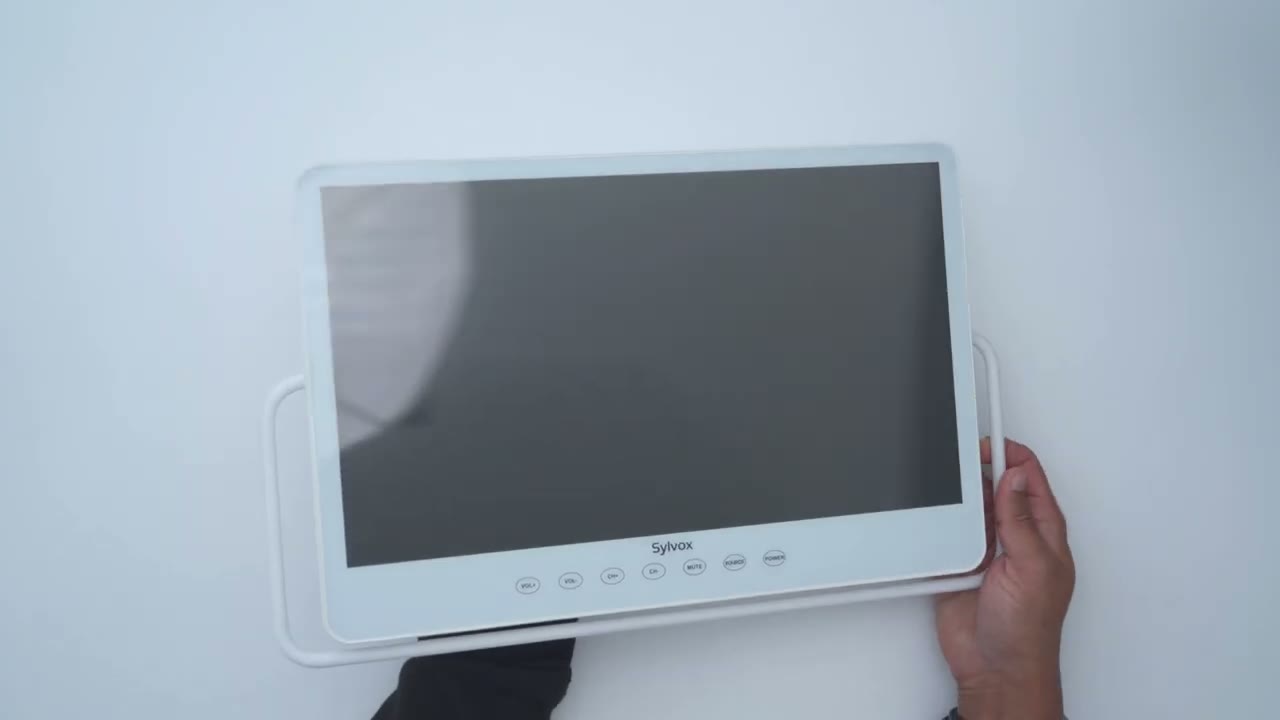
at the design on the silox Google TV so this comes in at around 15.
6 in diagonally now we have the silox logo at the front there along with touch controls or touch buttons and you can see if I angled this this is completely flush so there’s no Tac file buttons now we do have a built-in stand right here and you know this is actually pretty rigid of a stand so you can see um the TV is not kind of you know angling forwards or backwards so it’s doing a really good job now looking at the very rear we have two speakers so rear firing speakers um 3 watts each and then on the side this is where we have the input so we have a DC input we also have the RF input here and this is to plug in you know your standard TV cable and then we have a USB type a port and this is what we’ll use to just plug in a local USB drive so we can look at videos say you go somewhere remote without internet while there is a power button at the front of the TV the top has the main power so this is to prevent you from just you know accidentally touching the power button at the top and this is a button um a tactile button you can see it de presses in and then there’s an LED ring light to let you know that it’s actually activated and on and then once this is on then you can go ahead you can see that red LED light on the front here now it’s possible to go ahead and power the TV on and watch whatever you want to watch overall the TV feels really well built and sturdy there’s no flexing or creaking and this does have an ip66 rating which is why everything is nice sealed up along the port this screen is a tempered glass screen so it should be somewhat resistant to minor scratches
Specs
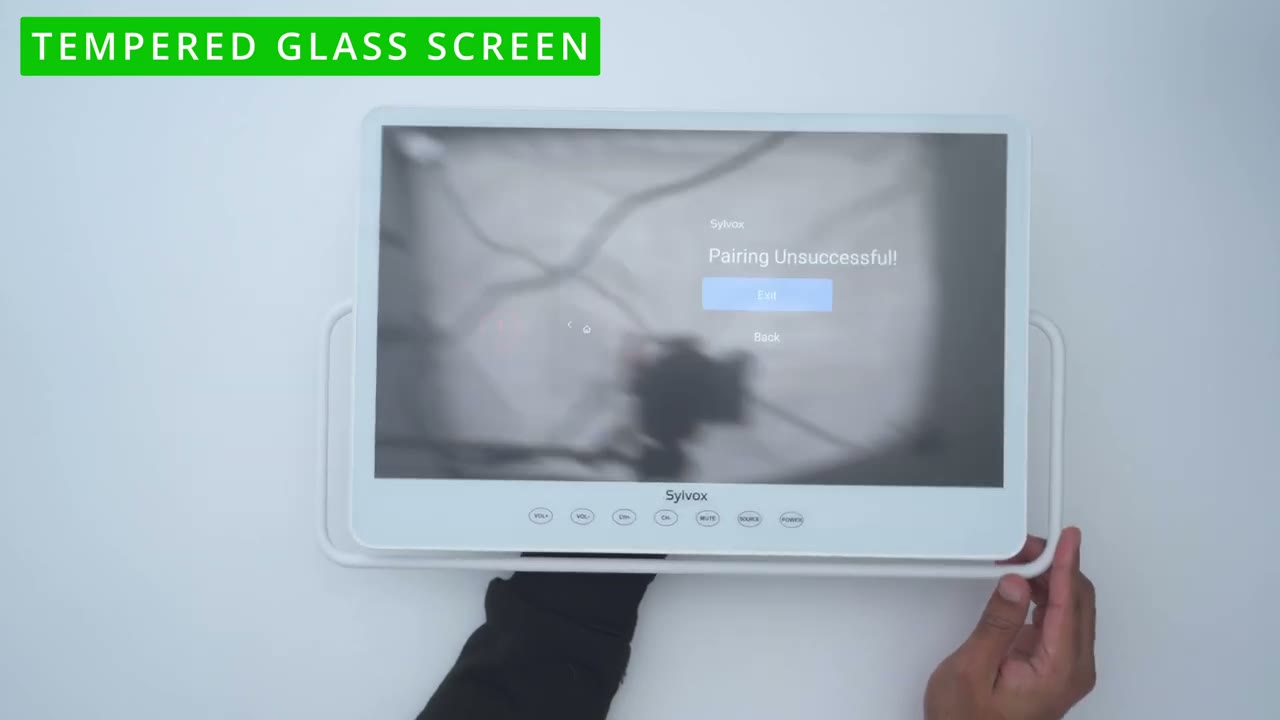
and wear here’s a quick look at the specs feel free to pause or jump ahead to the next section angulating the TV is
Kickstand
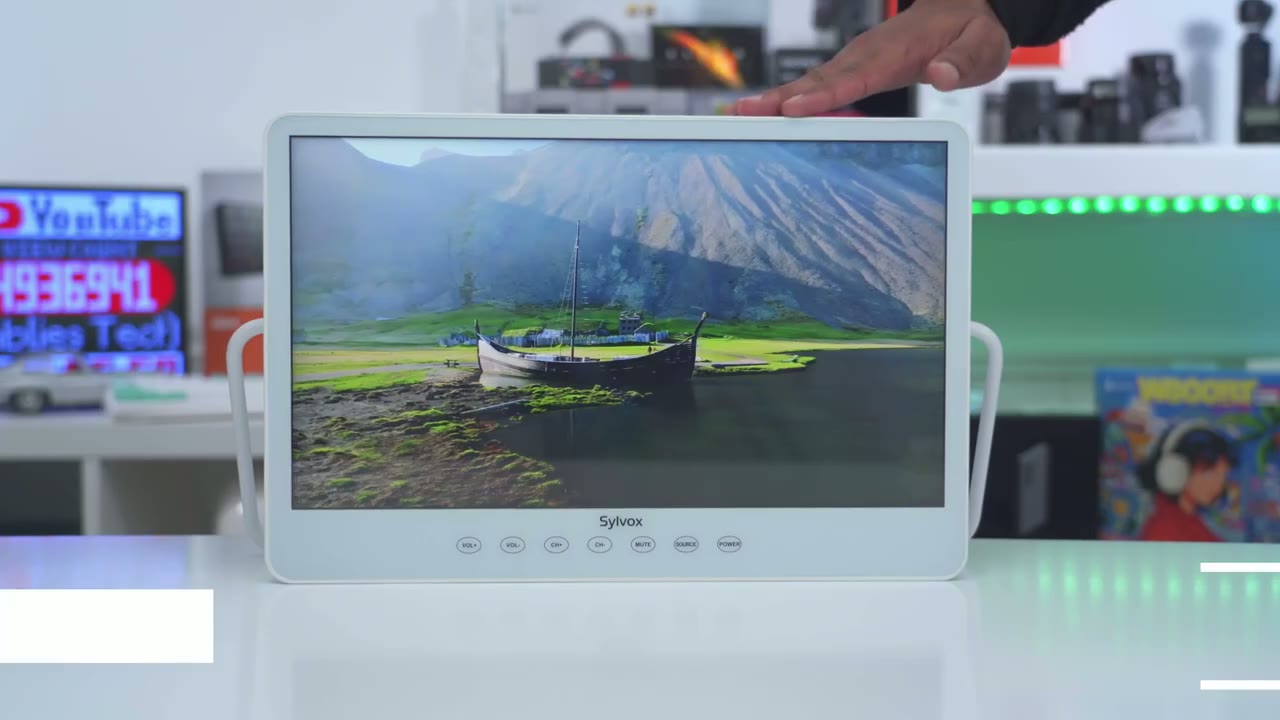
really simple thanks to the built-in kicks in so right now it’s pretty much straight up and if we take a side view here you can see that’s what it looks like now this arm here this kickstand arm is so well friction that even if I kind of drop it back like so and I’m pressing on it you can see it’s really not going anywhere it’s not collapsing and just folding flat it’s really well tensioned uh on here so you can see I have to really press kind of hard to get it to even move out of place but yeah adjusting this on the Fly is really easy you just put the TV wherever you want and then slide that kickstand down and you have it ready to go before I set the
Setup
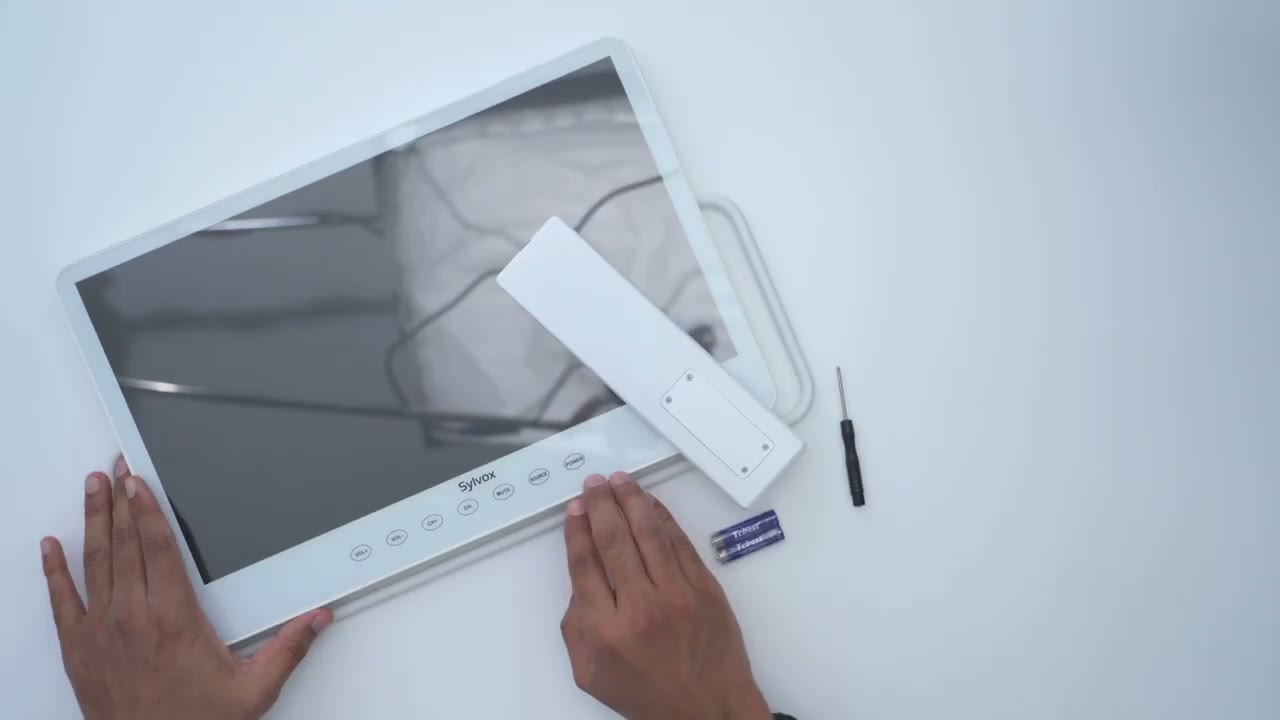
TV up for first time use I’m going to install the AAA batteries into the remote and that’s why we have the screwdriver because we actually have to remove these screws to get access and that’s just to maintain that ip66 rating I’m now going to set up the TV for a first time use so I’m going to press the power button which I showed earlier and once that’s pressed in fully I’ll see the red LED light so I’ll just long press on the power button to just have the TV boot up now one thing to note with this TV is since it is a Google TV it is running on Android you are going to need a Google account to get you know all functionality or features out of this especially if you want to use or download new apps however you can use the TV in a basic mode or kind of a dumb mode um if you don’t want to create a Google account but you know I highly recommend just creating the Google account to get full functionality so it’s now asking to press back and home on the remote for 3 seconds at the repairing mode so I’ll go ahead and do that right now and I can see the red LED flashing so I’ll go ahead hit back and let’s see if it pairs right now okay so pairing is successful press okay and now we could go through the menu so here are the available languages basically the same as you would find on your Android phone go into English and here is what I was talking about so you can set it up for basic TV so you’ll have access to live TV um and external devices now there is no HDMI input on here so I’m just going to go into setup Google TV since I want the most functionality and then we’re going to have you know movies TV shows and you’ll be able to download a bunch of different apps I have the Google home app open and it’s already found the Google TV device so I’ll go ahead click next and I’ll give it camera permission so let’s go ahead scan code and I’m going to scan the code right on here there we go now note that it says you can set this up on the TV directly it may take a bit longer since you’re using the remote to type in your credentials so you have two options I’m just going to go ahead and do it with my phone since it’s a little bit quicker let’s take a look at the full
Settings
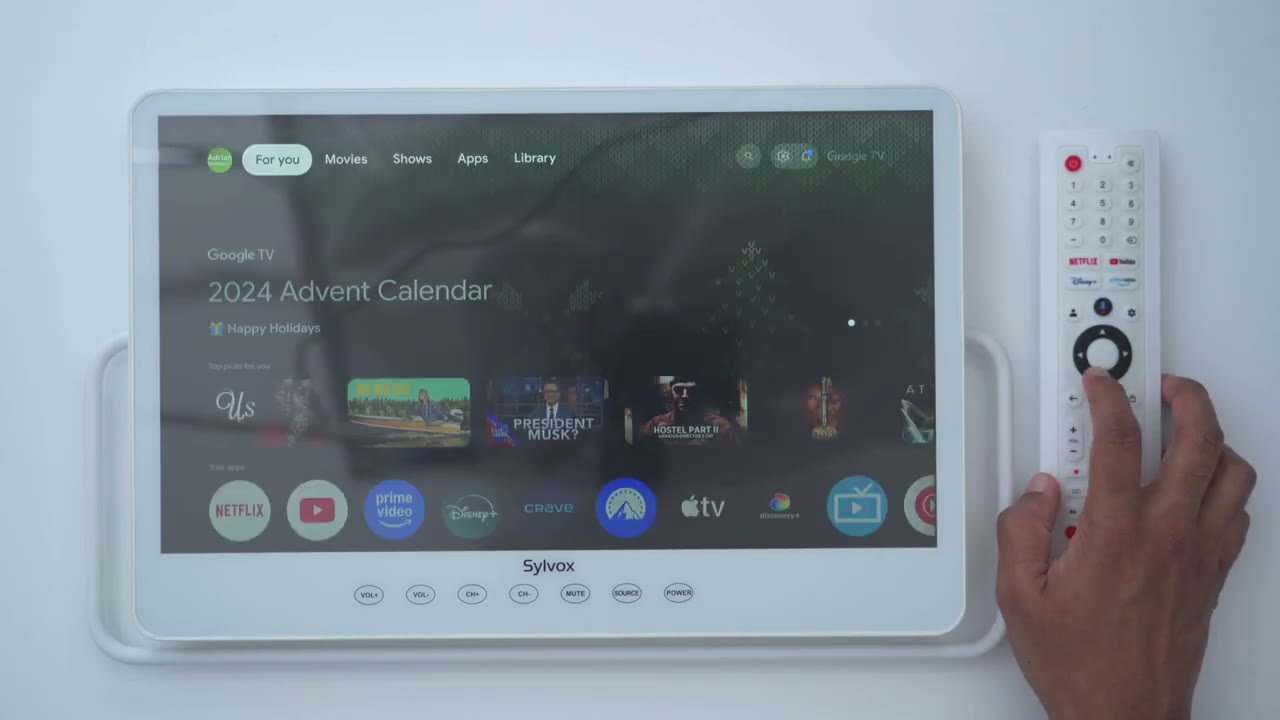
settings so under Channel and inputs I want to point out that even though under external inputs it shows HDMI C settings there’s no way for me to connect an HDMI cable on here um natively there are USB type A to HDMI adapters but a lot of those require drivers so and they do say say it’s not going to be compatible with Android only windows so something to be mindful of now you’ll probably spend a lot of time in pitcher if we go into there this is where you can switch the different modes so um vivot sports game personal and then you could go to Gentle Eco movie Dynamic standards so for example in Eco it’s really going to dim things to just kind of preserve battery life um that’s movie mode I generally like Vivid so I’m going to leave it there and then we could go into a wide color gamut mode you can turn that on leave it on standard or just Auto and then under screen brightness it’s set to the maximum so this is what it looks like let’s say at around 50% and then all the way down to say 20% and then add zero brightness so you could see you could still see a little bit you know if you’re looking at this you know at night then you’ll definitely want to lower that but for the most part I’ll leave it on the maximum brightness and I’ll show you what it looks like if you were to use these Outdoors as well under advanced settings we can change the color temperature from standard warmer warm cool or cooler and that’s it on cooler I’m just going to leave it on standard for now and then we can also enable Dynamic contrast and you can see the difference that makes now we can also turn the noise reduction off set it to low medium high or Auto I’ll just leave it on medium and then you could uh reset all the pitch settings under display and sound I showed the pitch option to under screen it set to 16×9 you can’t adjust the aspect ratio outside of 16×9 and then under sound mode we can go from standard cinema music news personal I’ll just leave it on standard uh for now and then we could turn on Dolby audio processing can go into surround mode and then we can go into sound only and it says the TV screen is going to turn on off or sorry turn off after uh 10 seconds that’s great if you want to play you know the sound of rain falling or waves crashing while you’re sleeping and have the screen off so it doesn’t actually bother your sleep and this is what you have under advanced settings now let’s go back into settings here um I am happy to say that this connects both 2.4 and 5 GHz networks I’m connected to my 5 GH uh Network right now now under privacy you can take a look at that all fairly standard Android um you know kind of settings if you’ve use any Android device you can also go ahead change the language on here date and time Etc under remote and accessories this is where you can go to pair Bluetooth accessories and I’ve paired my external Bluetooth speaker which work flawlessly while watching videos or movies you the sound is just better and louder here’s a demo of the UI so if I click the home button here that’s about how fast it is if I click the gear icon here settings you can see it’s fairly responsive now if I go into a specific app so YouTube for example um it’s going to load up pretty quickly and the reason for that is because I’ve already uh opened up the YouTube app so it’s cash if I go into Prime video again you could see everything is fairly quick now if I click into an actual video here I’ll go to resume and let’s see how long it takes to load that up again I’m connected to a 5 GHz connection and to own their own brain scans just give me one second and you can see HDR kicked in there so yeah it’s a little bit of a delay but nothing you
Apps
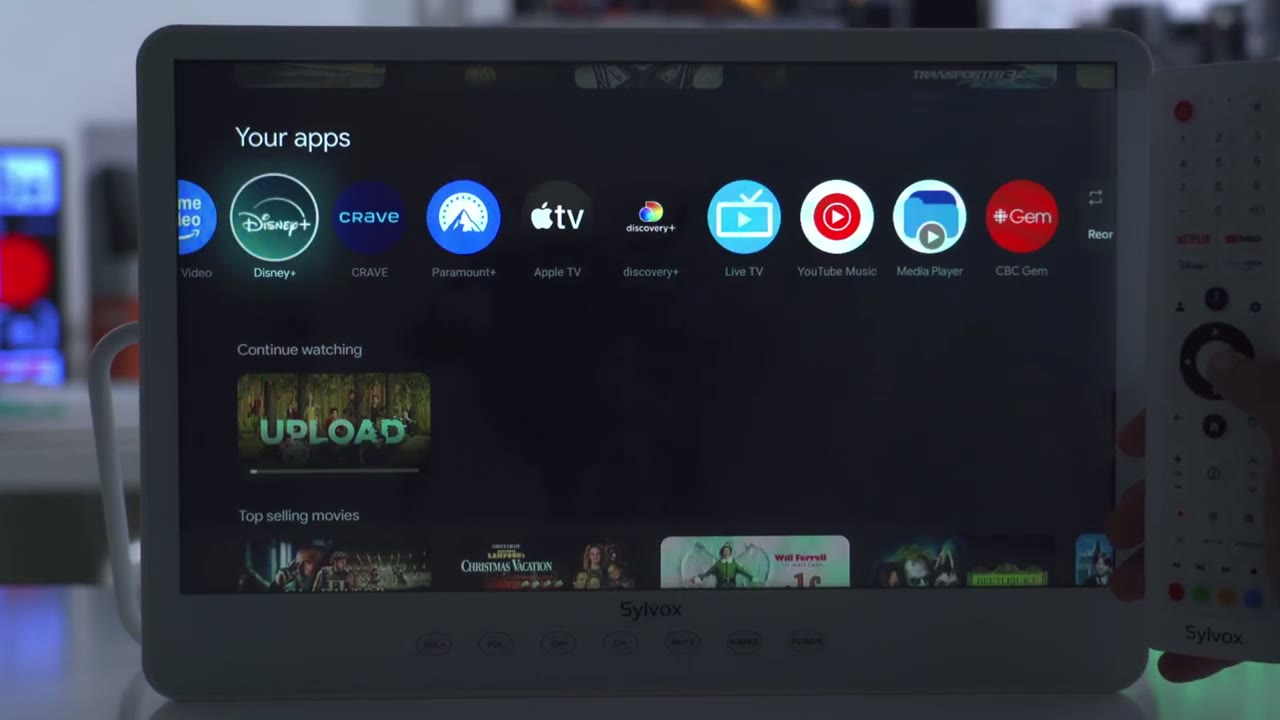
know unmanageable these are the apps that were pre-loaded so we have Netflix YouTube Prime video Disney plus crave Paramount Apple TV Discovery Live TV YouTube music Media Player and CBC gem now if I go into add apps here um this is where you can go by section so you say entertainment and then you could download things like 2B Pluto TV Etc so yeah you’re not limited to whatever is preloaded on here you also have have um access to basically any other type of app that you would normally find on you know the Android store or the Play Store and you do have access to Quick buttons like Netflix YouTube Disney plus and Amazon Prime the
Screen Performance
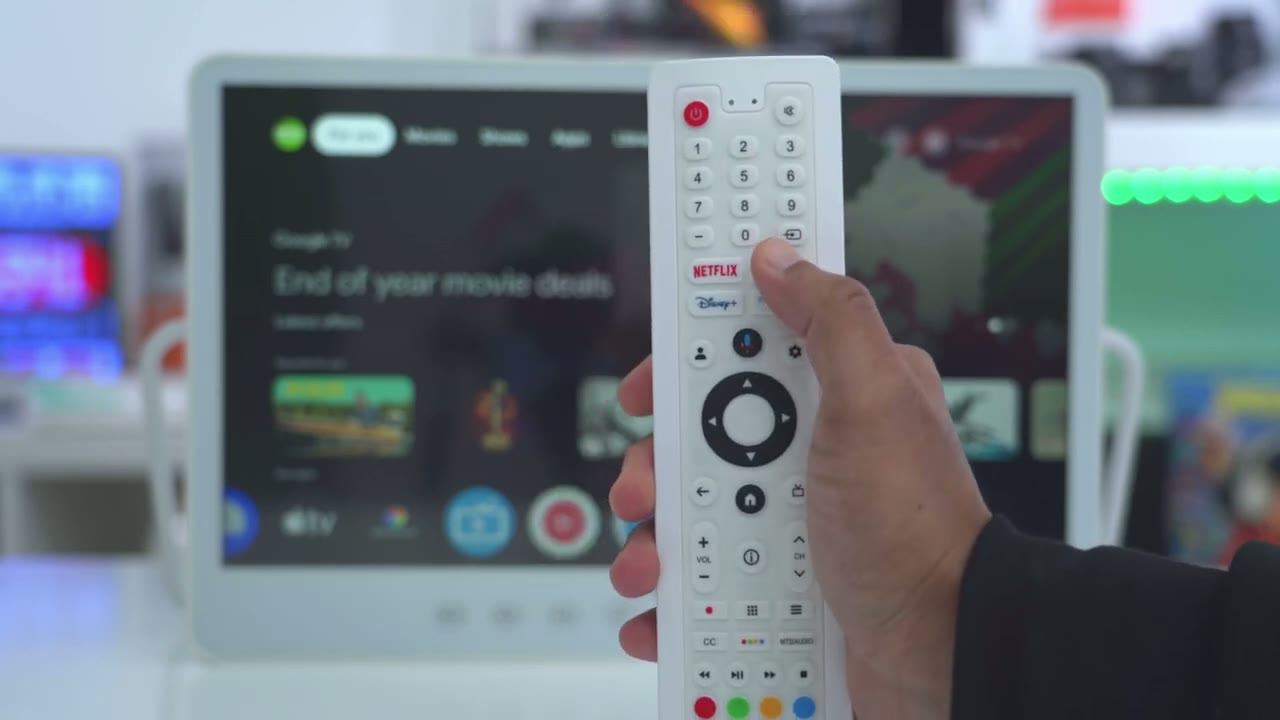
screen has a 60 HZ refresh rate which is great for casual viewing now we do have an LED display with Quantum dob backlight technology and I have to say coming from OLED screens I am kind of spoiled but I was actually pretty surprised at how good the contrast ratio is on this TV All Things Considered so anytime you’re watching kind of dark or you know um lowl scenes it actually does a fairly good job at managing that without a significant backlight bleed and while video look great on here you’ll definitely get the best results using this in a shaded area or you know in an area with low light or indoors you definitely can use this TV Outdoors it’s built for it you have that ip66 waterproof raining so this is great for camping as well but if the Sun is out you know kind of a peak sunlight up you are going to have glare or reflection due to the reflective coating on here so it’s best to put it kind of in a shaded area to get the best picture quality if you have any bright lights in your room this is what it’ll look like if it’s pointed towards the TV and that’s because the TV has a reflective coating instead of a map cating the TV
Viewing Angle
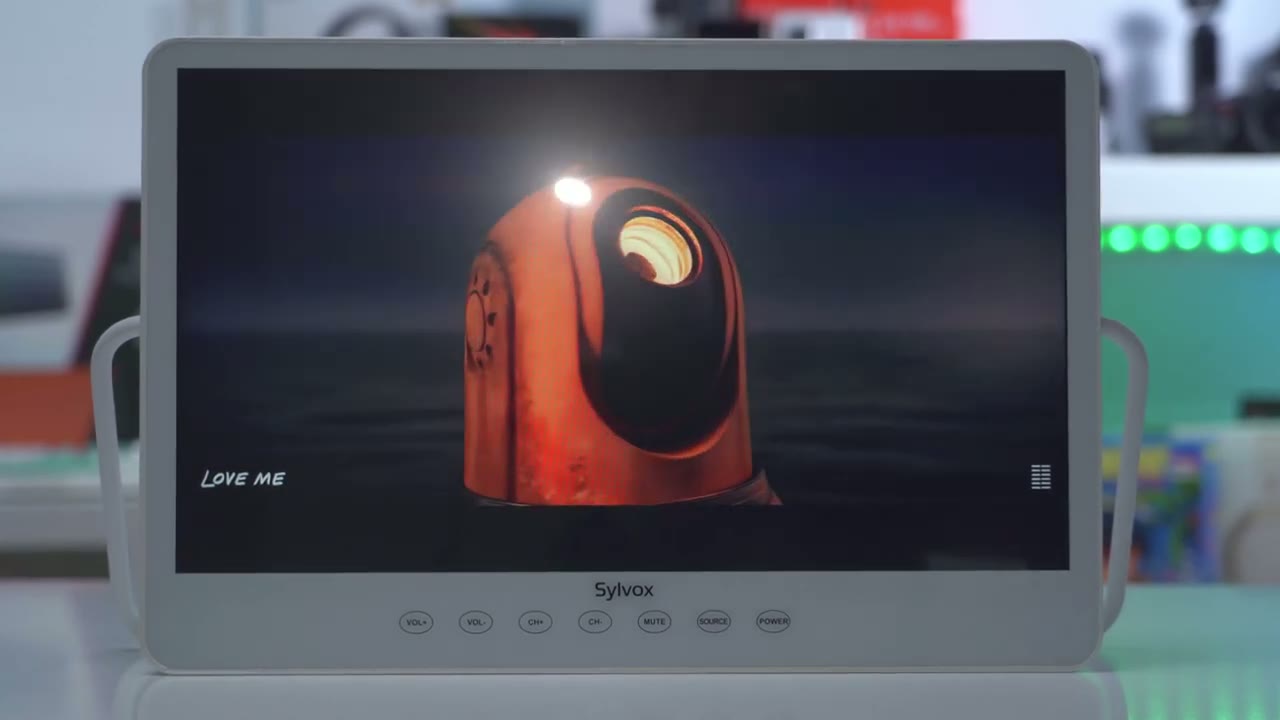
has 178° viewing angle and it actually does really well so you can see as I go off to the side everything still looks pretty good it’s only when I start going you know all the way to the extreme where I encounter a little bit of glare and it gets darkened but you know no one’s going to be sitting that far off to the side so yeah pretty good viewing
IP66 Waterproof
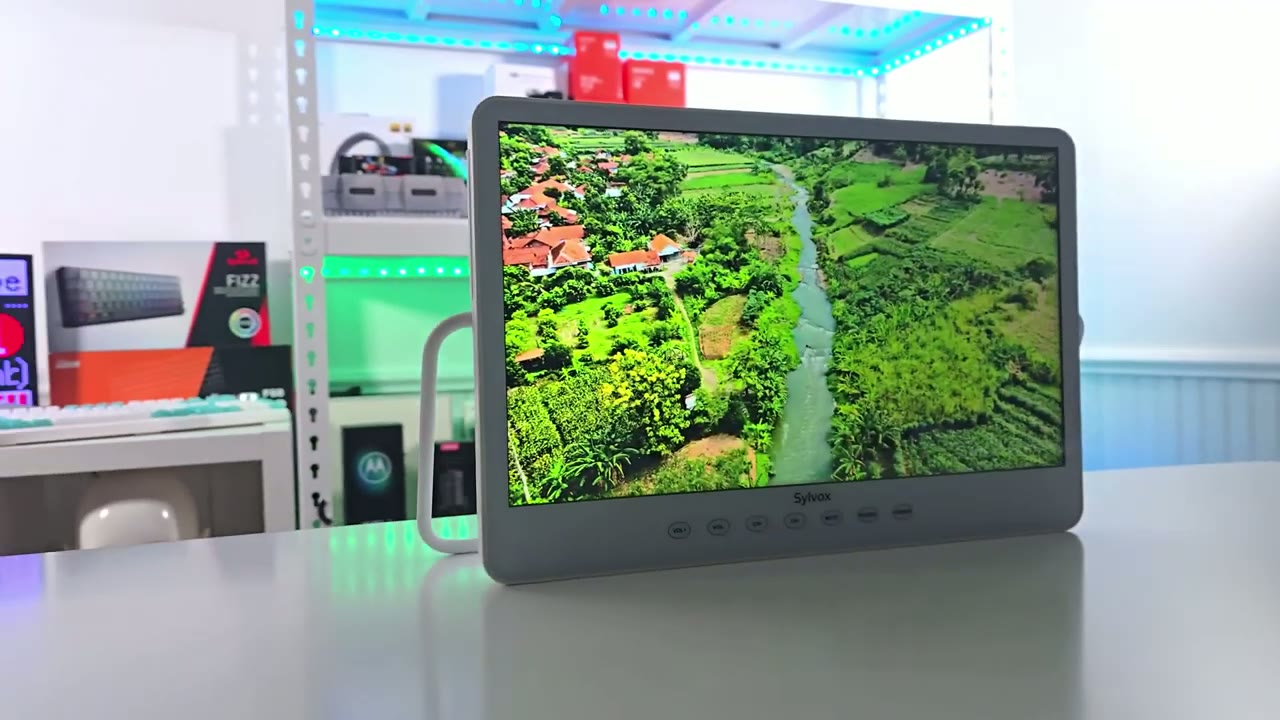
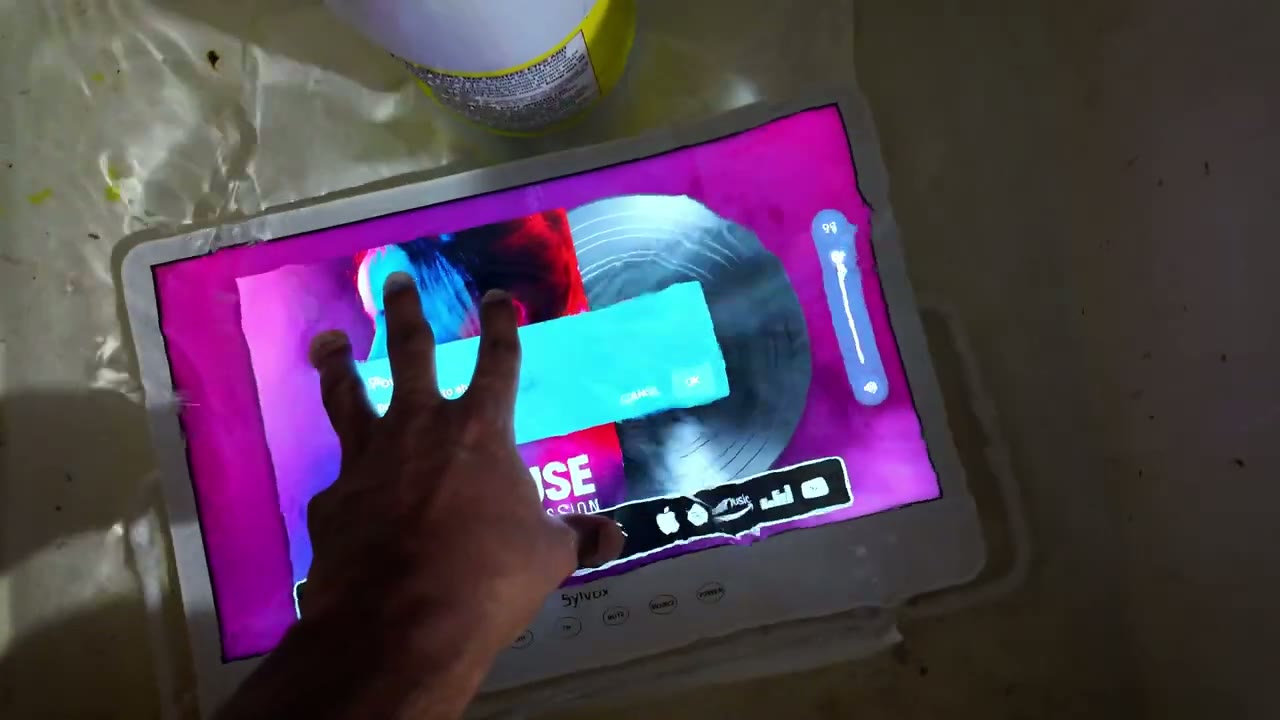
angle on here and you can see from this waterproof test that that ip66 rating is easily holding up so you don’t have to worry about washing this or hosing this [Music]
Bluetooth Pairing
down so we’ll go under Bluetooth pair accessory and this is called a clever bright and I found it right here all right so I can confirm you can easily just add a Bluetooth speaker or Bluetooth headphones now that my Bluetooth speaker is pared to the TV I’m just going to play a clip so you can hear that the audio is coming through the speaker and not the TV
Speakers
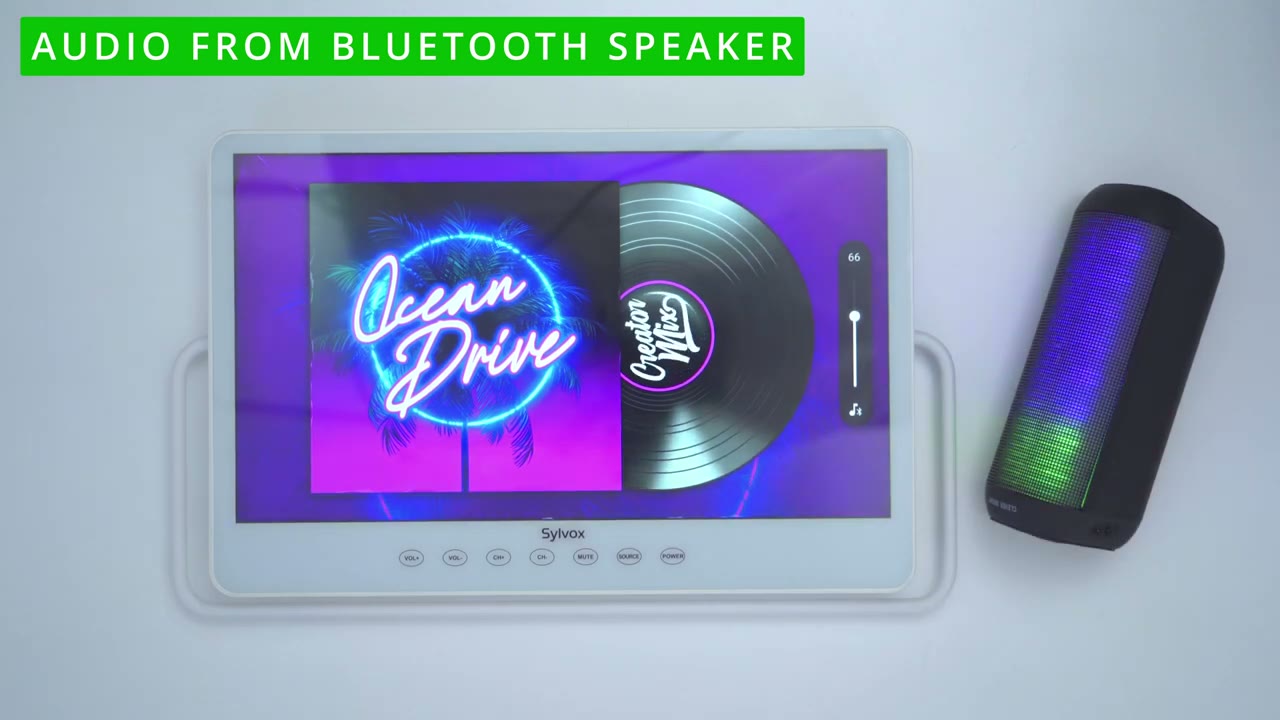
since we have rear firing speakers on the back of the TV I’m just going to test out what the audio sounds like with the TV’s built-in speakers so you can hear that the sound does get pretty loud but it’s not as bold and Rit sounding you know it’s lacking a little bit of Base so if you want better sound you can go ahead and pair a Bluetooth speaker or you know your favorite pair Bluetooth headphones
Voice Commands
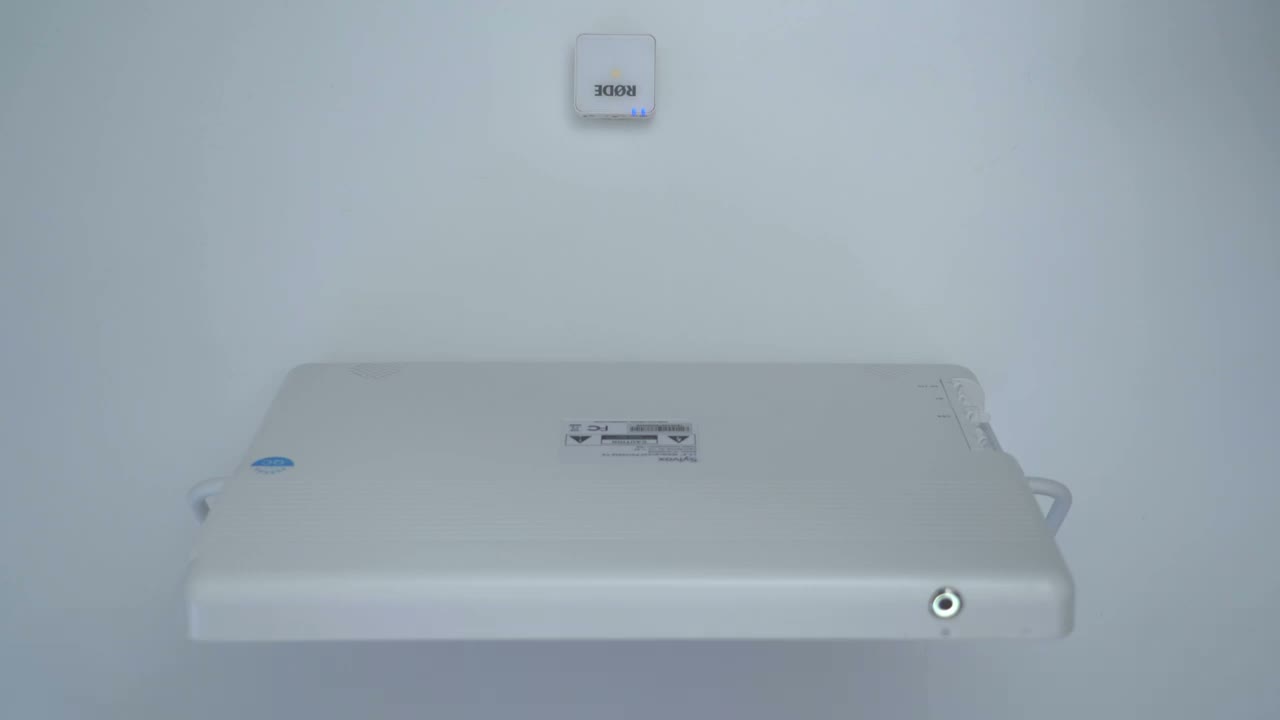
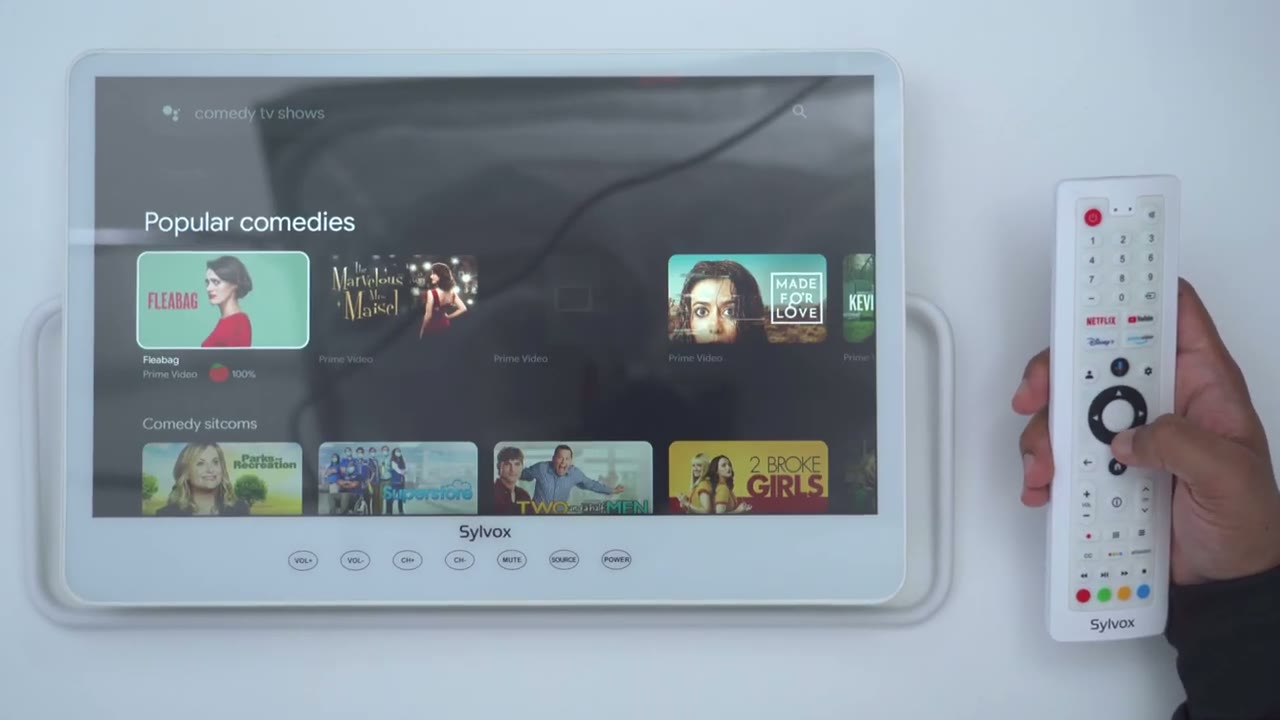
we can also use the remote for voice command so I’ll go ahead press and hold the microphone button here hey Google what’s the weather like today is it going to snow tonight in Brampton there’s a good chance of snow from now until around 900 p.m. please search for comedy shows you can also cast your phone
Screen Mirroring
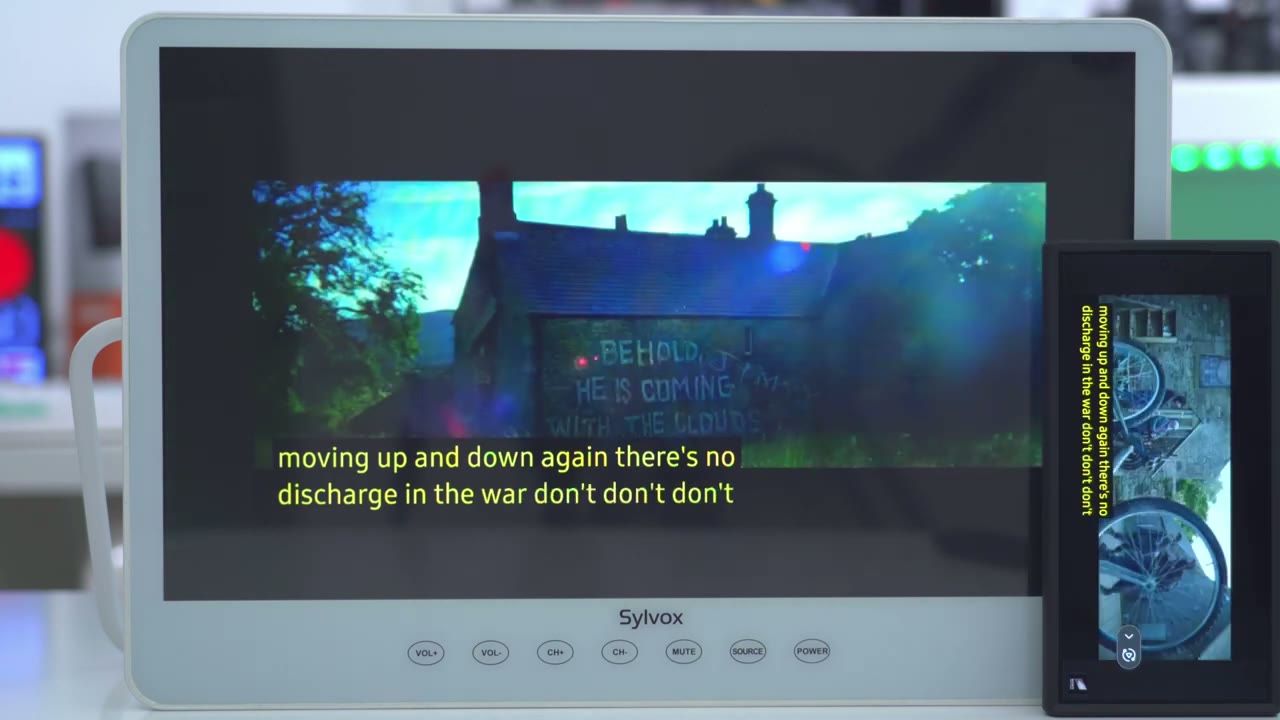
screen to the TV if you have a compatible phone so on my s24 ultra I could tap on Smart View here go to dining room TV that’s what I I’ve called a TV click on start now and you could see it’s replicated my phone’s display on the TV now the quality is not exactly the same you know the um resolution is going to be off same with the PPI or pixels per inch but let’s go into something like YouTube and I’ll play this video here let’s go into full screen and you can see you know that’s fairly fluid considering it’s um cast thing on there again you know my connection is pretty good and this is what you can expect if you were to cast your phone screen of course you could show you know your own photos uh videos emails whatever you want on the big screen I’ve turned Wi-Fi
Mobile Hotspot
off on my phone and I’m going to go into mobile hotspot and now it’s on and what I’m going to do is I’m actually going to connect to my phone’s mobile hotspot instead of the Wi-Fi connection that it’s currently on so let go on the Wi-Fi and I’ll go to see all and my uh mobile hotspot is called passion fruit I’m just going to put in the password here all right so it’s connecting to my phone’s hotspot and again to show um Wi-Fi is not on so the TV is connected successfully right now and I can just let’s go back to the home screen here I’ll jump into YouTube and there we go so there’s really no problem if you’re say camping or something or you’re somewhere remote but you have a phone signal no access to Wi-Fi say you’re in a cottage or something you could easily use your phone’s hotspot to connect to the TV to
Battery Life
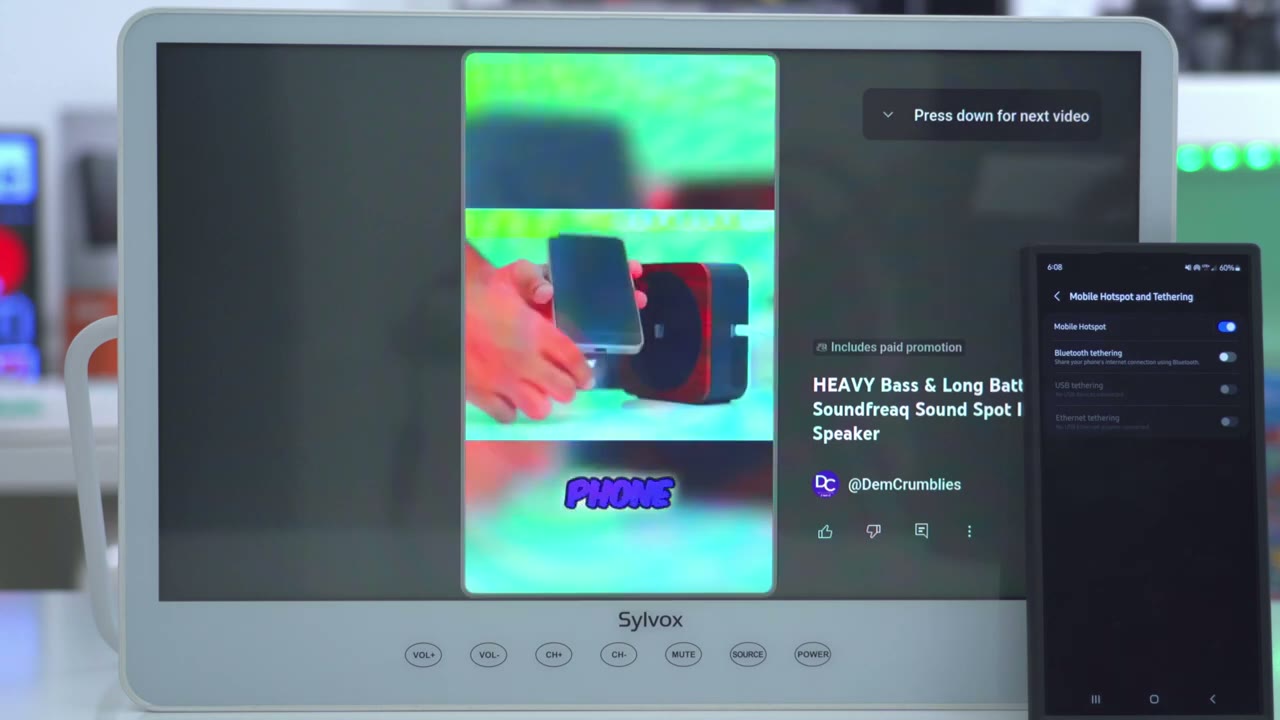
watch your favorite shows battery life is rated for up to 6 hours on here thanks to that 10,000 milliamp hour battery of course that’s really going to be dependent on a ton of factors such as you know how loud you play the volume on here and what you put the screen bright to so your results May Vary the TV comes
Storage
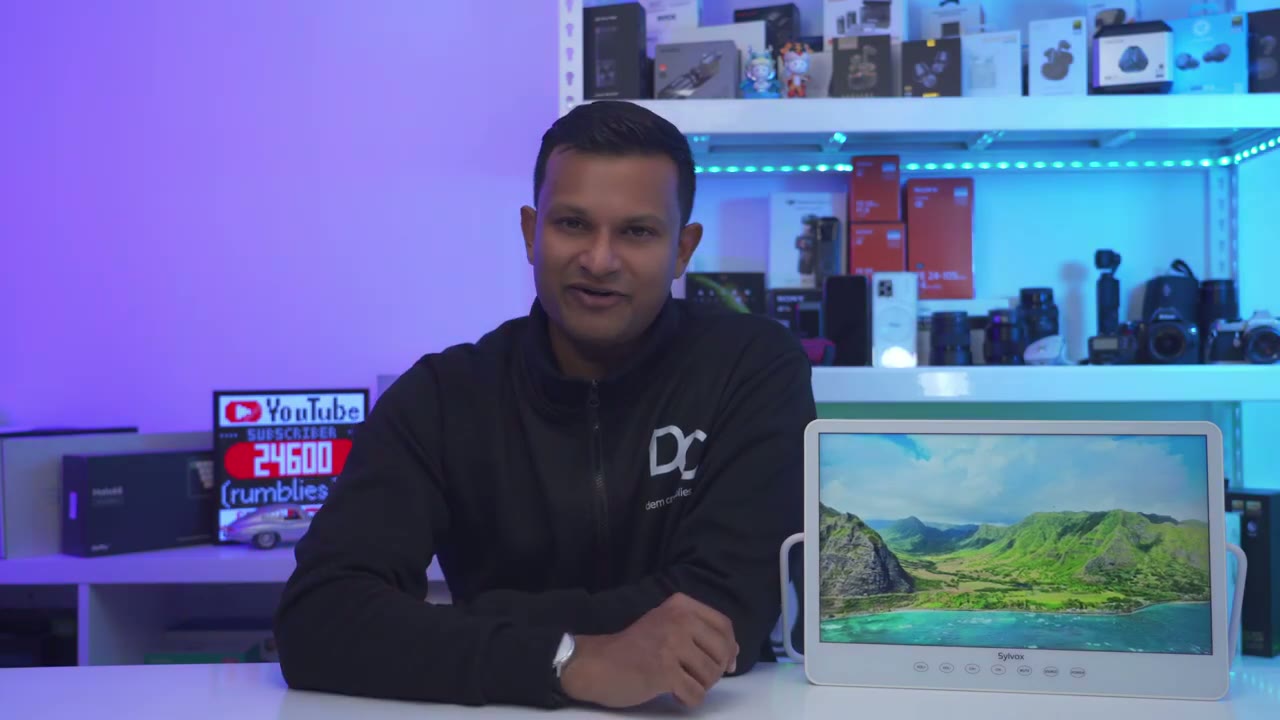
with 4.3 gigs of total storage and I have 1.9 gigs of usable storage but if I wanted to get extra space I could just remove unused apps or I could insert a USB drive and use it as expandable
USB Drive
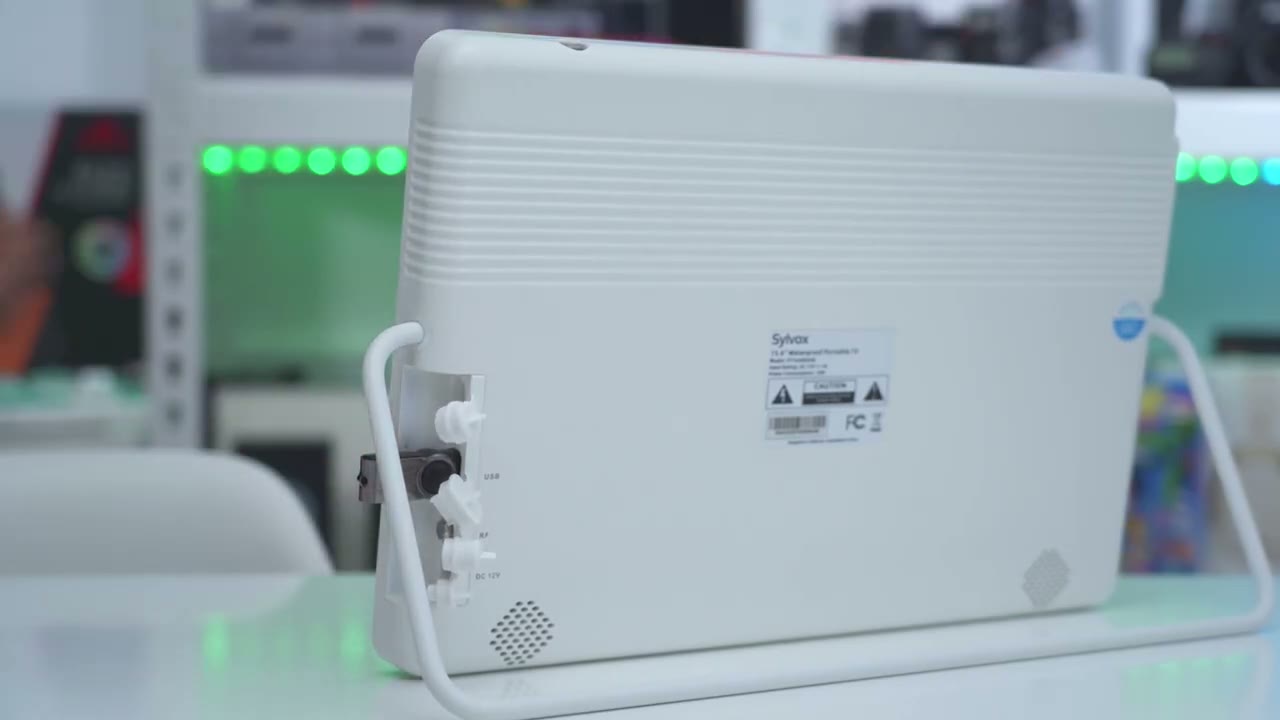
storage you can also play video files or photos locally by inserting a USB drive it does have to be formatted as FAT32 and I was able to play AVI files MOV files MKV and MP4 files without any
Recommended?
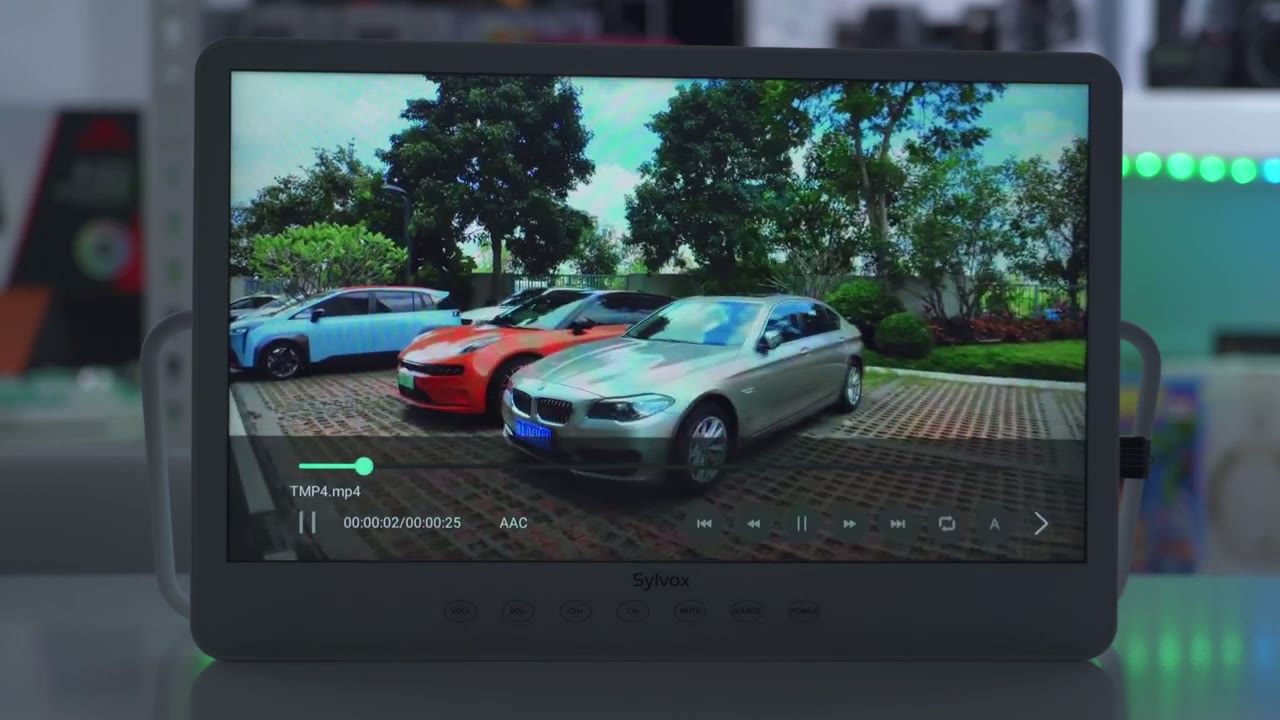
issues so all in all the silox portable 15.6 in waterproof Google TV is a fantastic TV whether you want an additional TV just to use at home or to go camping or if you’re just constantly on the go and if you’re someone who’s a bit clumsy you drop things or you have kids that you know are a little bit clumsier drop things as well this TV will probably hold up it feels really well built uh you do have a tempered glass screen on here and the built-in kick is really well friction it’s just an awesome TV to have the only small downside is that there’s no HDMI port meaning you can’t connect a laptop or a console to the monitor but if most of the times you’re using apps like YouTube Netflix Amazon Prime or if you want to download other apps like tub or whatever else this lets you do that and you have a large screen nice handy built-in kick stand and you can also use your phone’s mobile hotspot to get connectivity if you go camping or if you’re somewhere remote which is really handy so if you’re interested in picking up the silox 15.6 in portable waterproof Google TV I’m going to leave links down below for you to check it out or to learn more if you found this video helpful please consider liking and subscribing it truly does help me out as a growing Channel and don’t forget to check out some of my other tech reviews I review a bunch of different Tech like headphones earphones laptops monitors keyboards I’m sure you’ll find something you like and I hope to see you in the next video soon
Buy Sylvox 15.6″ Portable TV on Amazon
Buy Sylvox Smart 15.6″ Waterproof Portable TV on Sylvox
Please note that some of the links in my video descriptions are affiliate links where I earn from qualifying purchases. As an Amazon Associate I earn from qualifying purchases.

