


☑️ Get the iFLYTEK AINOTE Air 2 on iFLYTEK
Please note that some of the links in my video descriptions are affiliate links where I earn from qualifying purchases. As an Amazon Associate I earn from qualifying purchases.
Intro
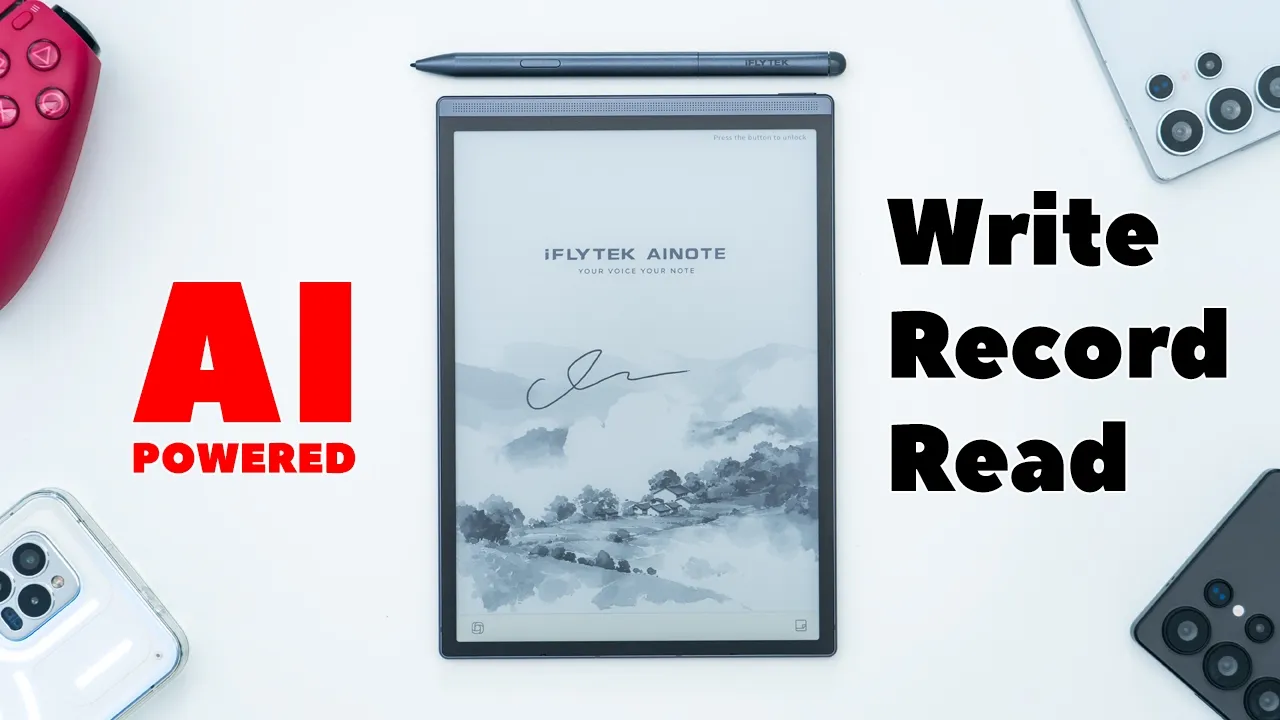
hey it’s Adrien and if you love writing on paper like I do you should check out IC AI note a 2 which not only simulates what it’s like to write on paper it’s also packed with a ton of AI functionality to help you summarize notes you can record transcribe and translate meetings or conversations in real time you can email or share your notes as images or PDF files and you can actually share recordings and audio files as well the stylus offers a fluid writing experience and it also has a smart select button to help you highlight text added to to-do task move text around erase text you can also get AI summary of highlighted text there’s really a ton that you can do and if you have an S Pen from an s24 ultra or s25 Ultra you can use it here as well there’s a quick bar at the bottom that you can easily swipe to access things like AI power trap or you can open up the notes at any time or any screen and you can also skim documents very quickly whenever you’re reading an ebook you can pair your favorite pair of bluetooth earbuds to listen to recordings of ebooks or meeting recordings so could your daily routine benefit from the II Tech AI note Air 2 well let’s take a closer look at all of the features and a big thanks to I tech for sending this out for
Package Contents
review in the box we have the II Tech AI note Air 2 a quick start guide friendly tips a USB type a to type- c cable to charge this up and a stylus pen that can be attach magnetically and this is what
Design
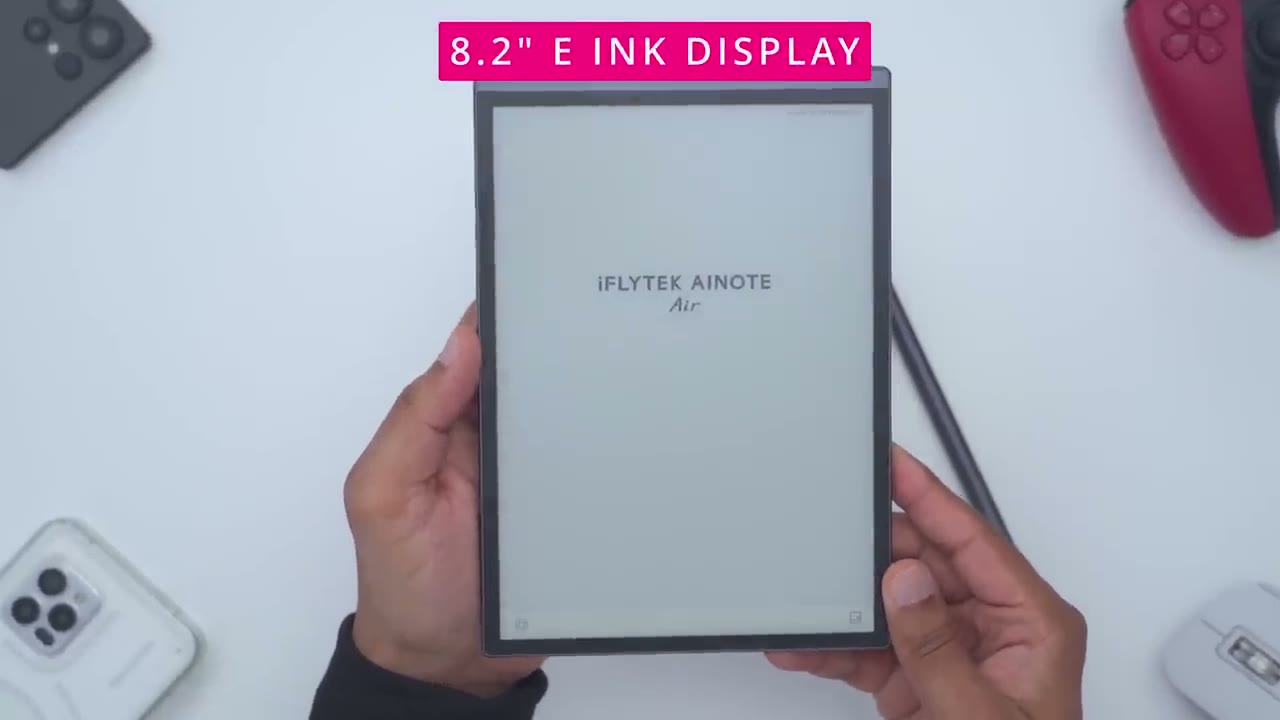
the II Tech Ai No Air 2 looks like now this is very very slim and compact if I do a side view this is coming in at around 6.5 mm which is about a/4 of an inch and basically it’s about the span of my hand I could easily you know just kind of hold this in my palm and this is not going anywhere so I’m really happy with the size on here it’s also not very heavy coming in at around 236 G or about a half lb now if you add in the stylus with it this is about 12 G so at very top this is where we have the USB type-c port to just charge everything up and this is the power button and you can see if we take a front view here it says you know press 3 seconds to power it on or power it off and then at the very top this is where we have some microphones arranged here along with the speaker Grill at the bottom this is what they call their quick bar and this is where you can do kind of shortcut um type of interactions now there is one thing to note here there’s a little Notch right here and you’re supposed to line up the notch on the pen for the best magnetic hold so you can see if I shake this pretty vigorously the pen is not going anywhere we have the iFly Tech logo and in the top right corner this is where we have an LED flashlight along with the camera lens and this can be used to scan documents so that’s nicely tucked away there and then if we do a side view you could see that on the very top it protrudes out a little bit where it houses you know that camera setup and then the rest of it is really um slim and flush now in terms of writing on this you can see when I put it down there’s really not any type of wobble at all so they’ve nicely designed this for this kind of you know flat down uh writing experience which is fantastic it’s also very cool to the touch thanks to the pretty much all metal build and I believe this is aluminum that’s why it’s so lightweight you can also buy kind of like a folio or protective cover for this if you really want to now there’s an 8.2 in e ink display so take a closer look at that by powering it on next
Specs
here’s a quick look at the specs feel free to pause and review or jump ahead to the next
Setup
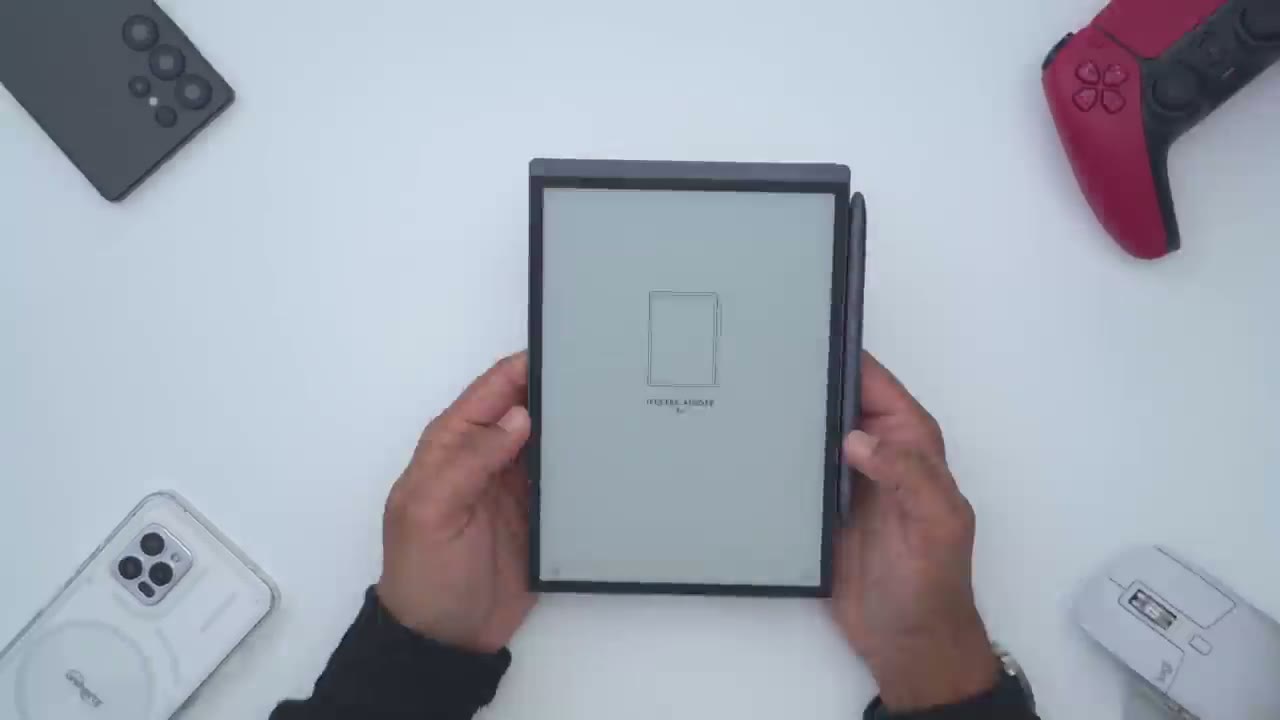
section so I’ve set up the AI note Air 2 I’ve created an account to get full functionality out of it and I’ve also downloaded the companion app on my cell phone so that my notes can be synchronized which you can see right
Navigation
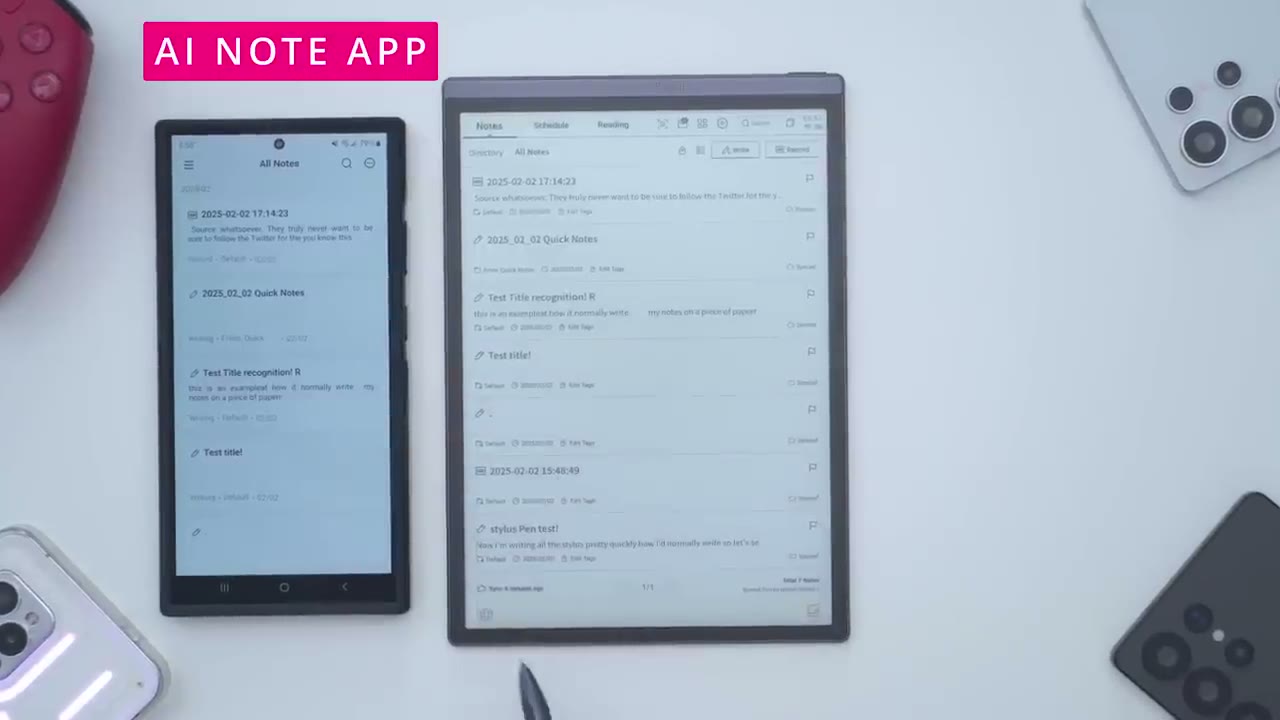
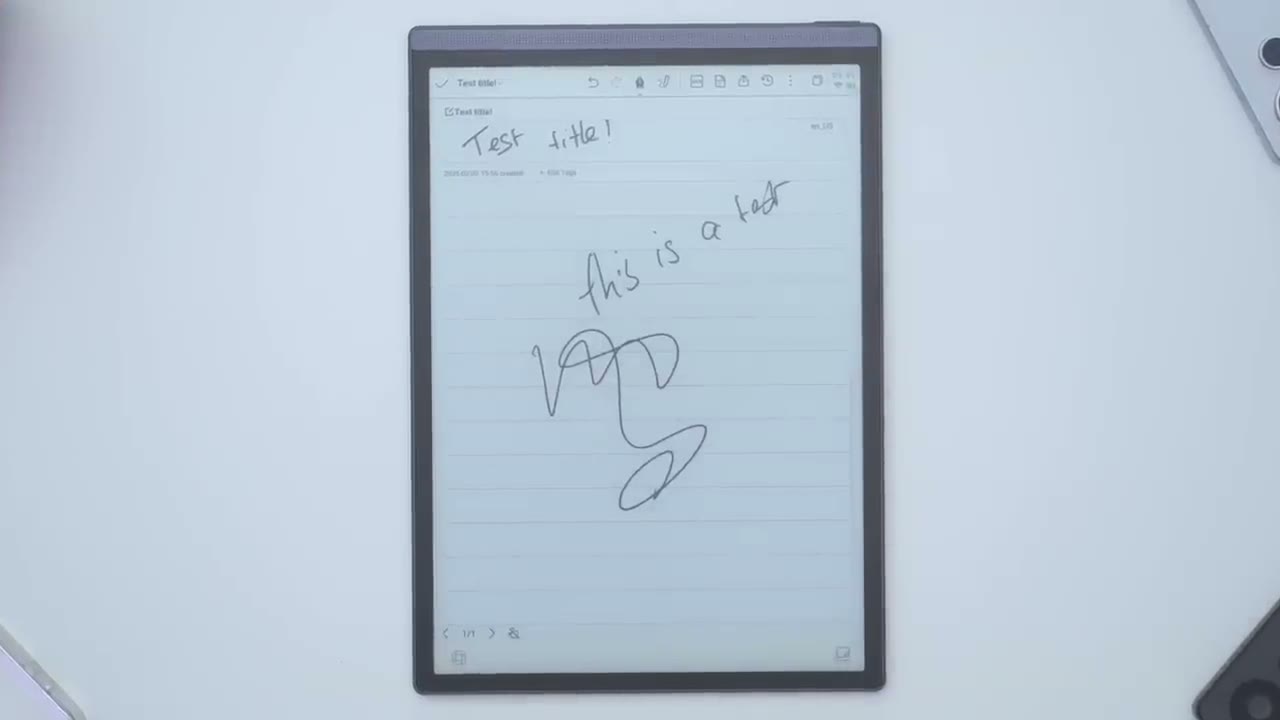
here but now that it’s set up I want to go through how we navigate around the AI Note eror 2 so the first thing is just how to access Quick Settings you’re just going to pull down from the top and you can see you know it pops up and you have kind of the same type of quick access things you’d normally find on any type of Android device so you know Wi-Fi Bluetooth um you have mirrorcast you turn on airplane mode you can take a screenshot I’ll just tap that right now just to show and you could see the screenshot here now when you take a screenshot you can show it in the screenshot folder or you can actually click here where it says scan QR code to share and if I tap on that I can actually create an access code and I can set the expiration date so do I want to share this permanently or or you know kind of in perpetuity 30 Days 7 days or just one day and once you go through this process it’s actually going to generate a QR code you could share that QR code with someone the scin now how do I go back well I can click back right here and I’m back kind of on this home screen or I could just swipe up from the bottom and this shows all of the open windows or kind of multitask Windows um like you would find on you know any type of device if you were to hit the app drawer icon now under here we have brightness mod you can turn brightness mode off you could set it to low light if you’re going to be using this in the dark um you could set it to this kind of uh dark mode here and you know you can see it’s very slight the differences in brightness but I’ve just put it to custom where I’ve kind of just cranked everything to the max now you can also change the sound level on the speakers from here as well and again you could see as I’m sliding it’s not you know a super high screen refresh rate on this device that’s why it looks like it’s kind of you know uh slug is or lagging but it’s just because of the refresh rate the other gesture you should know is just swiping down with three fingers and that’s going to take a screenshot and again you could jump to the screenshots folder or share this like I showed a bit earlier so you can see if I just go ahead and you know I just start uh writing here this is a test um if I didn’t want to do this I could just go ahead and hit the undo there but what I could do is use three fingers swipe over to the left and you can see it’s just going to keep undoing um instead of just keep tapping on that repeatedly and then if I just swipe over to the right it’s just going to do a redo so very handy to
Settings
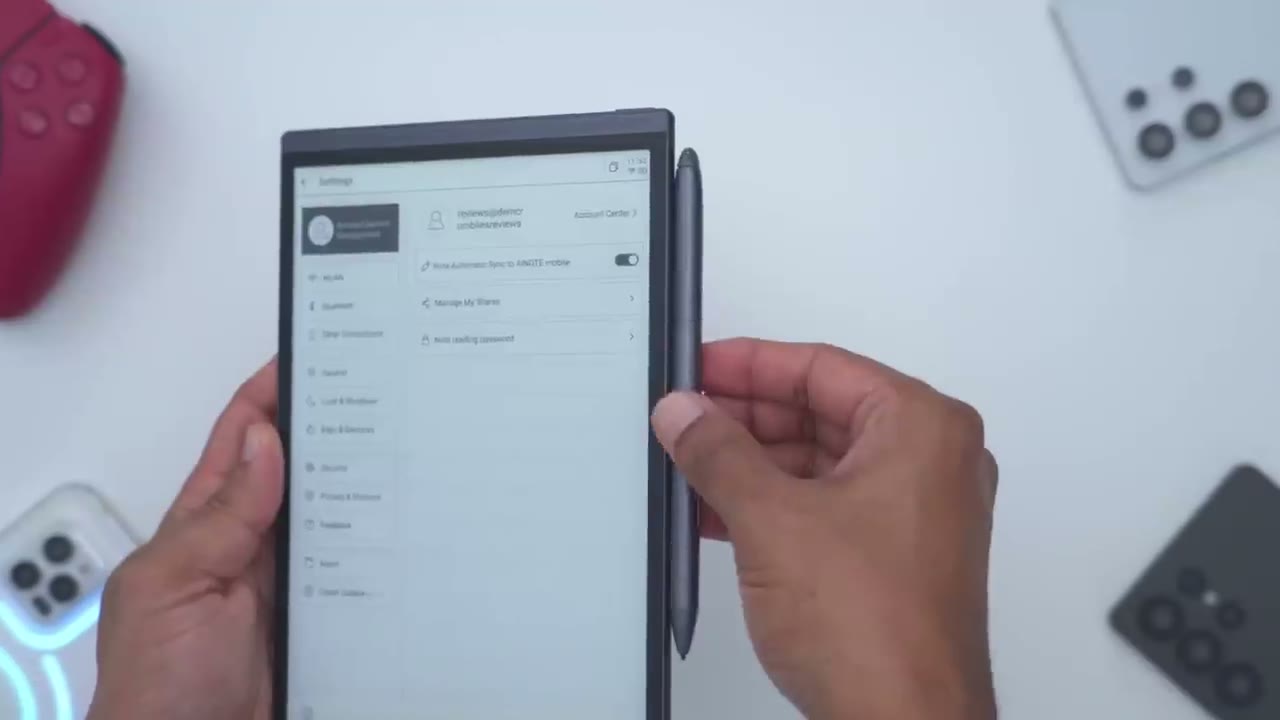
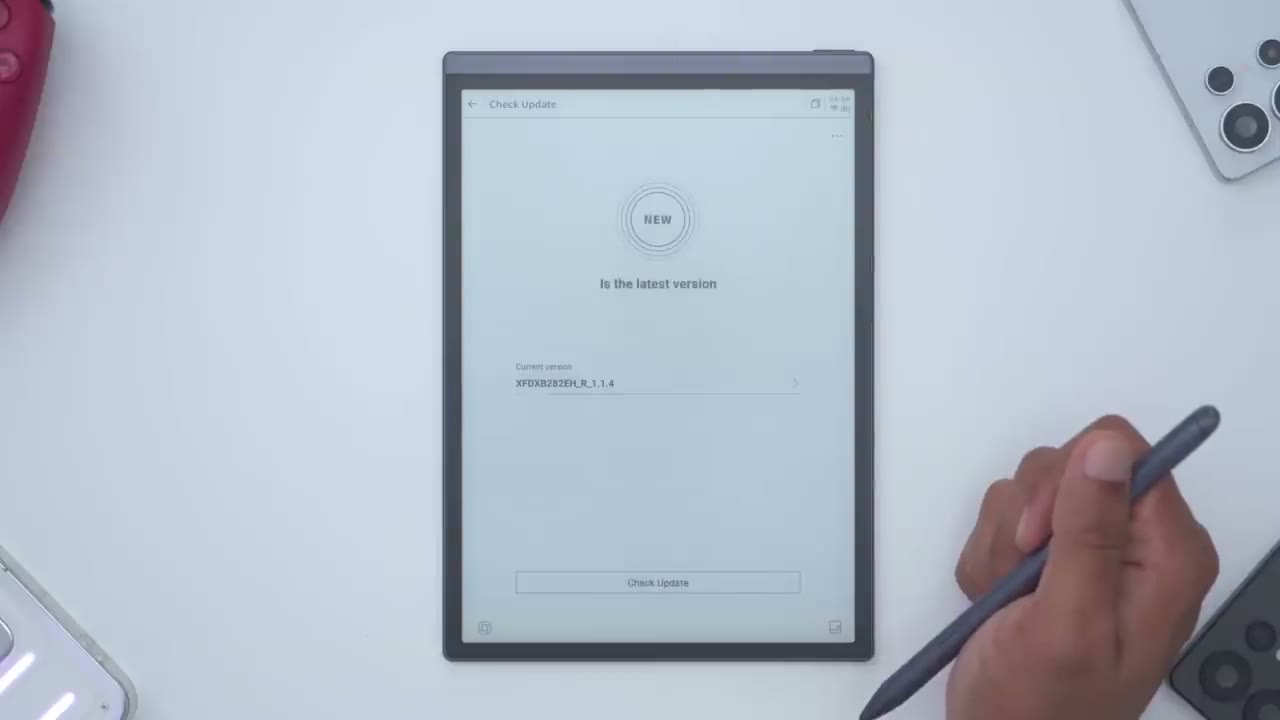
know but let’s take a look at the full settings so I’ll tap on the gear icon here and this is my email address if I tap into account Center I could just go ahead and log out or delete my account just go back and you can see that I do have it set to automatically sync to the mobile app so if you want that feature go ahead and use that you can also manage your shares here and set a note reading password which I have enabled as well now under W land this is where you can switch your Wi-Fi network and under Bluetooth you can actually pair say a Bluetooth mouse or a Bluetooth keyboard if you like you can also pair bluetooth earbuds as well and I’ll demo that later now under other connections we have the screencast option here under General this is where you could jump in and change the brightness and you can see for custom I have it set to cold but you do have the option ha to warm the color temperature if that’s something you like and of course I showed these in the quick access settings for brightness you can also go ahead and set a wallpaper whenever you kind of like turn the display off so um I’ve set this one here and then you can also set your signature so to show you what I mean if I go ahead and just press the power button here that’s basically the standby screen on here so my signature along with that wallpaper now under language in region m is set the English but here are the available Languages by default I believe you can download more but this is what it comes pre-loaded with and then of course you could set your country and region I also have it showing the battery percentage on here and then you can actually set the rotation if you wanted to use this you know horizontally so you just have more screen real estate you can do all of that right here you can also set the time now under lock and shutdown it set the autolock after 15 minutes and Auto shut down after 12 hours under keys and gesture so the custom pen body button which is right here is set to switch a smart pen that is the default but you can switch it to um erase selection or eraser or you could just disable it so it does nothing but I left it out and switch to Smart pen and then these are the gestures that I showed earlier if you want a refresh and then the quick bar is what we have right at the bottom here on the chin let’s just jump back we can go into security this is where you can set your passcode um change your password add your fingerprints for unlock this is the privacy and protocol area if you want to review that you can also submit feedback if you have any um improvements and then this is just you know about so this comes with 32 gigs of storage and I’ve utilized about 11.6 gigs showing the battery status um Bluetooth version Etc and then this is where you would go to check for firmware updates let’s get
Quick Bar
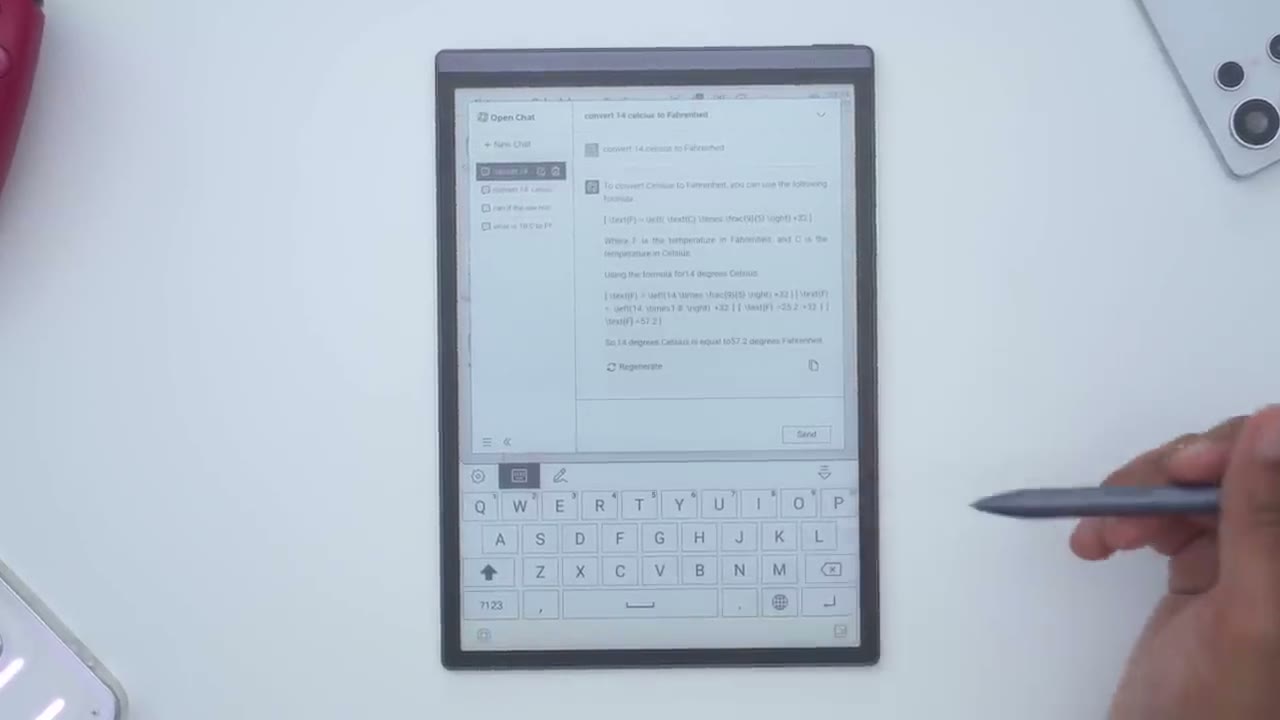
into the good stuff now so the first thing I want to point out is this quick access bar so if I’m in the schedule tab right now and I want to write a quick note instead of jumping over to the notes section I could just slide over from here it’s going to pop up this notes here and this is where I could just you know write whatever note I want I can tab over here to create a new page so you know test this later and you can see as I’m writing you know it’s really responsive it kind of feels very natural writing on this and then if I wanted I could actually go here and say export and new it’s going to save these notes um in my notes section and just open up a new one so that’s uh really handy you can just access that anytime you want now let’s take a look at these stylus input so if I tap on that it says please write freely on the screen so you don’t have to write in the Box you can write outside of the box so I’ll say convert and there we go so 14 Celsius to Fahrenheit now this is one of the quirk with the pen so because I’m in writing mode if I tap send it’s actually thinking I want to write now I actually have to use my finger to hit send so just be aware of that it would have been nice you know if I could use this uh button on here kind of as a modifier to exit it out of the writing mode so I could just you know hit send that way um maybe something that could come in a for more update now one thing that I would have liked to see on here is an option to use a voice input since we we do have a microphone array along with speakers on here but I did com through and I didn’t see any option here where I could
Notes Tab
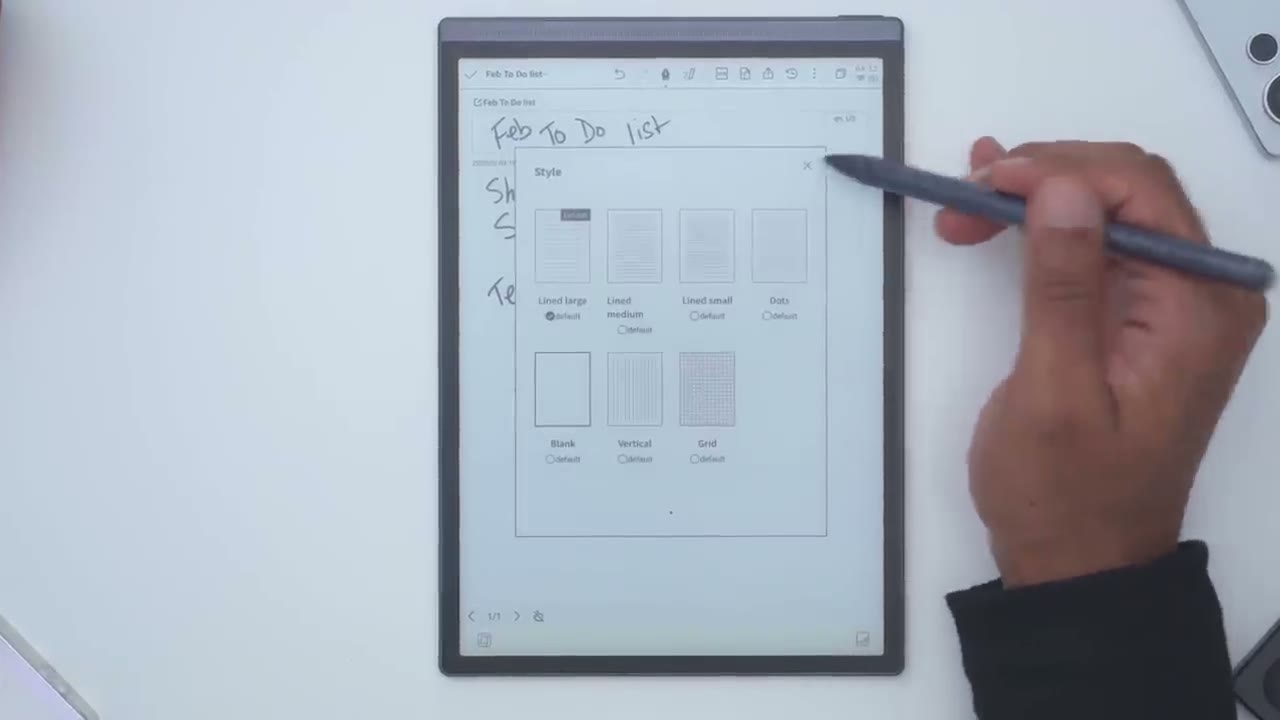
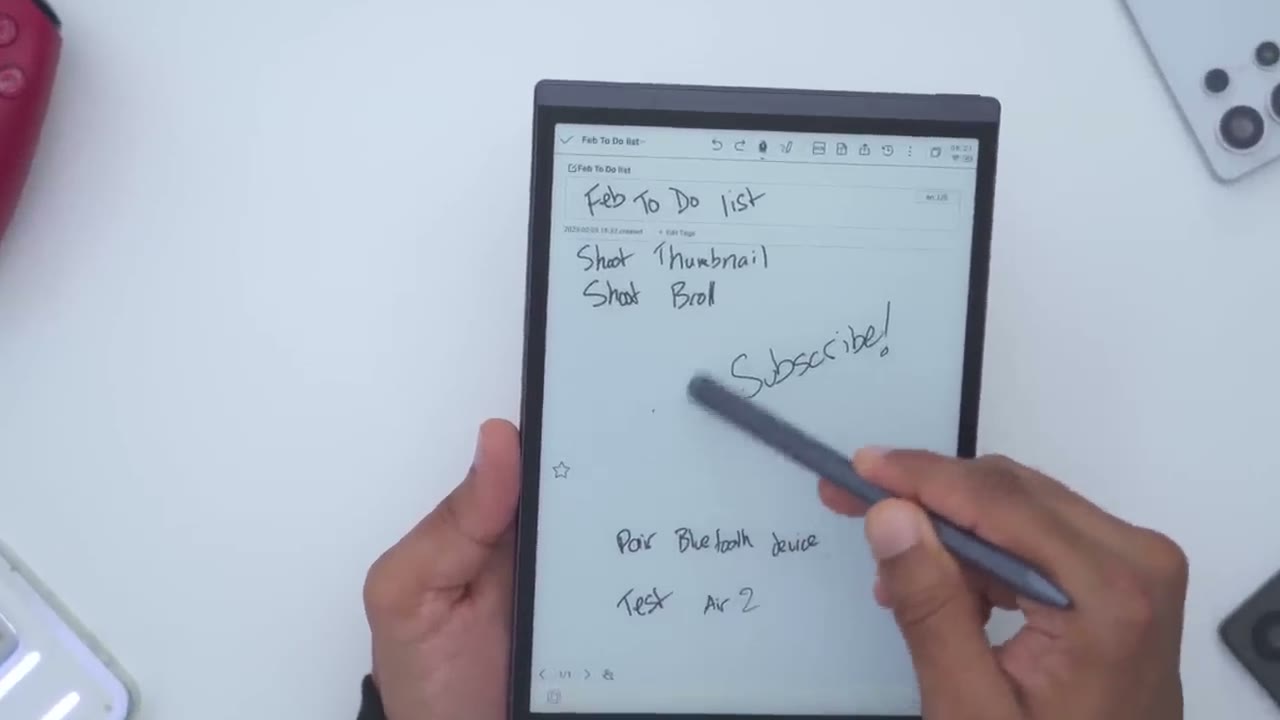
just speak my command let’s take a look at the notes section so this is where you could see all of your notes and you can jump over to take a look at the rest of your notes and when you want to add a new note you would just hit this right icon at the top right so I’ll just hit that and then you would just give it a title so I’ll just say you know February to do list and I’ll just wait for it and you could see it’s you know kind of deciphered my writing there and it’s kept the exact same capitalization so Capital FTD and then lowercase uh L so that’s fairly simple to do now if I type in this uh nus you can also take a look at the different type of languages that you can input here as well so when you’re on here this is where I could write in the rest of my to-do list so let’s just see here so I’ll say shoot and this this is my to-do list so far now if I wanted to change the order of these say in terms of importance what I could do is I could hit the button here so uh on the pen body and once I do that you can see if I was just a normally um Circle through it’s just going to act like a pen or a pencil um but once I hit this button it’s going to act a bit differently so let me hold this down and you could see now I have this kind of smart selection now with this uh selected I can actually move this up and now this is a priority right I want this to be uh what’s the most important thing now I want to add something to my to-do list so I’ll just write on here so pair and I’ll hit the smart selection button select that text and I can do an AI search to get more data on this or I can just hit join to-do I’ll hit that and it says pair Bluetooth device I’ll hit confirm so it’s identified the text even though I’m writing you know kind of slopp and very quickly and now to see that I can actually just exit out of this note and I’m just going to jump into the schedule section now and under the to-do section I could see it say a pair Bluetooth device which is what I just uh kind of circled and added on here now what I can do is I can tap on the vertical icons and I can actually move this up in priority uh these two are expired so I can actually just go ahead here and delete these if I want the other thing I can do is tap the eye icon and I can set a deadline for myself so uh by the 5th hit confirm and then if I go under reminder I can set you know reminders on the day or one day early at different times so you know a lot of Versatility there and going back to the notes section so this is what we have so you can actually change the pen effects right from here instead of going through the Quick Settings that I showed that’s uh right on there you can also tap into here and then you automatically have the smart selection you don’t actually have to press the modify button on here and that’s if you you know disable this or set it to do nothing you can do it right there you can also use the um Optical Character reader and you can see it’s so it’s showing shoot I uh humbnail shoot be roll uh L air Z so you know I’m writing very sloppy this is what it’s getting but if I was a bit more intentional with how I wrote then it would easily identify those things there’s also built-in templates on here so there’s a planner template a document template you also have analysis with quadrants uh style health and then we have a custom one but let me go into planner and let’s say I want to do a schedule right here tap on that and then I could just you know start writing whatever I want on any of these so you know pretty versatile and once you write your notes you can also share them so you can hit the export or share button here it’s going to save it and you could share it as a web H5 a word file or a PDF and then you have both the QR code sharing and email sharing so for example I’m going to pick the option for PDF and I’m going to say I want to do this as a email sharing now notice QR code went away if I go to word let’s see what happens that went away also so it seems like just H5 um applies to the QR code but I’ll just jump back to PDF hit email sharing and I’ll say export to mailbox so I’ve popped in my email address I’ll just hit send and I did add my Gmail account on here that’s how I’m able to send and if I take a look on my phone I could see that email come right in just tap on that hit the PDF icon open that up and I could see exactly this is what I wrote in PDF format you can also access recently open notes and then if we tap on the vertical menu right here this is where you can go to refresh the page to sync it manually you could delete pages or go into page management and then you can see you can also go to style and it’s going to change kind of the rule on here or you can have a completely blank page you can see you have you know kind of a ton of options on here these are the administrative templates so yeah something for everyone
Recordings
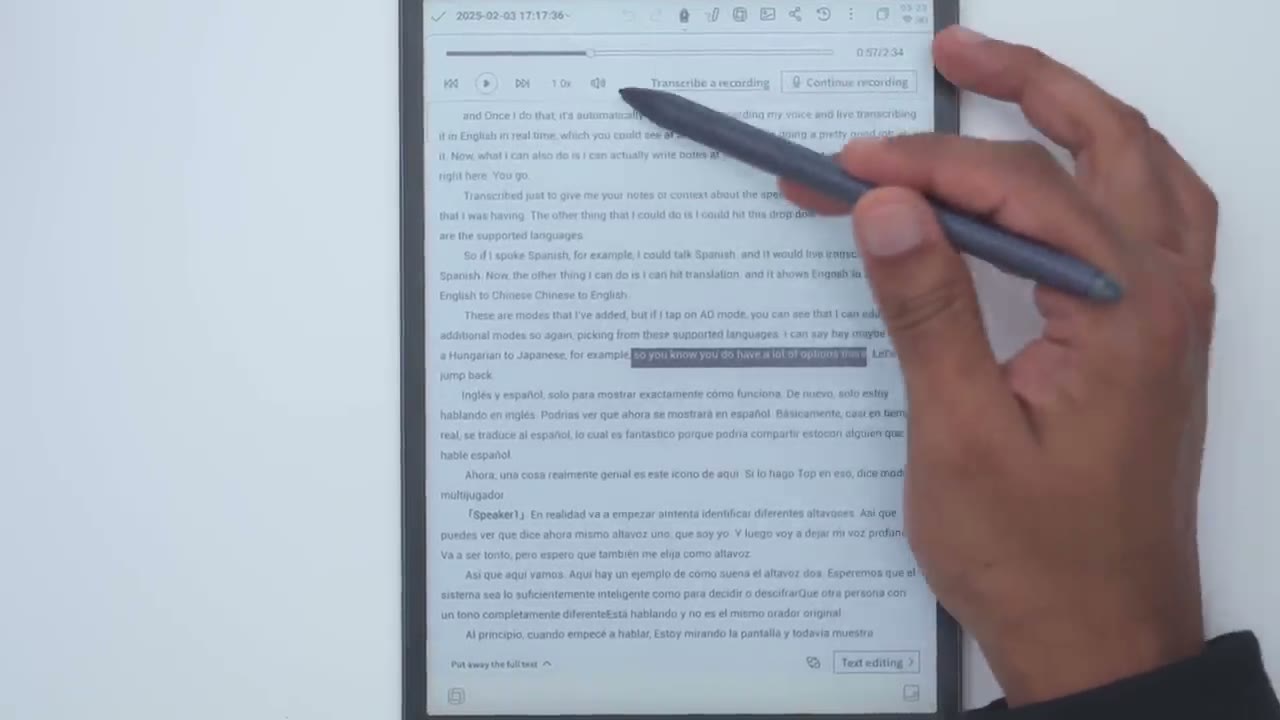
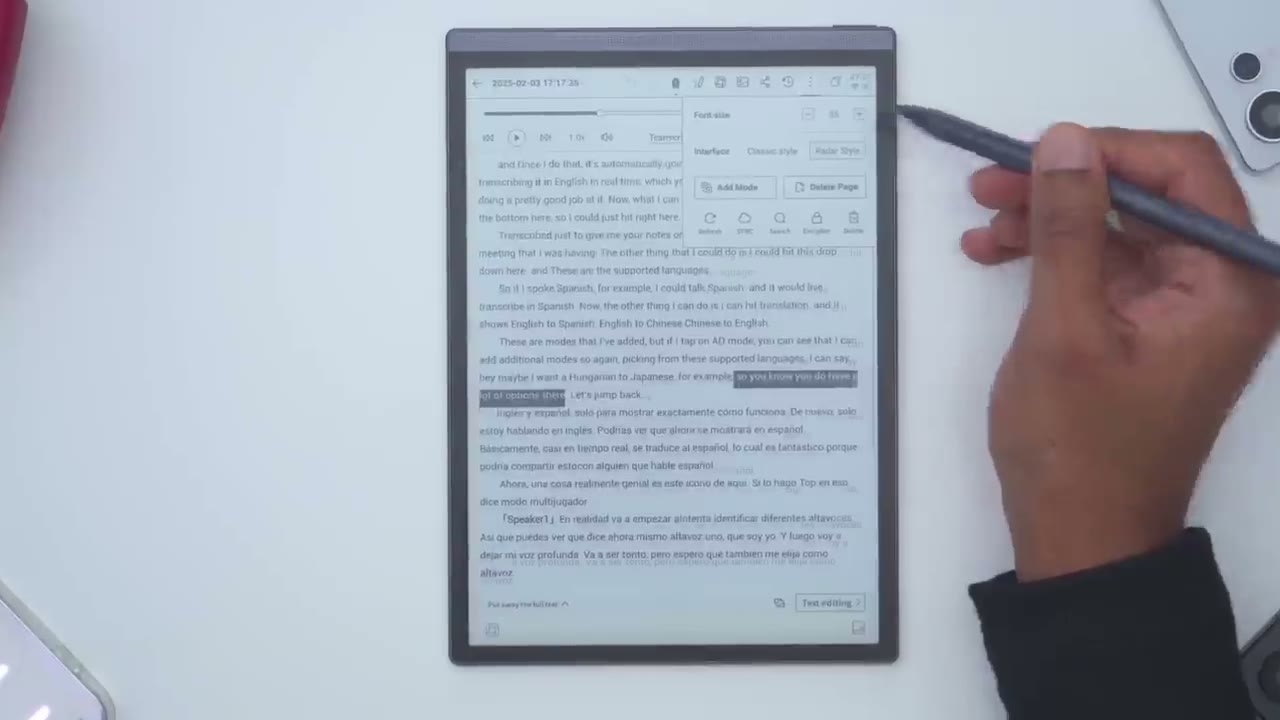
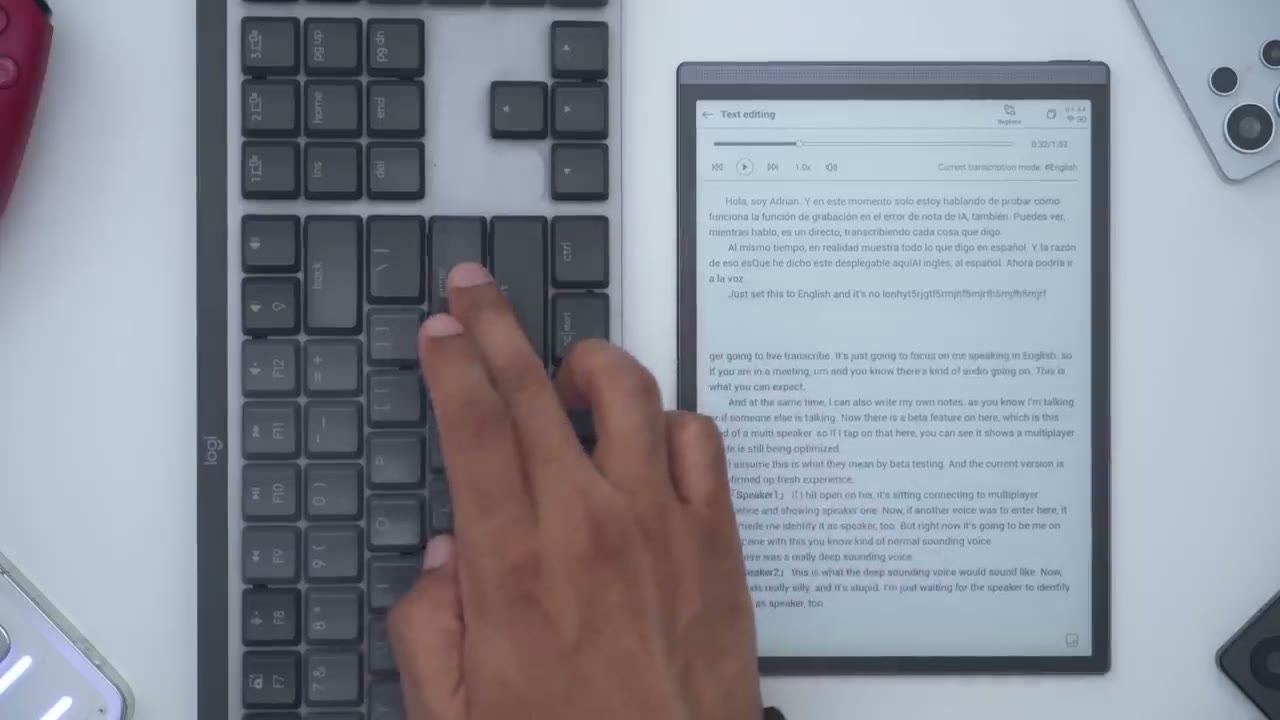
let me show you what is one of the coolest features under notes which is record so I’ll tap on record in the top right here and once I do that it’s automatically going to start recording my voice and live transcribing in it in English in real time which you could see at the top there and is doing a pretty good job at it now what I can also do is I can actually write notes at the bottom here so I could just hit right here you know transcribe just to give me you know notes or context about the speech conversation meeting that I was having the other thing that I could do is I could hit uh this drop down here and these are the supported languages so if I spoke Spanish for example I could top Spanish and it would live transcribe in Spanish now the other thing I can do is I can hit translation and it shows English to Spanish English to Chinese Chinese to English these are modes that I’ve added but if I tap on ADD mode you can see that I can add additional modes so again picking from these supported languages I can say hey maybe I want Hungarian to Japanese for example so you know you do have a lot of options there but let’s jump back um because I want to set it to English to Spanish just to show exactly how that’s working so again I’m just speaking in English and you could see it’s now going to show Spanish so basically almost in real time it’s translating to Spanish which is fantastic because I could just share this you know with someone who speaks Spanish there’s also a beta feature under recording so if I tap on this icon here it says multiplayer mode is still being optimized so this is under testing now if I hit open what the system is going to do is it’s going to try to identify different speakers say you know you’re having a conversation in a meeting and there’s a lot of people now I don’t have someone else here so I’m going to be you know kind of silly drop my voice and try to simulate someone with a deep voice so here we go here’s an example of what someone with a deeper voice than mine sounds like I hope this system is able to identify me as a secondary speaker or a third speaker and here we go so I can see it now says speaker to so when I kind of dro my voice I know really silly um it actually did identify so even though it is is a beta feature if it can at least you know identify different types of speakers even if it’s not consistently saying oh this must be speaker one just must be speaker 2 at least you can kind of break that recording down and once you have your recording finished you have a couple of other options so we could just hit this drop down here you could see kind of like the full um meeting or transcription going on here you can also hit text editing if there were any mistakes on here or you know misspellings of you know a unique product you could go ahead fix that on here you can actually use this um find and replace option to simplify your life but let’s uh jump out of that for right now and because I’m in pen mode you see it’s actually writing versus uh tapping as the input so just be mindful of that and then we can go ahead and play back the recording so here we go and once I do that it’s automatically going to start recording my voice so you know you do have a lot of options there so you can see I can just tap around it’s going to jump to that section in the recording and you can also go ahead and change the playback speed and you can also change you know the volume of the recording now
AI Summaries
the other thing that you can do is you could jump into the uh AI feature and you can say quickly summarize the meeting content for you so if I just go ahead hit continue just going to take a look you know kind of in real time how long uh it takes to summarize this and here we go so it’s summarized this in Spanish so here’s the original here’s the summary in Spanish I don’t even know what that says um and likely the reason why it’s summarized it that way is because I did set this uh to English to Spanish so if you just set it to English you wouldn’t have that issue I can also go ahead and continue this recording if I was in finished now the other thing that I could do is I can take a screenshot of everything let’s just go ahead do that and I can share
Sharing Recordings
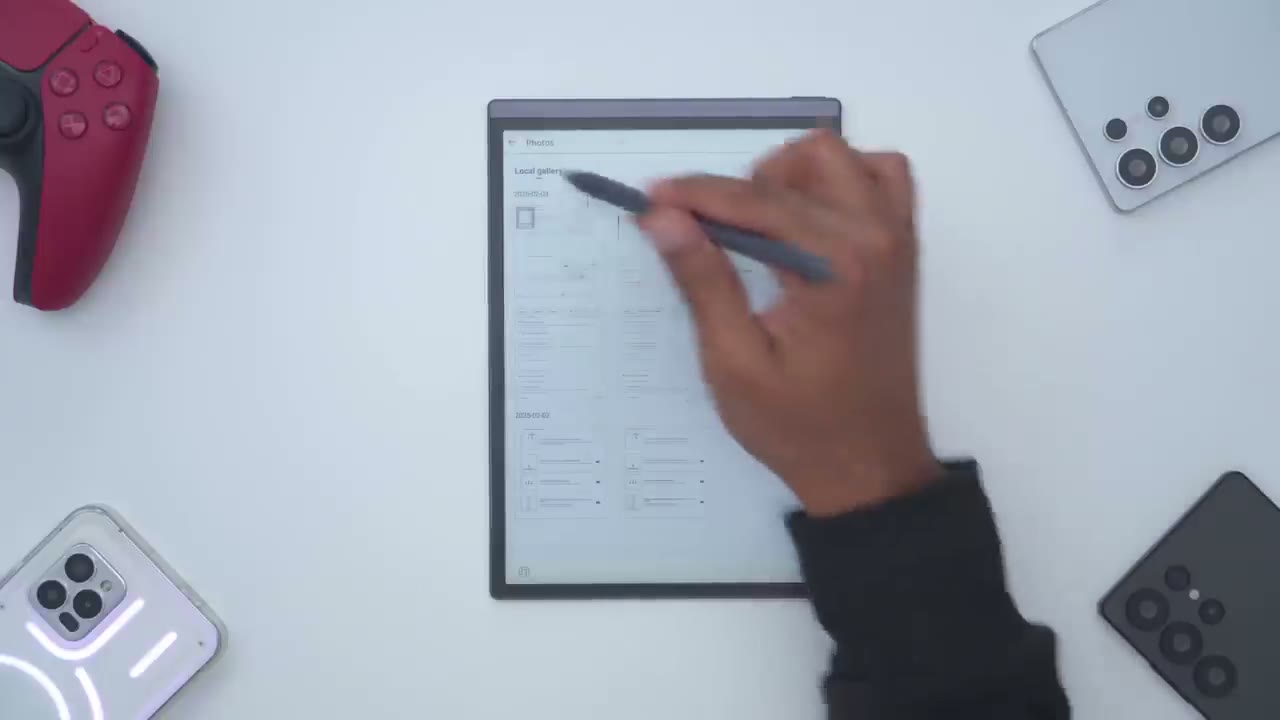
this as well and I can also share it this way so I can actually share not just like a PDF that I showed earlier I can share a recording file so I’ll go ahead and hit export the file and I’ll say I want to do it as an MP3 I’ll hit confirm and it’s going to export That mp3 now from here I have a couple of options to share it it says I can connect the tablet you know to a computer pop in this path on my computer and get the recording okay that’s one way to do it um an even you know simpler way would be to just go back to the home screen so I’ll just slide up from the bottom here I’ll just go into mail and I could just go to compose mail you know pop in the email address that I want but I’ll just go ahead into audio and I could just pick that recording so that’s one way to do it now an even better way to do it is to use that compion mobile app so if I just pull down here um I can see this is the recording here I can just tap into that and then I can just hit play and once I do that it’s on these are modes that I’ve so so you can see it’s very quick for me to just take that recording directly from device email it to myself send it to my phone and then from my phone I can send it out so you get a ton of Versatility you can also change the font size by tapping on the menu here and decreasing it or
Schedule Tab
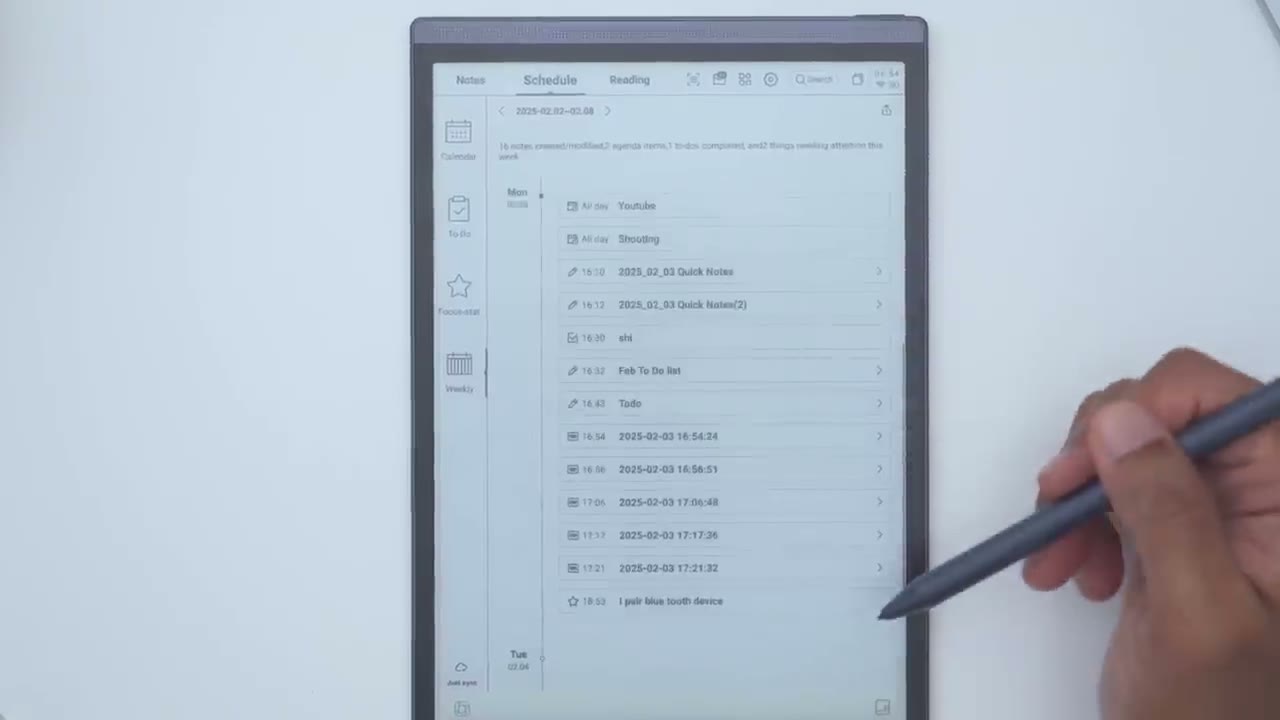
increasing it as you see fit let’s take a look at the schedule section but before I do I’m just going to show you how to add a focus star to your schedule so we’re going to hold down this button on the pen and I’m just going to draw a star icon really rudimentary and it’s converted into a star so I’ll click got it um click on okay right there let’s jump into schedule and of course instead of just clicking back I can always just swipe up and jump to those it’s just Hab it um and if I go into Focus star we’re going to see um pair of Bluetooth device which is what I just drew that star next to and then we also have the to-do list I did touch on how to go ahead and do that you would just you know highlight with your selection add it to the to-do list and then we can also go into calendar and take a look at our events so on the third this is what I have and then I can always just go ahead and add new schedule create an event and then you know tap into it afterwards and modify these areas like if it’s an all day event when the deadline is if I need a reminder if I want to repeat it or if I need any type of remark so you can easily manually add as you need and then of course you can go ahead and take kind of like a weekly look
Reading Tab
of whatever you have going on let’s hop on to the reading Tab and right now it’s set to bookshelf and these are the things that I have in Bookshop so you can see this is a PDF file PDF file um and then these are books that I’ve downloaded now to get these I went into book store and you can see there’s books on here so we have here a warant piece of doll’s house if I tap into a doll’s house I can add it to the Bookshelf and I’ll just hop backwards and go back to my bookshelf and and we should see it here so a doll’s house and then I could just tap into it now you can also connect the um AI note Air 2 to your computer using a USBC cable and you can copy over files as well but this is what it looks like if you were going to read something so page one of 296 and you could just cycle through with your hand and you can see you know that’s fairly responsive on here now you also have the option to use the pen on here you could draw things you can also add notes not or you can completely disable touch so that you know you can’t actually use your finger um if you really want to now right now I’m swiping and it’s counting up you know like one page at a time but if you put your finger in the middle and you slide you can actually slide through pages you know more quickly than one at a time you can see you can go through a bunch at a time so you do have that kind of quick shortcut we can also use the smart selection on the pen so if I go ahead and press the button down say I didn’t know that skylars were types of birds I could highlight that and I have the option to just highlight this specific word or I could highlight a sentence and passage I could type on exert I could hit search or I could do AI search I could copy it but I’m going to go into AI search and I’m just going to wait for that to load up and it’s showing skylarks are small ground dwelling birds so you can see the pen actually comes you know in handy anytime you’re on basically any screen on the device and if you did disable the button on here you can just tap on draw a ticket Circle the same type of word and you’ll get the same options now you can also go into notes and write any pertinent notes while you’re reading a book or you know a document and then from here you can share it you can also rotate the screen so you can be reading this horizontally instead of vertically and then you could just collapse the notes down you can see it’s right here if I want to just bring it back up there’s more options if we use the menu at the top left so we can go into progress and see exactly where we are on here we can also tap on to show and then we could set the direction to landscape if you want to read uh horizontally versus vertically but I’ll just go ahead and switch that back for now so we’ll go to vertical and we can also let’s just jump back right into there so where it says um page display this is where you can actually kind of mimic paper look so I noticed if I increase the sharpness or sharpen slider you can see that text actually takes on kind of like a a paper like uh feel to the text so you know you can change that if you really like that but I’ll just roll that back for now let’s just go back into here and then text display you can also increase the size of the font on here just to make you know readability a little bit more legible for you and then you can also change the fonts on here and under brightness this is where you can access the same type of things that you would find in the Quick Settings if you were to jump in here so yeah really you know a lot of customization to get it exactly how you want and then we can go into more and change it if you’re you know predominantly a left-handed user you can
AI Narration

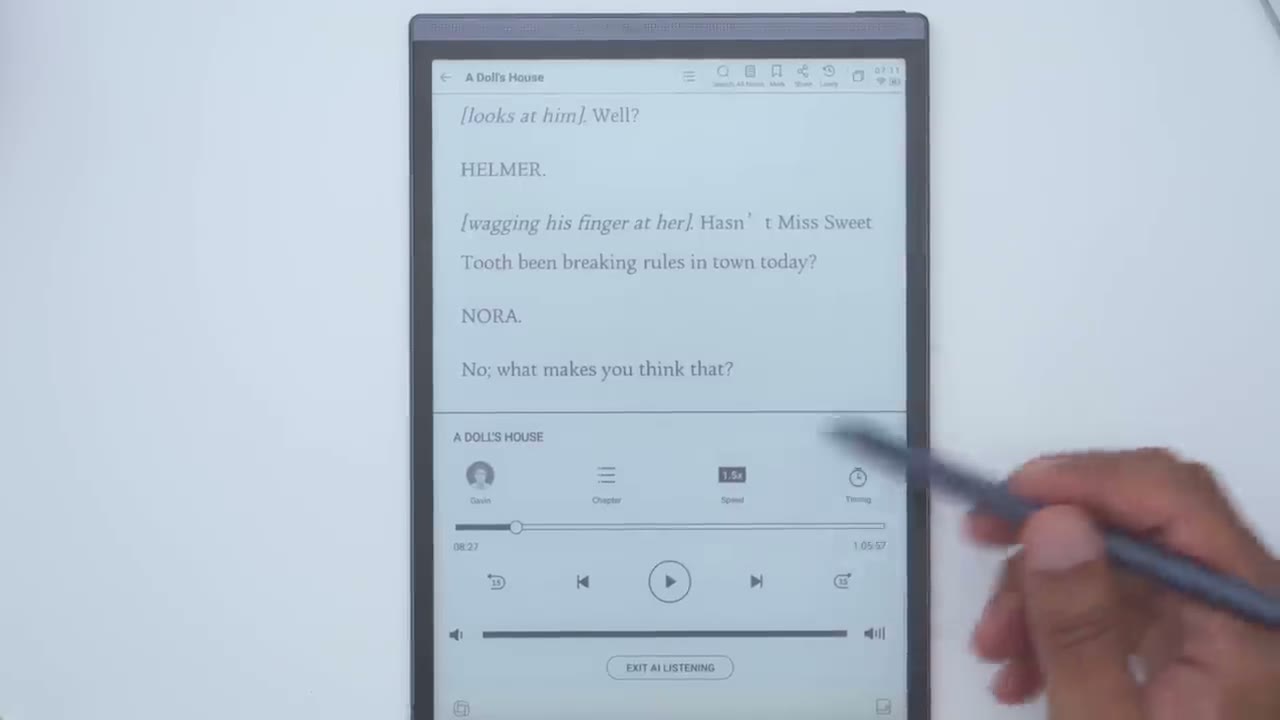
also tap on this icon for kind of like an AI uh reading so if I tap on that and I would not wish you to be anything but just what you are so you can hear uh the speech Cadence is you know a little bit slow if I tap into here we have um Gavin which is English um Ling Chinese uh ooya Japanese and then Mia Korean and these are the default languages on here you could change the speed as well and if we go into timing so there’s a Time shutdown I guess when it’s going to stop reading and then you can also jump to specific chapters but I’ll just jump back into here just to give you a demo sweet little Skylark but do you know it strikes me that you are looking rather what shall I say rather uneasy today so you can decide if you would use this feature or not personally I would like it a little bit quicker more natural sounding let’s try 1.5 shall I say rather uneasy today Nora do I Helmer you do really look straight at me no so that’s slightly better switching it to 1.5 if you were going to
Document Scanner
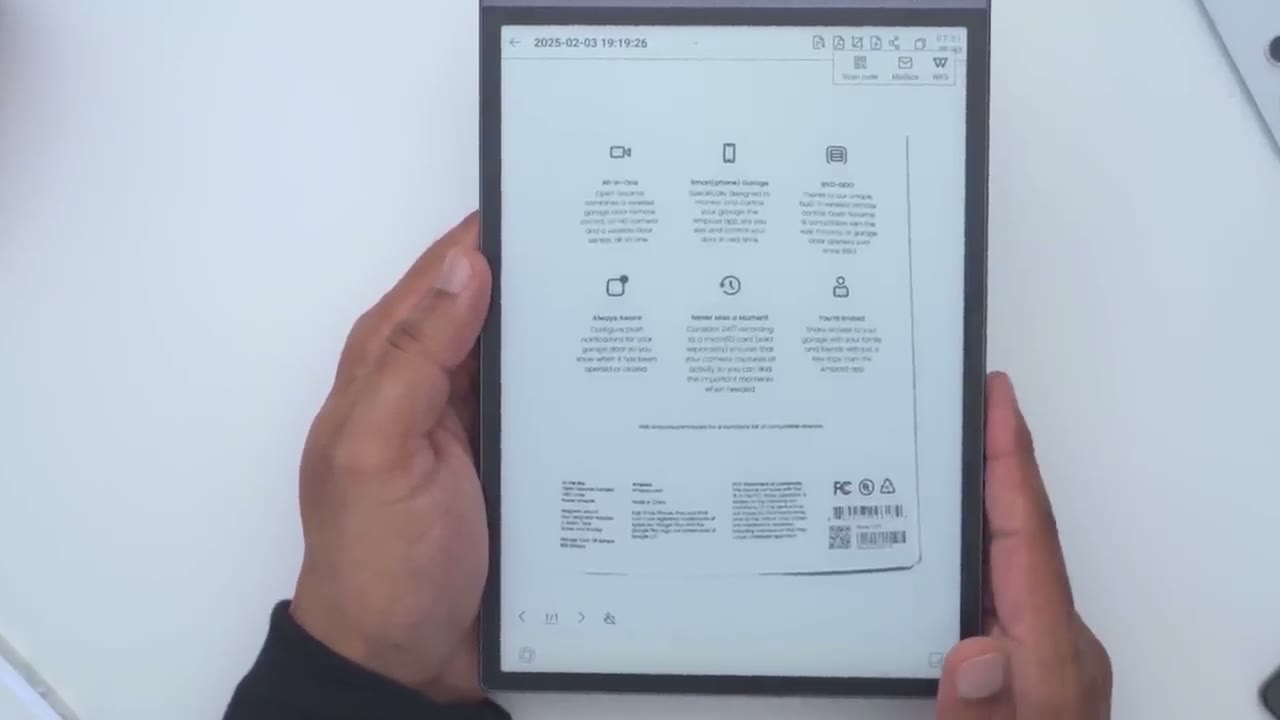
use this if we tap on this icon here that looks like a stack of papers this is going to open up the document scanner so I’ll go ahead click create a new scan and it’s popped up the camera so I’ll just take a photo or scan of this product box now you can see as I’m moving it the screen is refreshing very slowly because it’s a low refresh rate but I’ll go ahead and hit uh take the photo here the shutter button and let’s see what that looks like so I’ll go ahead and hit confirm and yeah that’s done a pretty good job so I could see all of this text so it’s saying you know open sesame uh combines a wireless garage door remote Etc so yeah you do have to be kind of you know stable handed to take the photo so just keep that in mind and once you have your scan document you could tap on this icon and this is just going to generate notes and put it in your notes section I’ll click View later we also have an option here to save it as a PDF file and then from there you could just go ahead and email it or share this online as well go ahead and click View later you can also crop the document and if we go to add you can add another page if you wanted to do you know multiple but you didn’t pick multiple at the time and then we can also go ahead and share it either by QR code mailbox or WPS I want to talk
Stylus / Pen Experience
about the stylus or pen experience so since this screen is a matte screen it’s not glossy when you’re writing with this nib it actually kind of simulates writing on paper and it feels very natural when I’m writing so I’m just going to angle this so it makes sense for me um I’ll just write so this is how I normally write for my S to read so yeah the AI on here would have a hard time you know kind of deciphering this and converting this to you know readable text because I kind of write for myself but I can understand everything that I’ve written here and I can write it just as quickly as I would on paper and you can also adjust you know kind of the pressure you’re placing so you can see with a very light touch it’s very faint it’s you know a small type of stroke and if I press down you know it’s a much thicker and darker stroke so it really does simulate um kind of the experience of writing with a pencil very well and of course like I showed from the pull down options you can switch that to say you know like a Ballo pen for example I’ll just tap on that and you could see that’s what it looks like with ballpoint pen and as I lift you know the pen up it kind of Acts exactly as a pen does now you can also go to pencil this is my least favorite because it’s just so light you can see it’s really like you know using a pencil that hasn’t been sharpened so you know if you like to draw and doodle yeah this is kind of
S Pen Use?
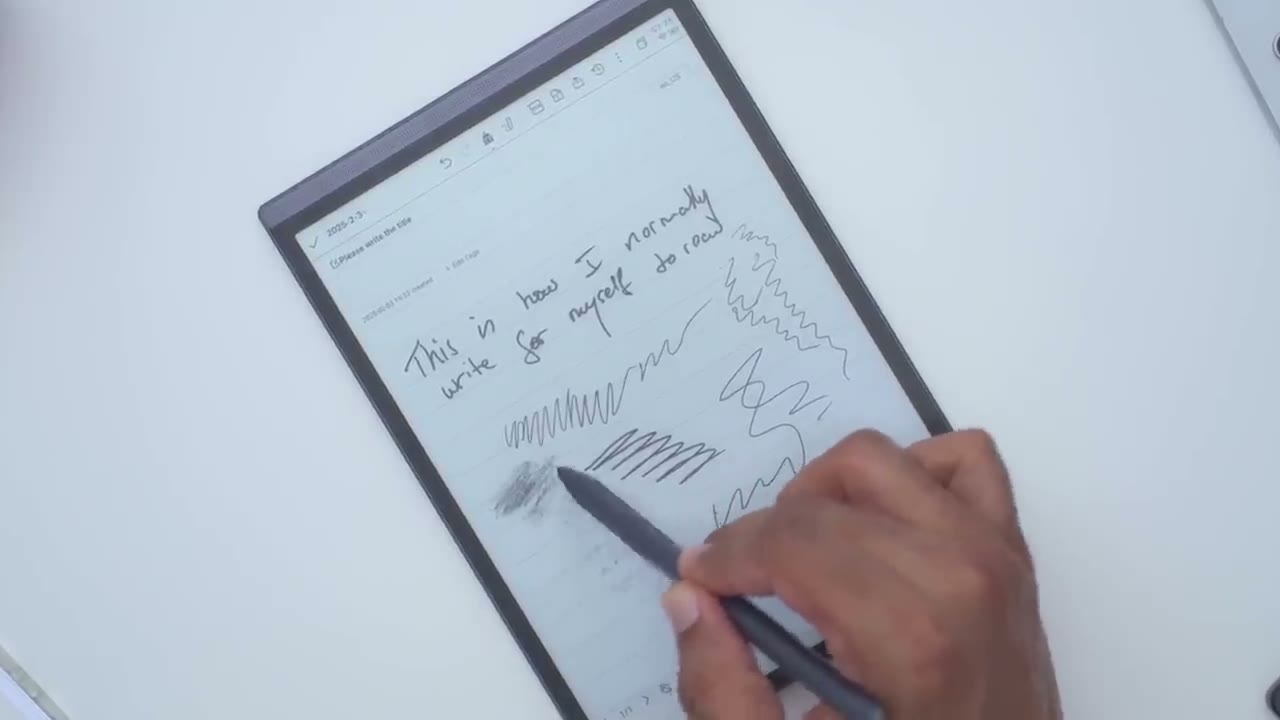
cool you could do shading with it now one really cool thing I noticed is because I was using my phone right next to the tablet um I was using the S Pen from my s24 ultra and I thought you know hey let me try to use it on here this is what it looks like and you can see like that’s really uh basically not missing a beat so I can use either the included stylus or if I wanted something you know a little bit more compact I didn’t want to carry it around the pen hey in a pinch I can actually use the S Pen that comes with my phone and not only that the button on the Spen right here that you would normally use on the Samsung phone for like Air Commands if I press and hold this button down take a look at this I can actually get access to those smart controls which I showed earlier using the button on the included Styles so that’s just fantastic just really a lot of functionality with the system regardless of if you use the included stylus or the Spen they’ve also nailed the Eraser on these stylus that’s even
Bluetooth Pairing
more effortless than on paper you can also pair bluetooth earbuds or headphones if you want to review meeting recordings and you can also pair a Bluetooth mouse or keyboard if you want
Apps
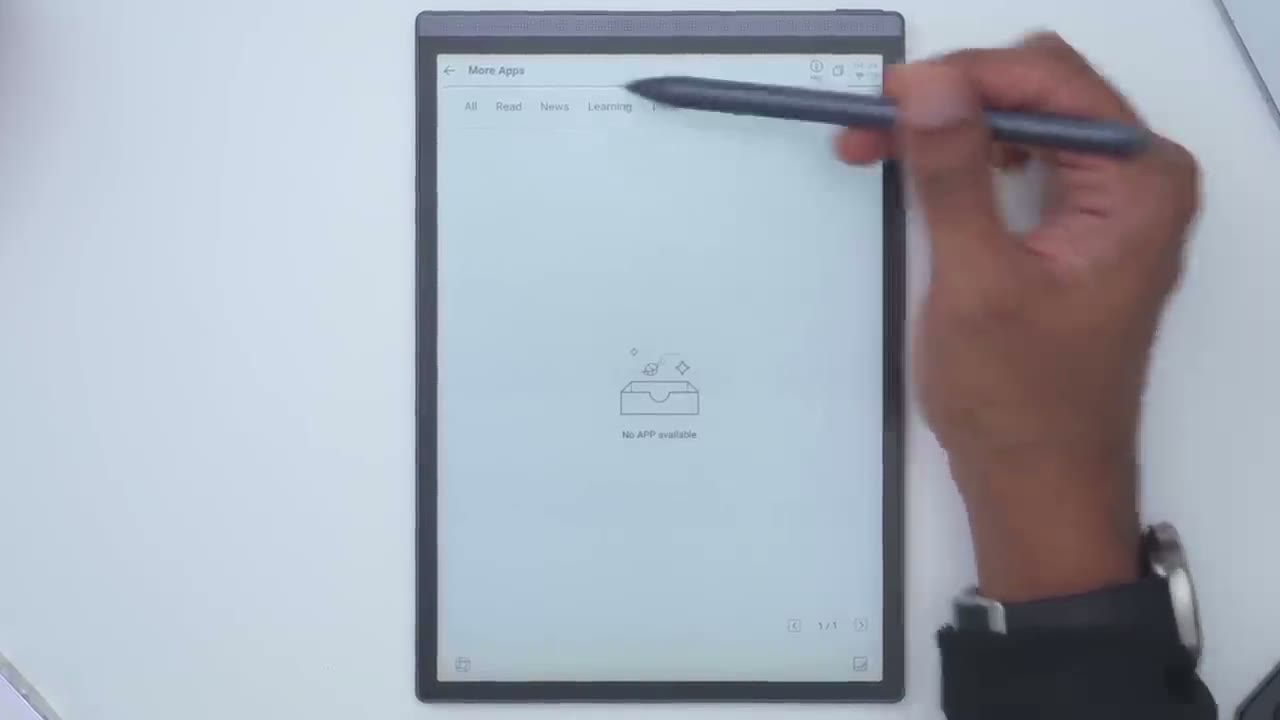
to give your wrist a rest if you tap on these tiles right here this takes you to the application screen and this is what’s installed right now so I’ve installed WPS office there is also the photo app since you can use the camera on the back here to scan documents or also um screenshots will go on here and then if you tap into more apps so these are the apps you can see it’s set to all so you can download um Kindle APK pure Cube books Outlook and Libby and that’s all it has right now now it does say um you could go into local and you probably can just connect this to computer you know download your APK files here not
Recommended
something I’ve done yet though so the highly Tech AI note air2 packs a ton of features this is a really you know beautiful looking device it feels nice in the hand and as someone who loves writing on paper um even more than typing you know I could type faster than I can write but I love the feeling of writing especially on paper and with this I can now write my notes on here it’s you know in a compact device I can search my notes now um if I ever need to go back in time or reference stuff as a starting off point I can email them to myself save them as PDF files or images um the versatility that this is going to give me once I transition fully to this is just fantastic and I don’t actually have to modify my handwriting style for the pen to keep up it’s actually quite fluid so if you’re interested in learning more about the II te AI note Air 2 I’m going to leave links down below for you to check it out or to pick one up for yourself I’m also curious to hear what you guys think of the iFly AI note Air 2 this is my first e in device and so far it’s been a fantastic experience and I can’t wait to review and try out more of these e in devices if you found this review helpful please consider liking it subscribing it truly does help me out as a small and growing Channel and if you’re interested in Tech in general don’t forget to check out some of my other tech reviews I review a bunch of different products from mechanical keyboards monitors laptops earphones headphones security cameras I’m sure you’ll find something you like and I hope to see you in my next video soon
☑️ Get the iFLYTEK AINOTE Air 2 on iFLYTEK
Please note that some of the links in my video descriptions are affiliate links where I earn from qualifying purchases. As an Amazon Associate I earn from qualifying purchases.

