


Buy Walkerfit M6 Ultra on Amazon
Please note that some of the links in my video descriptions are affiliate links where I earn from qualifying purchases. As an Amazon Associate I earn from qualifying purchases.
Intro
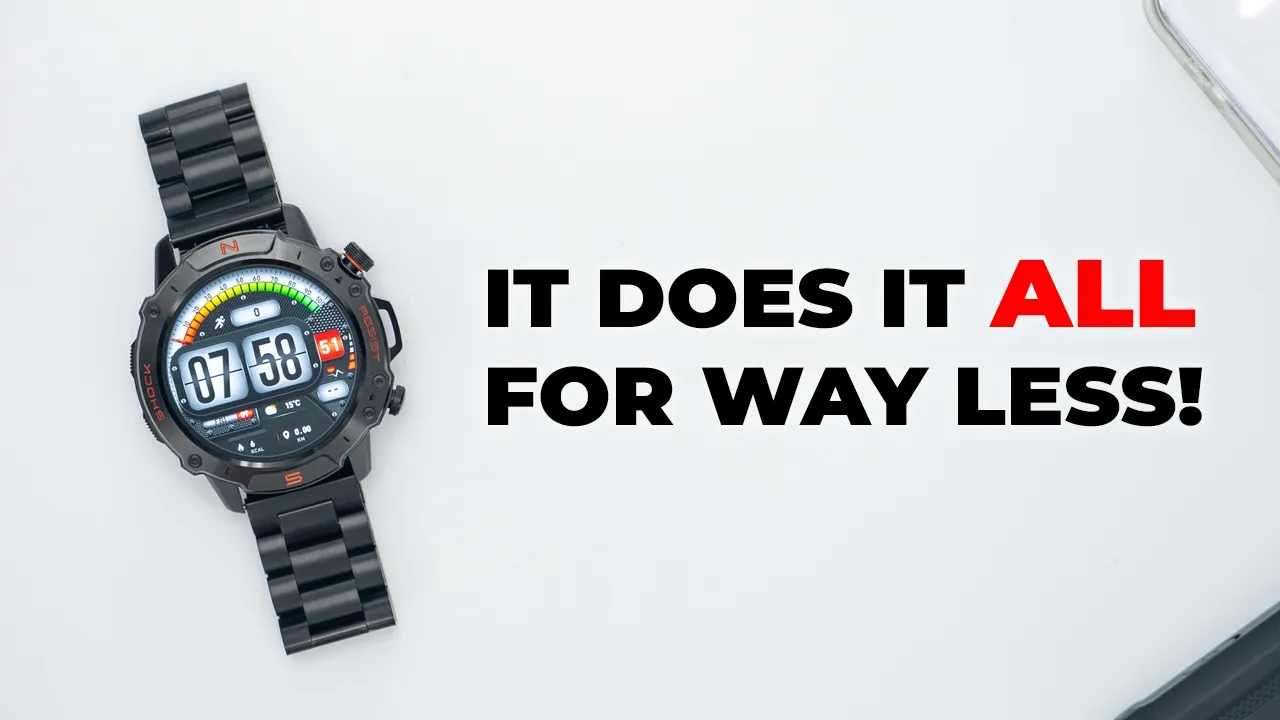
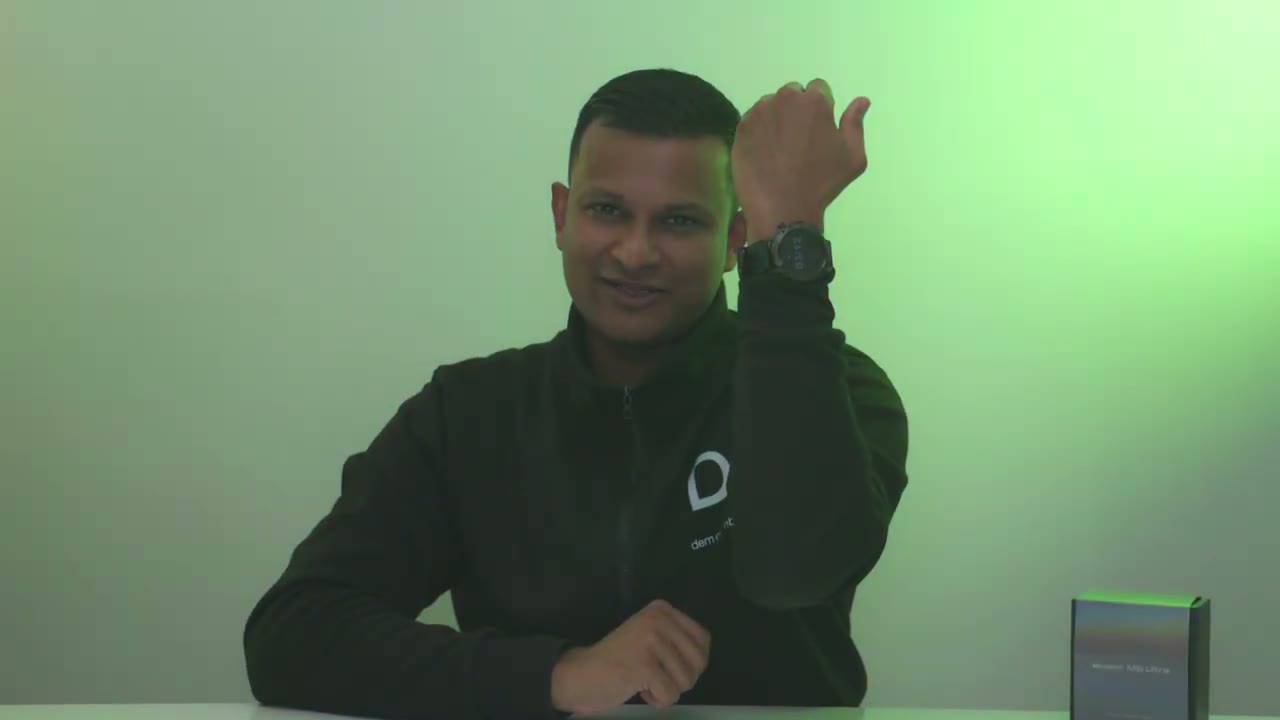
Hey, it’s Adrian and if you’re looking for a fullfeatured smartwatch at a great price, you should check out the Walker Fifth M6 Ultra smartwatch. It has a large 1.43 in AMOLED touchscreen capable of always on display. You can also download multiple watch faces, use your own image as a watch face. There’s over a 100 sports mode, 24-hour heart rate tracking. your sleep monitoring and AI voice assistant so you can ask questions, the ability to take calls or to listen to music using the watch’s very loud speakers and full app support. And how well does the M6 Ultra compare to my $300 smartwatch that costs almost eight times the amount of the M6 Ultra? Well, let’s take a closer look because I think you’ll be surprised. I certainly was.
And a big thanks to Walker Fit for sending this out for review.
Package Contents
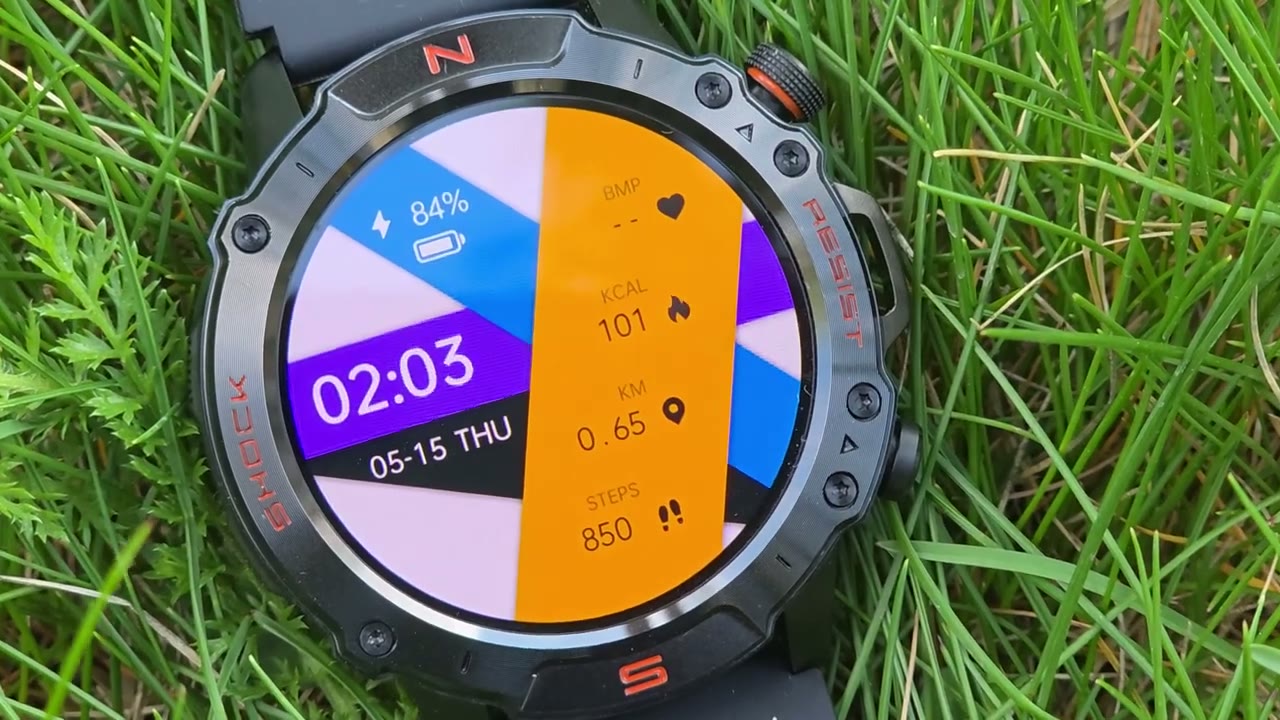
In the box, we have the Walker Fit M6 Ultra smartwatch with the stainless steel band installed. There’s also a charging base with a USB type A connector and user manual. And we have this black type of soft silicone type feeling band. And we also have a tool to adjust the links on the stainless steel
Design
band. And this is what the M6 Ultra looks like. So, it has the stainless steel band already installed. And you can see it’s a very stealth type of look. you know, it has this kind of matte color scheme. Not a lot of glossy kind of accents going on here. Now, we do have some pops of color with the north and south and shock resist. And then we have this large 1.43 in AMOLED screen, which has a peak brightness of around 1,000 nits. And the resolution is 466x 466. And this also has a 400 mAh battery in here, which is going to give you roughly up to 2 weeks of battery life with, you know, kind of moderate use. Now, with the stainless steel band, you could see I have not adjusted it, so it’s, you know, fairly large and sizable. This is coming in at around 135 g.
Now, if you were to swap out the stainless steel band with this type of soft, you know, silicone type of black band here, then it’s going to be coming in at around 73 g, almost half the weight difference, if you want a really lightweight setup. Just looking at the watch body, it’s coming in at around 62 g. And once I put this in, just take a look at how much of a gap there is. So there’s a lot of links that I could remove from here to really go down on the weight. Now, Walker Fit says this is a fairly rugged watch. Now, the body is comprised of three materials. So, there’s aluminum alloy, zinc alloy, I believe, for the bezel, and then we also have some plastic elements in here.
So, only time will tell because this is supposed to be um resistant to corrosion and, you know, general wear as well. We also have an IP68 rating, making it dust and waterproof, and it’s good for up to three atmospheres underwater. The top button has a knurled finish, so it’s very grippy. And it also has tactile hard stops as you rotate it. Hopefully, you can hear that on the microphone. Now, a quick press in is going to open up the dial or the screen, and then you could cycle through to your favorite dial. Now, if you do another press, it’s going to turn the screen off. And if you do a long press, it’s going to pull up a menu where you can slide to power off, slide to restart, or slide to call. If you tap the button at the bottom or the pressure at the bottom.
This is going to bring up a world clock. This is what the underside of the watch looks like. So, we have the various sensors here for heart rate monitoring. And then we have the two metal contacts where it’s going to interface with the charging base. Here’s
Specs
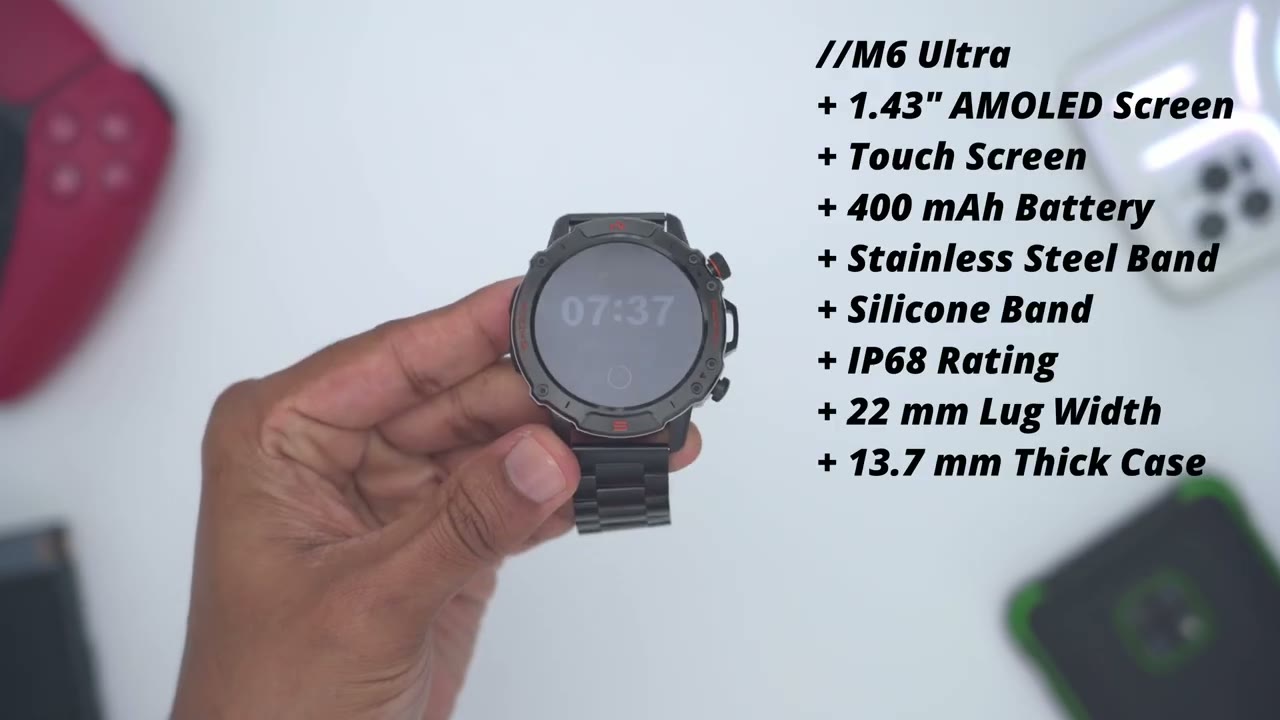
a quick look at the specs. Feel free to pause or jump ahead to the next section.
App Pairing
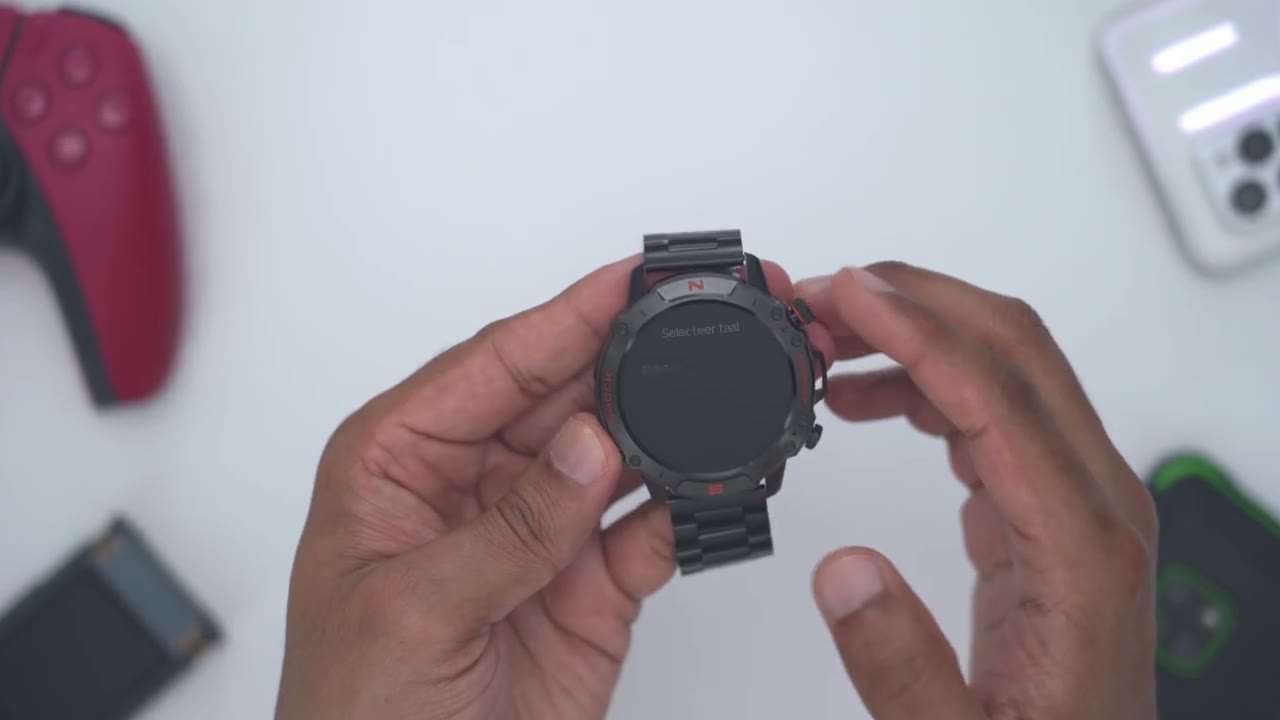
Adding the M6 Ultraatch to the Glory Fit Pro app is really easy. So, you’re just going to turn the watch on, select your preferred language, then you’re going to sign up in the app, tap on bind device, and it should automatically find it once you give it the correct app permissions.
GloryFitPro App Settings
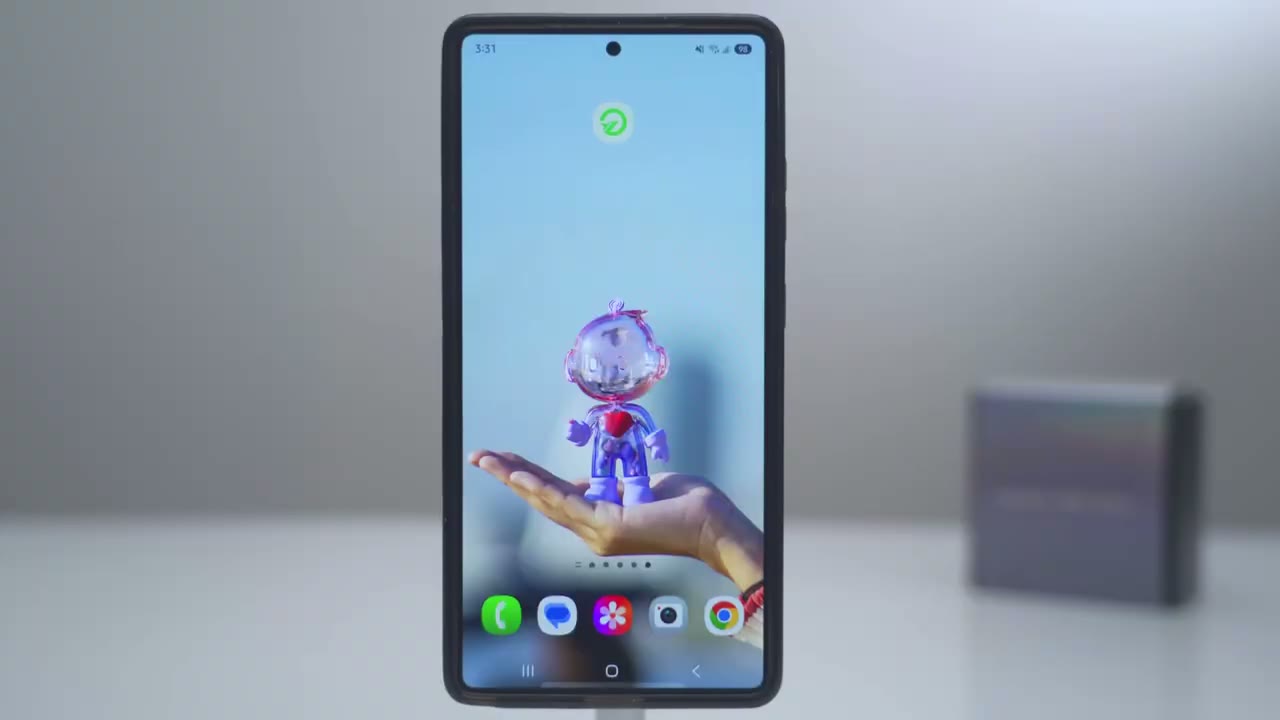
Let’s take a look at the Glory Fit Pro app. So, as soon as you open it up, you get kind of this health dashboard. So, it shows my current step count, distance, calories burned, and it shows my heart rate. So, you can see it’s a continual kind of monitoring of that. It also shows my sleep and my blood oxygen level along with stress. And if you want, there’s also a menstrual uh feature here as well. Now, you can also edit this. You can hit edit card and you can say disable any type of feature that you won’t be using. And of course, on some of these, you can actually tap into it and you’ll get more detailed info. So you can see it’s showing here my resting heart rate um average heart rate minimum and then it shows like kind of a percentage breakdown of that as well.
Now if we jump into sleep, same type of deal. Now you can break this down by a single day by week or by month. Now you can see here that it’s showing my deep sleep is 1 hour and 38 minutes, light sleep 4 hours 51 minutes and then REM sleep 1 hour 4 minutes. And then you could see it’s kind of going to break that down to if that falls within the normal or high or low range. So my light sleep is uh too high. I should be getting, you know, better deep or restorative sleep. And it also has a little bit of recommendation. It’s telling me I should go to bed earlier and to not overexert myself. Good advice that I’m not following. If we tap into blood oxygen, similar type of deal. So I could see exactly, you know, the type of readings going on for the day under the sports tab.
So it has some preset sports modes. But if you wanted to customize this, you could click on the plus icon and you could just remove certain type of sports that you know you’re never going to do and add in ones that you regularly do. If we take a look at rower, since I do do this regularly, you could see that it showed my active or sorry average heart rate or BPM while I was doing that and the total calories burned. Now, you can tap this gear icon here, and you can have it set to issue you a heart rate warning if you like. Under the device tab, we can see the current battery life, but we’re going to want to jump into the watch face market. This is where you can customize the watch with different type of always on display faces. So, you can see it’s broken down into always on display.
And then we also have recently updated watch faces, multi-function dial, simple and modern. So, say I jumped into simple and modern. I want something like say this retro pointer. I would just tap on that and I will have to replace one of these current ones since you know you do have uh limits on how many watch faces you can have at once and you can see in real time it’s just going to upload the new watch face to the watch and then make it active automatically. So I’ll give that some time to do its work and it should pop up with the new watch face. There we go. And of course, you can always use the dial here to just kind of rotate through the watch faces that you have on here.
So, you can see it’s broken down simple and modern, multi-function, which is kind of what I like because you could see, you know, a ton of data all at once. If you’re a car fan, you could use this dashboard one. So, yeah, there’s really a ton of options on here. If we jump into SMS, so it’s going to vibrate whenever you get a text message, so you’re never missing that. You can also set smart alarms and you can see if you tap on plus, you can have it set Monday to Friday or you could set it exactly customize as you see fit. So, a lot of functionality there. You can also have the watch vibrate for incoming calls as well. And then we can also go into the health monitoring and enable the features we want. So, I’ve disabled the sedentary uh reminder.
And you could enable or disable whatever you like. Under app reminder, you could turn on notification permissions manually if you need to. And then if we go into world clock, you could set different parts of the world. So you have that accessible. Now under address book, note that you can only download up to 100 contacts on the watch. So just keep that in mind. And then you can also set up SMS quick replies. So these are the preset replies since you can’t actually type on the watch or you can add your own custom replies like I’ve done on the bottom here. Under SOS call, you can actually set an emergency contact if you like. Under device settings, we have the option to raise to wake. So, anytime you raise your wrist, the dial will automatically turn on.
You can also use this remote shutter icon. So, you can see if I actually tap the screen, I can actually trigger that photo um from my phone there using the watch. You could turn the do not disturb mode on. It’s set to disable now, but you can set when you want it actually enabled. So, say you’re sleeping, you could set it for that time. Find my watch gets very loud. Here’s a demo. Same with find my phone. Hit start and then you can set the screen time out from as low as 5 seconds all the way to 60 seconds. And again, everything that I’m showing here is basically on the watch itself. It’s just easier to use the app. Now, for device language, you can see it can just follow what’s on your phone, but we have all of these other languages as well. The last tab is your profile.
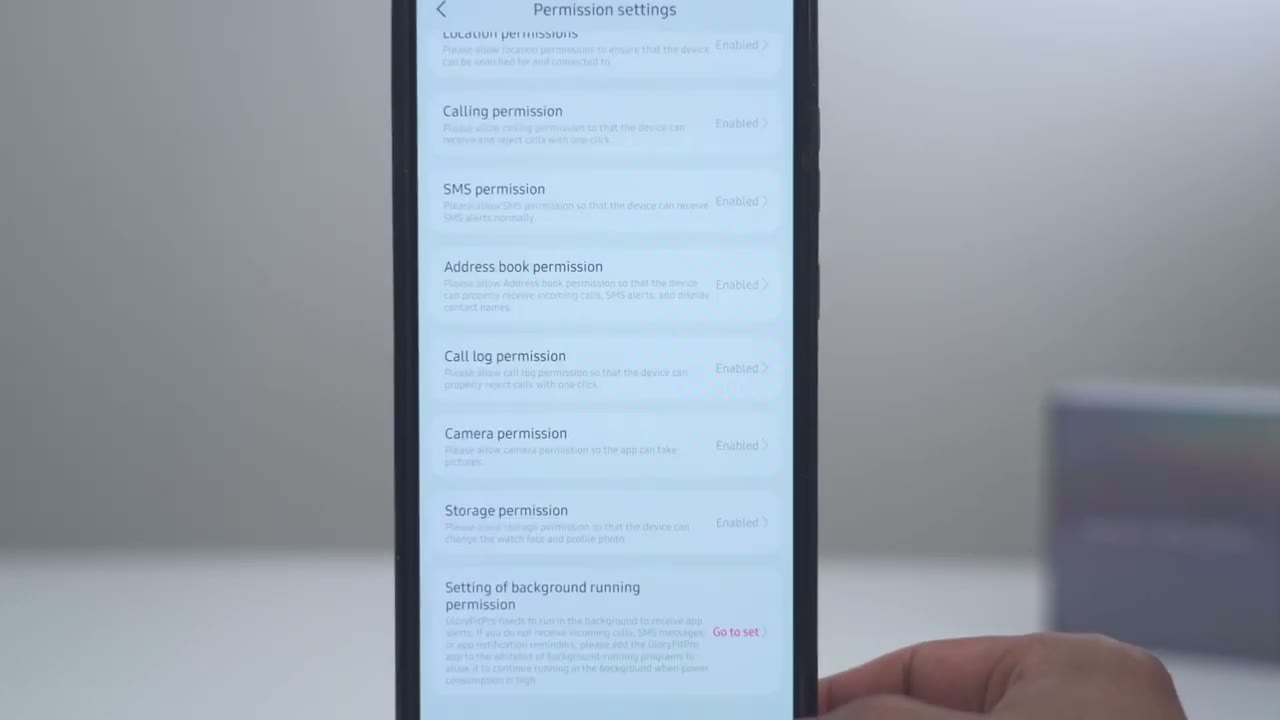
So you could upload your own photo. You can set goals like your step count, how many calories you want to burn every day, and the distance you want to walk. You can also set the units here from Celsius to Fahrenheit, metric, imperial, pounds, um, to kilogram, and you could set the time as well. You can also set up a training schedule, and you can also have the app sync with third-party services as well if you’re already using something else. Now, under permission settings, I basically enabled everything to get full functionality out of the watch. So, if something is not working for you, likely you will have to go in here and set something that’s disabled to enabled. Also important to note, make sure that the battery life on the app is unrestricted. So, I’m on a Samsung phone.
If I jump into battery, it’s set to restricted. Don’t leave it to optimize or restricted because you may miss, you know, texts and calls and
Navigation
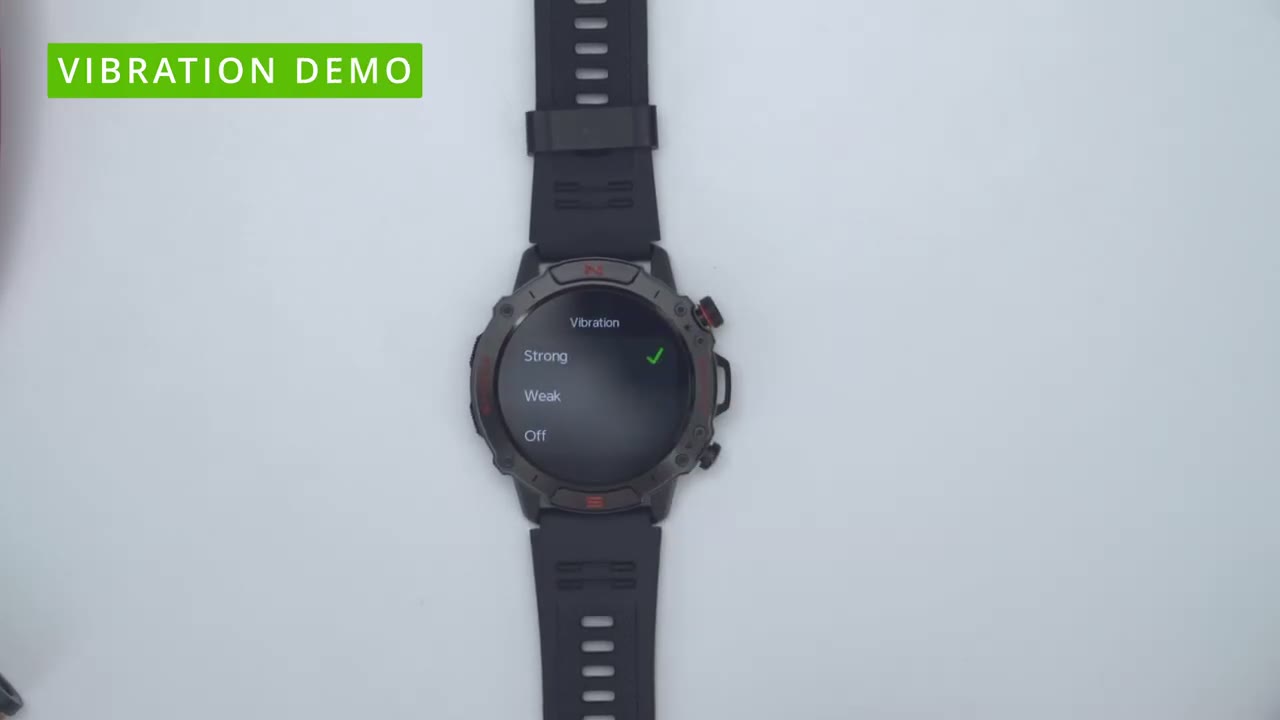
things like that. To navigate around a watch. So, we could swipe down and we have some quick access here. So, I could see the date and I could see Bluetooth calling was on. and I just turned it off. And if I tap on this brightness uh icon here, I could cycle through that. So, you can see that actually gets fairly bright. It should be pretty good in direct sunlight. I’ll let you know my experience with it. If we tap into sound and vibration, so we could have this media audio. You can also turn on this silent mode. You can also set the vibration from strong, weak, or completely off. Now, if I disable silent mode, we do have an additional option here. So you can set uh just kind of the volume for the ringtone and call incoming calls. You can see the current battery life.
You could tap in to take a look at the device information. And then you could turn on or off the race to wake option. Of course, this is available in the app as well. And then if we scroll over, we have options to turn silent on. You can also go into the full settings here. So you can change watch faces. You can select your language. You can set the display um to have it all kind of always on. You can take a look at the brightness. Uh display duration. You could tap into that and set it, you know, when you want the screen to come off. And then you have race to wake again. Uh watch face on wrist rays or you have tap to wake. So, you know, just a lot of customizability for whatever you like. Now, we can also go into sound and vibration. I did show that. We also have different themes.
So, we have the way apps are, you know, kind of distributed or displayed. I’ll leave it on list for now. I’m kind of liking how that looks. We can set date and time, you know, do not disturb. You could see there’s a indicator on the side as I go through these. There is also sport recognition. You could turn that on. So, it’s kind of like automatic. I actually prefer to do it manual. So, I’m not going to uh use that feature. And you can set the bottom key setting. So, it can go to by default, you know, checking your heart rate, um launching workouts, checking stress, sleep, um really a ton of different options on here, but I think um I’ll probably leave it to workout. I do row fairly often. It may not look like it. Um and I’ll use the bottom button for that. Now, we do have a cover lock.
So, once enabled, you can turn off the display by covering it with your palm. We can go into the system menu. And again, this is the same type of option we would find if we just long pressed on her. If I do a swipe up from the bottom, I could see the date and then I could see whatever it’s tracked. I haven’t been wearing the watch yet. And I can actually see what is actually playing on my phone. So, I do have, you know, this song playing on YouTube and it’s pulling that up. I can just go ahead, you know, kind of forward that track and you could see it in real time on the phone. That is so handy. you know, I actually could just leave my phone in the pocket. Um, it shows the heart rate. I don’t have it on right now. Um, blood oxygen.
I guess it is kind of just going from what I’m, you know, whatever reading it’s getting from my fingers, showing stress level, the weather, um, right now, and then any type of alarms, sleep data, and let’s see what else we have. Workout records, stopwatch, timer. Like, wow, there’s a ton of features on here. Now, if you go into edit, you can actually move some of these higher in the priority list if some are more important to you. So, you can see I just got a text coming in. So, if I slide over, you could see the text. Now, if I tap on that, let’s see if it’ll actually let me reply. So, it doesn’t look like an I can actually reply. If I swipe from the other side, this is where I could see that app list that I set as a list view. And as I flick through, it’s fairly responsive.
I mean, the screen is, you know, pretty fluid anytime you’re using it. So, if I went ahead and, you know, say tapped on flashlight here, I can just go ahead and use the watch as a flashlight. Let me go back. Uh, let’s go into calculator here. You can see all of that just kind of launches up fairly quickly and I’m not, you know, frequently tapping two times. The first time is usually, you know, registering on here. Now that I’ve reprogrammed the bottom button to launch workout, if I tap on it, I can see it has workout. So, I can just tap into start or I could tap in the top right corner. And you could set this, you know, to workout without a goal. You can do it as a timed event, a distance event, or you know, how many
Always On Display
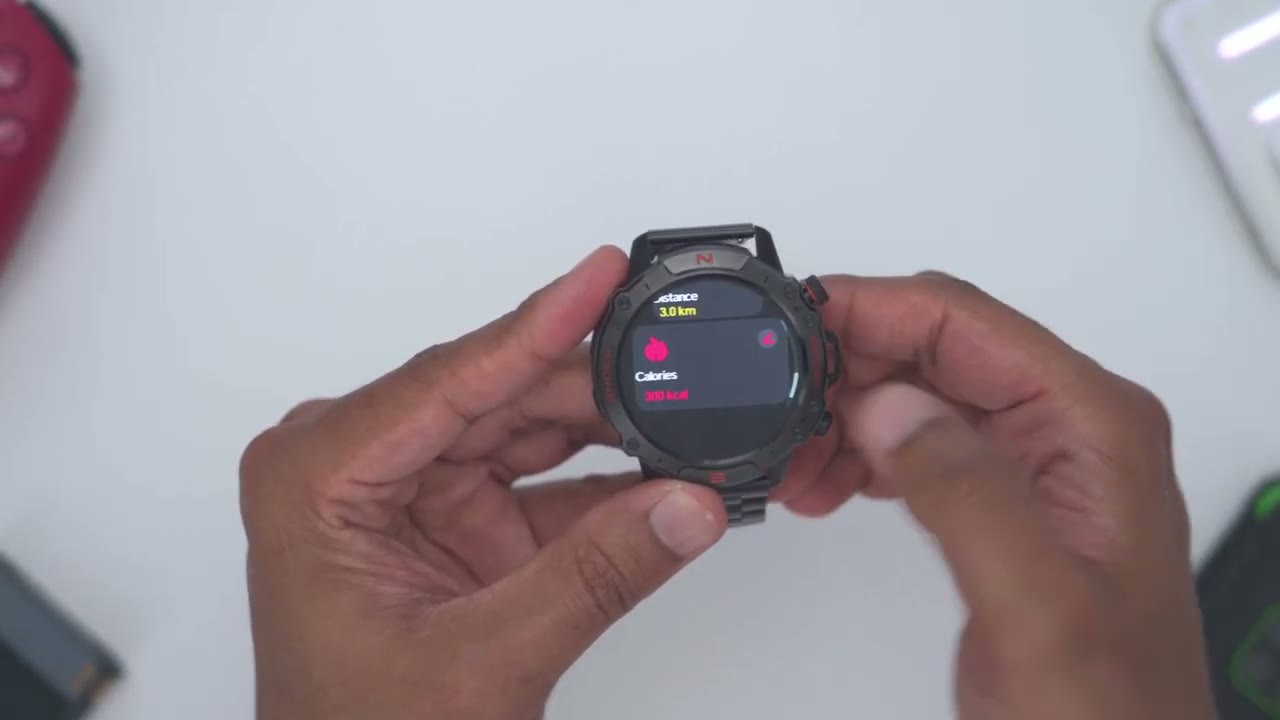
calories you burned. Tap on always on display. I’ll hit custom right here. And it does mention it’s going to shorten battery life. I’m okay with that. I do like having that feature. If I tap on face gallery, these are the options here. So, just, you know, kind of an analog dial. Analog dial with date and time. And I want to set it to all day every day. But you can also set it where it’s kind of on a schedule so that when you’re sleeping, it’s not going to be on. So, you do have that option. This is what the always on display is going to look like. So, you can see it’s going to not be as bright, probably to prevent, you know, the screen from burning in
AI Voice Commands
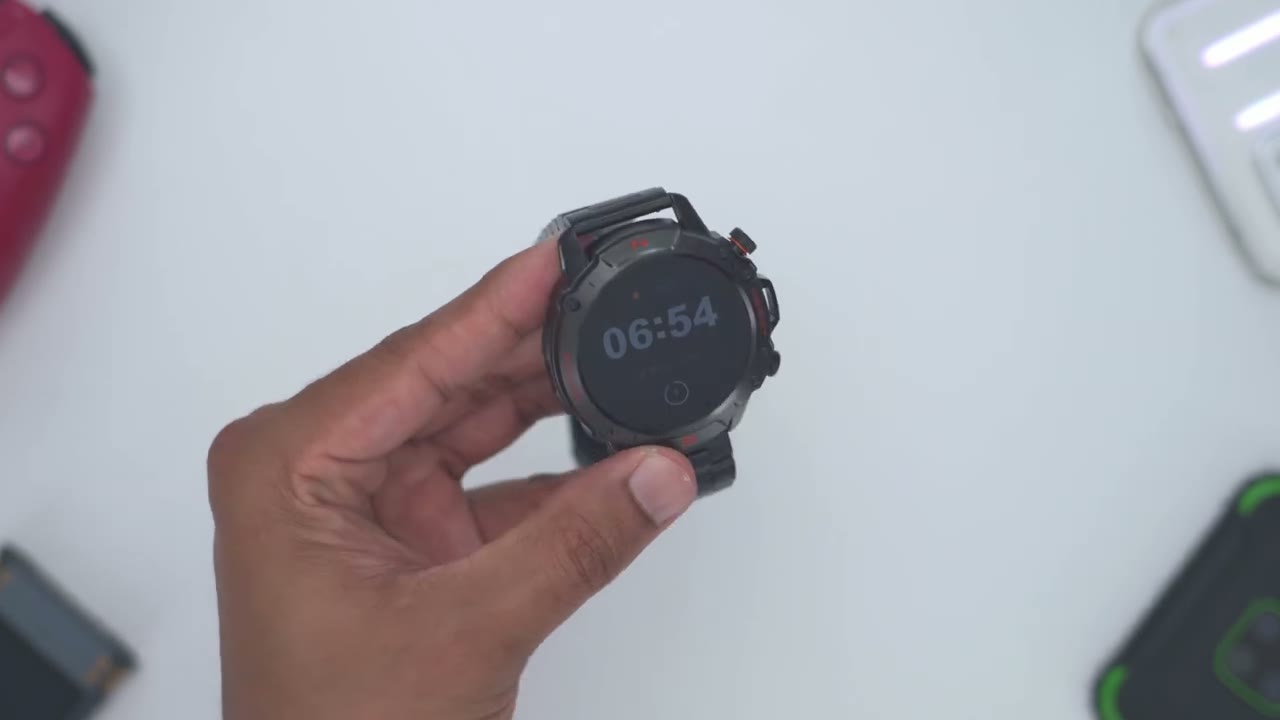
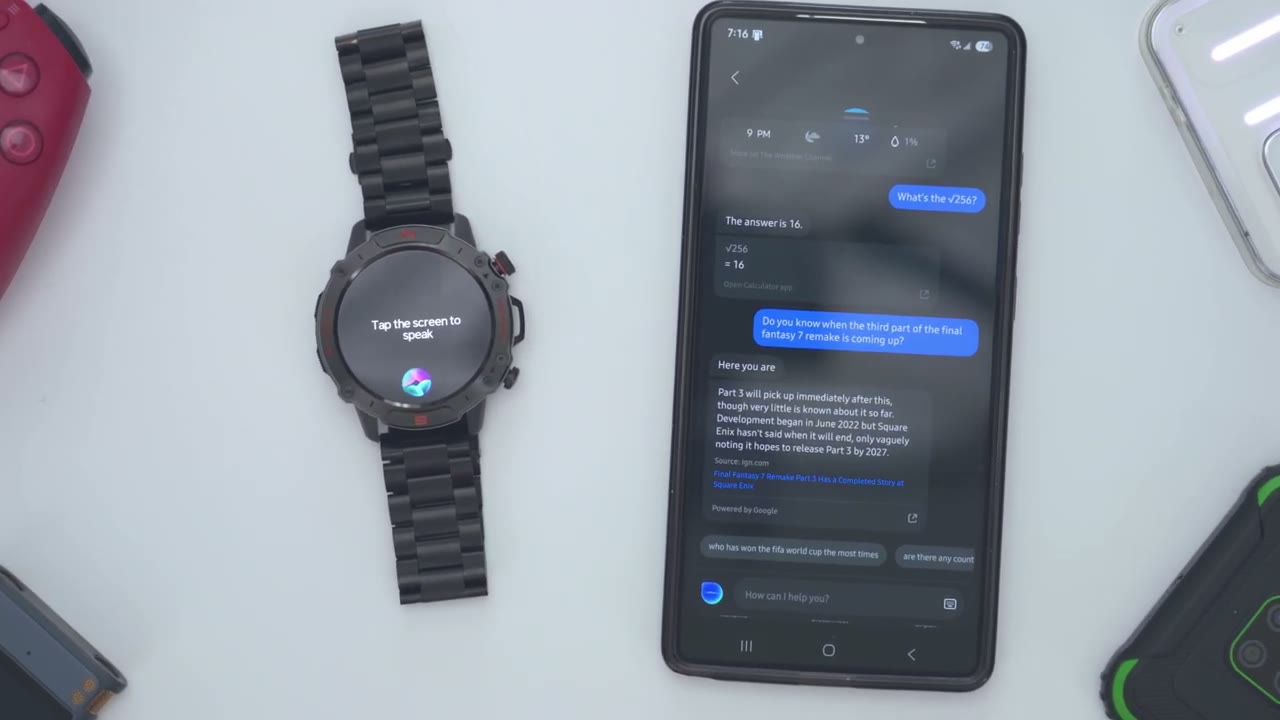
since it is an AMOLED screen. I’ve connected the M6 Ultra to my phone by Bluetooth. And if I tap into that, it has full permissions. Now, what I can do from there is I could swipe over on the screen and in the app list, I could use voice assistant. So, I’ll tap on that. And if I tap to the screen to speak, it’s going to play that kind of answer through the speakers on the watch with that set to maximum volume. So, let’s try that out. What’s the weather like tomorrow? The weather in Bmpton. Tomorrow will have varying conditions like clear, cloudy, and sunny. So, you can see it’s very convenient just being able to tap the screen to speak. And the speaker volume on here is actually fairly loud.
Health Tracking
The blood oxygen reading on both watches were pretty much exactly the same, plus or minus one for the reading on the M6 Ultra. That’s very impressive. The BPM or beats per minute was also fairly accurate and that was within a plus or minus three unit in terms of sleep tracking. So, both watches reported a difference of about 20 minutes from each other. Now, it’s kind of hard to say which watch is actually correct. I know what time I woke up, but I don’t know what time I actually, you know, kind of fell asleep or noted off. Now, sleep tracking is not a super important metric to me. So, it’s not that big of a deal if they’re off by 20 minutes depending on which watch you believe. So,
Screen
something to consider. At the max level, the screen brightness is very bright on the M6 Ultra. Now, if you’re out and about and it’s a sunny day, if you crank this to the maximum screen brightness, you’ll easily be able to use the watch. And since it’s an AMOLED screen, the visuals are great. It’s easy to read text, and the screen is responsive as
Cover Screen Feature
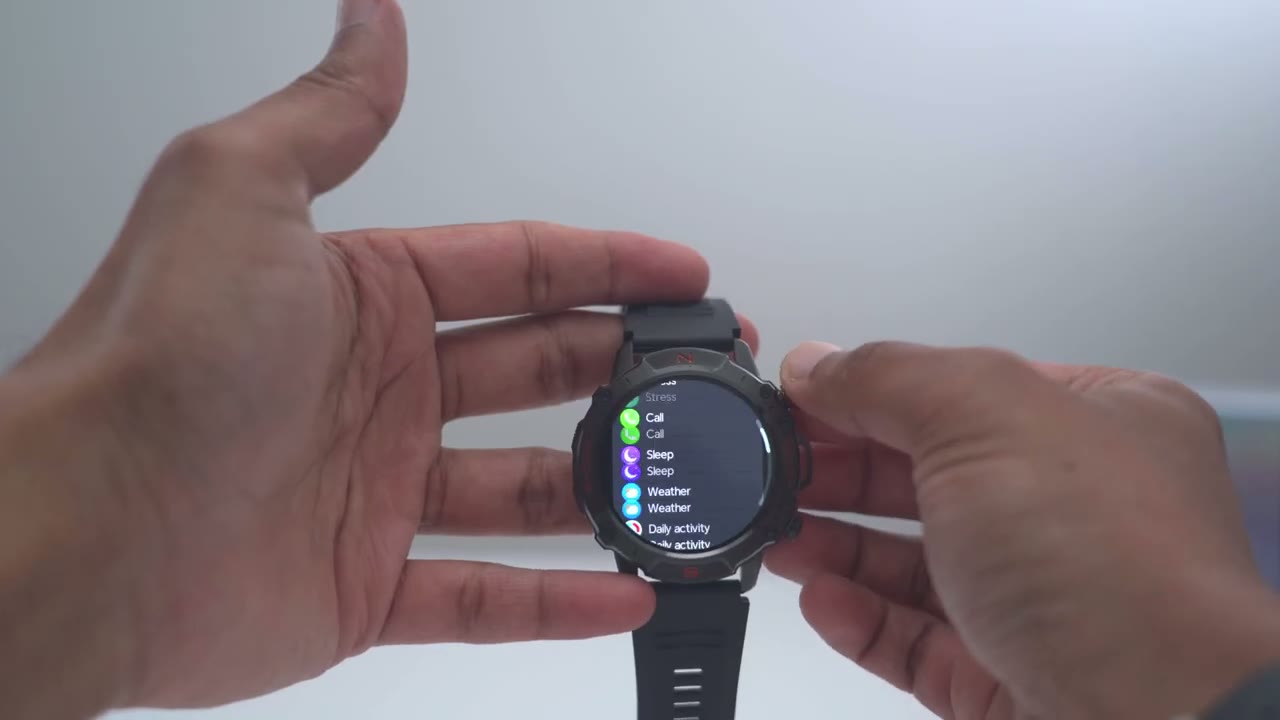
well. I also love this feature. So, anytime the screen is on, rather than pressing the button, I can just cover it with my palm. It’ll turn the screen off, but in my case, it’s just going to switch to the always on display. The M6
Battery
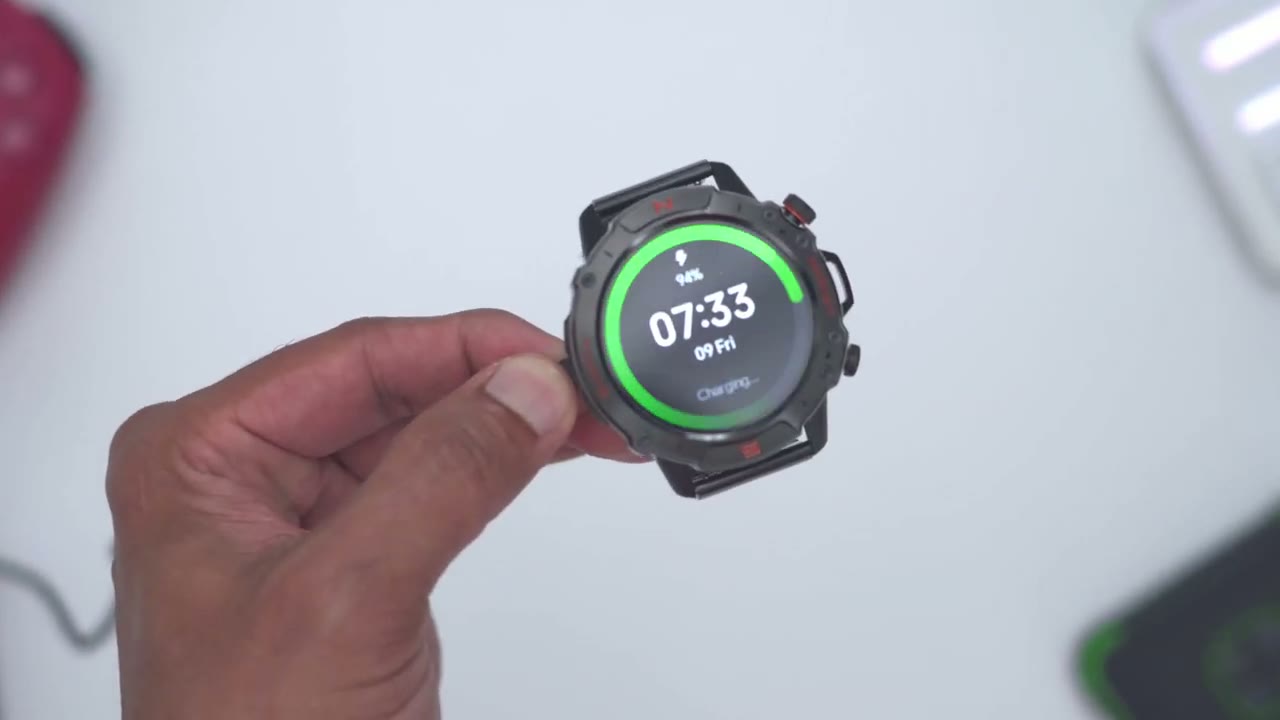
Ultra has a 400 mAh battery. Now, in my testing, I was getting around 5 to 6 days of battery life. That was with always on display turned on during the day, low screen brightness, but I was using the watch to take calls or to listen to music or YouTube videos. Once I turned the always on display feature off, then my battery life jumped to about 9 to 10 days. And that’s with me not using the watch to listen to music or YouTube videos. And when the battery level gets low, the watch will vibrate and show on screen at around 10% that it’s time to charge it. Simply place it on the charging dock. Plug the USB cable into a computer, laptop, or into the
Phone Calls
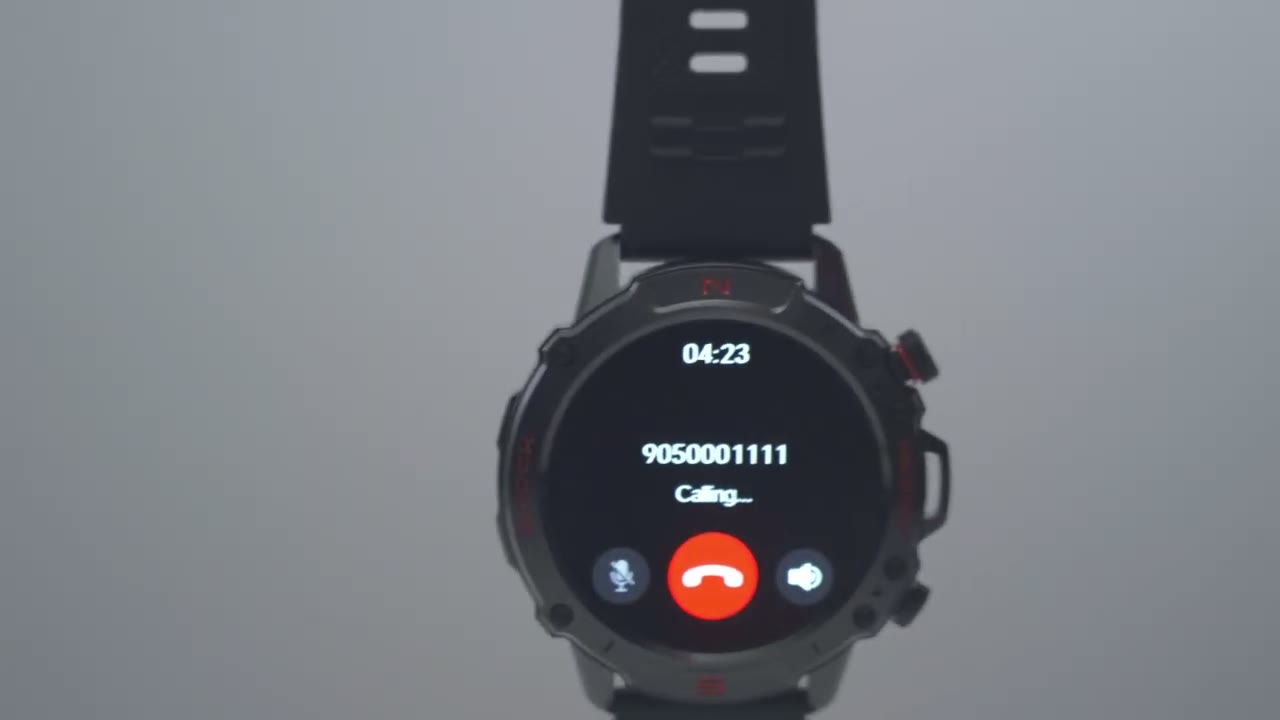
wall, and you’re good to go. What really impressed me though was the call quality with the M6 Ultra. I actually use this for a ton of calls, way more than I thought I would. And I would always ask the other person, “Hey, how does my voice sound?” And they always reported it sounded clear, no issues. They had no clue I wasn’t talking on a phone or with a Bluetooth headset. Here’s a quick demo of the speaker and call quality, but I’ll answer. Hello. Hi. Are you busy today? Yeah, I’m a little bit busy. Um, I’ll be free later. But how does my voice sound? Is it like loud enough? Is it clear? Does it sound like I’m far away? Perfect. I can’t tell any difference. In addition to taking calls, you can also dial out as well. The M6
Vibration Motor
Ultra also makes a wonderful alarm clock. So, I set the vibration to weak and that’s plenty powerful enough to vibrate my wrist and wake me up every morning. The other thing is that the alarm volume is crazy loud. like really loud and I didn’t find a way to adjust the for, you know, calls or listening to music, but the alarm will definitely wake you up every
Shortcut Button
time. Depending on how you use your M6 Ultra, you can actually program this bottom pusher here to launch any type of app on the watch. So, I have it set to launch the sports modes because I roll regularly during the week, but you can set it to bring up the weather. You could set it to use the AI search or voice assistant or any other feature.
Recommended?
So, I have to say I’m really impressed with the Walker M6 Ultra. It comes in at around $40 US, which is far below the 300 I paid for this watch, and it’s almost just as accurate in pretty much every metric. The M6 Ultra also comes with two watch bands in the box. It has great accuracy, up to 2 weeks of battery life. It’s waterproof. It has great app support. It’s great for calls, for alarms. Pair that with the powerful vibration motor and the loudspeaker, you’ll never miss another call, text, or wake up alarm. So, I’ll leave links down below in the video description and pin comments if you want to pick up your very own M6 Ultra. And if I have any type of coupon codes, I’ll leave those down below as well. I have a huge favor to ask.
If you found this video helpful, would you mind liking and subscribing? It truly does help me out as a small and growing channel. And maybe consider checking out some of my other tech reviews. I review a bunch of different type of products from headphones, keyboards, laptops, security cameras. Really something for everyone. And I really hope you’ll join me in my next figure
Buy Walkerfit M6 Ultra on Amazon
Please note that some of the links in my video descriptions are affiliate links where I earn from qualifying purchases. As an Amazon Associate I earn from qualifying purchases.

