


Buy aosu Solarcam P1 SE on Amazon
Please note that some of the links in my video descriptions are affiliate links where I earn from qualifying purchases. As an Amazon Associate I earn from qualifying purchases.
Intro
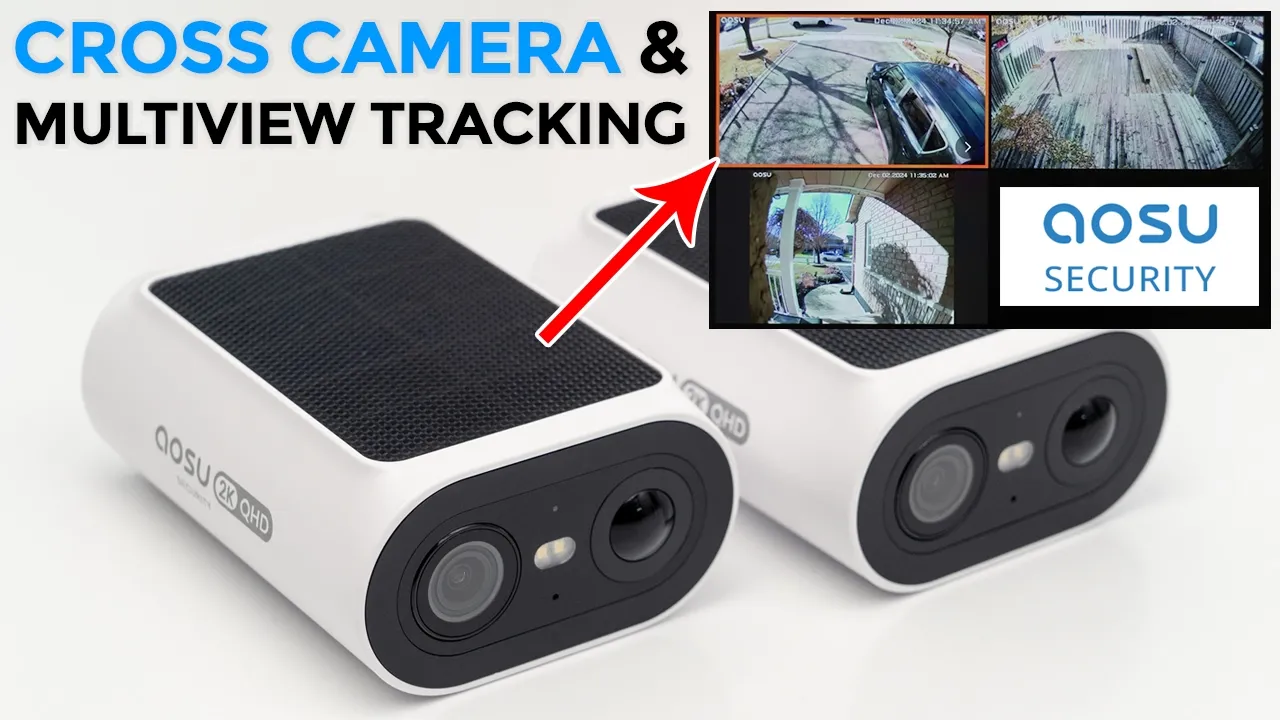
hey it’s Adrian and today I’m taking a look at U’s P1 SE camera system which is a two camera kit along with a Homebase with local storage so that you pay zero monthly fees on top of the 2K recordings there’s color in Black and White Night Vision a spotlight an alarm multi camera tracking to track people around your property an ip65 rating two-way tog solar charging and of course zero monthly fees this is one of the better solar powered cameras that I’ve reviewed recently and I really like the multicam view which lets you see a live view of all the cameras around your property so let’s take a closer look at how well the ASU solam P1 SE performs and a big thanks to ASU for sending this out for
Package
review in the box we have two of the ASU solo cam P1 cameras there’s the home base ethernet cable to connect the home base to your modem or router power adapter for the home base there’s two USB type AA type-c cables there’s mounting screws mounting stickers security stickers and a quick start
Design
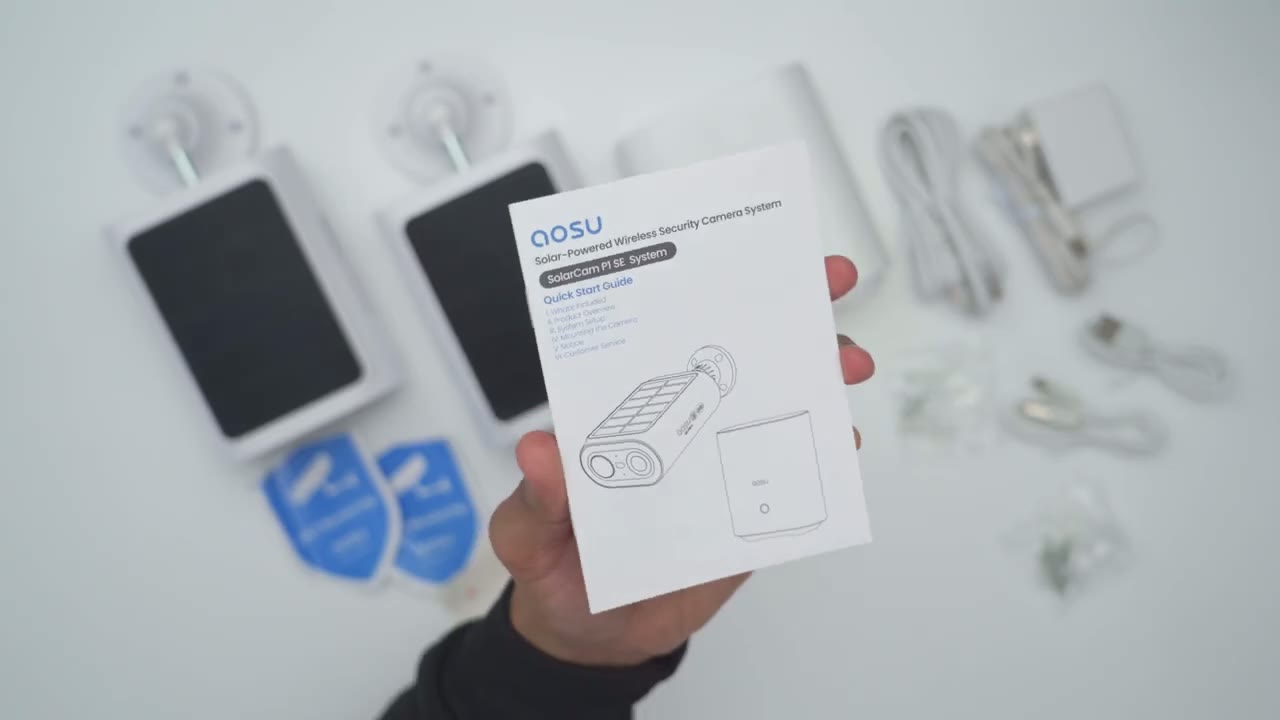
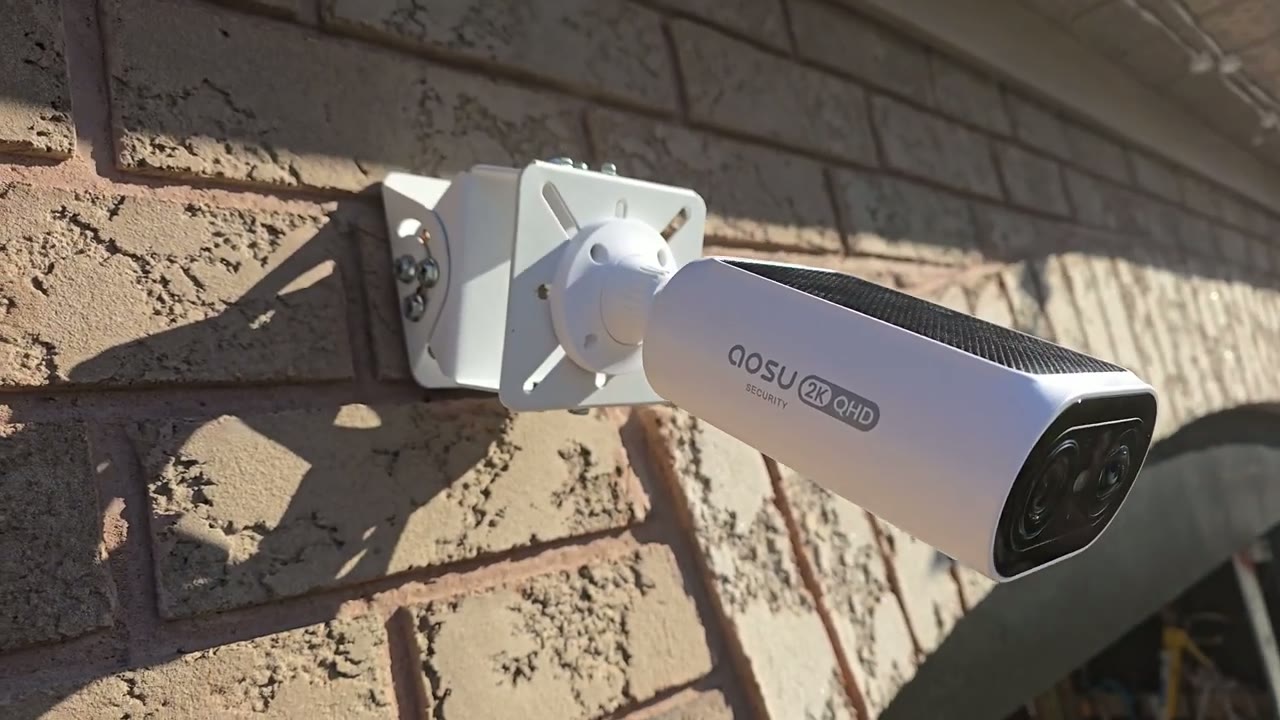
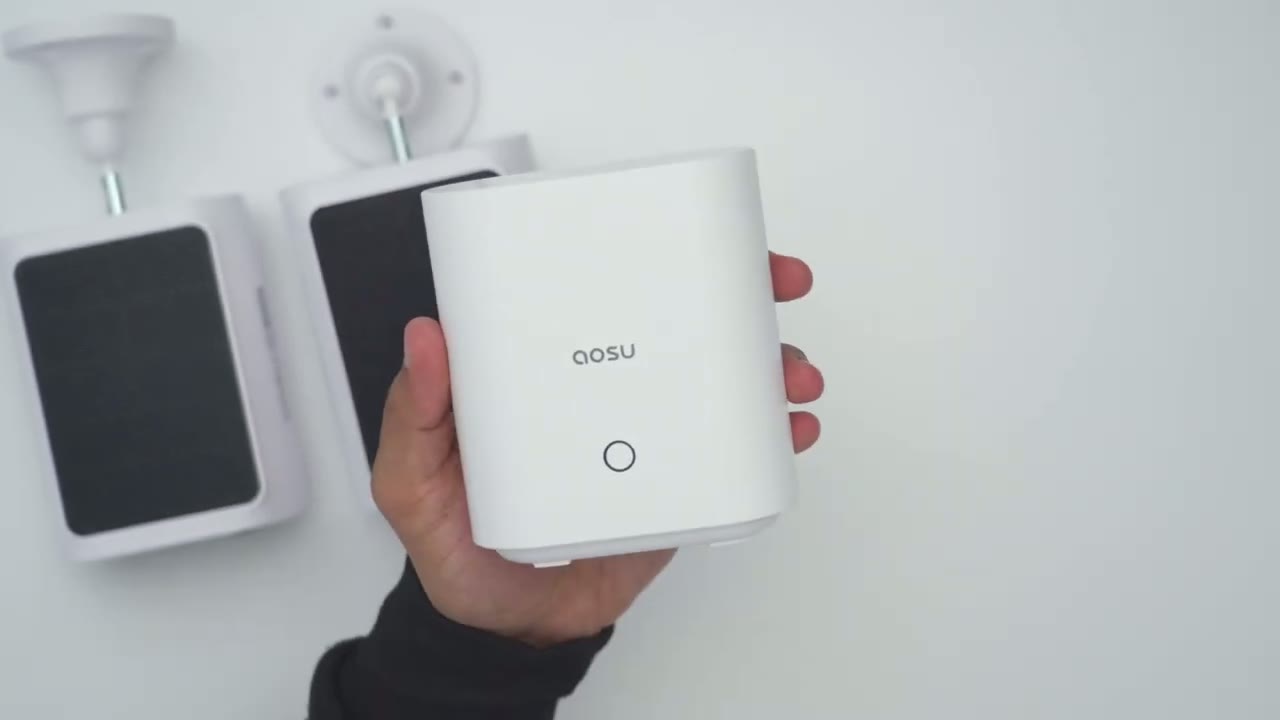
guide the design on the ALU solar cam P1 SE looks pretty slick so we have this black black and white color scheme going on now on the top we have this huge solar panel so it’s built right into the camera body you don’t have to run you know additional wiring or an external solar panel which is nice and then if you take a side view it’s nice and flush so any type of snow or ice is just going to kind of roll off on this if you lift somewhere cold like I do now on the front this is where we have that 2K camera lens we also have a variety of sensors and the spotlight there as well on the underside of the camera we have a speaker grill for 2way top and the alarm siren and I will demo that later and then we have this weather sealed area here because this camera does have an ip65 rating so the first one is a USB type-c uh Port here and you could use this to kind of top the camera up to 100% before you install it for the first time and you can also connect like a power bank if you just want to top it up you know if you’re living somewhere cold there’s not a lot of sunlight that’s another option and then if we remove this huge uh weather sealed area here we have the power button and the USB typc port again and then a reset button the rear of the camera has the mount already installed or attached but you can just go ahead and unscrew that and you could see the thread Mount there and then the actual mounting bracket to adjust the angulation of the camera you’re going to rotate this part here kind of angle the camera exactly how you want and then rotate it back to tighten everything into place each of the cameras come in at roughly 388 G or 0.86 lb with the mount included so it’s fairly lightweight the home base is fairly Compact and lightweight coming at 210 G or 0.46 lb there’s an LED indicator light on the front and we also have a speaker on the back along with various ports to connect it to your ethernet a USB port power port and a sync button and then we have ventilation at the bottom along with rubber feet to keep this planted when you set it down here’s
Specs
a quick look at the specs feel free to pause or jump ahead to the next section
aosu App Setup
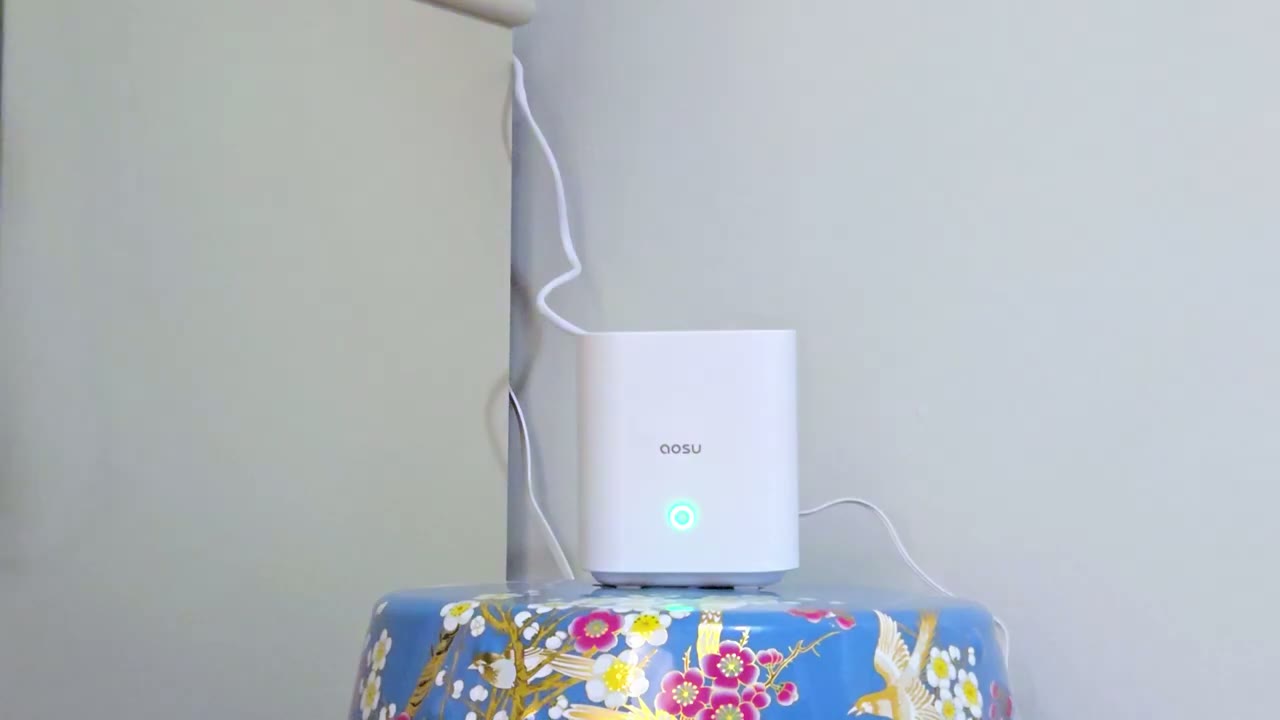
to add the home Bas and camera to the aluap the first thing you’re going to do is connect the home base to your modem or router using the ethernet cable then scan the QR code on the back of the Hub next you’ll press the power button located under the weather sealed area until you hear the camera say hello tap that you heard hello in the ASU app and just follow along with the rest of the steps and just repeat for the second
Installation
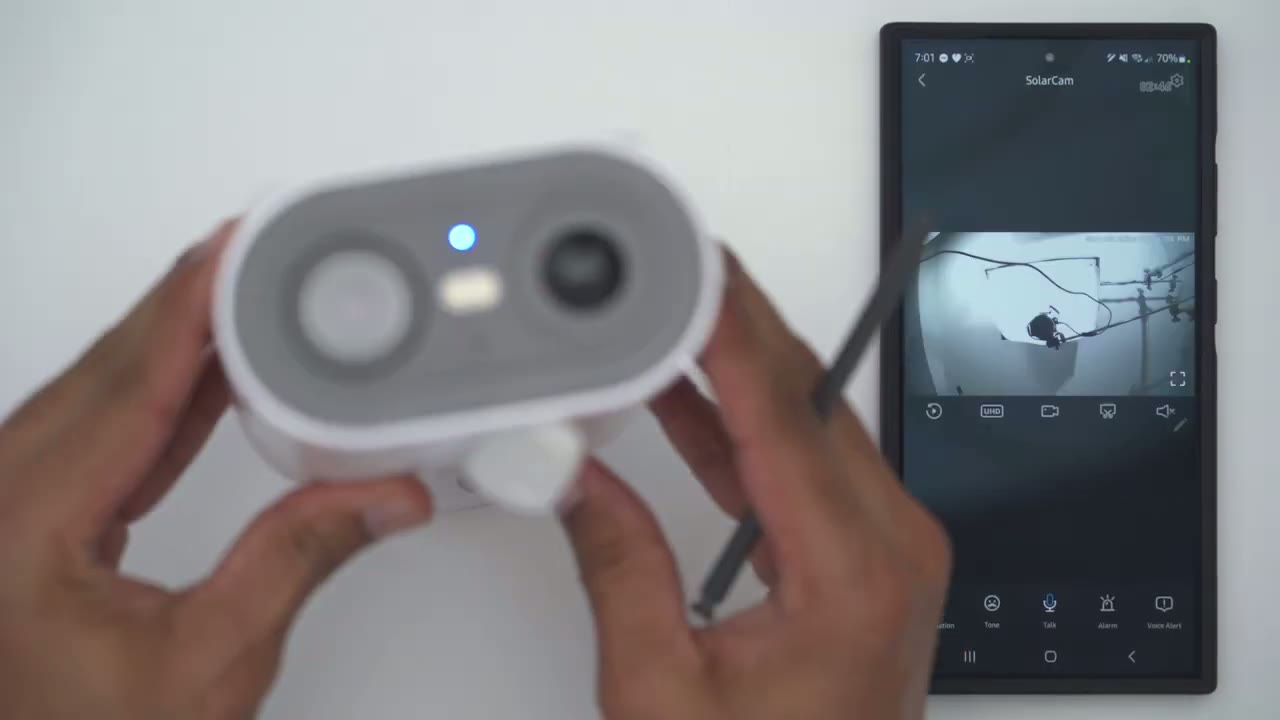
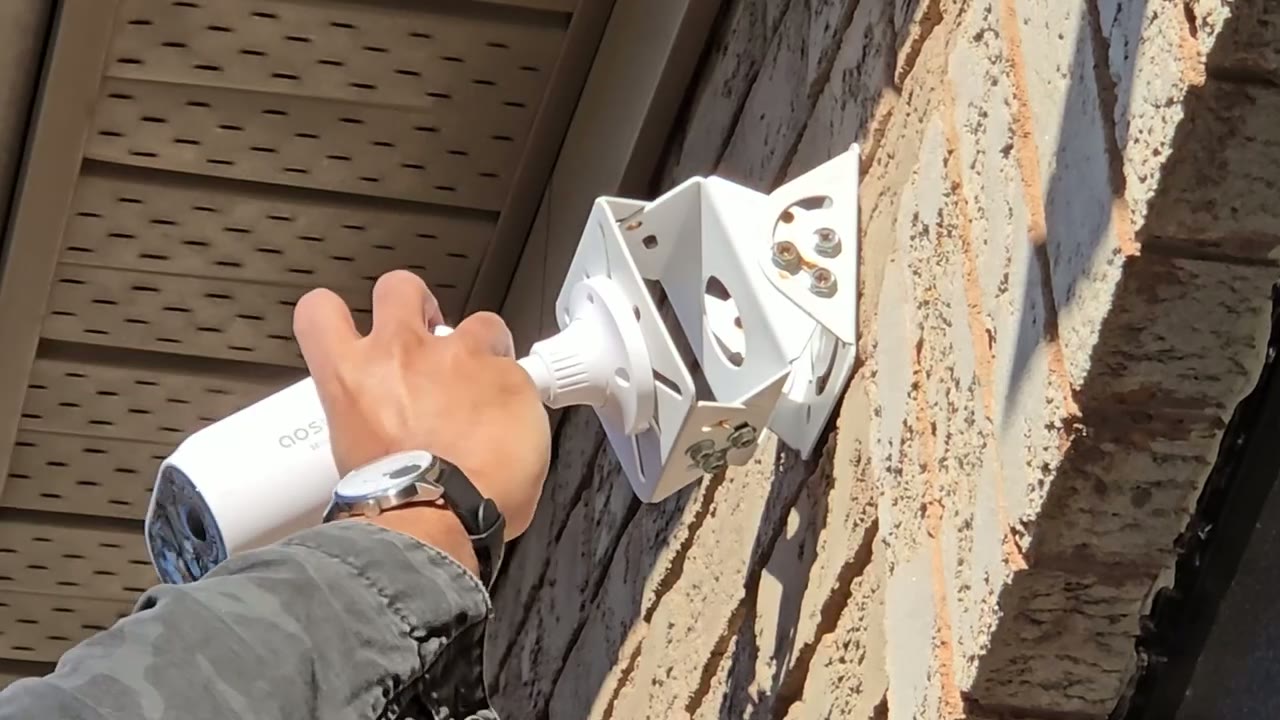
camera installing the cameras is super easy first you’re going to loosen the mounting arm until you just get the mounting bracket separate drill four holes into a wall or any surface where you’re going to install everything screw the mounting arm back in connect it to the rear of the camera CA body and then tighten the mounting arm once you have the camera angle set let’s take a look
App Settings
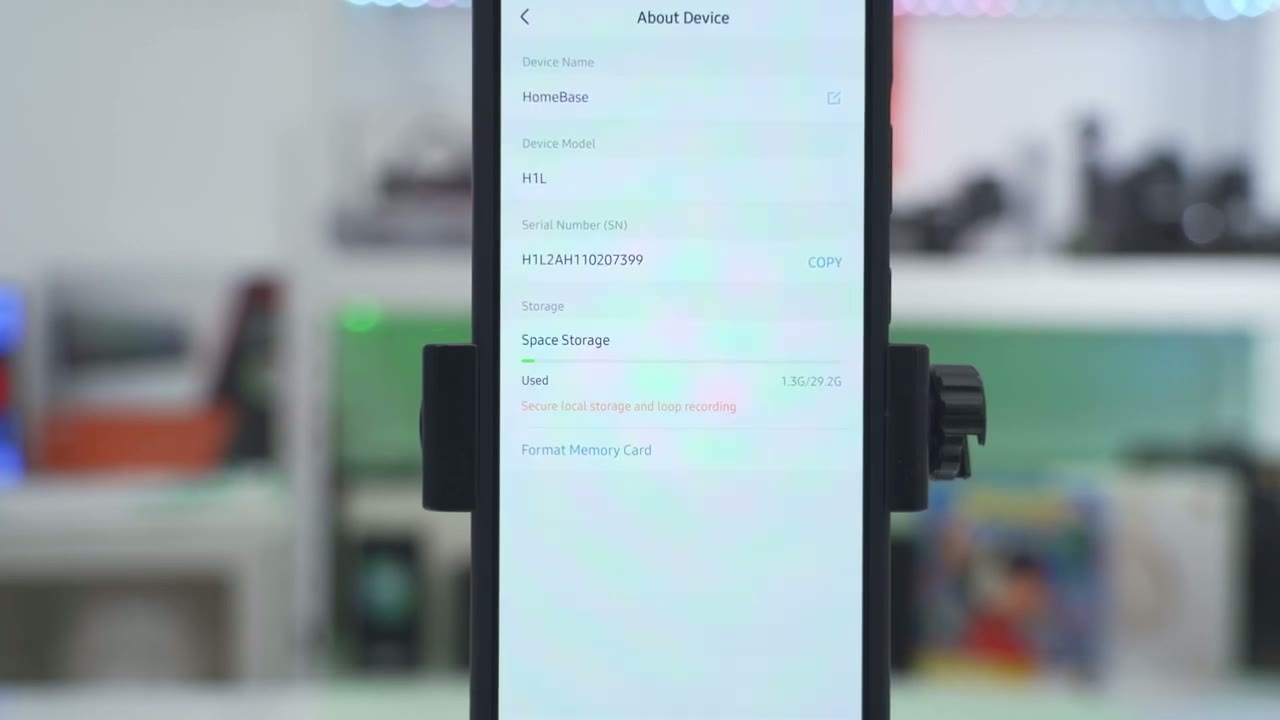
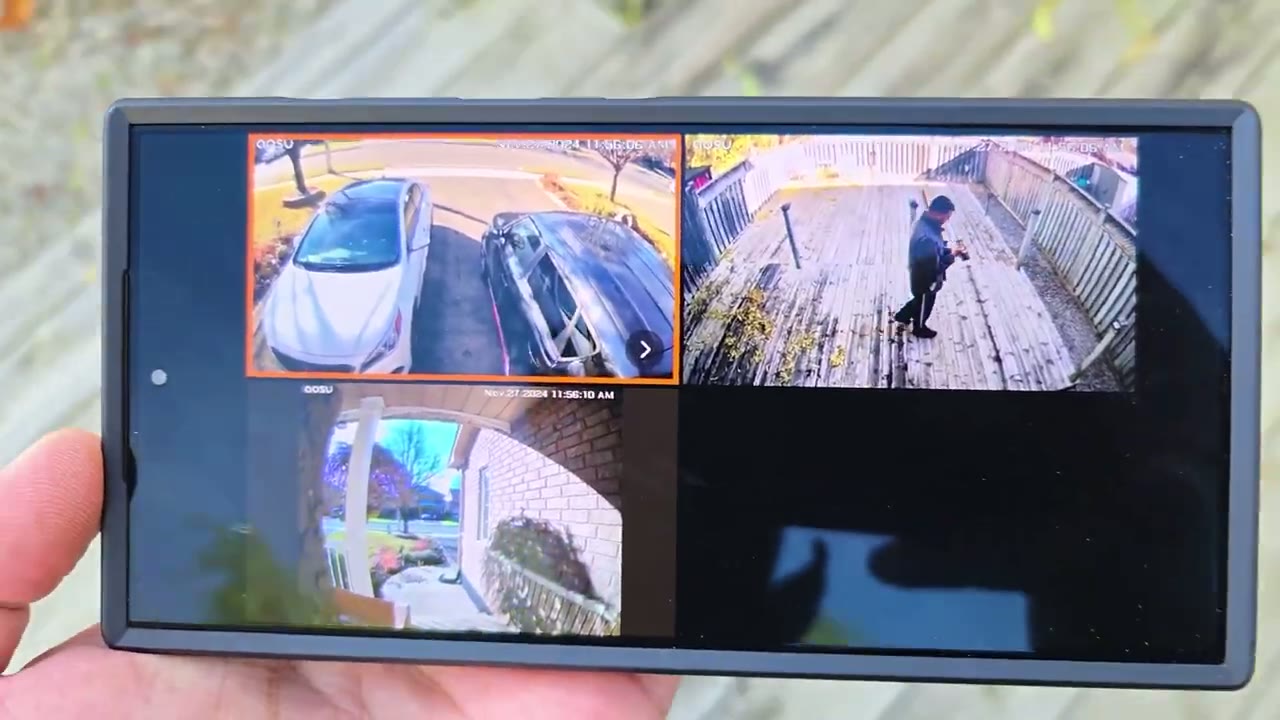
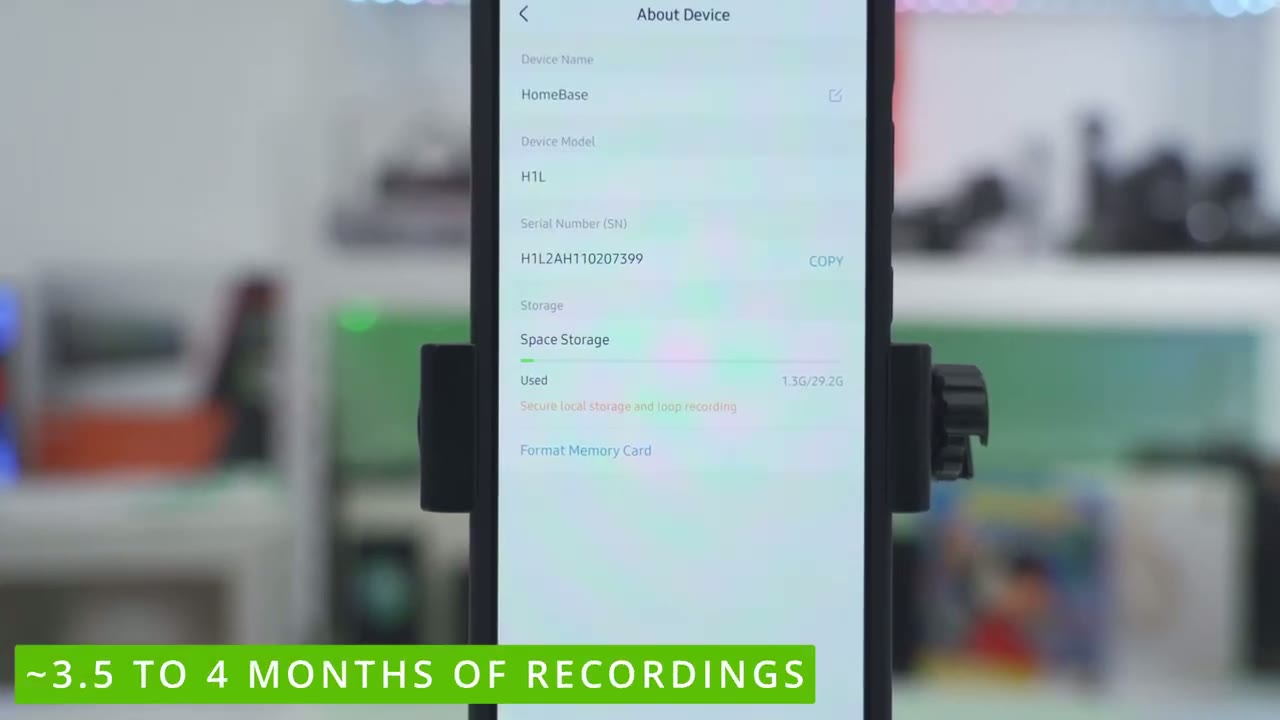
at the ASU app settings so as soon as I open it up I can see both of my P1 SE cameras and I could see that it’s actively being charged right now with the built-in solar panels on both cameras and I’m at 100% so battery life has been fantastic on this even though it’s kind of like winter time with really cold weather in Canada I could see the Homebase status and the battery life on my ALU video doorbell now very important is this view multicam and when you tap on that it’s going to pull up a simultaneous live view of every ALU camera that you have installed so you can see right now I have three installed this is fantastic I can monitor the front of my house the driveway my backyard and my doorway to see you know if there’s any packages or anything like that super handy feature now when you’re looking at the um camera overlay here we could jump into here to start live view you can also go ahead and snooze the camera from 30 minutes up to 12 hours this is hand if you’re know you’re going to be coming and going or you’re having a party you don’t want it dinging all the time you could do that we can also jump into a vents here you could see it’s broken down into cloud and storage let me just reduce the volume there microphone pickup is really good on here um and then we can also go into the full settings for the camera let’s go into live view next and you can hear the wind is going it’s a very windy day out there right now I’ll just cut that now from here we could go into events as well and I am looking at this in the UHD quality but you can switch it to standard definition if your connection is not that great you can also start a manual recording and stop that at any time if you were looking at live view and you saw something interesting you can also take a screenshot all of this is safe to your phone’s uh gallery and then you could just cut off sound so every time you open Live View it’s not going to be playing at full volume now at the bottom we have this option for illumination you could turn the spotlight on uh manually if you like you can also go into tone and that’s just going to change or add a voice filter to your voice you can also initiate two-way talk if someone’s out there you could tap on alarm which I’m not going to do right now and then you can also issue these uh preset voice alerts you know put the package the door what are you doing here get out of here now I’ll demo those later so we can also go into a full screen mode and you do retain the same controls there now if I zoom in you can see like the detail on here like you can actually see the brick work on here these are my you kind of Pathway lights so yeah the quality is pretty good for the resolution on here but let’s jump into the full setting so I can see the camera is on you can also share the device with family and friends uh by email you could just invite them now under motion detection so I do have it on you can also set a detection Zone if you kind of want to reduce um false positives or you know you don’t want to trigger it when your neighbor is coming and going you can also set it to human only detection so it’s not going to you know kind of notify you or record if cars are moving or you know leaves are swing now I’ve left that off actually to see just how well the battery life is working with you know it recording everything and it’s working really well you can see I just got a push alert that there’s motion at the camera right now now you can also set the Sensitivity I like having it on adjust automatically but you can also set it you know um have it where it’s a very uh tight distance from the camera so they have to be really close or you could put it to far and of course if if you put it on Far um it’s going to deplete battery life a little bit quicker so I just leave it on automatic that’s been working well you can also set an automatic alarm when motion is detected and you can see if you do turn this on you could set this you know all day or you could set specific dates and times and then actually you can even set you know do you want a white light do you want the alarm sound do you want both and I’m just going to turn that off because I have a lot of motion going on I don’t want it automatically there but if you live somewhere remote this would be handy to have under notification settings um I do have it set up to receive push alerts which you saw just now and then you could set the day and time uh of those alerts you know if you don’t want to get those while you’re sleeping for ETC and now you can set it to immediate mode or intelligent mode now immediate mode you’re going to get the notification very quickly as soon as motion is detected but if you set it to intelligent mode it’s going to kind of analyze that footage and then send it to you so you will get the notification a little bit later or delay but I just prefer immediate mode um just so right away I know something’s going on under night vision we can set it to Black and White Night Vision color night vision or you can turn off the infrared light completely if you have you know a really illuminated uh scene or area now I’ve just left it on color night vision and even with that it’s been working pretty well um in terms of battery life and the spotlight coming on now under Cloud recording this is completely optional um I’m using the storage the home base that came with the cameras but Additionally you could go ahead and get you know like one of their premium plans starting at 7 us and this is a monthly plan and it’s going to cover recordings for 30 days but the home base has been very adequate for me I’m going to get like tons of months of recording so not needed for me under video and audio you can set it the streaming quality so this is not recording quality this is the streaming quality so I have it set to the 2K mode but you can put it to smooth mode which would be that SD mode I showed in live view and this is if your internet connection is not very strong you want it in smooth mode and then you could change the volume for the 2way talk speaker it does get quite loud that’s why I have it halfway under privacy settings you can set it to recorded sound and you can also set privacy zones um to block the camera from seeing certain areas and that’s if you need to block out you know kind of your neighbor’s area uh to comply with regulations then under battery management you can see I have a full 100% And it’s charging currently um the solar charging now when I installed this it was at 100% it’s very cold in Canada right now and it’s still at 100% even with um you know all motions being recorded now you can set it to power saving mode or intelligent detection mode in power saving mode it’s going to only record up to 20 seconds and then um it’s going to kind of implement like a cooldown time so that it doesn’t record the same thing again but if you put it to intelligent detection mode it can record a maximum of 60 seconds per event and that’s what I’ve put on here and the battery’s life is still fantastic and this is the toggle you would use to see the battery life um on the app when you first pull it up now under schedule sleep you could set the camera to you know sleep and not be active During certain times maybe when you’re at home for example and then you could also turn on the LED status light I highly recommend having this on so people know the camera has power and it is working there’s also integration with Amazon Alexa and Google under the Homebase settings we could see the cameras paired with it and you can add more cameras on here so you can kind of cover your house you know north south east west if you wanted to and then if we go to about device this is where we’re going to see how much space has been used so far so this gives you around 32 gigs with 29 usable and I’ve used about 1.3 gigs for I would say about the week I’ve had this installed which is quite good so I’m easily going to get you know months of recordings based on my home setup of course it’s going to vary for you and it does have Loop recording so that whenever it’s filled it’s just going to start overriding the older Clips let’s
Video Playback
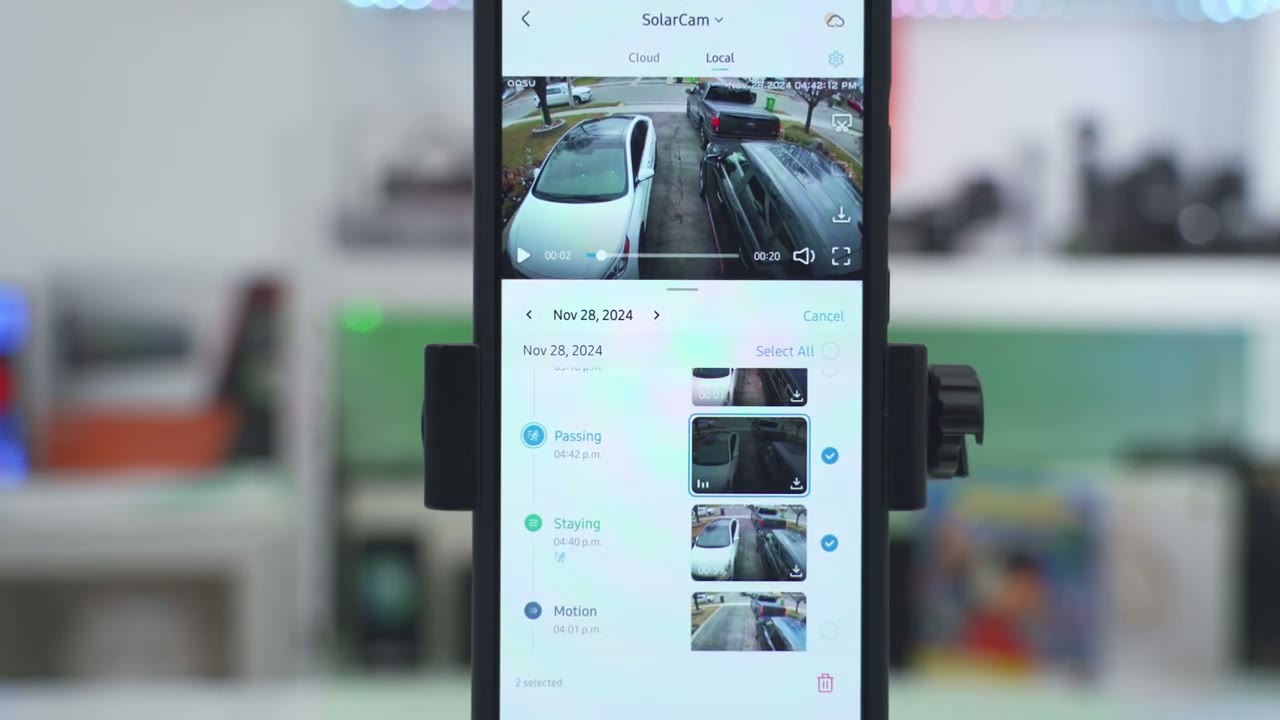
take a look at the recorded video so we’ll tap on events here and you can see it defaults the local and it shows um you know motion motion motion and you can just go ahead and actually download these clips to your phone just like so and you can also hit this icon at the bottom right to download Clips it’s extremely fast and quick to get get these on your phone and share them let’s go back to another day when I had a bit more traffic going on so on November 28th I could see here there is motion motion um passing staying so it actually breaks it down so you know what’s going on and if you tap the filter icon here this is where you can kind of filter the events so you can kind of nail down exactly what you’re looking for you can also go into hair and you know just go ahead and delete clips that you no
Video Quality
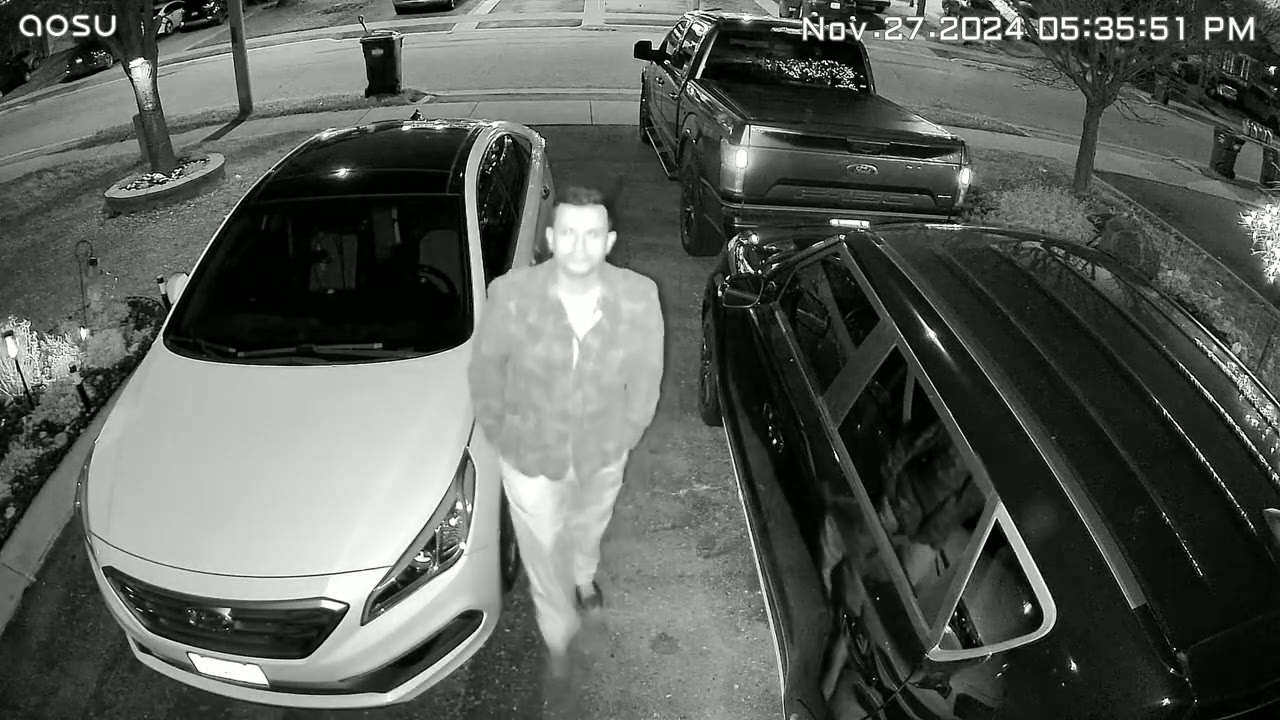
longer need the 2K video quality looks fantastic and it’s easy to make out faces up close to the camera or even further out and in most cases you could make out license plates a good 15 to 20 ft away daytime video looked sharp and there was a lot of details during the day when the sun was fully out and even when it was overcast when it comes to night vision video you could set it to color night vision or Black and White Night Vision if you set it to color night vision it’s going to activate the spotlight anytime motion is detected and it’s easy to make out faces because everything is nicely illuminated you could still make out details with the black and white night vision but it’s not as clear as having color night vision and if a subject is super close to the camera it’s harder to make out details but most people are not going to have their face right up to the camera
Cross Camera Tracking
let’s take a look at Cross camera tracking which is a great feature on here so versus scrolling down and finding it I could see it right there you can also go and tap on the filter icon hit cross camera tracking and notice that unlike the other Clips this shows a stacked uh video clip icon which means this is a sequence of Clips so I’ll go ahead tap on that and it shows me uh starting in my backyard and you could see a horizontal timeline of my movement so this is how long the clip length is 41 seconds so I’ll just Advance it to above 30 something seconds and this is going to be me exiting my backyard I’m going to walk the side of my house and then just make a right to my driveway so I’ll just advance to the next clip so that’s me just cutting across and walking um near my car and what I’m going to do is I’m going to loop around and walk you know back to my backyard and this is the clip length now I’m not going to let that play out I’ll just hop back to to when I entered the backyard again and you can see that’s a very fluid and seamless cross tracking experience it’s really simple to use and if you had four cameras you could have you know a full simultaneous live view so you could monitor every aspect of
Motion Detection
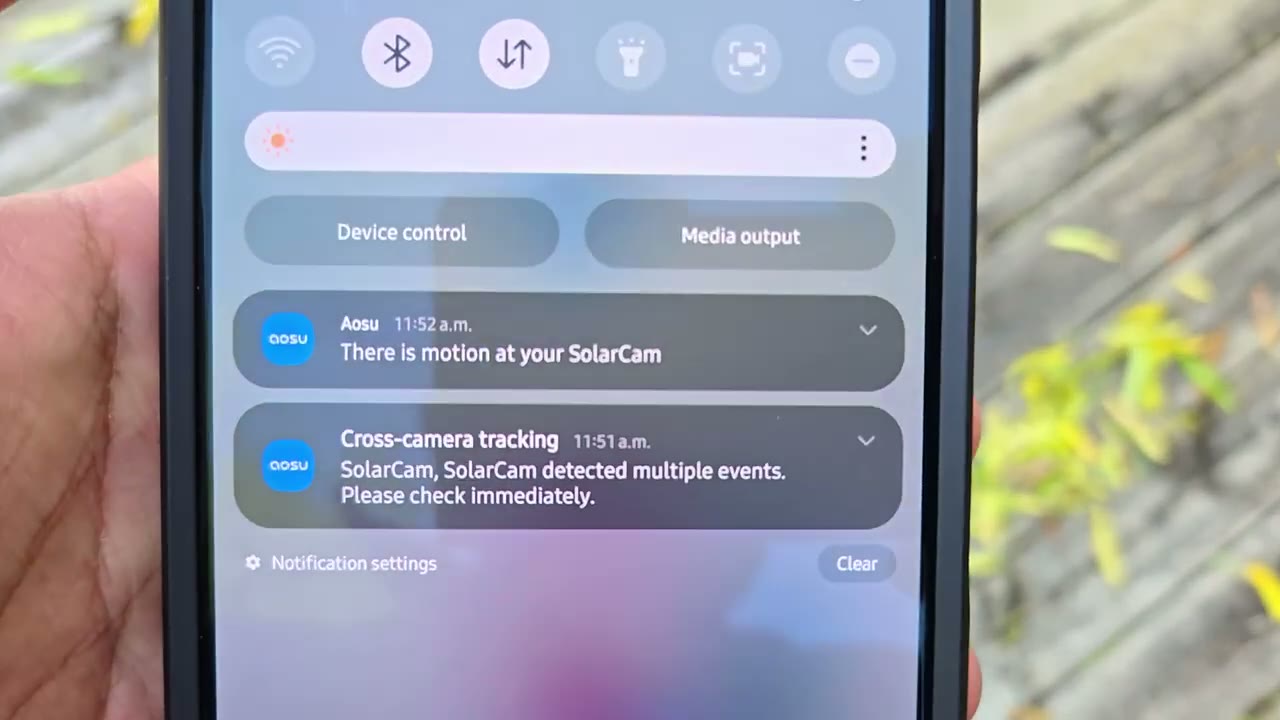
your property motion detection is pretty decent as well so with my testing it takes anywhere between you know 6 to 13 seconds from when I started moving the camera detected that I was moving and then pushed an alert to my phone once the camera sends an appler to your phone you can see if it was just kind of General motion if someone is lingering around you’ll see if it’s a cross tracking type of motion detection the
Spotlight
spotlight on here does a decent job considering it’s a very small Spotlight but you know it does illuminate a good amount of area directly in front of the camera to make out faces and just to act as a visual deterrent if anyone’s you know kind of walking up your driver or looking around your backyard here’s an
Speakers
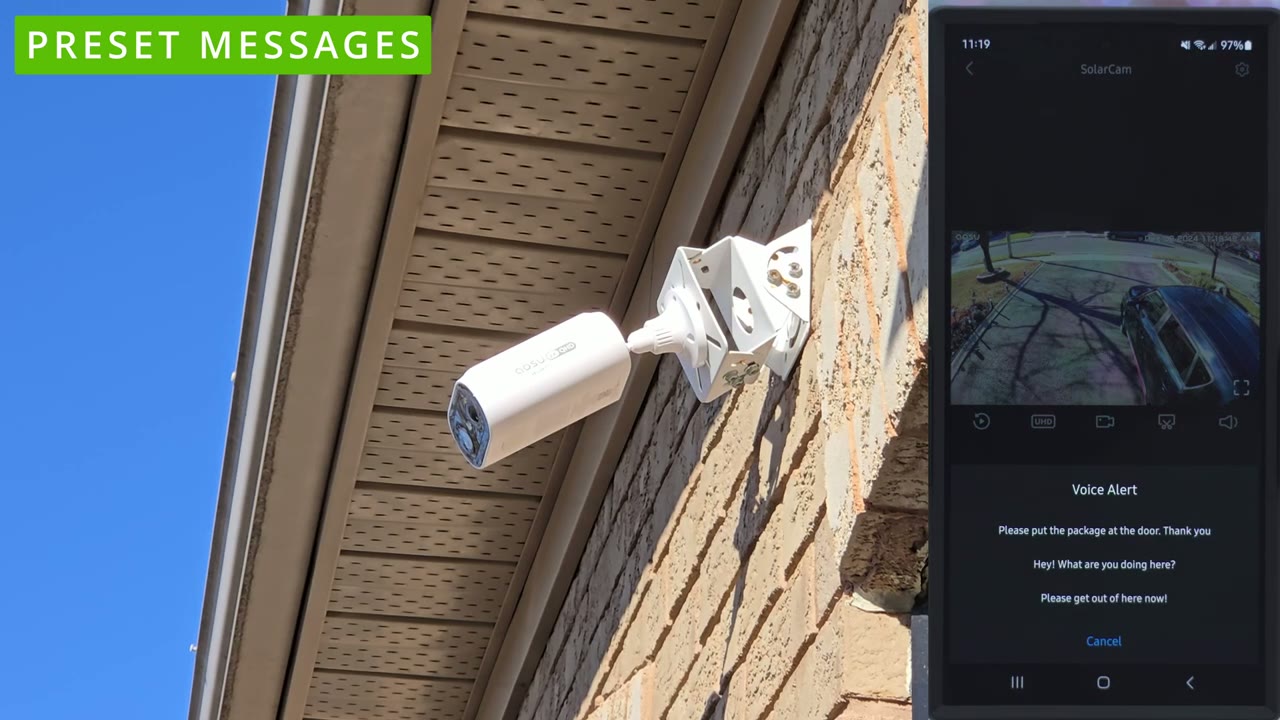
example of what s to sounds like please put the package at the door thank you hey what are you doing here please get out of here now in terms of
Storage
storage so I have about 29 gigs usable and in the week that I’ve had the camera up I’ve used 1.3 gigs so I’ll easily get months of recordings before it even starts with overriding old footage Now
Battery
battery life is what has seriously impressed me with this camera system because it’s you know fall almost going into winter in Canada right now temperatures are very cold it’s been very windy a decent amount of overcast day and you know drops below negative overnight and the cameras are still at 100% both of them so the one in the backyard obviously is not seeing a lot of traffic it’s at 100 that makes sense but even the one at the front where there’s a ton of traffic cars going by people walking that’s still at 100% too so the solar charging on here is very
Recommended?
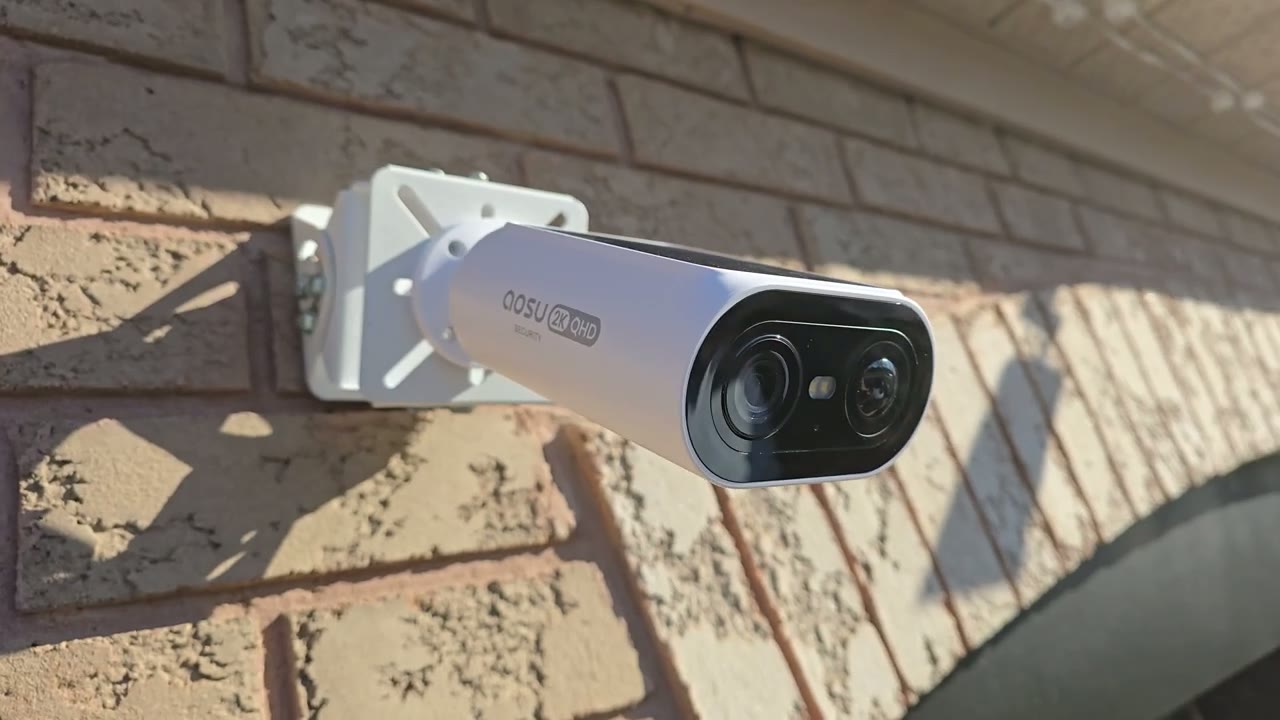
efficient really impressed so yeah the ALU solar cam p1sc is one of the better solar camera options that I’ve reviewed if you want a camera that has easy installation you don’t need to run you know like an external solar panel there’s good battery life on here it comes with built-in storage you don’t need to you know buy any type of additional storage no added expenses and there’s zero monthly fees the cross camera tracking also works fluidly on here now I have the two camera system but if you add two more cameras or get the 4 camera kit you can have even coverage and then if you use the multicam option on the ASU app you can have a live view of every single ASU camera kind of installed on your property so you can see everything at a glance so if you’re interested in picking up the ASU solar cam P1 SE I’m going to leave links down below to check it out and I’ll also leave a coupon code down here where you can get 15% off on the ALU website if you found this video helpful please consider liking and subscribing it truly does help me out as a growing Channel and I appreciate every single one of you who watches my videos and don’t forget to check out some of my other security related videos or Tech in general I cover a bunch of different things you know headphones computer monitors computers laptop so there something for everyone and I hope to see you in the next one soon
Buy aosu Solarcam P1 SE on Amazon
Please note that some of the links in my video descriptions are affiliate links where I earn from qualifying purchases. As an Amazon Associate I earn from qualifying purchases.

