


Buy Logitech MX Master 4 on Amazon
Buy Logitech MX Master 4 MAC Model on Amazon
Please note that some of the links in my video descriptions are affiliate links where I earn from qualifying purchases. As an Amazon Associate I earn from qualifying purchases.
Intro
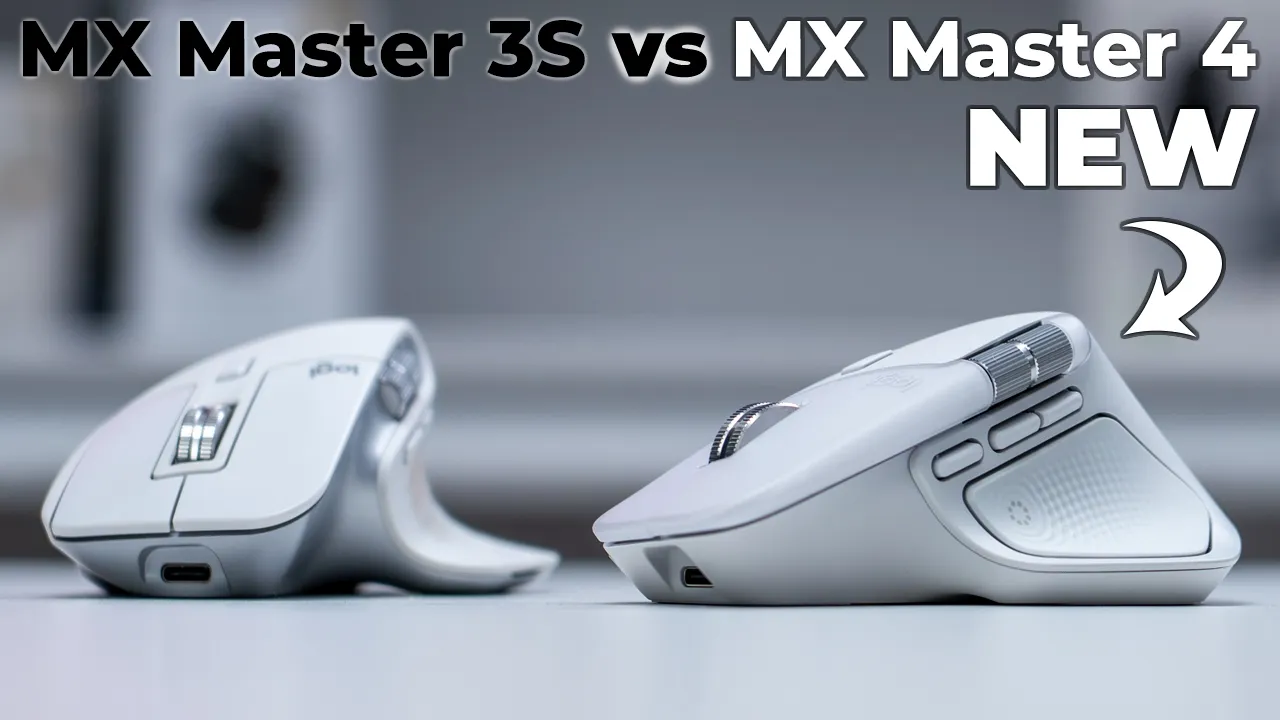
Hey, it’s Adrienne and the brand new Logitech MX Master 4Mouse is finally out. I’ve been patiently waiting just like a lot of you, because it’s been almost 3 years since the release of the MX 3S mouse. Now they’ve made some great changes in some areas, but a lot of things have also not changed. So is it actually worth the upgrade if you already only MX 3S? Well, let’s take a closer look and find out.
Package Contents
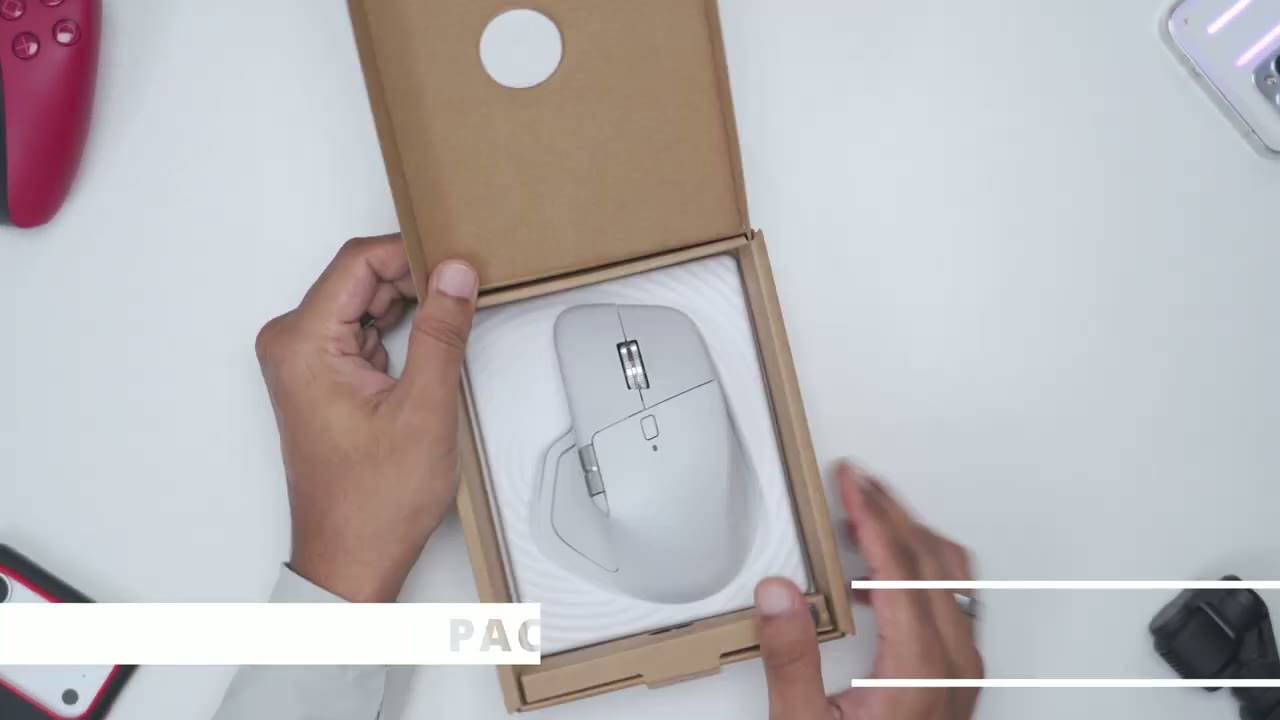
In the box, we have the Logitech MX Master 4 quicksart guide and documentation and USB-C Logi bolt.
What’s Changed?
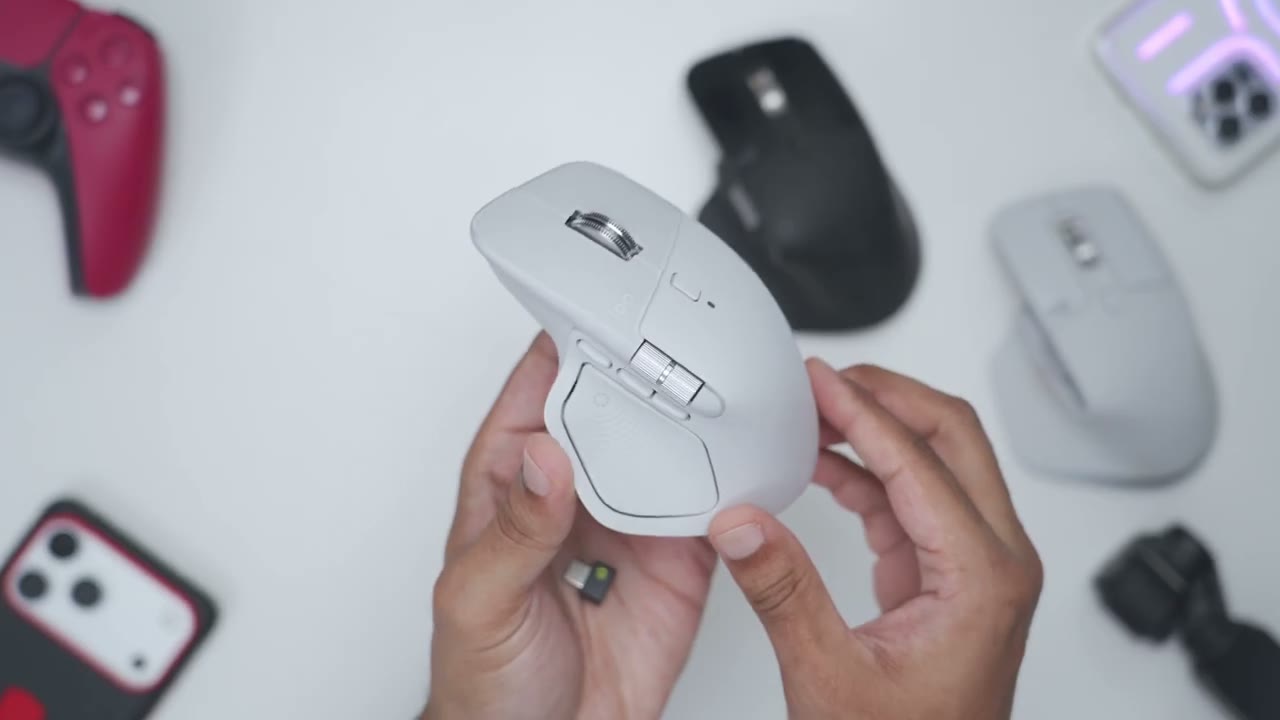
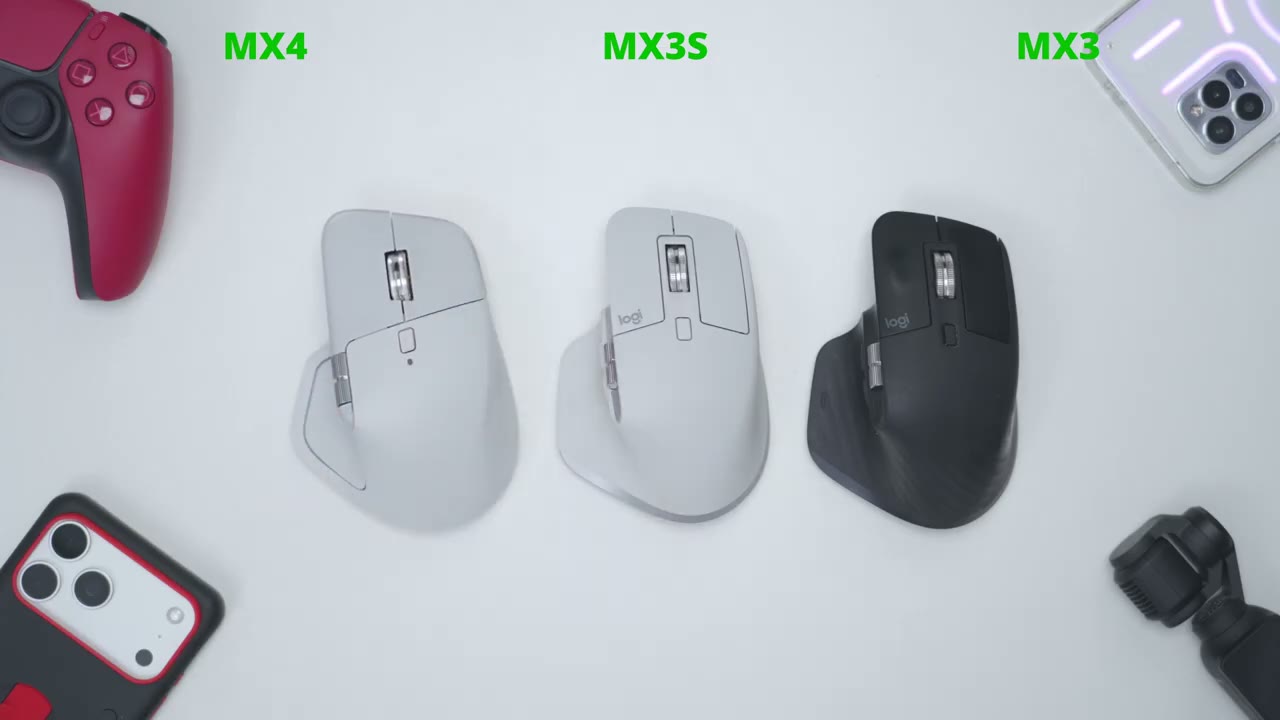
So what’s really changed from the MX Master 4 to the MX Master 3S which I have here? Well, one of the changes is that the wheel is actually supposed to be a smoother transition when switching from the ratchet mode to the free spinning mode. The other change is that the Logi bolt receiver is now a USB-C connector instead of a USB-type A connector. Logitech also claims two times more robust connections strength and crowded RF environments. The claim to fame is the new haptic functionality with limited support for a certain software and action ring overlay that you could see on the screen, which isn’t unique to the MX 4G internet later. There’s also an additional button added and some of the exterior materials have changed so it has less of that soft touch coating.
But let’s take a closer look at the design now.
Design
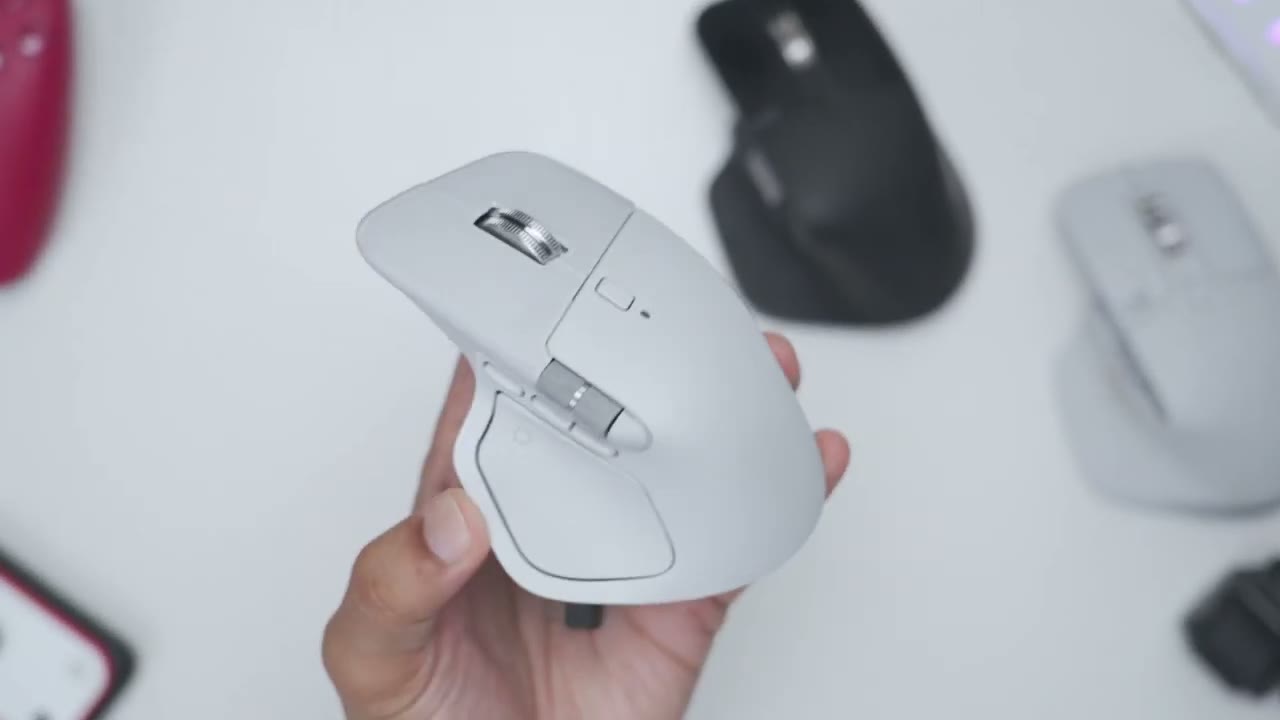
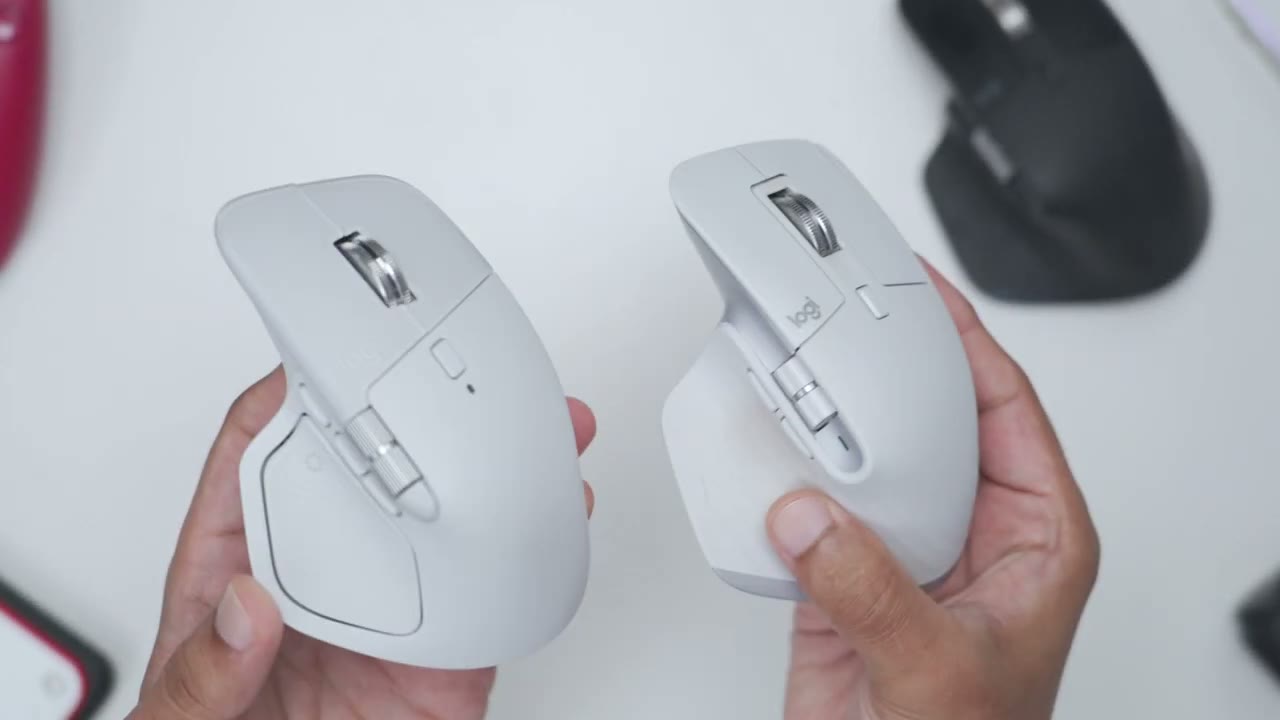
The MX Master 4 Mouse is coming in at around 9 grams heavier when compared to the MX 3. I have the Pale Grey version of the MX Master 4 but it also comes in graphite and black as well. Now if we take a side view and I compare that to the MX Master 3S, you could see that it’s just slightly more elongated when comparing both of these by maybe a few millimeters. Now notice on the MX Master 3S I do have this coloration right here where my thumb would always sit. This has something a lot of people had complaints about due to the soft touch coating that was used on this and on the MX 3.
And that’s been kind of rectified on the MX 4 because we do have silicone grips on the sides here and then we have kind of a hard plastic at the back here where previously this was that kind of soft touch coating. There was you know really prone to getting this color. So long term you know hopefully this holds up better and due to the slight elongation this is going to be better if you found the MX 3S or MX 3 a little bit small for your hands. Now if I just rest my hands on there you could see it’s a pretty good grip that I have on your fairly ergonomic not really much in the way of gaps around the mouse.
And if you look at where my fingers rest kind of a top down view I still have a lot more room to go if I had longer fingers and my middle finger is still resting nicely on the other button. So overall in terms of grip and hand feel it actually feels good so far. If I contrast that to the MX Master 3S you could see still the same nice grip and curvature. Now my thumb is almost at the end here and if we do a top down view you could see my middle finger is actually extending slightly above where the button and so yeah definitely if you have larger hands you’ll like the MX Master 4 coming back to the MX Master 4 you could see my thumb actually doesn’t extend past her so you know it feels pretty comfortable.
And you’ll notice that we now have one new button added here whereas on the 3S we only have two buttons front and back. So you do have an additional button that you can remap and when we also have this kind of haptic area and you could see it does have a texture here so it adds you know a little bit more grip. Now one thing I did like on the 3S is we kind of have this angled rich lines go across here which makes a look kind of cool. I do kind of missed that not being on the MX 4. No when I press the button here you can probably hear that’s an audible click and you know it’s immediately a parent you’ve pressed it however on the MX 4 when you press down. You can see the entire area is shifting but you’re not really hearing an audible click so that’s something I don’t really like.
The LED indicator light has now been moved to the top of the MX 4 and on the MX 3S that light was on the side here. The horizontal scroll wheel is also longer on the MX 4 Comparter the MX 3S again if you have larger hands you’re going to like that. I also notice that the horizontal scroll wheel is a less tension or less friction so it’s really easy to just go ahead and rotate that. However on the MX 3S it has a little bit higher of a tensioning or resistance and actually do prefer the feel on the 3S compared to the looser feel on the 4.
The side of the MX 4 also has a texture type of feel so it does improve grip ability and it actually feels good on the finger and if I do a side view with the MX 3S you can see just how this scholar that is on the side so yeah I’m really glad they’ve switched the material out on her. Note that the mouse buttons are not held in a frame like there are on the MX 3S so this actually looks a little bit cleaner to me. The front has the USB Type-C port which is what we’re going to use to just top this backup anytime the battery goes down and you can also store the USB C-Logible receiver right in the front here as well. The buttons on the MX 4 also have this kind of frosted or matte type of look to them and on the MX 3S it were just a solid color.
I also like that the Logi logo just kind of blends in with the background of the mouse compared to on the 3S where it’s a very prominent. Also note that the button length on the MX 4 is shorter than on the 3S. Now this generally won’t be an issue if you hold your mouse like this you can see it’s easy to click. But if you were to use something more like a clock grip when you’re using your mouse it doesn’t extend far back as on the MX 3S so just something to keep in mind. The MX 3S will definitely flick sway more effortlessly and it’s a more smooth and fluid type of experience and it actually generates less noise while doing so. The MX 3S is still perfectly usable but it’s just a little bit louder than on the MX 4. Of course you can also click in the scroll wheel as a button.
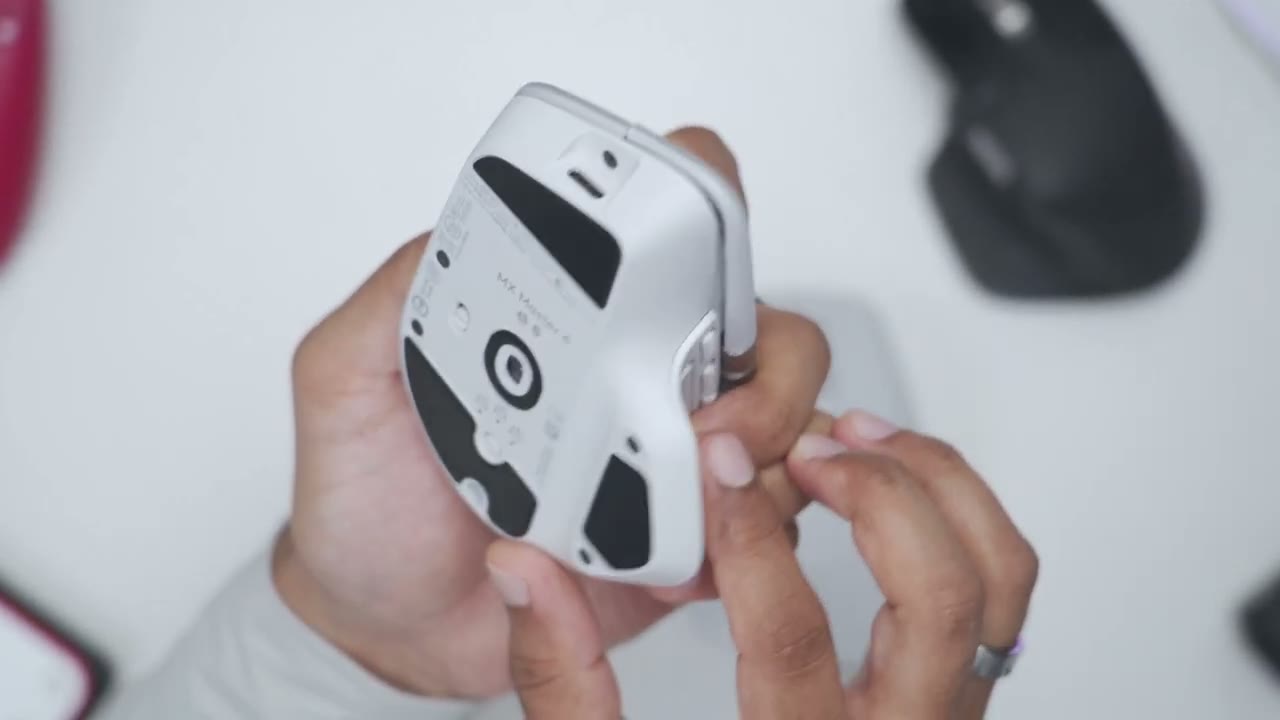
And it does seem that the click is louder on the MX 4 than on the MX 3S. Switching these spin modes is also a little bit quieter on the MX 3S. The bottom of the mouse has the power button which has been moved to the side compared to on the 3S where it was at the very top of the mouse. You also have the same type of device switching button and then we also have larger feet at the bottom of the mouse compared to on the 3S. Now one thing I noticed is that they’ve added one of these feet around the sensor which was not on the 3S and we also have exposed screws on the bottom of the mouse now which were not present on the 3S so this will be easier to open up.
Also note that where the button is on the 4 I can actually go ahead and kind of pry this up because it’s not held in place by any type of frame. The MX 3S also has the same type of issue where it can be lifted up but it just seems a little bit easier for something to kind of get snagged under this button on the MX 4 compared to on the 3S. I’m only pointing this out because if you travel often and you can just pack your mouse and your laptop bag or whatever, you’re probably going to want to put it in some kind of container so this doesn’t get snagged on clothes or a wire or something like that.
Ergonomics
In terms of hand feel and ergonomics both mice feel really good the curvature of them really suit my hand well. But I did notice one thing that’s a little bit better on the MX 3S so as much as I hate the soft touch coating on there. When I put my hand on here it’s planted and very grippy the mouse is not going anywhere. However if I do the same thing on the MX 4, the mouse has a tendency to just kind of slide forward a bit because as I put my you know kind of palm pressure on the curvature here. Because it’s not the soft touch coating and it’s just kind of smooth hard plastic the mouse just kind of sometimes will go forward a little bit. So I just had to adjust my grip to you know more like this so as soon as I grab on it it has less of a tendency to slide away.
Even though they’ve added a type of dimpling pattern on the hard plastic the help of grip and maybe you know breathability. It’s nowhere as grippy as on the MX 3S. And I’m not saying I want the soft touch coating through a turn and it’s made my MX 3S look horrible but just something to keep in mind with the hard plastic. You know if there was a way to kind of added you know maybe angled silicone side trips like kind of like how we have this kind of angled ridges on the 3S. Maybe that would have been the best of both worlds. And it is definitely noticeable that the MX 4 is heavier when I’m kind of grabbing it and moving it around. Compared to the MX 3S, but you know I kind of do not mind having a little bit of half to my mouse so this is not a deal breaker for me.
So while the curvature is slightly different on the MX 4 I still find it just as comfortable as on the MX 3S. But yeah, let me know what you guys think of the design changes on the MX 4 and if you prefer it over the MX 3S or if you still prefer the look of the MX 3S. I 100% prefer the sound of silent clicks I really liked when it was implemented on the 3S.
Click Noise Test
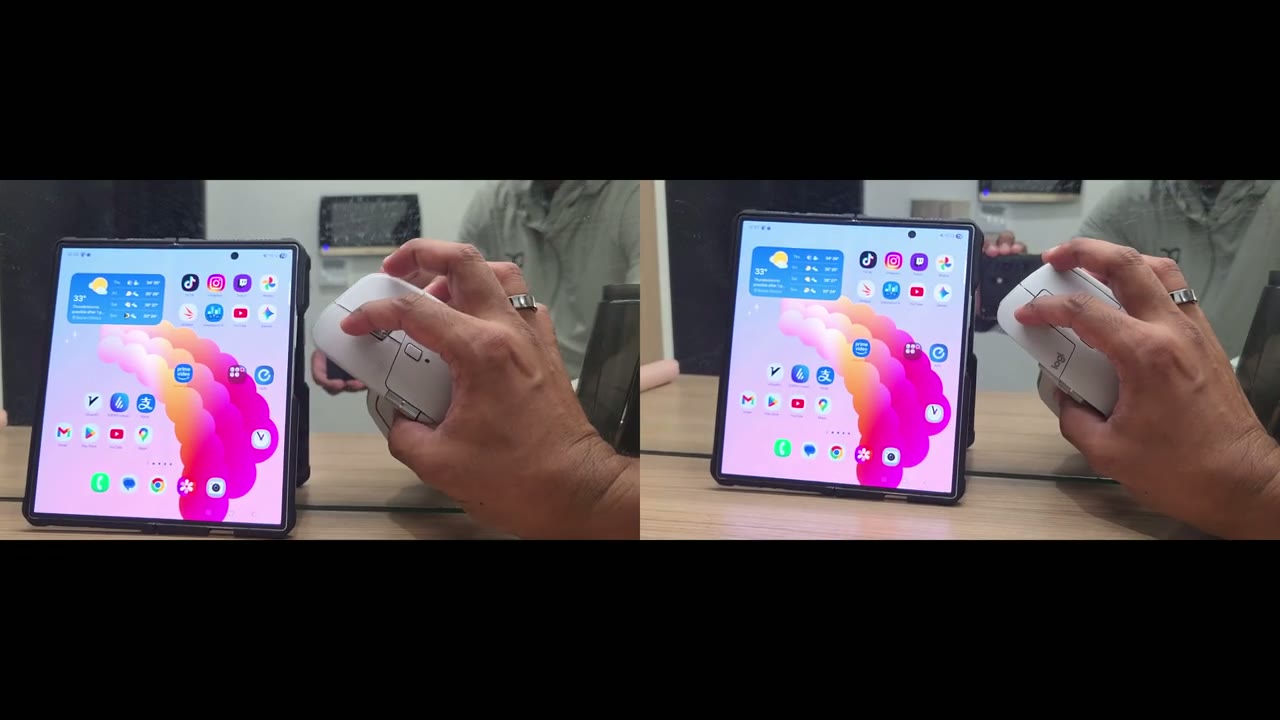
Now they’ve actually improved that on the 4 so it sounds even quieter and it sounds less hollow so it sounds better to me. However that in no way affects the tactility when you press the mouse button on either of these mice you know you’ve pressed it. Here’s a demo of what the click sounds like between the mice. The tracking is fantastic on the MX 4 same as on the MX 3S even on glass.
Tracking
If we jump into the logic option software and I click into the MX 4 so there’s a whole bunch of options for every element on here.
Software
So for example if I tap on the middle button you can just have it act as a middle button and you have all of these other options. There you can see pretty much anything you want to do you can do on here same with the shift wheel mode you know. If you know you always like it in the kind of free spin mode you can remap this to do anything else that you like. But what’s more important here is the new added button the gesture right here. You can see there’s some preset stuff so there’s one for virtual desktop but you have like media controls etc. But if I leave it on virtual desktop so it’s showing if I hold this and then I do mouse up it’s going to bring up the circuit menu which you just saw there.
And then if I hold it and do mouse down it’s just going to go ahead and hide the desktop look at the actions ring. Now this says new and don’t be fooled this is not only applicable to the MX 4 you can do this on the MX 3S as well. But if I go into configure action ring this is where you can set up kind of custom things that you could do in each software. So right now I can do that for a different she was all illustrator photoshop zoom etc. Now if I jump under the general profile there this is what you’re going to have by default. You can click into any of these remove these actions and add new actions. And if you hate just kind of rotating the mouse to the bottom pressing that button to switch between devices.
I’ve actually mapped it so I can switch to my first device my folding phone instead of having to flip the mouse over. Now you could jump into the marketplace and you could see these are all of the different apps so you can sort it by you know whether it’s Windows, Mac or you could just go under audio creativity lighting etc. Now if you want to look at apps that specifically can take advantage of the haptic feature. Let’s just do all you could see there’s only three currently that will respond to haptic functionality. So you know this has a long way to go if you’re really buying this mouse for the haptic features. Let’s take a look at the smart actions ring so if I go ahead and tap it right in the corner here.
You can see it’s going to bring up this overlay and as I mouse over each of the different elements here. The mouse is actually vibrating due to the haptic feature but for example under change text size you could see I could use the horizontal scroll wheel to increase the text size or the vertical scroll wheel as well. Both of them will do these for you. Again, you can do this on the MX 3S. You do not have to get the MX 4 to do this type of stuff. Now we can also go under haptic feedback. You can see if I tap into this I’m going to get more options. So right now it’s at the subtle. But you can change it to high and it is really high the vibration is a lot. It does say a stronger vibration consumes more battery power of course.
Now don’t be fooled it is also consuming battery even on subtle and you can turn this off completely if you don’t want to use this. But again, if you turn this off then why are you really getting the MX 4 because these smart rings features on the MX 3S. I have changed the button press sensitivity of this area. So I have it on light that’s been working well for me. I haven’t had any type of accidental process. We can switch it to medium hardware firm which does require quite a bit of force.
Haptics
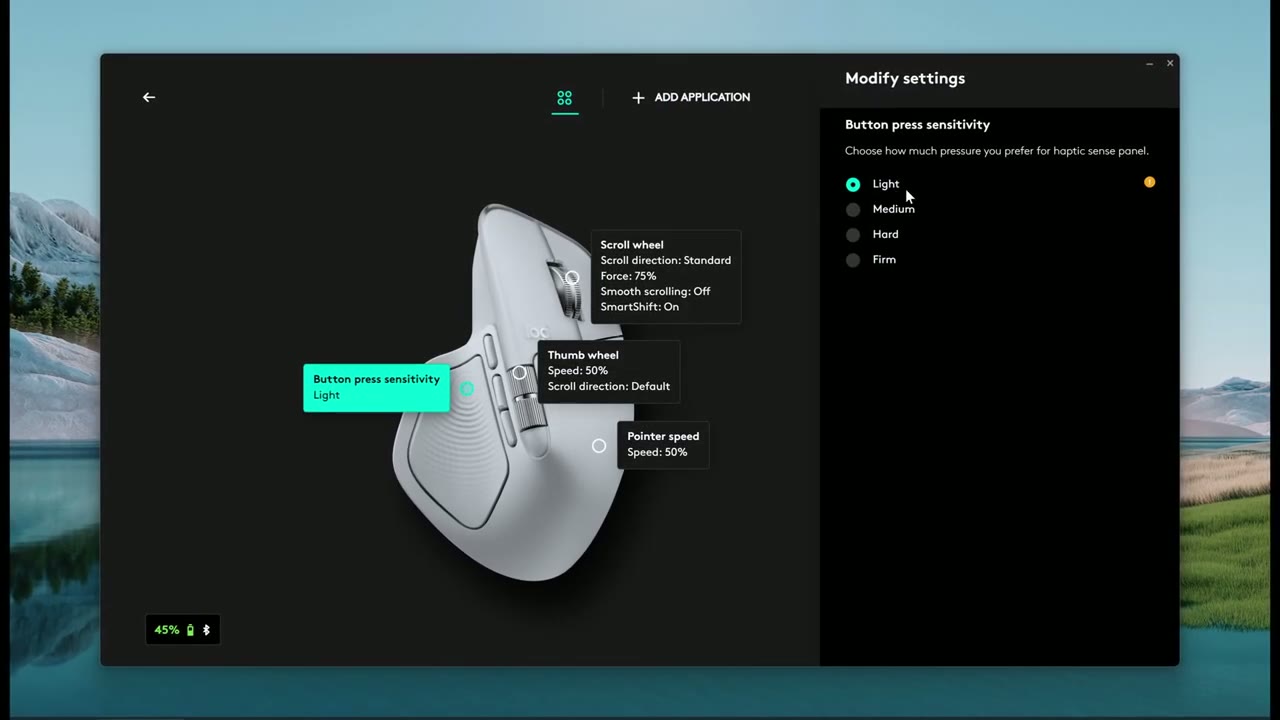
Let’s talk about the haptic experience because that’s kind of the claim to fame in one of the reasons to upgrade to the MX 4. And I really do not like the haptic feature even setting it to the lowest intensity. I found it to be this tracking. The reason why is while I’m working like whether it’s in Photoshop, Illustrator, etc. I’m seeing what I’m doing on the screen. I don’t need the mouse to give me secondary feedback or type of hybrid in my hand that hey I’m doing something I’m seeing in real time on the screen. Even my cell phone i turn the haptic off like while I’m typing I don’t want vibrations on navigating around. I don’t need vibrations. I’m looking at my screen. I’m not doing this blind or with my eyes closed. So I just wanted to be distracting.
The other thing is this is going to tax a battery life quicker. So maybe your a fan of haptics I really didn’t find it and added anything to the experience except being distracting to me.
What’s Unchanged?
Alright, let’s talk about what has not changed. So the MX Master for still has a polling rate of 125 Hz which is really weak in 2025. You know a lot of people have been asking for higher polling rates since the MX 3S and Logitech has still not listened. I don’t even think they should call this the MX Master for it. This should be like the MX apprentice until it can actually rank up to 125 Hz. The other thing is that you can’t actually connect a USB-C wire on here and use that as a wired input. All that does is charged them out. So it’s already connected to the USB port but it won’t let you actually use it as an input like how much sense is that made. If you’re someone who uses a ton of devices like I have three phones, a laptop, a desktop.
What if I just wanted to use wired on one device or a device that doesn’t have Bluetooth so I could save the other input options like the Logi bolt and Bluetooth for other devices. Well, you can’t do that with this mouse. Also if you had wired more on here you’d have zero latency if you had any type of interference around you. Now they are saying they’ve improved that with the wireless connectivity still. There’s also no onboard memory on a mouse so you can’t just download the Logi tech software configured a mouse exactly how you want. Then go ahead and pair it on another laptop or another device because there’s no onboard memory. You need the Logi tech option software to be running in the background to get full functionality.
Now, where this is problematic is if you just want to take this to work, so you can figure it out at home. You want to take it to work because your work IT policy says you cannot install software for security purposes. Well, you’re really getting a dumb-down mouse experience because a lot of the features and functionality on there are tied to the Logi tech software.
Specs
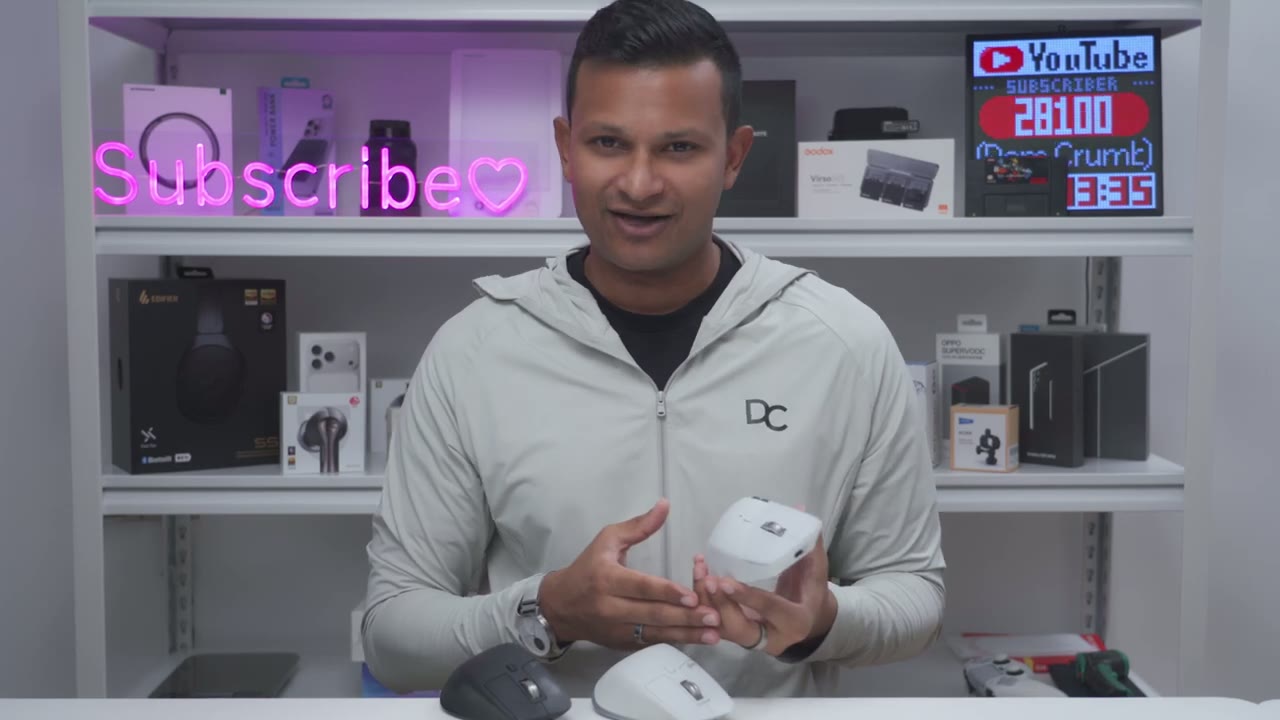
Here’s a quick look at this specs, feel free to pause and review or jump ahead to the next section.
Worth The Upgrade?
So is the MX Master for actually worth the upgrade if you already own the MX 3S or even the MX 3? Well, if you disagree with a lot of the points I’ve made it’s worth the upgrade for you already, if you have slightly larger hands this is going to be worth the upgrade. I mean, my hand fits great on both of these but if you have larger hands you have more kind of surface air to rest your hand on. The other thing is if you hate what the soft touch coating has done to your mice similar to what has happened on my 3 and 3S with the color change and just the material deterioration over time. This is definitely worth the upgrade you won’t have to be cleaning it all the time.
If you want the haptic experience at the expense of slightly lower battery life it’s also worth the upgrade and if you also experience kind of wireless interference with your 3S or 3 then yeah it’s probably going to be worth the upgrade as well. But here’s why I’m not going to be upgrading to the MX 4 and maybe some of you feel the same as well. This still has 125 Hertz polling rate in 2025 which is pretty pathetic given the price of the mouse. There’s no wired mode so that’s one less input. There’s also no onboard memory meaning you need to have the logic option software on every device that you want to use the sun and get full functionality out of it.
So while there were some things that I did like on here like the kind of software clicks on here the smoother scroll wheel which is also quieter as well. The addition of an extra button which can be remapped for everyone. Those are not enough changes for me to give up the 3S, the 3S is a solid mouse still quiet and it’s still serving me perfectly well. I don’t need any type of improved tracking it’s already done that I don’t have any type of signal interference issues. It’s really not worth paying $120 really to have kind of haptic functionality. I still have these smart ring or you know those kind of ring actions on the 3S through the software. But what you think will you be getting before especially if you already own the 3S I’m curious there.
If you’re interested in picking up the MX4 Ali, the link is down below for you to get your very own. I can see some of you wanting to get it just because of the material change and not having to clean this all the time. If you found this video helpful, we do mind liking and subscribing. Truly does help me out. I’m always creating these type of tech accessories and just general tech reviews and general maybe like this video next. And maybe also consider checking out some of my other tech reviews outside of just kind of nice and keyboard also. If you had phones earbuds monitors, portable monitors, or at least something for everyone. I really hope you’ll join me in my next video soon.
Buy Logitech MX Master 4 on Amazon
Buy Logitech MX Master 4 MAC Model on Amazon
Please note that some of the links in my video descriptions are affiliate links where I earn from qualifying purchases. As an Amazon Associate I earn from qualifying purchases.

